---
schema_version: "1"
id: a97fc78561eba422e4427b5dff8b6a1c09dca450e5f672341c2ca322fa6984d8
title: B2C Shop Connector 1.0 の例
collection: mulesoft
version: current
locale: ja-jp
portal_url: https://docs.salesforce.com/mulesoft/current/ja-jp/commerce-cloud-shop-api-connector/1.0/shop-api-connector-examples.md
canonical_url: https://docs.mulesoft.com/jp/commerce-cloud-shop-api-connector/1.0/shop-api-connector-examples
source_site: docs.mulesoft.com
content_type: documentation
content_hash: e40da843fe59eb40ac8b10d226f5f55d8aee93ed64351e2ac663e5a69e6339ba
description: MuleSoft Documentation Site
release: "1.0"
latest: false
---
# B2C Shop Connector 1.0 の例
Salesforce Commerce Cloud B2C Shop API 用 Anypoint Connector (B2C Shop コネクタ) のこの例は、次の方法を示しています。
- Authorize Customer 操作を使用して、Shopper JWT トークンを取得する。
- Get Customer 操作を使用して、顧客の詳細を表示する。
この例では、B2C Shop コネクタの顧客認証接続プロバイダー設定を使用します。
## [](#authorize-customer-フロー)Authorize Customer フロー
このフローでは、HTTP Listener ソースと Authorize Customer 操作を設定して、Postman から Shopper JWT トークンを取得します。
1. Studio で、**\[File (ファイル)\] > \[New (新規)\] > \[Mule Project (Mule プロジェクト)\]** を選択します。
2. Mule プロジェクトの名前を入力して、**\[Finish (完了)\]** をクリックします。
3. **\[Mule Palette (Mule パレット)\]** ビューで、**\[HTTP\] > \[Listener\]** を選択します。
4. **\[Listener\]** を Studio キャンバスにドラッグします。
5. **\[Listener (リスナー)\]** 設定画面で、必要に応じて **\[Display Name (表示名)\]** 項目の値を変更します。
6. **\[Path (パス)\]** 項目に「`/customer/shopper-customers/{version}/organizations/{organizationId}/customers/actions/login`」を指定します。
![\[HTTP\] の \[Listener\] の \[General (一般)\] タブ](_images/shop-connector-authorize-customer-http-listener-config.jpg)
7. **\[Connector configuration (コネクタ設定)\]** 項目の横にあるプラス記号 (**+**) をクリックして、アプリケーション内の HTTP の Listener のすべてのインスタンスで使用できるグローバル要素を設定します。
8. **\[General (一般)\]** タブで、**\[Port (ポート)\]** に「`8081`」を指定します。
9. **\[Mule Palette (Mule パレット)\]** ビューで、**\[Authorize Customer\]** 操作を選択してフローにドラッグします。
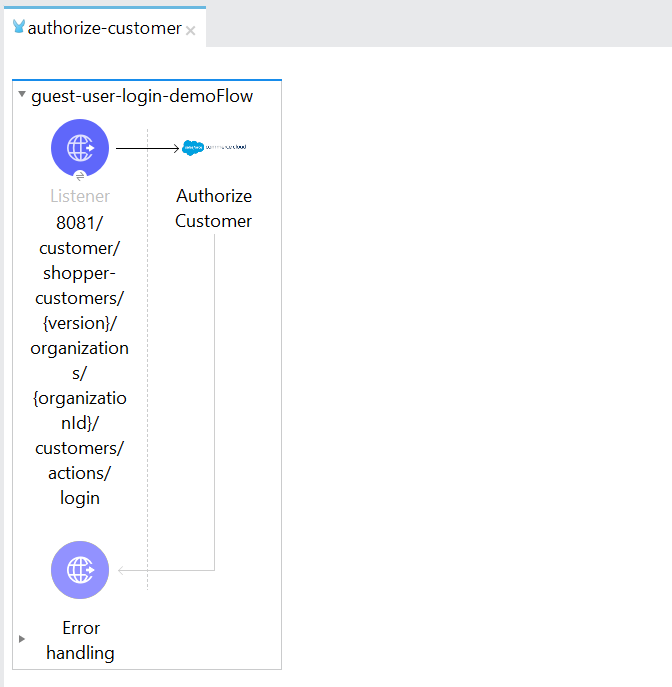
10. Postman から Authorize Customer 操作の必須パラメーターを取得します。
![\[Authorize Customer\] 操作の \[General (一般)\] タブ](_images/shop-connector-authorize-customer-body.jpg)
11. **\[Commerce Cloud B2C Shop Connector (Commerce Cloud B2C Shop コネクタ)\]** を選択してから、**\[Mule Palette (Mule パレット)\]** ビューで **\[Commerce Cloud B2C Shop Connector Shopper Token Config (Commerce Cloud B2C Shop コネクタの Shopper トークン設定)\]** 設定を選択し、必要な値で設定します。
![\[Commerce Cloud B2C Shop Connector Shopper Token Config (Commerce Cloud B2C Shop コネクタの Shopper トークン設定)\] の \[General (一般)\] タブ](_images/shop-connector-shopper-token-config.jpg)
12. すべての必須パラメーターを入力したら、Mule プロジェクトを保存します。
13. **Package Explorer** でプロジェクト名を右クリックし、**\[Run As (別のユーザーとして実行)\] > \[Mule Application (Mule アプリケーション)\]** をクリックして、プロジェクトを Mule アプリケーションとして実行します。
14. `http://localhost:8081/customer/shopper-customers/{version}/organizations/{organizationId}/customers/actions/login` に移動します。
15. Postman を開き、応答でレスポンスヘッダーに JWT トークンがあることを確認します。
この JWT トークンを Postman の認証ヘッダーパラメーターとして使用して、操作を実行できます。
### [](#xml-authorize-customer)Authorize Customer フローの XML
キャンバスの下部にある **\[Configuration XML (設定 XML)\]** タブをクリックし、次の XML コードをコピーして Studio XML エディターに貼り付け、この例のフローを Mule アプリケーションですばやく読み込みます。
```xml
```
## [](#get-customer-フロー)Get Customer フロー
このフローでは、HTTP Listener ソースと GET Customer 操作を設定して、顧客の詳細を取得して表示します。
1. Studio で、**\[File (ファイル)\] > \[New (新規)\] > \[Mule Project (Mule プロジェクト)\]** を選択します。
2. Mule プロジェクトの名前を入力して、**\[Finish (完了)\]** をクリックします。
3. **\[Mule Palette (Mule パレット)\]** ビューで、**\[HTTP\] > \[Listener\]** を選択します。
4. **\[Listener\]** を Studio キャンバスにドラッグします。
5. **\[Listener (リスナー)\]** 設定画面で、必要に応じて **\[Display Name (表示名)\]** 項目の値を変更します。
6. **\[Path (パス)\]** 項目に「`/customer/shopper-customers/{version}/organizations/{organizationId}/customers/{customerId}`」を指定します。
![\[HTTP\] の \[Listener\] の \[General (一般)\] タブ](_images/shop-connector-http-listener-config.jpg)
7. **\[Connector configuration (コネクタ設定)\]** 項目の横にあるプラス記号 (**+**) をクリックして、アプリケーション内の HTTP の Listener のすべてのインスタンスで使用できるグローバル要素を設定します。
8. **\[General (一般)\]** タブで、**\[Port (ポート)\]** に「`8081`」を指定します。
9. **\[Mule Palette (Mule パレット)\]** ビューで、**\[Get Customer\]** 操作を選択してフローにドラッグします。
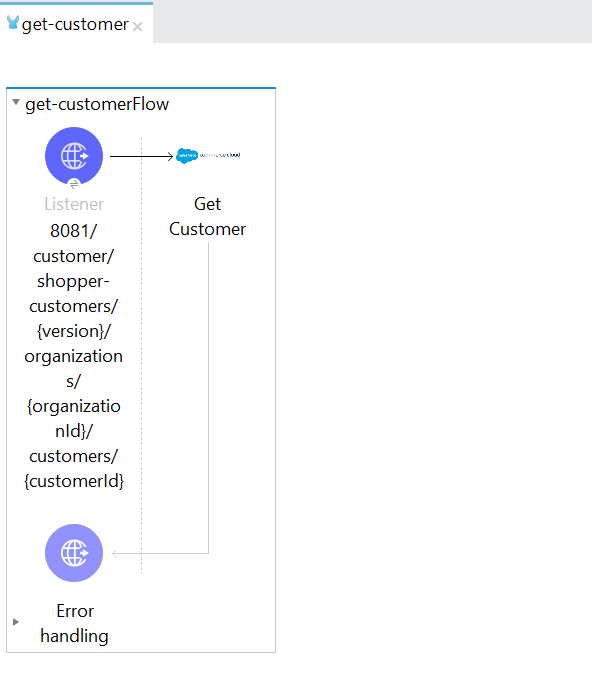
10. Postman から Get Customer 操作の必須パラメーターを取得します。
![\[Version (バージョン)\]、\[Organization ID (組織 ID)\]、\[Customer ID (顧客 ID)\]、\[Site ID (サイト ID)\] の値が含まれる \[Get Customer\] の \[General (一般)\] プロパティタブ](_images/shop-connector-get-customer-body.jpg)
11. **\[Commerce Cloud B2C Shop Connector (Commerce Cloud B2C Shop コネクタ)\]** から **\[Commerce Cloud B2C Shop Connector Config (Commerce Cloud B2C Shop コネクタ設定)\]** を選択し、必要な値で設定するか、緑のプラス記号 (**+**) をクリックして新しい設定を追加します。
![\[Commerce Cloud B2C Shop Connector Config (Commerce Cloud B2C Shop コネクタ設定)\] の \[General (一般)\] タブ](_images/shop-connector-customer-auth-config.jpg)
ここに示されている **\[Authorize Customer\]** の認証トークンは、**\[Authorization (認証)\]** パラメーター値として使用されます。
12. すべての必須パラメーターを入力したら、Mule プロジェクトを保存します。
13. **Package Explorer** でプロジェクト名を右クリックし、**\[Run As (別のユーザーとして実行)\] > \[Mule Application (Mule アプリケーション)\]** をクリックして、プロジェクトを Mule アプリケーションとして実行します。
14. `http://localhost:8081/customer/shopper-customers/{version}/organizations/{organizationId}/customers/{customerId}` に移動します。
15. Postman を開き、ヘッダーの JWT トークン (`xref:Authorize Customer`) を入力します。
16. 応答で顧客の詳細を確認します。
### [](#xml-get-customer)Get Customer フローの XML
キャンバスの下部にある **\[Configuration XML (設定 XML)\]** タブをクリックし、次の XML コードをコピーして Studio XML エディターに貼り付け、この例のフローを Mule アプリケーションですばやく読み込みます。
```xml
```
## [](#関連情報)関連情報
- [Anypoint Connector の概要](https://docs.mulesoft.com/connectors/introduction/introduction-to-anypoint-connectors)
- [MuleSoft ヘルプセンター](https://help.mulesoft.com)