---
schema_version: "1"
id: ca26f35b249d4f7358a74d5d7f81a7b30e89ef4ff2a86f96d616fb9bedad202d
title: Azure Data Lake Storage Connector の例
collection: mulesoft
version: current
locale: ja-jp
portal_url: https://docs.salesforce.com/mulesoft/current/ja-jp/azure-data-lake-storage-connector/latest/azure-data-lake-connector-examples.md
canonical_url: https://docs.mulesoft.com/jp/azure-data-lake-storage-connector/latest/azure-data-lake-connector-examples
source_site: docs.mulesoft.com
content_type: documentation
content_hash: 1c8046728877a58b11d3e857a54891b3f8efe26cacff2eeb3727cfbcb8d286bd
description: MuleSoft Documentation Site
release: "1.0"
latest: true
---
# Azure Data Lake Storage Connector の例
次の Azure Data Lake Storage Connector の例は、以下の操作方法を示しています。
- [Azure Data Lake Storage ファイルシステムの作成](#create-file-system-example)。
- [Azure Data Lake Storage ファイルシステム内のパスの作成](#create-path-example)。
- [Azure Data Lake Storage ファイルシステム内のパスの更新](#update-path-example)。
- [エラー処理の実装](#error-handling-example)。
これらの例では、一部の項目値に変数を使用しています。次のいずれかを実行できます。
- コード内で変数を値に置き換える。
- プロパティファイルで各変数の値を指定しておき、コネクタ設定からそのファイルを参照する。
プロパティプレースホルダーを使用する利点とその設定方法については、[「Anypoint Connector 設定」](https://docs.mulesoft.com/connectors/introduction/intro-connector-configuration-overview)を参照してください。
## [](#create-file-system-example)Azure Data Lake Storage ファイルシステムの作成
この例は、Azure Data Lake Storage のファイルシステムを作成する方法を示し、次の手順が含まれています。
1. [アプリケーションフローをセットアップする](#set-up-flow)。
2. [File System 操作を設定する](#configure-file-system-operation)。
3. [必要に応じて、フローの XML をコピー](#xml-creating-file-system)して **\[Configuration XML (設定 XML)\]** タブに貼り付ける。
### [](#set-up-flow)アプリケーションフローをセットアップする
1. Studio で新しい Mule プロジェクトを作成します。
2. **\[Mule Palette (Mule パレット)\]** ビューで「`http`」を検索し、**\[Listener\]** 操作を選択します。
3. **\[Listener\]** 操作を Studio キャンバスにドラッグします。
4. **\[Listener\]** 設定で、**\[Connector configuration (コネクタ設定)\]** 項目の横にある **\[+\]** をクリックしてグローバル要素を追加します。
5. デフォルトを受け入れて **\[OK\]** をクリックします。
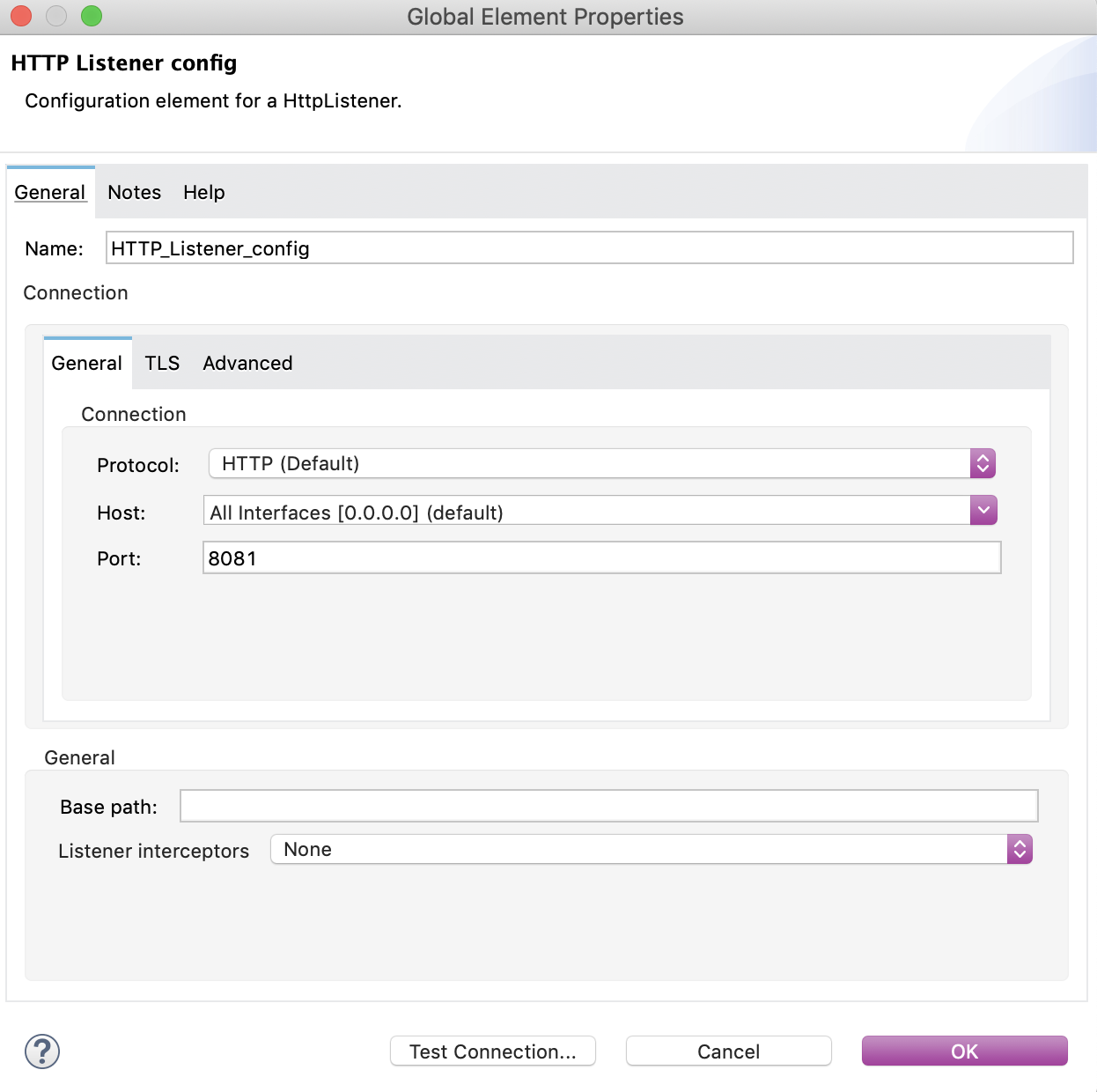
6. **\[General (一般)\]** プロパティタブで、**\[Path (パス)\]** 項目を `create-fs` に設定します。
![\[Path (パス)\] の値が「create-fs」に設定されている HTTP リスナーの \[General (一般)\] プロパティタブ](_images/azure-data-lake-create-file-system-setting-up-the-flow-2.png)
### [](#configure-file-system-operation)Create File System 操作を設定する
1. **\[Mule Palette (Mule パレット)\]** ビューで「`azure`」を検索し、**\[Azure Data Lake Storage Connector\] > \[Create File System\]** 操作を選択します。
2. **\[Create File System\]** 操作を **\[Mule Palette (Mule パレット)\]** から **\[Listener\]** フローにドラッグします。
3. 操作の設定画面で、**\[Connector configuration (コネクタ設定)\]** 項目の横にあるプラス記号 (**+**) をクリックし、グローバル要素設定項目にアクセスします。
4. **\[General (一般)\]** タブの **\[Connection (接続)\]** で、設定する認証方法を選択し、すべての必須値を入力します。
![\[Shared Access Signature (共有アクセス署名)\] 接続値が設定された \[Create File System\] 設定](_images/azure-data-lake-create-file-system-filling-values-1.png)
5. **\[OK\]** をクリックします。
6. **\[General (一般)\]** プロパティタブの **\[File System (ファイルシステム)\]** 項目で、ファイルシステムの名前を入力します。
![\[Create File System\] 操作の \[General (一般)\] プロパティタブ](_images/azure-data-lake-create-file-system-filling-values-2.png)
7. プロジェクトを保存します。
8. ブラウザーを開き、GET 要求を `localhost:8081/create-fs` に送信してアプリケーションをテストします。
### [](#xml-creating-file-system)ファイルシステムを作成する XML
この例のフローをすばやく Mule アプリケーションに読み込むには、次のコードをフローの **\[Configuration XML (設定 XML)\]** タブに貼り付けます。
```xml
```
## [](#create-path-example)パスの作成
この例は、Azure Data Lake Storage のパスを作成する方法を示し、次の手順が含まれています。
1. [アプリケーションフローをセットアップする](#set-up-create-path-flow)。
2. [Create Path 操作を設定する](#configure-create-path)。
3. [必要に応じて、フローの XML をコピー](#create-path-xml)して **\[Configuration XML (設定 XML)\]** タブに貼り付ける。
### [](#set-up-create-path-flow)アプリケーションフローをセットアップする
次の手順に従って、設定されているホストとポートで要求を受信するたびにフローを開始するように HTTP **Listener** ソースを設定します。
1. Studio で新しい Mule プロジェクトを作成します。
2. **\[Mule Palette (Mule パレット)\]** ビューで「`http`」を検索し、**\[Listener\]** 操作を選択します。
3. **\[Listener\]** 操作を Studio キャンバスにドラッグします。
4. **\[Listener\]** 設定で、**\[Connector configuration (コネクタ設定)\]** 項目の横にある **\[+\]** をクリックしてグローバル要素を追加します。
5. デフォルトを受け入れて **\[OK\]** をクリックします。
6. **\[General (一般)\]** プロパティタブで、**\[Path (パス)\]** 項目を `create-path` に設定します。
![\[HTTP\] の \[Listener\] の \[General (一般)\] タブ](_images/azure-data-lake-create-path-setting-up-the-flow-2.png)
### [](#configure-create-path)Create Path 操作を設定する
次の手順に従って、提供された Azure Data Lake Storage ファイルシステムのファイルまたはディレクトリを作成します。
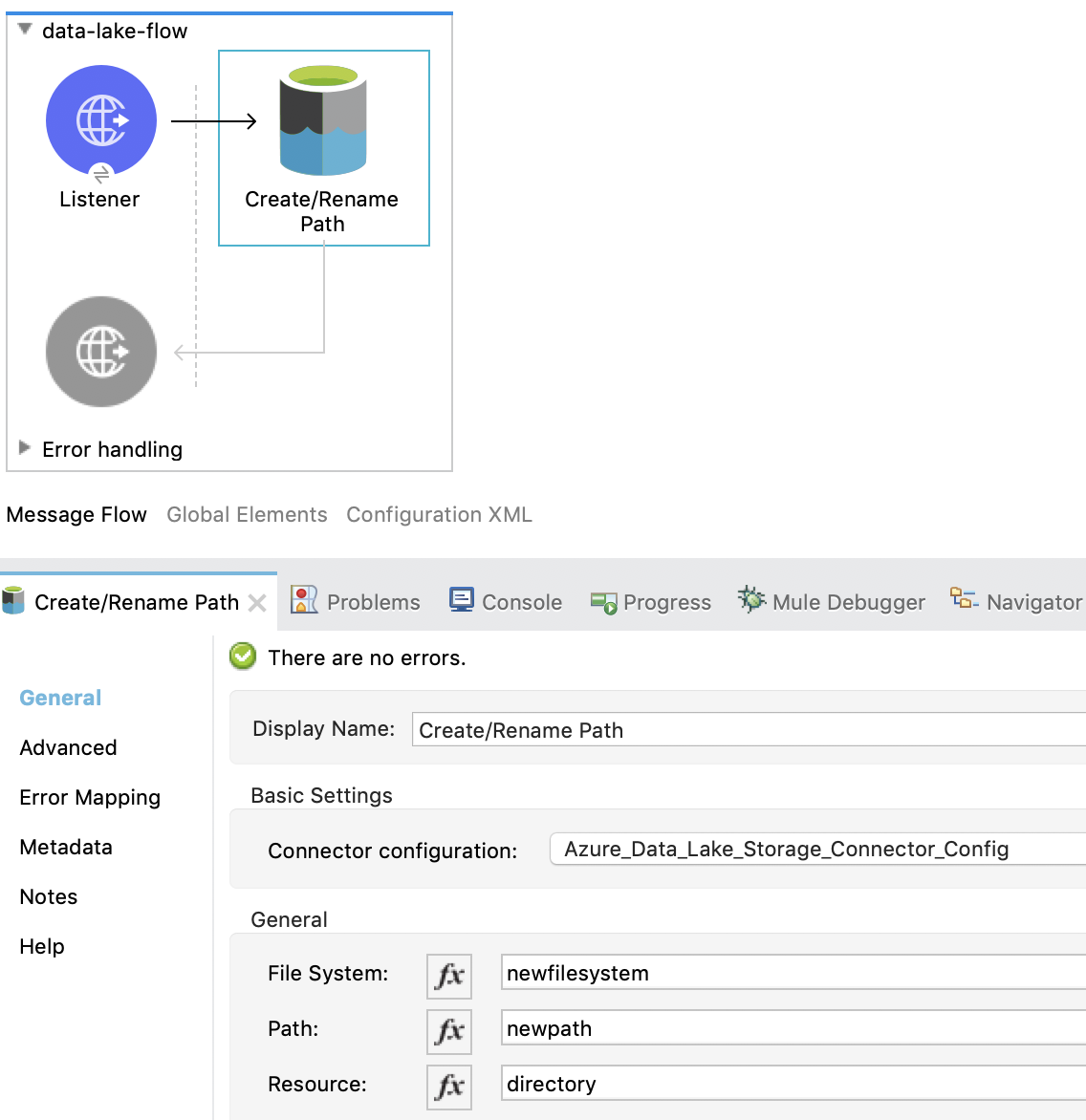
1. **\[Mule Palette (Mule パレット)\]** ビューで「`azure`」を検索し、**\[Create/Rename Path\]** 操作を選択します。
2. **\[Create/Rename Path\]** 操作を Studio キャンバスから **\[Listener\]** フローにドラッグします。
3. **\[Create/Rename Path\]** 設定で、**\[Connector Configuration (コネクタ設定)\]** 項目の横にある **\[+\]** をクリックして接続設定を追加します。
4. **\[General (一般)\]** タブの **\[Connection (接続)\]** で、設定する認証方法を選択し、すべての必須値を入力します。
![\[Shared Access Signature (共有アクセス署名)\] 接続値が設定された \[Create File System\] 設定](_images/azure-data-lake-create-file-system-filling-values-1.png)
5. **\[OK\]** をクリックします。
6. **\[File System (ファイルシステム)\]** 項目で、対象 Azure Data Lake Storage ファイルシステムの値を入力します。
ファイルシステムが存在しない場合、エラーがスローされます。
7. **\[Path (パス)\]** で、任意のパス名を入力します。
8. **\[Resource (リソース)\]** で、「`file`」または「`directory`」を入力します。
9. プロジェクトを保存します。
10. GET 要求を `localhost:8081/create-path` に送信して、アプリケーションをテストします。
### [](#create-path-xml)パスを作成する XML
この例のフローをすばやく Mule アプリケーションに読み込むには、次のコードをフローの **\[Configuration XML (設定 XML)\]** タブに貼り付けます。
```xml
```
## [](#update-path-example)append と flush を使用した Update Path 操作の設定
この例では、2 つの **Update Path** 操作を設定します。
- 最初の **Update Path** 操作は、Azure Data Lake Storage ファイルシステムの既存のファイルにコンテンツを追加するために **append** を使用して設定されます。
これを行うには、最初にアプリケーションをセットアップし、File Connector の **Read** 操作を追加し、**Set Variable** コンポーネントを設定し、**append** を使用して **Update Path** 操作を設定します。
- 2 つ目の **Update Path** 操作は、Azure Data Lake Storage ファイルシステムの既存のファイルのコンテンツをフラッシュするために **flush** を使用して設定されます。
### [](#update-path-flow)アプリケーションフローをセットアップする
次の手順に従って、設定されているホストとポートで要求を受信するたびにフローを開始するように HTTP **Listener** ソースを設定します。
1. Studio で新しい Mule プロジェクトを作成します。
2. **\[Mule Palette (Mule パレット)\]** ビューで「`http`」を検索し、**\[Listener\]** 操作を選択します。
3. **\[Listener\]** 操作を Studio キャンバスにドラッグします。
4. **\[Listener\]** 設定で、**\[Connector configuration (コネクタ設定)\]** 項目の横にある **\[+\]** をクリックしてグローバル要素を追加します。
5. デフォルトを受け入れて **\[OK\]** をクリックします。
6. **\[General (一般)\]** プロパティタブで、**\[Path (パス)\]** 項目を `update-path` に設定します。
![\[Listener\] の \[General (一般)\] プロパティ設定](_images/azure-data-lake-update-path-setting-up-the-flow-2.png)
### [](#add-file-connector)File Connector の追加および設定
プロジェクトに File Connector を追加し、Azure Data Lake Storage ファイルシステムのファイルを読み取るように **Read** 操作を設定します。
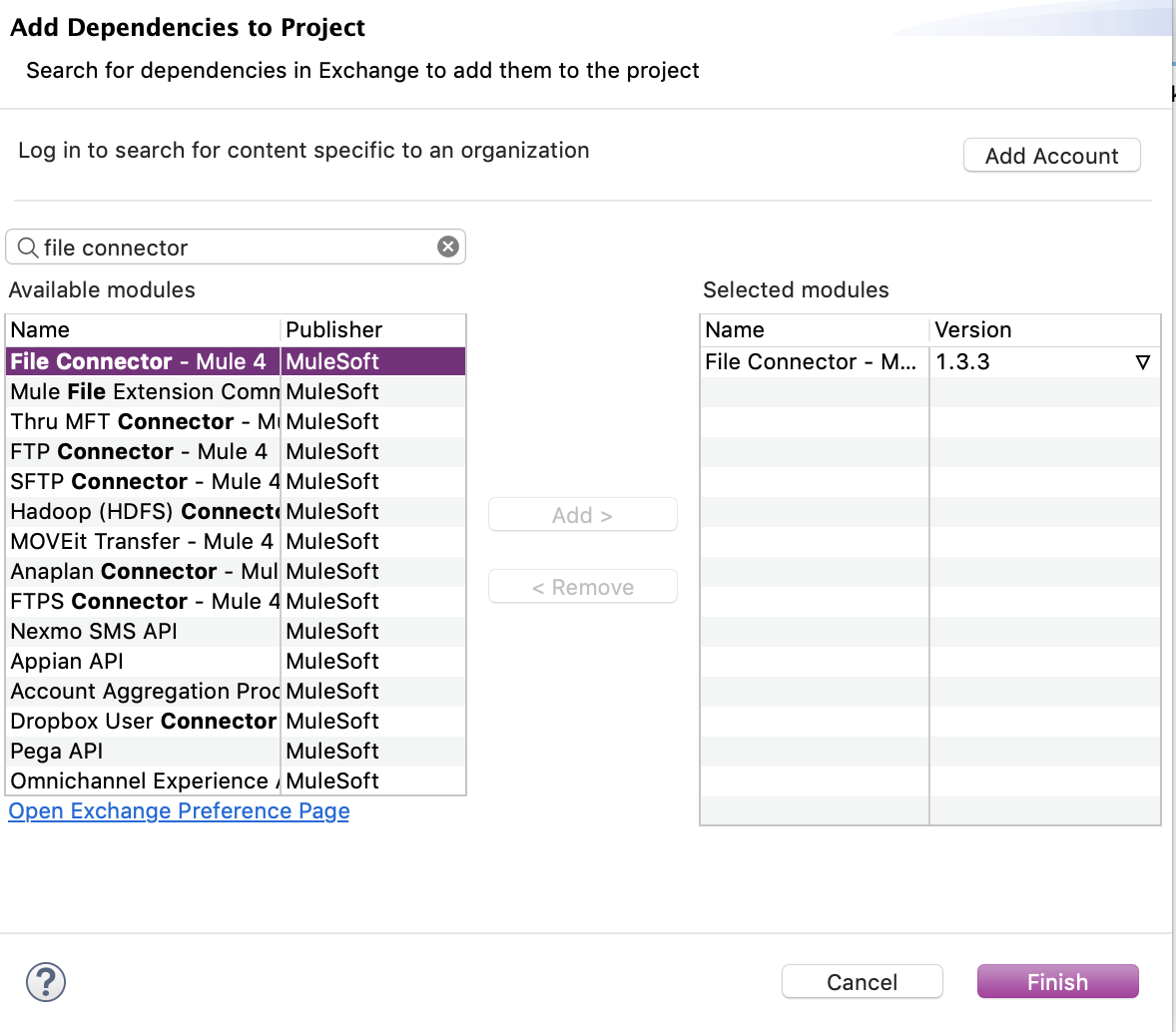
1. **\[Mule Palette (Mule パレット)\]** ビューで、**\[(X) Search in Exchange ((X) Exchange 内を検索)\]** をクリックします。
2. **\[Add Modules to Project (モジュールをプロジェクトに追加)\]** で、検索項目に「`file connector`」と入力します。
3. **\[Available modules (使用可能なモジュール)\]** で **\[File Connector\]** をクリックします。
4. **\[Add (追加)\]** をクリックします。
5. **\[Finish (完了)\]** をクリックします。
6. **\[Mule Palette (Mule パレット)\]** ビューで **\[File\] > \[Read\]** を選択し、**\[Read\]** 操作をフローにドラッグします。
7. **\[Read\]** 操作の **\[General (一般)\]** プロパティタブで、**\[Connector Configuration (コネクタ設定)\]** 項目の横にある **\[+\]** をクリックして接続設定を追加します。
8. 値を入力して **\[OK\]** をクリックします。
9. **\[Read\]** 操作の **\[General (一般)\]** プロパティで、**\[File Path (ファイルパス)\]** にファイルアップロードへの絶対パスを入力します。
![\[Read\] 操作の \[General (一般)\] プロパティ設定](_images/azure-data-lake-update-path-using-the-file-connector-2.png)
### [](#configure-set-variable)Set Variable コンポーネントの設定
変数を保存して後でフローで使用するように **Set Variable** コンポーネントを設定します。
1. **\[Mule Palette (Mule パレット)\]** ビューで「`set variable`」を検索し、**\[Set Payload\]** を Studio キャンバスの **\[Read\]** 操作の横にドラッグします。
2. **\[General (一般)\]** タブで、次の値を入力します。
- **Name (名前)**
`fileSize`
- **Value (値)**
`#[attributes.size]`\+ これにより、次の操作でファイル変数の長さが短縮されます。
![\[Set Variable\] コンポーネントの \[General (一般)\] プロパティ設定](_images/azure-data-lake-update-path-using-the-file-connector-3.png)
### [](#update-path-append)append を使用した Update Path 操作の設定
ファイルにコンテンツを追加できるように、**append** を含めて **Update Path** 操作を設定します。
1. **\[Mule Palette (Mule パレット)\]** ビューで「`azure`」を検索し、\[Azure Data Lake Storage Connector\] の **\[Update Path\]** 操作を選択します。
2. **\[Create File System\]** 操作を **\[Mule Palette (Mule パレット)\]** ビューから **\[Listener\]** フローの **\[Set Variable\]** コンポーネントの横にドラッグします。
3. **\[Update Path\]** の **\[General (一般)\]** 設定プロパティペインで、操作の接続設定を選択します。
4. **\[General (一般)\]** プロパティタブで、次の値を入力します。
- **File System (ファイルシステム)**
対象 Azure Data Lake Storage ファイルシステムの値
- **Path (パス)**
対象パスの値
- **Action (アクション)**
`append`
- **Position (位置)**
`0`
- **Content Length (コンテンツの長さ)**
`#[vars.fileSize]`
- **Content (コンテンツ)**
`payload`
![「append」が設定されたサンプル値を含む \[Update Path\] 操作の \[General (一般)\] 設定プロパティ](_images/azure-data-lake-update-path-using-update-append.png)
5. プロジェクトを保存します。
### [](#configure-update-path-flush)flush を使用した Update Path 操作の設定
ファイルのコンテンツをフラッシュできるように、**flush** を含めて **Update Path** 操作を設定します。
1. **\[Mule Palette (Mule パレット)\]** ビューで「`azure`」を検索し、\[Azure Data Lake Storage Connector\] の **\[Update Path\]** 操作を選択します。
2. **\[Update Path\]** 操作を Studio キャンバスから [append のステップ](#update-path-append)で作成した **\[Listener\]** フローの **\[Update Path\]** 操作の横にドラッグします。
3. **\[Update Path\]** の **\[General (一般)\]** 設定プロパティペインで、操作の接続設定を選択します。
4. **\[General (一般)\]** プロパティタブで、次の値を入力します。
- **File System (ファイルシステム)**
対象 Azure Data Lake Storage ファイルシステム
- **Path (パス)**
対象パス
- **Action (アクション)**
`flush`
- **Position (位置)**
`#[vars.fileSize]`
- **Content Length (コンテンツの長さ)**
`0`
![「flush」が設定されたサンプル値を含む \[Update Path\] 操作の \[General (一般)\] 設定プロパティ](_images/azure-data-lake-update-path-using-update-flush.png)
5. プロジェクトを保存します。
6. ブラウザーを開き、GET 要求を `localhost:8081/update-path` に送信してアプリケーションをテストします。
### [](#パスを更新する-xml)パスを更新する XML
この例のフローをすばやく Mule アプリケーションに読み込むには、次のコードをフローの **\[Configuration XML (設定 XML)\]** タブに貼り付けます。
```xml
```
## [](#error-handling-example)エラー処理の実装
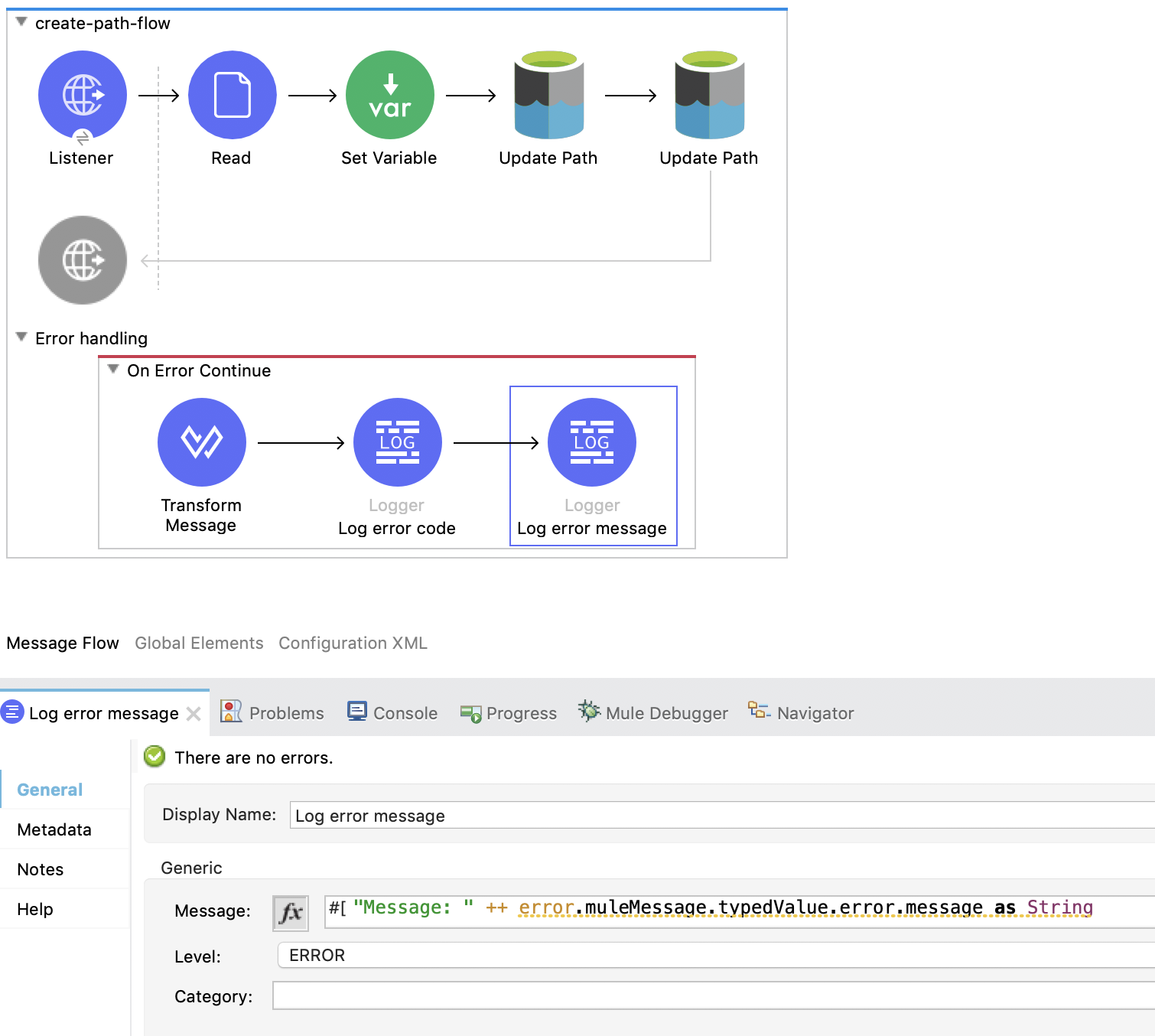
このセクションでは、Azure Data Lake Storage Connector を使用するフローに簡単なエラー処理を実装する方法を示します。
1. 任意のフローの **\[Mule Palette (Mule パレット)\]** ビューで **\[Core\] > \[On Error Continue\]** を選択し、フローの **\[Error Handling (エラー処理)\]** セクションにドラッグします。
![フローにドラッグされた \[On Error Continue\] コンポーネント](_images/azure-data-lake-error-handling-setting-up-1.png)
2. **\[Mule Palette (Mule パレット)\]** ビューから、**\[Core\] > \[Transform Message\]** をフローにドラッグします。
![フローにドラッグされた \[Transform Message\] コンポーネント](_images/azure-data-lake-error-handling-setting-up-2.png)
3. **\[Mule Palette (Mule パレット)\]** ビューで「`logger`」を検索し、**\[Logger\]** コンポーネントを **\[Transform Message\]** の右側にドラッグします。
4. **\[Logger\]** コンポーネントの **\[General (一般)\]** プロパティタブで、次の値を入力します。
output application/json
---
error.errorMessage.payload
Azure サービスからのエラーコードにアクセスするには、次の式を使用します。
`error.muleMessage.typedValue.error.code`
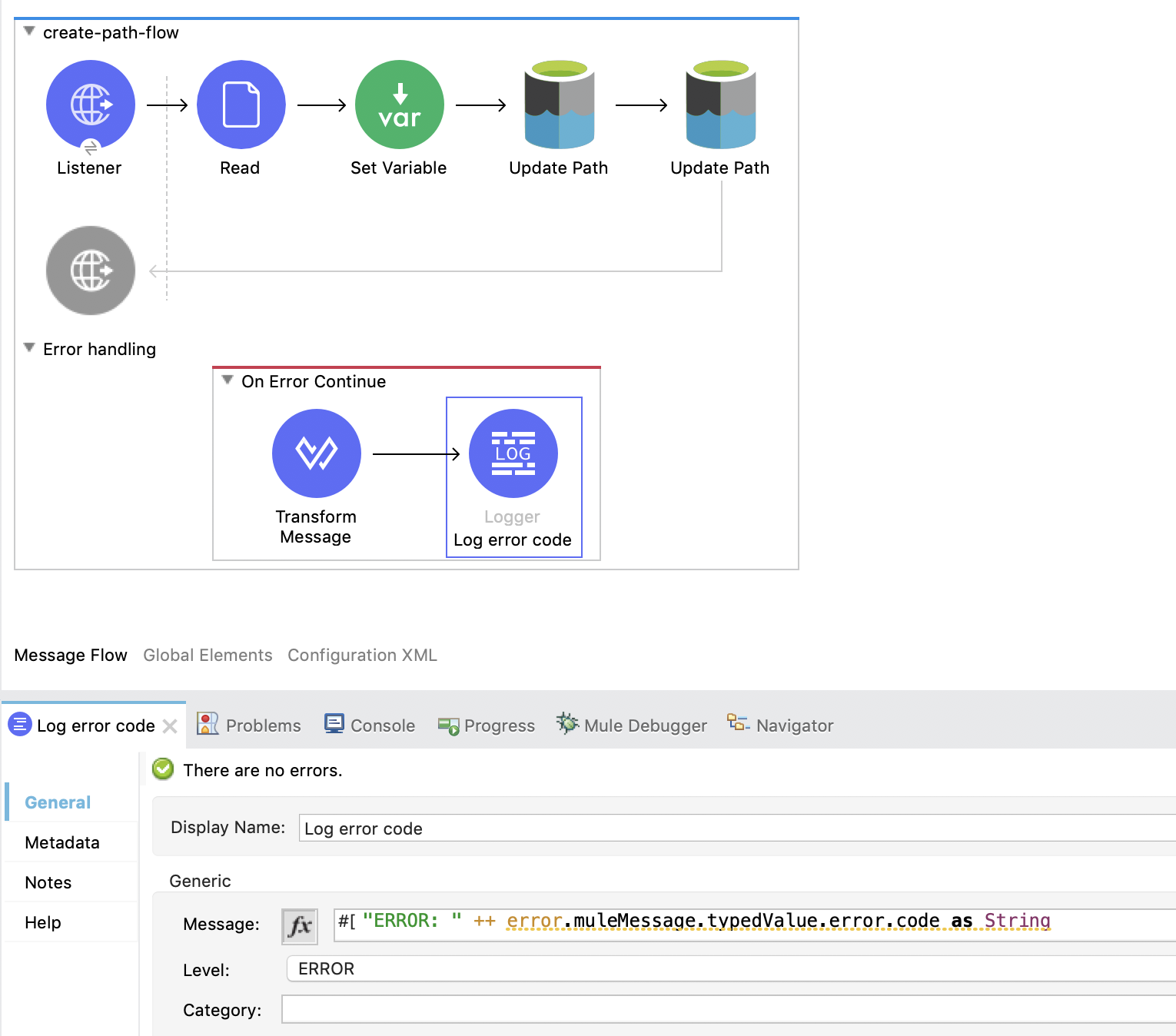
エラーメッセージにアクセスするには、次の式を使用します。
`error.muleMessage.typedValue.error.message`
## [](#関連情報)関連情報
- [Anypoint Connector の概要](https://docs.mulesoft.com/connectors/introduction/introduction-to-anypoint-connectors)
- [MuleSoft ヘルプセンター](https://help.mulesoft.com)