---
schema_version: "1"
id: 9f771efaf4994ba821ab257aa8b9b2e5ed7e9b3d0db56c2ef27e25ec1a2a73c4
title: Workday Connector 16.6 Examples
collection: mulesoft
version: current
locale: en-us
portal_url: https://docs.salesforce.com/mulesoft/current/en-us/workday-connector/16.6/workday-connector-examples.md
canonical_url: https://docs.mulesoft.com/workday-connector/16.6/workday-connector-examples
source_site: docs.mulesoft.com
content_type: documentation
content_hash: f0974b5f0eca13569b57be0a6bf60b33e1bd8514bb6d252eab2e75601e5f97ec
description: MuleSoft Documentation Site
release: "16.6"
latest: false
---
---
product: Workday Connector
version: 16.6
---
# Workday Connector 16.6 Examples
> For the full documentation index, see: https://docs.mulesoft.com/llms.txt
The following examples show how to configure Workday Connector using Anypoint Studio:
- [Add a Fund to the Financial Management Service](#add-fund)
- [Create a Position Request](#create-position-request)
## Before You Begin
You must have:
- Access to Workday
- Your Workday username, password, and tenant name
## Add a Fund to the Workday Financial Management Service
This example uses the **Invoke** operation to insert a fund in the Workday financial management
service.
### Configure HTTP Listener
Configure **HTTP Listener** to initiate a Mule flow when a call is made to the `/` account path on
localhost, port 8081.
This example uses variables for some field values. You can either:
- Replace the variables with their values in the code.
- Provide the values for each variable in a properties file and then refer to that file from the
connector configuration.
If you don’t know how to use a properties file, see
[Configuring Property Placeholders](https://docs.mulesoft.com/mule-runtime/latest/mule-app-properties-to-configure).
To configure **HTTP Listener**:
1. Create a new Mule project in Studio.
2. In the **Mule Palette** view, search for `http` and select the **Listener** operation:
Select the Listener operation in the Mule Palette view.

3. Drag the **Listener** operation onto the canvas.
4. In the **Listener** configuration, click **+** next to the **Connector configuration** field to
add a global element.
5. Click **OK** to accept the defaults.
6. Set the **Path** field to `/`:
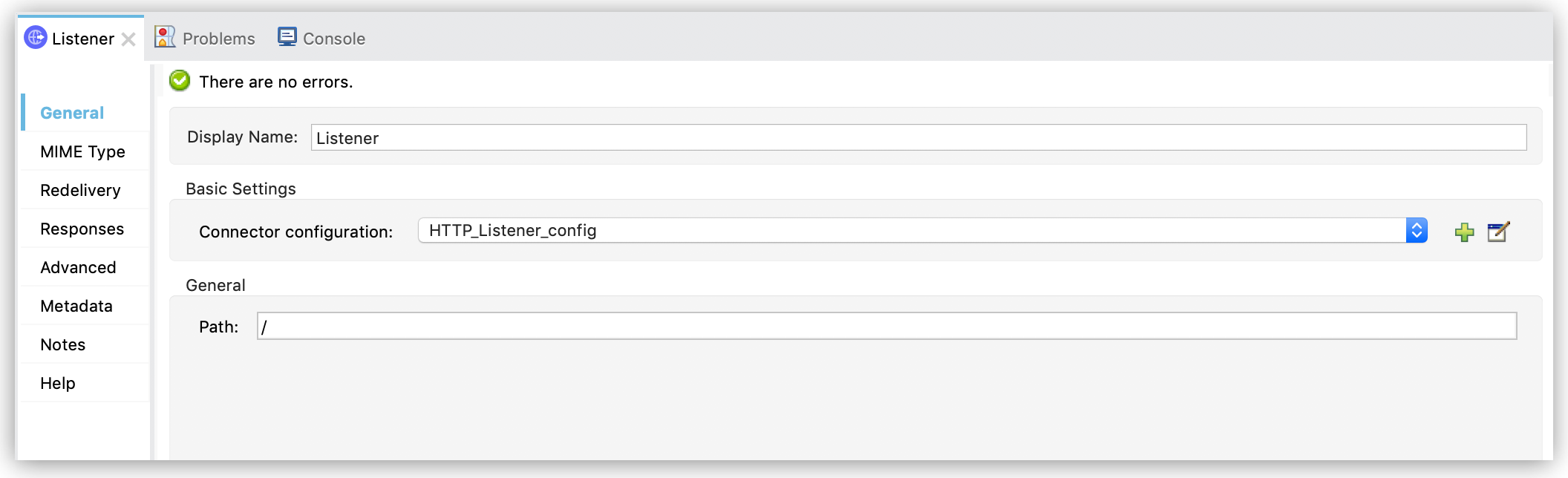
Figure 1. Set the Path field in the Listener configuration.
### Add a Transform Message Component to Attach the Metadata
To add and configure a **Transform Message** component:
1. In the **Mule Palette** view, search for `transform` and select **Transform Message**:
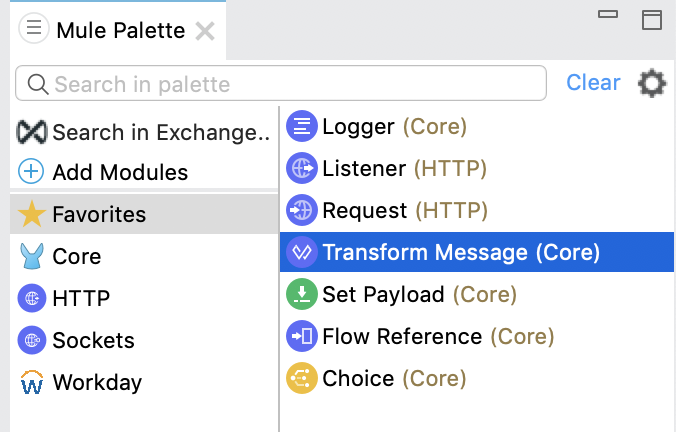
Figure 2. Select Transform Message in the Mule Palette view.
2. Drag the **Transform Message** component onto the canvas, to the right of the **Listener**
component.
3. In the **Transform Message** configuration, overlay the brackets in the **Output** section with
this XML:
```dataweave
%dw 2.0
output application/xml
ns ns0 urn:com.workday/bsvc
---
{
ns0#Put_Fund_Request @(ns0#Add_Only: true, ns0#version: "v36.0"): {
ns0#Fund_Data: {
ns0#Fund_Name: "I.M.F",
ns0#Fund_Type_Reference: {
ns0#ID @(ns0#'type': 'Fund_Type_ID'): "FUND_TYPE-6-3"
}
}
}
}
```
The following XML shows sample input to the **Transform Message** component
```xml
I.M.F
FUND_TYPE-6-3
```
The following screenshot shows the corresponding output, as it appears in the **Output** section of
the **Transform Message** configuration:
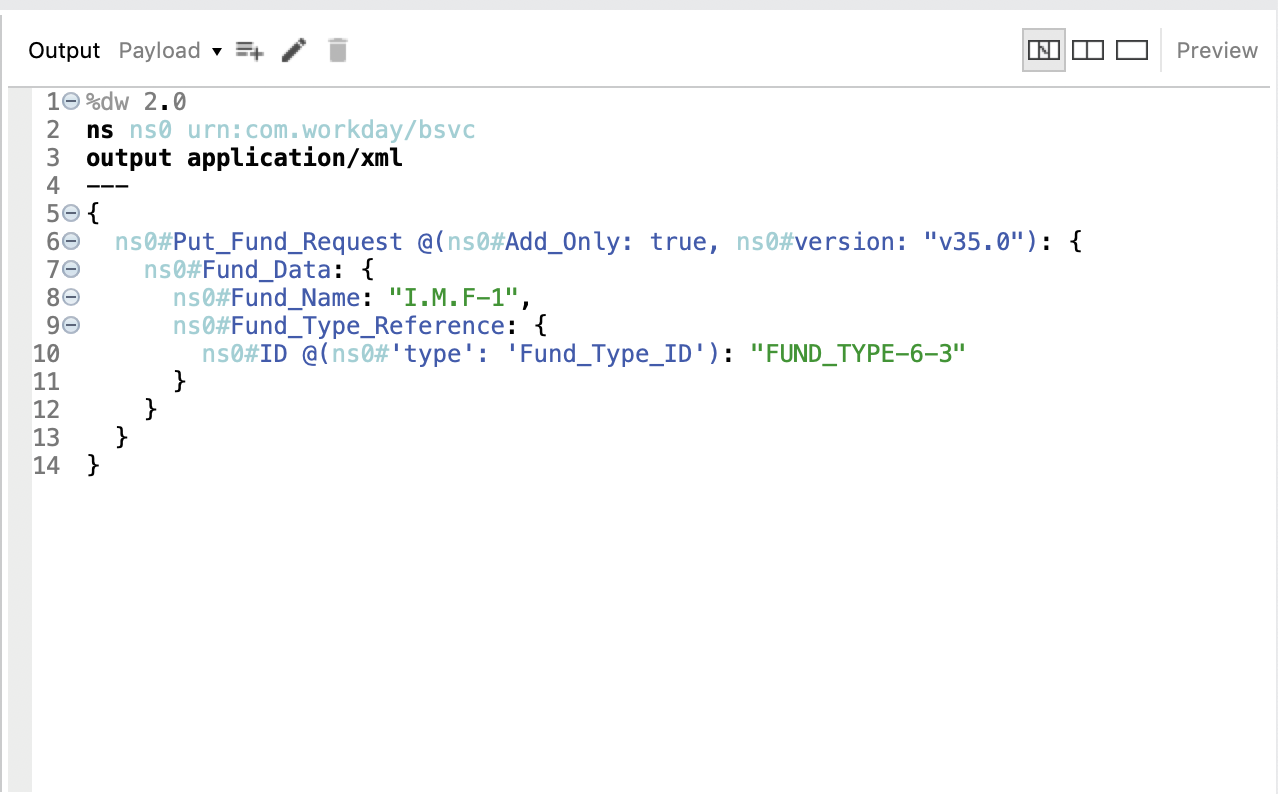
Figure 3. Output in the Transform Message configuration
### Add and Configure the Financial Management Operation
1. In the **Mule Palette** view, search for `workday` and select the **Financial management**
operation.
2. Drag the **Financial management** operation onto the canvas, to the right of the **Transform
Message** component.
3. In the **Financial management** configuration, click **+** next to the **Connector
configuration** field to add a global element.
4. Configure the global element as follows:
- **Configuration Name**: `My_Workday_Connection`
- **Connection**: `Basic authentication api`
- **Password**: `${workday.password}`
- **Host Name**: Leave the default, `impl-cc.workday.com`
- **Tenant Name**: `${workday.tenantName}`
- **Username**: `${workday.userName}`
5. Click **Test Connection** to ensure your username, password, and tenant name are correct.
6. Click **OK**.
7. In the properties window, select `Put_Fund` in the **Operation** field.
### Add a Logger Component to Display the Response in the Mule Console
1. In the **Mule Palette** view, search for `logger` and select **Logger (Core)**.
2. Drag the **Logger** component onto the canvas, to the right of the **Financial management**
component.
3. Configure the following fields:
| Field | Value |
|---|
Display Name | Enter Log Response. |
Message | Enter `#[payload]`. |
Level | Leave the default, INFO. |
4. Save the project.
5. Test the app by sending a request to `/` on port 8081.
6. You will receive an XML response similar to this one:
```xml
THE_WID_ID_NUMBER
FUND-6-399
```
### XML for the Financial Management Example
Paste this code into the Studio XML editor to quickly load the flow for this example into your Mule
app:
```xml
```
## Create a Workday Position Request
To create a Workday position request:
1. Create a Mule app in Studio.
2. Add and configure HTTP Listener as a source for your flow.
3. Set the **Path** field to `/create_position` and use the default configuration for the HTTP
Listener connection.
4. Add the **Transform** component to your flow.
5. Provide this transformation script to DataWeave:
```dataweave
%dw 2.0
ns ns0 urn:com.workday/bsvc
output application/xml
---
{
ns0#Create_Position_Request: {
ns0#Business_Process_Parameters: {
ns0#Auto_Complete: true,
ns0#Run_Now: true
},
ns0#Create_Position_Data: {
ns0#Supervisory_Organization_Reference: {
ns0#ID @("ns0:type": "Organization_Reference_ID"): "SUPERVISORY_ORGANIZATION-6-226"
},
ns0#Position_Data: {
ns0#Job_Posting_Title: "General Manager"
},
ns0#Position_Group_Restrictions_Data: {
ns0#Availability_Date: "2019-07-06",
ns0#Earliest_Hire_Date: "2019-07-08"
},
ns0#Edit_Assign_Organization_Sub_Process: {
ns0#Business_Sub_Process_Parameters: {
ns0#Skip: true
}
},
ns0#Request_Default_Compensation_Sub_Process: {
ns0#Business_Sub_Process_Parameters: {
ns0#Skip: true
}
},
ns0#Assign_Pay_Group_Sub_Process: {
ns0#Business_Sub_Process_Parameters: {
ns0#Skip: true
}
},
ns0#Assign_Costing_Allocation_Sub_Process: {
ns0#Business_Sub_Process_Parameters: {
ns0#Skip: true
}
}
}
}
}
```
6. From the **Mule palette** view, select the connector and drag the **Recruiting** operation next
to **Transform**.
7. On the properties window:
- In the **Operation**, field select `Create_Position`.
Ensure that the value for the **Operation** field is available as a menu item. The values
become available once the connector loads the metadata. Do not type the value manually.
- In the **Content** field, leave the default, `payload`.
8. Set up, test, and save a Workday configuration for the connection to the Workday server, for
example:
- **Name**: `My Workday Config`
- **Connection**: `Basic Authentication Api`
- **Username**: `my_user_name`
- **Password**: `my_password`
- **Tenant Name**: `my_tenant_name`
- **Host Name**: `impl-cc.workday.com`
If the connection test is unsuccessful, correct any invalid connection parameters and retest the
connection.
9. Add the **Logger** component to your flow and set `payload` as the message.
10. Deploy and run the app.
11. To test the app, execute a PUT request to `http://:8081/create_position` from a
browser or an app such as cURL.
Use the following input in the request body:
```xml
true
true
SUPERVISORY_ORGANIZATION-6-226
General Manager
2019-07-06
2019-07-08
true
true
true
true
```
Workday responds as follows:
```xml
WID_VALUE
WID_VALUE
P-11158
```
The logger displays this message:
```xml
{Create_Position_Response={Event_Reference={ID=WID_VALUE}, Position_Reference={ID=P-11158}}}
```
## See Also
- [Introduction to Anypoint Connectors](https://docs.mulesoft.com/connectors/introduction/introduction-to-anypoint-connectors)
- [Salesforce Help](https://help.salesforce.com)