---
schema_version: "1"
id: d17967b7c93d6f0a0be34be911dea6cf9a5e94c943e06c21f4252f2b7af7adb4
title: Using Anypoint Studio to Configure Web Service Consumer 2.1
collection: mulesoft
version: current
locale: en-us
portal_url: https://docs.salesforce.com/mulesoft/current/en-us/web-service-consumer-connector/2.1/web-service-consumer-studio.md
canonical_url: https://docs.mulesoft.com/web-service-consumer-connector/2.1/web-service-consumer-studio
source_site: docs.mulesoft.com
content_type: documentation
content_hash: a99bc5682dd1c6894e05aa7fc42afcd16052fc026c6ef602086f93486b012c9f
description: MuleSoft Documentation Site
release: "2.1"
latest: false
---
---
product: Web Service Consumer Connector
version: 2.1
---
# Using Anypoint Studio to Configure Web Service Consumer 2.1
> For the full documentation index, see: https://docs.mulesoft.com/llms.txt
Anypoint Studio (Studio) editors help you design and update your Mule applications, properties, and
configuration files.
To add and configure a connector in Studio:
1. [Create a Mule project](#create-mule-project).
2. [Add the connector to your Mule project](#add-connector-to-project).
3. [Configure a source for the connector’s flow](#configure-input-source).
4. [Add a connector operation to the flow](#add-connector-operation).
5. [Configure a global element for the connector](#configure-global-element).
6. [Configure the Consume operation](#configure-other-fields).
When you run the connector, you can view the app log to check for problems, as described in
[View the App Log](#view-app-log).
If you are new to configuring connectors in Studio, see
[Using Anypoint Studio to Configure a Connector](https://docs.mulesoft.com/connectors/introduction/intro-config-use-studio).
If, after reading this topic, you need additional information about the connector fields, see the
[Web Service Consumer Connector Reference](https://docs.mulesoft.com/web-service-consumer-connector/2.1/web-service-consumer-reference).
## Create a Mule Project
In Studio, create a new Mule project in which to add and configure the connector:
1. In Studio, select **File > New > Mule Project**.
2. Enter a name for your Mule project and click **Finish**.
## Add the Connector to Your Mule Project
Add Web Service Consumer Connector to your Mule project to automatically populate the XML code with
the connector’s namespace and schema location and add the required dependencies to the project’s
`pom.xml` file:
1. In the **Mule Palette** view, click **(X) Search in Exchange**.
2. In **Add Dependencies to Project**, type `web service consumer` in the search field.
3. Click **Web Service Consumer** in **Available modules**.
4. Click **Add**.
5. Click **Finish**.
Adding a connector to a Mule project in Studio does not make that connector available to other
projects in your Studio workspace.
## Configure a Source
An input source initiates a flow when a specified condition is met.
For example, to configure HTTP **Listener**, follow these steps:
1. In the **Mule Palette** view, select **HTTP** > **Listener**.
2. Drag **Listener** to the Studio canvas.
3. On the **Listener** configuration screen, optionally change the value of the **Display Name**
field.
4. Specify a value for the **Path** field.
5. Click the plus sign (**+**) next to the **Connector configuration** field to configure a global
element that can be used by all instances of `HTTP Listener` in the app.
6. On the **General** tab, specify connection information.
7. On the **TLS** tab, optionally specify TLS information.
8. On the **Advanced** tab, optionally specify reconnection information, including a reconnection
strategy.
9. Click **Test Connection** to confirm that Mule can connect with the specific server.
10. Click **OK**.
## Add a Connector Operation to the Flow
When you add a connector operation to your flow, you immediately define a specific operation for
that connector to perform.
To add the Consume operation to Web Service Consumer Connector, follow these steps:
1. In the **Mule Palette** view, select **Web Service Consumer** and then select the **Consume**
operation.
2. Drag the operation onto the Studio canvas to the right of the input source.

Figure 1. Web Service Consumer Connector Operations
## Configure a Global Element for the Connector
When you configure a connector, it’s best to configure a global element that all instances of that
connector in the app can use. To consume a SOAP web service operation, you need to create a
configuration that points to the service that you want to consume.
To configure the global element for Web Service Consumer Connector, follow these steps:
1. Select the name of the connector in the Studio canvas.
2. In the **Basic Settings** section of the **General** tab, click the plus sign (+) next to the
**Connector configuration** field to access the global element configuration fields.
3. In the **Connection** section of the **General** tab, configure the following parameters:
- **WSDL location**
The remote or local WSDL file URL
- **Service**
The service name
- **Port**
The port name
- **Address**
The address of the web server to dispatch requests if the **Service** and **Port** parameters
did not automatically provide this value.
Note that the **WSDL location**, **Service**, and **Port** parameters are mandatory for the
configuration to be valid.
The following example shows how to configure the global element to get a list of flights by airline:
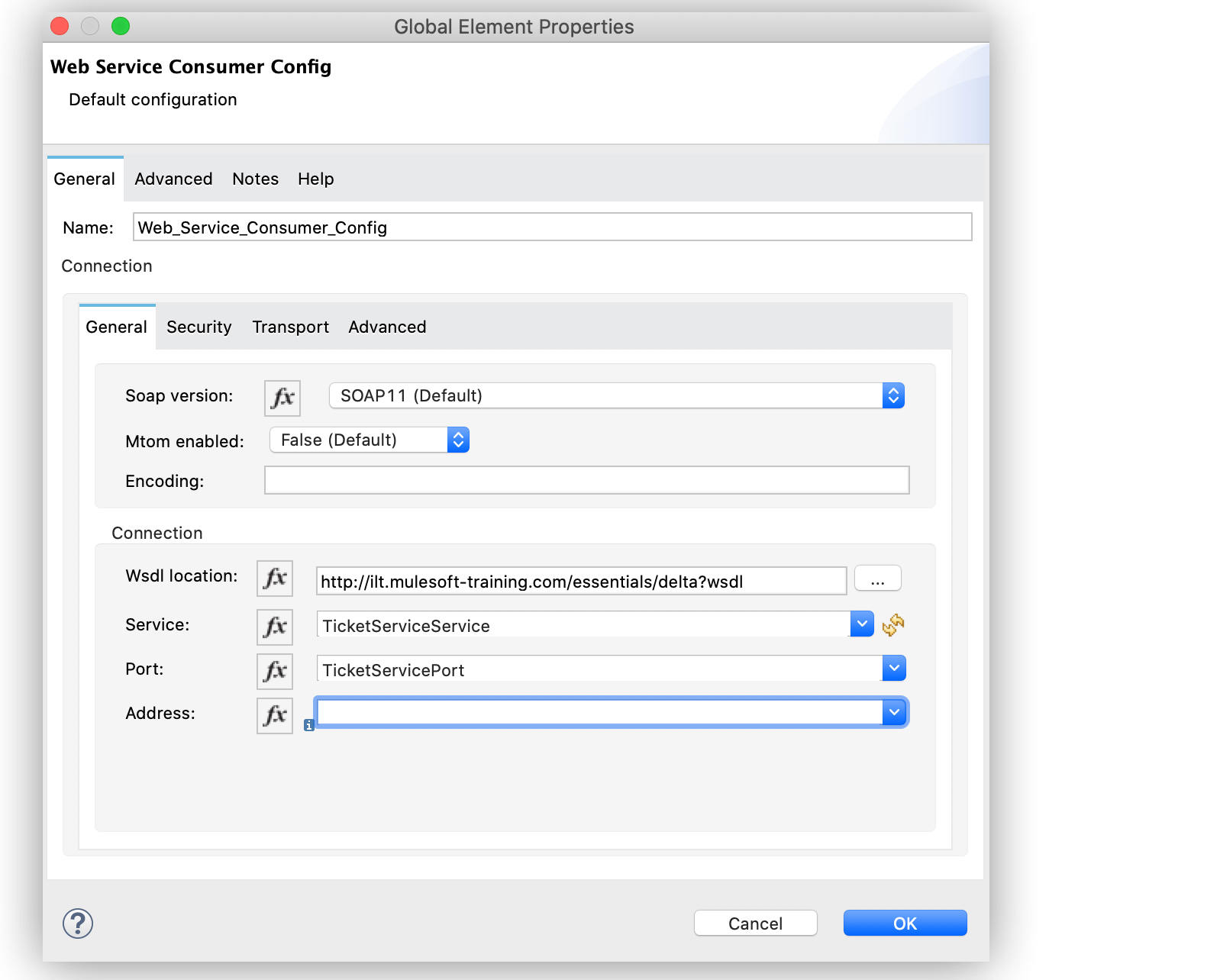
Figure 2. Web Service Consumer Global Element
In the **Configuration XML** tab, the XML looks like this:
```xml
```
## Configure Consume Operation
After you configure a global element for Web Service Consumer Connector, configure the Consume
operation parameters, such as **Operation**, **Message** (**Body, Headers, Attachments**) and so on.
Additionally, learn about the output of the Consume operation and metadata attributes used to
dispatch messages.
### Parameters
The Consume operation has two main parameters:
- **Operation**
Defines which SOAP operation of the web service to invoke. During the design phase, the parameter
defines the input and output types for the Consume operation. The types will change depending on
which operation you choose.
- **Message**
A representation of `SOAP:ENVELOP` composed of three optional parameters:
- **Body**
The XML body to include in the SOAP message, with all the required parameters, or `null` if no
parameters are required
- **Headers**
The XML headers to include in the SOAP message
- **Attachments**
The attachments to include in the SOAP request
To configure these parameters for the Consume operation, follow these steps:
1. Select the name of the connector in the Studio canvas.
2. In the **General** section of the Consume operation, define **Operation**, and in the
**Message** section, define **Body**, **Headers**, and **Attachments** fields:
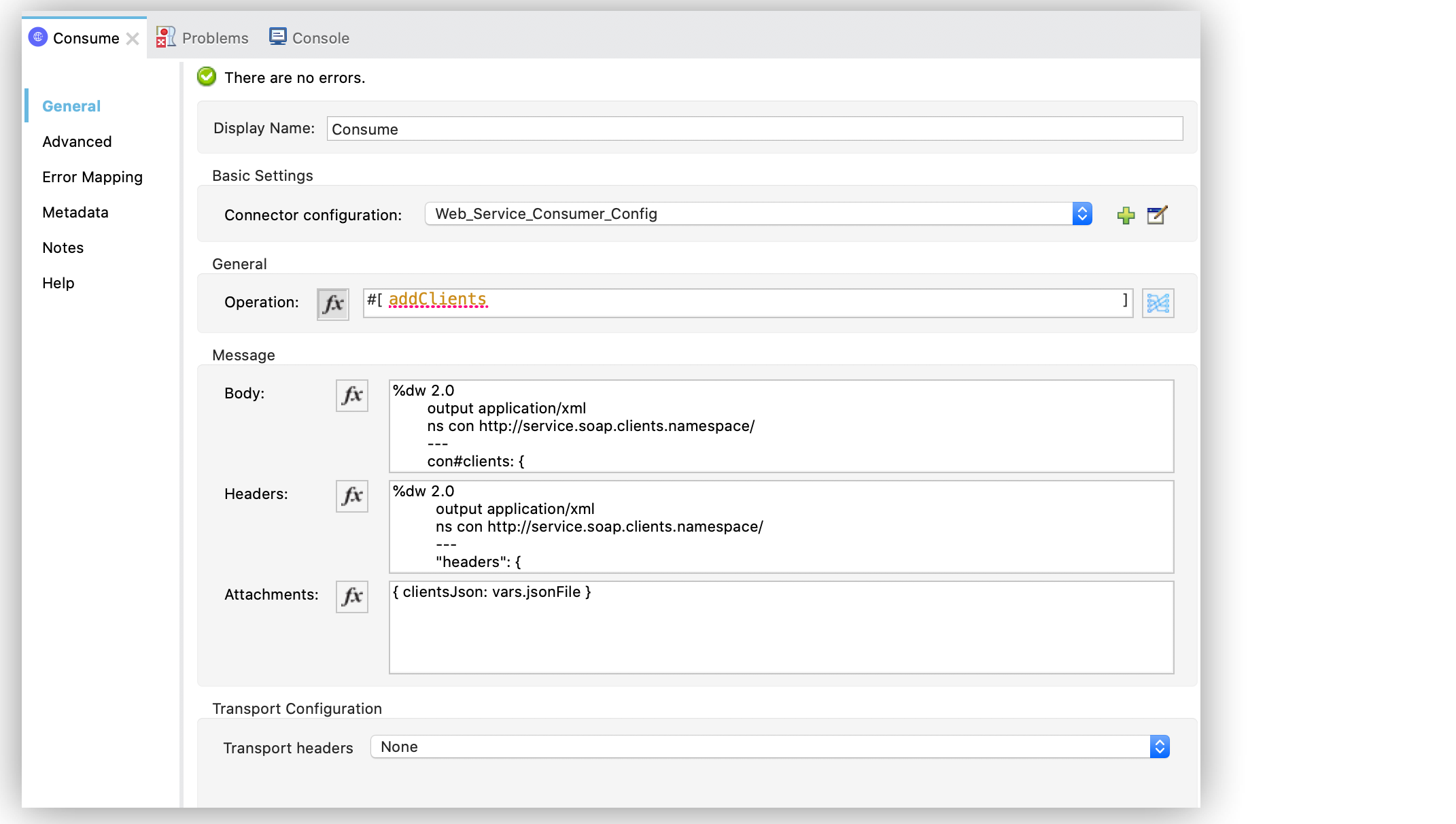
Figure 3. Configure Consume Operation
In the **Configuration XML** tab, a basic configuration for the Consume operation looks like this:
```xml
#[payload]
```
#### Body Parameter
The `body` parameter is the main part of the SOAP message. It accepts embedded DataWeave script
values so expects that you can construct the XML request without having a side effect on the message
or having to use multiple components to create the request. Some characteristics of the parameter
include:
- The default value is `#[payload]`, based on the assumption that the incoming payload is the XML
entity ready to ship to the service.
- If the body is not valid XML, or if the request cannot be created for some reason, you get a
`WSC:BAD_REQUEST` error.
- If you don’t provide body content, the Web Service Consumer Connector attempts to generate one,
and this works only for cases where no XML entity is expected in the body.
- Some web services require to append the XML prolog tag into the envelope’s body XML content, which
contains the version and encoding information that identifies the document as being XML.
The following example shows a DataWeave expression inside the `body` parameter, and how to force the
Web Service Consumer Connector to dispatch any payload by enabling the XML prolog option:
1. Select the name of the connector in the Studio canvas.
2. In the **Body** parameter field of the **General** tab, add the DataWeave expression.
3. In the **Message Customization** section of the **Advanced** tab, enable the option **Force XML
Prolog into body** like this:
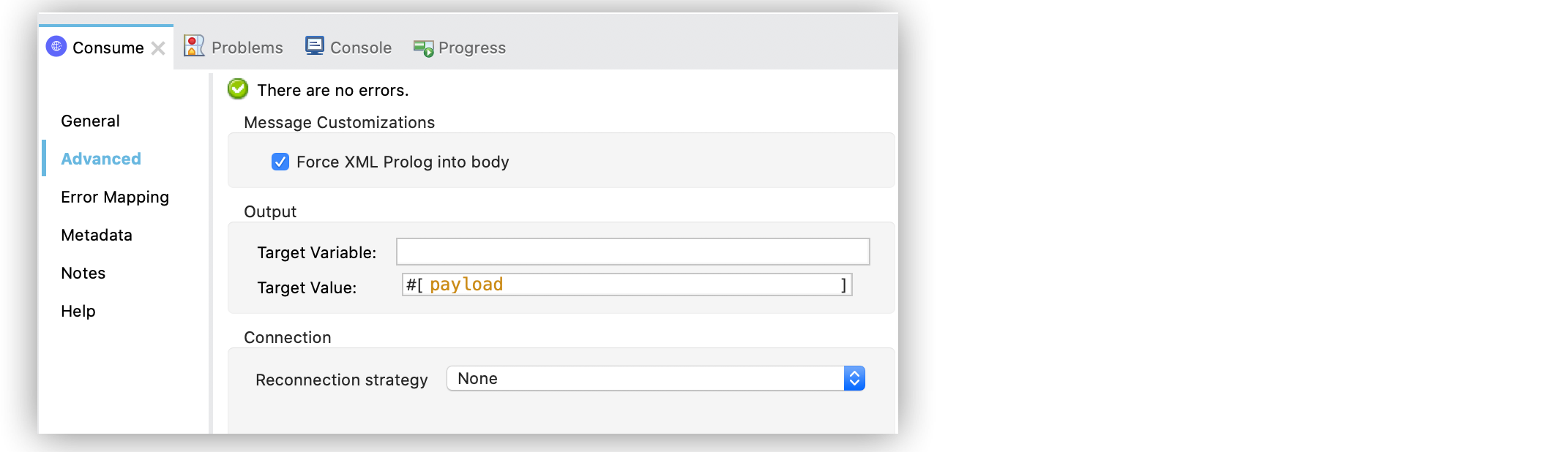
Figure 4. Configure XML Prolog into Body
In the **Configuration XML** tab, the XML looks like this:
```xml
#[
%dw 2.0
output application/xml
ns con http://service.soap.clients.namespace/
---
con#clients: {
client: {
name: "admin1",
lastname: "textpassword1"
},
client: {
name: "admin2",
lastname: "textpassword2"
}
}]
```
#### Headers Parameter
The `headers` parameter contains application-specific information about the SOAP message, such as
authentication, payment, and so on. The parameter is an XML entity, that accepts an embedded
DataWeave script as its value.
The following XML example shows a DataWeave expression inside the `headers` parameter:
```xml
#[payload]
#[
%dw 2.0
output application/xml
ns con http://service.soap.clients.namespace/
---
"headers": {
con#user: "admin",
con#pass: "textpassword"
}]
```
Note that inside the DW script, the root must be `"headers"`, otherwise, the following error returns
while running the application:
`Invalid input headers XML: It must be an xml with the root tag named \'headers\'`.
#### Attachments Parameter
The `attachments` parameter enables you to bind attachments to the SOAP message. To create
attachments for transport over SOAP, declare a DataWeave script in which each entry represents an
attachment and the entry value provides the content of the attachment.
The following XML example shows a DataWeave expression inside the `attachments` parameter that
declares a new attachment called `clientsJson`. The attachment value content is stored in the
`jsonFile` variable. This variable can be set from a `file:read` operation:
```xml
#[payload]
#[{ clientsJson: vars.jsonFile } ]
```
### Output
The output of the Consume operation represents an incoming SOAP message that contains the same
elements that the `Message` parameter has, and you can access each part of it.
The following XML example stores:
- The content of the body in a `soap.body` variable
- The content of the header called `auth` in a `soap.header.auth` variable
- The content of an attachment called `json` in a `soap.attachment.json` variable
```xml
#[payload]
```
### Attributes
When your app consumes a web service operation, you might be interested not only in the response
content but also in the metadata of the underlying transport used to dispatch the messages. For
example, when you use HTTP, attributes carry HTTP headers bound to the HTTP request
(`content-length`, `status`, and so on).
The Web Service Consumer Connector uses Mule message attributes to access this information.
## View the App Log
To check for problems, you can view the app log as follows:
- If you’re running the app from Anypoint Platform, the output is visible in the Anypoint Studio
console window.
- If you’re running the app using Mule from the command line, the app log is visible in your OS
console.
Unless the log file path is customized in the app’s log file (`log4j2.xml`), you can also view the
app log in the default location `MULE_HOME/logs/.log`.
## Next Step
After you configure a global element and connection information, configure the other fields for the
connector. See [Additional Configuration Information](https://docs.mulesoft.com/web-service-consumer-connector/2.1/web-service-consumer-config-topics) for more
configuration steps.
## See Also
- [How to set SOAP headers in Web Service Consumer in Mule 4](https://help.salesforce.com/s/articleView?id=001114743&type=1)
- [Introduction to Anypoint Connectors](https://docs.mulesoft.com/connectors/introduction/introduction-to-anypoint-connectors)
- [Using Anypoint Studio to Configure a Connector](https://docs.mulesoft.com/connectors/introduction/intro-config-use-studio)
- [Web Service Consumer Reference](https://docs.mulesoft.com/web-service-consumer-connector/2.1/web-service-consumer-reference)
- [Salesforce Help](https://help.salesforce.com)