---
schema_version: "1"
id: 02aa59d21bd9e22ff303c645af4d000835b2748148569f8484d51da7132774b0
title: Using Anypoint Studio to Configure VM Connector 2.0
collection: mulesoft
version: current
locale: en-us
portal_url: https://docs.salesforce.com/mulesoft/current/en-us/vm-connector/latest/vm-studio-configuration.md
canonical_url: https://docs.mulesoft.com/vm-connector/latest/vm-studio-configuration
source_site: docs.mulesoft.com
content_type: documentation
content_hash: 73d2895919ada0e567490440e4d46a2ecedb664c2b71f233f07aa5824de128a7
description: MuleSoft Documentation Site
release: "2.0"
latest: true
---
---
product: VM Connector
version: 2.0
is-latest-version: true
---
# Using Anypoint Studio to Configure VM Connector 2.0
> For the full documentation index, see: https://docs.mulesoft.com/llms.txt
Anypoint Studio (Studio) editors help you design and update your Mule applications, properties, and
configuration files.
To add and configure a connector in Studio:
1. [Create a Mule project](#create-mule-project).
2. [Add the connector to your Mule project](#add-connector-to-project).
3. [Configure a source for the connector’s flow](#configure-input-source).
4. [Add a connector operation to the flow](#add-connector-operation).
5. [Configure a global element for the connector](#configure-global-element).
When you run the connector, you can view the app log to check for problems, as described in
[View the App Log](#view-app-log).
If you are new to configuring connectors in Studio, see
[Using Anypoint Studio to Configure a Connector](https://docs.mulesoft.com/connectors/introduction/intro-config-use-studio).
If, after reading this topic, you need additional information about the connector fields, see
[VM Connector Reference](https://docs.mulesoft.com/vm-connector/latest/vm-reference).
## Create a Mule Project
In Studio, create a new Mule project in which to add and configure the connector:
1. In Studio, select **File > New > Mule Project**.
2. Enter a name for your Mule project and click **Finish**.
## Add the Connector to Your Mule Project
Add VM Connector to your Mule project to automatically populate the XML code with the connector’s
namespace and schema location and to add the required dependencies to the project’s `pom.xml` file:
1. In the **Mule Palette** view, click **(X) Search in Exchange**.
2. In the **Add Dependencies to Project** window, type `vm connector` in the search field.
3. Click **VM Connector** in **Available modules**.
4. Click **Add**.
5. Click **Finish**.
Adding a connector to a Mule project in Studio does not make that connector available to other
projects in your Studio workspace.
## Configure a Source
A source initiates a flow when a specified condition is met. You can configure one of these input
sources to use with VM Connector:
- **VM Listener**, which initiates a flow by listening on a VM queue
- **HTTP Listener**, which initiates a flow each time it receives a request on the configured host
and port
- **Scheduler**, which initiates a flow when a time-based condition is met
For example, to configure a **VM Listener** source, follow these steps:
1. In the **Mule Palette** view, select **VM > Listener**.
2. Drag **Listener** to the Studio canvas.
3. On the **Listener** configuration screen, optionally change the value of the **Display Name**
field.
4. Click the plus sign (+) next to the **Connector configuration** field to configure a VM queue
that can be used by all instances of the **Listener** source and other VM Connector operations
in the app.
5. [Define the VM queue](#configure-global-element).
6. On the **Listener** configuration screen, set the **Number of consumers** field to your desired
value (default is `4`).
7. In the **Queue** section, select a **Queue name** from the drop-down menu.
If you previously created a VM queue, the **Queue name** value appears automatically.
8. Specify a value for the **Timeout** (default is `5`).
9. Select a **Timeout unit** from the drop-down menu.
## Add a Connector Operation to the Flow
When you add a connector operation to your flow, you immediately define a specific operation for
that connector to perform.
To add an operation for VM Connector, follow these steps:
1. In the **Mule Palette** view, select **VM Connector** and then select the desired operation.
2. Drag the operation onto the Studio canvas and to the right of the input source.
## Configure a Global Element for the Connector
When you configure a connector, it’s best to configure a global element that all instances of that
connector in the app can use. A VM Connector global configuration defines the queues on which the
connector operates. You can define any number of configurations, each with its own set of queues.
Each queue defined within a given VM Connector configuration can be used only by operations
referencing that specific configuration. A queue name cannot be repeated across configurations, and
two queues with the same name can not exist in the same app or domain.
To configure the global element for VM Connector, follow these steps:
1. Select the name of the connector in the Studio canvas.
2. In the configuration screen for the operation, click the plus sign (+) next to the **Connector
configuration** field to access the global element configuration fields.
3. In the **General** section, in the **Queues** drop-down menu select either:
- `Bean reference`
In the **Bean reference** field, add your desired reference value.
- `Edit inline`
In the **Queues** field, click the plus sign (+) to add a new queue. Then add a **Queue name**
value, set **Queue type** to either `TRANSIENT (Default)` or `PERSISTENT`, add a value for
**Max outstanding messages**; and click **Finish**.
4. In the **Connection** section, optionally configure a reconnection strategy.
5. On the **Advanced** tab, optionally configure an expiration policy.
6. Click **OK**.
The following screenshot shows an example of configuring the VM Connector:
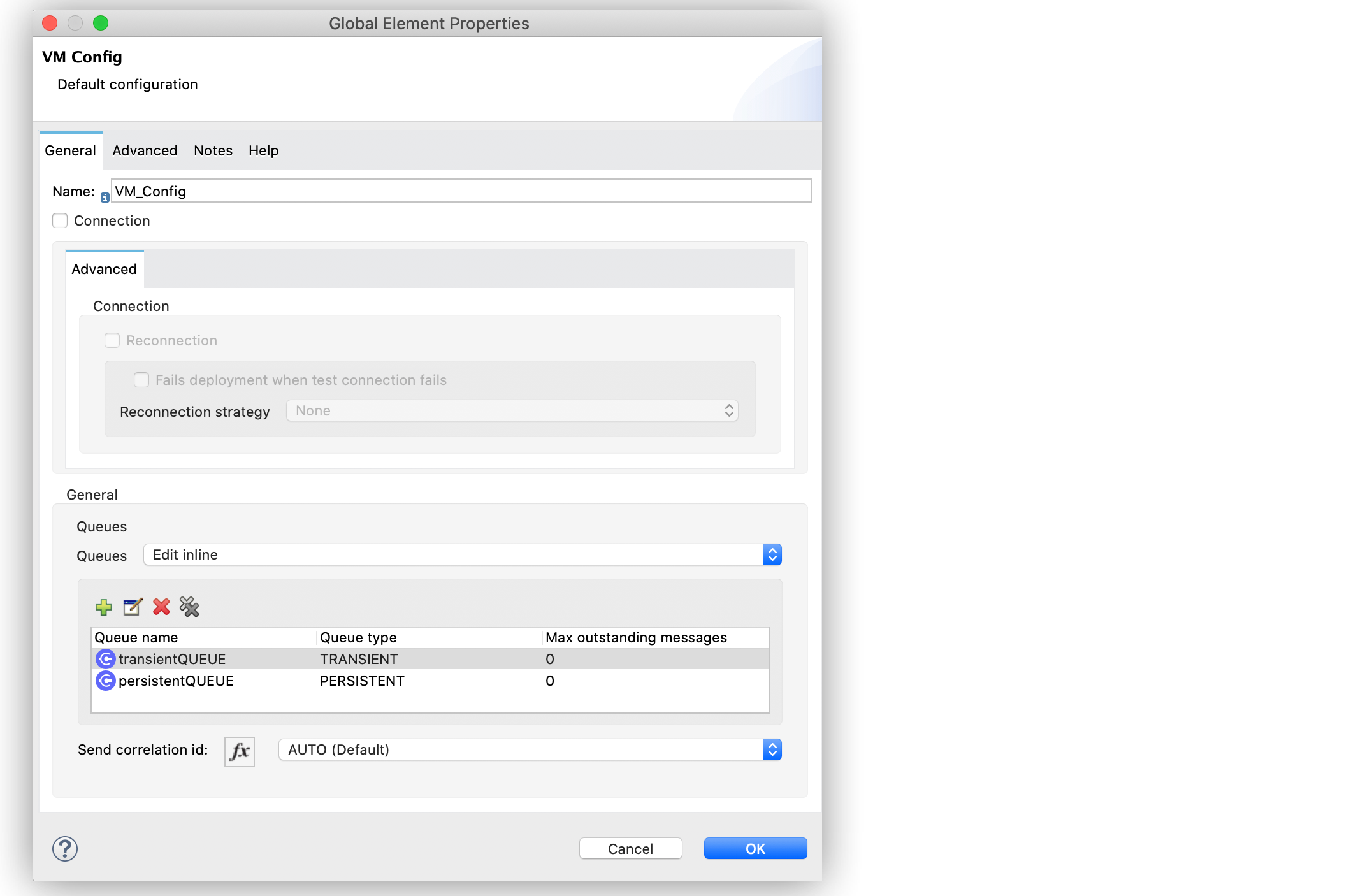
Figure 1. VM Connector Configuration
The following screenshot shows an example of configuring the VM queue:
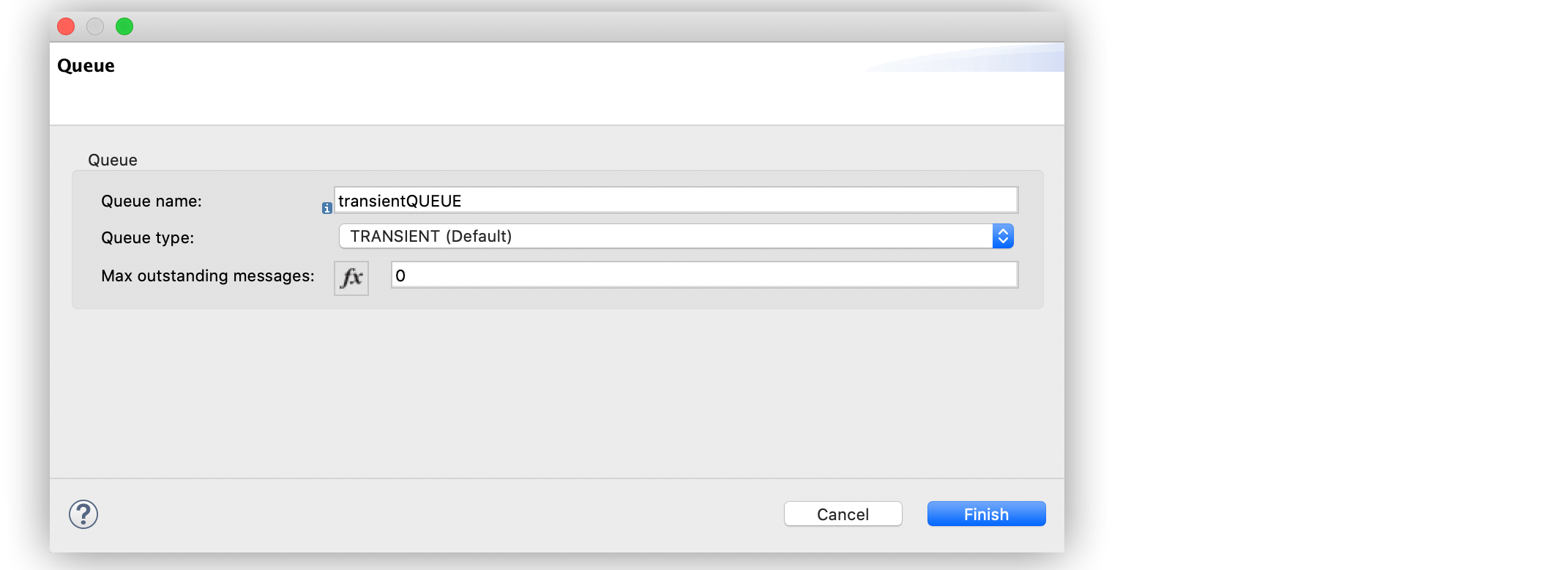
Figure 2. VM Queue Configuration
In the XML editor, the VM Connector configuration looks like this:
```xml
```
## View the App Log
To check for problems, you can view the app log as follows:
- If you’re running the app from Anypoint Platform, the output is visible in the Anypoint Studio
console window.
- If you’re running the app using Mule from the command line, the app log is visible in your OS
console.
Unless the log file path is customized in the app’s log file (`log4j2.xml`), you can also view the
app log in the default location `MULE_HOME/logs/.log`.
## See Also
- [Introduction to Anypoint Connectors](https://docs.mulesoft.com/connectors/introduction/introduction-to-anypoint-connectors)
- [Using Anypoint Studio to Configure a Connector](https://docs.mulesoft.com/connectors/introduction/intro-config-use-studio)
- [VM Connector Reference](https://docs.mulesoft.com/vm-connector/latest/vm-reference)
- [Salesforce Help](https://help.salesforce.com)