---
schema_version: "1"
id: cfb57c140038266742af1ee0472dc7f8ced5a8653942b93102e00a69f3de4454
title: Aggregate Messages Pending in Queue with VM Connector Examples
collection: mulesoft
version: current
locale: en-us
portal_url: https://docs.salesforce.com/mulesoft/current/en-us/vm-connector/latest/vm-aggregate-messages.md
canonical_url: https://docs.mulesoft.com/vm-connector/latest/vm-aggregate-messages
source_site: docs.mulesoft.com
content_type: documentation
content_hash: 7e4ae2b0715213aeac11149450f599b9226cc7dc5990391de05c30e4e54a0bd6
description: MuleSoft Documentation Site
release: "2.0"
latest: true
---
---
product: VM Connector
version: 2.0
is-latest-version: true
---
# Aggregate Messages Pending in Queue with VM Connector Examples
> For the full documentation index, see: https://docs.mulesoft.com/llms.txt
The following examples show two scenarios on how to aggregate messages pending in a queue using
Anypoint Connector for Virtual Machine (VM Connector).
Note that VM is a queue and you cannot perform a for each operation over every message pending on a
queue.
## First Example of Aggregating Messages in a Queue
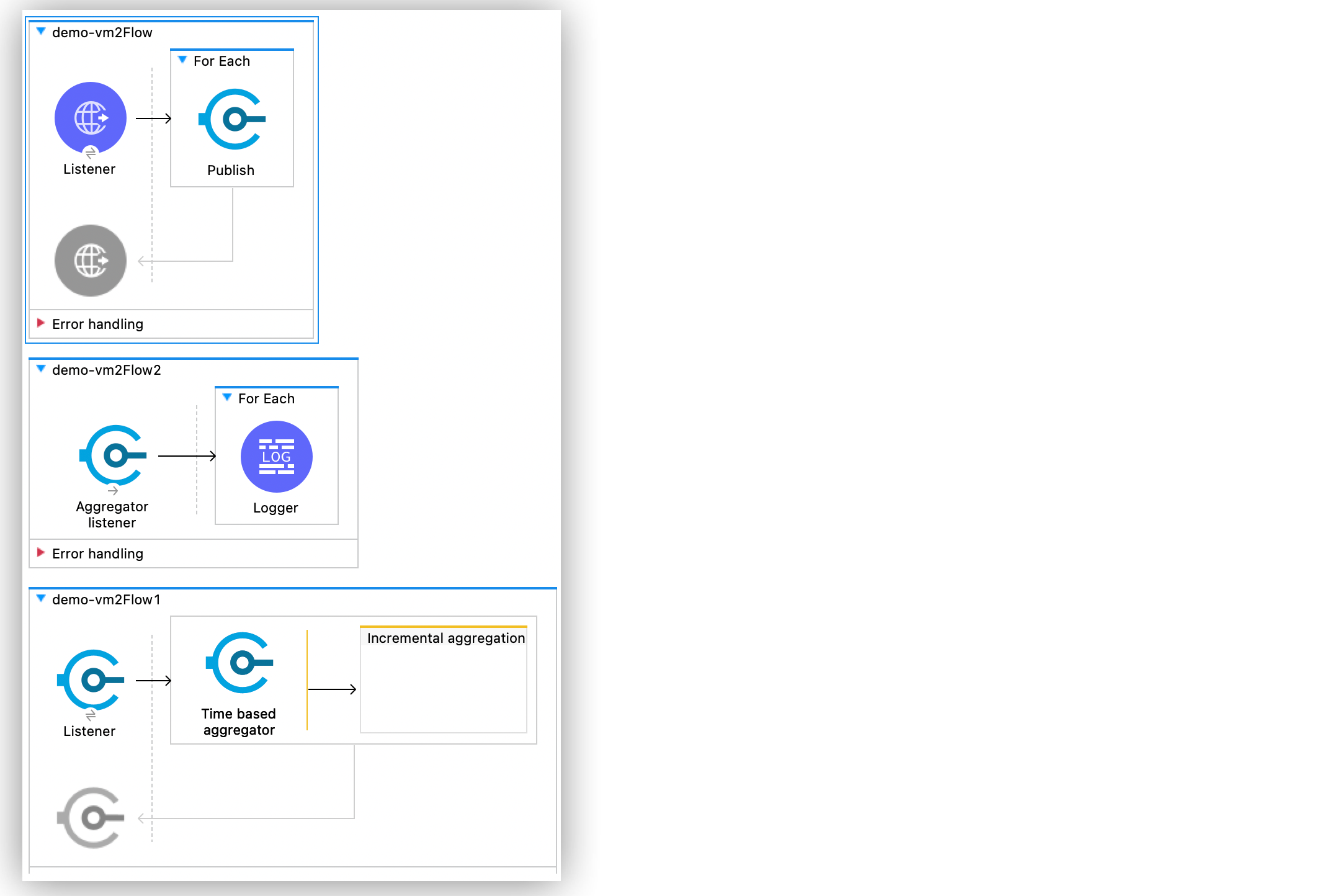
In this example, you use the Aggregators module to aggregate the received messages by the VM
**Listener** operation and then iterate over the result of the aggregation.
### Create the First Flow
In the first flow, an HTTP **Listener** source listens for incoming HTTP messages. Then a VM
**Publish** operation publishes specific content in a VM queue:
1. In Studio, create a new Mule project.
2. In **Mule Palette**, select the **HTTP > Listener** source and drag it on to the canvas.
3. On the HTTP **Listener** configuration screen, set the **Path** field to `/`.
4. Click the plus sign (+) next to the **Connector configuration** field to configure a global
element that can be used by all instances of the HTTP **Listener** in the app.
5. Complete the required fields for the HTTP global configuration.
6. Click **OK**.
7. Drag a **For Each** component to the right of the HTTP **Listener** source.
8. Set **Collection** to `1 to 200`.
9. Drag a **VM > Publish** operation into the **For Each** component.
10. Set **Content** to `"hello world"`.
11. Click the plus sign (+) next to the **Connector configuration** field to configure a global
element that can be used by all instances of the VM **Publish** operation in the app.
12. In the **VM Config** window, click the plus sign (+) to add a new queue.
13. Set **Queue name** to `demo`.
14. Click **Finish**.
15. Click **OK**.
### Create the Second Flow
In the second flow, a VM **Listener** operation listens to the messages published in the VM queue.
The **Time based aggregator** scope aggregates the received messages until the time condition is
reached.
1. In Studio, drag a **VM > Listener** operation below the first flow.
2. For **Connector configuration**, select the previously created `VM_Config` configuration.
3. Set **Queue name** to `demo`.
4. Drag a **Time based aggregator** scope to the right of the **VM Listener**.
5. Set **Name** to `demoaggregator`.
6. Set **Period** to `5` to aggregate the received messages until 5 seconds is reached.
### Create the Third Flow
In this flow, an **Aggregator listener** operation listens to the messages aggregated by the **Time
based aggregator** scope. The **For Each** component iterates over the messages and a **Logger**
component logs the content of each message.
1. In Studio, drag an **Aggregator listener** source above the second flow.
2. Set **Aggregator name** to `demoaggregator`.
3. Drag a **For Each** component to the right of the **Aggregator listener** source.
4. Set **Collection** to `[#payload]`.
5. Drag a **Logger** component into the **For Each** component.
6. Set **Message** to `[#payload]`.
7. Save and run your Mule app.
8. In your terminal, run the curl command `curl [http://localhost:8081/](http://localhost:8081/)`.
### XML for the First Example of Aggregating Messages in a Queue
Paste this code into the Studio XML editor to quickly load the flow for this example into your Mule
app:
```xml
```
## Second Example of Aggregating Messages in a Queue
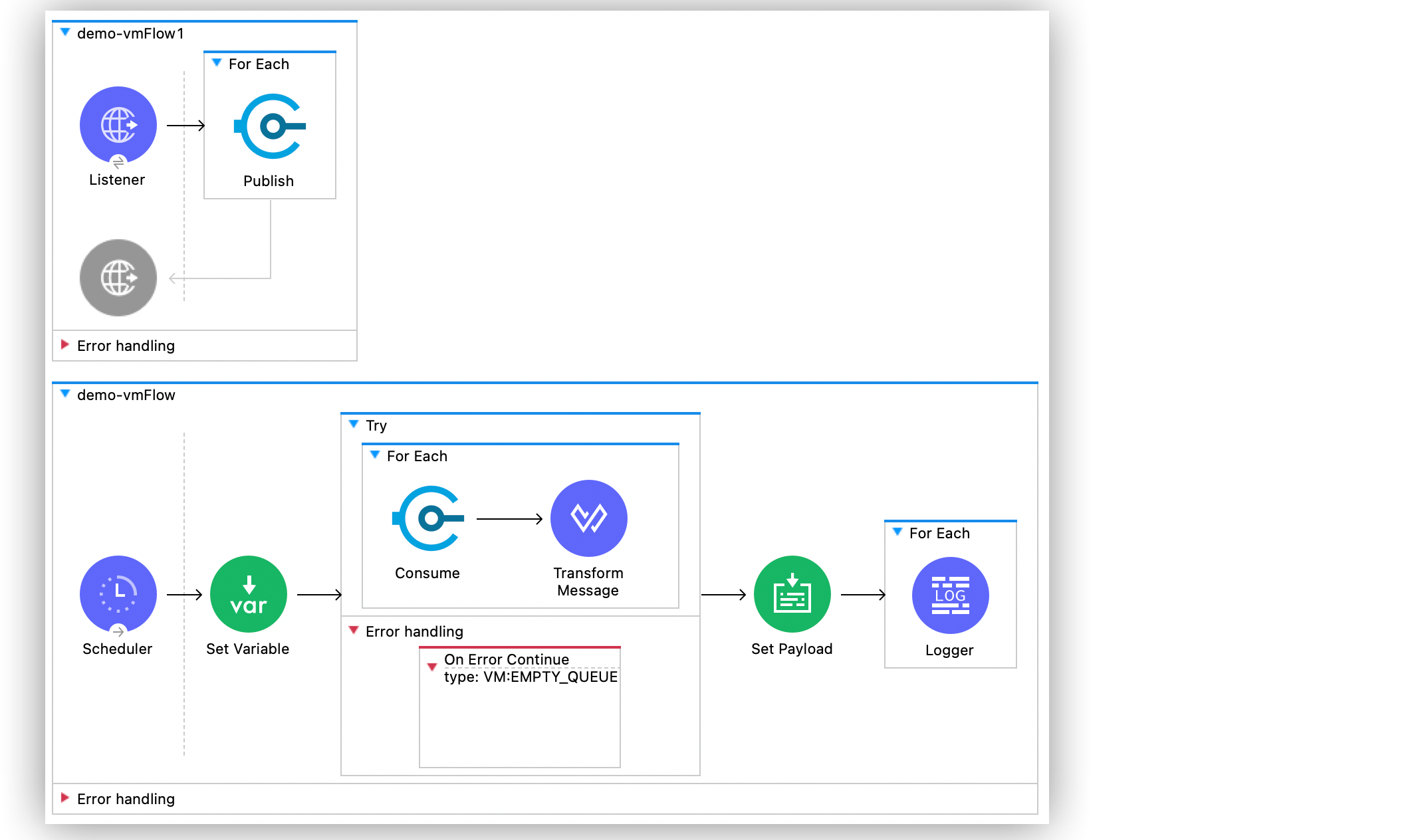
In this example, a **For Each** component iterates over messages that were consumed by the VM
**Consume** operation. The Mule app appends every received message into a variable, and logs the
payload content for each message. Note that in this example scenario you get slices of messages
until no messages are available on the queue. When this occurs, the VM **Consume** operation throws
a timeout message handled by the **On Error Continue** component and then the results are available
for iteration.
### Create the First Flow
In the first flow, an **HTTP Listener** source listens for incoming HTTP messages, and the VM
**Publish** operation publishes specific content in a VM queue:
1. In Studio, create a new Mule project.
2. In **Mule Palette**, select the **HTTP > Listener** source and drag it on to the canvas.
3. On the HTTP **Listener** configuration screen, set the **Path** field to `/`.
4. Click the plus sign (+) next to the **Connector configuration** field to configure a global
element that can be used by all instances of the HTTP **Listener** in the app.
5. Complete the required fields for the HTTP global configuration.
6. Click **OK**.
7. Drag a **For Each** component to the right of the HTTP **Listener** source.
8. Set **Collection** to `1 to 55`.
9. Drag a **VM > Publish** operation into the **For Each** component.
10. Set **Content** to `"test world"`.
11. Click the plus sign (+) next to the **Connector configuration** field to configure a global
element that can be used by all instances of the VM **Publish** operation in the app.
12. In the **VM Config** window, click the plus sign (+) to add a new queue.
13. Set **Queue name** to `demo`.
14. Click **Finish**.
15. Click **OK**.
### Create the Second Flow
In the second flow, a VM **Consume** operation pulls the published messages from the queue. The
**Transform Message** component transforms the payload content and save it in a variable. The Mule
app logs each variable payload.
1. In Studio, drag a **Scheduler** source below the first flow.
2. Set **Frequency** to `5000`.
3. Drag a **Set Variable** component to the right of the **Scheduler** component.
4. Set **Name** to `result`.
5. Set **Value** to `[]`.
6. Drag a **Try** scope component to the right of **Set Variable**.
7. Drag a **For Each** component into the **Try** scope.
8. Set **Collection** to `1 to 10000`.
9. Drag a VM **Consume** operation into the **For Each** component.
10. For **Connector configuration**, select the previously created `VM_Config` configuration.
11. Set **Queue name** to `demo`.
12. Drag a **Transform Message** component to the right of **Consume**.
13. Set the DataWeave script to:
%dw 2.0 output application/java
---
vars.result << payload
14. Drag an **On Error Continue** component into the **Error handling** section of the **Try** scope
component.
15. Set **Type** to `VM:EMPTY_QUEUE`.
16. Drag a **Set Payload** component to the right of the **Try** scope component.
17. Set **Value** to `vars.result`.
18. Drag a **For Each** component to the right of the **Set Payload** component.
19. Set **Collection** to `payload`.
20. Drag a **Logger** component into the **For each** scope component.
21. Set **Message** to `payload`.
22. Save and run your Mule app.
23. In your terminal, run the curl command `curl [http://localhost:8081/](http://localhost:8081/)`.
### XML for the Second Example of Aggregating Messages in a Queue
Paste this code into the Studio XML editor to quickly load the flow for this example into your Mule
app:
```xml
```
## See Also
- [Introduction to Anypoint Connectors](https://docs.mulesoft.com/connectors/introduction/introduction-to-anypoint-connectors)
- [Salesforce Help](https://help.salesforce.com)