---
schema_version: "1"
id: d602df423ecab37fbfe575bb0efe54e918e7d7860dc77f080244eab6c2c82a10
title: Veeva Vault Connector 1.5 Examples
collection: mulesoft
version: current
locale: en-us
portal_url: https://docs.salesforce.com/mulesoft/current/en-us/veevavault-connector/latest/veevavault-connector-examples.md
canonical_url: https://docs.mulesoft.com/veevavault-connector/latest/veevavault-connector-examples
source_site: docs.mulesoft.com
content_type: documentation
content_hash: 924acee7d64e8dcdf4b1f8d0637ead7954f2d2d4895f1d7b0ded8ed4c230c07a
description: MuleSoft Documentation Site
release: "1.5"
latest: true
---
---
product: Veeva Vault Connector
version: 1.5
is-latest-version: true
---
# Veeva Vault Connector 1.5 Examples
> For the full documentation index, see: https://docs.mulesoft.com/llms.txt
The following examples show how to configure the connector in Anypoint Studio:
- [Create Documents in Veeva Vault](#create-documents-on-the-vault)
- [Retrieve Document Details](#retrieve-document-details)
- [Fetch Document or Object Data](#fetch-document-or-object-data)
- [Validate a Spark Message](#validate-a-spark-message)
- [Invoke the REST API to Create a Single Document](#invoke-rest-api)
## Create Documents in Veeva Vault
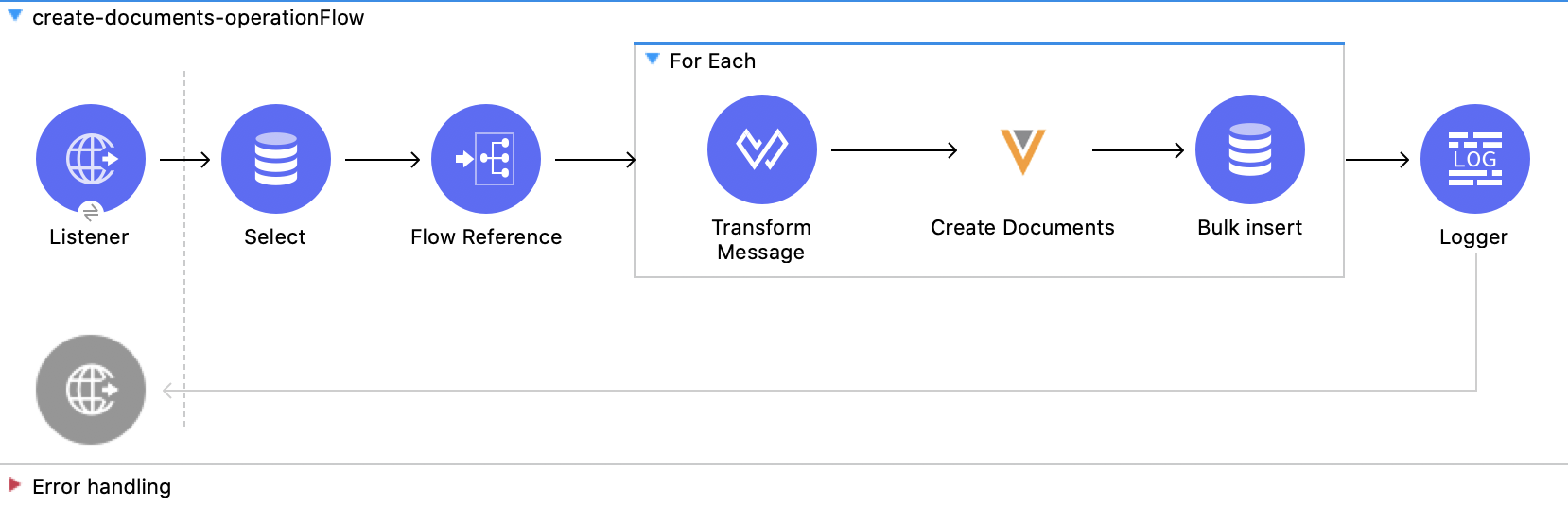
This example creates documents in bulk with document metadata fetched from an external source
(database). Before creating documents in Veeva Vault, the document files are uploaded using the
Veeva Vault FTP server. The documents' `created` status is inserted in the database.
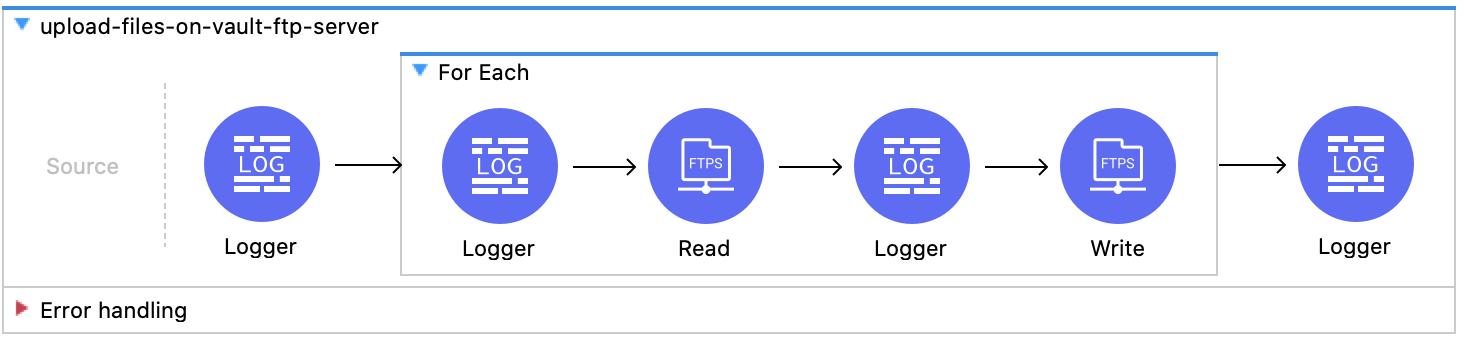
The following screenshots show the Studio app flows for this example:
### Create the First Flow
1. From the **Mule Palette** view, select **HTTP** and drag the **Listener** source to the canvas.
2. Configure HTTP Listener for your environment.
3. From the **Mule Palette** view, select **Database** and drag the **Select** operation to the
canvas to fetch document metadata from the table.
4. Configure Database Connector to use your connection credentials.
5. In the SQL Query Text field, enter `>SELECT * FROM createdocuments`.
6. From the **Mule Palette** view, select **Core** and drag the **Flow Reference** component to the
canvas to reference the subflow `upload-files-on-vault-ftp-server`.
7. From the **Mule Palette** view, select **Core** and drag the **For Each** scope to the canvas
containing the following elements:
1. From the **Mule Palette** view, select **Core** and drag the **Transform Message** component
to the canvas to transform document metadata into CSV format.
2. From the **Mule Palette** view, select **Veeva Vault** and drag the **Create Documents**
operation to the canvas.
3. Enter the following values for the Veeva Vault connection:
- **Username**
- **Password**
- **Vault URL**
- **Vault version**
- **Vault client ID**
4. From the **Mule Palette** view, select **Database** and drag the **Bulk insert** operation
to the canvas to insert the document created status data into the database table.
8. Configure Database Connector to use your connection credentials.
9. From the **Mule Palette** view, select **Core** and drag the **Logger** component to the canvas
to log information in the console or log file.
### Create the Second Flow
1. From the **Mule Palette** view, select **Core** and drag the **Logger** component to the canvas
to log information for this subflow.
2. From the **Mule Palette** view, select **Core** and drag the **For Each** scope to the canvas
containing the following elements:
1. From the **Mule Palette** view, select **Core** and drag the **Logger** component to the
canvas.
2. From the **Mule Palette** view, select **FTPS** and drag the **Read** operation to the
canvas .
3. From the **Mule Palette** view, select **Core** and drag the **Logger** component to the
canvas.
4. From the **Mule Palette** view, select **FTPS** and drag the **Write** operation to the
canvas to write the file to the Veeva Vault FTP server.
3. From the **Mule Palette** view, select **Core** and drag another **Logger** component to the
canvas.
4. Configure FTPS Connector to use the credentials for the Veeva Vault FTP server.
### XML for the Example
Paste this code into your Studio XML editor to quickly load the two flows of this example into your
Mule app:
```xml
SELECT * FROM createdocuments
{
lifecycle__v: payload01.lifecycle__v,
study__v: payload01.study__v,
subtype__v: payload01.subtype__v,
name__v: payload01.name__v ++ '--' ++ randomInt(10000) as String,
type__v: payload01.type__v,
classification__v: payload01.classification__v,
product__v: payload01.product__v,
file: payload01.file as String
}]]>
{
'id': $.id as String,
'external_id__v': $.external_id__v as String,
'responseStatus': $.responseStatus
}]]]>
INSERT into documents (id, external_id__v, responseStatus) VALUES (:id: external_id__v, :responseStatus)
```
## Retrieve Document Details
This example retrieves document details based on document type, subtype, and classification and then
stores the document details in the database.
The following screenshot shows the Studio app flow for this example:
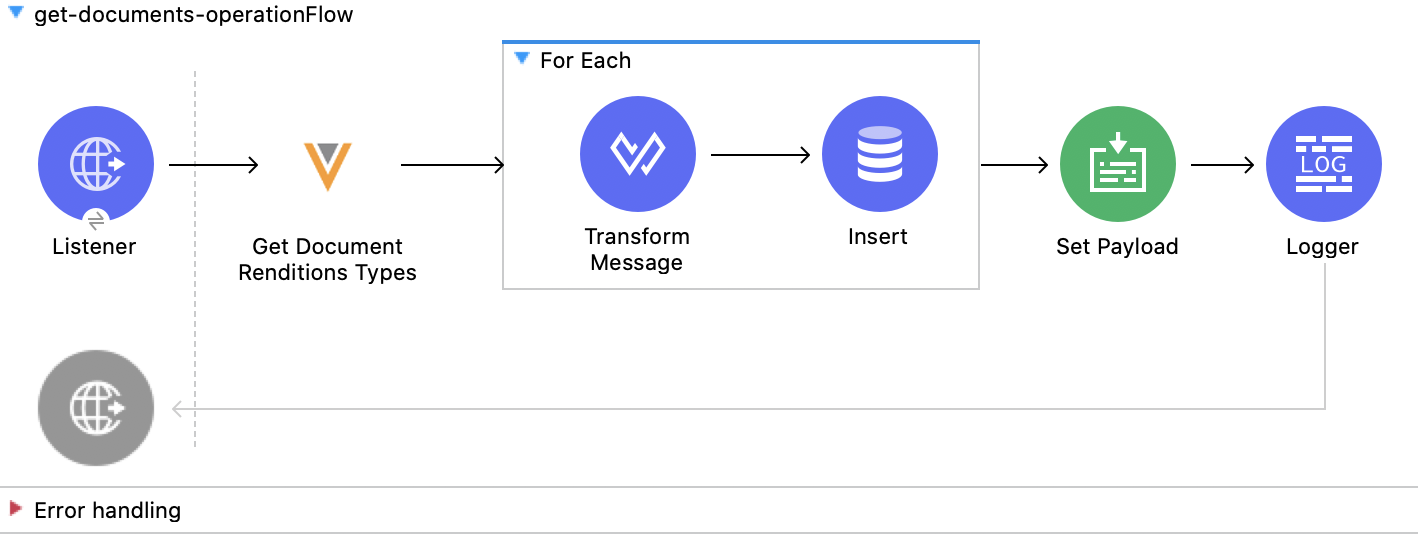
1. From the **Mule Palette** view, select **HTTP** and drag the **Listener** source to the canvas.
2. Configure HTTP Listener for your environment.
3. From the **Mule Palette** view, select **Veeva Vault** and drag the **Get Documents** operation
to the canvas.
4. Enter the following values for the Veeva Vault connection:
- **Username**
- **Password**
- **Vault URL**
- **Vault version**
- **Vault client ID**
5. Click the respective refresh button to fetch the document type, subtype, and classification
list.
6. Select the document type, subtype, and classification from each of the respective drop-down
lists.
7. Add the document properties in the Document Properties list for your business requirements to
incorporate the properties name in the VQL query to build dynamically.
8. From the **Mule Palette** view, select **Core** and drag the **For Each** scope to the canvas
containing the following elements:
1. From the **Mule Palette** view, select **Core** and drag the **Transform Message** component
to the canvas.
2. From the **Mule Palette** view, select **Database** and drag the **Insert** operation to the
canvas.
3. Configure the Database Connector configuration with your connection credentials.
9. Using DataWeave, configure the transformation according to your business requirements.
10. Configure the **Insert** operation to insert data into table.
11. From the **Mule Palette** view, select **Core** and drag the **Set Payload** transformer to the
canvas to set a payload to return to the triggered source.
12. From the **Mule Palette** view, select **Core** and drag the **Logger** component to the canvas
to log information in the console or log file.
### XML for the Example
Paste this code into your Studio XML editor to quickly load the flow for this example into your Mule
app:
```xml
INSERT INTO [.underline]#createdocuments# (name__v, type__v, subtype__v, classification__v, lifecycle__v,
product__v, status__v, study__v, file) VALUES (:name__v, :type__v, :subtype__v, :classification__v, :lifecycle__v, :product__v, :status__v, :study__v, :file)
```
## Fetch Document or Object Data
This example uses a VQL query to fetch document or object data from Veeva Vault.
The following screenshot shows the Studio app flow for this example:
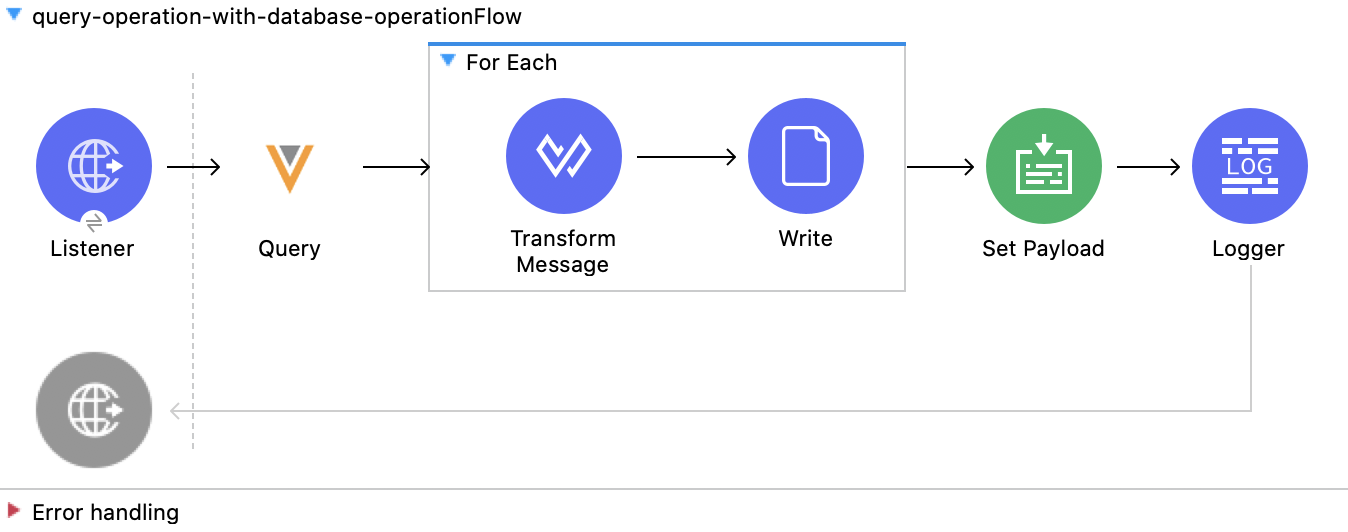
1. From the **Mule Palette** view, select **HTTP** and drag the **Listener** source to the canvas.
2. Configure HTTP Listener for your environment.
3. From the **Mule Palette** view, select **Veeva Vault** and drag the **Query** operation to the
canvas.
4. Enter the following values for the Veeva Vault connection:
- **Username**
- **Password**
- **Vault URL**
- **Vault version**
- **Vault client ID**
5. Define the VQL query according to your business requirement.
6. Add an input placeholder if used in the VQL query to incorporate dynamically with VQL at
runtime.
7. From the **Mule Palette** view, select **Core** and drag the **For Each** scope to the canvas
containing the following elements:
1. From the **Mule Palette** view, select **Core** and drag the **Transform Message** component
to the canvas.
2. From the **Mule Palette** view, select **File** and drag the **Write** operation to the
canvas.
8. Configure the transformation according to your business requirements using DataWeave.
9. Configure the File Connector configuration with the working file path.
10. Configure the **Write** operation to write payload data into the specified file.
11. From the **Mule Palette** view, select **Core** and drag the **Set Payload** transformer to the
canvas to set a payload to return to the triggered source.
12. From the **Mule Palette** view, select **Core** and drag the **Logger** component to the canvas
to log information in the console or log file.
### XML for the Example
Paste this code into your Studio XML editor to quickly load the flow for this example into your Mule
app:
```xml
SELECT id, name__v, type__v, subtype__v, classification__v, lifecycle__v, status__v, study__v, product__v from :table WHERE name__v= 'F22611234--6764'
```
## Validate a Spark Message
This example triggers a Spark message from Veeva Vault and validates the Spark message.
The following screenshot shows the Studio app flow for this example:
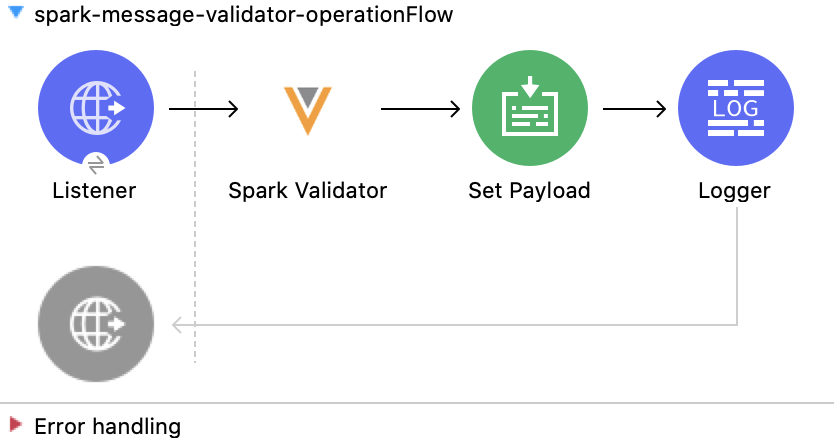
1. From the **Mule Palette** view, select **HTTP** and drag the **Listener** source to the canvas.
2. The JKS certificate for HTTP Connector requires the `.jks` file for HTTP Listener to receive
Spark messages over a TLS connection with Veeva Vault.
The following steps show how to create a `.jks` file using the Java Keytool located under the
`/bin` directory:
3. Run the following command from the `/bin` directory:
\`keytool -genkey -keyalg RSA -alias mule -keystore spark-listener.jks -storepass password
-validity 360 -keysize 2048\`
This creates a \`spark-listener.jks\` file in the current directory.
4. Copy and import the `spark-listener.jks` file from the `src/main/resources` project directory.
5. Configure HTTP Listener as follows:
1. In the **General** tab, configure the following:
- Protocol: HTTPS
- Host: 0.0.0.0
- Port: 8082
2. In the **TLS** tab, configure the following:
- Type: JKS
- Path: spark-listener.jks
- Alias: mule
- Key Password: password
- Password: password
6. From the **Mule Palette** view, select **Veeva Vault** and drag the **Spark Validator**
operation to the canvas.
7. Enter the following values for the Veeva Vault connection:
- **Username**
- **Password**
- **Vault URL**
- **Vault version**
- **Vault client ID**
8. Configure the **Spark Validator** parameters as follows:
- Include Spark Header: `FALSE`
- Public Key Path: `${file.keyPath}`
Define the `file.keyPath` property in the `configuration.yaml` with the path to where the
public key file (00001.pem) is stored.
- Spark Headers: `#[attributes.headers]`
- Spark Message: `#[payload]`
9. From the **Mule Palette** view, select **Core**, drag the **Set Payload** operation to the
canvas, and define the following in the **Value** field:
\---- output application/json --- { "payload" : payload, "attributes": attributes }
----
10. From the **Mule Palette** view, select **Core** and drag the **Logger** component to the canvas
to log the payload with the following message:
Spark Message :: #\[payload\]
### XML for the Example
Paste this code into your Studio XML editor to quickly load the flow for this example into your Mule
app:
```xml
```
## Invoke the REST API to Create a Single Document
This example invokes the REST API to create a single document.
The following screenshot shows the Studio app flow for this example:
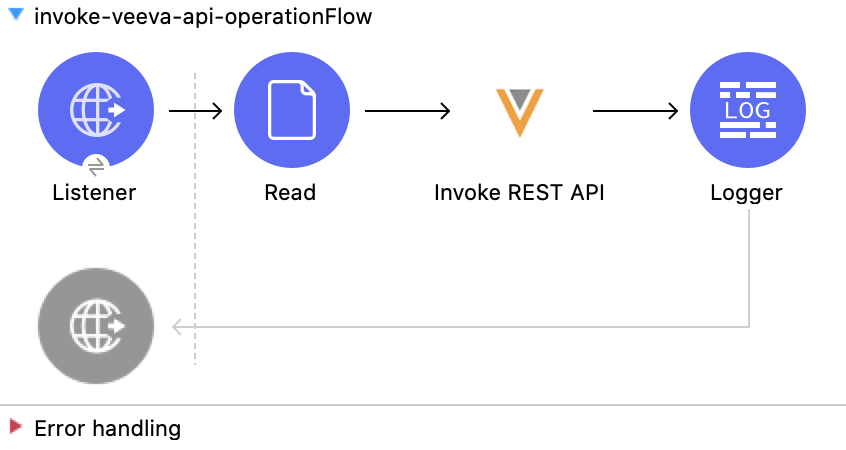
> [!NOTE] You must configure the parameters according to your requirements to invoke the Veeva Vault
> REST API.
1. From the **Mule Palette** view, select **HTTP** and drag the **Listener** source to the canvas.
2. Configure HTTP Listener for your environment.
3. From the **Mule Palette** view, select **File** and drag the **Read** operation to the canvas
and configure the file path to read from the file content that is associated with Veeva Vault
document.
4. From the **Mule Palette** view, select **Veeva Vault** and drag the **Invoke REST API**
operation to the canvas.
5. Enter the following values for the Veeva Vault connection:
- **Username**
- **Password**
- **Vault URL**
- **Vault version**
- **Vault client ID**
6. Configure the POST request:
Method: POST, Path: "/objects/documents", Headers: Key: "Accept" Value: "application/json" Key:
"Content-Type" Value: "multipart/form-data; boundary=abcdefg" URI Parameters: Leave it empty.
Query Parameters: Leave it empty.
%dw 2.0 output multipart/form-data boundary='abcdefg'
---
{ parts: { file: { headers: { "Content-Disposition": { "name": "file", "filename":
attributes.fileName }, "Content-Type": payload.^mimeType }, content : payload }, name\_\_v: {
headers: {
},
content: 'Test Document'
},
type\_\_v: {
headers: {
},
content: 'Trial Management'
},
subtype\_\_v: {
headers: {
},
content: 'Meetings'
},
classification\_\_v: {
headers: {
},
content: 'Kick-off Meeting Material'
},
lifecycle\_\_v: {
headers: {
},
content: 'Base Doc Lifecycle'
},
study\_\_v: {
headers: {
},
content: '0ST000000000301'
},
comments\_\_c: {
headers: {
},
content: 'Test Document'
}
}
}
7. Configure the PUT request:
Method: PUT, Path: "/objects/documents/{doc\_id}", Headers: Key: "Accept" Value:
"application/json" Key: "Content-Type" Value: "application/x-www-form-urlencoded" URI
Parameters: Key: "doc\_id" Value: "259592" Query Parameters: Leave it empty.
%dw 2.0 output application/x-www-form-urlencoded
---
{ "id": "259592", "name\_\_v": "Kick-off Meeting Material Updated", "product\_\_v":
"00P000000000403", "study\_\_v": "0ST000000000202", "notes\_\_v": "Notes Updated" }
8. From the **Mule Palette** view, select **Core** and drag the **Logger** component to the canvas
to log the payload with the following message:
Invoke Veeva API response :: #\[payload\]
### XML for the Example
Paste this code into your Studio XML editor to quickly load the flow for this example into your Mule
app:
## See Also
- [Introduction to Anypoint Connectors](https://docs.mulesoft.com/connectors/introduction/introduction-to-anypoint-connectors)
- [Salesforce Help](https://help.salesforce.com)