---
schema_version: "1"
id: c2fb5b4952b58bc528ca6e401f4cda2fad517852cd4a6c49f5516a7910a51752
title: Validation Module Examples 2.0
collection: mulesoft
version: current
locale: en-us
portal_url: https://docs.salesforce.com/mulesoft/current/en-us/validation-connector/latest/validation-examples.md
canonical_url: https://docs.mulesoft.com/validation-connector/latest/validation-examples
source_site: docs.mulesoft.com
content_type: documentation
content_hash: 2cc51f9812a09053d9fab694e0d5ba85325db4140abd9d80209558c1693ae74e
description: MuleSoft Documentation Site
release: "2.0"
latest: true
---
---
product: Validation Module
version: 2.0
is-latest-version: true
---
# Validation Module Examples 2.0
> For the full documentation index, see: https://docs.mulesoft.com/llms.txt
The following examples illustrate how to configure Validation module-supported operations both in
Anypoint Studio and the XML editor.
## Configure the Is IP Operation
The **Is IP** operation checks that a given IP address is valid. It supports both IPV4 and IPV6
addresses. In the case of IPV6, the operation supports both full and collapsed addresses, but not
addresses containing ports.
The following example shows how to configure the operation in Anypoint Studio:
1. In the **Mule Palette** view, select **Validation > Is IP**.
2. Drag **Is IP** onto the Studio canvas.
3. In the **Is IP** configuration screen, provide the following parameters:
- **Ip**: `payload`
- **Message**: `The value provided is not a valid IP address.`
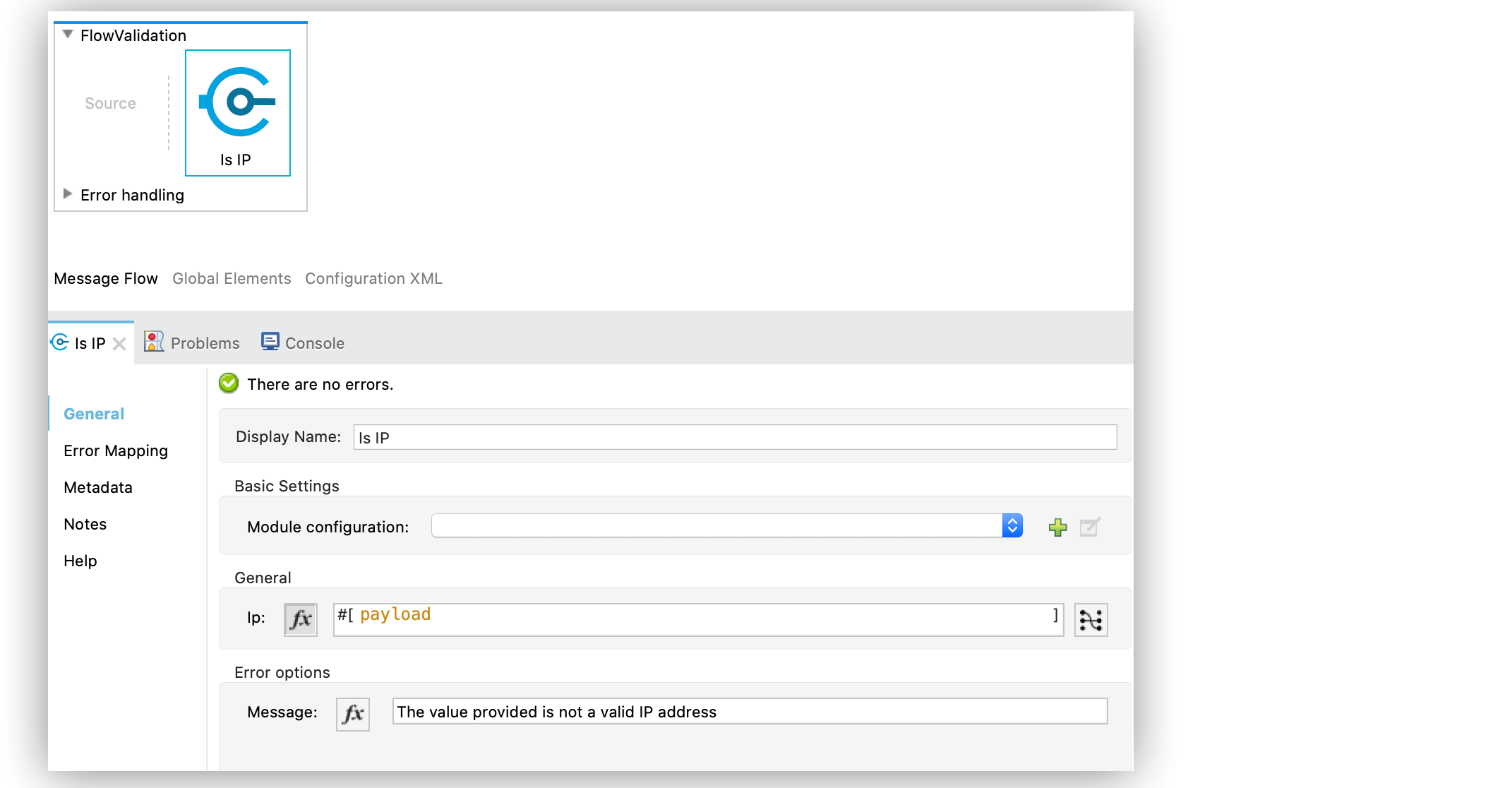
Figure 1. Is IP Configuration
In the **Configuration XML** editor, the configuration looks like this:
```xml
```
## Configure the Is URL Operation
The **Is URL** operation validates that a given string can be interpreted as a URL. This is done by
invoking the URL (string) constructor in the `java.net.URL` class. If this constructor throws an
exception, then the validation fails. Any string that this constructor accepts is considered valid.
The following example shows how to configure the operation in Anypoint Studio:
1. In the **Mule Palette** view, select **Validation > Is URL**.
2. Drag **Is URL** onto the Studio canvas.
3. In the **Is URL** configuration screen, set the **URL** field to `vars.callbackUrl`:
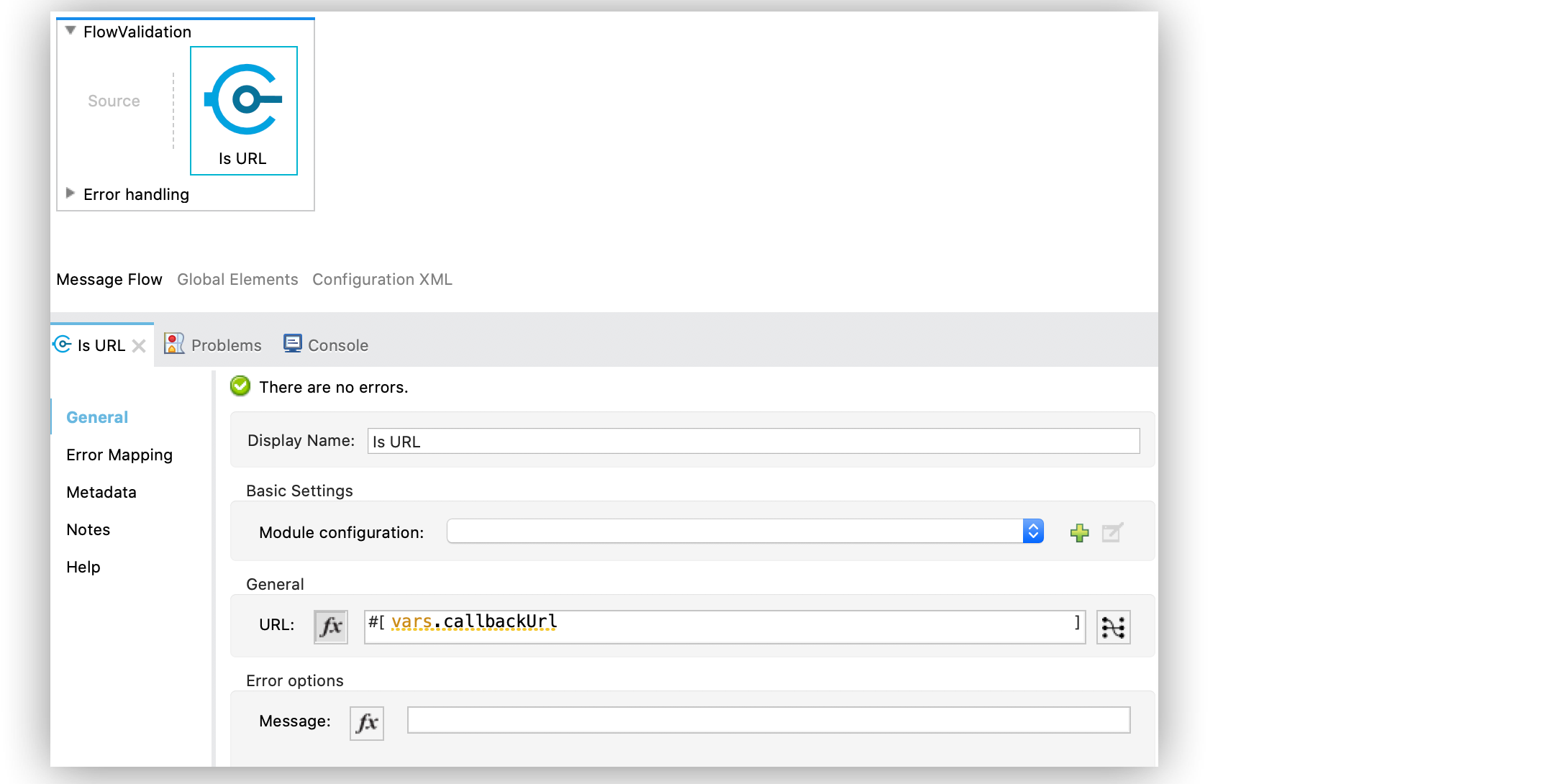
Figure 2. Is URL Configuration
In the **Configuration XML** editor, the configuration looks like this:
```xml
```
## Configure the Is Blank String Operation
The **Is blank string** operation validates that the provided value is a blank string.
The following example shows how to configure the operation in Anypoint Studio:
1. In the **Mule Palette** view, select **Validation > Is blank string**.
2. Drag **Is blank string** to the Studio canvas.
3. In the **Is blank string** configuration screen, set the **Value** field to `payload`:
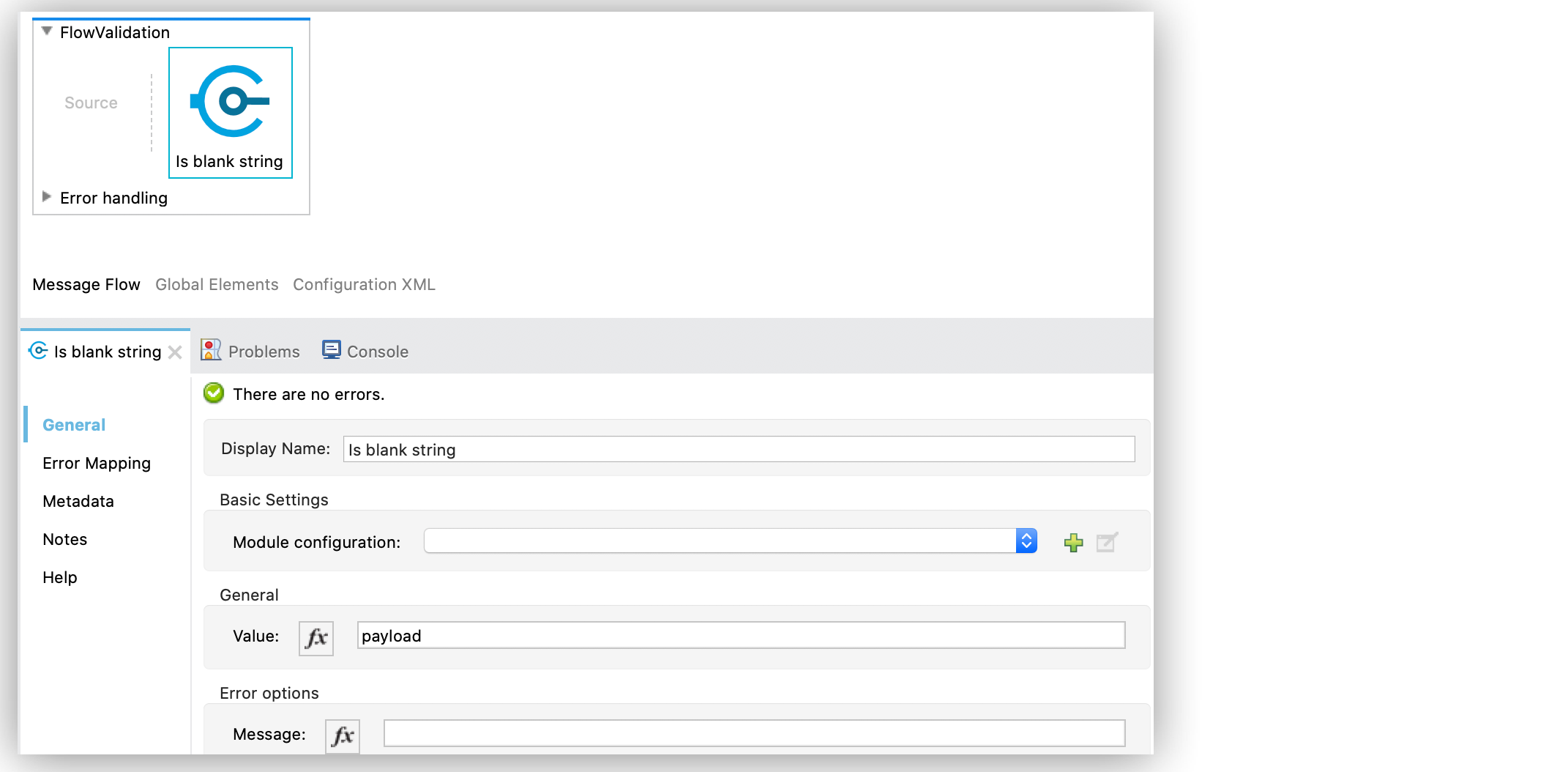
Figure 3. Is blank string Configuration
In the **Configuration XML** editor, the configuration looks like this:
```xml
```
## Configure the Is Elapsed Operation
The **Is elapsed** operation validates that a given time has elapsed since the specified initial
time.
The following example shows how to configure the operation in Anypoint Studio:
1. In the **Mule Palette** view, select **Validation > Is elapsed**.
2. Drag **Is elapsed** onto the Studio canvas.
3. In the **Is elapsed** configuration screen, provide the following parameters:
- **Time**: `20`
- **Time unit**: `SECONDS`
- **Since**: `vars.initialTime`
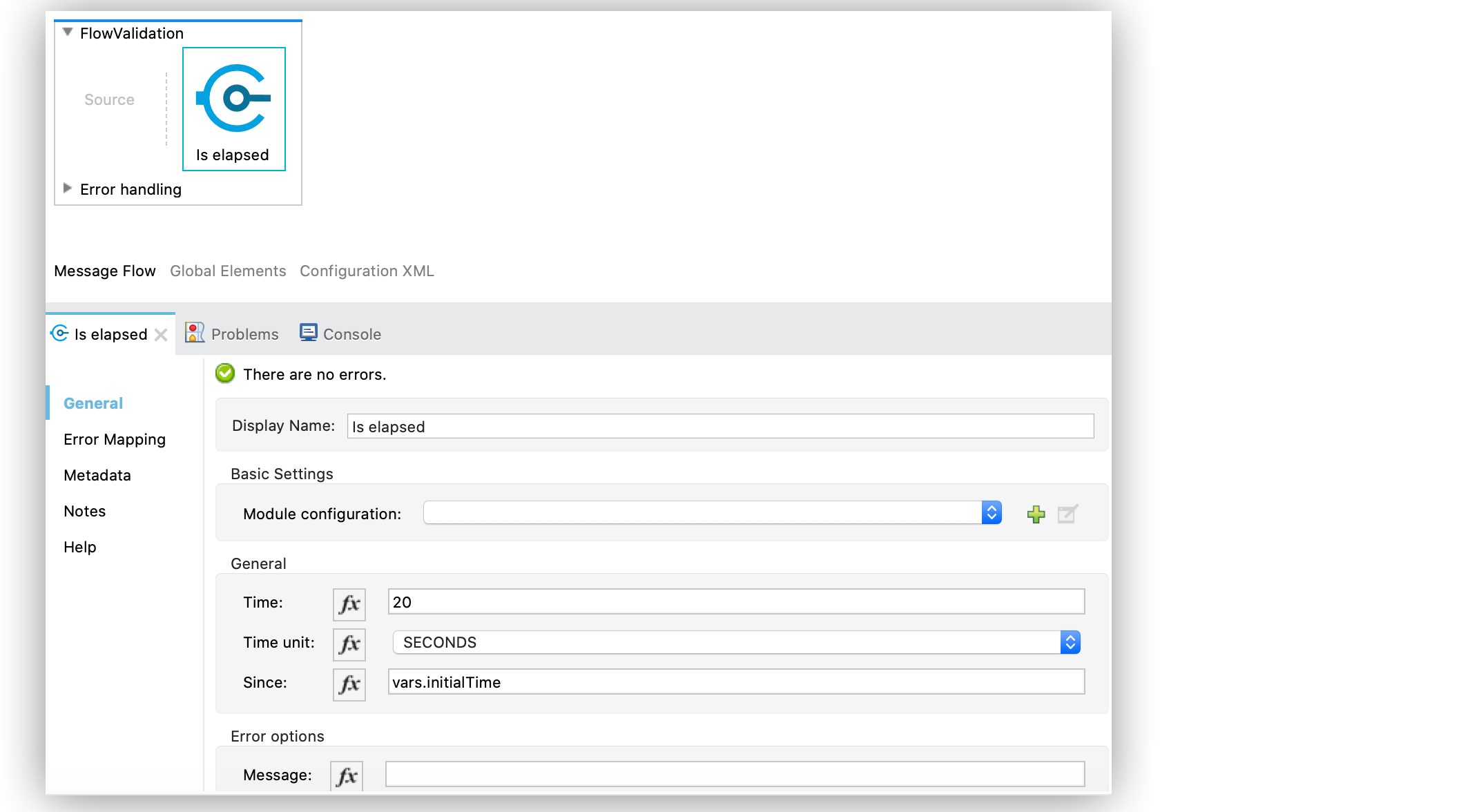
Figure 4. Is elapsed Configuration
In the **Configuration XML** editor, the configuration looks like this:
```xml
```
## Configure the Is Email Operation
The **Is email** operation checks that a given email is valid. The value defaults to the email
payload.
The following example shows how to configure the operation in Anypoint Studio:
1. In the **Mule Palette** view, select **Validation > Is email**.
2. Drag **Is email** onto the Studio canvas.
3. In the **Is email** configuration screen, provide the following parameters:
- **Email**: `vars.email`
- **Message**: `The value is not a valid email.`
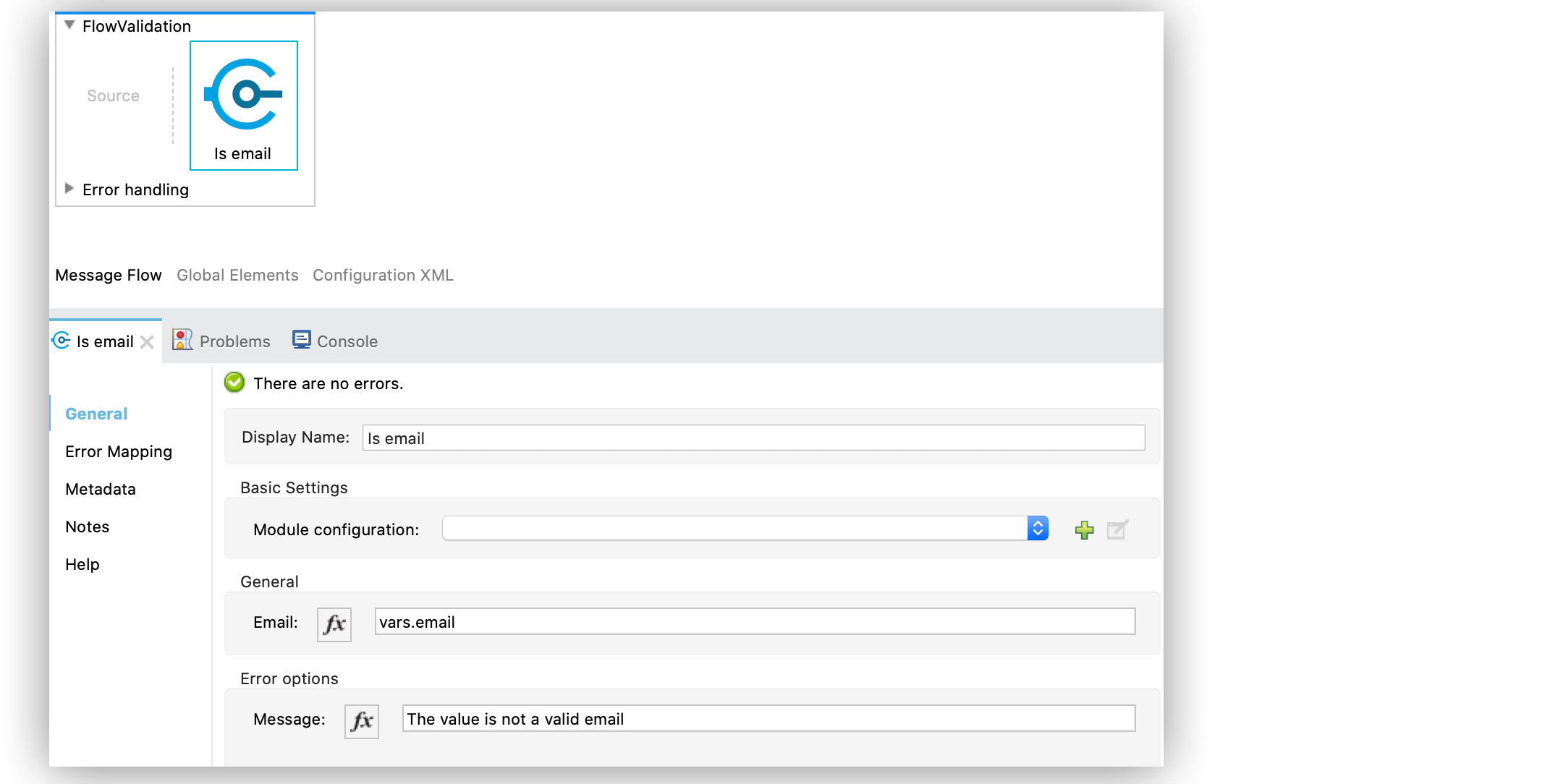
Figure 5. Is email Configuration
In the **Configuration XML** editor, the configuration looks like this:
```xml
```
## Configure the Is Empty Collection Operation
The **Is empty collection** operation validates that the provided value is an empty collection.
The following example shows how to configure the operation in Anypoint Studio:
1. In the **Mule Palette** view, select **Validation > Is empty collection**.
2. Drag **Is empty collection** onto the Studio canvas.
3. In the **Is empty collection** configuration screen, set the **Value** field to `payload`:
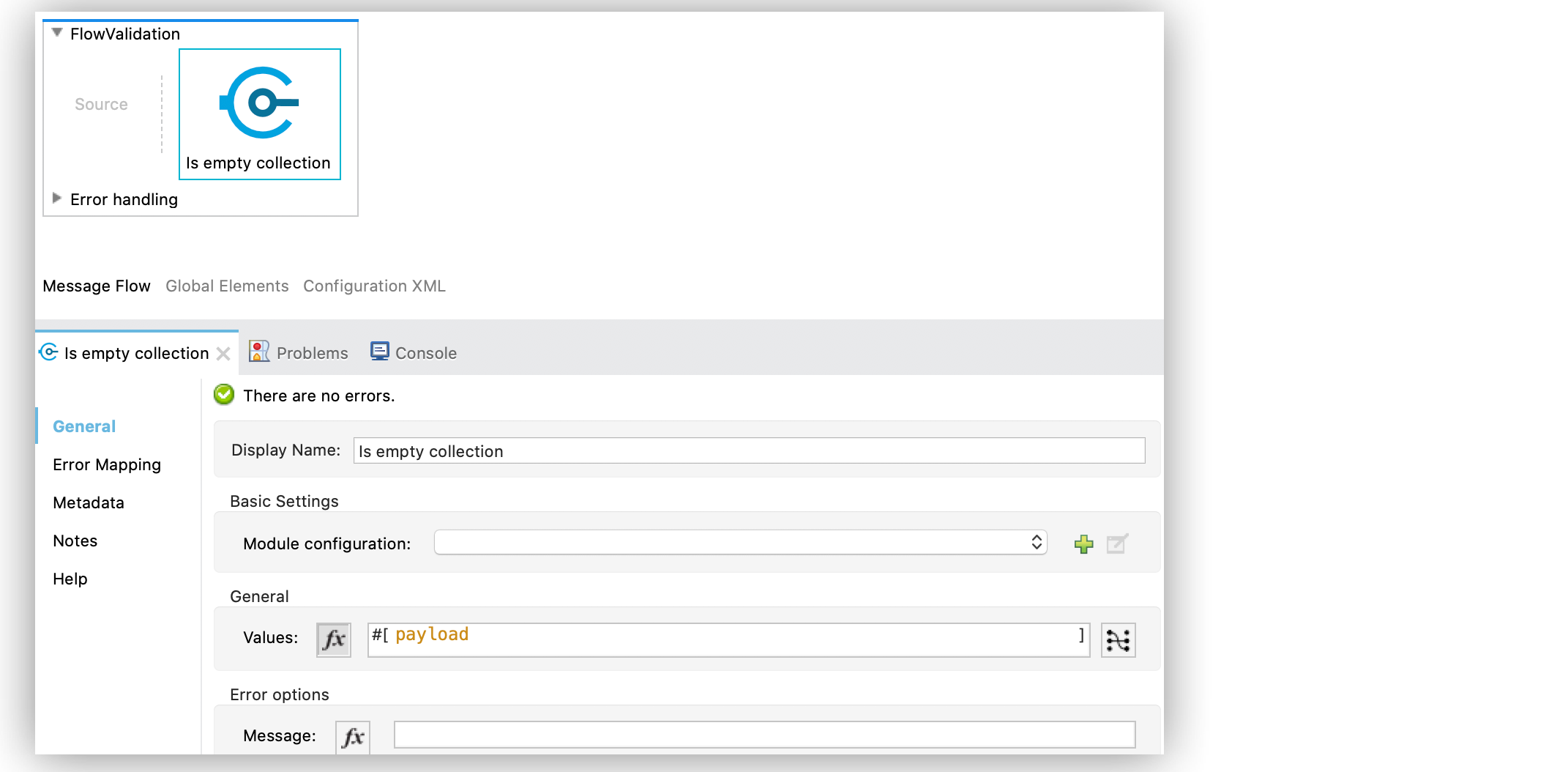
Figure 6. Is empty collection Configuration
In the **Configuration XML** editor, the configuration looks like this:
```xml
```
## Configure the Is False Operation
The **Is false** operation validates that an expression evaluates to `false`.
The following example shows how to configure the operation in Anypoint Studio:
1. In the **Mule Palette** view, select **Validation > Is false**.
2. Drag **Is false** onto the Studio canvas.
3. In the **Is false** configuration screen, for the **Expression** field, select `Expression`, and
in the empty field add `#[vars.withFailures]`:
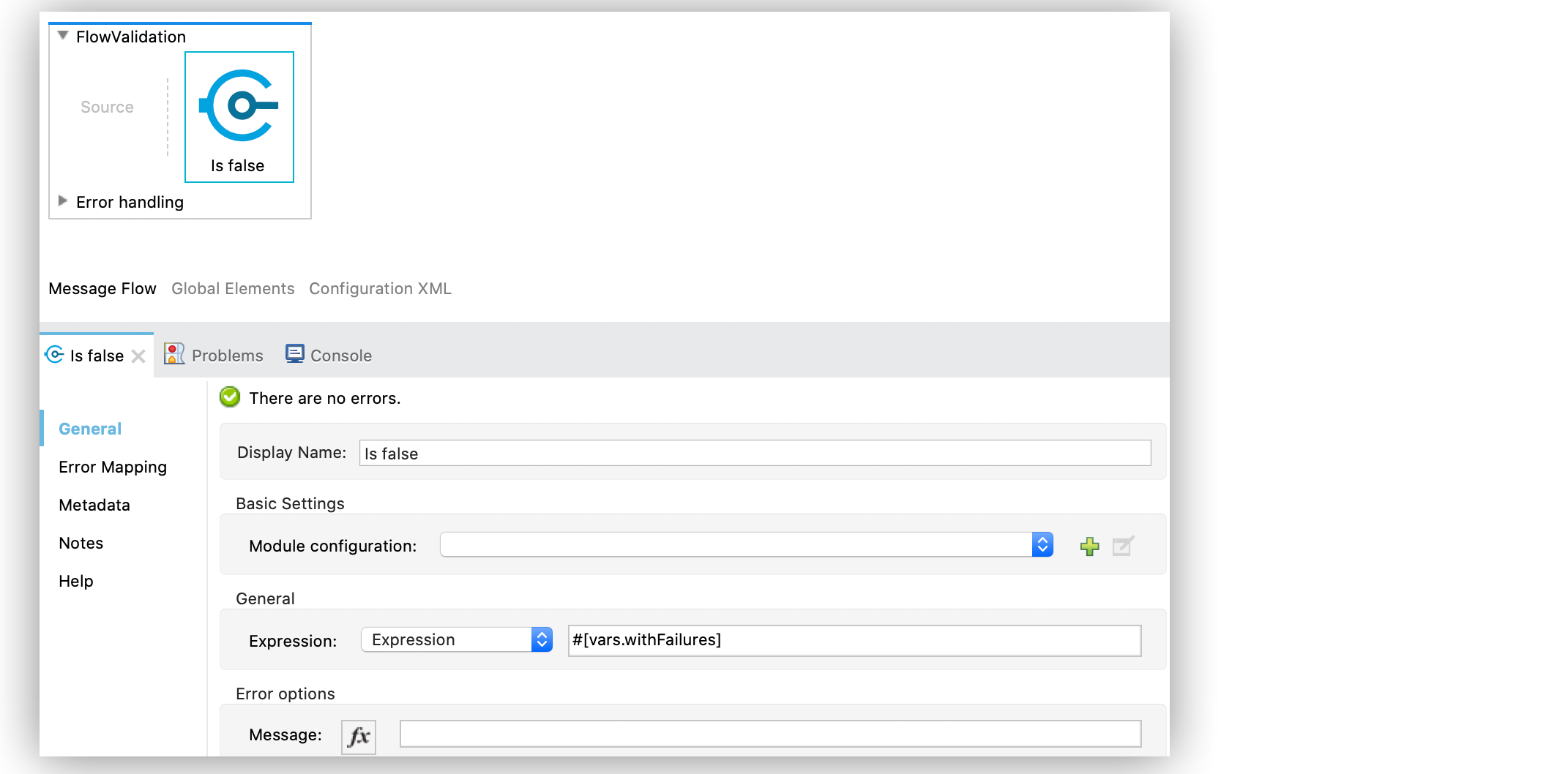
Figure 7. Is false Configuration
In the **Configuration XML** editor, the configuration looks like this:
```xml
```
## Configure the Is Not Denied IP Operation
The **Is not denied ip** operation validates that a given IP is not in the denied IP list. You can
define the IP filter list either globally in the app or inline for each validator.
The following example shows how to configure the operation in Anypoint Studio:
1. In the **Mule Palette** view, select **Validation > Is not denied ip**.
2. Drag **Is not denied ip** onto the Studio canvas.
3. In the **Is not denied ip** configuration screen, provide the following parameters:
- **Ip address**: `vars.ip`
- **Deny list**: `Edit inline`
- **Ips**: `Edit inline`
4. Click the plus sign (**+**) to open the IP value window.
5. Set the **Value** field to `Valid IP`:
In the **Configuration XML** editor, the configuration looks like this:
```xml
```
## Configure the Is Not Blank String Operation
The **Is not blank string** validates that the provided value is not a blank string.
The following example shows how to configure the operation in Anypoint Studio:
1. In the **Mule Palette** view, select **Validation > Is not blank string**.
2. Drag **Is not blank string** onto the Studio canvas.
3. In the **Is not blank string** configuration screen, provide the following parameters:
- **Value**: `payload`
- **Message**: `The username cannot be blank`
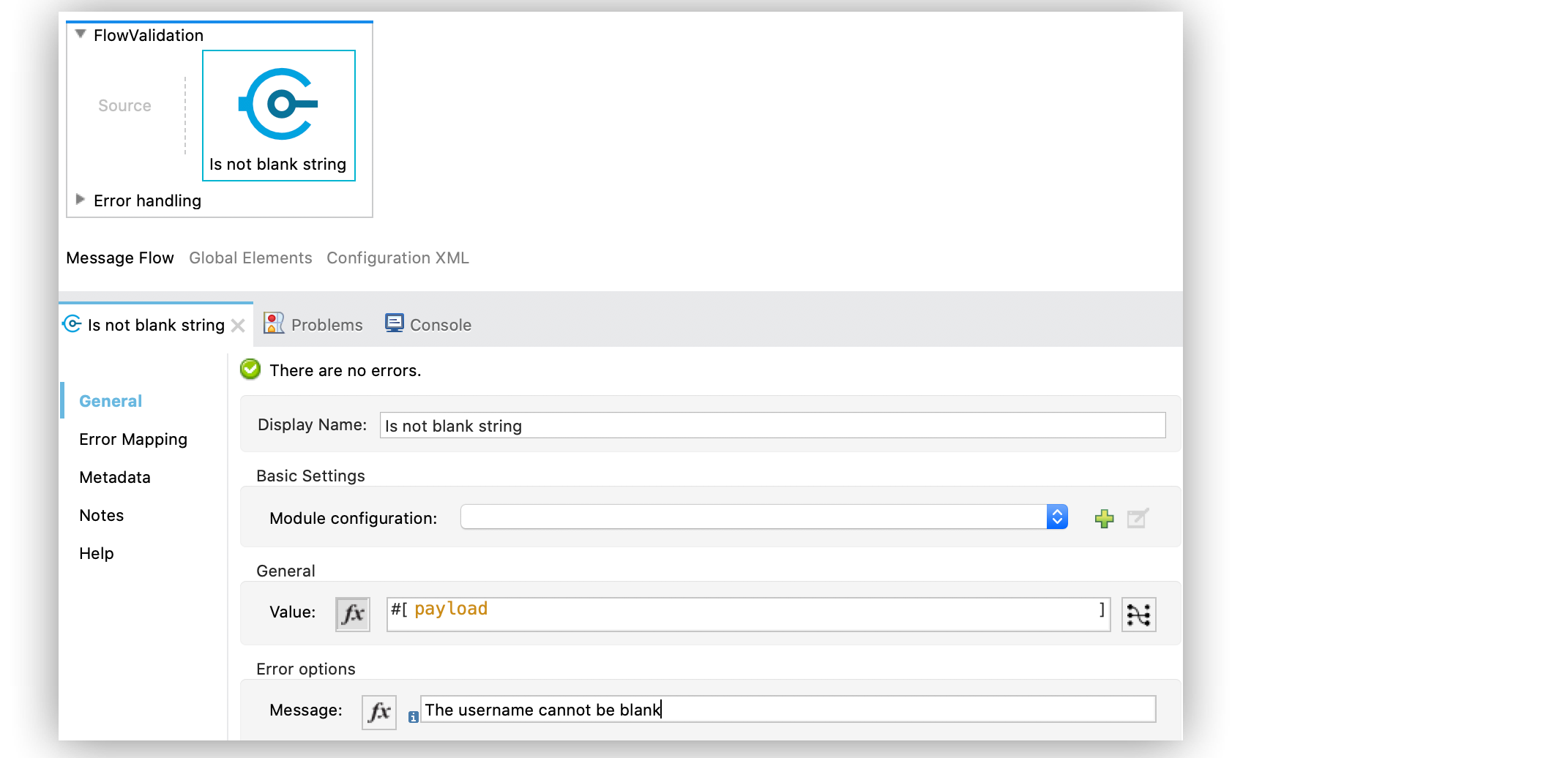
Figure 8. Is not blank string Configuration
In the **Configuration XML** editor, the configuration looks like this:
```xml
```
## Configure the Is Not Elapsed Time Operation
The **Is not elapsed** operation validates that a given time has not elapsed since the specified
initial time.
The following example shows how to configure the operation in Anypoint Studio:
1. In the **Mule Palette** view, select **Validation > Is not elapsed**.
2. Drag **Is not elapsed** onto the Studio canvas.
3. In the **Is not elapsed** configuration screen, provide the following parameters:
- **Time**: `20`
- **Time unit**: `SECONDS`
- **Since**: `vars.time`
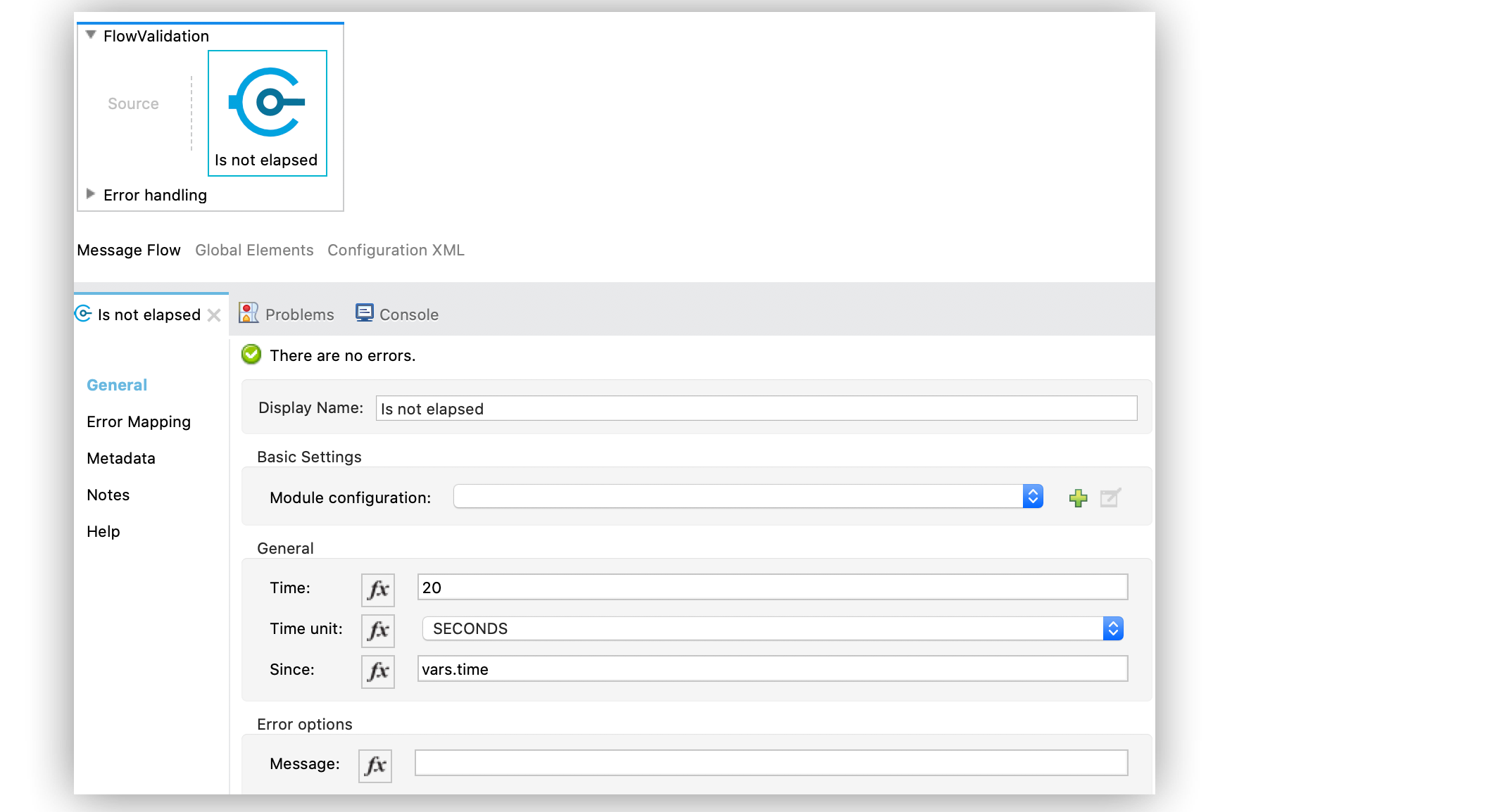
Figure 9. Is not elapsed time Configuration
In the **Configuration XML** editor, the configuration looks like this:
```xml
```
## Configure the Is Not Empty Collection Operation
The **Is not empty collection** parameter validates that a value is not an empty collection. This
value defaults to the payload.
The following example shows how to configure the operation in Anypoint Studio:
1. In the **Mule Palette** view, select **Validation > Is not empty collection**.
2. Drag **Is not empty collection** onto the Studio canvas.
3. In the **Is not empty collection** configuration screen, set the **Value** field to `payload`:
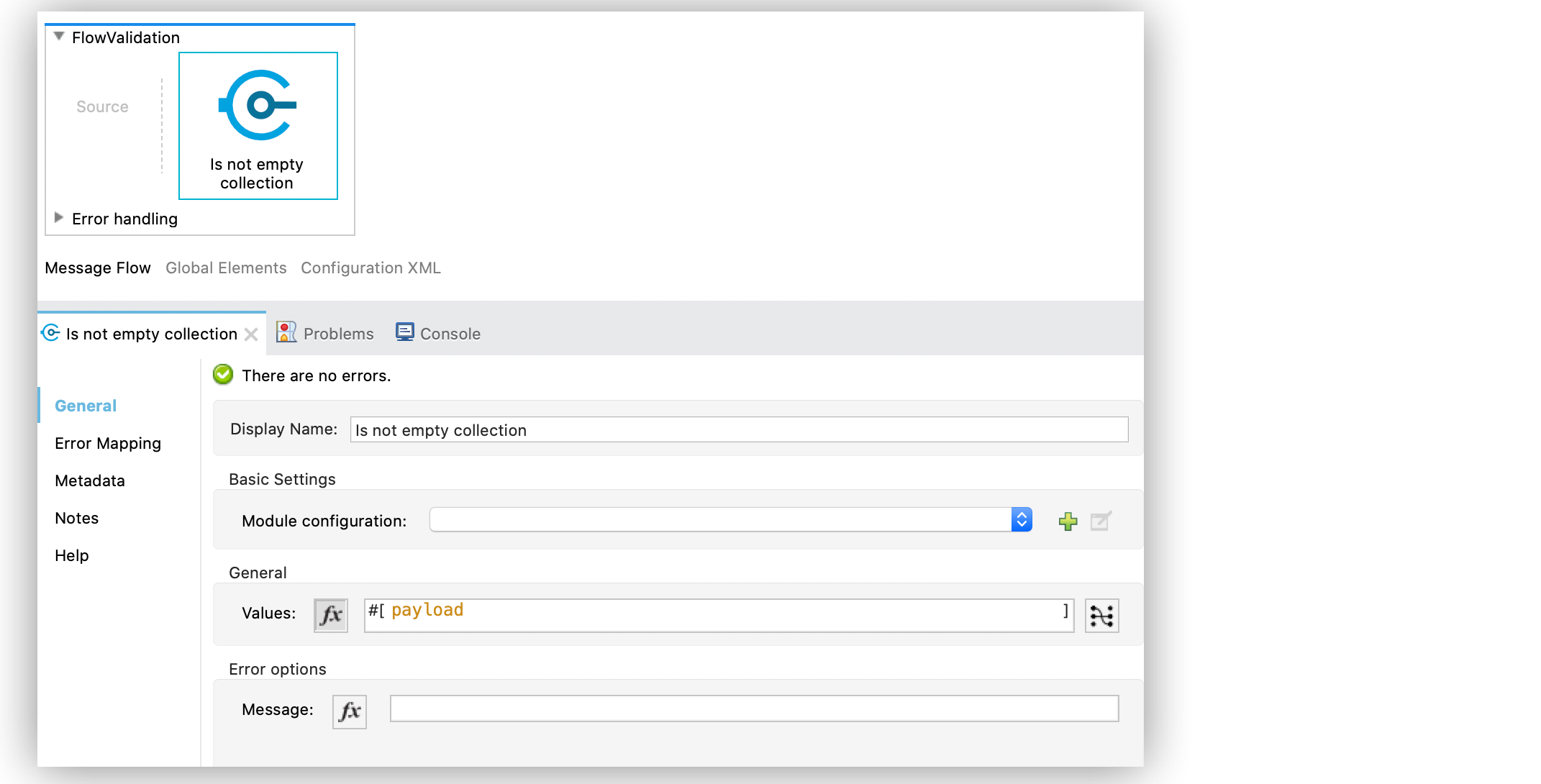
Figure 10. Is not empty collection Configuration
In the **Configuration XML** editor, the configuration looks like this:
```xml
```
## Configure the Is Not Null Operation
The **Is not null** operation validates that the given value is not `null`.
The following example shows how to configure the operation in Anypoint Studio:
1. In the **Mule Palette** view, select **Validation > Is not null**.
2. Drag **Is not null** onto the Studio canvas.
3. In the **Is not null** configuration screen, provide the following parameters:
- **Value**: `payload`
- **Message**: `Null is not a valid value`.
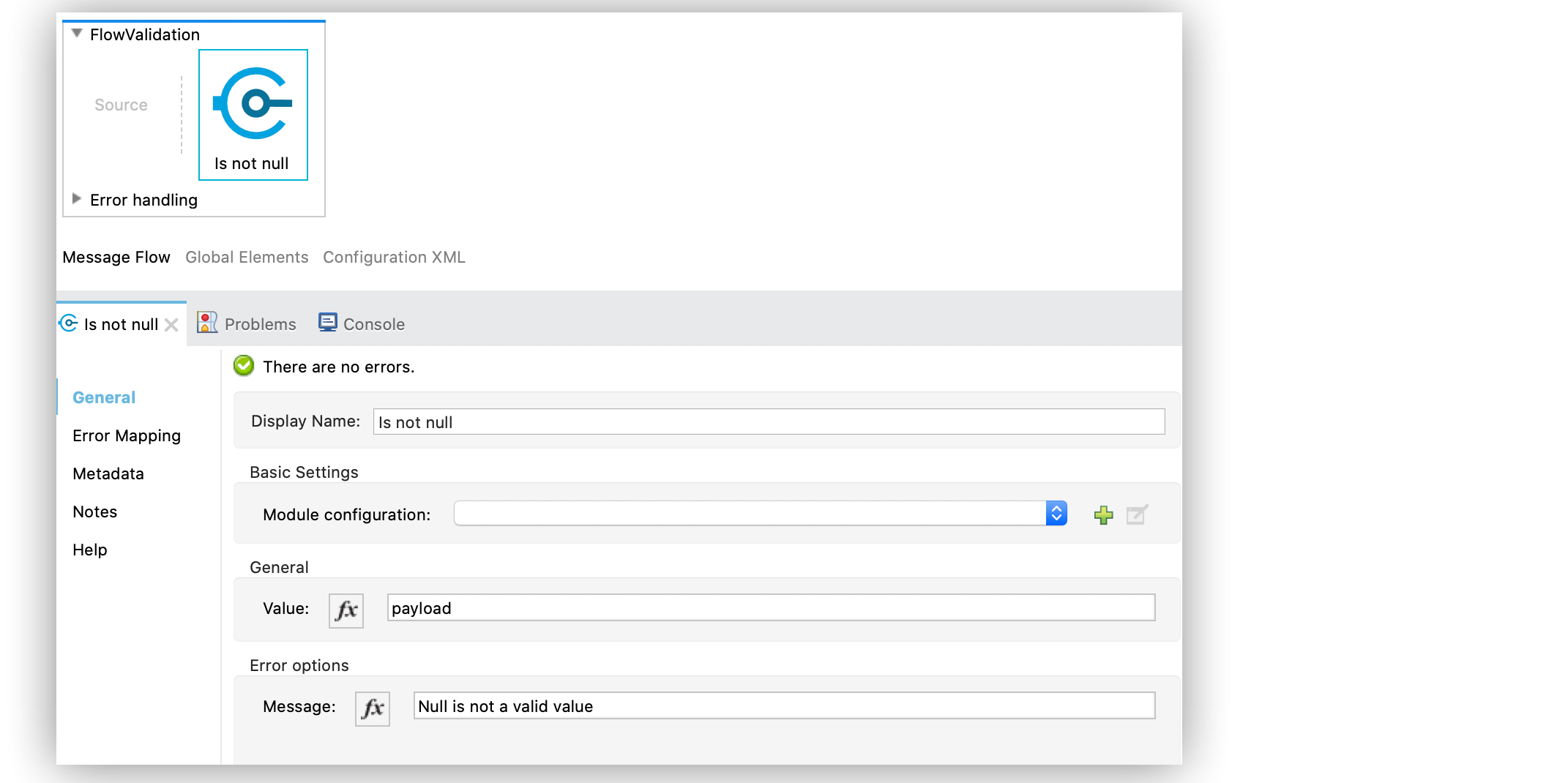
Figure 11. Is not null Configuration
In the **Configuration XML** editor, the configuration looks like this:
```xml
```
## Configure the Is Null Operation
The **Is Null** operation validates if the provided value is `null`.
The following example shows how to configure the operation in Anypoint Studio:
1. In the **Mule Palette** view, select **Validation > Is null**.
2. Drag **Is null** onto the Studio canvas.
3. In the **Is null** configuration screen, set the **Value** field to `payload`:
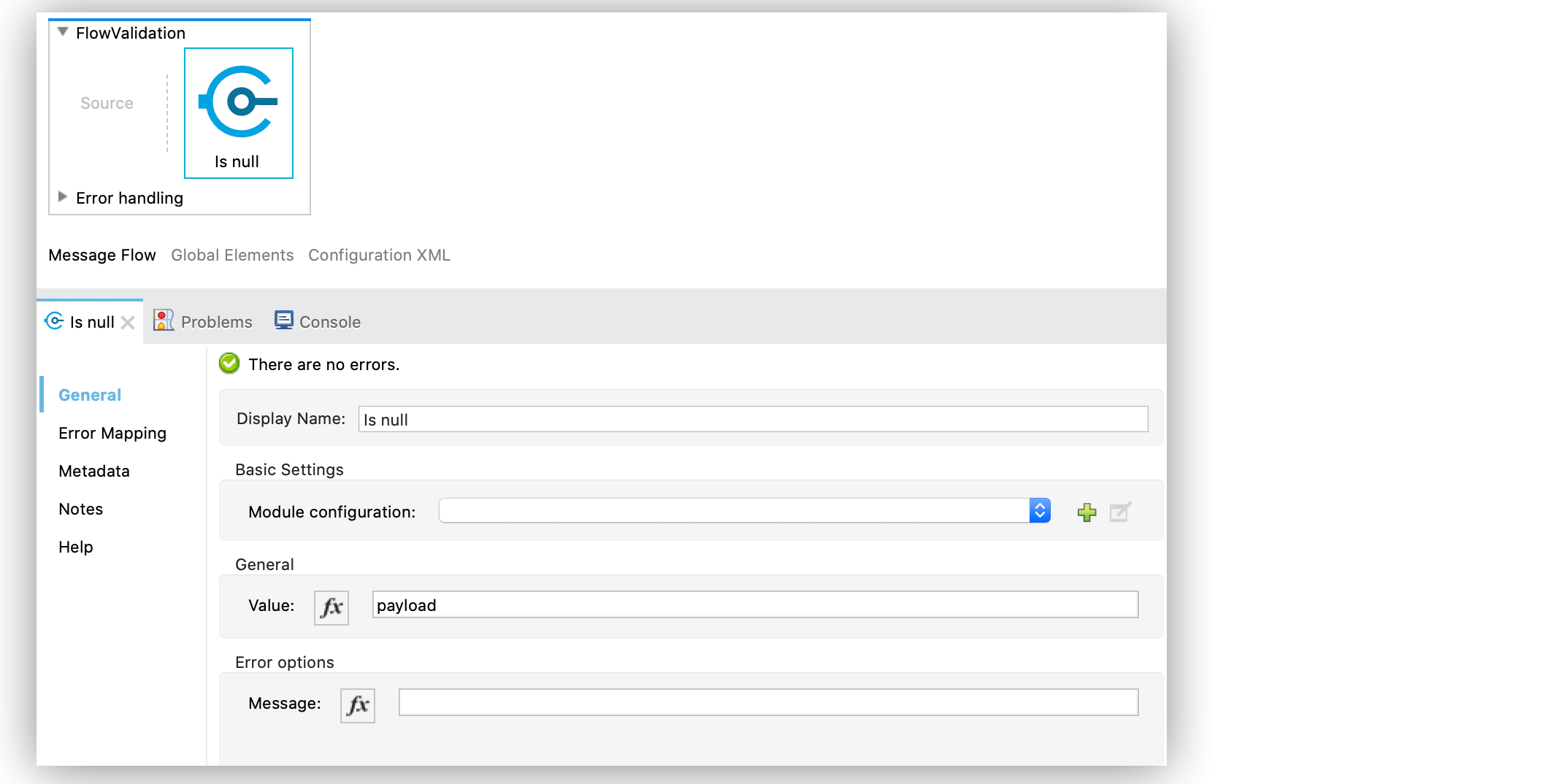
Figure 12. Is null Configuration
In the **Configuration XML** editor, the configuration looks like this:
```xml
```
## Configure the Is Number Operation
The **Is number** operation verifies that a string can be parsed as a number of a specified numeric
type, using the given locale (which defaults to the system locale) and pattern (which defaults to
the locale pattern). This validation can include a range in which the number is validated using the
**Min value** and **Max Value** parameters.
The following example shows how to configure the operation in Anypoint Studio:
1. In the **Mule Palette** view, select **Validation > Is number**.
2. Drag **Is number** onto the Studio canvas.
3. In the **Is number** configuration screen, provide the following parameters:
- **Value**: `payload`
- **Locale**: `US`
- **Min value**: `vars.minValue`
- **Max value**: `vars.maxValue`
- **Number type**: `INTEGER`
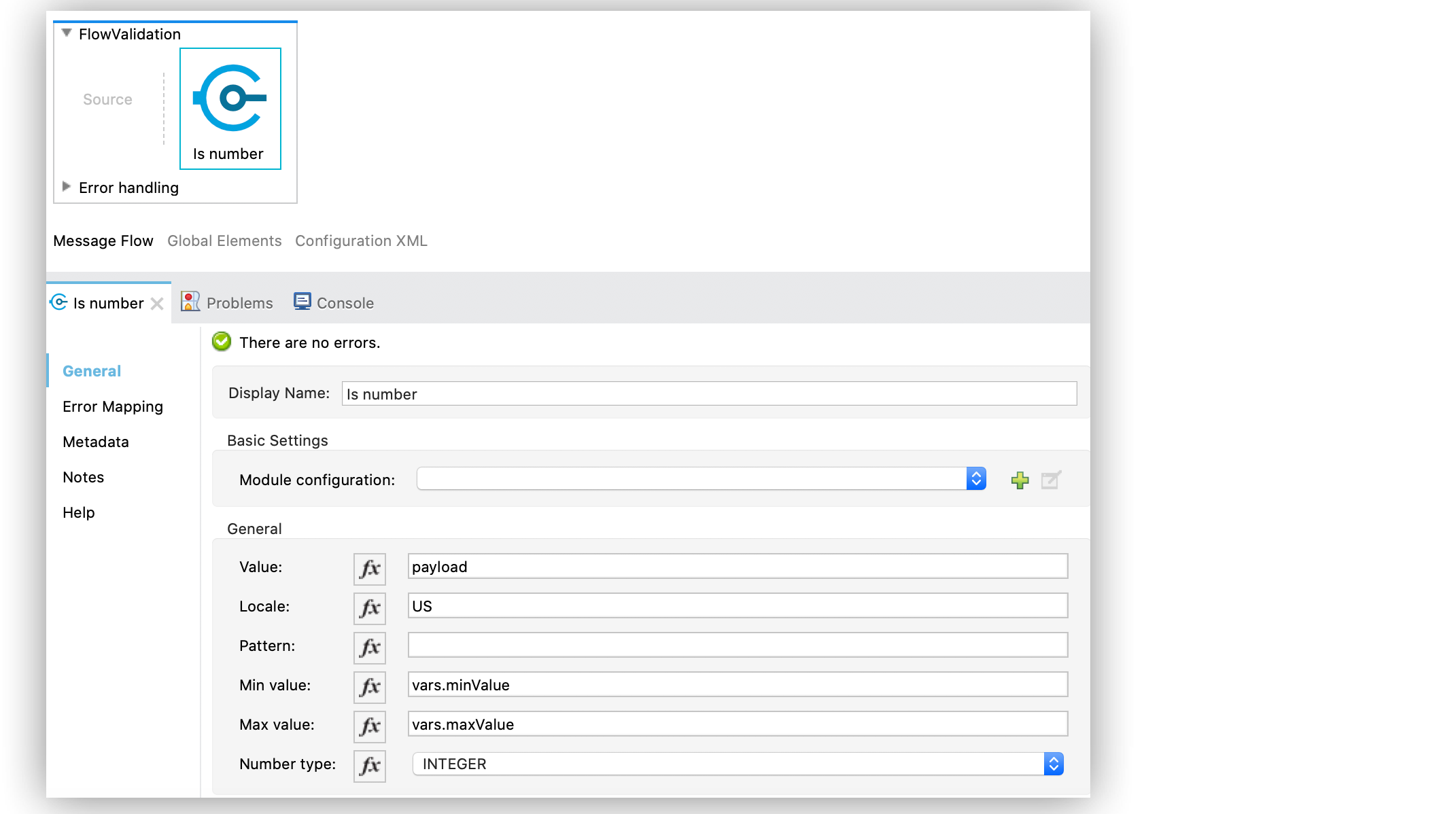
Figure 13. Is number Configuration
In the **Configuration XML** editor, the configuration looks like this:
```xml
```
## Configure the Is Time Operation
The **Is time** operation verifies that a time is valid for the given pattern and locale. If no
pattern is provided, then the locale default is used.
The following example shows how to configure the operation in Anypoint Studio:
1. In the **Mule Palette** view, select **Validation > Is time**.
2. Drag **Is time** onto the Studio canvas.
3. In the **Is time** configuration screen, provide the following parameters:
- **Time**: `payload`
- **Locale**: `h:mm a`
- **Pattern**: `UK`
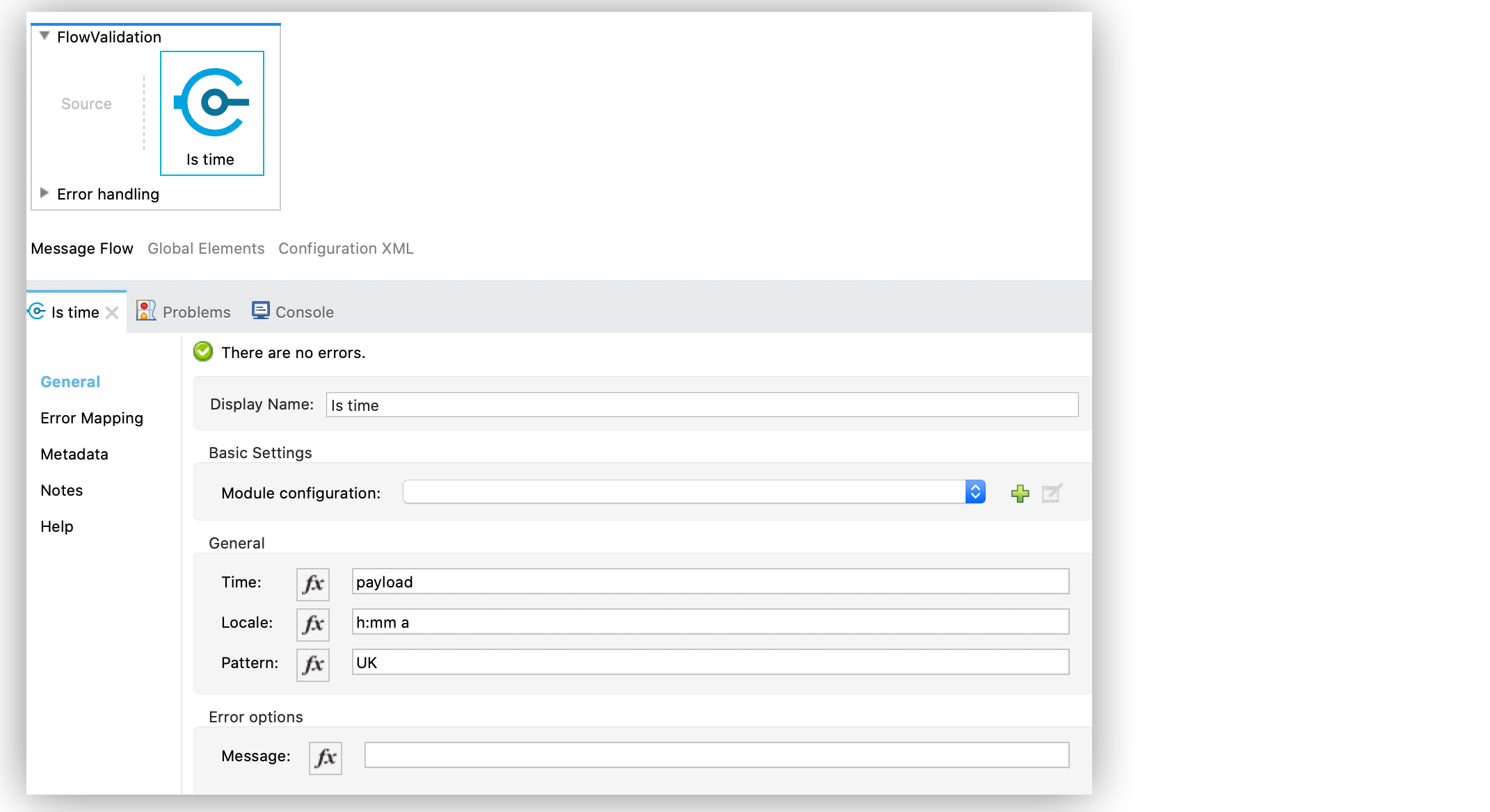
Figure 14. Is time Configuration
In the **Configuration XML** editor, the configuration looks like this:
```xml
```
## Configure the Is True Operation
The **Is true** operation verifies that an expression evaluates to `true`.
The following example shows how to configure the operation in Anypoint Studio:
1. In the **Mule Palette** view, select **Validation > Is true**.
2. Drag **Is true** onto the Studio canvas.
3. In the **Is true** configuration screen, for the **Expression** field select `Expression`, and
in the empty field add `#[vars.doReply]`.
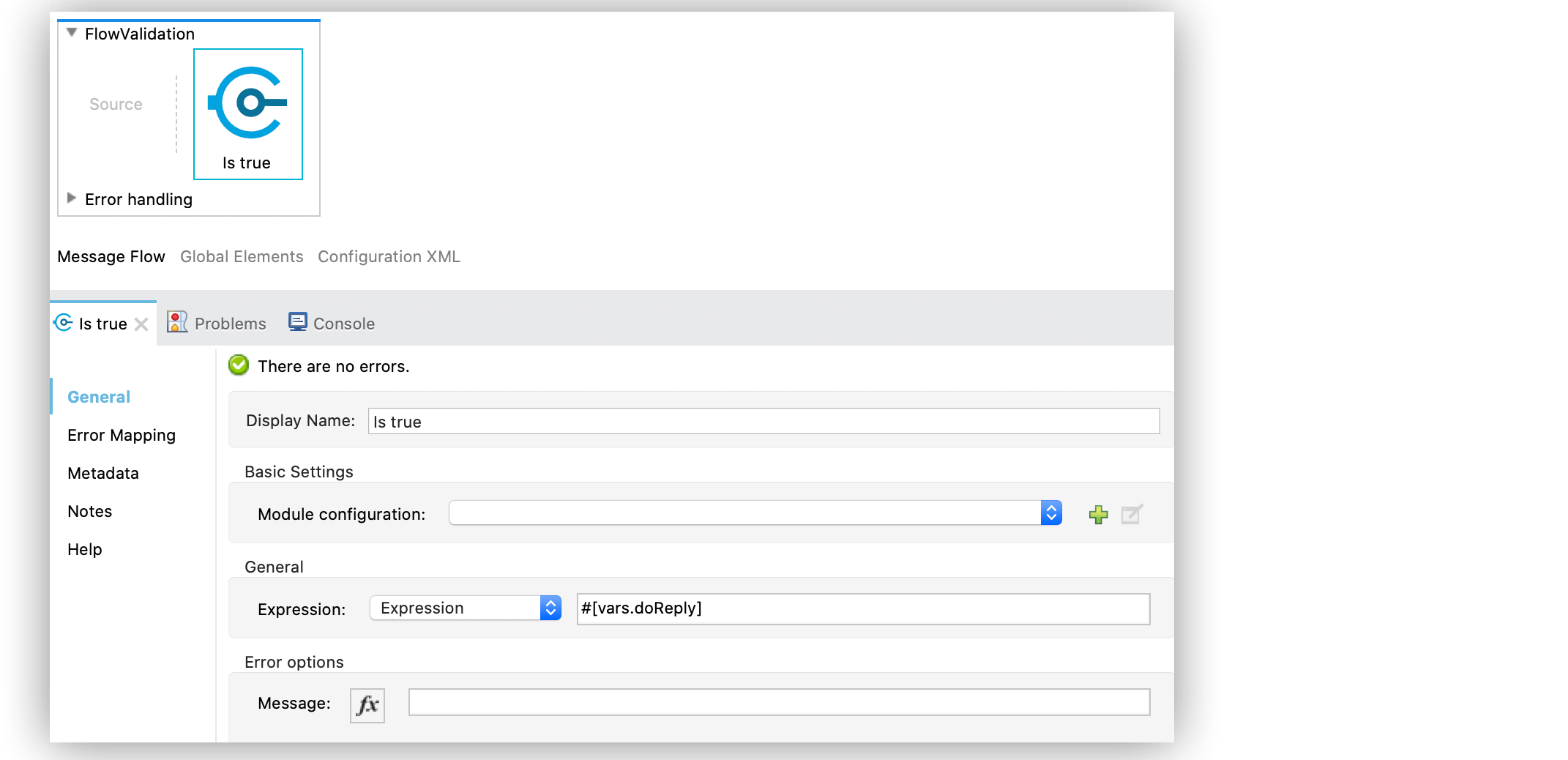
Figure 15. Is true Configuration
In the **Configuration XML** editor, the configuration looks like this:
```xml
```
## Configure the Is Allowed IP Operation
The **Is allowed ip** operation validates that a given IP is in the allowlisted IP list.
The following example shows how to configure the operation in Anypoint Studio:
1. In the **Mule Palette** view, select **Validation > Is allowed ip**.
2. Drag **Is allowed ip** onto the Studio canvas.
3. In the **Is allowed ip** configuration screen, provide the following parameters:
- **Ip address**: `#[payload]`
- **Allow list**: `Edit inline`
- **Ips**: `Edit inline`
4. Click the plus sign (**+**) to open the IP value window.
5. Set **Value** to `Valid IP`.
In the **Configuration XML** editor, the configuration looks like this:
```xml
```
## Configure the Matches Regex Operation
The **Matches regex** operation validates that a given expression matches a Java regular expression.
The following example shows how to configure the operation in Anypoint Studio:
1. In the **Mule Palette** view, select **Validation > Matches regex**.
2. Drag **Matches regex** onto the Studio canvas.
3. In the **Expression** field of the **Matches regex** configuration screen, select `Expression`,
and in the empty field add `#[vars.doReply]`:
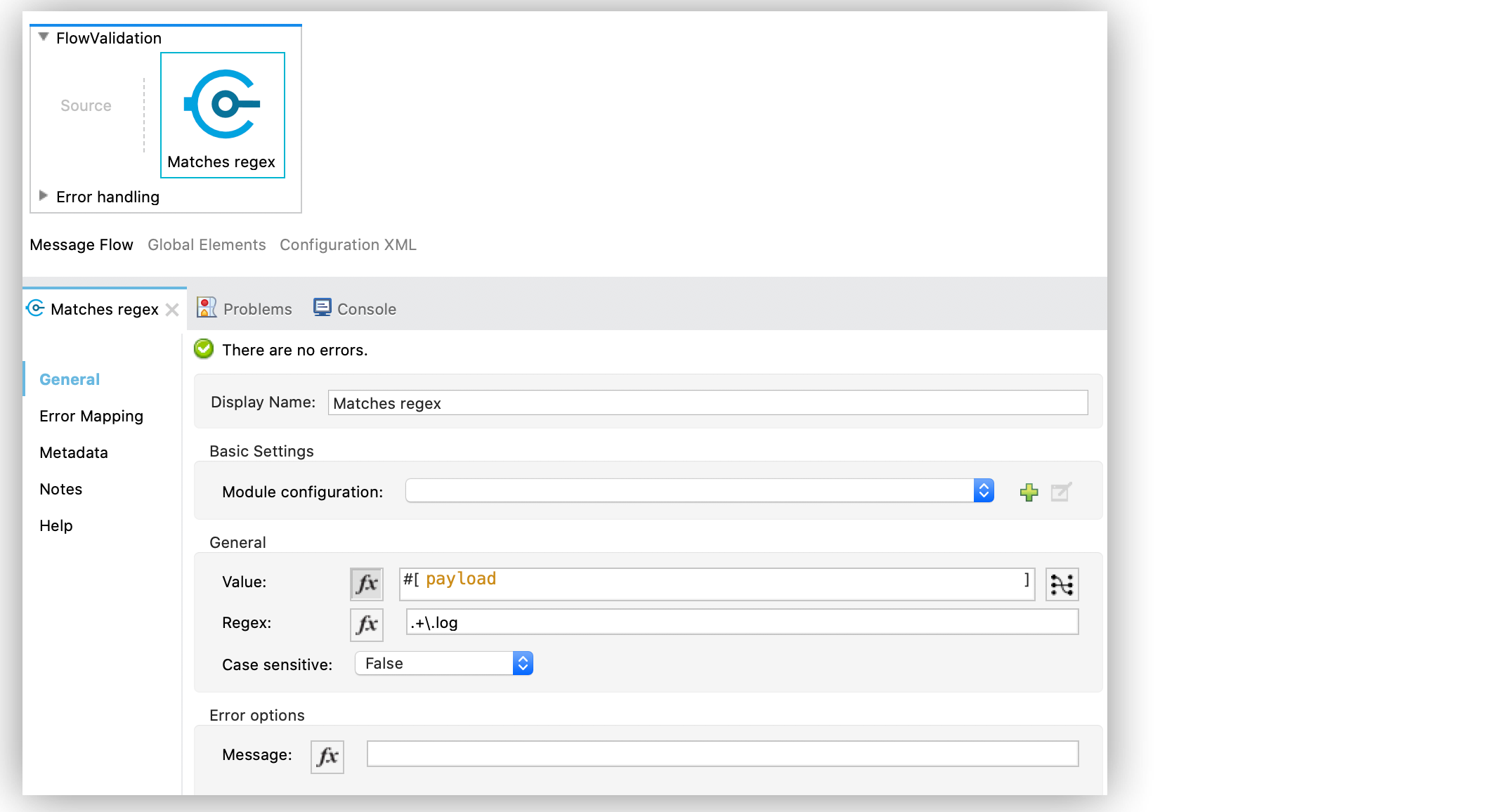
Figure 16. Matches regex Configuration
In the **Configuration XML** editor, the configuration looks like this:
```xml
```
## Configure the Validate Size Operation
The **Validate size** operation validates that the input size is between the given minimum and
maximum boundaries. This is valid for inputs of type string, Collection, Map, and Array. In the case
of a string, the size refers to the length in characters.
The following example shows how to configure the operation in Anypoint Studio:
1. In the **Mule Palette** view, select **Validation > Validate size**.
2. Drag **Validate size** onto the Studio canvas.
3. In the **Validate size** configuration screen, provide the following parameters:
- **Value**: `payload`
- **Min**: `vars.minLength`
- **Max**: `vars.maxLength`
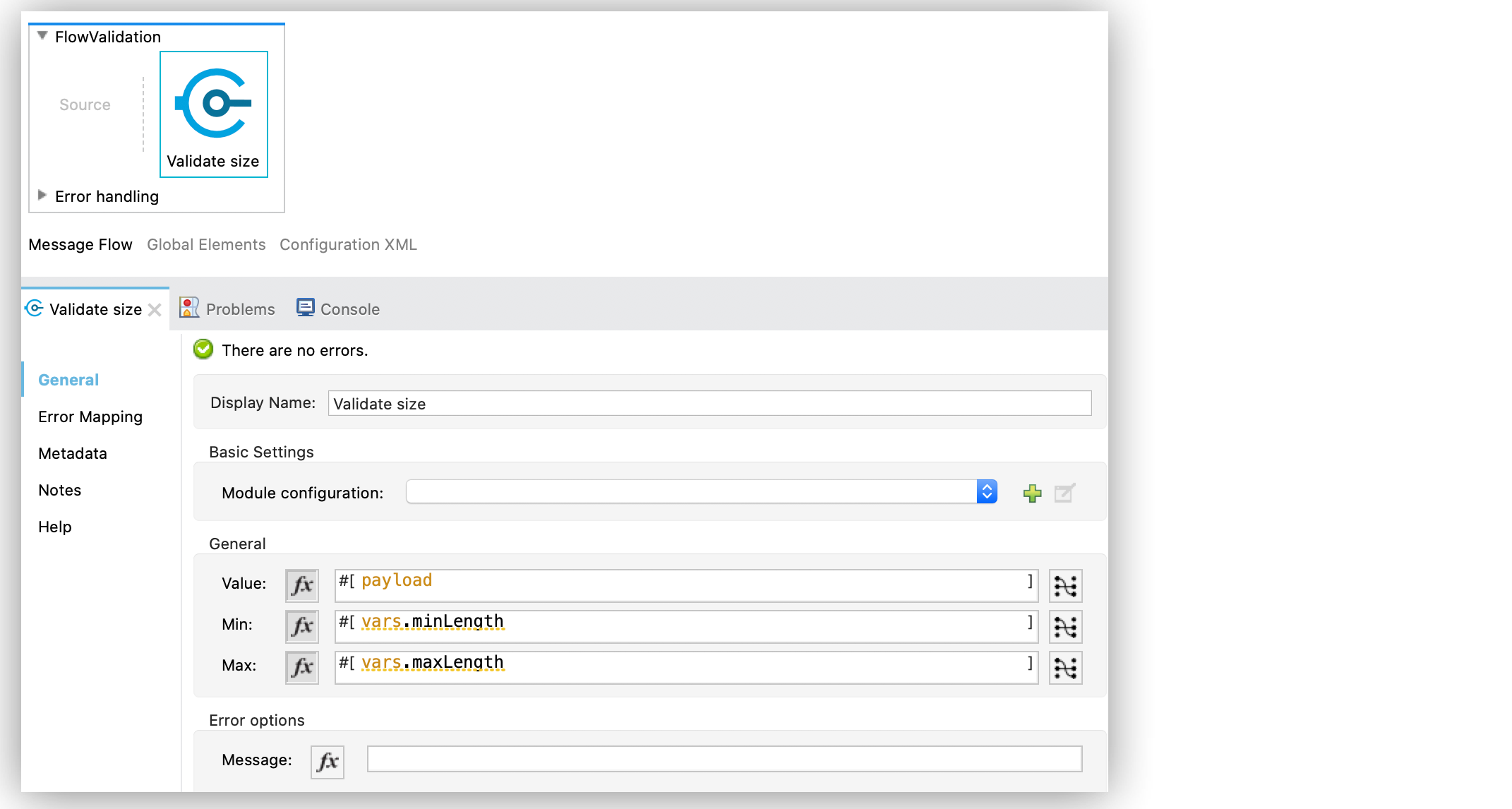
Figure 17. Validate size Configuration
In the **Configuration XML** editor, the configuration looks like this:
```xml
```
## Configure the All Scope
The **All** scope evaluates a list of nested validation operations and can return only one
`VALIDATION:MULTIPLE` error which summarizes all of the found errors. Sometimes you want to evaluate
several conditions, and some might fail simultaneously. In these cases, generate a single error that
contains all of the descriptions. About the **All** scope validator:
- All validations are executed even if all of them fail.
- If any of the validations fail, a single exception is thrown. The exception contains a multiline
message in which each line corresponds to a failing validation.
- Validators are executed sequentially using the flow’s thread, but the order doesn’t matter because
validators don’t cause any side effects.
- Unlike the rest of the validation operations, the **All** scope validator does not enable you to
customize the exception type or the message through `validation:exception` or exception factory
elements. However, you can customize the message of the inner validation operations.
> [!NOTE] **All** and **Any** scopes return the `VALIDATION:MULTIPLE` error when evaluating nested
> validation operations, unless a nested operation is not a `VALIDATION` type operation. When you
> use nested operations inside an **All** or **Any** scopes, you can modify the **Error Mapping**
> configuration of the scope to not return `VALIDATION:MULTIPLE` error and instead map the error to
> a different one.
The following example shows how to configure the **All** scope validator in Anypoint Studio that
simultaneously validates that:
- The first and last name are not empty strings.
- The age is a valid integer above 18.
- The email address is valid.
- The social security number is the correct length and matches a regular expression.
To configure the **All** scope in Studio:
1. In the **Mule Palette** view, select **Validation > All**.
2. Drag **All** onto the Studio canvas.
3. Drag the **Is not empty collection** operation into the **All** scope in the flow.
4. In the **Is not empty collection** configuration screen, set the **Values** field to
`#[payload.firstName]` and the `Message` field to `First name cannot be empty`.
5. Drag another **Is not empty collection** operation to the right of the first **Is not empty
collection** operation.
6. In the **Is not empty collection** configuration screen, set the **Values** field to
`#[payload.lastName]` and the `Message` field to `Last name cannot be empty`.
7. Drag the **Is number** operation to the right of the second **Is not empty collection**
operation.
8. In the **Is number** configuration screen, provide the following parameters:
- **Value**: `payload.age`
- **Min value**: `18`
- **Number type**: `INTEGER`
9. Set the **Message** field to `Not an adult`.
10. Drag the **Is email** operation to the right of the **Is number** operation.
11. In the **Is email** configuration screen, set the **Email** field to `payload.email`.
12. Drag the **Matches regex** operation to the right of the **Is email** operation.
13. In the **Matches regex** configuration screen, provide the following parameters:
- **Value**
`payload.ssn`
- **Regex**
`^(?!000|666)[0-8][0-9]{2}-(?!00)[0-9]{2}-(?!0000)[0-9]{4}$`
14. Set the **Message** field to `Invalid SSN`.
15. Drag the **Validate size** operation to the right of the **Matches regex** operation.
16. In the **Validate size** configuration screen, provide the following parameters:
- **Value**: `payload.ssn`
- **Min**: `11`
- **Max**: `11`
17. Set the **Message** field to `SSN too short`:

Figure 18. All scope Flow
In the **Configuration XML** editor, the configuration looks like this:
```xml
```
## See Also
- [Introduction to Anypoint Connectors](https://docs.mulesoft.com/connectors/introduction/introduction-to-anypoint-connectors)
- [Salesforce Help](https://help.salesforce.com)