---
schema_version: "1"
id: effd2e8a341b5ac2e1b6cc4357b347d532f6df70624bc9c7a3cf291176c5cc07
title: Configure Tracing Module Logging Variable Operations
collection: mulesoft
version: current
locale: en-us
portal_url: https://docs.salesforce.com/mulesoft/current/en-us/tracing-module/1.0/tracing-module-logging.md
canonical_url: https://docs.mulesoft.com/tracing-module/1.0/tracing-module-logging
source_site: docs.mulesoft.com
content_type: documentation
content_hash: c28846d2ef1fd5101671bdfa133b339ab98a530302184cd235bee61e68993243
description: MuleSoft Documentation Site
release: "1.0"
latest: false
---
---
product: Tracing Module
version: 1.0
---
# Configure Tracing Module Logging Variable Operations
> For the full documentation index, see: https://docs.mulesoft.com/llms.txt
The Tracing module **Clear logging variables**, **Remove logging variable** and **Set logging
variable** operations enable you to enhance your logs by adding, removing, and clearing variables
from the logging context of a single Mule event.
Mapped Diagnostic Context (MDC) enriches logging and improves tracking by providing more context or
information in the logs for the current Mule event. By default, Mule logs two MDC entries:
`processor`, which shows the location of the current event, and `event`, which shows the correlation
ID of the event.
## Before You Begin
To use the Tracing module logging operations, complete the following tasks:
- Add the module to your Mule project.
- Change the pattern layouts in the `log4j.xml` file to `MDC`.
## Add the Module to Your Mule Project
Add Tracing module to your Mule project to automatically populate the XML code with the module’s
namespace and schema location and to add the required dependencies to the project’s `pom.xml` file:
1. In the **Mule Palette** view, click **(X) Search in Exchange**.
2. In the **Add Dependencies to Project** window, type `tracing` in the search field.
3. Click **Tracing Module** in **Available modules**.
4. Click **Add**.
5. Click **Finish**.
## Change the Pattern Layouts in the log4j.xml File
This change instructs Mule to automatically add the MDC context, which includes the correlation ID
and the processor path. To make the change, modify `log4j.xml` in your Mule app or within
`/conf/log4j2.xml` in your Mule instance.
Follow these steps to change the pattern layouts to MDC:
1. Open the `log4j.xml` file for editing.
2. Replace `[processor: %X{processorPath}; event: %X{correlationId}]` with `[%MDC]`.
### Example log4j.xml File Configurations
Example: Default log4j.xml file without MDC logging.
Example: Updated log4j.xml file with MDC logging.
## Configure Tracing Module Operations in Studio
To configure the logging variables operations, add any of the available operations **Clear logging
variables**, **Remove logging variable** or **Set logging variables** to your Mule app flow and
specify the corresponding attributes.
In the following example, you configure the **Set logging variables** operation:
1. In the **Mule Palette** view of Studio, select **Tracing > Set logging variable**
2. Drag **Set logging variable** to your Mule app.
3. Set **Variable name** to `testVar`.
4. Set **Value** to `testValue`.
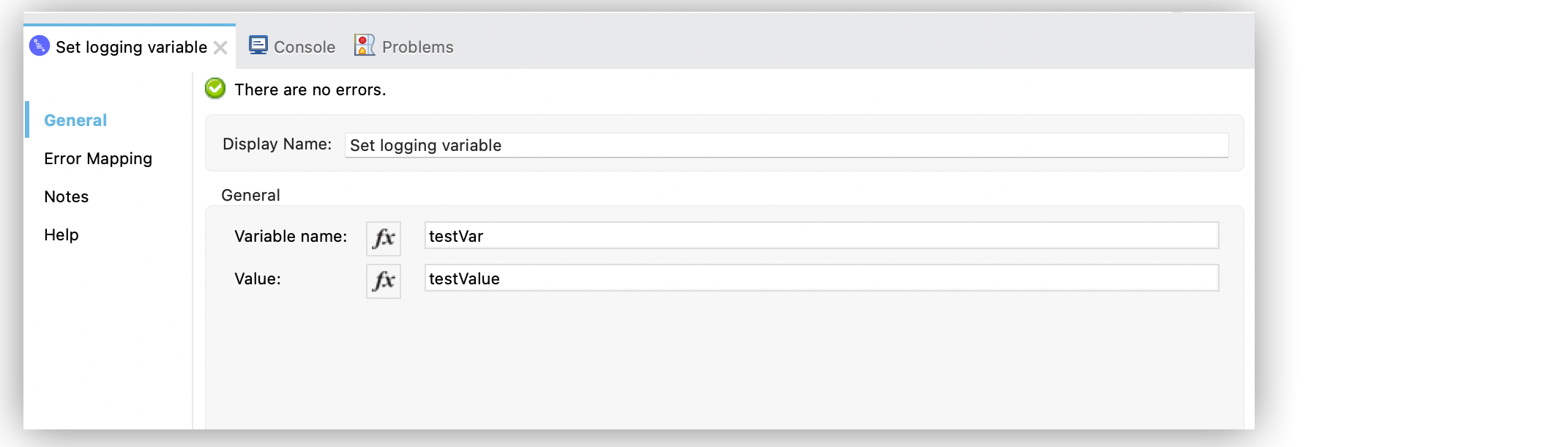
In the Configuration XML editor, the `` configuration looks like this:
```xml
...
...
```
After executing the flow, the output logs are:
INFO 2021-04-08 16:58:26,882 \[\[MuleRuntime\].uber.15: \[test-project-app\].exampleFlow.CPU\_LITE
@18f679\] \[{correlationId=c85e16c0-98a4-11eb-bc34-cac765a2219b,
processorPath=exampleFlow/processors/2, testVar=testValue}\]
org.mule.runtime.core.internal.processor.LoggerMessageProcessor: Example
The previous logging context example affects any output of a **Logger** component and any internal
logging that Mule runtime engine produces.
## Create a Set Logging Variable Mule App
In the following example, you configure the **Set logging variable** operation to log variables
based on the request payload and attributes:
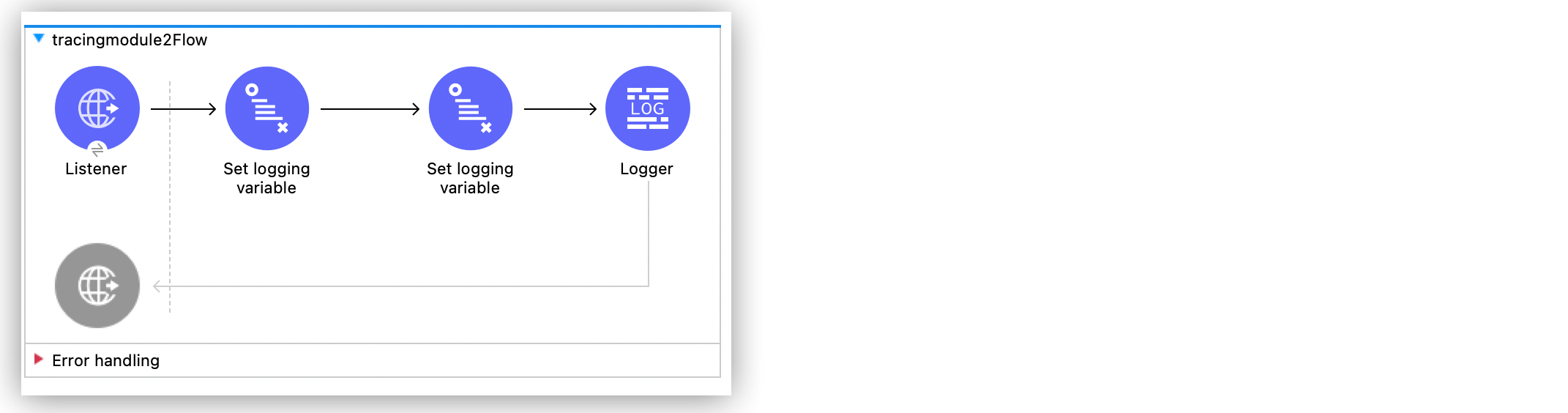
1. In the **Mule Palette** view, select **HTTP > Listener**.
2. Drag **Listener** to the Studio canvas.
3. On the **Listener** configuration screen, set **Path** to `/order`.
4. Click the plus sign (**+**) next to the **Connector configuration** field to configure a global
element that can be used by all instances of the HTTP listener in the app.
5. In the **Mule Palette** view, select **Tracing > Set logging variable**.
6. Drag **Set logging variable** to the right of HTTP Listener.
7. Set **Variable name** to `customerId`.
8. Set **Value** to `#[payload.customerId]` to log the customer ID sent in the request.
9. Drag another **Set logging variable** operation to the right of the first **Set logging
variable** operation.
10. Set **Variable name** to `requestPath`.
11. Set **Value** to `'#["$(attributes.method):$(attributes.requestPath)"]'` to log the request
path.
12. Drag a **Logger** component to the right of the second **Set logging variable** operation.
13. Set **Message** to `#[output application/json --- payload]` to log the request payload.
14. Save and run your Mule app.
15. Send the following curl command:
```xml
curl --location --request GET '0.0.0.0:8081/order' \
--header 'Content-Type: application/json' \
--data-raw '{
"orderId": 548102842,
"customerId": "ARG-12934",
"items": [
"CP-123",
"CP-452"
]
}'
```
The output logs `customerId`, `requestPath`, and the request payload:
```xml
INFO 2021-04-09 11:14:38,409 [[MuleRuntime].uber.05: [tracing-module].tracing-moduleFlow.CPU_LITE @34a62707] [processor: tracing-moduleFlow/processors/2; event: eb2b2461-993d-11eb-8a64-4865ee1fd814] {correlationId=eb2b2461-993d-11eb-8a64-4865ee1fd814, customerId=ARG-12934, processorPath=tracing-moduleFlow/processors/2, requestPath=GET:/order} org.mule.runtime.core.internal.processor.LoggerMessageProcessor: {
"orderId": 548102842,
"customerId": "ARG-12934",
"items": [
"CP-123",
"CP-452"
]
}
```
### XML for the Set Logging Variable Mule App
Paste this code into your Studio XML editor to quickly load the flow for this example into your Mule
app:
```xml
```
## See Also
- [Tracing Module Examples](https://docs.mulesoft.com/tracing-module/1.0/tracing-module-examples)
- [Salesforce Help](https://help.salesforce.com)