---
schema_version: "1"
id: 29757b009390a6a98c126a7bc95d133aac50fae57c4c1bd19bad8dcead521156
title: Tableau Connector 1.1 Examples
collection: mulesoft
version: current
locale: en-us
portal_url: https://docs.salesforce.com/mulesoft/current/en-us/tableau-specialist-connector/latest/tableau-specialist-connector-examples.md
canonical_url: https://docs.mulesoft.com/tableau-specialist-connector/latest/tableau-specialist-connector-examples
source_site: docs.mulesoft.com
content_type: documentation
content_hash: ceef7116397f74df1b661bf1ddaae14003fcea14c290c3354de83cb01d713307
description: MuleSoft Documentation Site
release: "1.1"
latest: true
---
---
product: Tableau Connector
version: 1.1
is-latest-version: true
---

# Tableau Connector 1.1 Examples

> For the full documentation index, see: https://docs.mulesoft.com/llms.txt

The following examples show how to perform Hyper and Rest configuration operations with Tableau
Connector:

- Hyper configuration operations include:

  - [Create Hyper File - Hyper Configuration](#create-hyper-file)

  - [Insert Data to Hyper File from CSV - Hyper Configuration](#insert-data-to-hyper-file-from-csv)

  - [Insert Data to Hyper File - Hyper Configuration](#insert-data-to-hyper-file)

  - [Query Data from Hyper File - Hyper Configuration](#query-data-from-hyper-file)

  - [Update Data from Hyper File - Hyper Configuration](#update-data-from-hyper-file)

- Rest configuration operations include:

  - [Append to File Upload - Rest Configuration](#append-to-file-upload)

  - [Create Project - Rest Configuration](#create-project)

  - [Delete Project - Rest Configuration](#delete-project)

  - [Initiate File Upload - Rest Configuration](#initiate-file-upload)

  - [Publish Datasource - Rest Configuration](#publish-datasource)

  - [Publish Workbook - Rest Configuration](#publish-workbook)

  - [Query Projects - Rest Configuration](#query-projects)

  - [Update Project - Rest Configuration](#update-project)

## Create Hyper File - Hyper Configuration

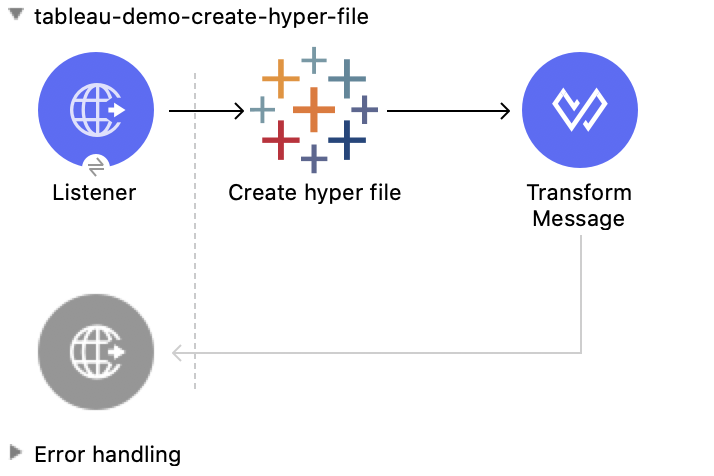
This Mule flow creates a hyper file with specified table properties.

This example uses the following operations:

- **HTTP Listener**  
  Accepts data from HTTP requests

- **Create hyper file**  
  Creates an empty hyper file based on the column definition provided by the user

- **Transform Message**  
  Outputs the results of the **Create hyper file** operation in JSON format
![Studio flow for the Create Hyper File operation](/mulesoft/current/en-us/tableau-specialist-connector/latest/_images/create-hyper-file.png)

### XML for This Example

Paste this code into the Studio XML editor to quickly load the flow for this example into your Mule
app:

```xml
<?xml version="1.0" encoding="UTF-8"?>

<mule xmlns:file="http://www.mulesoft.org/schema/mule/file" xmlns:ee="http://www.mulesoft.org/schema/mule/ee/core"
	xmlns:http="http://www.mulesoft.org/schema/mule/http"
	xmlns:tableau-specialist="http://www.mulesoft.org/schema/mule/tableau-specialist" xmlns="http://www.mulesoft.org/schema/mule/core" xmlns:doc="http://www.mulesoft.org/schema/mule/documentation" xmlns:xsi="http://www.w3.org/2001/XMLSchema-instance" xsi:schemaLocation="http://www.mulesoft.org/schema/mule/core http://www.mulesoft.org/schema/mule/core/current/mule.xsd
http://www.mulesoft.org/schema/mule/tableau-specialist http://www.mulesoft.org/schema/mule/tableau-specialist/current/mule-tableau-specialist.xsd
http://www.mulesoft.org/schema/mule/http http://www.mulesoft.org/schema/mule/http/current/mule-http.xsd
http://www.mulesoft.org/schema/mule/ee/core http://www.mulesoft.org/schema/mule/ee/core/current/mule-ee.xsd
http://www.mulesoft.org/schema/mule/file http://www.mulesoft.org/schema/mule/file/current/mule-file.xsd">
	<http:listener-config name="HTTP_Listener_config" doc:name="HTTP Listener config" doc:id="d784f0fb-88c2-42ac-a729-199268071485" >
		<http:listener-connection host="0.0.0.0" port="8081" />
	</http:listener-config>
	<tableau-specialist:tableau-hyper-config name="Tableau_Specialist_Hyper_configuration" doc:name="Tableau Specialist Hyper configuration" doc:id="dd5a868e-8b70-4296-b4a4-b6c8c6479410" >
		<tableau-specialist:connection telemetry="DO_NOT_SEND_USAGE_DATA_TO_TABLEAU"/>
	</tableau-specialist:tableau-hyper-config>
		<flow name="tableau-demo-create-hyper-file" doc:id="615f59de-2e3f-48fc-ae09-4f4ab893aaef" >
		<http:listener doc:name="Listener" doc:id="1417bfaa-e778-465f-a95d-a7cea478d092" config-ref="HTTP_Listener_config" path="/create-hyper-file"/>
		<tableau-specialist:create-hyper-file doc:name="Create hyper file" doc:id="cd6303c9-e42e-4d75-a1c1-9ce92054f4f0" config-ref="Tableau_Specialist_Hyper_configuration" hyperFileName="hyperFileDemo.hyper" schemaName="schemademo" tableName="tabledemo">
			<tableau-specialist:columns>
				<tableau-specialist:column-definition columnName="Customer ID" columnType="TEXT" columnNullability="NOT_NULLABLE" />
				<tableau-specialist:column-definition columnName="Customer Name" columnType="TEXT" columnNullability="NOT_NULLABLE" />
				<tableau-specialist:column-definition columnName="Loyalty Reward Points" columnType="BIG_INT" columnNullability="NOT_NULLABLE" />
				<tableau-specialist:column-definition columnName="Segment" columnType="TEXT" columnNullability="NOT_NULLABLE" />
			</tableau-specialist:columns>
		</tableau-specialist:create-hyper-file>
		<ee:transform doc:name="Transform Message" doc:id="d1415eb0-1fd0-4bef-aa60-0fee97b28e61">
			<ee:message>
				<ee:set-payload><![CDATA[%dw 2.0
output application/json
---
payload]]></ee:set-payload>
			</ee:message>
		</ee:transform>
	</flow>
</mule>
```

### Steps for Running This Example

1.  Verify that your connector is configured.

2.  Save the project.

3.  From a web browser, test the application by entering
    `[http://localhost:8081/create-hyper-file-from-csv](http://localhost:8081/create-hyper-file-from-csv)`.

## Insert Data to Hyper File from CSV - Hyper Configuration

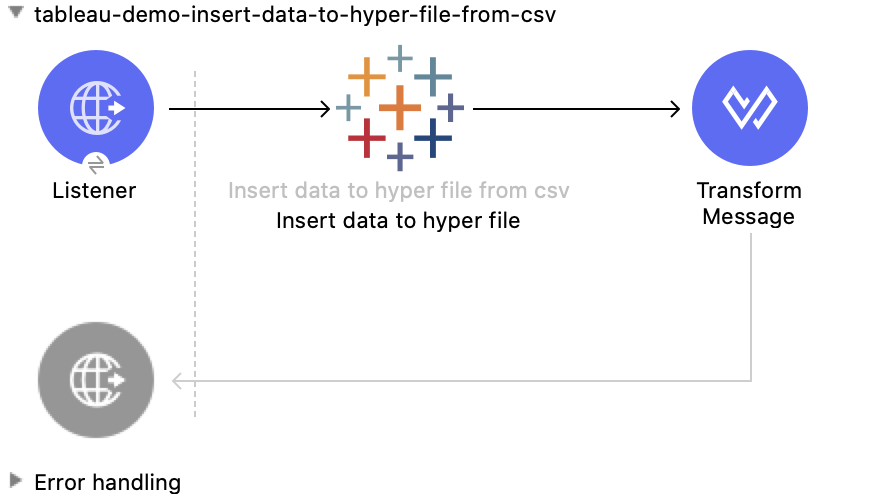
This Mule flow creates a hyper table and populates the table with data from a CSV file. To use this
flow, run the [Create Hyper File](#create-hyper-file) flow to create the hyper table and then use
the `src/main/resources/customers.csv` file to populate the table.

This example uses the following operations:

- **HTTP Listener**  
  Accepts data from HTTP requests

- **Insert data to hyper file from csv**  
  Populates a hyper file from an existing CSV document

- **Transform Message**  
  Outputs the results of the **Insert data to hyper file from csv** operation in JSON format
![Studio flow for the Insert Data to Hyper File from CSV operation](/mulesoft/current/en-us/tableau-specialist-connector/latest/_images/insert-data-to-hyper-file-from-csv.png)

### XML for This Example

Paste this code into the Studio XML editor to quickly load the flow for this example into your Mule
app:

```xml
<?xml version="1.0" encoding="UTF-8"?>

<mule xmlns:file="http://www.mulesoft.org/schema/mule/file" xmlns:ee="http://www.mulesoft.org/schema/mule/ee/core"
	xmlns:http="http://www.mulesoft.org/schema/mule/http"
	xmlns:tableau-specialist="http://www.mulesoft.org/schema/mule/tableau-specialist" xmlns="http://www.mulesoft.org/schema/mule/core" xmlns:doc="http://www.mulesoft.org/schema/mule/documentation" xmlns:xsi="http://www.w3.org/2001/XMLSchema-instance" xsi:schemaLocation="http://www.mulesoft.org/schema/mule/core http://www.mulesoft.org/schema/mule/core/current/mule.xsd
http://www.mulesoft.org/schema/mule/tableau-specialist http://www.mulesoft.org/schema/mule/tableau-specialist/current/mule-tableau-specialist.xsd
http://www.mulesoft.org/schema/mule/http http://www.mulesoft.org/schema/mule/http/current/mule-http.xsd
http://www.mulesoft.org/schema/mule/ee/core http://www.mulesoft.org/schema/mule/ee/core/current/mule-ee.xsd
http://www.mulesoft.org/schema/mule/file http://www.mulesoft.org/schema/mule/file/current/mule-file.xsd">
	<http:listener-config name="HTTP_Listener_config" doc:name="HTTP Listener config" doc:id="d784f0fb-88c2-42ac-a729-199268071485" >
		<http:listener-connection host="0.0.0.0" port="8081" />
	</http:listener-config>
	<tableau-specialist:tableau-hyper-config name="Tableau_Specialist_Hyper_configuration" doc:name="Tableau Specialist Hyper configuration" doc:id="dd5a868e-8b70-4296-b4a4-b6c8c6479410" >
		<tableau-specialist:connection telemetry="DO_NOT_SEND_USAGE_DATA_TO_TABLEAU"/>
	</tableau-specialist:tableau-hyper-config>
	<flow name="tableau-demo-insert-data-to-hyper-file-from-csv" doc:id="0c21c1b1-8320-4d5e-bd43-8b7bb4441120" >
		<http:listener doc:name="Listener" doc:id="45f9c1a0-ce2a-4265-9319-cdad8a685a8b" config-ref="HTTP_Listener_config" path="/create-hyper-file-from-csv"/>
		<tableau-specialist:insert-data-to-hyper-file-from-csv doc:name="Insert data to hyper file" config-ref="Tableau_Specialist_Hyper_configuration" hyperFileName="hyperFileDemo.hyper" schemaName="schemademo" tableName="tabledemo" csvNullColumn="NULL" csvDelimiter="," csvHeader="true" csvFilePath="The csv file that contains the records">
                <tableau-specialist:columns >
                    <tableau-specialist:column-definition columnName="Customer ID" columnType="TEXT" columnNullability="NOT_NULLABLE" />
                    <tableau-specialist:column-definition columnName="Customer Name" columnType="TEXT" columnNullability="NOT_NULLABLE" />
                    <tableau-specialist:column-definition columnName="Loyalty Reward Points" columnType="BIG_INT" columnNullability="NOT_NULLABLE" />
                    <tableau-specialist:column-definition columnName="Segment" columnType="TEXT" columnNullability="NOT_NULLABLE" />
                </tableau-specialist:columns>
            </tableau-specialist:insert-data-to-hyper-file-from-csv>
		<ee:transform doc:name="Transform Message" doc:id="73408a47-9b24-4209-a549-a0c54bb6e666" >
			<ee:message >
				<ee:set-payload ><![CDATA[%dw 2.0
output application/json
---
payload]]></ee:set-payload>
			</ee:message>
		</ee:transform>
	</flow>
</mule>
```

### Steps for Running This Example

1.  Verify that your connector is configured.

2.  Save the project.

3.  From a web browser, test the application by entering
    `[http://localhost:8081//create-hyper-file](http://localhost:8081//create-hyper-file)`.

## Insert Data to Hyper File - Hyper Configuration

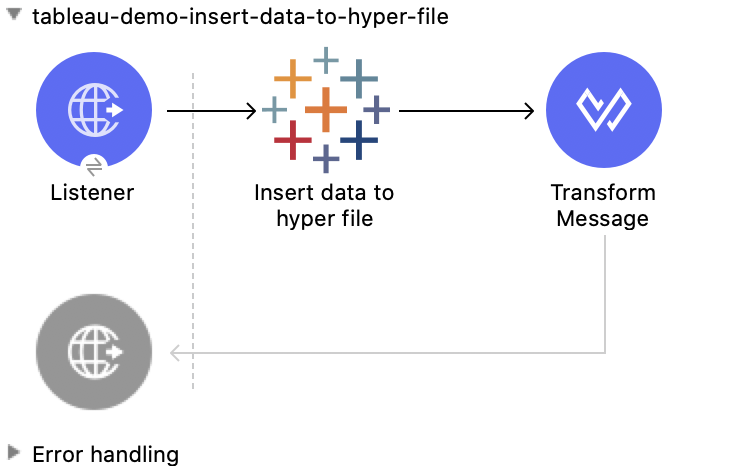
This Mule flow inserts data into a table that belongs to a hyper file. To use this flow, run the
[Create Hyper File](#create-hyper-file) flow to create the hyper table and then use the SQL provided
to insert the data.

This example uses the following operations:

- **HTTP Listener**  
  Accepts data from HTTP requests

- **Insert data to hyper file**  
  Inserts data into a table that belongs to a hyper file

- **Transform Message**  
  Outputs the results of the **Insert data to hyper file** operation in JSON format
![Studio flow for the Insert Data to Hyper File operation](/mulesoft/current/en-us/tableau-specialist-connector/latest/_images/insert-data-to-hyper-file.png)

### XML for This Example

Paste this code into the Studio XML editor to quickly load the flow for this example into your Mule
app:

```xml
<?xml version="1.0" encoding="UTF-8"?>

<mule xmlns:file="http://www.mulesoft.org/schema/mule/file" xmlns:ee="http://www.mulesoft.org/schema/mule/ee/core"
	xmlns:http="http://www.mulesoft.org/schema/mule/http"
	xmlns:tableau-specialist="http://www.mulesoft.org/schema/mule/tableau-specialist" xmlns="http://www.mulesoft.org/schema/mule/core" xmlns:doc="http://www.mulesoft.org/schema/mule/documentation" xmlns:xsi="http://www.w3.org/2001/XMLSchema-instance" xsi:schemaLocation="http://www.mulesoft.org/schema/mule/core http://www.mulesoft.org/schema/mule/core/current/mule.xsd
http://www.mulesoft.org/schema/mule/tableau-specialist http://www.mulesoft.org/schema/mule/tableau-specialist/current/mule-tableau-specialist.xsd
http://www.mulesoft.org/schema/mule/http http://www.mulesoft.org/schema/mule/http/current/mule-http.xsd
http://www.mulesoft.org/schema/mule/ee/core http://www.mulesoft.org/schema/mule/ee/core/current/mule-ee.xsd
http://www.mulesoft.org/schema/mule/file http://www.mulesoft.org/schema/mule/file/current/mule-file.xsd">
	<http:listener-config name="HTTP_Listener_config" doc:name="HTTP Listener config" doc:id="d784f0fb-88c2-42ac-a729-199268071485" >
		<http:listener-connection host="0.0.0.0" port="8081" />
	</http:listener-config>
	<tableau-specialist:tableau-hyper-config name="Tableau_Specialist_Hyper_configuration" doc:name="Tableau Specialist Hyper configuration" doc:id="dd5a868e-8b70-4296-b4a4-b6c8c6479410" >
		<tableau-specialist:connection telemetry="DO_NOT_SEND_USAGE_DATA_TO_TABLEAU"/>
	</tableau-specialist:tableau-hyper-config>
	<flow name="tableau-demo-insert-data-to-hyper-file" doc:id="f3ea2c94-c19f-4abd-94b7-1664e3ddefd9" >
		<http:listener doc:name="Listener" doc:id="726f3a96-ba6c-45f3-8ac0-701eda923d7e" config-ref="HTTP_Listener_config" path="/insert-data-to-hyper-file"/>
		<tableau-specialist:insert-data-to-hyper-file doc:name="Insert data to hyper file" doc:id="5df6d16d-478e-4e56-bb5a-3e30df47dd41" config-ref="Tableau_Specialist_Hyper_configuration" hyperFileName="hyperFileDemo.hyper">
			<tableau-specialist:insert-command ><![CDATA[INSERT INTO schemademo.tabledemo VALUES ('insert', 'data', 1, 'operation')]]></tableau-specialist:insert-command>
		</tableau-specialist:insert-data-to-hyper-file>
		<ee:transform doc:name="Transform Message" doc:id="b3191066-f573-40be-b8dd-5ca2b10b4e3b" >
			<ee:message >
				<ee:set-payload ><![CDATA[%dw 2.0
output application/json
---
payload]]></ee:set-payload>
			</ee:message>
		</ee:transform>
	</flow>
</mule>
```

### Steps for Running This Example

1.  Verify that your connector is configured.

2.  Save the project.

3.  From a web browser, test the application by entering
    `[http://localhost:8081/insert-data-to-hyper-file](http://localhost:8081/insert-data-to-hyper-file)`.

## Query Data from Hyper File - Hyper Configuration

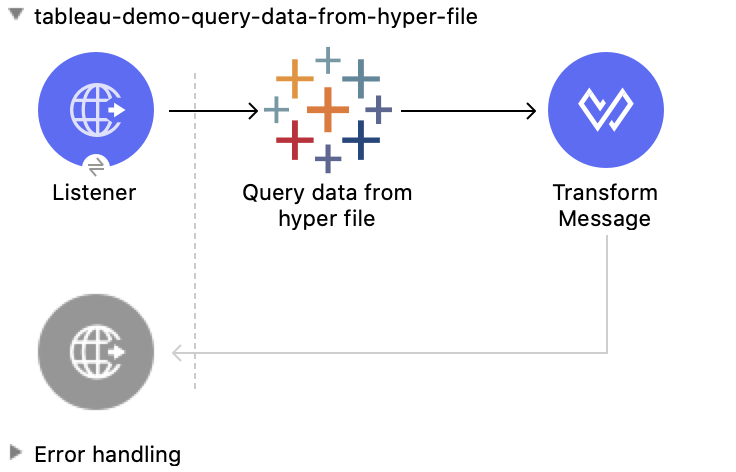
This Mule flow queries data from tables belonging to a hyper file. To use this flow, run the
[Create Hyper File](#create-hyper-file) flow to populate the table with data. This flow returns all
of the data in the specified hyper table.

This example uses the following operations:

- **HTTP Listener**  
  Accepts data from HTTP requests

- **Query data from hyper file**  
  Queries data from tables belonging to a hyper file

- **Transform Message**  
  Outputs the results of the **Query data from hyper file** operation in JSON format
![Studio flow for the Query Data from Hyper File operation](/mulesoft/current/en-us/tableau-specialist-connector/latest/_images/query-data-from-hyper-file.png)

### XML for This Example

Paste this code into the Studio XML editor to quickly load the flow for this example into your Mule
app:

```xml
<?xml version="1.0" encoding="UTF-8"?>

<mule xmlns:file="http://www.mulesoft.org/schema/mule/file" xmlns:ee="http://www.mulesoft.org/schema/mule/ee/core"
	xmlns:http="http://www.mulesoft.org/schema/mule/http"
	xmlns:tableau-specialist="http://www.mulesoft.org/schema/mule/tableau-specialist" xmlns="http://www.mulesoft.org/schema/mule/core" xmlns:doc="http://www.mulesoft.org/schema/mule/documentation" xmlns:xsi="http://www.w3.org/2001/XMLSchema-instance" xsi:schemaLocation="http://www.mulesoft.org/schema/mule/core http://www.mulesoft.org/schema/mule/core/current/mule.xsd
http://www.mulesoft.org/schema/mule/tableau-specialist http://www.mulesoft.org/schema/mule/tableau-specialist/current/mule-tableau-specialist.xsd
http://www.mulesoft.org/schema/mule/http http://www.mulesoft.org/schema/mule/http/current/mule-http.xsd
http://www.mulesoft.org/schema/mule/ee/core http://www.mulesoft.org/schema/mule/ee/core/current/mule-ee.xsd
http://www.mulesoft.org/schema/mule/file http://www.mulesoft.org/schema/mule/file/current/mule-file.xsd">
	<http:listener-config name="HTTP_Listener_config" doc:name="HTTP Listener config" doc:id="6e854c70-b5c7-4487-b594-7e9005696065" >
		<http:listener-connection host="0.0.0.0" port="8081" />
	</http:listener-config>
	<tableau-specialist:tableau-hyper-config name="Tableau_Specialist_Hyper_configuration" doc:name="Tableau Specialist Hyper configuration" doc:id="82d48441-af0b-48bb-a008-5d0347fc4e75" >
		<tableau-specialist:connection telemetry="DO_NOT_SEND_USAGE_DATA_TO_TABLEAU"/>
	</tableau-specialist:tableau-hyper-config>
	<flow name="tableau-demo-query-data-from-hyper-file" doc:id="e80f6bd0-6a42-49be-b231-1a3cce42a810" >
		<http:listener doc:name="Listener" doc:id="a589a1c0-8e81-47c4-8f29-6c5f74bcea18" config-ref="HTTP_Listener_config" path="/query-data-from-hyper-file"/>
		<tableau-specialist:query-data-from-hyper-file doc:name="Query data from hyper file" doc:id="5cfaf771-00c5-46ce-be52-05ca44545169" config-ref="Tableau_Specialist_Hyper_configuration" hyperFileName="hyperFileDemo.hyper">
			<tableau-specialist:query ><![CDATA[SELECT * FROM schemademo.tabledemo]]></tableau-specialist:query>
		</tableau-specialist:query-data-from-hyper-file>
		<ee:transform doc:name="Transform Message" doc:id="ec5a0311-c920-475b-a8b1-b19de6e2ad8c" >
			<ee:message >
				<ee:set-payload ><![CDATA[%dw 2.0
output application/json
---
payload]]></ee:set-payload>
			</ee:message>
		</ee:transform>
	</flow>
</mule>
```

### Steps for Running This Example

1.  Verify that your connector is configured.

2.  Save the project.

3.  From a web browser, test the application by entering
    `[http://localhost:8081/query-data-from-hyper-file](http://localhost:8081/query-data-from-hyper-file)`.

## Update Data from Hyper File - Hyper Configuration

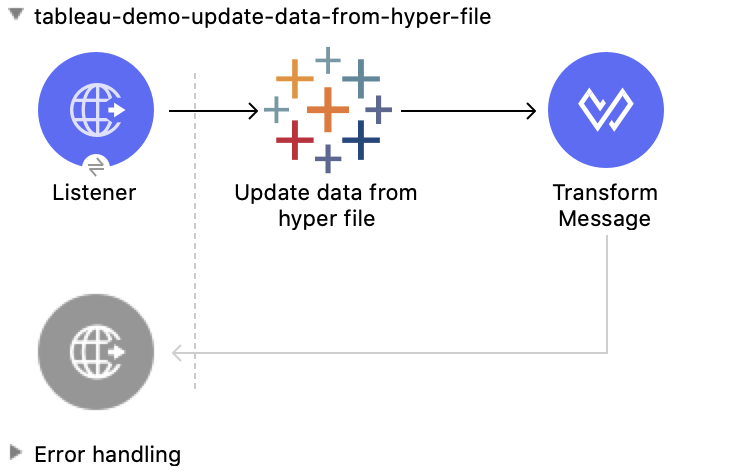
This Mule flow updates data from tables into a .hyper file by sending SQL queries. To use this flow,
run the [Create Hyper File](#create-hyper-file) flow and
[Insert Data to Hyper File](#insert-data-to-hyper-file) flow to create the hyper table and insert
the data into the table. The flow updates the data that was previously inserted into the table.

This example uses the following operations:

- **HTTP Listener**  
  Accepts data from HTTP requests

- **Update data from hyper file**  
  Updates data from tables into a .hyper file by sending SQL queries

- **Transform Message**  
  Outputs the results of the **Update data from hyper file** operation in JSON format
![Studio flow for the Update Data from Hyper File operation](/mulesoft/current/en-us/tableau-specialist-connector/latest/_images/update-data-from-hyper-file.png)

### XML for This Example

Paste this code into the Studio XML editor to quickly load the flow for this example into your Mule
app:

```xml
<?xml version="1.0" encoding="UTF-8"?>

<mule xmlns:file="http://www.mulesoft.org/schema/mule/file" xmlns:ee="http://www.mulesoft.org/schema/mule/ee/core"
	xmlns:http="http://www.mulesoft.org/schema/mule/http"
	xmlns:tableau-specialist="http://www.mulesoft.org/schema/mule/tableau-specialist" xmlns="http://www.mulesoft.org/schema/mule/core" xmlns:doc="http://www.mulesoft.org/schema/mule/documentation" xmlns:xsi="http://www.w3.org/2001/XMLSchema-instance" xsi:schemaLocation="http://www.mulesoft.org/schema/mule/core http://www.mulesoft.org/schema/mule/core/current/mule.xsd
http://www.mulesoft.org/schema/mule/tableau-specialist http://www.mulesoft.org/schema/mule/tableau-specialist/current/mule-tableau-specialist.xsd
http://www.mulesoft.org/schema/mule/http http://www.mulesoft.org/schema/mule/http/current/mule-http.xsd
http://www.mulesoft.org/schema/mule/ee/core http://www.mulesoft.org/schema/mule/ee/core/current/mule-ee.xsd
http://www.mulesoft.org/schema/mule/file http://www.mulesoft.org/schema/mule/file/current/mule-file.xsd">
	<http:listener-config name="HTTP_Listener_config" doc:name="HTTP Listener config" doc:id="6e854c70-b5c7-4487-b594-7e9005696065" >
		<http:listener-connection host="0.0.0.0" port="8081" />
	</http:listener-config>
	<tableau-specialist:tableau-hyper-config name="Tableau_Specialist_Hyper_configuration" doc:name="Tableau Specialist Hyper configuration" doc:id="82d48441-af0b-48bb-a008-5d0347fc4e75" >
		<tableau-specialist:connection telemetry="DO_NOT_SEND_USAGE_DATA_TO_TABLEAU"/>
	</tableau-specialist:tableau-hyper-config>
	<flow name="tableau-demo-update-data-from-hyper-file" doc:id="d179e972-ff36-4909-bc89-e399a526e602" >
		<http:listener doc:name="Listener" doc:id="03ffc8a6-55c6-420e-bca7-a17498533271" config-ref="HTTP_Listener_config" path="/update-data-from-hyper-file"/>
		<tableau-specialist:update-data-from-hyper-file doc:name="Update data from hyper file" doc:id="ef1859fc-dfec-41b4-bf3b-c833ce7ab167" config-ref="Tableau_Specialist_Hyper_configuration" hyperFileName="hyperFileDemo.hyper">
			<tableau-specialist:update-command ><![CDATA[UPDATE schemademo.tabledemo
SET "Customer Name"='updatedName'
WHERE "Customer ID"='insert']]></tableau-specialist:update-command>
		</tableau-specialist:update-data-from-hyper-file>
		<ee:transform doc:name="Transform Message" doc:id="b5395963-4001-4241-b3e8-f511dc9caa92" >
			<ee:message >
				<ee:set-payload ><![CDATA[%dw 2.0
output application/json
---
payload]]></ee:set-payload>
			</ee:message>
		</ee:transform>
	</flow>
</mule>
```

### Steps for Running This Example

1.  Verify that your connector is configured.

2.  Save the project.

3.  From a web browser, test the application by entering
    `[http://localhost:8081/update-data-from-hyper-file](http://localhost:8081/update-data-from-hyper-file)`.

## Append to File Upload - Rest Configuration

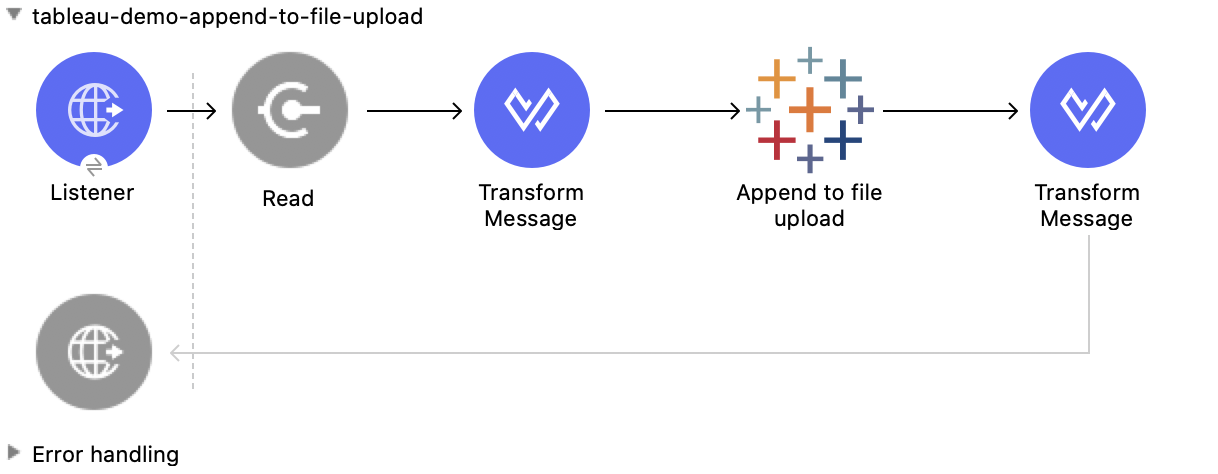
This Mule flow uploads a block of data and appends it to the data that is already uploaded. To get
an **Upload Session Id**, run the **Initiate file upload** operation.

This example uses the following operations:

- **HTTP Listener**  
  Accepts data from HTTP requests

- **Read**  
  Reads a file

- **Transform Message**  
  Transforms the HTTP input

- **Append to file upload**  
  Uploads a block of data and appends it to the data that is already uploaded

- **Transform Message**  
  Outputs the results of the **Append to file upload** operation in JSON format
![Studio flow for the Append to File Upload operation](/mulesoft/current/en-us/tableau-specialist-connector/latest/_images/append-to-file-upload.png)

### XML for This Example

Paste this code into the Studio XML editor to quickly load the flow for this example into your Mule
app:

```xml
<?xml version="1.0" encoding="UTF-8"?>

<mule xmlns:tableau="http://www.mulesoft.org/schema/mule/tableau" xmlns:file="http://www.mulesoft.org/schema/mule/file"
	xmlns:ee="http://www.mulesoft.org/schema/mule/ee/core"
	xmlns:http="http://www.mulesoft.org/schema/mule/http" xmlns:tableau-specialist="http://www.mulesoft.org/schema/mule/tableau-specialist" xmlns="http://www.mulesoft.org/schema/mule/core" xmlns:doc="http://www.mulesoft.org/schema/mule/documentation" xmlns:xsi="http://www.w3.org/2001/XMLSchema-instance" xsi:schemaLocation="http://www.mulesoft.org/schema/mule/core http://www.mulesoft.org/schema/mule/core/current/mule.xsd
http://www.mulesoft.org/schema/mule/tableau-specialist http://www.mulesoft.org/schema/mule/tableau-specialist/current/mule-tableau-specialist.xsd
http://www.mulesoft.org/schema/mule/http http://www.mulesoft.org/schema/mule/http/current/mule-http.xsd
http://www.mulesoft.org/schema/mule/ee/core http://www.mulesoft.org/schema/mule/ee/core/current/mule-ee.xsd
http://www.mulesoft.org/schema/mule/file http://www.mulesoft.org/schema/mule/file/current/mule-file.xsd
http://www.mulesoft.org/schema/mule/tableau http://www.mulesoft.org/schema/mule/tableau/current/mule-tableau.xsd">
	<configuration-properties file="project-properties.properties"/>
	<tableau-specialist:tableau-specialist-config name="Tableau_Specialist_Configuration" doc:name="Tableau Specialist Configuration" doc:id="0086ca3c-2ec6-4940-96e5-d319c5d35c15" >
		<tableau-specialist:basic-username-password-connection serverUrl="${credentials.serverUrl}" apiVersion="${credentials.apiVersion}" contentUrl="${credentials.contentUrl}" username="${credentials.username}" password="${credentials.password}" />
	</tableau-specialist:tableau-specialist-config>
	<http:listener-config name="HTTP_Listener_config" doc:name="HTTP Listener config" doc:id="fa83ce28-e898-4ac9-b524-3fdef2ad15f6" >
		<http:listener-connection host="0.0.0.0" port="8081" />
	</http:listener-config>
	<flow name="tableau-demo-append-to-file-upload" doc:id="4dc68be9-5aeb-4ac0-bb7a-21e0ae9bd60a" >
		<http:listener doc:name="Listener" doc:id="59db6c98-5a3d-4b7e-9a48-618367c27431" config-ref="HTTP_Listener_config" path="/append-to-file-upload"/>
		<file:read doc:name="Read" doc:id="46317ac5-ac57-4481-9872-4e794f9dd95d" config-ref="File_Config" path="customers.hyper" />
		<ee:transform doc:name="Transform Message" doc:id="94e523a5-e86e-482f-a45f-0257c6896247">
			<ee:variables>
				<ee:set-variable variableName="fileContent"><![CDATA[%dw 2.0
output application/java
---
payload]]></ee:set-variable>
			</ee:variables>
		</ee:transform>
		<tableau-specialist:append-to-file-upload doc:name="Append to file upload" doc:id="b9439947-1577-4443-a0bc-1a8583e3a3a8" config-ref="Tableau_Specialist_Configuration" uploadSessionId="Upload session id"/>
		<ee:transform doc:name="Transform Message" doc:id="20359447-a8b0-46a6-8a01-fc708e816557" >
			<ee:message >
				<ee:set-payload ><![CDATA[%dw 2.0
output application/json
---
payload]]></ee:set-payload>
			</ee:message>
		</ee:transform>
	</flow>
</mule>
```

### Steps for Running This Example

1.  Verify that your connector is configured.

2.  Save the project.

3.  From a web browser, test the application by entering
    `[http://localhost:8081/append-to-file-upload](http://localhost:8081/append-to-file-upload)`.

## Create Project - Rest Configuration

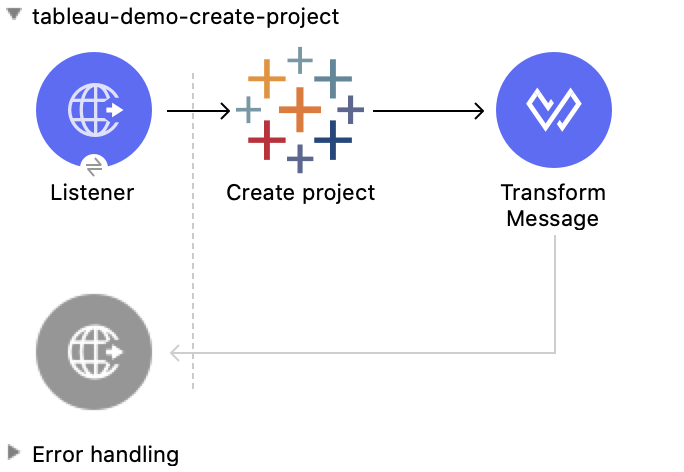
This Mule flow creates a project on the specified site.

This example uses the following operations:

- **HTTP Listener**  
  Accepts data from HTTP requests

- **Create project**  
  Creates a project on the site

- **Transform Message**  
  Outputs the results of the **Create project** operation in JSON format
![Studio flow for the Create Project operation](/mulesoft/current/en-us/tableau-specialist-connector/latest/_images/create-project.png)

### XML for This Example

Paste this code into the Studio XML editor to quickly load the flow for this example into your Mule
app:

```xml
<?xml version="1.0" encoding="UTF-8"?>

<mule xmlns:tableau="http://www.mulesoft.org/schema/mule/tableau" xmlns:file="http://www.mulesoft.org/schema/mule/file"
	xmlns:ee="http://www.mulesoft.org/schema/mule/ee/core"
	xmlns:http="http://www.mulesoft.org/schema/mule/http" xmlns:tableau-specialist="http://www.mulesoft.org/schema/mule/tableau-specialist" xmlns="http://www.mulesoft.org/schema/mule/core" xmlns:doc="http://www.mulesoft.org/schema/mule/documentation" xmlns:xsi="http://www.w3.org/2001/XMLSchema-instance" xsi:schemaLocation="http://www.mulesoft.org/schema/mule/core http://www.mulesoft.org/schema/mule/core/current/mule.xsd
http://www.mulesoft.org/schema/mule/tableau-specialist http://www.mulesoft.org/schema/mule/tableau-specialist/current/mule-tableau-specialist.xsd
http://www.mulesoft.org/schema/mule/http http://www.mulesoft.org/schema/mule/http/current/mule-http.xsd
http://www.mulesoft.org/schema/mule/ee/core http://www.mulesoft.org/schema/mule/ee/core/current/mule-ee.xsd
http://www.mulesoft.org/schema/mule/file http://www.mulesoft.org/schema/mule/file/current/mule-file.xsd
http://www.mulesoft.org/schema/mule/tableau http://www.mulesoft.org/schema/mule/tableau/current/mule-tableau.xsd">
	<configuration-properties file="project-properties.properties"/>
	<tableau-specialist:tableau-specialist-config name="Tableau_Specialist_Configuration" doc:name="Tableau Specialist Configuration" doc:id="0086ca3c-2ec6-4940-96e5-d319c5d35c15" >
		<tableau-specialist:basic-username-password-connection serverUrl="${credentials.serverUrl}" apiVersion="${credentials.apiVersion}" contentUrl="${credentials.contentUrl}" username="${credentials.username}" password="${credentials.password}" />
	</tableau-specialist:tableau-specialist-config>
	<http:listener-config name="HTTP_Listener_config" doc:name="HTTP Listener config" doc:id="fa83ce28-e898-4ac9-b524-3fdef2ad15f6" >
		<http:listener-connection host="0.0.0.0" port="8081" />
	</http:listener-config>
<flow name="tableau-demo-create-project" doc:id="21de738a-6777-4305-aced-c8ce22f93062" >
		<http:listener doc:name="Listener" doc:id="b189857b-6fbe-4f8b-b50a-274d4f9c738b" config-ref="HTTP_Listener_config" path="/create-project"/>
		<tableau-specialist:create-project doc:name="Create project" doc:id="95f6ddb3-f33b-4f46-a694-5f918766a38f" config-ref="Tableau_Specialist_Configuration">
			<tableau-specialist:content ><![CDATA[#[output application/json
---
{
	project: {
		name: "demo-test",
		description: "demo-description"
	}
}]]]></tableau-specialist:content>
		</tableau-specialist:create-project>
		<ee:transform doc:name="Transform Message" doc:id="1dbb0073-df1a-46db-bde7-7e7157b96572" >
			<ee:message >
				<ee:set-payload ><![CDATA[%dw 2.0
output application/json
---
payload]]></ee:set-payload>
			</ee:message>
		</ee:transform>
	</flow>
</mule>
```

### Steps for Running This Example

1.  Verify that your connector is configured.

2.  Save the project.

3.  From a web browser, test the application by entering
    `[http://localhost:8081/create-project](http://localhost:8081/create-project)`.

## Delete Project - Rest Configuration

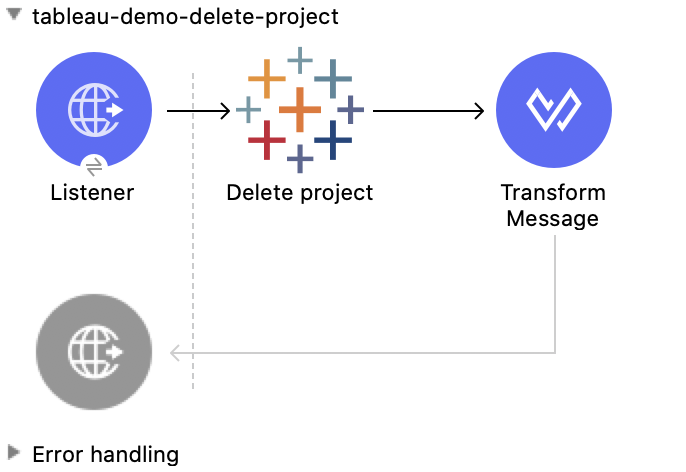
This Mule flow deletes a project from the specified site. When a project is deleted, all of its
assets are also deleted, such as its associated workbooks, data sources, project view options, and
rights. Use this operation with caution.

This example uses the following operations:

- **HTTP Listener**  
  Accepts data from HTTP requests

- **Delete project**  
  Deletes a project from the site

- **Transform Message**  
  Outputs the results of the **Delete project** operation in JSON format
![Studio flow for the Delete Project operation](/mulesoft/current/en-us/tableau-specialist-connector/latest/_images/delete-project.png)

### XML for This Example

Paste this code into the Studio XML editor to quickly load the flow for this example into your Mule
app:

```xml
<?xml version="1.0" encoding="UTF-8"?>

<mule xmlns:tableau="http://www.mulesoft.org/schema/mule/tableau" xmlns:file="http://www.mulesoft.org/schema/mule/file"
	xmlns:ee="http://www.mulesoft.org/schema/mule/ee/core"
	xmlns:http="http://www.mulesoft.org/schema/mule/http" xmlns:tableau-specialist="http://www.mulesoft.org/schema/mule/tableau-specialist" xmlns="http://www.mulesoft.org/schema/mule/core" xmlns:doc="http://www.mulesoft.org/schema/mule/documentation" xmlns:xsi="http://www.w3.org/2001/XMLSchema-instance" xsi:schemaLocation="http://www.mulesoft.org/schema/mule/core http://www.mulesoft.org/schema/mule/core/current/mule.xsd
http://www.mulesoft.org/schema/mule/tableau-specialist http://www.mulesoft.org/schema/mule/tableau-specialist/current/mule-tableau-specialist.xsd
http://www.mulesoft.org/schema/mule/http http://www.mulesoft.org/schema/mule/http/current/mule-http.xsd
http://www.mulesoft.org/schema/mule/ee/core http://www.mulesoft.org/schema/mule/ee/core/current/mule-ee.xsd
http://www.mulesoft.org/schema/mule/file http://www.mulesoft.org/schema/mule/file/current/mule-file.xsd
http://www.mulesoft.org/schema/mule/tableau http://www.mulesoft.org/schema/mule/tableau/current/mule-tableau.xsd">
	<configuration-properties file="project-properties.properties"/>
	<tableau-specialist:tableau-specialist-config name="Tableau_Specialist_Configuration" doc:name="Tableau Specialist Configuration" doc:id="cb468146-0f1e-4582-823f-931301fe573e" >
		<tableau-specialist:basic-username-password-connection serverUrl="${credentials.serverUrl}" apiVersion="${credentials.apiVersion}" contentUrl="${credentials.contentUrl}" username="${credentials.username}" password="${credentials.password}" />
	</tableau-specialist:tableau-specialist-config>
	<http:listener-config name="HTTP_Listener_config" doc:name="HTTP Listener config" doc:id="a5594c7d-a121-4db2-a96b-09b935af2550" >
		<http:listener-connection host="0.0.0.0" port="8081" />
	</http:listener-config>
	<flow name="tableau-demo-delete-project" doc:id="96cf801d-bcae-4f2c-91c2-973feb4eb9bc" >
		<http:listener doc:name="Listener" doc:id="fb1582e1-4445-48c5-b53f-adda3ab50592" config-ref="HTTP_Listener_config" path="/delete-project"/>
		<tableau-specialist:delete-project doc:name="Delete project" doc:id="7e135059-0ccd-4d51-b10d-fc38bc4f304d" config-ref="Tableau_Specialist_Configuration" projectId="Id of the project to be deleted"/>
		<ee:transform doc:name="Transform Message" doc:id="b69f9dd5-9a97-47a3-a7ad-6fae4056d396" >
			<ee:message >
				<ee:set-payload ><![CDATA[%dw 2.0
output application/json
---
payload]]></ee:set-payload>
			</ee:message>
		</ee:transform>
	</flow>
</mule>
```

### Steps for Running This Example

1.  Verify that your connector is configured.

2.  Save the project.

3.  From a web browser, test the application by entering
    `[http://localhost:8081/delete-project](http://localhost:8081/delete-project)`.

## Initiate File Upload - Rest Configuration

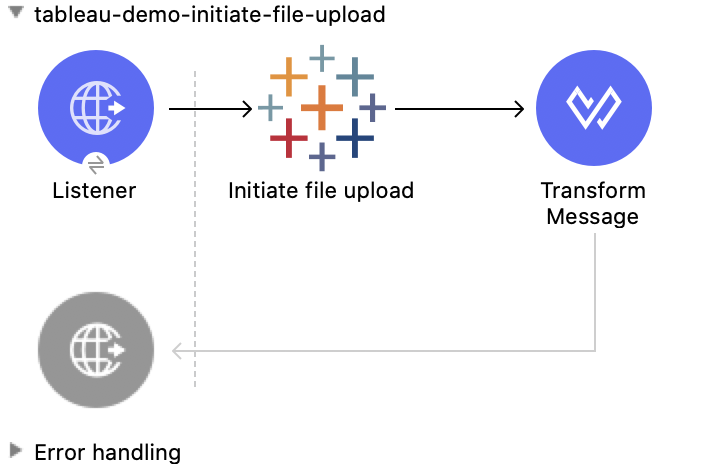
This Mule flow initiates the upload process for a file.

This example uses the following operations:

- **HTTP Listener**  
  Accepts data from HTTP requests

- **Initiate file upload**  
  Initiates the upload process for a file

- **Transform Message**  
  Outputs the results of the **Initiate file upload** operation in JSON format
![Studio flow for the Initiate File Upload operation](/mulesoft/current/en-us/tableau-specialist-connector/latest/_images/initiate-file-upload.png)

### XML for This Example

Paste this code into the Studio XML editor to quickly load the flow for this example into your Mule
app:

```xml
<?xml version="1.0" encoding="UTF-8"?>

<mule xmlns:tableau="http://www.mulesoft.org/schema/mule/tableau" xmlns:file="http://www.mulesoft.org/schema/mule/file"
	xmlns:ee="http://www.mulesoft.org/schema/mule/ee/core"
	xmlns:http="http://www.mulesoft.org/schema/mule/http" xmlns:tableau-specialist="http://www.mulesoft.org/schema/mule/tableau-specialist" xmlns="http://www.mulesoft.org/schema/mule/core" xmlns:doc="http://www.mulesoft.org/schema/mule/documentation" xmlns:xsi="http://www.w3.org/2001/XMLSchema-instance" xsi:schemaLocation="http://www.mulesoft.org/schema/mule/core http://www.mulesoft.org/schema/mule/core/current/mule.xsd
http://www.mulesoft.org/schema/mule/tableau-specialist http://www.mulesoft.org/schema/mule/tableau-specialist/current/mule-tableau-specialist.xsd
http://www.mulesoft.org/schema/mule/http http://www.mulesoft.org/schema/mule/http/current/mule-http.xsd
http://www.mulesoft.org/schema/mule/ee/core http://www.mulesoft.org/schema/mule/ee/core/current/mule-ee.xsd
http://www.mulesoft.org/schema/mule/file http://www.mulesoft.org/schema/mule/file/current/mule-file.xsd
http://www.mulesoft.org/schema/mule/tableau http://www.mulesoft.org/schema/mule/tableau/current/mule-tableau.xsd">
	<configuration-properties file="project-properties.properties"/>
	<tableau-specialist:tableau-specialist-config name="Tableau_Specialist_Configuration" doc:name="Tableau Specialist Configuration" doc:id="6c0dc7f6-facd-4f38-acbe-b598686b2fb6" >
		<tableau-specialist:basic-username-password-connection serverUrl="${credentials.serverUrl}" apiVersion="${credentials.apiVersion}" contentUrl="${credentials.contentUrl}" username="${credentials.username}" password="${credentials.password}" />
	</tableau-specialist:tableau-specialist-config>
	<http:listener-config name="HTTP_Listener_config" doc:name="HTTP Listener config" doc:id="6dd0ac5f-0a8b-421f-bd81-ceb4f450a792" >
		<http:listener-connection host="0.0.0.0" port="8081" />
	</http:listener-config>
	<flow name="tableau-demo-initiate-file-upload" doc:id="2d565997-700f-4828-b129-ade9777d37f8" >
		<http:listener doc:name="Listener" doc:id="4ca7aa6e-54e6-4b11-b3d9-8cd6c5a35527" config-ref="HTTP_Listener_config" path="/initiate-file-upload"/>
		<tableau-specialist:initiate-file-upload doc:name="Initiate file upload" doc:id="2f6a418d-6122-49f1-83b9-21e37f64a86d" config-ref="Tableau_Specialist_Configuration"/>
		<ee:transform doc:name="Transform Message" doc:id="7e32ae77-622a-4ba8-8b13-5529bbcf5dc1" >
			<ee:message >
				<ee:set-payload ><![CDATA[%dw 2.0
output application/json
---
payload]]></ee:set-payload>
			</ee:message>
		</ee:transform>
	</flow>
</mule>
```

### Steps for Running This Example

1.  Verify that your connector is configured.

2.  Save the project.

3.  From a web browser, test the application by entering
    `[http://localhost:8081/initiate-file-upload](http://localhost:8081/initiate-file-upload)`.

## Publish Datasource - Rest Configuration

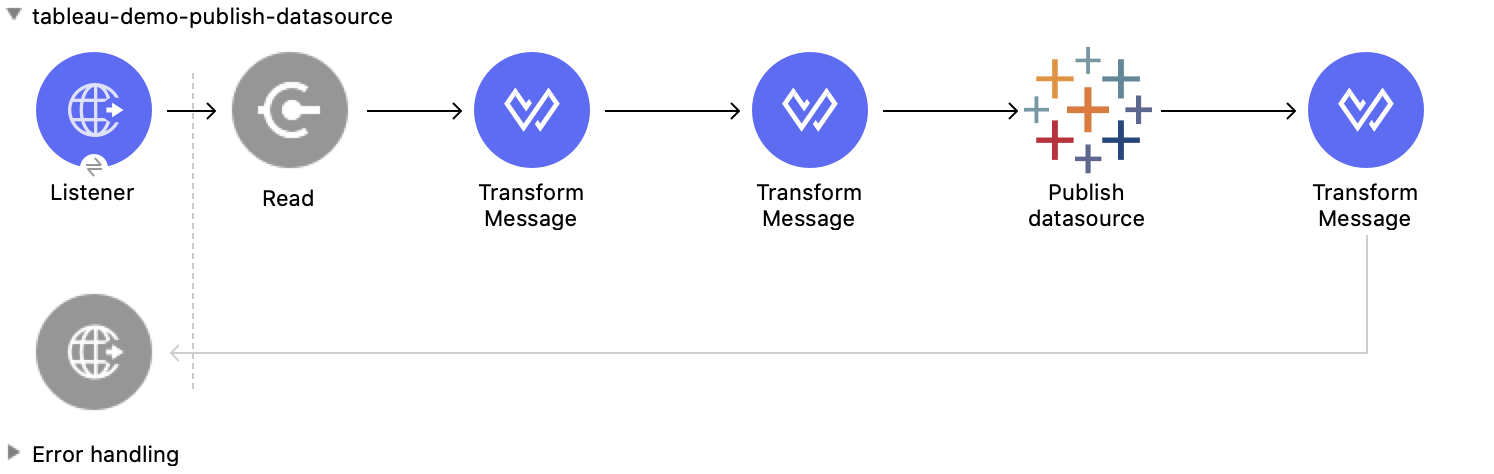
This Mule flow publishes a data source on the specified site, or appends data to an existing data
source. You can use **customers.hyper** as an example of a datasource to upload.

This example uses the following operations:

- **HTTP Listener**  
  Accepts data from HTTP requests

- **Read**  
  Reads a file

- **Transform Message**  
  Transforms the HTTP input

- **Transform Message**  
  Transforms the datasource into Java format

- **Publish datasource**  
  Publishes a data source on the site, or appends data to an existing data source

- **Transform Message**  
  Outputs the results of the **Publish datasource** operation in JSON format
![Studio flow for the Publish Datasource operation](/mulesoft/current/en-us/tableau-specialist-connector/latest/_images/publish-datasource.png)

### XML for This Example

Paste this code into the Studio XML editor to quickly load the flow for this example into your Mule
app:

```xml
<?xml version="1.0" encoding="UTF-8"?>

<mule xmlns:tableau="http://www.mulesoft.org/schema/mule/tableau" xmlns:file="http://www.mulesoft.org/schema/mule/file"
	xmlns:ee="http://www.mulesoft.org/schema/mule/ee/core"
	xmlns:http="http://www.mulesoft.org/schema/mule/http" xmlns:tableau-specialist="http://www.mulesoft.org/schema/mule/tableau-specialist" xmlns="http://www.mulesoft.org/schema/mule/core" xmlns:doc="http://www.mulesoft.org/schema/mule/documentation" xmlns:xsi="http://www.w3.org/2001/XMLSchema-instance" xsi:schemaLocation="http://www.mulesoft.org/schema/mule/core http://www.mulesoft.org/schema/mule/core/current/mule.xsd
http://www.mulesoft.org/schema/mule/tableau-specialist http://www.mulesoft.org/schema/mule/tableau-specialist/current/mule-tableau-specialist.xsd
http://www.mulesoft.org/schema/mule/http http://www.mulesoft.org/schema/mule/http/current/mule-http.xsd
http://www.mulesoft.org/schema/mule/ee/core http://www.mulesoft.org/schema/mule/ee/core/current/mule-ee.xsd
http://www.mulesoft.org/schema/mule/file http://www.mulesoft.org/schema/mule/file/current/mule-file.xsd
http://www.mulesoft.org/schema/mule/tableau http://www.mulesoft.org/schema/mule/tableau/current/mule-tableau.xsd">
	<configuration-properties file="project-properties.properties"/>
	<tableau-specialist:tableau-specialist-config name="Tableau_Specialist_Configuration" doc:name="Tableau Specialist Configuration" doc:id="6c0dc7f6-facd-4f38-acbe-b598686b2fb6" >
		<tableau-specialist:basic-username-password-connection serverUrl="${credentials.serverUrl}" apiVersion="${credentials.apiVersion}" contentUrl="${credentials.contentUrl}" username="${credentials.username}" password="${credentials.password}" />
	</tableau-specialist:tableau-specialist-config>
	<http:listener-config name="HTTP_Listener_config" doc:name="HTTP Listener config" doc:id="6dd0ac5f-0a8b-421f-bd81-ceb4f450a792" >
		<http:listener-connection host="0.0.0.0" port="8081" />
	</http:listener-config>
	<flow name="tableau-demo-publish-datasource" doc:id="58868707-a720-4cd1-ba45-80710dc93bb2" >
		<http:listener doc:name="Listener" config-ref="HTTP_Listener_config" path="/publish-datasource"/>
        <file:read doc:name="Read" doc:id="a85bdc0e-605e-419b-9829-0d88962075fd" config-ref="File_Config" path="customers.hyper"/>
		<ee:transform doc:name="Transform Message">
                <ee:variables>
                    <ee:set-variable variableName="fileContent"><![CDATA[%dw 2.0
output application/java
---
payload]]></ee:set-variable>
                </ee:variables>
            </ee:transform>
        <ee:transform doc:name="Transform Message">
                <ee:message>
                    <ee:set-payload><![CDATA[%dw 2.0
output application/json
---
{
	datasource: {
		name: "datasource test",
		description: "test",
		project: {
			id: "Id of the project to publish the datasource."
		}
	}
}]]></ee:set-payload>
                </ee:message>
            </ee:transform>
        <tableau-specialist:publish-datasource doc:name="Publish datasource" config-ref="Tableau_Specialist_Configuration" overwriteFlag="true">
			<tableau-specialist:datasource-request-options >
				 <tableau-specialist:publish-datasource-request-body datasourceFileContent="#[vars.fileContent]" datasourceFileName="myfile.hyper" />
			</tableau-specialist:datasource-request-options>
		</tableau-specialist:publish-datasource>
		<ee:transform doc:name="Transform Message" doc:id="b2fc285a-a384-4c62-b9aa-afabf96d07d6" >
			<ee:message >
				<ee:set-payload ><![CDATA[%dw 2.0
output application/json
---
payload]]></ee:set-payload>
			</ee:message>
		</ee:transform>
	</flow>
</mule>
```

### Steps for Running This Example

1.  Verify that your connector is configured.

2.  Save the project.

3.  From a web browser, test the application by entering
    `[http://localhost:8081/publish-datasource](http://localhost:8081/publish-datasource)`.

## Publish Workbook - Rest Configuration

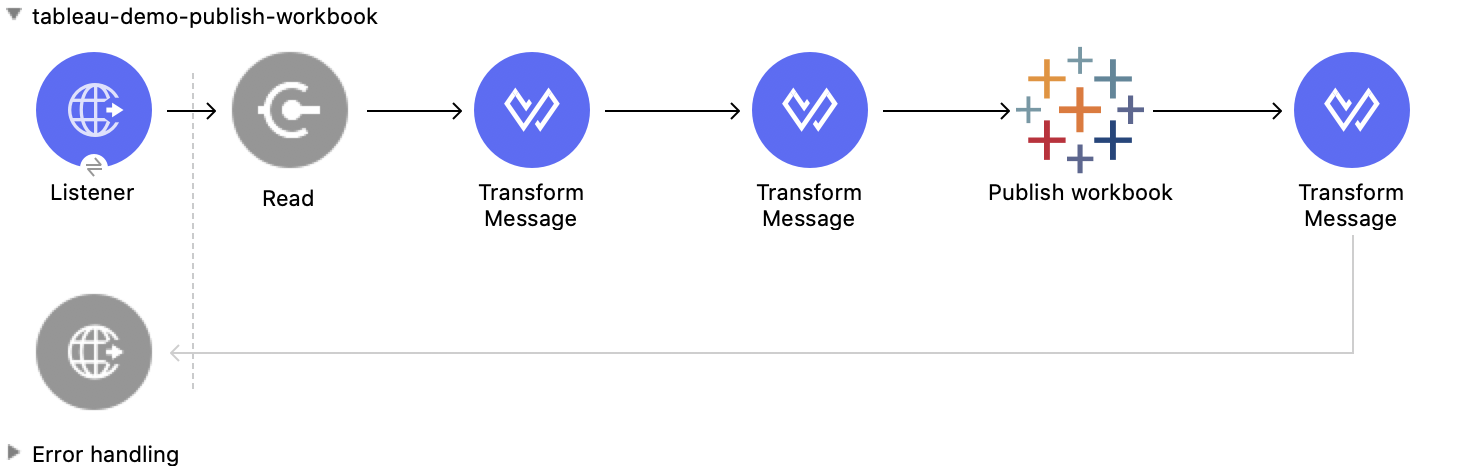
This Mule flow publishes a workbook on the specified site.

This example uses the following operations:

- **HTTP Listener**  
  Accepts data from HTTP requests

- **Read**  
  Reads a file

- **Transform Message**  
  Transforms the HTTP input

- **Transform Message**  
  Transforms the datasource into Java format

- **Publish workbook**  
  Publishes a workbook on the site

- **Transform Message**  
  Outputs the results of the **Publish workbook** operation in JSON format
![Studio flow for the Publish Workbook operation](/mulesoft/current/en-us/tableau-specialist-connector/latest/_images/publish-workbook.png)

### XML for This Example

Paste this code into the Studio XML editor to quickly load the flow for this example into your Mule
app:

```xml
<?xml version="1.0" encoding="UTF-8"?>

<mule xmlns:tableau="http://www.mulesoft.org/schema/mule/tableau" xmlns:file="http://www.mulesoft.org/schema/mule/file"
	xmlns:ee="http://www.mulesoft.org/schema/mule/ee/core"
	xmlns:http="http://www.mulesoft.org/schema/mule/http" xmlns:tableau-specialist="http://www.mulesoft.org/schema/mule/tableau-specialist" xmlns="http://www.mulesoft.org/schema/mule/core" xmlns:doc="http://www.mulesoft.org/schema/mule/documentation" xmlns:xsi="http://www.w3.org/2001/XMLSchema-instance" xsi:schemaLocation="http://www.mulesoft.org/schema/mule/core http://www.mulesoft.org/schema/mule/core/current/mule.xsd
http://www.mulesoft.org/schema/mule/tableau-specialist http://www.mulesoft.org/schema/mule/tableau-specialist/current/mule-tableau-specialist.xsd
http://www.mulesoft.org/schema/mule/http http://www.mulesoft.org/schema/mule/http/current/mule-http.xsd
http://www.mulesoft.org/schema/mule/ee/core http://www.mulesoft.org/schema/mule/ee/core/current/mule-ee.xsd
http://www.mulesoft.org/schema/mule/file http://www.mulesoft.org/schema/mule/file/current/mule-file.xsd
http://www.mulesoft.org/schema/mule/tableau http://www.mulesoft.org/schema/mule/tableau/current/mule-tableau.xsd">
	<configuration-properties file="project-properties.properties"/>
	<tableau-specialist:tableau-specialist-config name="Tableau_Specialist_Configuration" doc:name="Tableau Specialist Configuration" doc:id="6c0dc7f6-facd-4f38-acbe-b598686b2fb6" >
		<tableau-specialist:basic-username-password-connection serverUrl="${credentials.serverUrl}" apiVersion="${credentials.apiVersion}" contentUrl="${credentials.contentUrl}" username="${credentials.username}" password="${credentials.password}" />
	</tableau-specialist:tableau-specialist-config>
	<http:listener-config name="HTTP_Listener_config" doc:name="HTTP Listener config" doc:id="6dd0ac5f-0a8b-421f-bd81-ceb4f450a792" >
		<http:listener-connection host="0.0.0.0" port="8081" />
	</http:listener-config>
	<flow name="tableau-demo-publish-workbook" doc:id="960ecd4c-91fd-4884-bb94-d2aedbcf94ec" >
		<http:listener doc:name="Listener" doc:id="75a721e3-77fc-4c6c-93b4-6bc5b2e0a1cb" config-ref="HTTP_Listener_config" path="/publish-workbook"/>
		<file:read doc:name="Read" doc:id="e5342f6f-02a1-4c38-982a-b780a7dcaaac" config-ref="File_Config" path="test-workbook.twbx"/>
		<ee:transform doc:name="Transform Message">
                <ee:variables>
                    <ee:set-variable variableName="fileContent"><![CDATA[%dw 2.0
output application/java
---
payload]]></ee:set-variable>
                </ee:variables>
            </ee:transform>
        <ee:transform doc:name="Transform Message">
				<ee:message>
					<ee:set-payload><![CDATA[%dw 2.0
output application/json
---
{
	workbook: {
		name: "Publish_workbook_test"
	}
}]]></ee:set-payload>
				</ee:message>
			</ee:transform>
			<tableau-specialist:publish-workbook doc:name="Publish workbook" doc:id="74fe54f8-8165-4183-b7fd-1a1ed63a9428" config-ref="Tableau_Specialist_Configuration" overwriteFlag="true">
			<tableau-specialist:workbook-request-options >
					<tableau-specialist:publish-workbook-request-body workbookFileContent="#[vars.fileContent]" workbookFileName="test-workbook.twbx" />
			</tableau-specialist:workbook-request-options>
		</tableau-specialist:publish-workbook>
		<ee:transform doc:name="Transform Message" doc:id="bc5a4103-da41-48ac-b08a-8676684d3965" >
			<ee:message >
				<ee:set-payload ><![CDATA[%dw 2.0
output application/json
---
payload]]></ee:set-payload>
			</ee:message>
		</ee:transform>
	</flow>
</mule>
```

### Steps for Running This Example

1.  Verify that your connector is configured.

2.  Save the project.

3.  From a web browser, test the application by entering
    `[http://localhost:8081/publish-workbook](http://localhost:8081/publish-workbook)`.

## Query Projects - Rest Configuration

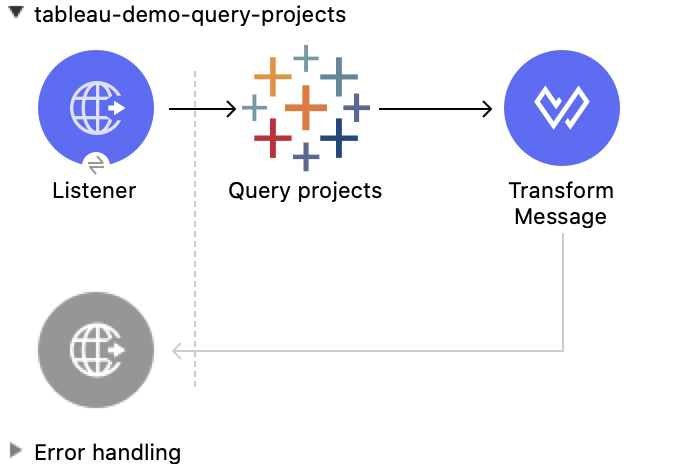
This Mule flow returns a list of projects from the specified site. It uses optional parameters to
page large results.

This example uses the following operations:

- **HTTP Listener**  
  Accepts data from HTTP requests

- **Query projects**  
  Returns a list of projects from the site

- **Transform Message**  
  Outputs the results of the **Query projects** operation in JSON format
![Studio flow for the Query Projects operation](/mulesoft/current/en-us/tableau-specialist-connector/latest/_images/query-projects.png)

### XML for This Example

Paste this code into the Studio XML editor to quickly load the flow for this example into your Mule
app:

```xml
<?xml version="1.0" encoding="UTF-8"?>

<mule xmlns:tableau="http://www.mulesoft.org/schema/mule/tableau" xmlns:file="http://www.mulesoft.org/schema/mule/file"
	xmlns:ee="http://www.mulesoft.org/schema/mule/ee/core"
	xmlns:http="http://www.mulesoft.org/schema/mule/http" xmlns:tableau-specialist="http://www.mulesoft.org/schema/mule/tableau-specialist" xmlns="http://www.mulesoft.org/schema/mule/core" xmlns:doc="http://www.mulesoft.org/schema/mule/documentation" xmlns:xsi="http://www.w3.org/2001/XMLSchema-instance" xsi:schemaLocation="http://www.mulesoft.org/schema/mule/core http://www.mulesoft.org/schema/mule/core/current/mule.xsd
http://www.mulesoft.org/schema/mule/tableau-specialist http://www.mulesoft.org/schema/mule/tableau-specialist/current/mule-tableau-specialist.xsd
http://www.mulesoft.org/schema/mule/http http://www.mulesoft.org/schema/mule/http/current/mule-http.xsd
http://www.mulesoft.org/schema/mule/ee/core http://www.mulesoft.org/schema/mule/ee/core/current/mule-ee.xsd
http://www.mulesoft.org/schema/mule/file http://www.mulesoft.org/schema/mule/file/current/mule-file.xsd
http://www.mulesoft.org/schema/mule/tableau http://www.mulesoft.org/schema/mule/tableau/current/mule-tableau.xsd">
	<configuration-properties file="project-properties.properties"/>
	<tableau-specialist:tableau-specialist-config name="Tableau_Specialist_Configuration" doc:name="Tableau Specialist Configuration" doc:id="6c0dc7f6-facd-4f38-acbe-b598686b2fb6" >
		<tableau-specialist:basic-username-password-connection serverUrl="${credentials.serverUrl}" apiVersion="${credentials.apiVersion}" contentUrl="${credentials.contentUrl}" username="${credentials.username}" password="${credentials.password}" />
	</tableau-specialist:tableau-specialist-config>
	<http:listener-config name="HTTP_Listener_config" doc:name="HTTP Listener config" doc:id="6dd0ac5f-0a8b-421f-bd81-ceb4f450a792" >
		<http:listener-connection host="0.0.0.0" port="8081" />
	</http:listener-config>
	<flow name="tableau-demo-query-projects" doc:id="11b6ccc2-a74a-4c51-bf55-6e218a4d2d2b" >
		<http:listener doc:name="Listener" doc:id="4481b0ce-c317-45ca-9395-30241ec38422" config-ref="HTTP_Listener_config" path="/query-projects"/>
		<tableau-specialist:query-projects doc:name="Query projects" doc:id="fd755a6c-a570-4ee3-b3ab-b5e175b6266e" config-ref="Tableau_Specialist_Configuration"/>
		<ee:transform doc:name="Transform Message" doc:id="28053ee5-5e84-4c72-a771-f0b2a1ea8f15" >
			<ee:message >
				<ee:set-payload ><![CDATA[%dw 2.0
output application/json
---
payload]]></ee:set-payload>
			</ee:message>
		</ee:transform>
	</flow>
</mule>
```

### Steps for Running This Example

1.  Verify that your connector is configured.

2.  Save the project.

3.  From a web browser, test the application by entering
    `[http://localhost:8081/query-projects](http://localhost:8081/query-projects)`.

## Update Project - Rest Configuration

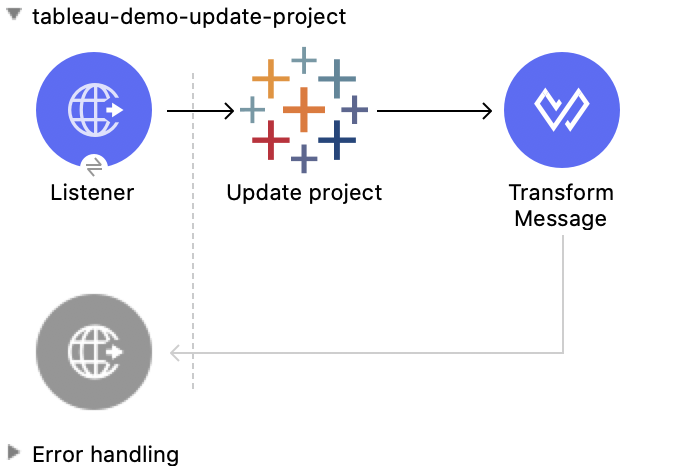
This Mule flow updates a project on the specified site.

This example uses the following operations:

- **HTTP Listener**  
  Accepts data from HTTP requests

- **Update project**  
  Updates a project on the site

- **Transform Message**  
  Outputs the results of the **Update project** operation in JSON format
![Studio flow for the Update Project operation](/mulesoft/current/en-us/tableau-specialist-connector/latest/_images/update-project.png)

### XML for This Example

Paste this code into the Studio XML editor to quickly load the flow for this example into your Mule
app:

```xml
<?xml version="1.0" encoding="UTF-8"?>

<mule xmlns:tableau="http://www.mulesoft.org/schema/mule/tableau" xmlns:file="http://www.mulesoft.org/schema/mule/file"
	xmlns:ee="http://www.mulesoft.org/schema/mule/ee/core"
	xmlns:http="http://www.mulesoft.org/schema/mule/http" xmlns:tableau-specialist="http://www.mulesoft.org/schema/mule/tableau-specialist" xmlns="http://www.mulesoft.org/schema/mule/core" xmlns:doc="http://www.mulesoft.org/schema/mule/documentation" xmlns:xsi="http://www.w3.org/2001/XMLSchema-instance" xsi:schemaLocation="http://www.mulesoft.org/schema/mule/core http://www.mulesoft.org/schema/mule/core/current/mule.xsd
http://www.mulesoft.org/schema/mule/tableau-specialist http://www.mulesoft.org/schema/mule/tableau-specialist/current/mule-tableau-specialist.xsd
http://www.mulesoft.org/schema/mule/http http://www.mulesoft.org/schema/mule/http/current/mule-http.xsd
http://www.mulesoft.org/schema/mule/ee/core http://www.mulesoft.org/schema/mule/ee/core/current/mule-ee.xsd
http://www.mulesoft.org/schema/mule/file http://www.mulesoft.org/schema/mule/file/current/mule-file.xsd
http://www.mulesoft.org/schema/mule/tableau http://www.mulesoft.org/schema/mule/tableau/current/mule-tableau.xsd">
	<configuration-properties file="project-properties.properties"/>
	<tableau-specialist:tableau-specialist-config name="Tableau_Specialist_Configuration" doc:name="Tableau Specialist Configuration" doc:id="6c0dc7f6-facd-4f38-acbe-b598686b2fb6" >
		<tableau-specialist:basic-username-password-connection serverUrl="${credentials.serverUrl}" apiVersion="${credentials.apiVersion}" contentUrl="${credentials.contentUrl}" username="${credentials.username}" password="${credentials.password}" />
	</tableau-specialist:tableau-specialist-config>
	<http:listener-config name="HTTP_Listener_config" doc:name="HTTP Listener config" doc:id="6dd0ac5f-0a8b-421f-bd81-ceb4f450a792" >
		<http:listener-connection host="0.0.0.0" port="8081" />
	</http:listener-config>
	<flow name="tableau-demo-update-project" doc:id="3c7e74d4-0992-47a6-b4ce-5cf550af0c85" >
		<http:listener doc:name="Listener" doc:id="b78ce590-c90b-4274-9347-312e6f4f6568" config-ref="HTTP_Listener_config" path="/update-project"/>
            <tableau-specialist:update-project doc:name="Update project" doc:id="b27c3751-14a0-436d-8f47-dbb9d72360cc" config-ref="Tableau_Specialist_Configuration" projectId="Id of the project to update">
			<tableau-specialist:content ><![CDATA[#[output application/json
---
{
	project: {
		name: "Update test",
		description: "Update description"
	}
}]]]></tableau-specialist:content>
		</tableau-specialist:update-project>
		<ee:transform doc:name="Transform Message" doc:id="45cdd3cd-51a8-4ed7-a364-07650c8fda10" >
			<ee:message >
				<ee:set-payload ><![CDATA[%dw 2.0
output application/json
---
payload]]></ee:set-payload>
			</ee:message>
		</ee:transform>
	</flow>
</mule>
```

### Steps for Running This Example

1.  Verify that your connector is configured.

2.  Save the project.

3.  From a web browser, test the application by entering
    `[http://localhost:8081/update-project](http://localhost:8081/update-project)`.

## See Also

- [Introduction to Anypoint Connectors](https://docs.mulesoft.com/connectors/introduction/introduction-to-anypoint-connectors)

- [Salesforce Help](https://help.salesforce.com)
