---
schema_version: "1"
id: 03e2beb1e888588bbe67d715b8fb6f4ebd8fceab7f92f40e8f596e826ad96f28
title: Update Mule Modules in Anypoint Studio
collection: mulesoft
version: current
locale: en-us
portal_url: https://docs.salesforce.com/mulesoft/current/en-us/studio/update-modules.md
canonical_url: https://docs.mulesoft.com/studio/update-modules
source_site: docs.mulesoft.com
content_type: documentation
content_hash: 72f7002c38881922f0c99dc02e26647e8364e6bc54149a5b0545aaefc4df8111
description: MuleSoft Documentation Site
latest: true
---
---
product: Studio
---
# Update Mule Modules in Anypoint Studio
> For the full documentation index, see: https://docs.mulesoft.com/llms.txt
Every time Studio starts, it checks for updated modules in your open projects. You can update to the
latest minor version of your module or upgrade directly to the latest version available. Upgrading
to a major version of a module can introduce compatibility issues in your project. Review the
release notes for your modules before upgrading to a major version.
> [!NOTE] If you [select Java 17 for your project](https://docs.mulesoft.com/studio/change-jdk-config-in-projects), Studio
> automatically searches Exchange and suggests the modules and connectors to upgrade to make your
> app compatible with Java 17.
To manually check for module updates:
1. Ensure that you are logged in to Anypoint Platform.
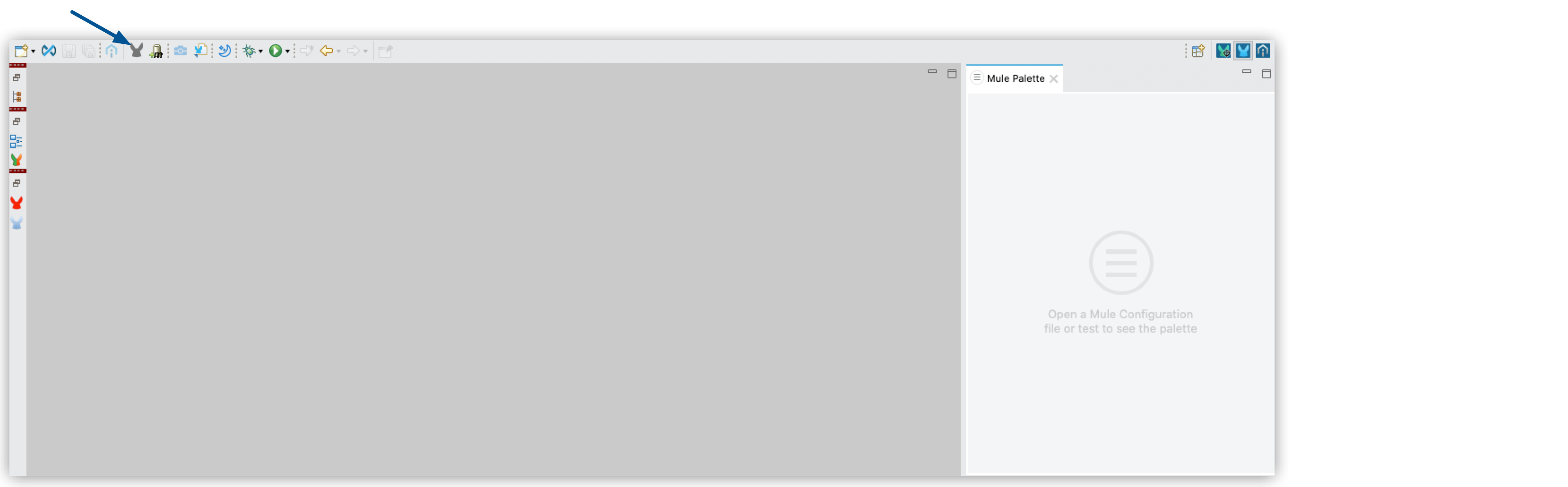
2. In the menu bar, click **Manage Mule Modules**
().
> [!NOTE] This feature does not support modules that are inherited from a parent POM file.
You can also manage all dependencies in your project:
1. In the menu bar, click **Manage dependencies**
.
2. Under **Mule Project**, select **Modules**.
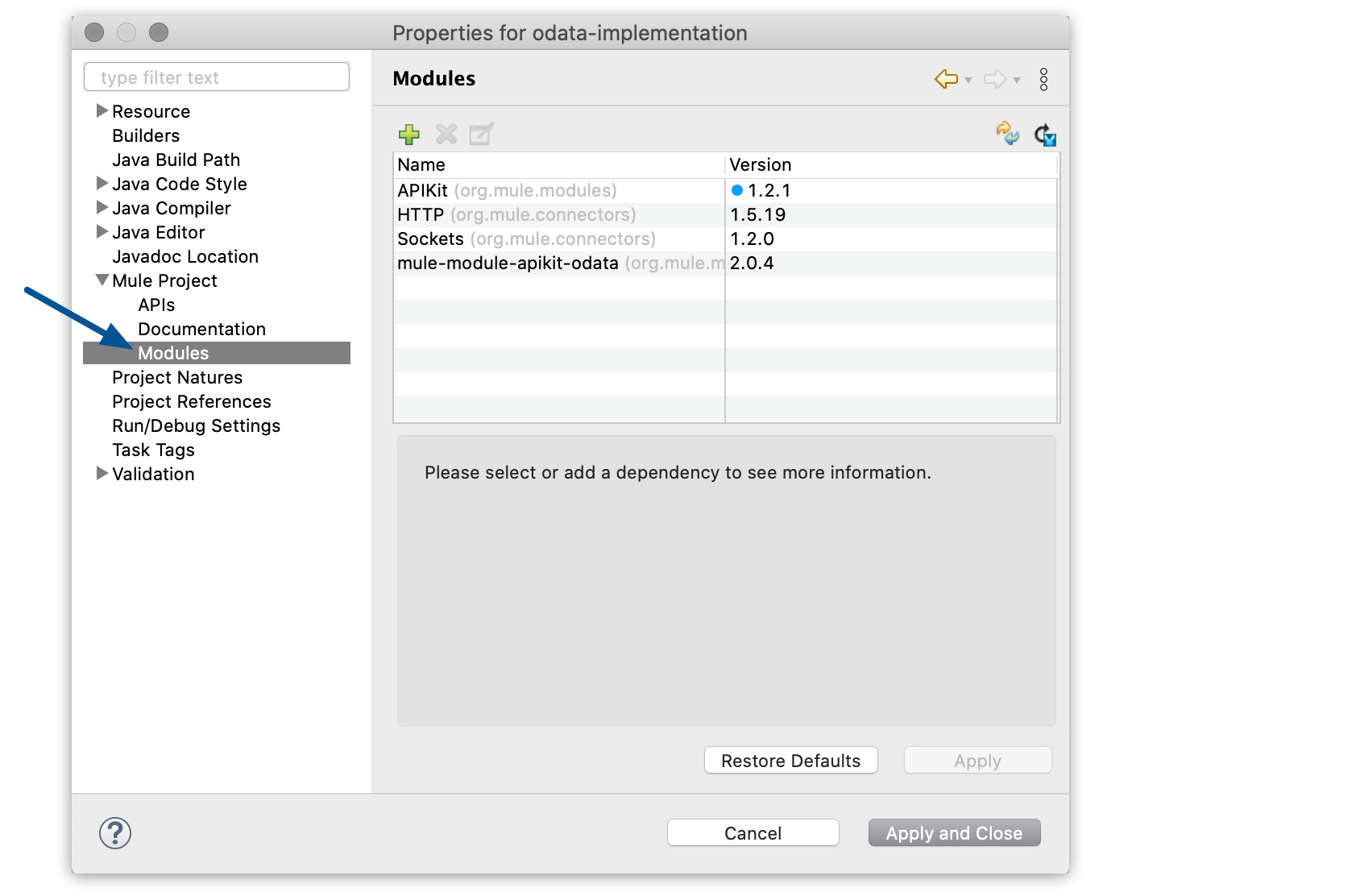
When Studio loads this wizard for the first time, it automatically checks for new versions of
your modules.
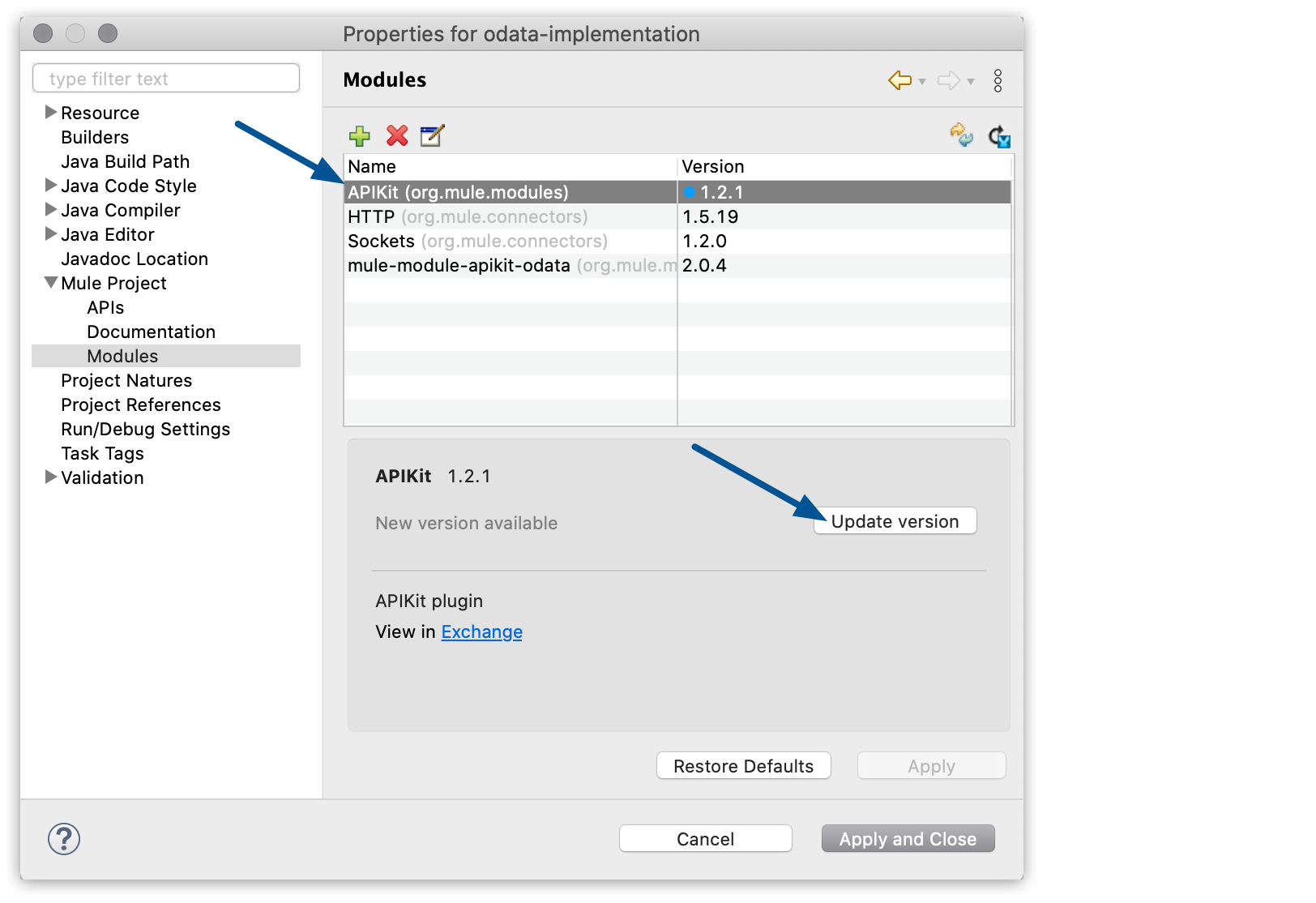
3. Select the module that you want to update and click **Update version**.
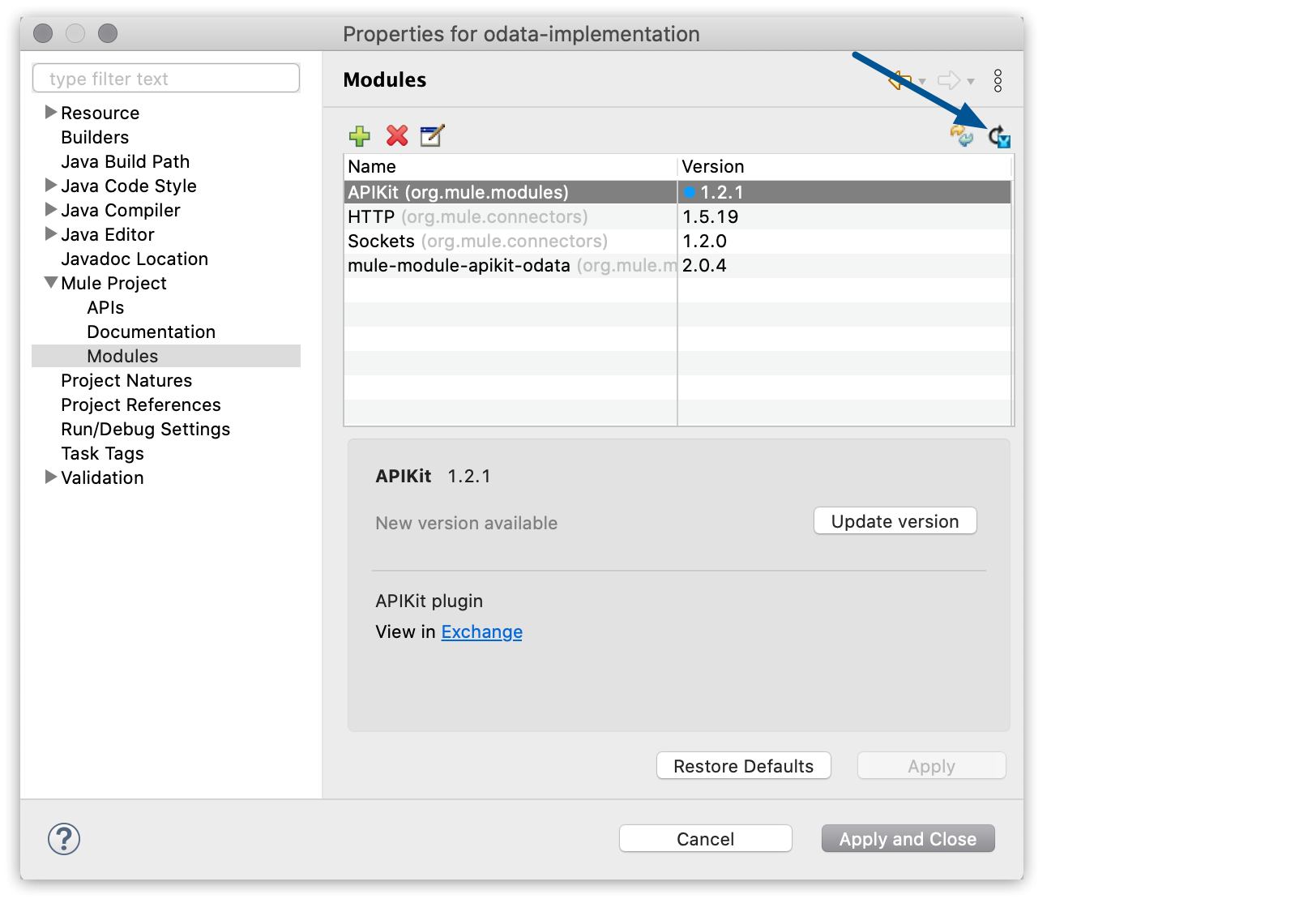
Additionally, you can select **Update all dependencies to latest** to update all dependencies to
the latest version of each.
4. Select **Apply and close**.
Studio updates your selected dependencies.
This process works if you manage your dependencies using Studio.
To use Maven properties to specify your module version:
```XML
1.5.23
org.mule.connectors
mule-http-connector
${http_connector_version}
mule-plugin
```
Contact your development team to update your custom Maven code to the latest version available.
## See Also
- [Java Support](https://docs.mulesoft.com/general/java-support)
- [Troubleshoot Java and Mule Runtime Compatibility Issues](https://docs.mulesoft.com/studio/compatibility-issues-runtime-java)