---
schema_version: "1"
id: 326f3e48a03c42b397f819f6ce3a1cc6e35c87748a297d79065896787dc5a2c6
title: Configure Anypoint Studio Browser Settings
collection: mulesoft
version: current
locale: en-us
portal_url: https://docs.salesforce.com/mulesoft/current/en-us/studio/browser-settings.md
canonical_url: https://docs.mulesoft.com/studio/browser-settings
source_site: docs.mulesoft.com
content_type: documentation
content_hash: 51eb4f7fbfdb74b8c1a60f4547983fc01b3f6cf7692be775dd5f2269459ad1fa
description: MuleSoft Documentation Site
latest: true
---
---
product: Studio
---
# Configure Anypoint Studio Browser Settings
> For the full documentation index, see: https://docs.mulesoft.com/llms.txt
Anypoint Studio comes bundled with a default browser to display elements of the Anypoint Platform
UI. For example, when you deploy to CloudHub from Studio, Studio displays the Runtime Manager UI by
using a built-in browser.
This built-in browser is the default. However, if you log in to Anypoint Platform using multi-factor
authentication (MFA), you must configure Studio to use your system’s native browser to render the
Anypoint Platform UI:
1. Navigate to **Preferences** > **Anypoint Studio** > **Browser**.
2. Select the type of default browser for Studio:
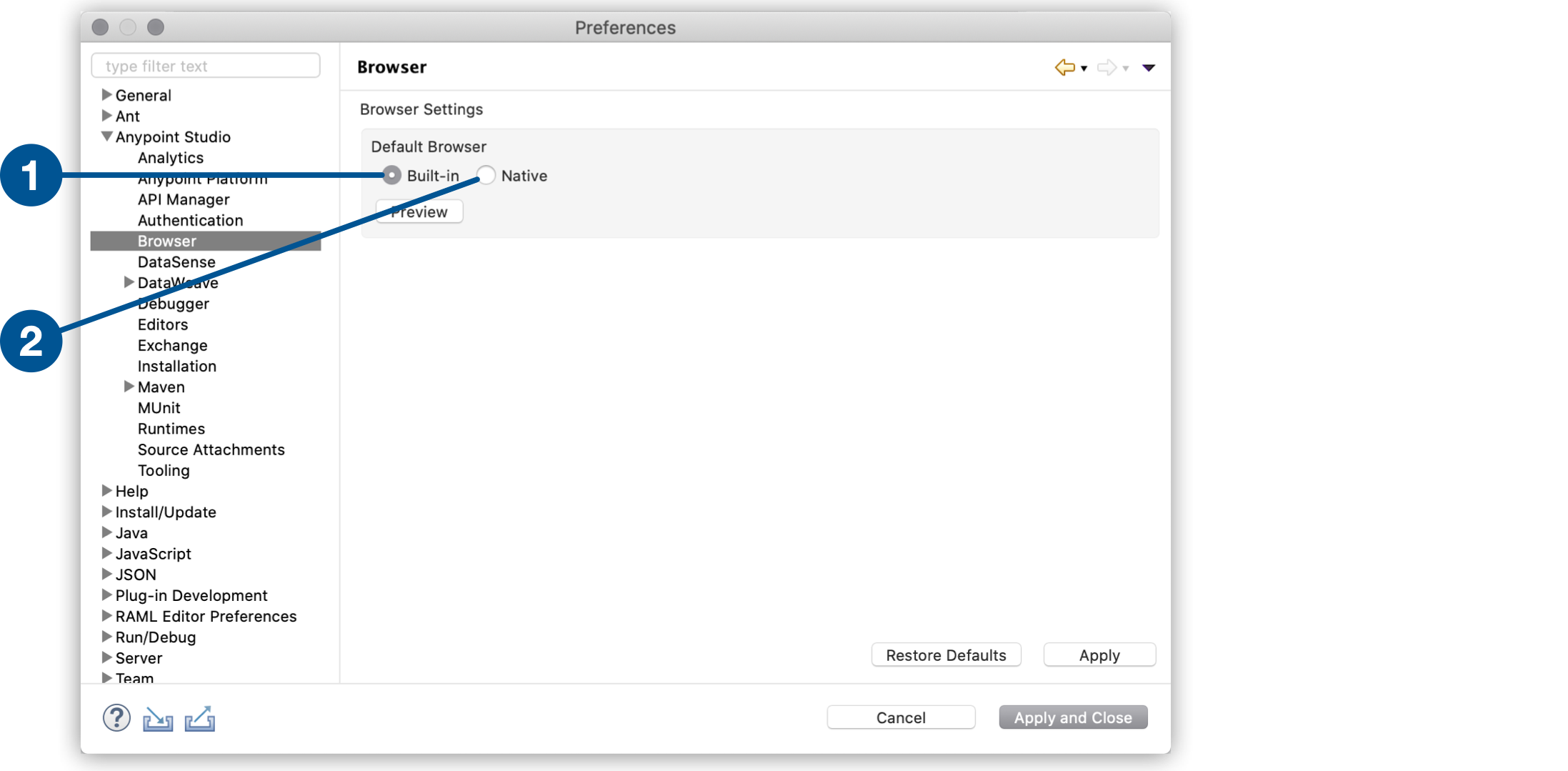
1
Built-in: Uses the built-in browser.
2
Native: Uses the native browser of your operative system.
3. Click **Preview** to verify the changed configuration.
Additionally, if you use Windows you must perform an additional configuration:
1. Quit Anypoint Studio if you’re running it.
2. Download the latest fixed version of WebView2 from the
[Microsoft Developer Portal](https://developer.microsoft.com/en-us/microsoft-edge/webview2/?form=MA13LH).
3. Extract the `.cab` file with the following command in a Command Prompt (CMD):
`Extrac32 /E `
4. Locate your `AnypointStudio.ini` file inside your Anypoint Studio installation directory.
5. Add the following lines to the `AnypointStudio.ini` file:
```none
---
-Dorg.eclipse.swt.browser.DefaultType=edge
-Dorg.eclipse.swt.browser.EdgeDir=
# for example:
# -Dorg.eclipse.swt.browser.EdgeDir=C:\Users\my-user\Downloads\Microsoft.WebView2.FixedVersionRuntime.9x.x.xx.xx
---
```
## See Also
- [Configure Platform Credentials](https://docs.mulesoft.com/studio/set-credentials-in-studio-to)
- [Configure Proxy Settings](https://docs.mulesoft.com/studio/proxy-settings-task)