---
schema_version: "1"
id: 555e986789c762985d3d797d3a4e8a2c27e302f41495b182994e9287a05f63cc
title: Add Custom Modules to Your Project
collection: mulesoft
version: current
locale: en-us
portal_url: https://docs.salesforce.com/mulesoft/current/en-us/studio/add-custom-modules-in-studio-to.md
canonical_url: https://docs.mulesoft.com/studio/add-custom-modules-in-studio-to
source_site: docs.mulesoft.com
content_type: documentation
content_hash: 23654f0d72e2ab5ca9cce20be74f8c9cf4179a6e551d8b2f9a5a0c7d0a096794
description: MuleSoft Documentation Site
latest: true
---
---
product: Studio
---
# Add Custom Modules to Your Project
> For the full documentation index, see: https://docs.mulesoft.com/llms.txt
You can add your custom Mule module to your Mule projects in Anypoint Studio.
These instructions assume that you developed your Mule module using the Mule SDK, and that you
followed the proper setup steps.
See the [Mule SDK introductory instructions](https://docs.mulesoft.com/mule-sdk/latest/getting-started) for more details.
You can install custom modules using the Studio UI, or by manually adding them as a Maven dependency
in your project’s `pom.xml` file.
## From Studio
To install a local custom module from Studio:
1. In the menu bar, select the **Manage dependencies** icon
.
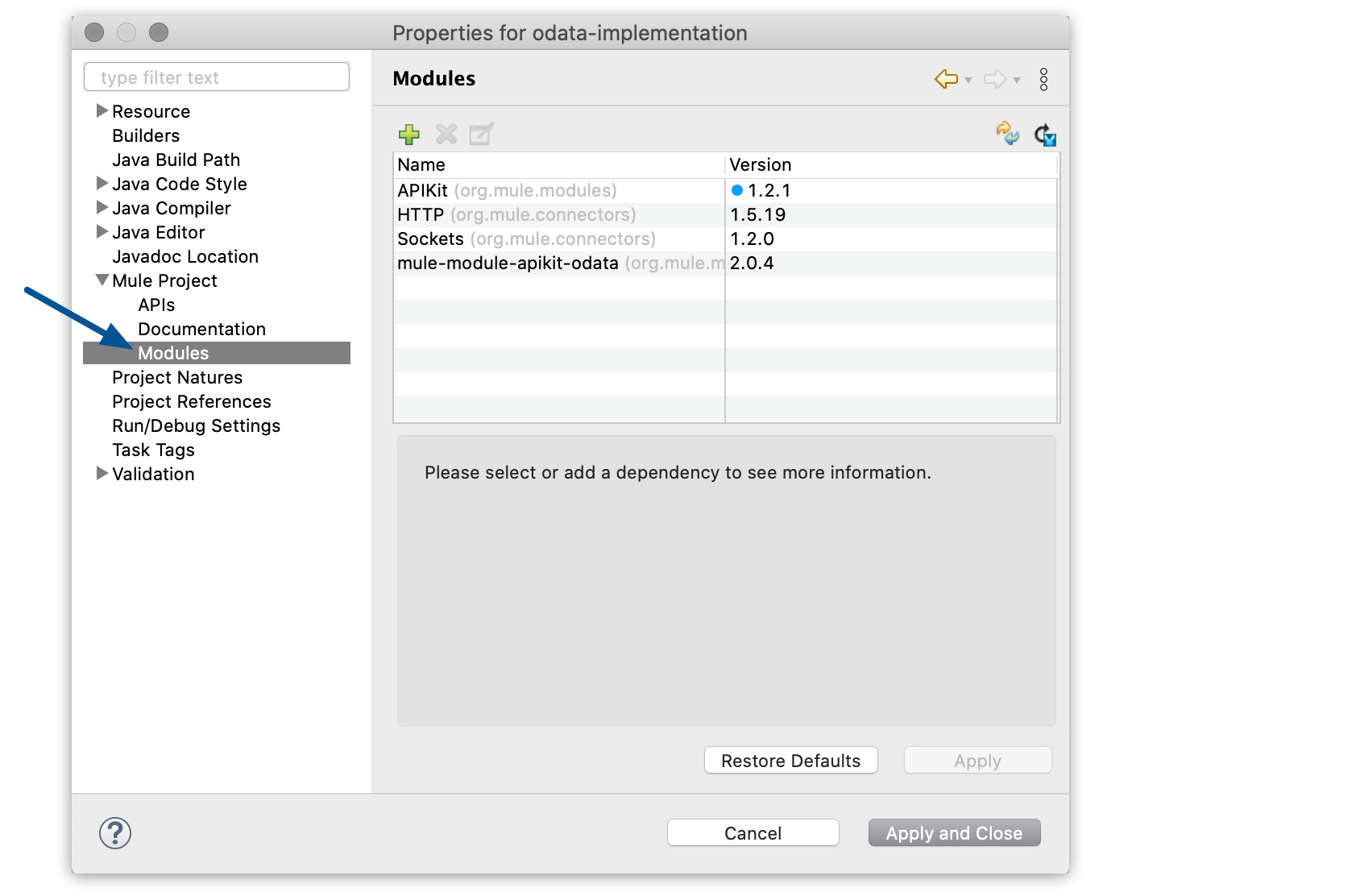
2. Under **Mule Project**, select **Modules**:
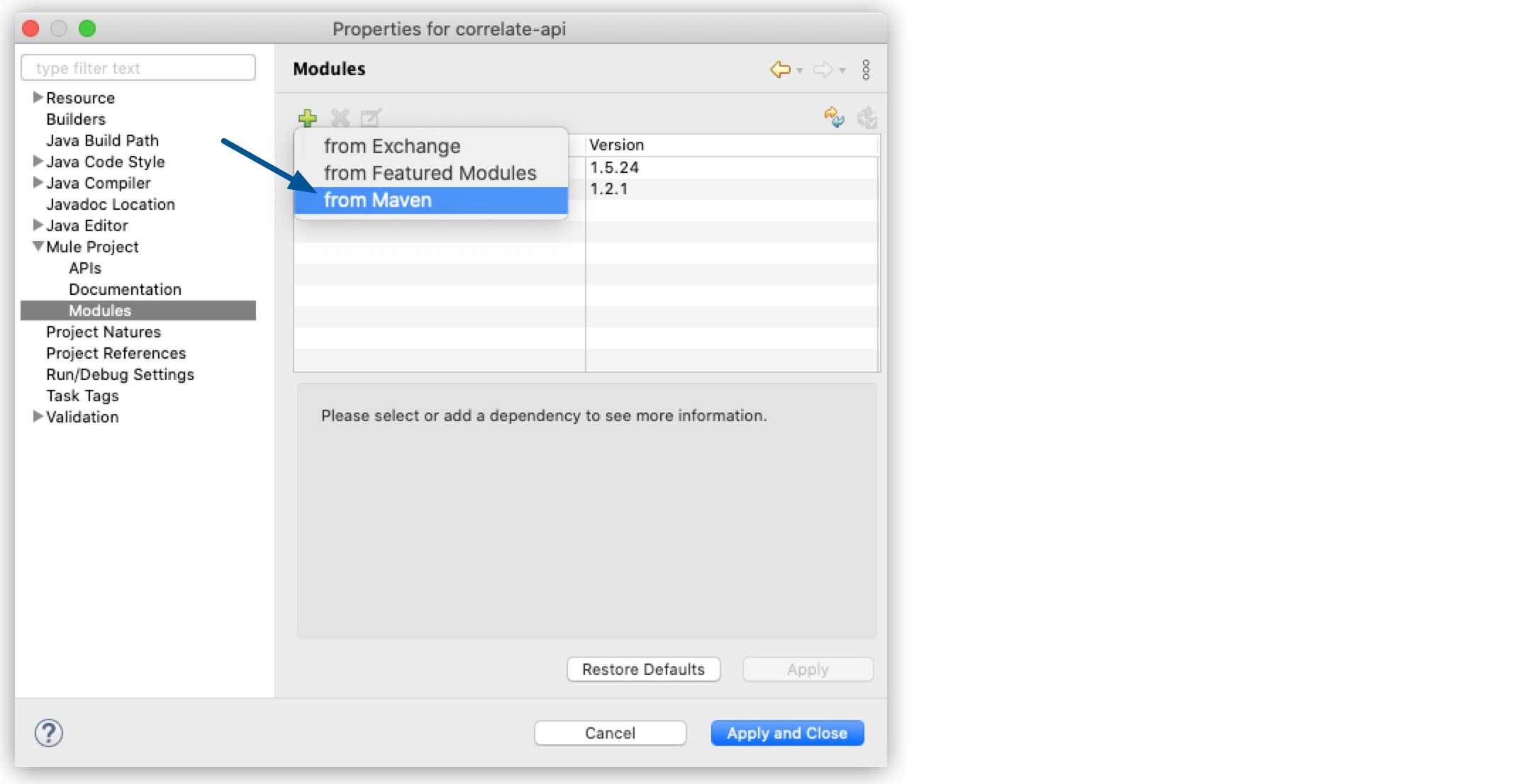
3. Select the green plus icon () and select **From
Maven**:
4. In the properties window, configure your custom module’s Maven coordinates:
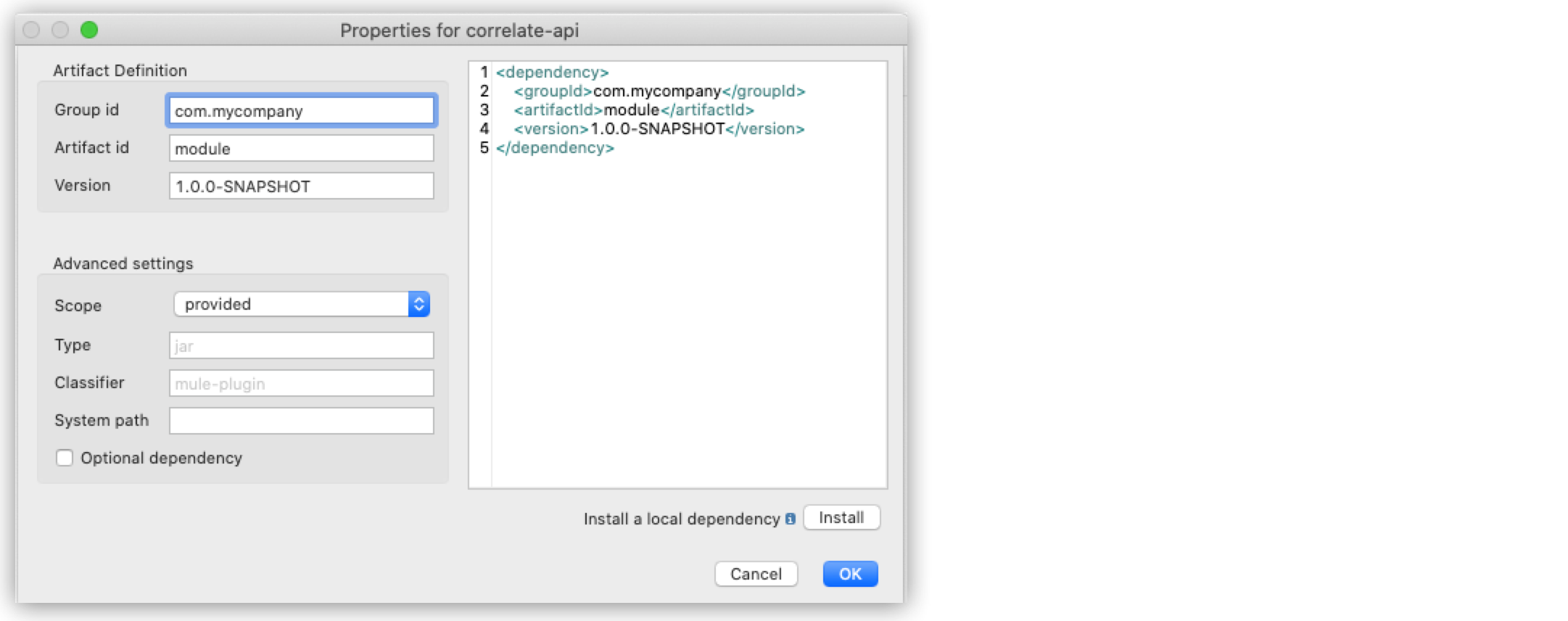
This information is available in your module’s `pom.xml` file.
## From Maven
As you develop Mule modules as Maven projects, you can install them from a local or online Maven
repository:
1. In your Anypoint Studio project, edit the `pom.xml` file with the groupId, artifactId, and
version of your Mule module.
This information is available in your module’s `pom.xml` file. For example:
```xml
org.mule.extensions
mule-ee-core-modules-parent
1.1.0-SNAPSHOT
com.mulesoft.mule.modules
mule-secure-configuration-property-module
mule-extension
1.0.0-SNAPSHOT
Mule Secure Configuration Property Extension
Mule extension for loading encrypted properties
```
It’s also reflected in the folder structure in which the Mule module is installed
(`$MAVEN_REPOS_HOME/groupID_path/artifactId/version`).
For the previous example, your Anypoint Studio pom.xml file must add the following dependency:
```xml
com.mulesoft.mule.modules
mule-secure-configuration-property-module
1.0.0-SNAPSHOT
mule-plugin
```
The `` element is set to mule-plugin. This automatically installs the mule-plugin
into your project’s palette.
2. Save your changes to your Studio project’s `pom.xml` file.
After Anypoint Studio downloads the new dependency, you’ll see your new Mule module in the Studio
palette. In this example, there is a Secure Properties module listed in the Mule Palette view.
There’s also a new Secure Properties Config element available in the Global Elements editor, and the
new XML namespace and XML tags are available in the XML configuration file editor.
## See Also
- [To Add Modules to Your Project](https://docs.mulesoft.com/studio/add-modules-in-studio-to)
- [Get Started with the Mule SDK](https://docs.mulesoft.com/mule-sdk/latest/getting-started)