---
schema_version: "1"
id: 03de0817ca9cec18d974251a89de754acda784e26359c0336ef72fcb6f84f5f5
title: Oracle Siebel Connector 4.0
collection: mulesoft
version: current
locale: en-us
portal_url: https://docs.salesforce.com/mulesoft/current/en-us/siebel-connector/latest/index.md
canonical_url: https://docs.mulesoft.com/siebel-connector/latest/
source_site: docs.mulesoft.com
content_type: documentation
content_hash: 61c612d84c50d744f11672a6d1e736f15c4a39f7d08a1497685f8e7db316c7e4
description: MuleSoft Documentation Site
release: "4.0"
latest: true
---
---
product: Oracle Siebel Connector
version: 4.0
is-latest-version: true
---
# Oracle Siebel Connector 4.0
> For the full documentation index, see: https://docs.mulesoft.com/llms.txt
> [!NOTE] Siebel Connector 4.0.8 and later now supports IP22.
Anypoint Connector for Oracle Siebel (Siebel Connector) lets you access connections between Mule
runtime engine (Mule) integration apps and the Oracle Siebel customer relationship manager (CRM).
Siebel Connector has only one option for connecting with Siebel apps, which are categorized by
Siebel Objects and Services.
- Oracle Siebel Business Objects: Create, update, upsert, query, and delete Siebel business
components.
- Oracle Siebel Integration Objects: Create, update, upsert, query, delete, query page, execute, and
synchronize Siebel integration objects.
- Oracle Siebel Business Services: Execute Siebel business services.
All options are available after installing the Siebel connector.
The Siebel connector is built using the Siebel Java Data Beans interface. Java Data Beans provides a
native Java interface to access the Siebel Object Manager.
The Siebel Object Manager lets a connector use a generic interface that does not depend on a
customized installation. To discover the metadata of Siebel objects in design time, use DataSense in
Anypoint Studio. The Siebel connector takes advantage of the Siebel Repository to show a list of
available objects as well as their structures in a Siebel custom installation.
The objects can be business components, business objects, integration objects, or business services.
Release Notes:
[Oracle Siebel Connector Release Notes](https://docs.mulesoft.com/release-notes/connector/siebel-connector-release-notes-mule-4)
Exchange:
[Oracle Siebel Connector](https://www.mulesoft.com/exchange/com.mulesoft.connectors/mule-oracle-siebel-jdb-connector/)
## Before You Begin
To use this information, you should be familiar with Oracle Siebel, Mule runtime engine (Mule),
Anypoint Connectors, Anypoint Studio, Mule concepts, elements in a Mule flow, and Global Elements.
You need login credentials to test your connection to your target resource.
To use this connector with Maven, view the pom.xml dependency information in the Dependency Snippets
in Anypoint Exchange.
Because of how closely the connector is coupled with Siebel CRM, you should have a working knowledge
of Siebel Business Components, Business Objects, Business Services, and Integration Objects.
The Siebel connector requires the following two Siebel JAR files: `Siebel.jar` and `SiebelJI_xxx`.
Choose the SiebelJI\_xxx.jar based on the locale of the Siebel installation. For instance, if the
locale of Siebel installation is US\_EN, use `SiebelJI_enu.jar`. The `Siebel.jar` and
`SiebelJI_enu.jar` are available in the `<%SIEBEL_HOME%>\8.1.1.11\Tools_1\CLASSES` folder on the
Siebel server. `%SIEBEL_HOME%` is the installation directory of Siebel.
The connector now is a conglomerate of the previous 3 modules (Oracle Siebel Business Objects,
Oracle Siebel Integration Objects, Oracle Siebel Business Services)
## POM File Information
```xml
com.mulesoft.connectors
mule-oracle-siebel-jdb-connector
x.y.z
mule-plugin
```
Replace `x.y.z` with the version that corresponds to the connector you are using.
To obtain the most up-to-date `pom.xml` file information, access the connector in
[Anypoint Exchange](https://www.mulesoft.com/exchange/) and click **Dependency Snippets**.
## Add the Connector to a Studio Project
Anypoint Studio provides two ways to add the connector to your Studio project: from the Exchange
button in the Studio taskbar or from the Mule Palette view.
### Add the Connector Using Exchange
1. In Studio, create a Mule project.
2. Click the Exchange icon **(X)** in the upper-left of the Studio task bar.
3. In Exchange, click **Login** and supply your Anypoint Platform username and password.
4. In Exchange, search for "siebel".
5. Select the connector and click **Add to project**.
6. Follow the prompts to install the connector.
### Add the Connector in Studio
1. In Studio, create a Mule project.
2. In the Mule Palette view, click **(X) Search in Exchange**.
3. In **Add Modules to Project**, type "siebel" in the search field.
4. Click this connector’s name in **Available modules**.
5. Click **Add**.
6. Click **Finish**.
### Configure in Studio
1. Drag the operation you want to execute to the Studio canvas.
2. To create a new configuration for the Siebel connector, click the plus button in the Basic
Settings area.
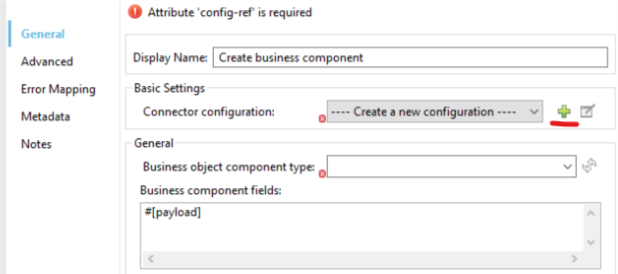
3. Fill in the data in the configuration form.
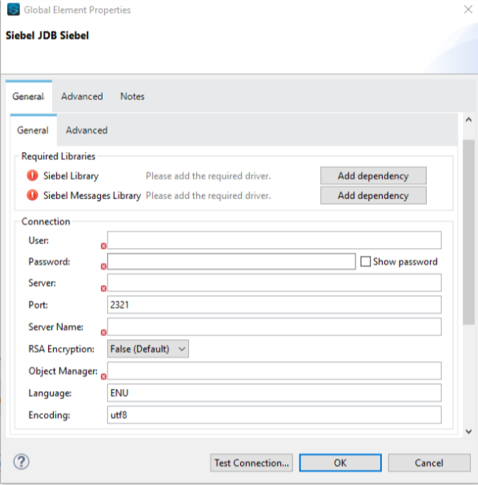
1. For the Required Libraries sections, you have to add the Siebel.jar and SiebelJI\_xxx
libraries that you previously downloaded.
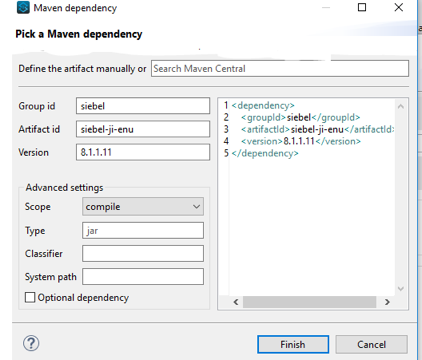
After you click Finish, the library is added as a dependency, but the Global Element
Properties window does not change, just in case you want to add more dependencies throughout
the Maven Dependency UI.
2. For the configuration section, the fields are:
- Name - Enter a name for this Configuration to reference it later.
- User - Enter the Siebel username to be used.
- Password - Enter the corresponding Siebel password.
- Server - Enter the server IP address of your Siebel instance.
- Port - Enter the port number. Default value is 2321.
- Server Name - Enter the Siebel Enterprise server name.
- RSA Encryption - Choose if you want to use RSA encryption. Default value is false.
- Object Manager - Enter the value of the Object Manager of your Siebel instance.
- Language - Enter the language corresponding to the locale of the Siebel instance. Default
value is ENU.
- Encoding - Enter an encoding type supported by the Siebel server. Default value is utf8.
3. The General filters are composed of:
- Default View Mode Bus Comp - Enter the default view for DataSense. The default value for
this field is 3.
Supported values:
- 0 (SalesRepView):
- Applies access control according to a single position or a sales team.
- Displays records according to one of the following items: The user position or the sales
team that includes a user’s position. The Visibility field or Visibility MVField of the
business component determines the visibility.
- 1 (ManagerView):
Displays records that a user and others who report to the user can access. For example,
it includes the records that Siebel CRM displays in the My Team’s Accounts visibility
filter.
- 2 (PersonalView):
Displays records that a user can access, as determined by the Visibility Field property
of the BusComp view mode object. For example, it includes the records that Siebel CRM
displays in the My Accounts visibility filter.
- 3 (AllView):
Displays all records that includes a valid owner. For example, it includes the records
that Siebel CRM displays in the All Accounts Across Organizations visibility filter.
- Data Sense Filter Query Bus Objects - Use this field to write a query to filter the
Business Objects metadata being downloaded into the application.
- DataSense Filter Query Bus Comp - Use this field to write a query to filter the Business
Components metadata being downloaded into the application.
- DataSense Filter Query Int Objects - Use this field to write a query to filter the
Integration Objects metadata being downloaded into the application.
- Data Sense Filter Query - Use this field to write a query to filter the Business Services
metadata being downloaded into the application.
- Other - Use this field to define another query to filter the Business Objects, Services or
Integration Objects metadata which is going to be downloaded into the application.
> [!NOTE] Limit the number of objects to retrieve through DataSense to a few objects using search
> specifications, otherwise retrieving metadata slows down Studio.
## Log Requests and Responses
To log requests and responses when using the connector, configure a logger by adding this line to
the `Loggers` element of the `log4j2.xml` configuration file for the Mule app:
```xml
```
The following example shows the `Loggers` element with the `AsyncLogger` line added:
```xml
```
You can view the app log as follows:
- If you’re running the app from the Anypoint Platform, the output is visible in the Anypoint Studio
console window.
- If you’re running the app using Mule from the command line, the app log is visible in your OS
console.
Unless the log file path was customized in the app’s log file (`log4j2.xml`), you can also view the
app log in this default location:
`MULE_HOME/logs/.log`
For more information about the app log, see
[Configuring Logging](https://docs.mulesoft.com/mule-runtime/latest/logging-in-mule).
## Use Case: Studio
The Siebel Connector is an operation-based connector, which means that when you add the connector to
your flow you must specify an operation to perform.
### Example Use Cases
The following are common use cases for the Siebel v4.0.0 connector:
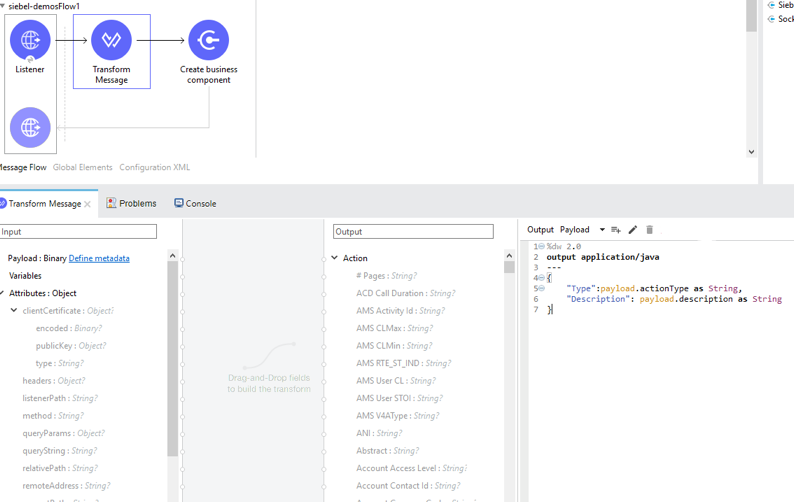
1. Create a Business Component (Action, Account, etc.)
1. Create a new Mule project in Anypoint Studio.
2. Add a suitable Mule Inbound endpoint, such as the HTTP listener, to begin the flow.
3. Drag the Create business component operation from the Siebel JDB palette onto the canvas,
then select it to open the properties editor.
4. Configure the operation’s parameters:
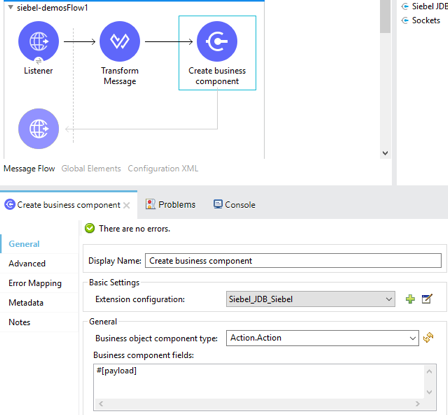
5. Drag the Transform Message connector between the HTTP Listener and the Siebel connector on
the flow.
6. Configure the input payload with the desired fields:
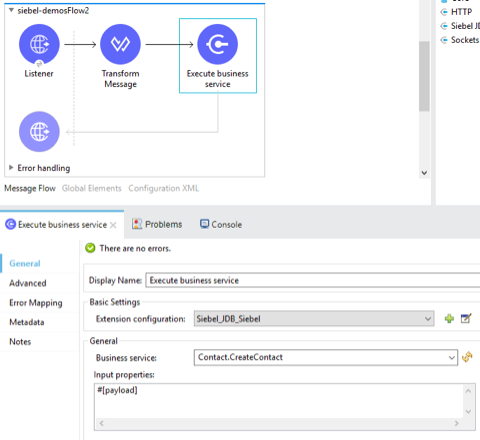
2. Execute a Business Service (Create Contact, Create Account etc.)
1. Create a new Mule project in Anypoint Studio.
2. Add a suitable Mule Inbound endpoint, such as the HTTP listener, to begin the flow.
3. Drag the Execute business service operation from the Siebel JDB palette onto the canvas,
then select it to open the properties editor.
4. Configure the operation’s parameters:
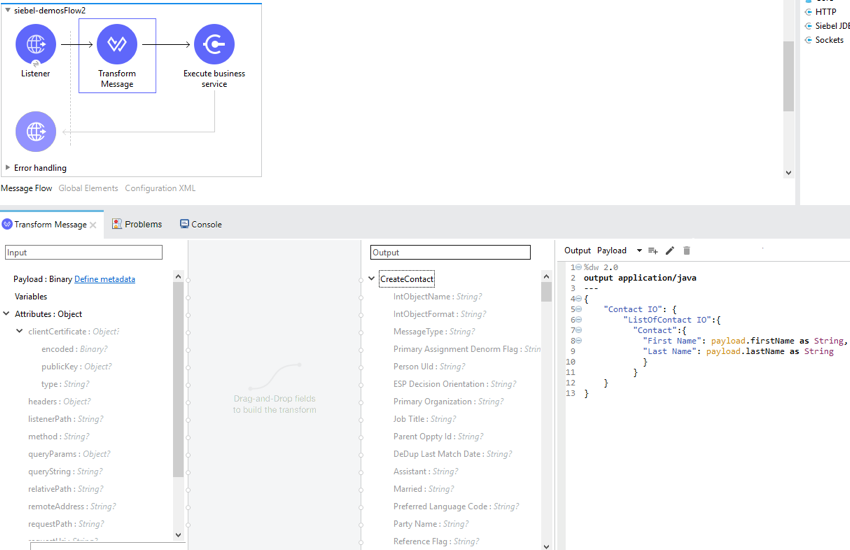
5. Drag the Transform Message connector between the HTTP Listener and the Siebel connector on
the flow.
6. Configure the input payload with the desired fields:
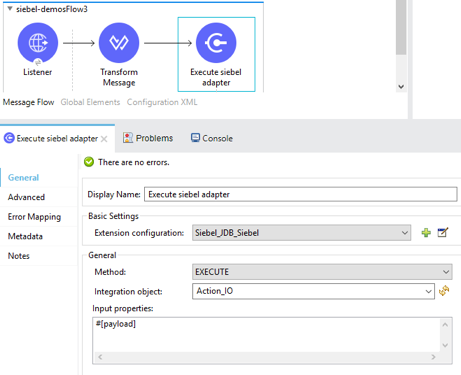
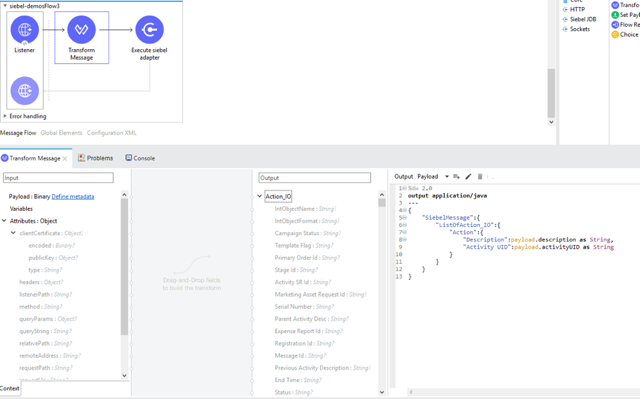
3. Execute Siebel Adapter (Creating an Integration Object)
1. Create a new Mule project in Anypoint Studio.
2. Add a suitable Mule Inbound endpoint, such as the HTTP listener, to begin the flow.
3. Drag the **Execute siebel adapter** operation from the Siebel JDB palette onto the canvas,
then select it to open the properties editor.
4. Configure the operation’s parameters:
5. Drag the Transform Message connector between the HTTP Listener and the Siebel connector on
the flow.
6. Configure the input payload with the desired fields:
## USE Case: XML
XML snippet from a project using the Siebel Connector:
```xml
```
## See Also
[Salesforce Help](https://help.salesforce.com)