---
schema_version: "1"
id: bee36ca700f6ffd338dbeb1435d60b9aa6db22118a1c78888aa4d75efe4a6936
title: Microsoft SharePoint Connector 3.10
collection: mulesoft
version: current
locale: en-us
portal_url: https://docs.salesforce.com/mulesoft/current/en-us/sharepoint-connector/latest/index.md
canonical_url: https://docs.mulesoft.com/sharepoint-connector/latest/
source_site: docs.mulesoft.com
content_type: documentation
content_hash: 187d6d1ca05052bc16bcdbfbfb487e0145897658e40c1a8651198bc8017c41a0
description: MuleSoft Documentation Site
release: "3.10"
latest: true
---
---
product: Microsoft SharePoint Connector
version: 3.10
is-latest-version: true
---
# Microsoft SharePoint Connector 3.10
> For the full documentation index, see: https://docs.mulesoft.com/llms.txt
Anypoint Connector for Microsoft SharePoint (Microsoft SharePoint Connector) integrates with
SharePoint 2013, SharePoint Online, and SharePoint Server Subscription Edition through the REST API
for cloud and on-premises deployments. You can manage documents and content, access intranet and
extranet portals, collaborate across your organization, and search enterprise-wide resources. The
connector supports OAuth 2.0 authentication and provides operations for lists, files, folders, and
site management.
For compatibility information and fixed issues, see the Microsoft SharePoint Connector Release
Notes.
## Before You Begin
To use this connector, you must be familiar with:
- The Microsoft SharePoint API
- Anypoint Connectors
- Mule runtime engine (Mule)
- Elements and global elements in a Mule flow
- Creating a Mule app using Anypoint Studio or Anypoint Code Builder
Before creating an app, you must have:
- Credentials to access the Microsoft SharePoint target resource
- Anypoint Platform
- Anypoint Studio or Anypoint Code Builder
## POM File Information
```xml
com.mulesoft.connectors
mule-sharepoint-connector
x.y.z
mule-plugin
```
Replace `x.y.z` with the version that corresponds to the connector you are using.
To obtain the most up-to-date `pom.xml` file information, access the connector in
[Anypoint Exchange](https://www.mulesoft.com/exchange/) and click **Dependency Snippets**.
## OAuth v2.0 Authorization Code
Configuring the connector to use OAuth v2.0 Authorization Code authentication requires the following
information:
- Site Url: URL for the target SharePoint instance
- Consumer Key: OAuth consumer key as registered with the service provider
- Consumer Secret: OAuth consumer secret as registered with the service provider
- Listener Config: Configuration for the HTTP listener that listens for requests on the access token
callback endpoint
- Callback Path: Path of the access token callback endpoint
- Authorize Path: Path of the local HTTP endpoint that triggers the OAuth dance
## OAuth Client Credentials
To configure OAuth Client Credentials, follow these steps:
1. Create a keystore with a certificate (openssl).
2. Log in to [Microsoft Azure](https://portal.azure.com/#home).
3. Go to **Azure Active Directory**.
4. Go to **App registrations**.
5. Add a new application and upload a certificate, or click on an existing application and click
**Certificates & secrets > Certificates > Upload certificate** to upload a certificate.
6. Go to Anypoint Studio and create a new Mule project in which to add and configure the connector.
7. Add a dependency for SharePoint Connector in the `pom.xml` file.
8. Create the flow and add the keystore and the credentials file into the `resources` folder. Add
the required fields for the connector configuration. Configuring the connector to use OAuth
Client Credentials with Certificate authentication requires the following information:
- Site Url: URL for the target SharePoint instance
- Client ID: Client ID to use to call the API
- Token URL: URL used to get an access token
- Keystore alias: Alias used to get the correct certificate from the keystore
- Path to keystore: Path to the client’s keystore with the private key and certificate
- Keystore password: Password used to access the private key from the keystore
- Keystore type: JCEKS, JKS, or PKCS12
- TLS Context: TLS configuration used when requesting the OAuth token. In Studio, this field
appears on the **TLS** tab. Configure it when a TLS-inspecting proxy or the token endpoint
presents a certificate that the JVM default truststore doesn’t trust.
The connector sends OAuth token requests through the configured proxy (**Host**, **Port**, and
related proxy fields). The **Disable SSL certificate validation** field applies to SharePoint
API calls only. It doesn’t apply to OAuth token requests. Use **TLS Context** to trust a proxy
or token-endpoint certificate.
9. Click **Test Connection** to confirm that Mule can connect with the specified server.
10. Click **OK**.
## Okta Authentication
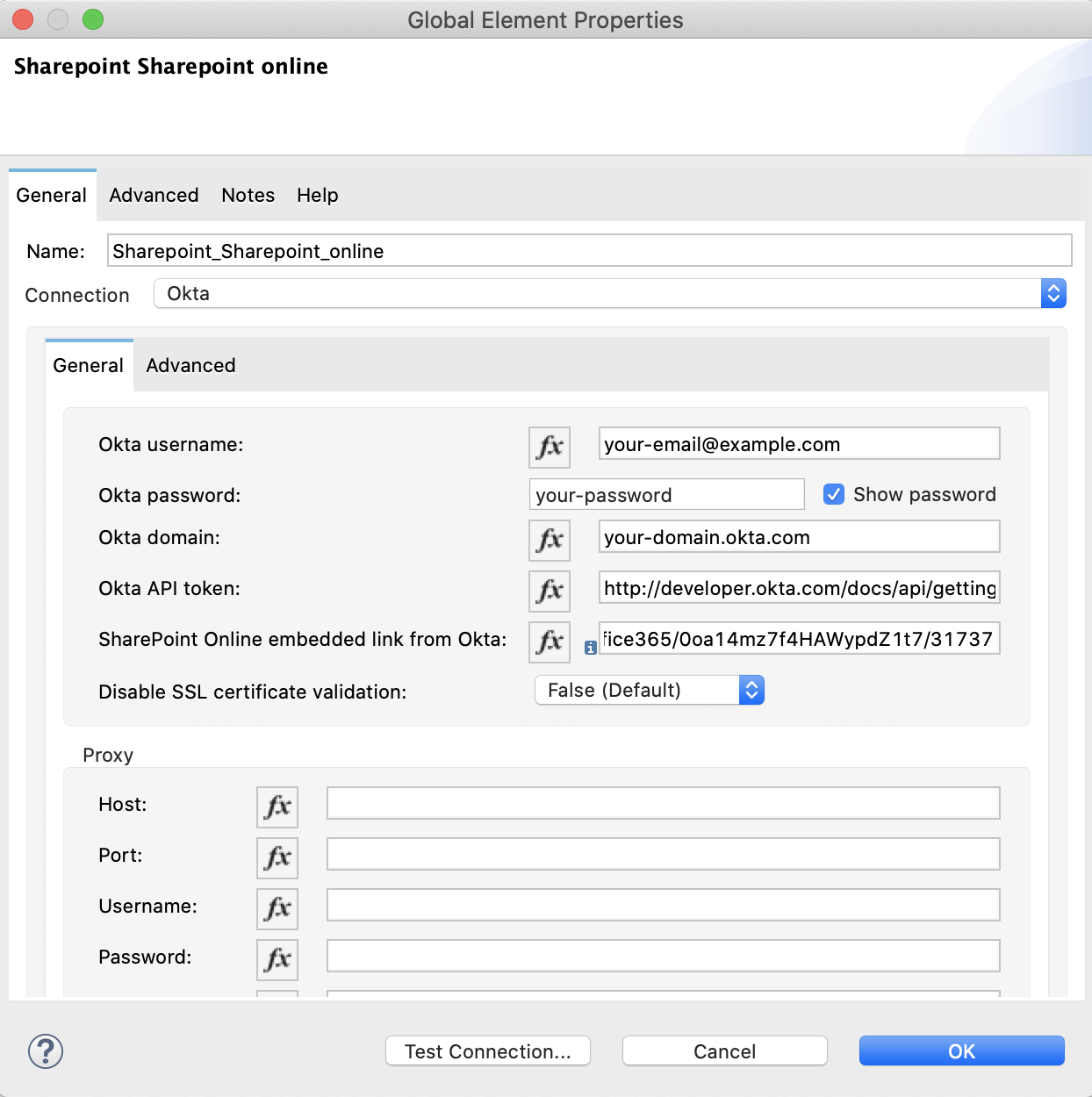
Configuring the connector to use Okta authentication requires the following information:
- Okta Domain: The Okta endpoint that accepts the Okta username and password for authentication, for
example: `your-domain.okta.com`
- Okta Username: Your Okta username, for example: `your-email@example.com`
- Okta Password: Your Okta password.
- Okta API Token: Okta uses a bearer token for API authentication with a sliding scale expiration,
for example: `http://developer.okta.com/docs/api/getting_started/getting_a_token.html`
- SharePoint Online Embedded Link: The link of your Microsoft Office 365 SharePoint Online
application from Okta, for example:
`https://your-domain.okta.com/home/office365/0oa14mz7f4HAWypdZ1t7/31737`
## Security Token Authentication
You can use a SAML security token to log in to SharePoint. The following shows how to configure a
security token in Studio:
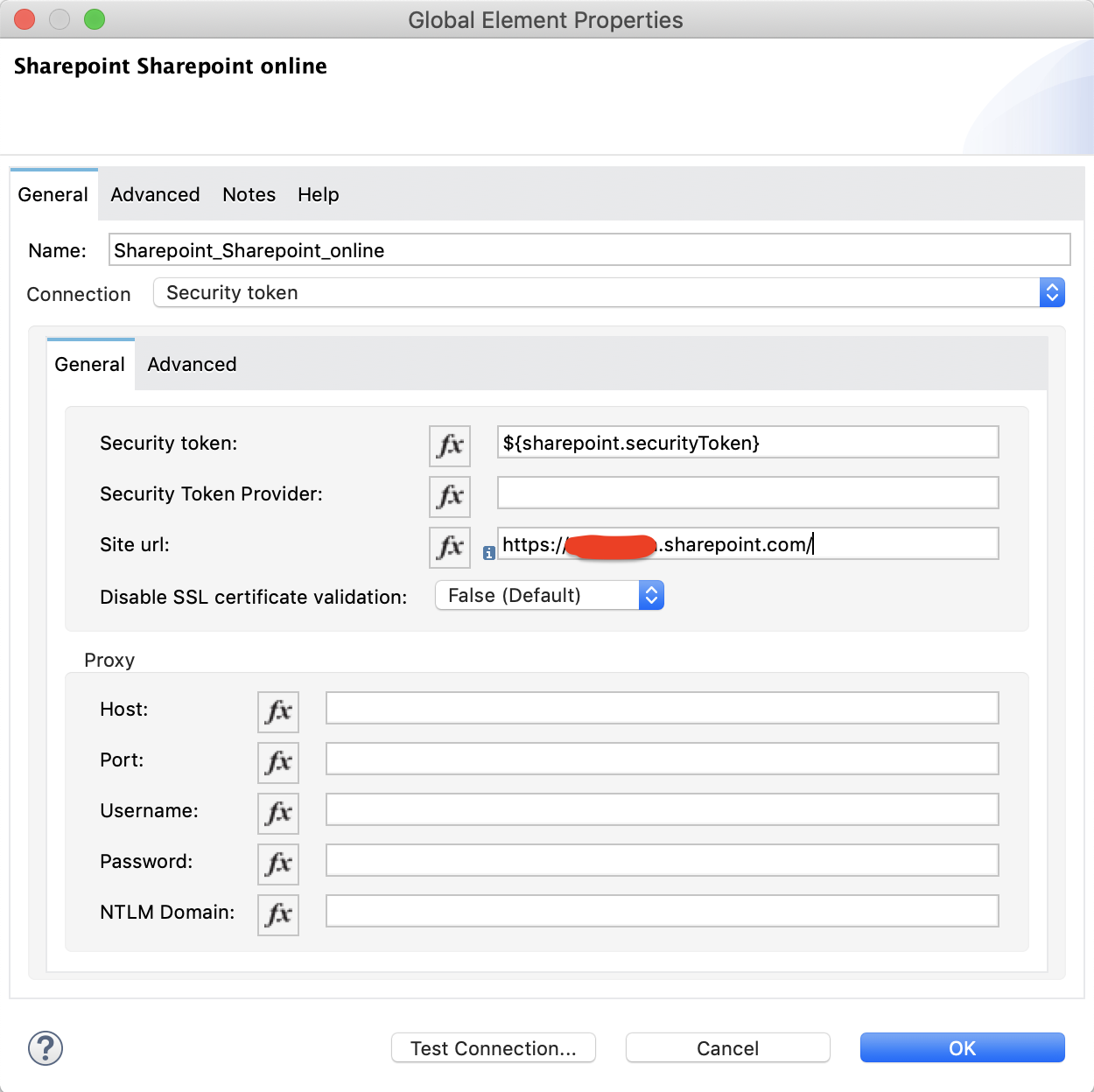
- Security token: Enter the corresponding security token.
- Site URL: Enter the corresponding site URL.
You can obtain a security token by making a POST request to
`[https://login.microsoftonline.com/extSTS.srf](https://login.microsoftonline.com/extSTS.srf)` with
the following XML body:
```text
http://schemas.xmlsoap.org/ws/2005/02/trust/RST/Issue
http://www.w3.org/2005/08/addressing/anonymous
https://login.microsoftonline.com/extSTS.srf
[username]
[password]
[endpoint]
http://schemas.xmlsoap.org/ws/2005/05/identity/NoProofKey
http://schemas.xmlsoap.org/ws/2005/02/trust/Issue
urn:oasis:names:tc:SAML:1.0:assertion
```
The response from the previous request contains the security token between the
tags.
## About Connector Terminology
- Actions - Operations that allow side effects, such as data modification, and cannot be further
composed to avoid non-deterministic behavior.
- Complex types - Keyless named structured types consisting of a set of properties. Complex types
are commonly used as property values in model entities, or as parameters or return values for
operations.
- Entities - Instances of entity types, for example, an account or an opportunity.
- Entity sets - Named collections of entities, for example, an account is an entity set containing
account entities. An entity’s key uniquely identifies the entity within an entity set.
- Entity types - Named structured types with a key. Entity types define the named properties and
relationships of an entity, and may derive by single inheritance from other entity types.
- Enumeration types or Enum types - Named primitive types whose values are named constants with
underlying integer values.
- Functions - Operations that do not have side effects and may support further composition, for
example, with additional filter operations, functions, or an action.
## Connect in Anypoint Studio 7
You can use this connector in Anypoint Studio by first downloading it from Exchange and configuring
it as needed.
## Add the Connector to Your Studio Project
Anypoint Studio provides two ways to add the connector to your Studio project: from the Exchange
button in the Studio taskbar or from the Mule Palette.
### Add the Connector Using Exchange
1. In Studio, create a Mule project.
2. Click the Exchange icon **(X)** in the upper-left of the Studio task bar.
3. In Exchange, click **Login** and supply your Anypoint Platform username and password.
4. In Exchange, search for "share".
5. Select the connector and click **Add to project**.
6. Follow the prompts to install the connector.
### Add the Connector in Studio
1. In Studio, create a Mule project.
2. In the Mule Palette view, click **(X) Search in Exchange**.
3. In **Add Modules to Project**, type "share" in the search field.
4. Click the connector’s name in **Available modules**.
5. Click **Add**.
6. Click **Finish**.
### Configure Your First Flow
To configure:
1. In Anypoint Studio, click **File** > **New** > **Mule Project**.
2. Specify a value for **Project Name** and click **Finish**.
3. Click the **Global Elements** tab.
4. Click **Create**.
5. Search for "sharepoint".
6. Click **Microsoft SharePoint** and click **OK**.
7. Choose the Global Type to configure:

8. Click **Test Connection** to ensure the connection works correctly:
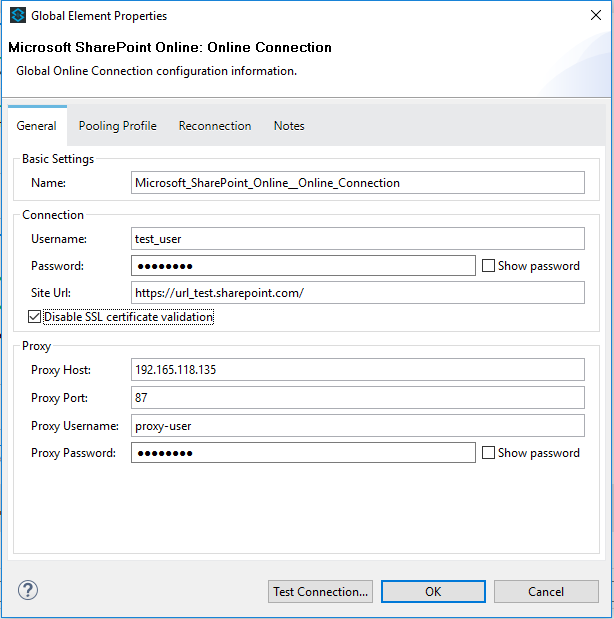
### Create an Anypoint Studio Flow
To create an Anypoint Studio flow:
1. In Anypoint Studio, click **File** > **New** > **Mule Project**.
2. Specify a value for **Project Name** and click **Finish**.
3. Search for `http` and drag an HTTP connector to the canvas.
4. Search for `sharepoint` and drag a Microsoft SharePoint connector next to the HTTP connector.
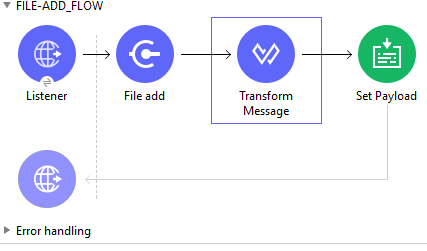
5. Double-click the HTTP connector and set **Host** to `0.0.0.0`, **Port** to `8081`, and **Path**
to `fileAdd`.
6. Click **OK**.
7. Double-click the Microsoft SharePoint connector and click the green plus symbol.
8. From the Connector Configuration list, click the Microsoft SharePoint configuration that was
previously created.
9. From the Operation list, click **File Add**.
Set these fields:
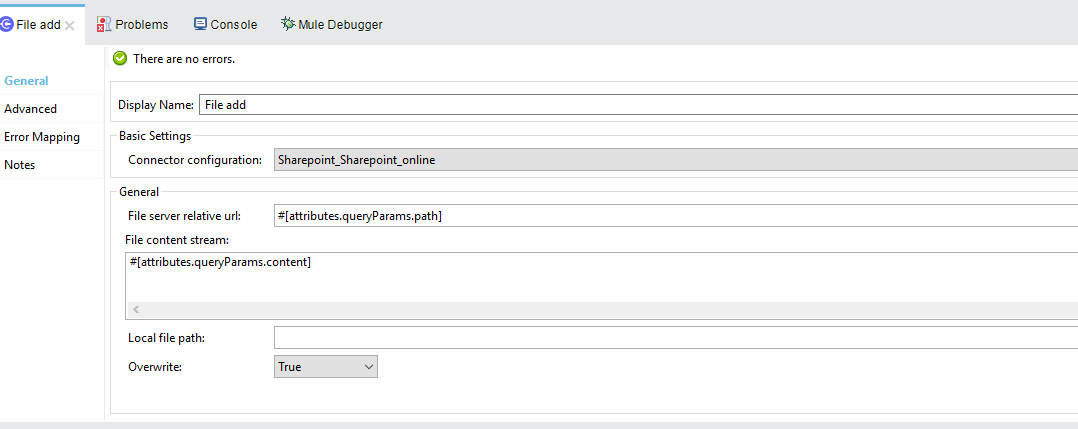
- File server relative URL: The path and file name in SharePoint of where to create the file.
- File content stream: The content of the file to be created.
## Run a Flow
1. In Package Explorer, right click your project’s name, and click Run As > Mule Application.
2. Check the console to see when the application starts. You should see messages such as these if
no errors occur:
```text
************************************************************
INFO 2019-10-14 22:12:42,003 [main] org.mule.module.launcher.DeploymentDirectoryWatcher:
++++++++++++++++++++++++++++++++++++++++++++++++++++++++++++
+ Mule is up and kicking (every 5000ms) +
++++++++++++++++++++++++++++++++++++++++++++++++++++++++++++
INFO 2019-10-14 22:12:42,006 [main] org.mule.module.launcher.StartupSummaryDeploymentListener:
**********************************************************
* - - + DOMAIN + - - * - - + STATUS + - - *
**********************************************************
* default * DEPLOYED *
**********************************************************
************************************************************************
* - - + APPLICATION + - - * - - + DOMAIN + - - * - - + STATUS + - - *
************************************************************************
* myapp * default * DEPLOYED *
************************************************************************
```
## Frequently Asked Questions
- Which versions of SharePoint are supported by this connector?
The SharePoint connector supports SharePoint Online on-premises and SharePoint online versions.
- What authentication schemes are supported by this connector?
SharePoint Online supports authentication using standard SharePoint Online user credentials is
supported, secure authentication, and Okta authentication.
- What parts of the SharePoint object model are accessible by the connector?
Specific support for Files and Folders, Lists, ListItems, and Attachments is offered.
Additionally, all other entities of the SharePoint API are accessible in JSON form using the
ResolveObject and ResolveCollection operations.
- Are DataSense and DataWeave supported by this connector?
Yes, all supported entities and entity attributes are exposed to Studio by the connector for use
with DataWeave.
- What operations can I perform with the connector?
For the Lists and ListItems API, operations include create, retrieve, update, and delete.
For Files and Folders, operations include add, retrieve content, retrieve metadata, delete, check
out, undo check out, check in, publish, unpublish, approve, deny, recycle, and copy.
- What Mule editions can I use this connector with?
This connector is supported on any Enterprise Edition Anypoint platform running on any operating
system and bit type, including the CloudHub integration PaaS.
- How do I build a query for a query operation?
The query operations `Folder Query`, `File Query`, and `List Item Query` only support OData
queries.
For the `List Item Query` operation, the query has this format:
`LIST_ID?$select=FIELDS_TO_SELECT&filter=FILTER_PART`.
For example: `Vessels?$select=Title,FLAG,SEGMENT,ID,VesselName&$filter=Title eq 1`.
The same format applies to the other query operations.
To learn more about building queries, see the SharePoint documentation page
[Use OData query operations in SharePoint REST requests](https://learn.microsoft.com/en-us/sharepoint/dev/sp-add-ins/use-odata-query-operations-in-sharepoint-rest-requests).
- How do I parse an HTML form so that I can test the demo?
Use the statement, as shown in the Use Case XML section. In this use case,
`forminput.html` is the file that Mule uses as a template into which to insert values extracted
from the message properties or variables. For more information, see the
[Parse Template Reference](https://docs.mulesoft.com/mule-runtime/latest/parse-template-reference).
## Use Case XML
```xml
```
## See Also
[Salesforce Help](https://help.salesforce.com)