---
schema_version: "1"
id: 426a75e3293aa4ee7f078d028f7a08f0eba215798c0b17e502bd8c43ea5021bc
title: Connect to an SFTP Server Example
collection: mulesoft
version: current
locale: en-us
portal_url: https://docs.salesforce.com/mulesoft/current/en-us/sftp-connector/2.6/sftp-connection.md
canonical_url: https://docs.mulesoft.com/sftp-connector/2.6/sftp-connection
source_site: docs.mulesoft.com
content_type: documentation
content_hash: 9fae507599073fcc1bdd8a2a10a121fe2d94f7f0dd1dfd3d11271f1b03151592
description: MuleSoft Documentation Site
release: "2.6"
latest: false
---
---
product: SFTP Connector
version: 2.6
---
# Connect to an SFTP Server Example
> For the full documentation index, see: https://docs.mulesoft.com/llms.txt
The following examples show how to configure Anypoint Connector for SFTP (SFTP Connector) global
configuration element to:
- [Connect to an SFTP Server](#connect-sftp-server)
- [Connect to an SFTP Server Through a Proxy](#connect-sftp-server-proxy)
- [Configure a Public Key to connect to an SFTP server](#configure-public-key)
## Connect to an SFTP Server
To configure the global element to connect to an SFTP Server, follow these steps:
1. Select the name of the connector in the Studio canvas.
2. Select the operation in the Studio canvas.
3. In the configuration screen for the operation, click the plus sign (**+**) next to the
**Connector configuration** field to access the global element configuration fields.
4. On the **General** tab, specify the connection information for the connector.
5. If you want EdDSA support, provide the EdDSA dependency by clicking **Configure** under the
**Required Libraries** field.
6. Set the **Working Directory** field to `${workingDir}`.
This is root of every relative path used with this connector. If it’s not provided, the value
defaults to the remote server.
7. Set the **Host** field to specify the SFTP server host, for example `localhost` or
`192.168.0.1`.
8. Set the **Port** field to `${sftpPort}`.
9. Set the **Username** field to `anonymous` and the **Password** field to `password`.
10. On the **Advanced** tab, optionally specify timeout configuration and reconnection strategy.
11. Click **Test Connection** to confirm that Mule can connect with the specified server.
12. Click **OK**.
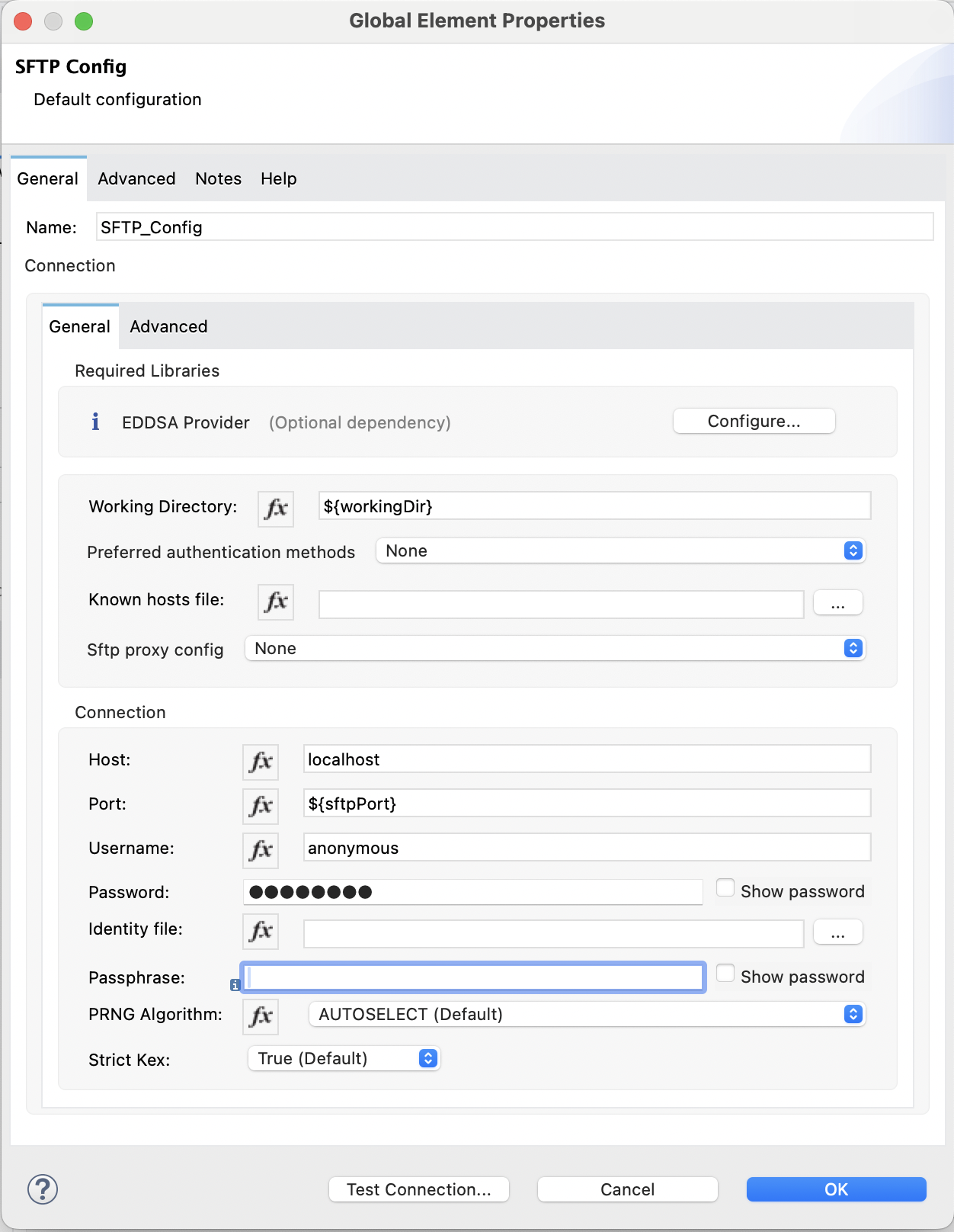
In the Configuration XML editor, the configuration `sftp:config` looks like this:
```xml
```
## Connect to an SFTP Server Through a Proxy
To configure the global element to connect to an SFTP server through a proxy, follow these steps:
1. Select the name of the connector in the Studio canvas.
2. Select the operation in the Studio canvas.
3. In the configuration screen for the operation, click the plus sign (**+**) next to the
**Connector configuration** field to access the global element configuration fields.
4. On the **General** tab, specify the connection information for the connector.
5. Set the **Working Directory** field to `${workingDir}`.
This is root of every relative path used with this connector. If it’s not provided, the value
defaults to the remote server.
6. Set the **Host** field to `127.0.0.100`.
7. Set the **Port** field to `${SFTP_PORT}`.
8. Set the **Username** field to `muletest1` and the **Password** field to `password`.
9. For the **Sftp proxy config** field, select **Edit inline**, and set the following fields:
- **Host**: `localhost`
- **Port**: `${proxyPort}`
- **Protocol**: `HTTP`
The protocol can be either `HTTP` or `SOCKS5`.
10. On the **Advanced** tab, optionally specify a timeout configuration and reconnection strategy.
11. Click **Test Connection** to confirm that Mule can connect with the specified server.
12. Click **OK**.
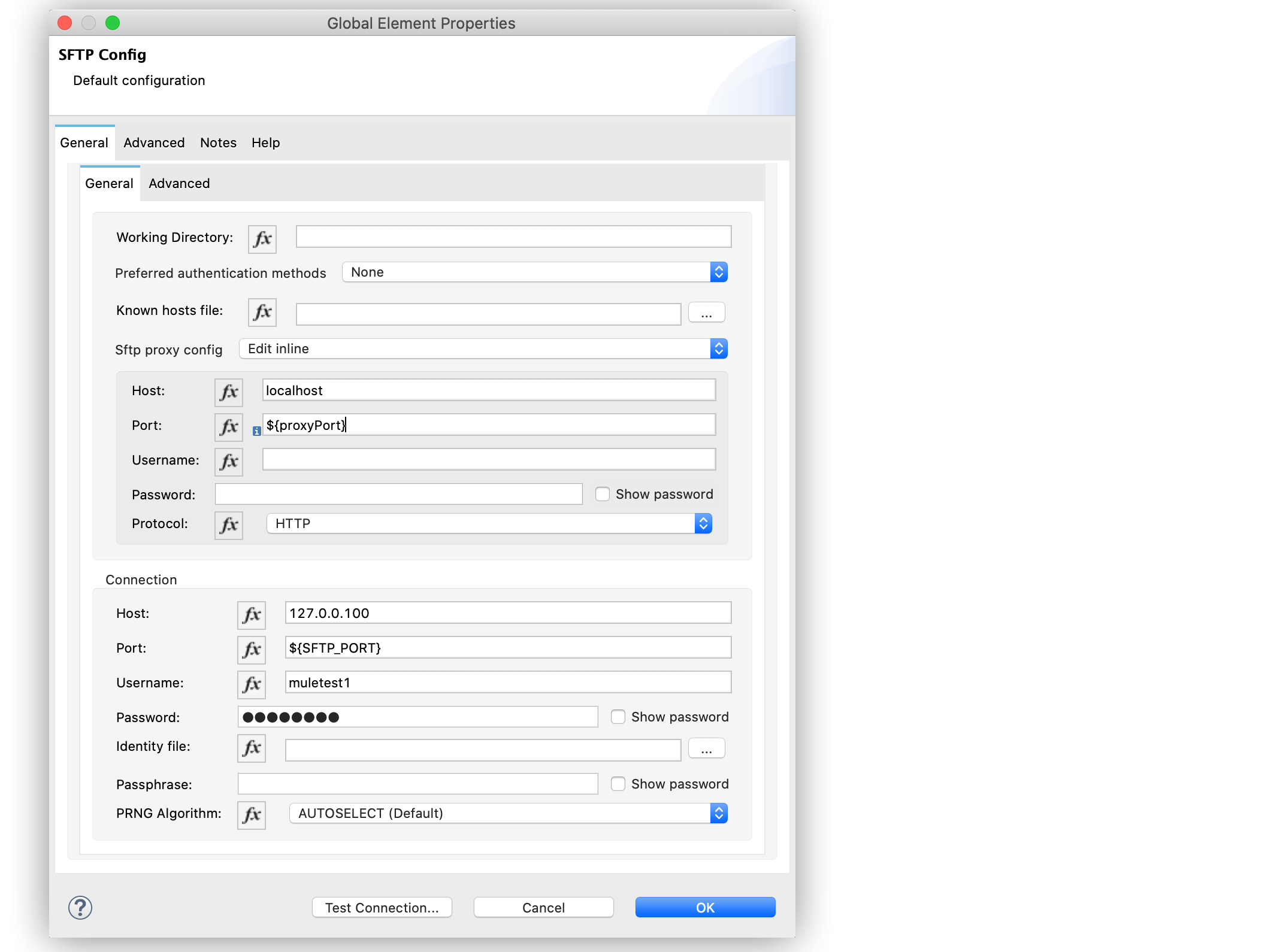
In the **Configuration XML** editor, the configuration `sftp:config` looks like this:
```xml
```
## Configure a Public Key to Connect to an SFTP Server
The following example shows how to configure a public key as the preferred authentication method in
your SFTP configuration. The example uses a PEM (Privacy Enhanced Mail) format certificate.
> [!IMPORTANT] Avoid storing private keys in your source code repository. For production, use
> [secure configuration properties](https://docs.mulesoft.com/mule-runtime/latest/secure-configuration-properties) or a
> secrets manager.
1. In Studio, navigate to the **Global Elements** tab.
2. Click **Create**.
3. Search for `sftp`.
4. Select **SFTP Config**.
5. Click **OK**.
6. In the Global Element Properties window, set **Preferred authentication methods** to **Edit
inline**.
7. Click the plus sign to add a new value.
8. In the **Preferred authentication method** window, set **Value** to `PUBLIC_KEY`.
9. Click the plus sign to add a new value.
10. Set **Value** to `PASSWORD`.
11. Set **Host** to `sftp.host.com`.
12. Set **Port** to `22`.
13. Set **Username** to `sftp username`.
14. Set **Password** to `sftp password`.
15. Set **Identity file** to reference your PEM file using the `${app.home}` property, for example
`${app.home}/keys/private.pem`. Place the PEM file in your project’s `src/main/resources/keys`
folder.
16. Set **Passphrase** to the password of the identity file.
17. Click **OK**.
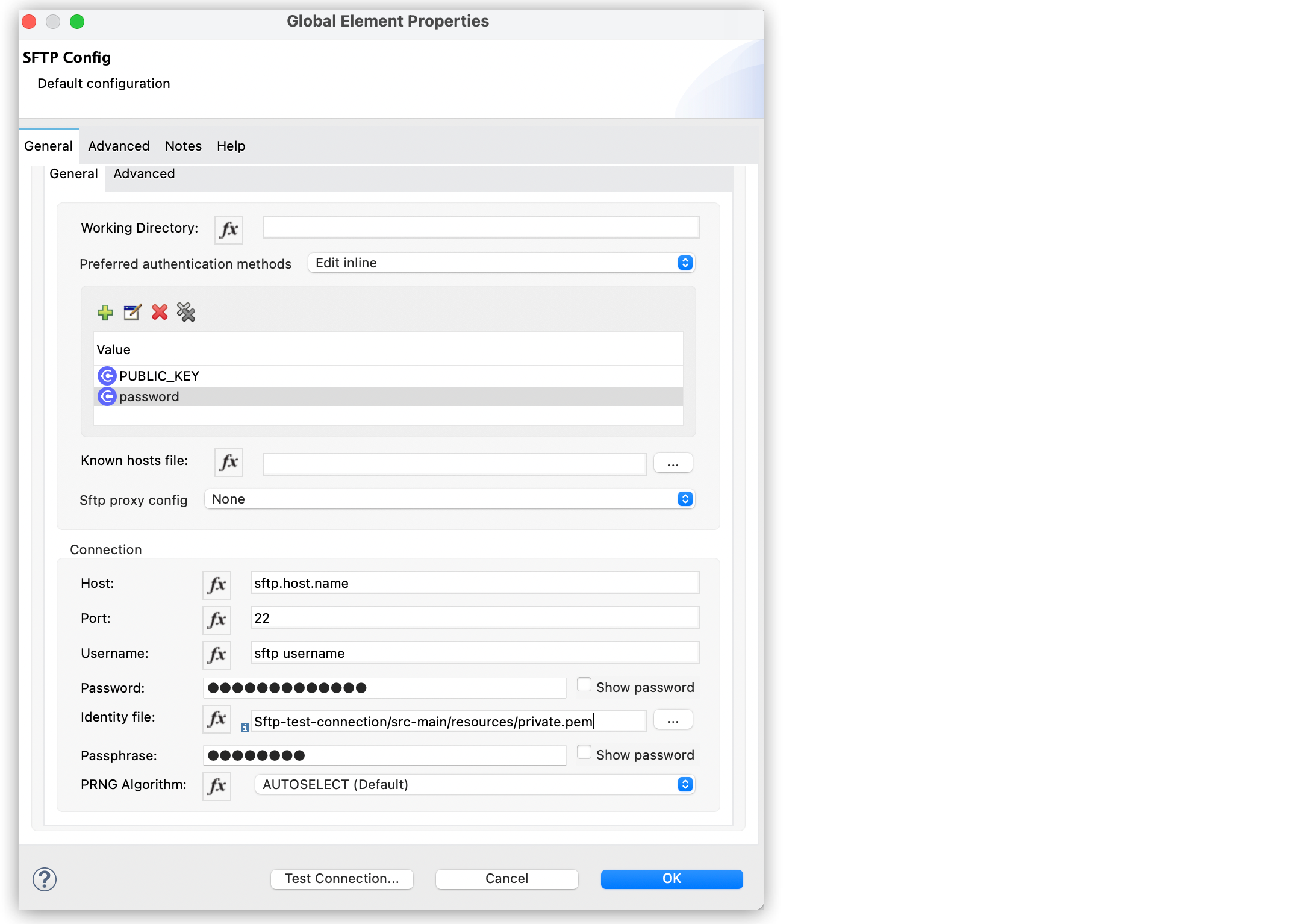
In the **Configuration XML** editor, the configuration looks like this:
```xml
```
## See Also
- [SFTP Connector Examples](https://docs.mulesoft.com/sftp-connector/2.6/sftp-examples)
- [Salesforce Help](https://help.salesforce.com)