---
schema_version: "1"
id: 4b554c8ac77617917a0b02ab2b266441a0de0cfb54fa8f60e4e903e8dfab9a03
title: Using Anypoint Studio to Configure SFTP Connector
collection: mulesoft
version: current
locale: en-us
portal_url: https://docs.salesforce.com/mulesoft/current/en-us/sftp-connector/2.5/sftp-studio.md
canonical_url: https://docs.mulesoft.com/sftp-connector/2.5/sftp-studio
source_site: docs.mulesoft.com
content_type: documentation
content_hash: c624d44e24767bcbedf3248391498bb327bd8f76b9babdb178224e85433a735c
description: MuleSoft Documentation Site
release: "2.5"
latest: false
---
---
product: SFTP Connector
version: 2.5
---
# Using Anypoint Studio to Configure SFTP Connector
> For the full documentation index, see: https://docs.mulesoft.com/llms.txt
Anypoint Studio (Studio) editors help you design and update your Mule applications, properties, and
configuration files.
To add and configure a connector in Studio:
1. [Create a Mule project](#create-mule-project).
2. [Add the connector to your Mule project](#add-connector-to-project).
3. [Configure a source for the connector’s flow](#configure-input-source).
4. [Add a connector operation to the flow](#add-connector-operation).
5. [Configure a global element for the connector](#configure-global-element).
When you run the connector, you can view the app log to check for problems in real time, as
described in [View the App Log](#view-app-log).
If you are new to configuring connectors in Studio, see
[Using Anypoint Studio to Configure a Connector](https://docs.mulesoft.com/connectors/introduction/intro-config-use-studio).
If, after reading this topic, you need additional information about the connector fields, see the
[SFTP Connector Reference Reference](https://docs.mulesoft.com/sftp-connector/2.5/sftp-documentation).
## Create a Mule Project
In Studio, create a new Mule project in which to add and configure the connector:
1. In Studio, select **File > New > Mule Project**.
2. Enter a name for your Mule project and click **Finish**.
## Add the Connector to Your Mule Project
Add SFTP Connector to your Mule project to automatically populate the XML code with the connector’s
namespace and schema location and to add the required dependencies to the project’s `pom.xml` file:
1. In the **Mule Palette** view, click **(X) Search in Exchange**.
2. In the **Add Dependencies to Project** window, type `sftp` in the search field.
3. Click **SFTP Connector** in **Available modules**.
4. Click **Add**.
5. Click **Finish**.
Adding a connector to a Mule project in Studio does not make that connector available to other
projects in your Studio workspace.
## Configure a Source
A source initiates a flow when a specified condition is met. You can configure one of these sources
to use with SFTP Connector:
- **On New or Updated File**
Initiates a flow by polling a directory for files that have been created or updated and generates
a message for each file found.
- **HTTP Listener**
Initiates a flow each time it receives a request on the configured host and port.
- **Scheduler**
Initiates a flow when a time-based condition is met.
For example, to configure the On New or Updated File source, follow these steps:
1. In the **Mule Palette** view, select **On New or Updated File**.
2. Drag **On New or Updated File** to the Studio canvas.
3. On the **On New or Updated File** configuration screen, optionally change the value of the
**Display Name** field.
4. Specify a value for the **Path** field.
5. Click the plus sign (**+**) next to the **Connector configuration** field to configure a global
element that can be used by all instances of **On New or Updated File** in the app.
6. On the **General** tab, specify the connection information for the connector.
7. Set the **Host** field to specify the SFTP server host, for example, `localhost` or
`192.168.0.1`.
8. Click **Test Connection** to confirm that Mule can connect with the specified server.
9. Click **OK**.
10. On the **On New or Updated File** configuration screen, specify a **Scheduling Strategy** value
and optionally complete other fields.
## Add a Connector Operation to the Flow
When you add a connector operation to your flow, you immediately define a specific operation for
that connector to perform.
To add an operation for SFTP Connector, follow these steps:
1. In the **Mule Palette** view, select **SFTP** and then select the desired operation.
2. Drag the operation onto the Studio canvas and to the right of the source.
The following screenshot shows the SFTP Connector operations in the Mule Palette view of Anypoint
Studio:
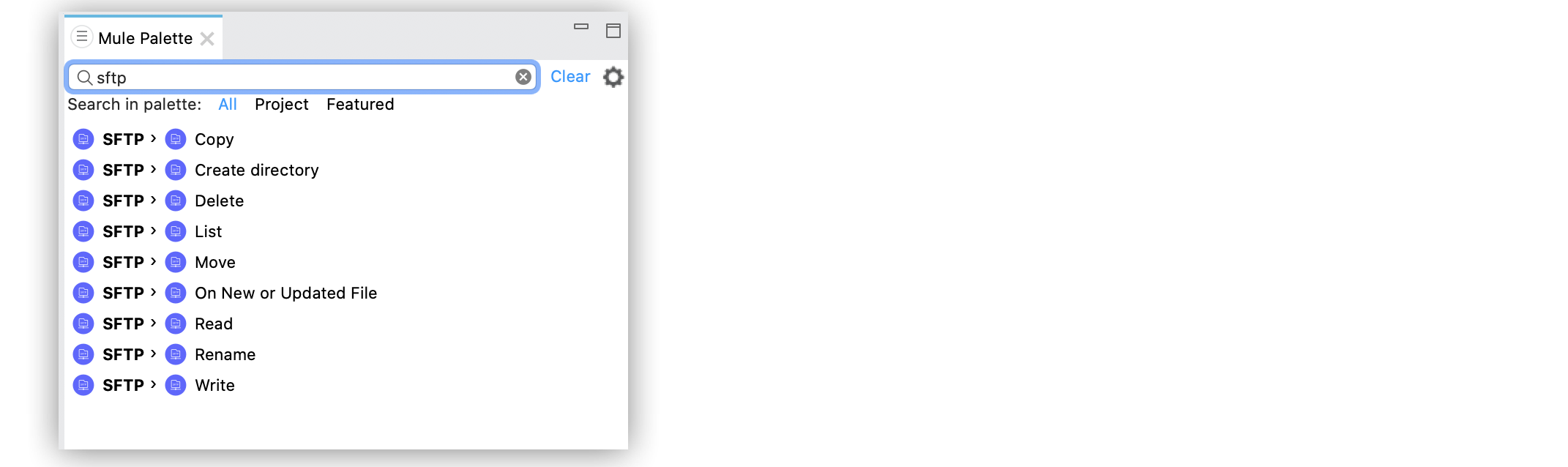
Figure 1. SFTP Connector Operations
## Configure a Global Element for the Connector
When you configure a connector, it’s best to configure a global element that all instances of that
connector in the app can use. Configuring a global element requires you to configure the SFTP server
connection.
To configure the global element for SFTP Connector, follow these steps:
1. Select the name of the connector in the Studio canvas.
2. Select the operation in the Studio canvas.
3. In the configuration screen for the operation, click the plus sign (**+**) next to the
**Connector configuration** field to access the global element configuration fields.
4. On the **General** tab, specify the connection information for the connector:
5. If you want EdDSA support, provide the EdDSA dependency by clicking **Configure** under the
**Required Libraries** field.
6. Set the **Working Directory** as the root of every relative path used with this connector.
If it’s not provided, the value defaults to the remote server.
7. Set the **Host** field to specify the SFTP server host, for example, `localhost` or
`192.168.0.1`.
8. On the **Advanced** tab, optionally specify a timeout configuration and reconnection strategy.
9. Click **Test Connection** to confirm that Mule can connect with the specified server.
10. Click **OK**.
The following screenshot shows the SFTP Connector **Global Element Configuration** window in
Anypoint Studio:
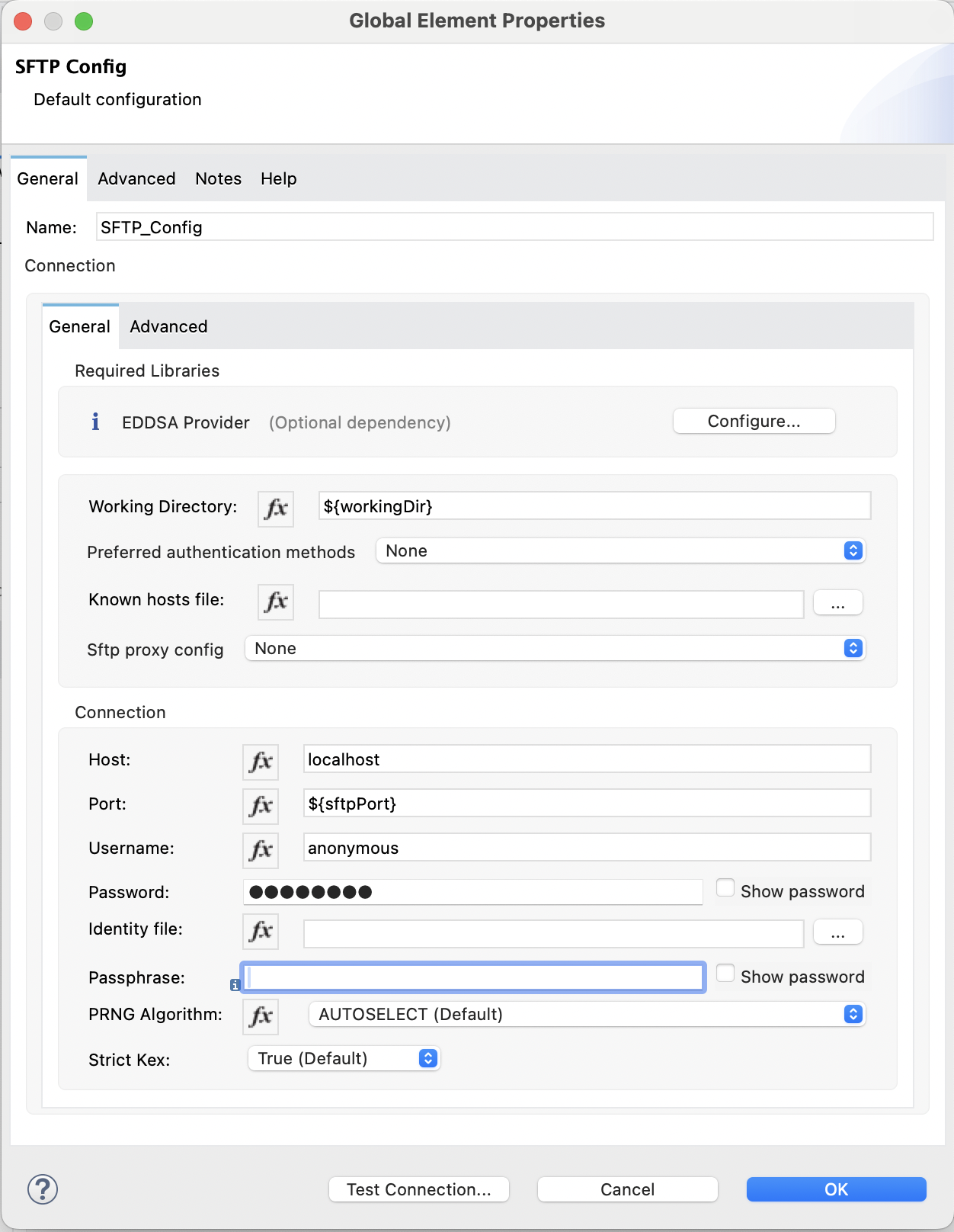
Figure 2. SFTP Connector Global Element Configuration
In the XML editor, the configuration `sftp:config` looks like this:
```xml
```
## View the App Log
To check for problems, you can view the app log as follows:
- If you’re running the app from Anypoint Platform, the output is visible in the Anypoint Studio
console window.
- If you’re running the app using Mule from the command line, the app log is visible in your OS
console.
Unless the log file path is customized in the app’s log file (`log4j2.xml`), you can also view the
app log in the default location `MULE_HOME/logs/.log`.
## See Also
- [Introduction to Anypoint Connectors](https://docs.mulesoft.com/connectors/introduction/introduction-to-anypoint-connectors)
- [Using Anypoint Studio to Configure a Connector](https://docs.mulesoft.com/connectors/introduction/intro-config-use-studio)
- [SFTP Connector Reference](https://docs.mulesoft.com/sftp-connector/2.5/sftp-documentation)
- [Salesforce Help](https://help.salesforce.com)