---
schema_version: "1"
id: 37d9bed6f8856c31b9f74a626b1680abf70817bb555750a8e372748acacd55b3
title: Web Service Addressing Example
collection: mulesoft
version: current
locale: en-us
portal_url: https://docs.salesforce.com/mulesoft/current/en-us/sap-s4hana-soap-connector/latest/sap-s4hana-soap-connector-ws-addressing.md
canonical_url: https://docs.mulesoft.com/sap-s4hana-soap-connector/latest/sap-s4hana-soap-connector-ws-addressing
source_site: docs.mulesoft.com
content_type: documentation
content_hash: 597cebcd7326ca60cc06d17f580d83bf709f09f08c258ad2881b9cb100b3e0df
description: MuleSoft Documentation Site
release: "2.6"
latest: true
---
---
product: SAP S/4HANA SOAP Connector
version: 2.6
is-latest-version: true
---
# Web Service Addressing Example
> For the full documentation index, see: https://docs.mulesoft.com/llms.txt
This example uses the following components and operations to configure WS-Addressing and send a SOAP
request:
- **HTTP > Listener**
Component that initiates the flow
- **Transform Message**
Component that converts the input data to a new output structure or format
- **SAP S/4HANA > Invoke**
Operation that sends a request to the specified service
- **Logger**
Component that displays the response in the Mule console
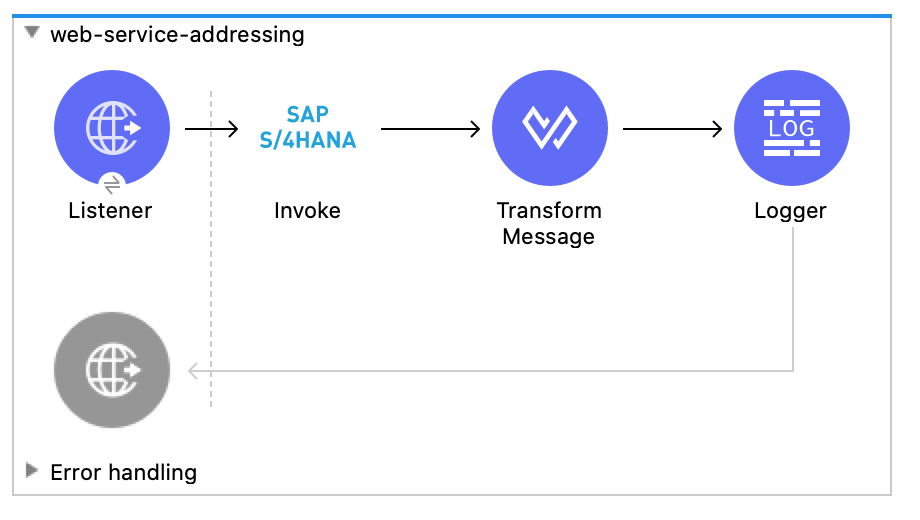
Figure 1. The flow for this example sends a SOAP request with WS-Addressing enabled.
This example uses configuration properties for some field values. You can either replace the
variables with their values in the code, or you can provide the values for each variable in the
`src/main/resources/mule-artifact.properties` file.
## Before You Begin
You must have:
- Access to the SAP S/4HANA instance and Anypoint Platform
## Send a SOAP request with WS-Addressing headers
### Create a Mule Project
In Studio, create a new Mule project to add and configure the connector:
1. Select **File > New > Mule Project**.
2. Enter a name for your Mule project and click **Finish**.
### Add and Configure a Listener
1. In the **Mule Palette** view, search for **HTTP** and select the **Listener** operation:

2. Drag the **Listener** operation onto the canvas.
3. In the **Listener** configuration, click **+** next to **Connector configuration** to add a
global element.
4. Accept the defaults.
5. Set the **Path** field to `/wsa`:

### Add and Configure the Invoke Operation
1. In the **Mule Palette** view, search for **SAP S4 HANA** and select the **Invoke** operation.
2. Drag the **Invoke** operation onto the canvas, to the right of the **Listener** component.
3. In the **Invoke** configuration, click **+** next to **Connector configuration** to add a global
element.
4. Configure the global element for the **Invoke** operation:
- **Name**
Name used to reference the configuration. This example uses `SAP_S4_HANA_Cloud_SOAP_Config`.
- **Service base URL**
Base URL of SAP S/4HANA instance (endpoint) to be accessed from the connector.
- **Username**
Account username to log into SAP S/4HANA.
- **Password**
Account password to log into SAP S/4HANA.
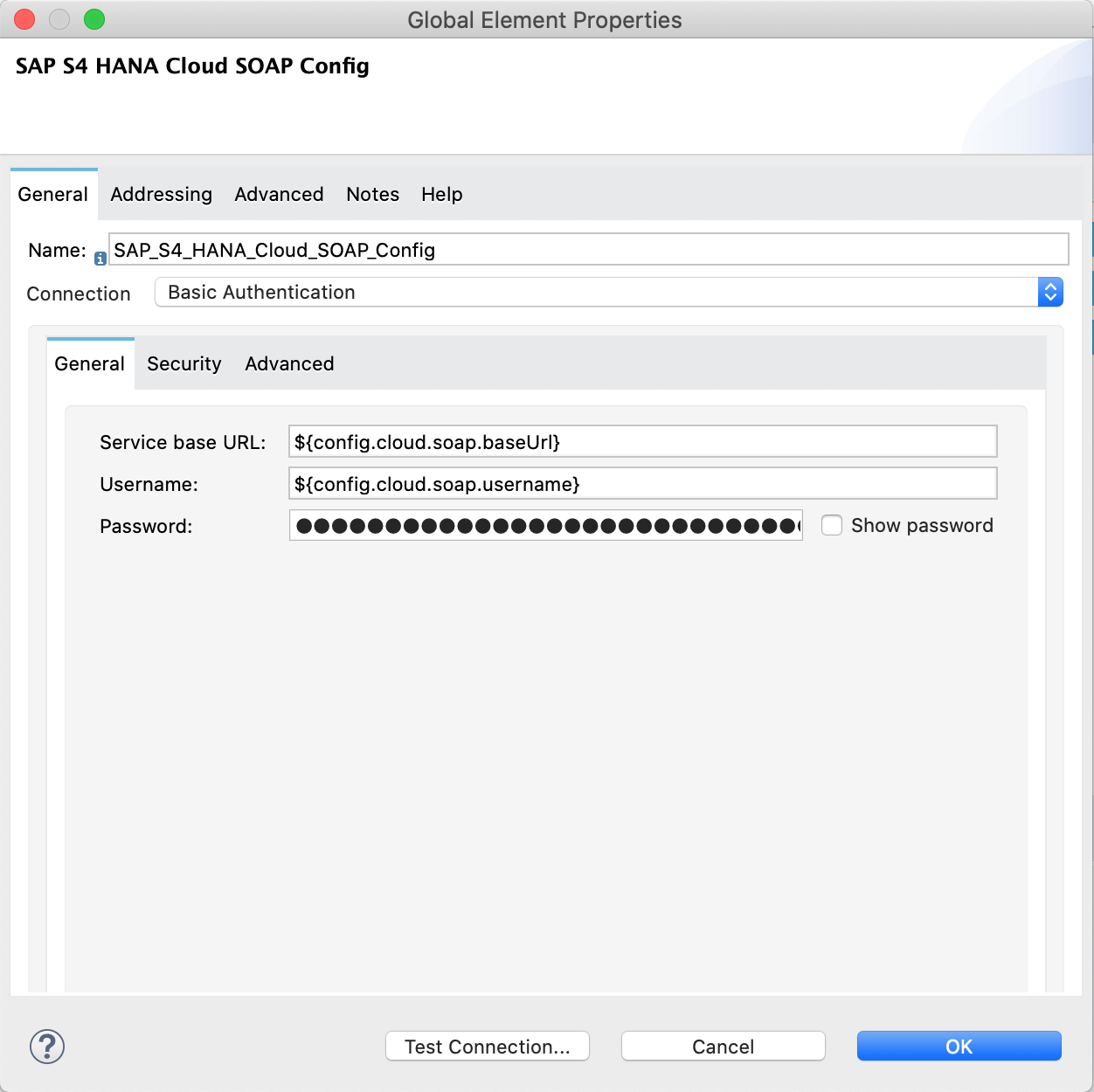
Figure 2. The following image shows example values for the global element in **Invoke**
operation.
5. Open the **Addressing** tab.
6. Set global WS-Addressing properties:
- **Version**
WS-Addressing version.
- **From**
Reference of the endpoint where the SOAP request originated from.
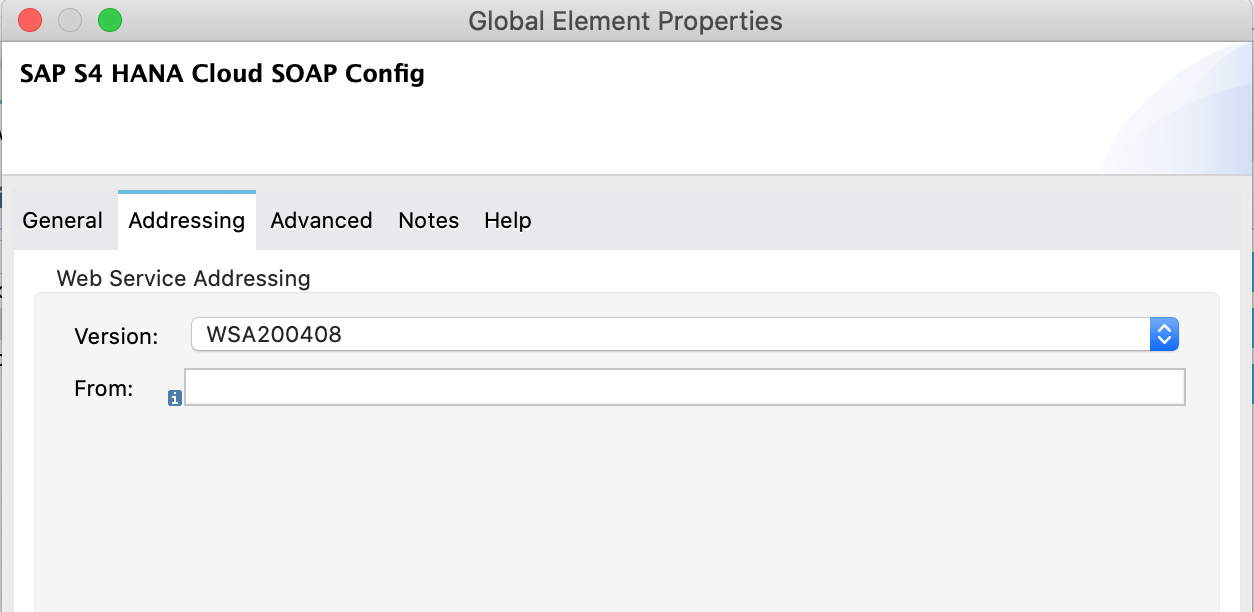
Figure 3. The following image shows example values for **Addressing** fields.
7. At the base of the Studio canvas, click **Configuration XML** to view the corresponding XML:
```xml
```
8. Return to the **Global elements** tab in the editor and open `SAP_S4_HANA_Cloud_SOAP_Config`
configuration.
9. Click the **Test Connection…** button at the bottom of the window and verify if it is
successful.
10. After successful test connection, close the **Test connection** and the **Global Element
Properties** windows.
11. Open the Message flow tab in the editor and open **Invoke** operation processor.
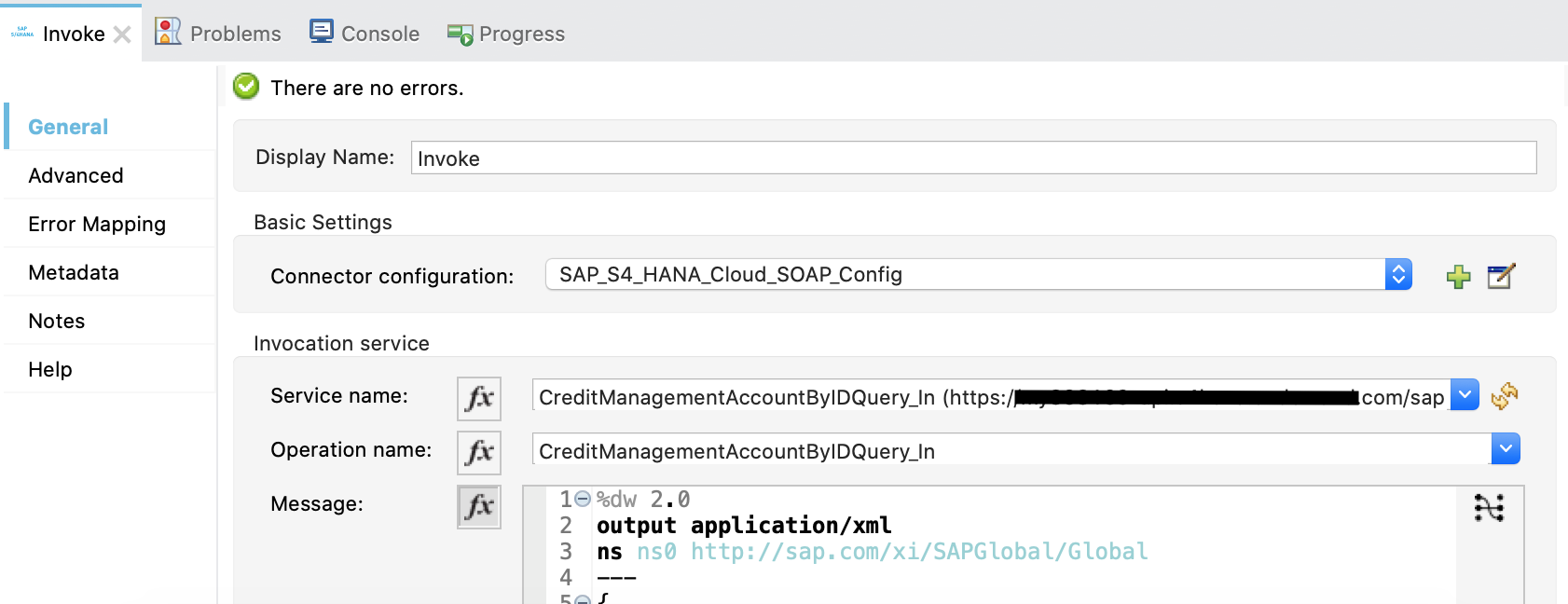
12. Configure the following fields in the properties window:
- **Display Name**
Name to display in the UI for the connector operation.
- **Connector Configuration**
Global configuration you previously created for the **Invoke** operation named
`SAP_S4_HANA_Cloud_SOAP_Config`.
- **Service name**
Name of the service. In this example we chose `CreditManagementAccountByIDQuery_In`.
- **Operation name**
Operation name of the service. In this example we chose `CreditManagementAccountByIDQuery_In`.
- **Message**
Content of a SOAP message.
13. Open the graphical view of message payload and set the SOAP message content. In this example we
set the following payload:
```dataweave
%dw 2.0
output application/xml
ns ns0 http://sap.com/xi/SAPGlobal/Global
---
{
ns0#CreditManagementAccountByIDQuery: {
MessageHeader: {
ID: "@" as String,
CreationDateTime: now()
},
Selection: {
DebtorPartyInternalID: "0011100050" as String,
CreditsegmentInternalID: 1 as String
},
LanguageCode: "ZZZ" as String
}
}
```
14. Set the **General** properties of the **Invoke** operation.
15. Open the **Advanced** tab and change the **Web Service Addressing** dropdown from `None` to
`Edit inline`.
16. Configure the following fields:
- **To**
Address of the intended receiver of this message.
- **Version** (optional)
WS-Addressing version. If nothing is specified, the connector uses the value from the
configuration.
- **From** (optional)
Reference of the endpoint where the message originated from. If nothing is specified, the
connector uses the value from configuration.
- **Message ID**
Identifier that uniquely identifies the message in time and space. If nothing is specified,
the connector uses time-based UUID.
- **Relates to** (optional)
Message ID that the message is related to.
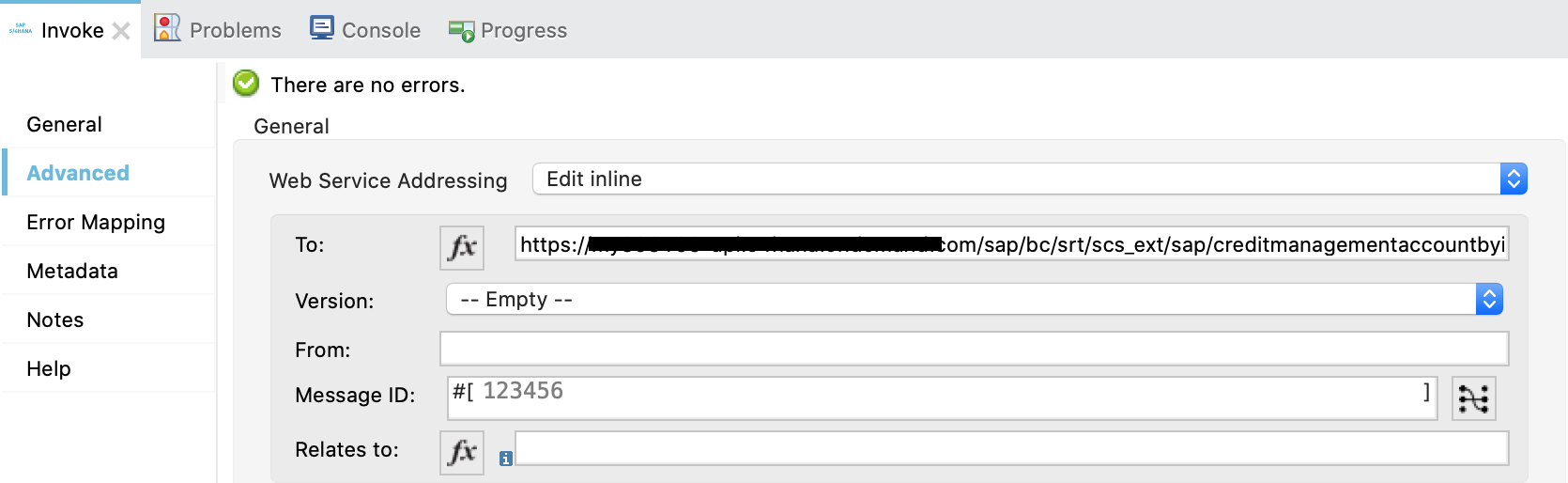
Figure 4. The following image shows the **Web Service Addressing** properties of the
**Invoke** operation.
### Add and Configure a Transform Message Component
Add the **Transform Message** component to the flow using what we transform in the response to JSON:
1. In the **Mule Palette** view, search for **Transform Message**.
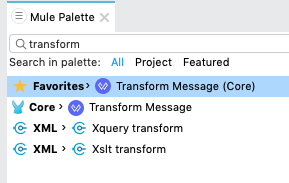
2. Drag the **Transform Message** component onto the canvas, to the right of the **Invoke**
operation.
3. In the **Transform Message** configuration, set output to json and replace the brackets in the
**Output** section with a keyword **message**:
```dataweave
%dw 2.0
output application/json
---
message
```
### Add and Configure a Logger Component
Add and configure a **Logger** component to display the message response in the Mule console:
1. In the **Mule Palette** view, search for **Logger**.
2. Drag the **Logger** component onto the canvas, to the right of the **Transform Message**
component.
3. Configure the following fields:
- **Display Name**
Name for the Logger component.
- **Message**
String or DataWeave expression that specifies the Mule log message.
- **Level**
Configures the logging level. The default is `INFO`.
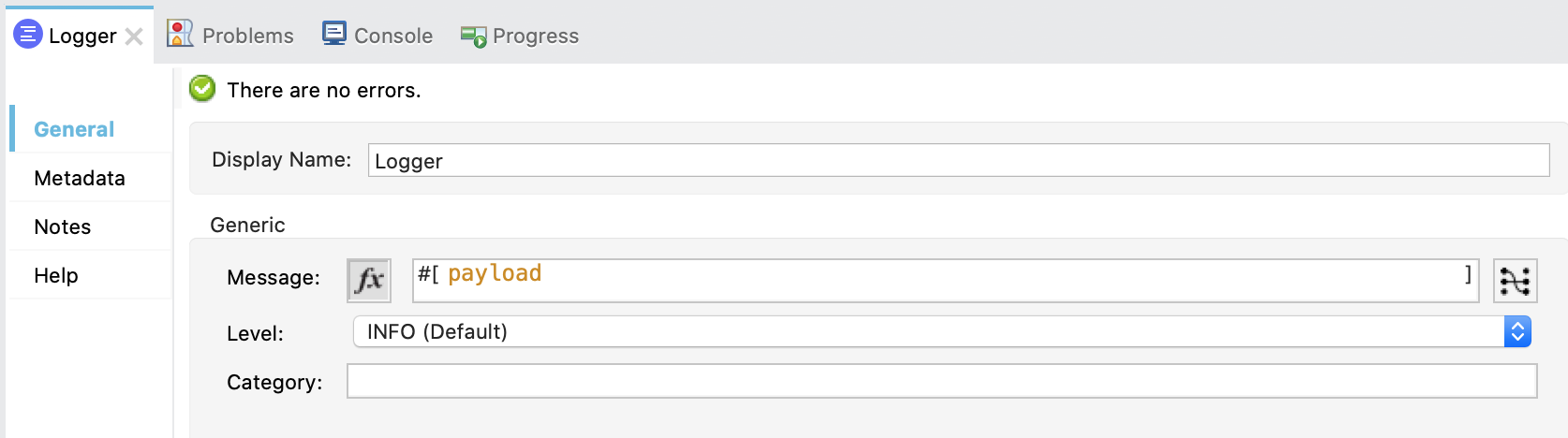
Figure 5. The following image shows example values for the fields:
### Run the Application and Verify
1. Run the application and wait until it successfully deploys.
2. Visit the following URL from the web browser: `http://localhost:8081/wsa`
3. Verify that the successful response was returned.
4. Locate the **headers** property in the **payload** and verify that the **Relates to** property
has the same value as the one we set in the **Message ID** field for the **Invoke** operation.
## XML for the Web Service Addressing Example
Paste this code into your XML editor to load the flow for this example use case into your Mule
application. If needed, change the values to reflect your environment.
```xml
```