---
schema_version: "1"
id: bad8772d9b4d40e15a80685553adce022f74eb593a5d3d0ac851107e971520ff
title: Salesforce Marketing Cloud Connector 5.0
collection: mulesoft
version: current
locale: en-us
portal_url: https://docs.salesforce.com/mulesoft/current/en-us/salesforce-marketing-cloud-connector/latest/index.md
canonical_url: https://docs.mulesoft.com/salesforce-marketing-cloud-connector/latest/
source_site: docs.mulesoft.com
content_type: documentation
content_hash: ae0e6eb00b632aa46658f7614548dacfd4a945c1c78c022fa0e30a1fec6c2e16
description: MuleSoft Documentation Site
release: "5.0"
latest: true
---
---
product: Salesforce Marketing Cloud Connector
version: 5.0
is-latest-version: true
---
# Salesforce Marketing Cloud Connector 5.0
> For the full documentation index, see: https://docs.mulesoft.com/llms.txt
Anypoint Connector for Salesforce Marketing Cloud (Marketing Cloud Connector) enables you to connect
to the Marketing Cloud API web services (now known as the Marketing Cloud API), which is also known
as the Salesforce Marketing Cloud. This connector exposes convenient operations for exploiting the
capabilities of Salesforce Marketing Cloud.
Release Notes:
[Salesforce Marketing Cloud Connector Release Notes](https://docs.mulesoft.com/release-notes/connector/salesforce-mktg-connector-release-notes-mule-4)
Exchange:
[Salesforce Marketing Cloud Connector](https://www.mulesoft.com/exchange/com.mulesoft.connectors/mule-sfdc-marketing-cloud-connector/)
## Before You Begin
To use this information, you should be familiar with Salesforce Marketing, Mule runtime engine
(Mule), Anypoint Connectors, Anypoint Studio, Mule concepts, elements in a Mule flow, and Global
Elements.
You need login credentials to test your connection to your target resource.
For software requirements and compatibility information, see the Connector Release Notes.
## Common Use Cases for the Connector
Common use cases for Salesforce Marketing Cloud Connector include:
- **Customer Insights**
Get a complete, unified view of the customer, such as their purchase habits, lifestyle, or
subscriptions, and continually adjust to a customer’s journey in real time.
- **Personalization**
Create personalized, targeted email campaigns by integrating with back-office data from external
systems, such as SAP, Oracle E-Business Suite, NetSuite, and Workday.
- **Marketing Automation**
Save time by automating your business processes while engaging with your customers. For example,
you can schedule future emails for your customers.
For examples of these use cases, refer to
[Salesforce Marketing Cloud Connector Examples](https://docs.mulesoft.com/salesforce-marketing-cloud-connector/latest/salesforce-mktg-connector-examples).
## POM File Information
```xml
com.mulesoft.connectors
mule-sfdc-marketing-cloud-connector
x.x.x
mule-plugin
```
Replace `x.x.x` with the version that corresponds to the connector you are using. To obtain the most
up-to-date `pom.xml` file information:
1. Go to [Anypoint Exchange](https://www.mulesoft.com/exchange/).
2. In Exchange, click **Login** and supply your Anypoint Platform username and password.
3. In Exchange, search for ``.
4. Select the connector.
5. Click **Dependency Snippets** near the upper right of the screen.
## What’s New in this Connector
Salesforce Marketing Cloud Connector 5.0 is a major release that requires Java 17 and Mule runtime
engine 4.9.0 or later. The same operations from the 4.x release are preserved. Key changes in this
release include:
- The Spring Framework is upgraded to version 6.x, which requires Java 17 as a minimum.
- The connector no longer depends on FuelSDK. Instead, it uses CXF-generated classes from the
connector WSDL to perform SOAP requests directly.
- The deprecated `omitInternalIdFromCustomFields` parameter is removed.
- Multiple libraries are upgraded to address security vulnerabilities. For a full list, see
[Upgrading and Migrating Salesforce Marketing Cloud Connector to 5.x](https://docs.mulesoft.com/salesforce-marketing-cloud-connector/latest/salesforce-mktg-connector-upgrade-migrate).
## Add and Configure the Connector in a Studio Project
To add the connector to a Studio project:
1. In Studio, create a Mule project.
2. In the Mule Palette view, click **(X) Search in Exchange**.
3. In **Add Modules to Project**, type "marketing" in the search field.
4. Click this connector’s name in **Available modules**.
5. Click **Add**.
6. Click **Finish**.
### Configure the Connector in Studio
1. Drag the connector to the Studio Canvas.
2. To create a global element for the connector, complete these fields:
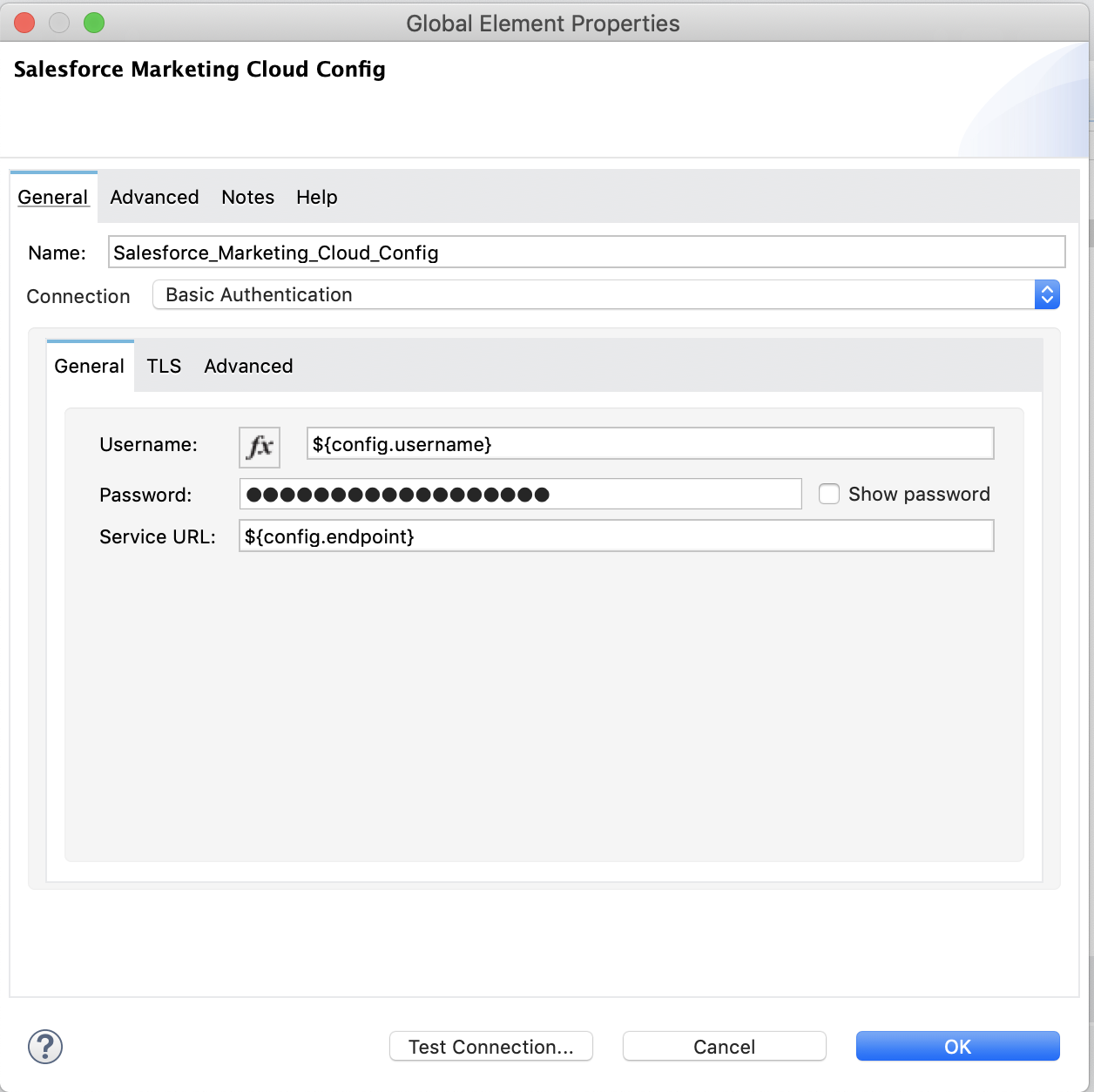
- Basic Authentication (Username Password):
- **Username** - Username used to initialize the session
- **Password** - Password used to authenticate the
- **Service URL** - The URL of the service on Salesforce Marketing Cloud to be accessed from
the connector.
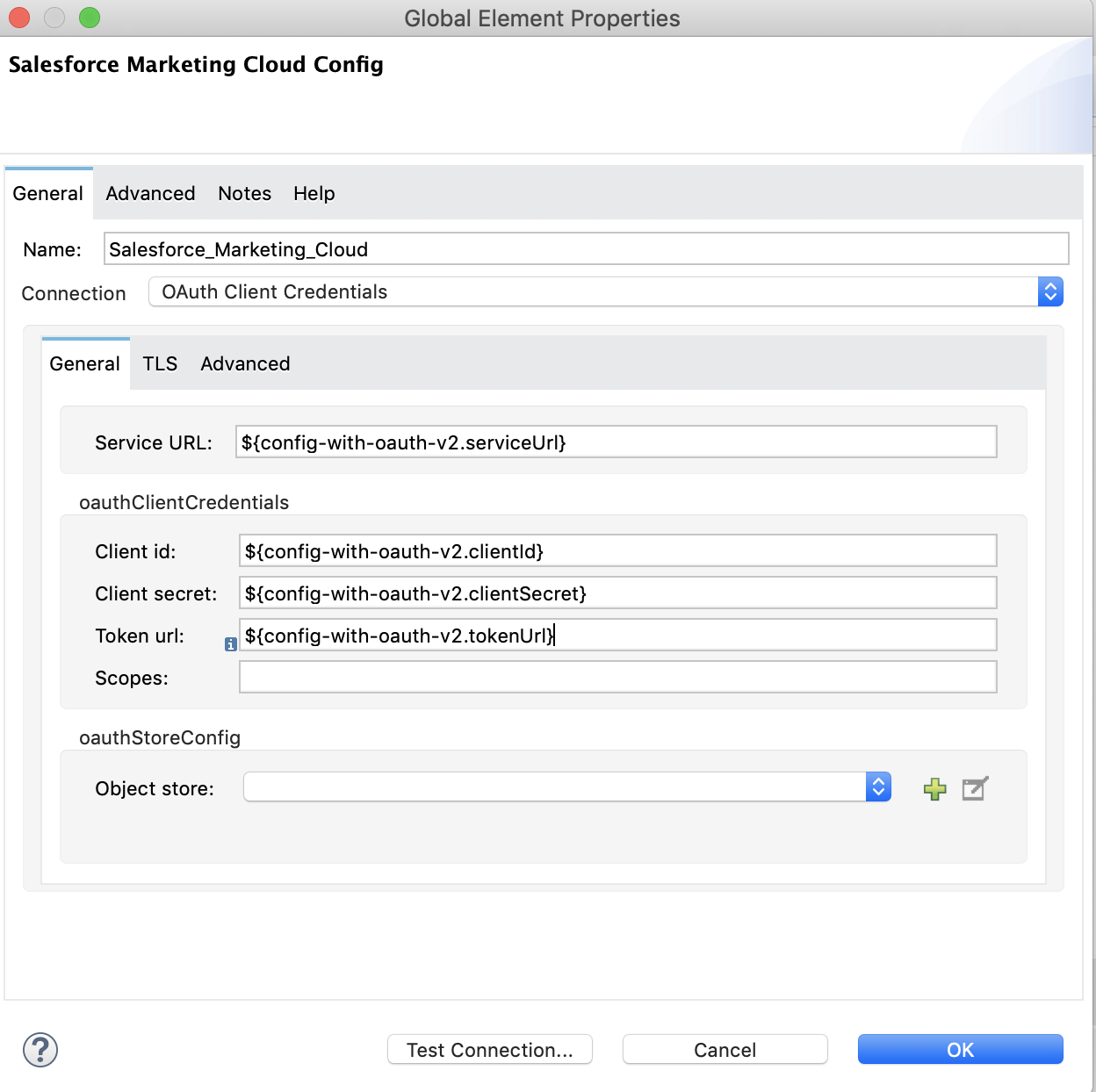
- OAuth Client Credentials authentication:
- **Service URL** - URL of the Salesforce Marketing Cloud service that the connector will
access\*\* **Client Id** - Client ID for the installed package
- **Client secret** - Client secret for the installed package
- **Token url** - URL of the endpoint that provides the access tokens
### Use Case - Create an Object
1. Create a new Mule project by selecting **File** > **New** > **Mule Project**.
2. Supply a name for your project and click **Finish**.
3. Open the pom.xml file and add the following dependency for Mule Salesforce Marketing Connector,
where `x.x.x` is the current connector version:
```xml
org.mule.connectors
mule-module-sfdc-marketing-cloud-connector
x.x.x
mule-plugin
```
4. Navigate through the project’s structure and double-click
`src/main/app/smc-usecase-create-object.xml`.
5. Search for the **HTTP** component in the Mule Palette view.
6. Drag the **Listener** operation onto the canvas.
7. Search for **Transform Message** and drag the component after the **Listener**.
8. Search for **Salesforce Marketing Cloud** and drag the **Create entities** operation after
**Transform Message**.
9. Add a **Transform Message** component after **Create**.
10. Double-click on the **Listener** component.

11. Click  next to the **Connector
configuration** field.
12. Specify the **Host** as localhost and **Port** as `8081`, then click **OK**.
13. Specify the **Path** as `/create`.
14. Double-click **Create**.
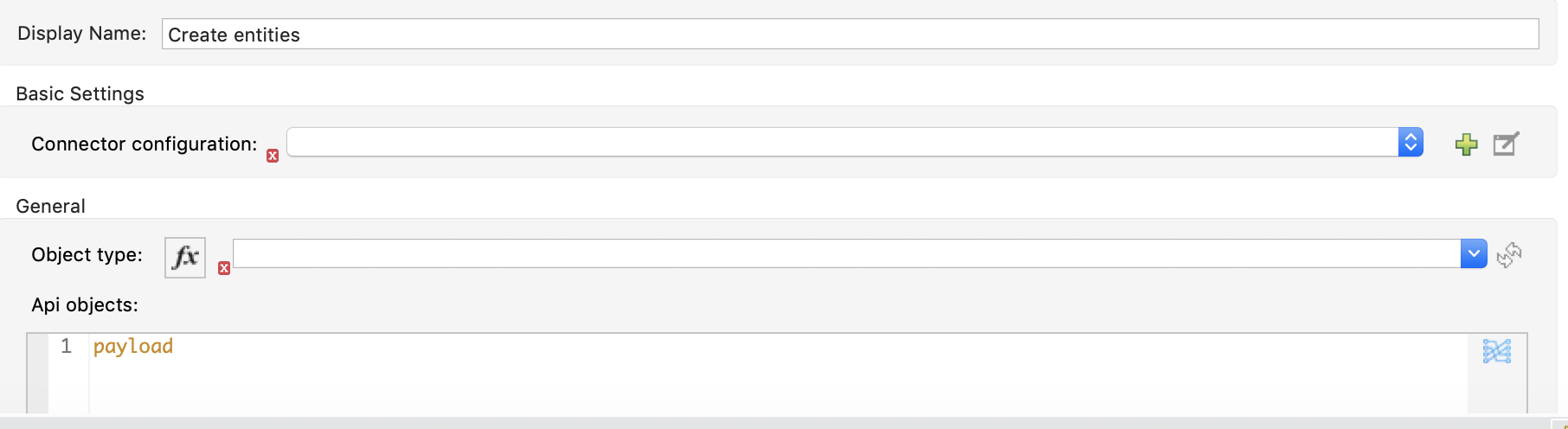
15. Click the  next to Connector
configuration.

16. Specify the required fields with the credentials for your organization and click **OK**.
17. From the **Object type** drop-down select `List`.
18. Double-click **Transform Message** (to the left of **Create** in the flow) and configure as
shown below:

19. Double-click **Transform Message** (to the right of **Create** in the flow) and configure as
shown below:

20. Deploy the app.
21. Use a REST client to make a POST request to `x-www-form-urlencoded to localhost:8081/create`
with the following parameter payload: `listName=testlist`.
For example, `curl -d listName=MyName-Test localhost:8081/create`.
22. Go to your instance and check that the list was created.
You can use a similar flow for other connector operations, such as Upload and Delete, but you must
change the Object Type in the Salesforce Marketing Cloud to the name of the object that you are
going to create, and remap fields on the Transform Message component as needed.
### Use Case: XML
Check your code against the app’s XML representation:
```xml
```
## Known Issues and Limitations
Salesforce Marketing Cloud Connector has some limitations, including when:
- Working with subclasses inside complex fields
- Trying to retrieve fields from a hierarchy
- Attempting to return an Automation object.
### Working with Subclasses Inside Complex Fields
Some objects in Salesforce Marketing Cloud have complex fields, such as the Recurrence field, which
belong to a base class. DataSense can only bring up fields specific to the base class.
To use additional fields that belong to a subclass of a base class, manually add the desired fields
to the Transform Message component. For Salesforce Marketing Cloud to know that you want to work
with a subclass and recognize the fields you added, you must also add a field called
concreteClassType of type String whose value is the name of the subclass.
See [Providing a Subclass as a Type to a Complex Field](#providing-subclass) for an example
detailing how to achieve this.
### Retrieve Operation Limitations
The Retrieve operation enables you to retrieve records in a SQL query-like fashion. When you use the
Retrieve operation, Salesforce Marketing Cloud prevents the retrieval of fields that are part of a
hierarchy. For example, the Subscriber object has a complex structure:
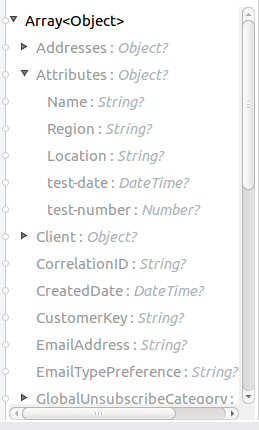
The API only allows you to query fields on the first level, such as `EmailAddress` or
`SubscriberKey`, but not fields such as `Attributes.Name`.
The `Retrieve` operation supports filters for querying the data. However the filters do not behave
like an SQL filter condition. For example, a clause such as `WHERE 1=1` works in SQL, but results in
an error in Salesforce Marketing Cloud because the API doesn’t support it. In this example, the
operand to the left of the equal sign must be a valid property of the Salesforce data extension
(SFDE).
When executing the request with the `WHERE 1=1` clause, the filter expects a property. It is
transformed into the following request:
` 1 equals 1 `.
The response is:
\`Error: The Filter Property '1' is not a retrievable property.\`.
When filtering the results of a query, only the following operators are supported in WHERE clauses:
| Operator | Salesforce Marketing API equivalent |
|---|
= | equals |
<> | notEquals |
> | greaterThan |
>= | greaterThanOrEqual |
< | lessThan |
⇐ | lessThanOrEqual |
like | like |
> [!IMPORTANT] This connector uses DSQL Query syntax instead of native Salesforce OQL and does not
> send the SQL query to the Salesforce server as is. Instead, the query is parsed and transformed
> into an XML object before it is sent. Because of this, any filters that are not included in the
> table above or any SQL syntax features, such as TOP(x), LIMIT, OFFSET, ALIAS, or JOINs, are
> unsupported. For more details, refer to the
> [Salesforce API Guide](https://developer.salesforce.com/docs/marketing/marketing-cloud/guide/retrieverequest.html#properties).
### Server Results Containing an Automation Object
Server results that contain an Automation object cause an exception to be thrown. When performing an
operation, such as Create or Delete, on an Automation object, the returned result contains the
structure of the Automation object you acted upon. The server also returns an additional field in
the Automation object called isPlatformObject that is not recognized by the WSDL.
To bypass this issue, make all operations that directly use an Automation object asynchronous. If an
operation is asynchronous, the immediate response of the operation is `Operation Queued`.
For more information, see [Asynchronous Operations](#asynchronous-operations).
## Common Use Cases
Use Salesforce Marketing Cloud Connector operations for the following common use cases:
- `Configure action` operation - Calls the Configure method with Create, Delete, or Update as the
value of the Action parameter when connected to the Marketing Cloud API SOAP web service.
- `Create entities` operation - Creates new objects on the Marketing Cloud API web server.
- `Delete objects` operation - Deletes existing objects on the Marketing Cloud API web server.
- `Perform operation` - Calls the Perform method with the GetMaxCount, Start, or Stop as the value
of the Action parameter when connected to the Marketing Cloud API SOAP web service.
- `Retrieve entities` operation - Retrieves objects from the Marketing Cloud API web server in a SQL
query-like fashion.
- `Schedule start` operation - Calls the Schedule method with Start as the value of the Action
parameter when connected to the Marketing Cloud API SOAP web service.
- `Update entities` operation - Updates existing objects on the Marketing Cloud API web server.
- `Upsert entities` operation - Creates objects on the Marketing Cloud API web server if the objects
do not already exist, or updates existing objects on the server.
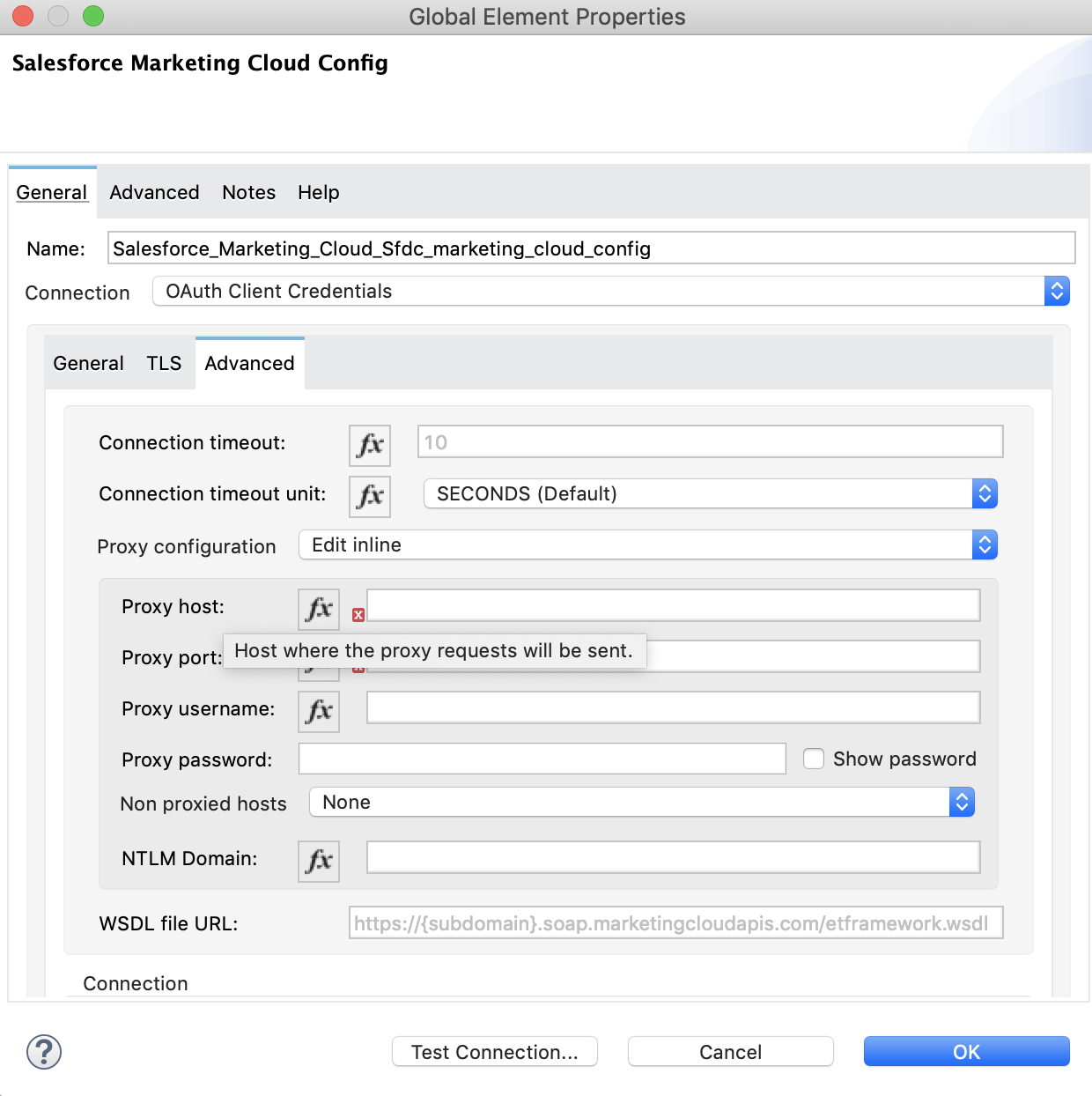
### Add a Proxy
To use a proxy server, set the following configuration properties on the **Advanced** tab of your
configuration:
### Providing a Subclass as a Type to a Complex Field
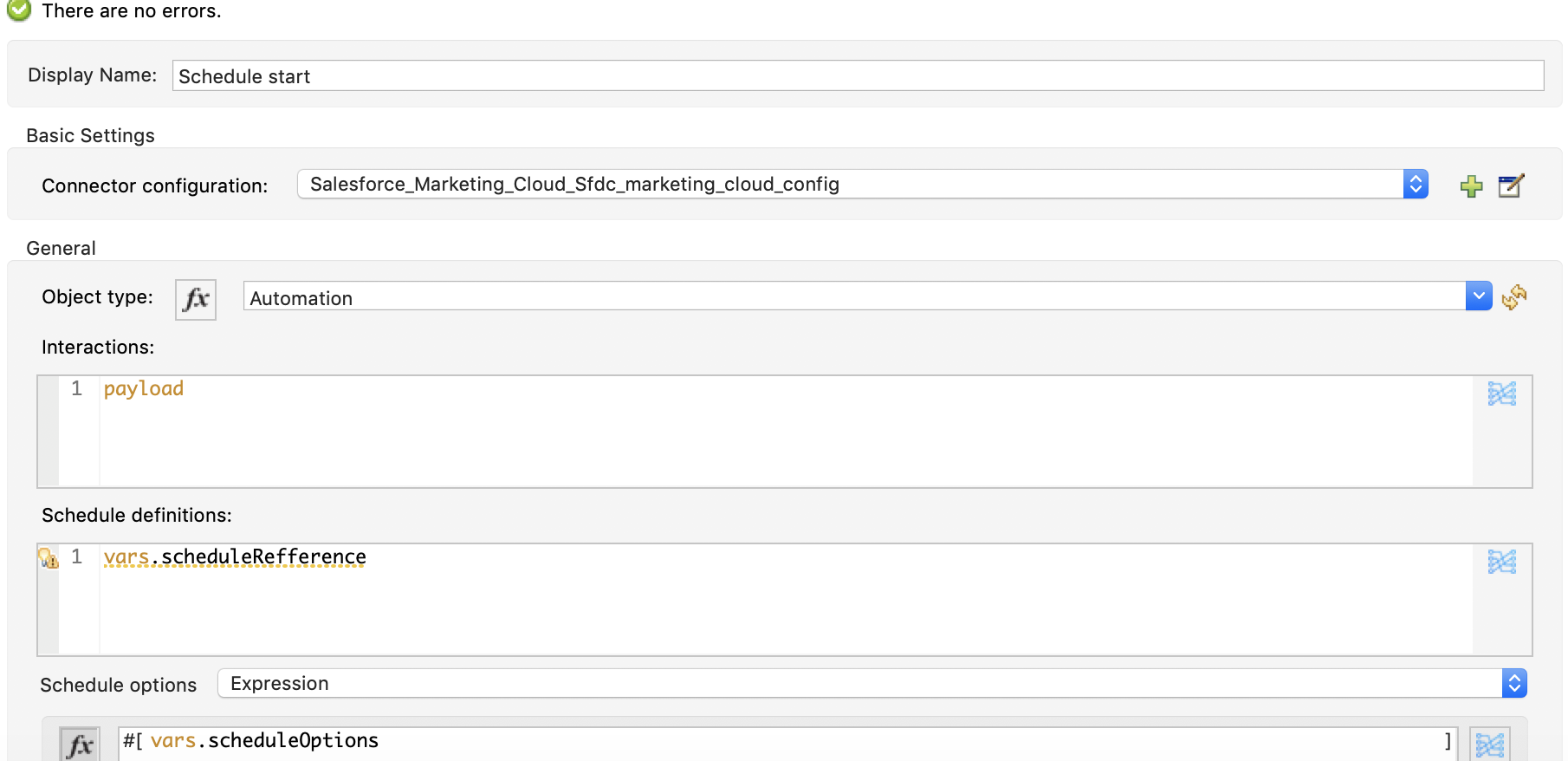
Suppose you want to schedule an existing Automation that sends emails to a subscriber list once per
minute. To do this, add a Schedule Reference to the connector through a flow variable:
Use the **Recurrence** field in **ScheduleDefinition** to provide information such as how much time
to pass between sending emails. The **Recurrence** field is a complex field that has no structure.
To specify a MinutelyRecurrence instead of a Recurrence:
- Manually add the fields belonging to the MinutelyRecurrence class.
- Add an additional field called concreteClassType of type String whose value is the name of the
subclass.
The mapping for the ScheduleDefinition looks like this in the example:
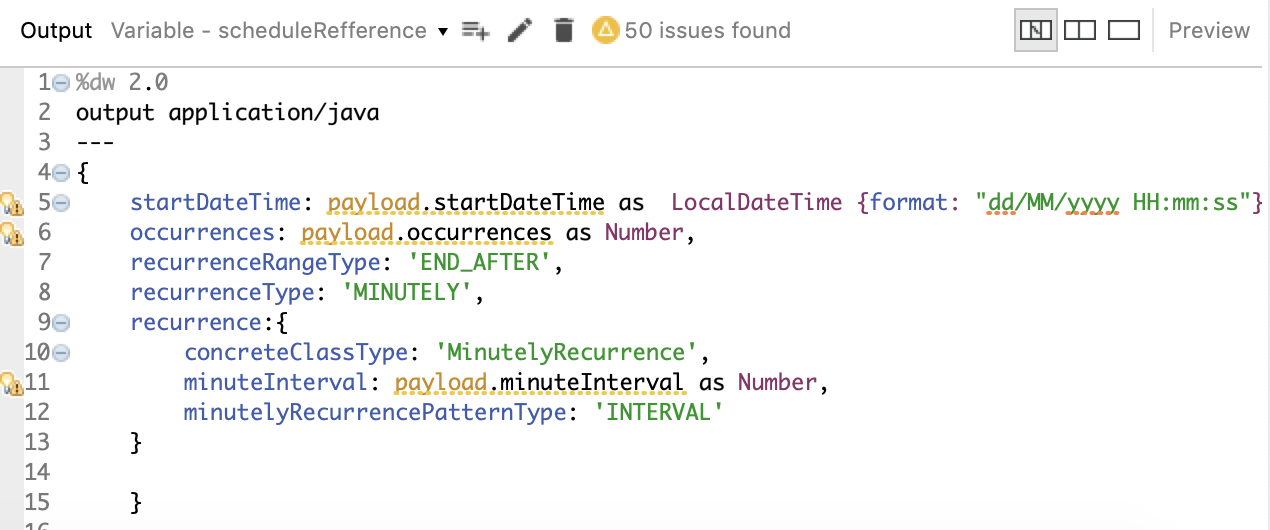
This map has a field called `minuteInterval` that belongs to a subclass of Recurrence called
`MinutelyRecurrence`.
For the connector to use the MinutelyRecurrence object, you must also add the concreteClassType
field with `MinutelyRecurrence` as the value.
### Asynchronous Operations
Most operations are synchronous by default, meaning that the connector waits for the result of the
operation. For more details regarding the operations of the Marketing Cloud API, access the
Salesforce Marketing Cloud Methods documentation.
To specify that you want an operation to behave asynchronously, use the Options parameter for the
operation.
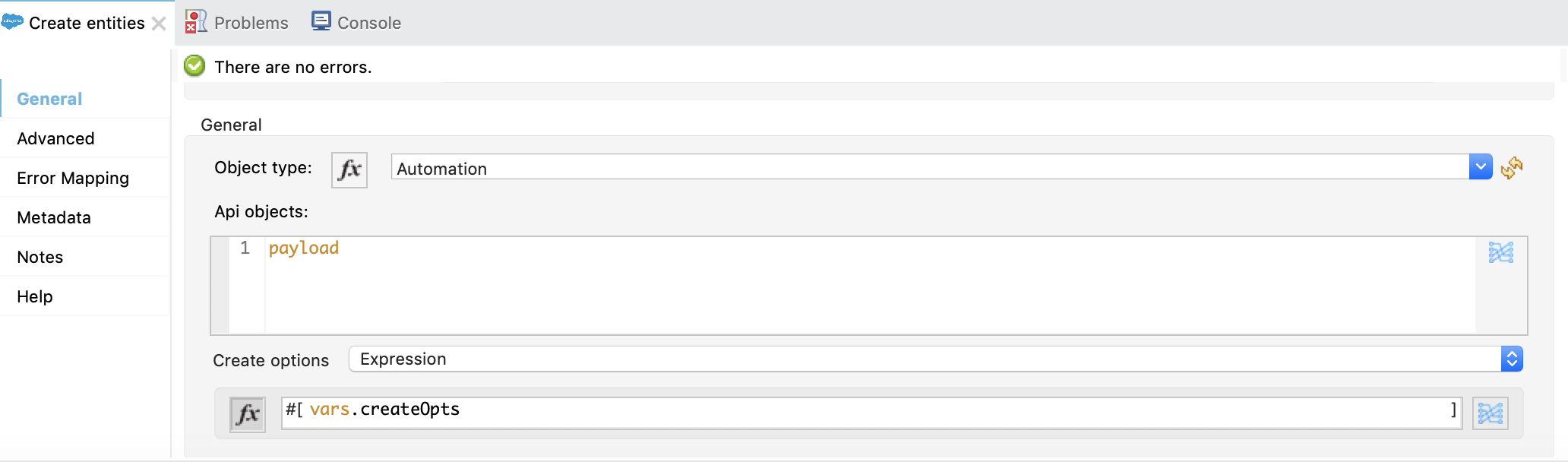
The following example creates a list of Automation objects to provide in the payload. Because the
result of any operation that works directly with Automation objects throws an exception caused by
the presence of an unknown field, the example uses the CreateOptions parameter to make the call
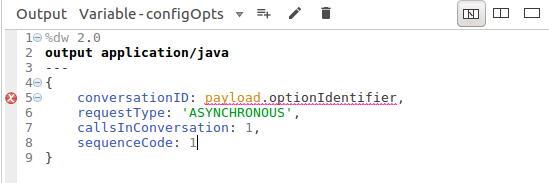
asynchronous. In this example, the CreateOptions value is provided in a variable called `vars`.
This mapping for CreateOptions in vars looks like this:
- The requestType field determines the type of call (SYNCHRONOUS or ASYNCHRONOUS).
- The conversationID field assigns a unique identifier to the asynchronous call.
You can group asynchronous calls together using the conversationID, callsInConversation, and
sequenceCode fields. For example, suppose you want to make five asynchronous calls to the server,
execute the calls together, and specify their execution order. To do this:
1. Assign the same conversationID to each call.
2. Set the callsInConversation field to 5.
3. Use the sequenceCode field to order the calls.
The following example has a single call, so it passes a value of 1 to callsInConversation and
sequenceCode.
The Options parameter has more functionality than shown in this example. For more information, see
the Salesforce Marketing Cloud Objects documentation.
## See Also
- [Salesforce Get Started with the SOAP Web Services API](https://developer.salesforce.com/docs/marketing/marketing-cloud/guide/getting_started_developers_and_the_exacttarget_api.html)
- [Salesforce API Integration](https://developer.salesforce.com/docs/marketing/marketing-cloud/guide/api-integration.html).
- [Introduction to Anypoint Connectors](https://docs.mulesoft.com/connectors/introduction/introduction-to-anypoint-connectors)
- [Salesforce Help](https://help.salesforce.com)