---
schema_version: "1"
id: 353762bf6f122b702df39c1117247641081e353b739185456fbcaa7fdbe0d8cd
title: Salesforce Data Cloud Connector 1.5 Examples
collection: mulesoft
version: current
locale: en-us
portal_url: https://docs.salesforce.com/mulesoft/current/en-us/salesforce-data-cloud-connector/latest/salesforce-data-cloud-connector-examples.md
canonical_url: https://docs.mulesoft.com/salesforce-data-cloud-connector/latest/salesforce-data-cloud-connector-examples
source_site: docs.mulesoft.com
content_type: documentation
content_hash: 5c05089f0343d9cabbb078ac0664acdc2eb8489dffff2858e9d2cb3accfc08d4
description: MuleSoft Documentation Site
release: "1.5"
latest: true
---
---
product: Salesforce Data Cloud Connector
version: 1.5
is-latest-version: true
---

# Salesforce Data Cloud Connector 1.5 Examples

> For the full documentation index, see: https://docs.mulesoft.com/llms.txt

The following examples show how to integrate with the various Salesforce Data 360 API endpoints with
Salesforce Data Cloud Connector:

- Streaming API Ingestion Flows include:

  - [Insert Data - Streaming API](#insert-data-streaming-api)  
    Shows how to insert data via the streaming API to an object’s endpoint.

  - [Delete Data - Streaming API](#delete-data-streaming-api)  
    Shows how to delete records via the streaming API for specific objects.

- Bulk API Ingestion Flows include:

  - [Create Job - Bulk API](#create-job-bulk-api)  
    Shows how to create a bulk job, which is needed for uploading data to Salesforce Data 360
    Ingestion API objects.

  - [Upload Job Data - Bulk API](#upload-job-data-bulk-api)  
    Shows how to upload data for inserting to or deleting from a Salesforce Data 360 Ingestion API
    object.

  - [Close Job - Bulk API](#close-job-bulk-api)  
    Shows how to update the status of the specified job ID so that the job is closed and queued for
    processing.

  - [Abort Job - Bulk API](#abort-job-bulk-api)  
    Shows how to update the status of the specified job ID so that the job is aborted and not queued
    for processing.

  - [Get Job - Bulk API](#get-job-bulk-api)  
    Shows how to retrieve current status of the specified job ID.

  - [List Jobs - Bulk API](#list-jobs-bulk-api)  
    Shows how to retrieve all bulk jobs.

  - [Delete Job - Bulk API](#delete-job-bulk-api)  
    Shows how to delete or close the specified job ID, which deletes job data and metadata stored by
    Salesforce.

- Query API Flows include:

  - [Query API](#query-api)  
    Shows how to query the Salesforce Data 360 data lake across data model, lake, unified, and
    linked objects.

  - [Query v2](#query-v2)  
    Shows how to use the Query v2 API to make a query against the Data 360 data lake.

  - [Query v2 - Get Next Batch](#query-v2-get-next-batch)  
    Shows how to use the Query v2 Get Next Batch API to get the next batch of results.

  - [Query v3](#query-v3)  
    Shows how to submit a SQL query in asynchronous or adaptive mode and obtain a query ID for
    polling.

  - [Query v3 - Get Status](#query-v3-get-status)  
    Shows how to poll the execution status of a submitted query.

  - [Query v3 - Get Rows](#query-v3-get-rows)  
    Shows how to page through query results with an offset and limit.

  - [Query v3 - Get Chunk](#query-v3-get-chunk)  
    Shows how to retrieve a result chunk, which is the preferred way to read large result sets.

  - [Query v3 - Get Metadata](#query-v3-get-metadata)  
    Shows how to retrieve the result schema without fetching rows.

  - [Query v3 - Cancel](#query-v3-cancel)  
    Shows how to cancel a running query.

- Calculated Insights API Flows include:

  - [Insights - List Metadata API](#insights-list-metadata-api)  
    Shows how to retrieve the metadata, including the dimensions and measures for all calculated
    insights.

  - [Insights - Get Metadata API](#insights-get-metadata-api)  
    Shows how to retrieve the metadata, including the dimensions and measures for a calculated
    insight.

  - [Insights - Get Insights API](#insights-get-insights-api)  
    Shows how to query the calculated insights. Users can slice, dice, and filter by selecting
    different dimensions, measures, and filters.

- Profile API Flows include:

  - [Profile - List Metadata API](#profile-list-metadata-api)  
    Shows how to retrieve the metadata for all data model objects.

  - [Profile - Get Metadata API](#profile-get-metadata-api)  
    Shows how to retrieve the metadata for the requested data model object.

  - [Profile - Search Records API](#profile-search-records-api)  
    Shows how to retrieve data model object records based on search filters.

  - [Profile - Search Records By ID API](#profile-search-records-by-id-api)  
    Shows how to retrieve data model object records based on indexes and search filters.

  - [Profile - Search Records With Child Records API](#profile-search-records-with-child-records-api)  
    Shows
    how to retrieve data model object records and child object records based on indexes and search
    filters.

  - [Profile - Search Records With Insight API](#profile-search-records-with-insight-api)  
    Shows how to retrieve data model object records and a computed view based on indexes and search
    filters.

- Data Action API Flows include:

  - [Data Action Webhook](#data-action-webhook)  
    Shows how to run operations when a data action is triggered.

## Insert Data - Streaming API

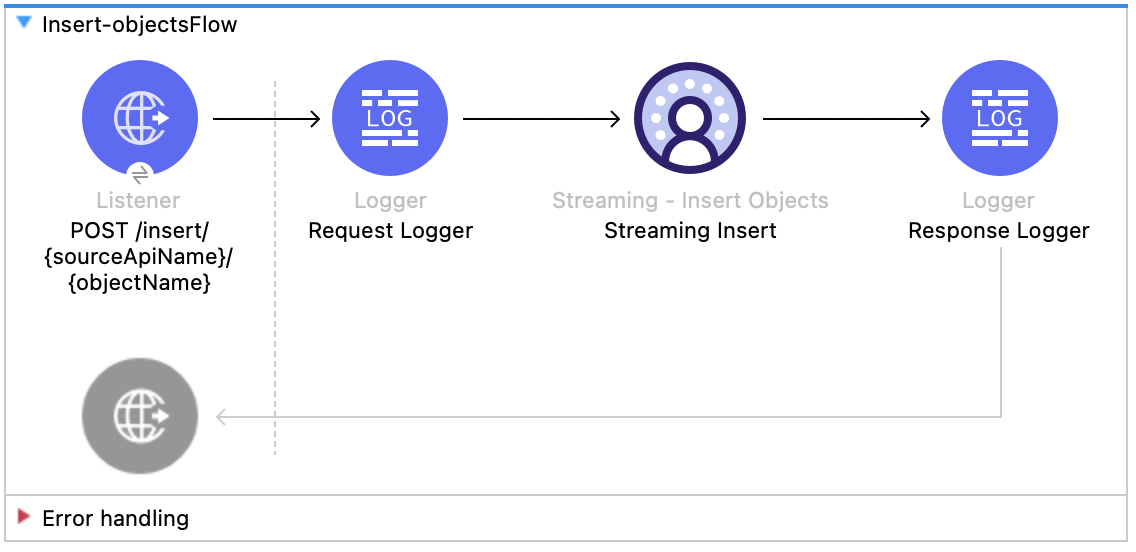
This Mule flow shows how to insert data via the streaming API to an object’s endpoint. Refer to the
[Salesforce API docs](https://developer.salesforce.com/docs/data/data-cloud-int/references/data-cloud-ingestionapi-ref/c360-a-api-insert-records.html).

This example uses the following operations:

- **HTTP Listener**  
  Accepts data from HTTP POST requests with the source and object name as the URI parameters.

- **Logger**  
  Shows the HTTP request received from the **Listener**, then later shows the HTTP response from the
  **Insert Objects** operation.

- **Streaming Insert**

  - Authenticates based on your choice of OAuth Client Credentials, OAuth JWT, or OAuth Username and
    Password.

  - Receives the source name, object name, and payload.

  - Calls the Salesforce API to insert the payload to that object’s endpoint.
![Salesforce Data Cloud Connector Insert flow with Listener, Logger, Insert Objects, and Response Logger](/mulesoft/current/en-us/salesforce-data-cloud-connector/latest/_images/object-insert-flow.png)

### XML for This Example

Paste this code into the Studio XML editor to quickly load the flow for this example into your Mule
app:

```xml
<?xml version="1.0" encoding="UTF-8"?>

<mule xmlns:sdc="http://www.mulesoft.org/schema/mule/sdc" xmlns:http="http://www.mulesoft.org/schema/mule/http"
	  xmlns="http://www.mulesoft.org/schema/mule/core"
	  xmlns:doc="http://www.mulesoft.org/schema/mule/documentation" xmlns:xsi="http://www.w3.org/2001/XMLSchema-instance" xsi:schemaLocation="http://www.mulesoft.org/schema/mule/core http://www.mulesoft.org/schema/mule/core/current/mule.xsd
http://www.mulesoft.org/schema/mule/http http://www.mulesoft.org/schema/mule/http/current/mule-http.xsd
http://www.mulesoft.org/schema/mule/sdc http://www.mulesoft.org/schema/mule/sdc/current/mule-sdc.xsd">
	<http:listener-config name="HTTP_Listener_config" doc:name="HTTP Listener config" >
		<http:listener-connection host="0.0.0.0" port="8081" />
	</http:listener-config>
    <configuration-properties doc:name="Configuration properties" file="mule-app.properties" />
    <sdc:sdc-config name="Salesforce_Data_Cloud_OAuth_JWT_config" doc:name="Salesforce Data Cloud config" >
		<sdc:oauth-jwt-connection consumerKey="${server.consumerKey}" keyStorePath="${server.keyStorePath}" storePassword="${server.keyStorePassword}" subject="${server.userName}" keyAlias="${server.certificateAlias}" audienceUrl="${server.audienceUrl}"/>
	</sdc:sdc-config>
	<sdc:sdc-config name="Salesforce_Data_Cloud_OAuth_UsernamePassword_config" doc:name="Salesforce Data Cloud config" >
		<sdc:oauth-user-pass-connection audienceUrl="${server.audienceUrl}" username="${server.userName}" password="${server.password}" clientId="${server.consumerKey}" clientSecret="${server.consumerSecret}"/>
	</sdc:sdc-config>

	<flow name="Insert-objectsFlow" >
		<http:listener doc:name="POST /insert/{sourceApiName}/{objectName}" config-ref="HTTP_Listener_config" path="/insert/{sourceApiName}/{objectName}" allowedMethods="POST"/>
		<logger level="INFO" doc:name="Request Logger" message="#[payload]"/>
		<sdc:insert-objects doc:name="Streaming Insert" config-ref="Salesforce_Data_Cloud_OAuth_JWT_config" sourceNameUriParam="#[attributes.uriParams.sourceApiName]" objectNameUriParam="#[attributes.uriParams.objectName]"/>
		<logger level="INFO" doc:name="Response Logger" />
	</flow>
</mule>
```

### Steps for Running This Example

1.  [Verify that your connector is configured.](https://developer.salesforce.com/docs/data/data-cloud-int/guide/c360-a-connect-an-ingestion-source.html)

2.  Save the project.

3.  Test the flow by sending a `POST` to `localhost:8081/{SOURCE_API_NAME}/{OBJECT_NAME}` with a
    JSON payload that matches your object’s schema, for example:

    ```json
    {
      "data": [
        {
          "your_object_field_1": "value_1",
          "your_object_field_2": "value_2",
          "your_object_field_3": "value_3"
        }
      ]
    }
    ```

## Delete Data - Streaming API

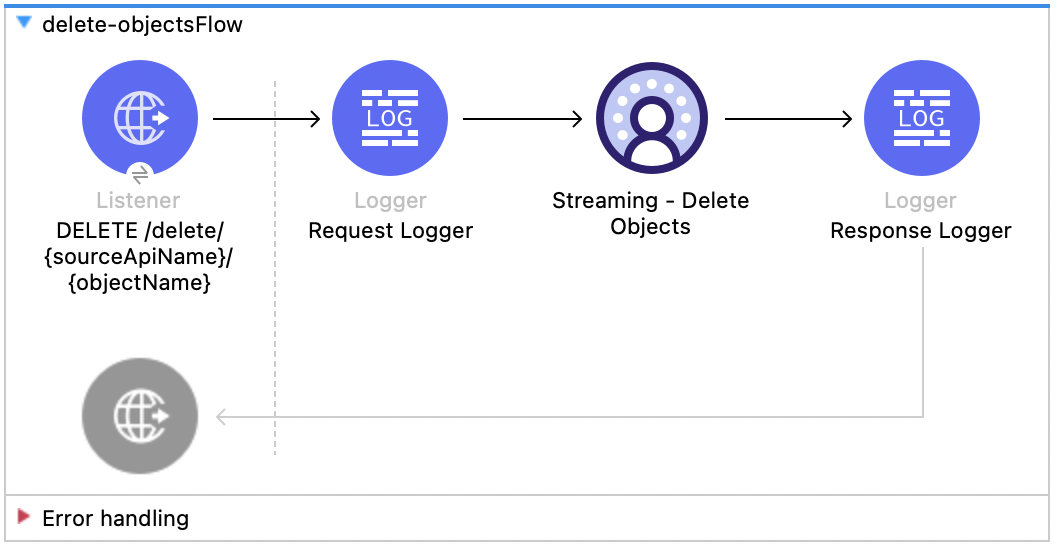
This Mule flow shows how to delete data via the streaming API using an object’s endpoint. Refer to
the
[Salesforce API docs](https://developer.salesforce.com/docs/data/data-cloud-int/references/data-cloud-ingestionapi-ref/c360-a-api-delete-records.html).

This example uses the following operations:

- **HTTP Listener**  
  Accepts data from HTTP DELETE requests with the source api and object name as URI parameters and
  record IDs as query parameters.

- **Logger**  
  Shows the HTTP request received from the **Listener**, then later shows the HTTP response from the
  **Streaming Delete** operation.

- **Streaming Delete**

  - Authenticates based on your choice of OAuth Client Credentials, OAuth JWT, or OAuth Username and
    Password.

  - Receives the source api name, object name, and record IDs.

  - Calls the Salesforce API to delete the records from the query parameters using that object’s
    endpoint.
![Salesforce Data Cloud Connector Delete flow with Listener, Logger, Delete Objects, and Response Logger](/mulesoft/current/en-us/salesforce-data-cloud-connector/latest/_images/delete-flow.png)

### XML for This Example

Paste this code into the Studio XML editor to quickly load the flow for this example into your Mule
app:

```xml
<?xml version="1.0" encoding="UTF-8"?>

<mule xmlns:sdc="http://www.mulesoft.org/schema/mule/sdc" xmlns:http="http://www.mulesoft.org/schema/mule/http"
	  xmlns="http://www.mulesoft.org/schema/mule/core"
	  xmlns:doc="http://www.mulesoft.org/schema/mule/documentation" xmlns:xsi="http://www.w3.org/2001/XMLSchema-instance" xsi:schemaLocation="http://www.mulesoft.org/schema/mule/core http://www.mulesoft.org/schema/mule/core/current/mule.xsd
http://www.mulesoft.org/schema/mule/http http://www.mulesoft.org/schema/mule/http/current/mule-http.xsd
http://www.mulesoft.org/schema/mule/sdc http://www.mulesoft.org/schema/mule/sdc/current/mule-sdc.xsd">
	<http:listener-config name="HTTP_Listener_config" doc:name="HTTP Listener config" >
		<http:listener-connection host="0.0.0.0" port="8081" />
	</http:listener-config>
    <configuration-properties doc:name="Configuration properties" file="mule-app.properties" />
    <sdc:sdc-config name="Salesforce_Data_Cloud_OAuth_JWT_config" doc:name="Salesforce Data Cloud config" >
		<sdc:oauth-jwt-connection consumerKey="${server.consumerKey}" keyStorePath="${server.keyStorePath}" storePassword="${server.keyStorePassword}" subject="${server.userName}" keyAlias="${server.certificateAlias}" audienceUrl="${server.audienceUrl}"/>
	</sdc:sdc-config>
	<sdc:sdc-config name="Salesforce_Data_Cloud_OAuth_UsernamePassword_config" doc:name="Salesforce Data Cloud config" >
		<sdc:oauth-user-pass-connection audienceUrl="${server.audienceUrl}" username="${server.userName}" password="${server.password}" clientId="${server.consumerKey}" clientSecret="${server.consumerSecret}"/>
	</sdc:sdc-config>

	<flow name="delete-objectsFlow" >
		<http:listener doc:name="DELETE /delete/{sourceApiName}/{objectName}" config-ref="HTTP_Listener_config" path="/delete/{sourceApiName}/{objectName}" allowedMethods="DELETE"/>
		<logger level="INFO" doc:name="Request Logger" />
		<sdc:delete-objects doc:name="Streaming - Delete Objects" config-ref="Salesforce_Data_Cloud_OAuth_JWT_config" idsQueryParams="#[output application/java&#10;---&#10;[attributes.queryParams.ids]]" sourceNameUriParam="#[attributes.uriParams.sourceApiName]" objectNameUriParam="#[attributes.uriParams.objectName]"/>
		<logger level="INFO" doc:name="Response Logger" />
	</flow>
</mule>
```

### Steps for Running This Example

1.  [Verify that your connector is configured.](https://developer.salesforce.com/docs/data/data-cloud-int/guide/c360-a-connect-an-ingestion-source.html)

2.  Save the project.

3.  Test the flow by sending a `DELETE` to
    `localhost:8081/delete/{SOURCE_API_NAME}/{OBJECT_NAME}?ids={RECORD_ID1},{RECORD_ID2}`, for
    example:

    `localhost:8081/delete/My_SourceApi/My_Object?ids=1,2,3`

## Create Job - Bulk API

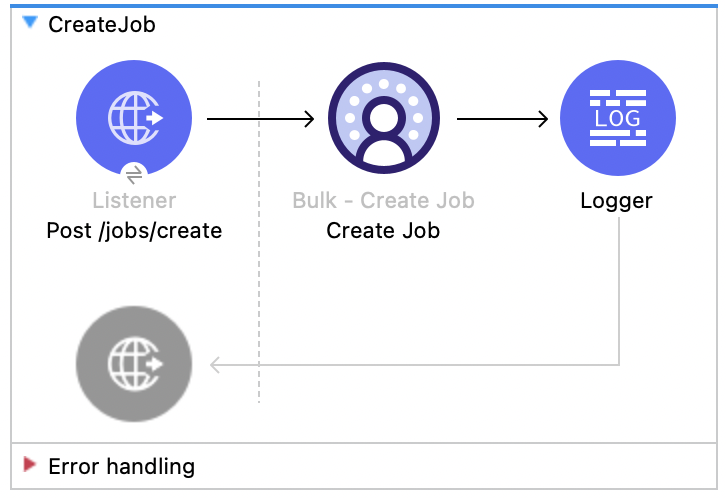
This Mule flow shows how to create a bulk job, which uploads data to a Salesforce Data 360 Ingestion
API object. Refer to the
[Salesforce API docs](https://developer.salesforce.com/docs/data/data-cloud-int/references/data-cloud-ingestionapi-ref/c360-a-api-create-a-job.html).

This example uses the following operations:

- **HTTP Listener**  
  Accepts data from HTTP POST requests with the source api and object name as URI parameters and
  record IDs as query parameters.

- **Logger**  
  Shows the HTTP request received from the **Listener**, then later shows the HTTP response from the
  **Create Job** operation.

- Create Job:

  - Authenticates based on your choice of OAuth Client Credentials, OAuth JWT, or OAuth Username and
    Password.

  - Receives the source api name, object name, and job operation. You can find the job operations in
    the [Reference](https://docs.mulesoft.com/salesforce-data-cloud-connector/latest/salesforce-data-cloud-connector-reference) page.

  - Calls the Salesforce API to create the job and returns the response.
![Salesforce Data Cloud Connector Create Job flow with Listener, Create Job, and Logger](/mulesoft/current/en-us/salesforce-data-cloud-connector/latest/_images/create-job-bulk.png)

### XML for This Example

Paste this code into the Studio XML editor to quickly load the flow for this example into your Mule
app:

```xml
<?xml version="1.0" encoding="UTF-8"?>

<mule xmlns:salesforce="http://www.mulesoft.org/schema/mule/salesforce" xmlns:ee="http://www.mulesoft.org/schema/mule/ee/core"
	xmlns:file="http://www.mulesoft.org/schema/mule/file"
	xmlns:sdc="http://www.mulesoft.org/schema/mule/sdc" xmlns:http="http://www.mulesoft.org/schema/mule/http" xmlns="http://www.mulesoft.org/schema/mule/core" xmlns:doc="http://www.mulesoft.org/schema/mule/documentation" xmlns:xsi="http://www.w3.org/2001/XMLSchema-instance" xsi:schemaLocation="http://www.mulesoft.org/schema/mule/core http://www.mulesoft.org/schema/mule/core/current/mule.xsd
http://www.mulesoft.org/schema/mule/http http://www.mulesoft.org/schema/mule/http/current/mule-http.xsd
http://www.mulesoft.org/schema/mule/sdc http://www.mulesoft.org/schema/mule/sdc/current/mule-sdc.xsd
http://www.mulesoft.org/schema/mule/file http://www.mulesoft.org/schema/mule/file/current/mule-file.xsd
http://www.mulesoft.org/schema/mule/ee/core http://www.mulesoft.org/schema/mule/ee/core/current/mule-ee.xsd
http://www.mulesoft.org/schema/mule/salesforce http://www.mulesoft.org/schema/mule/salesforce/current/mule-salesforce.xsd">
	<http:listener-config name="HTTP_Listener_config" doc:name="HTTP Listener config" >
		<http:listener-connection host="0.0.0.0" port="8081" />
	</http:listener-config>
	<sdc:sdc-config name="Salesforce_Data_Cloud_OAuth_JWT_config" doc:name="Salesforce Data Cloud config" >
		<sdc:oauth-jwt-connection consumerKey="${server.consumerKey}" keyStorePath="${server.keyStorePath}" storePassword="${server.keyStorePassword}" subject="${server.userName}" audienceUrl="${server.audienceUrl}" keyAlias="${server.certificateAlias}" />
	</sdc:sdc-config>
	<configuration-properties doc:name="Configuration properties" file="mule-app.properties" />
	<sdc:sdc-config name="Salesforce_Data_Cloud_OAuth_UsernamePassword_config" doc:name="Salesforce Data Cloud config" >
		<sdc:oauth-user-pass-connection clientId="${server.consumerKey}" clientSecret="${server.consumerSecret}" username="${server.userName}" password="${server.password}" audienceUrl="${server.audienceUrl}" />
	</sdc:sdc-config>
	<flow name="CreateJob" >
		<http:listener doc:name="Post /jobs/create" config-ref="HTTP_Listener_config" path="/jobs/create/{sourceApiName}/{objectName}/{operation}"/>
		<sdc:create-bulk-job doc:name="Create Job" config-ref="Salesforce_Data_Cloud_OAuth_UsernamePassword_config" sourceNameUriParam="#[attributes.uriParams.sourceApiName]" objectNameUriParam="#[attributes.uriParams.objectName]" operationUriParam="#[attributes.uriParams.operation]"/>
		<logger level="INFO" doc:name="Logger" />
	</flow>
</mule>
```

### Steps for Running This Example

1.  [Verify that your connector is configured.](https://developer.salesforce.com/docs/data/data-cloud-int/guide/c360-a-connect-an-ingestion-source.html)

2.  Save the project.

3.  Test the flow by sending a `POST` to
    `localhost:8081/jobs/create/{SOURCE_API_NAME}/{OBJECT_NAME}/{OPERATION}`.

## Upload Job Data - Bulk API

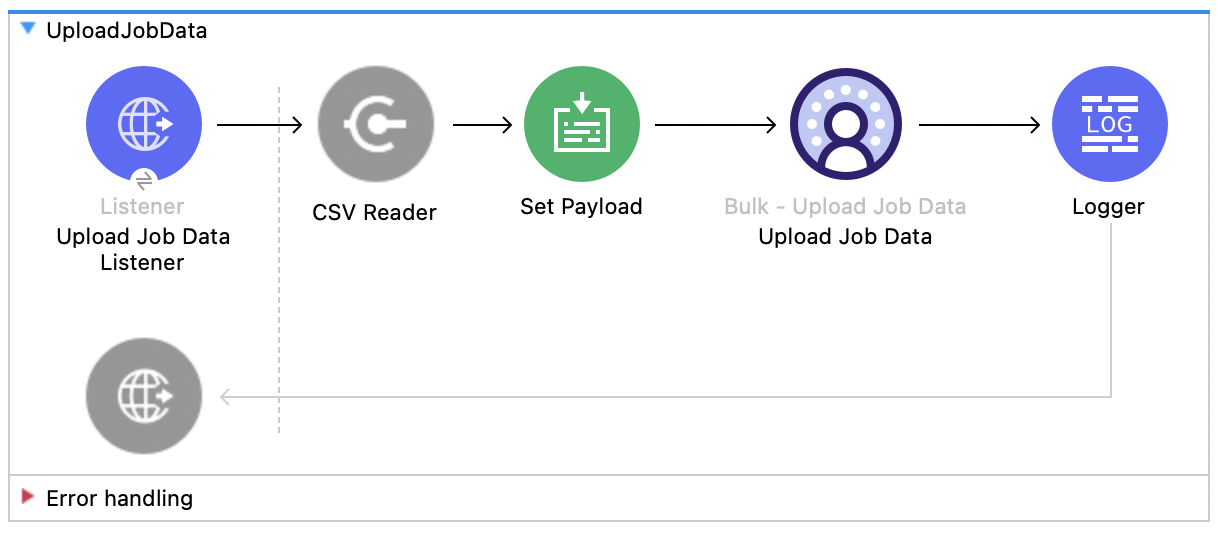
This Mule flow shows how to upload data for inserting to or deleting from a Salesforce Data 360
Ingestion API object specified by the job ID. Refer to the
[Salesforce API docs](https://developer.salesforce.com/docs/data/data-cloud-int/references/data-cloud-ingestionapi-ref/c360-a-api-upload-job-data.html).

This example uses the following operations:

- **HTTP Listener**  
  Accepts data from HTTP POST requests with the job ID in the URI.

- **CSV Reader**  
  Reads data from the CSV that is configured in the absolute file path.

- **Set Payload**  
  Updates the payload with the CSV data for **Upload Job Data**.

- **Upload Job Data**

  - Authenticates based on your choice of OAuth Client Credentials, OAuth JWT, or OAuth Username and
    Password.

  - Receives the job ID from the HTTP request and CSV data that is now in the payload.

  - Uploads data from the CSV to the Salesforce Data 360 Ingestion API object, and eventually
    returns an HTTP response.

- **Logger**  
  Shows the HTTP result from the **Upload Job Data** operation.
![Salesforce Data Cloud Connector Upload Job flow with Listener, Read, Set Payload, Upload Job Data, and Logger](/mulesoft/current/en-us/salesforce-data-cloud-connector/latest/_images/upload-job-data-bulk.png)

### XML for This Example

Paste this code into the Studio XML editor to quickly load the flow for this example into your Mule
app:

```xml
<?xml version="1.0" encoding="UTF-8"?>

<mule xmlns:salesforce="http://www.mulesoft.org/schema/mule/salesforce" xmlns:ee="http://www.mulesoft.org/schema/mule/ee/core"
	xmlns:file="http://www.mulesoft.org/schema/mule/file"
	xmlns:sdc="http://www.mulesoft.org/schema/mule/sdc" xmlns:http="http://www.mulesoft.org/schema/mule/http" xmlns="http://www.mulesoft.org/schema/mule/core" xmlns:doc="http://www.mulesoft.org/schema/mule/documentation" xmlns:xsi="http://www.w3.org/2001/XMLSchema-instance" xsi:schemaLocation="http://www.mulesoft.org/schema/mule/core http://www.mulesoft.org/schema/mule/core/current/mule.xsd
http://www.mulesoft.org/schema/mule/http http://www.mulesoft.org/schema/mule/http/current/mule-http.xsd
http://www.mulesoft.org/schema/mule/sdc http://www.mulesoft.org/schema/mule/sdc/current/mule-sdc.xsd
http://www.mulesoft.org/schema/mule/file http://www.mulesoft.org/schema/mule/file/current/mule-file.xsd
http://www.mulesoft.org/schema/mule/ee/core http://www.mulesoft.org/schema/mule/ee/core/current/mule-ee.xsd
http://www.mulesoft.org/schema/mule/salesforce http://www.mulesoft.org/schema/mule/salesforce/current/mule-salesforce.xsd">
	<http:listener-config name="HTTP_Listener_config" doc:name="HTTP Listener config" >
		<http:listener-connection host="0.0.0.0" port="8081" />
	</http:listener-config>
	<sdc:sdc-config name="Salesforce_Data_Cloud_OAuth_JWT_config" doc:name="Salesforce Data Cloud config" >
		<sdc:oauth-jwt-connection consumerKey="${server.consumerKey}" keyStorePath="${server.keyStorePath}" storePassword="${server.keyStorePassword}" subject="${server.userName}" audienceUrl="${server.audienceUrl}" keyAlias="${server.certificateAlias}" />
	</sdc:sdc-config>
	<configuration-properties doc:name="Configuration properties" file="mule-app.properties" />
	<sdc:sdc-config name="Salesforce_Data_Cloud_OAuth_UsernamePassword_config" doc:name="Salesforce Data Cloud config" >
		<sdc:oauth-user-pass-connection clientId="${server.consumerKey}" clientSecret="${server.consumerSecret}" username="${server.userName}" password="${server.password}" audienceUrl="${server.audienceUrl}" />
	</sdc:sdc-config>
	<flow name="UploadJobData" >
        <http:listener doc:name="Upload Job Data Listener" config-ref="HTTP_Listener_config" path="/jobs/upload/{jobId}"/>
        <file:read doc:name="CSV Reader" path="" target="content"/>
        <set-payload value="#[vars.content]" doc:name="Set Payload" />
        <sdc:upload-data-bulk-job doc:name="Upload Job Data" config-ref="Salesforce_Data_Cloud_OAuth_JWT_config" idUriParam="#[attributes.uriParams.jobId]"/>
        <logger level="INFO" doc:name="Logger" message="#[message]"/>
    </flow>
</mule>
```

### Steps for Running This Example

1.  [Verify that your connector is configured.](https://developer.salesforce.com/docs/data/data-cloud-int/guide/c360-a-connect-an-ingestion-source.html)

2.  Enter a valid absolute file path to a CSV in the CSV Reader’s **File Path** attribute.

3.  Save the project.

4.  [Create a job](#create-job-bulk-api) and copy its job ID.

5.  Test the flow by sending a `POST` to `localhost:8081/jobs/upload/{JOB_ID}` using the job ID you
    copied earlier.

## Close Job - Bulk API

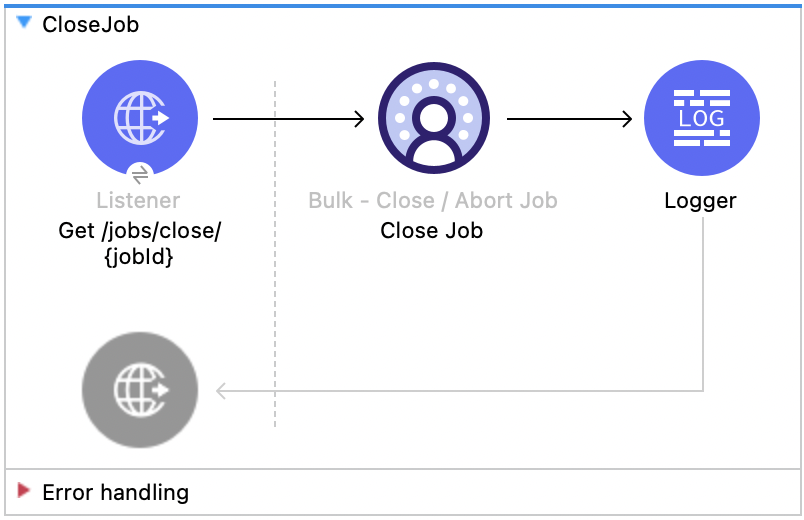
This Mule flow shows how to update the status of the specified job ID so that the job is closed.
After a job is closed, it is queued for processing
[Salesforce API docs](https://developer.salesforce.com/docs/data/data-cloud-int/references/data-cloud-ingestionapi-ref/c360-a-api-close-or-abort-a-job.html).

This example uses the following operations:

- **HTTP Listener**  
  Accepts data from HTTP GET requests with the job ID as a URI parameter.

- **Logger**  
  Shows the HTTP response from the **Close Job** operation.

- **Close Job**

  - Authenticates based on your choice of OAuth Client Credentials, OAuth JWT, or OAuth Username and
    Password.

  - Receives the specified job ID.

  - Calls the Salesforce API with the `UploadComplete` state, which completes that job and
    subsequently receives an HTTP response.
![Salesforce Data Cloud Connector Close Job flow with Listener, Close Job, and Logger](/mulesoft/current/en-us/salesforce-data-cloud-connector/latest/_images/close-job-bulk.png)

### XML for This Example

Paste this code into the Studio XML editor to quickly load the flow for this example into your Mule
app:

```xml
<?xml version="1.0" encoding="UTF-8"?>

<mule xmlns:salesforce="http://www.mulesoft.org/schema/mule/salesforce" xmlns:ee="http://www.mulesoft.org/schema/mule/ee/core"
	xmlns:file="http://www.mulesoft.org/schema/mule/file"
	xmlns:sdc="http://www.mulesoft.org/schema/mule/sdc" xmlns:http="http://www.mulesoft.org/schema/mule/http" xmlns="http://www.mulesoft.org/schema/mule/core" xmlns:doc="http://www.mulesoft.org/schema/mule/documentation" xmlns:xsi="http://www.w3.org/2001/XMLSchema-instance" xsi:schemaLocation="http://www.mulesoft.org/schema/mule/core http://www.mulesoft.org/schema/mule/core/current/mule.xsd
http://www.mulesoft.org/schema/mule/http http://www.mulesoft.org/schema/mule/http/current/mule-http.xsd
http://www.mulesoft.org/schema/mule/sdc http://www.mulesoft.org/schema/mule/sdc/current/mule-sdc.xsd
http://www.mulesoft.org/schema/mule/file http://www.mulesoft.org/schema/mule/file/current/mule-file.xsd
http://www.mulesoft.org/schema/mule/ee/core http://www.mulesoft.org/schema/mule/ee/core/current/mule-ee.xsd
http://www.mulesoft.org/schema/mule/salesforce http://www.mulesoft.org/schema/mule/salesforce/current/mule-salesforce.xsd">
	<http:listener-config name="HTTP_Listener_config" doc:name="HTTP Listener config" >
		<http:listener-connection host="0.0.0.0" port="8081" />
	</http:listener-config>
	<sdc:sdc-config name="Salesforce_Data_Cloud_OAuth_JWT_config" doc:name="Salesforce Data Cloud config" >
		<sdc:oauth-jwt-connection consumerKey="${server.consumerKey}" keyStorePath="${server.keyStorePath}" storePassword="${server.keyStorePassword}" subject="${server.userName}" audienceUrl="${server.audienceUrl}" keyAlias="${server.certificateAlias}" />
	</sdc:sdc-config>
	<configuration-properties doc:name="Configuration properties" file="mule-app.properties" />
	<sdc:sdc-config name="Salesforce_Data_Cloud_OAuth_UsernamePassword_config" doc:name="Salesforce Data Cloud config" >
		<sdc:oauth-user-pass-connection clientId="${server.consumerKey}" clientSecret="${server.consumerSecret}" username="${server.userName}" password="${server.password}" audienceUrl="${server.audienceUrl}" />
	</sdc:sdc-config>
	<flow name="CloseJob" >
		<http:listener doc:name="Get /jobs/close/{jobId}" config-ref="HTTP_Listener_config" path="/jobs/close/{jobId}"/>
		<sdc:update-bulk-operation-job doc:name="Close Job" config-ref="Salesforce_Data_Cloud_OAuth_JWT_config" idUriParam="#[attributes.uriParams.jobId]" state="UploadComplete"/>
		<logger level="INFO" doc:name="Logger" />
	</flow>
</mule>
```

### Steps for Running This Example

1.  [Verify that your connector is configured.](https://developer.salesforce.com/docs/data/data-cloud-int/guide/c360-a-connect-an-ingestion-source.html)

2.  Save the project.

3.  Create a job and copy the resulting job ID.

4.  Test the flow by sending a `GET` to `localhost:8081/jobs/close/{JOB_ID}` with the job ID you
    copied earlier.

## Abort Job - Bulk API

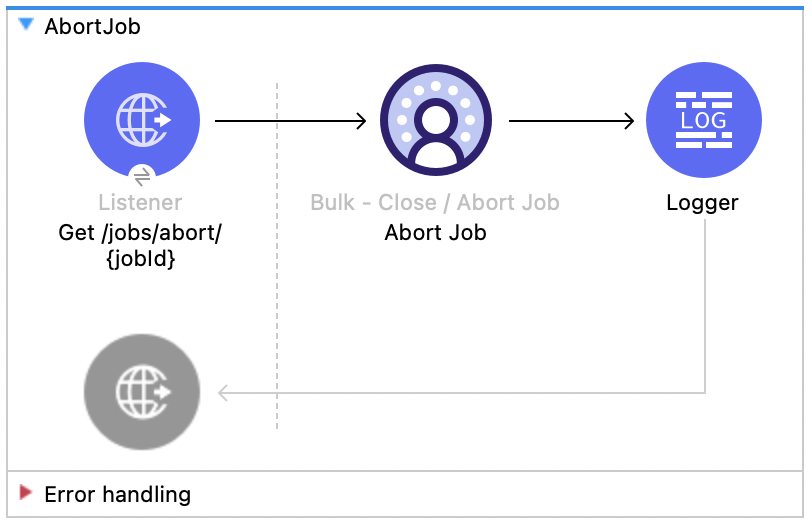
This Mule flow shows how to update the status of the specified job ID so that the job is aborted.
After a job is aborted, it will not be queued for processing
[Salesforce API docs](https://developer.salesforce.com/docs/data/data-cloud-int/references/data-cloud-ingestionapi-ref/c360-a-api-close-or-abort-a-job.html).

This example uses the following operations:

- **HTTP Listener**  
  Accepts data from HTTP GET requests with the job ID as a URI parameter.

- **Logger**  
  Shows the HTTP response from the **Abort Job** operation.

- **Abort Job**:

  - Authenticates based on your choice of OAuth Client Credentials, OAuth JWT, or OAuth Username and
    Password.

  - Receives the job ID that was used as the URI parameter.

  - Calls the Salesforce API with the aborted state, aborts that job, and then receives an HTTP
    response.
![Salesforce Data Cloud Connector Abort Job flow with Listener, Abort Job, and Logger](/mulesoft/current/en-us/salesforce-data-cloud-connector/latest/_images/abort-job-bulk.png)

### XML for This Example

Paste this code into the Studio XML editor to quickly load the flow for this example into your Mule
app:

```xml
<?xml version="1.0" encoding="UTF-8"?>

<mule xmlns:salesforce="http://www.mulesoft.org/schema/mule/salesforce" xmlns:ee="http://www.mulesoft.org/schema/mule/ee/core"
	xmlns:file="http://www.mulesoft.org/schema/mule/file"
	xmlns:sdc="http://www.mulesoft.org/schema/mule/sdc" xmlns:http="http://www.mulesoft.org/schema/mule/http" xmlns="http://www.mulesoft.org/schema/mule/core" xmlns:doc="http://www.mulesoft.org/schema/mule/documentation" xmlns:xsi="http://www.w3.org/2001/XMLSchema-instance" xsi:schemaLocation="http://www.mulesoft.org/schema/mule/core http://www.mulesoft.org/schema/mule/core/current/mule.xsd
http://www.mulesoft.org/schema/mule/http http://www.mulesoft.org/schema/mule/http/current/mule-http.xsd
http://www.mulesoft.org/schema/mule/sdc http://www.mulesoft.org/schema/mule/sdc/current/mule-sdc.xsd
http://www.mulesoft.org/schema/mule/file http://www.mulesoft.org/schema/mule/file/current/mule-file.xsd
http://www.mulesoft.org/schema/mule/ee/core http://www.mulesoft.org/schema/mule/ee/core/current/mule-ee.xsd
http://www.mulesoft.org/schema/mule/salesforce http://www.mulesoft.org/schema/mule/salesforce/current/mule-salesforce.xsd">
	<http:listener-config name="HTTP_Listener_config" doc:name="HTTP Listener config" >
		<http:listener-connection host="0.0.0.0" port="8081" />
	</http:listener-config>
	<sdc:sdc-config name="Salesforce_Data_Cloud_OAuth_JWT_config" doc:name="Salesforce Data Cloud config" >
		<sdc:oauth-jwt-connection consumerKey="${server.consumerKey}" keyStorePath="${server.keyStorePath}" storePassword="${server.keyStorePassword}" subject="${server.userName}" audienceUrl="${server.audienceUrl}" keyAlias="${server.certificateAlias}" />
	</sdc:sdc-config>
	<configuration-properties doc:name="Configuration properties" file="mule-app.properties" />
	<sdc:sdc-config name="Salesforce_Data_Cloud_OAuth_UsernamePassword_config" doc:name="Salesforce Data Cloud config" >
		<sdc:oauth-user-pass-connection clientId="${server.consumerKey}" clientSecret="${server.consumerSecret}" username="${server.userName}" password="${server.password}" audienceUrl="${server.audienceUrl}" />
	</sdc:sdc-config>
	<flow name="AbortJob" >
		<http:listener doc:name="Get /jobs/abort/{jobId}"  config-ref="HTTP_Listener_config" path="/jobs/abort/{jobId}"/>
		<sdc:update-bulk-operation-job doc:name="Abort Job" config-ref="Salesforce_Data_Cloud_OAuth_JWT_config" idUriParam="#[attributes.uriParams.jobId]" state="Aborted"/>
		<logger level="INFO" doc:name="Logger" />
	</flow>
</mule>
```

### Steps for Running This Example

1.  [Verify that your connector is configured.](https://developer.salesforce.com/docs/data/data-cloud-int/guide/c360-a-connect-an-ingestion-source.html)

2.  Save the project.

3.  [Create a job](#create-job-bulk-api) and copy the resulting job ID.

4.  Test the flow by sending a `GET` to `localhost:8081/jobs/abort/{JOB_ID}` with the job ID that
    you previously copied.

## Get Job - Bulk API

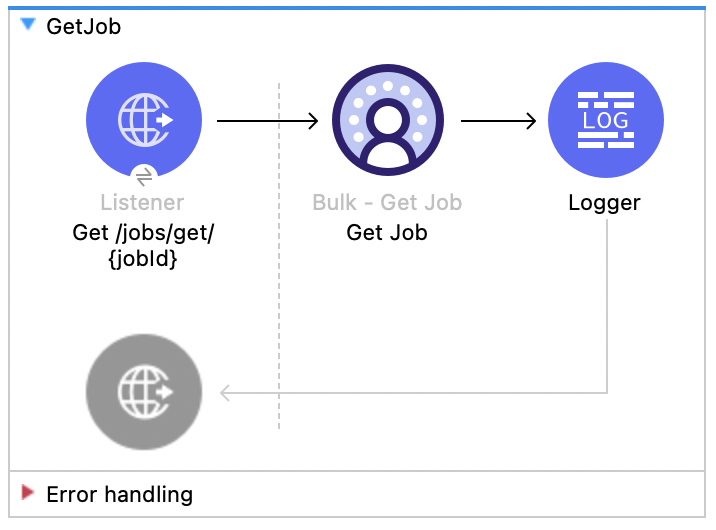
This Mule flow shows how to retrieve the current status of the specified job ID. Refer to the
[Salesforce API docs](https://developer.salesforce.com/docs/data/data-cloud-int/references/data-cloud-ingestionapi-ref/c360-a-api-get-job-info.html).

This example uses the following operations:

- **HTTP Listener**  
  Accepts data from HTTP GET requests with the job ID included in the URI parameters.

- **Logger**  
  Shows the HTTP response from the **Get Job** operation.

- **Get Job**

  - Authenticates based on your choice of OAuth Client Credentials, OAuth JWT, or OAuth Username and
    Password.

  - Receives the job ID from the URI parameters.

  - Calls the Salesforce API and returns the job status.
![Salesforce Data Cloud Connector Get Job flow with Listener, Get Job, and Logger](/mulesoft/current/en-us/salesforce-data-cloud-connector/latest/_images/get-job-bulk.png)

### XML for This Example

Paste this code into the Studio XML editor to quickly load the flow for this example into your Mule
app:

```xml
<?xml version="1.0" encoding="UTF-8"?>

<mule xmlns:salesforce="http://www.mulesoft.org/schema/mule/salesforce" xmlns:ee="http://www.mulesoft.org/schema/mule/ee/core"
	xmlns:file="http://www.mulesoft.org/schema/mule/file"
	xmlns:sdc="http://www.mulesoft.org/schema/mule/sdc" xmlns:http="http://www.mulesoft.org/schema/mule/http" xmlns="http://www.mulesoft.org/schema/mule/core" xmlns:doc="http://www.mulesoft.org/schema/mule/documentation" xmlns:xsi="http://www.w3.org/2001/XMLSchema-instance" xsi:schemaLocation="http://www.mulesoft.org/schema/mule/core http://www.mulesoft.org/schema/mule/core/current/mule.xsd
http://www.mulesoft.org/schema/mule/http http://www.mulesoft.org/schema/mule/http/current/mule-http.xsd
http://www.mulesoft.org/schema/mule/sdc http://www.mulesoft.org/schema/mule/sdc/current/mule-sdc.xsd
http://www.mulesoft.org/schema/mule/file http://www.mulesoft.org/schema/mule/file/current/mule-file.xsd
http://www.mulesoft.org/schema/mule/ee/core http://www.mulesoft.org/schema/mule/ee/core/current/mule-ee.xsd
http://www.mulesoft.org/schema/mule/salesforce http://www.mulesoft.org/schema/mule/salesforce/current/mule-salesforce.xsd">
	<http:listener-config name="HTTP_Listener_config" doc:name="HTTP Listener config" >
		<http:listener-connection host="0.0.0.0" port="8081" />
	</http:listener-config>
	<sdc:sdc-config name="Salesforce_Data_Cloud_OAuth_JWT_config" doc:name="Salesforce Data Cloud config" >
		<sdc:oauth-jwt-connection consumerKey="${server.consumerKey}" keyStorePath="${server.keyStorePath}" storePassword="${server.keyStorePassword}" subject="${server.userName}" audienceUrl="${server.audienceUrl}" keyAlias="${server.certificateAlias}" />
	</sdc:sdc-config>
	<configuration-properties doc:name="Configuration properties" file="mule-app.properties" />
	<sdc:sdc-config name="Salesforce_Data_Cloud_OAuth_UsernamePassword_config" doc:name="Salesforce Data Cloud config" >
		<sdc:oauth-user-pass-connection clientId="${server.consumerKey}" clientSecret="${server.consumerSecret}" username="${server.userName}" password="${server.password}" audienceUrl="${server.audienceUrl}" />
	</sdc:sdc-config>
	<flow name="GetJob" >
		<http:listener doc:name="Get /jobs/get/{jobId}" config-ref="HTTP_Listener_config" path="/jobs/get/{jobId}"/>
		<sdc:get-bulk-job doc:name="Get Job" config-ref="Salesforce_Data_Cloud_OAuth_JWT_config" idUriParam="#[attributes.uriParams.jobId]"/>
		<logger level="INFO" doc:name="Logger" />
	</flow>
</mule>
```

### Steps for Running This Example

1.  [Verify that your connector is configured.](https://developer.salesforce.com/docs/data/data-cloud-int/guide/c360-a-connect-an-ingestion-source.html)

2.  Save the project.

3.  [Create a job](#create-job-bulk-api) and copy the resulting job ID.

4.  Test the flow by sending a `GET` to `localhost:8081/jobs/get/{JOB_ID}`, using the job ID you
    copied earlier.

## List Jobs - Bulk API

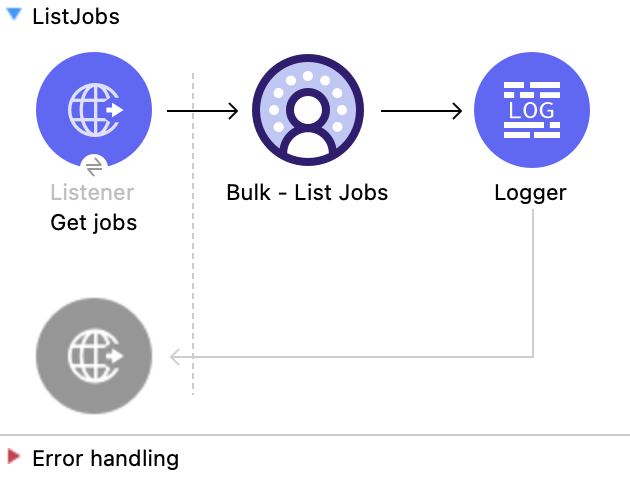
This Mule flow shows how to retrieve all bulk jobs. Refer to the
[Salesforce API docs](https://developer.salesforce.com/docs/data/data-cloud-int/references/data-cloud-ingestionapi-ref/c360-a-api-get-all-jobs.html).

This example uses the following operations:

- **HTTP Listener**  
  Accepts data from HTTP GET requests with all jobs included in the URI parameters.

- **Logger**  
  Shows the HTTP response from the **List Jobs** operation.

- **List Jobs**

  - Authenticates based on your choice of OAuth Client Credentials, OAuth JWT, or OAuth Username and
    Password.

  - Receives all jobs from the URI parameters.

  - Calls the Salesforce API and returns the job status.
![Salesforce Data Cloud Connector List Jobs flow with Listener, List Jobs, and Logger](/mulesoft/current/en-us/salesforce-data-cloud-connector/latest/_images/list-jobs-bulk.png)

### XML for This Example

Paste this code into the Studio XML editor to quickly load the flow for this example into your Mule
app:

```xml
<?xml version="1.0" encoding="UTF-8"?>

<mule xmlns:salesforce="http://www.mulesoft.org/schema/mule/salesforce" xmlns:ee="http://www.mulesoft.org/schema/mule/ee/core"
	xmlns:file="http://www.mulesoft.org/schema/mule/file"
	xmlns:sdc="http://www.mulesoft.org/schema/mule/sdc" xmlns:http="http://www.mulesoft.org/schema/mule/http" xmlns="http://www.mulesoft.org/schema/mule/core" xmlns:doc="http://www.mulesoft.org/schema/mule/documentation" xmlns:xsi="http://www.w3.org/2001/XMLSchema-instance" xsi:schemaLocation="http://www.mulesoft.org/schema/mule/core http://www.mulesoft.org/schema/mule/core/current/mule.xsd
http://www.mulesoft.org/schema/mule/http http://www.mulesoft.org/schema/mule/http/current/mule-http.xsd
http://www.mulesoft.org/schema/mule/sdc http://www.mulesoft.org/schema/mule/sdc/current/mule-sdc.xsd
http://www.mulesoft.org/schema/mule/file http://www.mulesoft.org/schema/mule/file/current/mule-file.xsd
http://www.mulesoft.org/schema/mule/ee/core http://www.mulesoft.org/schema/mule/ee/core/current/mule-ee.xsd
http://www.mulesoft.org/schema/mule/salesforce http://www.mulesoft.org/schema/mule/salesforce/current/mule-salesforce.xsd">
	<http:listener-config name="HTTP_Listener_config" doc:name="HTTP Listener config" >
		<http:listener-connection host="0.0.0.0" port="8081" />
	</http:listener-config>
	<sdc:sdc-config name="Salesforce_Data_Cloud_OAuth_JWT_config" doc:name="Salesforce Data Cloud config" >
		<sdc:oauth-jwt-connection consumerKey="${server.consumerKey}" keyStorePath="${server.keyStorePath}" storePassword="${server.keyStorePassword}" subject="${server.userName}" audienceUrl="${server.audienceUrl}" keyAlias="${server.certificateAlias}" />
	</sdc:sdc-config>
	<configuration-properties doc:name="Configuration properties" file="mule-app.properties" />
	<sdc:sdc-config name="Salesforce_Data_Cloud_OAuth_UsernamePassword_config" doc:name="Salesforce Data Cloud config" >
		<sdc:oauth-user-pass-connection clientId="${server.consumerKey}" clientSecret="${server.consumerSecret}" username="${server.userName}" password="${server.password}" audienceUrl="${server.audienceUrl}" />
	</sdc:sdc-config>
	<sdc:sdc-config name="Salesforce_Data_Cloud_config" doc:name="Salesforce Data Cloud config" doc:id="c458e8ae-2484-463b-8ec8-b65f385f1816" >
		<sdc:oauth-jwt-connection />
	</sdc:sdc-config>
	<flow name="GetJob" >
		<http:listener doc:name="Get jobs" config-ref="HTTP_Listener_config" path="/jobs/get/"/>
		<sdc:get-bulk-jobs doc:name="Bulk - List Jobs" doc:id="8138e10a-91a7-40f7-9060-0ab5c1c58ad2" config-ref="Salesforce_Data_Cloud_config"/>
		<logger level="INFO" doc:name="Logger" />
	</flow>
</mule>
```

### Steps for Running This Example

1.  [Verify that your connector is configured.](https://developer.salesforce.com/docs/data/data-cloud-int/guide/c360-a-connect-an-ingestion-source.html)

2.  Save the project.

3.  [Create a job](#create-job-bulk-api).

4.  Test the flow by sending a `GET` to `localhost:8081/jobs/get/`.

## Delete Job - Bulk API

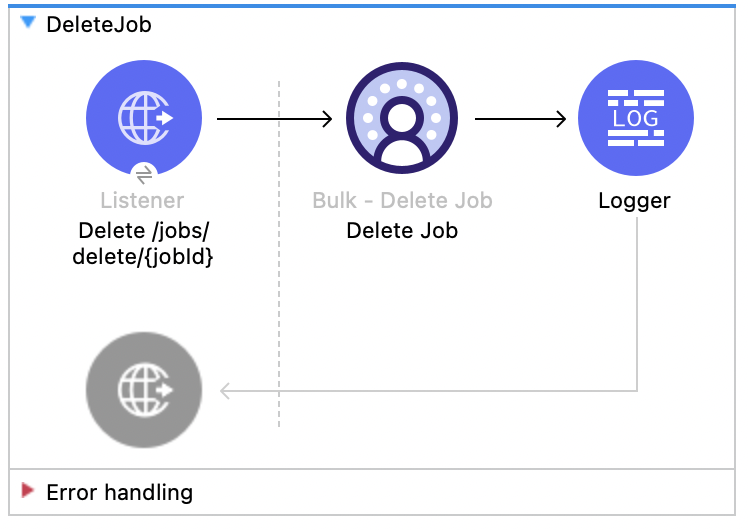
This Mule flow shows how to delete or close the specified job ID, which deletes job data and
metadata that is stored by Salesforce. In order to delete a job, a job must have a state of
`UploadComplete`, `JobComplete`, `Aborted`, or `Failed`. Refer to the
[Salesforce API docs](https://developer.salesforce.com/docs/data/data-cloud-int/references/data-cloud-ingestionapi-ref/c360-a-api-delete-a-job.html).

This example uses the following operations:

- **HTTP Listener**  
  Accepts data from HTTP DELETE requests with the job ID included in the URI parameters.

- **Logger**  
  Shows the HTTP response from the **Delete Job** operation.

- **Delete Job**

  - Authenticates based on your choice of OAuth Client Credentials, OAuth JWT, or OAuth Username and
    Password.

  - Receives the job ID used in the URI parameters.

  - Calls the Salesforce API and deletes the job.
![Salesforce Data Cloud Connector Delete Job flow with Listener, Delete Job, and Logger](/mulesoft/current/en-us/salesforce-data-cloud-connector/latest/_images/delete-job-bulk.png)

### XML for This Example

Paste this code into the Studio XML editor to quickly load the flow for this example into your Mule
app:

```xml
<?xml version="1.0" encoding="UTF-8"?>

<mule xmlns:salesforce="http://www.mulesoft.org/schema/mule/salesforce" xmlns:ee="http://www.mulesoft.org/schema/mule/ee/core"
	xmlns:file="http://www.mulesoft.org/schema/mule/file"
	xmlns:sdc="http://www.mulesoft.org/schema/mule/sdc" xmlns:http="http://www.mulesoft.org/schema/mule/http" xmlns="http://www.mulesoft.org/schema/mule/core" xmlns:doc="http://www.mulesoft.org/schema/mule/documentation" xmlns:xsi="http://www.w3.org/2001/XMLSchema-instance" xsi:schemaLocation="http://www.mulesoft.org/schema/mule/core http://www.mulesoft.org/schema/mule/core/current/mule.xsd
http://www.mulesoft.org/schema/mule/http http://www.mulesoft.org/schema/mule/http/current/mule-http.xsd
http://www.mulesoft.org/schema/mule/sdc http://www.mulesoft.org/schema/mule/sdc/current/mule-sdc.xsd
http://www.mulesoft.org/schema/mule/file http://www.mulesoft.org/schema/mule/file/current/mule-file.xsd
http://www.mulesoft.org/schema/mule/ee/core http://www.mulesoft.org/schema/mule/ee/core/current/mule-ee.xsd
http://www.mulesoft.org/schema/mule/salesforce http://www.mulesoft.org/schema/mule/salesforce/current/mule-salesforce.xsd">
	<http:listener-config name="HTTP_Listener_config" doc:name="HTTP Listener config" >
		<http:listener-connection host="0.0.0.0" port="8081" />
	</http:listener-config>
	<sdc:sdc-config name="Salesforce_Data_Cloud_OAuth_JWT_config" doc:name="Salesforce Data Cloud config" >
		<sdc:oauth-jwt-connection consumerKey="${server.consumerKey}" keyStorePath="${server.keyStorePath}" storePassword="${server.keyStorePassword}" subject="${server.userName}" audienceUrl="${server.audienceUrl}" keyAlias="${server.certificateAlias}" />
	</sdc:sdc-config>
	<configuration-properties doc:name="Configuration properties" file="mule-app.properties" />
	<sdc:sdc-config name="Salesforce_Data_Cloud_OAuth_UsernamePassword_config" doc:name="Salesforce Data Cloud config" >
		<sdc:oauth-user-pass-connection clientId="${server.consumerKey}" clientSecret="${server.consumerSecret}" username="${server.userName}" password="${server.password}" audienceUrl="${server.audienceUrl}" />
	</sdc:sdc-config>
	<flow name="DeleteJob" >
		<http:listener doc:name="Delete /jobs/delete/{jobId}" config-ref="HTTP_Listener_config" path="/jobs/delete/{jobId}"/>
		<sdc:delete-bulk-job doc:name="Delete Job" config-ref="Salesforce_Data_Cloud_OAuth_JWT_config" idUriParam="#[attributes.uriParams.jobId]"/>
		<logger level="INFO" doc:name="Logger" />
	</flow>
</mule>
```

### Steps for Running This Example

1.  [Verify that your connector is configured.](https://developer.salesforce.com/docs/data/data-cloud-int/guide/c360-a-connect-an-ingestion-source.html)

2.  Save the project.

3.  [Create a job](#create-job-bulk-api) and copy the resulting job ID.

4.  Use the job you copied to close the job (see [Close Job - Bulk API](#close-job-bulk-api) flow).

5.  Test the flow by sending a `DELETE` to `localhost:8081/jobs/delete/{JOB_ID}`, using the job ID
    that you copied earlier.

## Query API

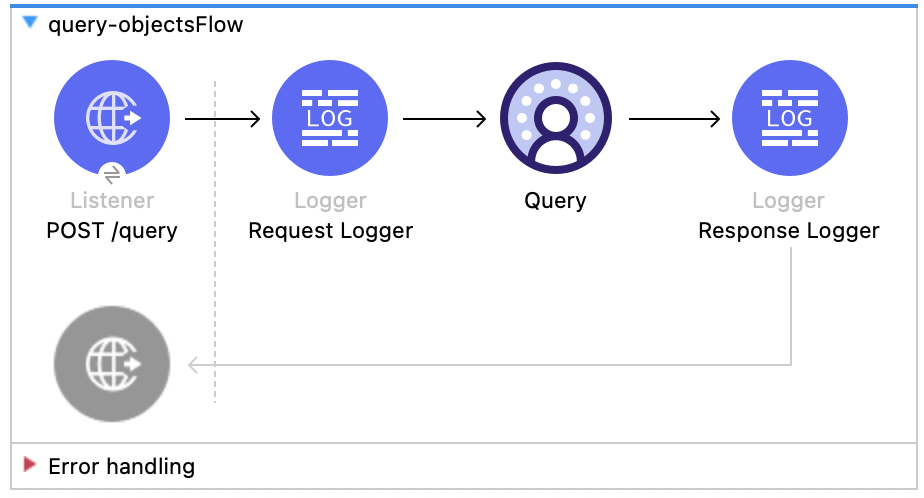
This Mule flow shows how to query data from Data 360 using a custom SOQL query. Refer to the
[Salesforce SOQL docs](https://developer.salesforce.com/docs/atlas.en-us.soql_sosl.meta/soql_sosl/sforce_api_calls_soql.htm).

This example uses the following operations:

- **HTTP Listener**  
  Accepts data from HTTP POST requests with the query in the payload.

- **Logger**  
  Shows the HTTP request received from the **Listener**, then later shows the HTTP response from the
  **Query** operation.

- **Query**

  - Authenticates based on your choice of OAuth Client Credentials, OAuth JWT, or OAuth Username and
    Password.

  - Receives the earlier SOQL query.

  - Calls the Salesforce API with the query and receives the result.
![Salesforce Data Cloud Connector Query flow with Listener, Logger, Query, and Response Logger](/mulesoft/current/en-us/salesforce-data-cloud-connector/latest/_images/query-flow.png)

### XML for This Example

Paste this code into the Studio XML editor to quickly load the flow for this example into your Mule
app:

```xml
<?xml version="1.0" encoding="UTF-8"?>

<mule xmlns:sdc="http://www.mulesoft.org/schema/mule/sdc" xmlns:http="http://www.mulesoft.org/schema/mule/http"
	  xmlns="http://www.mulesoft.org/schema/mule/core"
	  xmlns:doc="http://www.mulesoft.org/schema/mule/documentation" xmlns:xsi="http://www.w3.org/2001/XMLSchema-instance" xsi:schemaLocation="http://www.mulesoft.org/schema/mule/core http://www.mulesoft.org/schema/mule/core/current/mule.xsd
http://www.mulesoft.org/schema/mule/http http://www.mulesoft.org/schema/mule/http/current/mule-http.xsd
http://www.mulesoft.org/schema/mule/sdc http://www.mulesoft.org/schema/mule/sdc/current/mule-sdc.xsd">
	<http:listener-config name="HTTP_Listener_config" doc:name="HTTP Listener config" >
		<http:listener-connection host="0.0.0.0" port="8081" />
	</http:listener-config>
    <configuration-properties doc:name="Configuration properties" file="mule-app.properties" />
    <sdc:sdc-config name="Salesforce_Data_Cloud_OAuth_JWT_config" doc:name="Salesforce Data Cloud config" >
		<sdc:oauth-jwt-connection consumerKey="${server.consumerKey}" keyStorePath="${server.keyStorePath}" storePassword="${server.keyStorePassword}" subject="${server.userName}" keyAlias="${server.certificateAlias}" audienceUrl="${server.audienceUrl}"/>
	</sdc:sdc-config>
	<sdc:sdc-config name="Salesforce_Data_Cloud_OAuth_UsernamePassword_config" doc:name="Salesforce Data Cloud config" >
		<sdc:oauth-user-pass-connection audienceUrl="${server.audienceUrl}" username="${server.userName}" password="${server.password}" clientId="${server.consumerKey}" clientSecret="${server.consumerSecret}"/>
	</sdc:sdc-config>

	<flow name="query-objectsFlow" >
		<http:listener doc:name="POST /query" config-ref="HTTP_Listener_config" path="/query" allowedMethods="POST"/>
		<logger level="INFO" doc:name="Request Logger" message="#[payload]"/>
		<sdc:query doc:name="Query" config-ref="Salesforce_Data_Cloud_OAuth_JWT_config"/>
		<logger level="INFO" doc:name="Response Logger" message="#[payload]"/>
	</flow>
</mule>
```

### Steps for Running This Example

1.  [Verify that your connector is configured.](https://developer.salesforce.com/docs/data/data-cloud-int/guide/c360-a-connect-an-ingestion-source.html)

2.  Save the project.

3.  Test the flow by sending a `POST` to `localhost:8081/query` with SOQL query in the request body,
    for example:

    ```json
    {
      "sql": "SELECT ID FROM ACCOUNT LIMIT 1"
    }
    ```

## Query v2

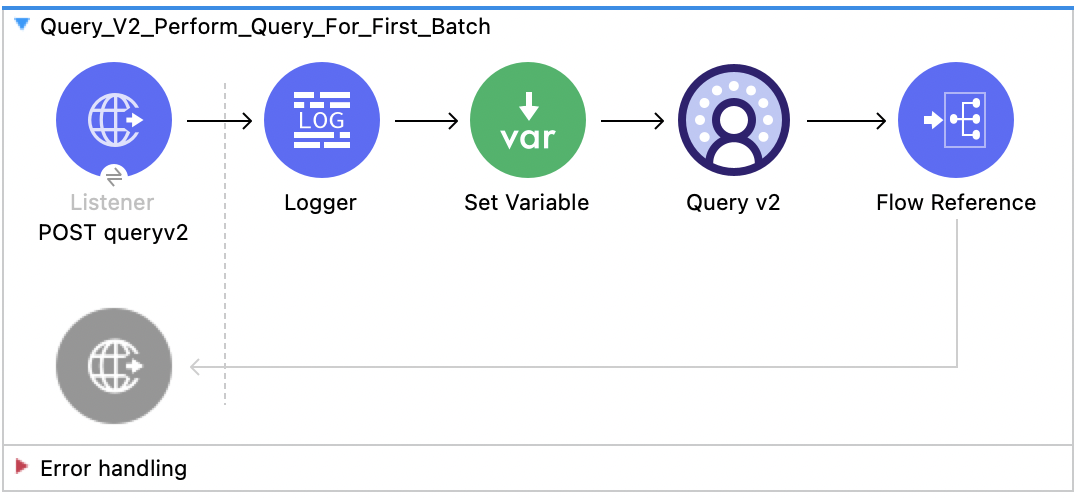
This Mule flow shows how to send an initial query. Use this flow before
[Query v2 - Get Next Batch](#query-v2-get-next-batch). For more information about the Query v2 API,
refer to the
[Data 360 Reference Guide](https://developer.salesforce.com/docs/data/data-cloud-query-guide/references/data-cloud-query-api-reference/c360a-api-query-v2.html).

This example uses the following operations:

- **HTTP Listener**  
  Accepts data from HTTP POST requests with the query in the payload.

- **Logger**  
  Shows the HTTP request received from the **Listener**.

- **Set Variable**  
  Sets a variable called `sampleResults` to get a maximum sample of 10 results. Your paging calls
  are unaffected and this is to limit returned payloads to avoid having 40 MB large payloads on your
  testing calls.

- **Query v2**

  Makes a query against the Data 360 data lake.

- **Flow Reference**

  Makes a reference to the [Query v2 - Get Next Batch](#query-v2-get-next-batch) flow.
![Salesforce Data Cloud Connector Query v2 flow with Listener, Logger, Set Variable, Query v2, and Flow Reference](/mulesoft/current/en-us/salesforce-data-cloud-connector/latest/_images/query-v2-flow.png)

### XML for This Example

Paste this code into the Studio XML editor to quickly load the flow for this example into your Mule
app:

```xml
<?xml version="1.0" encoding="UTF-8"?>

<mule xmlns:file="http://www.mulesoft.org/schema/mule/file"
      xmlns:sdc="http://www.mulesoft.org/schema/mule/sdc"
      xmlns:http="http://www.mulesoft.org/schema/mule/http"
      xmlns="http://www.mulesoft.org/schema/mule/core"
      xmlns:doc="http://www.mulesoft.org/schema/mule/documentation"
      xmlns:xsi="http://www.w3.org/2001/XMLSchema-instance"
      xsi:schemaLocation="
http://www.mulesoft.org/schema/mule/file http://www.mulesoft.org/schema/mule/file/current/mule-file.xsd
      http://www.mulesoft.org/schema/mule/core http://www.mulesoft.org/schema/mule/core/current/mule.xsd
      http://www.mulesoft.org/schema/mule/http http://www.mulesoft.org/schema/mule/http/current/mule-http.xsd
      http://www.mulesoft.org/schema/mule/sdc http://www.mulesoft.org/schema/mule/sdc/current/mule-sdc.xsd">

    <sdc:sdc-config name="Salesforce_Data_Cloud_config" doc:name="Salesforce Data Cloud config" doc:id="8b8cb9b6-54eb-453d-92a0-33199d6c51d9" >
		<sdc:oauth-jwt-connection />
	</sdc:sdc-config>
	<http:listener-config name="HTTP_Listener_config" doc:name="HTTP Listener config" doc:id="3797f40d-21cd-43a6-9ed4-c52fa6353a51" >
		<http:listener-connection host="0.0.0.0" port="8081" />
	</http:listener-config>
	<flow name="Query_V2_Perform_Query_For_First_Batch" doc:id="f6661148-d0ed-4cf0-867e-4c5966562ff1" >
        <http:listener doc:name="POST queryv2" doc:id="50fccf50-6807-49e4-89ba-561e6ccf7ab1" config-ref="HTTP_Listener_config" allowedMethods="POST" path="queryv2" outputMimeType="application/json"/>
        <logger level="INFO" doc:name="Logger" doc:id="b7e78a46-731a-46c8-88a7-e025af92af66" message='#["Received query: " ++ payload.sql as String]'/>
        <set-variable value="#[attributes.queryParams.sampleResults]" doc:name="Set Variable" doc:id="065c7163-4f4d-49fa-81e7-b5bc4b490ba0" variableName="sampleResults"/>
        <sdc:query-ansi-sql-v2 doc:name="Query v2" doc:id="84d8f88e-2b03-4186-bf40-b490b08b5feb" config-ref="Salesforce_Data_Cloud_config"/>
        <flow-ref doc:name="Flow Reference" doc:id="98389a4a-a2cd-4de2-b0fd-79e3dfa1f761" name="Query_V2_Get_Next_Batch"/>
    </flow>
</mule>
```

### Steps for Running This Example

1.  [Verify that your connector is configured.](https://developer.salesforce.com/docs/data/data-cloud-int/guide/c360-a-connect-an-ingestion-source.html)

2.  Save the project.

3.  Test the flow by sending a request, for example:

    curl --location 'http://127.0.0.1:8081/queryv2' \\ --header 'Content-Type: application/json' \\
    --data '{"sql": "SELECT assigned\_to\_uid\_\_c, campaign\_name\_\_c,
    cdp\_sys\_PartitionDate\_\_c, coupon\_code\_\_c, currency\_\_c, DataSource\_\_c,
    DataSourceObject\_\_c, expiry\_date\_\_c, sent\_\_c, value\_\_c FROM
    MunitQueryV2Test\_coupons\_C7876AA7\_\_dll "}'

    This example request returns this example response, in which you can use `nextBatchId` to get
    the next set of results if any are present in the
    [Query v2 - Get Next Batch](#query-v2-get-next-batch):

    { "data": \[ \[ "TorBsKqi", "kvoEyIhx", "2022-08-22 00:00:00.000 UTC", "pxMEsTAR", "GJWzpgut",
    "MunitQueryV2Test\_b1ed190e\_fd18\_49ce\_8813\_f2f4ad59df50",
    "MunitQueryV2Test\_coupons\_C7876AA7", "2022-08-22 18:28:58.905 UTC", "RkXmYcdH",
    "87.000000000000000000" \], \[...\] \], "startTime": "2023-03-30T15:51:44.33103Z", "endTime":
    "2023-03-30T15:51:46.065576Z", "rowCount": 63803, "queryId": "20230330\_155144\_13391\_5rx4m",
    "nextBatchId": "1449c1d1-2bf2-471d-824f-62c8f18c5c26", "done": false, "metadata": {
    "value\_\_c": { "type": "DECIMAL", "placeInOrder": 9, "typeCode": 3 }, "sent\_\_c": { "type":
    "VARCHAR", "placeInOrder": 8, "typeCode": 12 }, "assigned\_to\_uid\_\_c": { "type": "VARCHAR",
    "placeInOrder": 0, "typeCode": 12 }, "currency\_\_c": { "type": "VARCHAR", "placeInOrder": 4,
    "typeCode": 12 }, "DataSource\_\_c": { "type": "VARCHAR", "placeInOrder": 5, "typeCode": 12 },
    "campaign\_name\_\_c": { "type": "VARCHAR", "placeInOrder": 1, "typeCode": 12 },
    "DataSourceObject\_\_c": { "type": "VARCHAR", "placeInOrder": 6, "typeCode": 12 },
    "coupon\_code\_\_c": { "type": "VARCHAR", "placeInOrder": 3, "typeCode": 12 },
    "expiry\_date\_\_c": { "type": "TIMESTAMP WITH TIME ZONE", "placeInOrder": 7, "typeCode": 2014
    }, "cdp\_sys\_PartitionDate\_\_c": { "type": "TIMESTAMP WITH TIME ZONE", "placeInOrder": 2,
    "typeCode": 2014 } } }

## Query v2 - Get Next Batch

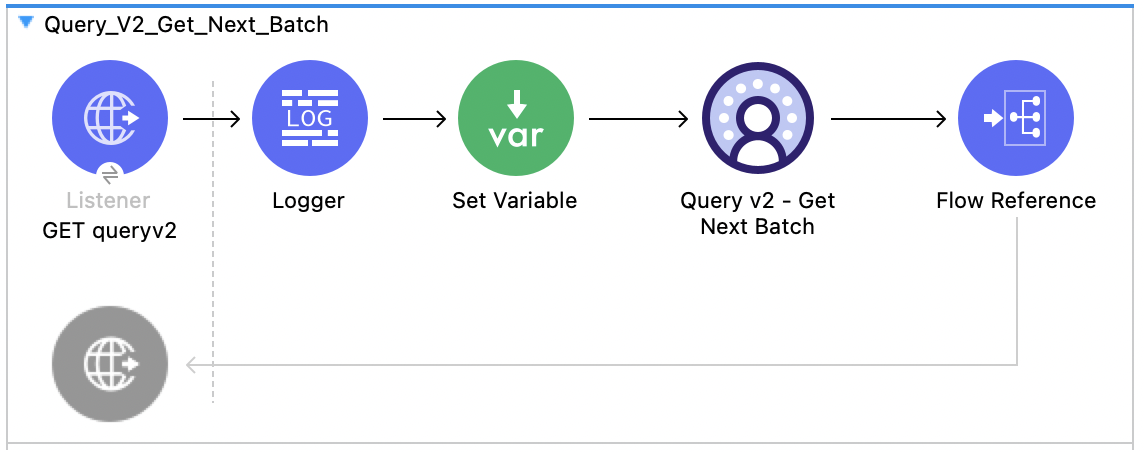
This Mule flow shows how to page through the results using the `nextBatchId` forward only cursor for
Salesforce Data 360. Use this flow after [Query v2](#query-v2). For more information about the Query
v2 Get Next Batch API, refer to the
[Data 360 Reference Guide](https://developer.salesforce.com/docs/data/data-cloud-query-guide/references/data-cloud-query-api-reference/c360a-api-get-query-v2.html).

This example uses the following operations:

- **HTTP Listener**  
  Accepts data from HTTP GET requests with the query in the payload.

- **Logger**  
  Shows the HTTP request received from the **Listener**.

- **Set Variable**  
  Sets a variable called `sampleResults` to get a maximum sample of 10 results. Your paging calls
  are unaffected and this is to limit returned payloads to avoid having 40 MB large payloads on your
  testing calls.

- **Query v2 - Get Next Batch**

  Uses a forward cursor to get more results from the [Query v2](#query-v2) and
  [Query v2 - Get Next Batch](#query-v2-get-next-batch) flows using `nextBatchId`.

- **Flow Reference**

  Makes a reference to the [Query v2](#query-v2) flow.
![Salesforce Data Cloud Connector Query v2 Get Next Batch flow with Listener, Logger, Set Variable, Query v2 Get Next Batch, and Flow Reference](/mulesoft/current/en-us/salesforce-data-cloud-connector/latest/_images/query-v2-get-next-batch.png)

### XML for This Example

Paste this code into the Studio XML editor to quickly load the flow for this example into your Mule
app:

```xml
<?xml version="1.0" encoding="UTF-8"?>

<mule xmlns:file="http://www.mulesoft.org/schema/mule/file"
      xmlns:sdc="http://www.mulesoft.org/schema/mule/sdc"
      xmlns:http="http://www.mulesoft.org/schema/mule/http"
      xmlns="http://www.mulesoft.org/schema/mule/core"
      xmlns:doc="http://www.mulesoft.org/schema/mule/documentation"
      xmlns:xsi="http://www.w3.org/2001/XMLSchema-instance"
      xsi:schemaLocation="
http://www.mulesoft.org/schema/mule/file http://www.mulesoft.org/schema/mule/file/current/mule-file.xsd
      http://www.mulesoft.org/schema/mule/core http://www.mulesoft.org/schema/mule/core/current/mule.xsd
      http://www.mulesoft.org/schema/mule/http http://www.mulesoft.org/schema/mule/http/current/mule-http.xsd
      http://www.mulesoft.org/schema/mule/sdc http://www.mulesoft.org/schema/mule/sdc/current/mule-sdc.xsd">

    <sdc:sdc-config name="Salesforce_Data_Cloud_config" doc:name="Salesforce Data Cloud config" doc:id="8b8cb9b6-54eb-453d-92a0-33199d6c51d9" >
		<sdc:oauth-jwt-connection />
	</sdc:sdc-config>
	<http:listener-config name="HTTP_Listener_config" doc:name="HTTP Listener config" doc:id="3797f40d-21cd-43a6-9ed4-c52fa6353a51" >
		<http:listener-connection host="0.0.0.0" port="8081" />
	</http:listener-config>
	<sdc:sdc-config name="Salesforce_Data_Cloud_config1" doc:name="Salesforce Data Cloud config" doc:id="acb1d379-3715-4253-9c34-ab33d5977a4a" >
		<sdc:oauth-jwt-connection />
	</sdc:sdc-config>
    <flow name="Query_V2_Get_Next_Batch" doc:id="041306ea-0617-4ae1-870b-5300dcf57ba6" >
        <http:listener doc:name="GET queryv2" doc:id="0ab08df2-c966-4e0c-ba80-07249a92dfa0" config-ref="HTTP_Listener_config" path="queryv2" allowedMethods="GET"/>
        <logger level="INFO" doc:name="Logger" doc:id="f197bc98-829d-489c-8318-ceee4bcdd8f6" message='#["Next Batch ID Received: " ++ attributes.queryParams.nextBatchId as String]'/>
        <set-variable value="#[attributes.queryParams.sampleResults]" doc:name="Set Variable" doc:id="0ae026f9-1660-4d10-8025-213a9a4fb0f5" variableName="sampleResults"/>
        <sdc:get-next-batch-ansi-sql-v2 doc:name="Query v2 - Get Next Batch" doc:id="1a9b3856-5991-4177-8783-1e4a2c0496a0" config-ref="Salesforce_Data_Cloud_config1" nextBatchIdUriParam="#[attributes.queryParams.nextBatchId]"/>
        <flow-ref doc:name="Flow Reference" doc:id="ed91ecf6-821d-43e0-969b-4bc0ad921431" name="Query_V2_Perform_Query_For_First_Batch" />
    </flow>
</mule>
```

### Steps for Running This Example

1.  [Verify that your connector is configured.](https://developer.salesforce.com/docs/data/data-cloud-int/guide/c360-a-connect-an-ingestion-source.html)

2.  Save the project.

3.  Test the flow by sending a request, for example:

    curl --location 'http://127.0.0.1:8081/queryv2?nextBatchId=3e2f0036-f75b-4ee9-a29b-35d8f914e2f1'

    This example request returns this example response:

    { "data": \[ \[ "TorBsKqi", "kvoEyIhx", "2022-08-22 00:00:00.000 UTC", "pxMEsTAR", "GJWzpgut",
    "MunitQueryV2Test\_b1ed190e\_fd18\_49ce\_8813\_f2f4ad59df50",
    "MunitQueryV2Test\_coupons\_C7876AA7", "2022-08-22 18:28:58.905 UTC", "RkXmYcdH",
    "87.000000000000000000" \], \[...\] \], "startTime": "2023-03-30T15:51:44.33103Z", "endTime":
    "2023-03-30T15:51:46.065576Z", "rowCount": 63803, "queryId": "20230330\_155144\_13391\_5rx4m",
    "nextBatchId": "1449c1d1-2bf2-471d-824f-62c8f18c5c26", "done": false, "metadata": {
    "value\_\_c": { "type": "DECIMAL", "placeInOrder": 9, "typeCode": 3 }, "sent\_\_c": { "type":
    "VARCHAR", "placeInOrder": 8, "typeCode": 12 }, "assigned\_to\_uid\_\_c": { "type": "VARCHAR",
    "placeInOrder": 0, "typeCode": 12 }, "currency\_\_c": { "type": "VARCHAR", "placeInOrder": 4,
    "typeCode": 12 }, "DataSource\_\_c": { "type": "VARCHAR", "placeInOrder": 5, "typeCode": 12 },
    "campaign\_name\_\_c": { "type": "VARCHAR", "placeInOrder": 1, "typeCode": 12 },
    "DataSourceObject\_\_c": { "type": "VARCHAR", "placeInOrder": 6, "typeCode": 12 },
    "coupon\_code\_\_c": { "type": "VARCHAR", "placeInOrder": 3, "typeCode": 12 },
    "expiry\_date\_\_c": { "type": "TIMESTAMP WITH TIME ZONE", "placeInOrder": 7, "typeCode": 2014
    }, "cdp\_sys\_PartitionDate\_\_c": { "type": "TIMESTAMP WITH TIME ZONE", "placeInOrder": 2,
    "typeCode": 2014 } } }

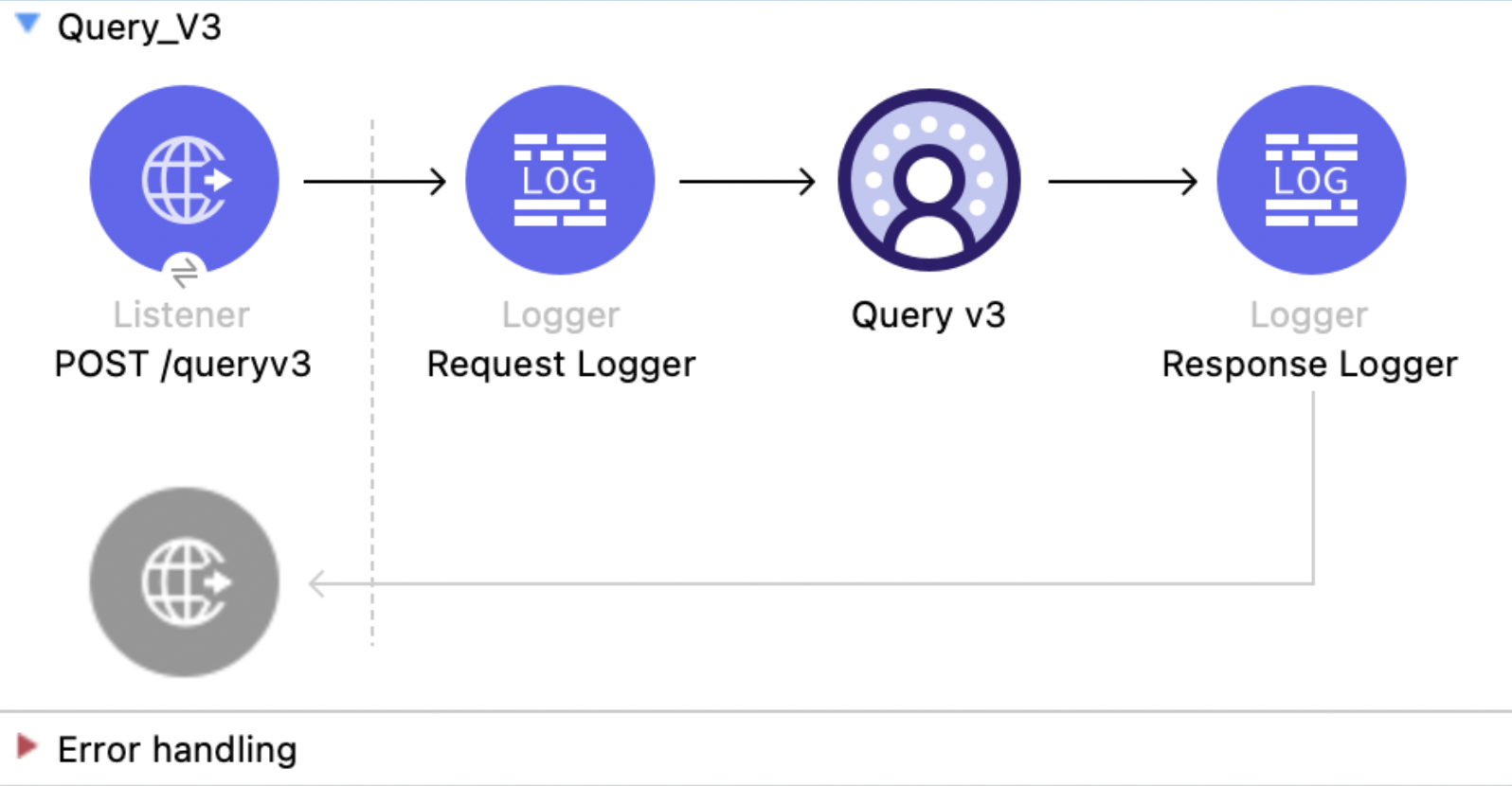
## Query v3

This Mule flow submits a SQL query against the Data 360 data lake. Submit the query in `ASYNC` mode
to receive a query ID that the other Query v3 flows use, or in `ADAPTIVE` mode to receive rows in
the same response when the query finishes quickly. For more information, refer to the
[Data 360 Reference Guide](https://developer.salesforce.com/docs/data/data-cloud-query-guide/references/data-cloud-query-api-reference/).

This example uses the following operations:

- **HTTP Listener**  
  Accepts HTTP POST requests with the query in the payload.

- **Logger**  
  Shows the SQL received from the **Listener**, then shows the query status returned by the **Query
  v3** operation.

- **Query v3**

  - Authenticates based on your choice of OAuth Client Credentials, OAuth JWT, or OAuth Username and
    Password.

  - Receives the request body as the query, which sets `sql` and can optionally set `transferMode`.

  - Calls the Salesforce API and returns the result schema, rows when the query completes within the
    adaptive timeout, and the query status in the response header.
![Salesforce Data Cloud Connector Query v3 flow with Listener, Logger, Query v3, and Response Logger](/mulesoft/current/en-us/salesforce-data-cloud-connector/latest/_images/query-v3-flow.png)

### XML for This Example

Paste this code into the Studio XML editor to quickly load the flow for this example into your Mule
app:

```xml
<?xml version="1.0" encoding="UTF-8"?>
<mule xmlns:sdc="http://www.mulesoft.org/schema/mule/sdc" xmlns:http="http://www.mulesoft.org/schema/mule/http" xmlns="http://www.mulesoft.org/schema/mule/core" xmlns:doc="http://www.mulesoft.org/schema/mule/documentation" xmlns:xsi="http://www.w3.org/2001/XMLSchema-instance" xsi:schemaLocation="http://www.mulesoft.org/schema/mule/core http://www.mulesoft.org/schema/mule/core/current/mule.xsd http://www.mulesoft.org/schema/mule/http http://www.mulesoft.org/schema/mule/http/current/mule-http.xsd http://www.mulesoft.org/schema/mule/sdc http://www.mulesoft.org/schema/mule/sdc/current/mule-sdc.xsd">
    <http:listener-config name="HTTP_Listener_config" doc:name="HTTP Listener config"><http:listener-connection host="0.0.0.0" port="8081"/></http:listener-config>
    <configuration-properties doc:name="Configuration properties" file="mule-app.properties"/>
    <sdc:sdc-config name="Salesforce_Data_Cloud_config" doc:name="Salesforce Data Cloud config"><sdc:oauth-jwt-connection consumerKey="${server.consumerKey}" keyStorePath="${server.keyStorePath}" storePassword="${server.keyStorePassword}" subject="${server.userName}" keyAlias="${server.certificateAlias}" audienceUrl="${server.audienceUrl}"/></sdc:sdc-config>
    <flow name="Query_V3">
        <http:listener doc:name="POST /queryv3" config-ref="HTTP_Listener_config" path="/queryv3" allowedMethods="POST" outputMimeType="application/json"/>
        <logger level="INFO" doc:name="Request Logger" message='#["Received query: " ++ (payload.sql default "") as String]'/>
        <sdc:query-v3 doc:name="Query v3" config-ref="Salesforce_Data_Cloud_config"/>
        <logger level="INFO" doc:name="Response Logger" message='#["Query status header: " ++ (attributes.headers["x-hyperdb-status"] default "{}")]'/>
    </flow>
</mule>
```

### Steps for Running This Example

1.  [Verify that your connector is configured.](https://developer.salesforce.com/docs/data/data-cloud-int/guide/c360-a-connect-an-ingestion-source.html)

2.  Save the project.

3.  Send a `POST` request to `localhost:8081/queryv3`:

    ```bash
    curl --location 'http://localhost:8081/queryv3' --header 'Content-Type: application/json' --data '{"sql":"SELECT ssot__id__c, ssot__name__c FROM ssot__account__dlm ORDER BY ssot__id__c LIMIT 3"}'
    ```

4.  This request returns the result schema and rows, for example:

    ```json
    {
      "metadata": {
        "columns": [
          { "type": "varchar", "nullable": false, "name": "ssot__id__c" },
          { "type": "varchar", "nullable": true, "name": "ssot__name__c" }
        ]
      },
      "data": [
        ["0015b000029TJB8AAO", "Updated Account 1"],
        ["0015b00002DySwvAAF", "Create Composite Test Account adadad662000000"],
        ["0015b00002LLLTFAA5", "AccountTest"]
      ],
      "returnedRows": 3
    }
    ```

5.  To retrieve a query ID for polling, use asynchronous mode:

    ```bash
    curl --location 'http://localhost:8081/queryv3' --header 'Content-Type: application/json' --data '{"sql":"SELECT ssot__id__c, ssot__name__c, ssot__createddate__c FROM ssot__account__dlm ORDER BY ssot__id__c LIMIT 2500","transferMode":"ASYNC"}'
    ```

In `ASYNC` mode, the response body carries only the schema and `returnedRows` is `0`, because no
rows are streamed back:

```json
{
  "metadata": {
    "columns": [
      { "type": "varchar", "nullable": false, "name": "ssot__id__c" },
      { "type": "varchar", "nullable": true, "name": "ssot__name__c" },
      { "type": "timestamptz", "nullable": true, "name": "ssot__createddate__c" }
    ]
  },
  "returnedRows": 0
}
```

The response logger writes the status header, including the `queryId` used by the other Query v3
examples, for example:

```json
{
  "queryId": "MTAuNzguNjEuMTM1Ojc0ODQ_0731d532-152c-beba-bd44-6d0dd407b4da",
  "completionStatus": "RUNNING",
  "chunkCount": 0,
  "rowCount": 0,
  "progress": 0.0
}
```

## Query v3 - Get Status

This Mule flow polls the execution status of a query submitted by [Query v3](#query-v3). Poll until
`completionStatus` is `RESULTS_PRODUCED` or `FINISHED`, then retrieve the results with
[Query v3 - Get Rows](#query-v3-get-rows) or [Query v3 - Get Chunk](#query-v3-get-chunk). For more
information, refer to the
[Data 360 Reference Guide](https://developer.salesforce.com/docs/data/data-cloud-query-guide/references/data-cloud-query-api-reference/).

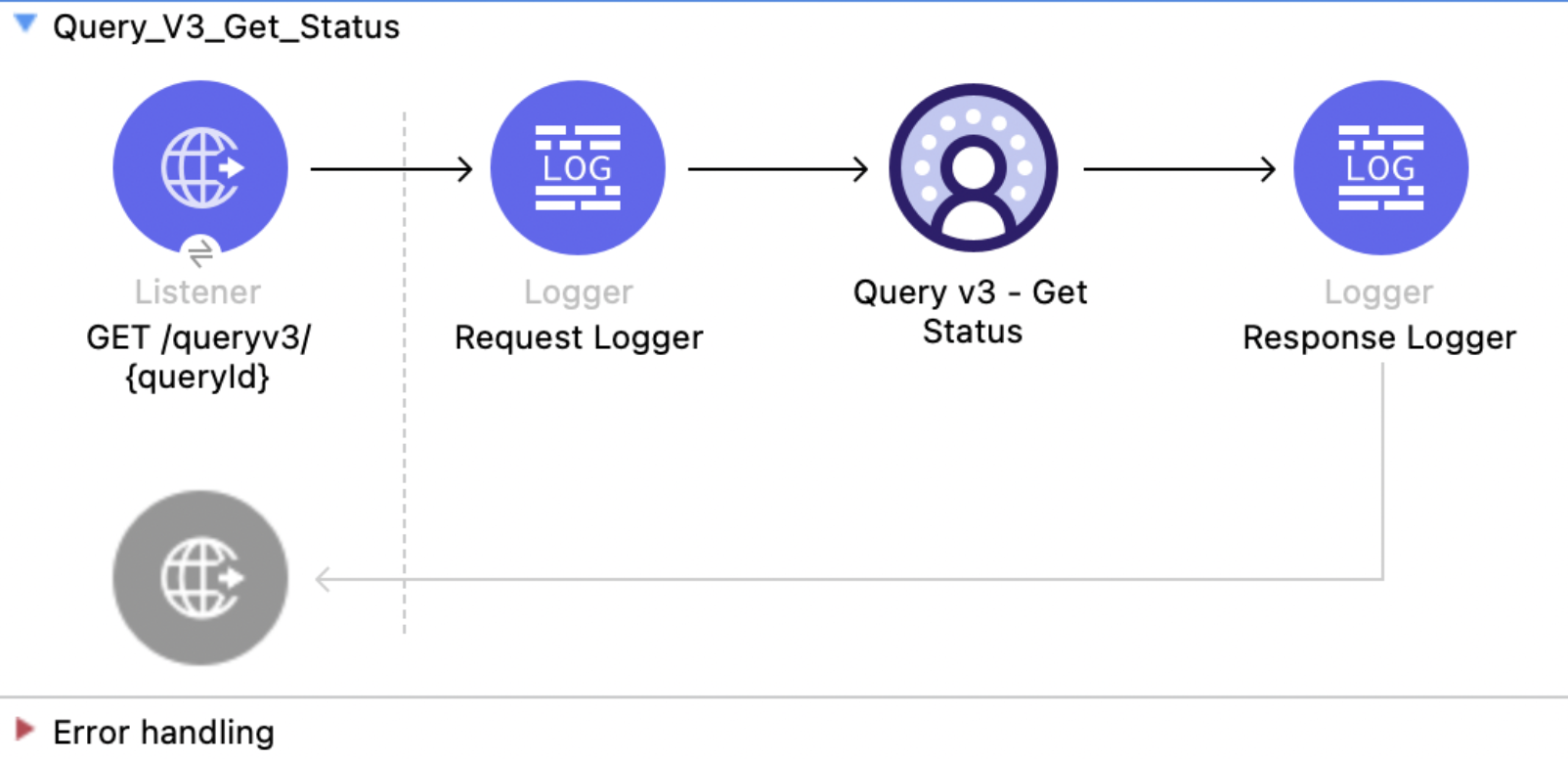
This example uses the following operations:

- **HTTP Listener**  
  Accepts HTTP GET requests with the query ID as a URI parameter.

- **Logger**  
  Shows the query ID received from the **Listener**, then shows the returned status.

- **Query v3 - Get Status**

  - Authenticates based on your choice of OAuth Client Credentials, OAuth JWT, or OAuth Username and
    Password.

  - Receives the query ID and a wait time of 10000 milliseconds.

  - Calls the Salesforce API and returns the completion status, row count, chunk count, progress,
    and execution statistics.
![Salesforce Data Cloud Connector Query v3 Get Status flow with Listener, Logger, Query v3 Get Status, and Response Logger](/mulesoft/current/en-us/salesforce-data-cloud-connector/latest/_images/query-v3-get-status.png)

### XML for This Example

Paste this code into the Studio XML editor to quickly load the flow for this example into your Mule
app:

```xml
<?xml version="1.0" encoding="UTF-8"?>
<mule xmlns:sdc="http://www.mulesoft.org/schema/mule/sdc" xmlns:http="http://www.mulesoft.org/schema/mule/http" xmlns="http://www.mulesoft.org/schema/mule/core" xmlns:doc="http://www.mulesoft.org/schema/mule/documentation" xmlns:xsi="http://www.w3.org/2001/XMLSchema-instance" xsi:schemaLocation="http://www.mulesoft.org/schema/mule/core http://www.mulesoft.org/schema/mule/core/current/mule.xsd http://www.mulesoft.org/schema/mule/http http://www.mulesoft.org/schema/mule/http/current/mule-http.xsd http://www.mulesoft.org/schema/mule/sdc http://www.mulesoft.org/schema/mule/sdc/current/mule-sdc.xsd">
    <http:listener-config name="HTTP_Listener_config" doc:name="HTTP Listener config"><http:listener-connection host="0.0.0.0" port="8081"/></http:listener-config>
    <configuration-properties doc:name="Configuration properties" file="mule-app.properties"/>
    <sdc:sdc-config name="Salesforce_Data_Cloud_config" doc:name="Salesforce Data Cloud config"><sdc:oauth-jwt-connection consumerKey="${server.consumerKey}" keyStorePath="${server.keyStorePath}" storePassword="${server.keyStorePassword}" subject="${server.userName}" keyAlias="${server.certificateAlias}" audienceUrl="${server.audienceUrl}"/></sdc:sdc-config>
    <flow name="Query_V3_Get_Status">
        <http:listener doc:name="GET /queryv3/{queryId}" config-ref="HTTP_Listener_config" path="/queryv3/{queryId}" allowedMethods="GET" outputMimeType="application/json"/>
        <logger level="INFO" doc:name="Request Logger" message='#["Query ID received: " ++ attributes.uriParams.queryId]'/>
        <sdc:get-query-status-v3 doc:name="Query v3 - Get Status" config-ref="Salesforce_Data_Cloud_config" queryIdUriParam="#[attributes.uriParams.queryId]" waitTimeMs="10000"/>
        <logger level="INFO" doc:name="Response Logger" message="#[payload]"/>
    </flow>
</mule>
```

### Steps for Running This Example

1.  [Verify that your connector is configured.](https://developer.salesforce.com/docs/data/data-cloud-int/guide/c360-a-connect-an-ingestion-source.html)

2.  Save the project.

3.  Submit a query with [Query v3](#query-v3) and copy its query ID.

4.  Send a `GET` request to `localhost:8081/queryv3/{QUERY_ID}`. The operation long-polls for up to
    10 seconds and returns the completion status, row count, chunk count, progress, and execution
    statistics:

    ```bash
    curl --location 'http://localhost:8081/queryv3/MTAuNzguNjEuMTM1Ojc0ODQ_0731d532-152c-beba-bd44-6d0dd407b4da'
    ```

    ```json
    {
      "queryId": "MTAuNzguNjEuMTM1Ojc0ODQ_0731d532-152c-beba-bd44-6d0dd407b4da",
      "completionStatus": "FINISHED",
      "chunkCount": 1,
      "rowCount": 2500,
      "progress": 1.0,
      "expirationTime": "2026-08-18T06:15:05Z",
      "executionStats": { "wallClockTime": 0.125647841, "rowsProcessed": 41577 }
    }
    ```

## Query v3 - Get Rows

This Mule flow pages through the results of a completed query with an offset and limit. Use this
flow after [Query v3](#query-v3). For large result sets, use
[Query v3 - Get Chunk](#query-v3-get-chunk) instead. For more information, refer to the
[Data 360 Reference Guide](https://developer.salesforce.com/docs/data/data-cloud-query-guide/references/data-cloud-query-api-reference/).

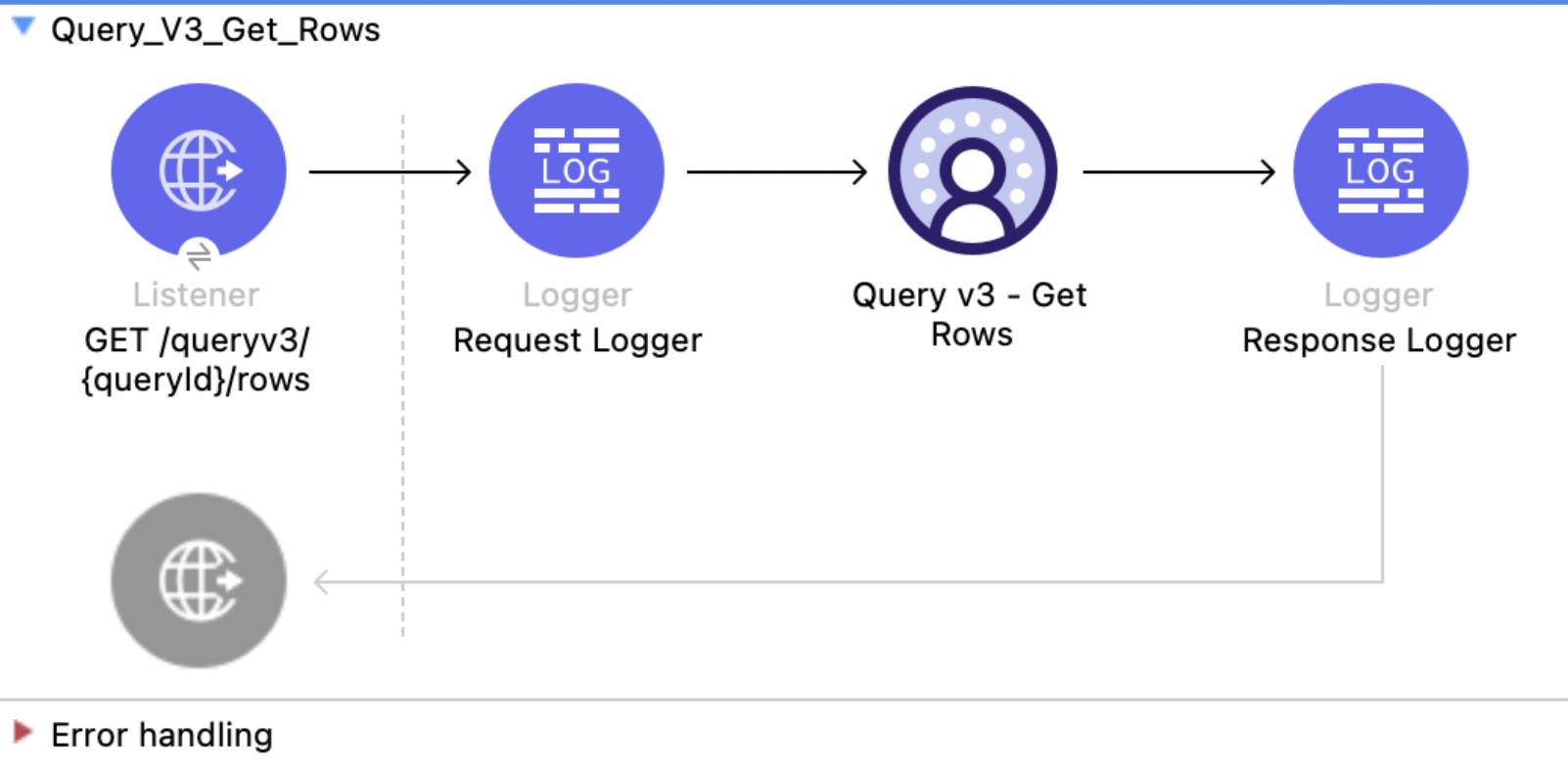
This example uses the following operations:

- **HTTP Listener**  
  Accepts HTTP GET requests with the query ID as a URI parameter and offset and limit as query
  parameters.

- **Logger**  
  Shows the query ID received from the **Listener**, then shows the returned rows.

- **Query v3 - Get Rows**

  - Authenticates based on your choice of OAuth Client Credentials, OAuth JWT, or OAuth Username and
    Password.

  - Receives the query ID, offset, and limit. The example defaults offset to `0` and limit to `10`.

  - Calls the Salesforce API and returns the page of rows and schema.
![Salesforce Data Cloud Connector Query v3 Get Rows flow with Listener, Logger, Query v3 Get Rows, and Response Logger](/mulesoft/current/en-us/salesforce-data-cloud-connector/latest/_images/query-v3-get-rows.png)

### XML for This Example

Paste this code into the Studio XML editor to quickly load the flow for this example into your Mule
app:

```xml
<?xml version="1.0" encoding="UTF-8"?>
<mule xmlns:sdc="http://www.mulesoft.org/schema/mule/sdc" xmlns:http="http://www.mulesoft.org/schema/mule/http" xmlns="http://www.mulesoft.org/schema/mule/core" xmlns:doc="http://www.mulesoft.org/schema/mule/documentation" xmlns:xsi="http://www.w3.org/2001/XMLSchema-instance" xsi:schemaLocation="http://www.mulesoft.org/schema/mule/core http://www.mulesoft.org/schema/mule/core/current/mule.xsd http://www.mulesoft.org/schema/mule/http http://www.mulesoft.org/schema/mule/http/current/mule-http.xsd http://www.mulesoft.org/schema/mule/sdc http://www.mulesoft.org/schema/mule/sdc/current/mule-sdc.xsd">
    <http:listener-config name="HTTP_Listener_config" doc:name="HTTP Listener config"><http:listener-connection host="0.0.0.0" port="8081"/></http:listener-config>
    <configuration-properties doc:name="Configuration properties" file="mule-app.properties"/>
    <sdc:sdc-config name="Salesforce_Data_Cloud_config" doc:name="Salesforce Data Cloud config"><sdc:oauth-jwt-connection consumerKey="${server.consumerKey}" keyStorePath="${server.keyStorePath}" storePassword="${server.keyStorePassword}" subject="${server.userName}" keyAlias="${server.certificateAlias}" audienceUrl="${server.audienceUrl}"/></sdc:sdc-config>
    <flow name="Query_V3_Get_Rows">
        <http:listener doc:name="GET /queryv3/{queryId}/rows" config-ref="HTTP_Listener_config" path="/queryv3/{queryId}/rows" allowedMethods="GET" outputMimeType="application/json"/>
        <logger level="INFO" doc:name="Request Logger" message='#["Fetching rows for query: " ++ attributes.uriParams.queryId]'/>
        <sdc:get-query-rows-v3 doc:name="Query v3 - Get Rows" config-ref="Salesforce_Data_Cloud_config" queryIdUriParam="#[attributes.uriParams.queryId]" offset="#[(attributes.queryParams.offset default '0') as Number]" limit="#[(attributes.queryParams.limit default '10') as Number]"/>
        <logger level="INFO" doc:name="Response Logger" message="#[payload]"/>
    </flow>
</mule>
```

### Steps for Running This Example

1.  [Verify that your connector is configured.](https://developer.salesforce.com/docs/data/data-cloud-int/guide/c360-a-connect-an-ingestion-source.html)

2.  Save the project.

3.  Submit a query with [Query v3](#query-v3) and copy its query ID.

4.  Send a `GET` request to `localhost:8081/queryv3/{QUERY_ID}/rows?offset=0&limit=3`:

    ```bash
    curl --location \
    'http://localhost:8081/queryv3/MTAuNzguNjEuMTM1Ojc0ODQ_0731d532-152c-beba-bd44-6d0dd407b4da/rows?offset=0&limit=3'
    ```

5.  To retrieve the next page, increase `offset` by the number of rows already read, up to the
    `rowCount` returned by [Query v3 - Get Status](#query-v3-get-status).

    The response includes the schema, rows, and `returnedRows`, for example:

```json
{
  "metadata": {
    "columns": [
      { "name": "ssot__id__c", "type": "varchar", "nullable": false },
      { "name": "ssot__name__c", "type": "varchar", "nullable": true },
      { "name": "ssot__createddate__c", "type": "timestamptz", "nullable": true }
    ]
  },
  "data": [
    ["0015b000029TJB8AAO", "Updated Account 1", "2022-12-12T18:13:31+00:00"],
    [
      "0015b00002DySwvAAF",
      "Create Composite Test Account adadad662000000",
      "2023-05-12T01:11:55+00:00"
    ],
    ["0015b00002LLLTFAA5", "AccountTest", "2023-11-15T11:34:47+00:00"]
  ],
  "returnedRows": 3
}
```

## Query v3 - Get Chunk

This Mule flow retrieves a chunk of a completed query result. Reading by chunk is the preferred way
to consume a large result set because the service determines the chunk boundaries and streams each
chunk. Chunk IDs are zero-indexed. For more information, refer to the
[Data 360 Reference Guide](https://developer.salesforce.com/docs/data/data-cloud-query-guide/references/data-cloud-query-api-reference/).

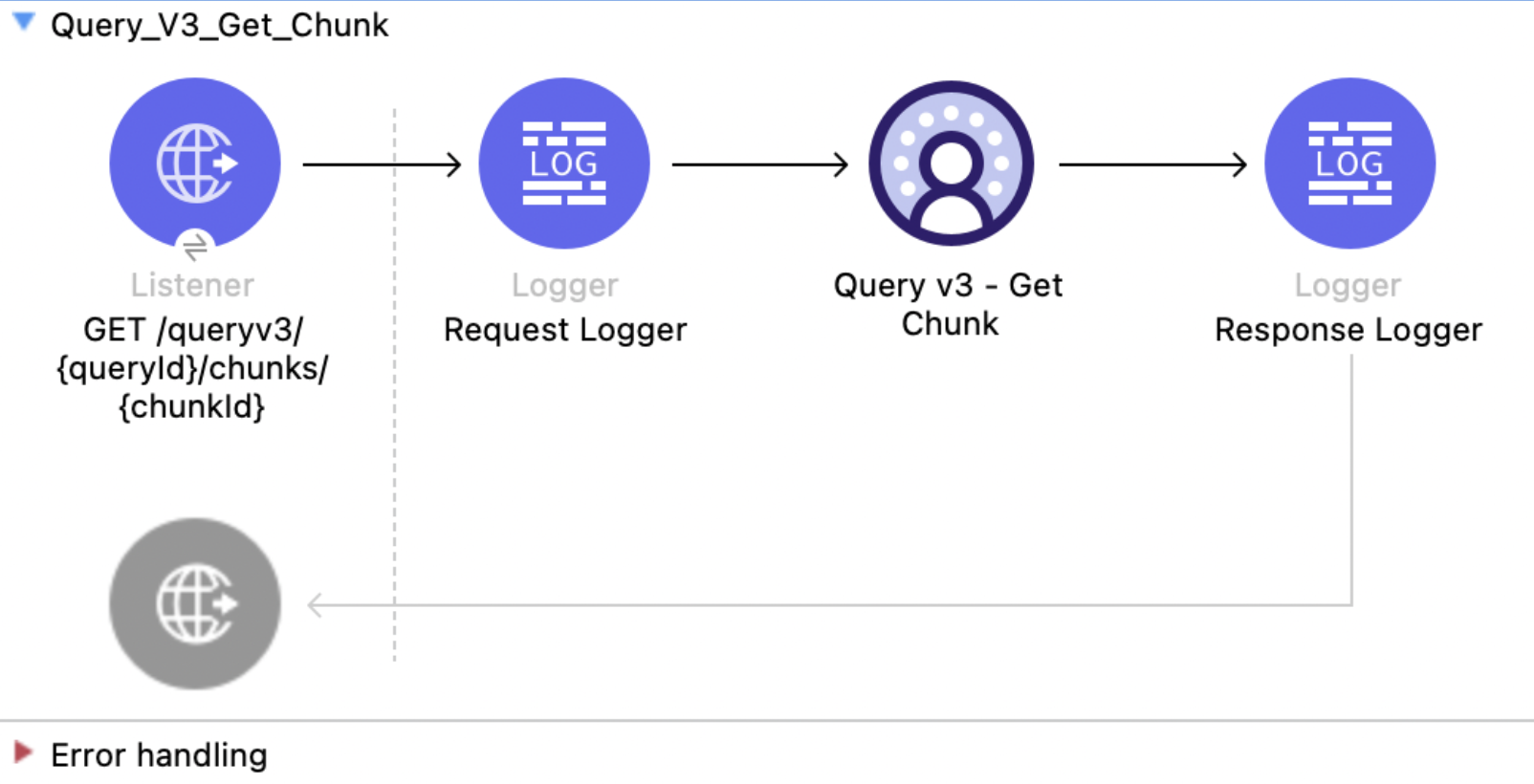
This example uses the following operations:

- **HTTP Listener**  
  Accepts HTTP GET requests with the query ID and chunk ID as URI parameters.

- **Logger**  
  Shows the query ID and chunk ID received from the **Listener**, then shows the returned chunk.

- **Query v3 - Get Chunk**

  - Authenticates based on your choice of OAuth Client Credentials, OAuth JWT, or OAuth Username and
    Password.

  - Receives the query ID and zero-indexed chunk ID.

  - Calls the Salesforce API and returns the chunk rows and schema.
![Salesforce Data Cloud Connector Query v3 Get Chunk flow with Listener, Logger, Query v3 Get Chunk, and Response Logger](/mulesoft/current/en-us/salesforce-data-cloud-connector/latest/_images/query-v3-get-chunk.png)

### XML for This Example

Paste this code into the Studio XML editor to quickly load the flow for this example into your Mule
app:

```xml
<?xml version="1.0" encoding="UTF-8"?>
<mule xmlns:sdc="http://www.mulesoft.org/schema/mule/sdc" xmlns:http="http://www.mulesoft.org/schema/mule/http" xmlns="http://www.mulesoft.org/schema/mule/core" xmlns:doc="http://www.mulesoft.org/schema/mule/documentation" xmlns:xsi="http://www.w3.org/2001/XMLSchema-instance" xsi:schemaLocation="http://www.mulesoft.org/schema/mule/core http://www.mulesoft.org/schema/mule/core/current/mule.xsd http://www.mulesoft.org/schema/mule/http http://www.mulesoft.org/schema/mule/http/current/mule-http.xsd http://www.mulesoft.org/schema/mule/sdc http://www.mulesoft.org/schema/mule/sdc/current/mule-sdc.xsd">
    <http:listener-config name="HTTP_Listener_config" doc:name="HTTP Listener config"><http:listener-connection host="0.0.0.0" port="8081"/></http:listener-config>
    <configuration-properties doc:name="Configuration properties" file="mule-app.properties"/>
    <sdc:sdc-config name="Salesforce_Data_Cloud_config" doc:name="Salesforce Data Cloud config"><sdc:oauth-jwt-connection consumerKey="${server.consumerKey}" keyStorePath="${server.keyStorePath}" storePassword="${server.keyStorePassword}" subject="${server.userName}" keyAlias="${server.certificateAlias}" audienceUrl="${server.audienceUrl}"/></sdc:sdc-config>
    <flow name="Query_V3_Get_Chunk">
        <http:listener doc:name="GET /queryv3/{queryId}/chunks/{chunkId}" config-ref="HTTP_Listener_config" path="/queryv3/{queryId}/chunks/{chunkId}" allowedMethods="GET" outputMimeType="application/json"/>
        <logger level="INFO" doc:name="Request Logger" message='#["Fetching chunk " ++ attributes.uriParams.chunkId ++ " of query " ++ attributes.uriParams.queryId]'/>
        <sdc:get-query-chunk-v3 doc:name="Query v3 - Get Chunk" config-ref="Salesforce_Data_Cloud_config" queryIdUriParam="#[attributes.uriParams.queryId]" chunkIdUriParam="#[attributes.uriParams.chunkId as Number]"/>
        <logger level="INFO" doc:name="Response Logger" message="#[payload]"/>
    </flow>
</mule>
```

### Steps for Running This Example

1.  [Verify that your connector is configured.](https://developer.salesforce.com/docs/data/data-cloud-int/guide/c360-a-connect-an-ingestion-source.html)

2.  Save the project.

3.  Submit a query with [Query v3](#query-v3) and obtain its `chunkCount` from
    [Query v3 - Get Status](#query-v3-get-status).

4.  Send a `GET` request to `localhost:8081/queryv3/{QUERY_ID}/chunks/0`:

    ```bash
    curl --location 'http://localhost:8081/queryv3/MTAuNzguNjEuMTM1Ojc0ODQ_0731d532-152c-beba-bd44-6d0dd407b4da/chunks/0'
    ```

    The response includes the schema and all rows in the requested chunk. The `returnedRows` value
    can be larger than the page size used by [Query v3 - Get Rows](#query-v3-get-rows), for example:

```json
{
  "metadata": {
    "columns": [
      { "name": "ssot__id__c", "type": "varchar", "nullable": false },
      { "name": "ssot__name__c", "type": "varchar", "nullable": true },
      { "name": "ssot__createddate__c", "type": "timestamptz", "nullable": true }
    ]
  },
  "data": [
    ["0015b000029TJB8AAO", "Updated Account 1", "2022-12-12T18:13:31+00:00"],
    [
      "0015b00002DySwvAAF",
      "Create Composite Test Account adadad662000000",
      "2023-05-12T01:11:55+00:00"
    ],
    ["0015b00002LLLTFAA5", "AccountTest", "2023-11-15T11:34:47+00:00"]
  ],
  "returnedRows": 2500
}
```

## Query v3 - Get Metadata

This Mule flow retrieves a query result schema without fetching rows. Use it to inspect the column
names, types, and nullability before reading a large result set. For more information, refer to the
[Data 360 Reference Guide](https://developer.salesforce.com/docs/data/data-cloud-query-guide/references/data-cloud-query-api-reference/).

This example uses the following operations:

- **HTTP Listener**  
  Accepts HTTP GET requests with the query ID as a URI parameter.

- **Logger**  
  Shows the query ID received from the **Listener**, then shows the returned schema.

- **Query v3 - Get Metadata**

  - Authenticates based on your choice of OAuth Client Credentials, OAuth JWT, or OAuth Username and
    Password.

  - Receives the query ID.

  - Calls the Salesforce API and returns the column definitions without data rows.
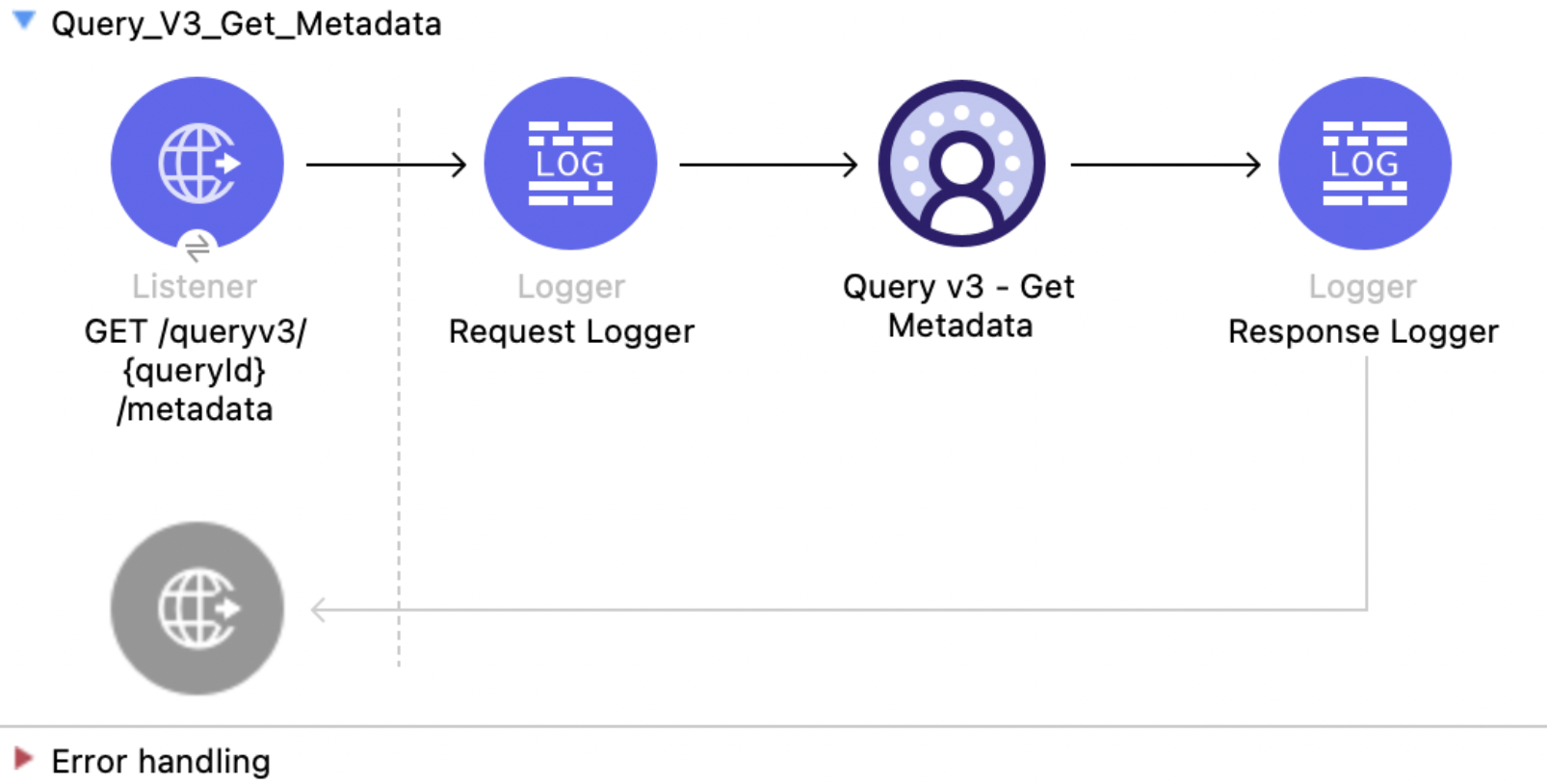
![Salesforce Data Cloud Connector Query v3 Get Metadata flow with Listener, Logger, Query v3 Get Metadata, and Response Logger](/mulesoft/current/en-us/salesforce-data-cloud-connector/latest/_images/query-v3-get-metadata.png)

### XML for This Example

Paste this code into the Studio XML editor to quickly load the flow for this example into your Mule
app:

```xml
<?xml version="1.0" encoding="UTF-8"?>
<mule xmlns:sdc="http://www.mulesoft.org/schema/mule/sdc" xmlns:http="http://www.mulesoft.org/schema/mule/http" xmlns="http://www.mulesoft.org/schema/mule/core" xmlns:doc="http://www.mulesoft.org/schema/mule/documentation" xmlns:xsi="http://www.w3.org/2001/XMLSchema-instance" xsi:schemaLocation="http://www.mulesoft.org/schema/mule/core http://www.mulesoft.org/schema/mule/core/current/mule.xsd http://www.mulesoft.org/schema/mule/http http://www.mulesoft.org/schema/mule/http/current/mule-http.xsd http://www.mulesoft.org/schema/mule/sdc http://www.mulesoft.org/schema/mule/sdc/current/mule-sdc.xsd">
    <http:listener-config name="HTTP_Listener_config" doc:name="HTTP Listener config"><http:listener-connection host="0.0.0.0" port="8081"/></http:listener-config>
    <configuration-properties doc:name="Configuration properties" file="mule-app.properties"/>
    <sdc:sdc-config name="Salesforce_Data_Cloud_config" doc:name="Salesforce Data Cloud config"><sdc:oauth-jwt-connection consumerKey="${server.consumerKey}" keyStorePath="${server.keyStorePath}" storePassword="${server.keyStorePassword}" subject="${server.userName}" keyAlias="${server.certificateAlias}" audienceUrl="${server.audienceUrl}"/></sdc:sdc-config>
    <flow name="Query_V3_Get_Metadata">
        <http:listener doc:name="GET /queryv3/{queryId}/metadata" config-ref="HTTP_Listener_config" path="/queryv3/{queryId}/metadata" allowedMethods="GET" outputMimeType="application/json"/>
        <logger level="INFO" doc:name="Request Logger" message='#["Fetching metadata for query: " ++ attributes.uriParams.queryId]'/>
        <sdc:get-query-metadata-v3 doc:name="Query v3 - Get Metadata" config-ref="Salesforce_Data_Cloud_config" queryIdUriParam="#[attributes.uriParams.queryId]"/>
        <logger level="INFO" doc:name="Response Logger" message="#[payload]"/>
    </flow>
</mule>
```

### Steps for Running This Example

1.  [Verify that your connector is configured.](https://developer.salesforce.com/docs/data/data-cloud-int/guide/c360-a-connect-an-ingestion-source.html)

2.  Save the project.

3.  Submit a query with [Query v3](#query-v3) and copy its query ID.

4.  Send a `GET` request to `localhost:8081/queryv3/{QUERY_ID}/metadata`:

    ```bash
    curl --location 'http://localhost:8081/queryv3/MTAuNzguNjEuMTM1Ojc0ODQ_0731d532-152c-beba-bd44-6d0dd407b4da/metadata'
    ```

    The response contains the result schema, for example:

```json
{
  "metadata": {
    "columns": [
      { "name": "ssot__id__c", "type": "varchar", "nullable": false },
      { "name": "ssot__name__c", "type": "varchar", "nullable": true },
      { "name": "ssot__createddate__c", "type": "timestamptz", "nullable": true }
    ]
  }
}
```

## Query v3 - Cancel

This Mule flow cancels a query and frees the server resources it holds. Cancel a query when its
results are no longer needed, for example, if the requesting client has timed out. For more
information, refer to the
[Data 360 Reference Guide](https://developer.salesforce.com/docs/data/data-cloud-query-guide/references/data-cloud-query-api-reference/).

This example uses the following operations:

- **HTTP Listener**  
  Accepts HTTP DELETE requests with the query ID as a URI parameter.

- **Logger**  
  Shows the query ID received from the **Listener**, then shows the HTTP status returned by the
  cancel operation.

- **Query v3 - Cancel**

  - Authenticates based on your choice of OAuth Client Credentials, OAuth JWT, or OAuth Username and
    Password.

  - Receives the query ID.

  - Calls the Salesforce API to cancel the query. A successful call returns `204 No Content` with an
    empty body.
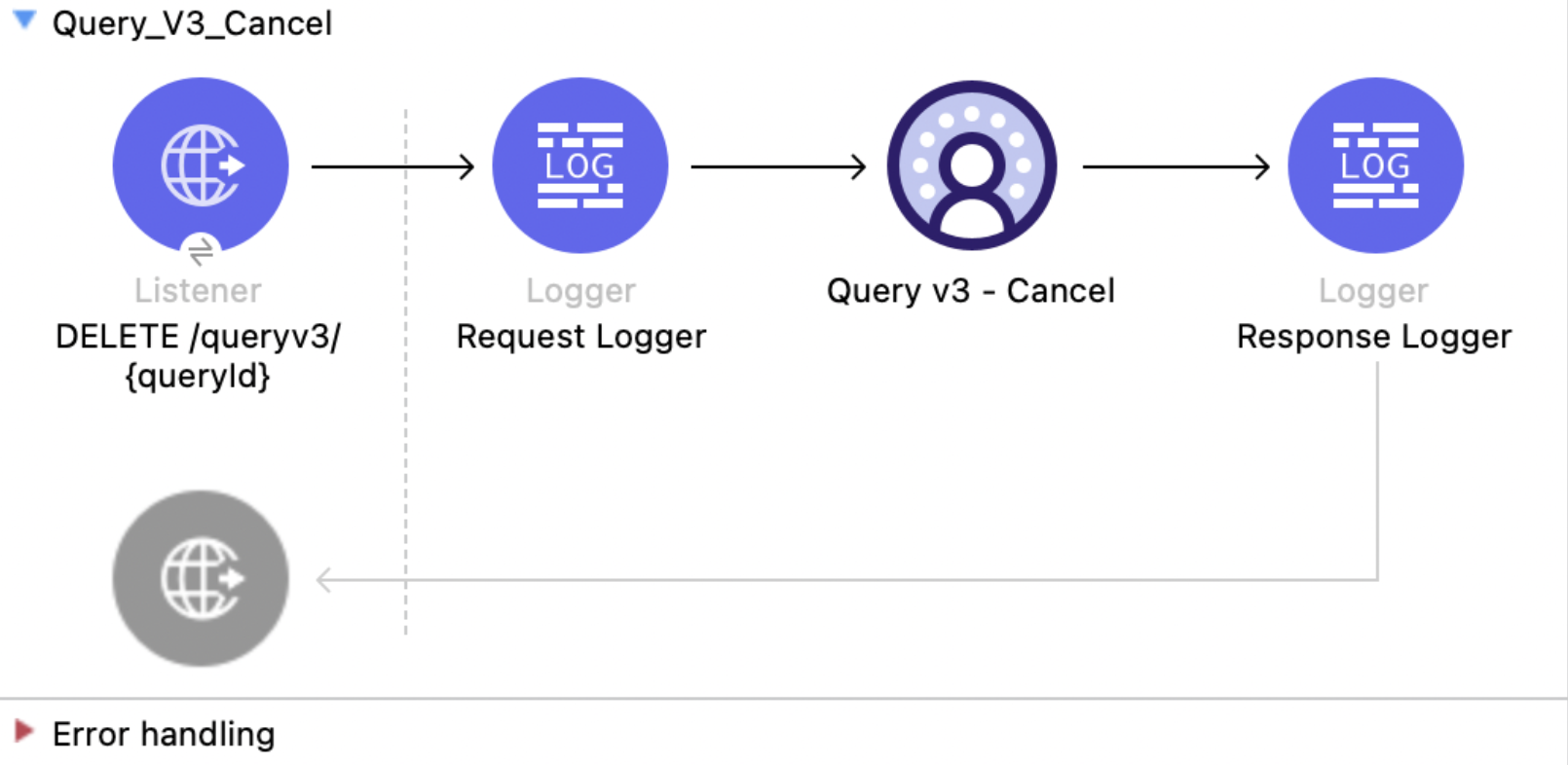
![Salesforce Data Cloud Connector Query v3 Cancel flow with Listener, Logger, Query v3 Cancel, and Response Logger](/mulesoft/current/en-us/salesforce-data-cloud-connector/latest/_images/query-v3-cancel.png)

### XML for This Example

Paste this code into the Studio XML editor to quickly load the flow for this example into your Mule
app:

```xml
<?xml version="1.0" encoding="UTF-8"?>
<mule xmlns:sdc="http://www.mulesoft.org/schema/mule/sdc" xmlns:http="http://www.mulesoft.org/schema/mule/http" xmlns="http://www.mulesoft.org/schema/mule/core" xmlns:doc="http://www.mulesoft.org/schema/mule/documentation" xmlns:xsi="http://www.w3.org/2001/XMLSchema-instance" xsi:schemaLocation="http://www.mulesoft.org/schema/mule/core http://www.mulesoft.org/schema/mule/core/current/mule.xsd http://www.mulesoft.org/schema/mule/http http://www.mulesoft.org/schema/mule/http/current/mule-http.xsd http://www.mulesoft.org/schema/mule/sdc http://www.mulesoft.org/schema/mule/sdc/current/mule-sdc.xsd">
    <http:listener-config name="HTTP_Listener_config" doc:name="HTTP Listener config"><http:listener-connection host="0.0.0.0" port="8081"/></http:listener-config>
    <configuration-properties doc:name="Configuration properties" file="mule-app.properties"/>
    <sdc:sdc-config name="Salesforce_Data_Cloud_config" doc:name="Salesforce Data Cloud config"><sdc:oauth-jwt-connection consumerKey="${server.consumerKey}" keyStorePath="${server.keyStorePath}" storePassword="${server.keyStorePassword}" subject="${server.userName}" keyAlias="${server.certificateAlias}" audienceUrl="${server.audienceUrl}"/></sdc:sdc-config>
    <flow name="Query_V3_Cancel">
        <http:listener doc:name="DELETE /queryv3/{queryId}" config-ref="HTTP_Listener_config" path="/queryv3/{queryId}" allowedMethods="DELETE"/>
        <logger level="INFO" doc:name="Request Logger" message='#["Cancelling query: " ++ attributes.uriParams.queryId]'/>
        <sdc:cancel-query-v3 doc:name="Query v3 - Cancel" config-ref="Salesforce_Data_Cloud_config" queryIdUriParam="#[attributes.uriParams.queryId]"/>
        <logger level="INFO" doc:name="Response Logger" message='#["Cancel returned HTTP " ++ attributes.statusCode]'/>
    </flow>
</mule>
```

### Steps for Running This Example

1.  [Verify that your connector is configured.](https://developer.salesforce.com/docs/data/data-cloud-int/guide/c360-a-connect-an-ingestion-source.html)

2.  Save the project.

3.  Submit a query with [Query v3](#query-v3) and copy its query ID.

4.  Send a `DELETE` request to `localhost:8081/queryv3/{QUERY_ID}`:

    ```bash
    curl --location --request DELETE 'http://localhost:8081/queryv3/MTAuNzguNjEuMTM1Ojc0ODQ_7a6ce284-300e-3694-394a-55867c82422a'
    ```

    A successful cancel returns `204 No Content` with an empty response body. The response logger
    writes `Cancel returned HTTP 204`.

## Insights - List Metadata API

This Mule flow shows how to get the metadata, including the dimensions and filters for all
calculated insights.

This example uses the following operations:

- **HTTP Listener**  
  Accepts HTTP GET requests.

- **Insights - List Metadata**

  - Authenticates based on your choice of OAuth Client Credentials, OAuth JWT, or OAuth Username and
    Password.

  - Calls the Salesforce Data 360 API to return the metadata for all calculated insights.
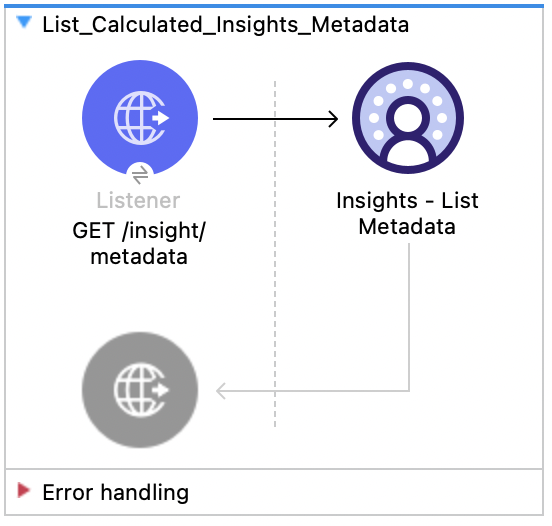
![Salesforce Data Cloud Connector Insights List Metadata flow with Listener and Insights List Metadata](/mulesoft/current/en-us/salesforce-data-cloud-connector/latest/_images/insights-list-metadata.png)

### XML for This Example

Paste this code into the Studio XML editor to quickly load the flow for this example into your Mule
app:

```xml
<?xml version="1.0" encoding="UTF-8"?>

<mule xmlns:salesforce="http://www.mulesoft.org/schema/mule/salesforce" xmlns:ee="http://www.mulesoft.org/schema/mule/ee/core"
	xmlns:file="http://www.mulesoft.org/schema/mule/file"
	xmlns:sdc="http://www.mulesoft.org/schema/mule/sdc" xmlns:http="http://www.mulesoft.org/schema/mule/http" xmlns="http://www.mulesoft.org/schema/mule/core" xmlns:doc="http://www.mulesoft.org/schema/mule/documentation" xmlns:xsi="http://www.w3.org/2001/XMLSchema-instance" xsi:schemaLocation="http://www.mulesoft.org/schema/mule/core http://www.mulesoft.org/schema/mule/core/current/mule.xsd
http://www.mulesoft.org/schema/mule/http http://www.mulesoft.org/schema/mule/http/current/mule-http.xsd
http://www.mulesoft.org/schema/mule/sdc http://www.mulesoft.org/schema/mule/sdc/current/mule-sdc.xsd
http://www.mulesoft.org/schema/mule/file http://www.mulesoft.org/schema/mule/file/current/mule-file.xsd
http://www.mulesoft.org/schema/mule/ee/core http://www.mulesoft.org/schema/mule/ee/core/current/mule-ee.xsd
http://www.mulesoft.org/schema/mule/salesforce http://www.mulesoft.org/schema/mule/salesforce/current/mule-salesforce.xsd">
	<http:listener-config name="HTTP_Listener_config" doc:name="HTTP Listener config" >
		<http:listener-connection host="0.0.0.0" port="8081" />
	</http:listener-config>
	<sdc:sdc-config name="Salesforce_Data_Cloud_OAuth_JWT_config" doc:name="Salesforce Data Cloud config" >
		<sdc:oauth-jwt-connection consumerKey="${server.consumerKey}" keyStorePath="${server.keyStorePath}" storePassword="${server.keyStorePassword}" subject="${server.userName}" audienceUrl="${server.audienceUrl}" keyAlias="${server.certificateAlias}" />
	</sdc:sdc-config>
	<configuration-properties doc:name="Configuration properties" file="mule-app.properties" />
	<sdc:sdc-config name="Salesforce_Data_Cloud_OAuth_UsernamePassword_config" doc:name="Salesforce Data Cloud config" >
		<sdc:oauth-user-pass-connection clientId="${server.consumerKey}" clientSecret="${server.consumerSecret}" username="${server.userName}" password="${server.password}" audienceUrl="${server.audienceUrl}" />
	</sdc:sdc-config>
	<flow name="List_Calculated_Insights_Metadata" >
		<http:listener doc:name="GET /insight/metadata" allowedMethods="GET" path="/insight/metadata" config-ref="HTTP_Listener_config"/>
		<sdc:get-all-calculated-insight-metadata doc:name="Insights - List Metadata"  config-ref="Salesforce_Data_Cloud_OAuth_JWT_config"/>
	</flow>
</mule>
```

### Steps for Running This Example

1.  [Verify that your connector is configured.](https://developer.salesforce.com/docs/data/data-cloud-int/guide/c360-a-connect-an-ingestion-source.html)

2.  Save the project.

3.  Test the flow by sending a `GET` to `localhost:8081/insight/metadata`.

## Insights - Get Metadata API

This Mule flow shows how to retrieve the metadata, including the dimensions and filters for a
calculated insight. Refer to the
[Salesforce Data 360 API Developer Guide](https://developer.salesforce.com/docs/data/data-cloud-query-guide/references/data-cloud-query-api-reference/c360a-api-insights-meta-ci-name.html)
for usage and further details.

This example uses the following operations:

- **HTTP Listener**  
  Accepts HTTP GET requests with the calculated insight name as the required URI parameter.

- **Insights - Get Metadata**

  - Authenticates based on your choice of OAuth Client Credentials, OAuth JWT, or OAuth Username and
    Password.

  - Receives the calculated insight name.

  - Calls the Salesforce Data 360 API to return the metadata for the requested calculated insight.
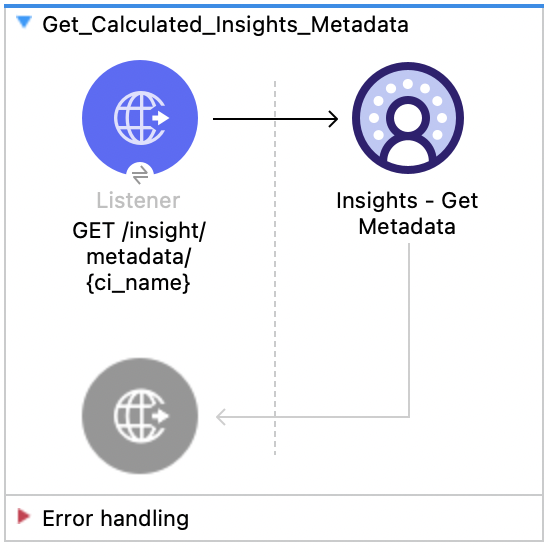
![Salesforce Data Cloud Connector Insights Get Metadata flow with Listener and Insights Get Metadata](/mulesoft/current/en-us/salesforce-data-cloud-connector/latest/_images/insights-get-metadata.png)

### XML for This Example

Paste this code into the Studio XML editor to quickly load the flow for this example into your Mule
app:

```xml
<?xml version="1.0" encoding="UTF-8"?>

<mule xmlns:salesforce="http://www.mulesoft.org/schema/mule/salesforce" xmlns:ee="http://www.mulesoft.org/schema/mule/ee/core"
	xmlns:file="http://www.mulesoft.org/schema/mule/file"
	xmlns:sdc="http://www.mulesoft.org/schema/mule/sdc" xmlns:http="http://www.mulesoft.org/schema/mule/http" xmlns="http://www.mulesoft.org/schema/mule/core" xmlns:doc="http://www.mulesoft.org/schema/mule/documentation" xmlns:xsi="http://www.w3.org/2001/XMLSchema-instance" xsi:schemaLocation="http://www.mulesoft.org/schema/mule/core http://www.mulesoft.org/schema/mule/core/current/mule.xsd
http://www.mulesoft.org/schema/mule/http http://www.mulesoft.org/schema/mule/http/current/mule-http.xsd
http://www.mulesoft.org/schema/mule/sdc http://www.mulesoft.org/schema/mule/sdc/current/mule-sdc.xsd
http://www.mulesoft.org/schema/mule/file http://www.mulesoft.org/schema/mule/file/current/mule-file.xsd
http://www.mulesoft.org/schema/mule/ee/core http://www.mulesoft.org/schema/mule/ee/core/current/mule-ee.xsd
http://www.mulesoft.org/schema/mule/salesforce http://www.mulesoft.org/schema/mule/salesforce/current/mule-salesforce.xsd">
	<http:listener-config name="HTTP_Listener_config" doc:name="HTTP Listener config" >
		<http:listener-connection host="0.0.0.0" port="8081" />
	</http:listener-config>
	<sdc:sdc-config name="Salesforce_Data_Cloud_OAuth_JWT_config" doc:name="Salesforce Data Cloud config" >
		<sdc:oauth-jwt-connection consumerKey="${server.consumerKey}" keyStorePath="${server.keyStorePath}" storePassword="${server.keyStorePassword}" subject="${server.userName}" audienceUrl="${server.audienceUrl}" keyAlias="${server.certificateAlias}" />
	</sdc:sdc-config>
	<configuration-properties doc:name="Configuration properties" file="mule-app.properties" />
	<sdc:sdc-config name="Salesforce_Data_Cloud_OAuth_UsernamePassword_config" doc:name="Salesforce Data Cloud config" >
		<sdc:oauth-user-pass-connection clientId="${server.consumerKey}" clientSecret="${server.consumerSecret}" username="${server.userName}" password="${server.password}" audienceUrl="${server.audienceUrl}" />
	</sdc:sdc-config>
	<flow name="Get_Calculated_Insights_Metadata" >
		<http:listener doc:name="GET /insight/metadata/{ci_name}" config-ref="HTTP_Listener_config" path="/insight/metadata/{ci_name}" allowedMethods="GET"/>
		<sdc:get-calculated-insight-metadata doc:name="Insights - Get Metadata" config-ref="Salesforce_Data_Cloud_OAuth_JWT_config" ciNameUriParam="#[attributes.uriParams.ci_name]"/>
	</flow>
</mule>
```

### Steps for Running This Example

1.  [Verify that your connector is configured.](https://developer.salesforce.com/docs/data/data-cloud-int/guide/c360-a-connect-an-ingestion-source.html)

2.  Save the project.

3.  Test the flow by sending a `GET` to `localhost:8081/insight/metadata/{CALCULATED_INSIGHT_NAME}`.

## Insights - Get Insights API

This Mule flow shows how to query the calculated insights. Users can slice, dice, and filter by
selecting different dimensions, measures, and filters. Refer to the
[Salesforce Data 360 API Developer Guide](https://developer.salesforce.com/docs/data/data-cloud-query-guide/references/data-cloud-query-api-reference/c360a-api-insights-ci-ci-name.html)
for usage and further details.

This example uses the following operations:

- **HTTP Listener**  
  Accepts HTTP GET requests with the calculated insight name as the required URI parameter and a
  combination of any optional query parameters.

- **Insights - Get Insights**

  - Authenticates based on your choice of OAuth Client Credentials, OAuth JWT, or OAuth Username and
    Password.

  - Receives the calculated insight name and any other optional URI parameters.

  - Calls the Salesforce Data 360 API to return the records of the requested calculated insight that
    match the query criteria.
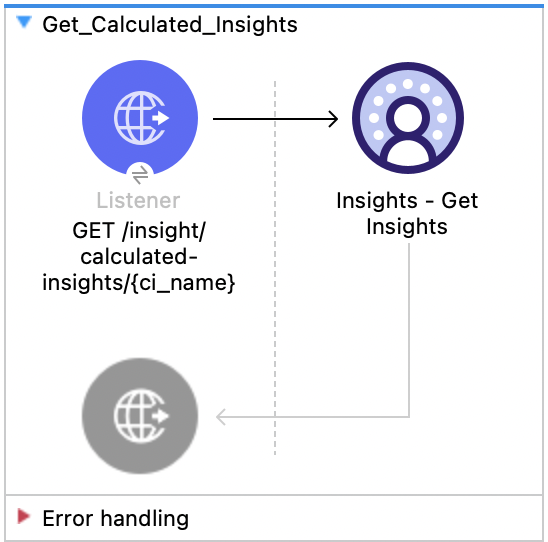
![Salesforce Data Cloud Connector Insights Get Insights flow with Listener and Insights Get Insights](/mulesoft/current/en-us/salesforce-data-cloud-connector/latest/_images/insights-get-insights.png)

### XML for This Example

Paste this code into the Studio XML editor to quickly load the flow for this example into your Mule
app:

```xml
<?xml version="1.0" encoding="UTF-8"?>

<mule xmlns:salesforce="http://www.mulesoft.org/schema/mule/salesforce" xmlns:ee="http://www.mulesoft.org/schema/mule/ee/core"
	xmlns:file="http://www.mulesoft.org/schema/mule/file"
	xmlns:sdc="http://www.mulesoft.org/schema/mule/sdc" xmlns:http="http://www.mulesoft.org/schema/mule/http" xmlns="http://www.mulesoft.org/schema/mule/core" xmlns:doc="http://www.mulesoft.org/schema/mule/documentation" xmlns:xsi="http://www.w3.org/2001/XMLSchema-instance" xsi:schemaLocation="http://www.mulesoft.org/schema/mule/core http://www.mulesoft.org/schema/mule/core/current/mule.xsd
http://www.mulesoft.org/schema/mule/http http://www.mulesoft.org/schema/mule/http/current/mule-http.xsd
http://www.mulesoft.org/schema/mule/sdc http://www.mulesoft.org/schema/mule/sdc/current/mule-sdc.xsd
http://www.mulesoft.org/schema/mule/file http://www.mulesoft.org/schema/mule/file/current/mule-file.xsd
http://www.mulesoft.org/schema/mule/ee/core http://www.mulesoft.org/schema/mule/ee/core/current/mule-ee.xsd
http://www.mulesoft.org/schema/mule/salesforce http://www.mulesoft.org/schema/mule/salesforce/current/mule-salesforce.xsd">
	<http:listener-config name="HTTP_Listener_config" doc:name="HTTP Listener config" >
		<http:listener-connection host="0.0.0.0" port="8081" />
	</http:listener-config>
	<sdc:sdc-config name="Salesforce_Data_Cloud_OAuth_JWT_config" doc:name="Salesforce Data Cloud config" >
		<sdc:oauth-jwt-connection consumerKey="${server.consumerKey}" keyStorePath="${server.keyStorePath}" storePassword="${server.keyStorePassword}" subject="${server.userName}" audienceUrl="${server.audienceUrl}" keyAlias="${server.certificateAlias}" />
	</sdc:sdc-config>
	<configuration-properties doc:name="Configuration properties" file="mule-app.properties" />
	<sdc:sdc-config name="Salesforce_Data_Cloud_OAuth_UsernamePassword_config" doc:name="Salesforce Data Cloud config" >
		<sdc:oauth-user-pass-connection clientId="${server.consumerKey}" clientSecret="${server.consumerSecret}" username="${server.userName}" password="${server.password}" audienceUrl="${server.audienceUrl}" />
	</sdc:sdc-config>
	<flow name="Get_Calculated_Insights" >
		<http:listener doc:name="GET /insight/calculated-insights/{ci_name}" config-ref="HTTP_Listener_config" path="/insight/calculated-insights/{ci_name}" allowedMethods="GET"/>
		<sdc:get-calculated-insight-with-filters-fields-and-limit doc:name="Insights - Get Insights" config-ref="Salesforce_Data_Cloud_OAuth_JWT_config" ciNameUriParam="#[attributes.uriParams.ci_name]" dimensionsQueryParam="#[attributes.queryParams.dimensions]" measuresQueryParam="#[attributes.queryParams.measures]" limitQueryParam="#[attributes.queryParams.limit]" offsetQueryParam="#[attributes.queryParams.offset]" filtersQueryParam="#[attributes.queryParams.filters]" orderbyQueryParam="#[attributes.queryParams.orderby]" timeGranularityQueryParam="#[attributes.queryParams.timeGranularity]"/>
	</flow>
</mule>
```

### Steps for Running This Example

1.  Verify that your connector is configured.

2.  Save the project.

3.  Test the flow by sending a `GET` to
    `localhost:8081/insight/calculated-insights/{CALCULATED_INSIGHT_NAME}`.

## Profile - List Metadata API

This Mule flow shows how to retrieve the list of data model objects and their fields and category.
Refer to the
[Salesforce Data 360 API Developer Guide](https://developer.salesforce.com/docs/data/data-cloud-query-guide/references/data-cloud-query-api-reference/c360a-api-profile-meta.html)
for usage and further details.

This example uses the following operations:

- **HTTP Listener**  
  Accepts HTTP GET requests.

- **Profile - List Metadata**

  - Authenticates based on your choice of OAuth Client Credentials, OAuth JWT, or OAuth Username and
    Password.

  - Calls the Salesforce Data 360 API to return the list of data model objects and their fields and
    category.
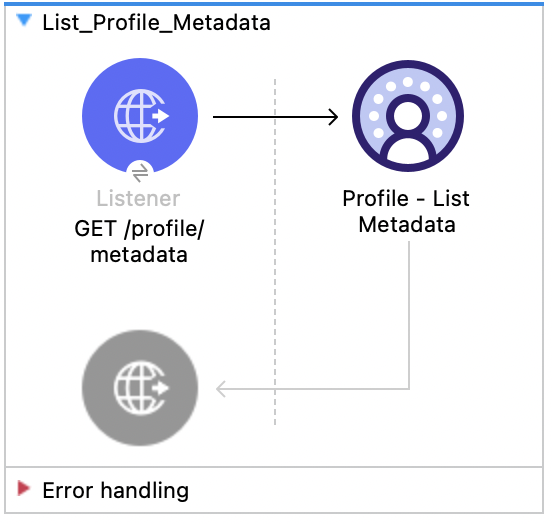
![Salesforce Data Cloud Connector Profile List Metadata flow with Listener and Profile List Metadata](/mulesoft/current/en-us/salesforce-data-cloud-connector/latest/_images/profile-list-metadata.png)

### XML for This Example

Paste this code into the Studio XML editor to quickly load the flow for this example into your Mule
app:

```xml
<?xml version="1.0" encoding="UTF-8"?>

<mule xmlns:salesforce="http://www.mulesoft.org/schema/mule/salesforce" xmlns:ee="http://www.mulesoft.org/schema/mule/ee/core"
	xmlns:file="http://www.mulesoft.org/schema/mule/file"
	xmlns:sdc="http://www.mulesoft.org/schema/mule/sdc" xmlns:http="http://www.mulesoft.org/schema/mule/http" xmlns="http://www.mulesoft.org/schema/mule/core" xmlns:doc="http://www.mulesoft.org/schema/mule/documentation" xmlns:xsi="http://www.w3.org/2001/XMLSchema-instance" xsi:schemaLocation="http://www.mulesoft.org/schema/mule/core http://www.mulesoft.org/schema/mule/core/current/mule.xsd
http://www.mulesoft.org/schema/mule/http http://www.mulesoft.org/schema/mule/http/current/mule-http.xsd
http://www.mulesoft.org/schema/mule/sdc http://www.mulesoft.org/schema/mule/sdc/current/mule-sdc.xsd
http://www.mulesoft.org/schema/mule/file http://www.mulesoft.org/schema/mule/file/current/mule-file.xsd
http://www.mulesoft.org/schema/mule/ee/core http://www.mulesoft.org/schema/mule/ee/core/current/mule-ee.xsd
http://www.mulesoft.org/schema/mule/salesforce http://www.mulesoft.org/schema/mule/salesforce/current/mule-salesforce.xsd">
	<http:listener-config name="HTTP_Listener_config" doc:name="HTTP Listener config" >
		<http:listener-connection host="0.0.0.0" port="8081" />
	</http:listener-config>
	<sdc:sdc-config name="Salesforce_Data_Cloud_OAuth_JWT_config" doc:name="Salesforce Data Cloud config" >
		<sdc:oauth-jwt-connection consumerKey="${server.consumerKey}" keyStorePath="${server.keyStorePath}" storePassword="${server.keyStorePassword}" subject="${server.userName}" audienceUrl="${server.audienceUrl}" keyAlias="${server.certificateAlias}" />
	</sdc:sdc-config>
	<configuration-properties doc:name="Configuration properties" file="mule-app.properties" />
	<sdc:sdc-config name="Salesforce_Data_Cloud_OAuth_UsernamePassword_config" doc:name="Salesforce Data Cloud config" >
		<sdc:oauth-user-pass-connection clientId="${server.consumerKey}" clientSecret="${server.consumerSecret}" username="${server.userName}" password="${server.password}" audienceUrl="${server.audienceUrl}" />
	</sdc:sdc-config>
	<flow name="List_Profile_Metadata" >
		<http:listener doc:name="GET /profile/metadata" allowedMethods="GET" path="/profile/metadata" config-ref="HTTP_Listener_config"/>
		<sdc:get-meta-by-category doc:name="Profile - List Metadata" config-ref="Salesforce_Data_Cloud_OAuth_JWT_config"/>
	</flow>
</mule>
```

### Steps for Running This Example

1.  Verify that your connector is configured.

2.  Save the project.

3.  Test the flow by sending a `GET` to `localhost:8081/profile/metadata`.

## Profile - Get Metadata API

This Mule flow shows how to retrieve the metadata for a data model object. Refer to the
[Salesforce Data 360 API Developer Guide](https://developer.salesforce.com/docs/data/data-cloud-query-guide/references/data-cloud-query-api-reference/c360a-api-profile-meta-dmname.html)
for usage and further details.

This example uses the following operations:

- **HTTP Listener**  
  Accepts HTTP GET requests with the data model name as the required URI parameter.

- **Profile - Get Metadata**

  - Authenticates based on your choice of OAuth Client Credentials, OAuth JWT, or OAuth Username and
    Password.

  - Receives the data model name.

  - Calls the Salesforce Data 360 API to return the metadata for the requested data model object.
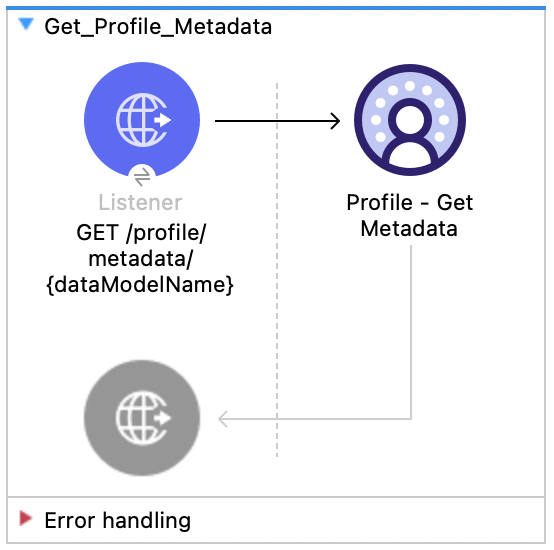
![Salesforce Data Cloud Connector Profile Get Metadata flow with Listener and Profile Get Metadata](/mulesoft/current/en-us/salesforce-data-cloud-connector/latest/_images/profile-get-metadata.png)

### XML for This Example

Paste this code into the Studio XML editor to quickly load the flow for this example into your Mule
app:

```xml
<?xml version="1.0" encoding="UTF-8"?>

<mule xmlns:salesforce="http://www.mulesoft.org/schema/mule/salesforce" xmlns:ee="http://www.mulesoft.org/schema/mule/ee/core"
	xmlns:file="http://www.mulesoft.org/schema/mule/file"
	xmlns:sdc="http://www.mulesoft.org/schema/mule/sdc" xmlns:http="http://www.mulesoft.org/schema/mule/http" xmlns="http://www.mulesoft.org/schema/mule/core" xmlns:doc="http://www.mulesoft.org/schema/mule/documentation" xmlns:xsi="http://www.w3.org/2001/XMLSchema-instance" xsi:schemaLocation="http://www.mulesoft.org/schema/mule/core http://www.mulesoft.org/schema/mule/core/current/mule.xsd
http://www.mulesoft.org/schema/mule/http http://www.mulesoft.org/schema/mule/http/current/mule-http.xsd
http://www.mulesoft.org/schema/mule/sdc http://www.mulesoft.org/schema/mule/sdc/current/mule-sdc.xsd
http://www.mulesoft.org/schema/mule/file http://www.mulesoft.org/schema/mule/file/current/mule-file.xsd
http://www.mulesoft.org/schema/mule/ee/core http://www.mulesoft.org/schema/mule/ee/core/current/mule-ee.xsd
http://www.mulesoft.org/schema/mule/salesforce http://www.mulesoft.org/schema/mule/salesforce/current/mule-salesforce.xsd">
	<http:listener-config name="HTTP_Listener_config" doc:name="HTTP Listener config" >
		<http:listener-connection host="0.0.0.0" port="8081" />
	</http:listener-config>
	<sdc:sdc-config name="Salesforce_Data_Cloud_OAuth_JWT_config" doc:name="Salesforce Data Cloud config" >
		<sdc:oauth-jwt-connection consumerKey="${server.consumerKey}" keyStorePath="${server.keyStorePath}" storePassword="${server.keyStorePassword}" subject="${server.userName}" audienceUrl="${server.audienceUrl}" keyAlias="${server.certificateAlias}" />
	</sdc:sdc-config>
	<configuration-properties doc:name="Configuration properties" file="mule-app.properties" />
	<sdc:sdc-config name="Salesforce_Data_Cloud_OAuth_UsernamePassword_config" doc:name="Salesforce Data Cloud config" >
		<sdc:oauth-user-pass-connection clientId="${server.consumerKey}" clientSecret="${server.consumerSecret}" username="${server.userName}" password="${server.password}" audienceUrl="${server.audienceUrl}" />
	</sdc:sdc-config>
	<flow name="Get_Profile_Metadata" >
		<http:listener doc:name="GET /profile/metadata/{dataModelName}" allowedMethods="GET" path="/profile/metadata/{dataModelName}" config-ref="HTTP_Listener_config"/>
		<sdc:get-meta doc:name="Profile - Get Metadata" config-ref="Salesforce_Data_Cloud_OAuth_JWT_config" dataModelNameUriParam="#[attributes.uriParams.dataModelName]"/>
	</flow>
</mule>
```

### Steps for Running This Example

1.  Verify that your connector is configured.

2.  Save the project.

3.  Test the flow by sending a `GET` to `localhost:8081/profile/metadata/{DATA_MODEL_NAME}`.

## Profile - Search Records API

This Mule flow shows how to retrieve data model object records based on search filters. Refer to the
[Salesforce Data 360 API Developer Guide](https://developer.salesforce.com/docs/data/data-cloud-query-guide/references/data-cloud-query-api-reference/c360a-api-profile-dmname.html)
for usage and further details.

This example uses the following operations:

- **HTTP Listener**  
  Accepts HTTP GET requests with the data model name as the required URI parameter, fields as the
  required query parameter, and a combination of any other query parameters.

- **Profile - Search Records**

  - Authenticates based on your choice of OAuth Client Credentials, OAuth JWT, or OAuth Username and
    Password.

  - Receives the data model name, fields and any optional query parameters.

  - Calls the Salesforce Data 360 API to return the data model object records based on search
    filters.
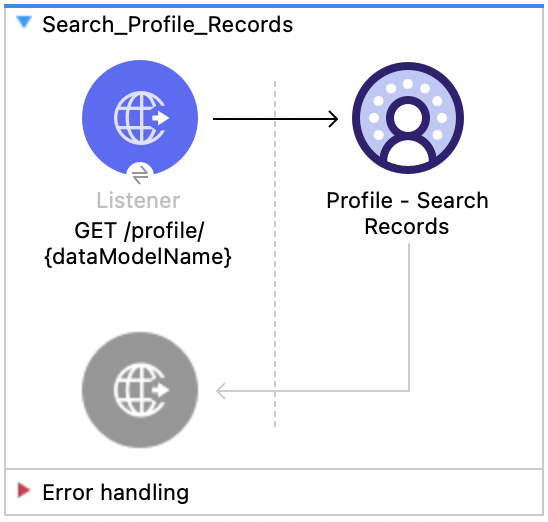
![Salesforce Data Cloud Connector Profile Search Records flow with Listener and Profile Search Records](/mulesoft/current/en-us/salesforce-data-cloud-connector/latest/_images/profile-search-records.png)

### XML for This Example

Paste this code into the Studio XML editor to quickly load the flow for this example into your Mule
app:

```xml
<?xml version="1.0" encoding="UTF-8"?>

<mule xmlns:salesforce="http://www.mulesoft.org/schema/mule/salesforce" xmlns:ee="http://www.mulesoft.org/schema/mule/ee/core"
	xmlns:file="http://www.mulesoft.org/schema/mule/file"
	xmlns:sdc="http://www.mulesoft.org/schema/mule/sdc" xmlns:http="http://www.mulesoft.org/schema/mule/http" xmlns="http://www.mulesoft.org/schema/mule/core" xmlns:doc="http://www.mulesoft.org/schema/mule/documentation" xmlns:xsi="http://www.w3.org/2001/XMLSchema-instance" xsi:schemaLocation="http://www.mulesoft.org/schema/mule/core http://www.mulesoft.org/schema/mule/core/current/mule.xsd
http://www.mulesoft.org/schema/mule/http http://www.mulesoft.org/schema/mule/http/current/mule-http.xsd
http://www.mulesoft.org/schema/mule/sdc http://www.mulesoft.org/schema/mule/sdc/current/mule-sdc.xsd
http://www.mulesoft.org/schema/mule/file http://www.mulesoft.org/schema/mule/file/current/mule-file.xsd
http://www.mulesoft.org/schema/mule/ee/core http://www.mulesoft.org/schema/mule/ee/core/current/mule-ee.xsd
http://www.mulesoft.org/schema/mule/salesforce http://www.mulesoft.org/schema/mule/salesforce/current/mule-salesforce.xsd">
	<http:listener-config name="HTTP_Listener_config" doc:name="HTTP Listener config" >
		<http:listener-connection host="0.0.0.0" port="8081" />
	</http:listener-config>
	<sdc:sdc-config name="Salesforce_Data_Cloud_OAuth_JWT_config" doc:name="Salesforce Data Cloud config" >
		<sdc:oauth-jwt-connection consumerKey="${server.consumerKey}" keyStorePath="${server.keyStorePath}" storePassword="${server.keyStorePassword}" subject="${server.userName}" audienceUrl="${server.audienceUrl}" keyAlias="${server.certificateAlias}" />
	</sdc:sdc-config>
	<configuration-properties doc:name="Configuration properties" file="mule-app.properties" />
	<sdc:sdc-config name="Salesforce_Data_Cloud_OAuth_UsernamePassword_config" doc:name="Salesforce Data Cloud config" >
		<sdc:oauth-user-pass-connection clientId="${server.consumerKey}" clientSecret="${server.consumerSecret}" username="${server.userName}" password="${server.password}" audienceUrl="${server.audienceUrl}" />
	</sdc:sdc-config>
	<flow name="Search_Profile_Records" >
		<http:listener doc:name="GET /profile/{dataModelName}" config-ref="HTTP_Listener_config" path="/profile/{dataModelName}"/>
		<sdc:get-parent-with-filters doc:name="Profile - Search Records"  config-ref="Salesforce_Data_Cloud_OAuth_JWT_config" dataModelNameUriParam="#[attributes.uriParams.dataModelName]" orderbyQueryParam="#[attributes.queryParams.orderby]" filtersQueryParam="#[attributes.queryParams.filters]" fieldsQueryParam="#[attributes.queryParams.fields]" limitQueryParam="#[attributes.queryParams.limit]" offsetQueryParam="#[attributes.queryParams.offset]"/>
	</flow>
</mule>
```

### Steps for Running This Example

1.  Verify that your connector is configured.

2.  Save the project.

3.  Test the flow by sending a `GET` to
    `localhost:8081/profile/{DATA_MODEL_NAME}?filters={FILTERS}`.

## Profile - Search Records By ID API

This Mule flow shows how to retrieve data model object records based on search indexes and filters.
Refer to the
[Salesforce Data 360 API Developer Guide](https://developer.salesforce.com/docs/data/data-cloud-query-guide/references/data-cloud-query-api-reference/c360a-api-profile-dmname-id.html)
for usage and further details.

This example uses the following operations:

- **HTTP Listener**  
  Accepts HTTP GET requests with the data model name and ID as the required URI parameters, and a
  combination of any optional query parameters.

- **Profile - Search Records By Id**

  - Authenticates based on your choice of OAuth Client Credentials, OAuth JWT, or OAuth Username and
    Password.

  - Receives the data model name, ID, and any optional query parameters.

  - Calls the Salesforce Data 360 API to return the data model object records based on search
    indexes and filters.
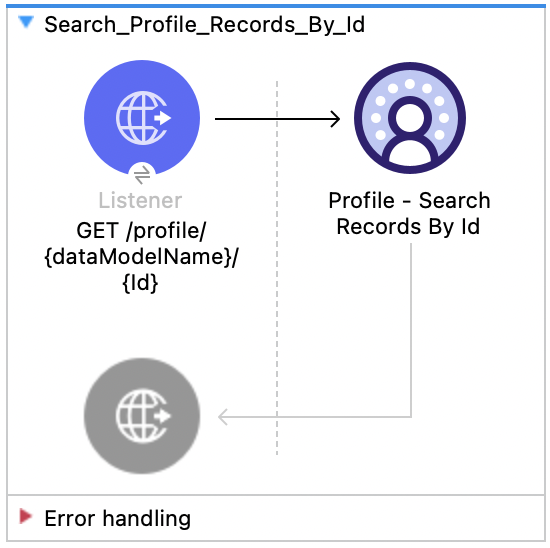
![Salesforce Data Cloud Connector Profile Search Records By Id flow with Listener and Profile Search Records By Id](/mulesoft/current/en-us/salesforce-data-cloud-connector/latest/_images/profile-search-records-by-id.png)

### XML for This Example

Paste this code into the Studio XML editor to quickly load the flow for this example into your Mule
app:

```xml
<?xml version="1.0" encoding="UTF-8"?>

<mule xmlns:salesforce="http://www.mulesoft.org/schema/mule/salesforce" xmlns:ee="http://www.mulesoft.org/schema/mule/ee/core"
	xmlns:file="http://www.mulesoft.org/schema/mule/file"
	xmlns:sdc="http://www.mulesoft.org/schema/mule/sdc" xmlns:http="http://www.mulesoft.org/schema/mule/http" xmlns="http://www.mulesoft.org/schema/mule/core" xmlns:doc="http://www.mulesoft.org/schema/mule/documentation" xmlns:xsi="http://www.w3.org/2001/XMLSchema-instance" xsi:schemaLocation="http://www.mulesoft.org/schema/mule/core http://www.mulesoft.org/schema/mule/core/current/mule.xsd
http://www.mulesoft.org/schema/mule/http http://www.mulesoft.org/schema/mule/http/current/mule-http.xsd
http://www.mulesoft.org/schema/mule/sdc http://www.mulesoft.org/schema/mule/sdc/current/mule-sdc.xsd
http://www.mulesoft.org/schema/mule/file http://www.mulesoft.org/schema/mule/file/current/mule-file.xsd
http://www.mulesoft.org/schema/mule/ee/core http://www.mulesoft.org/schema/mule/ee/core/current/mule-ee.xsd
http://www.mulesoft.org/schema/mule/salesforce http://www.mulesoft.org/schema/mule/salesforce/current/mule-salesforce.xsd">
	<http:listener-config name="HTTP_Listener_config" doc:name="HTTP Listener config" >
		<http:listener-connection host="0.0.0.0" port="8081" />
	</http:listener-config>
	<sdc:sdc-config name="Salesforce_Data_Cloud_OAuth_JWT_config" doc:name="Salesforce Data Cloud config" >
		<sdc:oauth-jwt-connection consumerKey="${server.consumerKey}" keyStorePath="${server.keyStorePath}" storePassword="${server.keyStorePassword}" subject="${server.userName}" audienceUrl="${server.audienceUrl}" keyAlias="${server.certificateAlias}" />
	</sdc:sdc-config>
	<configuration-properties doc:name="Configuration properties" file="mule-app.properties" />
	<sdc:sdc-config name="Salesforce_Data_Cloud_OAuth_UsernamePassword_config" doc:name="Salesforce Data Cloud config" >
		<sdc:oauth-user-pass-connection clientId="${server.consumerKey}" clientSecret="${server.consumerSecret}" username="${server.userName}" password="${server.password}" audienceUrl="${server.audienceUrl}" />
	</sdc:sdc-config>
	<flow name="Search_Profile_Records_By_Id" >
		<http:listener doc:name="GET /profile/{dataModelName}/{Id}" config-ref="HTTP_Listener_config" path="/profile/{dataModelName}/{Id}"/>
		<sdc:get-parent doc:name="Profile - Search Records By Id" config-ref="Salesforce_Data_Cloud_OAuth_JWT_config" dataModelNameUriParam="#[attributes.uriParams.dataModelName]" idUriParam="#[attributes.uriParams.Id]" searchKeyQueryParam="#[attributes.queryParams.searchKey]" fieldsQueryParam="#[attributes.queryParams.fields]" filtersQueryParam="#[attributes.queryParams.filters]" limitQueryParam="#[attributes.queryParams.limit]" orderbyQueryParam="#[attributes.queryParams.orderby]" offsetQueryParam="#[attributes.queryParams.offset]"/>
	</flow>
</mule>
```

### Steps for Running This Example

1.  Verify that your connector is configured.

2.  Save the project.

3.  Test the flow by sending a `GET` to `localhost:8081/profile/{DATA_MODEL_NAME}/{Id}`.

## Profile - Search Records With Child Records API

This Mule flow shows how to retrieve data model object records along with child data model object
records based on indexes and search filters. Refer to the
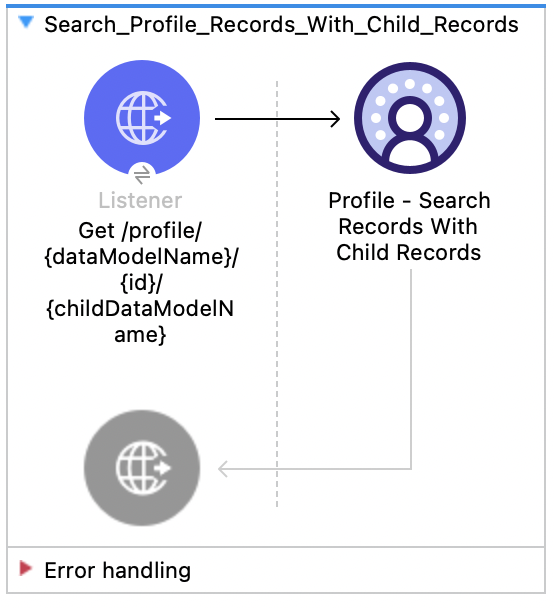
[Salesforce Data 360 API Developer Guide](https://developer.salesforce.com/docs/data/data-cloud-query-guide/references/data-cloud-query-api-reference/c360a-api-profile-dmname-id-child-dmname.html)
for usage and further details.

This example uses the following operations:

- **HTTP Listener**  
  Accepts HTTP GET requests with the data model name, child data model name, and ID as the required
  URI parameters, and a combination of any optional query parameters.

- **Profile - Search Records With Child Records**

  - Authenticates based on your choice of OAuth Client Credentials, OAuth JWT, or OAuth Username and
    Password.

  - Receives the data model name, child data model name, ID, and any optional query parameters.

  - Calls the Salesforce Data 360 API to return the data model object records along with child data
    model object records based on indexes and search filters.

![Salesforce Data Cloud Connector Profile Search Records With Child Records flow with Listener and Profile Search Records With Child Records](/mulesoft/current/en-us/salesforce-data-cloud-connector/latest/_images/profile-search-records-with-child-records.png)

### XML for This Example

Paste this code into the Studio XML editor to quickly load the flow for this example into your Mule
app:

```xml
<?xml version="1.0" encoding="UTF-8"?>

<mule xmlns:salesforce="http://www.mulesoft.org/schema/mule/salesforce" xmlns:ee="http://www.mulesoft.org/schema/mule/ee/core"
	xmlns:file="http://www.mulesoft.org/schema/mule/file"
	xmlns:sdc="http://www.mulesoft.org/schema/mule/sdc" xmlns:http="http://www.mulesoft.org/schema/mule/http" xmlns="http://www.mulesoft.org/schema/mule/core" xmlns:doc="http://www.mulesoft.org/schema/mule/documentation" xmlns:xsi="http://www.w3.org/2001/XMLSchema-instance" xsi:schemaLocation="http://www.mulesoft.org/schema/mule/core http://www.mulesoft.org/schema/mule/core/current/mule.xsd
http://www.mulesoft.org/schema/mule/http http://www.mulesoft.org/schema/mule/http/current/mule-http.xsd
http://www.mulesoft.org/schema/mule/sdc http://www.mulesoft.org/schema/mule/sdc/current/mule-sdc.xsd
http://www.mulesoft.org/schema/mule/file http://www.mulesoft.org/schema/mule/file/current/mule-file.xsd
http://www.mulesoft.org/schema/mule/ee/core http://www.mulesoft.org/schema/mule/ee/core/current/mule-ee.xsd
http://www.mulesoft.org/schema/mule/salesforce http://www.mulesoft.org/schema/mule/salesforce/current/mule-salesforce.xsd">
	<http:listener-config name="HTTP_Listener_config" doc:name="HTTP Listener config" >
		<http:listener-connection host="0.0.0.0" port="8081" />
	</http:listener-config>
	<sdc:sdc-config name="Salesforce_Data_Cloud_OAuth_JWT_config" doc:name="Salesforce Data Cloud config" >
		<sdc:oauth-jwt-connection consumerKey="${server.consumerKey}" keyStorePath="${server.keyStorePath}" storePassword="${server.keyStorePassword}" subject="${server.userName}" audienceUrl="${server.audienceUrl}" keyAlias="${server.certificateAlias}" />
	</sdc:sdc-config>
	<configuration-properties doc:name="Configuration properties" file="mule-app.properties" />
	<sdc:sdc-config name="Salesforce_Data_Cloud_OAuth_UsernamePassword_config" doc:name="Salesforce Data Cloud config" >
		<sdc:oauth-user-pass-connection clientId="${server.consumerKey}" clientSecret="${server.consumerSecret}" username="${server.userName}" password="${server.password}" audienceUrl="${server.audienceUrl}" />
	</sdc:sdc-config>
	<flow name="Search_Profile_Records_With_Child_Records" >
		<http:listener doc:name="Get /profile/{dataModelName}/{id}/{childDataModelName}" allowedMethods="GET" config-ref="HTTP_Listener_config" path="/profile/{dataModelName}/{id}/{childDataModelName}"/>
		<sdc:get-parent-and-child doc:name="Profile - Search Records With Child Records" searchKeyQueryParam="#[attributes.queryParams.searchKey]" fieldsQueryParam="#[attributes.queryParams.fields]" limitQueryParam="#[attributes.queryParams.limit]" filtersQueryParam="#[attributes.queryParams.filters]" offsetQueryParam="#[attributes.queryParams.offset]" orderbyQueryParam="#[attributes.queryParams.orderby]" dataModelNameUriParam="#[attributes.uriParams.dataModelName]" idUriParam="#[attributes.uriParams.id]" childDataModelNameUriParam="#[attributes.uriParams.childDataModelName]" config-ref="Salesforce_Data_Cloud_OAuth_JWT_config"/>
	</flow>
</mule>
```

### Steps for Running This Example

1.  Verify that your connector is configured.

2.  Save the project.

3.  Test the flow by sending a `GET` to
    `localhost:8081/profile/{DATA_MODEL_NAME}/{Id}/{CHILD_DATA_MODEL_NAME}`.

## Profile - Search Records With Insight API

This Mule flow shows how to retrieve data model object records and a computed view based on indexes
and search filters. Refer to the
[Salesforce Data 360 API Developer Guide](https://developer.salesforce.com/docs/data/data-cloud-query-guide/references/data-cloud-query-api-reference/c360a-api-profile-dmname-id-ci-ci-name.html)
for usage and further details.

This example uses the following operations:

- **HTTP Listener**  
  Accepts HTTP GET requests with the data model name, ID, and calculated insight name as the
  required URI parameters, and a combination of any optional query parameters.

- **Profile - Search Records With Insight**

  - Authenticates based on your choice of OAuth Client Credentials, OAuth JWT, or OAuth Username and
    Password.

  - Receives the data model name, ID, calculated insight name, and any optional query parameters.

  - Calls the Salesforce Data 360 API to return the data model object records and a computed view
    based on indexes and search filters.
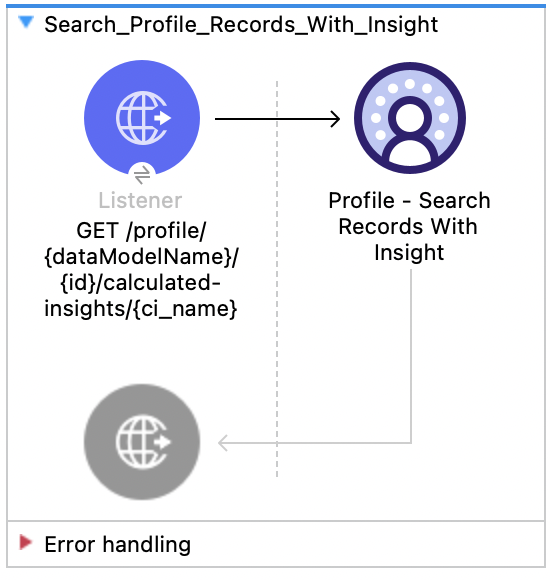
![Salesforce Data Cloud Connector Profile Search Records With Insight flow with Listener and Profile Search Records With Insight](/mulesoft/current/en-us/salesforce-data-cloud-connector/latest/_images/profile-search-records-with-insight.png)

### XML for This Example

Paste this code into the Studio XML editor to quickly load the flow for this example into your Mule
app:

```xml
<?xml version="1.0" encoding="UTF-8"?>

<mule xmlns:salesforce="http://www.mulesoft.org/schema/mule/salesforce" xmlns:ee="http://www.mulesoft.org/schema/mule/ee/core"
	xmlns:file="http://www.mulesoft.org/schema/mule/file"
	xmlns:sdc="http://www.mulesoft.org/schema/mule/sdc" xmlns:http="http://www.mulesoft.org/schema/mule/http" xmlns="http://www.mulesoft.org/schema/mule/core" xmlns:doc="http://www.mulesoft.org/schema/mule/documentation" xmlns:xsi="http://www.w3.org/2001/XMLSchema-instance" xsi:schemaLocation="http://www.mulesoft.org/schema/mule/core http://www.mulesoft.org/schema/mule/core/current/mule.xsd
http://www.mulesoft.org/schema/mule/http http://www.mulesoft.org/schema/mule/http/current/mule-http.xsd
http://www.mulesoft.org/schema/mule/sdc http://www.mulesoft.org/schema/mule/sdc/current/mule-sdc.xsd
http://www.mulesoft.org/schema/mule/file http://www.mulesoft.org/schema/mule/file/current/mule-file.xsd
http://www.mulesoft.org/schema/mule/ee/core http://www.mulesoft.org/schema/mule/ee/core/current/mule-ee.xsd
http://www.mulesoft.org/schema/mule/salesforce http://www.mulesoft.org/schema/mule/salesforce/current/mule-salesforce.xsd">
	<http:listener-config name="HTTP_Listener_config" doc:name="HTTP Listener config" >
		<http:listener-connection host="0.0.0.0" port="8081" />
	</http:listener-config>
	<sdc:sdc-config name="Salesforce_Data_Cloud_OAuth_JWT_config" doc:name="Salesforce Data Cloud config" >
		<sdc:oauth-jwt-connection consumerKey="${server.consumerKey}" keyStorePath="${server.keyStorePath}" storePassword="${server.keyStorePassword}" subject="${server.userName}" audienceUrl="${server.audienceUrl}" keyAlias="${server.certificateAlias}" />
	</sdc:sdc-config>
	<configuration-properties doc:name="Configuration properties" file="mule-app.properties" />
	<sdc:sdc-config name="Salesforce_Data_Cloud_OAuth_UsernamePassword_config" doc:name="Salesforce Data Cloud config" >
		<sdc:oauth-user-pass-connection clientId="${server.consumerKey}" clientSecret="${server.consumerSecret}" username="${server.userName}" password="${server.password}" audienceUrl="${server.audienceUrl}" />
	</sdc:sdc-config>
	<flow name="Search_Profile_Records_With_Insight" >
		<http:listener doc:name="GET /profile/{dataModelName}/{id}/calculated-insights/{ci_name}" allowedMethods="GET" config-ref="HTTP_Listener_config" path="/profile/{dataModelName}/{id}/calculated-insights/{ci_name}"/>
		<sdc:get-computed-view-for-profile doc:name="Profile - Search Records With Insight" config-ref="Salesforce_Data_Cloud_OAuth_JWT_config" dataModelNameUriParam="#[attributes.uriParams.dataModelName]" idUriParam="#[attributes.uriParams.id]" ciNameUriParam="#[attributes.uriParams.ci_name]" searchKeyQueryParam="#[attributes.queryParams.searchKey]" dimensionsQueryParam="#[attributes.queryParams.dimensions]" measuresQueryParam="#[attributes.queryParams.measures]" limitQueryParam="#[attributes.queryParams.limit]" filtersQueryParam="#[attributes.queryParams.filters]" offsetQueryParam="#[attributes.queryParams.offset]" orderbyQueryParam="#[attributes.queryParams.orderby]" timeGranularityQueryParam="#[attributes.queryParams.timeGranularity]"/>
	</flow>
</mule>
```

### Steps for Running This Example

1.  Verify that your connector is configured.

2.  Save the project.

3.  Test the flow by sending a `GET` to
    `localhost:8081/profile/{DATA_MODEL_NAME}/{Id}/calculated-insights/{CALCULATED_INSIGHT_NAME}`.

## Data Action Webhook

This Mule flow shows how to create a webhook that logs its payload when triggered by a Data Action.
Refer to the
[Salesforce Data Action docs](https://help.salesforce.com/s/articleView?id=data.c360_a_data_actions.htm&type=5).

This example uses the following operations:

- **Data Action Webhook**  
  Creates a webhook as the target of a Salesforce Data 360 Data Action.

- **Logger**  
  Shows the payload sent to the Data Action Webhook.
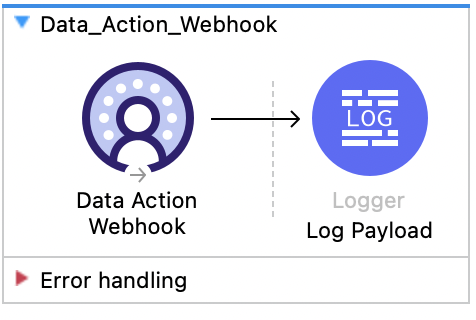
![Salesforce Data Cloud Connector Data Action Webhook flow with Data Cloud Connector Data Action Webhook and Logger Log Payload](/mulesoft/current/en-us/salesforce-data-cloud-connector/latest/_images/data-action-webhook.png)

### XML for This Example

Paste this code into the Studio XML editor to quickly load the flow for this example into your Mule
app:

```xml
<?xml version="1.0" encoding="UTF-8"?>

<mule xmlns:sdc="http://www.mulesoft.org/schema/mule/sdc"
	xmlns:http="http://www.mulesoft.org/schema/mule/http"
    xmlns="http://www.mulesoft.org/schema/mule/core"
	xmlns:doc="http://www.mulesoft.org/schema/mule/documentation"
	xmlns:xsi="http://www.w3.org/2001/XMLSchema-instance"
    xsi:schemaLocation="
    http://www.mulesoft.org/schema/mule/core http://www.mulesoft.org/schema/mule/core/current/mule.xsd
    http://www.mulesoft.org/schema/mule/sdc http://www.mulesoft.org/schema/mule/sdc/current/mule-sdc.xsd">
	<flow name="Data_Action_Webhook" doc:id="3072197f-ee1f-4ed5-99d2-a9fa62230dbf" >
		<sdc:webhook-listener doc:name="Data Action Webhook" doc:id="fe3a924a-ba94-447d-9d3c-df079fc01de2" config-ref="Salesforce_Data_Cloud_Sdc_webhook_config" path="${webhook.path}" signingKey="${webhook.signingKey}" signingAlgorithm="HmacSHA256"/>
		<logger level="INFO" doc:name="Log Payload" doc:id="716538d3-7d06-4e9c-a4f7-b0d350b4dafe" message="#[output application/json --- payload]"/>
	</flow>
</mule>
```

### Steps for Running This Example

1.  [Create a Streaming Insight](https://help.salesforce.com/s/articleView?id=data.c360_a_create_streaming_insight.htm&type=5).

2.  [Create a Data Action Target](https://help.salesforce.com/s/articleView?id=data.c360_a_data_actions.htm&type=5)
    with an Action Target Type of `Webhook`.

3.  [Create a Data Action](https://help.salesforce.com/s/articleView?id=data.c360_a_data_actions.htm&type=5)
    that uses the Data Action Target and runs on a condition against your streaming Calculated
    Insight.

4.  Save the Mule project.

5.  [Deploy your app to CloudHub.](https://docs.mulesoft.com/cloudhub/deploying-to-cloudhub)

6.  Point the data action target to your application’s URL.

    Your application URL looks like this:
    `[https://{{app-name}}.{{region}}.cloudhub.io/webhook](https://{{app-name}}.{{region}}.cloudhub.io/webhook)`.

7.  Trigger the data action’s condition to test the flow, and observe the logged payload.

## See Also

- [Introduction to Anypoint Connectors](https://docs.mulesoft.com/connectors/introduction/introduction-to-anypoint-connectors)

- [Salesforce Help](https://help.salesforce.com)
