---
schema_version: "1"
id: 63b8a2fca083ee9df0e32238cad392c7e9b23a941ac16f0ae48e15a03c74281f
title: Salesforce Composite Connector 2.21 - Examples
collection: mulesoft
version: current
locale: en-us
portal_url: https://docs.salesforce.com/mulesoft/current/en-us/salesforce-composite-connector/2.21/salesforce-composite-connector-examples.md
canonical_url: https://docs.mulesoft.com/salesforce-composite-connector/2.21/salesforce-composite-connector-examples
source_site: docs.mulesoft.com
content_type: documentation
content_hash: aa33ff533b25460633c9ee3da0a978e2b0e2a9297244dc14dfed555eb8e0c07e
description: MuleSoft Documentation Site
release: "2.21"
latest: false
---
---
product: Salesforce Composite Connector
version: 2.21
---
# Salesforce Composite Connector 2.21 - Examples
> For the full documentation index, see: https://docs.mulesoft.com/llms.txt
## SObject Tree Operation Example
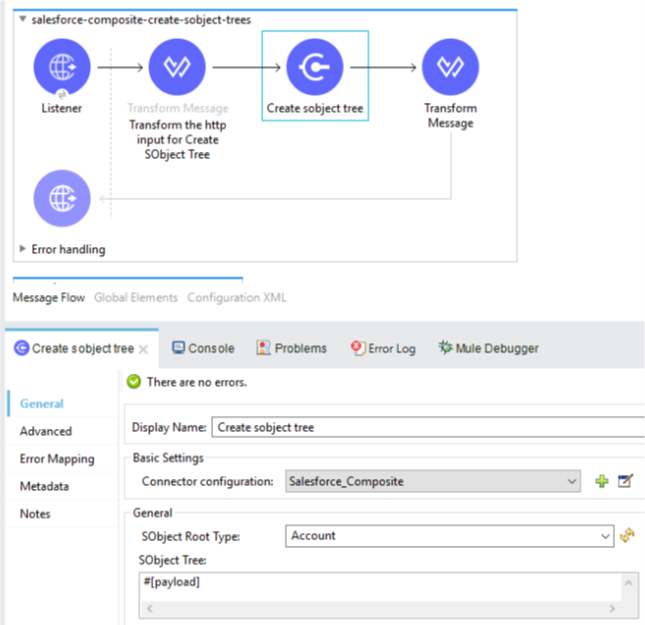
This example uses the following operations to create an SObject tree to connect to Salesforce and
transform and output the results in JSON format:
- HTTP **Listener**
Accepts data from HTTP requests
- **Transform Message**
Transforms the HTTP input
- **Create sobject tree**
Connects with Salesforce and creates an SObject tree
- **Transform Message**
Outputs the results of the **Create sobject tree** operation in JSON format
### Add an HTTP Listener
The HTTP **Listener** source operation initiates the flow when it detects an event in the
`createSObjectTree` path. To add the listener and trigger the flow, follow these steps:
1. Create a new Mule project in Studio.
2. In the **Mule Palette** view, search for `http` and select the **Listener** operation.
3. Drag the **Listener** operation onto the canvas.
4. In the Listener properties window, set the **Path** field to `/createSObjectTree`.
### Add the First Transform Message Component
The first Transform Message component uses input data to transform the HTTP input for the following
Create operation. To add the component, follow these steps:
1. In the **Mule Palette** view, search for **Transform Message**.
2. Drag the **Transform Message** component onto the canvas, to the right of **Listener**.
3. Enter the name `Transform HTTP input for Create SObject Tree`.
The following is an example of HTTP input for the Transform Message component:
```json
{
"records": [
{
"ChildAccounts": {
"records": [
{
"Phone": "4321098765",
"Website": "www.salesforce.com",
"attributes": {
"objectType": "Account",
"referenceId": "ref5"
},
"NumberOfEmployees": "10",
"Name": "ChildAccount1"
}
]
},
"Contacts": {
"records": [
{
"Email": "sample@salesforce.com",
"Title": "President",
"attributes": {
"objectType": "Contact",
"referenceId": "ref6"
},
"LastName": "Jones"
}
]
},
"Phone": "5556543210",
"Website": "www.salesforce.com",
"attributes": {
"objectType": "Account",
"referenceId": "ref4"
},
"NumberOfEmployees": "101",
"Name": "CreateSobjectTreeAccount2"
},
{
"Contacts": {
"records": [
{
"Email": "sample@salesforce.com",
"Title": "President",
"attributes": {
"objectType": "Contact",
"referenceId": "ref2"
},
"LastName": "Smith"
},
{
"Email": "sample@salesforce.com",
"Title": "Vice President",
"attributes": {
"objectType": "Contact",
"referenceId": "ref3"
},
"LastName": "Evans"
}
]
},
"Phone": "1234567890",
"Website": "www.salesforce.com",
"attributes": {
"objectType": "Account",
"referenceId": "ref1"
},
"NumberOfEmployees": "100",
"Name": "CreateSobjectTreeAccount1"
}
]
}
```
### Add the Create SObject Tree Operation
Add the Create SObject Tree operation to connect with Salesforce and create an SObject tree. To add
the operation, follow these steps:
1. In the **Mule Palette** view, search for `salesforce` and select **Create sobject tree**.
2. Drag **Create sobject tree** operation to the right of **Transform Message**.
3. Click the green plus sign (**+**) to the right of **Connector configuration** to access the
Salesforce Composite global element configuration fields.
4. In the **Create sobject tree** properties window, enter `Account` in the **SObject Root Type**
field.
5. In the properties file `src/main/mule/mule-app.properties`, declare and enter values for the
variables in the global element.
### Add the Second Transform Message Component
The second Transform Message component transforms the output result into JSON. To add the component,
follow these steps:
1. Drag **Transform Message** again to the right of **Create sobject tree**.
2. Enter the following:
```dataweave
%dw 2.0
%output application/json
payload
---
{
"Id": payload.Id,
"Fields" : ["Id", "Name"],
"Type": "Account"
}
```
### XML for the SObject Tree Operation Flow
Paste this XML code into the **Configuration XML** tab of the Anypoint Studio canvas to experiment
with the flow:
```xml
{
"attributes": {
"type": record.attributes.objectType,
"referenceId": record.attributes.referenceId
},
"Name": record.Name,
"Phone": record.Phone,
"Website": record.Website,
"NumberOfEmployees": record.NumberOfEmployees as Number,
("ChildAccounts": {
"records": record.ChildAccounts.records map ((record01, indexOfRecord01) -> {
"attributes": {
"type": record01.attributes.objectType,
"referenceId": record01.attributes.referenceId
},
"Name": record01.Name,
"Phone": record01.Phone,
"Website": record01.Website,
"NumberOfEmployees": record01.NumberOfEmployees as Number
})
}),
"Contacts": {
"records": record.Contacts.records map ((record01, indexOfRecord01) -> {
"attributes": {
"type": record01.attributes.objectType,
"referenceId": record01.attributes.referenceId
},
"LastName": record01.LastName,
"Email": record01.Email,
"Title": record01.Title
})
}
})
]]>
```
## Pre-Query Example
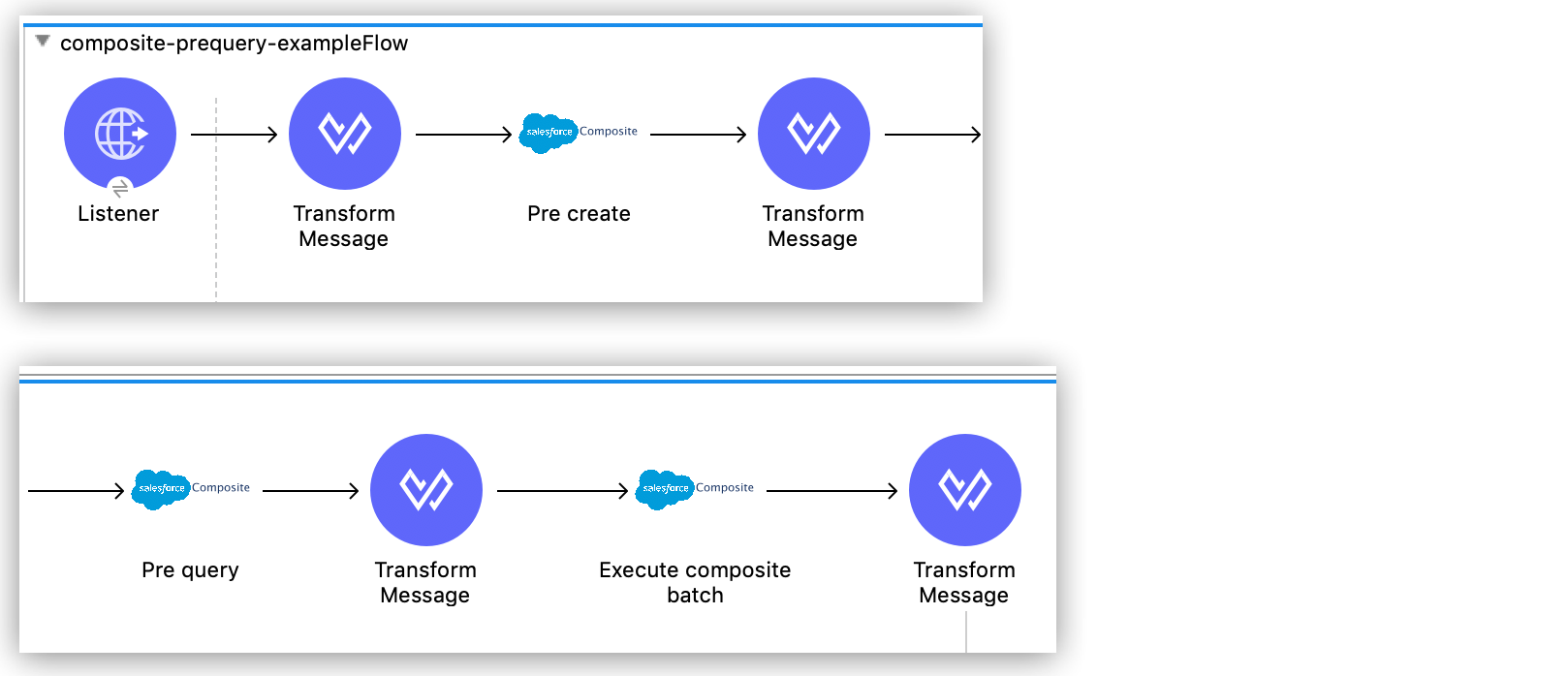
This example provides metadata for an object to query, generates two subrequests that contain this
metadata, and then executes the subrequests:
- HTTP **Listener**
Accepts data from HTTP requests
- **Transform Message**
Specifies a name for the object
- **Pre create**
Provides metadata for the object to be created and generates a subrequest used in execution
- **Transform Message**
Specifies values for fields
- **Pre query**
Provides metadata for the object that is going to be queried and generates a subrequest used in
execution
- **Transform Message**
Passes output from **Pre query** operation
- **Execute composite batch**
Sends all subrequests in one batch
- **Transform Message**
Outputs the results in JSON format
### Add an HTTP Listener
The HTTP **Listener** source operation initiates the flow when it detects an event in the
`executeFlow` path. To add the listener and trigger the flow, follow these steps:
1. Create a new Mule project in Studio.
2. In the **Mule Palette** view, search for `http` and select the **Listener** operation.
3. Drag the **Listener** operation onto the canvas.
4. In the Listener properties window, set the **Path** field to `/executeFlow`.
### Add the First Transform Message Component
The first Transform Message component specifies a name for the created object and passes the name to
the **Pre create** operation. To add the component, follow these steps:
1. In the **Mule Palette** view, search for **Transform Message**.
2. Drag **Transform Message** onto the canvas, to the right of **Listener**.
3. Enter the name `MyNewAccount`:
```dataweave
%dw 2.0
%output application/java
---
{
Name: "MyNewAccount"
}
```
### Add the Pre Create Operation
The Pre Create operation provides metadata for creating an object called `NewAccount` and generates
a subrequest for the `executeCompositeBatch` operation. To add the operation, follow these steps:
1. In the **Mule Palette** view, search for `salesforce` and select the Salesforce Composite **Pre
create** operation.
2. Drag the **Pre create** operation to the right of **Transform Message**.
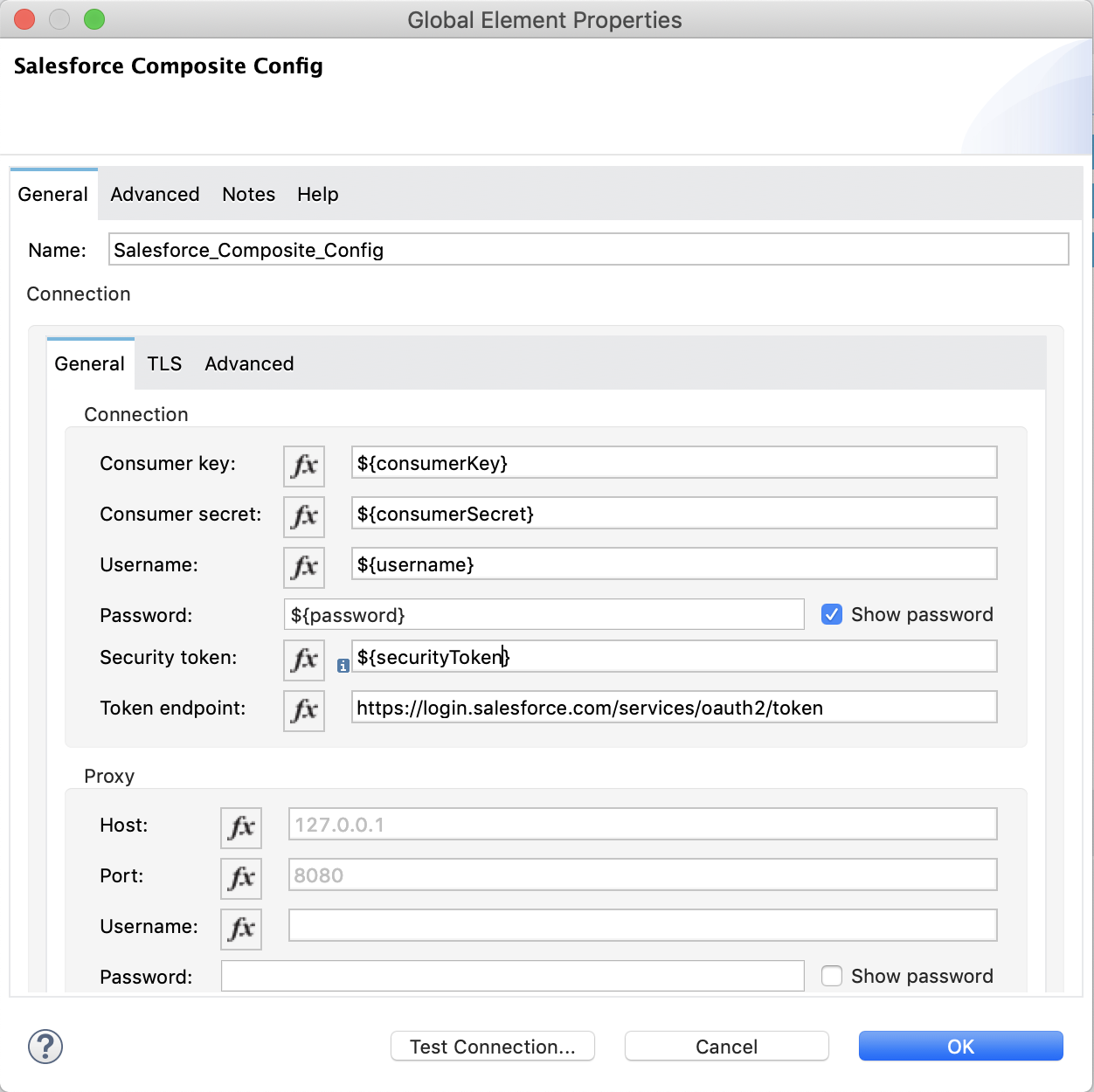
3. Click the green plus icon (**+**) to the right of the **Connector configuration** field to
access the Salesforce Composite global element configuration fields.
4. In the **Pre create** properties window, enter `Account` in the **Type** field.
5. In the properties file `src/main/mule/mule-app.properties`, declare and enter values for the
variables in the global element.
### Add the Second Transform Message Component
The second Transform Message component specifies values for the **ID** and **Type** fields, and then
passes these values to the **Pre query** operation. To add the component, follow these steps:
1. Drag a second **Transform Message** component to the right of **Pre create**.
2. Enter the following name-value pairs:
```dataweave
%dw 2.0
%output application/java
---
{
"Id": payload.Id,
"Fields" : ["Id", "Name"],
"Type": "Account"
}
```
### Add the Pre Query Operation
The Pre Query operation provides metadata for an object to be queried. It generates a subrequest for
the **Execute composite batch** operation. To add the operation, follow these steps:
1. Drag a Salesforce Composite **Pre query** operation to the right of the second **Transform
Message**.
2. In the **Query** field, enter the following:
`Select Name from Account WHERE Name LIKE '%:name %'`
### Add the Third Transform Message Component
The third Transform Message operation passes the output of the **Pre query** operation to the
**Execute composite batch** operation. To add the component, follow these steps:
1. Drag a third **Transform Message** component to the right of **Pre query**.
2. Set the output to `payload`:
```dataweave
%dw 2.0
%output application/java
---
[
payload
]
```
### Add the Execute Composite Batch Operation
The Execute Composite Batch operation executes the subrequests that the Pre Create and Pre Query
operations created.
To add the operation, drag a Salesforce Composite **Execute composite batch** operation to the right
of the third **Transform Message**.
### Add the Fourth Transform Message Component
The fourth Transform Message operation converts the output to JSON format. To add the component,
follow these steps:
1. Drag a fourth **Transform Message** component to the right of **Execute composite batch**.
2. Set the output to `application/json`:
```dataweave
%dw 2.0
%output application/json
---
payload
```
### XML for the Pre-Query Example
Paste this code into your XML editor to quickly load the flow for this example to your Mule app. If
needed, change the values to reflect your environment.
```xml
Select Name from Account WHERE Name LIKE '%:name %'
```
## See Also
- [Salesforce Composite Connector Reference](https://docs.mulesoft.com/salesforce-composite-connector/2.21/salesforce-composite-connector-reference)
- [Salesforce Help](https://help.salesforce.com)