---
schema_version: "1"
id: b4dc29b48c5164f7e9424f5195031fa6f36ad259b9d97be8de57cd0cd4c810bf
title: Salesforce Einstein Analytics Cloud Connector 3.20
collection: mulesoft
version: current
locale: en-us
portal_url: https://docs.salesforce.com/mulesoft/current/en-us/salesforce-analytics-cloud-connector/3.20/index.md
canonical_url: https://docs.mulesoft.com/salesforce-analytics-cloud-connector/3.20/
source_site: docs.mulesoft.com
content_type: documentation
content_hash: 6141b70c88e459f4465b5ff11e0dfe9e431599041f4edfbae38ebf6ddd9bb4ac
description: MuleSoft Documentation Site
release: "3.20"
latest: false
---
---
product: Salesforce Einstein Analytics Connector
version: 3.20
---
# Salesforce Einstein Analytics Cloud Connector 3.20
> For the full documentation index, see: https://docs.mulesoft.com/llms.txt
Anypoint Connector for Salesforce Einstein Analytics Cloud (Salesforce Analytics Connector) enables
you to connect to the Salesforce Analytics Cloud application using the Salesforce External Data API.
The connector exposes convenient methods for creating, deleting, and populating datasets into the
Salesforce Analytics Cloud system. Load data into Salesforce Einstein Analytics Cloud from many
different data sources whether they are on-premise or on the cloud. Go beyond .csv files with this
connector.
For software requirements and compatibility information, see
[Salesforce Einstein Analytics Connector Release Notes](https://docs.mulesoft.com/release-notes/connector/salesforce-analytics-connector-release-notes-mule-4).
## Before You Begin
To use this connector, you must be familiar with:
- The Salesforce Einstein Analytics API
- Anypoint connectors
- Mule runtime engine (Mule)
- Elements in a Mule flow
- Global elements
- How to create a Mule app using Anypoint Studio
Before creating an app, you must have login credentials to test your connection to your target
resource.
## POM File Information
The Apache Maven `pom.xml` file generated by Anypoint Studio contains dependencies for a Mule app.
If you code a Mule app manually, include this XML snippet in your `pom.xml` file to enable access to
this connector:
```xml
com.mulesoft.connectors
mule-sfdc-analytics-connector
x.x.x
mule-plugin
```
Replace `x.x.x` with the version that corresponds to the connector you are using.
To obtain the most up-to-date `pom.xml` file information:
1. Go to [Anypoint Exchange](https://www.mulesoft.com/exchange/).
2. In Exchange, click **Login** and supply your Anypoint Platform username and password.
3. In Exchange, search for ``.
4. Select the connector.
5. Click **Dependency Snippets** near the upper right of the screen.
### Required Parameters for Basic Username Password Authentication
- Username
Salesforce Einstein Analytics username
- Password
Password that corresponds with the Salesforce Einstein Analytics username
- Security Token
Corresponding security token
> [!NOTE] The `Username Password` connection type is only supported for Salesforce API v64.0 and
> earlier versions.
### Required Parameters for the OAuth 2.0 Configuration
- Consumer Key
Consumer key for the Salesforce connected app.
- Consumer Secret
Consumer secret for the connector to access Salesforce.
### Required Parameters for the OAuth 2.0 JWT Bearer Configuration
- Consumer Key
Consumer key for the Salesforce connected app
- Keystore File
See [Generating a Keystore File](#generating-keystore)
- Store Password
Password for the keystore
- Principal
Salesforce username
#### Required Parameters for the OAuth 2.0 SAML Bearer Configuration
- Consumer Key
Consumer key for the Salesforce connected app.
- Keystore File
Path to the keystore used to sign data during authentication. Note that only the Java keystore
format is allowed.
- Store Password
Keystore password.
- Principal
Salesforce username.
#### Generating a Keystore File
The Keystore is the path to the keystore used to sign data during authentication. The following
example shows how to generate a JKS file:
1. Go to your Mule workspace, and open the command prompt (for Windows) or Terminal (for Mac).
2. Type `keytool -genkeypair -alias salesforce-cert -keyalg RSA -keystore salesforce-cert.jks` and
press enter.
3. Enter the following details:
- Password for the keystore
- Your first name and last name
- Your organization unit
- Name of your city, state, and the two letter code of your county
The system generates a Java keystore file containing a private or public key-pair in your
workspace.
4. Provide the file path for the keystore in your connector configuration.
Type
`keytool -exportcert -alias salesforce-cert -file salesforce-cert.crt -keystore salesforce-cert.jks`
and press enter.
The system now exports the public key from the keystore into the workspace. This is the public
key that you need to enter in your Salesforce instance.
5. Verify that you have both the keystore (`salesforce-cert.jks`) and the public key
(`salesforce-cert.crt`) files in your workspace.
## Add the Connector in Studio
1. In Studio, create a Mule project.
2. In the Mule Palette view, click **(X) Search in Exchange**.
3. In **Add Modules to Project**, type "analytics" in the search field.
4. Click this connector’s name in **Available modules**.
5. Click **Add**.
6. Click **Finish**.
### Configure the Connector in Studio
1. Drag the desired Salesforce Analytics operation to the Studio canvas.
2. To create a global element for the connector, on the **General** tab, configure the
authentication as described in the authentication sections.
The following authentication connection types are available:
- [Username Password](#basic-authentication)
- [OAuth 2.0](#oauth2)
- [OAuth 2.0 JWT](#oauth2-jwt)
- [OAuth 2.0 SAML Bearer](#oauth2-saml)
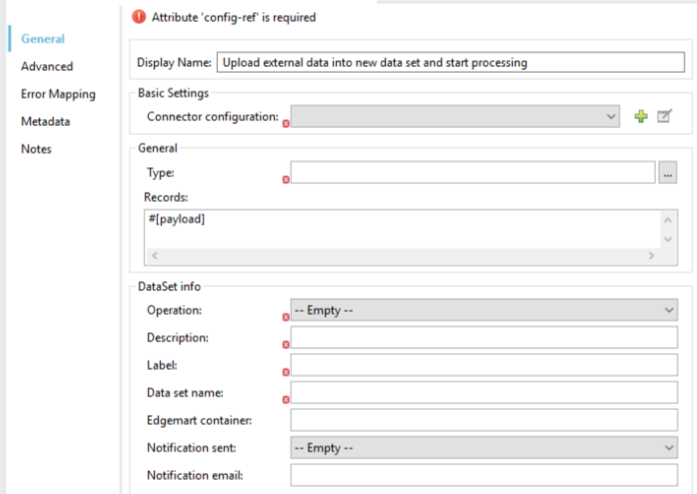
3. Configure these fields to upload external data into new dataset and start the processing
operation:
- Type
Type of the records to insert. Select a JSON file representing the schema of the dataset to
create.
- Records
DataSense expression; the records to insert.
- Operation
Specify the operation to use when you’re loading data into a dataset.
- Description
- Label
- Data Set Name
### Username Password
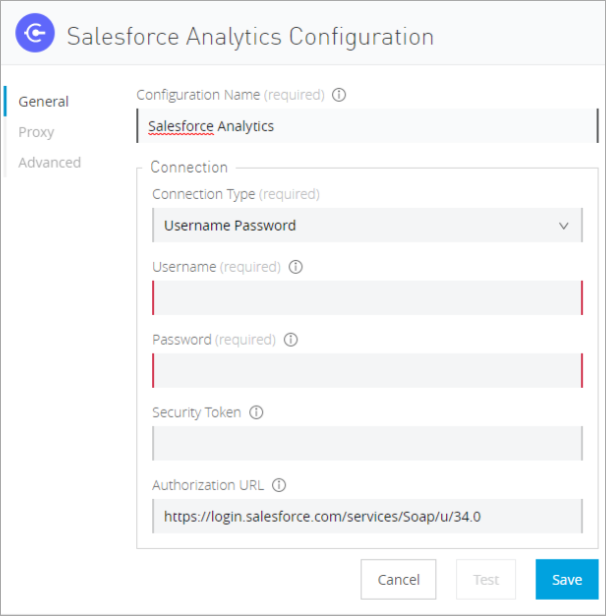
On the **General** tab of the **Global Element Properties** screen, enter the following information
to configure Basic authentication:
- **Username**
Enter the Salesforce username.
- **Password**
Enter the corresponding password.
- **Security Token**
Enter the corresponding security token.
The following screenshot shows an example of configuring Basic authentication:
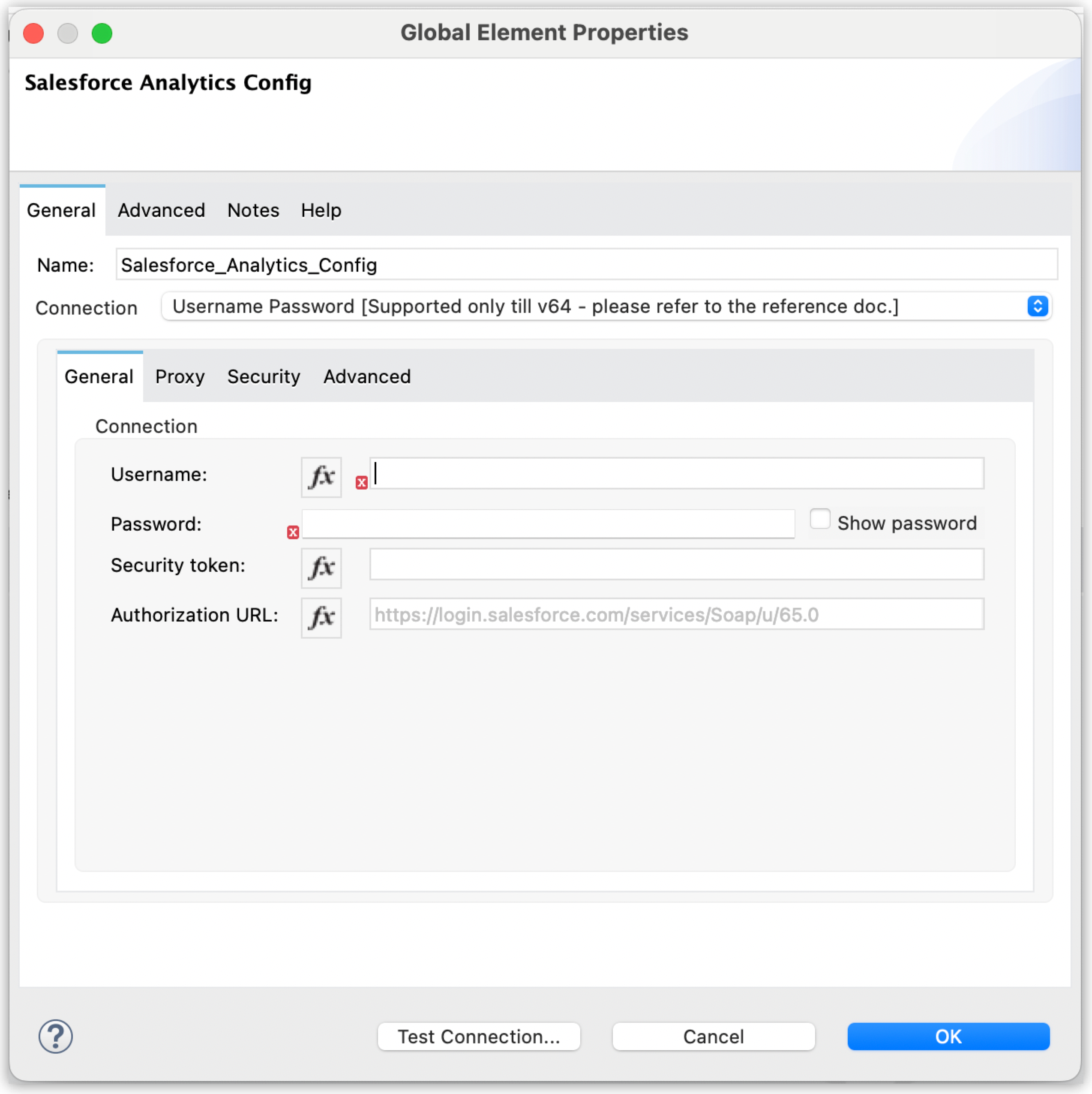
Figure 1. Basic authentication fields
> [!NOTE] The `Username Password` connection type is only supported for Salesforce API v64.0 and
> earlier versions.
### OAuth 2.0
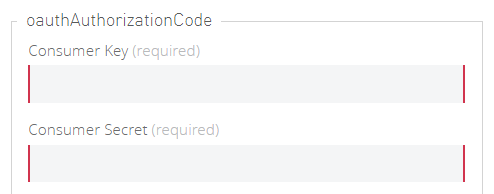
On the **General** tab of the **Global Element Properties** screen, enter the following information
to configure OAuth 2.0 authentication:
- **Consumer Key**
Consumer key for the Salesforce connected app.
- **Consumer Secret**
Consumer secret for the connector to access Salesforce.
The following screenshot shows an example of configuring the OAuth 2.0 authentication:
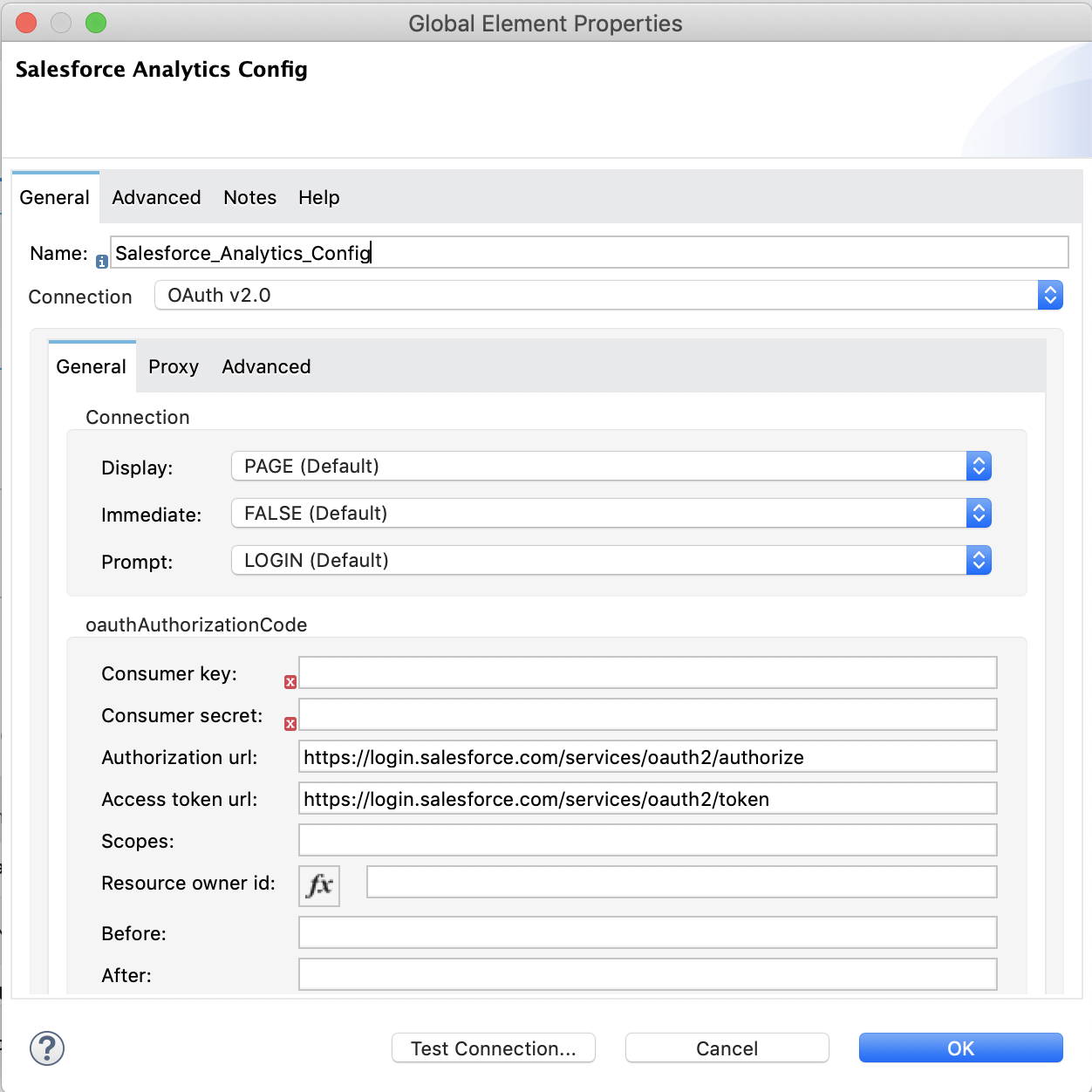
Figure 2. OAuth 2.0 authentication fields
### OAuth 2.0 JWT
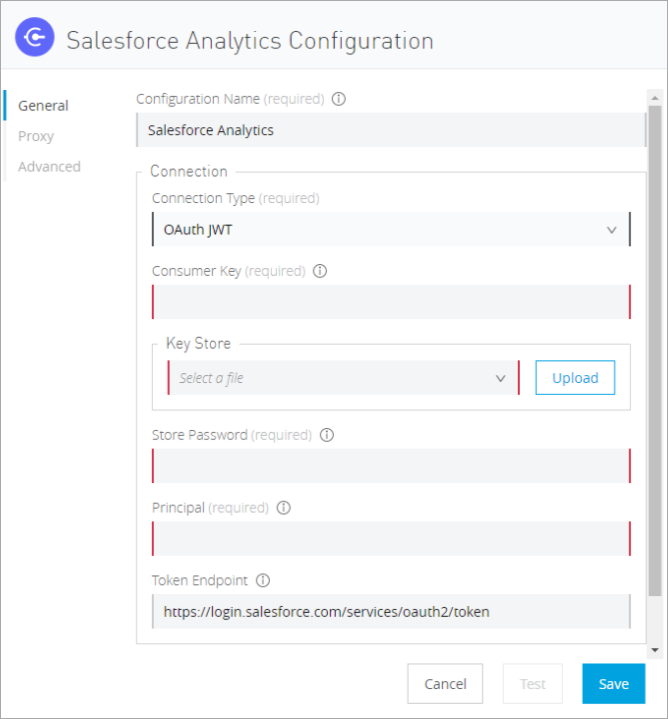
On the **General** tab of the **Global Element Properties** screen, enter the following information
to configure OAuth 2.0 JWT authentication:
- **Consumer Key**
Consumer key for the Salesforce connected app
- **Keystore File**
See [Generating a Keystore File](#generating-keystore)
- **Store Password**
Password for the keystore
- **Principal**
Salesforce username
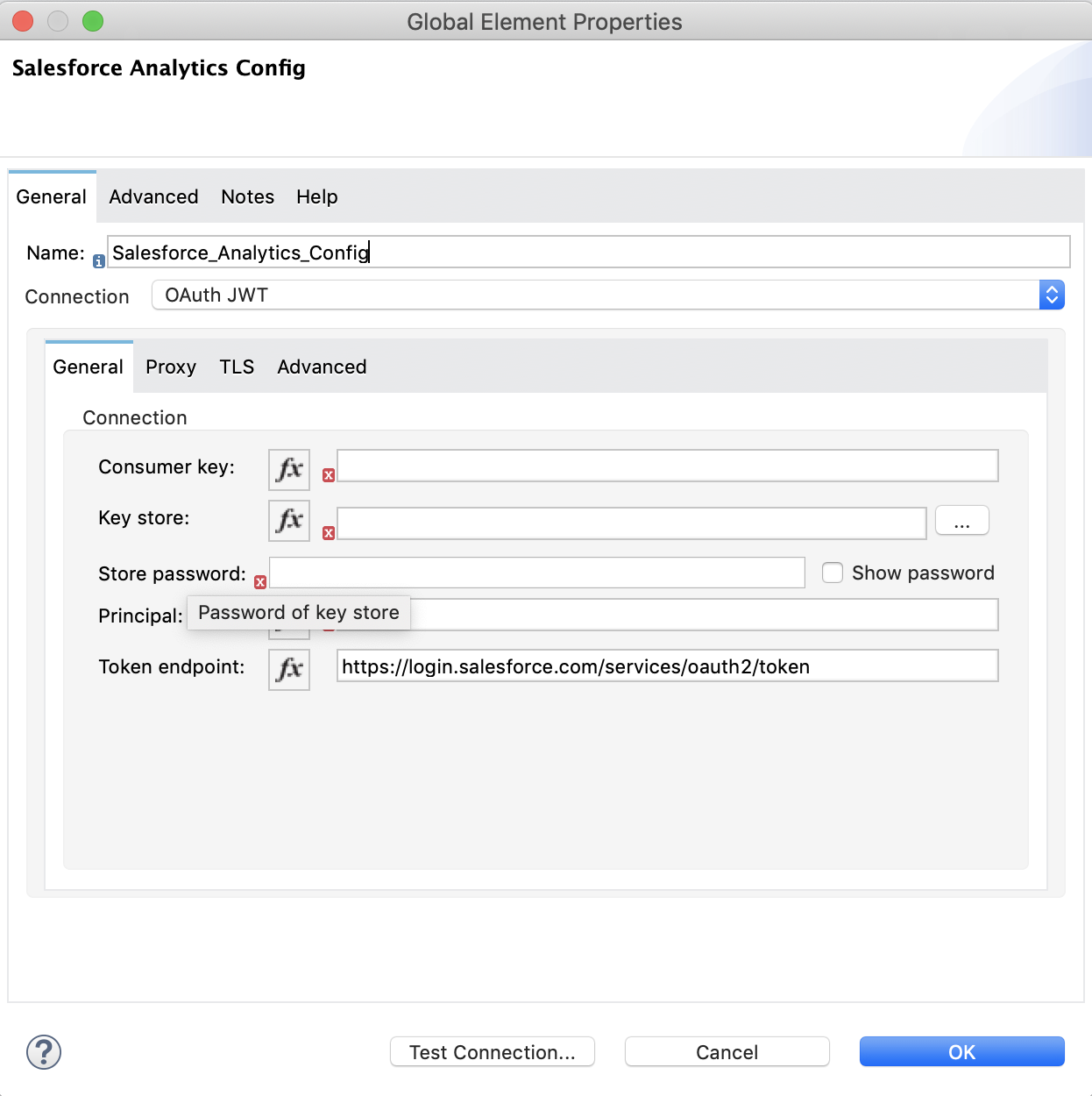
Figure 3. OAuth 2.0 JWT authentication fields
### OAuth 2.0 SAML Bearer
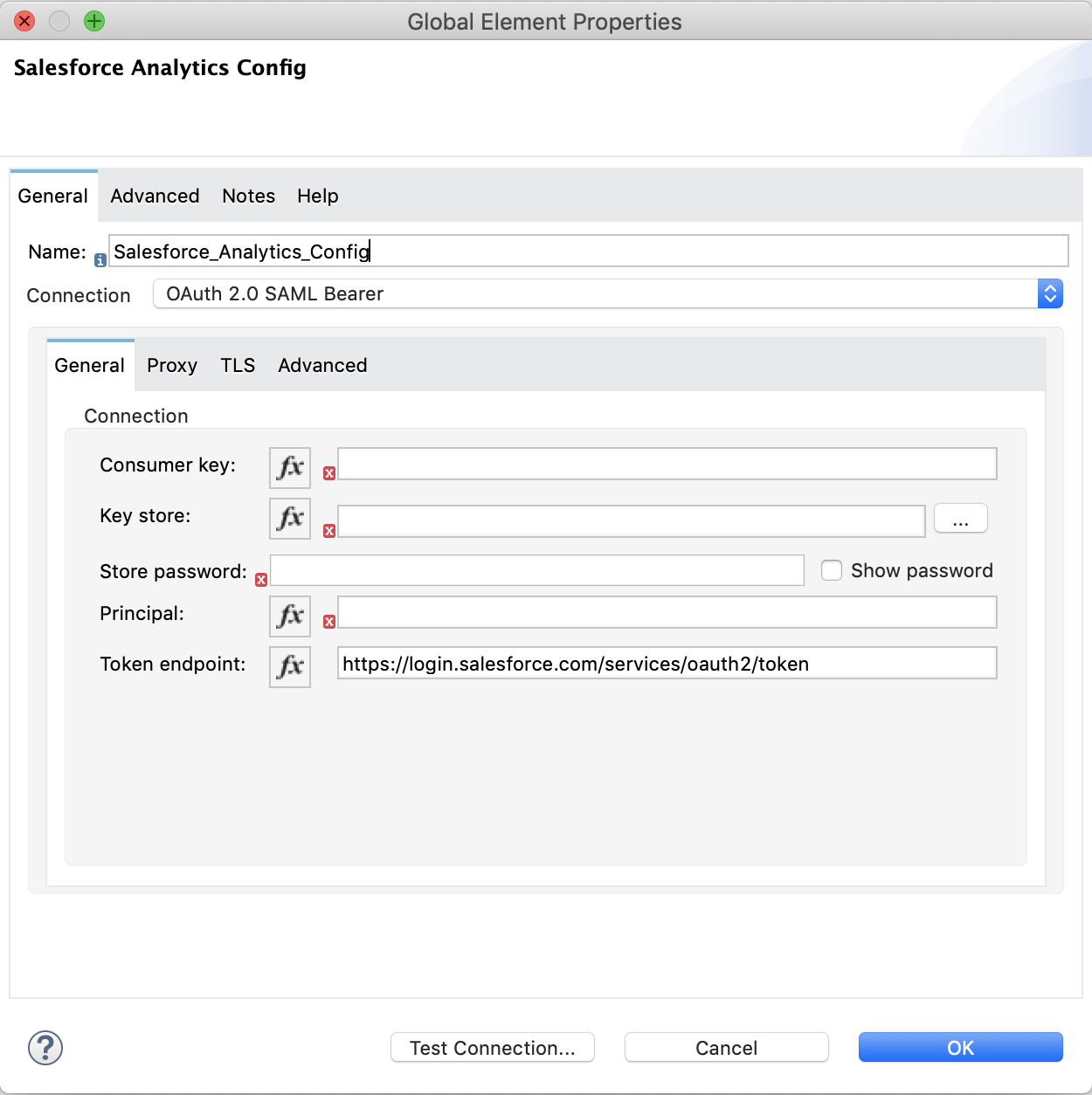
On the **General** tab of the **Global Element Properties** screen, enter the following information
to configure OAuth 2.0 SAML Bearer authentication:
- **Consumer Key**
Consumer key for the Salesforce connected app
- **Keystore File**
See [Generating a Keystore File](#generating-keystore)
- **Store Password**
Password for the keystore.
- Principal
Salesforce username

Figure 4. OAuth 2.0 SAML Bearer authentication fields
## Use Case: Studio
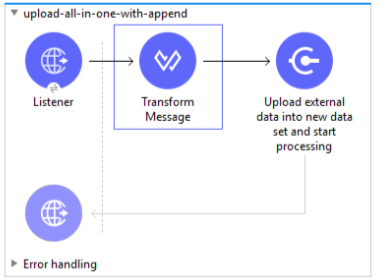
This use case provides an example of how to use the Salesforce Einstein Analytics Connector and
contains this end to end flow:
- Uses an HTTP Listener as the input source.
- Configures a connection using a username, password, and the security token.
- Uses a Salesforce Analytics operation with the parameters to use.
The example that follows contains these components:
- HTTP Listener, which accepts data from HTTP requests.
- Transform Message, which provides the records input data required by Salesforce Einstein Analytics
connector.
```dataweave
%dw 2.0
output application/java
---
[
{
"Id": 1,
"Country": "Country",
"City": "City",
"Year": 428742153,
"Distance": 284644936,
"Currencies":
[
"EUR",
"USD"
],
"CreationDate": "20/12/2017" as Date {format: "dd/MM/yyyy"}
},
{
"Id": 2,
"Country": "Country",
"City": "City",
"Year": 1432651434,
"Distance": 1336594394,
"Currencies":
[
"EUR",
"USD",
"HUF"
],
"CreationDate": "20/12/2017" as Date {format: "dd/MM/yyyy"}
}
]
```
- Salesforce Analytics Connector, which connects with Salesforce, and performs an operation to push
data into Salesforce Einstein Analytics Cloud.
## Use Case: XML
Paste the XML code provided in this example into the Configuration XML tab in Anypoint Studio to
experiment with the flow described in the previous section.
Keep in mind that you must still provide the `metadata.json` file describing the schema of the
dataset to be created.
```xml
```
## See Also
- [Introduction to Anypoint Connectors](https://docs.mulesoft.com/connectors/introduction/introduction-to-anypoint-connectors)
- [Salesforce Einstein Analytics Connector on Exchange](https://www.mulesoft.com/exchange/com.mulesoft.connectors/mule-sfdc-analytics-connector/)
- [Salesforce External Data API](https://developer.salesforce.com/docs/atlas.en-us.bi_dev_guide_ext_data.meta/bi_dev_guide_ext_data/).
- For Required Parameters for Basic Username Password Authentication see
[Salesforce Basic Authentication](https://developer.salesforce.com/docs/atlas.en-us.api.meta/api/sforce_api_calls_login.htm)
- For Required Parameters for the OAuth 2.0 Configuration see
[Salesforce OAuth 2.0](https://help.salesforce.com/s/articleView?id=remoteaccess_oauth_web_server_flow.htm&language=en_US&type=5)
- For Required Parameters for the OAuth 2.0 JWT Bearer Configuration see
[Salesforce OAuth 2.0 JWT Bearer](https://help.salesforce.com/s/articleView?id=remoteaccess_oauth_jwt_flow.htm&language=en_US&type=5)
- For Required Parameters for the OAuth 2.0 SAML Bearer Configuration see
[Salesforce OAuth 2.0 SAML Bearer](https://help.salesforce.com/s/articleView?id=remoteaccess_oauth_SAML_bearer_flow.htm&language=en_US&type=5)
- [Salesforce Help](https://help.salesforce.com)