# mulesoft Runtime Manager - Full Documentation
---
product: Runtime Manager
---
# Access Server Settings
> For the full documentation index, see: https://docs.mulesoft.com/llms.txt
[Hybrid](deployment-strategies#hybrid-deployments)[ Private Cloud Edition](deployment-strategies#anypoint-platform-private-cloud-edition)
Use the **Settings** page to configure server properties and view alerts. You can also perform other
actions from this page, such as deleting a server group.
To access the server **Settings** page:
1. From Anypoint Platform, select **Runtime Manager**.
2. Click **Servers** in the navigation menu.
3. Either:
- Click the **Type** column to display the details pane and click **Manage Server**, **Manage
Group**, or **Manage Cluster**:

Figure 1. The arrow shows the **Manage Server** button in the details pane.
- Click the name of the server, server group, or cluster on the **Servers** page and then click
**Settings**:

Figure 2. The arrow shows the option to navigate to the **Settings** page.
## See Also
- [Alerts](https://docs.mulesoft.com/runtime-manager/alerts-on-runtime-manager)
- [Configure Server Properties](https://docs.mulesoft.com/runtime-manager/servers-properties-view)
- [Create Custom Server Properties](https://docs.mulesoft.com/runtime-manager/servers-properties-create)
- [Shut Down, Restart, or Delete Servers](https://docs.mulesoft.com/runtime-manager/servers-actions)
---
product: Runtime Manager
---
# Add Servers to a Cluster
> For the full documentation index, see: https://docs.mulesoft.com/llms.txt
[Hybrid](deployment-strategies#hybrid-deployments)[ Private Cloud Edition](deployment-strategies#anypoint-platform-private-cloud-edition)
All servers that you add to a cluster must run on the same versions of:
- Mule runtime
- Runtime Manager agent
- Java
> [!IMPORTANT] When you add a server to a unicast cluster, all existing servers in the cluster are
> restarted.
## Prerequisites
- At least one server is configured.
- The cluster is created.
## Add Servers to a Cluster
1. From Anypoint Platform, select **Runtime Manager**.
2. Select **Servers** in the left menu.
3. Click **Cluster** in the **Type** column to display the details pane:

Figure 1. The arrow shows the **Add Server** button in the details pane.
4. Click **Add Server**.
Servers that are already in a server group or cluster don’t appear in the list of available
servers.
5. In the list, select the servers to add to the cluster, and click **Add Servers**.
The servers no longer appear in the **Servers** list. To see the list of servers in the cluster,
click the cluster name.
## See Also
- [Multicast vs Unicast Clusters](https://docs.mulesoft.com/runtime-manager/cluster-about#multicast-vs-unicast-clusters)
- [Add Servers to Runtime Manager](https://docs.mulesoft.com/runtime-manager/servers-create)
---
product: Runtime Manager
---
# Add Servers to a Server Group
> For the full documentation index, see: https://docs.mulesoft.com/llms.txt
[Hybrid](deployment-strategies#hybrid-deployments)[ Private Cloud Edition](deployment-strategies#anypoint-platform-private-cloud-edition)
## Prerequisites
- At least one server is configured.
- The server group is created.
- No applications are deployed on the server that you are adding to the server group.
## Add Servers to a Group
To add servers to a server group after the server group has been created:
1. From Anypoint Platform, select **Runtime Manager**.
2. Select **Servers** in the left menu.
3. Click **Group** in the **Type** column to display the details pane.
4. Click the **Add Server** button:

Figure 1. The arrow shows the **Add Server** button in the details pane.
A list of available servers appears.
5. Select the servers to add to the group, and click the **Add Servers** button.
The servers no longer appear in the **Servers** list. To see the list of servers in the server
group, click the group name.
## See Also
- [Add Servers to Runtime Manager](https://docs.mulesoft.com/runtime-manager/servers-create)
- [Create Server Groups](https://docs.mulesoft.com/runtime-manager/server-group-create)
- [Server Groups](https://docs.mulesoft.com/runtime-manager/server-group-about)
- [Shut Down, Restart, or Delete Servers](https://docs.mulesoft.com/runtime-manager/servers-actions)
- [Deployment and Server Scaling](https://docs.mulesoft.com/runtime-manager/runtime-dep-serv-limits)
---
product: Runtime Manager
---
# Add Servers to Runtime Manager
> For the full documentation index, see: https://docs.mulesoft.com/llms.txt
[Hybrid](deployment-strategies#hybrid-deployments)[ Private Cloud Edition](deployment-strategies#anypoint-platform-private-cloud-edition)
To add a Mule server to the Runtime Manager console so that you can manage it, you must first
register it with the Runtime Manager agent. Use the `amc_setup` script to configure the Runtime
Manager agent to communicate with Runtime Manager.
## Prerequisites
- Your enterprise license is current.
- If you must download the agent, you have an Enterprise support account.
- If the server is already registered with another Runtime Manager instance, remove that
registration first.
## Add a Server
To add a Mule server to Runtime Manager:
1. From Anypoint Platform, select **Runtime Manager**.
2. Click **Servers** in the left menu.
3. Click the **Add Server** button.
4. Enter a name for your server.
Server names can contain up to 60 alphanumeric characters (a-z, A-Z, 0-9), periods (.), hyphens
(-), and underscores (\_), but not spaces or other special characters. Runtime Manager supports
Unicode characters in server names.
The server name must be unique in the environment, but it can be the same for the same
organization in different environments.
Runtime Manager generates the `amc_setup` command. This command includes the server name you
specified (`_server-name_`) and the registration token (`_token_`) required to register Mule in
your environment. The registration token includes your organization ID and the current
environment.

Figure 1. The arrow shows the `amc_setup` command in the **Add Server** window.
5. Click **Copy command** to copy the `amc_setup` command.
This button appears only if the server name you specify is valid.
6. In a terminal window, change to the `$MULE_HOME/bin` directory for the Mule instance that you’re
registering.
7. Paste the command on the command line.
8. Include any other parameters on the `amc_setup` command line.
For information, see
[amc\_setup Parameters](https://docs.mulesoft.com/runtime-manager/installing-and-configuring-runtime-manager-agent#amc_setup-parameters).
9. If your environment requires all outbound calls to go through a proxy, specify proxy settings in
either the `$MULE_HOME/conf/mule-agent.yml` file or the `$MULE_HOME/conf/wrapper.conf` file.
See [Connect the Agent Through a Proxy Server](https://docs.mulesoft.com/runtime-manager/rtm-agent-proxy-config). When the `amc_setup`
command completes successfully, you see:
Mule Agent configured successfully Connecting to Access Management to extract client\_id and
client\_secret Credentials extracted correctly, updating wrapper conf file
After the script completes successfully, the name of your server appears on the **Servers** tab of
Runtime Manager with a status of `Created`.
If the server was running when you ran the `amc_setup` script, restart the server to reconnect with
Runtime Manager.
## Remove a Server from Another Runtime Manager Instance
If the server you want to add is already registered with a different instance of Runtime Manager,
you must remove it before you can register.
To remove the server from Runtime Manager:
1. In Runtime Manager, delete the server from the **Server** tab.
See [Shut Down, Restart, or Delete Servers](https://docs.mulesoft.com/runtime-manager/servers-actions).
2. In the `$MULE_HOME/conf` directory, delete the `mule-agent.yaml` and `mule-agent.jks` files.
## See Also
- [Run Mule Runtime Engine On-Premises](https://docs.mulesoft.com/on-premises/latest/)
- [Install or Update the Runtime Manager Agent](https://docs.mulesoft.com/runtime-manager/installing-and-configuring-runtime-manager-agent)
- [Shut Down, Restart, or Delete Servers](https://docs.mulesoft.com/runtime-manager/servers-actions)
- [Ports, IP Addresses, and Hostnames to Allow](https://docs.mulesoft.com/runtime-manager/rtm-agent-allowlists)
---
product: Runtime Manager
keywords: agent, mule, esb, servers, monitor, notifications, external systems, third party, get status, metrics
---
# Advanced Usage
> For the full documentation index, see: https://docs.mulesoft.com/llms.txt
[Hybrid](deployment-strategies#hybrid-deployments)[ Private Cloud Edition](deployment-strategies#anypoint-platform-private-cloud-edition)
Usually, all you need to do with the Runtime Manager agent is install it and configure it according
to [Install or Update the Runtime Manager Agent](https://docs.mulesoft.com/runtime-manager/installing-and-configuring-runtime-manager-agent).
If you are curious about the underlying architecture and the advanced configuration settings for the
Runtime Manager agent, explore these topics:
- [Runtime Manager Agent Architecture](https://docs.mulesoft.com/runtime-manager/runtime-manager-agent-architecture)
- [Agent API](https://docs.mulesoft.com/runtime-manager/runtime-manager-agent-api)
- [Event Tracking](https://docs.mulesoft.com/runtime-manager/event-tracking)
- [Internal Handler Buffering](https://docs.mulesoft.com/runtime-manager/internal-handler-buffering)
- [Extend the Runtime Manager Agent](https://docs.mulesoft.com/runtime-manager/extending-the-runtime-manager-agent)
- [Application Validator Service](https://docs.mulesoft.com/runtime-manager/rtm-agent-app-validator)
- [JAR Signature Validator](https://docs.mulesoft.com/runtime-manager/rtm-agent-jar-signature-validator)
---
product: Runtime Manager
---
# Alerts
> For the full documentation index, see: https://docs.mulesoft.com/llms.txt
[CloudHub 2.0](deployment-strategies#cloudhub-2-0)[ CloudHub ](deployment-strategies#cloudhub)[ Hybrid ](deployment-strategies#hybrid-deployments)[ Private Cloud Edition ](deployment-strategies#anypoint-platform-private-cloud-edition)[ Runtime Fabric](deployment-strategies#anypoint-runtime-fabric-deployments)
You can set up alerts to send email notifications when application or server events occur.
Runtime Manager includes several standard alert types that trigger notifications for common events
such as:
- An application exceeds a specific number of events processed within a specified period of time.
- A deployment is complete, either successfully or not.
- The worker monitoring system notifies CloudHub about a problem with a worker on an application.
- A server is disconnected or deleted.
> [!NOTE] Runtime Manager retains thirty days of alert history.
>
> Alerts retrigger when the conditions exceed the specified threshold.
## Compare Runtime Manager Alerts and Anypoint Monitoring Alerts
Runtime Manager and Anypoint Monitoring provide different alert systems. Use the alert page and API
for the system that owns the alert you need.
Runtime Manager alerts
Infrastructure-focused alerts for servers, clusters, and application lifecycle events. Examples
include CPU usage, memory usage, load average, thread count, deployment events, and server
connectivity events.
Use Runtime Manager REST Services endpoints for these alerts:
- Alert configuration (alert definitions): `GET /hybrid/api/v1/alerts` and related alert-definition
operations
- Fired-alert history: alert-history endpoints for the alert ID, for example
`GET /armui/api/v1/alerts/cloudhub/{alertId}/history`
Runtime Manager retains 30 days of alert history. Runtime Manager alerts retrigger when a
condition continues to breach its threshold. Runtime Manager alerts aren’t listed on the Anypoint
Monitoring **Alerts** page.
Anypoint Monitoring alerts
Alerts for APIs, Mule applications, and servers, including instance alerts such as response time,
request count, policy violations, and HTTP status codes, plus Contracts, Basic, and Advanced alerts.
For instance alerts, the sliding window is configurable.
Use Anypoint Monitoring alert APIs for:
- Alert configuration (alert definitions)
- Fired-alert history
Runtime Manager alert endpoints don’t return these Anypoint Monitoring alerts.
For Anypoint Monitoring alerts, see [Getting Alerts](https://docs.mulesoft.com/monitoring/alerts-hf).
You can also create custom alerts for applications deployed to CloudHub and CloudHub 2.0.
Custom alerts in CloudHub are triggered when your application sends notifications to the Runtime
Manager console using Anypoint Connector for CloudHub (CloudHub Connector). See
[Custom Application Alerts](https://docs.mulesoft.com/cloudhub/custom-application-alerts) for information.
For applications deployed to CloudHub 2.0, custom alerts indicate whether an app was successfully
deployed and whether it is behaving as expected. See
[Configuring Application Alerts](https://docs.mulesoft.com/cloudhub-2/ch2-config-app-alerts) for more information.
> [!NOTE] For CloudHub 2.0, Alerts apply to applications only, not servers.
## Rate Limits on Alerts
Anypoint Platform enforces rate limits that determine how often an alert is triggered and prevent
excessive emails from being sent. At present, there is no defined limit to the number of Runtime
Manager alerts.
## Create an Alert
To create an alert:
1. In Runtime Manager, click **Alerts** in the left navigation pane.
- If no alerts are set up, you see:

Figure 1. The arrow shows the **Create your first alert** option.
- If your account already has associated alerts, you see:

Figure 2. The arrow shows the blue plus (**+**) icon on the **Alerts** page.
2. Click the blue plus (**+**) icon to create an alert.

3. Complete the required fields:
- **Name**
Unique and meaningful name for the alert
The **Name** is limited to 40 characters.
- **Severity level**
Severity of the alert: **Critical**, **Warning**, or **Info**
- **Source**
The source of the alert: applications or servers
This field appears only if your Anypoint Platform account supports local servers.
- **Application type**
When the source is **Applications**, applications deployed to either CloudHub or local
servers. Runtime Fabric application alerts are supported only using Anypoint Monitoring.
You can’t create an alert that applies to both applications deployed to CloudHub and local
servers. You must create separate alerts for each deployment type.
- **Server type**
When the source is **Servers**, the type of server: single server, server group, or cluster.
If your servers aren’t available on your menu, see
[Servers, Server Groups, and Clusters](https://docs.mulesoft.com/runtime-manager/managing-servers).
- **Applications** or **Servers**
The application or server to apply the alert to
- **Condition**
The condition that triggers the alert
The available options depend on whether your alert is linked to a server, an application
running on CloudHub, or an application running locally. Some conditions require additional
data. See [Alert Conditions](#alert-conditions).
- **Subject**
The subject of the alert email to send when the alert is triggered
The subject can include variables. See [Alert Variables](#alert-variables).
- **Message**
The body text for the email to send when the alert is triggered. The message body can include
variables. See [Alert Variables](#alert-variables).
- **Recipients**
The recipients of the alert email
You can select up to 20 platform user IDs and enter up to 20 email addresses.
The first recipient appears in the email **To** field, and the remaining recipients appear in
the **CC** field.
4. Click **Create Alert**.
When an event that meets an alert condition occurs, Runtime Manager sends an email similar to the
following:

## Alert Conditions
You can select different conditions depending on the alert source. Some conditions are simple
success or failure notifications, such as `Deployment success`. Some more complex conditions require
that you define parameters that appear as new fields in the form.
### Conditions for Applications Deployed to CloudHub
[](/runtime-manager/deployment-strategies#cloudhub-deployments)
For applications deployed to CloudHub, the following alert conditions apply:
CPU usage - Cloudhub
The CPU usage of the CloudHub workers that run the application is above or below the percentage for
the specified period of time.

To enable this condition, specify the percentage and duration that triggers the alert.
> [!NOTE] For CloudHub multiworker applications, the alert considers the CPU threshold of the entire
> application.
Custom application alert
The custom notification contains the specified text.

To enable this condition, specify the notification text from the CloudHub Connector in your Mule
application. When the text in one of the notifications matches the specified string, an alert is
sent. See [Custom Application Alerts](https://docs.mulesoft.com/cloudhub/custom-application-alerts) for more information.
Exceeds event traffic threshold
The number of events of any type exceeds the threshold for the specified period of time.

To enable this condition, specify the capacity threshold and duration that triggers the alert. This
alert condition depends on the events you are tracking in your application. For information, see
[Business Events](https://docs.mulesoft.com/mule-runtime/latest/business-events).
Memory usage - Cloudhub
Memory usage is a percentage that represents the JVM heap-used/JVM total memory. The alert triggers
if the memory usage is above or below the limit for the specified period of time.

To enable this condition, specify the percentage and duration that triggers the alert.
The following alerts for applications deployed to CloudHub require no additional parameters:
- Deployment failed
- Deployment success
- Secure data gateway connected
- Secure data gateway disconnected
- Worker not responding
### Conditions for Applications Deployed to Local Servers
[](/runtime-manager/deployment-strategies#hybrid-deployments)
For applications deployed to local servers, the following alert conditions apply:
Number of errors
The number of messaging errors reported by Mule runtime server in one minute reaches the specified
limit. The number of errors reported depends on error handling configuration in the app. For
information about Mule errors, see [Mule Errors](https://docs.mulesoft.com/mule-runtime/latest/mule-error-concept).

To enable this condition, specify the number of errors per minute that triggers the alert.
Number of Mule messages
The number of Mule messages since the application started reaches the specified limit.

To enable this condition, specify the number of Mule messages that triggers the alert.
Response time
The response time reaches the specified limit.

To enable this condition, specify the maximum response time that triggers the alert.
The following alerts for applications deployed to local servers require no additional parameters:
- Application undeployed
- Deployment failure
- Deployment success
### Conditions for Local Servers
[](/runtime-manager/deployment-strategies#hybrid-deployments)
The available alert events depend on the server type. The following alerts are available for all
target types (servers and nodes in server groups and clusters):
Server CPU usage
The CPU usage of the servers that run the application is above or below the percentage for the
specified period of time.

To enable this condition, specify the CPU percentage and duration that triggers the alert.
Server Load average
The average processing load of the server is above or below the amount for the specified period of
time.

To enable this condition, specify the average load and duration that triggers the alert.
> [!NOTE] Windows environments don’t provide this information, so this metric isn’t available in
> Windows environments.
Server Memory usage
The total memory usage (in MB) on the server is above or below the amount for the specified period
of time.

To enable this condition, specify the memory usage and duration that triggers the alert.
Server Thread count
The thread count on the JVM is above or below the level for the specified period of time.

To enable this condition, specify the thread count and duration that triggers the alert.
The following alerts vary according to the target type (server, server groups, or clusters) and
require no additional parameters:
Servers
- **Agent version changed**
- **Runtime version changed**
- **Server connected**
- **Server deleted**
- **Server disconnected**
Server Groups
- **Server Group connected**
- **Server Group deleted**
- **Server Group disconnected**
- **Server Group’s node connected**
- **Server Group’s node disconnected**
- **Server added to Server Group**
- **Server removed from Server Group**
Clusters
- **Cluster connected**
- **Cluster deleted**
- **Cluster disconnected**
- **Cluster presents visibility issues**
- **Cluster’s node connected**
- **Cluster’s node disconnected**
- **Server added to Cluster**
- **Server removed from Cluster**
## Alert Variables
You can use the following variables in the alert email **Subject** and **Message** fields. For the
description of each variable, see [Variable Definitions](#var-defs).
> [!NOTE] You can’t use the combination of characters _$&_.
Message from the notification that trigger the alert
${name}
Name of the item that triggers the alert:
Hybrid Apps: Name of the app that triggers the alert
Servers: Name of the target (server, server group, or cluster) that triggers the alert
${newVersion}
New version number for the agent or runtime
${oldVersion}
Previous version number for the agent or runtime
${operator}
An operator, such as < > =
${parentLocation}
Where to find more information about the alert on the node’s parent cluster
${parentResource}
Name of the resource, such as server or app, on the node’s parent cluster that triggers the alert
${period}
Period of time over which to measure
${periodTimeUnit}
Period of time unit
${priority}
Priority of the notification that triggers the alert
${resource}
Name of the item that triggers the alert:
CloudHub Apps: Name of the app that triggers the alert
Hybrid Apps: Name of the resource in the app that triggers the alert
${severity}
Severity of the alert
${state}
State of the resource that triggers the alert, such as Running or Disconnected
${threshold}
Count over the period of time that triggers the alert
${transactionId}
Transaction ID defined in the app or assigned by Mule
${user}
Anypoint Platform organization name
${value}
A value associated with an element
## Access Alerts in Runtime Manager
You can access alerts in Runtime Manager in several ways.
To display all the alerts associated with your account, click **Alerts** in the left navigation
pane:

Figure 3. The arrow shows the **Alerts** menu.
From this page, you can:
- Create an alert
- Search for a string in an alert name
- Filter the displayed alerts by source, condition, severity, or status
- Click an alert name to change its settings
- Select an alert to display its status, settings, and history in the details pane:

Figure 4. The arrow shows the alert history in the details pane.
To display the alerts associated with an application or server:
1. In the **Applications** or **Servers** list, click the **Status** column for the application or
server.
2. Click the **View Associated Alerts** link in the details pane:

Figure 5. The arrow shows the **View Associated Alerts** link in the details pane.
To display the alert history for a server, server group, or cluster, or an application deployed to a
local server:
1. In the **Applications** or **Servers** list, click the application or server name.
2. Click **Settings** in the left navigation pane.
3. Click the **Alerts History** tab:

Figure 6. The arrow shows the **Alerts History** tab on the **Settings** page.
## Manage Alerts in Runtime Manager
To manage alerts from the **Alerts** page, select one or more alerts in the list and select an
action in the details pane:

Figure 7. The screenshot shows (**1**) the select toggle, (**2**) the alert state switch, (**3**)
the **Duplicate** icon, and (**4**) the **Delete** icon.
Switch an alert on or off
All users of Anypoint Platform, even those without permission to create alerts, can control whether
email alerts are sent by switching an alert on or off.
When you change the state of an alert, the change is applied for all users who receive email
notifications for that alert.
- To turn alerts off, click the toggle switch:

Figure 8. The arrow shows the alert switch on.
The value in the **Active** column changes from **Yes** to **No**.
- To turn alerts on, click the toggle switch:

Figure 9. The arrow shows the alert switch off.
The value in the **Active** column changes from **No** to **Yes**.
Create a copy of an alert
Select one or more alerts and click the **Duplicate** icon in the details pane:

Figure 10. The arrow shows the **Duplicate** alert icon.
Runtime Manager creates a copy of the alert with `-copy` appended to the name of the original alert.
Delete an alert
Select one or more alerts and click the **Delete** (trash can) icon in the details pane:

Figure 11. The arrow shows the **Delete** alert (trash can) icon.
When prompted, click **OK** to confirm the deletion.
## See Also
- [Custom Application Alerts](https://docs.mulesoft.com/cloudhub/custom-application-alerts)
- [Monitoring Dashboards](https://docs.mulesoft.com/runtime-manager/monitoring-dashboards)
- [Monitor Applications](https://docs.mulesoft.com/runtime-manager/monitoring)
- [Configure Default Events Tracking](https://docs.mulesoft.com/mule-runtime/latest/business-events-in-components)
- [Configuring Alerts in Anypoint Monitoring](https://docs.mulesoft.com/monitoring/alerts-hf)
---
product: Runtime Manager
keywords: cloudhub, cloud, saas, applications, servers, clusters, sdg, runtime manager, arm
---
# Anypoint Runtime Manager
> For the full documentation index, see: https://docs.mulesoft.com/llms.txt
[CloudHub 2.0](deployment-strategies#cloudhub-2-0)[ CloudHub ](deployment-strategies#cloudhub)[ Hybrid ](deployment-strategies#hybrid-deployments)[ Private Cloud Edition ](deployment-strategies#anypoint-platform-private-cloud-edition)[ Runtime Fabric](deployment-strategies#anypoint-runtime-fabric-deployments)
Anypoint Runtime Manager is the interface to [Anypoint Platform](https://anypoint.mulesoft.com) that
provides a unified view of your applications, servers, and APIs.
With Runtime Manager, you can deploy, manage, and monitor your Mule applications in a sandbox,
staging, or production environment from one central location, whether your apps are deployed in the
cloud or on-premises.
You can use Runtime Manager in these scenarios:
CloudHub
MuleSoft hosts your app deployments in CloudHub and you use the
[Anypoint Platform](https://anypoint.mulesoft.com) Runtime Manager cloud console to manage them.
CloudHub is a complete integration platform as a service (iPaaS) that automatically meets all of
your server needs without requiring any configuration or customization, including object store
infrastructure, monitoring, troubleshooting, and scheduling.
For applications deployed to CloudHub, you can use Insight for analytics and monitoring.
Hybrid
Your on-premises Mule servers host your app deployments and you use the
[Anypoint Platform](https://anypoint.mulesoft.com) Runtime Manager cloud console to manage them.
For applications that you deploy on-premises, you can send data to third-party analytics
applications.
If you are using MuleSoft Government Cloud, you can deploy Mule runtime engine to a private cloud or
on-premises environment and manage your app deployments using your MuleSoft Government Cloud control
plane. Refer to [Standalone Mule Support](https://docs.mulesoft.com/gov-cloud/gov-cloud-standalone) for MuleSoft Government
Cloud requirements.
Anypoint Platform Private Cloud Edition
Your local Mule servers host your app deployments and you use the on-premises Runtime Manager
instance included with Anypoint Platform PCE to manage them.
If you are using the on-premises Runtime Manager, you can deploy anywhere _except_ CloudHub.
For applications deployed to your private cloud servers, you can send data to third-party analytics
applications.
Anypoint Runtime Fabric
Your locally hosted Runtime Fabric instance hosts your app deployments and you use the
[Anypoint Platform](https://anypoint.mulesoft.com) Runtime Manager cloud console to manage them.
> [!NOTE] When you run an app in Anypoint Studio, the app deploys to an embedded test server in
> Studio. Because this server is not meant for production deployment and uptime restrictions apply,
> deploy your Mule app using one of the deployment options supported by Runtime Manager.
## See Also
- [CloudHub](https://docs.mulesoft.com/cloudhub/)
- [Anypoint Platform Private Cloud Edition](https://docs.mulesoft.com/private-cloud/latest/)
- [Anypoint Runtime Fabric](https://docs.mulesoft.com/runtime-fabric/latest/)
- [Deploy to CloudHub](https://docs.mulesoft.com/cloudhub/deploying-to-cloudhub)
- [Deploy to Your Servers](https://docs.mulesoft.com/runtime-manager/deploying-to-your-own-servers)
- [Deployment Options](https://docs.mulesoft.com/runtime-manager/deployment-strategies)
- [Insight](https://docs.mulesoft.com/runtime-manager/insight)
- [Export Data to External Analytics Tools](https://docs.mulesoft.com/runtime-manager/sending-data-from-arm-to-external-analytics-software)
---
product: Runtime Manager
---
# Application Validator Service
> For the full documentation index, see: https://docs.mulesoft.com/llms.txt
[Hybrid](deployment-strategies#hybrid-deployments)
> [!NOTE] Where possible, we changed noninclusive terms to align with our company value of Equality.
> We maintained certain terms to avoid any effect on customer implementations.
The Application Validator Service enables you to create your own custom validators that prevent your
application from being deployed if certain conditions are not met. Depending on the Mule Runtime
Agent configuration, the service invokes your custom validators to enforce business rules, such as
signing validation, naming conventions, or moratorium dates.

## Create an Application Validator
Follow these steps to create a custom validator that checks the value of an application property and
stops the deployment if the property does not meet the specified criteria:
- [Create a Maven project.](#create-a-maven-project)
- [Create the Project Object Model (POM) file.](#create-the-project-object-model-pom-file)
- [Create the validator class.](#create-the-validator-class)
- [Implement business logic.](#implement-business-logic)
- [Implement custom exceptions.](#implement-custom-exceptions)
- [Add the Guice configuration.](#add-the-guice-configuration)
- [Build the application validator.](#build-the-application-validator)
- [Install the application validator.](#install-the-application-validator)
- [Update the `mule-agent.yml` file.](#update-the-mule-agent-yml-file)
- [Start Mule Runtime.](#start-mule-runtime)
### Create a Maven Project
Open a terminal, navigate to the folder where you want to create the Java project, and type the
following command:
```console
mvn archetype:generate \
-DgroupId=org.example.agent \
-DartifactId=mule-agent-hello-validator \
-DarchetypeArtifactId=maven-archetype-quickstart \
-DinteractiveMode=false
```
#### Maven Directory Layout
The previous command creates the following project directory structure:
```java
./mule-agent-hello-validator
./mule-agent-hello-validator/pom.xml
./mule-agent-hello-validator/src
./mule-agent-hello-validator/src/test
./mule-agent-hello-validator/src/test/java
./mule-agent-hello-validator/src/test/java/org
./mule-agent-hello-validator/src/test/java/org/example
./mule-agent-hello-validator/src/test/java/org/example/agent
./mule-agent-hello-validator/src/test/java/org/example/agent/AppTest.java
./mule-agent-hello-validator/src/main
./mule-agent-hello-validator/src/main/java
./mule-agent-hello-validator/src/main/java/org
./mule-agent-hello-validator/src/main/java/org/example
./mule-agent-hello-validator/src/main/java/org/example/agent
./mule-agent-hello-validator/src/main/java/org/example/agent/App.java
```
### Create the Project Object Model (POM) File
Create a POM file with the following configuration details:
#### Properties
1. Access the generated folder and locate the generated `pom.xml` file.
2. Add the following properties:
```xml
882.4.283.1.02.02.17.15.0.11
```
The previous properties represent the versions used for the following required dependencies:
mule-agent-api
Java API for the Mule Agent Plugin
javax.ws.rs-api
Java API for RESTful Web Services
javax.servlet-api
Java Servlet API
javax.inject
The javax.inject API
guice
Google Guice Core Library
log4j-api
The Apache Log4j API
#### Dependencies
Add the `com.mulesoft.agent:mule-agent-api` dependency:
```xml
com.mulesoft.agentmule-agent-api${mule.agent.version}provided
```
Add the `javax.ws.rs:javax.ws.rs-api` dependency:
```xml
javax.ws.rsjavax.ws.rs-api${javax.ws.version}
```
Add the `javax.servlet:javax.servlet-api` dependency:
```xml
javax.servletjavax.servlet-api${javax.servlet-api.version}
```
Add the `javax.inject:javax.inject` dependency:
```xml
javax.injectjavax.inject${javax.inject.version}
```
Add the `com.google.inject:guice` dependency:
```xml
com.google.injectguice${guice.version}
```
Add the `log4j` dependencies:
```xml
org.apache.logging.log4jlog4j-api${log4j.version}compileorg.apache.logging.log4jlog4j-core${log4j.version}compileorg.apache.logging.log4jlog4j-slf4j-impl${log4j.version}compile
```
#### Repositories
Add the MuleSoft releases and snapshots repositories:
```xml
mulesoft-ci-releasesMulesoft Release Repositoryhttps://repository-master.mulesoft.org/nexus/content/repositories/releases-ee/mulesoft-ci-snapshotsMuleSoft Snapshot Repositoryhttps://repository-master.mulesoft.org/nexus/content/repositories/ci-snapshots/
```
### Create the Validator Class
1. Rename the default class to `MuleAgentHelloValidator`:
**Before**: `mule-agent-hello-validator/src/main/java/org/example/App.java`
**After**: `mule-agent-hello-validator/src/main/java/org/example/MuleAgentHelloValidator.java`
2. Add the following annotations:
```java
@Named("MuleAgentHelloValidator")
@Singleton
```
3. Add the following property to obtain a named logger based on the validator class:
```java
private static final Logger LOGGER = LogManager.getLogger(MuleAgentHelloWorld.class);
```
4. Implement the artifact validator interface:
```java
public class MuleAgentHelloWorld implements ApplicationValidator {
private static final Logger LOGGER = LogManager.getLogger(MuleAgentHelloWorld.class);
// Type represents a group of validator implementations
public String getType() {
return "helloValidator";
}
// Custom name for the implementation.
// Represent a specific use case related to the validator type
// Must be unique in the type.
public String getName() {
return "defaultHelloValidator";
}
public void validate(Map args) throws ArtifactValidationException {
}
}
```
5. Add the `args` parameter, which contains the validator configuration provided in the
`mule-agent.yml` file:
```java
services:
mule.agent.artifact.validator.service:
enabled: true
validators:
- type: helloValidator
name: defaultHelloValidator
enabled: true
args:
business: finance
welcomeMessage: 'Hi, welcome to Finance Cluster Runtimes'
errorMessage: 'I am sorry, you are not allowed to deploy in this Cluster'
```
It also contains the following values that are injected by the service:
Key
Description
_APPLICATION_NAME
A string value that represents the name of the application.
_APPLICATION_FILE_PATH
A string value that represents the path of the temporary file used to deploy the application.
_APPLICATION_PROPERTIES
A Map<String, String> that represents the application properties.
### Implement Business Logic
In the following example, every application deployed in the Mule runtime must have an application
property called `business`. Its value represents the department owner of the application.
```java
string applicationBusiness =
(applicationProperties == null)
? null
: applicationProperties.get("business");
if (applicationBusiness != null && applicationBusiness.equals(allowedBusiness)) {
LOGGER.info(welcomeMessage);
return;
}
throw new ArtifactValidationException(errorMessage);
```
### Implement Custom Exceptions
Create a custom exception that represents the previous error.
In the package `org.example`, add a new package called `exceptions` and create the following class:
```java
public class BusinessNotAllowedException extends ApplicationValidationException {
public BusinessNotAllowedException(String message) {
super(message);
}
}
```
The project directory layout shows the following:
```java
./mule-agent-hello-validator/src/main/java/org/example/agent/exceptions
./mule-agent-hello-validator/src/main/java/org/example/agent/exceptions/BusinessNotAllowedException.java
```
Replace the generic `ApplicationValidationException` to `BusinessNotAllowedException`:
```java
throw new BusinessNotAllowedException(errorMessage);
```
### Add the Guice Configuration
1. Create the `BaseModuleProvider` class.
In the package `org.example`, add a new package called `configuration.guice` and create the
following class:
```java
public class MuleAgentHelloValidatorProvider extends BaseModuleProvider {
@Override
protected void configureModule(Binder binder) {
bindNamedSingleton(binder, ApplicationValidator.class, MuleAgentHelloValidator.class);
}
}
```
2. Create the `BaseModuleProvider` class.
In the directory `src/main`, add a new folder called `META-INF/services` and create the
following file:
Name: `com.mulesoft.agent.configuration.guice.ModuleProvider`
Content: `com.example.configuration.guice.MuleAgentHelloValidatorProvider`
The project directory layout shows the following:
```java
./mule-agent-hello-validator/src/main/resources
./mule-agent-hello-validator/src/main/resources/META-INF
./mule-agent-hello-validator/src/main/resources/META-INF/services
./mule-agent-hello-validator/src/main/resources/META-INF/services/com.mulesoft.agent.configuration.guice.ModuleProvider
./mule-agent-hello-validator/src/main/java/org/example/agent/configuration
./mule-agent-hello-validator/src/main/java/org/example/agent/configuration/guice
./mule-agent-hello-validator/src/main/java/org/example/agent/configuration/guice/MuleAgentHelloValidatorProvider.java
```
### Build the Application Validator
Run the following command:
```console
mvn clean install
```
A JAR file is generated in the target directory:
```java
./mule-agent-hello-validator/target
./mule-agent-hello-validator/target/mule-agent-hello-validator-1.0-SNAPSHOT.jar
```
### Install the Application Validator
1. Place the JAR file in `$MULE_HOME/server-plugins/mule-agent-plugin/lib`.
2. Access the `args` parameter keys and values and print them to the console:
```java
public void validate(Map args) throws ApplicationValidationException {
// Values injected by the MuleAgentApplicationValidator service
String applicationName = (String) args.get("_APPLICATION_NAME");
String applicationFilePath = (String) args.get("_APPLICATION_FILE_PATH");
Map applicationProperties = (Map) args.get("_APPLICATION_PROPERTIES");
// Validator configuration values
String business = (String) args.get("business");
String welcomeMessage = (String) args.get("welcomeMessage");
String errorMessage = (String) args.get("errorMessage");
LOGGER.info("Values injected by the service:");
LOGGER.info("\tApplication name: {}", applicationName);
LOGGER.info("\tApplication file path: {}", applicationFilePath);
LOGGER.info("\tApplication properties: {}", applicationProperties);
LOGGER.info("Validator configurations:");
LOGGER.info("\tBusiness: {}", business);
LOGGER.info("\tWelcome message: {}", welcomeMessage);
LOGGER.info("\tError message: {}", errorMessage);
}
```
### Update the mule-agent.yml File
Add the validation configuration in the service:
```java
services:
mule.agent.artifact.validator.service:
enabled: true
validators:
- type: helloValidator
name: defaultHelloValidator
enabled: true
args:
business: finance
welcomeMessage: 'Hi, welcome to Finance Cluster Runtimes'
errorMessage: 'I am sorry, you are not allowed to deploy in this Cluster'
```
### Start Mule Runtime
Start Mule Runtime and verify that the validator configuration was successful. The console shows the
following logs:
```console
AgentArtifactValidatorService: Total validators loaded: 1
AgentArtifactValidatorService: Validators listed by type:
AgentArtifactValidatorService: Type: helloValidator Names: [defaultHelloValidator]
```
## Deploy an Application
Once the validator is built and installed, the Agent Validator Service invokes the custom validator
when you deploy an application:
Curl command:
```console
curl -X PUT 'http://localhost:9999/mule/applications/app-01' \
-H 'Content-Type: application/json' \
-d '{
"url": "file:/tmp/app-01.jar",
"configuration": {
"mule.agent.application.properties.service": {
"applicationName": "app-01",
"properties": {
"business": "finance"
}
}
}
}'
```
Response:
```console
{
"application": {
"name": "app-01"
},
"status": "Deployment attempt started"
}
```
Console logs:
```console
MuleAgentHelloValidator: Values injected by the service:
MuleAgentHelloValidator: Application name: app-01
MuleAgentHelloValidator: Application file path: /tmp/mule-received-artifact-1793122713159733968/app-01.jar
MuleAgentHelloValidator: Application properties: {business=finance}
MuleAgentHelloValidator: Validator configurations:
MuleAgentHelloValidator: Allowed Business: finance
MuleAgentHelloValidator: Welcome message: Hi, welcome to Finance Cluster Runtimes
MuleAgentHelloValidator: Error message: I am sorry you not allowed to be deployed in this Cluster
MuleAgentHelloValidator: Hi, welcome to Finance Cluster Runtimes
```
## Encrypt Values in the Validator Configuration
If the validator requires a secret provided in the `mule-agent.yml`, you can use the `amc_setup.sh`
script to encrypt secrets, passwords, or any other value. For more information, visit
[Encrypt Passwords](https://docs.mulesoft.com/runtime-manager/installing-and-configuring-runtime-manager-agent#encrypt-passwords).
1. Encrypt a single value
Set the `AGENT_VAR_master_password` environment variable to the main password:
`export AGENT_VAR_master_password=myPassword`
2. Run the encryption utility:
`$MULE_HOME/bin/amc_setup --encrypt my-secret-value`
Output:
```console
Mule Agent Installer
-----------------------------
INFO: The encrypted value to paste on the mule-agent.yml file is: '![PBEWITHSHA1ANDDESEDE,wFE1D5V4DMb0uG77mzU+gibrlmnj3Kzb]'
```
3. Add the encrypted value in the validator configuration services:
```yaml
mule.agent.artifact.validator.service:
enabled: true
validators:
- type: helloValidator
name: defaultHelloValidator
enabled: true
args:
business: finance
welcomeMessage: "Hi, welcome to Finance Cluster Runtimes"
errorMessage: "I am sorry you not allowed to be deployed in this Cluster"
secret: "![PBEWITHSHA1ANDDESEDE,wFE1D5V4DMb0uG77mzU+gibrlmnj3Kzb]"
```
## Decrypt Values in the Validator
You can use the encryption service to decrypt values.
1. Inject the encryption service into your validator class:
@Inject
EncryptionService encryptionService;
2. Decrypt the value:
```java
String secret = (String) args.get("secret");
String secretPlainText = null;
try {
secretPlainText = encryptionService.decrypt(secret);
} catch (AgentEncryptionException e) {
LOGGER.error(e);
}
LOGGER.info("\tSecret: {}", secret);
LOGGER.info("\tSecret (plain text): {}", secretPlainText);
```
## Use case: Pass Encrypted Values to the Validator
Curl command:
```console
curl -X PUT 'http://localhost:9999/mule/applications/app-01' \
-H 'Content-Type: application/json' \
-d '{
"url": "file:/tmp/app-01.jar",
"configuration": {
"mule.agent.application.properties.service": {
"applicationName": "app-01",
"properties": {
"business": "finance"
}
}
}
}'
```
Response:
```console
{
"application": {
"name": "app-01"
},
"status": "Deployment attempt started"
}
```
Console logs:
```console
AgentApplicationService: Deploying the app-01 application from URL file:/tmp/app-01.jar
MuleAgentHelloValidator: Values injected by the service:
MuleAgentHelloValidator: Application name: app-01
MuleAgentHelloValidator: Application file path: /tmp/mule-received-artifact-6683649864468336756/app-01.jar
MuleAgentHelloValidator: Application properties: {business=finance}
MuleAgentHelloValidator: Validator configurations:
MuleAgentHelloValidator: Allowed Business: finance
MuleAgentHelloValidator: Welcome message: Hi, welcome to Finance Cluster Runtimes
MuleAgentHelloValidator: Secret: ![PBEWITHSHA1ANDDESEDE,wFE1D5V4DMb0uG77mzU+gibrlmnj3Kzb]
MuleAgentHelloValidator: Secret (plain text): my-secret-value
MuleAgentHelloValidator: Hi, welcome to Finance Cluster Runtimes
```
## See Also
- [Runtime Manager Agent](https://docs.mulesoft.com/runtime-manager/runtime-manager-agent)
- [Advanced Usage](https://docs.mulesoft.com/runtime-manager/advanced-usage)
- [JAR Signature Validator](https://docs.mulesoft.com/runtime-manager/rtm-agent-jar-signature-validator)
---
product: Runtime Manager
---
# Clusters
> For the full documentation index, see: https://docs.mulesoft.com/llms.txt
[Hybrid](deployment-strategies#hybrid-deployments)[ Private Cloud Edition](deployment-strategies#anypoint-platform-private-cloud-edition)
> [!NOTE] For information about how clustering applies to CloudHub 2.0, see
> [Clustering](https://docs.mulesoft.com/cloudhub-2/ch2-clustering).
A cluster is a set of up to eight servers that act as a single deployment target and
high-availability processing unit. Unlike in server groups, application instances in a cluster are
aware of each other, share common information, and synchronize statuses. If one server fails,
another server takes over processing applications. A cluster can run multiple applications.
Before creating a cluster, you must create the Mule runtime engine instances and add the Mule
servers to Anypoint Runtime Manager.
## Multicast vs Unicast Clusters
While configuring a cluster, specify either unicast or multicast options for identifying a node
within the cluster:
- **Unicast**:
A unicast cluster requires that you configure the IP addresses of the nodes in the cluster. If a
server has multiple interfaces, use the internal IP address that allows the node to communicate
directly with other nodes. Clustering across different availability zones or regions can cause a
cluster performance issue, as it relies on high speed connectivity. Putting all cluster nodes on
one subnet or in the same availability zone reduces performance risks.
Because Mule relies on the IP address to identify the server, IP addresses can’t be dynamically
assigned using DHCP for servers on a unicast cluster. If a server is restarted and uses DHCP to
get a new IP address, you must add the server to the cluster using its new IP address.
The server status must be Running to be added to a unicast cluster.
- **Multicast**:
A multicast cluster comprises servers that automatically detect each other. Servers that are part
of a multicast cluster must be on the same network segment.
One advantage of multicast clusters is that the server status doesn’t need to be Running to
configure it as a node in a cluster. Another is that you can add nodes to the cluster dynamically
without restarting the cluster.
Check with your network administrator to determine if multicast is allowed within your network,
because many networks block multicast functionalities.
## See Also
- [Add Servers to Runtime Manager](https://docs.mulesoft.com/runtime-manager/servers-create)
- [Mule High Availability Clusters](https://docs.mulesoft.com/on-premises/latest/mule-high-availability-ha-clusters)
---
product: Runtime Manager
keywords: agent, runtime manager, mule, esb, servers, monitor, notifications, external systems, third party, get status, metrics
---
# Configure REST Connections With amc\_setup Parameters
> For the full documentation index, see: https://docs.mulesoft.com/llms.txt
[Hybrid](deployment-strategies#hybrid-deployments)[ Private Cloud Edition](deployment-strategies#anypoint-platform-private-cloud-edition)
The REST connection `amc_setup` parameters work in both versions of Anypoint Platform (cloud and
on-premises) to allow direct REST connections between Mule runtime engine and any external client.
This enables external clients to access and manage a Mule runtime engine directly via the
[Runtime Manager agent REST API](https://docs.mulesoft.com/runtime-manager/runtime-manager-agent-api).
You can configure the Runtime Manager agent to allow either insecure or secure connections.
With a secure REST configuration, configure the Runtime Manager agent with a valid digital
certificate. The insecure REST configuration option allows you to skip this step.
## Insecure Connection Channel
To configure the Runtime Manager agent to use an unencrypted connection, use the `-I` parameter on
the installation command line. It is only valid for the REST transport. You can interact with the
API using a browser or other tool for making HTTP requests.
Parameter
Description
-I
--insecure
Configures the Runtime Manager agent to use an unencrypted connection.
The default TCP port is 9999, so you can connect to the Runtime Manager agent at the base URL http://localhost:9999/mule/agent/.
Here is an example `mule-agent.yml` file generated by the `-I` parameter:
```yaml
transports:
websocket.transport:
enabled: false
rest.agent.transport:
port: 9999
services:
mule.agent.jmx.publisher.service:
enabled: true
frequency: 15
frequencyTimeUnit: MINUTES
```
## Secure Connection Channel
You can configure the Runtime Manager agent to establish a TLS connection by using the `-S` argument
on the installation command line. This option enables a TLS channel for REST communications only.
You can use this option when managing the agent manually. For detailed steps, see
[Configure Two-Way TLS for Mule Runtime Engine Without the Control Plane](#configure-two-way-tls-for-mule-runtime-engine-without-the-control-plane).
If you’re using the Anypoint Platform Runtime Manager cloud console to manage the agent, see
[Configure Two-Way TLS for Mule Runtime Engine Managed by Control Plane](#configure-two-way-tls-for-mule-runtime-engine-managed-by-control-plane).
Parameter
Description
-S
--secure
Configures the Runtime Manager agent to establish a TLS connection with an on-premises administration console.
Provide the keystore (public-private key pair) and truststore files in JKS format.
After you select the secure connection channel mode, you see this menu:
The communication channel for the agent will be encrypted using public/private key certificates. The
following steps prompt you for the keystore and truststore. Both keystore and truststore format must
be JKS.
Keystore location (?): Truststore location (?): Keystore Password (?): Keystore Alias (?): Keystore
Alias Password (?): INFO: Mule agent was successfully configured to use a TLS channel for REST
communications.
- **Keystore location** (Required)
Specifies the location of the keystore file to encrypt the communication channel. The keystore
file must be in JKS format.
- **Truststore location**
Specifies the location of the truststore file that you want to accept incoming requests from the
administration console. The truststore must be in JKS format and must not have a password.
- **Keystore Password**
Provides the password that the agent uses to read the keystore. The agent uses the password to
open the keystore.
- **Keystore Alias**
Specifies the alias of the key stored in the keystore.
- **Keystore Alias Password**
The alias password in the keystore.
Here is an example `mule-agent.yml` file generated by the `-S` parameter:
```yaml
transports:
websocket.transport:
enabled: false
rest.agent.transport:
restSecurity:
keyStoreFile: server.jks
keyStorePassword: P@ssword
keyStoreAlias: serverkey
keyStoreAliasPassword: P@ssword
port: 9999
services:
mule.agent.jmx.publisher.service:
enabled: true
frequency: 15
frequencyTimeUnit: MINUTES
```
### Configure Two-Way TLS for Mule Runtime Engine Without the Control Plane
To configure two-way TLS when Mule is not connected to the control plane, use the `amc_setup -S`
option.
1. Generate a keystore (public-private key pair) to identify the Runtime Manager agent (server).
Set the CN to match the Runtime Manager agent hostname or IP address:
```console
echo "Generate a new keystore to identify the Runtime Manager agent. Use CN=localhost"
keytool -keystore rmakeystore.jks -genkey -keyalg RSA -keypass mulesoft -storepass mulesoft -noprompt \
-alias rma \
-dname "CN=localhost, OU=Runtime Manager Agent, O=MuleSoft, L=San Francisco, S=Califorina, C=US"
```
2. Export the Runtime Manager agent certificate (only the public key) to a DES-formatted
certificate file.
```console
echo "Export the rma alias' certificate from the rmakeystore.jks key store"
keytool -export -alias rma -file rma.crt -keystore rmakeystore.jks -storepass mulesoft
```
3. For each REST client that connects to the Runtime Manager agent, generate a keystore
(public-private key pair) to identify the REST client.
```console
echo "Generate a new keystore to be used by client requestors. Use CN=localhost"
keytool -keystore clientkeystore.jks -storepass mulesoft -genkey -keyalg RSA -keypass mulesoft -noprompt \
-alias client \
-dname "CN=localhost, OU=RMA Client, O=MuleSoft, L=San Francisco, S=California, C=US"
```
4. Export the REST client certificate (the public key only) to a DES-formatted certificate file.
```console
echo "Export the client alias' certificate from the clientkeystore.jks key store"
keytool -export -alias client -file client.crt -keystore clientkeystore.jks -storepass mulesoft
```
5. Create the truststore file.
```console
echo "Import client and server public keys into a common cacerts.jks truststore file"
keytool -import -v -trustcacerts -alias rma -file rma.crt -keystore cacerts.jks -keypass mulesoft -storepass mulesoft -noprompt
keytool -import -v -trustcacerts -alias client -file client.crt -keystore cacerts.jks -keypass mulesoft -storepass mulesoft -noprompt
```
Because the certificate files are self-signed, the client can’t validate them with a Certificate
Authority (CA). To emulate CA signing the certificates, you must create a truststore file
containing both the client and RMA certificates (public keys). In a production environment, the
server and client certificates are both signed by a trusted CA, and then published or shared
with the client and server machines.
6. Configure Mule runtime engine with the `rmakeystore.jks` file and the `cacerts.jks` truststore.
From the `$MULE_HOME/bin` folder, run `./amc_setup -S`.
7. When prompted, enter the values you generated.
For example, if you run the previous commands from the `/security` folder, enter these values:
```console
-> Mule Agent Unpacked
The communication channel for the agent will be encrypted using public/private key certificates.
The following steps prompt you for the keystore and truststore.
Both keystore and truststore formats must be JKS.
Keystore location (?):/security/rmakeystore.jks
Keystore Password (?): mulesoft
Truststore location (?):/security/cacerts.jks
Keystore Alias (?):rma
Keystore Alias Password (?): mulesoft
INFO: Mule agent was successfully configured to use a TLS channel for REST communications.
> more ..\conf\mule-agent.yml
transports:
websocket.transport:
enabled: false
rest.agent.transport:
restSecurity:
keyStoreFile: clientkeystore.jks
keystorePassword: mulesoft
keyStoreAlias: client
keyStoreAliasPassword: mulesoft
port: 9999
services:
mule.agent.jmx.publisher.service:
enabled: true
frequency: 15
frequencyTimeUnit: MINUTES
```
This command imports the `/security/cacerts.jks` truststore file into the `$MULE_HOME/conf`
folder and renames it `anypoint-truststore.jks`.
> [!NOTE] In the Runtime Manager agent version 1.11.0 and later, the name of the default
> truststore is `anypoint-truststore.jks`. In earlier versions of the Runtime Manager agent, the
> name is `truststore.jks`.
8. Restart Mule runtime engine and verify that the Runtime Manager agent REST interface starts
successfully.
9. Add SSL debugging to the Mule runtime engine logging:
`./mule -M-Djavax.net.debug=all`
### Configure Two-Way TLS for Mule Runtime Engine Managed by Control Plane
To configure two-way TLS when Mule is connected to the control plane:
1. Generate a keystore (public-private key pair) to identify the Runtime Manager agent (server).
Set the CN to match the Runtime Manager agent hostname or IP address.
```console
echo "Generate a new keystore to identify the Runtime Manager agent. Use CN=localhost"
keytool -keystore rmakeystore.jks -genkey -keyalg RSA -keypass mulesoft -storepass mulesoft -noprompt \
-alias rma \
-dname "CN=localhost, OU=Runtime Manager Agent, O=MuleSoft, L=San Francisco, S=Califorina, C=US"
```
2. Export the Runtime Manager agent certificate (only the public key) to a DES-formatted
certificate file.
```console
echo "Export the rma alias' certificate from the rmakeystore.jks key store"
keytool -export -alias rma -file rma.crt -keystore rmakeystore.jks -storepass mulesoft
```
3. For each REST client that connects to the Runtime Manager agent, generate a keystore
(public-private key pair) to identify the REST client.
```console
echo "Generate a new keystore to be used by client requestors. Use CN=localhost"
keytool -keystore clientkeystore.jks -storepass mulesoft -genkey -keyalg RSA -keypass mulesoft -noprompt \
-alias client \
-dname "CN=localhost, OU=RMA Client, O=MuleSoft, L=San Francisco, S=California, C=US"
```
4. Export the REST client certificate (the public key only) to a DES-formatted certificate file.
```console
echo "Export the client alias' certificate from the clientkeystore.jks key store"
keytool -export -alias client -file client.crt -keystore clientkeystore.jks -storepass mulesoft
```
5. Create the truststore file containing both the client and RMA certificates.
```console
echo "Import client and server public keys into a common cacerts.jks truststore file"
keytool -import -v -trustcacerts -alias rma -file rma.crt -keystore cacerts.jks -keypass mulesoft -storepass mulesoft -noprompt
keytool -import -v -trustcacerts -alias client -file client.crt -keystore cacerts.jks -keypass mulesoft -storepass mulesoft -noprompt
```
Because the certificate files are self-signed, the client can’t validate them with a Certificate
Authority (CA). To emulate CA signing the certificates, you must create a truststore file
containing both the client and RMA certificates (public keys). In a production environment, the
server and client certificates are both signed by a trusted CA, and then published or shared
with the client and server machines.
6. Back up the `anypoint-truststore.jks` and `mule-agent.yml` files.
```console
cp anypoint-truststore.jks anypoint-truststore.jks.bkp
cp mule-agent.yml mule-agent.yml.bkp
```
7. Export the Anypoint Platform certificate to a DES-formatted certificate file.
If prompted for a password, press Enter.
```console
keytool -export -alias hybrid -file hybrid.crt -keystore anypoint-truststore.jks
```
8. Create the truststore file containing these certificates: client, RMA, and Anypoint Platform.
keytool -import -v -trustcacerts -alias rma -file rma.crt -keystore cacerts.jks -keypass
mulesoft -storepass mulesoft -noprompt keytool -import -v -trustcacerts -alias client -file
client.crt -keystore cacerts.jks -keypass mulesoft -storepass mulesoft -noprompt keytool -import
-v -trustcacerts -alias hybrid -file hybrid.crt -keystore cacerts.jks -keypass mulesoft
-storepass mulesoft -noprompt
Because the certificate files are self-signed, the client can’t validate them with a Certificate
Authority (CA). To emulate CA signing these certificates, you must create a truststore file
containing both the client and RMA certificates. The truststore file must also contain the
Anypoint Platform certificate to retain connectivity with the control plane. In a production
environment, the server and client certificates are both signed by a trusted CA, and then
published or shared with the client and server machines.
9. Shut down Mule runtime engine and modify the `mule-agent.yml` file to configure the secure REST
API endpoint.
transports: rest.agent.transport: restSecurity: keyStoreFile: rmakeystore.jks keyStorePassword:
mulesoft keyStoreAlias: rma keyStoreAliasPassword: mulesoft port: 9995
10. Rename the newly created `cacerts.jks` file to `anypoint-truststore.jks`. This file is your new
truststore for the Runtime Manager agent as well as Anypoint Platform connectivity.
mv cacerts.jks anypoint-truststore.jks
> [!NOTE] In the Runtime Manager agent version 1.10.0 and later, the name of the default
> truststore is `anypoint-truststore.jks`. In earlier versions of the Runtime Manager agent, the
> name is `truststore.jks`.
11. Start Mule runtime engine, and verify the Runtime Manager agent REST interface starts up
successfully and verify that it is still connected to Runtime Manager in Anypoint Platform.
12. Add SSL debugging to the Mule logging:
`./mule -M-Djavax.net.debug=all`
### Submit Two-Way TLS REST Requests
To submit two-way TLS REST requests:
1. Convert the JKS keystore to a P12 keystore.
```console
echo "Export client keystore PKCS12 format from JKS"
keytool -importkeystore -srckeystore clientkeystore.jks -srcstoretype JKS -srcstorepass mulesoft \
-destkeystore clientkeystore.p12 -deststoretype PKCS12 -deststorepass mulesoft \
-srcalias client -destalias client
```
2. Use the `openssl` tool to export a base64 encoded text file of the full client certificate
(public and private keys):
```console
echo "Export full PEM (public and private keys) for use by client requests (cURL)"
openssl pkcs12 -in clientkeystore.p12 -passin pass:mulesoft \
-out clientkeystore.pem -passout pass:mulesoft
```
You can view the `clientkeystore.pem` file to verify both the public and private keys were
exported to this file.
3. Submit a REST request from the client host to the Runtime Manager agent host.
Verify you do not see any SSL errors and you get a response back from the Runtime Manager agent.
Use the `--insecure` option to skip verifying the server (Runtime Manager agent) certificate.
```console
$ curl -X GET https://localhost:9999/mule/agent/components --cert clientkeystore.pem --insecure
Enter PEM pass phrase:
[{"componentId":"components.configure.request.handler","enabled":true},{"componentId":"clustering.request.handler","enab
led":true},{"componentId":"applications.request.handler","enabled":true},{"componentId":"domains.request.handler","enabl
ed":true},{"componentId":"flows.request.handler","enabled":true},{"componentId":"installer.request.handler","enabled":tr
ue},{"componentId":"logging.request.handler","enabled":true},{"componentId":"monitoring.request.handler","enabled":true}
,{"componentId":"properties.request.handler","enabled":true},{"componentId":"tracking.request.handler","enabled":true},{
"componentId":"application.deployment.notification.internal.message.handler","enabled":true},{"componentId":"domain.depl
oyment.notification.internal.message.handler","enabled":true},{"componentId":"flow.status.notification.internal.message.
handler","enabled":true},{"componentId":"membership.change.notification.internal.message.handler","enabled":true},{"comp
onentId":"primary.node.notification.internal.message.handler","enabled":true},{"componentId":"tracking.notification.inte
rnal.message.handler","enabled":false},{"componentId":"mule.agent.tracking.handler.log","enabled":false},{"componentId":
"mule.agent.gw.http.handler.log","enabled":false},{"componentId":"mule.agent.nagios.jmx.internal.handler","enabled":fals
e},{"componentId":"mule.agent.tracking.handler.splunk","enabled":false},{"componentId":"mule.agent.gw.http.handler.splun
k","enabled":false},{"componentId":"mule.agent.application.service","enabled":true},{"componentId":"mule.agent.clusterin
g.service","enabled":true},{"componentId":"mule.agent.domain.service","enabled":true},{"componentId":"mule.agent.gw.http
.service","enabled":false},{"componentId":"mule.agent.installer.service","enabled":true},{"componentId":"mule.agent.logg
ing.service","enabled":true},{"componentId":"mule.agent.application.metrics.publisher.service","enabled":true},{"compone
ntId":"mule.agent.jmx.publisher.service","enabled":true},{"componentId":"mule.agent.properties.service","enabled":true},
{"componentId":"mule.agent.tracking.service","enabled":true}]
```
---
product: Runtime Manager
---
# Configure Server Properties
> For the full documentation index, see: https://docs.mulesoft.com/llms.txt
[Hybrid](deployment-strategies#hybrid-deployments)[ Private Cloud Edition](deployment-strategies#anypoint-platform-private-cloud-edition)
Runtime Manager enables you to view and configure properties in your Mule environments. Runtime
Manager displays both custom and discovered properties.
## Custom Properties
Custom properties enable you to define properties used by the JVM container of a Mule instance.
Custom properties are defined as key-value pairs.
## Discovered Properties
Discovered properties are properties defined by the remote environment of the Mule instance. These
properties include:
- JVM arguments
- Environment properties
- System properties
Runtime Manager retrieves the values of these properties from Runtime Manager agent which queries
the `System` Java class on the remote server.
By default, auto-discovery of remote server properties is disabled. To use this feature, click
**Enable Auto-Discovery**. After enabling this feature, Runtime Manager stores an encrypted version
of these properties in its internal database.
You can fully disable this feature to prevent Runtime Manager from storing discovered properties.
Contact your MuleSoft customer success representative.
## View Server Properties
To view custom and discovered properties:
1. From Anypoint Platform, select **Runtime Manager**.
2. Click the **Servers** tab.
3. Click the **Type** column to display the details pane.
4. Click **Manage Server**, **Manage Group**, or **Manage Cluster**.
5. On the **Settings** page, click the **Properties** tab.
6. Click either **Custom Properties** or **Discovered Properties**.
To view discovered properties, select **Discovered Properties** and then click **Enable
Auto-Discovery**:

Figure 1. The screen shows the **Discovered Properties** and **Enable Auto-Discovery** buttons
on the **Properties** tab.
The server state must be Running to auto-discover server properties.
From the **Properties** tab, you can:
- Search for properties.
- Create new properties.
- Edit existing properties.
## See Also
- [Access Server Settings](https://docs.mulesoft.com/runtime-manager/servers-settings)
- [Create Custom Server Properties](https://docs.mulesoft.com/runtime-manager/servers-properties-create)
---
product: Runtime Manager
keywords: agent, runtime manager, mule, esb, servers, monitor, notifications, external systems, third party, get status, metrics
---
# Connect the Agent Through a Proxy Server
> For the full documentation index, see: https://docs.mulesoft.com/llms.txt
[Hybrid](deployment-strategies#hybrid-deployments)[ Private Cloud Edition](deployment-strategies#anypoint-platform-private-cloud-edition)
> [!NOTE] Where possible, we changed noninclusive terms to align with our company value of Equality.
> We maintained certain terms to avoid any effect on customer implementations.
If your Mule runtime engine runs inside a firewall that restricts external communication through a
proxy server, you can configure the Runtime Manager agent to route traffic through the proxy server
to Runtime Manager.
The Runtime Manager agent supports the basic access and Kerberos v5 (via SPNEGO) authentication
schemes for proxied communication.
## Configure the Agent to Connect Through a Proxy Server
To configure the agent to connect through a proxy server, you must:
- Run the `amc_setup` command to create the `$MULE_HOME/conf/mule-agent.yml` file.
- Set up your proxy server configuration in the `$MULE_HOME/conf/wrapper.conf` file.
### Run amc\_setup to Create mule-agent.yml
If you have previously installed the Runtime Manager agent and want to change the configuration to
use a proxy, you can add the proxy configuration to the `mule-agent.yml` file.
To configure the proxy server connection:
1. If you want to encrypt passwords in the `mule-agent.yml` file, set the
`AGENT_VAR_master_password` environment variable to the main password:
`export AGENT_VAR_master_password=myPassword`
2. Run this command:
For basic authentication, the -P parameter sets up the authenticated proxy.
```console
$MULE_HOME/bin/amc_setup -H token server-name -P proxy-host proxy-port proxy-user proxy-password
```
For Kerberos authentication, use the new parameter to specify that this protocol will be used
along with the configuration file paths.
```console
$MULE_HOME/bin/amc_setup -H token server-name -P proxy-host proxy-port proxy-user proxy-password --use-kerberos-proxy krb5-configuration-path jaas-configuration-path
```
If the proxy server doesn’t require authentication, omit _proxy-user_ and _proxy-password_. These
options are required when using Kerberos authentication via _\--use-kerberos-proxy_.
- **amc\_setup -P parameters:**
_proxy-host_
Specifies the hostname of the desired proxy server: for example, `proxy.acme.com`. Do not include
`http://` or `https://` in the hostname.
_proxy-port_
Specifies the port of the desired proxy server.
_proxy-user_
Optionally specifies the user with which to authenticate against the proxy, if required.
_proxy-password_
Optionally specifies the password for the authentication _proxy-user_, if required.
- **amc\_setup --use-kerberos-proxy parameters:**
_krb5-configuration-path_
Specifies the file path to the `krb5.conf` file, which is required to communicate with the
Kerberos KDC.
This is Kerberos flavor-dependent. See the
[MIT Kerceros Documentation](https://web.mit.edu/kerberos/krb5-1.12/doc/admin/conf_files/krb5_conf.html)
for reference on the MIT implementation, which is the standard in most UNIX and Windows systems.
_jaas-configuration-path_
Specifies the file path to the JAAS login configuration file, which is required to login to the
Kerberos KDC.
See
[JAAS Login Configuration File](https://docs.oracle.com/javase/8/docs/technotes/guides/security/jgss/tutorials/LoginConfigFile.html)
for a reference on this file format.
This example configures the agent to work with a proxy server (`acme.proxy.com`) and specifies a
Runtime Manager token:
```console
amc_setup -H myToken myMuleServer -P acme.proxy.com 443
```
This example configures the agent to work with a proxy server that requires authentication:
```console
amc_setup -H myToken myMuleServer -P acme.proxy.com 443 internalAdmin Ins1d3V0icePassword
```
### Set Up Proxy Server Configuration in the wrapper.conf File
To specify proxy server configuration in the `$MULE_HOME/conf/wrapper.conf` file, add your proxy
server information to the following properties:
- `wrapper.java.additional.=-Danypoint.platform.proxy_host={hostname}`
- `wrapper.java.additional.=-Danypoint.platform.proxy_port={port}`
- `wrapper.java.additional.=-Danypoint.platform.proxy_username={username}`
- `wrapper.java.additional.=-Danypoint.platform.proxy_password={password}`
> [!IMPORTANT] These are additional parameters to pass to Java when it is launched. The element
> refers to the number of additional parameters in the configuration. It is indicated with an
> integer number counting up from `1` and must follow a sequence without any gaps.
## Verify That the Proxy Server Does Not Modify the Runtime Manager Certificate
To ensure that your firewall or proxy does not intercept or modify the Runtime Manager certificate,
run one of the following commands, depending on the version of your Runtime Manager agent.
The commands run a probe to determine whether the firewall or proxy is tampering with the
certificate.
- Agent versions 1.12.0 and later, and 2.2.0 and later:
```console
echo -e "GET / HTTP/1.0\r\n" | openssl s_client -connect runtime-manager.anypoint.mulesoft.com:443 -ign_eof
```
The output of this command should include the following information:
```console
-----END CERTIFICATE-----
subject=/C=US/ST=California/L=San Francisco/O=salesforce.com, inc./CN=runtime-manager.anypoint.mulesoft.com issuer=/C=US/O=DigiCert Inc/CN=DigiCert TLS RSA SHA256 2020 CA1
```
If the expected information does not appear in the output, contact your networking team with the
`openssl` command’s output.
## Known Issues
Issue
Description
SE-8011
Agent setup returns 407 Proxy Authentication Required when passing proxy information during setup.
## See Also
- [Encrypt Passwords in an Existing mule-agent.yml File](https://docs.mulesoft.com/runtime-manager/installing-and-configuring-runtime-manager-agent#encrypt_password)
- [How to troubleshoot communication issues between the Mule Runtime Agent and the OnPrem server](https://help.salesforce.com/s/articleView?id=001116969&type=1).
---
product: Runtime Manager
keywords: cloudhub, cloudhub api, manage, api, rest, ci/cd, cd, continuous deployment
---
# Continuous Deployment
> For the full documentation index, see: https://docs.mulesoft.com/llms.txt
[CloudHub 2.0](deployment-strategies#cloudhub-2-0)[ CloudHub ](deployment-strategies#cloudhub)[ Hybrid ](deployment-strategies#hybrid-deployments)[ Private Cloud Edition ](deployment-strategies#anypoint-platform-private-cloud-edition)[ Runtime Fabric](deployment-strategies#anypoint-runtime-fabric-deployments)
You can use the Runtime Manager REST API for continuous deployment to your own on-premises servers,
or to other cloud servers (outside of CloudHub). The Runtime Manager REST API enables you to
programmatically access much of the functionality provided by Runtime Manager. If you want to
implement continuous deployment to CloudHub, see [CloudHub REST API](https://docs.mulesoft.com/cloudhub/cloudhub-api).
You can implement the process described here as a task in the continuous deployment pipeline in the
following ways:
- As a shell (for example, Microsoft PowerShell, Bash, and so on)
- As a script
- As a Jenkins/Maven Plugin written in Java
For a more complete reference of all the operations, resources, methods, required properties, and
expected responses that are supported through the API, see
[Standalone Runtime Manager API Reference](https://anypoint.mulesoft.com/exchange/portals/anypoint-platform/f1e97bc6-315a-4490-82a7-23abe036327a.anypoint-platform/arm-rest-services)
or
[Runtime Fabric API Reference](https://anypoint.mulesoft.com/exchange/portals/anypoint-platform/f1e97bc6-315a-4490-82a7-23abe036327a.anypoint-platform/runtime-fabric/)
A Mule Maven plugin that provides the same capabilities is also available. Therefore, use the
process described here as an alternative if you cannot, or do not want, to use the
[Mule Maven Plugin](https://docs.mulesoft.com/mule-runtime/latest/mmp-concept).
It is advisable to create a dedicated Anypoint Platform account used exclusively for deployment and
CI related activities.
## Workflow for On-Premises Servers
The workflow explained below can be carried out by various means, depending on your preference, but
the steps remain the same. The high-level steps are as follows:
- The user is signed into Anypoint Platform.
- Information about the servers, server groups, and clusters that are registered on that account is
obtained.
- An application is deployed to it.
- The application interfaces with the APIs for access management and Runtime Manager.
The workflow must receive the following input parameters:
- **Username** - The Anypoint Platform account username
- **Password** - Password for the Anypoint Platform username
- **Environment** - The deployment environment (for example, Dev, Test, Prod)
- **Target Name** - The name of the target to which to deploy the application
- **Target Type** - The type of target (Server, Cluster, ServerGroup, Runtime Fabric)
- **Artifact Name** - Name of the Mule application to deploy
- **File** - The binary file of the Mule application to deploy
The workflow executes the following API calls in sequence:

To use the
[Anypoint Platform Access Management API](https://anypoint.mulesoft.com/exchange/portals/anypoint-platform/f1e97bc6-315a-4490-82a7-23abe036327a.anypoint-platform/access-management-api/):
1. Call `/login` on the Access Management API with a valid Anypoint Platform user name and password
to obtain the `access_token` and `token_type` to use in all the subsequent calls.
> [!TIP] If using Jenkins, the **Username** and **Password** must be configured in the task. The
> task has to concatenate the `token_type` and `access_token` and save them for the duration of
> the entire workflow process. The fields must be concatenated as follows:
> `token = token_type + " " + access_token`, for example:
> `"bearer 895d1a05-ba24-44f2-a9df-3675c1bde97b"`.
> The token in its concatenated form must be passed as a header in every subsequent API call.
2. Call `/accounts` on the Access Management API to retrieve the organization `id`.
> [!TIP] The task must then extract the organization identifier from the location
> 'user.organisation.id' and save it for later use. This step is not mandatory, as the
> organization identifier can be passed as a local parameter to the task due to its static
> nature.
3. Call `/environments` on the Access Management API, passing the organization `id` retrieved in
the previous step and choosing the correct environment `id` based on the relevant environment
name (for example, `Dev`, `Test`, `Production`, and so on).
> [!TIP] The organization `id` retrieved in Step 2 must be passed as part of the API URI. The
> environment `id` must be extracted from the path 'data\[i\].id', where 'data\[i\].name ==
> inputEnvironment' (it can take values like 'Dev', 'Test', 'Production' or any valid
> environment name that is set up in your Anypoint Platform).
To use the
[Standalone Runtime Manager API](https://anypoint.mulesoft.com/exchange/portals/anypoint-platform/f1e97bc6-315a-4490-82a7-23abe036327a.anypoint-platform/arm-rest-services):
1. Call either `/servers`, `/clusters`, or `/serverGroups` on the Runtime Manager API, passing the
server, cluster, or server group name, as well as the retrieved organization `id` and
environment `id`. This call returns all of the data about this server, cluster, or server group,
including the `targetId`.
> [!NOTE] This step retrieves the target `id`, which is then used as a target for the
> deployment. The task needs to pick up the right server, server group, or cluster identifier
> based on the target name you set as an input at the beginning of the workflow. The server `id`
> must be extracted from `data[i].id`, where `data[i].name == inputTargetName`.
2. Call `/applications` on the Runtime Manager API, passing the organization’s `id` and the
environment’s `id`, to retrieve the application’s `id` and the rest of its data.
> [!NOTE] This step retrieves the application `id` to determine whether the following step is a
> new deployment (6a) or a re-deployment (6b). The application `id` must be extracted from
> 'data\[i\].id' where 'data\[i\].artifact.name == inputArtifactName' and 'data\[i\].target.id
> == serverId' / 'clusterId' / 'serverGroupId'.
3. Post `/applications` on the Runtime Manager API, passing the organization’s `id`, the
environment’s `id`, 'artifactName', `targetId` (retrieved in Step 1 of this section), the Mule
application .zip file to deploy and, optionally, the application `id`.
> [!NOTE] This step deploys the actual Mule application artifact for the first time to a target
> environment and server / cluster / server group. Use **POST** requests if no application
> identifier was retrieved in Step 2. Use **PATCH** if an application identifier was retrieved in
> Step 2, to re-deploy the actual Mule application artifact to a target environment and server /
> cluster / server group.
## Workflow for On-Premises Runtime Fabric
The workflow explained below can be carried out by various means depending on your preference, but
the steps remain the same. The high-level steps are as follows:
- It first logs your user into the Anypoint Platform
- Information about the Runtime Fabrics that are registered on that account is obtained
- An application is deployed to it
- The application interfaces with the APIs for the MuleSoft Anypoint Platform Access Management and
Runtime Manager.
The workflow must receive the following input parameters:
- **Username** - The Anypoint Platform account username
- **Password** - Password for the Anypoint Platform username
- **Environment** - The deployment environment (Dev, Test, Prod, etc.)
- **Target Settings** - The type (ie: MC), name of the target to which to deploy the application,
and settings
- **Exchange Reference** - Reference of the Mule application to deploy in Exchange
- **Application Configuration** - The application configurations for the deployment
The workflow executes the following API calls in sequence.
**Using the Maven Tool**
1. Publish the artifact to the Exchange Assets Manager using
[Maven](https://docs.mulesoft.com/exchange/to-publish-assets-maven).
> [!NOTE] This step is required to ensure high availability when failure occurs in the target
> and the Control Plane needs to re-deploy artifacts for recovery.
To use the
[Anypoint Platform Access Management API](https://anypoint.mulesoft.com/exchange/portals/anypoint-platform/f1e97bc6-315a-4490-82a7-23abe036327a.anypoint-platform/access-management-api/):
1. Call `/login` on the Access Management API with a valid Anypoint Platform user name and password
to obtain the `access_token` and `token_type` to use in all the subsequent calls.
> [!TIP] If using Jenkins, the **Username** and **Password** must be configured in the task. The
> task has to concatenate the `token_type` and `access_token` and save them for the duration of
> the entire workflow process. The fields must be concatenated as follows:
> `token = token_type + " " + access_token` for example:
> `"bearer 895d1a05-ba24-44f2-a9df-3675c1bde97b"`.
The token, in its concatenated form, must be passed as a header in every subsequent API call.
1. Call `/accounts` on the Access Management API to retrieve the organization `id`.
> [!TIP] The task must then extract the organization identifier from the location
> 'user.organisation.id' and save it for later use. This step is not mandatory, as the
> organization identifier can be passed as a local parameter to the task due to its static
> nature.
2. Call `/environments` on the Access Management API, passing the organization `id` retrieved in
the previous step and choosing the correct environment `id` based on the relevant environment
name (for example, `Dev`, `Test`, `Production`).
> [!TIP] The organization `id` retrieved in Step 2 must be passed as part of the API URI. The
> environment `id` must be extracted from the path 'data\[i\].id', where 'data\[i\].name ==
> inputEnvironment' (it can take values like 'Dev', 'Test', 'Production', or any valid
> environment name that is set up in your Anypoint Platform).
- Using the
[Application Manager API](https://anypoint.mulesoft.com/exchange/portals/anypoint-platform/f1e97bc6-315a-4490-82a7-23abe036327a.anypoint-platform/amc-application-manager/):
3. Call deployments on the Application Manager API, passing the organization’s `id` and the
environment’s `id`, to retrieve the application’s `id` and the rest of its data.
> [!NOTE] This step retrieves the application `id` to determine whether the following step is a
> new deployment (6a) or a re-deployment (6b). The application `id` must be extracted from
> `data[i].id`, where
> `` data[i].artifact.name == inputArtifactName' and `data[i].target.targetId == `targetId` ``.
4. Post `/deployments` on the Application Manager API, passing the organization’s `id`, the
environment’s `id`, `applicationName`, `labels`, `target` deployment settings (including the
target id retrieved in Step 1 of this section), the Exchange reference of the published Mule
application 'application' to deploy, the application `configuration`, and optionally the
application `id`.
> [!NOTE] This step deploys the actual Mule application artifact for the first time to a target
> environment and Runtime Fabric. Use `POST` requests if no application identifier was retrieved in
> step 2. Use `PATCH` if an application identifier was retrieved in step 2 to re-deploy.
---
product: Runtime Manager
---
# Create Clusters in Runtime Manager
> For the full documentation index, see: https://docs.mulesoft.com/llms.txt
[Hybrid](deployment-strategies#hybrid-deployments)[ Private Cloud Edition](deployment-strategies#anypoint-platform-private-cloud-edition)
To deploy applications to a cluster, add the servers to Runtime Manager first and then create the
cluster. You need to add at least one server to create a cluster.
> [!IMPORTANT] When you add a server to a unicast cluster, all existing servers in the cluster are
> restarted.
For Object Store persistence on all the servers in your cluster, create your cluster manually and
use Quorum Management.
## Restrictions
Before you add servers to a cluster, note the following restrictions:
- Servers cannot contain any previously deployed applications.
- Servers cannot belong to another cluster or group.
- Multicast servers can be in the **Running** or **Disconnected** state.
- Unicast servers must be in the Running state.
- All servers in a cluster must be running the same versions of:
- Mule runtime engine (including monthly update)
- Runtime Manager agent
- Java
For information about monthly updates, see
[Monthly Date-Patch Updates](https://docs.mulesoft.com/cloudhub/cloudhub-app-runtime-version-updates#monthly-date-patch-updates).
## Create a Cluster
To create a cluster:
1. From Anypoint Platform, select **Runtime Manager**.
2. Select **Servers** in the menu.
3. Click the **Create Cluster** button:

Figure 1. The arrow shows the **Create Cluster** button on the **Servers** page.
4. In the **Create Cluster** page, enter the name for the cluster.
Cluster names can contain between 3-40 alphanumeric characters (a-z, A-Z, 0-9) and hyphens (-).
They cannot start or end with a hyphen and cannot contain spaces or other characters.
5. Select **Unicast** or **Multicast**.
6. Select the servers to include in your new cluster.
7. Click the **Create Cluster** button.
The new cluster appears in the **Servers** list. The servers no longer appear in the **Servers**
list. To see the list of servers in the cluster, click the cluster name.
## See Also
- [Clusters](https://docs.mulesoft.com/runtime-manager/cluster-about)
- [Add Servers to Runtime Manager](https://docs.mulesoft.com/runtime-manager/servers-create)
- [Object Store Persistence](https://docs.mulesoft.com/on-premises/latest/creating-and-managing-a-cluster-manually#object-store-persistence)
- [Quorum Management](https://docs.mulesoft.com/on-premises/latest/creating-and-managing-a-cluster-manually#quorum-management)
- [Shut Down, Restart, or Delete Servers](https://docs.mulesoft.com/runtime-manager/servers-actions)
- [Deployment and Server Scaling](https://docs.mulesoft.com/runtime-manager/runtime-dep-serv-limits)
---
product: Runtime Manager
---
# Create Custom Server Properties (Hybrid)
> For the full documentation index, see: https://docs.mulesoft.com/llms.txt
[Hybrid](deployment-strategies#hybrid-deployments)[ Private Cloud Edition](deployment-strategies#anypoint-platform-private-cloud-edition)
Runtime Manager enables you to define and configure server properties. These properties are defined
as key-value pairs and are used by the JVM where the server is running. For example, you can set a
property called `ENV=qa` that enables you to specify the environment of the server.
Server properties are stored in the `$MULE_HOME/conf/wrapper.conf` file on the system where Mule is
installed.
Application properties defined in the `mule-app.properties` file override server properties
specified in Runtime Manager. Application properties defined in Runtime Manager override application
properties in `mule-app.properties`.
To specify server properties:
1. From Anypoint Platform, select **Runtime Manager**.
2. Click the **Servers** tab.
3. Click the **Type** column to display the details pane.
4. Click **Manage Server**, **Manage Group**, or **Manage Cluster**.
5. On the **Settings** page, click the **Properties** tab:

Figure 1. The arrow shows the **Properties** tab on the **Settings** page.
6. Enter the name of the property in the **Key** field.
7. Enter the value of the property in the **Value** field.
8. Click **Save**.
After creating a custom property, restart the server to apply the new property to the Mule
configuration.
## See Also
- [Manage Properties for Applications On-Premises](https://docs.mulesoft.com/runtime-manager/hybrid-manage-props)
- [View Server Properties](https://docs.mulesoft.com/runtime-manager/servers-properties-view)
- [Shut Down, Restart, or Delete a Server](https://docs.mulesoft.com/runtime-manager/servers-actions)
---
product: Runtime Manager
---
# Create Server Groups
> For the full documentation index, see: https://docs.mulesoft.com/llms.txt
[Hybrid](deployment-strategies#hybrid-deployments)[ Private Cloud Edition](deployment-strategies#anypoint-platform-private-cloud-edition)
To deploy applications to a server group, you can either add the servers to Runtime Manager first
and then create the server group, or you can create the group and add servers to it later.
To create a server group:
1. From Anypoint Platform, select **Runtime Manager**.
2. Select **Servers** in the left menu.
3. Click the **Create Group** button.
4. In the **Create Server Group** page, enter the name for the server group.
Group names can contain between 3-40 alphanumeric characters (a-z, A-Z, 0-9) and hyphens (-).
They cannot start or end with a hyphen and cannot contain spaces or other characters.
5. Select the servers to include in your new server group.
6. Click the **Create Group** button.
The new server group appears in the **Servers** list. The servers no longer appear in the
**Servers** list. To see the list of servers in the group, click the server group name.
## See Also
- [Add Servers to Runtime Manager](https://docs.mulesoft.com/runtime-manager/servers-create)
- [Add Servers to a Server Group](https://docs.mulesoft.com/runtime-manager/server-group-add)
---
product: Runtime Manager
---
# Delete Clusters
> For the full documentation index, see: https://docs.mulesoft.com/llms.txt
[CloudHub 2.0](deployment-strategies#cloudhub-2-0)[ CloudHub ](deployment-strategies#cloudhub)[ Hybrid ](deployment-strategies#hybrid-deployments)[ Private Cloud Edition ](deployment-strategies#anypoint-platform-private-cloud-edition)[ Runtime Fabric](deployment-strategies#anypoint-runtime-fabric-deployments)
When deleting a cluster, consider the following:
- Alert definitions and history for the cluster are deleted.
- Servers assigned to the cluster are not deleted.
- Servers assigned to the cluster are restarted.
- Applications deployed to the servers in the cluster are removed.
To delete a cluster:
1. From Anypoint Platform, select **Runtime Manager**.
2. Select **Servers** in the left menu.
3. Click **Cluster** in the **Type** column to display the details pane.
4. Click the cluster status and select **Delete** from the menu:

Figure 1. The arrow shows the **Delete** option in the details pane.
5. In the confirmation window, select the checkbox to verify that you want to delete the cluster,
and then click the **Delete Cluster** button.
After deleting the cluster, the servers that were in that cluster are restarted.
## See Also
- [Multicast vs Unicast Clusters](https://docs.mulesoft.com/runtime-manager/cluster-about#multicast-vs-unicast-clusters)
- [Remove Servers from a Cluster](https://docs.mulesoft.com/runtime-manager/cluster-del-srv)
---
product: Runtime Manager
---
# Delete Server Groups
> For the full documentation index, see: https://docs.mulesoft.com/llms.txt
[Hybrid](deployment-strategies#hybrid-deployments)
When you delete a server group, the following actions occur:
- Alert definitions and history for the server group are deleted.
- Applications deployed to each server in the server group are cloned on each server.
The servers assigned to the deleted server group are not deleted, restarted, or shut down. Servers
that belong to the deleted group appear on the **Servers** page. You can deploy applications to them
individually or add them to other server groups or clusters.
## Delete a Server Group
1. From Anypoint Platform, select **Runtime Manager**.
2. Select **Servers** in the left menu.
3. Click **Group** in the **Type** column to display the details pane.
4. Click the group status and select **Delete** from the menu:

Figure 1. The arrow shows the **Delete** option in the details pane.
5. In the **Delete** confirmation window, select the checkbox to verify that you want to delete the
server group, and then click the **Delete Server Group** button.
## See Also
- [Server Groups](https://docs.mulesoft.com/runtime-manager/server-group-about)
- [Remove Servers from a Server Group](https://docs.mulesoft.com/runtime-manager/server-group-remove)
---
product: Runtime Manager
keywords: cloudhub, cloud, deploy, manage, runtime manager, arm
---
# Deploy to Your Servers
> For the full documentation index, see: https://docs.mulesoft.com/llms.txt
[Hybrid](deployment-strategies#hybrid-deployments)[ Private Cloud Edition](deployment-strategies#anypoint-platform-private-cloud-edition)
You can deploy a Mule application to a local server using:
- [Anypoint Platform Runtime Manager cloud console](https://docs.mulesoft.com/runtime-manager/deployment-strategies#cloudhub-deployments)
- [Anypoint Platform Private Cloud Edition Runtime Manager console](https://docs.mulesoft.com/runtime-manager/deployment-strategies#anypoint-platform-pce-deployments)
- [Runtime Manager API](https://anypoint.mulesoft.com/exchange/portals/anypoint-platform/f1e97bc6-315a-4490-82a7-23abe036327a.anypoint-platform/arm-rest-services)
- [Mule Maven plugin](https://docs.mulesoft.com/mule-runtime/latest/deploy-on-premises)
When you use Runtime Manager to manage a server, you cannot use other deployment and management
methods or tools to manage it.
## Prerequisites
Before you can deploy to a local server, you must first:
1. [Download and install Mule](https://docs.mulesoft.com/on-premises/latest/runtime-installation-task).
2. [Add a server to Runtime Manager](https://docs.mulesoft.com/runtime-manager/servers-create).
To copy an application from a non-production (Sandbox) environment to a production environment,
ensure that you have permission on both environments.
To avoid compatibility issues, also ensure that:
- The Mule versions on the servers in both environments are the same or compatible.
- The deployment target type (single server, server group, or cluster) in both environments is the
same.
- All servers in a server cluster are on the same Java version, and the target Java version matches
that of the application. You can check the Java version associated to your target in **Anypoint
Platform** > **Runtime Manager** > **Servers**.
## Deploy an Application from Runtime Manager
To deploy an app to your local server from Runtime Manager:
1. Sign in to Anypoint Platform.
2. Select **Runtime Manager**.
3. In the **Applications** page, click **Deploy application**.
4. Provide a name for your application.
The application name identifies your application in Runtime Manager and must be unique across
environments. Runtime Manager alerts you if the name is already in use.
Application names can contain between 3 and 42 alphanumeric characters (a-z, A-Z, 0-9) and
dashes (-). They cannot contain spaces or other characters.
> [!IMPORTANT] You cannot change the name of an app after you deploy it. To change the name, you
> must delete and redeploy the app using the new name.
5. Select the deployment target.
The target must be a running server, server group, or cluster.
6. Specify the application file:
- Import a file from Exchange:
1. Click **Choose file** and then select **Import file from Exchange**.
2. Select **Application** for the type.
3. Enter the name of your application in the search box.
4. Select the application to deploy, select a version from the **Version** menu, and then
click **Select**.
- Upload an application ZIP file:
1. Click **Choose file** and then select **Upload file**.
2. Select the file to upload and then click **Open**.
- Copy an application from a non-production environment:
1. Click **Get from sandbox**.
This button is available only if a non-production environment exists.
2. Select the environment, such as Sandbox, from which to get the application.
3. If necessary, search for the application to deploy.
4. Select the application and then click **Apply**.
Only applications that are deployed to a local server, server group, or cluster appear in
the list. Applications deployed to CloudHub can only be promoted to run on other CloudHub
workers.
7. Click tabs to configure application options:

Figure 1. The arrow shows the configuration tabs on the **Deploy Application** page.
**Deployment Target** tab
The server, server group, or cluster that you selected determines the Mule version.
Ensure that this Mule version is the same version used to develop your application.
**Insight** tab
Specify metadata options for the Insight analytics feature. See [Insight](https://docs.mulesoft.com/runtime-manager/insight).
**Properties** tab
Specify properties (key-value pairs) that the application uses during deployment and while
running.
When you deploy an application from a non-production environment (**Get from sandbox**), the new
application inherits any properties defined in the original application. You can update these
properties as required on the **Properties** tab before deploying the application.
See [Manage Properties for Applications On-Premises](https://docs.mulesoft.com/runtime-manager/hybrid-manage-props) and
[Safely Hide Application Properties](https://docs.mulesoft.com/cloudhub/secure-application-properties).
**Logging** tab
Configure the logging level for the application: `TRACE`, `DEBUG`, `INFO`, `WARN`, `ERROR`, or
`FATAL`.
Alternatively, you can configure logging by modifying the `level` value in the `log4j2.xml`
file. See
[Configuring Custom Logging Settings](https://docs.mulesoft.com/mule-runtime/latest/logging-in-mule#configuring-custom-logging-settings)
and [Apache Logging Services](https://logging.apache.org/log4j/2.x/manual/configuration.html).
After you deploy the application, two additional tabs are available:
**Flow Monitoring** tab
Specify to make flow monitoring metadata available in the applications **Flows** page.
**Alerts History** tab
View alerts for the application.
8. Click **Deploy Application**.
The new application appears in the list of deployed applications in the Applications tab.
## Change a Deployed Application
You can change the application file of a deployed application:
1. Select your application in the **Applications** page to open its corresponding panel.
2. Click **Choose File** to upload a new file.
Your application might experience a moment of downtime while the new version is launched in the
server, server group, or cluster.
## Deployment Errors
If an error occurs and the application cannot be deployed, the application status indicator changes
to `Failed` and the status area indicates that an error occurred. Check the log details for any
application deployment errors. Correct the error, upload the application, and redeploy the
application.
## See Also
- [Ports, IP Addresses, and Hostnames to Allow](https://docs.mulesoft.com/runtime-manager/rtm-agent-allowlists)
- [Manage Applications on Your Servers](https://docs.mulesoft.com/runtime-manager/managing-applications-on-your-own-servers)
- [Servers, Server Groups, and Clusters](https://docs.mulesoft.com/runtime-manager/managing-servers)
- [Monitor Applications and Servers](https://docs.mulesoft.com/runtime-manager/monitoring)
- [Runtime Manager REST APIs](https://anypoint.mulesoft.com/exchange/portals/anypoint-platform/f1e97bc6-315a-4490-82a7-23abe036327a.anypoint-platform/arm-rest-services)
---
product: Runtime Manager
---
# Deployment and Server Scaling
> For the full documentation index, see: https://docs.mulesoft.com/llms.txt
[Hybrid](deployment-strategies#hybrid-deployments)
To ensure platform stability and performance, Anypoint Platform provides the following recommended
and hard limits on the number of deployments, targets, and servers in a hybrid deployment scenario.
These limits are specific to an environment in a business group.
> [!NOTE] A _target_ is any destination for a Mule app, such as a server group, cluster, or
> on-premises Mule instance. For example, a server group comprised of 8 servers (Mule instances)
> constitutes a single target.
To create additional deployments or servers beyond these limits, you can use different accounts,
environments, or business groups. To exceed these limits within the same environment, contact your
customer success representative.
The tested and recommended limits on the number of deployments in a hybrid deployment scenario are:
Component
Tested/Recommended Limit
Maximum number of deployments per environment
1000
Maximum number of deployments per hybrid target (not Runtime Fabric)
200
Maximum number of properties per application
300
Maximum deployment size for CloudHub and standalone
200 MB
Maximum deployment size for CloudHub 2.0 and Runtime Fabric
350 MB
The hard limits on the number of servers in a hybrid deployment scenario are:
Component
Hard Limit
Maximum number of servers (not Runtime Fabric)
500
Maximum number of servers per server group
20
Maximum number of servers per cluster
8
You can have a maximum of 500 servers which you can combine in any desired number of clusters or
server groups. The maximum number of server group-cluster combinations is also 500.
## See Also
- [Servers, Server Groups, and Clusters](https://docs.mulesoft.com/runtime-manager/managing-servers)
---
product: Runtime Manager
---
# Deployment Options
> For the full documentation index, see: https://docs.mulesoft.com/llms.txt
[CloudHub 2.0](deployment-strategies#cloudhub-2-0)[ CloudHub ](deployment-strategies#cloudhub)[ Hybrid ](deployment-strategies#hybrid-deployments)[ Private Cloud Edition ](deployment-strategies#anypoint-platform-private-cloud-edition)[ Runtime Fabric](deployment-strategies#anypoint-runtime-fabric-deployments)
Mule applications that run in the Anypoint Studio or Anypoint Code Builder IDEs deploy to an
embedded test server in within the IDE. Because this server is not meant for production deployment
and uptime restrictions apply, deploy your Mule applications using one of the deployment options
supported by Anypoint Runtime Manager.
## CloudHub 2.0
CloudHub 2.0 is a fully managed, containerized integration platform as a service (iPaaS) where you
can deploy APIs and integrations as lightweight containers in the cloud.
You can deploy your applications from the [Anypoint Platform](https://anypoint.mulesoft.com) Runtime
Manager cloud console and host them in [CloudHub 2.0](https://docs.mulesoft.com/cloudhub-2/). For more information about
how to deploy applications to CloudHub 2.0, see
[Deploying Apps to CloudHub 2.0](https://docs.mulesoft.com/cloudhub-2/ch2-deploy).
## CloudHub
CloudHub is a complete integration platform as a service (iPaaS) that provides server functionality
for you to deploy your applications without having to configure a hosting environment. Based on your
contract, you control how many resources to assign to your application.
You can deploy your applications from the [Anypoint Platform](https://anypoint.mulesoft.com) Runtime
Manager cloud console and host them in [CloudHub](https://docs.mulesoft.com/cloudhub/). For more information on how to
deploy applications to CloudHub, see [Deploy to CloudHub](https://docs.mulesoft.com/cloudhub/deploying-to-cloudhub).
## Hybrid Deployments
With the hybrid deployment option, you deploy your applications from the Runtime Manager cloud
console to your Mule servers and use Runtime Manager to manage them. This option provides you with
flexibility and control over your on-premises security but requires you to provide the hosting
infrastructure.
To use the hybrid option, you first register your Mule servers with the Runtime Manager agent. Then,
from Runtime Manager, you can optionally add those servers to server groups or clusters to provide
high availability. Finally, you deploy your applications from Runtime Manager to either a server,
server group, or cluster.
For more information on how to deploy applications to your Mule servers, see
[Deploy to Your Servers](https://docs.mulesoft.com/runtime-manager/deploying-to-your-own-servers).
## Anypoint Platform Private Cloud Edition
[Anypoint Platform Private Cloud Edition](https://docs.mulesoft.com/private-cloud/latest/) is a containerized distribution
of the management and engagement capabilities of Anypoint Platform that you host on-premises or in
your organization’s private cloud environment.
If your organization has strict regulatory or compliance requirements that limit the use of cloud
solutions, you can use Anypoint Platform PCE to deploy and host your applications on-premises.
For more information on how to deploy applications to Anypoint Platform Private Cloud Edition, see
[Deploy to Your Servers](https://docs.mulesoft.com/runtime-manager/deploying-to-your-own-servers).
## Anypoint Runtime Fabric Deployments
Anypoint Runtime Fabric is a container service that automates the deployment and orchestration of
Mule applications and API gateways. Runtime Fabric runs within a customer-managed infrastructure on
AWS, Azure, virtual machines (VMs), and bare-metal servers.
Runtime Fabric contains all of the components it requires. These components, including Docker and
Kubernetes, are optimized to work efficiently with Mule runtimes and other MuleSoft services.
To use the Runtime Fabric option, you first create a Runtime Fabric using Runtime Manager. Then, you
install Runtime Fabric on your infrastructure. Finally, you deploy your applications from the
Runtime Manager cloud console to the Runtime Fabric you created.
You can deploy your applications from the [Anypoint Platform](https://anypoint.mulesoft.com) Runtime
Manager cloud console and host them in [Anypoint Runtime Fabric](https://docs.mulesoft.com/runtime-fabric/latest/). For
more information on how to deploy applications to Runtime Fabric, see
[Deploying Mule Apps to Runtime Fabric Using Runtime Manager](https://docs.mulesoft.com/runtime-fabric/latest/deploy-to-runtime-fabric).
## Deployment Option Icons
Icons appear at the begining of each page in the Runtime Manager documentation, indicating the
deployment options to which the content applies.
Deployment Option
Icon
CloudHub 2.0
CloudHub
Hybrid
Anypoint Platform Private Cloud Edition
Anypoint Runtime Fabric
## Runtime Manager Features
For an overview of the Runtime Manager features available with each deployment option, see:
- [High Availability](#high-availability)
- [Java Versions](#java-versions)
- [Load Balancing](#load-balancing)
- [Logging](#logging)
- [Monitoring](#monitoring)
- [Object Store](#object-store)
- [Scheduling](#scheduling)
- [Security Updates](#security-updates)
- [Shared Resource Support](#shared-resource-support)
- [Troubleshooting](#troubleshooting)
- [Horizontal Autoscaling](#horizontal-autoscaling)
### High Availability
Deployment Option
Implementation
More Information
CloudHub 2.0
Via clustering with two or more replicas and Anypoint VPN.
Via server groups or clusters. Clustered Mule instances have distributed shared memory, which provides persistent VM queues, transactions, and cluster-wide data storage.
When deploying your application to two or more replicas, the CloudHub HTTP load balancing service distributes requests across these replicas. See Scale Out and Data Center Redundancy.
CloudHub
If your application runs on multiple workers, the CloudHub shared load automatically balances incoming traffic. See Dedicated Load Balancers.
Use the optional dedicated load balancer (DLB) component to route external traffic to multiple Mule applications deployed to CloudHub workers in Anypoint Virtual Private Cloud (VPC).
Hybrid
Not Supported.
You can manage load balancing with the tools connected to your on-premises resources.
Private Cloud Edition
Not Supported.
You can manage load balancing with the tools connected to your on-premises resources.
Runtime Fabric
Internal load balancer for basic load balancing.
You can also forward logs from Runtime Fabric to a rsyslog server.
### Logging
Deployment Option
Description
Alternative/Workaround
More Information
CloudHub 2.0
CloudHub 2.0 provides access to log data that includes deployment messages and events for each replica and Mule runtime engine logs.
Runtime Fabric supports Anypoint Monitoring. This feature is available only if your organization has the Anypoint Integration Advanced package or a Titanium subscription to Anypoint Platform. For more information, see the Pricing and Packaging documentation.
You can also forward logs from Runtime Fabric to a rsyslog server.
- You can create alerts in Runtime Manager for applications deployed to CloudHub 2.0. - You can enable trace data collection for your CloudHub 2.0 applications that are deployed to either shared or private spaces and running on Mule runtime 4.6.0 or later.
- Run thread dumps. Configure application alerts.
- Once you enable tracing, and redeploy the application, the Runtime Manager backend starts instrumenting traces for your application.
Runtime Manager dashboards provide performance metrics for all deployed applications.
Alerts based on alert conditions on deployed applications. Standard notifications to inform you when events occur in your applications. Add a CloudHub connector to your application’s flows and set up custom alerts and notifications triggered by any event.
Runtime Manager dashboards provide performance metrics for all deployed applications.
Alerts based on alert conditions on deployed applications. Standard notifications to inform you when events occur in your applications. Alerts triggered by events related to the servers on which they run.
Anypoint Platform PCE does not support Runtime Manager dashboards.
Alerts based on alert conditions on deployed applications. Standard notifications to inform you when events occur in your applications. Alerts triggered by events related to the servers on which they run.
- The Runtime Fabric agent monitors Kubernetes Deployments labelled with rtf.mulesoft.com/id. - You can enable trace data collection for your Runtime Fabric applications running on Mule version 4.6 or later.
When Kubernetes updates the state of the deployment, the agent sends that update to the control plane.
You do not need to configure your applications to use Object Store in CloudHub 2.0. Additionally, Mule 4 applications support Object Store v2, which can be enabled from Anypoint Runtime Manager console.
When you enable Object Store v2 in CloudHub 2.0, note that it is rate limited.
You can use Runtime Manager to view and control the Scheduler components within the flows in your deployed applications without changing your running application.
To view the application schedules, you must have the Exchange Viewer permission, in addition to the Read Applications permission.
CloudHub applies security patches as needed to ensure that your application is secure and, once per month, it updates Mule to maintain the stability of your application.
After an application is deployed and running, you must apply any security updates for the selected runtime version manually.
Runtime Fabric
When a security update is available for the runtime version for an app, you can see and apply the update in Runtime Manager.
### Shared Resource Support
Deployment Option
Implementation
More Information
CloudHub 2.0
A shared space is an elastic cloud of resources that includes Mule instances running in a multi-tenant environment. CloudHub 2.0 provides one shared space in each supported region, to which you deploy your integration applications.
Each application deployed to CloudHub runs on a separate virtual server. You don’t need to use domains to share ports or other resources between applications.
Hybrid
When deploying on-premises, you can create Domain mule projects with no flows and a set of global configuration elements to share among other applications deployed to the same server.
Use the MuleSoft diagnostics agent to troubleshoot your Mule applications deployed to CloudHub 2.0. This feature leverages Einstein generative AI to automate diagnostics collection and provide intelligent, actionable insights. See Generating Apps Diagnostics and Analyzing with Einstein.
CloudHub
- The Insight troubleshooting tool provides in-depth visibility into business transactions and events on your Mule applications deployed through Runtime Manager. You can enable the Insight analytics feature and specify metadata options on the Insight tab. - Use the MuleSoft diagnostics agent to troubleshoot your Mule applications deployed to CloudHub. This feature leverages Einstein generative AI to automate diagnostics collection and provide intelligent, actionable insights. See Generate Apps Diagnostics and Analyze with Einstein.
Hybrid
The Insight troubleshooting tool provides in-depth visibility into business transactions and events on your Mule applications deployed through Runtime Manager.
Private Cloud Edition
Anypoint Platform PCE does not include the Insight troubleshooting tool.
Runtime Fabric
Use Anypoint Monitoring to view information about applications deployed to Runtime Fabric. To obtain the health status of the cluster and components, use Runtime Fabric command-line tools. See Monitoring Applications Deployed to Runtime Fabric.
### Horizontal Autoscaling
[](#cloudhub-2-deployments)
Horizontal autoscaling makes Mule apps deployed to CloudHub 2.0 responsive to CPU usage by
automatically scaling up or down replica capacity as needed. In Kubernetes, a Horizontal Pod
Autoscaler (HPA) automatically updates a workload resource to automatically match demand.
- CloudHub 2.0:
[Configuring Horizontal Autoscaling (HPA) for CloudHub 2.0 Deployments](https://docs.mulesoft.com/cloudhub-2/ch2-configure-horizontal-autoscaling)
- Runtime Fabric:
[Configuring Horizontal Pod Autoscaling (HPA) for Runtime Fabric Deployments](https://docs.mulesoft.com/runtime-fabric/latest/configure-horizontal-autoscaling)
> [!NOTE] This feature applies to select customers who opted into the new pricing and packaging
> model. For more details, visit [Anypoint Platform Pricing](https://docs.mulesoft.com/general/pricing).
## Security for Hybrid Deployments
[](#hybrid-deployments)
By default, only metadata pushed by the Runtime Manager agent in each Mule runtime engine flows to
the cloud. No application data is exposed.
The agent monitors and controls Mule, and publishes its data to the control plane. You can control
Mule from external systems by calling Runtime Manager agent APIs, or you can specify that Mule
publishes its data to external systems.
You can change the default behavior so that the agent pushes IDs, final average numbers, or any data
you find useful for monitoring or keeping control of applications. See
[Runtime Manager Agent](https://docs.mulesoft.com/runtime-manager/runtime-manager-agent).
## Shared Resource Support for On-Premises App Deployments
[](#hybrid-deployments)
[](#anypoint-platform-pce-deployments)
When deploying on-premises, you can create `Domain` mule projects with no flows and a set of global
configuration elements to share among other applications deployed to the same server.
Use this strategy to avoid configuring the same settings and credentials for each application. You
can also use it to configure multiple applications to listen on the same HTTP host and port, or
other exclusive resources.
See [Shared Resources](https://docs.mulesoft.com/mule-runtime/latest/shared-resources).
## See Also
- [Hosting Options](https://docs.mulesoft.com/hosting-home/)
- [Anypoint Studio](https://docs.mulesoft.com/studio/)
- [Develop Applications for CloudHub](https://docs.mulesoft.com/cloudhub/developing-applications-for-cloudhub)
- [Deploy to CloudHub](https://docs.mulesoft.com/cloudhub/deploying-to-cloudhub)
- [Deploying Apps to CloudHub 2.0](https://docs.mulesoft.com/cloudhub-2/ch2-deploy)
- [Features of CloudHub 2.0](https://docs.mulesoft.com/cloudhub-2/ch2-features)
- [Deploy to Your Servers](https://docs.mulesoft.com/runtime-manager/deploying-to-your-own-servers)
- [Deploy Applications and API Proxies to Runtime Fabric](https://docs.mulesoft.com/runtime-fabric/latest/deploy-index)
---
product: Runtime Manager
keywords: agent, mule, esb, servers, monitor, notifications, external systems, third party, get status, metrics
---
# Event Tracking
> For the full documentation index, see: https://docs.mulesoft.com/llms.txt
[Hybrid](deployment-strategies#hybrid-deployments)[ Private Cloud Edition](deployment-strategies#anypoint-platform-private-cloud-edition)
Event tracking enables you to view real-time information about messages being processed by a
specific flow. You can view message payloads before, during, and after they are processed, and you
can view information about the message processors in the flow and message metadata.
Event tracking enables you to view business transactions and events on your Mule servers so that you
can track and analyze the flow and disposition of particular messages. For example, you can use the
data to perform root cause analysis on a failure within a business transaction, or to identify
message processing bottlenecks.
## Notification Types
Mule runtime engine notifies you about flow component execution. See
[Mule Events](https://docs.mulesoft.com/mule-runtime/latest/about-mule-event).
For the types of notifications that Mule provides, see
[Notification Interfaces](https://docs.mulesoft.com/mule-runtime/latest/mule-server-notifications#notification-interfaces).
## Pushed Event Information
For each notification, the Runtime Manager agent pushes the following information to the event
tracking service:
- `timestamp`
Timestamp for the event
- `notificationType`
Event type, such as Message Processor event or Inbound Endpoint event
- `action`
Event action, such as Begin, End, Complete, or Rollback
- `resourceIdentifier`
Name of the flow
- `muleMessage`
(If configured) Serialized Mule message or an error message.
The Runtime Manager agent doesn’t send this information:
- Mule Message ID
- Exception
Message and stack trace in case of an exception
- Path
Component Mule path
- Annotations
Annotations for the component, if any
- Application
## Event Tracking Notifications
The Runtime Manager agent stores event tracking notifications for Mule apps, and then streams them
to an event tracking service. Depending on your network topology and the design of your Mule apps,
copying event tracking notifications over the network from the Runtime Manager agent to the online
event tracking service can significantly impact performance.
You can reduce performance impact by specifying tracking levels at different granularities. You can
specify a global event tracking level, and then override it in named Mule apps. You can further
override the event tracking level in specific named flows within a Mule app.
In addition to the event tracking level, you can use a message replay facility to store every
message for replay. Although it might lead to duplicate message processing, the replay facility
provides a mechanism for operations to recover and replay failed transactions. As with tracking
levels, you can configure the replay level globally, and then override the level for specific Mule
apps, or flows within a Mule app.
## Event Tracking Levels
The available event tracking levels are:
- `None`
Specifies no debugging.
- `BE`
Tracks only events related to business events.
- `Tracking`
Tracks `BE` level plus endpoint, exception strategy, and transaction-related notifications.
- `Debug` + Specifies `Tracking` level plus additional component and message processor
notifications.
> [!IMPORTANT] Because setting event tracking to `Debug` can result in slow performance, use this
> tracking level for debugging only.
The following table lists the types of notifications active in each debugging level.
MULE TYPE is the `org.mule.api.context.notification.ServerNotification` subclass (in the
`org.mule.context.notification` package) that defines the notification type.
NOTIFICATIONS
MULE TYPE
NONE
BE
TRACKING
DEBUG
Pipeline Message
PipelineMessageNotifications
√
√
√
Async Message
AsyncMessageNotifications
√
√
√
Exception
ExceptionStrategyNotifications
√
√
√
Event
EventNotifications
√
√
√
Exception Strategy
ExceptionStrategyNotifications
√
√
Transaction
TransactionNotifications
√
√
Endpoint Message
EndpointMessageNotifications
√
√
Message Processor
MessageProcessorNotification
√
Component Message
ComponentMessageNotifications
√
## Configure Event Tracking
You can configure the tracking level for all apps (global), a single app, or for a flow.
- Global
Specifies how to track all apps, and their flows, deployed to Mule runtime engine.
- App
Overrides the global tracking level for the specific app.
- Flow
Overrides the global or app tracking for the specific flow.
### Configure Event Tracking in mule-agent.yml
You can configure event tracking in `mule-agent.yml`:
- [Globally for all apps deployed to Mule](#configure-event-tracking-globally-for-all-mule-applications)
- [For a single Mule app](#configure-tracking-for-a-mule-app)
- [For flows in a Mule app](#configure-tracking-for-flows-in-a-mule-app)
#### Configure Event Tracking Globally for All Mule Applications
The global configuration specifies how to track all apps, and their flows, deployed to Mule runtime
engine. You set the tracking configuration levels in the `services/mule.agent.tracking.service`
section of the `mule-agent.yml` file.
This example sets the global tracking to `TRACKING`. See
[Event Tracking Levels](#event-tracking-levels) for detailed descriptions of the tracking levels.
In `mule-agent.yml`:
```yaml
services:
mule.agent.tracking.service:
globalTrackingLevel: TRACKING
```
#### Configure Tracking for a Mule App
You can override the global tracking configuration by setting tracking for a Mule app.
The Mule app tracking properties are: `trackingLevel`, `replayLevel`, and `trackedFlows`.
- `trackingLevel`
Specifies one of the four tracking levels: `NONE`, `BE`, `TRACKING`, or `DEBUG`. This tracking
level affects every flow in the Mule app. See [Event Tracking Levels](#event-tracking-levels).
- \`replayLevel’
Specifies how to store each message through every flow of the Mule app for possible replay:
`NONE`, `SOURCED`, or `ALL`.
Replay Level Option
Description
NONE
Specifies to not store any data related to message replay and to disable the replay feature for these flows.
SOURCED
Stores messages for replay for only those flows in the Mule app that start with a message source.
ALL
Stores messages for replay for every flow in the Mule app.
This example sets the tracking level for the app `mule-flights` and its flow to `TRACKING`, and
disables the message replay facility. The `mule-flights` app sends some notifications to the event
tracking service, but doesn’t copy each received message. None of the flows in the `mule-flights`
app can be replayed from the event tracking service.
This example also sets `globalTrackingLevel` to `BE`, which overrides the default value of `NONE`.
With this setting, other Mule apps are also tracked at the `BE` level.
In `mule-agent.yml`:
```yaml
services:
mule.agent.tracking.service:
globalTrackingLevel: BE
trackedApplications:
- appName: mule-flights
trackingLevel: TRACKING
replayLevel: NONE
```
#### Configure Tracking for Flows in a Mule App
You can override global and app settings for flows in the specified Mule app by adding the
`trackedFlows` element. This element specifies what to track for a flow, and how message replay
behaves.
This table describes the tracked flows options:
Tracked Flow Option
Description
flow name
The name of the flow, as it is coded in the Mule app XML configuration file.
One of the values NONE, SOURCED, or ALL. See the Replay Levels table.
payloadExcluded
Whether to also store the message payload for replay, or to just store the message metadata (if replayLevel is SOURCED or ALL).
This example adds tracking to a flow in the `mule-flights` app. The global and Mule app tracking use
the default values (`NONE`).
In `mule-agent.yml`:
```yaml
services:
mule.agent.tracking.service:
trackedApplications:
- appName: mule-flights
trackedFlows:
- flowName: purchaseFlight
trackingLevel: DEBUG
replayLevel: ALL
```
#### Complex Tracking Example
This example sets tracking levels: global, Mule app, and flow.
Global:
- `globalTrackingLevel` set to `NONE`, which is the default setting if you don’t specify
`globalTrackingLevel`.
App `mule-flights`:
- trackingLevel: `TRACKING` level for the apps.
- replayLevel: `NONE` for the app. Messages are not stored and replay is disabled.
- Flow `purchaseFlight`:
- trackingLevel: `DEBUG` level for this one flow (overrides the `TRACKING` level).
- replayLevel: `ALL` for this one flow. Saves every message for replay, even if the flow does
not have a message source.
App `mule-ticketing`:
- trackingLevel: `BE` for the app.
- replayLevel: `SOURCE` for the app. Messages are not stored and replay is disabled.
- Flow `confirmReservation`:
- trackingLevel: `DEBUG` level for this one flow (overrides the `TRACKING` level).
- replayLevel: `ALL` for this one flow. Saves every message for replay, even if the flow does
not have a message source.
All other apps in the Mule instance, and their flows:
- trackingLevel: `NONE` (the default)
In `mule-agent.yml`:
```yaml
services:
mule.agent.tracking.service:
globalTrackingLevel: NONE
trackedApplications:
- appName: mule-flights
trackingLevel: TRACKING
replayLevel: NONE
trackedFlows:
- flowName: purchaseFlight
trackingLevel: DEBUG
replayLevel: ALL
- flowName: help
trackingLevel: NONE
replayLevel: NONE
- appName: mule-ticketing
trackingLevel: BE
replayLevel: SOURCE
trackedFlows:
- flowName: confirmReservation
trackingLevel: DEBUG
replayLevel: ALL
```
### Configure Tracking Using the Agent API During Runtime
The agent API enables you to change the agent tracking configuration during runtime. For example,
you can use the API to change the tracking configuration of a running app.
#### Retrieve the Current Configuration
This example retrieves information about the tracking service. The retrieved information includes
the configurable fields with their current values.
Request:
GET /mule/agent/mule.agent.tracking.service
Response:
```json
"configurableFields": [
{
"name": "globalTrackingLevel",
"valueType": "com.mulesoft.agent.services.tracking.TrackingLevel",
"value": "NONE",
"configurableType": "DYNAMIC",
"description": ""
},
{
"name": "trackedApplications",
"valueType": "[Lcom.mulesoft.agent.services.tracking.TrackedApplication;",
"value": [],
"configurableType": "DYNAMIC",
"description": ""
}
],
"injectedHandlers": [
{
"name": "com.mulesoft.agent.handlers.internal.InternalTrackingNotificationHandler",
"path": "/mule/agent/tracking.notification.internal.message.handler/configuration",
"type": "class com.mulesoft.agent.domain.tracking.AgentTrackingNotification"
}
],
"serviceHandlerTypes": [
"class com.mulesoft.agent.domain.tracking.AgentTrackingNotification"
]
}
```
#### Modify the Current Configuration
To modify the current configuration during runtime, send a request with the JSON representation of
the modified configuration. This representation overrides the current configuration. Any fields not
included in the JSON representation retain their current values.
The following example request overrides the `globalTrackingLevel` and `trackedApplications` fields.
All other fields remain unchanged.
Request:
```json
PATCH /mule/agent/mule.agent.tracking.service HTTP/1.1
{
"globalTrackingLevel": "BE",
"trackedApplications": [
{
"appName": "mule-flights",
"trackingLevel": "DEBUG",
"trackedFlows": [
{
"flowName": "purchaseFlight",
"trackingLevel": "TRACKING"
}
]
}
]
}
```
Response:
```json
{
"configurableFields": [
{
"name": "globalTrackingLevel",
"valueType": "com.mulesoft.agent.services.tracking.TrackingLevel",
"value": "BE",
"configurableType": "DYNAMIC",
"description": ""
},
{
"name": "trackedApplications",
"valueType": "[Lcom.mulesoft.agent.services.tracking.TrackedApplication;",
"value": [
{
"appName": "mule-flights",
"trackingLevel": "DEBUG",
"trackedFlows": [
{
"flowName": "purchaseFlight",
"trackingLevel": "TRACKING"
}
]
}
],
"configurableType": "DYNAMIC",
"description": ""
}
],
"injectedHandlers": [
{
"name": "com.mulesoft.agent.handlers.internal.InternalTrackingNotificationHandler",
"path": "/mule/agent/tracking.notification.internal.message.handler/configuration",
"type": "class com.mulesoft.agent.domain.tracking.AgentTrackingNotification"
}
],
"serviceHandlerTypes": ["class com.mulesoft.agent.domain.tracking.AgentTrackingNotification"]
}
```
> [!NOTE] The event tracking log file (`$MULE_HOME/logs/events-%d{yyyy-dd-MM}-%i.log`) is not
> automatically deleted. You must manually delete the logs periodically.
## See Also
- [Export Data from Runtime Manager to External Analytics Tools](https://docs.mulesoft.com/runtime-manager/sending-data-from-arm-to-external-analytics-software)
---
product: Runtime Manager
---
# Export Data from Runtime Manager to External Analytics Tools
> For the full documentation index, see: https://docs.mulesoft.com/llms.txt
[Hybrid](deployment-strategies#hybrid-deployments)[ Private Cloud Edition](deployment-strategies#anypoint-platform-private-cloud-edition)
You can configure the Runtime Manager agent to export data to external analytics tools.
Using either the Runtime Manager cloud console or Anypoint Platform Private Cloud Edition, you can:
- Send Mule event notifications, including flow executions and exceptions, to Splunk or ELK.
See [Integrate with Splunk](#integrate-with-splunk) and
[Integrate with Your ELK Stack](#integrate-with-your-elk-stack).
- Send API Analytics to Splunk or ELK.
See [Integrate API Analytics with Splunk or ELK](#integrate-api-analytics-with-splunk-or-elk).
If you plan to export your payload’s contents to be logged, consider that not all formats can be
exported. See [Payload Formats and Logging](https://docs.mulesoft.com/runtime-manager/about-logging-of-payload-formats).
Sending data to third-party tools is not supported for applications deployed on
[CloudHub](https://docs.mulesoft.com/cloudhub/). You can use the CloudHub custom log appender to integrate with your
logging system. See
[Integrate with Your Logging System Using Log4j](https://docs.mulesoft.com/cloudhub/custom-log-appender).
## Prerequisites
Ensure that the following software is installed:
- Mule runtime engine
To forward events from API analytics to both an external tool and Anypoint Platform, the following
version is required:
- Mule version 4.2.0 or later
- API gateway standalone version 2.1.0 or later
- Runtime Manager agent 1.2.0 or later
To send data to Splunk using the HTTP Event Collector or over TCP, Runtime Manager agent 1.3.1 or
later is required.
For information about updating the agent, see
[Install or Update the Runtime Manager Agent](https://docs.mulesoft.com/runtime-manager/installing-and-configuring-runtime-manager-agent).
### Splunk Prerequisites
To send data to Splunk using the HTTP Event Collector, you must first set up the data input and
obtain a token from Splunk:
1. Sign in to your Splunk account.
2. Navigate to **Settings** > **Data Inputs**.
3. For the **HTTP Event Collector** type, click **Add new**.

Figure 1. The arrow shows the **Add new** option for the HTTP Event Collector in the Splunk Data
Inputs page.
4. Follow the steps to set up the data input and obtain the token.
To send data to Splunk over TCP, you must first enable the input source in Splunk:
1. Sign in to your Splunk account.
2. Navigate to **Settings** > **Data Inputs**.
3. For the **TCP** type, click **Add new**.

Figure 2. The arrow shows the **Add new** option for TCP in the Splunk Data Inputs page.
4. Follow the steps to set up the data input.
For more information about setting up data inputs, see the
[Splunk documentation](https://docs.splunk.com/Documentation/Splunk/8.0.2/Data/WhatSplunkcanmonitor).
## Logging-Level Options
The following logging levels are available when configuring integration with Splunk or ELK:
Business Events
Flow start or end, async messages, exceptions, and custom events
Tracking
Business Events plus exception strategy, and endpoint messages
Debug
Tracking plus message processor begin and end
## Integrate with Splunk
With [Splunk](https://www.splunk.com/), you can capture and index Mule event notification data into
a searchable repository from which you can then generate graphs, reports, alerts, dashboards, and
visualizations.
1. [Configure the Agent in Your Splunk Instance](#configure-the-agent-in-your-splunk-instance).
2. [Configure Splunk Integration in Runtime Manager](#configure-splunk-integration-in-runtime-manager).
### Configure the Agent in Your Splunk Instance
To integrate with Splunk, you must create and configure a new source type on your Splunk instance
that can parse the HTTP events sent by the Runtime Manager agent.
1. If necessary, create the `$SPLUNK_HOME/opt/splunk/etc/system/local/props.conf` file.
2. Append the following source type to the `props.conf` file:
```yaml
[mule]
TRUNCATE = 0
LINE_BREAKER = ([\r\n]+)
SHOULD_LINEMERGE = false
INDEXED_EXTRACTIONS = JSON
KV_MODE = JSON
category = Mule Splunk Integration
description = Mule Agent event information
```
3. Restart your Splunk instance for your changes to take effect.
### Configure Splunk Integration in Runtime Manager
To send Mule event notifications from the Runtime Manager agent to Splunk:
1. If you plan to send data to Splunk using the HTTP Event Collector or over TCP, check the
[Splunk Prerequisites](#splunk-prerequisites).
2. From Anypoint Platform, select **Runtime Manager**.
3. Click the **Servers** tab.
4. Click the **Type** column to display the details pane for the server you want to configure.
5. Click **Manage Server**.
6. Click the **Plugins** tab:

Figure 3. The screenshot shows (**1**) the **Event Tracking** options, (**2**) the **Level**
menu, and (**3**) the gear icon on the server **Plugins** tab.
7. Under **Event Tracking**, enable **Splunk**.
8. Select the type of information to send from the **Level** menu.
See [Logging-Level Options](#logging-level-options).
9. Click the gear icon to specify your Splunk configuration:

Figure 4. The screenshot shows (**1**) the protocol option, (**2**) the data input types, and
(**3**) the **Show more options** switch in the Splunk configuration window.
See [Splunk Configuration Options](#splunk-configuration-options).
10. Specify the host (IP address or hostname) and management port of the server where Splunk is
running.
- To send data to Splunk using the REST API, select **Rest API** and enter the username and
password for your Splunk account.
- To send data to Splunk over TCP, select **tcp** from the menu and enter the username and
password for your Splunk account.
- To send data to Splunk using the HTTP Event Collector, select **HTTP Event Collector** and
paste the token from Splunk in the **Token** field:

Figure 5. The screenshot shows (**1**) the **HTTP Event Collector** option and (**2**) the
**Token** field in the Splunk configuration window.
11. If you want, click **Show more options** to specify formatting properties for the sent data:

Figure 6. The arrow shows the expanded options in the Splunk configuration window.
See [Splunk Configuration Options](#splunk-configuration-options).
The **SSL Protocol** option applies only to the REST API data input type.
> [!IMPORTANT] If you set values for the Splunk index, Splunk source, and Splunk source type
> when you registered your data input in Splunk, any values you specify in this window overwrite
> those values.
12. Click **Apply** to save your changes.
### Splunk Configuration Options
Splunk integration includes the following configuration options:
Field
Description
Default Value
Username (Required)
Username to connect to Splunk
Password (Required)
Password associated with the Splunk username
host (Required)
IP address or hostname of the server where Splunk is running
port
Splunk management port
8089
protocol
Protocol for the connection to the Splunk management port
Possible values are http, https, and tcp.
https
SSL Protocol (REST API only)
SSL Security Protocol to use for the HTTPS connection
Possible values are TLSv1_2, TLSv1_1, TLSv1, and SSLv3.
TLSv1_2
Splunk Index
Name of the Splunk index to send all events to
If the index doesn’t exist, the internal handler creates it if the permissions associated with the username are adequate.
main
Splunk Source
The source used for events sent to Splunk
mule-events
Splunk Type
The source type used for events sent to Splunk
mule
Date Format
Date format to use to format the timestamp
yyyy-MM-dd’T’HH:mm:ssSZ
## Integrate with Your ELK Stack
The ELK (Elasticsearch, Logstash, Kibana) stack enables you to store, search, and analyze the log
data.
You can configure the Runtime Manager agent to send event notifications from Mule flows to a
configurable log file. Logstash first captures and indexes the data. Then, you can use Elasticsearch
and Kibana to generate graphs, reports, alerts, dashboards, and visualizations.
### Configure the Log File for Your ELK Stack
To send event notifications to the folder from which your ELK stack reads:
1. From Anypoint Platform, select **Runtime Manager**.
2. Click the **Servers** tab.
3. Click the **Type** column to display the details pane for the server you want to configure.
4. Click **Manage Server**.
5. Click the **Plugins** tab:

Figure 7. The screenshot shows (**1**) the **Event Tracking** options, (**2**) the **Level**
menu, and (**3**) the gear icon on the server **Plugins** tab.
6. Select the type of information to send from the **Level** menu.
See [Logging-Level Options](#logging-level-options).
7. Under **Event Tracking**, enable **ELK**.
8. Click the gear icon to configure the log file location for ELK:

Figure 8. The screenshot shows (**1**) the log file location and (**2**) the **Show more
options** switch in the ELK configuration window.
The default location is `$MULE_HOME/logs/events.log`, where `$MULE_HOME` is the location
specified by the `-Dmule.home` parameter in the `wrapper.conf` file. To change the default
location, specify the absolute path for the location of your ELK log file, such as
`/var/logs/elk/events.log`. The specified directory, such as `/var/logs/elk`, must exist.
9. If you want, click **Show more options** to specify additional properties for the log file:

Figure 9. The arrow shows the expanded options in the ELK configuration window.
10. Click **Apply** to save your changes.
> [!NOTE] The event tracking log file (`$MULE_HOME/logs/events-%d{yyyy-dd-MM}-%i.log`) is not
> automatically deleted. You must manually delete the logs periodically.
## Integrate API Analytics with Splunk or ELK
To integrate API Analytics with Splunk or ELK:
1. [Configure the API Gateway](#configure-the-api-gateway).
2. [Configure API Analytics to Connect with Splunk or ELK](#configure-api-analytics-to-connect-with-splunk-or-elk).
> [!WARNING] If you configure the API gateway `wrapper.conf` (Step 1) but don’t assign an external
> destination for your data (Step 2), the analytics data accumulates in a queue in the API gateway
> server, which could cause the system to crash.
### Configure the API Gateway
To set up the connection to external analytics tools, configure the API gateway:
1. In your API gateway standalone directory, open the `conf/wrapper.conf` file.
The `.` value in the code snippets refers to an integer that is unique within `wrapper.conf`.
2. Ensure that the following property is set to `true` and that the line is uncommented:
```java
wrapper.java.additional.=-Danypoint.platform.analytics_enabled=true
```
3. Remove the URL from the following line:
```java
wrapper.java.additional.=-Danypoint.platform.analytics_base_uri=https://analytics-ingest.anypoint.mulesoft.com
```
The line now looks like the following:
```java
wrapper.java.additional.=-Danypoint.platform.analytics_base_uri=
```
4. For Anypoint Platform Private Cloud Edition, change the `anypoint.platform.on_prem` parameter to
`true`:
```java
wrapper.java.additional.=-Danypoint.platform.on_prem=true
```
If you are using the Runtime Manager cloud console, leave this parameter set to the default
value, `false`.
#### Configure Multiple Consumers
For Mule versions 4.2.0 and later, you can forward events to both an external tool and Anypoint
Platform.
To configure multiple consumers, add the following line to the `wrapper.conf` file:
```java
wrapper.java.additional.=-Danypoint.platform.analytics_multiple_consumers_enabled=true
```
### Configure API Analytics to Connect with Splunk or ELK
After you configure your API gateway, configure Splunk or ELK in Runtime Manager:
1. From Anypoint Platform, select **Runtime Manager**.
2. Click the **Servers** tab.
3. Click the **Type** column to display the details pane for the server you want to configure.
4. Click **Manage Server**.
5. Click the **Plugins** tab:

Figure 10. The arrow shows the **API Analytics** options on the server **Plugins** tab.
6. Under **API Analytics**, enable **ELK** or **Splunk**.
7. Click the gear icon and continue with Step 8 in the following sections to complete the
configuration:
- [Configure Splunk Integration in Runtime Manager](#configure-splunk-integration-in-runtime-manager)
- [Configure the Log File for Your ELK Stack](#configure-the-log-file-for-your-elk-stack)
## See Also
- [Encrypt Passwords in an Existing mule-agent.yml File](https://docs.mulesoft.com/runtime-manager/installing-and-configuring-runtime-manager-agent#encrypt_password)
- [Servers, Server Groups, and Clusters](https://docs.mulesoft.com/runtime-manager/managing-servers)
- [Monitor Applications and Servers](https://docs.mulesoft.com/runtime-manager/monitoring)
- [Deploy to Your Servers](https://docs.mulesoft.com/runtime-manager/deploying-to-your-own-servers)
- [Manage Deployed Applications](https://docs.mulesoft.com/runtime-manager/managing-deployed-applications)
- [Manage Applications on Your Servers](https://docs.mulesoft.com/runtime-manager/managing-applications-on-your-own-servers)
- [Anypoint Platform Private Cloud Edition](https://docs.mulesoft.com/private-cloud/latest/)
- [Runtime Manager REST API](https://anypoint.mulesoft.com/exchange/portals/anypoint-platform/f1e97bc6-315a-4490-82a7-23abe036327a.anypoint-platform/arm-rest-services)
---
product: Runtime Manager
---
# Extend the Runtime Manager Agent for Hybrid
> For the full documentation index, see: https://docs.mulesoft.com/llms.txt
[Hybrid](deployment-strategies#hybrid-deployments)[ Private Cloud Edition](deployment-strategies#anypoint-platform-private-cloud-edition)
> [!NOTE] Where possible, we changed noninclusive terms to align with our company value of Equality.
> We maintained certain terms to avoid any effect on customer implementations.
You can extend the Anypoint Runtime Manager agent, including implementing a complete service,
external message handler, and internal message hander using a method to revert a string.
## Runtime Manager Agent Extensible Component
The Runtime Manager agent contains the following extensible components:
- Services
- External message handlers
- Internal message handlers
## Runtime Manager Agent Custom Component Structure
A Runtime Manager agent custom component should comply with the following structure:
- `/lib` contains component dependencies
- `/classes` contain compiled classes
A custom component should also be compiled with Java 1.7, components compiled with higher versions
will not be loaded by the agent.
For this example, in order to acquire the libraries necessary to extend the agent, add the following
dependencies to your `pom.xml`:
```xml
1.71.71.6.4-mule-3.x2.112.4com.mulesoft.agentmule-agent-api${mule.agent.version}providedorg.glassfish.jersey.corejersey-client${jersey.core.version}providedcommons-langcommons-langprovided${commons.lang.version}mulesoft-ci-releasesci releaseshttps://repository-master.mulesoft.org/nexus/content/repositories/releases-ee/maven-assembly-pluginpackagesinglejar-with-dependencies
```
> [!NOTE] Contact MuleSoft Support for access to this repository:
>
> ```xml
> https://repository-master.mulesoft.org/nexus/content/repositories/releases-ee/
> ```
The corresponding JAR should be added under the `lib` folder within the `mule-agent` plugin, which
is contained in the `plugins` folder of the Mule instance. For example,
`$MULE_HOME/plugins/mule-agent/lib/.jar`.
## Add a New Service
To add a new service, implement the `MuleAgentService` interface.
Considerations for custom services:
- The service can execute any internal handler registered in the Runtime Manager agent environment,
by using the `@Inject` annotation.
- You don’t have to follow the Runtime Manager agent architecture in order to create a new service.
### Write Your Service
#### Implement MuleAgentService
```java
@Named("my.company.service")
@Singleton
public class MyService implements MuleAgentService
{
@Inject
private Map>> handlers;
@Override
public java.util.List getInternalHandlers()
{
// TODO: return List of Internal Handlers
}
@Override
public void enable(boolean state) throws AgentEnableOperationException {
// TODO: enable the Service
}
@Override
public boolean isEnabled() {
// TODO: return Service status
}
}
```
To add your new service, just drop the JAR containing your classes in the `lib` folder within the
`mule-agent` plugin folder (for example, in `$MULE_HOME/mule-agent/lib`).
### Revert String Service Example
As explained above, this document uses a simple example to explain how to write a full extension to
revert a string. The first step is to add a service for this purpose.
```java
@Named("com.company.service.reverse")
@Singleton
public class ReverseService implements MuleAgentService
{
@Inject
List> messageHandlerList;
@Override
public List getInternalHandlers()
{
return new ArrayList(messageHandlerList);
}
@Override
public void enable(boolean b) throws AgentEnableOperationException
{
}
@Override
public boolean isEnabled()
{
return true;
}
public String getConvertedString(String origString)
{
String reverted = StringUtils.reverse(origString);
for (InternalMessageHandler internalMessageHandler : messageHandlerList)
{
internalMessageHandler.handle(reverted);
}
return reverted;
}
}
```
## Add a New External Message Handler
To add a new external message handler, you have to implement the Runtime Manager agent
[Reverse String External Message Handler](#reverse-string-external-message-handler) interface.
Considerations for custom external message handlers:
- The external message handler will be injected into a transport
- The external message handler must be thread-safe
- An external message handler is executed by a transport and cannot interact with Mule. **Only
Services can interact with Mule**
### Write Your External Message Handler
#### REST
```java
@Named("my.external.handler")
@Path("somePath")
@Singleton
public class MyRequestHandler implements ExternalMessageHandler
{
@Inject
private MuleService muleServiceInTheAPIModule;
@Override
public void enable(boolean state) throws AgentEnableOperationException {
// TODO: enable the Handler
}
@Override
public boolean isEnabled() {
// TODO: return Handler status
}
@GET
@Produces(MediaType.APPLICATION_JSON)
public List someRequest()
{
}
}
```
#### WebSockets
```java
@Named("TYPE_OF_MESSAGE_THAT_MUST_DISPATCH")
@Singleton
public class MyRequestHandler implements ExternalMessageHandler
{
@Inject
private MuleService muleServiceInTheAPIModule;
@Override
public void enable(boolean state) throws AgentEnableOperationException {
// TODO: enable the Handler
}
@Override
public boolean isEnabled() {
// TODO: return Handler status
}
}
```
To add your new external message handler, just drop the JAR containing your classes under the `lib`
folder within the `mule-agent` plugin folder (for example, in `$MULE_HOME/mule-agent/lib`).
### Reverse String External Message Handler
Following the Reverse String example, the External Handler is shown below.
```java
@Named("com.company.externalhandler.reverse")
@Path("revert")
@Singleton
public class ReverseExternalHandler implements ExternalMessageHandler
{
@Inject
private ReverseService reverseService;
@Override
public void enable(boolean b) throws AgentEnableOperationException
{
}
@Override
public boolean isEnabled()
{
return true;
}
@GET
public String getReversedString(@QueryParam("string") String string)
{
return reverseService.getConvertedString(string);
}
}
```
The above code exposes a resource under `/mule/revert`.
## Add a New Internal Message Handler
To add a new internal message handler, you have to implement the
[Internal Message Handler](#internal-message-handler) interface.
Considerations for custom internal message handlers:
- The internal message handler will be injected into a service based on the message types it handles
- The internal message handler must be thread-safe
- An internal message handler is executed by a service and cannot interact with Mule. **Only
Services can interact with Mule**
### Write Your Internal Message Handler
```java
@Named("my.company.internal.handler")
@Singleton
public class MyInternalMessageHandler implements InternalMessageHandler{
boolean handle(T t){
// TODO handle message
}
@Override
public void enable(boolean state) throws AgentEnableOperationException {
// TODO: enable the Handler
}
@Override
public boolean isEnabled() {
// TODO: return Handler status
}
}
```
To add your new internal message handler, just drop the jar containing your classes under the `lib`
folder within the `mule-agent` plugin folder (for example, in `$MULE_HOME/mule-agent/lib`).
#### Reverse String Internal Message Handler
The code below shows an internal message handler for the reverse string example.
```java
@Named("com.mulesoft.agent.test.extension.internalHandler")
@Singleton
public class ReverseInternalHandler extends BufferedHandler
{
@Configurable("true")
protected boolean enabled;
@Configurable
public String host;
@Configurable
public String port;
@Inject
public ReverseInternalHandler()
{
super();
}
@Override
protected boolean canHandle(String t)
{
return true;
}
@Override
protected boolean flush(Collection ts)
{
String tempDir = System.getProperty("java.io.tmpdir");
File revertedStringFile = new File(tempDir, "revertedString.txt");
FileOutputStream fos = null;
BufferedWriter bw = null;
try
{
fos = new FileOutputStream(revertedStringFile);
bw = new BufferedWriter(new OutputStreamWriter(fos));
for (String string : ts)
{
bw.write(string);
bw.newLine();
}
}
catch (IOException e)
{
System.out.println("Error writing reversed string");
return false;
} finally {
if (bw != null){
try {
bw.close();
} catch(IOException x) {
}
}
if (fos != null){
try{
fos.close();
} catch(IOException x) {
}
}
}
return true;
}
@PostConfigure
public void postConfigure()
{
}
@Override
public void enable(boolean b) throws AgentEnableOperationException
{
enabled = b;
}
@Override
public boolean isEnabled()
{
return enabled;
}
}
```
This internal message handler writes the message processed by the service to a file called
`revertedString.txt`.
## Runtime Manager Agent API Interfaces
### Mule Service
```java
**
*
* Implementations of this interface provides new functionality to the Runtime Manager agent. These services handle data from
* Mule and interact with Mule.
*
*
* @see com.mulesoft.agent.handlers.ExternalMessageHandler , InternalMessageHandler
* @since 1.0
*/
public interface MuleAgentService extends Switcher
{
public List getInternalHandlers();
}
```
### External Message Handler
```java
/**
*
* Gets messages coming from an external system and executes {@link com.mulesoft.agent.services.MuleAgentService} based
* the request.
*
*
* This is just a marker interface for the communication layer to recognize the interface as a External message receiver
*
* Internal messages come generally from mule side. {@link InternalMessageHandler} are use to handle those messages depending on,
* for example, the transport.
*
*
* @param is the type of the message it must handle
* @since 1.0
*/
public interface InternalMessageHandler extends Switcher
{
/**
*
* Process an internal message
*
*
* @param message The message to be processed
* @return true if the message could be processed
*/
boolean handle(@NotNull Rq message);
}
```
### Switcher
```java
/**
*
* All the classes implementing this interface will be able to enable/disable themselves
*
* Turn the feature on, the class will be behave as expected
*
* If the feature is being disabled, any resources it has allocated should be freed and taken again when it is reenabled
*
* @param state true if enabled, false otherwise
* @throws AgentEnableOperationException if the end state is not the requested one
*/
void enable(boolean state) throws AgentEnableOperationException;
/**
*
* Check the state of the class
*
*
* @return true if it is on, false otherwise
*/
boolean isEnabled();
}
```
---
product: Runtime Manager
keywords: cloudhub, analytics, monitoring, insight, flow manager, flow management, start flow, stop flow
---
# Flow Management
> For the full documentation index, see: https://docs.mulesoft.com/llms.txt
[Hybrid](deployment-strategies#hybrid-deployments)[ Private Cloud Edition](deployment-strategies#anypoint-platform-private-cloud-edition)
You can individually start and stop the specific flows within your deployed applications via the
Runtime Manager UI. All flows are active by default.
The flow management feature isn’t available for apps deployed to CloudHub and Anypoint Runtime
Fabric.
To act on flows, you must have **Manage Applications** permission on the desired applications.
## Start and Stop Flows
Individual flows can be set to active or inactive through the **Start** and **Stop** buttons.
Select one or more flows in your app, and click the **Start** or **Stop** button.
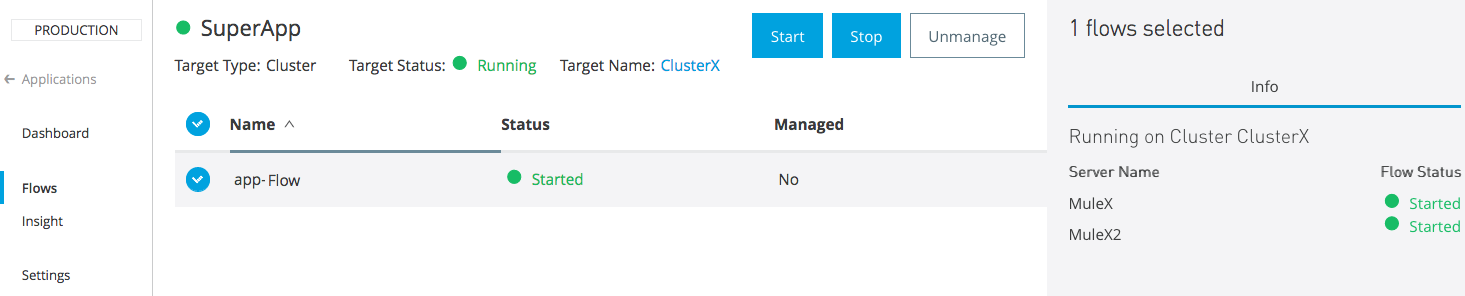
> [!NOTE] Starting a flow doesn’t imply triggering its endpoints, it just makes it active if
> previously set inactive.
## Set Flows to Unmanaged
In some cases, you can explicitly set up your applications to start and stop flows automatically
according to any criteria you want. In these cases, this behavior is carried out by logic in the
applications running inside Mule runtime itself, and Runtime Manager is unaware of the logic behind
these changes.
The default flow status for every application is unmanaged. This means that your flows freely
transition states between active and inactive according to the behavior set up in application logic
running in Mule runtime.
You can click **Start** or **Stop** for a flow in the **Flow Management** tab to override the
unmanaged status. In this case, Runtime Manager continually enforces the active or inactive state of
the flow, regardless of any changes Mule runime attempts. Click **Unmanage** to reset the flow
status to unmanaged at any time.

## See Also
- [Flow Metrics](https://docs.mulesoft.com/runtime-manager/flow-metrics)
- [Manage Deployed Applications](https://docs.mulesoft.com/runtime-manager/managing-deployed-applications)
- [Manage Applications on Your Servers](https://docs.mulesoft.com/runtime-manager/managing-applications-on-your-own-servers)
- [Monitor Applications](https://docs.mulesoft.com/runtime-manager/monitoring)
---
product: Runtime Manager
keywords: cloudhub, analytics, monitoring, insight, filter
---
# Flow Metrics
> For the full documentation index, see: https://docs.mulesoft.com/llms.txt
[CloudHub 2.0](deployment-strategies#cloudhub-2-0)[ CloudHub ](deployment-strategies#cloudhub)[ Hybrid ](deployment-strategies#hybrid-deployments)[ Private Cloud Edition](deployment-strategies#anypoint-platform-private-cloud-edition)
> [!IMPORTANT] MuleSoft deprecated the flow metrics feature on Dec 9th, 2019. We recommend that you
> use [Anypoint Monitoring](https://docs.mulesoft.com/monitoring/) to monitor your applications and APIs.
You can view the evolution of performance metrics for individual flows in your applications that are
deployed to servers on premises (hybrid or Anypoint Platform Private Cloud Edition).
## Enable Flow Metrics for Hybrid
When you deploy a new application to a hybrid deployment environment, the flow metrics feature is
not enabled by default. To enable flow metrics, your account must be granted one of the following
permissions.
- **Manage Application Data**
- **Create Applications**
- **Manage Settings**
To enable flow metrics:
1. From Runtime Manager, click **Applications**.
2. Select the application where you want to enable flow metrics, then click **Manage Application**.
3. Click **Settings**, then select the **Flow Monitoring** tab.
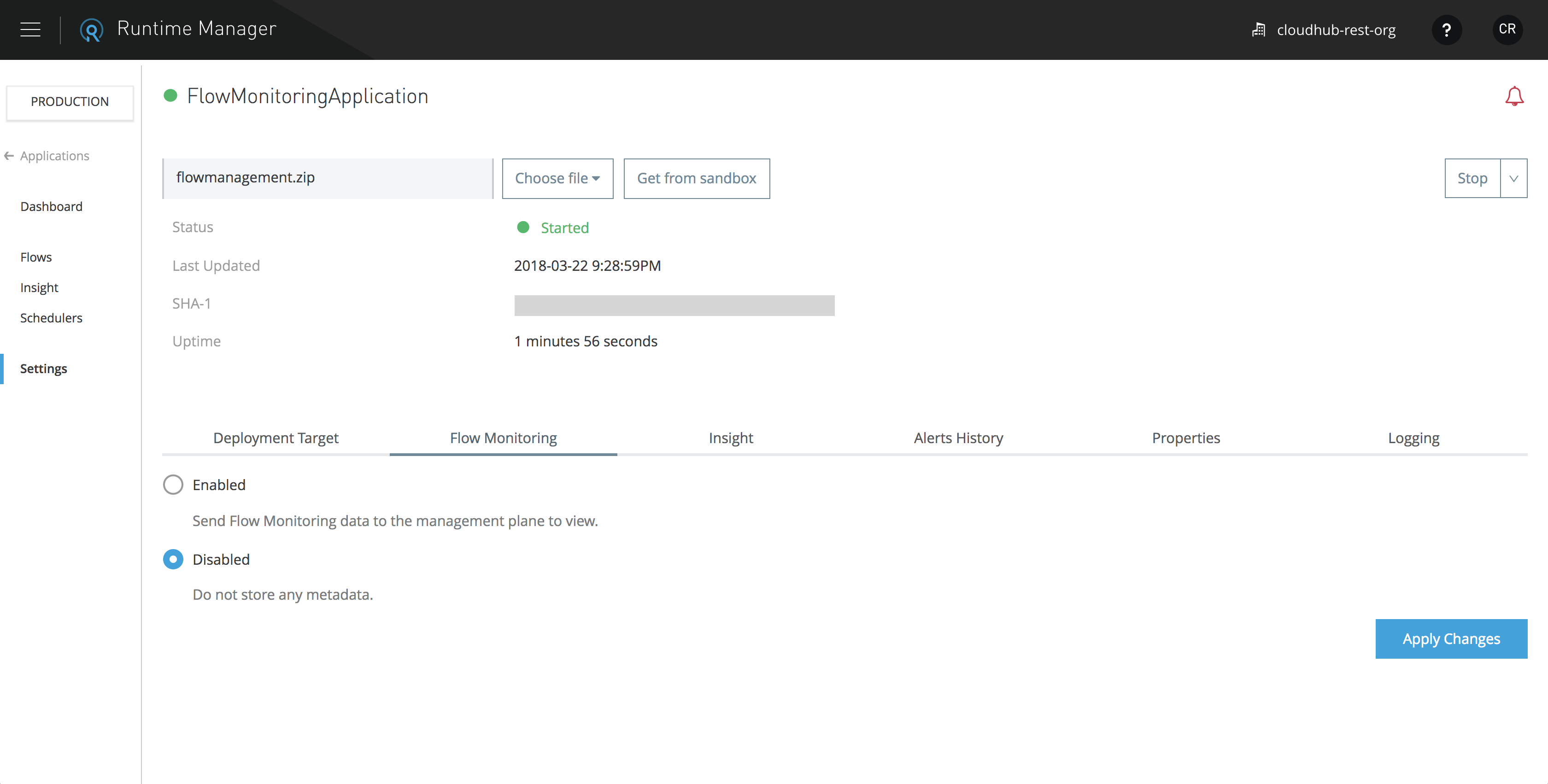
4. Select **Enabled**.
5. Click **Apply Changes**.
## Access Flow Metrics
To view flow metrics, you must have the Read Application permission for the desired applications.
1. Select the **Applications** tab in Runtime Manager.
2. Enter a running application’s settings (either by clicking the **Manage Application** button on
the side panel, or the application name itself in the table).
3. Select the **Flows** tab on the left side bar.
4. Select one or multiple flows.
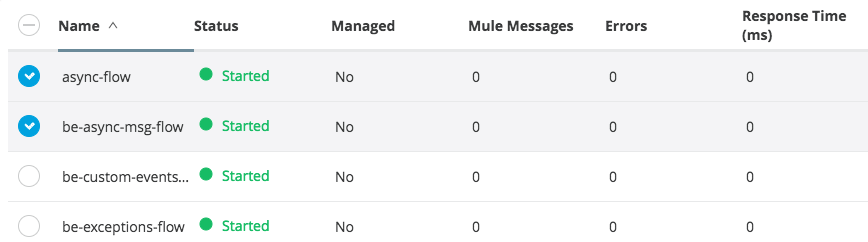
## Verify the Status of Servers
If your application is deployed to a cluster or a server group, you can view the status of the flow
on each server it runs in.
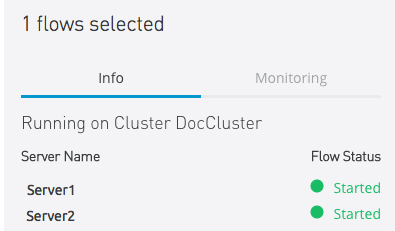
Use this information to rule out the possibility of a communication issue leading to inconsistent
states throughout the servers.
## View Flow Metrics
Once you have selected one or multiple flows, you can view the **Metrics** tab.
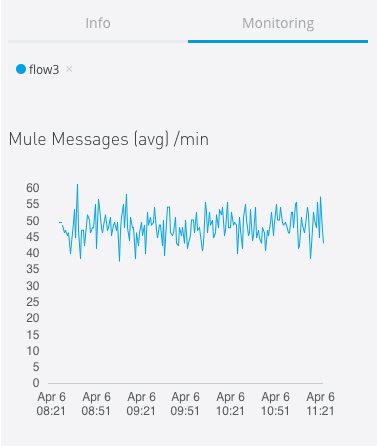
This tab contains charts for the following three metrics:
- Mule messages
- Errors
- Flow response time
All metrics are displayed as an average relative to the selected time scale.
> [!NOTE] The retention period for flow metrics is two weeks.
## Navigate the Metrics
All graphs can be viewed at different time scales by selecting the desired time interval on the
top-right corner.

If your application runs on a cluster or server group, the aggregated metrics of the entire set of
servers included are charted as a single plot line.
By hovering your mouse over a given point of a graph, an overlay displays numerical detail about
activity on that instant.
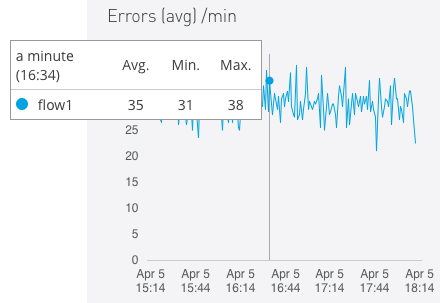
You can set up alerts to notify you automatically whenever any of these metrics hits a critical
value for a sustained period of time.
## See Also
- [Anypoint Monitoring](https://docs.mulesoft.com/monitoring/)
- [Alerts](https://docs.mulesoft.com/runtime-manager/alerts-on-runtime-manager)
- [Insight](https://docs.mulesoft.com/runtime-manager/insight)
- [Flow Management](https://docs.mulesoft.com/runtime-manager/flow-management)
- [Monitor Applications](https://docs.mulesoft.com/runtime-manager/monitoring)
---
product: Runtime Manager
keywords: cloudhub, analytics, monitoring, insight, filter
---
# Insight (To be Deprecated)
> For the full documentation index, see: https://docs.mulesoft.com/llms.txt
[CloudHub](deployment-strategies#cloudhub)[ Hybrid](deployment-strategies#hybrid-deployments)
This page documents a legacy troubleshooting tool for Mule apps deployed to CloudHub and on-premises
servers. For the new troubleshooting approach with traces, refer to these pages:
[Enable Trace Data Collection for CloudHub Apps](#enable-trace-data) and
[Enable Trace Data Collection for Hybrid Runtime Servers](https://docs.mulesoft.com/monitoring/am-installing#tracing-setup).
Insight is a troubleshooting tool that provides in-depth visibility into business transactions and
events on your Mule apps deployed to CloudHub and on-premises servers. Insight tracks everything
your data does in an app so you can find and recover from errors that occur during message
processing.
Replay is not supported for free or trial user accounts.
> [!IMPORTANT] Enabling Insight can significantly impact data processing performance and memory
> consumption. For this reason, do not enable Insight for long periods for production environments.
>
> Use Insight only for troubleshooting specific transactions by searching for a transaction ID or a
> unique text string.
>
> For information about tools to use for monitoring a production environment, see
> [Monitor Applications and Servers](https://docs.mulesoft.com/runtime-manager/monitoring).
The Insight dashboard enables you to view events that occur within the flows that handle your
business transactions. You can drill down into event-related data to analyze the root cause of
failures, isolate performance bottlenecks, and test for compliance with company procedures.
Insight helps you answer questions about your integrated apps, such as:
- What happened with a particular transaction or synchronization?
- When did the transaction occur? How long did it take?
- What was the result of a transaction?
- If something went wrong during processing, at what point did the failure occur?
After you enable Insight, the following items are tracked by default:
- Data passing through endpoints (inbound and outbound) in your Mule applications
- Flow initiation and completion
- Custom business events that you embed in your Mule flows
## Limits and Limitations
The following limits and limitations apply when using Insight:
- Insight drops events over the following limits:
- A single application is limited to 50,000 events per minute.
- All applications in a single business group are limited to 100,000 events per minute.
- Insight stores no more than 20 custom event definitions per application definition.
- Insight does not support long-running processes that contain more than 10,000 events in a single
transaction.
For this reason, Insight might not provide visibility into batch processing. See
[Batch Processing](https://docs.mulesoft.com/mule-runtime/latest/batch-processing-concept).
- Insight does not preserve replay data when switching regions.
Ensure that this limitation doesn’t violate your compliance requirements.
- Logs for applications deployed to on-premises servers contain event information but not message
contents.
- Insight returns consistent results only when searching for terms that are an exact match.
Because Insight limits the number of terms that are included in a query, it might not find all
matches when searching for a pattern.
To work around this limitation, either:
- Search for an exact transaction ID.
- Tag transactions with custom business events, and then search for transactions based on the
custom business events. See [Set Up Business Events](#set-up-business-events).
### Data Persistence
Insight does not limit the size of transactions. Insight displays all transactions in your
application for 30 days and keeps events for two days.
### Payload Transformation
The following MIME types are always mapped as Strings:
```linenums
application/javascript
application/json
application/csv
application/rtf
application/vnd.mozilla.xul+xml
application/x-csh
application/x-sh
application/xml
application/xml+html
images/svg+xml
text/calendar
text/css
text/csv
text/html
text/plain
text/xml
```
For all other types, Mule agent attempts to transform payloads to another format, based on the
Stream type that Mule runtime engine exposes to the Mule agent. For example, Mule agent converts
`CURSOR_STREAM_PROVIDER` payloads to a byte array.
Any streams that are not mapped to String by default appear in the logs.
## Enable or Disable Insight
To enable Insight to track the events your Mule servers generate:
1. Sign in to your Anypoint Platform account.
2. Click **Runtime Manager**.
3. Click **Applications** in the menu on the left, and click the application in the **Name** column
to open the management panel on the right side of the page.
4. In the management panel, click **Insight**.
5. Click **Settings** in the menu on the left, and then click the **Insight** tab:
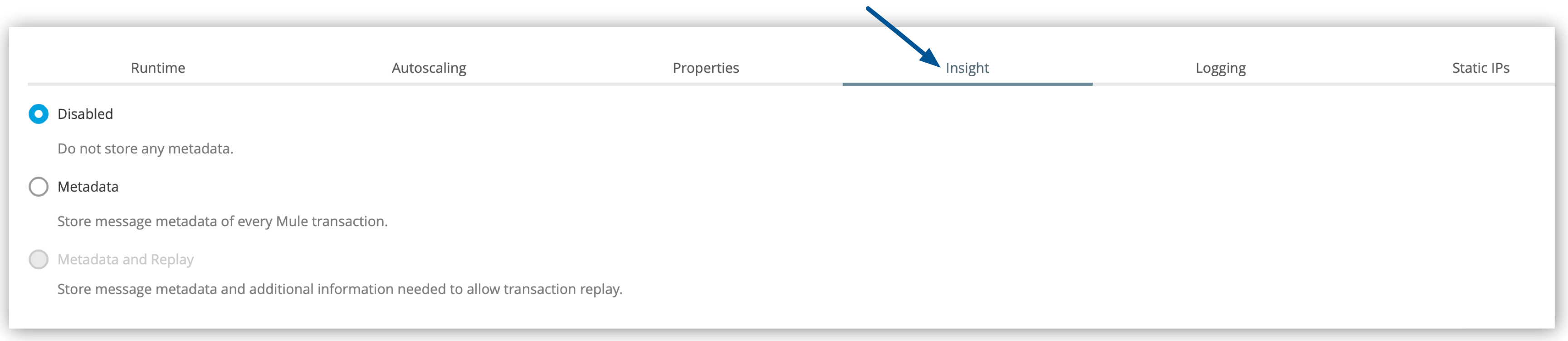
Figure 1. The arrow shows the **Insight** tab on the **Settings** page.
6. Select one of the tracking options:
- **Disabled** to disable Insight
- **Metadata** to track only events
- **Metadata and Replay** to track events and enable the ability to instantly replay a
transaction from the console
The **Metadata and Replay** option is unavailable for free or trial user accounts.
For more information, see
[Diagnose Problems and Replay Transactions](#diagnose-problems-and-replay-transactions).
7. Select the checkbox to confirm that you want to enable Insight, and click **Apply Changes**.
8. Click **Apply Changes** to save the application settings.
## Search and Filter Transactions and Events
The Insight dashboard displays information at three tracking levels:
- **Transactions**
Logical groupings of related events that often correspond to a business view of the system
- **Events**
Low-level details of a transaction
Events map to message processors and endpoints and reveal information about exceptions and any
custom business events you might have configured.
- **Metadata**
Customized key-value pairs that you specify as part of custom events in your application
The detail that Insight tracks at this level provides information about high-level business
events.
The following image shows where to find transactions, events, and metadata on the Insight dashboard:
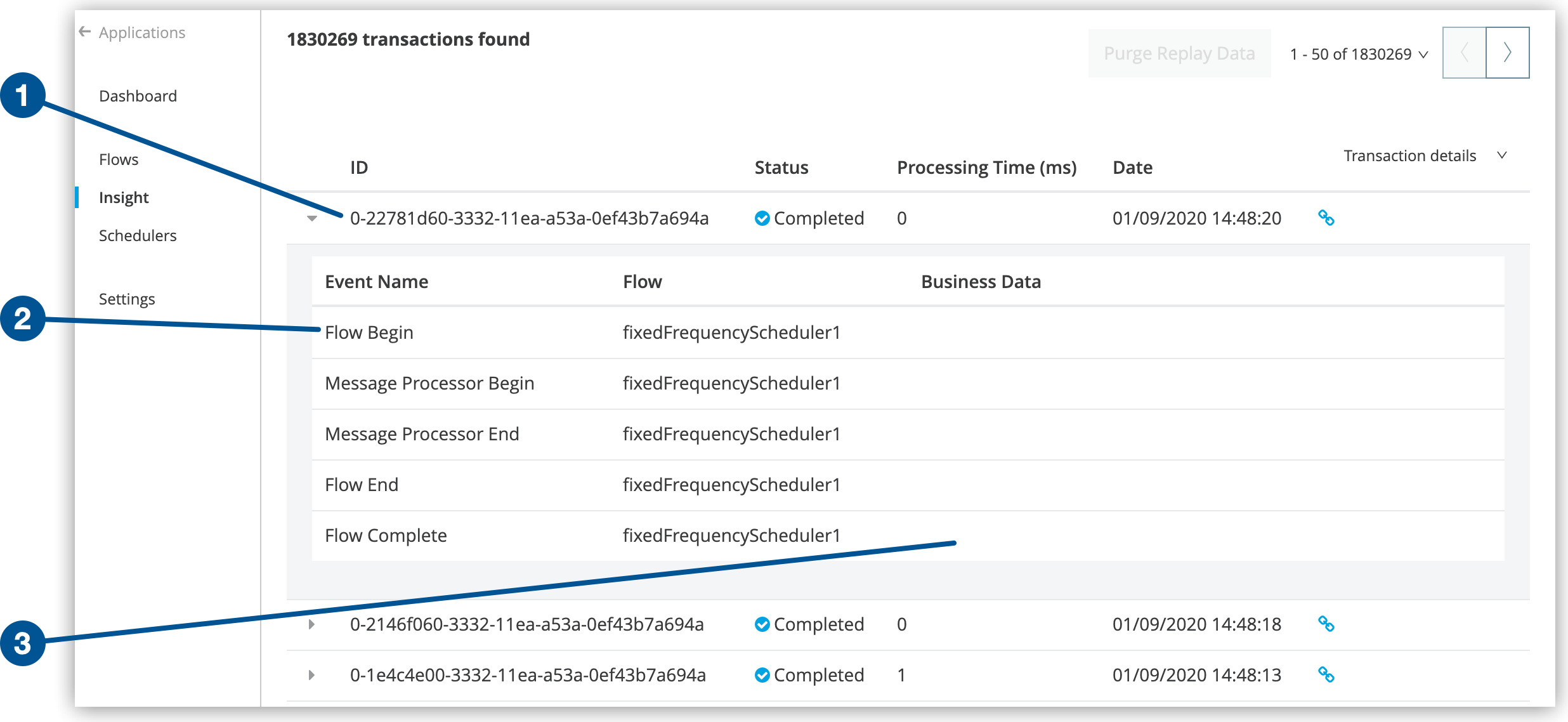
Figure 2. The screenshot shows (**1**) the Transactions level, (**2**), the Events level, and
(**3**), the Metadata level on the Insight dashboard.
Business data, if configured, appears in the Metadata area (**3**) of the dashboard. See
[Set Up Business Events](#set-up-business-events).
### Search or Filter Transactions
On the **Insight** page, you can search or filter data to refine the results displayed. You can
search for:
- A specific transaction by transaction ID
- Transactions within a specific date range
- Transactions according to exact flow name, exact exception message, processing time, and any
custom business data
To enable the **Business Data** field your app must have business events configured. See
[Set Up Business Events](#set-up-business-events).
To search or filter transactions:
1. Click **Insight** in the menu on the left.
2. Enter your search criteria in the **Search** field.
3. Click **Advanced** in the **Search** field.
4. Specify filter options:
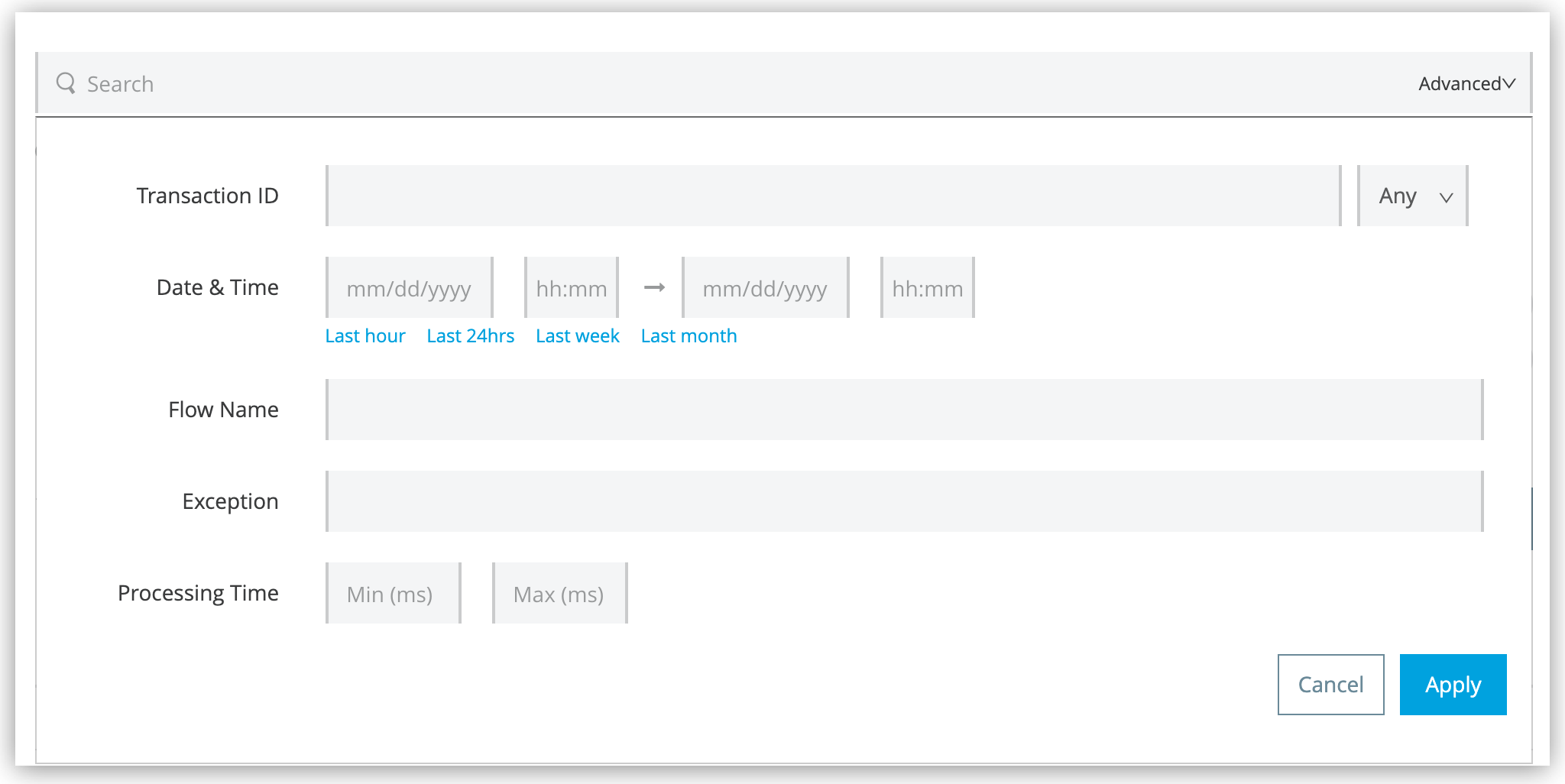
Figure 3. The screenshot shows the advanced search filter fields on the Insight dashboard.
- To display only failed or completed transactions, select **Failed** or **Completed** from the
menu in the **Transaction ID** field:
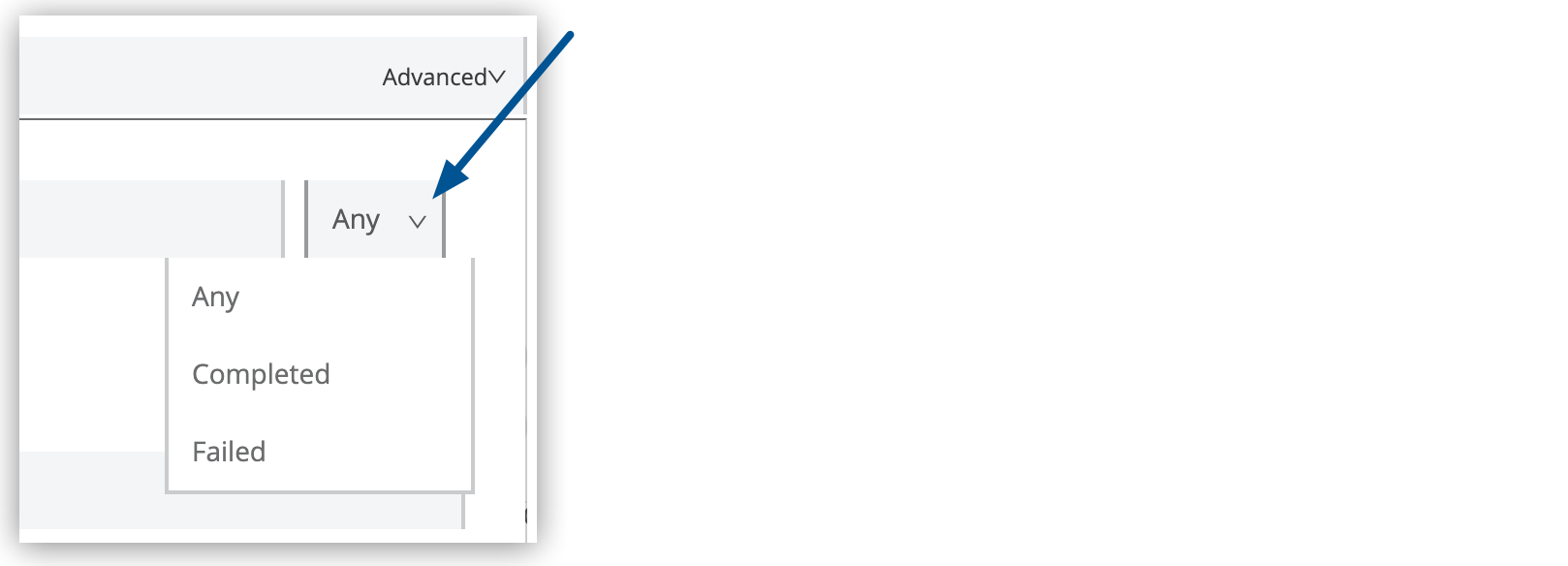
Figure 4. The arrow shows the menu in the **Transaction ID** field.
- To display transactions within a specific date range, specify a date or range in the **Date &
Time** fields.
Alternatively, drag within the graph to select a specific date range:
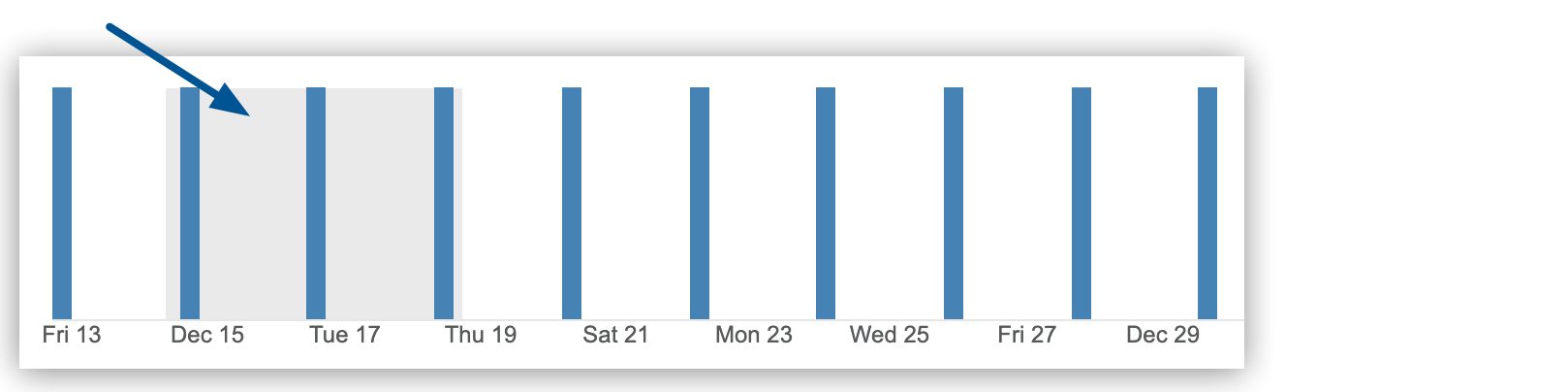
Figure 5. The arrow shows the selected transaction range on the Insight dashboard.
5. Click **Apply** on the **Advanced** pane to apply your search criteria.
6. If you want to save a search, click **Save search**:

Figure 6. The arrow shows the **Save search** icon on the Insight dashboard.
Runtime Manager saves the search to the name you specify.
After you save a search, you can:
- Run a saved search by clicking the search name.
- Edit a saved search by hovering over the search name and click the **Edit** link:
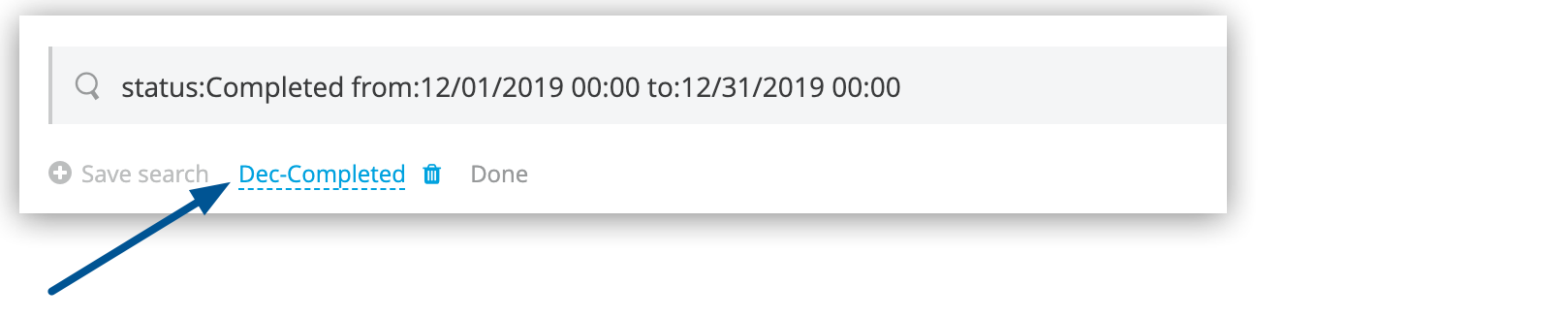
Figure 7. The arrow shows the saved search being edited.
Click **Done** to save your changes.
- Delete a saved search by clicking the **Edit** link, and then clicking the delete icon (trash can)
to the right of the search name.
### Filter Events
You can refine the types of events that Insight displays for each transaction.
When debugging, you might find it useful to see all events so that you can drill down into the
detailed steps of your flow. If you want to analyze higher-level business information, you can apply
a filter to view only your custom business events.
To display the filter options, click the **Transaction details** menu for a transaction:
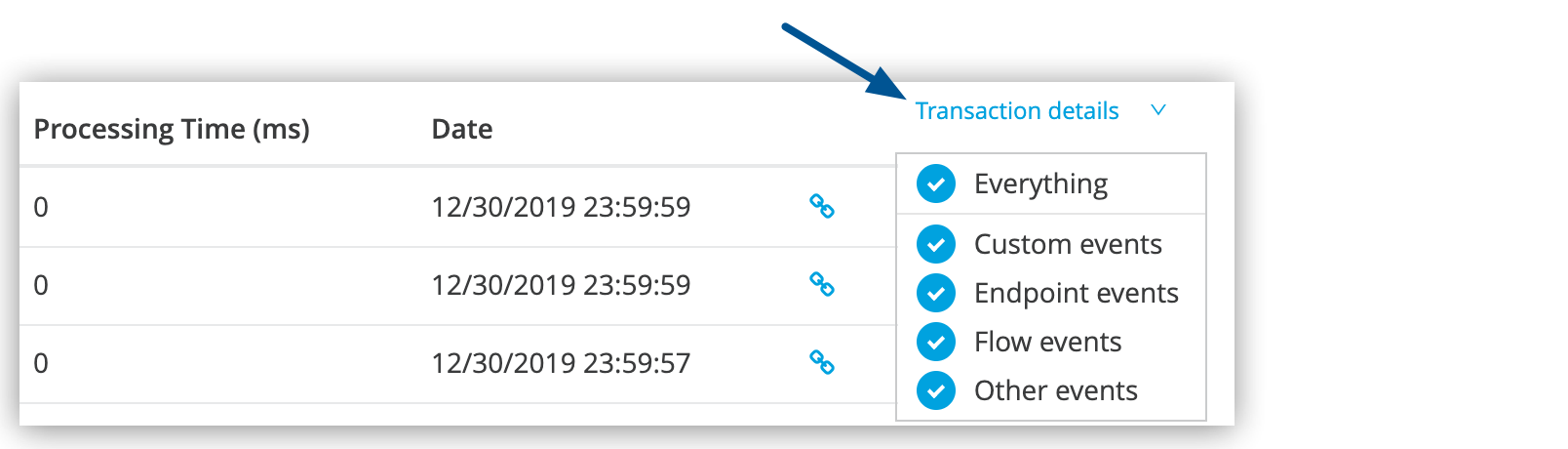
Figure 8. The arrow shows the **Transaction details** menu.
The default settings of the events filter depend upon your user role:
- **Support**
The default events filter setting displays only custom events.
- **Admin** or **Developer**
The default events filter setting displays custom events, endpoint events, and message processor
events, but does not display flow events.
## Diagnose Problems and Replay Transactions
When Insight reports a failed transaction, you can diagnose the problem and fix the root issue.
### Transaction Failed Status
For example, when a transaction fails because an application exceeds the limited number of API calls
for a Salesforce account, Insight displays the status of the transaction as `Failed`.
Click to expand the transaction, and then examine the individual events within that transaction. The
exception and the error message are listed next to the failed event, as well as an existing stack
trace:

### Replay Transaction
[](deployment-strategies#cloudhub-deployments)
After investigating the logs and resolving the issue (for example, by purchasing more API capacity)
that caused the transaction failure, you can replay the transaction.
Replay is not available for free or trial user accounts.
1. Click the replay transaction icon  to the right of
the first event in the failed transaction to replay it:
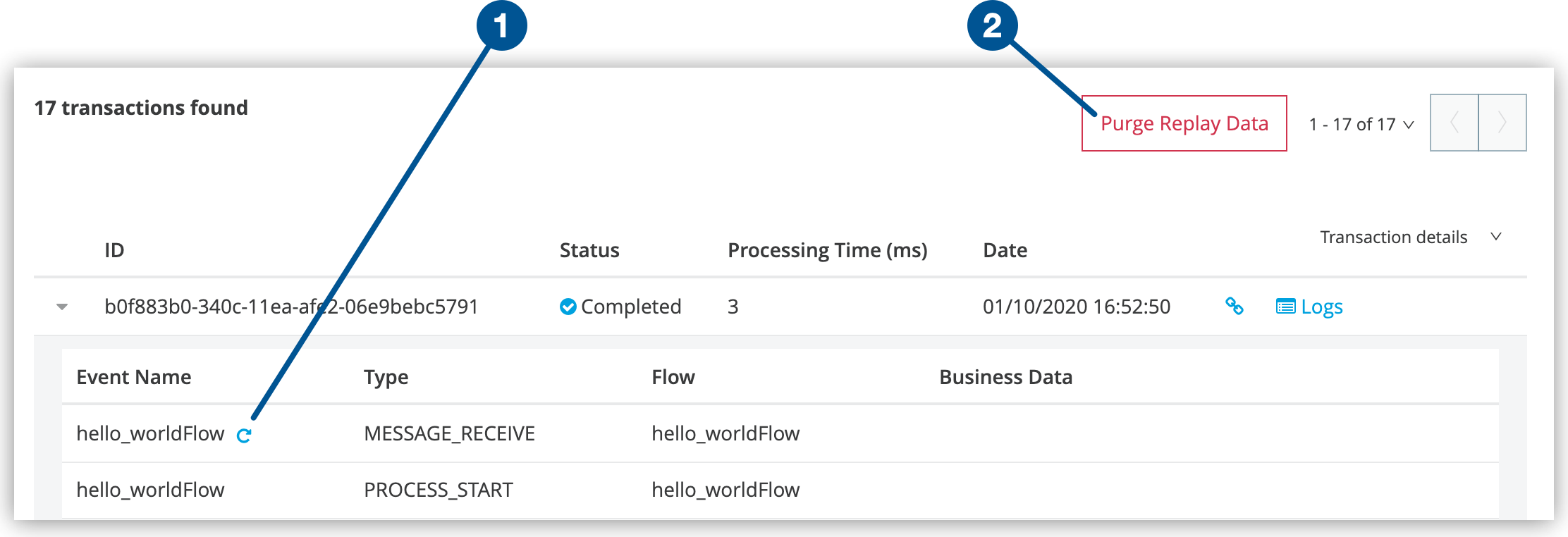
Figure 9. The screenshot shows (**1**) the replay transaction icon and (**2**) the **Purge
Replay Data** button.
2. At the prompt, click **Replay Transaction** to confirm.
Insight displays an information popup indicating that the transaction was replayed and displays
the replayed transactions immediately on the dashboard and in the **Logs** tab.
### Purge Replay Data
[](deployment-strategies#cloudhub-deployments)
To delete all existing replay data for that application, click the **Purge Replay Data** button.
> [!WARNING] You can’t restore replay data that has been purged.
## Table of Insight Status States
The following table describes the status states that Insight reports:
Status
Description
FAILED
The event failed while being processed and has an associated exception.
COMPLETED
The event processed fully and successfully.
IN_PROGRESS
The event has started and has not yet completed.
STALLED
The event has been put on hold due to exceeding the maximum number of events to be processed per transaction (10000). Any event above this number is set as stalled and then processed after the number of events to be processed is no longer exceeded.
UNCOMPLETED
If a transaction can’t finish within 24 hours, the events with IN_PROGRESS status change to UNCOMPLETED.
## Set Up Business Events
You can configure business events in your Mule applications by embedding custom business events in
flows or by enabling granular event tracking within message processors in your flows.
- **Custom Business Events**
Include custom business event elements at relevant points within the flows of your application to
surface the processing information that is most relevant for your business to track.
- **Event Tracking**
Track more granular events by enabling default event tracking for your entire flow or for specific
message processors or endpoints within your flow. When you configure the flows in your
application, you can explicitly configure the scope for default event tracking. See
[Configure Default Events Tracking](https://docs.mulesoft.com/mule-runtime/latest/business-events-in-components).
## Customize the Transaction ID
For transaction-level events, Insight might display long numeric values in the ID column. You can
customize the transaction IDs to display more intuitive values that are relevant to your business
requirements.
To do this, use a Mule expression to configure your Mule application to return meaningful
information about a transaction, such as order number, tracking number, or employee identification
number. See
[Customize the Transaction ID](https://docs.mulesoft.com/mule-runtime/latest/business-events-in-components#customize-the-transaction-id).
## Enable Trace Data Collection
Traces enable you to understand the path of a transaction in the MuleSoft ecosystem by providing
full visibility into the execution path of API calls or application transactions.
When you enable trace data collection for an app, Anypoint Platform collects and exposes tracing
information from Mule runtime engine in the OpenTelemetry standard, enabling you to export it using
the Anypoint Monitoring Distributed Tracing Experience.
You can enable trace data collection for your CloudHub applications running on Mule version 4.6 or
later.
To enable trace data collection for an app:
1. In Runtime Manager, click the **Runtime** tab.
2. Select the **Enable tracing** checkbox.
3. Click **Deploy Application** if you are enabling the feature for a new deployment, or **Apply
Changes** if you are editing an existing application.
After you enable tracing and redeploy your application, the Runtime Manager backend starts
instrumenting traces for your application.
## See Also
- [Monitor Applications](https://docs.mulesoft.com/runtime-manager/monitoring)
- [Develop Applications for CloudHub](https://docs.mulesoft.com/cloudhub/developing-applications-for-cloudhub)
- [Deploy to CloudHub](https://docs.mulesoft.com/cloudhub/deploying-to-cloudhub)
- [Manage Deployed Applications](https://docs.mulesoft.com/runtime-manager/managing-deployed-applications)
- [Manage Applications on CloudHub](https://docs.mulesoft.com/cloudhub/managing-applications-on-cloudhub)
- [CloudHub Insight on the MuleSoft Blog](https://blogs.mulesoft.com/dev-guides/how-to-tutorials/announcing-cloudhub-insight-real-time-visibility-message-replay-and-root-cause-analysis/)
- [Business Events](https://docs.mulesoft.com/mule-runtime/latest/business-events)
---
product: Runtime Manager
keywords: agent, runtime manager, mule, esb, servers, monitor, notifications, external systems, third party, get status, metrics
---
# Install or Update the Runtime Manager Agent
> For the full documentation index, see: https://docs.mulesoft.com/llms.txt
[Hybrid](deployment-strategies#hybrid-deployments)[ Private Cloud Edition](deployment-strategies#anypoint-platform-private-cloud-edition)
> [!NOTE] Where possible, we changed noninclusive terms to align with our company value of Equality.
> We maintained certain terms to avoid any effect on customer implementations.
The Anypoint Runtime Manager agent registers Mule runtime engine (Mule) with Runtime Manager. After
Mule is registered, you can manage it using Runtime Manager within the specific environment and
Anypoint Platform business group in which Mule was registered. You cannot register Mule with
multiple Runtime Manager business groups or environments.
Use the `amc_setup` command to install and configure the agent, using different parameters depending
on the type of console to which you are connecting the agent:
- [Anypoint Platform Runtime Manager cloud-based console](#register-mule-with-the-cloud-based-runtime-manager)
- [Anypoint Platform Private Cloud Edition Runtime Manager console](#register-mule-with-anypoint-platform-pce-runtime-manager)
When you run `amc_setup`, the agent creates the `$MULE_HOME/conf/mule-agent.yml` with the
configuration options you specified.
After initial installation, you can:
- Rerun `amc_setup` to change the agent configuration or to update the agent version.
- Modify `mule-agent.yml` to change the agent configuration.
Some configuration options, such as extending JMX monitoring to other external services, are not
possible using `amc_setup`. You must manually add them to `mule-agent.yml`. See
[Update Agent Configuration in mule-agent.yml](https://docs.mulesoft.com/runtime-manager/rtm-agent-config-yaml).
> [!NOTE] `$MULE_HOME` is environment variable that specifies the location where you installed Mule.
> These instructions use paths for Mac or Linux. If you are using Windows, replace the `$MULE_HOME`
> path with `%MULE_HOME%`.
## Requirements and Restrictions
- Do not register a single Mule runtime engine with more than one Runtime Manager business group or
environment.
- Do not register Mule with Runtime Manager more than once.
- Do not register a Mule runtime engine with both an older Mule Management Console (MMC) and Runtime
Manager.
If Mule is currently managed in MMC, first unregister it with MMC before running `amc_setup`.
MuleSoft support provides migration scripts to migrate from MMC to Runtime Manager.
> [!NOTE] Runtime Manager agent can’t run in a separate JVM.
## Compatibility
The version of Runtime Manager agent must support the version of Mule and Runtime Manager you are
using. To determine compatibility, check the
[Runtime Manager Agent Release Notes](https://docs.mulesoft.com/release-notes/runtime-manager-agent/runtime-manager-agent-release-notes).
### Runtime Manager Agent Compatibility
Mule version
Runtime Manager Agent version
Java version
4.3.0
2.4.3 or later
8
4.4.0
2.4.27 or later
8
4.4.0
2.4.28 or later
8,11
4.5.0
2.5.6 or later
8,11
4.6.0
2.6.0 or later
8,11,17
> [!NOTE] Using a Runtime Manager Agent version earlier than the ones provided in the compatibility
> table can result in incompatibilities or introduce inconsistencies.
For more information on Java compatibility, see [Java Support](https://docs.mulesoft.com/general/java-support).
## Prerequisites
- Your enterprise license is current.
- If you must download the agent, you must have an Enterprise support account.
## Install the Agent from a Mule Installation
The agent is bundled with the Mule runtime engine installation.
To install the agent:
1. [Download and install Mule](https://docs.mulesoft.com/on-premises/latest/runtime-installation-task).
2. Run `$MULE_HOME/bin/amc_setup` and specify parameters for your installation.
See [amc\_setup Parameters](#amc_setup-parameters).
## Install the Agent From a .zip File
If you need a different version of the agent than the version included in the software distribution,
you can download it from the Support Portal.
### Download the Agent from the Support Portal
To verify compatibility with your Mule runtime engine and Runtime Manager, check the corresponding
[Runtime Manager Agent Release Notes](https://docs.mulesoft.com/release-notes/runtime-manager-agent/runtime-manager-agent-release-notes).
To download the agent:
1. Open [MuleSoft Help Center](https://help.mulesoft.com/s/).
2. Click the **Support** tile.
3. Click **Login** in the upper right and log in using your Anypoint Platform credentials.
> [!IMPORTANT] You must have an Enterprise support account to download the agent.
4. In the MuleSoft Support page, click the **Downloads** tab.
5. Click **Mule Agent**.
6. Locate the agent to install and click **Download** in the Action column.
### Install the Agent
To install the agent from the downloaded .zip file:
1. Stop Mule or the API gateway runtime.
2. Extract the downloaded `agent-setup-_VERSION_.zip` file to `$MULE_HOME/bin`.
If prompted, overwrite any conflicting files.
3. Run `$MULE_HOME/bin/amc_setup` and specify parameters for your installation.
See [amc\_setup Parameters](#amc_setup-parameters).
4. Restart Mule or the API gateway runtime.
## Update the Agent
If you previously installed the agent with an earlier version of `amc_setup`, you can update the
agent and retain your existing agent configuration in `$MULE_HOME/conf/mule-agent.yml`.
If you keep your `mule-agent.yml` file, ensure that these changes are applied:
- When upgrading to versions 1.12.0 and later:
See
[Upgrade Requirements](https://docs.mulesoft.com/release-notes/runtime-manager-agent/runtime-manager-agent-1.12.x-release-notes#1-12-0).
- When upgrading to versions 2.2.0 and later:
See
[Upgrade Requirements](https://docs.mulesoft.com/release-notes/runtime-manager-agent/runtime-manager-agent-2.2.x-release-notes#2-2-0).
- When upgrading to versions 2.7.0 and later:
See
[Upgrade Requirements](https://docs.mulesoft.com/release-notes/runtime-manager-agent/runtime-manager-agent-2.7.x-release-notes#2-7-0).
To update an existing Runtime Manager agent:
1. Stop Mule or the API gateway runtime.
2. Extract the downloaded `agent-setup-_VERSION_.zip` file to `$MULE_HOME/bin`.
3. When prompted, overwrite any conflicting files.
4. Run `$MULE_HOME/bin/amc_setup -U`.
When you run `amc_setup` with the `-U` parameter, you can’t include other parameters on the
command line.
5. Restart Mule or the API gateway runtime.
If you update the Runtime Manager agent, you must also run the Anypoint Monitoring agent uninstall
script and then re-install the Anypoint Monitoring agent. See
[Update the Anypoint Monitoring Agent](https://docs.mulesoft.com/monitoring/am-installing#update-the-anypoint-monitoring-agent).
### What Happens When You Update the Agent
When you update the agent, the `amc_setup` script:
- Backs up the current version of the agent:
- Archives the `$MULE_HOME/server-plugins/mule-agent-plugin` to
`$MULE_HOME/tools/mule-agent-backup.zip`
- Archives any custom modules (usually located in
`$MULE_HOME/server-plugins/mule-agent-plugin/lib/modules`) to
`$MULE_HOME/tools/mule-agent-modules-backup.zip`
- Updates agent libraries in `$MULE_HOME/server-plugins/mule-agent-plugin/lib`
- Retains the current `$MULE_HOME/conf/mule-agent.yml` configuration file
- Leaves modules in `$MULE_HOME/server-plugins/mule-agent-plugin/lib/modules` unchanged
This directory contains all custom modules added to the agent (not included in the agent
distribution).
- Updates the default agent truststore name from `truststore.jks` to `anypoint-truststore.jks` (for
updates to versions 1.11.0 or 2.1.4 and later).
## Roll Back the Agent
If you need to roll back the agent, for example, if problems occur when you update the agent,
restore the previous version from the `mule-agent-backup.zip` file. This ZIP file includes
libraries, configuration files, and compiled classes for the agent.
To roll back the agent:
1. Stop Mule or the API gateway runtime.
2. Change to the `mule-agent-plugin` directory:
`cd $MULE_HOME/server-plugins/mule-agent-plugin`
3. Ensure that you are in the `mule-agent-plugin` directory:
`pwd`
4. Remove the existing agent files:
`rm -r *`
5. Copy the backup ZIP file to the `mule-agent-plugin` directory:
`cp $MULE_HOME/tools/mule-agent-backup.zip .`
6. Restore the previous version of the agent from the backup ZIP file:
`unzip mule-agent-backup.zip`
7. Remove the backup ZIP file:
`rm mule-agent-backup.zip`
8. Restart Mule or the API gateway runtime.
## Disable the Agent
To disable the agent:
1. Stop Mule or the API gateway runtime.
2. Remove these files:
```console
$MULE_HOME/conf/mule-agent.jks
$MULE_HOME/conf/mule-agent.yml
```
3. Restart Mule or the API gateway runtime.
> [!NOTE] The agent still starts up when disabled, but it does not perform any operation.
## amc\_setup Parameters
Parameters to `amc_setup` enable you to:
- Register Mule with a Runtime Manager console:
- [Register Mule with the Cloud-Based Runtime Manager](#register-mule-with-the-cloud-based-runtime-manager).
- [Register Mule with Anypoint Platform PCE Runtime Manager](#register-mule-with-anypoint-platform-pce-runtime-manager).
Registering Mule with Anypoint Platform PCE requires additional `amc_setup` parameters. See
[PCE Runtime Manager amc\_setup Parameters](#pce-runtime-manager-amc_setup-parameters).
- [Configure the agent to connect through a proxy server](https://docs.mulesoft.com/runtime-manager/rtm-agent-proxy-config#configure-the-agent-to-connect-through-a-proxy-server).
- [Encrypt passwords in the `mule-agent.yml` file](#encrypt_password).
- [Manage Mule using the local Runtime Manager agent REST API interface](https://docs.mulesoft.com/runtime-manager/rtm-agent-REST-connections).
- [Update the Agent](#update-the-agent).
To see available options, run `./amc_setup --help`.
Parameter
Value
Description
--help
Displays help for the command on the command line.
-U
--update
Updates the agent, preserving the existing mule-agent.yml configuration file.
When you update a previous agent installation using -U, you can’t include other parameters on the command line.
-E
--encrypt
Encrypts the passwords in an existing mule-agent.yml file.
Specifies the location of the $MULE_HOME directory.
Use this option if you are running the installation script from a location other than $MULE_HOME/bin.
The amc_setup script reads the mule-agent.yml file from ../conf, relative to the directory specified by --mule-home. For example, if the value of --mule-home is /tmp/Mule/bin, amc_setup reads mule-agent.yml from /tmp/Mule/conf.
--skip-gateway-clientid
Skips configuration of the API gateway client_id and client_secret.
-I
--insecure
Configures the agent to use an unencrypted REST connection.
Specifies the region to deploy to. Available regions are prod, eu1, and us_gov.
--fips
Enables FIPS 140-2 compliance on Mule 4 runtime on *nix-based servers.
## Register Mule with the Cloud-Based Runtime Manager
[](deployment-strategies#hybrid-deployments)
To register Mule with the Anypoint Platform Runtime Manager cloud-based console, you need:
- A valid registration token, which identifies a specific environment for a specific business group
in Anypoint Platform
- An instance name, which identifies Mule in the Runtime Manager console
To register Mule:
1. In Runtime Manager, click **Servers** in the left menu.
2. Click the **Add Server** button.
3. Enter a unique name for your server.
Server names can contain up to 60 alphanumeric characters (a-z, A-Z, 0-9), periods (.), hyphens
(-), and underscores (\_), but not spaces or other special characters. Runtime Manager supports
Unicode characters in server names.
The server name must be unique in the environment, but it can be the same for the same
organization in different environments.
Runtime Manager generates the `amc_setup` command. This command includes the server name you
specified (`_server-name_`) and the registration token (`_token_`) required to register Mule in
your environment. The registration token includes your organization ID and the current
environment.

Figure 1. The arrow shows the `amc_setup` command in the **Add Server** window.
4. Click **Copy command** to copy the command.
5. In a terminal window:
1. Change to the `$MULE_HOME/bin` directory for the Mule instance that you’re registering.
2. If you want to encrypt passwords in the `mule-agent.yml` file, set the
`AGENT_VAR_master_password` environment variable to the main password:
`export AGENT_VAR_master_password=myPassword`
3. Paste the command on the command line.
4. Include any other parameters on the `amc_setup` command line.
See [amc\_setup Parameters](#amc_setup-parameters).
Here is an example `amc_setup` command:
```console
./amc_setup -H myToken myMuleServer --proxy myProxy-host myProxy-port myProxy-user myProxy-password
```
The `amc_setup` command generates the `$MULE_HOME/conf/mule-agent.yml` file.
### Example mule-agent.yml File
Here is an example `mule-agent.yml` file generated by the `-H` option, with encrypted passwords:
```yaml
transports:
rest.agent.transport:
enabled: false
websocket.transport:
consoleUri: wss://runtime-manager.anypoint.mulesoft.com:443/mule
handshake:
enabled: true
body:
globalConfiguration:
security:
keyStorePassword: "![PBEWITHSHA1ANDDESEDE,WdPmAQMIC8Atr5iK4phjmbZbs9XFLLiH1eDhA7AmnpKUaPDhp40OB4uKZ6JUMW44]"
keyStoreAlias: agent
keyStoreAliasPassword: "![PBEWITHSHA1ANDDESEDE,WdPmAQMIC8Atr5iK4phjmbZbs9XFLLiH1eDhA7AmnpKUaPDhp40OB4uKZ6JUMW44]"
authenticationProxy:
endpoint: https://data-authenticator.anypoint.mulesoft.com:443
proxyConfiguration:
password: "![PBEWITHSHA1ANDDESEDE,VIs82yFDp66lnsL/Rss8q8js/zPDQ8+HJpdNepdZtA9obeDj5u+z4HIocsbLvXow]"
```
## Register Mule with Anypoint Platform PCE Runtime Manager
[](deployment-strategies#anypoint-platform-pce-deployments)
With Anypoint Platform Private Cloud Edition (Anypoint Platform PCE), all Runtime Manager services
run on-premises rather than in a cloud environment managed by MuleSoft.
To register Mule with PCE Runtime Manager:
1. Log in to an Anypoint Platform PCE account.
2. Ensure that you have correctly set up the DNS entry for your platform.
See [DNS or IP](https://docs.mulesoft.com/access-management/private-cloud-edition-features#dns-or-ip).
3. Select a business group and environment with which to register Mule.
4. Within the selected environment, click **Servers** in the left menu.
5. Click the **Add Server** button.
Runtime Manager generates the `amc_setup` command, including `_token_` and `_server-name_`, to
use to register Mule in your environment.
The registration token includes your organization’s ID and the current environment.
6. Click **Copy** to copy the command.
7. In a terminal window, change to the `$MULE_HOME/bin` directory for the Mule instance that you’re
registering.
8. Paste the command on the command line.
9. Change the instance name `server-name` to the unique name to use to label Mule in the Runtime
Manager console.
10. Include any other parameters on the `amc_setup` command line.
See [amc\_setup Parameters](#amc_setup-parameters).
11. Append parameters to the command line to specify the URLs of services used by Runtime Manager to
manage your Mule instance.
See [PCE Runtime Manager amc\_setup Parameters](#pce-runtime-manager-amc_setup-parameters).
Here is an example `amc_setup` command:
```console
./amc_setup -H myToken myMuleServer -A +http://$DOCKER_IP_ADDRESS:443/hybrid/api/v1+ -W "wss://AnypointPlatformHost:8889/mule" -C https://AnypointPlatformHost/accounts -F https://AnypointPlatformHost/apiplatform
```
The `amc_setup` command generates the `$MULE_HOME/conf/mule-agent.yml` file.
### PCE Runtime Manager amc\_setup Parameters
This table lists additional parameters required to register Mule with Anypoint Platform PCE Runtime
Manager. Append these parameters to the `./amc_setup -H _token_ _server-name_` command.
Do not use these parameters with the `-I` or `S` parameters to configure REST API connections.
Parameter
Value
Description
-A
--amc-host
amc-host
Specifies the service location URL of your local instance of Runtime Manager, for example, https://10.0.0.1:443/hybrid/v1.
You can test whether the service is available at AMC_HOST/hybrid/v1.
-W
--mcm-host
mcm-host
Specifies the service location URL of your local instance of MCM, for example, wss://10.0.0.2:8889/mule.
You can test whether the service is available at MCM_HOST/mule.
-C
--cs-host
core-services-host
Specifies the service location URL of your local instance of Access Management, for example, https://10.0.0.3:443/accounts.
You can test whether the service is available at core-services-host/accounts.
-D
--contract-caching-service-host
contract-caching-service-host
Specifies the service location (URL) of your local instance of Contract Caching Service, for example, https://10.0.0.4:8080.
-F
--api-platform-host
api-platform-host
Specifies the service location URL of your local instance of API Manager, for example, https://10.0.0.5:443/apiplatform.
You can test whether the service is available at API_PLATFORM_HOST/apiplatform.
-Z
--auth-proxy-host
auth-proxy-host
Specifies the service location URL of your Auth Proxy, for example, https://10.0.0.3:8080.
## Encrypt Passwords in an Existing mule-agent.yml File
If you didn’t set the `AGENT_VAR_master_password` environment variable when registering the agent
with Runtime Manager, you can encrypt the following passwords later in the `mule-agent.yml` file:
- `keystorePassword`: Keystore password used to access the `mule-agent.jks` file
- `keystoreAliasPassword`: Keystore alias password used to access the `mule-agent.jks` file
- `password`: Password used for authenticating with a proxy server
### Prerequisites
- Runtime Manager agent version 2.4.17
To update previous versions of the agent, see [Update the Agent](#update-the-agent).
### Encrypt Passwords
To encrypt passwords in your `mule-agent.yml` file:
1. Set the `AGENT_VAR_master_password` environment variable to the main password:
`export AGENT_VAR_master_password=myPassword`
2. Run the encryption utility:
`$MULE_HOME/bin/amc_setup --encrypt`
The encryption utility replaces the passwords in the `keystorePassword`,
`keystoreAliasPassword`, and `password` fields in the `mule-agent.yml` file with the encrypted
passwords, for example:
```yaml
globalConfiguration:
security:
keyStorePassword: "![PBEWITHSHA1ANDDESEDE,Fe4kl2UBnGRoyh7H2v9lq+QSG7Pe6ZP8k34xmZEHmcAb1jABAwPLk2xWrGtSt1iE]"
keyStoreAlias: agent
keyStoreAliasPassword: "![PBEWITHSHA1ANDDESEDE,EtqRDPq7UTxDHzZGpOGazfcveEi832Pqm1mqhlwYRGLZGh9NSNXie6nAZr09b3iT]"
authenticationProxy:
endpoint: https://data-authenticator.anypoint.mulesoft.com:443
proxyConfiguration:
password: "![PBEWITHSHA1ANDDESEDE,VIs82yFDp66lnsL/Rss8q8js/zPDQ8+HJpdNepdZtA9obeDj5u+z4HIocsbLvXow]"
```
The encrypted passwords start with `!` and are enclosed in square brackets `[ ]`.
### Update and Reencrypt Passwords
To update an encrypted password in the `mule-agent.yml` file:
1. Edit `mule-agent.yml`.
2. Replace the encrypted password with the new plain-text password.
3. Set the `AGENT_VAR_master_password` environment variable:
`export AGENT_VAR_master_password=myPassword`
4. Run the encryption utility:
`$MULE_HOME/bin/amc_setup --encrypt`
### Display Passwords in mule-agent.yml in Plain Text
To display the passwords in `mule-agent.yml` in plain text, run the decryption utility:
`$MULE_HOME/bin/amc_setup --decrypt`
This command outputs the contents of the `mule-agent.yml` file with plain-text passwords.
### Update the Main Password
To update the main password:
1. Run the decryption utility:
`$MULE_HOME/bin/amc_setup --decrypt`
2. Set the `AGENT_VAR_master_password` environment variable to the new main password:
`export AGENT_VAR_master_password=myNewPassword`
3. Run the encryption utility:
`$MULE_HOME/bin/amc_setup --encrypt`
## See Also
- [Installing an Enterprise License](https://docs.mulesoft.com/on-premises/latest/installing-an-enterprise-license)
- [Starting and Stopping Mule](https://docs.mulesoft.com/on-premises/latest/starting-and-stopping-mule-esb)
- [Runtime - API Gateway](https://docs.mulesoft.com/mule-gateway/mule-gateway-overview)
- [Runtime Manager Agent Architecture](https://docs.mulesoft.com/runtime-manager/runtime-manager-agent-architecture)
- [Create a Server in Runtime Manager (Hybrid)](https://docs.mulesoft.com/runtime-manager/servers-create)
- [Anypoint Private Cloud Installers](https://docs.mulesoft.com/private-cloud/latest/install-workflow)
---
product: Runtime Manager
keywords: agent, mule, esb, servers, monitor, notifications, external systems, third party, get status, metrics
---
# Internal Handler Buffering
> For the full documentation index, see: https://docs.mulesoft.com/llms.txt
[Hybrid](deployment-strategies#hybrid-deployments)[ Private Cloud Edition](deployment-strategies#anypoint-platform-private-cloud-edition)
The Anypoint Runtime Manager agent provides a simple way of implementing internal handlers with
buffering support. This document explains how to implement and configure buffers for the Runtime
Manager agent internal handlers.
## Implement a Buffered Internal Handler
### BufferedHandler Abstract Class
To implement a buffered internal handler, you need to extend the `BufferedHandler` abstract
class. The methods to overwrite are:
- `boolean canHandle(T message)`
Returns true if the message can be handled by the internal handler.
- `boolean flush(Collection collectionOfMessages)`
Provides the implementation to send the messages stored in the buffer to the external service.
### Example
```java
@Named("com.mulesoft.agent.mypublisher")
@Singleton
public class MyPublisher extends BufferedHandler>
{
@Configurable(value = "mule")
String metricPrefix;
@Inject
public MyPublisher()
{
super();
}
public MyPublisher(OnOffSwitch enabledSwitch)
{
super();
this.enabledSwitch = enabledSwitch;
}
@Override
public boolean canHandle(@NotNull List metrics)
{
// Evaluates if the message could be handled
}
@Override
public boolean flush(@NotNull Collection> listOfMetrics)
{
// Send messages to external service
}
}
```
## Configure a Buffering Internal Handler
### Buffering Configuration Object
If the internal handler includes buffering support, you can configure the buffer in the
`mule-agent.yml` file. The following table lists the available configuration parameters.
Field
Description
Default value
type
Buffer type. Valid values are MEMORY or DISK.
retryCount
Number of retries after an exception was thrown in the flush method.
maximumCapacity
Maximum number of events to keep in buffer.
flushFrequency
Frequency at which the flush method will run, in milliseconds.
filePath
Path to the buffer file. Only valid for buffers of type DISK.
PATH/bufferFile
whenExhausted
Strategy to follow when the buffer is exhausted. If not specified, the buffer will grow automatically. Valid values are FAIL and FLUSH.
N/A
flushThreadsNumber
Number of threads used by the FlushThreadExecutor when the buffer is exhausted and the strategy defined by whenExhausted is FLUSH (see row above).
60
discardMessagesOnFlushFailure
If true, messages will not be returned to the buffer if the flush is not successful.
false
> [!IMPORTANT] The maximum size capacity for the buffer is configured based on a number of events
> and not in bytes. Keep in mind that if the events are of a considerable size and you don’t set
> `maximumCapacity` to a low value, the heap might suffer stress and this might impact the
> application’s performance.
If you configure a `DISK` buffer, the agent will also instantiate an in-memory buffer in order to
improve the performance of the I/O operations. This memory buffer has a default value of 10000
events and is flushed to disk every 500ms, and in batches of 10000 events each. These values are
configurable through the system properties `agent.disk.buffering.cache.size`,
`agent.disk.buffering.cache.flush.frequency` and `agent.disk.buffering.max.flushing.size`,
respectively.
> [!NOTE] Flushing from disk to the external system in batches of 10000 events each and the
> `agent.disk.buffering.max.flushing.size` property are supported for Mule agent plugin versions
> 2.1.9 and 1.11.3 and later.
### Sample `mule-agent.yml` Files
#### Configure Buffering in a Publisher
```yaml
---
muleInstanceUniqueId: validId
organizationId: organizationId
transports:
websocket.transport:
security:
keyStorePassword: mykeystorePassword
keyStoreAlias: agent
keyStoreAliasPassword: agentpassword
rest.agent.transport:
security:
keyStorePassword: mykeystorePassword
keyStoreAlias: agent
keyStoreAliasPassword: agentpassword
port: 9997
services:
mule.agent.application.service:
enabled: true
mule.agent.domain.service:
enabled: true
mule.agent.jmx.publisher.service:
enabled: true
frequency: 15
frequencyTimeUnit: MINUTES
beans:
- beanQueryPattern: java.lang:type=Runtime
attribute: Uptime
monitorMessage: Monitoring memory up-time
- beanQueryPattern: java.lang:type=MemoryPool,*
attribute: Usage.used
monitorMessage": Used Memory
internalHandlers:
domaindeploymentnotification.internal.message.handler:
enabled: true
applicationdeploymentnotification.internal.message.handler:
enabled: false
com.mulesoft.agent.test.buffering.jmx.internal.handler:
enabled: true
buffer:
type: DISK
retryCount: 1
flushFrequency: 10000
maximumCapacity: 30
filePath: publisher-buffer.log
externalHandlers:
applications.request.handler:
enabled: true
domains.request.handler:
enabled: true
```
#### Configure Buffering in Events Tracking
```yaml
---
muleInstanceUniqueId: validId
organizationId: organizationId
transports:
websocket.transport:
security:
keyStorePassword: mykeystorePassword
keyStoreAlias: agent
keyStoreAliasPassword: agentpassword
rest.agent.transport:
security:
keyStorePassword: mykeystorePassword
keyStoreAlias: agent
keyStoreAliasPassword: agentpassword
port: 9997
services:
mule.agent.application.service:
enabled: true
mule.agent.domain.service:
enabled: true
mule.agent.jmx.publisher.service:
enabled: true
frequency: 15
frequencyTimeUnit: MINUTES
beans:
- beanQueryPattern: java.lang:type=Runtime
attribute: Uptime
monitorMessage: Monitoring memory up-time
- beanQueryPattern: java.lang:type=MemoryPool,*
attribute: Usage.used
monitorMessage": Used Memory
internalHandlers:
domaindeploymentnotification.internal.message.handler:
enabled: true
applicationdeploymentnotification.internal.message.handler:
enabled: false
tracking.notification.internal.message.handler:
enabled: true
buffer:
type: MEMORY
retryCount: 1
flushFrequency: 10000
maximumCapacity: 30
externalHandlers:
applications.request.handler:
enabled: true
domains.request.handler:
enabled: true
```
---
product: Runtime Manager
---
# JAR Signature Validator
> For the full documentation index, see: https://docs.mulesoft.com/llms.txt
[Hybrid](deployment-strategies#hybrid-deployments)
By default, the application validator service implements a JAR signature validator to prevent the
deployment of non-authorized artifacts. Each signed entry in the artifact JAR file must match one of
the keystore aliases. You can indicate which keystore alias to use to validate all artifacts
deployed in the runtime. Artifacts signed with expired certificates are allowed.
## Configure the JAR Signature Validator
Modify the `$MULE_HOME/conf/mule-agent.yml` file to include the following:
```java
services:
mule.agent.artifact.validator.service:
enabled: true
validators:
- type: jarSignatureValidator
name: defaultJarSignatureValidator
enabled: true
args:
truststore: signers-truststore.jks
truststoreType: JKS
truststoreAlias: code-signer-alias-1
truststorePassword: '![PBEWITHSHA1ANDDESEDE,U/nA0wV714oNi9LHoAkDtiwg22ngG6b7yFTtg7fk2d4=]'
```
Use the following properties to configure the JAR signature validator:
Key
Description
type
Required. jarSignatureValidator is the validator type implemented in the Runtime Manager agent plugin to verify the signature of all JAR files used for deployments in Mule runtime.
name
Required. A validator type can have multiple implementations. The name for the jarSignatureValidator type implemented in the Runtime Manager agent is defaultJarSignatureValidator.
enabled
Optional. Set to true to enable the validator implementation or false to disable it. The default value is true.
Use the following arguments to configure the JAR signature validator:
Key
Description
truststore
Optional. The truststore filename that contains one or more certificates used to validate the signature of all JAR files that you use for deployments. The default location is $MULE_HOME/conf. You can use a relative path to reference the truststore file. If you don’t provide a path, the validator loads the cacerts truststore file used by the JVM.
truststoreType
Optional. JKS (default) or PKCS12.
truststoreAlias
Optional. Each certificate stored in a truststore file is identified by an alias string. This property specifies a single alias used to validate all JAR files. If you don’t provide an alias, the validator uses all certificates in the truststore file to match the signature in the JAR files.
truststorePassword
Optional for JKS, required for PKCS12. The truststore file password.
## Start Mule Runtime Engine
Start Mule runtime engine and verify that the validator configuration is successful. The console
shows the following logs:
```console
AgentApplicationValidatorService: Initializing Artifact Validator service
AgentApplicationValidatorService: Total validators loaded: 1
AgentApplicationValidatorService: Validators listed by type:
AgentApplicationValidatorService: Type: jarSignatureValidator Names: [defaultJarSignatureValidator]
```
## Use Case 1: Deploy a JAR File Signed by a Trusted Code Signer - Success
Required files:
- `app-signed-by-trust-signer-01.jar`
- `signers-truststore.jks`
File: `mule-agent.yaml`
```java
services:
mule.agent.artifact.validator.service:
enabled: true
validators:
- type: jarSignatureValidator
name: defaultJarSignatureValidator
enabled: true
args:
truststore: signers-truststore.jks
truststoreType: JKS
truststorePassword: mulesoft
```
Curl command:
```copy
curl -X PUT 'http://localhost:9999/mule/applications/app-signed-by-trust-signer-01' \
-H 'Content-Type: application/json' \
-d '{"url": "file:/tmp/yahoo/app-signed-by-trust-signer-01.jar", \
"configuration": {}
}'
```
Response:
```json
{
"application": {
"name": "app-signed-by-trust-signer-01"
},
"status": "Deployment attempt started"
}
```
Console logs:
```console
AgentApplicationService: Deploying the app-signed-by-trust-signer-01 application from URL file:/tmp/yahoo/app-signed-by-trust-signer-01.jar
KeystoreUtils: Loading Jar Signers Truststore from '/private/tmp/trash/server-yahoo/conf/signers-truststore.jks'
JarSigner: Jar Signature verified: File /var/folders/sq/71l1hxdn171dpc46fn675yk80000gq/T/mule-received-artifact-5158252349422012120/app-signed-by-trust-signer-01.jar
AgentApplicationValidatorService: Application validation success for application: 'app-signed-by-trust-signer-01'
```
## Use Case 2: Deploy a JAR File Signed by a Trusted Code Signer and Validate with the Truststore Alias Signer - Success
Required files:
- `app-signed-by-trust-signer-01.jar`
- `signers-truststore.jks`
File: `mule-agent.yaml`
```java
services:
mule.agent.artifact.validator.service:
enabled: true
validators:
- type: jarSignatureValidator
name: defaultJarSignatureValidator
enabled: true
args:
truststore: signers-truststore.jks
truststoreType: JKS
truststoreAlias: code-signer-alias-01
truststorePassword: mulesoft
```
Curl command:
```copy
curl -X PUT http://localhost:9999/mule/applications/app-signed-by-trust-signer-01
-H "Content-Type: application/json"
-d '{"url": "file:/tmp/yahoo/app-signed-by-trust-signer-01.jar",\
"configuration": {}
}'
```
Response:
```json
{
"application": {
"name": "app-signed-by-trust-signer-01"
},
"status": "Deployment attempt started"
}
```
Console logs:
```console
AgentApplicationService: Deploying the app-signed-by-trust-signer-01 application from URL file:/tmp/yahoo/app-signed-by-trust-signer-01.jar
KeystoreUtils: Loading Jar Signers Truststore from '/private/tmp/trash/server-yahoo/conf/signers-truststore.jks'
JarSigner: Jar Signature verified using certificate alias 'code-signer-alias-01': File '/var/folders/sq/71l1hxdn171dpc46fn675yk80000gq/T/mule-received-artifact-3796117303843373481/app-signed-by-trust-signer-01.jar'
AgentApplicationValidatorService: Application validation success for application: 'app-signed-by-trust-signer-01'
```
## Use Case 3: Deploy a JAR File Signed by an Expired Code Signer - Failed
Required files:
- `app-signed-by-expired-trusted-signer.jar`
- `signers-truststore.jks`
File: `mule-agent.yaml`
```java
services:
mule.agent.artifact.validator.service:
enabled: true
validators:
- type: jarSignatureValidator
name: defaultJarSignatureValidator
enabled: true
args:
truststore: signers-truststore.jks
truststoreType: JKS
truststoreAlias: expired-code-signer
truststorePassword: mulesoft
```
Curl command:
```copy
curl -X PUT http://localhost:9999/mule/applications/app-signed-by-expired-trusted-signer \
-H "Content-Type: application/json"
-d '{"url": "file:/tmp/yahoo/app-signed-by-expired-trusted-signer.jar", \
"configuration": {}
}'
```
Response:
```json
{
"type": "class com.mulesoft.agent.exception.ApplicationValidationException",
"message": "CertificateExpiredException - NotAfter: Wed Dec 22 14:45:54 AST 2021"
}
```
Console logs:
```console
AgentApplicationService: Deploying the app-signed-by-expired-trusted-signer application from URL file:/tmp/yahoo/app-signed-by-expired-trusted-signer.jar
KeystoreUtils: Loading Jar Signers Truststore from '/private/tmp/trash/server-yahoo/conf/signers-truststore.jks'
MuleAgentSignatureValidator: There was an error validating the certificate with the alias 'expired-code-signer' - CertificateExpiredException Reason: 'NotAfter: Wed Dec 22 14:45:54 AST 2021'
ApplicationsRequestHandler: Error performing the deployment of app-signed-by-expired-trusted-signer. Cause: ApplicationValidationException: CertificateExpiredException - NotAfter: Wed Dec 22 14:45:54 AST 2021
```
## See Also
- [Runtime Manager Agent](https://docs.mulesoft.com/runtime-manager/runtime-manager-agent)
- [Advanced Usage](https://docs.mulesoft.com/runtime-manager/advanced-usage)
- [Application Validator Service](https://docs.mulesoft.com/runtime-manager/rtm-agent-app-validator)
---
product: Runtime Manager
keywords: agent, mule, esb, servers, monitor, notifications, external systems, third party, get status, metrics
---
# JMX Service
> For the full documentation index, see: https://docs.mulesoft.com/llms.txt
[Hybrid](deployment-strategies#hybrid-deployments)[ Private Cloud Edition](deployment-strategies#anypoint-platform-private-cloud-edition)
The Runtime Manager agent JMX service allows you to track specific JMX metrics and publish them to
external services. The service can be configured to track specific beans and to change the frequency
with which it publishes their value.
> [!NOTE] Mule 4.x doesn’t expose beans to JMX.
## JMX Publishers
The JMX service sends all the gathered metrics to publishers, which in turn publish the metrics to
external monitoring tools. The service itself provides some example publishers for commonly-used
tools; furthermore, you can create your own publisher to suit your specific needs.
## Configure the JMX Service
### Operation: Retrieve Configuration
Retrieves the JMX service configuration.
**Request:**
GET /mule/agent/mule.agent.jmx.publisher.service HTTP/1.1
**Example:**
GET http://localhost:9999/mule/agent/mule.agent.jmx.publisher.service HTTP/1.1
**Response:**
```json
{
"serviceHandlerTypes": ["java.util.List"],
"injectedHandlers": [
{
"name": "com.mulesoft.agent.monitoring.publisher.CloudwatchMonitorPublisher",
"path": "/mule/agent/cloudwatch.agent.monitor.publisher/configuration",
"type": "java.util.List"
},
{
"name": "com.mulesoft.agent.monitoring.publisher.GraphiteMonitorPublisher",
"path": "/mule/agent/mule.agent.graphite.jmx.internal.handler/configuration",
"type": "java.util.List"
},
{
"name": "com.mulesoft.agent.monitoring.publisher.NagiosMonitorPublisher",
"path": "/mule/agent/mule.agent.nagios.jmx.internal.handler/configuration",
"type": "java.util.List"
},
{
"name": "com.mulesoft.agent.monitoring.publisher.ZabbixMonitorPublisher",
"path": "/mule/agent/mule.agent.zabbix.jmx.internal.handler/configuration",
"type": "java.util.List"
}
],
"configurableFields": [
{
"name": "frequency",
"valueType": "java.lang.Integer",
"value": 15,
"configurableType": "DYNAMIC"
},
{
"name": "frequencyTimeUnit",
"valueType": "java.util.concurrent.TimeUnit",
"value": "MINUTES",
"configurableType": "DYNAMIC"
},
{
"name": "beans",
"valueType": "[Lcom.mulesoft.agent.services.monitoring.JMXBean;",
"value": [],
"configurableType": "DYNAMIC"
}
]
}
```
The response contains a list of the publishers currently loaded, as well as the configurable fields
of the service and their values (for more information on service configuration, see Administration
Service).
### Operation: Modify Configuration
This operation modifies the current configuration of the service.
**Request:**
```json
PATCH /mule/agent/mule.agent.jmx.publisher.service HTTP/1.1
{
"": "",
}
```
**Example:**
```json
PATCH http://localhost:9999/mule/agent/myservice HTTP/1.1
{
"frequencyTimeUnit": "SECONDS",
"frequency": "150"
}
```
**Response (if successful):**
HTTP 200
### Add a New JMX Publisher
To add a new JMX publisher, implement the Runtime Manager agent `InternalMessageHandler` interface.
Your custom JMX publisher should meet the following requirements:
- It must be thread-safe.
- It must implement all publishing logic in the handle method defined in `InternalMessageHandler`.
#### Write Your JMX Publisher
```java
@Named("my.company.jmx.publisher")
@Singleton
public class MyJMXPublisher extends InternalMessageHandler>{
boolean handle(List metrics){
// TODO handle message
}
@Override
public void enable(boolean state) throws AgentEnableOperationException {
// TODO: enable the Handler
}
@Override
public boolean isEnabled() {
// TODO: return Handler status
}
}
```
The Metric class is a POJO that contains the following fields:
```java
/**
* Time stamp when the metric was taken
*/
long timestamp;
/**
* Name of the metric. In the case of a JXM metric it is the bean that was tracked + message
*/
String name;
/**
* The numeric value of the metric
*/
Number value;
```
To add your new JMX publisher, just drop the JAR containing your classes under the `lib` folder
within the Runtime Manager agent plugin.
## See Also
- [Runtime Manager Agent API](https://anypoint.mulesoft.com/exchange/portals/anypoint-platform/f1e97bc6-315a-4490-82a7-23abe036327a.anypoint-platform/mule-agent-plugin-api/minor/1.1/pages/home/)
---
product: Runtime Manager
keywords: cloudhub, managing, monitoring, deploy, runtime manager, arm
---
# Manage Applications on Your Servers
> For the full documentation index, see: https://docs.mulesoft.com/llms.txt
[Hybrid](deployment-strategies#hybrid-deployments)[ Private Cloud Edition](deployment-strategies#anypoint-platform-private-cloud-edition)
After you [add a server](https://docs.mulesoft.com/runtime-manager/servers-create) and [deploy an application](https://docs.mulesoft.com/runtime-manager/deploying-to-your-own-servers)
to it, you can use the Runtime Manager to monitor and manage your application.
Depending on if your application is deployed to [CloudHub](https://docs.mulesoft.com/cloudhub/deploying-to-cloudhub) or to
[your own servers](https://docs.mulesoft.com/runtime-manager/deploying-to-your-own-servers), there is a different set of possible actions you
can perform on it, once deployed. This page focuses on the actions that are specific to applications
deployed to your own servers. To view the basic management tools that are common to both types of
deployment targets, see [Manage Deployed Applications](https://docs.mulesoft.com/runtime-manager/managing-deployed-applications).
With applications deployed to your own servers, you can:
- [Monitor applications](https://docs.mulesoft.com/runtime-manager/monitoring) and the servers they run on
- [Manage servers](https://docs.mulesoft.com/runtime-manager/managing-servers)
> [!NOTE] This doc covers deployments on-premises that are deployed both through the
> [cloud based](https://anypoint.mulesoft.com) or the Private Cloud Edition of the Anypoint
> Platform. Some of the features described in this page are not yet available on the Anypoint
> Platform Private Cloud Edition. See [Deployment Options](https://docs.mulesoft.com/runtime-manager/deployment-strategies) for a clear
> distinction. If you’re interested in requesting the Anypoint Platform Private Cloud Edition,
> please contact your sales representative.
> [!NOTE] MuleSoft does not support manually deploying apps if you are managing your on-premises
> servers with Runtime Manager. If you manually deploy applications on your on-premises servers, you
> can’t see or manage them in Runtime Manager because the applications are not auto-discovered.
## Applications Dashboard
If you select any of the applications on the Applications tab, a panel opens. Here you can read
additional information about the application and access its settings.

What this dashboard displays depends on if your application is deployed on
[CloudHub](https://docs.mulesoft.com/cloudhub/managing-applications-on-cloudhub) or on Mule.
Applications deployed to Mule show you the status, the time of the last modification and the
deployed application ZIP file – which you can change from this menu through the **Choose File**
button. Applications deployed on clusters and server groups additionally display the list of servers
and the status of each.
> [!TIP] You can verify info about the servers the application runs on by clicking on the server
> name in the panel, or by searching for it in the **Servers** tab. See more on
> [Servers Dashboard](https://docs.mulesoft.com/runtime-manager/managing-servers#servers-dashboard).
On all panels, two buttons are displayed:
- The **Manage Application** button, which takes you to the application settings page. This page
displays more detailed information about your app and the server it runs on. From here you can
also access the apps dashboard, see
[Monitoring Dashboards](https://docs.mulesoft.com/runtime-manager/monitoring-dashboards#the-dashboard-for-apps-on-servers) for more on this.

- The **Insight** button, to see data at a transaction level. See [Insight](https://docs.mulesoft.com/runtime-manager/insight) for more info
about what you can see here.

> [!NOTE] The **Insight** feature isn’t currently available on the Anypoint Platform Private Cloud
> Edition.
## Access App Settings
Sign in to the [Anypoint Platform](https://anypoint.mulesoft.com) and view the **Applications** tab
of the Runtime Manager. Select one of your CloudHub running applications to open a panel. On that
panel, click the **Manage Application** button to open up the application’s settings.

In this menu you can view all of the same data that’s available on the panel, with the addition of
an **Alerts History** tab, that displays a record of the triggered alerts on this app. See
[Alerts on Runtime Manager](https://docs.mulesoft.com/runtime-manager/alerts-on-runtime-manager) for more on this.
## Flow Management
You can individually start and stop the specific flows within your deployed applications via this
tab in the UI. See [Flow Management](https://docs.mulesoft.com/runtime-manager/flow-management).
## Monitor Applications
If your application is deployed to one of your own servers a set of tools exists for monitoring
events that may occur on your application and the performance of the servers, server groups or
clusters it’s running on. See [Monitoring Applications](https://docs.mulesoft.com/runtime-manager/monitoring) for more details.
## Delete Applications
To delete a deployed application from a server, simply click on the arrow next to its status, and
select **Delete**.

> [!NOTE] The server must be running for this option to be available. In the case of a Cluster or
> Server Group, at least one of its nodes must be running.
### Redeploying Deleted Hybrid Applications
For applications deployed on-premises, a couple of scenarios may arise which trigger specific
behaviors by Runtime Manager:
- If you manually delete an application folder or anchor file while the Mule runtime is running, the
affected applications are undeployed from that local server. Applications on other nodes in a
server group or cluster aren’t affected.
> [!NOTE] Only deleting from the Anypoint Runtime Manager UI or via the Runtime Manager REST API
> permanently removes the application.
- When Mule runtime restarts, it triggers a resync process. During the resync, Runtime Manager
detects the missing applications and automatically redeploys them. This applies to single servers,
server groups, and clusters.
> [!NOTE] The resync only occurs when the local Mule runtime restarts.
- When a new server is added into a Cluster or Server Group, even when no other server in that Group
or Cluster is running, Runtime Manager automatically deploys any applications into that Server
Group or Cluster.
## Download an Application Archive
Runtime Manager doesn’t support downloading the application archive (ZIP or JAR file) from the
application **Settings** page for an application deployed to an on-premises server. However, you can
download the archive using an Runtime Manager REST Services API call or the Anypoint
[command-line interface](https://docs.mulesoft.com/anypoint-cli/latest/standalone-apps#runtime-mgr-standalone-application-artifact).
## Download CloudHub 2.0, CloudHub, and Runtime Fabric Application Archives
[](deployment-strategies#cloudhub-2-deployments)
[](deployment-strategies#cloudhub-deployments)
[](deployment-strategies#anypoint-runtime-fabric-deployments)
You can download the archive file for applications deployed to CloudHub 2.0, CloudHub, and Runtime
Fabric.
1. From Anypoint Platform, select **Runtime Manager**.
2. Click the **Applications** tab.
3. Click the name of the application whose archive you want to download.
4. Click the name of the archive file in the **Application File** field.

## See Also
- [Servers, Server Groups, and Clusters](https://docs.mulesoft.com/runtime-manager/managing-servers)
- [Deploy Applications to Your Servers](https://docs.mulesoft.com/runtime-manager/deploying-to-your-own-servers)
- [Manage Deployed Applications](https://docs.mulesoft.com/runtime-manager/managing-deployed-applications)
- [Monitor Applications](https://docs.mulesoft.com/runtime-manager/monitoring)
- [Runtime Manager REST API](https://anypoint.mulesoft.com/exchange/portals/anypoint-platform/f1e97bc6-315a-4490-82a7-23abe036327a.anypoint-platform/arm-rest-services)
---
product: Runtime Manager
---
# Manage Deployed Applications
> For the full documentation index, see: https://docs.mulesoft.com/llms.txt
[CloudHub 2.0](deployment-strategies#cloudhub-2-0)[ CloudHub ](deployment-strategies#cloudhub)[ Hybrid ](deployment-strategies#hybrid-deployments)[ Private Cloud Edition ](deployment-strategies#anypoint-platform-private-cloud-edition)[ Runtime Fabric](deployment-strategies#anypoint-runtime-fabric-deployments)
After you deploy apps, use the Runtime Manager console to monitor and manage running applications.
The different management functionalities available depend on the
[deployment option](https://docs.mulesoft.com/runtime-manager/deployment-strategies) you use.
The basic management tools in the Runtime Manager console enable you to perform the following tasks:
- [Start, stop, and delete apps](#start_stop_delete_app)
- [View status states for apps](#status_states)
- [Update apps](#update_application)
- [Monitor and troubleshoot apps](https://docs.mulesoft.com/runtime-manager/monitoring)
For applications deployed to [your own servers](https://docs.mulesoft.com/runtime-manager/managing-applications-on-your-own-servers), you can
also:
- [Manage servers](https://docs.mulesoft.com/runtime-manager/managing-servers)
- [Create clusters and server groups](https://docs.mulesoft.com/runtime-manager/server-group-create)
- [Send data from Runtime Manager to external analytics software](https://docs.mulesoft.com/runtime-manager/sending-data-from-arm-to-external-analytics-software)
- [Manage individual flows](https://docs.mulesoft.com/runtime-manager/flow-management)
On applications deployed to [CloudHub 2.0](https://docs.mulesoft.com/cloudhub-2/ch2-manage-apps), you can also:
- [Configure Application Alerts](https://docs.mulesoft.com/cloudhub-2/ch2-config-app-alerts)
- [Manage Application Schedules](https://docs.mulesoft.com/cloudhub-2/ch2-manage-schedules)
- [Add Application Properties](https://docs.mulesoft.com/cloudhub-2/ch2-manage-props)
- [View Log Data for Deployed Applications](https://docs.mulesoft.com/cloudhub-2/ch2-view-logs)
- [View Diagnostic Data for Deployed Applications](https://docs.mulesoft.com/cloudhub-2/ch2-view-diag)
- [Enable Distributed Tracing](https://docs.mulesoft.com/cloudhub-2/ch2-deploy-private-space#enable-distributed-tracing)
- [Use Object Store v2](https://docs.mulesoft.com/cloudhub-2/ch2-clustering#cloudhub-2-0-clustering-and-object-store-v2)
On applications deployed to [CloudHub](https://docs.mulesoft.com/cloudhub/managing-applications-on-cloudhub), you can also:
- [Manage notifications](https://docs.mulesoft.com/cloudhub/notifications-on-runtime-manager)
- [Use Insight to troubleshoot business transactions and events on your Mule apps](https://docs.mulesoft.com/runtime-manager/insight)
- [Manage queues](https://docs.mulesoft.com/cloudhub/managing-queues)
- [Manage schedules](https://docs.mulesoft.com/cloudhub/managing-schedules)
- [Safely hiding application properties](https://docs.mulesoft.com/cloudhub/secure-application-properties)
- [View application log data](https://docs.mulesoft.com/cloudhub/viewing-log-data)
- [Monitor CloudHub workers](https://docs.mulesoft.com/cloudhub/worker-monitoring)
- [Manage app data with object stores](https://docs.mulesoft.com/cloudhub/managing-application-data-with-object-stores)
On applications deployed to [Anypoint Runtime Fabric](https://docs.mulesoft.com/runtime-fabric/latest/), you can also:
- [Manage App Schedules](https://docs.mulesoft.com/runtime-fabric/latest/manage-schedules)
- [Protect Application Property Values](https://docs.mulesoft.com/runtime-fabric/latest/protect-app-properties)
- [Review Application Versioning](https://docs.mulesoft.com/runtime-fabric/latest/app-versioning)
## Applications Tab
In Runtime Manager, an "application" is a Mule application that is running on a Mule runtime engine
(Mule) or an API gateway runtime instance. The instance can be running in CloudHub, in an
on-premises server of your organization, in a group of servers, or in a server cluster.
In the **Applications** menu, you can get a quick view of the applications that are currently
deployed and running for your account. Click an entry to display additional information (as shown
here), or click **Manage Application** to see the application’s [dashboard](https://docs.mulesoft.com/runtime-manager/monitoring-dashboards)
and settings page:

After you create at least one application, you can see your applications listed here.
An application deployed to a server group runs on every server in the group.
## Servers Tab
This tab is used only to deploy apps to on-premises servers. CloudHub workers aren’t displayed here.
In Runtime Manager, a "server" is a Mule or API gateway instance in a location other than CloudHub
(on-premises or in a different cloud server) that you must first register in the Runtime Manager
console. After you register and configure your server, you can deploy your applications to it from
the **Applications** tab.

From the **Servers** tab, select one of the following options to perform these tasks:
- Add a Server (registers the server with the Runtime Manager console)
- Start Mule or API gateway
- Create a server group
- Create a cluster
- Add and remove servers from a server group
- Add and remove servers from a cluster
- Stop an application on a server
- Delete a server, server group or cluster
For more about the options on this tab, see
[Servers, Server Groups, and Clusters](https://docs.mulesoft.com/runtime-manager/managing-servers).
## Switch Environments
If you have multiple environments in your organization, you can switch between them:
1. From any screen in Runtime Manager, click the current environment, which is displayed in the
upper left corner of the screen.
2. Select the environment to switch to.
3. Click **Switch**.

## Start, Restart, Stop, or Delete an Application
1. In **Applications**, click an application name to open its management panel on the right side of
the screen.
2. Next to the status, click the down-arrow (the menus differ according to the app’s current
state):

3. Click the action to perform:
- **Start**
Starts stopped applications
- **Restart**
Resets applications that have already started. If the application is undeployed, the
application’s ZIP file is sent to the server to start the application on the server.
- **Stop**
Stops running applications.
- **Delete**
Deletes the application.
If you’re deploying your application to an on-premises cluster, Runtime Manager starts/stops/deletes
the application simultaneously on each server.
> [!IMPORTANT] On CloudHub, after you delete an application, your log data is no longer accessible
> from the console. CloudHub archives old log data for a limited period of time before it is purged.
> This allows you to recover the data if needed. Open a support case at:
> [Salesforce Help](https://help.salesforce.com) for more information.
## Status States
The information in the **Status** column depends on the context:
- [Application Status States](#application_status_states)
- [Application Deployment States](#application_deploy_states)
- [Replica Status States](#replica_status_states)
- [Server Status States](#server_status_states)
- [Server Groups Status States](#server_groups_status_states)
- [Cluster Status States](#cluster_status_states)
### Application Status States
Icon
State
Description
Stopped
Not Running
Undeployed
The application is not running.
Starting
Stopping
Undeploying
Application is in the process of transitioning to another state.
Started
Running
Updated
Application is running or the update succeeded.
The Application shows Started when running on at least one of the Cluster nodes.
Deployment Failed
Application deployment failed.
The cause of the failure appears in the console.
Application update failed.
### Application Deployment States
Icon
State
Description
Deleted
Application is deleted.
Applying
Application is in the process of transitioning to another state.
Applied
Application is running or the update succeeded.
Failed
Application deployment failed.
The cause of the failure appears in the console.
Unknown
Application’s status is unknown because the server is not responding to the platform (on-premises deployments only).
### Replica Status States
Replica statuses apply only to applications deployed on Runtime Fabric. These statuses appear when
you are applying new, or changed, configurations to deployed applications. See
[Application Deployment Versioning](https://docs.mulesoft.com/runtime-fabric/latest/app-versioning).
Replica statuses include:
- **Started** (green)
Replica is receiving traffic.
- **Pending**
Replica is waiting to start.
- **Starting**
Process is starting on the replica.
- **Deleting**
Replica deletion is in progress.
- **Deleted**
Replica has been deleted.
- **Stopping**
Replica is stopping.
- **Stopped**
Replica is stopped (not receiving traffic).
- **Failed** (red)
Configuration failed to deploy.
- **Recovering** (red)
Replica is attempting to restart after terminating.
### Server Status States
- **Connected**
Server is available for use.
- **Created**
Server was recently registered into the system and has never been connected.
- **Running**
Server is up and running, and accepting requests.
- **Disconnected**
Server is currently unavailable but is registered and ready to connect.
### Server Groups Status States
- **Connected**
All servers in the server group are connected.
- **Created**
Server group created.
This state occurs temporarily after creating a group until Empty asserts.
- **Disconnected**
All servers in the server group are unavailable. This state can occur if the network goes down or
one or more servers in a group fail.
- **Empty**
No servers are currently assigned to this group.
- **Partial**
One or more servers in the group have differing states.
- **Running**
All servers in the server group are running.
### Cluster Status States
Icon
State
Description
Running
All nodes are running.
Running
At least one of the Cluster nodes is running.
Running with communication issue
All nodes are running, but communication issues exist between them.
Disconnected
All nodes are disconnected.
Created
A server/node is registered in the platform but is not started.
## Applications Management Panel
If you select any of the applications on the **Applications** tab, a panel opens on the right. Here
you can see additional information about the application and access its settings.

What the management panel displays depends on whether your application is deployed on
[CloudHub](https://docs.mulesoft.com/cloudhub/managing-applications-on-cloudhub) or on
[your servers](https://docs.mulesoft.com/runtime-manager/managing-applications-on-your-own-servers):
- Applications on CloudHub display information about the CloudHub worker on which they run.
- Applications deployed on clusters and server groups display the list of servers and the status of
each.
You always see the status, the time of the last modification, and the deployed application ZIP file.
The **Choose File** button enables you to change the application ZIP file.
The **Manage Application** button enables you to view and configure several more application
settings:

In the app’s settings page, the **Dashboard** button displays the full detail dashboard for your
application. See [Monitoring Dashboards](https://docs.mulesoft.com/runtime-manager/monitoring-dashboards).

> [!NOTE] The **Dashboard** option is available only if your organization has the Anypoint
> Integration Advanced package or a Titanium subscription to Anypoint Platform.
The **Insight** button enables you to see data at a transaction level. See [Insight](https://docs.mulesoft.com/runtime-manager/insight).

> [!NOTE] The dashboard and insights features are not currently available for Anypoint Platform
> Private Cloud Edition. See [Deployment Options](https://docs.mulesoft.com/runtime-manager/deployment-strategies).
## Monitor Applications
The tools you use to monitor application events and server or virtual server performance depend on
the [deployment option](https://docs.mulesoft.com/runtime-manager/deployment-strategies). See [Monitor Applications](https://docs.mulesoft.com/runtime-manager/monitoring).
## Update an Application
If you made changes to your application and want to deploy a new version:
1. Click **Choose file** on the deployment screen.
2. Select either **Import file from Exchange** or **Upload file**.
3. Click **Apply changes**.
Within a few seconds, your application redeploys. While redeploying, the application status
indicator changes to blue, and then turns green after the deployment completes.
4. For applications deployed to CloudHub, you can click **Logs** to see a live redeployment of your
application.
If you’re deploying your application to an on-premises cluster, Runtime Manager installs the new app
version simultaneously on each server.
To update applications deployed to Runtime Fabric, see
[Application Versioning on Runtime Fabric](https://docs.mulesoft.com/runtime-fabric/latest/app-versioning).
### Grace Period
When you stop, restart, update, redeploy, or terminate an application, CloudHub tries to delete it
from Mule. To make sure inflight messages are delivered, there’s a two-minute timeout period. After
that period, CloudHub shuts down the whole instance. This grace period applies to the application
instance, not to the runtime. The runtime uses its own configuration for shutdown. By default, the
runtime grace period is five seconds.
## Alerts
You can set up email alerts that are sent whenever certain events occur to your application, such as
deployment failures or application deletions. These alerts can be linked to a specific application
or to all applications. See [Alerts](https://docs.mulesoft.com/runtime-manager/alerts-on-runtime-manager) for information.
Even if you don’t have permission to create alerts, you can specify whether to receive email alerts.
Switching an alert off from this view switches it off for the current (signed in) user only. Other
users can still have active alerts.
## See Also
- [Manage Applications on CloudHub](https://docs.mulesoft.com/cloudhub/managing-applications-on-cloudhub)
- [Servers, Server Groups, and Clusters](https://docs.mulesoft.com/runtime-manager/managing-servers)
- [Send Data from Runtime Manager to External Analytics Software](https://docs.mulesoft.com/runtime-manager/sending-data-from-arm-to-external-analytics-software)
- [Deployment Options](https://docs.mulesoft.com/runtime-manager/deployment-strategies)
- [Monitor Applications and Servers](https://docs.mulesoft.com/runtime-manager/monitoring)
- [Clustering](https://docs.mulesoft.com/cloudhub/cloudhub-fabric)
- [Manage Queues](https://docs.mulesoft.com/cloudhub/managing-queues)
- [Manage Schedules](https://docs.mulesoft.com/cloudhub/managing-schedules)
- [Manage Application Data Storage with Object Stores](https://docs.mulesoft.com/cloudhub/managing-application-data-with-object-stores)
- [Safely Hide Application Properties](https://docs.mulesoft.com/cloudhub/secure-application-properties)
- [Virtual Private Cloud](https://docs.mulesoft.com/cloudhub/virtual-private-cloud)
- [Penetration Testing Policies](https://docs.mulesoft.com/cloudhub/penetration-testing-policies)
- [Application Versioning on Runtime Fabric](https://docs.mulesoft.com/runtime-fabric/latest/app-versioning)
---
product: Runtime Manager
---
# Manage Properties for Applications On-Premises
> For the full documentation index, see: https://docs.mulesoft.com/llms.txt
[Hybrid](deployment-strategies#hybrid-deployments)[ Private Cloud Edition](deployment-strategies#anypoint-platform-private-cloud-edition)
In an on-premises (hybrid or Anypoint Platform PCE) deployment, you can add properties to an
application by using either a properties file or Anypoint Runtime Manager.
For example, you can define application-specific properties in a properties file and then later add
environment-specific properties from Runtime Manager during deployment.
Specifying properties in Runtime Manager enables you to define an application’s properties in one
place rather than in multiple files in multiple environments.
After deploying an application, you can modify application properties or create new ones from the
application **Settings** page. If you change properties after an application is deployed, you must
restart the application and any server group or cluster where the application is deployed.
The values of properties defined on the **Settings** page override any application properties
defined in the properties file or other properties of Mule.
The following security considerations apply to properties:
- Values sent between Runtime Manager and Mule runtime engine are encrypted over HTTPS.
- Values stored in the Runtime Manager internal database are encrypted.
- Runtime Manager displays the values of the properties only in the **Settings** page.
## Add Application Properties by Using a Properties File
You can add properties to an app by including property placeholder YAML file in the deployable
application archive file. See
[Configuring Properties](https://docs.mulesoft.com/mule-runtime/latest/configuring-properties).
Mule runtime engine then loads these properties into the application when the application starts.
## Add Application Properties in Runtime Manager
You can override the property values in the properties file bundled inside the application in
Runtime Manager:
1. From Anypoint Platform, select **Runtime Manager**.
2. Click the **Applications** tab.
3. Click the **Status** column to display the details pane.
4. Click **Manage Application**.
5. On the **Settings** page, click the **Properties** tab:

Figure 1. The screenshot shows (**1**) the **Properties** tab, (**2**) the **Key** and **Value**
fields, and (**3**) the **…** menu on the application **Settings** page.
6. Enter the property name in the **Key** field.
7. Enter the property value in the **Value** field.
8. Click **Save** > **Redeploy Application**.
You can edit or delete a property using options in the **…** menu.
## Other Methods for Overriding App Properties
The following are some alternative methods for overriding app properties:
- Configure an external location to add property placeholders or secure property placeholder files
to override properties.
- Set Java system environment variables at deployment time to override properties.
To do this, deploy the app using the following command:
mule -M-Dsecret.key=toSecretPassword -M-Denv=prod -M-Ddb.password=secretPassword -app myApp.zip
In this case, all the values typed into the command are stored only in memory and must be provided
every time. The values are never stored in any file.
## See Also
- [Configuring Properties](https://docs.mulesoft.com/mule-runtime/latest/configuring-properties)
- [Configuring Environment Properties](https://docs.mulesoft.com/mule-runtime/latest/deploying-to-multiple-environments)
- [Setting a Specific Environment when Starting Mule On-Premises](https://docs.mulesoft.com/mule-runtime/latest/deploying-to-multiple-environments#setting-a-specific-environment-when-starting-mule-on-premises)
- [Deploy to Your Servers](https://docs.mulesoft.com/runtime-manager/deploying-to-your-own-servers)
- [Safely Hide Application Properties](https://docs.mulesoft.com/cloudhub/secure-application-properties)
---
product: Runtime Manager
---
# Manage Schedulers
> For the full documentation index, see: https://docs.mulesoft.com/llms.txt
[Hybrid](deployment-strategies#hybrid-deployments)
You can use Runtime Manager to view and control the Scheduler components within the flows in your
deployed applications. Use the **Schedulers** tab in the navigation menu to enable or disable
Scheduler elements, change the frequency, or run the scheduled job immediately, all without changing
the running application.
From the **Schedulers** tab, you can:
- Enable or disable the Scheduler
- Change the frequency
- Specify when to start running the Scheduler
- Specify the timezone for a cron Scheduler
> [!NOTE] You can’t set a timezone for a scheduler running on CloudHub or Government Cloud.
Runtime Manager lists the name of each Scheduler component as `polling://{flow_name}`.
## Use Cases
Schedule management is useful in the following contexts:
- You want to change the schedulers in your application at runtime without redeploying.
- You want to disable a scheduled job while one of the applications you are connecting to is
undergoing maintenance.
- You want runtime visibility into the schedulers in your application.
## Considerations and Limitations
When using the **Schedulers** tab, consider the following:
- If a scheduled job is not triggered because the application is not running, Runtime Manager
triggers the job as soon as the application restarts.
- The scheduler reads the job configuration every time it runs.
To apply your changes immediately, run your jobs manually after updating the schedule.
## View and Manage Application Schedulers in Runtime Manager
To use the scheduling feature in Runtime Manager, deploy an application that includes one or more
Scheduler elements:

Figure 1. The arrow shows the **Scheduler** component in the Anypoint Studio canvas.
After deploying the app, view and manage the Scheduler elements in Runtime Manager:
1. Click **Applications** in the left pane, click the app name, and then click **Schedulers**:

Figure 2. The screenshot shows (**1**) the **Schedulers** option and (**2**) the checkbox on the
**Schedulers** page.
The **Name** column shows the name of the flow that contains the Scheduler element.
Runtime Manager lists the Scheduler elements in the order that they appear in your application:

Figure 3. The screenshot shows (**1**) the checkbox, (**2**) the **Disable** button, and (**3**)
the schedule in the details pane.
2. Enable one or more schedulers by selecting checkboxes and clicking **Enable**.
3. Update a cron Scheduler by selecting a single checkbox and updating the schedule configuration
in the details pane:

Figure 4. The arrow shows the cron schedule configuration in the details pane.
4. Update a fixed-frequency Scheduler by selecting a single checkbox and updating the schedule
configuration in the details pane:

Figure 5. The arrow shows the fixed-frequency schedule configuration in the details pane.
5. Disable one or more schedulers by selecting checkboxes and clicking **Disable**.
6. Click **Update** to save changed settings.
## See Also
- [Scheduler Endpoint (Trigger)](https://docs.mulesoft.com/mule-runtime/latest/scheduler-concept)
- [Migrating the Poll Component](https://docs.mulesoft.com/mule-runtime/latest/scheduler-concept)
---
product: Runtime Manager
---
# Monitor Applications and Servers
> For the full documentation index, see: https://docs.mulesoft.com/llms.txt
[CloudHub 2.0](deployment-strategies#cloudhub-2-0)[ CloudHub ](deployment-strategies#cloudhub)[ Hybrid ](deployment-strategies#hybrid-deployments)[ Private Cloud Edition ](deployment-strategies#anypoint-platform-private-cloud-edition)[ Runtime Fabric](deployment-strategies#anypoint-runtime-fabric-deployments)
After you deploy your application, use the monitoring dashboards in Runtime Manager to monitor the
application’s performance. If you deployed the application to an on-premises server, you can also
monitor the server.
Depending on the [deployment option](https://docs.mulesoft.com/runtime-manager/deployment-strategies) you use, different monitoring resources
are available, including alerts, dashboards, notifications, and flow metrics.
> [!NOTE] For CloudHub 2.0 deployments, the Runtime Manager monitoring feature is available for
> applications only. For more information, see
> [Monitoring Apps Deployed to CloudHub 2.0](https://docs.mulesoft.com/cloudhub-2/ch2-monitor-apps).
## Monitoring Servers
On applications that are deployed on-premises, use the following tools to get information about the
servers.
- [Alerts](https://docs.mulesoft.com/runtime-manager/alerts-on-runtime-manager#conditions-on-mule-servers)
[](deployment-strategies#cloudhub-deployments)
[](deployment-strategies#hybrid-deployments)
Send e-mail alerts whenever key events occur. A history of when these alerts were triggered can
also be accessed.
- [Monitoring Dashboards](https://docs.mulesoft.com/runtime-manager/monitoring-dashboards#the-dashboard-for-a-server)
[](deployment-strategies#cloudhub-deployments)
[](deployment-strategies#hybrid-deployments)
[](deployment-strategies#anypoint-platform-pce-deployments)
[](deployment-strategies#anypoint-runtime-fabric-deployments)
See the evolution of key performance metrics related to service usage and available processing
power
> [!IMPORTANT] To use Runtime Manager monitoring dashboards when running Mule on Windows, the Mule
> service must be started by a user that belongs to the **Performance Log Users** group.
## See Also
- [Monitoring Dashboards](https://docs.mulesoft.com/runtime-manager/monitoring-dashboards)
- [Start and Stop Mule](https://docs.mulesoft.com/on-premises/latest/starting-and-stopping-mule-esb#starting-mule-as-a-windows-service)
- [Configure Alerts](https://docs.mulesoft.com/runtime-manager/alerts-on-runtime-manager)
- [Notifications on Runtime Manager](https://docs.mulesoft.com/cloudhub/notifications-on-runtime-manager)
- [Custom Application Alerts and Notifications](https://docs.mulesoft.com/cloudhub/custom-application-alerts)
- [Flow Metrics](https://docs.mulesoft.com/runtime-manager/flow-metrics)
- [Manage Deployed Applications](https://docs.mulesoft.com/runtime-manager/managing-deployed-applications)
- [Deployment Options](https://docs.mulesoft.com/runtime-manager/deployment-strategies)
- [Insight](https://docs.mulesoft.com/runtime-manager/insight)
---
product: Runtime Manager
---
# Monitor Dashboards on Runtime Manager
> For the full documentation index, see: https://docs.mulesoft.com/llms.txt
[CloudHub 2.0](deployment-strategies#cloudhub-2-0)[ CloudHub ](deployment-strategies#cloudhub)[ Hybrid ](deployment-strategies#hybrid-deployments)[ Private Cloud Edition ](deployment-strategies#anypoint-platform-private-cloud-edition)[ Runtime Fabric](deployment-strategies#anypoint-runtime-fabric-deployments)
The Anypoint Runtime Manager monitoring dashboards give you in-depth visibility into usage metrics
about both your deployed apps and the systems they’re deployed to.
Anypoint Platform Private Cloud Edition doesn’t support the Anypoint Monitoring dashboard feature.
To view dashboards, you must have either the Runtime Manager Read Applications permission or the
Runtime Manager Read Servers permission for the resource.
Anypoint Runtime Manager provides these dashboards:
- [Application monitoring dashboards](#application-monitoring-dashboards)
Displays information about applications, including deployment target and status.
Runtime Manager provides two application dashboard interfaces: built-in and classic. The dashboard
you see depends on the version, type, and deployment method of the selected application.
- [Server monitoring dashboard](#server-monitoring-dashboard)
Provides high-level information about the servers, including heap memory and CPU percentage, as
well as detailed memory usage metrics.
- [Server group or cluster monitoring dashboards](#server-group-or-cluster-monitoring-dashboard)
Displays aggregated metrics for selected servers in a group or cluster.
Using the information gathered from these dashboards, you can:
- Set up alerts for applications and servers to notify you automatically when any of these metrics
reaches a critical value for a sustained period.
- Use Insight to help analyze the root cause of failures, isolate performance bottlenecks, and test
for compliance with company procedures.
## Application Monitoring Dashboards
[](deployment-strategies#cloudhub-2-0)
[](deployment-strategies#cloudhub-deployments)
[](deployment-strategies#hybrid-deployments)
[](deployment-strategies#anypoint-runtime-fabric-deployments)
The app monitoring dashboards help you answer questions about your integrated apps, such as:
- When did peaks in usage occur?
- What impact do high traffic peaks have on response time?
- How well is the processing power behind my app coping with these high traffic peaks?
- What impact do high traffic peaks have on the message fail rate?
- What impact do high traffic peaks of other apps running on the same server have on the performance
of a given app?
> [!NOTE] After the worker is restarted, the CPU and memory information is not available in the
> dashboards. To retain these statistics, use the `dashboardStats` API. Alternatively, you can use
> Anypoint Monitoring to store this data (Anypoint Integration Advanced package or Titanium
> subscriptions only)
### Built-in Anypoint Monitoring Dashboard
The Anypoint Monitoring dashboard provides a wider array of monitoring metrics than the classic
application monitoring dashboard and includes several pages in which to view different types of
charts.
This dashboard is displayed if the selected application is:
- Deployed to CloudHub or Runtime Fabric
- Has Anypoint Monitoring enabled
For information, see [Built-in Application Dashboard](https://docs.mulesoft.com/monitoring/anypoint-insights) in the
Anypoint Monitoring documentation.
### Classic Application Monitoring Dashboard
The classic application monitoring dashboard displays metrics for Mule messages, CPU, and memory.
This dashboard is displayed if the selected application is:
- Deployed to CloudHub
- Deployed on-premises (hybrid)
For hybrid apps, the dashboard appears if monitoring is enabled and there are CPU metrics for the
last 24 hours of monitoring.
- Not enabled for monitoring
> [!NOTE] The **Mule Messages** graph displays all Mule messages produced by the application during
> the specified time frame.
### Access the Application Monitoring Dashboard
When you access the monitoring dashboard for an application, the dashboard you see depends on the
version, type, and deployment method of the selected application.
To access the application monitoring dashboard:
1. In Runtime Manager, click **Applications**.
2. Click the name of the application to monitor.
### Navigate the Application Monitoring Dashboard
You can view all graphs for different time ranges by selecting the desired time interval in the
top-right corner of the dashboard you are viewing:
- Built-in Anypoint Monitoring dashboard:

- Classic application monitoring dashboard:

The following table lists the time units for each selected time range:
Graphs Display the Average, Minimum, and Maximum:
Selected Time Range
Number of Mule Messages
Number of Errors
Response Time (milliseconds)
3 Hours
Per minute
Per minute
Per minute
24 Hours
Per 8 minutes
Per 8 minutes
Per 8 minutes
7 Days
Per hour
Per hour
Per hour
2 Weeks
Per 2 hours
Per 2 hours
Per 2 hours
If your application runs on multiple workers, the workers are charted as different curves on the
same graphs, differentiated by different colors.
If your application runs on a server group or cluster, the aggregated metrics of the servers in
the group or cluster appear as a single plot line on each graph. If you want to see the metrics at
the individual server level, you can look at the dashboard for the individual server. If multiple
apps are running on the server, you see the overall server performance, without a distinction
between each of the apps running on it.
## Server Monitoring Dashboard
[](deployment-strategies#hybrid-deployments)
[](deployment-strategies#anypoint-platform-pce-deployments)
The server monitoring dashboard displays high-level information about the servers, including heap
memory and CPU percentage, as well as detailed memory usage metrics.
### Access the Server Monitoring Dashboard
To access the server monitoring dashboard:
1. In Runtime Manager, click **Servers**.
2. Click the name of the server to monitor.
The dashboard for the server appears:

You can also navigate to a server’s monitoring dashboard from the
[server group or cluster dashboard](#access-the-server-group-or-cluster-dashboard) that includes the
server.
### Navigate the Server Monitoring Dashboard
The server monitoring dashboard displays metrics divided into two tabs:
- [Overview](#overview-tab)
Displays memory and CPU usage for the server at a high level.
- [Breakdown](#breakdown-tab)
Displays detailed metrics that track each part of the server’s memory separately.
You can view all graphs for different time ranges by selecting the desired time interval in the
top-right corner of the dashboard you are viewing:

You can display an overlay of numerical detail about activity that occurred at a specific time by
hovering over the graph:

If your server runs multiple applications, you can view the performance of each in a separate set of
charts by selecting the application checkboxes to display the details pane on the right with this
data.
The memory usage graphs on the dashboards track these values:
- **Usage**
The amount of memory (in MB) currently in use.
If the Java VM attempts to increase the used memory to be greater than committed memory, memory
allocation fails even if the amount of used memory is increased to below the total memory.
- **Total**
The maximum amount of memory (in MB) for use by the server. The maximum amount can change or be
undefined.
- **Committed**
The amount of memory (in MB) available for use by the Java VM. This amount varies over time. The
amount of committed memory is always greater than or equal to the amount of used memory.
#### Overview Tab
The graphs in the Overview tab provide high-level metrics related to memory and CPU usage.
Heap Memory
The total heap memory usage in MB:
- Heap memory usage
- Total memory
- Heap committed memory

See the [Breakdown tab](#breakdown-tab) for details about each of the components of the heap memory.
CPU
This metric is not available on Windows.
The total CPU Usage of the server:
- CPU Usage
- Available Processors
- Load Average

**CPU Usage** is a percentage value that indicates how much of the server’s processing capacity is
being used. **Available Processors** is an integer value that indicates the number of processors
available in the server. CPU load is the number of tasks that are being executed, or waiting to be
executed, by the server’s CPU. **Load Average** is an integer value that indicates the average
number of processes that are running or waiting to be assigned CPU time over a given period of time.
#### Breakdown Tab
The graphs in the Breakdown tab provide detailed metrics, including graphs that track each part of
the server’s memory separately.
- Heap memory metrics relate to the portion of the server memory that makes up the JVM heap:
- [Eden](#eden)
- [Survivor](#survivor)
- [Old Gen](#old_gen)
- Non-heap memory metrics refer to memory that exists outside the JVM heap:
- [Code Cache](#code_cache)
- [Compressed Class Space](#compressed_class)
- [Metaspace](#metaspace)
Thread Count
The number of individual Java execution threads over time:

Garbage Collection
Metrics for these areas of the heap:
- Young Generation, where all new objects are allocated.
- Old Generation, where long-surviving objects are stored.

Class Loading
The total number of classes that are currently loaded or being loaded across all apps in the JVM:

Eden
The pool in the heap space from which memory is initially allocated for most objects.

Survivor
The pool in the heap containing objects that have survived the garbage collection of the Eden space.

Old Gen
The pool in the heap containing objects that have existed for some time in the Survivor space.

Code Cache
The space containing memory that is used for compilation and storage of native code.

Compressed Class Space
This metric is available only when using JDK 8+.

Metaspace
The JVM memory space that uses native memory for the representation of class metadata.
This metric is available only when using JDK 8+.

The metaspace limit is currently 256 MB.
## Server Group or Cluster Monitoring Dashboard
[](deployment-strategies#hybrid-deployments)
[](deployment-strategies#anypoint-platform-pce-deployments)
You can use the server group or cluster monitoring dashboard to view aggregated metrics for servers
in a group or cluster.
The server group or cluster monitoring dashboard displays these aggregated metrics:
- CPU usage, as a percentage of the capacity
- Memory usage, in MB
- Heap total, in MB
The aggregated metrics of the selected servers appear as a single plot line on each graph.
### Access the Server Group or Cluster Dashboard
To view aggregated metrics for servers in a server group or cluster for on-premises deployment:
1. In Runtime Manager, click **Servers**.
2. Click the cluster or server group name to display the dashboard.
3. Select one or more servers or applications from the list to display aggregated metrics in the
details pane.
### Navigate the Group or Cluster Dashboard
You can view graphs for specific periods by selecting the time interval in the top-right corner:

You can display this information for either servers or applications by clicking the appropriate tab:

From this dashboard, you can click a [server](#access-the-server-monitoring-dashboard) or
[application](#access-the-application-monitoring-dashboard) name to access the dashboard for that
item.
### Troubleshoot Anypoint Monitoring Metrics not Working in Server Groups
If Anypoint Monitoring does not publish metrics immediately after installing the Anypoint Monitoring
agent on a hybrid server in a server group, follow these steps to correctly install Anypoint
Monitoring to a server in a server group:
1. In Anypoint Platform go to **Runtime Manager** > **Servers** > **Add Server** to create an
Anypoint Runtime Manager token.
2. Execute the command provided in the **Add Server** screen.
3. In Anypoint Platform go to **Runtime Manager** > **Servers** > **Create Group** to create the
server group.
4. Start Mule for all the servers to be added to the server group by using the command
`./mule start` from the `$MULE_HOME/bin` directory.
5. In Anypoint Platform go to **Runtime Manager** > **Servers**, click the server group name, and
**Add Server** to add all the servers to the group.
6. Deploy an API to the server group.
7. Stop any running filebeat process in all the servers of the server group and run the `./install`
command from the `$MULE_HOME/am/bin` directory in all the servers of the server group.
8. In Anypoint Platform go to **Runtime Manager** > **Servers**, click the server group name, and
restart all the servers in the server group via **Actions** > **Restart**.
9. Run `./setup` from the `$MULE_HOME/am/bin` for all the servers in the server group.
If after this step the metrics don’t show up, repeat the last two steps.
## See Also
- [Anypoint Monitoring Overview](https://docs.mulesoft.com/monitoring/)
- [CloudHub API dashboardStats](https://anypoint.mulesoft.com/exchange/portals/anypoint-platform/f1e97bc6-315a-4490-82a7-23abe036327a.anypoint-platform/cloudhub-api/1.0.11/console/method/%231708/)
- [Configure and Enable Anypoint Monitoring for Mule Apps (CloudHub)](https://docs.mulesoft.com/monitoring/configure-monitoring-cloudhub)
- [Built-in Application Dashboard](https://docs.mulesoft.com/monitoring/anypoint-insights)
- [CloudHub](https://docs.mulesoft.com/cloudhub/)
- [Clustering](https://docs.mulesoft.com/cloudhub/cloudhub-fabric)
- [Alerts](https://docs.mulesoft.com/runtime-manager/alerts-on-runtime-manager)
- [Insight](https://docs.mulesoft.com/runtime-manager/insight)
---
product: Runtime Manager
keywords: analytics, monitoring, splunk, elk, elastisearch, logstash, kibana, logs, mule events, logging, apy analytics, metrics, traceability, arm, anypoint runtime manager
---
# Payload Formats and Logging
> For the full documentation index, see: https://docs.mulesoft.com/llms.txt
[Hybrid](deployment-strategies#hybrid-deployments)[ Private Cloud Edition](deployment-strategies#anypoint-platform-private-cloud-edition)
To send message payload data to external analytics software, Runtime Manager agent must first
serialize and convert the data to text.
Because some payload formats can’t be converted to plain text, Runtime Manager agent converts only
those formats that are considered to work. When the payload format can’t be converted, the agent
passes only the fully qualified name of the payload class type, not the payload message content.
> [!NOTE] Runtime Manager agent version 1.6.2 and earlier attempts to convert all payload formats,
> which results in failures for some formats.
## Default Conversion Behavior
The following table lists the payload formats and specifies whether Runtime Manager agent converts
them to the String type and passes the payload message. If the **Converted to String** column shows
FALSE, Runtime Manager agent passes only the payload class type.
Extension
Kind of document
MIME Type
Converted to String
.epub
Electronic publication (EPUB)
application/epub+zip
FALSE
.jar
Java Archive (JAR)
application/java-archive
FALSE
.js
JavaScript (ECMAScript)
application/javascript
TRUE
.json
JSON format
application/json
TRUE
.doc
Microsoft Word
application/msword
FALSE
.arc
Archive document (multiple files embedded)
application/octet-stream
FALSE
.bin
Any kind of binary data
application/octet-stream
FALSE
.ogx
OGG
application/ogg
FALSE
.pdf
Adobe Portable Document Format (PDF)
application/pdf
FALSE
.rtf
Rich Text Format (RTF)
application/rtf
TRUE
.azw
Amazon Kindle eBook format
application/vnd.amazon.ebook
FALSE
.mpkg
Apple Installer Package
application/vnd.apple.installer+xml
FALSE
.xul
XUL
application/vnd.mozilla.xul+xml
TRUE
.xls
Microsoft Excel
application/vnd.ms-excel
FALSE
.ppt
Microsoft PowerPoint
application/vnd.ms-powerpoint
FALSE
.odp
OpenDocument presentation document
application/vnd.oasis.opendocument.presentation
FALSE
.ods
OpenDocument spreadsheet document
application/vnd.oasis.opendocument.spreadsheet
FALSE
.odt
OpenDocument text document
application/vnd.oasis.opendocument.text
FALSE
.vsd
Microsoft Visio
application/vnd.visio
FALSE
.7z
7-zip archive
application/x-7z-compressed
FALSE
.abw
AbiWord document
application/x-abiword
FALSE
.bz
BZip archive
application/x-bzip
FALSE
.bz2
BZip2 archive
application/x-bzip2
FALSE
.csh
C-Shell script
application/x-csh
TRUE
.rar
RAR archive
application/x-rar-compressed
FALSE
.sh
Bourne shell script
application/x-sh
TRUE
.swf
Small web format (SWF) or Adobe Flash document
application/x-shockwave-flash
FALSE
.tar
Tape Archive (TAR)
application/x-tar
FALSE
.xhtml
XHTML
application/xhtml+xml
TRUE
.xml
XML
application/xml
TRUE
.zip
ZIP archive
application/zip
FALSE
.aac
AAC audio file
audio/aac
FALSE
.mid .midi
Musical Instrument Digital Interface (MIDI)
audio/midi
FALSE
.oga
OGG audio
audio/ogg
FALSE
.weba
WEBM audio
audio/webm
FALSE
.wav
Waveform Audio Format
audio/x-wav
FALSE
.ttf
TrueType Font
font/ttf
FALSE
.woff
Web Open Font Format (WOFF)
font/woff
FALSE
.woff2
Web Open Font Format (WOFF)
font/woff2
FALSE
.gif
Graphics Interchange Format (GIF)
image/gif
FALSE
.jpeg .jpg
JPEG images
image/jpeg
FALSE
.svg
Scalable Vector Graphics (SVG)
image/svg+xml
TRUE
.tif
.tiff Tagged Image File Format (TIFF)
image/tiff
FALSE
.webp
WEBP image
image/webp
FALSE
.ico
Icon format
image/x-icon
FALSE
.ics
iCalendar format
text/calendar
TRUE
.css
Cascading Style Sheets (CSS)
text/css
TRUE
.csv
Comma-separated values (CSV)
text/csv
TRUE
.htm
.html HyperText Markup Language (HTML)
text/html
TRUE
.txt
Plain Text
text/plain
TRUE
.3gp
3GPP audio/video container
video/3gpp audio/3gpp if it doesn’t contain video
FALSE
.3g2
3GPP2 audio/video container
video/3gpp2 audio/3gpp2 if it doesn’t contain video
## Customize Conversion Behavior
You can override the default behavior and configure the agent to forward all payload formats or none
by adding properties to the `conf/mule-agent.yml` file.
For example, you might want to exclude some formats from the external logs if your organization is
concerned about the security of sharing certain types of data.
### Exclude Payloads
To exclude all payloads for a specific application:
```yaml
mule.agent.tracking.service:
globalTrackingLevel: DEBUG
enabled: true
trackedApplications:
- appName: someApp
trackingLevel: DEBUG
payloadExcluded: true
```
To exclude all payloads for all apps:
```yaml
mule.agent.tracking.service:
globalTrackingLevel: DEBUG
enabled: true
globalPayloadExclusion: true
```
### Include Payloads
You might want to convert and forward payload formats that Runtime Manager agent considers not
convertible.
> [!IMPORTANT] If you force conversion for all payload formats, the payload sent might be the
> payload class type, not the payload message content.
To include all payloads for a specific application:
```yaml
mule.agent.tracking.service:
globalTrackingLevel: DEBUG
enabled: true
trackedApplications:
- appName: someApp
trackingLevel: DEBUG
forcePayloadInclusion: true
```
To include all payloads for all apps:
```yaml
mule.agent.tracking.service:
globalTrackingLevel: DEBUG
enabled: true
forceGlobalPayloadInclusion: true
```
## See Also
- [Export Data to External Analytics Tools](https://docs.mulesoft.com/runtime-manager/sending-data-from-arm-to-external-analytics-software)
- [Runtime Manager API](https://anypoint.mulesoft.com/exchange/portals/anypoint-platform/f1e97bc6-315a-4490-82a7-23abe036327a.anypoint-platform/arm-rest-services)
---
product: Runtime Manager
keywords: agent, runtime manager, mule, esb, servers, monitor, notifications, external systems, third party, get status, metrics
---
# Ports, IP Addresses, and Hostnames to Allow
> For the full documentation index, see: https://docs.mulesoft.com/llms.txt
[Hybrid](deployment-strategies#hybrid-deployments)[ Private Cloud Edition](deployment-strategies#anypoint-platform-private-cloud-edition)
In your network, you must add the hostnames and ports of various parts of Anypoint Platform to your
allowlist to enable the Runtime Manager agent in a customer-hosted Mule runtime engine to
communicate with the online Anypoint Platform APIs and services managed by MuleSoft.
## Endpoints
These endpoints use mutual TLS (mTLS) authentication:
- runtime-manager.anypoint.mulesoft.com
- runtime-manager.eu1.anypoint.mulesoft.com
- runtime-manager.gov.anypoint.mulesoft.com
- data-authenticator.anypoint.mulesoft.com
- data-authenticator.gov.anypoint.mulesoft.com
- us1.ingest.mulesoft.com
- eu1.ingest.mulesoft.com
> [!IMPORTANT] The `*.ingest.mulesoft.com:8443` endpoint uses Mutual TLS (mTLS) for direct
> agent-to-platform certificate authentication. Configure your firewall or network proxy to allow
> SSL passthrough — do not enable deep packet inspection (DPI) or SSL decryption for this traffic.
> Ensure proxy rules also permit outbound TCP on port 8443 in addition to standard port 443.
These endpoints use WebSockets:
- runtime-manager.anypoint.mulesoft.com
- runtime-manager.eu1.anypoint.mulesoft.com
- runtime-manager.gov.anypoint.mulesoft.com
> [!NOTE] Ports, IP addresses, and hostnames are required for outbound connectivity. Inbound
> connectivity is not required to your network and servers. The connection between customer-hosted
> Mule runtime and Anypoint Platform is established via persistent Websocket connections. All
> connections are outbound.
## Ports
> [!NOTE] Starting with Runtime Manager Agent 2.7.0 (Anypoint Monitoring Agent 2.7.1+), Mule
> runtimes stream telemetry metrics using an OpenTelemetry-based exporter. This requires outbound
> access to `*.ingest.mulesoft.com` on port 8443.
## Static IP Addresses
> [!NOTE] As part of our continuous infrastructure improvement, MuleSoft introduces a new set of
> static IP addresses in Runtime Manager to augment existing ones. To avoid service disruption,
> allow the IP addresses or domains, depending on your network policy, through your organization’s
> firewall before February 1st, 2024, as listed below.
- Allowlist these static IPs in the `US` region to access the `runtime-manager` hosts:
Region
Name
IP Address
US
runtime-manager.anypoint.mulesoft.com
18.214.68.14
US
runtime-manager.anypoint.mulesoft.com
35.174.151.175
US
runtime-manager.anypoint.mulesoft.com
18.213.137.40 (Starting Feb 2024)
US
runtime-manager.anypoint.mulesoft.com
34.232.255.44 (Starting Feb 2024)
US
runtime-manager.anypoint.mulesoft.com
44.209.29.79 (Starting Feb 2024)
- Allowlist these static IPs in the `EU` region to access the `runtime-manager` hosts:
Region
Name
IP Address
EU
runtime-manager.eu1.anypoint.mulesoft.com
18.185.141.77
EU
runtime-manager.eu1.anypoint.mulesoft.com
3.123.216.217
EU
runtime-manager.eu1.anypoint.mulesoft.com
3.127.253.183 (Starting Feb 2024)
## Dynamic IP Addresses
Some of the IP addresses used by Anypoint Platform services are assigned automatically by the
underlying cloud infrastructure. Because these are dynamic, do not implement an allowlist based on
the specific IP addresses assigned to Anypoint services.
Many firewall devices allow you to define Layer 7 firewall rules so that you can filter by
destination name or application type.
Include the following fully qualified hostnames in your Layer 7 firewall rules:
Region
Hostname
US
anypoint.mulesoft.com
US
analytics-ingest.anypoint.mulesoft.com
US
data-authenticator.anypoint.mulesoft.com
US
us1.ingest.mulesoft.com
US-GOV
runtime-manager.gov.anypoint.mulesoft.com
US-GOV
data-authenticator.gov.anypoint.mulesoft.com
US-GOV
gov.anypoint.mulesoft.com
EU
eu1.anypoint.mulesoft.com
EU
analytics-ingest.eu1.anypoint.mulesoft.com
EU
data-authenticator.eu1.anypoint.mulesoft.com
EU
eu1.ingest.mulesoft.com
### Allowlist
Allowlist the following URLs, the valid Agents are only 2.2.0+:
URL
Description
runtime-manager.anypoint.mulesoft.com
Connection for ARM management capabilities (public-cert agents)
data-authenticator.anypoint.mulesoft.com
Connection to the metrics ingestion service of arm-monitoring stack (public-cert agents)
---
product: Runtime Manager
---
# Remove Servers from a Cluster
> For the full documentation index, see: https://docs.mulesoft.com/llms.txt
[Hybrid](deployment-strategies#hybrid-deployments)[ Private Cloud Edition](deployment-strategies#anypoint-platform-private-cloud-edition)
You can remove a server from a cluster without changing the server or cluster.
> [!IMPORTANT] When you remove a server from a unicast cluster, all existing servers in the cluster
> are restarted.
To remove a server from a cluster:
1. From Anypoint Platform, select **Runtime Manager**.
2. Select **Servers** in the left menu.
3. Click **Cluster** in the **Type** column to display the details pane.
4. Click the **X** icon to the right of the server to remove the server from the cluster:

Figure 1. The arrow shows the **X** icon in the details pane.
5. In the **Remove** confirmation window, select the checkbox to verify that you want to remove the
server from the cluster, and then click the **Remove** button.
## See Also
- [Multicast vs Unicast Clusters](https://docs.mulesoft.com/runtime-manager/cluster-about#multicast-vs-unicast-clusters)
---
product: Runtime Manager
---
# Remove Servers from a Server Group
> For the full documentation index, see: https://docs.mulesoft.com/llms.txt
[Hybrid](deployment-strategies#hybrid-deployments)[ Private Cloud Edition](deployment-strategies#anypoint-platform-private-cloud-edition)
You might want to remove a server from one group and add it to another group, for example, to better
align the group with your organization.
To remove a server from a group:
1. From Anypoint Platform, select **Runtime Manager**.
2. Select **Servers** in the left menu.
3. Click **Group** in the **Type** column to display the details pane.
4. Click the **X** icon to the right of the server to remove the server from the server group:

Figure 1. The arrow shows the **X** icon in the details pane.
5. In the **Remove** confirmation window, select the checkbox to verify that you want to remove the
server from the group, and then click the **Remove** button.
## See Also
- [Server Groups](https://docs.mulesoft.com/runtime-manager/server-group-about)
- [Delete Server Groups](https://docs.mulesoft.com/runtime-manager/server-group-delete)
---
product: Runtime Manager
---
# Renew Server Certificates
> For the full documentation index, see: https://docs.mulesoft.com/llms.txt
[Hybrid](deployment-strategies#hybrid-deployments)[ Private Cloud Edition](deployment-strategies#anypoint-platform-private-cloud-edition)
Registering a Mule server in Anypoint Runtime Manager requires a valid certificate provisioned and
signed by Runtime Manager. The certificate ensures secure communication between Runtime Manager and
the Runtime Manager agent.
When a server certificate expires, Runtime Manager displays `Disconnected` in the **Status** column
for the server on the **Servers** page.
The `mule_agent.log` file displays a message like the following:
com.mulesoft.agent.transport.WSConnection: Failed attempt to connect nro. 1 to the web socket client
at runtime-manager.anypoint.mulesoft.com: Connection refused.
For applications deployed to the server, Runtime Manager displays `Unknown` in the **Status** column
on the **Applications** page.
## View a Certificate Expiration Date
To see the expiration date for a server:
1. From Anypoint Platform, select **Runtime Manager**.
2. Click the **Servers** tab.
3. Click the server name.
For servers in a server group or cluster, click the server group or cluster name and then click
the server name.
The certificate expiration date appears on the server dashboard:

Figure 1. The arrow shows the **Certificate expiration date** on the **Dashboard** page.
## Renew a Certificate from Runtime Manager
Before a certificate expires, you can renew it directly from Runtime Manager.
You can renew a certificate for a specific server or multiple servers within a cluster or group.
The status for the server must be `Running` to update its certificate.
To renew a certificate for a standalone server:
1. From Anypoint Platform, select **Runtime Manager**.
2. Click the **Servers** tab.
3. Verify that the server status is `Running`.
4. Click the server name.

5. Click **Settings**.
6. From the **Actions** menu, select **Renew Certificate**.

7. Select the checkbox to confirm your choice, and then click **Renew**.

8. Check **Certificate expiration date** to verify that the certificate is renewed successfully,
and restart Mule runtime to start using the new certificates.
To renew a certificate for servers in a cluster or group:
1. From Anypoint Platform, select **Runtime Manager**.
2. Click the **Servers** tab.
3. Verify that the server status is `Running`.
4. Click the group or cluster name.

5. Check the radio button to select the server or servers you want to update.
6. From the **Actions** menu, select **Renew Certificate**.

7. Select the checkbox to confirm your choice, and then click **Renew**.

8. Check **Certificate expiration date** to verify that the certificate renewed successfully.
If the **Renew Certificate** option in the **Actions** pull-down menu is not available after
performing the previous steps, you may need to
[update your **Agent** version](https://docs.mulesoft.com/runtime-manager/installing-and-configuring-runtime-manager-agent#update-the-agent.adoc).
The **Server certificate renewal** feature, which enables you to renew server certificates directly
from Runtime Manager, was introduced by Runtime Manager 2.8.4. This feature requires Runtime Manager
Agent 1.10.0 or later. You can hover over the **Renew Certificate** option in the **Actions**
pull-down menu, and a tooltip in the UI indicates you the minimum required Runtime Agent version.
> [!NOTE] Renewing server certificates requires a manual runtime restart to start using the new
> certificates.
If renewing the unexpired certificate via Runtime Manager fails, follow the steps in
[Renew a Certificate via the Command Line](#renew-a-certificate-via-the-command-line).
## Renew a Certificate via the Command Line
You can use this method to renew a certificate even after it has expired.
The agent connects with Runtime Manager using mutual SSL authentication and stores the key pair in
the `$MULE_HOME/conf/mule-agent.jks` file. The key pair is valid for two years, after which the
certificate expires and the connection with Runtime Manager terminates.
> [!NOTE] Make sure you disable MFA before implementing these steps.
To renew the agent key pair:
1. Download the appropriate `agent-certificate-renewer-{version}.jar` file for your Mule version
from
[Applications and Servers showing as Unknown and Disconnected state in Anypoint Runtime Manager due to expired key pair](https://help.salesforce.com/s/articleView?id=001118268&type=1).
2. Move the JAR file to `$MULE_HOME/bin` and ensure that you have execute permission.
For example, on Linux, enter `chmod +xx agent-certificate-renewer-{version}.jar`.
3. Stop Mule.
4. Create a backup copy of the `$MULE_HOME/conf` directory.
5. From `$MULE_HOME/bin`, run one of the following commands, depending on how you authenticate with
Anypoint Platform:
- Nonfederated
Use your Anypoint Platform credentials on the command line:
`java -jar ./agent-certificate-renewer-{version}.jar -u -p `
- External identity
Copy the registration token for the server from the **Runtime Manager > Servers > Add Server**
popup screen and include it on the command line:

And execute the following command:
`java -jar ./agent-certificate-renewer-{version}.jar -H `
- Proxy connection
Use your Anypoint Platform and proxy server credentials on the command line:
`java -jar agent-certificate-renewer-{version}.jar -u -p -P `
- US MuleSoft Government Cloud Control Plane
Use the following -r flag:
`java -jar ./agent-certificate-renewer-{version}.jar -H -r us_gov`
- EU Control Plane
Use the following -r flag:
`java -jar ./agent-certificate-renewer-{version}.jar -u -p -r eu1`
The command displays the following messages:
INFO: Connecting to Core Services to extract authentication token. INFO: Connecting to Runtime
Manager to request a new certificate. INFO: Backing up current agent keystore. INFO: Generating
and saving new keystore.
## See Also
- [Servers](https://docs.mulesoft.com/runtime-manager/servers-about)
- [Add Servers to Runtime Manager](https://docs.mulesoft.com/runtime-manager/servers-create)
- [Shut Down, Restart, or Delete Servers](https://docs.mulesoft.com/runtime-manager/servers-actions)
- [Monitoring Dashboards on Runtime Manager](https://docs.mulesoft.com/runtime-manager/monitoring-dashboards)
---
product: Runtime Manager
keywords: agent, mule, servers, monitor, notifications, external systems, third party, get status, metrics
---
# Runtime Manager Agent
> For the full documentation index, see: https://docs.mulesoft.com/llms.txt
[Hybrid](deployment-strategies#hybrid-deployments)[ Private Cloud Edition](deployment-strategies#anypoint-platform-private-cloud-edition)
The Anypoint Runtime Manager agent is a Mule runtime engine plug-in that enables communication with
Mule runtime engine. Runtime Manager (both the cloud console managed by MuleSoft and Anypoint
Platform Private Cloud Edition) uses this agent to communicate with its registered Mule instances.
For information about how the Runtime Manager agent communicates with Runtime Manager, see
[Deployment Options](https://docs.mulesoft.com/runtime-manager/deployment-strategies).
The Runtime Manager agent is available only for enterprise versions of Mule, not for community
versions.
You can use the agent to monitor and control Mule instances by calling the Runtime Manager agent
APIs from external systems and having Mule publish its data to external systems. The Runtime Manager
agent features include:
- Controlling applications, domains, and services:
- List, deploy, undeploy, get status of, start, or stop applications
- List, deploy, undeploy, or redeploy domains (REST transport only)
- Publishing Mule metrics to external analytics systems
## Prerequisites
- The current version of Mule is installed.
To download the latest agent, see
[Download the Agent From MuleSoft Help Center](https://docs.mulesoft.com/runtime-manager/installing-and-configuring-runtime-manager-agent#download-the-agent-from-the-support-portal).
> [!IMPORTANT] You must have an Enterprise support account to download the agent.
- Your enterprise license is current.
For information about obtaining and installing an enterprise license, see
[Install an Enterprise License](https://docs.mulesoft.com/on-premises/latest/installing-an-enterprise-license).
## Installation Location
The Runtime Manager agent is installed into your `$MULE_HOME/plugins` directory and reads its
configuration from a single `mule-agent.yml` file. For installation instructions and download links,
see [Install or Update the Runtime Manager Agent](https://docs.mulesoft.com/runtime-manager/installing-and-configuring-runtime-manager-agent).
## Communication Protocols
The Runtime Manager agent supports two communication protocols:
- **WebSockets**
Establishes a connection from the agent to Runtime Manager (cloud-based or PCE console).
When you register the agent with Runtime Manager, the agent first makes an outbound HTTPS
connection to Runtime Manager. This connection establishes a new secure, full-duplex WebSocket
connection between Runtime Manager and the agent. When Mule starts, the agent securely connects to
Runtime Manager, enabling you to monitor and manage Mule remotely using the Runtime Manager
console.
If this link goes down while Mule is still running, statistics and analytics are buffered until
the WebSocket connection is reestablished. Additionally, a reconnection strategy is in place in
case the WebSocket connection drops.
For more information, see
[Install or Update the Runtime Manager Agent](https://docs.mulesoft.com/runtime-manager/installing-and-configuring-runtime-manager-agent).
- **REST**
Allows direct REST connections (either secure or insecure) between Mule and any external client.
This enables external clients to access and manage Mule directly using the
[Runtime Manager agent REST API](https://docs.mulesoft.com/runtime-manager/runtime-manager-agent-api).
For more information, see
[Configure REST Connections with amc\_setup Parameters](https://docs.mulesoft.com/runtime-manager/rtm-agent-REST-connections).
You can manually edit the `mule-agent.yml` file to configure the agent with both communication
connections. See
[Enable Both REST Agent Transport and WebSocket Transport](https://docs.mulesoft.com/runtime-manager/rtm-agent-config-yaml#enable-both-rest-agent-transport-and-websocket-transport)
.
## Connect to External Systems
You can configure the agent plug-in to connect Mule to external systems. Use parameters in the
installation script (`amc_setup`) to choose communication methods and external systems.
Additionally, MuleSoft provides several open-source Runtime Manager agent modules to enable
monitoring outside of Runtime Manager. These modules are provided as-is and receive no support from
MuleSoft. To access these modules, see these GitHub repositories:
Agent Modules (general)
- [Mule 4.x Agent](https://github.com/mulesoft/mule-agent-plugin/tree/master-mule-4.x/mule-agent-modules)
JMX Publisher Modules
- [Mule 4.x Agent](https://github.com/mulesoft/mule-agent-plugin/tree/master-mule-4.x/mule-agent-modules/mule-agent-monitoring-publishers)
## See Also
- [Install or Update the Runtime Manager Agent](https://docs.mulesoft.com/runtime-manager/installing-and-configuring-runtime-manager-agent)
- [amc\_setup Parameters](https://docs.mulesoft.com/runtime-manager/installing-and-configuring-runtime-manager-agent#amc_setup-parameters)
- [Runtime Manager Agent Architecture](https://docs.mulesoft.com/runtime-manager/runtime-manager-agent-architecture)
- [JMX Service](https://docs.mulesoft.com/runtime-manager/jmx-service)
- [Extend the Runtime Manager Agent](https://docs.mulesoft.com/runtime-manager/extending-the-runtime-manager-agent)
---
product: Runtime Manager
keywords: agent, mule, esb, servers, monitor, notifications, external systems, third party, get status, metrics
---
# Runtime Manager Agent API
> For the full documentation index, see: https://docs.mulesoft.com/llms.txt
[Hybrid](deployment-strategies#hybrid-deployments)[ Private Cloud Edition](deployment-strategies#anypoint-platform-private-cloud-edition)
The Runtime Manager agent API enables you to manage your on-premises Mule runtime engine directly
using a REST API.
For the majority of use cases, you need only to install and configure the Runtime Manager agent. To
use the Runtime Manager agent for more than managing the communication between Runtime Manager and
on-premises Mule instances, use the Runtime Manager Agent API.
The Runtime Manager agent REST API enables you to programmatically access these functions of the
agent:
- Deploy Mule applications.
- Deploy Mule domains.
- Create a cluster of Mule servers.
- Monitor JMX beans.
- Configure system properties.
- Configure log levels.
- Configure Mule agent plugins, such as:
- Event tracking
- Splunk integration
- ELK integration
For an interactive reference of all the operations that are supported through the API, see
[Runtime Manager Agent API](https://anypoint.mulesoft.com/exchange/portals/anypoint-platform/f1e97bc6-315a-4490-82a7-23abe036327a.anypoint-platform/mule-agent-plugin-api/minor/1.1/pages/home/)
on Exchange.
## See Also
- [Install or Update the Runtime Manager Agent](https://docs.mulesoft.com/runtime-manager/installing-and-configuring-runtime-manager-agent)
- [JMX Service](https://docs.mulesoft.com/runtime-manager/jmx-service)
- [Runtime Manager Agent Notifications](https://docs.mulesoft.com/runtime-manager/runtime-manager-agent-notifications)
---
product: Runtime Manager
keywords: agent, mule, esb, servers, monitor, notifications, external systems, third party, get status, metrics
---
# Runtime Manager Agent Architecture
> For the full documentation index, see: https://docs.mulesoft.com/llms.txt
[Hybrid](deployment-strategies#hybrid-deployments)[ Private Cloud Edition](deployment-strategies#anypoint-platform-private-cloud-edition)
The Anypoint Runtime Manager agent is a Mule plugin that exposes the Mule JAVA API as a service,
allowing users to manipulate and monitor Mule instances from external systems.
This document shows an overview of the Runtime Manager agent architecture and its main components.
## Runtime Manager Agent Main Components
### Mule Service
Connects to Mule. This component is not aware of the transport layer (how the messages are going to
be communicated by/to the user).
### Transport
Handles the communication layer. Includes keep-alive status, security and protocol.
### External Message handler
Exposes a Web Service API to users. Any incoming message (e.g. a deployment request) is handled by
an external message handler. Depending on the request, a Mule service or multiple Mule services may
be executed.
### Internal Message Handler
Called by a Mule service every time it receives a Mule notification.
## Messaging
The agent has three ways to communicate with Mule, outlined below.
### Synchronous communication
Example: Get deployed applications.

### Asynchronous Communication
Example: Deploy and notify about the deployment stages.

### Push Communication
Example: Push JMX information to an external system.

## Architecture Diagram
The agent’s architecture is quite simple:
- The transports handle communication.
- The external message handlers dispatch messages.
- The services connect to Mule.
- The internal message handlers dispatch Mule notifications.
The interaction of each component is shown in the diagram below for each of the three types of
messages (synchronous, asynchronous and push):

## How Components Interact
Below is an outline of a typical sequence of component interaction:
1. An external system sends a request to the agent.
2. An external message handler is executed, and calls a Mule service using the interface.
3. The Mule service calls Mule to perform the corresponding action.
4. Mule responds with a notification.
5. The service maps the notification to an agent notification, and looks for the internal message
handlers that may handle the notification type.
6. The corresponding internal message handlers are executed.
## Runtime Manager Agent Configuration
At startup, the Runtime Manager agent reads its configuration from the file
`$MULE_HOME/conf/mule-agent.yml`. You must manually add, then edit this file with your
installation’s configuration parameters. The format is self-explanatory; a sample file is available
for download.
During installation, you also have the option to configure the Runtime Manager agent using a
quick-start script. For details, see
[Install or Update the Runtime Manager Agent](https://docs.mulesoft.com/runtime-manager/installing-and-configuring-runtime-manager-agent).
## Configurable Components
You can configure component attributes in the `mule-agent.yml` file. For this purpose, you can
annotate the class attributes as `@Configurable`.
```java
@Singleton
public class MyRequestHandler implements ExternalMessageHandler
{
@Inject
private MuleService muleService;
@Configurable
public String host;
...
}
```
## Runtime Manager Agent WebSocket Protocol
Communication over WebSockets to the agent implements the HTTP protocol. All messages sent to and
from the agent are HTTP messages sent as binary messages or text (depending on the agent
configuration) over WebSocket. These HTTP messages are the same as those used in the agent REST
communication.
### WebSocket Handshake
Handshaking is a process specific to the WebSocket transport. On startup, the agent sends a
handshake request to the WebSocket address corresponding to the console (obtained from the agent
configuration). After this, the agent ignores all incoming messages not recognizable as a handshake
response. When it receives a message that it identifies as a handshake response, it checks that the
response is valid. If it is, the agent begins responding to all incoming messages.
#### Handshake Request
Below is an example of a handshake request.
POST handshake HTTP/1.1 Content-Type: application/json Message-Id: ${messageId} accept:
application/json Content-length: 1234
{ "agentVersion": "1.0.0", "muleVersion": "${muleVersion}",
"uniqueId": "${uniqueId}" }
#### Handshake Response
Authorized:
HTTP 200 OK Message-Id: ${messageId}
Unauthorized:
HTTP 401 UNAUTHORIZED Message-Id: ${messageId}
---
product: Runtime Manager
keywords: agent, mule, esb, servers, monitor, notifications, external systems, third party, get status, metrics
---
# Runtime Manager Agent Notifications
> For the full documentation index, see: https://docs.mulesoft.com/llms.txt
[Hybrid](deployment-strategies#hybrid-deployments)[ Private Cloud Edition](deployment-strategies#anypoint-platform-private-cloud-edition)
The Anypoint Runtime Manager agent publishes notifications, in JSON format, about events that occur
in the Mule instance. This enables you to implement a system for receiving and handling
notifications. Notifications are sent over both the REST and WebSocket transports. For more
information about transports, see
[Runtime Manager Agent Architecture](https://docs.mulesoft.com/runtime-manager/runtime-manager-agent-architecture).
## Configure the Agent Notifications Callback URL
To forward Runtime Manager agent notifications to a URL over the REST transport, configure a
`callback` URL in the `mule-agent.yml` file.
To configure the `callback` URL:
1. Add the `callback` URL to the `mule-agent.yml` file:
```yaml
transports:
rest.agent.transport:
enabled: true
callback:
url: http://localhost:8080/
port: 8888
```
The values for `port` and `url` depend on the external server that will receive the
notifications.
The configured URL must end with a trailing slash (`/`) because the agent appends the path to
the URL.
2. Restart Mule runtime engine.
## Application Deployment Notifications
The Runtime Manager agent sends a notification every time there is a change in state during an
application deployment or undeployment. Notifications are sent via a `PUT` request to the
`applications//deployment` path:
PUT /applications//deployment HTTP/1.1
### Example Notification
```json
{
"application": {
"name": "applicationName",
"domain": "domainName",
"state": "STARTED"
},
"status": "DEPLOYED",
"message": "Application successfully deployed."
}
```
### Notification Fields
Fields in each application deployment notification:
Field
Description
application
Contains the following itemized information about the application:
Application name
Name of the domain to which the application is deployed
Current status of the deployment. After a deployment operation is completed, the message remains as DEPLOYED; after an undeployment operation the message remains as UNDEPLOYED.
An informational message about the current deployment stage. In case of a deployment failure, information about the reason for the failure is included in the message.
## Domain Deployment Notifications
The Runtime Manager agent sends a notification every time there is a change in state during a domain
deployment or undeployment.
Notifications are sent via a PUT request to the `domains//deployment` path:
PUT /domains//deployment HTTP/1.1
### Example Notification
```json
"domain": {
"name": "domainName",
"applications": [
{
"name": "application1",
"domain": "domainName",
"state": "STARTED"
},
{
"name": "application2",
"domain": "domainName",
"state": "STOPPED"
},
]
},
"status": "DEPLOYED",
"message": "Domain successfully deployed."
}
```
### Notification Fields
Fields in each domain deployment notification:
Field
Description
domain
Contains the following itemized information about the domain:
Domain name
List of applications deployed to the domain, specifying:
Application name
Domain name
Application status
status
Current status of the deployment. After a deployment operation is completed, the message remains as DEPLOYED; after an undeployment operation the message remains as UNDEPLOYED.
An informational message about the current deployment stage. In case of a deployment failure, information about the reason for the failure is included in the message.
## Keep-Alive Notifications
The Runtime Manager agent sends a periodic keep-alive notification to verify that the Mule instance
is still running. The notification is sent via a `POST` request with an empty body to the
`keepAlive` path:
POST /keepAlive HTTP/1.1
## Application States and Deployment Status
### Application States
Application states represent the different stages in the lifecycle of a Mule application.
For the list of application states, see
[Application Status States](https://docs.mulesoft.com/runtime-manager/managing-deployed-applications#application_status_states).
### Deployment Status
Deployment statuses represent the different steps for successful deployment or undeployment of an
application or a domain.
For the list of valid deployment statuses, see
[Application Deployment States](https://docs.mulesoft.com/runtime-manager/managing-deployed-applications#application_deploy_states).
## See Also
- [Update Agent Configuration in mule-agent.yml](https://docs.mulesoft.com/runtime-manager/rtm-agent-config-yaml)
---
product: Runtime Manager
keywords: runtime manager, servers, cli
---
# Runtime Manager Command-Line Interface
> For the full documentation index, see: https://docs.mulesoft.com/llms.txt
[CloudHub 2.0](deployment-strategies#cloudhub-2-0)[ CloudHub ](deployment-strategies#cloudhub)[ Hybrid ](deployment-strategies#hybrid-deployments)[ Private Cloud Edition ](deployment-strategies#anypoint-platform-private-cloud-edition)[ Runtime Fabric](deployment-strategies#anypoint-runtime-fabric-deployments)
Anypoint Platform provides a scripting and command-line tool for Runtime Manager. The command-line
interface (CLI) supports both the interactive shell and standard CLI modes and works with:
- [Locally Deployed Applications Managed by Runtime Manager](#standalone-apps)
- [Alerts for Locally Deployed Applications Managed by Runtime Manager](#standalone-alerts)
- [Local Servers](#servers)
- [Local Server Groups](#server-groups)
- [Local Cluster Servers](#server-clusters)
- [CLI for Cloudhub 2.0](#cloudhub-2)
- [CLI for CloudHub](#cloudhub)
- [CLI for Anypoint Runtime Fabric](#rtf)
## Locally Deployed Applications Managed by Runtime Manager
> [!CAUTION] For the Anypoint Platform CLI to recognize your target servers, each server must be
> manually registered with the platform.
### runtime-mgr:standalone-application:artifact
\> runtime-mgr:standalone-application:artifact \[flags\]
Downloads the application artifact of the `identifier` application, to the directory passed in
`directory`. The `identifier` flag can be either an application ID or name.
This command accepts the [default flags](https://docs.mulesoft.com/runtime-manager/#default-options).
### runtime-mgr:standalone-application:copy
\> runtime-mgr:standalone-application:copy \[flags\]
Copies the standalone (on-premises) application passed in `source` to the target passed in `target`
and the server, server group or cluster ID or Name passed in `targetIdentifier`.
Both arguments `source` and `destination` are represented using the format:
`:/`, for example:
\> runtime-mgr:standalone-application:copy Services:QA/application-1 Development:QA/application-2
123456
Copies the application named `application-1` from the QA environment of the _Services_ organization
to the QA environment of the `_Development_` organization in the server ID 123456.
If the Anypoint Platform CLI is using the QA environment in the Services organization, the command
can simply take the application name as a `source`:
\> runtime-mgr:standalone-application:copy application-1 Development/QA/application-2 123456
> [!NOTE] Running this command requires for your user to have read/write access to the `/tmp`
> directory of the OS where the CLI is installed.
> [!WARNING] It isn’t possible to copy applications that have the same name but different targets
> within the same organization and environment. This can only be done through the UI.
This command accepts the [default flags](https://docs.mulesoft.com/runtime-manager/#default-options).
### runtime-mgr:standalone-application:delete
\> runtime-mgr:standalone-application:delete \[flags\]
Deletes the standalone (on-premises) application passed in `identifier`.
This command accepts the [default flags](https://docs.mulesoft.com/runtime-manager/#default-options).
> [!WARNING] This command does not prompt twice before deleting. If you send a delete instruction,
> it does not ask for confirmation.
### runtime-mgr:standalone-application:deploy
\> runtime-mgr:standalone-application:deploy \[flags\]
Deploys or redeploys the application passed as a ZIP file in the path `zipfile` to the on-premises
target passed in `targetIdentifier`.
The `targetIdentifier` flag can be either a target ID or name.
A target can be either a server, server group, or cluster.
This command accepts the [default flags](https://docs.mulesoft.com/runtime-manager/#default-options).
To redeploy an app and set a logging level or turn on Insight event tracking, see
[runtime-mgr:standalone-application:modify](#runtime-mgr-standalone-application-modify).
### runtime-mgr:standalone-application:describe
\> runtime-mgr:standalone-application:describe \[flags\]
Shows detailed information, such as status, creation date, and last update, for the standalone
(on-premises) application passed in `identifier`.
Use the flag `-o json` to get the raw JSON response of the application you specify in ``.
This command accepts the `--output` flag. Use the `--output` flag to specify the response format.
Supported values are `table` (default) and `json`.
This command accepts the [default flags](https://docs.mulesoft.com/runtime-manager/#default-options).
### runtime-mgr:standalone-application:list
\> runtime-mgr:standalone-application:list \[flags\]
Lists all standalone (on-premises) applications.
In addition to the [default flags](https://docs.mulesoft.com/runtime-manager/#default-options), this command accepts the following flags:
Flag
Description
Example
--limit
Specifies the number of results to retrieve
--limit 50
--offset
Offsets the number of applications passed
--offset 20
--output
Specifies the response format.
--output json
### runtime-mgr:standalone-application:modify
\> runtime-mgr:standalone-application:modify \[flags\]
Modifies the standalone (on-premises) application passed in `identifier` with the ZIP file
application passed in `zipfile` as a path.
The `identifier` option specifies the application identifier. To retrieve the identifier, see
[runtime-mgr:standalone-application:list](#runtime-mgr-standalone-application-list).
In addition to the [default flags](https://docs.mulesoft.com/runtime-manager/#default-options), this command accepts the following flags:
Flag
Description
Example
--insight
Stores message metadata of every Mule transaction.
--insight
--log [level:scope]
Sets the logging level and scope pair:
level: TRACE, DEBUG, INFO, WARN, ERROR, FATAL, or OFF
scope: package name of the class, connector, or module to log, such as org.mule.extension.ftp for Anypoint Connector for FTP
To set multiple logging levels, provide multiple --log flags.
--log INFO:org.apache --log WARN:org.mule
### runtime-mgr:standalone-application:restart
\> runtime-mgr:standalone-application:restart \[flags\]
Restarts the standalone (on-premises) application passed in `identifier`.
This command accepts the [default flags](https://docs.mulesoft.com/runtime-manager/#default-options).
### runtime-mgr:standalone-application:start
\> runtime-mgr:standalone-application:start \[flags\]
Starts the standalone (on-premises) application passed in `identifier`.
This command accepts the [default flags](https://docs.mulesoft.com/runtime-manager/#default-options).
### runtime-mgr:standalone-application:stop
\> runtime-mgr:standalone-application:stop \[flags\]
Stops the standalone (on-premises) application passed in `identifier`.
This command accepts the [default flags](https://docs.mulesoft.com/runtime-manager/#default-options).
## Alerts for Locally Deployed Applications Managed by Runtime Manager
### runtime-mgr:standalone-alert:create
\> runtime-mgr:standalone-alert:create \[flags\]
Creates a new alert for a standalone runtime with the ID passed in `name`. The alert `name` is
limited to 256 characters.
In addition to the [default flags](https://docs.mulesoft.com/runtime-manager/#default-options), this command accepts the following flags:
Flag
Description
Example
--condition
Alert trigger condition
--condition cluster-up
--content <string>
Alert notification email body
--content Email Body
--email
Email address to send alert notification to Can be used multiple times to specify up to 20 email addresses
Condition operator explaining values relation to threshold.
--operator gt
--period
Condition duration in minutes
--period 15
--recipient
Username to send alert notification to Can be used multiple times to specify up to 20 platform user IDs
--recipient 1fec0a49-1551-4199-bfcc-cf0352d0f29d
--resource
Alert resource ID. If not provided alert triggers for all resources. Depending on resourceType, the resource id can be of an application, server, server-group or cluster.
--resource 12343
--resourceType
Alert resource type
--resourceType server
--severity
Alert severity
--severity 3
--subject <string>
Alert notification email subject
--subject Email Subject
--threshold
Condition threshold number
--threshold 10
> [!NOTE] This command has multi-option flags. When using multi-option flags in a command, either
> put the parameter before the flags or use a \`-- \` (two dashes followed by a space) before the
> parameter.
### runtime-mgr:standalone-alert:describe
\> runtime-mgr:standalone-alert:describe \[flags\]
Describes the alert passed in `alertId`.
This command accepts the `--output` flag. Use the `--output` flag to specify the response format.
Supported values are `table` (default) and `json`.
This command accepts the [default flags](https://docs.mulesoft.com/runtime-manager/#default-options).
### runtime-mgr:standalone-alert:list
\> runtime-mgr:standalone-alert:list \[flags\]
Lists all alerts for standalone Mules in the current environment.
This command accepts the `--output` flag. Use the `--output` flag to specify the response format.
Supported values are `table` (default) and `json`.
This command accepts the [default flags](https://docs.mulesoft.com/runtime-manager/#default-options).
### runtime-mgr:standalone-alert:modify
\> runtime-mgr:standalone-alert:modify \[flags\]
Modifies the alert passed in `alertId`.
In addition to the [default flags](https://docs.mulesoft.com/runtime-manager/#default-options), this command accepts the following flags:
Flag
Description
Example
--condition
Alert trigger condition
--condition server-load-average
--content <string>
Alert notification email body
--content Email Body
--email
Email address to send alert notification to Can be used multiple times to specify up to 20 email addresses
Condition operator explaining values relation to threshold.
--operator lt-
--period
Condition duration in minutes
--period 15
--recipient
Username to send alert notification to Can be used multiple times to specify up to 20 platform user IDs
--recipient 1fec0a49-1551-4199-bfcc-cf0352d0f29d
--resource
Alert resource ID. If not provided alert triggers for all resources. Depending on resourceType, the resource id can be of an application, server, server-group or cluster.
--resource 12343
--resourceType
Alert resource type
--resourceType server
--severity
Alert severity
--severity 3
--subject <string>
Alert notification email subject
--subject Email Subject
--threshold
Condition threshold number
--threshold 10
> [!NOTE] This command has multi-option flags. When using multi-option flags in a command, either
> put the parameter before the flags or use a \`-- \` (two dashes followed by a space) before the
> parameter.
## Local Servers
Gets server registration token. This token needs to be used to register a new server
### runtime-mgr:server:describe
\> runtime-mgr:server:describe \[flags\]
Describes the server passed in `serverId`.
This command accepts the `--output` flag. Use the `--output` flag to specify the response format.
Supported values are `table` (default) and `json`.
This command accepts the [default flags](https://docs.mulesoft.com/runtime-manager/#default-options).
### runtime-mgr:server:delete
\> runtime-mgr:server:delete \[flags\]
Deletes the server passed in `serverId`.
This command accepts the [default flags](https://docs.mulesoft.com/runtime-manager/#default-options).
> [!WARNING] This command does not prompt twice before deleting. If you send a delete instruction,
> it does not ask for confirmation.
### runtime-mgr:server:list
\> runtime-mgr:server:list \[flags\]
Lists all servers in your environment.
This command accepts the `--output` flag. Use the `--output` flag to specify the response format.
Supported values are `table` (default) and `json`.
This command accepts the [default flags](https://docs.mulesoft.com/runtime-manager/#default-options).
### runtime-mgr:server:modify
\> runtime-mgr:server:modify \[flags\]
Modifies the server passed in `serverId`.
In order to update the id for the cluster, you need to pass the `--name` flag.
This command accepts the [default flags](https://docs.mulesoft.com/runtime-manager/#default-options).
### runtime-mgr:server:token
\> runtime-mgr:server:token \[flags\]
Gets server registration token. This token needs to be used to register a new server.
This command accepts the [default flags](https://docs.mulesoft.com/runtime-manager/#default-options).
## Local Server Groups
### runtime-mgr:serverGroup:add:server
\> runtime-mgr:serverGroup:add:server \[flags\]
Adds the server passed in `serverId` to the server group passed in `serverGroupId`.
This command accepts the [default flags](https://docs.mulesoft.com/runtime-manager/#default-options).
### runtime-mgr:serverGroup:create
\> runtime-mgr:serverGroup:create \[flags\] \[serverIds...\]
Creates a server group with the name passed in `name` using the server Id(s) passed as argument(s)
thereafter.
This command accepts the [default flags](https://docs.mulesoft.com/runtime-manager/#default-options).
### runtime-mgr:serverGroup:describe
\> runtime-mgr:serverGroup:describe \[flags\]
Describes the server group passed in `serverGroupId`.
This command accepts the `--output` flag. Use the `--output` flag to specify the response format.
Supported values are `table` (default) and `json`.
This command accepts the [default flags](https://docs.mulesoft.com/runtime-manager/#default-options).
### runtime-mgr:serverGroup:delete
\> runtime-mgr:serverGroup:delete \[flags\]
Deletes the server groups passed in `serverGroupId`.
This command accepts the [default flags](https://docs.mulesoft.com/runtime-manager/#default-options).
> [!WARNING] This command does not prompt twice before deleting. If you send a delete instruction,
> it does not ask for confirmation.
### runtime-mgr:serverGroup:list
\> runtime-mgr:serverGroup:list \[flags\]
Lists all server groups in the environment.
This command has the `--output` flag. Use the `--output` flag to specify the response format.
Supported values are `table` (default) and `json`.
This command accepts the [default flags](https://docs.mulesoft.com/runtime-manager/#default-options).
### runtime-mgr:serverGroup:modify
\> runtime-mgr:serverGroup:modify \[flags\]
Modifies the server group passed in `serverGroupId`.
In order to update the id for the cluster, you need to pass the `--name` flag.
This command accepts the [default flags](https://docs.mulesoft.com/runtime-manager/#default-options).
### runtime-mgr:serverGroup:remove:server
\> runtime-mgr:serverGroup:remove:server \[flags\]
Removes the server passed in `serverId` from the server group passed in `serverGroupId`.
This command accepts the [default flags](https://docs.mulesoft.com/runtime-manager/#default-options).
## Local Cluster Servers
### runtime-mgr:cluster:add:server
\> runtime-mgr:cluster:add:server \[flags\]
Adds the cluster in `clusterId` to the server passed in `serverId`.
This command accepts the [default flags](https://docs.mulesoft.com/runtime-manager/#default-options).
### runtime-mgr:cluster:create
\> runtime-mgr:cluster:create \[flags\]
This command creates a cluster using the id passed in `name`.
In addition to the [default flags](https://docs.mulesoft.com/runtime-manager/#default-options), this command accepts the following flags:
Flag
Description
Example
--multicast
Whether cluster should be multicast
--multicast
--server
Pair of server ID and IP address IP address is optional for multicast cluster Provide multiple values to add multiple servers
--server 903083:192.168.0.1
> [!NOTE] This command has multi-option flags. When using multi-option flags in a command, either
> put the parameter before the flags or use a \`-- \` (two dashes followed by a space) before the
> parameter.
### runtime-mgr:cluster:describe
\> runtime-mgr:cluster:describe \[flags\]
Describes the cluster passed in `clusterId`.
This command accepts the `--output` flag. Use the `--output` flag to specify the response format.
Supported values are `table` (default) and `json`.
This command accepts the [default flags](https://docs.mulesoft.com/runtime-manager/#default-options).
### runtime-mgr:cluster:delete
\> runtime-mgr:cluster:delete \[flags\]
Deletes the cluster passed in `clusterId`.
This command accepts the [default flags](https://docs.mulesoft.com/runtime-manager/#default-options).
> [!WARNING] This command does not prompt twice before deleting. If you send a delete instruction,
> it does not ask for confirmation.
### runtime-mgr:cluster:list
\> runtime-mgr:cluster:list \[flags\]
Lists all clusters in the environment.
This command has the `--output` flag. Use the `--output` flag to specify the response format.
Supported values are `table` (default) and `json`.
This command accepts the [default flags](https://docs.mulesoft.com/runtime-manager/#default-options).
### runtime-mgr:cluster:modify
\> runtime-mgr:cluster:modify \[flags\]
Modifies the cluster passed in `clusterId`.
In order to update the id for the cluster, you need to pass the `--name` flag.
This command accepts the [default flags](https://docs.mulesoft.com/runtime-manager/#default-options).
### runtime-mgr:cluster:remove:server
\> runtime-mgr:cluster:remove:server \[flags\]
Removes the server passed in `serverId` from the cluster passed in `clusterId`.
This command accepts the [default flags](https://docs.mulesoft.com/runtime-manager/#default-options).
## CLI for Cloudhub 2.0
You can use CLI commands for deploying and managing applications in Cloudhub 2.0.
- [Deploying Apps with Anypoint CLI](https://docs.mulesoft.com/anypoint-cli/latest/cloudhub2-apps)
## CLI for CloudHub
Anypoint CLI supports managing these CloudHub features:
- [CloudHub Applications](https://docs.mulesoft.com/anypoint-cli/latest/cloudhub-apps)
- [CloudHub Dedicated Load Balancers](https://docs.mulesoft.com/anypoint-cli/latest/cloudhub-dlb)
- [Anypoint Virtual Private Cloud](https://docs.mulesoft.com/anypoint-cli/latest/cloudhub-vpc)
## CLI for Anypoint Runtime Fabric
Anypoint CLI supports managing these Runtime Fabric features:
- [Runtime Fabric App Management](https://docs.mulesoft.com/anypoint-cli/3.x/runtime-fabric-apps)
- [Runtime Fabric Instances](https://docs.mulesoft.com/anypoint-cli/3.x/rtf-instances)
## See Also
- [Anypoint Platform CLI 4.x Overview](https://docs.mulesoft.com/anypoint-cli/latest/)
---
product: Runtime Manager
keywords: arm, runtime manager, release notes, agent
---
# Runtime Manager Release Notes
> For the full documentation index, see: https://docs.mulesoft.com/llms.txt
- [Runtime Manager Release Notes](https://docs.mulesoft.com/release-notes/runtime-manager/runtime-manager-release-notes)
- [Runtime Manager Agent Release Notes](https://docs.mulesoft.com/release-notes/runtime-manager-agent/runtime-manager-agent-release-notes)
## See Also
- [Known Issues](https://help.salesforce.com/s/issues)
---
product: Runtime Manager
keywords: cloudhub, cloudhub api, manage, api, rest
---
# Runtime Manager REST API
> For the full documentation index, see: https://docs.mulesoft.com/llms.txt
[Hybrid](deployment-strategies#hybrid-deployments)[ Private Cloud Edition](deployment-strategies#anypoint-platform-private-cloud-edition)
The Runtime Manager REST API enables you to programmatically access these functions of Runtime
Manager:
- Manage servers:
- Register a server.
- Get a list of registered servers.
- Get information about a server.
- Change the server name.
- Shut down, restart, or delete a server.
- Renew server certificates.
- Get a server registration token.
- Manage server groups:
- Create a server group from a list of servers.
- Get a list of registered server groups.
- Get information about a server group.
- Change the server group name.
- Add or remove a server from a server group.
- Delete a server group.
- Manage clusters:
- Create a cluster.
- Get a list of registered clusters.
- Get information about a cluster.
- Change the cluster name.
- Add or remove a server from a cluster.
- Modify clustering information for a server.
- Delete a cluster.
- Manage app deployments on your servers:
- Deploy, redeploy, and undeploy apps.
- Get application deployment and status information.
- Manage flows, schedulers, and alerts in a deployed app.
For an interactive reference of all the operations that are supported through the API, see
[Runtime Manager REST Services](https://anypoint.mulesoft.com/exchange/portals/anypoint-platform/f1e97bc6-315a-4490-82a7-23abe036327a.anypoint-platform/arm-rest-services).
The Runtime Manager REST API manages only on-prem applications deployed to your servers. To manage
apps deployed to CloudHub using the API, see
[CloudHub API](https://anypoint.mulesoft.com/exchange/portals/anypoint-platform/f1e97bc6-315a-4490-82a7-23abe036327a.anypoint-platform/cloudhub-api/).
## Use the Runtime Manager API
To access operations in the Runtime Manager API, you must:
1. Generate an authorization bearer token (AUTH\_BEARER\_TOKEN) to authenticate with the API.
To get the access token, you need the Anypoint Platform username and password of a user assigned
the Organization Administrators role. See
[Authentication](https://anypoint.mulesoft.com/exchange/portals/anypoint-platform/f1e97bc6-315a-4490-82a7-23abe036327a.anypoint-platform/access-management-api/minor/1.0/pages/Authentication/)
in the
[Access Management API](https://anypoint.mulesoft.com/exchange/portals/anypoint-platform/f1e97bc6-315a-4490-82a7-23abe036327a.anypoint-platform/access-management-api/minor/1.0/pages/home/).
Your username specifies the environment to access. For example, if your username is `consuela`
and the environment is `Development`, your username is `consuela@Development`. If you don’t
specify an environment, the API defaults to `Production`.
2. Get the organization ID (ORG\_ID).
See the
[`/api/me`](https://anypoint.mulesoft.com/exchange/portals/anypoint-platform/f1e97bc6-315a-4490-82a7-23abe036327a.anypoint-platform/access-management-api/minor/1.0/console/method/%234250/)
endpoint in the
[Access Management API](https://anypoint.mulesoft.com/exchange/portals/anypoint-platform/f1e97bc6-315a-4490-82a7-23abe036327a.anypoint-platform/access-management-api/minor/1.0/pages/home/).
3. Get the environment ID (ENV\_ID).
See the
[`/api/organizations/_ORG_ID_/environments`](https://anypoint.mulesoft.com/exchange/portals/anypoint-platform/f1e97bc6-315a-4490-82a7-23abe036327a.anypoint-platform/access-management-api/minor/1.0/console/method/%234762/)
endpoint in the
[Access Management API](https://anypoint.mulesoft.com/exchange/portals/anypoint-platform/f1e97bc6-315a-4490-82a7-23abe036327a.anypoint-platform/access-management-api/minor/1.0/pages/home/).
### Get a List of Applications
To get a list of apps deployed on-premises using Runtime Manager, run the following `curl` command:
curl -X GET \\ --url https://anypoint.mulesoft.com/hybrid/api/v1/applications \\ -H 'authorization:
Bearer AUTH\_BEARER\_TOKEN' \\ -H 'X-ANYPNT-ENV-ID: ENV\_ID' \\ -H 'X-ANYPNT-ORG-ID: ORG\_ID'
## See Also
- [Servers, Server Groups, and Clusters](https://docs.mulesoft.com/runtime-manager/managing-servers)
- [Deploy to Your Servers](https://docs.mulesoft.com/runtime-manager/deploying-to-your-own-servers)
- [Manage Applications on Your Servers](https://docs.mulesoft.com/runtime-manager/managing-applications-on-your-own-servers)
- [Continuous Deployment](https://docs.mulesoft.com/runtime-manager/continuous-deployment)
---
product: Runtime Manager
---
# Send API Analytics from Runtime Manager to an External Database
> For the full documentation index, see: https://docs.mulesoft.com/llms.txt
[Hybrid](deployment-strategies#hybrid-deployments)[ Private Cloud Edition](deployment-strategies#anypoint-platform-private-cloud-edition)
You can configure the Runtime Manager agent to store in a database HTTP API analytics data from Mule
apps running on the API gateway runtime.
Sending data to third-party software is available only for applications deployed to local servers.
It is not available for applications deployed to CloudHub.
For information about sending this data to Splunk, ELK, or other third-party software, see
[Export Data to External Analytics Tools](https://docs.mulesoft.com/runtime-manager/sending-data-from-arm-to-external-analytics-software).
## Prerequisites
Ensure that the following software is installed:
- API gateway standalone version 2.1.0 or later
- Runtime Manager agent version 1.3.0 or later
For information about updating the agent, see
[Install or Update the Runtime Manager Agent](https://docs.mulesoft.com/runtime-manager/installing-and-configuring-runtime-manager-agent).
## Install API Analytics-Tracking Database Internal Handlers
Depending on your version of the Runtime Manager agent, you might need to install the API
Analytics-Tracking Database Internal Handlers ZIP file.
For the following agent versions, you don’t need to install the ZIP file because the required JAR
files are included in the agent plugin:
- 1.14.3 and later
- 2.4.5 and later
For the following agent versions, you must download and install the ZIP file manually:
- 1.14.2 and earlier
- 2.4.4 and earlier
To install the ZIP file:
1. Request the API Analytics-Tracking Database Internal Handlers ZIP file
(`mule-agent-internal-handlers-db-1.5.1.zip`) from Support.
2. Extract the ZIP file to the `{MULE_HOME}/plugins/mule-agent-plugin/lib/modules` folder.
## Agent-Configurable Fields
After you have the latest Runtime Manager agent and the API analytics tracking database internal
handlers installed on your API gateway standalone server, enable the internal handler by modifying
your `{MULE_HOME}/conf/mule-agent.yml` configuration file.
In the following example configurations for MySQL Server, Oracle, and Microsoft SQL Server, the
required fields are `driver`, `jdbcUrl`, `user`, and `pass`. You can also configure the
`apiAnalyticsTable` field to specify where the analytics are stored.
Field
Data Type
Description
Type
Default Value
driver
String
The JDBC driver to use to communicate with the database server
Required
jdbcUrl
String
The JDBC URL for the database server
Required
user
String
The username to use to connect to the database server
Required
pass
String
The password to use to connect to the database server
Required
apiAnalyticsTable
String
The name of the table in which the agent stores the events
Optional
MULE_API_ANALYTICS
## MySQL Example Configuration
The following example shows how to set up the Runtime Manager agent to work with MySQL databases.
### Schema
```sql
CREATE TABLE MULE_API_ANALYTICS (
id CHAR(36) NOT NULL,
api_id INT NOT NULL,
api_name VARCHAR(64) NULL,
api_version VARCHAR(150) NULL,
api_version_id INT NOT NULL,
application_name VARCHAR(42) NULL,
client_id VARCHAR(255) NULL,
client_ip VARCHAR(45) NOT NULL,
event_id VARCHAR(36) NOT NULL,
host_id VARCHAR(255) NULL,
org_id VARCHAR(36) NULL,
path VARCHAR(500) NOT NULL,
policy_violation_policy_id VARCHAR(50) NULL,
policy_violation_policy_name VARCHAR(150) NULL,
policy_violation_outcome VARCHAR(10) NULL,
received_ts VARCHAR(30) NOT NULL,
replied_ts VARCHAR(30) NOT NULL,
request_bytes INT NOT NULL,
request_disposition VARCHAR(10) NOT NULL,
response_bytes INT NOT NULL,
status_code INT NOT NULL,
transaction_id VARCHAR(36) NULL,
user_agent VARCHAR(500) NULL,
verb VARCHAR(8) NOT NULL,
PRIMARY KEY (id)
);
```
If you are migrating from a Runtime Manager agent version earlier than 2.3.0, you must update the
schema. You can use the following migration script to update the `policy_violation_policy_id` data
type in MySQL:
```sql
ALTER TABLE MULE_API_ANALYTICS MODIFY policy_violation_policy_id VARCHAR(50) NULL;
```
### Internal Handler Configuration
1. Download the MySQL JDBC driver from:
`[http://dev.mysql.com/downloads/connector/j/](http://dev.mysql.com/downloads/connector/j/)`
2. Extract the ZIP file.
3. Copy the `mysql-connector-java-{VERSION}.jar` file to
`{MULE_HOME}/plugins/mule-agent-plugin/lib/modules`.
4. Modify the file `{MULE_HOME}/conf/mule-agent.yml` to include the following:
```yaml
mule.agent.gw.http.handler.database:
enabled: true
driver: com.mysql.jdbc.Driver
jdbcUrl: jdbc:mysql://192.168.61.128/mule
user: root
pass: test
```
## Oracle Example Configuration
The following example shows how to set up the Runtime Manager agent to work with Oracle databases.
### Schema
```sql
CREATE TABLE MULE_API_ANALYTICS (
id CHAR(36) NOT NULL,
api_id INT NOT NULL,
api_name VARCHAR(64) NULL,
api_version VARCHAR(150) NULL,
api_version_id INT NOT NULL,
application_name VARCHAR(42) NULL,
client_id VARCHAR(255) NULL,
client_ip VARCHAR(45) NOT NULL,
event_id VARCHAR(36) NOT NULL,
host_id VARCHAR(255) NULL,
org_id VARCHAR(36) NULL,
path VARCHAR(500) NOT NULL,
policy_violation_policy_id VARCHAR(50) NULL,
policy_violation_policy_name VARCHAR(150) NULL,
policy_violation_outcome VARCHAR(10) NULL,
received_ts VARCHAR(30) NOT NULL,
replied_ts VARCHAR(30) NOT NULL,
request_bytes INT NOT NULL,
request_disposition VARCHAR(10) NOT NULL,
response_bytes INT NOT NULL,
status_code INT NOT NULL,
transaction_id VARCHAR(36) NULL,
user_agent VARCHAR(500) NULL,
verb VARCHAR(8) NOT NULL,
PRIMARY KEY (id)
);
```
If you are migrating from a Runtime Manager agent version earlier than 2.3.0, you must update the
schema. For example, you can use the following migration script to update the
`policy_violation_policy_id` data type in Oracle 11g XE:
```sql
ALTER TABLE MULE_API_ANALYTICS ADD temp VARCHAR(50);
update MULE_API_ANALYTICS set temp=cast(policy_violation_policy_id as VARCHAR(50));
ALTER TABLE MULE_API_ANALYTICS DROP COLUMN policy_violation_policy_id;
ALTER TABLE MULE_API_ANALYTICS RENAME COLUMN temp TO policy_violation_policy_id;
```
### Internal Handler Configuration
1. Download the Oracle JDBC driver from:
`[https://www.oracle.com/database/technologies/appdev/jdbc-downloads.html](https://www.oracle.com/database/technologies/appdev/jdbc-downloads.html)`
2. Extract the GZ file.
3. Copy the JAR file to `{MULE_HOME}/plugins/mule-agent-plugin/lib/modules`.
4. Modify the file `{MULE_HOME}/conf/mule-agent.yml` to include the following:
```yaml
mule.agent.gw.http.handler.database:
enabled: true
driver: oracle.jdbc.OracleDriver
jdbcUrl: jdbc:oracle:thin:@192.168.61.128/XE
user: root
pass: test
```
## Microsoft SQL Server Example Configuration
The following example shows how to set up the Runtime Manager agent to work with Microsoft SQL
Server databases.
### Schema
```sql
CREATE TABLE MULE_API_ANALYTICS (
id CHAR(36) NOT NULL,
api_id INT NOT NULL,
api_name VARCHAR(64) NULL,
api_version VARCHAR(150) NULL,
api_version_id INT NOT NULL,
application_name VARCHAR(42) NULL,
client_id VARCHAR(255) NULL,
client_ip VARCHAR(45) NOT NULL,
event_id VARCHAR(36) NOT NULL,
host_id VARCHAR(255) NULL,
org_id VARCHAR(36) NULL,
path VARCHAR(500) NOT NULL,
policy_violation_policy_id VARCHAR(50) NULL,
policy_violation_policy_name VARCHAR(150) NULL,
policy_violation_outcome VARCHAR(10) NULL,
received_ts VARCHAR(30) NOT NULL,
replied_ts VARCHAR(30) NOT NULL,
request_bytes INT NOT NULL,
request_disposition VARCHAR(10) NOT NULL,
response_bytes INT NOT NULL,
status_code INT NOT NULL,
transaction_id VARCHAR(36) NULL,
user_agent VARCHAR(500) NULL,
verb VARCHAR(8) NOT NULL,
PRIMARY KEY (id)
);
```
If you are migrating from a Runtime Manager agent version earlier than 2.3.0, you must update the
schema. You can use the following migration script to update the `policy_violation_policy_id` data
type in Microsoft SQL Server 2014:
```sql
ALTER TABLE MULE_API_ANALYTICS ALTER COLUMN policy_violation_policy_id VARCHAR(50) NULL;
```
### Internal Handler Configuration
1. Download the Microsoft JDBC driver for SQL Server from:
`[https://www.microsoft.com/en-us/download/details.aspx?displaylang=en&id=11774](https://www.microsoft.com/en-us/download/details.aspx?displaylang=en&id=11774)`
2. Extract the `sqljdbc%version%.tar.gz` file.
3. Copy the appropriate `sqljdbc%version%.jar` file to
`{MULE_HOME}/plugins/mule-agent-plugin/lib/modules`.
4. Modify the file `{MULE_HOME}/conf/mule-agent.yml` to include the following:
```yaml
mule.agent.gw.http.handler.database:
enabled: true
driver: com.microsoft.sqlserver.jdbc.SQLServerDriver
jdbcUrl: jdbc:sqlserver://192.168.61.128:1433;databaseName=Mule;
user: root
pass: test
```
## See Also
- [Export Data to External Analytics Tools](https://docs.mulesoft.com/runtime-manager/sending-data-from-arm-to-external-analytics-software)
- [Servers, Server Groups, and Clusters](https://docs.mulesoft.com/runtime-manager/managing-servers)
- [Deploy to Your Servers](https://docs.mulesoft.com/runtime-manager/deploying-to-your-own-servers)
- [Manage Applications on Your Servers](https://docs.mulesoft.com/runtime-manager/managing-applications-on-your-own-servers)
- [Runtime Manager REST API](https://anypoint.mulesoft.com/exchange/portals/anypoint-platform/f1e97bc6-315a-4490-82a7-23abe036327a.anypoint-platform/arm-rest-services)
---
product: Runtime Manager
keywords: analytics, monitoring, logs, mule events, logging, apy analytics, metrics, traceability, arm, anypoint runtime manager, db, sql, mysql, oracle, jdbc
---
# Send Event Data from Runtime Manager to an External Database
> For the full documentation index, see: https://docs.mulesoft.com/llms.txt
[Hybrid](deployment-strategies#hybrid-deployments)[ Private Cloud Edition](deployment-strategies#anypoint-platform-private-cloud-edition)
You can configure the Runtime Manager agent to store the event notifications from Mule apps in a
database.
Sending data to third-party software is available only for applications deployed to local servers.
It is not supported for applications deployed to CloudHub.
## Prerequisites
Ensure that the following software is installed:
- API gateway standalone version 2.1.0 or later
- Runtime Manager agent version 1.3.0 or later
For information about updating the agent, see
[Install or Update the Runtime Manager Agent](https://docs.mulesoft.com/runtime-manager/installing-and-configuring-runtime-manager-agent).
## Install Event-Tracking Database Internal Handlers
Depending on your version of the Runtime Manager agent, you might need to install the Event-Tracking
Database Internal Handlers ZIP file.
For the following agent versions, you don’t need to install the ZIP file because the required JAR
files are included in the agent plugin:
- 1.14.3 and later
- 2.4.5 and later
For the following agent versions, you must download and install the ZIP file manually:
- 1.14.2 and earlier
- 2.4.4 and earlier
To install the ZIP file:
1. Request the Event-Tracking Database Internal Handlers ZIP file
(`mule-agent-internal-handlers-db-1.5.1.zip`) from Support.
2. Extract the ZIP file to the `{MULE_HOME}/plugins/mule-agent-plugin/lib/modules` folder.
## Agent Configurable Fields
After you have the latest Runtime Manager agent and the event-tracking database internal handlers
installed on your API gateway, enable the internal handler by modifying your
`{MULE_HOME}/conf/mule-agent.yml` configuration file.
In the following example configurations for MySQL Server, Oracle, and Microsoft SQL Server, the
required fields are `driver`, `jdbcUrl`, `user`, and `pass`. You can also configure the
`eventsTable`, `annotationsTable`, and `businessTable` fields to specify where the event data is
stored.
Field
Data Type
Description
Type
Default Value
driver
String
The JDBC driver to use to communicate with the database server
Required
jdbcUrl
String
The JDBC URL for the database server
Required
user
String
The username to use to connect to the database server
Required
pass
String
The password to connect to the database server
Required
eventsTable
String
The name of the table in which the agent stores the events
Optional
MULE_EVENTS
annotationsTable
String
The name of the table in which the agent stores the annotations associated with the main event
Optional
MULE_EVENTS_ANNOTATIONS
businessTable
String
The name of the table in which the agent stores the custom business events associated with the main event
Optional
MULE_EVENTS_BUSINESS
## MySQL Example Configuration
The following example shows how to set up the Runtime Manager agent to work with MySQL databases.
### Schema
```sql
CREATE TABLE MULE_EVENTS (
id CHAR(36) NOT NULL,
action VARCHAR(500) NULL,
application VARCHAR(500) NULL,
mule_message LONGTEXT NULL,
mule_message_id VARCHAR(36) NULL,
notification_type VARCHAR(500) NULL,
path VARCHAR(500) NULL,
resource_identifier VARCHAR(500) NULL,
timestamp BIGINT NOT NULL,
source TEXT NULL,
PRIMARY KEY (id)
);
CREATE TABLE MULE_EVENTS_ANNOTATIONS (
id CHAR(36) NOT NULL,
event_id CHAR(36) NOT NULL,
annotation_type VARCHAR(100) NULL,
annotation_value VARCHAR(255) NULL,
PRIMARY KEY (id),
KEY FK_MULE_EVENTS_ANNOTATIONS_MULE_EVENTS_IDX (event_id),
CONSTRAINT FK_MULE_EVENTS_ANNOTATIONS_MULE_EVENTS
FOREIGN KEY (event_id) REFERENCES MULE_EVENTS (id)
ON DELETE CASCADE
);
CREATE TABLE MULE_EVENTS_BUSINESS (
id CHAR(36) NOT NULL,
event_id CHAR(36) NOT NULL,
business_key VARCHAR(30) NOT NULL,
business_value VARCHAR(255) NULL,
PRIMARY KEY (id),
KEY FK_MULE_EVENTS_BUSINESS_IDX (event_id),
CONSTRAINT FK_MULE_EVENTS_BUSINESS_MULE_EVENTS
FOREIGN KEY (event_id) REFERENCES MULE_EVENTS (id)
ON DELETE CASCADE
);
```
### Internal Handler Configuration
1. Download the MySQL JDBC driver from:
`[http://dev.mysql.com/downloads/connector/j/](http://dev.mysql.com/downloads/connector/j/)`
2. Extract the ZIP file.
3. Copy the `mysql-connector-java-{VERSION}.jar` file to
`{MULE_HOME}/plugins/mule-agent-plugin/lib/modules`.
4. Modify the file `{MULE_HOME}/conf/mule-agent.yml` to include the following:
```yaml
mule.agent.tracking.handler.database:
enabled: true
driver: com.mysql.jdbc.Driver
jdbcUrl: jdbc:mysql://192.168.61.128/mule
user: root
pass: test
```
## Oracle Example Configuration
The following example shows how to set up the Runtime Manager agent to work with Oracle databases.
### Schema
```sql
CREATE TABLE MULE_EVENTS (
id CHAR(36) NOT NULL,
action VARCHAR(500) NULL,
application VARCHAR(500) NULL,
mule_message CLOB NULL,
mule_message_id VARCHAR(36) NULL,
notification_type VARCHAR(500) NULL,
path VARCHAR(500) NULL,
resource_identifier VARCHAR(500) NULL,
timestamp NUMBER NOT NULL,
source CLOB NULL,
PRIMARY KEY (id)
);
CREATE TABLE MULE_EVENTS_ANNOTATIONS (
id CHAR(36) NOT NULL,
event_id CHAR(36) NOT NULL,
annotation_type VARCHAR(100) NULL,
annotation_value VARCHAR(255) NULL,
PRIMARY KEY (id),
CONSTRAINT FK_MEA_ME
FOREIGN KEY (event_id) REFERENCES MULE_EVENTS (id) ON DELETE CASCADE
);
CREATE INDEX FK_MAE_IDX ON MULE_EVENTS_ANNOTATIONS (event_id);
CREATE TABLE MULE_EVENTS_BUSINESS (
id CHAR(36) NOT NULL,
event_id CHAR(36) NOT NULL,
business_key VARCHAR(30) NOT NULL,
business_value VARCHAR(255) NULL,
PRIMARY KEY (id),
CONSTRAINT FK_MEB_ME
FOREIGN KEY (event_id) REFERENCES MULE_EVENTS (id) ON DELETE CASCADE
);
CREATE INDEX FK_MEB_IDX ON MULE_EVENTS_BUSINESS (event_id);
```
### Internal Handler Configuration
1. Download the Oracle JDBC driver from:
`[https://www.oracle.com/database/technologies/appdev/jdbc-downloads.html](https://www.oracle.com/database/technologies/appdev/jdbc-downloads.html)`
2. Extract the GZ file.
3. Copy the JAR file to `{MULE_HOME}/plugins/mule-agent-plugin/lib/modules`.
4. Modify the file `{MULE_HOME}/conf/mule-agent.yml` to include the following:
```yaml
mule.agent.tracking.handler.database:
enabled: true
driver: oracle.jdbc.OracleDriver
jdbcUrl: jdbc:oracle:thin:@192.168.61.128/XE
user: root
pass: test
```
## Microsoft SQL Server Example Configuration
The following example shows how to set up the Runtime Manager agent to work with Microsoft SQL
Server databases.
### Schema
```sql
CREATE TABLE MULE_EVENTS (
id CHAR(36) NOT NULL,
action VARCHAR(500) NULL,
application VARCHAR(500) NULL,
mule_message VARCHAR(MAX) NULL,
mule_message_id VARCHAR(36) NULL,
notification_type VARCHAR(500) NULL,
path VARCHAR(500) NULL,
resource_identifier VARCHAR(500) NULL,
timestamp BIGINT NOT NULL,
source VARCHAR(MAX) NULL,
PRIMARY KEY (id)
);
CREATE TABLE MULE_EVENTS_ANNOTATIONS (
id CHAR(36) NOT NULL,
event_id CHAR(36) NOT NULL,
annotation_type VARCHAR(100) NULL,
annotation_value VARCHAR(255) NULL,
PRIMARY KEY (id),
CONSTRAINT FK_MULE_EVENTS_ANNOTATIONS_MULE_EVENTS
FOREIGN KEY (event_id) REFERENCES MULE_EVENTS (id)
ON DELETE CASCADE
);
CREATE INDEX FK_MULE_EVENTS_ANNOTATIONS_MULE_EVENTS_IDX ON MULE_EVENTS_ANNOTATIONS (event_id);
CREATE TABLE MULE_EVENTS_BUSINESS (
id CHAR(36) NOT NULL,
event_id CHAR(36) NOT NULL,
business_key VARCHAR(30) NOT NULL,
business_value VARCHAR(255) NULL,
PRIMARY KEY (id),
CONSTRAINT FK_MULE_EVENTS_BUSINESS_MULE_EVENTS
FOREIGN KEY (event_id) REFERENCES MULE_EVENTS (id)
ON DELETE CASCADE
);
CREATE INDEX FK_MULE_EVENTS_BUSINESS_IDX ON MULE_EVENTS_BUSINESS (event_id);
```
### Internal Handler Configuration
1. Download the Microsoft JDBC driver for SQL Server from:
`[https://www.microsoft.com/en-us/download/details.aspx?displaylang=en&id=11774](https://www.microsoft.com/en-us/download/details.aspx?displaylang=en&id=11774)`
2. Extract the `sqljdbc%version%.tar.gz` file.
3. Copy the appropriate `sqljdbc%version%.jar` file to
`{MULE_HOME}/plugins/mule-agent-plugin/lib/modules`.
4. Modify the file `{MULE_HOME}/conf/mule-agent.yml` to include the following:
```yaml
mule.agent.tracking.handler.database:
enabled: true
driver: com.microsoft.sqlserver.jdbc.SQLServerDriver
jdbcUrl: jdbc:sqlserver://192.168.61.128:1433;databaseName=Mule;
user: root
pass: test
```
## See Also
- [Export Data to External Analytics Tools](https://docs.mulesoft.com/runtime-manager/sending-data-from-arm-to-external-analytics-software)
- [Servers, Server Groups, and Clusters](https://docs.mulesoft.com/runtime-manager/managing-servers)
- [Deploy to Your Servers](https://docs.mulesoft.com/runtime-manager/deploying-to-your-own-servers)
- [Manage Applications on Your Servers](https://docs.mulesoft.com/runtime-manager/managing-applications-on-your-own-servers)
- [Runtime Manager REST API](https://anypoint.mulesoft.com/exchange/portals/anypoint-platform/f1e97bc6-315a-4490-82a7-23abe036327a.anypoint-platform/arm-rest-services)
---
product: Runtime Manager
---
# Server Groups
> For the full documentation index, see: https://docs.mulesoft.com/llms.txt
[Hybrid](deployment-strategies#hybrid-deployments)[ Private Cloud Edition](deployment-strategies#anypoint-platform-private-cloud-edition)
A server group is a set of servers that act as a single deployment target for applications so that
you don’t have to deploy applications to each server individually.
Deploying applications to servers in server groups provides redundancy so you can restore
applications more seamlessly and quickly, with less downtime.
Unlike clusters, application instances in a server group run in isolation from the application
instances running on the other servers in the group. If you experience concurrency issues with
server groups, consider grouping servers in clusters.
## Requirements and Restrictions
- All servers in a server group must be running the same versions of:
- Mule runtime engine
- Runtime Manager agent
- Java
- You can create a server group with servers with the Running or the Disconnected status, but these
can’t be in the same group as servers with the Created status.
- You can create a server group with servers with the Created status.
- To add a server on which existing applications are currently running to a server group, first stop
and delete the applications from the server.
## See Also
- [Server Status States](https://docs.mulesoft.com/runtime-manager/managing-deployed-applications#server_status_states)
- [Add Servers to Runtime Manager](https://docs.mulesoft.com/runtime-manager/servers-create)
- [Create Server Groups](https://docs.mulesoft.com/runtime-manager/server-group-create)
- [Add Servers to a Server Group](https://docs.mulesoft.com/runtime-manager/server-group-add)
- [High Availability and Disaster Recovery](https://docs.mulesoft.com/hosting-home/hadr-guide)
- [Benefits of Clustering](https://docs.mulesoft.com/on-premises/latest/mule-high-availability-ha-clusters#the-benefits-of-clustering)
- [Concurrency Issues Solved by Clusters](https://docs.mulesoft.com/on-premises/latest/mule-high-availability-ha-clusters#concurrency-issues-solved-by-clusters)
---
product: Runtime Manager
---
# Servers
> For the full documentation index, see: https://docs.mulesoft.com/llms.txt
[Hybrid](deployment-strategies#hybrid-deployments)[ Private Cloud Edition](deployment-strategies#anypoint-platform-private-cloud-edition)
Anypoint Runtime Manager provides an interface you use to manage your on-premises Mule runtime
engine instances (servers). You can manage servers either individually or in server groups or
clusters.
Servers communicate with Runtime Manager using Runtime Manager agent. After adding a server, use
Runtime Manager to deploy applications to the Mule instance. You can also view information about the
environment where you installed Mule.
For each Mule instance that you want to manage, add a server to Runtime Manager. In environments
with multiple Mule instances, use server groups and clusters for redundancy, high availability, and
ease of management.
## See Also
- [Add Servers to Runtime Manager](https://docs.mulesoft.com/runtime-manager/servers-create)
- [Server Groups](https://docs.mulesoft.com/runtime-manager/server-group-about)
- [Clusters](https://docs.mulesoft.com/runtime-manager/cluster-about)
---
product: Runtime Manager
---
# Servers, Server Groups, and Clusters
> For the full documentation index, see: https://docs.mulesoft.com/llms.txt
[Hybrid](deployment-strategies#hybrid-deployments)[ Private Cloud Edition](deployment-strategies#anypoint-platform-private-cloud-edition)
Use Runtime Manager to register and set up the properties of servers, server groups, and clusters
that reside on-premises. After setting up a server, you can add it to a server group or cluster.
Then, select the server, group, or cluster as the deployment target for your applications.
## Server Groups and Clusters
Both server groups and clusters run applications in multiple distributed nodes. When using a server
group, instances of the applications are completely isolated from each other. In a cluster
configuration, the nodes are aware of one another and share common information and synchronize
statuses.
All servers in a server group or clusters must have the same Mule runtime engine version and Runtime
Manager agent version.
## Alerts
You can set up email alerts to notify you when events occur on your servers, such as a server being
disconnected or a server being removed from a cluster. You can link alerts to a specific server or
to all of the servers in the server group or cluster.
## See Also
- [Servers](https://docs.mulesoft.com/runtime-manager/servers-about)
- [Server Groups](https://docs.mulesoft.com/runtime-manager/server-group-about)
- [Clusters](https://docs.mulesoft.com/runtime-manager/cluster-about)
- [Alerts](https://docs.mulesoft.com/runtime-manager/alerts-on-runtime-manager)
- [Deploy Applications to Your Servers](https://docs.mulesoft.com/runtime-manager/deploying-to-your-own-servers)
- [Manage Applications on Your Servers](https://docs.mulesoft.com/runtime-manager/managing-applications-on-your-own-servers)
- [Deployment and Server Scaling](https://docs.mulesoft.com/runtime-manager/runtime-dep-serv-limits)
- [Mule High Availability Clusters](https://docs.mulesoft.com/on-premises/latest/mule-high-availability-ha-clusters)
- [Anypoint Platform REST APIs](https://anypoint.mulesoft.com/exchange/portals/anypoint-platform/f1e97bc6-315a-4490-82a7-23abe036327a.anypoint-platform/arm-rest-services)
---
product: Runtime Manager
---
# Shut Down, Restart, or Delete Servers
> For the full documentation index, see: https://docs.mulesoft.com/llms.txt
[Hybrid](deployment-strategies#hybrid-deployments)[ Private Cloud Edition](deployment-strategies#anypoint-platform-private-cloud-edition)
After creating a server, you can manage it from Runtime Manager. Actions you can perform include
shut down, restart, and delete the server.
After shutting down a server, you cannot start it from Runtime Manager. You must manually start the
server on the system where Mule runtime engine is installed.
Depending on the error, if an error occurs in Runtime Manager during server shutdown or restart, you
might need to manually start or stop the server on the system where Mule is installed.
1. From Anypoint Platform, select **Runtime Manager**.
2. Select **Servers** in the left menu.
3. Click the server name.
4. Click **Settings**:

Figure 1. The arrow shows the **Actions** menu on the **Settings** page.
5. From the **Actions** menu, select:
- **Delete**
- **Restart**
- **Shutdown**
- **Renew Certificate**
6. In the confirmation window, select the checkbox to confirm your choice.
## See Also
- [Starting and Stopping Mule](https://docs.mulesoft.com/on-premises/latest/starting-and-stopping-mule-esb)
- [Renew a Server Certificate](https://docs.mulesoft.com/runtime-manager/servers-cert-renewal)
---
product: Runtime Manager
---
# Support Center Access
> For the full documentation index, see: https://docs.mulesoft.com/llms.txt

You are seeing this page because your account can’t access to the MuleSoft Support Center. This
could be because your account is a free account, a trial, or is not fully set up according to your
order.
Verify that you are using the correct credentials to sign in.
- Anypoint Platform users sign in using their Anypoint Platform user name and password.
- On-premises users use the credentials provided by your MuleSoft Customer Success Manager.
If you have an existing commercial relationship with MuleSoft and are experiencing problems
accessing your Anypoint Platform account, you can open a case from
[Salesforce Help](https://help.salesforce.com).
You can view the public information on the [Salesforce Help](https://help.salesforce.com).
## Community Support
If you’re not currently a customer, you still have access to the public resources available at
[Salesforce Help](https://help.salesforce.com), and you can get answers from other developers at the
[MuleSoft Trailblazer Community](https://trailhead.salesforce.com/trailblazer-community/neighborhoods/mulesoft).
---
product: Runtime Manager
keywords: agent, mule, servers, monitor, notifications, external systems, get status, metrics
---
# Troubleshoot the Runtime Manager Agent
> For the full documentation index, see: https://docs.mulesoft.com/llms.txt
[Hybrid](deployment-strategies#hybrid-deployments)[ Private Cloud Edition](deployment-strategies#anypoint-platform-private-cloud-edition)
Connection issues between your on-premises Mule runtime engine and the Runtime Manager agent might
cause discrepancies, such as metrics not appearing in the server monitoring dashboard in Runtime
Manager.
> [!NOTE] `$MULE_HOME` is environment variable that specifies the location where you installed Mule.
> These instructions use paths for Mac or Linux. If you are using Windows, replace the `$MULE_HOME`
> path with `%MULE_HOME%`.
## Troubleshoot Connection Issues Between the Agent and Mule
To troubleshoot connection issues:
1. Check the JVM you are using.
If you are using the IBM JVM, you must use a different truststore file than the default
truststore installed by the Runtime Manager agent.
2. Ensure you are using the latest agent version.
1. Check the agent version.
In the Runtime Manager navigation menu, select **Servers** and then click the server name.
The agent version appears on the **Dashboard** page:

Figure 1. The arrow shows the Runtime Manager agent version on the server **Dashboard**
page.
2. Check the
[Runtime Manager Agent Release Notes](https://docs.mulesoft.com/release-notes/runtime-manager-agent/runtime-manager-agent-release-notes)
to determine the latest agent version compatible with your Mule version.
3. Update the agent, if necessary.
See [Update the Agent](https://docs.mulesoft.com/runtime-manager/installing-and-configuring-runtime-manager-agent#update-the-agent).
3. Verify that the license and certificate are not expired.
1. In the Runtime Manager navigation menu, select **Servers** and then click the server name.
The expiration dates appear on the **Dashboard** page:

Figure 2. The arrow shows the expiration dates on the server **Dashboard** page.
To view the dashboard for a server in a server group or cluster, click the server name in
the details pane.
- If the license has expired, see
[Install an Enterprise License](https://docs.mulesoft.com/on-premises/latest/installing-an-enterprise-license).
- If the certificate has expired, see [Renew Server Certificates](https://docs.mulesoft.com/runtime-manager/servers-cert-renewal).
4. Verify connectivity with all required hosts.
1. Ensure that you allow access to required hosts and ports for Anypoint Platform services.
See [Ports, IP Addresses, and Hostnames to Allow](https://docs.mulesoft.com/runtime-manager/rtm-agent-allowlists).
2. Verify that your firewall or proxy server is not intercepting the Runtime Manager
certificate.
See
[Verify That the Proxy Server Does Not Modify the Runtime Manager Certificate](https://docs.mulesoft.com/runtime-manager/rtm-agent-proxy-config#verify-that-the-proxy-server-does-not-modify-the-runtime-manager-certificate).
5. Verify that the `mule-agent.yml` file is not corrupted or empty.
The `mule-agent.yml` file contains configuration information for the agent. If the
`$MULE_HOME/conf/mule-agent.yml` file contains non-ASCII characters or is empty:
- If you have a backup, use it to restore the corrupted `mule-agent.yml` file.
- If you don’t have a backup, follow these steps:
1. Remove the Mule server from Runtime Manager.
See [Shut Down, Restart, or Delete Servers](https://docs.mulesoft.com/runtime-manager/servers-actions).
2. Uninstall the agent.
See
[Uninstall the Agent](https://docs.mulesoft.com/runtime-manager/installing-and-configuring-runtime-manager-agent#uninstall-the-agent).
3. Update the agent to the latest supported version.
See the
[Runtime Manager Agent Release Notes](https://docs.mulesoft.com/release-notes/runtime-manager-agent/runtime-manager-agent-release-notes)
and [Update the Agent](https://docs.mulesoft.com/runtime-manager/installing-and-configuring-runtime-manager-agent#update-the-agent).
4. Add the Mule server to Runtime Manager.
See [Add Servers to Runtime Manager](https://docs.mulesoft.com/runtime-manager/servers-create).
## Collect Agent Installation Information for Support
You can use the `$MULE_HOME/bin/amc_debug` script to collect information used by Support to
troubleshoot the Anypoint Runtime Manager agent installation issues. If following the
troubleshooting steps doesn’t solve your problem with the Runtime Manager agent, run the script and
save the output before filing a support ticket.
The `amc_debug` script performs the following actions:
1. Discovers the Mule agent JVM process
2. Extracts the thread dump (not forced if possible)
3. Optionally extracts the heap dump (if you specify the `-heap` option)
This step can cause delays in running applications.
4. Extracts the Java version, CPU usage, memory usage, and disk usage
5. Copies all logs
6. Copies the configuration files for the Runtime Manager agent
7. Archives all the information collected in a ZIP file
### Run the amc\_debug Script
To run the `amc_debug` script to collect information about the agent installation:
1. Open a terminal window and change to the `$MULE_HOME/bin` folder.
2. Run the script:
`./amc_debug`
Include the `-heap` option to extract the heap in addition to the other data.
After the script finishes, the folder `$MULE_HOME/bin` contains a ZIP file with a name similar
to `snapshot_202103161626.zip`.
3. Send the ZIP file to Support.
> [!NOTE] The `amc_debug` script is currently available on Linux/Unix-based systems only.
## See Also
- [Install or Update the Runtime Manager Agent](https://docs.mulesoft.com/runtime-manager/installing-and-configuring-runtime-manager-agent)
- [Event Tracking](https://docs.mulesoft.com/runtime-manager/event-tracking)
- [Runtime Manager Agent Notifications](https://docs.mulesoft.com/runtime-manager/runtime-manager-agent-notifications)
- [Extend the Runtime Manager Agent](https://docs.mulesoft.com/runtime-manager/extending-the-runtime-manager-agent)
- [Internal Handler Buffering](https://docs.mulesoft.com/runtime-manager/internal-handler-buffering)
---
product: Runtime Manager
keywords: cloudhub, managing, monitoring, troubleshooting, runtime manager, arm, applications, servers
---
# Troubleshooting
> For the full documentation index, see: https://docs.mulesoft.com/llms.txt
[CloudHub 2.0](deployment-strategies#cloudhub-2-0)[ CloudHub ](deployment-strategies#cloudhub)[ Hybrid ](deployment-strategies#hybrid-deployments)[ Private Cloud Edition ](deployment-strategies#anypoint-platform-private-cloud-edition)[ Runtime Fabric](deployment-strategies#anypoint-runtime-fabric-deployments)
If you experience problems with your deployed apps, Runtime Manager provides several tools that can
help you determine the cause.
The troubleshooting resources available to you depend on your deployment strategy.
## Troubleshoot Applications
You can access information to help you troubleshoot applications using the following tools:
- MuleSoft Diagnostics Agent
[](deployment-strategies#cloudhub-2-0)
[](deployment-strategies#cloudhub-deployments)
Use the MuleSoft diagnostics agent to troubleshoot your Mule applications deployed to
[CloudHub](https://docs.mulesoft.com/cloudhub/ch-diagnostics-agent) and [CloudHub 2.0](https://docs.mulesoft.com/cloudhub-2/ch2-view-diag). This
feature leverages Einstein generative AI to automate diagnostics collection and provide
intelligent, actionable insights.
- [Insight](https://docs.mulesoft.com/runtime-manager/insight)
[](deployment-strategies#cloudhub-deployments)
[](deployment-strategies#hybrid-deployments)
You can access a dashboard with key metrics and see events at an individual transaction level of
detail.
- [API Functional Monitoring](https://docs.mulesoft.com/api-functional-monitoring/)
[](deployment-strategies#cloudhub-deployments)
[](deployment-strategies#hybrid-deployments)
[](deployment-strategies#anypoint-platform-pce-deployments)
[](deployment-strategies#anypoint-runtime-fabric-deployments)
Using API functional monitoring, you can automate testing and generate reports to verify API
functionality and validate the results that the API generates. You can monitor APIs at each stage
of the software development life cycle and in production.
- View application log data
[](deployment-strategies#cloudhub-2-0)
[](deployment-strategies#cloudhub-deployments)
For applications deployed to [CloudHub](https://docs.mulesoft.com/cloudhub/viewing-log-data) and
[CloudHub 2.0](https://docs.mulesoft.com/cloudhub-2/ch2-view-logs), you can access log data that includes deployment
messages and events for each worker or replica and Mule runtime engine logs.
For applications deployed to your own servers, you can export log data to third-party software to
view there.
## Troubleshoot Servers
[](deployment-strategies#hybrid-deployments)
[](deployment-strategies#anypoint-platform-pce-deployments)
With applications deployed to your own servers, you can access information to help you troubleshoot
them through the following tools:
- [Monitor servers](https://docs.mulesoft.com/runtime-manager/monitoring#monitoring-servers)
Use alerts and dashboards to get information about the servers.
- [Export data to external analytics tools](https://docs.mulesoft.com/runtime-manager/sending-data-from-arm-to-external-analytics-software)
Send data to an external tool like Splunk or ELK.
## Troubleshoot Runtime Manager Agent Upgrades
[](deployment-strategies#hybrid-deployments)
[](deployment-strategies#anypoint-platform-pce-deployments)
### TLS Handshake Failures After Upgrading to Runtime Manager Agent 2.7.x in FIPS Environments
If you upgrade the Runtime Manager Agent from 2.6.x to 2.7.x in a FIPS-enabled environment, you
might see `handshake_failure` errors in your `mule_ee.log` files.
Cause
Runtime Manager Agent 2.6.x had no `tls-fips140-2.conf` file mechanism and used all JVM-supported
ciphers with TLSv1.2. Starting with 2.7.x, the agent reads its cipher list from the
`tls-fips140-2.conf` file. If ciphers required by your environment are not present in that file, TLS
handshakes fail.
Solution
Add the required ciphers to the `tls-fips140-2.conf` file and restart the Runtime Manager Agent.
## See Also
- [Manage Deployed Applications](https://docs.mulesoft.com/runtime-manager/managing-deployed-applications)
- [Deploy to CloudHub](https://docs.mulesoft.com/cloudhub/deploying-to-cloudhub)
- [Deploying Apps to CloudHub 2.0](https://docs.mulesoft.com/cloudhub-2/ch2-deploy)
- [Alerts](https://docs.mulesoft.com/runtime-manager/alerts-on-runtime-manager)
- [Monitoring](https://docs.mulesoft.com/runtime-manager/monitoring)
- [Known Issues](https://help.salesforce.com/s/issues)
---
product: Runtime Manager
keywords: agent, runtime manager, mule, esb, servers, monitor, notifications, external systems, third party, get status, metrics
---
# Update Agent Configuration in mule-agent.yml
> For the full documentation index, see: https://docs.mulesoft.com/llms.txt
[Hybrid](deployment-strategies#hybrid-deployments)[ Private Cloud Edition](deployment-strategies#anypoint-platform-private-cloud-edition)
When you run `amc_setup` with parameters to install the Runtime Manager agent, the agent
configuration is written to the `$MULE_HOME/conf/mule-agent.yml` file. At startup, the agent reads
its configuration from this file.
You can further configure or change the agent configuration by manually adding or editing parameters
in the `mule-agent.yml` file.
You can configure some agent components during runtime using the agent API.
## mule-agent.yml File Structure
The `mule-agent.yml` file has the following structure:
1. Component types
Transports, services, internal handlers, and external handlers
1. Component name
For example, `mule.agent.jmx.publisher.service`
1. Component configuration
A component can have complex object configurations, including more than one level of
recursion.
Here is an example `mule-agent.yml` file:
```yaml
transports:
rest.agent.transport:
enabled: false
websocket.transport:
enabled: true
consoleUri: wss://runtime-manager.anypoint.mulesoft.com:443/mule
handshake:
enabled: true
body: null
globalConfiguration:
security:
keyStorePassword: keyStorePass
keyStoreAlias: agent
keyStoreAliasPassword: keyStoreAliasPass
authenticationProxy:
endpoint: https://data-authenticator.anypoint.mulesoft.com:443
internalHandlers:
mule.agent.tracking.handler.analytics:
enabled: false
services:
mule.agent.logging.service:
applicationLogLevels:
- artifactName: application-1
scopeLoggingConfigurations: []
- artifactName: application-2
scopeLoggingConfigurations: []
enabled: true
```
## Enable Both REST Agent Transport and WebSocket Transport
When you register Mule runtime engine with Runtime Manager, the generated `mule-agent.yml` file
disables the REST agent transport and replaces any existing configuration.
Conversely, if you run `./amc_setup -I`, you enable the REST agent transport and disable the
WebSocket transport (it replaces any existing WebSocket transport configuration used to connect to
Runtime Manager).
To run both transports, modify the `mule-agent.yml` file with the following values:
```yaml
transports:
websocket.transport:
consoleUri: wss://runtime-manager.anypoint.mulesoft.com:443/mule
security:
keyStorePassword: _password_
keyStoreAlias: agent
keyStoreAliasPassword: _password_
handshake:
enabled: true
body:
agentVersion: 1.1.0
muleVersion: 3.7.0
gatewayVersion: 2.0.2
rest.agent.transport:
port: 8888
services:
mule.agent.jmx.publisher.service:
enabled: true
frequency: 15
frequencyTimeUnit: MINUTES
```
## Send Data to External Analytics Tools
If you want to use the Runtime Manager agent to send data from Runtime Manager to Splunk, an ELK
stack, or other external software, see
[Export Data to External Analytics Tools](https://docs.mulesoft.com/runtime-manager/sending-data-from-arm-to-external-analytics-software).
## JMX Monitoring Publication Services
MuleSoft provides several OpenSource JMX monitoring publishing modules for Cloudwatch, Graphite,
Nagios, and Zabbix:
- Cloudwatch publishers enable users to send JMX metrics to Amazon Cloudwatch.
- Graphite provides Graphite JMX metrics integration.
- Nagios provides integration with Nagios.
This module is included in Mule runtime engine.
- Zabbix sends metrics to Zabbix instances.
For information, see [JMX](https://docs.mulesoft.com/runtime-manager/jmx-service).
## Configure the Log Location
You can configure the agent to log its state in a different location than the default
`mule_agent.log` file. For information, see
[Configuring Logging](https://docs.mulesoft.com/mule-runtime/latest/logging-in-mule#configuring-logs-for-runtime-manager-agent).
This option is supported only in the Runtime Manager agent 1.5.2 or later.
## Configure a Callback URL
If you want to forward Runtime Manager agent notifications to an external or internal URL, configure
a `callback` URL for the REST agent transport in the `mule-agent.yml` file.
For information, see
[Configure the Agent Notifications Callback URL](https://docs.mulesoft.com/runtime-manager/runtime-manager-agent-notifications#configure-the-mule-agent-notifications-callback-url).
## See Also
- [Connect the Agent Through a Proxy Server](https://docs.mulesoft.com/runtime-manager/rtm-agent-proxy-config)
- [Ports, IP Addresses, and Hostnames to Allow](https://docs.mulesoft.com/runtime-manager/rtm-agent-allowlists)
- [Export Data to External Analytics Tools (Hybrid)](https://docs.mulesoft.com/runtime-manager/sending-data-from-arm-to-external-analytics-software)
- [JMX Service](https://docs.mulesoft.com/runtime-manager/jmx-service)
- [Event Tracking](https://docs.mulesoft.com/runtime-manager/event-tracking)
- [Runtime Manager Agent Notifications](https://docs.mulesoft.com/runtime-manager/runtime-manager-agent-notifications)
- [Runtime Manager Agent API](https://anypoint.mulesoft.com/exchange/portals/anypoint-platform/f1e97bc6-315a-4490-82a7-23abe036327a.anypoint-platform/mule-agent-plugin-api/minor/1.1/pages/home/)
---
product: Runtime Manager
---
# Use Different Environments in Runtime Manager
> For the full documentation index, see: https://docs.mulesoft.com/llms.txt
[CloudHub 2.0](deployment-strategies#cloudhub-2-0)[ CloudHub ](deployment-strategies#cloudhub)[ Hybrid ](deployment-strategies#hybrid-deployments)[ Private Cloud Edition ](deployment-strategies#anypoint-platform-private-cloud-edition)[ Runtime Fabric](deployment-strategies#anypoint-runtime-fabric-deployments)
Anypoint Platform enables you to create and use different environments, such as production, QA, or
Dev, to manage your deployments. Regardless of the deployment option you use, you deploy an
application into a specific environment.
Servers and applications are always associated with a particular environment and are visible only
from within the environment where they are created. Each environment requires a different set of
[permissions](https://docs.mulesoft.com/access-management/managing-permissions), enabling you to divide roles clearly
between the different teams of your organization.
After an application is tested in a sandbox environment and is ready for production, you can promote
it directly to a production environment, without uploading the application again.
## Switch Environments Using Runtime Manager
If you have multiple environments in your organization, you can switch between them. From any
application in Anypoint Platform, you can switch to a different environment.

1. Click the current environment in the top left corner of Runtime Manager.
2. Select the environment to which you want to switch.
3. Click **Switch**.
## See Also
- [Environments](https://docs.mulesoft.com/access-management/environments)
- [Deploy to Your Servers](https://docs.mulesoft.com/runtime-manager/deploying-to-your-own-servers)
- [Servers, Server Groups, and Clusters](https://docs.mulesoft.com/runtime-manager/managing-servers)
- [Manage Deployed Applications](https://docs.mulesoft.com/runtime-manager/managing-deployed-applications)
---
product: Runtime Manager
---
# View Server Information (Hybrid)
> For the full documentation index, see: https://docs.mulesoft.com/llms.txt
[Hybrid](deployment-strategies#hybrid-deployments)[ Private Cloud Edition](deployment-strategies#anypoint-platform-private-cloud-edition)
The **Servers** tab in Runtime Manager enables you to view a list of the servers, server groups,
clusters, and API gateways in an environment. From this tab, you can also perform actions on these
components.
1. From Anypoint Platform, select **Runtime Manager**.
2. Click the **Servers** tab.
Runtime Manager displays a list of servers, which includes the following information:
**Name**
Displays the name of the server, API gateway, server group, or cluster.
**Status**
Displays the current status.
**Type**
Indicates whether the component is a Mule server, API gateway, server group, or cluster.
**Version**
Displays the version of API gateway or Mule.
3. Click the **Type** column to view additional properties and actions in the details pane.
4. Click the name of the component to view its dashboard.
## Details Pane
The details pane includes:
- Status of the component
- Mule or API gateway version
- Runtime Manager agent version
- **Manage Server**, **Manage Group**, or **Manage Cluster** button, which takes you to the
**Settings** page
- **View Dashboard** button, which takes you to the server’s dashboard page
To view the dashboard for a server in a server group or cluster, click the server name in the
details pane.
- For clusters, the type (unicast or multicast)
The tabs in the bottom provide more detail:
- Server groups and clusters display the list of servers and their statuses
- The applications running and the status of each
- Any plugins, such as Splunk and ELK

Figure 1. The screen shows the **Applications** tab, servers list, and **Plugins** tab.
## Server Dashboard
[](deployment-strategies#hybrid-deployments)
The server dashboard provides detailed performance metrics, including heap memory and CPU
performance:

Figure 2. The screen shows the **Heap Memory** graph, applications list, and **CPU** graph.
This dashboard also provides the following information:
- A list of applications deployed to the server
- The status of each application
- Mule messages for each application
- Error messages for each application
## See Also
- [Server Status States](https://docs.mulesoft.com/runtime-manager/managing-deployed-applications#server_status_states)
- [Server Groups Status States](https://docs.mulesoft.com/runtime-manager/managing-deployed-applications#server_groups_status_states)
- [Cluster Status States](https://docs.mulesoft.com/runtime-manager/managing-deployed-applications#cluster_status_states)
- [Export Data to External Analytics Tools](https://docs.mulesoft.com/runtime-manager/sending-data-from-arm-to-external-analytics-software)
- [Monitoring Dashboards on Runtime Manager](https://docs.mulesoft.com/runtime-manager/monitoring-dashboards)