---
schema_version: "1"
id: 44aa5b4d286bc62c19ee94e927df6f1ceec618339d04cd4165f447d5122b7ade
title: Workbench Elements in Detail
collection: mulesoft
version: current
locale: en-us
portal_url: https://docs.salesforce.com/mulesoft/current/en-us/rpa-builder/latest/workbench-elements-in-detail.md
canonical_url: https://docs.mulesoft.com/rpa-builder/latest/workbench-elements-in-detail
source_site: docs.mulesoft.com
content_type: documentation
content_hash: 1b621e65ee3aa2adcf0aa2cff5af9445bed8703f75b52532b7f4e76213f2d0c3
description: MuleSoft Documentation Site
release: "6.7"
latest: true
---
---
product: RPA Builder
version: 6.7
is-latest-version: true
---
# Workbench Elements in Detail
> For the full documentation index, see: https://docs.mulesoft.com/llms.txt
The Workbench contains a graphical representation of a Workflow. The Workflow type shows as a
watermark in the upper right corner. The Workbench is capable of holding several windows as tabs,
which enables you to work on more than one project at a time. Hold the mouse pointer over a tab for
a short time and the path to the folder where the project is stored shows as a tooltip.
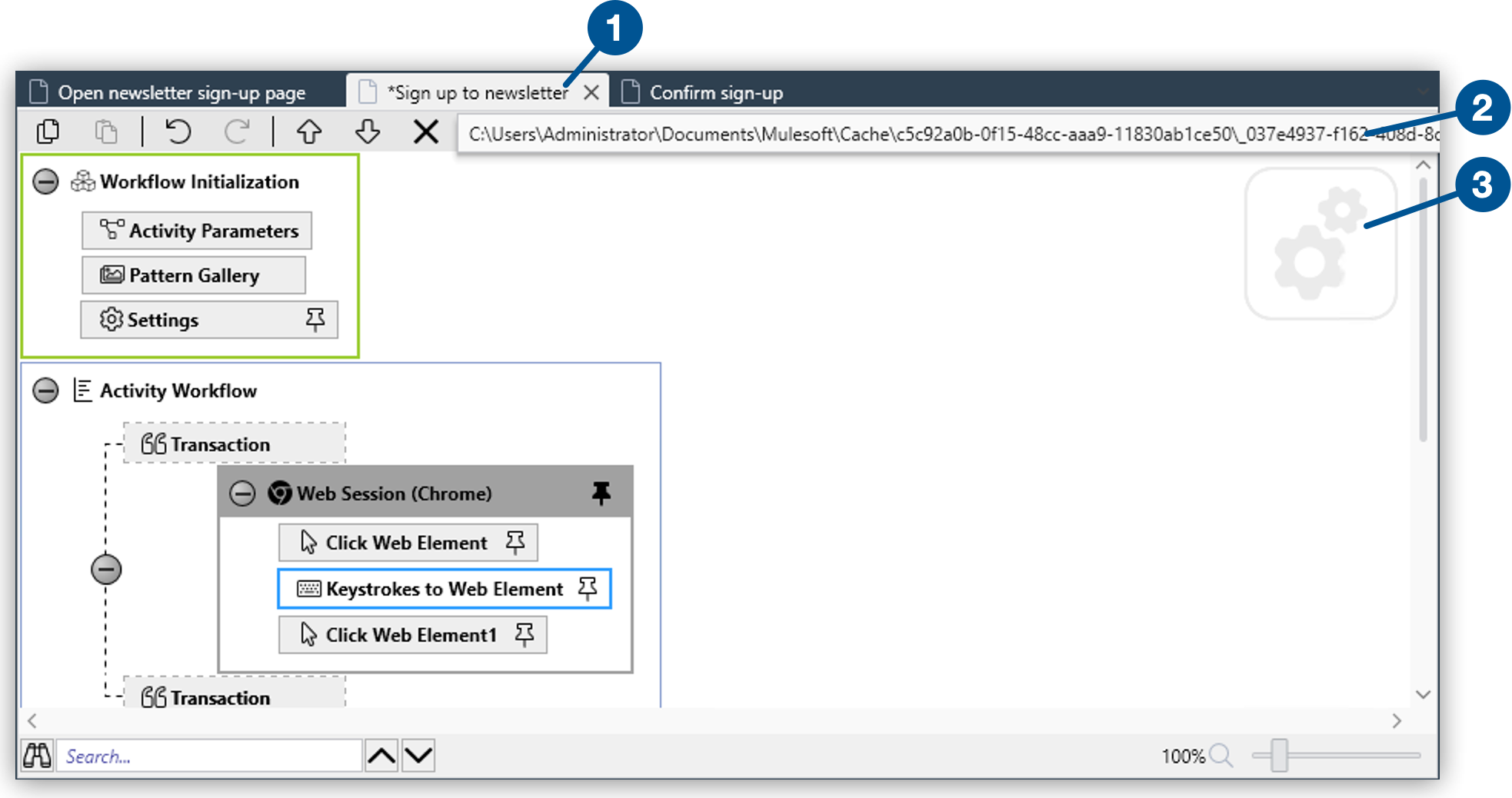
1
Multiple Workflows organized in tabs
2
Project location tooltip
3
Workflow type icon
## Selecting Objects
To select an object, click on its icon. Selected objects show a blue border and their properties
show in the Properties panel. Right-click to access a context menu for any Workbench element:
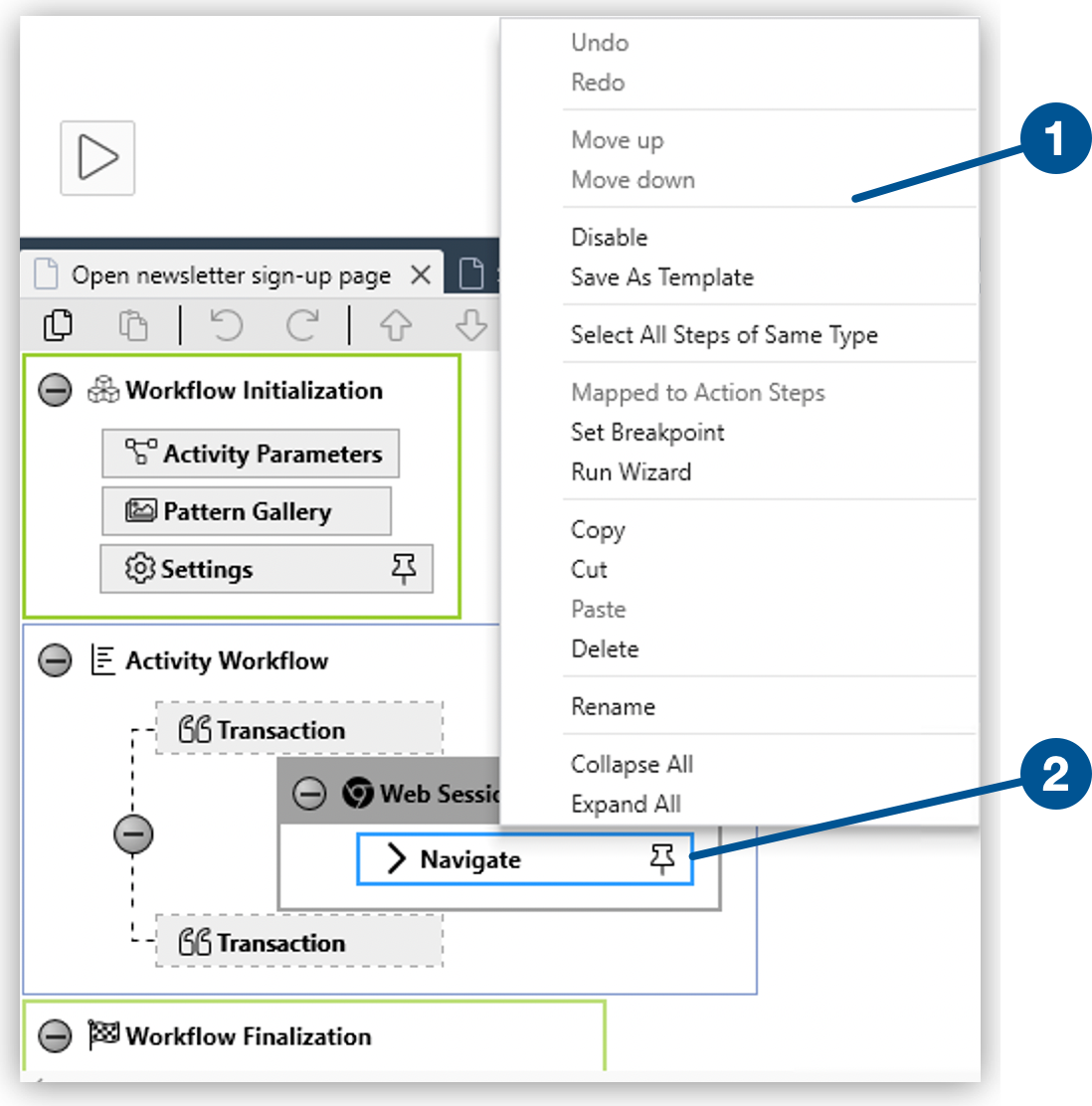
1
The context menu
2
The selected object
To select more than one object, press and hold _Ctrl_ or _Shift_ while clicking to select the
objects. If you drag an object into the Workbench, it is automatically selected.
## Context Menu Options
The context menu consists of the following elements:
- () **Record**
Starts RPA Recorder to record an activity and append it to the workflow depending of the context:
- If you click a Transaction element, the option changes to **Record Into** and adds the recorded
activities at the end of the transaction.
- If you click an action step, you can choose between **Record Before** and **Record After** to
decide where to append the recorded actions.
- **Disable/Enable**
Use this option to disable an action step and prevent its execution or to enable an action step
that was previously disabled. Disabled action steps are greyed out on the workbench.
- **Enable All Selected/Disable All Selected**
Use this option to disable or enable multiple action steps simultaneously.
- **Save As Template**
Saves the selected action step and its settings as a template that you can use again later. See
[Managing User Templates](https://docs.mulesoft.com/rpa-builder/latest/managing-user-templates) for additional details about creating,
importing, and exporting Templates.
- **Select all steps of same type**
Selects all action steps of the same type as the one you have clicked on. This option enables you
to change the properties of these action steps uniformly.
- **Mapped to action steps**
Shows all incoming Pin variables associated with this action step. Click on the name of a variable
to select the action step that populates that variable.
- **Set Breakpoint**
Sets a breakpoint for an action step, which causes the Workflow to stop at this point during its
execution in Debug mode.
- **Rename**
Enables you to rename the selected element.
- **Collapse All**
Collapses all levels of the Workflow to the highest level shown in the current view. Use the
**Collapse All** () button to collapse
individual elements.
- **Expand All**
Fully expands all levels of the Workflow on view. Use the **Expand All**
() button to expand individual elements.
## See Also
- [Workbench Toolbar Overview](https://docs.mulesoft.com/rpa-builder/latest/workbench-toolbar-overview)
- [Managing User Templates](https://docs.mulesoft.com/rpa-builder/latest/managing-user-templates)
- [Workflow Elements in Detail](https://docs.mulesoft.com/rpa-builder/latest/workflow-elements-in-detail)