---
schema_version: "1"
id: 30304107ecafb1c66bdada58cc23123a5931cf676053922ee3319350947c25a5
title: Roostify Connector
collection: mulesoft
version: current
locale: en-us
portal_url: https://docs.salesforce.com/mulesoft/current/en-us/roostify-connector/latest/index.md
canonical_url: https://docs.mulesoft.com/roostify-connector/latest/
source_site: docs.mulesoft.com
content_type: documentation
content_hash: 59cd37db0754e6c7f79fea9302b86bac80ea6836df84ecfb38b3e4e9c1a150d5
description: MuleSoft Documentation Site
release: "1.0"
latest: true
---
---
product: Roostify Connector
version: 1.0
is-latest-version: true
---
# Roostify Connector
> For the full documentation index, see: https://docs.mulesoft.com/llms.txt
Roostify Connector v1.0
Anypoint Connector for Roostify (Roostify Connector) enables customers to convert completed loan
applications to an optimized and intuitive digital user experience, tailored to each DBA, branch, or
channel. It increases pull-through rates and provides a flexible and scalable framework for growing
business requirements. Roostify’s integrated platform enables faster loan closure and allows each
loan officer to cultivate and manage more customers at the same time. This improves profitability as
well as increases retention and referrals.
Roostify Connector offers simplified access to 46 of Roostify’s APIs to support workflows related
to:
- Access Control
- Accounts
- Desktop Underwriter Report
- Documents
- Leads (Draft)
- Loan Applications
- Messages
- Offerings (Draft)
- Reference Ids
- Service
- Settings
- State Changes
- Status Update
- Tasks
- User Management
- User Settings
- Webhook events
- Webhooks
Release Notes:
[Roostify Connector Release Notes](https://docs.mulesoft.com/release-notes/connector/roostify-connector-release-notes-mule-4)
Exchange:
[Roostify Connector](https://www.mulesoft.com/exchange/com.mulesoft.connectors/mule-roostify-connector/)
## Before You Begin
To use this information, you should be familiar with Roostify, Mule concepts, Anypoint connectors,
Anypoint Studio, the elements in a Mule flow, and global elements.
The APIs use basic authentication, based on username and password. You need a Roostify account and
credentials to use the connector. The username works as your account token and password as a service
access token. The username and password are stored within the Authorization header in Base64-encoded
string following the word Basic which when decoded follows the format of
`account-token:service-access-token`.
For software requirements and compatibility, see the Connector Release Notes.
## POM File Information
```xml
com.mulesoft.connectors
mule-roostify-connector
x.x.x
mule-plugin
```
Replace `x.x.x` with the version that corresponds to the connector you are using.
To obtain the most up-to-date `pom.xml` file information, access the connector in
[Anypoint Exchange](https://www.mulesoft.com/exchange/) and click **Dependency Snippets**.
## Add the Connector to a Studio Project
Anypoint Studio provides two ways to add the connector to your Studio project: from the Exchange
button in the Studio taskbar or from the Mule Palette view.
### Add the Connector Using Exchange
1. In Studio, create a Mule project.
2. Click the Exchange icon **(X)** in the upper-left of the Studio task bar.
3. In Exchange, click **Login** and supply your Anypoint Platform username and password.
4. In Exchange, search for "roostify".
5. Select the connector and click **Add to project**.
6. Follow the prompts to install the connector.
### Add the Connector in Studio
1. In Studio, create a Mule project.
2. In the Mule Palette view, click **(X) Search in Exchange**.
3. In **Add Modules to Project**, type "roostify" in the search field.
4. Click this connector’s name in **Available modules**.
5. Click **Add**.
6. Click **Finish**.
## Connector Namespace and Schema
When designing your application in the Anypoint Studio, drag the connector from the palette to the
canvas. This action automatically populates the XML code with the connector namespace and schema
location.
- Namespace: `http://www.mulesoft.org/schema/mule/roostify`
- Schema Location: `http://www.mulesoft.org/schema/mule/roostify/current/mule-roostify.xsd`
## Configure Roostify Connector in Anypoint Studio
1. In Anypoint Studio, create a new Mule project. Ensure that you have **HTTP Listener**
configured.
2. Drag the connector to the Studio Canvas.
3. Configure the connector’s global element. You can either enter your credentials as global
configuration properties or reference a configuration file that contains these values. For
simpler maintenance and better reuse of your project, MuleSoft recommends that you use a
configuration file.
- **Address**: URL to access Roostify API
- **Username**: The user name to access Roostify API
- **Password**: Password to access Roostify API
- **Version**: Roostify API version. For example, this property should contain `/v1`, if the API
version is `v1`.
> [!TIP] An example configuration file for Roostify is available at
> `src/main/resources/configuration.yaml`. You can add this file in the Configuration
> Properties of the Global Configuration Elements.
4. To ensure that your connection is successful, Click **Test Connection**.
5. Select a connector operation.
## Use Case: Create a Roostify User and a Loan Application
The following use case demonstrates how you can use the Roostify connector along with Salesforce
connector to:
- Create a user in Roostify for a Salesforce account
- Create a loan application for the same user in Roostify
In this example, a Mule application queries Salesforce accounts and creates a user in Roostify for
this account. Next step in the flow is to create a loan application for this new user in Roostify.
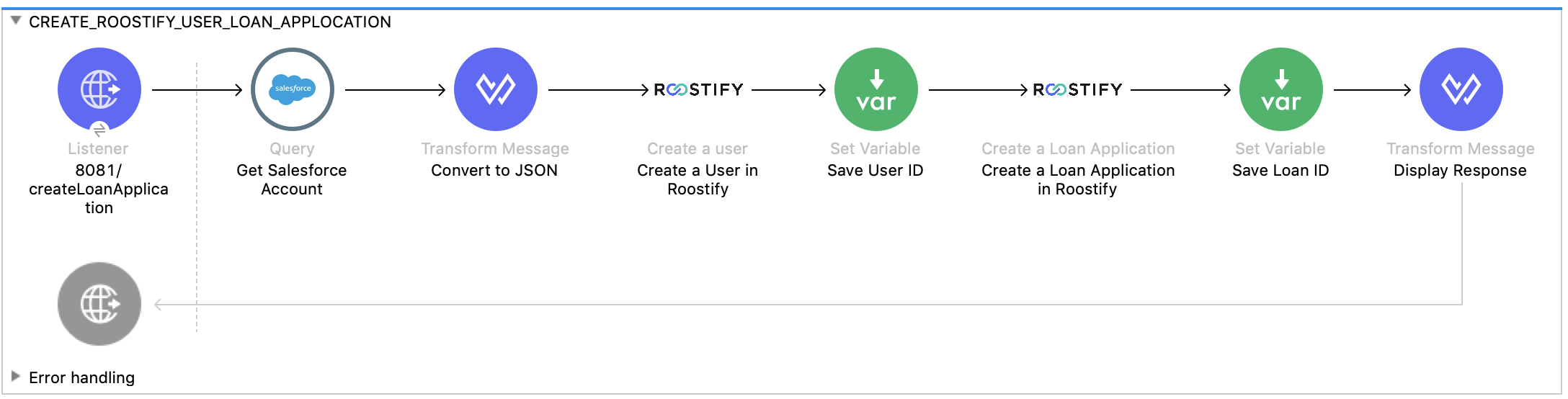
To test this use case:
1. Create a Mule application and set the connector configuration properties in the configuration
file in the `src/main/resources`. For example:
```yaml
rsf:
address: ""
version: "/"
user: ""
password: ""
```
2. Add the configuration file for the Roostify connector to the **Configuration Properties** of the
**Global Configuration Elements**.
To create the new Mule application flow:
1. Drag an HTTP Listener to the canvas and configure it.
2. From the **Palette**, search for the Salesforce connector and drag **Query** operation. To
configure Salesforce operation,
1. Add your query in the **Salesforce query**. For the purpose of this demo, use the following
query to get the account from Salesforce.
```sql
SELECT Id, AccountNumber, Phone, Name FROM Account where Id = ':sfId'
```
2. In the **Parameters** section, create a parameter with `sfId` as **Name** and
`attributes.queryParams.sfcId` as **Value**.
3. Select and drag Transform Message at the flow on the canvas to prepare the input for the
Roostify connector. Here’s an example of the output payload in the transform message.
```json
%dw 2.0
output application/json
---
{
user_role: "borrower",
home_phone: payload.Phone[0],
reference_id: "Test-ref-123",
last_name: "Demo",
account_id: payload.AccountNumber[0],
job_title: "ADMIN",
first_name: payload.Name[0],
email: payload.Id[0] ++ "@roostify.com"
}
```
4. From Roostify operations, drag the **Create a User** connector operation after the transform
message. In the configuration options:
1. Select the connector configuration that you created.
2. Set the **General** section in the connector configuration to `payload`.
3. Set the **Target Value** in the **Advanced** section to `#[payload]`.
5. From the **Mule Palette**, search and drag **Set Variable** operation after the Roostify
operation, to capture the user ID returned from Roostify into a variable. In the **Settings**
section of the **Set Variable** operation, set the following:
1. **Name**: `userId`
2. **Value**: `#[payload.id]`
6. From Roostify operations, drag **Create a Loan Application** operation. In the configuration
options,
1. Use the following example payload in the **Create loan request** of the **General** section:
```json
output application/json
---
{
reference_id: vars.refId,
application_type: "purchase",
loan_amount: 20000,
down_payment: 1000,
amortization_term: "30"
}
```
2. Set the **Target Value** in the **Advanced** section to `#[payload]`.
7. Once again, from the **Mule Palette**, search and drag **Set Variable** operation after the
Roostify operation, to capture the loan ID returned from Roostify into a variable. In the
**Settings** section of the **Set Variable** operation, set the following:
1. **Name**: `userId`
2. **Value**: `#[payload.id]`
8. Use another Transform Message component to display the response in JSON format. The output
payload of the transform message can be set to the following:
```json
%dw 2.0
output application/json
---
{
"RSF Account Id" : payload.account_id,
"User Id" : vars.userId,
"Loan Id" : vars.loanId
}
```
9. Run the application and point your browser to `http://localhost:8081/createLoanApplication`.
## Use Cases XML: Create a Roostify User and a Loan Application
```xml
SELECT Id, AccountNumber, Phone, Name FROM Account where Id = ':sfId'
```
## See Also
- [Salesforce Help](https://help.salesforce.com)