# mulesoft Retail - Full Documentation --- product: Retail version: 3.2 is-latest-version: true --- # Accelerator Setup Guide > For the full documentation index, see: https://docs.mulesoft.com/llms.txt This page provides guidance on configuring the various systems and products required to implement the use cases provided by this solution. ## Service Accounts Service accounts are needed for the applications below, with the versions used during Accelerator development noted: - Salesforce B2C Commerce (Version 20.6, Compatibility Mode 19.10) - Salesforce Marketing Cloud (April 2021) - Salesforce (Spring '21) - SAP (ECC 7.5) Additional resources used: - Global Data Management System (GDM) - MariaDB used as GDM - Order Management System (OMS) - Apache OFBiz used as OMS - Product Information Management (PIM) - Oracle 11g used as PIM ## Required Configuration In addition to configuring individual applications to suit your target deployment environment, the following will be required to implement the use cases described: - B2C Commerce Configuration: Open Commerce and Salesforce Commerce API access in addition to deployment and configuration of the B2C Commerce Sync Cartridge. - Salesforce Configuration: Addition of custom fields and enabling Person Accounts in addition to creating a push topic on Account object with appropriate filters. - Salesforce Marketing Cloud: A custom Data Extension will need to be created along with an Installed Package to make API requests. - SAP Configuration: Deployment of the custom SAP BAPI code required. ## Optional Configuration The accelerator includes some additional common components, which can be configured to suit your needs. These are all optional: - Configurable properties in the common core library - Notification APIs for sending error notifications via email, SMS or Slack - Common scheduler for executing jobs on a schedule Please refer to the [Accelerators Common Services](https://docs.mulesoft.com/accelerators-home/common-services) documentation for more details on configuring optional components. ## See Also - [Prerequisites](https://docs.mulesoft.com/retail/latest/prerequisites) - [MuleSoft Accelerator for Retail](https://docs.mulesoft.com/retail/latest/) --- product: Retail version: 3.2 is-latest-version: true --- # B2C Setup Guide > For the full documentation index, see: https://docs.mulesoft.com/llms.txt The following document provides guidance on how to configure your B2C Commerce instance to provide access to the Data and Shopper APIs used by the B2C Commerce System API implementation template. ## API Client ID Settings Before doing anything with the Salesforce Commerce API, you need an API Client ID. The API Client ID is a credential that is granted from Account Manager, which consists of both an ID value and a secret. Both the ID and the secret should be protected and treated as a username and password combination to using the Salesforce Commerce API. In Account Manager, create a new API Client with the following settings: - **Roles**: Salesforce Commmerce API role with access to the target instance - **OpenID Connect allowed scopes**: sfcc.orders sfcc.orders.rw sfcc.products sfcc.products.rw sfcc.shopper-baskets-orders sfcc.shopper-baskets-orders.rw sfcc.shopper-myaccount sfcc.shopper-myaccount.rw sfcc.shopper-myaccount.addresses sfcc.shopper-myaccount.addresses.rw sfcc.shopper-customers.register sfcc.customerlists.rw - **Token Endpoint Auth Method**: client\_secret\_post - **Access Token Format**: JWT Refer to the Add an API Client ID documentation in the Commerce Cloud Infocenter for more information. ## Open Commerce API Settings OCAPI is the other set of APIs used by the implementation template. These settings are configured in Business Manager, on the **Administration -> Site Development -> Open Commerce API Settings** page. There are two groups of APIs that must be configured: Shop APIs and Data APIs. Access to Shop APIs must be configured at the Global (organization-wide) level, while access to Data APIs can be configured globally or at the individual site level. ### Shop APIs Access to the following resources and methods of the Shop APIs is required:
ResourceMethods

/customers

POST

/customers/*

GET/PATCH

/customers/*/addresses

GET/POST

/customers//addresses/

GET/PATCH/DELETE

/customers/*/baskets

GET

/customers/*/orders

GET

/orders/*

GET/PATCH

/order_search

POST

/product_lists

GET

/product_lists/*

GET/PATCH

/product_lists/*/items

GET/POST

/product_lists//items/

PATCH/DELETE

/product_search

GET

/product_search/availability

GET

/product_search/images

GET

/product_search/prices

GET

/product_search/variations

GET

/products/*

GET

/products/*/images

GET

/products/*/availability

GET

/products/*/prices

GET

/products/*/variations

GET

### Data APIs Access to the following resources and methods of the Data APIs is required:
ResourceMethod

/products/*

GET/PUT/PATCH

/products//variation_attributes/

GET/PUT

/products//variation_attributes//values/*

GET/PUT

/products//variations/

GET/PUT

/product_search

POST

/inventory_lists//product_inventory_records/

GET/PATCH/PUT

/catalogs//categories//products/*

GET/PATCH/PUT

/sites//orders/*

PUT/PATCH

## See Also - [Prerequisites](https://docs.mulesoft.com/retail/latest/prerequisites) - [MuleSoft Accelerator for Retail](https://docs.mulesoft.com/retail/latest/) --- product: Retail version: 3.2 is-latest-version: true --- # Deliver Personlization Use Case Setup Guide > For the full documentation index, see: https://docs.mulesoft.com/llms.txt The **Deliver Relevancy with Data 360** use case in MuleSoft Accelerator for Retail requires a connection to Salesforce Data 360. Complete the core configuration by following the [Data 360 learning path](https://help.salesforce.com/s/articleView?id=data.c360_a_customer360_lm.htm&type=5). After completing the setup, apply the use case-specific guidance on this page. For additional use case information and the downloadable assets, refer to the [Deliver Relevancy with Data 360](https://www.mulesoft.com/exchange/org.mule.examples/mulesoft-accelerator-for-retail/) documentation in Anypoint Exchange. ## Data Sources and Connectors Configure Salesforce CRM and Ingestion API connectors to bring CRM and external system data into Data 360. - Use the Salesforce CRM connector to ingest Salesforce CRM data. - Use the Ingestion API for external systems, including Snowflake and Azure, through the Salesforce Data Cloud connector. ## Ingestion API Schema and Objects The Ingestion API schema includes these objects: - Loyalty - Subscription - WebEngagement - EmailEngagement Use the implementation template for the schema and payload examples that map to MuleSoft Accelerator for Retail APIs. ## Data Streams and Data Mapping Create the required data streams, and then map source objects to the target data model to make sure customer profiles and engagement data are segmented and activated. - Use the Service Cloud starter bundle data streams for CRM ingestion. - Create additional CRM data streams for Orders and Products. - Map MuleSoft Web Engagement data to a custom DMO. ## Identity Resolution Configure the identity ruleset to use fuzzy and normalized matching: - Fuzzy Name and Normalized Email - Fuzzy First Name, Exact Last Name, and Normalized Email Address ## Segmentation and Activation Build audience segments and activate them to downstream channels to make sure personalized experiences are delivered consistently across touchpoints. - Build segments on the Unified Individual. - Create a segment that targets customers with no Web Page Views in the last 365 days and publishes every 24 hours. - Include Cloud File Storage (S3) and Marketing Cloud in the activation targets. ## Calculated Insights Use calculated insights to analyze loyalty and sales order behavior and to populate attributes that are used in downstream segmentation and activation. For more information, see [Enhance Data with Insights](https://help.salesforce.com/s/articleView?id=data.c360_a_insights.htm&type=5). ## See Also - [Prerequisites](https://docs.mulesoft.com/retail/latest/prerequisites) - [MuleSoft Accelerator for Retail](https://docs.mulesoft.com/retail/latest/) --- product: Retail version: 3.2 is-latest-version: true --- # MuleSoft Accelerator for Retail > For the full documentation index, see: https://docs.mulesoft.com/llms.txt MuleSoft Accelerator for Retail empowers retail IT teams to unlock data from systems including ERP, CRM, MDM, commerce, and marketing to activate digital projects faster. Retail IT teams can take advantage of pre-built APIs, connectors, implementation templates, and reference architecture to create customer 360 profiles. ## Use Cases The following use cases are supported by the MuleSoft Accelerator for Retail: - [Customer profile sync](https://anypoint.mulesoft.com/exchange/org.mule.examples/mulesoft-accelerator-for-retail/minor/3.2/pages/Use%20case%201%20-%20Customer%20profile%20sync/) - The Customer profile sync use case enables retail developers to create a customer 360 view by unlocking customer data from disparate systems. - [Sales order sync](https://anypoint.mulesoft.com/exchange/org.mule.examples/mulesoft-accelerator-for-retail/minor/3.2/pages/Use%20case%202%20-%20Sales%20order%20sync/) - The Sales order sync use case enables retail developers to create and update sales orders across relevant applications. - [Product sync](https://anypoint.mulesoft.com/exchange/org.mule.examples/mulesoft-accelerator-for-retail/minor/3.2/pages/Use%20case%203%20-%20Product%20sync/) - The Product sync use case enables retail developers to update product details in Salsify across relevant applications. - [Real-time inventory management](https://anypoint.mulesoft.com/exchange/org.mule.examples/mulesoft-accelerator-for-retail/minor/3.2/pages/Use%20case%204%20-%20Real-time%20inventory%20management/) - The Real-time inventory management use case enables customers to make an informed decision of their online purchase based on real-time inventory of a product in nearby stores. - [Deliver relevancy with CDP](https://anypoint.mulesoft.com/exchange/org.mule.examples/mulesoft-accelerator-for-retail/minor/3.2/pages/fgh-fsy/Use%20case%205%20-%20Deliver%20relevancy%20with%20Data%20Cloud/) - The Deliver relevancy with CDP use case enables retail developers to combine customer profile data in a standardized format. - [POS Integration](https://anypoint.mulesoft.com/exchange/org.mule.examples/mulesoft-accelerator-for-retail/minor/3.2/pages/bqs-g24/Use%20case%206%20-%20POS%20integration/) - The Point of Sale (POS) Integration use case enables retail developers to leverage pre-built integrations to connect order and loyalty data from POS systems to Salesforce Loyalty Management and Data Cloud. ## See Also - [Getting Started](https://docs.mulesoft.com/accelerators-home/getting-started) - [Prerequisites](https://docs.mulesoft.com/retail/latest/prerequisites) - [Release Notes](https://docs.mulesoft.com/release-notes/accelerators/retail/retail-release-notes) - [MuleSoft Accelerator for Retail on Exchange](https://anypoint.mulesoft.com/exchange/org.mule.examples/mulesoft-accelerator-for-retail/) --- product: Retail version: 3.2 is-latest-version: true --- # Object Mappings > For the full documentation index, see: https://docs.mulesoft.com/llms.txt ## Customer profile sync ### Source-type mappings The following table summarizes how representations of a customer or individual from each system will be mapped to CIM types:
Source SystemSource TypeCIM TypesMapping Notes

B2C Commerce

Customer Profile

Individual Customer

Contact Address

Contact Email

Contact Phone

One B2C customer profile will map to multiple CIM objects

B2B Commerce Sales Cloud Service Cloud

Person Account

Individual

CustomerContactAddress

Contact Email

Contact Phone

Person Account is represented as record type, mapping to Account and Contact

Account

OrganizationCustomerContact Address

Contact Email

Contact Phone

Account is mapped separately from Contacts

Contact

Individual

Contact Address

Contact Email

Contact Phone

Similar mappings as for Person Accounts but at the Individual level only

Marketing Cloud

Subscriber

Individual

Requires a data extension

SAP

Customer

IndividualCustomer

Contact Address

Contact Email

Contact Phone

### Target-type mappings The following table summarizes how representations of a customer or individual from each system will be mapped from CIM types:
Target SystemCIM TypeTarget TypesMapping Notes

B2C Commerce

Customer

Individual

Contact Address

Contact Email

Contact Phone

Customer

Relevant fields only

MDM

All Types

Corresponding type

1:1 mappings; use join tables for relationships

B2B Commerce Sales Cloud Service Cloud

CustomerIndividual

Contact Address

Contact Email

Contact Phone

PersonAccount

Relevant fields only

CustomerOrganization

Contact Address

Contact Email

Contact Phone

Account

Address fields mapped directly

Individual

Contact Address

Contact Email

Contact Phone

Contact

Similar mappings as for Person Accounts but at the Individual level only

Marketing Cloud

Individual

Subscriber

Relevant fields only

SAP

CustomerIndividual

Contact Address

Contact Email

Contact Phone

Customer

Relevant fields only

## Sales order sync ### Source-type mapping The following table summarizes how representations of a sales order from each system will be mapped to CIM types:
Source systemSource typeCIM TypesMapping notes

B2C Commerce

Order

SalesOrder

SalesOrderProduct

Order line items added as sales order products

OFBiz

Order

OrderLineItem

SalesOrder

SalesOrderProduct

TBD

SAP

Order

SalesOrder

SalesOrderProduct

Order line items added as sales order products

Salesforce

TBD

SalesOrder

TBD

### Target-type mapping The following table summarizes how representations of a sales order from each system will be mapped from CIM types:
Target systemCIM typeTarget TypesMapping notes

B2C Commerce

SalesOrder

Order

Order status update only

OFBiz

SalesOrder

SalesOrderPRoduct

Order

OrderLineItems

Order status update only

SAP

SalesOrder

SalesOrderProduct

Order

OrderLineItems

Relevant fields only

Salesforce

SalesOrder

TBD

TBD

## Product sync ### Source-type mapping The following table summarizes how representations of a product from each system will be mapped to CIM types:
Source SystemSource TypeCIM TypesMapping Notes

B2C Commerce

Product

Product

ProductCategory

ProductCatalog

PriceBook

Relevant fields only

OFBiz

Product

Product

ProductCategory

ProductCatalog

PriceBook

Relevant fields only

SAP S/4HANA

Product

Product ProductCategory

ProductCatalog

PriceBook

Relevant fields only

Salesforce

Product

Pricebook

Product

ProductCategory

ProductCatalog

PriceBook

Relevant fields only

PIM

Product

ProductCategory

ProductCatalog

PriceBook

Product

ProductCategory

ProductCatalog

PriceBook

1:1 mappings; use join tables for relationships

### Target-type mapping The following table summarizes how representations of a product from each system will be mapped from CIM types:
Target SystemCIM TypeTarget TypesMapping Notes

B2C Commerce

Product

ProductCategory

ProductCatalog

PriceBook

Product

Relevant fields only

OFBiz

Product

ProductCategory

ProductCatalog

PriceBook

Product

ProductCategory

ProductCatalog

PriceBook

Relevant fields only

SAP S/4HANA

Product

PriceBook

Product

PricingCondition

Relevant fields only

Salesforce

Product

ProductCategory

ProductCatalog

PriceBook

Product

PriceBook

Relevant fields only

PIM

Product

ProductCategory

ProductCatalog

PriceBook

Product

Relevant fields only

## See Also - [Prerequisites](https://docs.mulesoft.com/retail/latest/prerequisites) - [MuleSoft Accelerator for Retail](https://docs.mulesoft.com/retail/latest/) --- product: Retail version: 3.2 is-latest-version: true --- # OFBiz Setup and Configuration > For the full documentation index, see: https://docs.mulesoft.com/llms.txt Apache OFBiz is an OpenSource OMS solution. ## Prerequisites The following components are required in order to set up and configure OFBiz: - JDK - Gradle - A base installation of OFBiz ## OFBiz Configuration The following steps are required in order to configure OFBiz for use by the Accelerator assets. 1. It is recommended to create a separate service account for integration purposes - for example, `gradle loadAdminUserLogin -PuserLoginId=integrationadmin` 2. Edit the framework/security/config/security.properties file and add the OFBiz server hostname to the host-headers-allowed setting 3. Services must be exported in order for the Mule applications to be able to invoke them. These are defined in a services xml file under the servicedef folder, organized by domain. For each of the following services, add the attribute `export="true"` to the service definition tag (all file paths are relative to `$OFBIZ_HOME/applications`):
PathObject

party/servicedef/services.xml

createPartyPostalAddress quickCreateCustomer createPerson updatePerson createUpdatePartyEmailAddress createUpdatePartyTeleco Number createUpdatePartyPostalAddress findPartiesById

party/servicedef/services_view.xml

getPerson getPartiesFromExternalId getPartiesFromExactEmail getPartyContactMechValueMaps

accounting/servicedef/services_paymentmethod.xml

createCreditCard

order/servicedef/services.xml

addOrderItemShipGroup changeOrderStatus createOrderPaymentPreference findOrders storeOrder

product/servicedef/services_shipment.xml

createShipment

The service names can be cross-referenced with the XML request templates under `src/main/resources/ofbiz` as well as a few of the Transform Message processors contained in the flows. The Order, Party, and Product entities must be customized to support the order, customer, and product sync process, respectively. Here are the steps: 1. Navigate to `$OFBIZ_HOME/applications/datamodel/entitydef` 2. Make a backup copies of the `order-entitymodel.xml`, `party-entitymodel.xml`, and `partyproduct-entitymodel.xml` files 3. Edit the `order-entitymodel.xml` file as follows: - Change the type of the externalId field in the OrderItem entity to "name" instead of "id" - Do the same for the externalId field in the OrderHeader entity 4. Edit the `party-entitymodel.xml` file as follows: - Change the type of the externalId field in the Party entity to "name" instead of "id" - Add the following field to the Person entity: `` 5. Edit the `product-entitymodel.xml` file as follows: - Add the following field to the Product entity: `` 6. Save all the files and restart OFBiz if it’s already running ## Starting OFBiz 1. Change directory to the OFBiz installation root 2. Run `nohup gradle ofbiz &` - You can add the tail `-f nohup.out` to see the console output 3. Open a browser and navigate to `:8443/accounting/control/main` 4. Use the default administrative username `admin` on the account ## Stopping OFBiz 1. Change directory to the OFBiz installation root 2. Run `gradle ofbiz --shutdown` - Wait for it to shut down cleanly ## Troubleshooting If you see column-constraint errors it is possible the `OrderItem.external_id` and/or `Party.external_id` column did not get altered properly. To correct this, install the Apache Derby tools (for example, `sudo apt-get install derby-tools`) and run the following commands. Be sure to shut down OFBiz first: $ ij ij> connect 'jdbc:derby:/opt/ofbiz/runtime/data/derby/ofbiz' user 'ofbiz' password 'ofbiz'; ij> alter table Party alter column external\_Id set data type varchar(100); ij> alter table Order\_Item alter column external\_Id set data type varchar(100); ij> alter table Order\_Header alter column external\_Id set data type varchar(100); ij> exit; Restart OFBiz to pick up the changes. ## See Also - [Prerequisites](https://docs.mulesoft.com/retail/latest/prerequisites) - [MuleSoft Accelerator for Retail](https://docs.mulesoft.com/retail/latest/) --- product: Retail version: 3.2 is-latest-version: true --- # Prerequisites for MuleSoft Accelerator for Retail > For the full documentation index, see: https://docs.mulesoft.com/llms.txt This page provides a summary of the guides available for configuring the various systems and products required to implement the use cases provided by this solution. The individual systems needed, and amount of configuration required, depend on which assets are to be deployed in your target environment(s) - refer to the use case pages for more details. ## Available Guides The following setup and configuration guides are available for this accelerator: - [Accelerator Setup Guide](https://docs.mulesoft.com/retail/latest/rcg-setup-guide) - [B2C Setup Guide](https://docs.mulesoft.com/retail/latest/b2c-setup-guide) - [OFBiz Setup and Configuration](https://docs.mulesoft.com/retail/latest/ofbiz-setup-config) - [SAP S4HANA Setup Guide](https://docs.mulesoft.com/retail/latest/sap-s4hana-setup-guide) - [SAP Custom BAPI Setup Guide](https://docs.mulesoft.com/retail/latest/sap-custom-bapi-setup-guide) - [Salesforce Customization Guide](https://docs.mulesoft.com/retail/latest/rcg-sfdc-customization-guide) - [Deliver Personlization Use Case Setup Guide](https://docs.mulesoft.com/retail/latest/sfdc-data-cloud-setup-guide) Most of the implementation templates also contain details on requirements specific to those applications. ## See Also - [Getting Started](https://docs.mulesoft.com/accelerators-home/getting-started) - [MuleSoft Accelerator for Retail](https://docs.mulesoft.com/retail/latest/) --- product: Retail version: 3.2 is-latest-version: true --- # Salesforce Customization Guide > For the full documentation index, see: https://docs.mulesoft.com/llms.txt This guide provides the Salesforce customizations that must be created to enable the Customer 360, Product, and Sales Order Sync use cases to function end-to-end. ## Create Custom Objects The following objects must be created manually or via Apex script:
Salesforce Object NameSingular LabelPlural Label

Managed_External_Id

Managed External Identifier

Managed External Identifiers

### Create Custom Object Manually 1. From Setup In your Salesforce org, click the Object Manager tab. If you don’t see it, enter "Object Manager" in the Quick Find box. 2. On the Object Manager page, click Create | Custom Object. 3. For Label, enter the value in `Singular Label`. 4. For Plural Label, enter the value in `Plural Label`. 5. For Object Name, enter the value in `Salesforce Object Name`. 6. Leave the rest of the values as default and click Save. ### Create Custom Object via Apex Script Use the\`CustomObjectUtility\` and `MetadataService` Apex classes to create a custom object programmatically. The source is on the [RCG Common Resources](https://anypoint.mulesoft.com/exchange/org.mule.examples/rcg-common-resources-src/) project and [MetadataService](https://github.com/certinia/apex-mdapi/blob/master/apex-mdapi/src/classes/MetadataService.cls) respectively. Download the project and follow these steps: 1. Click on the Salesforce Setup icon and select `Developer Console` to open a new console window. 2. Go to `File > New > Apex class` and create a new class named `CustomObjectUtility`. 3. Copy the code from `rcg-common-resources/salesforce/CustomObjectUtility.apxc` to the script editor. 4. Select the `Save` from the File menu option to compile and save the class. 5. Go to `File > New > Apex class` and create a new class named `MetadataService`. 6. Copy the code from `[https://github.com/certinia/apex-mdapi/blob/master/apex-mdapi/src/classes/MetadataService.cls](https://github.com/certinia/apex-mdapi/blob/master/apex-mdapi/src/classes/MetadataService.cls)` to the script editor. 7. Select the `Save` from the File menu option to compile and save the class. 8. Select `Debug > Open Execute Anonymous Window`. 9. Copy and paste the contents of `rcg-common-resources/salesforce/CreateCustomObjects.txt` into the window. 10. Enable the `Open Log` option, and then click the **Execute** button. Once the script completes, select the `Debug Only` filter option to show only the results of each create request. Verify that custom object has been created successfully. ## Create Custom Fields The following fields must be created in their corresponding objects manually or via Apex script:
Salesforce Object LabelField LabelField NameData TypeLengthUniqueExternalIdFormula

Account

Global Billing Address ID

Global_BillingAddress_Id

Text

36

Y

Y

-

Account

Global Customer ID

Global_Customer_Id

Text

36

Y

Y

-

Account

Global Email Address ID

Global_EmailAddress_Id

Text

36

Y

Y

-

Account

Global Fax Number ID

Global_FaxNumber_Id

Text

36

Y

Y

-

Account

Global Mailing Address ID

Global_MailingAddress_Id

Text

36

Y

Y

-

Account

Global Mobile Number ID

Global_MobileNumber_Id

Text

36

Y

Y

-

Account

Global Party ID

Global_Party_Id

Text

36

Y

Y

-

Account

Global Phone Number ID

Global_PhoneNumber_Id

Text

36

Y

Y

-

Account

Global Shipping Address ID

Global_ShippingAddress_Id

Text

36

Y

Y

-

Account

Customer Status

Customer_Status

Picklist

-

N

N

-

Managed External Identifier

External Id

External_Id

Text

80

N

N

-

Managed External Identifier

External Id Type

External_Id_Type

Picklist

-

N

N

-

Managed External Identifier

Object Id

Object_Id

Text

80

N

N

-

Managed External Identifier

Object Type

Object_Type

Picklist

-

N

N

-

Managed External Identifier

Status

Status

Picklist

-

N

N

-

Managed External Identifier

Status Last Changed

Status_Last_Changed

Date/Time

-

N

N

-

Order

Global_SalesOrder_Id

Global_SalesOrder_Id

Text

36

Y

Y

-

Order

Total Tax

Total_Tax__c

Currency

-

-

-

-

Order

Shipping

Shipping__c

Currency

-

-

-

-

Order

Order Total Amount

OrderTotalAmount__c

Formula (Currency)

-

-

-

Shipping_c + Total_Tax_c + TotalAmount

Product

Global_Product_Id

Global_Product_Id

Text

36

Y

Y

-

Product

Product Group

Product_Catalog__c

Picklist

-

N

N

-

Product

Short Description

Short_Description__c

Text

255

N

N

-

Product

Item Short Description

Item_Short_Description__c

Text

255

N

N

-

Product

Item Long Description

Item_Long_Description__c

Text

255

N

N

-

Product

Status

Status__c

Picklist

-

N

N

-

> [!NOTE] Unique fields should be case-sensitive. ### Create Fields via Apex Script Use the Apex class `CustomFieldUtility` to create custom fields programmatically. See the [RCG Common Resources](https://anypoint.mulesoft.com/exchange/org.mule.examples/rcg-common-resources-src/) project to find the source for this class. Download the project and follow these steps: 1. Click on the Salesforce Setup icon and select `Developer Console` to open a new console window. 2. Go to `File > New > Apex class` and create a new class named `CustomFieldUtility`. 3. Copy the code from `rcg-common-resources/salesforce/CustomFieldUtility.apxc` to the script editor. 4. Select the `File > Save` menu option to compile and save the class. 5. Select `Debug > Open Execute Anonymous Window`. 6. Copy and paste the contents of `rcg-common-resources/salesforce/CreateCustomFields.txt` into the window. 7. Enable the `Open Log` option and click the **Execute** button. Once the script completes, select the `Debug Only` filter option to show just the results of each create request. Verify that all fields have been successfully created. ### Create Fields Manually via Salesforce To create each of these custom fields and enable visibility for them on page layouts: 1. Click on the Salesforce Setup icon. 2. Select the `Object Manager` tab from the Setup home page. 3. Find and select the target Salesforce object. 4. Select the `Fields & Relationships` page. 5. Click the **New** button and create the field as specified above. 6. Once the field has been created, click the `Set Field-Level Security` button (or do these steps later - see below). 7. Enable for desired profile, or tick the checkbox next to `Visible` to enable visibility for the desired profile(s). Repeat these steps for each custom field in the above table. > [!NOTE] > > 1. Instead of adjusting permissions for each field, if you are only making them available to one > or two profiles, then it may be more efficient to go to > `Users > Profiles > {profile} > Object Settings` for each object and adjust the permissions > for multiple fields at once. > > 2. All `Global_*_Id__c` fields should be visible in layouts, as described previously, but made > **read-only** to avoid issues with data synchronization. ## Fields to Update Follow these instructions to update the picklist fields that are listed in the table in the Custom Fields section:
Salesforce Object LabelField LabelField NameData TypeValues

Order

Order Type

Type

Picklist

ADD_ON, CANCELLATION, INITIAL, JOURNAL, RENEWAL, RETURN, SUBSCRIPTION, UPGRADE

Order

Status

Status

Picklist

CANCELLED, CREATED, CONFIRMED, DELIVERED, IN_CART, IN_TRANSIT, INVOICED, LOST, PARTIALLY_SHIPPED, PICKUP_AVAILABLE, PROCESSING, REJECTED, RETURNED

To update the picklist values for a field in the specified object: 1. Click **Setup**. 2. Select the **Object Manager** tab. 3. Search for and select the target Salesforce object. 4. Select the **Fields & Relationships** page. 5. Search for and select the target field with the field label. 6. Select **New** in **Picklist Values**. 7. Add the corresponding value from the **Values** column in the previous table, placing each picklist value on a separate line. 8. Click **Save**. Repeat these steps for each field in the table. If you created the fields in the previous Custom Fields section manually, update the picklist values for the fields in the table in the Fields to Update section.
Salesforce Object LabelField LabelField NameData TypeValues

Account

Customer Status

Type

Picklist

Prospect, Onboarding, Active, Inactive, Closed, Deceased, Delinquent, Dormant

Managed External Identifier

External Id Type

External_Id_Type__c

Picklist

SALESFORCE_B2C, SALESFORCE_CORE, PIM, OFBIZ, SAP_4HANA, MDM, SAP_ECC, SALESFORCE_MARKETING, POS, SALESFORCE_DC, SALESFORCE_LM, ORACLE_EBS

Managed External Identifier

Object Type

Object_Type__c

Picklist

BillingAddress, Customer, Email, Fax, Household, Individual, MailingAddress, MobilePhone, Organization, Phone, Product, SalesOrder, ShippingAddress

Managed External Identifier

Status

Status__c

Picklist

VALID, INVALID

Product

Product Group

Product_Catalog__c

Picklist

Basic, Premium

Product

Status

Status__c

Picklist

VALID, INVALID

## Configure Connected App for Authentication Follow the below steps to generate the `Consumer Key` and `Consumer Secret` values required for Salesforce authentication. 1. Click on the Salesforce Setup icon . 2. Navigate to `Apps > App Manager`. 3. Select `New Connected App`. 4. Enter Connected App Name: `MuleSoft Accelerator`, API Name: `MuleSoft_Accelerator` and set your email address. 5. In the `API (Enable OAuth Settings)` section, check the box `Enable OAuth Settings`. 6. Set the callback URL `http://localhost`. 7. From the `Selected OAuth Scopes` list, select `Full access (full)`. 8. Click **Save** and then **Continue**. 9. Click the **Manage** button to view details for the new connected app. 10. Click the **Edit Policies** button. 11. In the `OAuth Policies` section, for `Permitted Users` select `All users may self-authorize`. 12. For `IP Relaxation`, select the `Relax IP restrictions` option. 13. Click **Save**. 14. Enable the OAuth 2.0 Username-Password Flow by following the steps documented in [Salesforce Help Docs](https://help.salesforce.com/s/articleView?id=release-notes.rn_security_username-password_flow_blocked_by_default.htm&release=244&type=5). You now need to copy the `Consumer Key` and `Consumer Secret` values for use in configuring Mule application deployments. More specifically, these must be supplied as the values for the `sfdc.client-id` and `sfdc.client-secret` properties found in the `Clouhub-RCG-DEV` profile in your Maven `settings.xml` file. 1. On the Setup Home page, navigate to `Apps -> App Manager`. 2. Locate your new connected app and choose **View** from the actions dropdown for that item. 3. In the **API (Enable OAuth Settings)** section, click the **Manage Consumer Details** button. 4. Verify your identity by entering the verification code that was emailed to you. 5. Copy the key and secret values and update your `settings.xml` file as described previously. Download the [RCG Common Resources project](https://anypoint.mulesoft.com/exchange/org.mule.examples/rcg-common-resources-src) for a sample `settings.xml` file that can be used as a starting point. ## Generating a Security Token for the Service Account A token needs to be generated for the service account used by the Mule applications in order to connect to the Salesforce instance. 1. Log in to Salesforce as the Service Account User, which is the account that will be used by the Mule applications to connect to Salesforce). 2. Click the Username icon and select **Settings** from the menu. 3. Select `My Personal Information > Reset My Security Token`. If you cannot find this, see the note at the end of these steps. 4. Click **Reset Security Token**. 5. Check the email inbox for an email from Salesforce with the new security token. > [!NOTE] If the option to reset your security token is not available, it is likely that one or more > Login IP Ranges are in effect. These can be temporarily removed from the settings page of the > profile assigned to the service account user. ## Create Platform Events and Apex Triggers The following Platform Event Object and Apex Triggers must be created in order to capture updates from Salesforce. The scripts to create these Apex Triggers and add fields to Platform Event Object are located in the [RCG Common Resources](https://anypoint.mulesoft.com/exchange/org.mule.examples/rcg-common-resources-src/) project.
Salesforce ObjectSalesforce Platform Event ObjectSalesforce Platform Event API NameApex Trigger Name

Account

Account

Account__e

AccountEventsPub

### Create Platform Event Object This implementation requires `Platform Event` to be created in Salesforce. Follow these steps to create a `Platform Event` object: 1. Log in to Salesforce. 2. Click **Setup** and search for "Platform Events" in the **Quick Find** box. The Platform Events page shows with a list of available Platform Events. 3. Click the **New Platform Event** button to create an Object. Complete the **Platform Information Details** fields, including **Label**, **Plural Label**, **Object with Salesforce Object**, and **Salesforce Platform Event API Name** as indicated in the previous table. 4. Click **Save**. 5. To add Custom Fields & RelationShips to Platform Event Definitions, run the utility script `CreatePlatformEventsCustomFields.txt`, which is in the `rcg-common-resources/salesforce` folder of the [RCG Common Resources](https://anypoint.mulesoft.com/exchange/org.mule.examples/rcg-common-resources-src/) project. 6. Follow the steps to run the script provided in `Create via Apex Script` under `Custom Fields`. ### Create Apex Triggers Follow these steps to create the Apex Triggers: 1. Log in to Salesforce. 2. Click Setup to search for Object Manager in Quick Find Box. 3. Search for the Salesforce object. This opens a page that shows the details of the object. 4. Click **Triggers** in the Details section to view a list of available triggers for the object. 5. Click **New**. 6. Search for the Apex Trigger name, which is indicated in the previous table. Copy the Trigger Script code `CreateApexTriggers.txt` from the `rcg-common-resources/salesforce` folder of the [RCG Common Resources](https://anypoint.mulesoft.com/exchange/org.mule.examples/rcg-common-resources-src/) project and paste it into the script editor. 7. Obtain the `LastModifiedById` by running the query from the Additional Notes section. 8. Replace the values in the script and save the trigger. 9. Click **Save** and ensure the **isActive** checkbox is checked. ### Additional Notes The Apex Trigger that is created filters records based on `LastModifiedBy <> {Service account ID}` to avoid cyclical updates performed by the Salesforce Customers System API. Run the query `SELECT Id FROM User WHERE Username=''` in the Developer Console to obtain Service account ID. ## See Also - [Prerequisites](https://docs.mulesoft.com/retail/latest/prerequisites) - [MuleSoft Accelerator for Retail](https://docs.mulesoft.com/retail/latest/) --- product: Retail version: 3.2 is-latest-version: true --- # SAP Custom BAPI Setup Guide > For the full documentation index, see: https://docs.mulesoft.com/llms.txt The following provides guidance on how to use the custom BAPI code (for example, `ZBAPI_CUSTOMER_V3`) for your SAP instance. > [!NOTE] You must complete the following instructions before deploying the > [Customer profile sync from SAP](https://anypoint.mulesoft.com/exchange/org.mule.examples/mulesoft-accelerator-for-retail/minor/3.0/pages/Use%20case%201%20-%20Customer%20profile%20sync/) > use case. ## BAPI custom objects You must create the following ABAP objects in order to use this custom BAPI, which are described below. ### Data Elements - `Z_MASTER_ID` See [Creating data elements](#creating-data-elements). ### Structures - `ZSTR_PERSON` - `ZSTR_ORGANIZATION` - `ZSTR_GROUP` - `ZES_CUSTOMER` - `ZES_CONTROLDATA` See [Creating structures](#creating-structures). ### Table Types - `ZTY_CUSTOMER` See [Creating table types](#creating-table-types). ### Transparent Tables - `ZTT_CUSTOMER` See [Creating transparent tables](#creating-transparent-tables). ### Function Groups - `ZFG_CUSTOMER` - `ZFG_CUSTOMER2` See [Creating function groups and function modules](#creating-function-groups-and-function-modules). **[ZBAPI\_CUSTOMER modules](#zbapi-customer-modules)** - `ZBAPI_CUSTOMER` - `ZBAPI_CUSTOMER_CREATE` - `ZBAPI_CUSTOMER_CUSTOM_FIELDS` - `ZBAPI_CUSTOMER_UPDATE` **[More ZBAPI modules](#more-zbapi-modules)** - `ZBAPI_QUERY` - `ZBAPI_ADDR_QUERY` - `ZBAPI_QUERY_SAP` - `ZBAPI_CUST_QUERY` - `ZBAPI_CUSTOMER_CD` See [Creating function groups and function modules](#creating-function-groups-and-function-modules). ### Creating data elements
ObjectHow to create

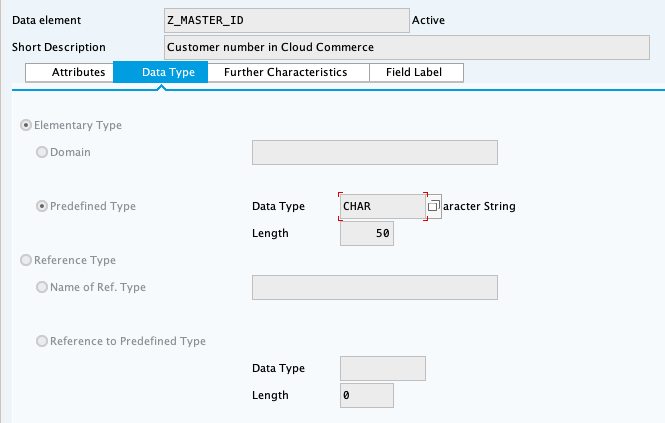
Z_MASTER_ID

SAP data element definition for Z_MASTER_ID

### Creating structures
ObjectHow to create

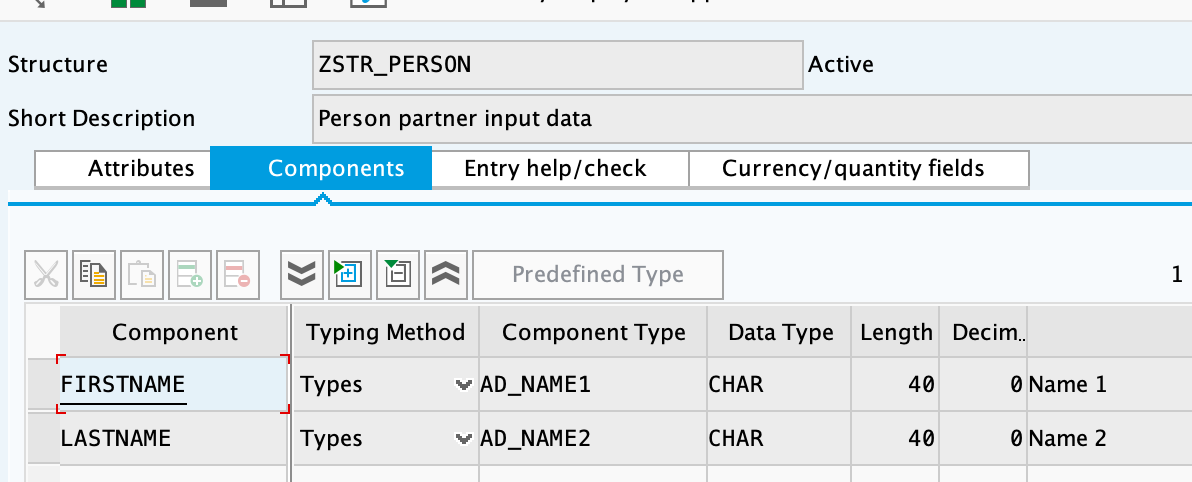
ZSTR_PERSON

SAP structure definition for ZSTR_PERSON

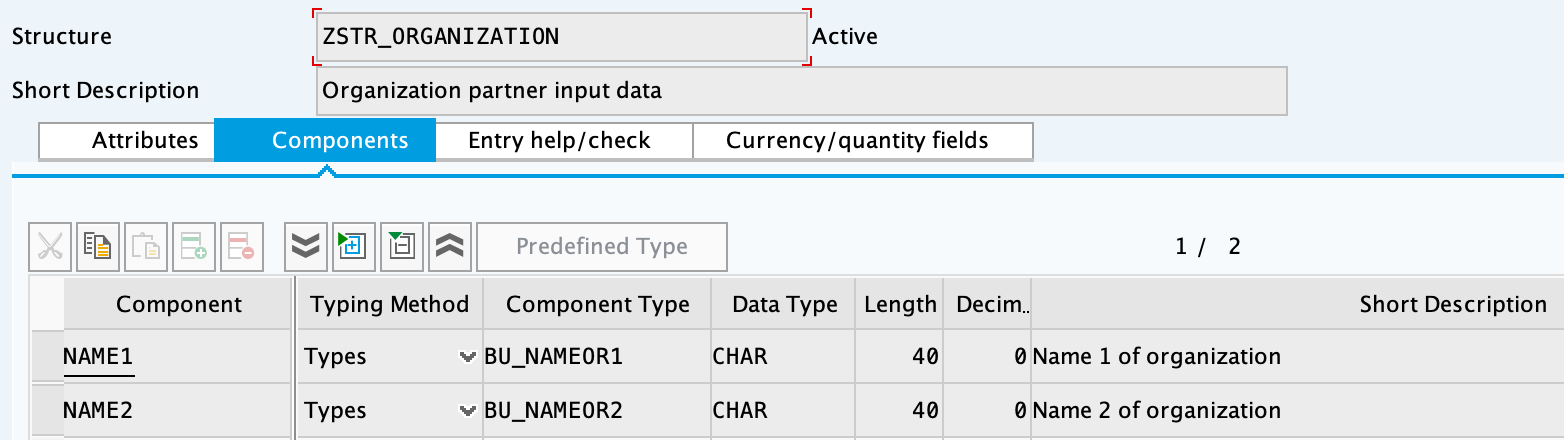
ZSTR_ORGANIZATION

SAP structure definition for ZSTR_ORGANIZATION

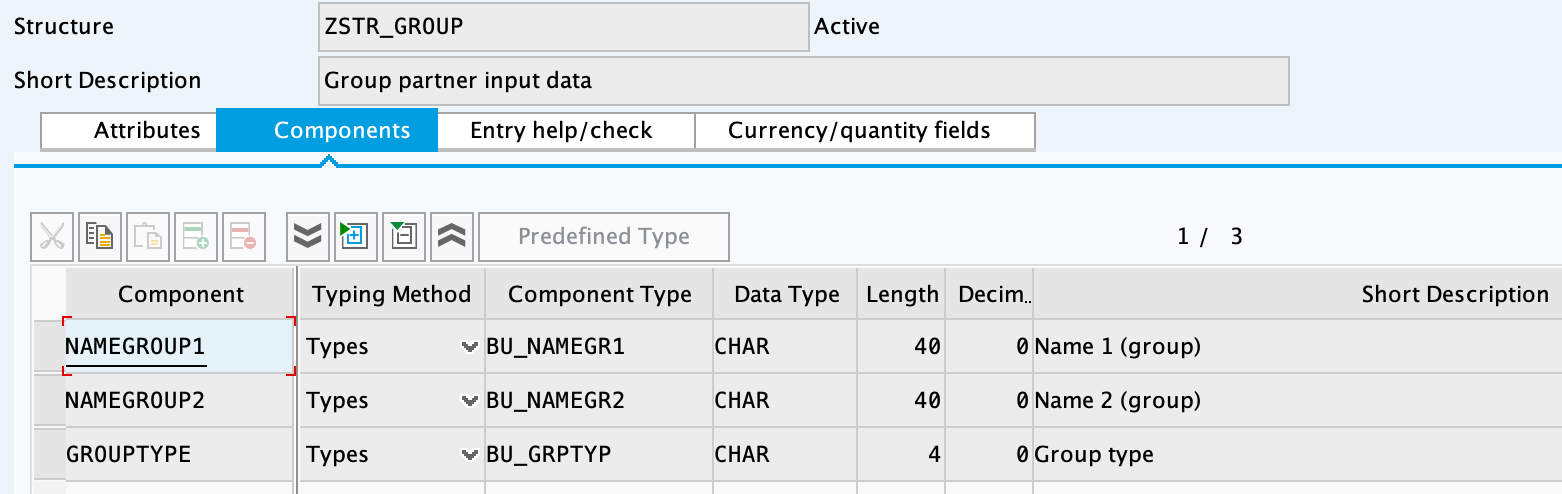
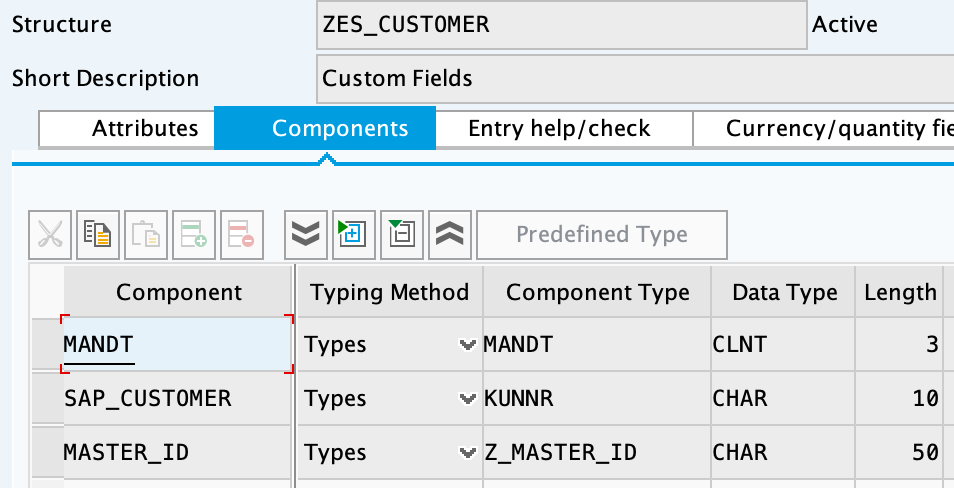
ZSTR_GROUP

SAP structure definition for ZSTR_GROUP

ZES_CUSTOMER

SAP structure definition for ZES_CUSTOMER

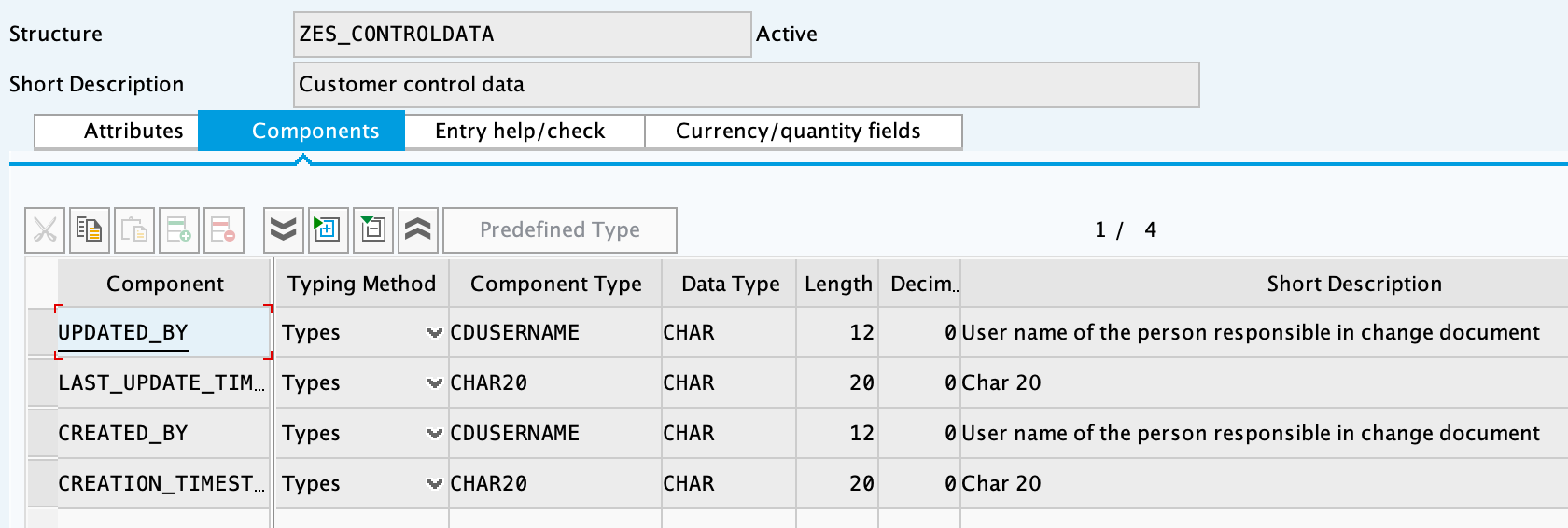
ZES_CONTROLDATA

SAP structure definition for ZES_CONTROLDATA

### Creating table types
ObjectHow to create

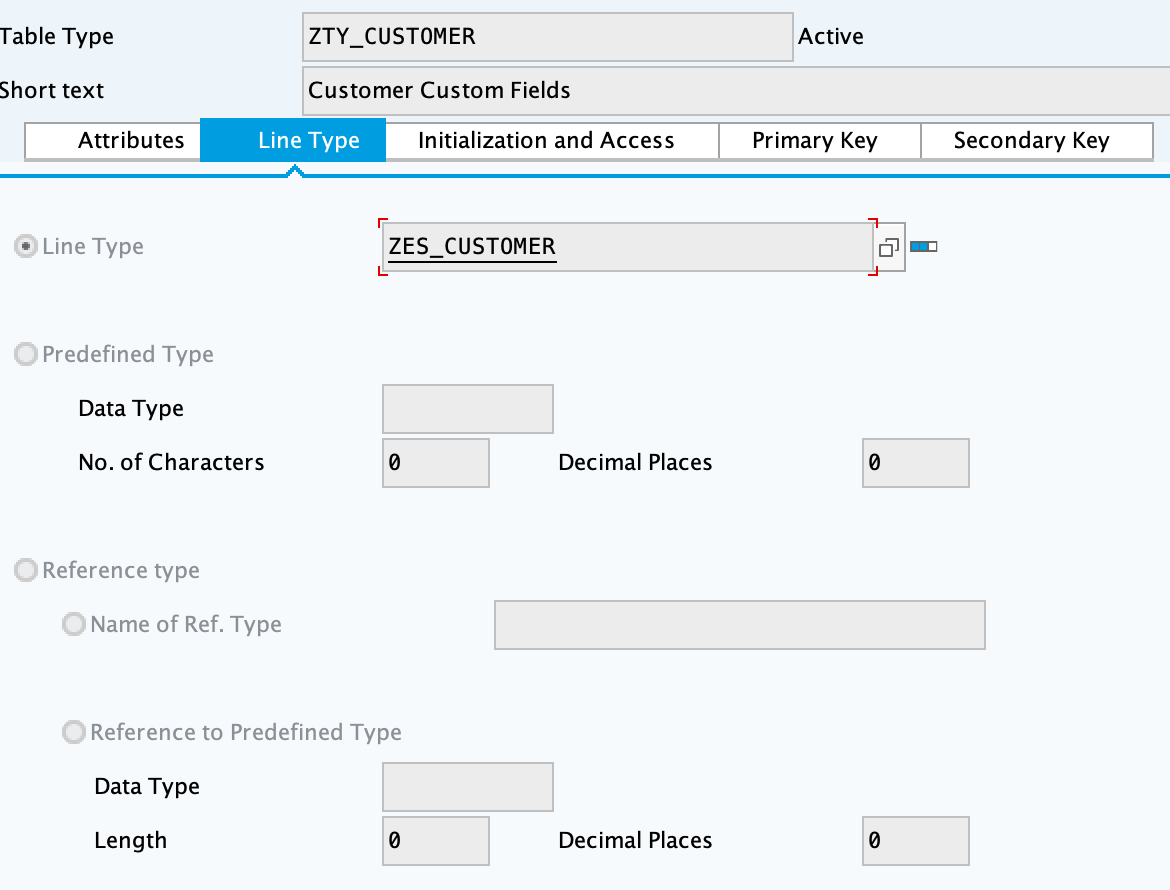
ZTY_CUSTOMER

SAP table type definition for ZTY_CUSTOMER

### Creating transparent tables
ObjectHow to create

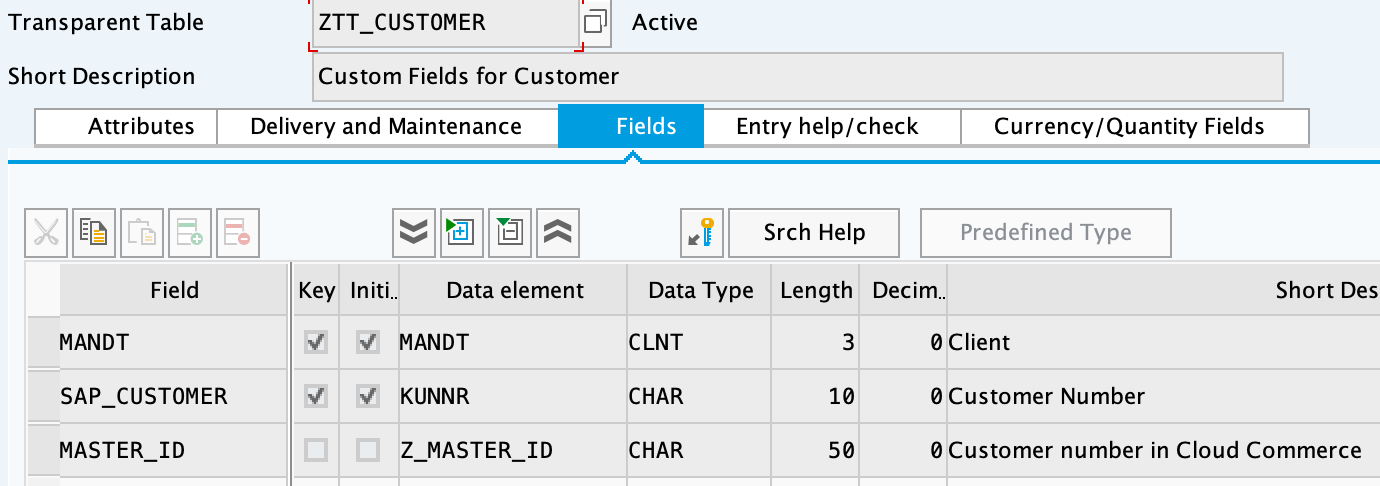
ZTT_CUSTOMER

SAP transparent table definition for ZTT_CUSTOMER

--- [back to top](#bapi-custom-objects) ### Creating function groups and function modules #### **ZBAPI Customer modules** 1. Create the function group "ZFG\_CUSTOMER\_V3". 2. Create the function module "ZBAPI\_CUSTOMER\_V3", using "Remote-enable module" as processing type: ![SAP Create Function Module for ZBAPI\_CUSTOMER\_V3](/mulesoft/current/en-us/retail/latest/_images/sfc-retail-com-bapi_06.png) 3. Complete the import parameters with the following: ![SAP import parameters for ZBAPI\_CUSTOMER\_V3](/mulesoft/current/en-us/retail/latest/_images/sfc-retail-com-bapi_07.png) 4. Complete the export parameters with the following: ![SAP export parameters for ZBAPI\_CUSTOMER\_V3](/mulesoft/current/en-us/retail/latest/_images/sfc-retail-com-bapi_08.png) 5. Copy and paste the code from "ZBAPI\_CUSTOMER\_V3.txt". 6. Create the function module "ZBAPI\_CUSTOMER\_CREATE\_V3": ![SAP Create Function Module for ZBAPI\_CUSTOMER\_CREATE\_V3](/mulesoft/current/en-us/retail/latest/_images/sfc-retail-com-bapi_09.png) 7. Complete the import parameters with the following: ![SAP import parameters for ZBAPI\_CUSTOMER\_CREATE\_V3](/mulesoft/current/en-us/retail/latest/_images/retail-2.2-bapi-09.1.png) 8. Complete the export parameters with the following: ![SAP export parameters for ZBAPI\_CUSTOMER\_CREATE\_V3](/mulesoft/current/en-us/retail/latest/_images/sfc-retail-com-bapi_11.png) 9. Copy and paste the code from "ZBAPI\_CUSTOMER\_CREATE\_V3.txt". 10. Create the function module "ZBAPI\_CUSTOMER\_CUSTOM\_FLDS\_V3": ![SAP Create Function Module for ZBAPI\_CUSTOMER\_CUSTOM\_FLDS\_V3](/mulesoft/current/en-us/retail/latest/_images/sfc-retail-com-bapi_15.png) 11. Complete the import parameters with the following: ![SAP import parameters for ZBAPI\_CUSTOMER\_CUSTOM\_FLDS\_V3](/mulesoft/current/en-us/retail/latest/_images/retail-2.2-bapi-15.1.png) 12. Copy and paste the code from "ZBAPI\_CUSTOMER\_CUSTOM\_FIELDS\_V3.txt". 13. Create the function module "ZBAPI\_CUSTOMER\_UPDATE\_V3": ![SAP Create Function Module for ZBAPI\_CUSTOMER\_UPDATE\_V3](/mulesoft/current/en-us/retail/latest/_images/sfc-retail-com-bapi_12.png) 14. Complete the import parameters with the following: ![SAP import parameters for ZBAPI\_CUSTOMER\_UPDATE\_V3](/mulesoft/current/en-us/retail/latest/_images/retail-2.2-bapi-12.1.png) 15. Complete the export parameters with the following: ![SAP export parameters for ZBAPI\_CUSTOMER\_UPDATE\_V3](/mulesoft/current/en-us/retail/latest/_images/retail-2.2-bapi-12.2.png) 16. Copy and paste the code from "ZBAPI\_CUSTOMER\_UPDATE\_V3.txt". 17. Create the function module "ZBAPI\_QUERY\_V3", using "Remote-enable module" as processing type: ![SAP Create Function Module for ZBAPI\_QUERY\_V3](/mulesoft/current/en-us/retail/latest/_images/sfc-retail-com-bapi_36.png) 18. Complete the import parameters with the following: ![SAP import parameters for ZBAPI\_QUERY\_V3](/mulesoft/current/en-us/retail/latest/_images/retail-2.2-bapi-36.1.png) 19. Complete the export parameters with the following: ![SAP export parameters for ZBAPI\_QUERY\_V3](/mulesoft/current/en-us/retail/latest/_images/sfc-retail-com-bapi_22.png) 20. Copy and paste the code from "ZBAPI\_QUERY\_V3.txt". 21. Create the function module "ZBAPI\_CONTROL\_DATA\_V3": ![SAP Create Function Module for ZBAPI\_CONTROL\_DATA\_V3](/mulesoft/current/en-us/retail/latest/_images/sfc-retail-com-bapi_21.png) 22. Complete the import parameters with the following: ![SAP import parameters for ZBAPI\_CONTROL\_DATA\_V3](/mulesoft/current/en-us/retail/latest/_images/sfc-retail-com-bapi_24.png) 23. Complete the export parameters with the following: ![SAP export parameters for ZBAPI\_CONTROL\_DATA\_V3](/mulesoft/current/en-us/retail/latest/_images/sfc-retail-com-bapi_19.png) 24. Copy the source code from "ZBAPI\_CONTROL\_DATA\_V3.txt". 25. Activate the entire function group by right-clicking on it in the tree and then selecting "Activate": ![SAP command to activate the ZFG\_CUSTOMER\_V3 function group](/mulesoft/current/en-us/retail/latest/_images/sfc-retail-com-bapi_35.png) 26. Create the function group "ZFG\_CUSTOMER2". 27. Create the function module "ZBAPI\_ADDR\_QUERY", using "Remote-enable module" as processing type: ![SAP Create Function Module for ZBAPI\_ADDR\_QUERY](/mulesoft/current/en-us/retail/latest/_images/sfc-retail-com-bapi_17.png) 28. Complete the import parameters with the following: ![SAP import parameters for ZBAPI\_ADDR\_QUERY](/mulesoft/current/en-us/retail/latest/_images/sfc-retail-com-bapi_20.png) 29. Complete the export parameters with the following: ![SAP export parameters for ZBAPI\_ADDR\_QUERY](/mulesoft/current/en-us/retail/latest/_images/sfc-retail-com-bapi_22.png) 30. Copy and paste the code from "ZBAPI\_ADDR\_QUERY.txt". 31. Create the function module "ZBAPI\_CONTROL\_DATA" using the import parameters as follows: ![SAP import parameters for ZBAPI\_CONTROL\_DATA](/mulesoft/current/en-us/retail/latest/_images/retail-2.2-bapi-22.1.png) 32. Use the export parameters as in the following: ![SAP export parameters for ZBAPI\_CONTROL\_DATA](/mulesoft/current/en-us/retail/latest/_images/retail-2.2-bapi-22.2.png) 33. Copy the source code from "ZBAPI\_CONTROL\_DATA.txt". 34. Activate the entire function group by right-clicking on it in the tree and selecting 'Activate': ![SAP command to activate the ZFG\_CUSTOMER2 function group](/mulesoft/current/en-us/retail/latest/_images/retail-2.2-bapi-22.3.png) 35. Complete the following: 36. Create a customer group ZSME (**Logistics - General->Business Partner->Customer->Control->Define and Assign Customer Number Ranges**) 37. Create a partner group ZSME (**Cross-Application Components->SAP Business Partner->Business Partner->Basic Settings->Number Ranges and Settings**) from the transaction SPRO 38. Synchronize them from the same transaction (**Cross-Application Components->Master Data Synchronization->Customer/Vendor Integration->Business Partner Settings->Settings for Customer Integration->Assign Keys->Define Number Assignment for Direction BP to Customer**) ![SAP customer and partner group configuration for ZSME](/mulesoft/current/en-us/retail/latest/_images/retail-2.2-bapi-22.4.png) #### **More ZBAPI modules** The following describes how to sufficiently set up your SAP instance in order to use the following custom BAPIs: - `ZBAPI_ADDR_QUERY` - `ZBAPI_QUERY_SAP` - `ZBAPI_CUST_QUERY` - `ZBAPI_CUSTOMER_CD` To create ABAP custom objects, groups, and modules: 1. Create the same dictionary objects created for the BAPI `ZBAPI_CUSTOMER` using the following structure/table type: ![SAP dictionary object definition for additional custom BAPIs](/mulesoft/current/en-us/retail/latest/_images/retail-2.2-bapi-51.png) ![SAP table type definition for additional custom BAPIs](/mulesoft/current/en-us/retail/latest/_images/retail-2.2-bapi-52.png) 2. Create the function group `ZFG_CUSTOMER2`. 3. Create the function module `ZBAPI_ADDR_QUERY` using 'Remote-enable module' as the processing type: ![SAP Create Function Module for ZBAPI\_ADDR\_QUERY](/mulesoft/current/en-us/retail/latest/_images/retail-2.2-bapi-53.png) 4. Complete the import parameters with the following: ![SAP import parameters for ZBAPI\_ADDR\_QUERY](/mulesoft/current/en-us/retail/latest/_images/retail-2.2-bapi-54.png) 5. Complete the export parameters with the following: ![SAP export parameters for ZBAPI\_ADDR\_QUERY](/mulesoft/current/en-us/retail/latest/_images/retail-2.2-bapi-55.png) 6. Copy and paste the code from 'ZBAPI\_ADDR\_QUERY.txt'. 7. Create the function module `ZBAPI_ADDR_SAP` using 'Remote-enable module' as the processing type: ![SAP Create Function Module for ZBAPI\_ADDR\_SAP](/mulesoft/current/en-us/retail/latest/_images/retail-2.2-bapi-56.png) 8. Complete the import parameters with the following: ![SAP import parameters for ZBAPI\_ADDR\_SAP](/mulesoft/current/en-us/retail/latest/_images/retail-2.2-bapi-57.png) 9. Complete the export parameters with the following: ![SAP export parameters for ZBAPI\_ADDR\_SAP](/mulesoft/current/en-us/retail/latest/_images/retail-2.2-bapi-58.png) 10. Copy and paste the code from 'ZBAPI\_QUERY\_SAP.txt'. 11. Create the function module `ZBAPI_CUST_QUERY` using 'Remote-enable module' as the processing type: ![SAP Create Function Module for ZBAPI\_CUST\_QUERY](/mulesoft/current/en-us/retail/latest/_images/retail-2.2-bapi-59.png) 12. Complete the import parameters with the following: ![SAP import parameters for ZBAPI\_CUST\_QUERY](/mulesoft/current/en-us/retail/latest/_images/retail-2.2-bapi-60.png) 13. Complete the export parameters with the following: ![SAP export parameters for ZBAPI\_CUST\_QUERY](/mulesoft/current/en-us/retail/latest/_images/retail-2.2-bapi-61.png) 14. Copy and paste the code from 'ZBAPI\_CUST\_QUERY.txt'. 15. Create the function module `ZBAPI_CUSTOMER_CD` using 'Remote-enable module' as the processing type: ![SAP Create Function Module for ZBAPI\_CUSTOMER\_CD](/mulesoft/current/en-us/retail/latest/_images/retail-2.2-bapi-62.png) 16. Complete the import parameters with the following: ![SAP import parameters for ZBAPI\_CUSTOMER\_CD](/mulesoft/current/en-us/retail/latest/_images/retail-2.2-bapi-63.png) 17. Complete the export parameters with the following: ![SAP export parameters for ZBAPI\_CUSTOMER\_CD](/mulesoft/current/en-us/retail/latest/_images/retail-2.2-bapi-64.png) 18. Copy and paste the code from 'ZBAPI\_CUSTOMER\_CD.txt'. 19. Activate the entire function group by right-clicking on it in the tree and selecting 'Activate': ![SAP command to activate custom BAPI function modules](/mulesoft/current/en-us/retail/latest/_images/retail-2.2-bapi-65.png) ## See Also - [Prerequisites](https://docs.mulesoft.com/retail/latest/prerequisites) - [MuleSoft Accelerator for Retail](https://docs.mulesoft.com/retail/latest/) --- product: Retail version: 3.2 is-latest-version: true --- # SAP S4HANA Setup Guide > For the full documentation index, see: https://docs.mulesoft.com/llms.txt ## Overview The following describes how to configure and test an S/4HANA Cloud SOAP outbound service (Product replication: `productmdmbulkreplicaterequest`) and the S/4HANA Cloud SOAP Connector as a Mule application deployed on Cloudhub. ## Configurations in S/4HANA To make the necessary configurations in S/4HANA: 1. Create a **Communication System** in the corresponding Fiori app. This communication system represents the external system that will consume the S/4HANA Cloud SOAP service. In this example, it’s named `COM_0009_SOAP_OUT`: ![SAP S/4HANA Create Communication System](/mulesoft/current/en-us/retail/latest/_images/retail-sap-s4hana-setup-guide-01.png) 2. For the 'Business System' name, use the same name of the System ID. 3. In the 'Host Name' field, enter the hostname of the Mule application deployed on Cloudhub (if you don’t have it yet, you can enter a mock URL and then modify it later): ![SAP S/4HANA Communication System with Host Name field](/mulesoft/current/en-us/retail/latest/_images/retail-sap-s4hana-setup-guide-02.png) 4. Create a user that will be used to connect to the Cloud Hub app for sending product information in the outbound scenario (this is necessary even though the Mule application does not validate the user; we used any user for outbound): ![SAP S/4HANA user creation](/mulesoft/current/en-us/retail/latest/_images/retail-sap-s4hana-setup-guide-03.png) 5. Use the **Communication Arrangement** Fiori app to create a new Communication Arrangement: ![SAP S/4HANA Create Communication Arrangement](/mulesoft/current/en-us/retail/latest/_images/retail-sap-s4hana-setup-guide-04.png) 6. Create a new **Communication Arrangement**, select the communication scenario "SAP\_COM\_0009", and then define a specific name for the arrangement, "SAP\_COM\_0009\_SOAP". 7. In the **Communication System** field, select the Communication System created in the previous step: ![SAP S/4HANA Communication Arrangement with Communication System selected](/mulesoft/current/en-us/retail/latest/_images/retail-sap-s4hana-setup-guide-05.png) 8. For outbound communication, select the previously-created user and configure the **Product Master - Replicate from SAP S/4HANA Cloud to Client** and include the following settings. Make sure to note the Path (`/sap/bc/srt/scs/sap/productmdmbulkreplicaterequest`) because we will use this path to configure the Mule application SOAP endpoint: - Set the **Service status** to **Active** - Replication Model (any name) - Replication model = `I (Initial)` - The Output Mode = `D (Direct)`+ ![SAP S/4HANA outbound service with Service Status set to Active](/mulesoft/current/en-us/retail/latest/_images/retail-sap-s4hana-setup-guide-06.png) ![SAP S/4HANA outbound service Replication Model settings](/mulesoft/current/en-us/retail/latest/_images/retail-sap-s4hana-setup-guide-07.png) ![SAP S/4HANA outbound service Output Mode settings](/mulesoft/current/en-us/retail/latest/_images/retail-sap-s4hana-setup-guide-08.png) 9. Save it. All configurations at S/4HANA Cloud side are finished and you will be able to download the WSDL that contains the metadata to import into the S/4HANA Cloud SOAP Connector into the Mule application. ## Configurations in the Mule Application The following example describes how to create a Mule application using the Outbound Message Listener operation of MuleSoft’s SAP S/4HANA SOAP Connector: 1. Create a Mule project and add the appropriate connector from Exchange to the Mule Palette: ![Anypoint Studio Mule Palette with SAP S/4HANA SOAP Connector](/mulesoft/current/en-us/retail/latest/_images/retail-sap-s4hana-setup-guide-09.png) 2. Add and configure the **Outbound Message Listener** to the canvas: ![Anypoint Studio Outbound Message Listener configuration](/mulesoft/current/en-us/retail/latest/_images/retail-sap-s4hana-setup-guide-10.png) 3. Add the corresponding WSDL path to the WSDL you downloaded from S/4HANA Cloud and create the HTTP listener configuration: ![Anypoint Studio SAP S/4HANA SOAP Connector WSDL configuration](/mulesoft/current/en-us/retail/latest/_images/retail-sap-s4hana-setup-guide-11.png) ![Anypoint Studio HTTP Listener configuration](/mulesoft/current/en-us/retail/latest/_images/retail-sap-s4hana-setup-guide-12.png) _Note: we are using no authentication on the Mule Application, so we used the Insecure option for the Trust Store Configuration. In the Keystore configuration, we used a test Keystore, which is mandatory for HTTPS communication:_ ![Anypoint Studio TLS configuration with insecure trust store](/mulesoft/current/en-us/retail/latest/_images/retail-sap-s4hana-setup-guide-13.png) 4. Select the Message type that the connector expects to receive from SAP (the connector reads the metadata from the WSDL we configured): \+ image::retail-sap-s4hana-setup-guide-14.png\["Anypoint Studio SAP S/4HANA SOAP message type selection",width=799\] 5. On the Responses tab, use the status Code "202" and the Reason-Phrase "Accepted" because we want to send the same status that S/4HANA Cloud will send if the service invocation results OK. No payload will be returned as a response - just the `Status` code and `Reason-phrase`: ![Anypoint Studio response configuration with HTTP status 202 Accepted](/mulesoft/current/en-us/retail/latest/_images/retail-sap-s4hana-setup-guide-15.png) 6. Use a **Logger** component to log the inbound XML payload: ![Anypoint Studio Logger component configuration](/mulesoft/current/en-us/retail/latest/_images/retail-sap-s4hana-setup-guide-16.png) _The Mule flow should look like the following:_ ![Anypoint Studio flow for receiving SAP S/4HANA product replication messages](/mulesoft/current/en-us/retail/latest/_images/retail-sap-s4hana-setup-guide-17.png) 7. Deploy the application to Cloudhub. You’re now ready to test the scenario. ## Testing the Scenario To test the scenario: 1. Create the following. You only need to create a material in the corresponding Fiori app of S/4HANA Cloud: ![SAP S/4HANA material creation](/mulesoft/current/en-us/retail/latest/_images/retail-sap-s4hana-setup-guide-18.png) ![SAP S/4HANA material data entry](/mulesoft/current/en-us/retail/latest/_images/retail-sap-s4hana-setup-guide-19.png) ![SAP S/4HANA material configuration](/mulesoft/current/en-us/retail/latest/_images/retail-sap-s4hana-setup-guide-20.png) ![SAP S/4HANA material save](/mulesoft/current/en-us/retail/latest/_images/retail-sap-s4hana-setup-guide-21.png) _After you save the new material, you should see the following confirmation in S/4HANA Cloud:_ ![SAP S/4HANA confirmation that the material was saved](/mulesoft/current/en-us/retail/latest/_images/retail-sap-s4hana-setup-guide-22.png) _The following shows the XML message received at the Mule application at the Runtime Manager on Cloudhub:_ ![Anypoint Runtime Manager log with the received product replication message](/mulesoft/current/en-us/retail/latest/_images/retail-sap-s4hana-setup-guide-23.png) 2. See the sent message in the Message Dashboard Fiori Application: ![SAP S/4HANA Message Dashboard with sent product replication message](/mulesoft/current/en-us/retail/latest/_images/retail-sap-s4hana-setup-guide-24.png) 3. Select the date: ![SAP S/4HANA Message Dashboard date selection](/mulesoft/current/en-us/retail/latest/_images/retail-sap-s4hana-setup-guide-25.png) 4. Search under **CMD:Product Integration - /CMDPR → Product Replication to Client via Service - PRDREQ\_OUT/00001 namespace**: ![SAP S/4HANA Message Dashboard search for product replication messages](/mulesoft/current/en-us/retail/latest/_images/retail-sap-s4hana-setup-guide-26.png) ![SAP S/4HANA product replication message details](/mulesoft/current/en-us/retail/latest/_images/retail-sap-s4hana-setup-guide-27.png) ## S/4HANA customization guide The following provides guidance on the custom fields that you must create for both the customer and order sync use cases to function in an end-to-end manner. ### Custom fields Create the following new fields in the corresponding objects for the use case:
Salesforce ObjectField NameData TypeLengthUniqueExternalId

BusinessPartner

YY1_SME_MPARTYROLEID_bus

Text

36

Y

Y

SalesOrder

YY1_SME_MORDERID_SDH

Text

36

Y

Y

Product

YY1_SME_UnvProductId_PRD

Text

36

Y

Y

## See Also - [Prerequisites](https://docs.mulesoft.com/retail/latest/prerequisites) - [MuleSoft Accelerator for Retail](https://docs.mulesoft.com/retail/latest/)