---
schema_version: "1"
id: 10743b757ad06622bd7111f81792ce2dadc0b071714083acb66bf6bc32f1d585
title: SAP Custom BAPI Setup Guide
collection: mulesoft
version: current
locale: en-us
portal_url: https://docs.salesforce.com/mulesoft/current/en-us/retail/latest/sap-custom-bapi-setup-guide.md
canonical_url: https://docs.mulesoft.com/retail/latest/sap-custom-bapi-setup-guide
source_site: docs.mulesoft.com
content_type: documentation
content_hash: 79514700d6ae258e05194b3dd2633c87aa9203680e4b4c2e6a8979183801c326
description: MuleSoft Documentation Site
release: "3.2"
latest: true
---
---
product: Retail
version: 3.2
is-latest-version: true
---
# SAP Custom BAPI Setup Guide
> For the full documentation index, see: https://docs.mulesoft.com/llms.txt
The following provides guidance on how to use the custom BAPI code (for example,
`ZBAPI_CUSTOMER_V3`) for your SAP instance.
> [!NOTE] You must complete the following instructions before deploying the
> [Customer profile sync from SAP](https://anypoint.mulesoft.com/exchange/org.mule.examples/mulesoft-accelerator-for-retail/minor/3.0/pages/Use%20case%201%20-%20Customer%20profile%20sync/)
> use case.
## BAPI custom objects
You must create the following ABAP objects in order to use this custom BAPI, which are described
below.
### Data Elements
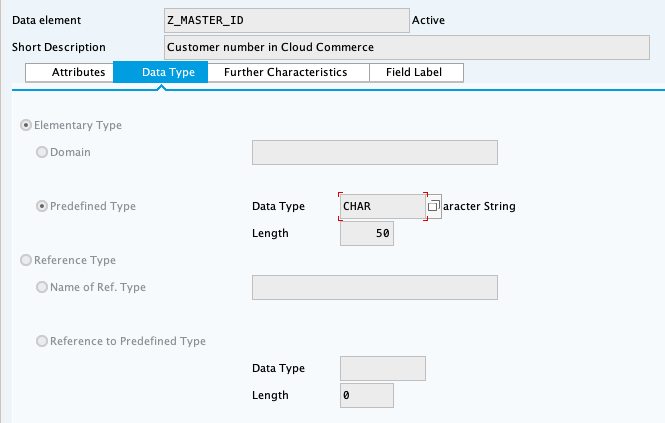
- `Z_MASTER_ID`
See [Creating data elements](#creating-data-elements).
### Structures
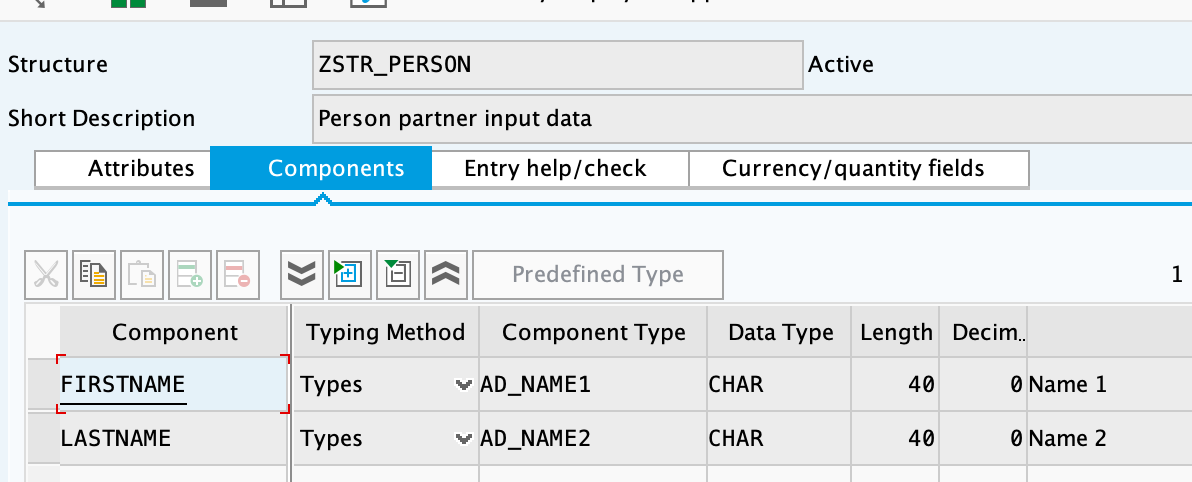
- `ZSTR_PERSON`
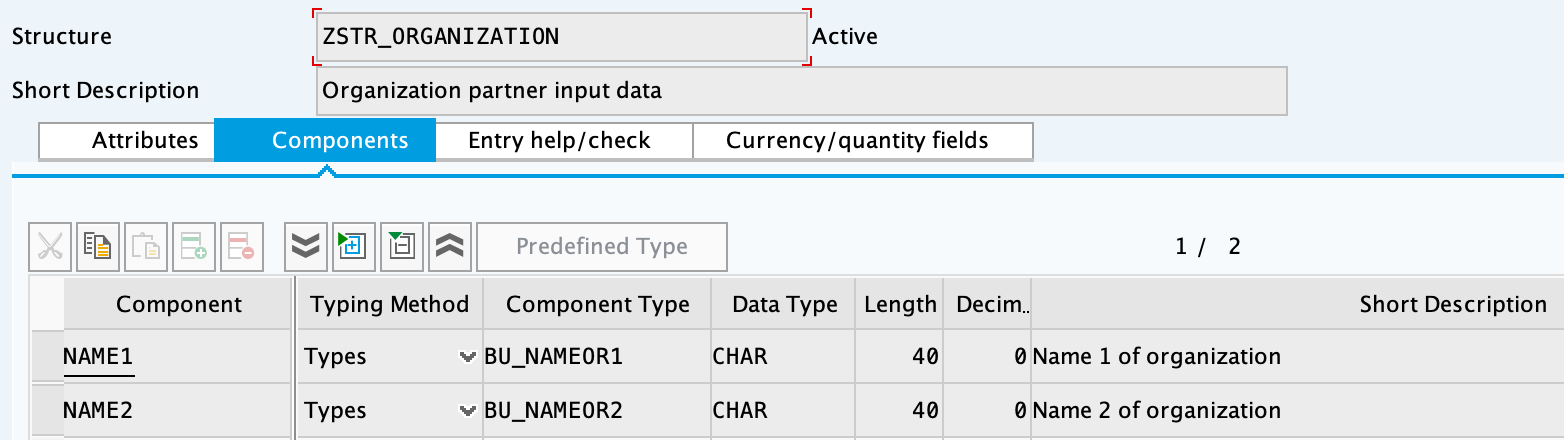
- `ZSTR_ORGANIZATION`
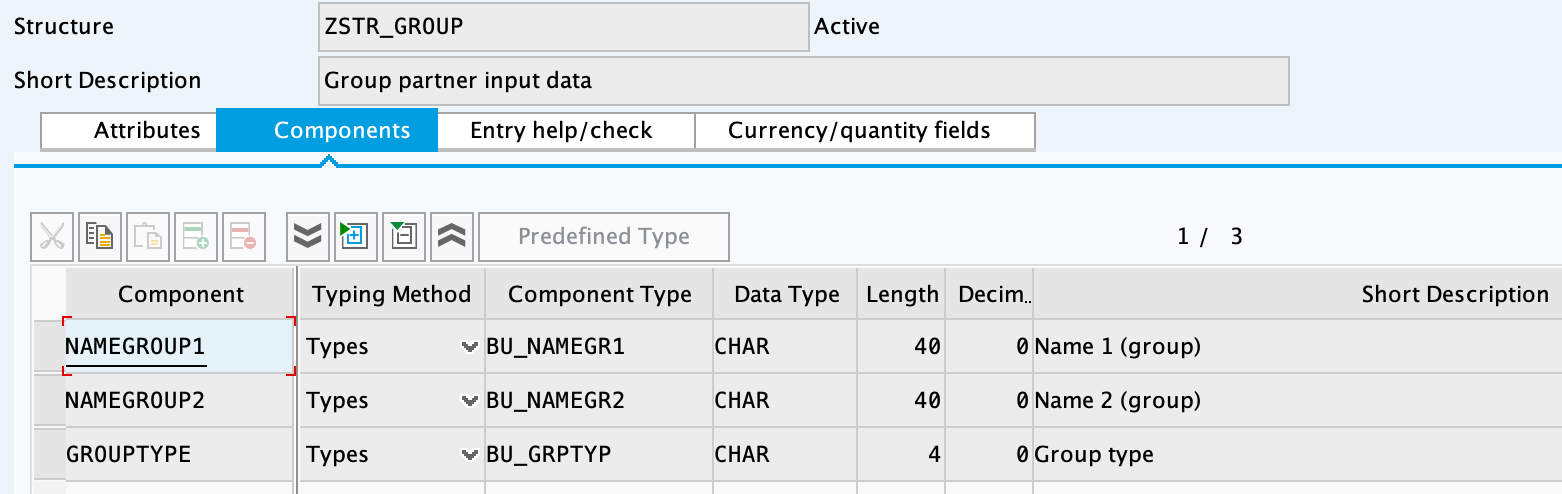
- `ZSTR_GROUP`
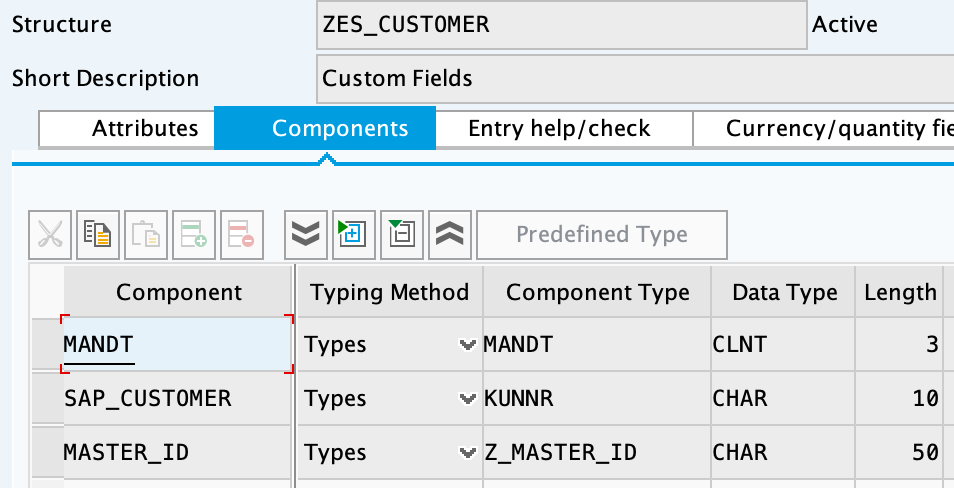
- `ZES_CUSTOMER`
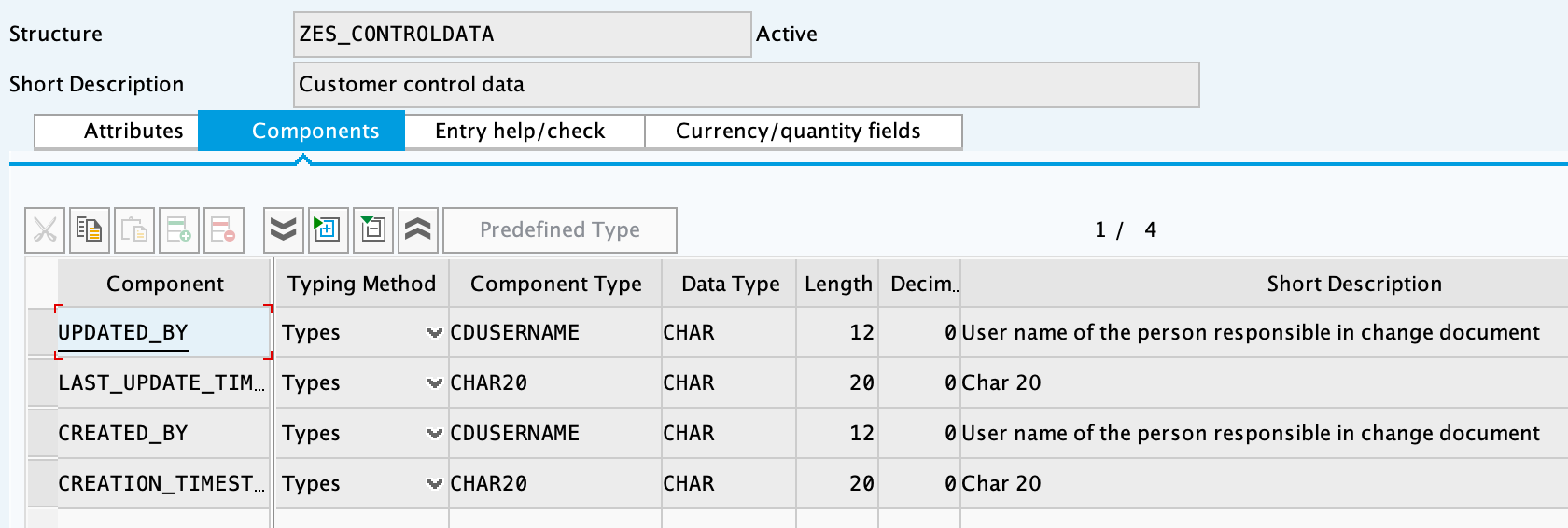
- `ZES_CONTROLDATA`
See [Creating structures](#creating-structures).
### Table Types
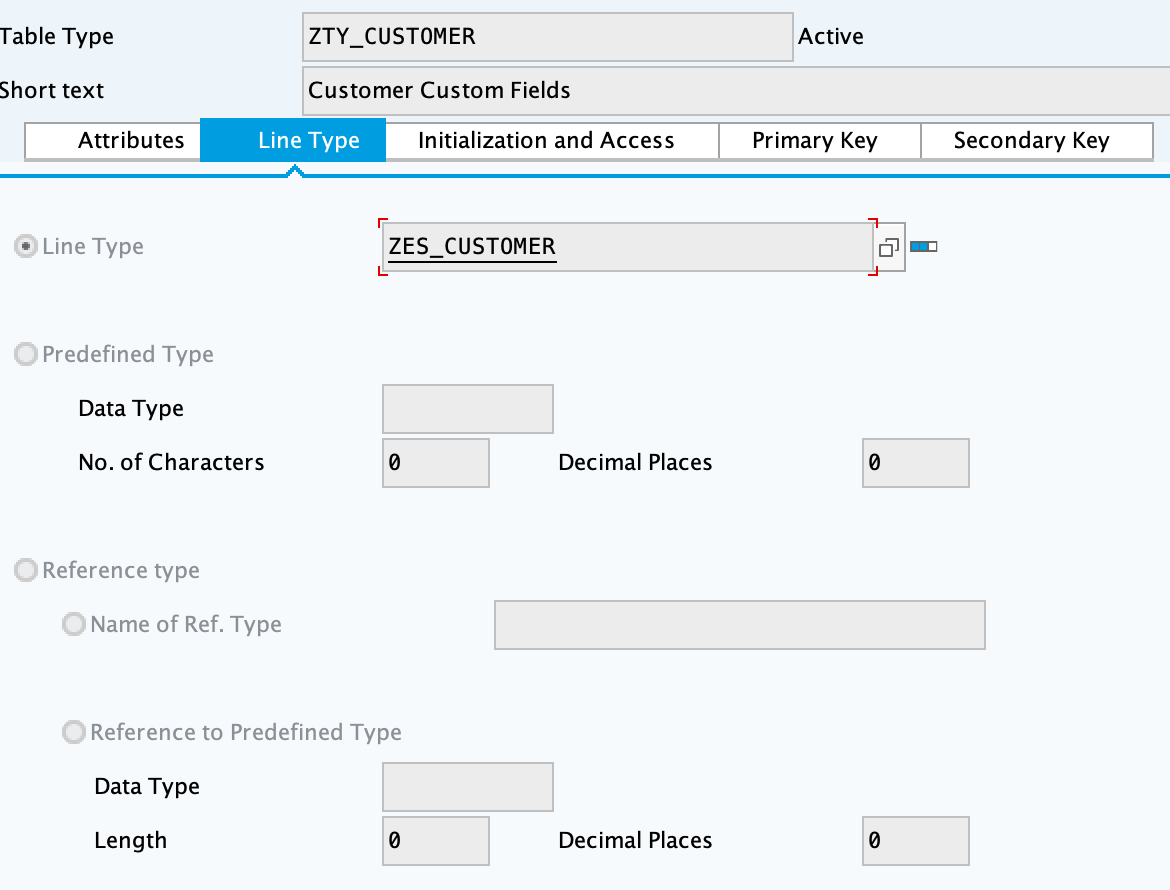
- `ZTY_CUSTOMER`
See [Creating table types](#creating-table-types).
### Transparent Tables
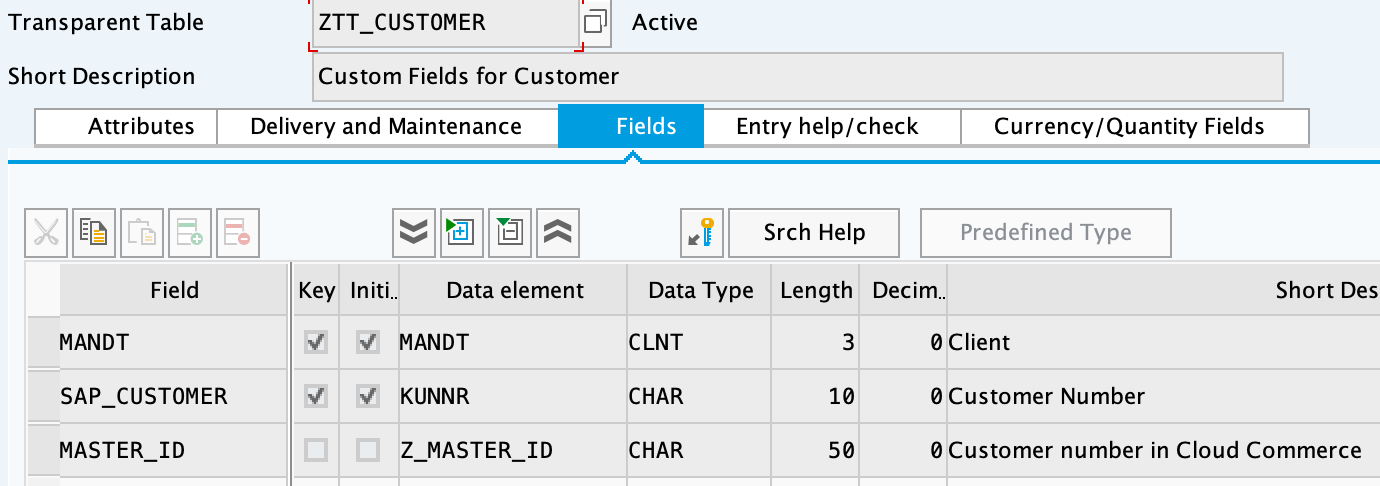
- `ZTT_CUSTOMER`
See [Creating transparent tables](#creating-transparent-tables).
### Function Groups
- `ZFG_CUSTOMER`
- `ZFG_CUSTOMER2`
See [Creating function groups and function modules](#creating-function-groups-and-function-modules).
**[ZBAPI\_CUSTOMER modules](#zbapi-customer-modules)**
- `ZBAPI_CUSTOMER`
- `ZBAPI_CUSTOMER_CREATE`
- `ZBAPI_CUSTOMER_CUSTOM_FIELDS`
- `ZBAPI_CUSTOMER_UPDATE`
**[More ZBAPI modules](#more-zbapi-modules)**
- `ZBAPI_QUERY`
- `ZBAPI_ADDR_QUERY`
- `ZBAPI_QUERY_SAP`
- `ZBAPI_CUST_QUERY`
- `ZBAPI_CUSTOMER_CD`
See [Creating function groups and function modules](#creating-function-groups-and-function-modules).
### Creating data elements
| Object | How to create |
|---|
Z_MASTER_ID
| 
|
### Creating structures
| Object | How to create |
|---|
ZSTR_PERSON
| 
|
ZSTR_ORGANIZATION
| 
|
ZSTR_GROUP
| 
|
ZES_CUSTOMER
| 
|
ZES_CONTROLDATA
| 
|
### Creating table types
| Object | How to create |
|---|
ZTY_CUSTOMER
| 
|
### Creating transparent tables
| Object | How to create |
|---|
ZTT_CUSTOMER
| 
|
---
[back to top](#bapi-custom-objects)
### Creating function groups and function modules
#### **ZBAPI Customer modules**
1. Create the function group "ZFG\_CUSTOMER\_V3".
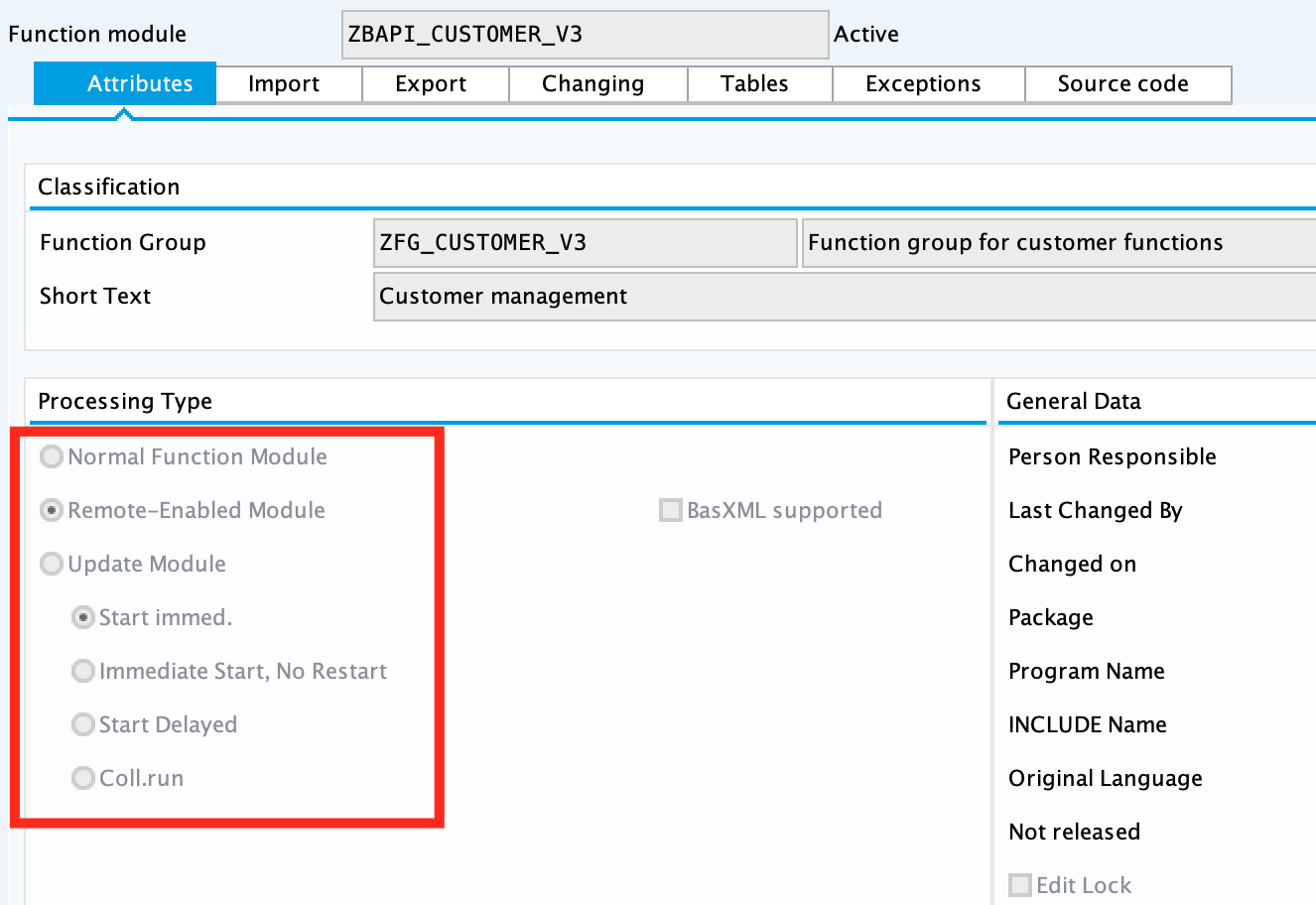
2. Create the function module "ZBAPI\_CUSTOMER\_V3", using "Remote-enable module" as processing
type:
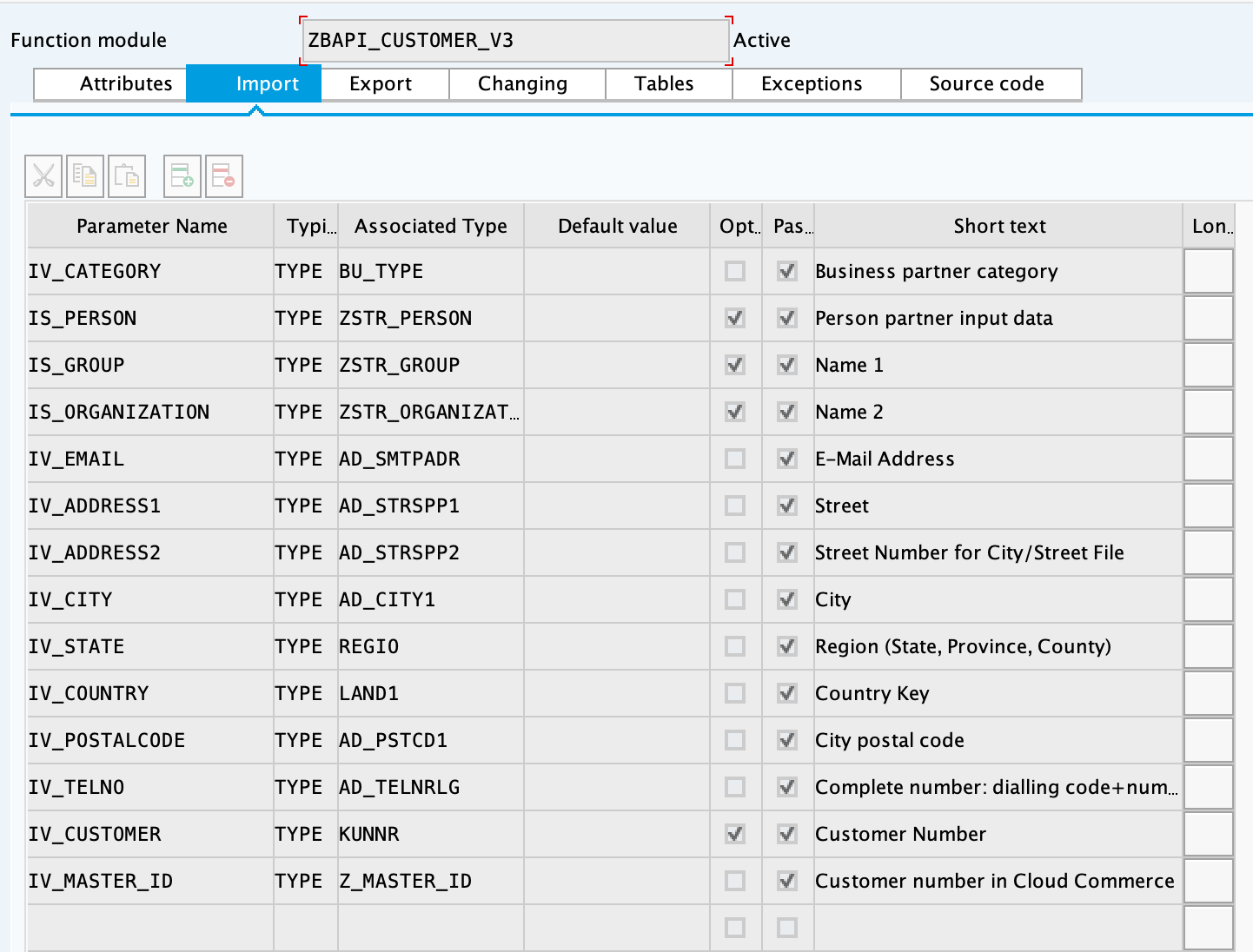
3. Complete the import parameters with the following:
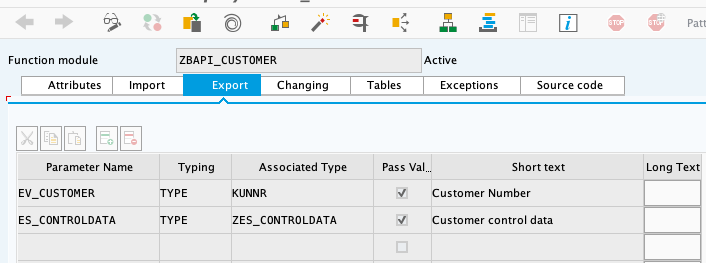
4. Complete the export parameters with the following:
5. Copy and paste the code from "ZBAPI\_CUSTOMER\_V3.txt".
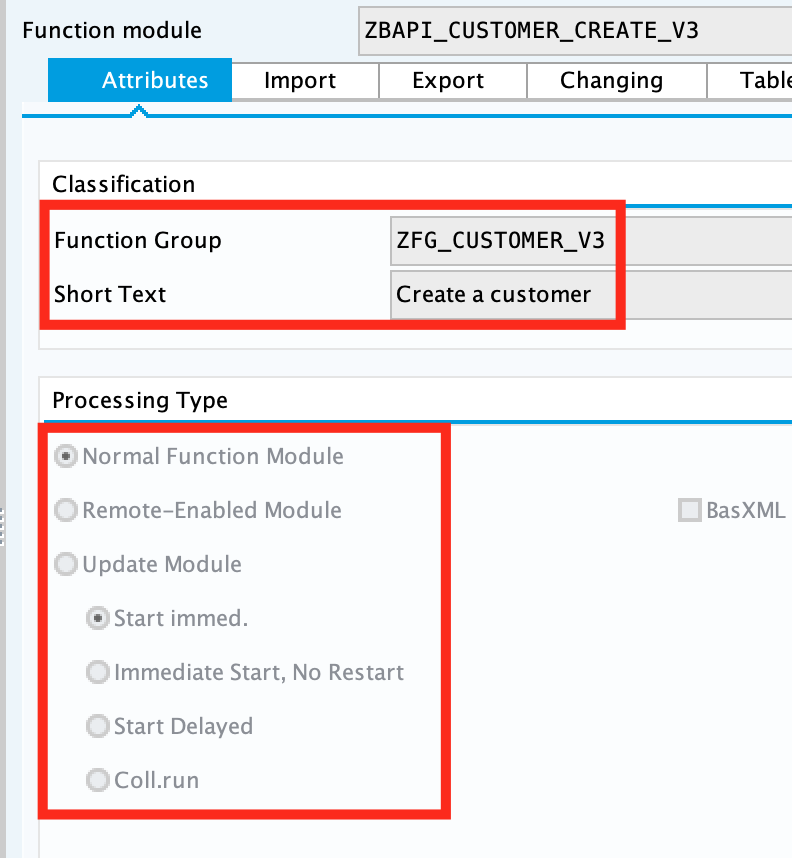
6. Create the function module "ZBAPI\_CUSTOMER\_CREATE\_V3":
7. Complete the import parameters with the following:
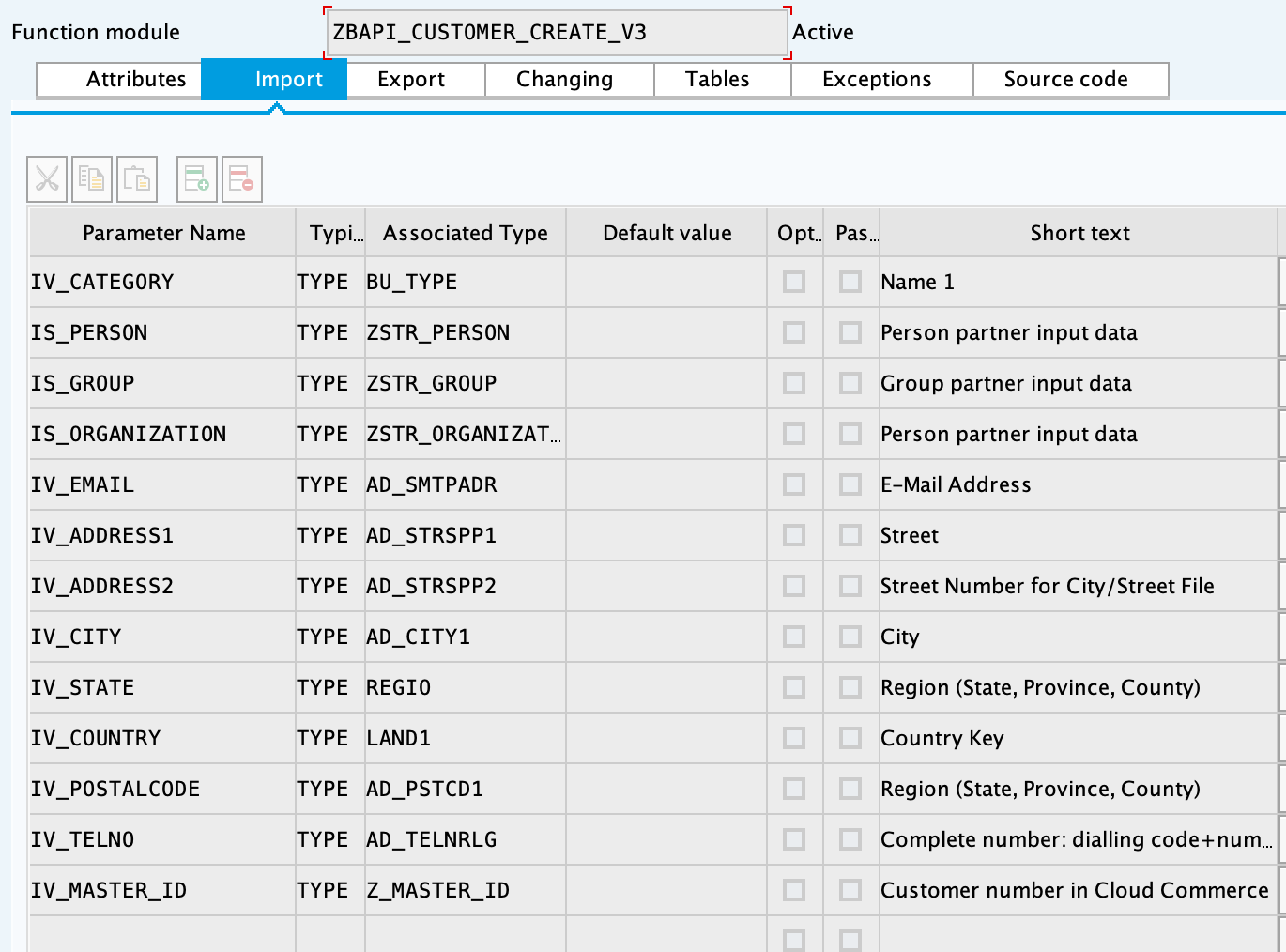
8. Complete the export parameters with the following:
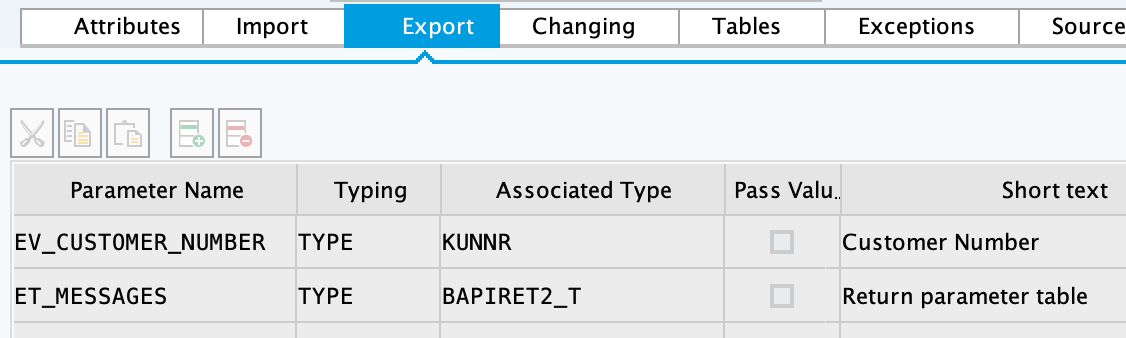
9. Copy and paste the code from "ZBAPI\_CUSTOMER\_CREATE\_V3.txt".
10. Create the function module "ZBAPI\_CUSTOMER\_CUSTOM\_FLDS\_V3":
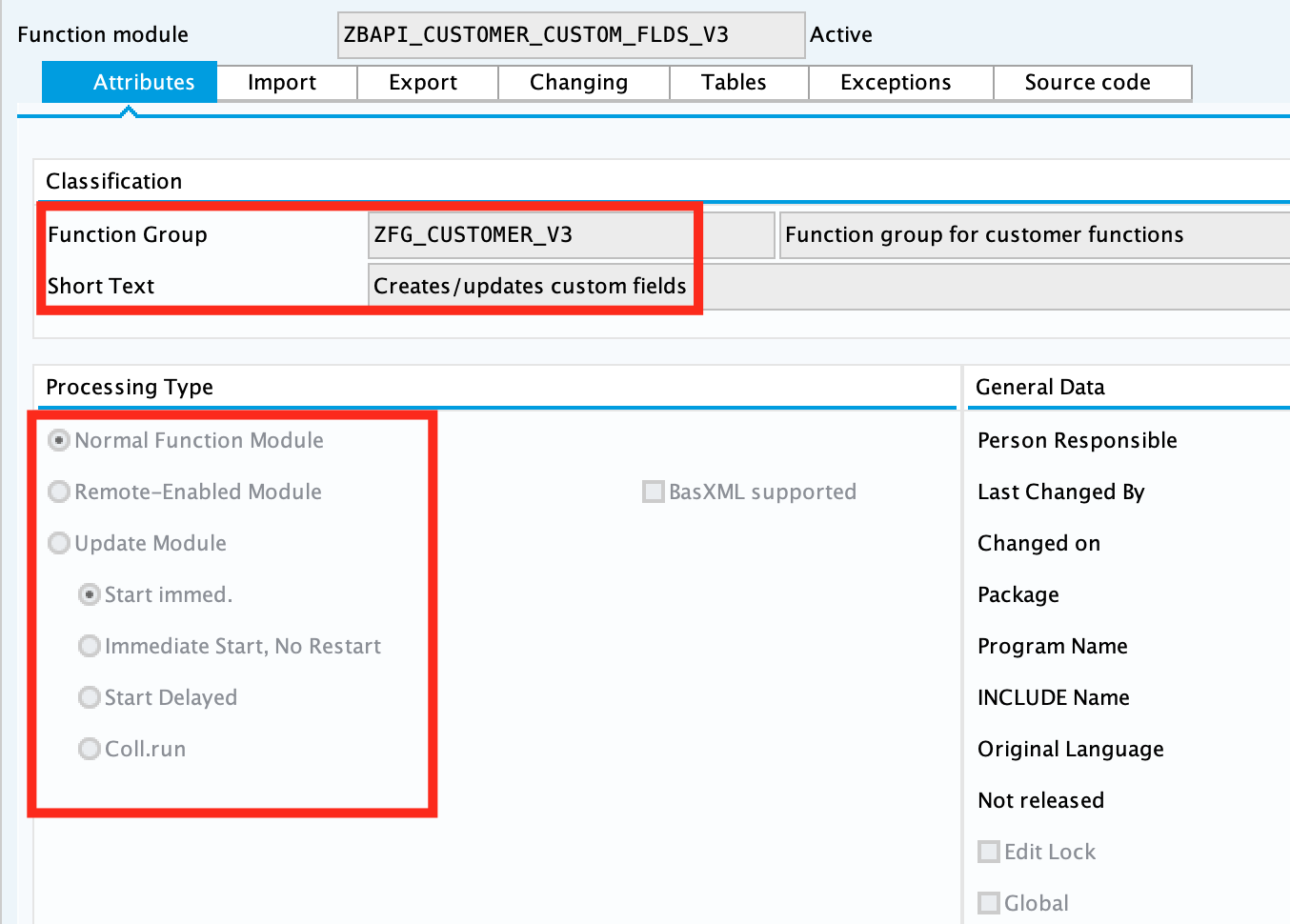
11. Complete the import parameters with the following:
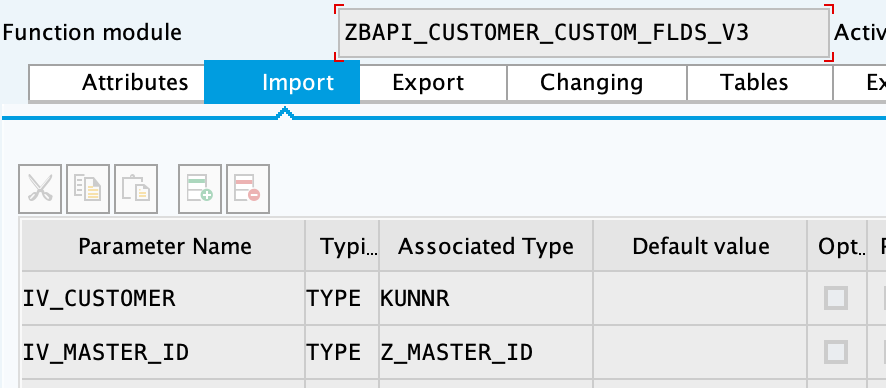
12. Copy and paste the code from "ZBAPI\_CUSTOMER\_CUSTOM\_FIELDS\_V3.txt".
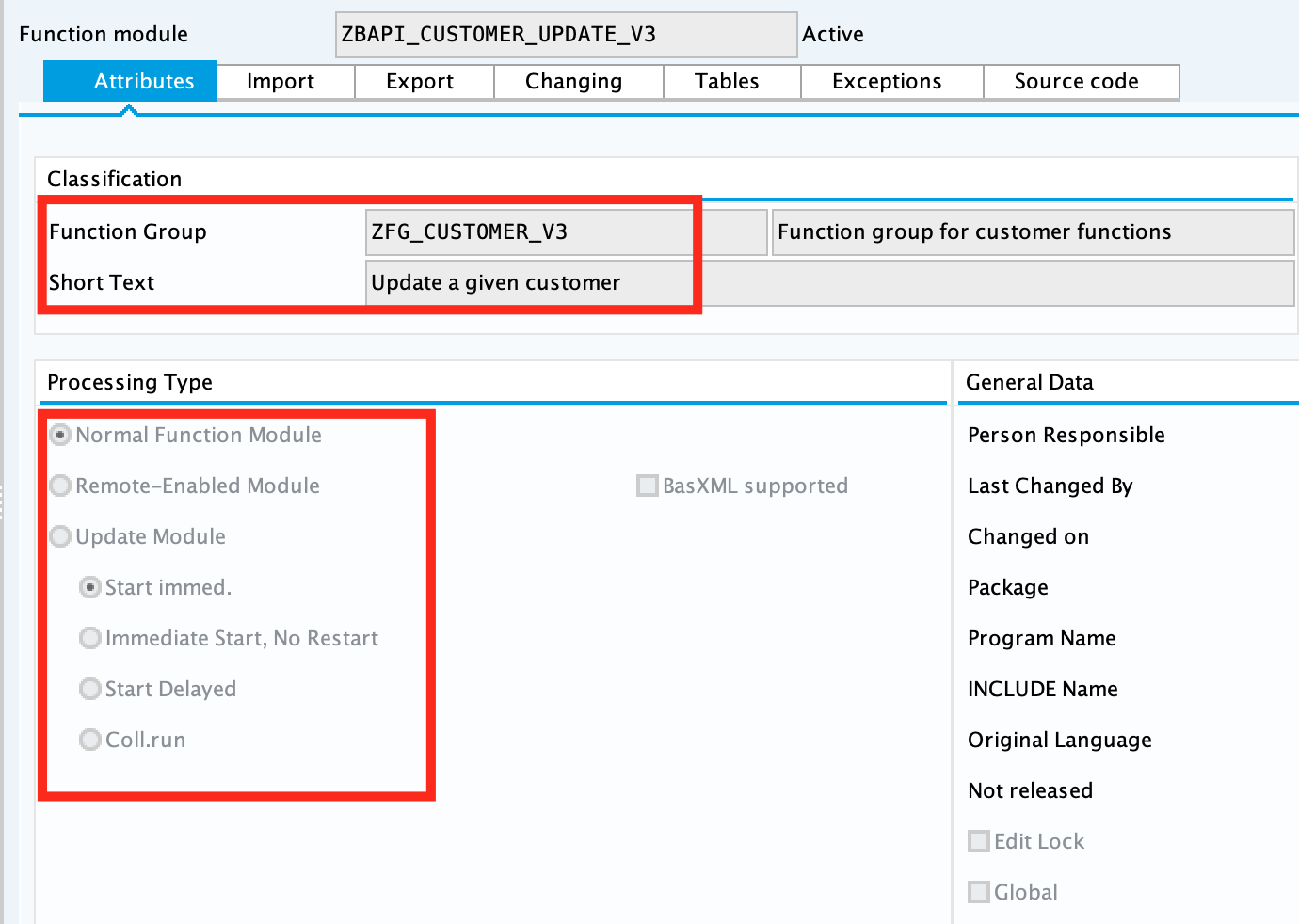
13. Create the function module "ZBAPI\_CUSTOMER\_UPDATE\_V3":
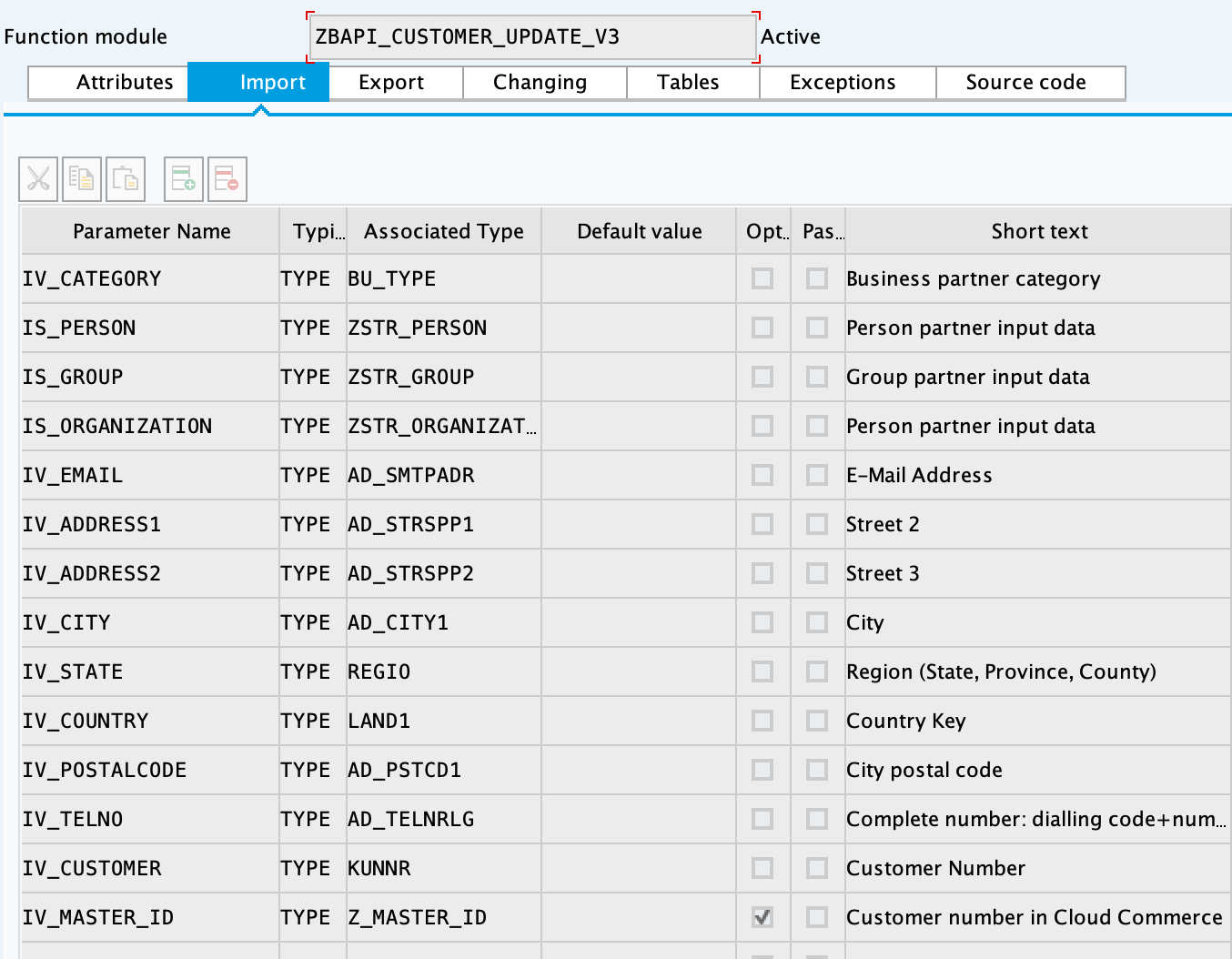
14. Complete the import parameters with the following:
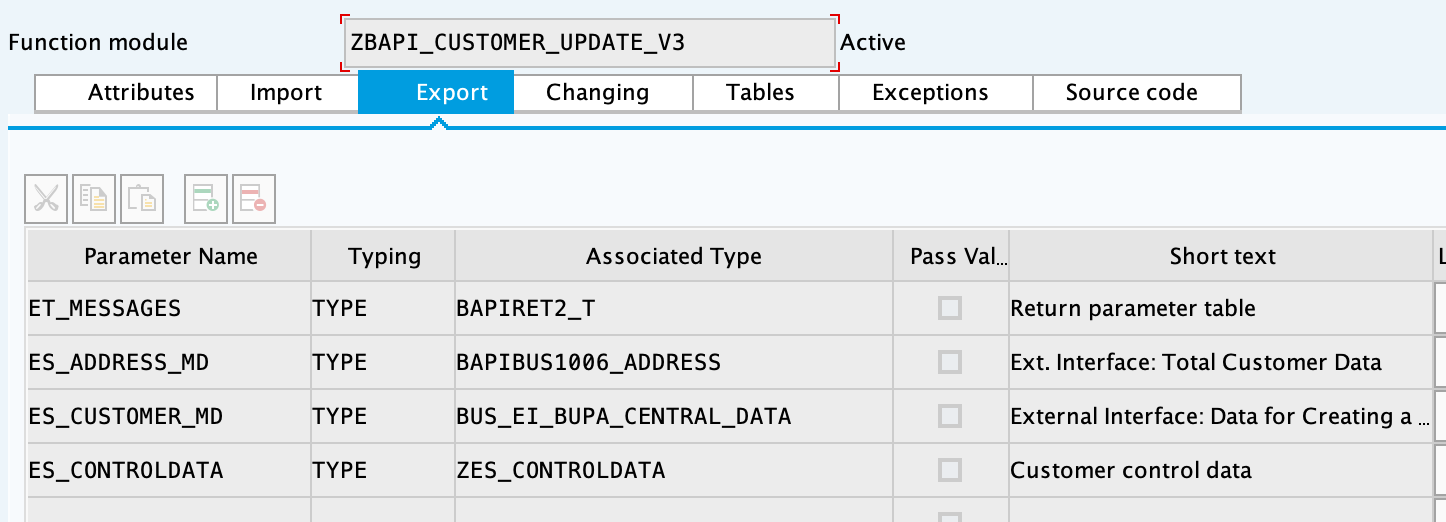
15. Complete the export parameters with the following:
16. Copy and paste the code from "ZBAPI\_CUSTOMER\_UPDATE\_V3.txt".
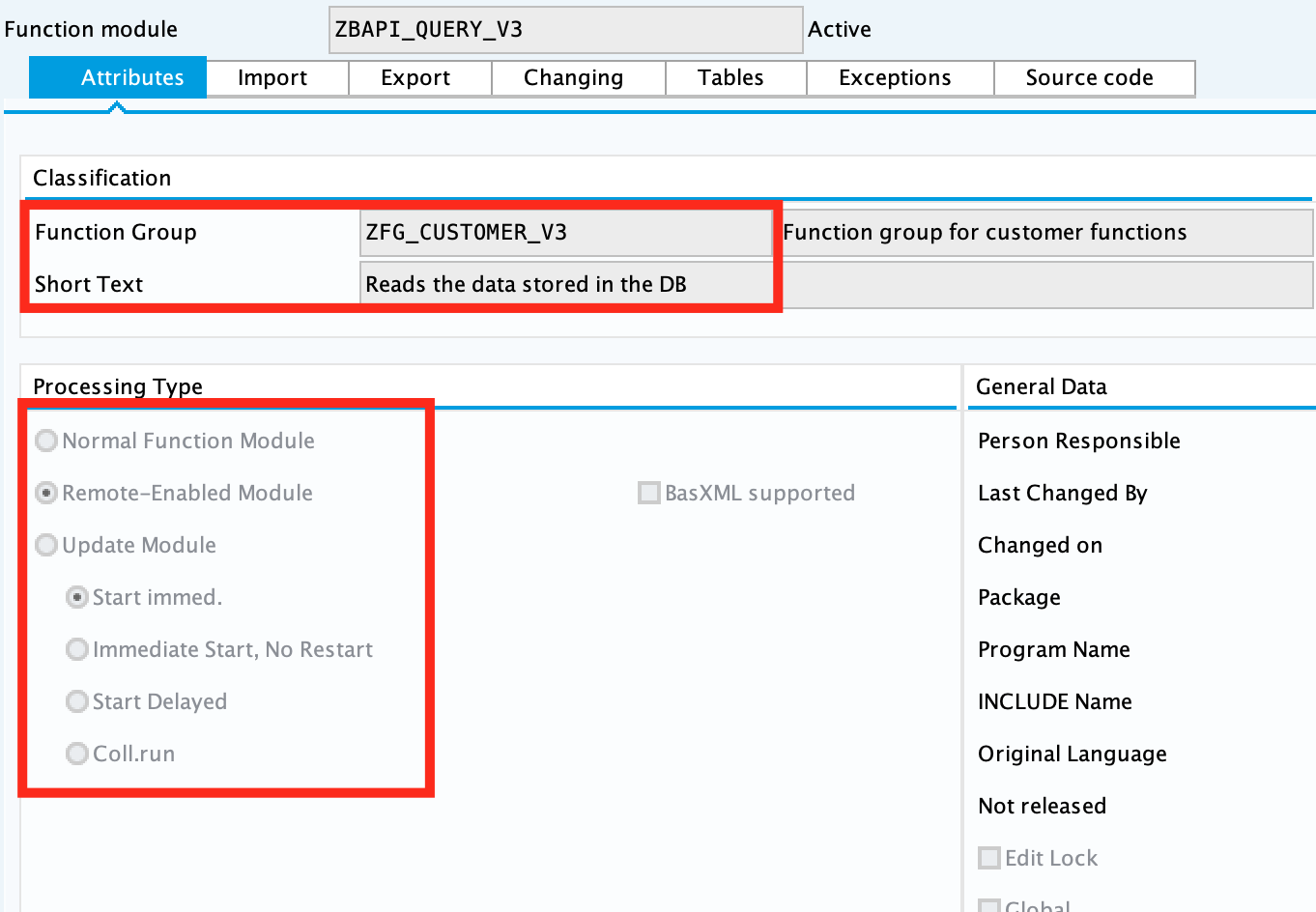
17. Create the function module "ZBAPI\_QUERY\_V3", using "Remote-enable module" as processing type:
18. Complete the import parameters with the following:
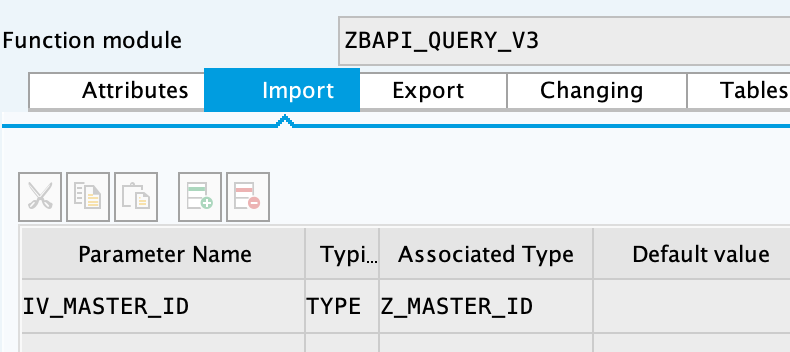
19. Complete the export parameters with the following:
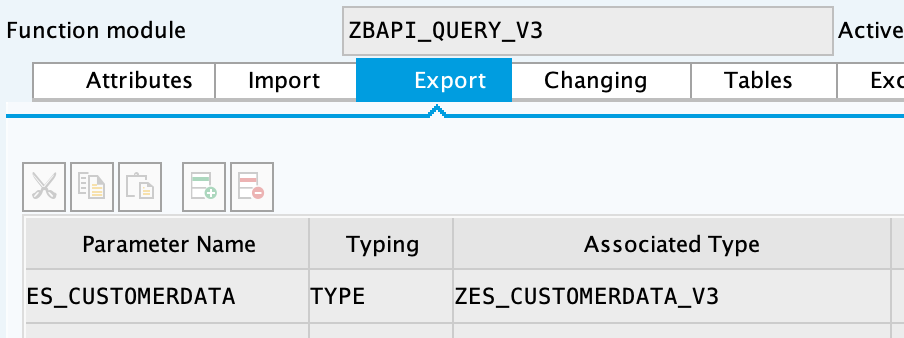
20. Copy and paste the code from "ZBAPI\_QUERY\_V3.txt".
21. Create the function module "ZBAPI\_CONTROL\_DATA\_V3":
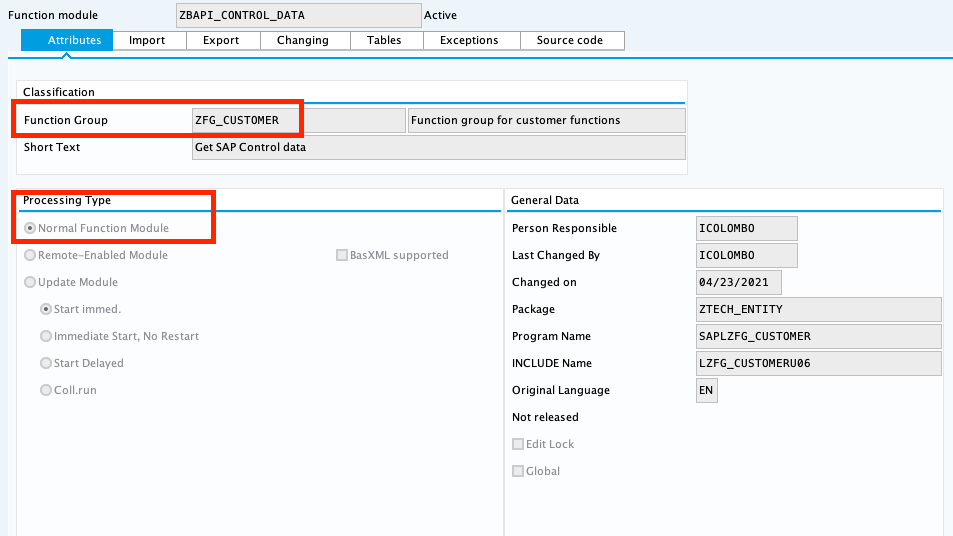
22. Complete the import parameters with the following:
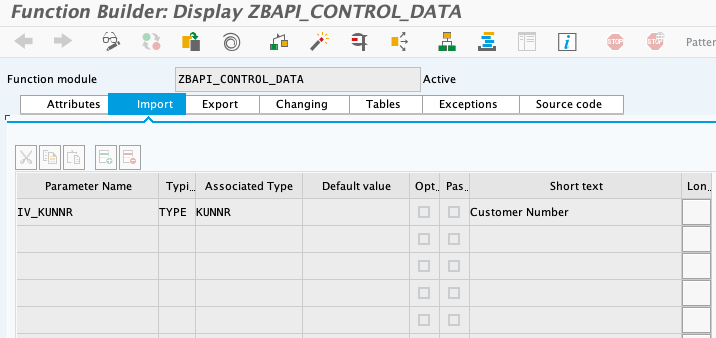
23. Complete the export parameters with the following:
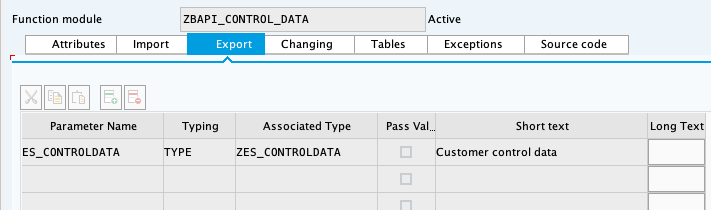
24. Copy the source code from "ZBAPI\_CONTROL\_DATA\_V3.txt".
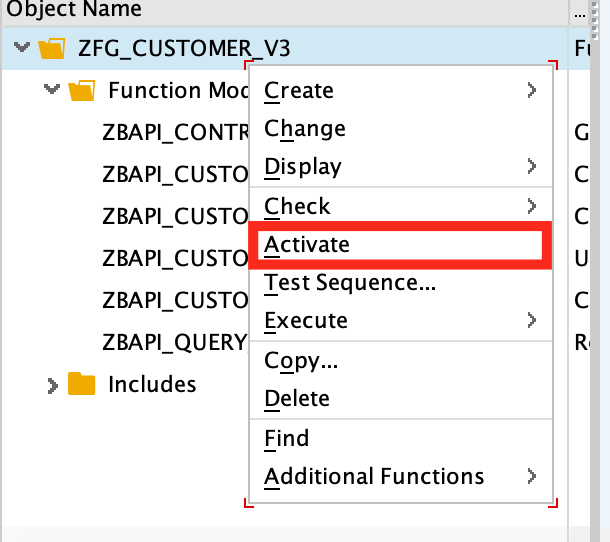
25. Activate the entire function group by right-clicking on it in the tree and then selecting
"Activate":
26. Create the function group "ZFG\_CUSTOMER2".
27. Create the function module "ZBAPI\_ADDR\_QUERY", using "Remote-enable module" as processing
type:
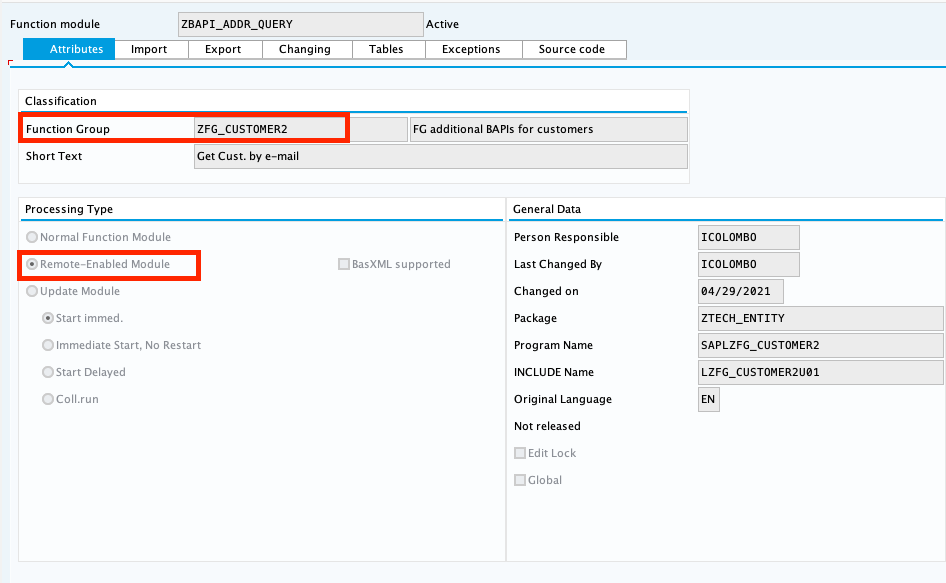
28. Complete the import parameters with the following:
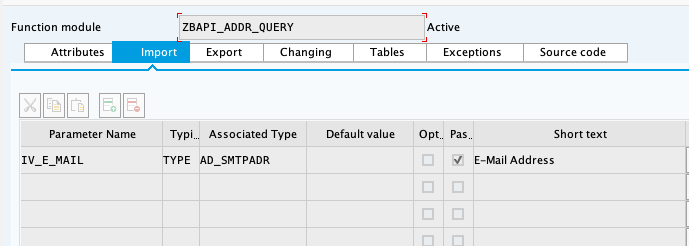
29. Complete the export parameters with the following:

30. Copy and paste the code from "ZBAPI\_ADDR\_QUERY.txt".
31. Create the function module "ZBAPI\_CONTROL\_DATA" using the import parameters as follows:

32. Use the export parameters as in the following:
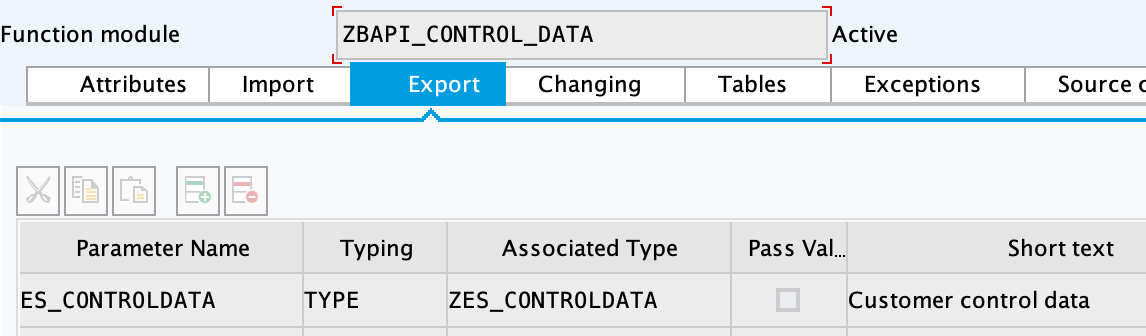
33. Copy the source code from "ZBAPI\_CONTROL\_DATA.txt".
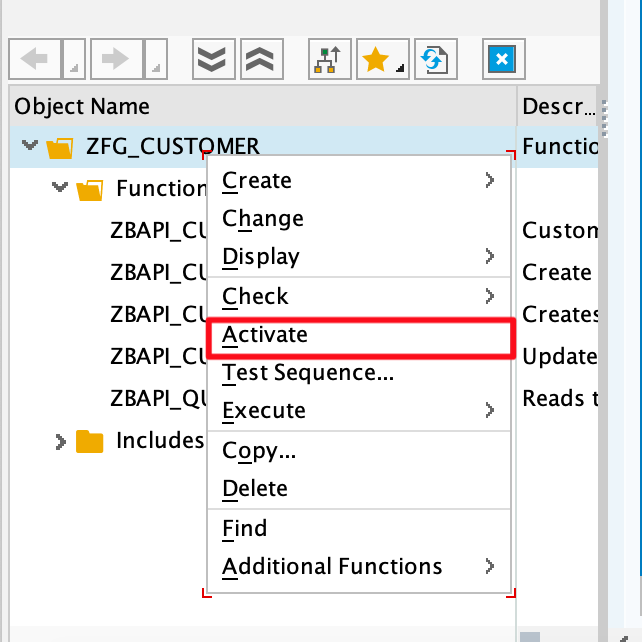
34. Activate the entire function group by right-clicking on it in the tree and selecting 'Activate':
35. Complete the following:
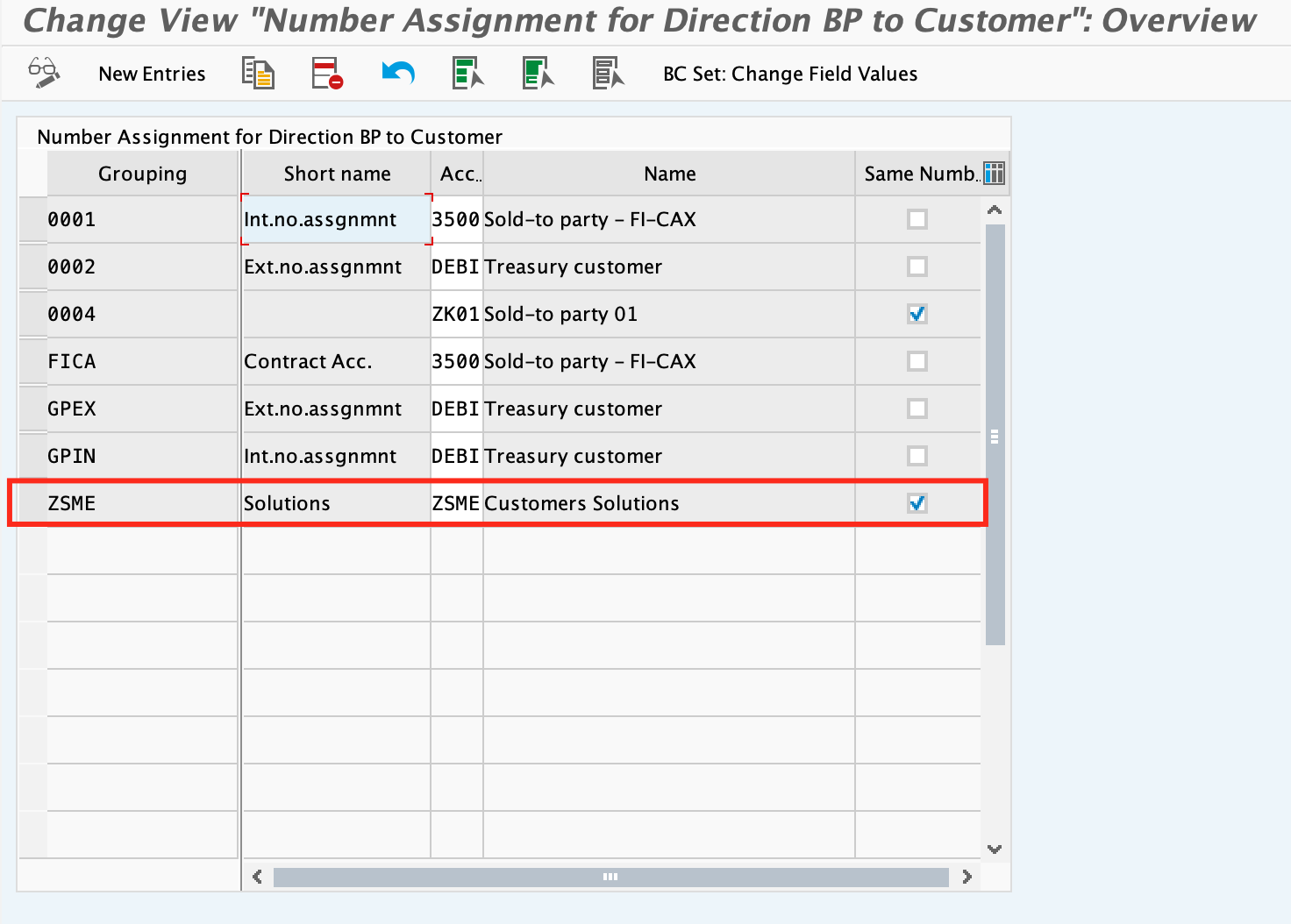
36. Create a customer group ZSME (**Logistics - General->Business Partner->Customer->Control->Define
and Assign Customer Number Ranges**)
37. Create a partner group ZSME (**Cross-Application Components->SAP Business Partner->Business
Partner->Basic Settings->Number Ranges and Settings**) from the transaction SPRO
38. Synchronize them from the same transaction (**Cross-Application Components->Master Data
Synchronization->Customer/Vendor Integration->Business Partner Settings->Settings for Customer
Integration->Assign Keys->Define Number Assignment for Direction BP to Customer**)
#### **More ZBAPI modules**
The following describes how to sufficiently set up your SAP instance in order to use the following
custom BAPIs:
- `ZBAPI_ADDR_QUERY`
- `ZBAPI_QUERY_SAP`
- `ZBAPI_CUST_QUERY`
- `ZBAPI_CUSTOMER_CD`
To create ABAP custom objects, groups, and modules:
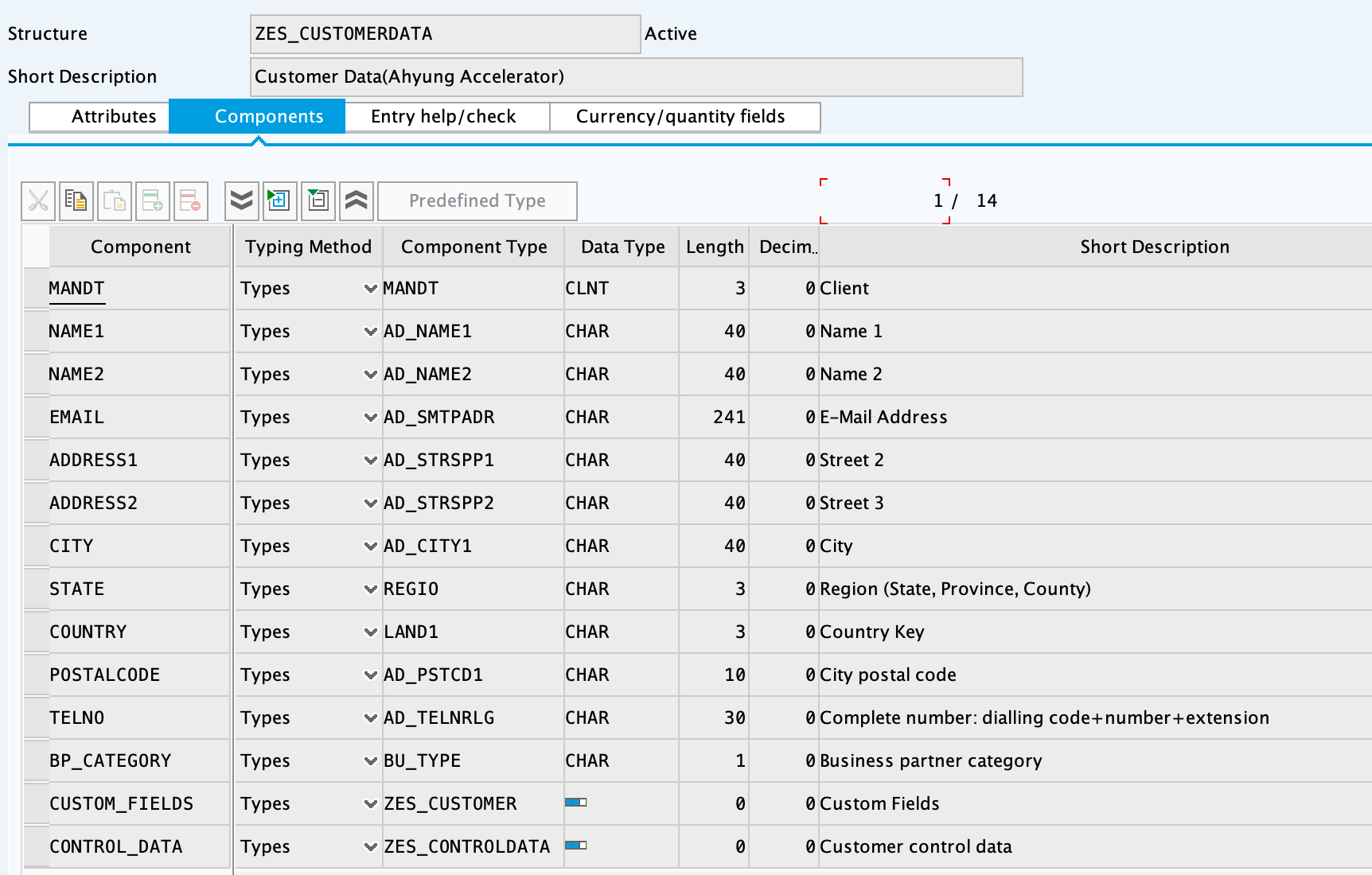
1. Create the same dictionary objects created for the BAPI `ZBAPI_CUSTOMER` using the following
structure/table type:
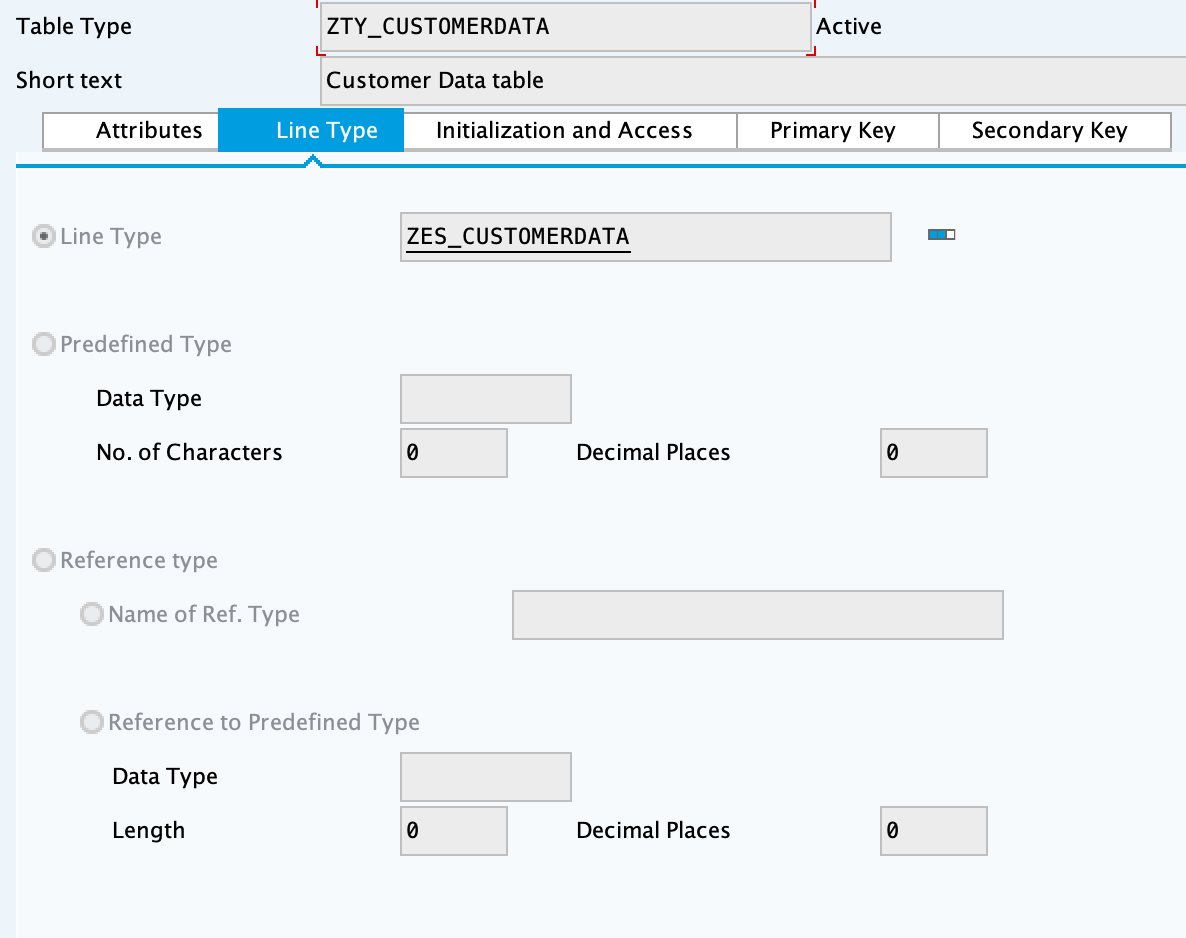
2. Create the function group `ZFG_CUSTOMER2`.
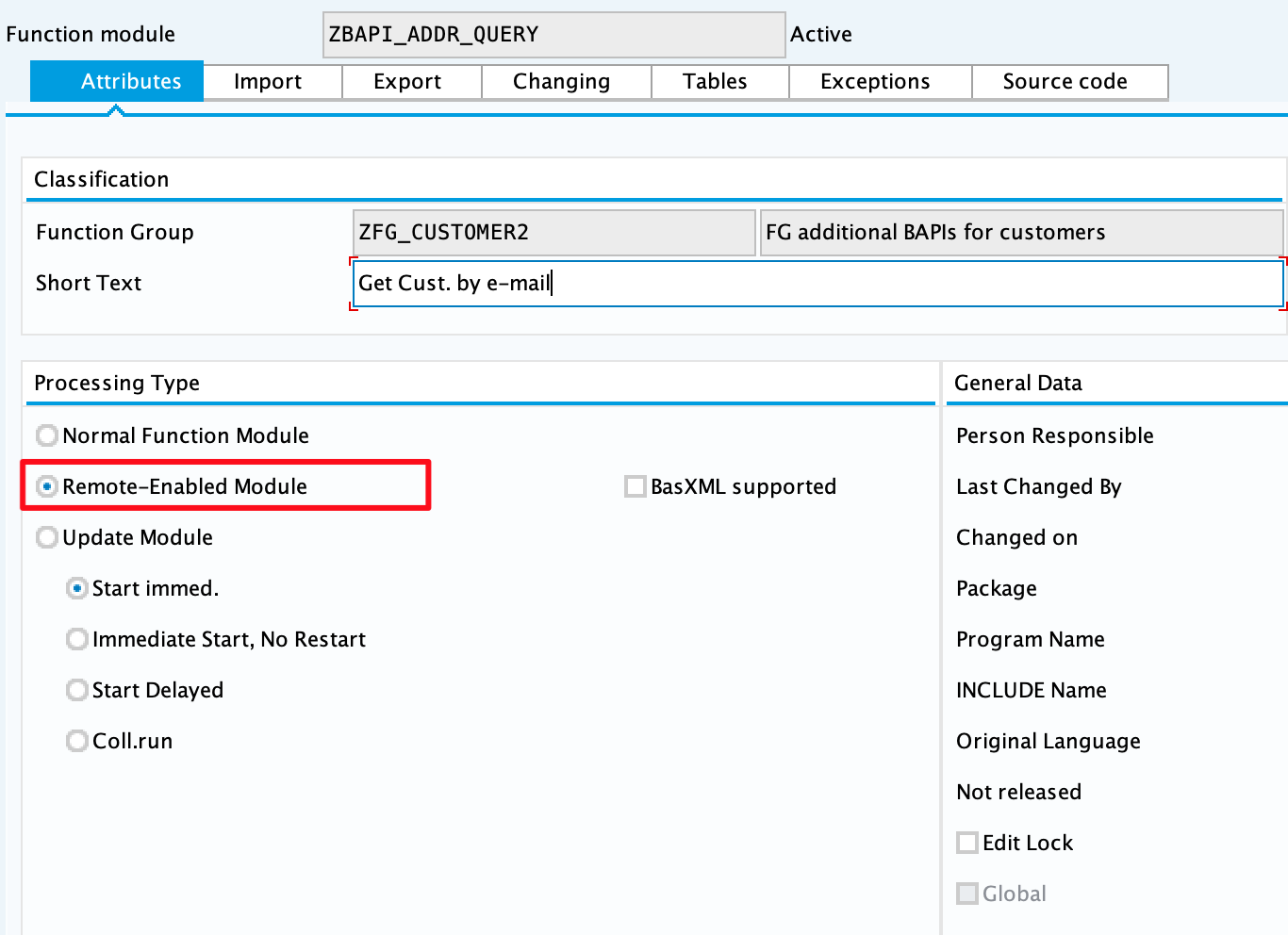
3. Create the function module `ZBAPI_ADDR_QUERY` using 'Remote-enable module' as the processing
type:
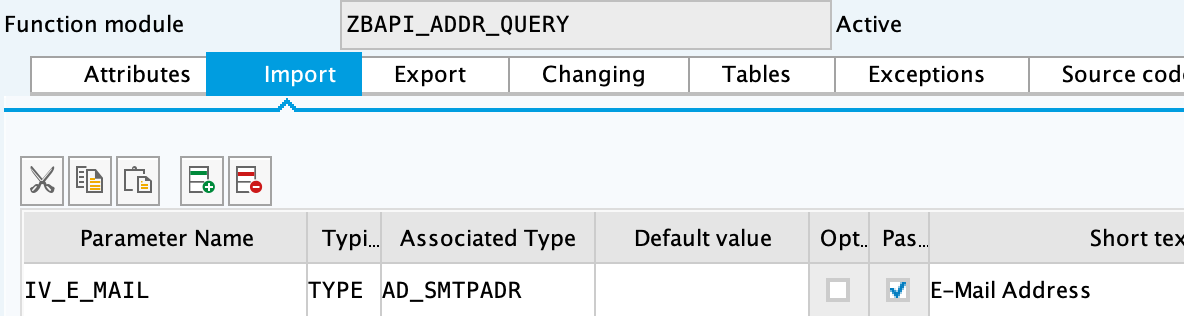
4. Complete the import parameters with the following:
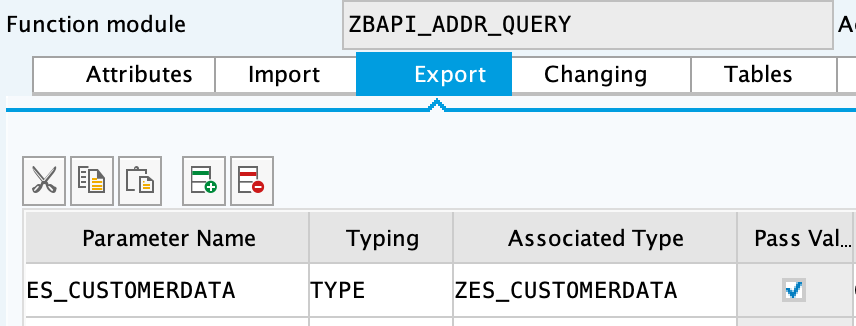
5. Complete the export parameters with the following:
6. Copy and paste the code from 'ZBAPI\_ADDR\_QUERY.txt'.
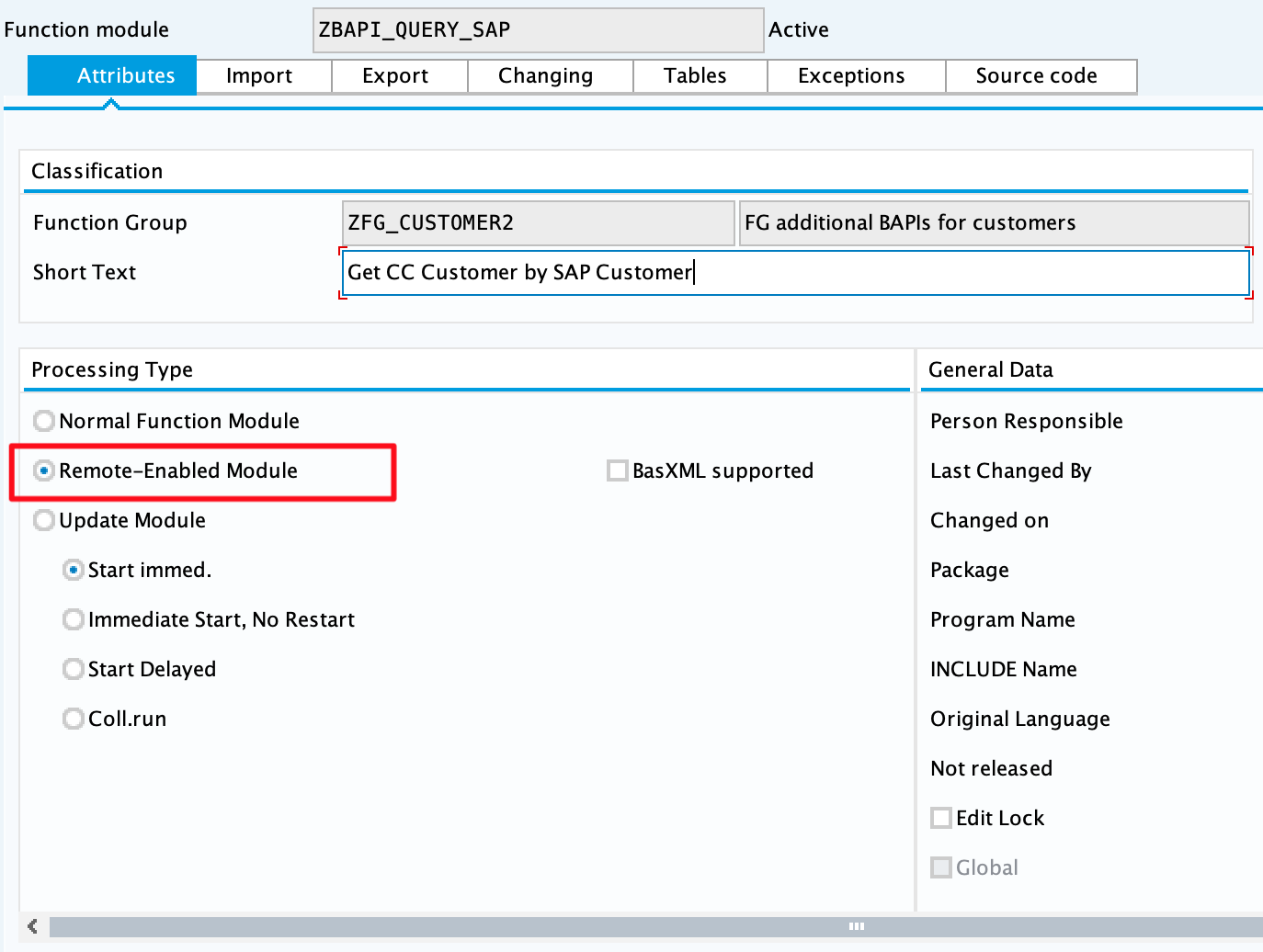
7. Create the function module `ZBAPI_ADDR_SAP` using 'Remote-enable module' as the processing type:
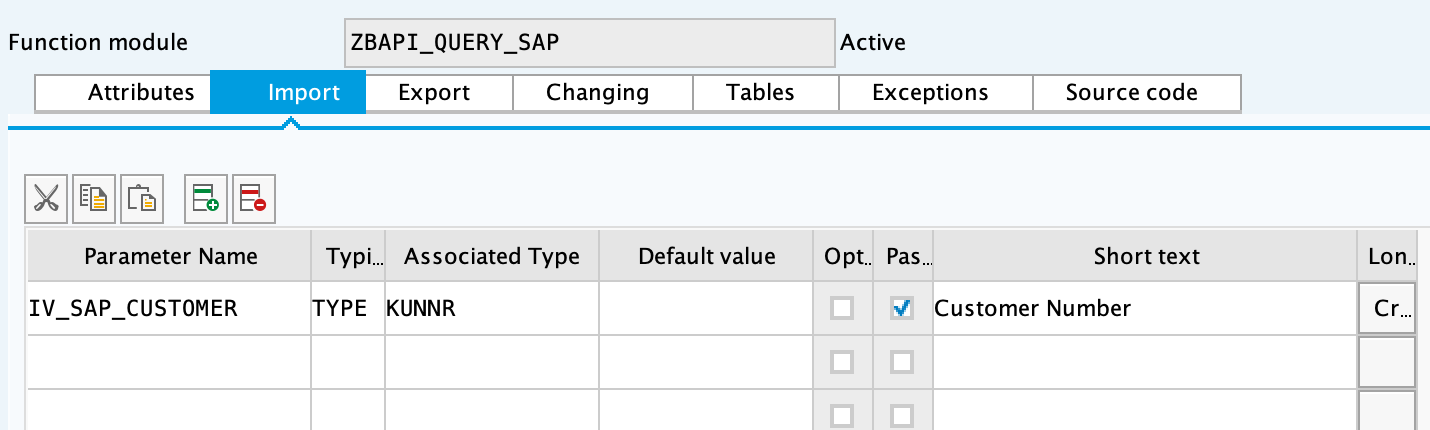
8. Complete the import parameters with the following:
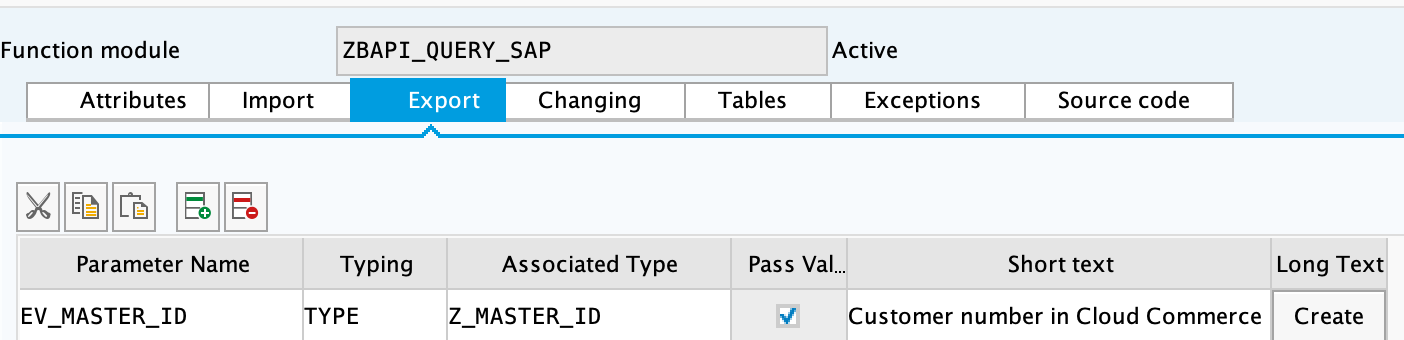
9. Complete the export parameters with the following:
10. Copy and paste the code from 'ZBAPI\_QUERY\_SAP.txt'.
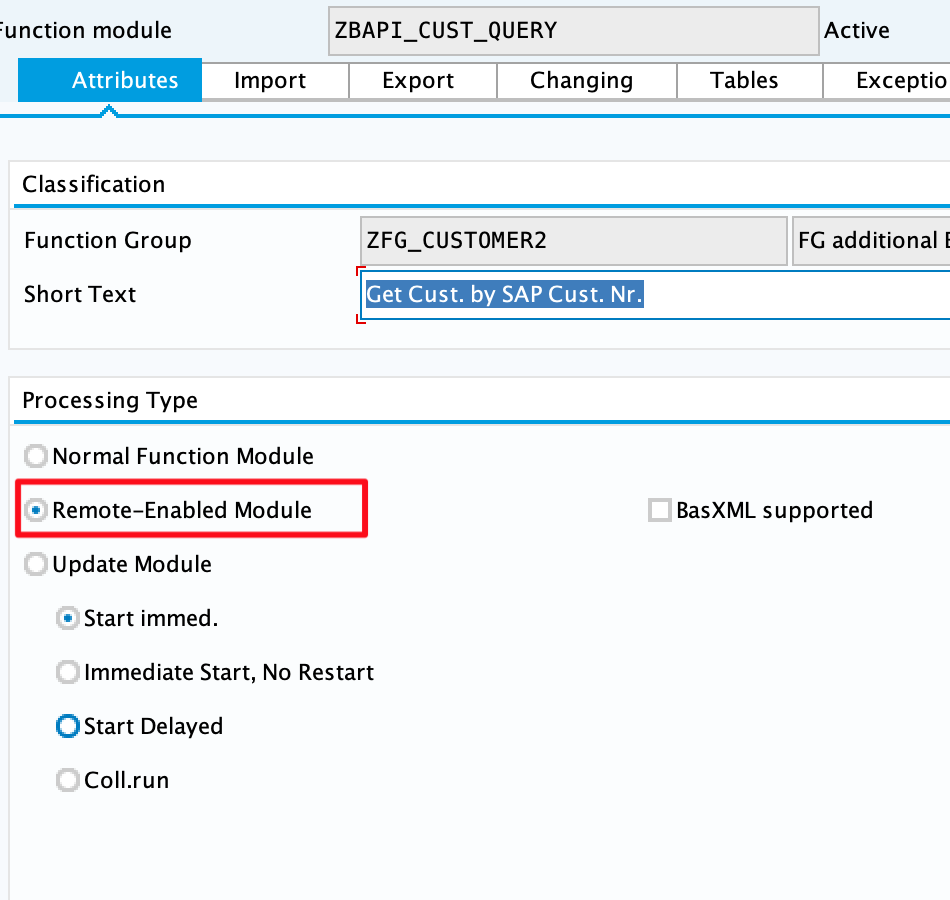
11. Create the function module `ZBAPI_CUST_QUERY` using 'Remote-enable module' as the processing
type:
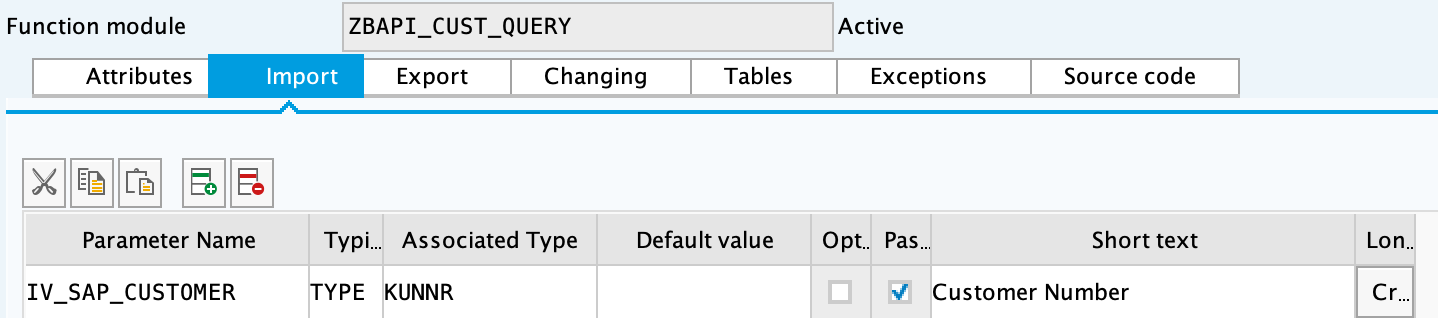
12. Complete the import parameters with the following:
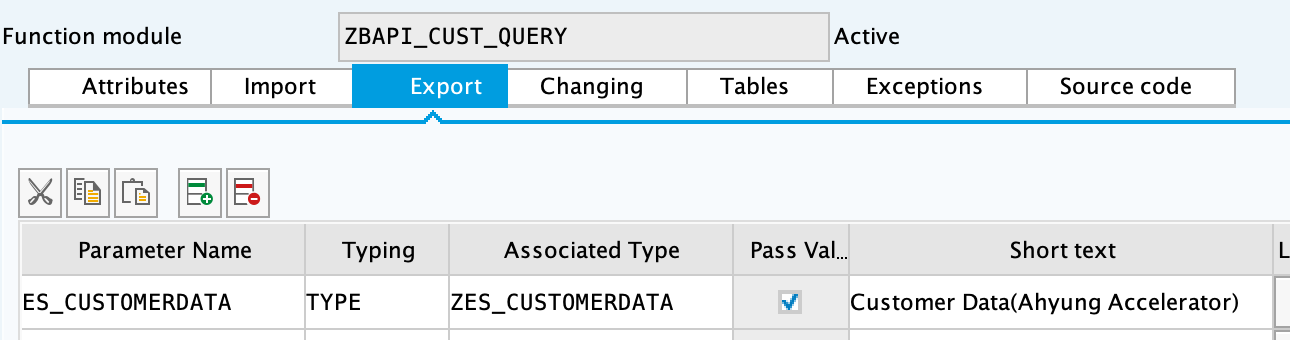
13. Complete the export parameters with the following:
14. Copy and paste the code from 'ZBAPI\_CUST\_QUERY.txt'.
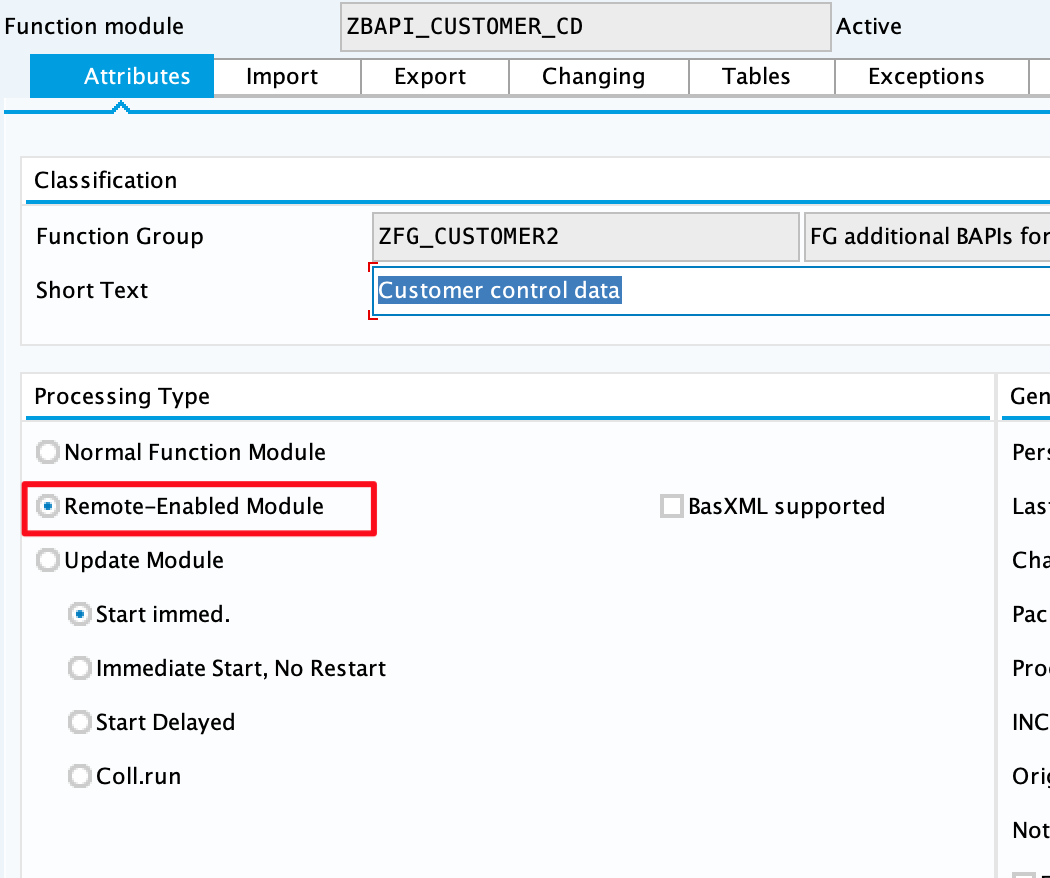
15. Create the function module `ZBAPI_CUSTOMER_CD` using 'Remote-enable module' as the processing
type:
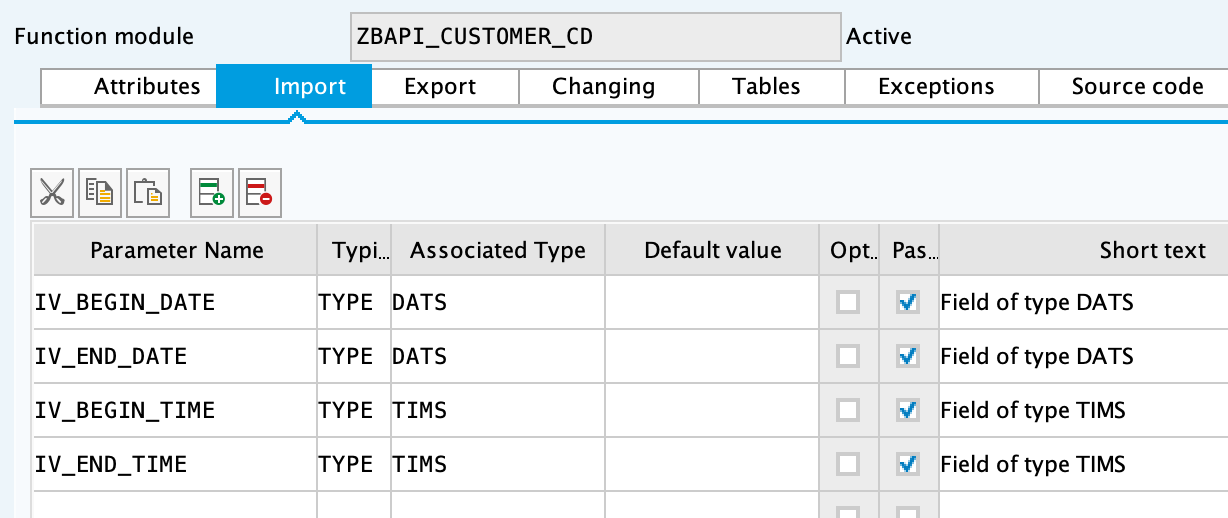
16. Complete the import parameters with the following:
17. Complete the export parameters with the following:
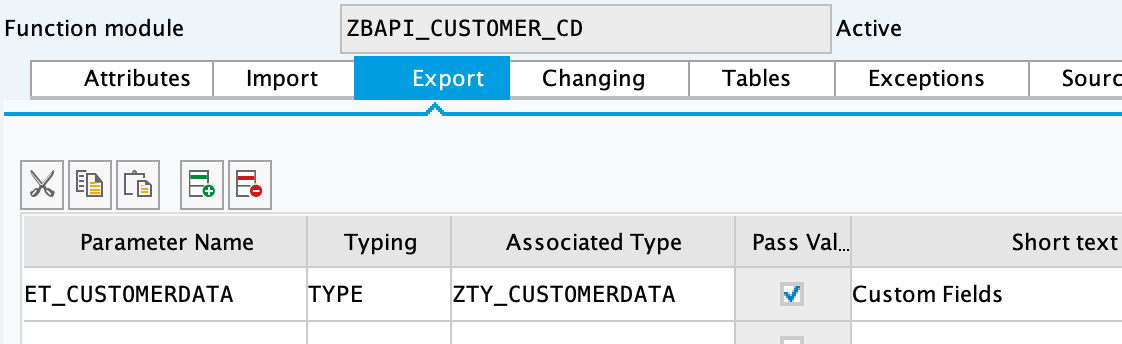
18. Copy and paste the code from 'ZBAPI\_CUSTOMER\_CD.txt'.
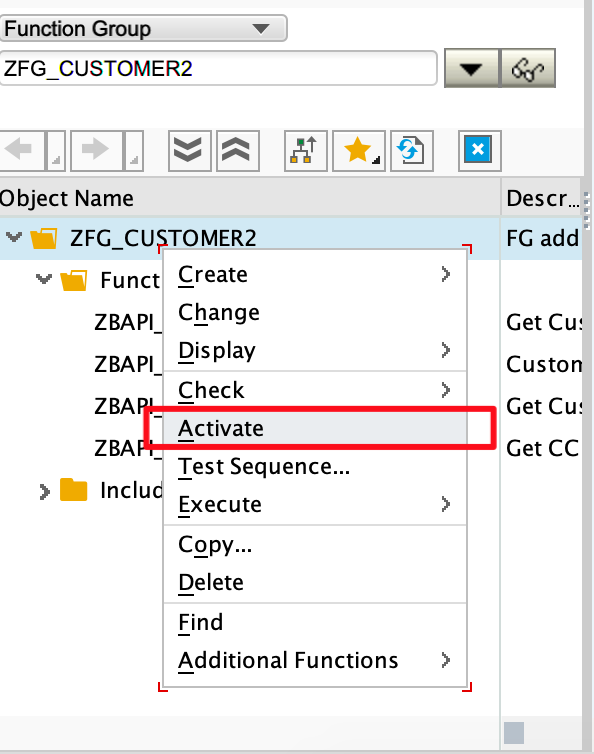
19. Activate the entire function group by right-clicking on it in the tree and selecting 'Activate':
## See Also
- [Prerequisites](https://docs.mulesoft.com/retail/latest/prerequisites)
- [MuleSoft Accelerator for Retail](https://docs.mulesoft.com/retail/latest/)