---
schema_version: "1"
id: 8b351b941820543baef6500dc789931e7fc2c9bb15bb446a66b7e44b80577cc4
title: Defining a Policy Schema Definition
collection: mulesoft
version: current
locale: en-us
portal_url: https://docs.salesforce.com/mulesoft/current/en-us/pdk/1.2/policies-pdk-create-schema-definition.md
canonical_url: https://docs.mulesoft.com/pdk/1.2/policies-pdk-create-schema-definition
source_site: docs.mulesoft.com
content_type: documentation
content_hash: 8d4d68d29e198790cd14ac5e4e35b176b26eafce5b37cf62ed170ccdae099c79
description: MuleSoft Documentation Site
release: "1.2"
latest: false
---
---
product: Omni Gateway Policy Development Kit (PDK)
version: 1.2
---
# Defining a Policy Schema Definition
> For the full documentation index, see: https://docs.mulesoft.com/llms.txt
Similar to the policies listed in the
[Inbound Policies Directory](https://docs.mulesoft.com/gateway/latest/policies-included-directory), custom policies have
configuration parameters. Use the configuration parameters to improve the usability of your custom
policy and support a wider range of API configurations.
To define custom configuration parameters, edit the `definition/gcl.yaml` file. The `gcl.yaml` file
is written in the Gateway Configuration Language (GCL). However, you do not need prior GCL knowledge
to use this tutorial.
The configuration parameters you define in the `gcl.yaml` appear as variables in the
`src/generated/config.rs` file after you run the `make build-asset-file` command. You set any user
input you need for implementing the Rust source code in the `gcl.yaml` file.
Configuration parameters appear in the API Manager UI when applying a policy to Flex Gateway running
in Connected Mode. When applying the policy to Flex Gateway running in Local Mode, it is your
responsibility to distribute a configuration `yaml` file for your policy.
The default `gcl.yaml` file has the following content:
```yaml
apiVersion: gateway.mulesoft.com.v1alpha1
kind: Extension
metadata:
labels:
title: my-custom-policy
category: Custom
spec:
extends:
- name: extension-definition
properties:
stringProperty:
type: string
```
The `gcl.yaml` file contains two sections:
- `metadata`: Defines information about the policy
- `properties`: Defines the policy’s configuration parameters
To define a schema definition:
1. [Define Metadata](#define-metadata)
2. [Define Parameters](#define-parameters)
3. [Use Custom Parameters in Rust Source Code](#use-custom-parameters-in-rust-source-code)
## Define Metadata
Add labels in the metadata section to enrich the data shown in the UI when applying the policy.
To define the metadata, edit the `metadata` in the `gcl.yaml` file.
The supported labels are:
- `title`: The policy name that appears in the UI.
- `description`: A brief explanation of the policy’s behavior.
- `category`: The category the of the policy. The possible categories are `security`, `compliance`,
`transformation`, `quality of service`, and `troubleshooting`.
For example:
```yaml
metadata:
labels:
title: JSON Threat Protection
description: Protects against malicious JSON in API requests.
category: Security
```
`labels` are suggested but not required.
## Define Outbound Policies
By default, PDK creates policies as inbound policies. To create an outbound policy, edit the
`labels` section in the `gcl.yaml` file. Add the `metadata/capabilities/injectionPoint: outbound`
label, for example:
```yaml
metadata:
labels:
title: My Outbound Policy
description: An outbound security policy
category: Security
metadata/capabilities/injectionPoint: outbound
```
## Define Parameters
To add parameters, edit the `spec.properties` section in the `gcl.yaml` file.
For example:
```yaml
properties:
username:
type: string
password:
type: string
```
After defining your properties, you can:
- [Define Required Properties and Default Values](#define-required-properties-and-default-values)
- [Define Supported Types](#define-supported-types)
### Define Required Properties and Default Values
You can define each property listed in the `gcl.yaml` file as `required` and set a `default` value
for the property.
To define properties as required, list them in the `spec.required` object. For example, the
following policy requires a `password` but not a `username`:
```yaml
properties:
username:
type: string
password:
type: string
required:
- password
```
In the above configuration example, applying a policy without a password results in a failed
configuration.
The following example defines a default value for each property:
```yaml
properties:
username:
type: string
default: user1
password:
type: string
default: 12345678
required:
- password
```
If you do not set a value for a required property when applying a policy, the property uses the
default value.
For non-required properties, the API Manager UI suggests the configured default value for
properties. If you do not specify the value for non-required properties, the property is not
configured.
In the following configuration table, if the policy was applied in API Manager, `user2` would appear
as a suggested value for `username` but is not configured if the value is omitted:
Policy Configuration
Effective Configuration
Configuration Status
{}
{"password": "12345678"}
Success
{"username": "user2"}
{"password": "12345678",
"username": "user2"}
Success
{"password": "password"}
{"password": "password"}
Success
{"password": "password",
"username": "user2"}
{"password": "password",
"username": "user2"}
Success
### Define Sensitive Data
Protect sensitive data, such as passwords or certificates, by adding the `security:sensitive`
characteristic:
```yaml
properties:
key:
type: string
default: "YourKey"
"@context": {
"@characteristics": [
"security:sensitive"
]
}
```
When applying the policy, the input value to the sensitive parameter is not visible to the user:
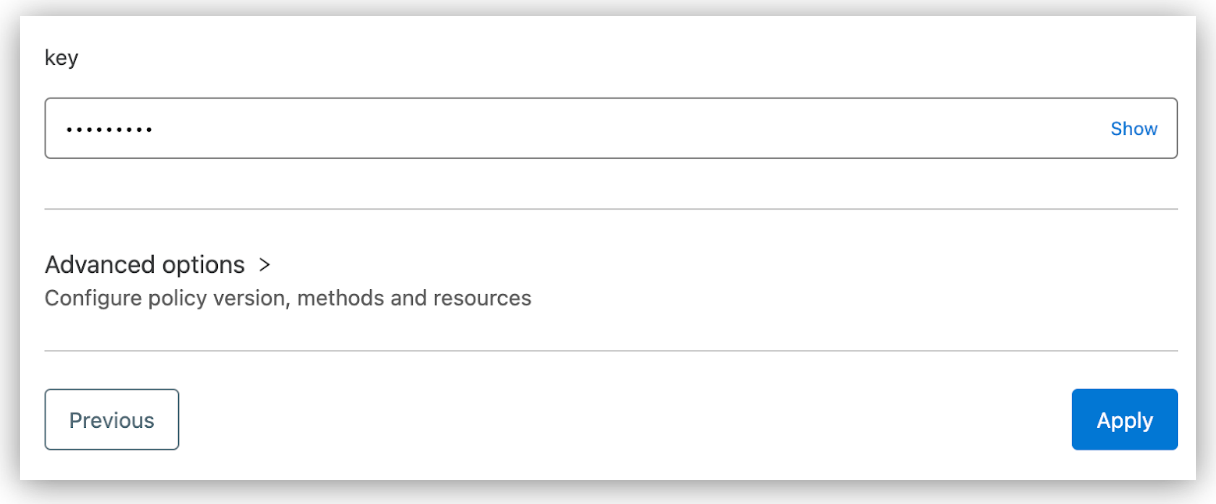
Toggling **Show** reveals any new data currently being entered. However, you cannot reveal
previously stored data. For example, if you configure the example **Key** parameter and apply the
policy, you cannot view the parameter if you edit the policy’s configuration in the future.
### Define Conditional Parameters
Render policy configuration parameters dynamically by establishing conditions to make fields
visible. In the following code example, the `encryptionKey` parameter appears if the user selects
`true` for the `encryptBody` parameter:
```yaml
properties:
encryptBody:
type: boolean
default: false
encryptionKey:
type: string
"@rendering":
"@visibleOn":
- property: encryptBody
value: true
```
In the following code example, the `encryptionKey` parameter is initially visible and disappears if
the user selects `false` for the for the `encryptBody` parameter:
```yaml
properties:
encryptBody:
type: boolean
default: true
encryptionKey:
type: string
"@rendering":
"@visibleOn":
- property: encryptBody
value: true
```
Conditional parameters have the following restrictions:
- You can only define a single condition per parameter.
- Only `string`, `boolean`, or `integer` parameters are supported as the condition parameter.
- The conditionally rendered parameter cannot be an `object` or `enum`.
- Required properties that are conditionally rendered must have a default value defined. In the
above examples, if `encryptionKey` is required, it requires a default value.
- Only root-level parameters support conditional rendering. Inner properties of arrays or objects do
not support conditional rendering.
### Define Enumerated Parameters
Limit user’s input values by defining parameters with the `enum` property, for example:
```yaml
properties:
signingMethod:
type: string
enum:
- rsa
- hmac
```
In the API Manager UI, `enum` parameters render as radio buttons for three or fewer enumerated
values and as a dropdown field for more. For Flex Gateway running in Local Mode, the user must
configure the parameter as one of the enumerated values or the policy configuration fails.
Enumerated parameters don’t support the `@visibleOn` tag. To learn more about how to render
variables dynamically, see [Define Conditional Parameters](#define-conditional-parameters).
### Define Supported Types
Define a supported data type for each policy parameter to ensure the policy receives the correct
data.
The supported types are:
String
The string type specifies that the data is text.
```yaml
properties:
password:
type: string
```
The `string` type also supports enables you to configure a `format` type.
The supported formatting types are:
- `dataweave`: Specifies the input parameter is a DataWeave variable and notifies Flex Gateway to
transform the input. For more information about DataWeave expressions, see
[Define DataWeave Expressions](#dataweave-expressions).
- `service`: Specifies the input parameter is a URI and automatically creates a Flex Gateway service
to enable HTTP calls from the policy.
- `ipRange`: Specifies the expected text is a range of IPs and provides additional validation on the
input.
- `uri`: Specifies the expected text is a URI and provides additional validation on the input. Only
use `uri` when the URI is not a service making HTTP calls from the policy.
The following yaml snippet demonstrates all string formats:
```yaml
properties:
externalService:
type: string
format: service
default: "https://auth-service:9000/login"
token:
type: string
format: dataweave
default: "#[splitBy(attributes.headers['Authorization'], ' ')[1]]"
blockedIps:
type: string
format: ipRange
default: "192.168.3.1/30"
loginUrl:
type: string
format: uri
default: "https://anypoint.mulesoft.com/login"
```
Number
The `number` type specifies data as a floating point value.
For example:
```yaml
properties:
squareRoot:
type: number
default: 1.414213562
seconds:
type: number
default: 10
```
Integer
The `integer` type specifies data as an integer value.
For example:
```yaml
properties:
maxHeaders:
type: integer
default: 10
```
Boolean
The `boolean` type specifies data as a boolean value. Supported values are `true` or `false`. For
example:
```yaml
properties:
skipValidation:
type: boolean
default: false
requireCredentials:
type: boolean
default: true
```
Array
The `array` type specifies the data as a list of ordered elements. For the `array` type, you must
also specify `items.type` to specify the data type of the items in the array.
For example:
```yaml
properties:
scopes:
type: array
items:
type: string
default: ["READ", "WRITE"]
```
Object
The `object` type specifies the data as a list of ordered elements with multiple properties. For the
`object` type, you must also specify `properties.type` for each element in the object.
For example:
```yaml
properties:
user:
type: object
properties:
id:
type: string
name:
type: string
required:
- id
- name
default: { "id": "1", "name": "John Doe" }
```
### Define DataWeave Expressions
The `dataweave` format for `string` type parameters specifies the input parameter as a DataWeave
expression.
The `dataweave` variable supports the following expression bindings:
```yaml
:
type: string
format: dataweave
bindings:
payload:
mimeType: text
attributes: true
authentication: false
vars: []
```
- `payload`: The body of the incoming request. Define the `mimeType` as either `text` or `json` to
set how to read the payload. By default, `mimeType` is set to `text`. To restrict the use of the
`payload` variable, you must exclude the payload variable, for example:
```yaml
bindings:
attributes: true
authentication: false
vars: []
```
- `attributes`: Attributes, such as headers, of the incoming request. Set `attributes` to `true` to
enable the policy to read the attributes of the incoming request. By default, `attributes` is set
to `true`.
- `authentication`: Authentication information of the incoming request. Set `authentication` to
`true` to enable the policy to read authentication details of the incoming request. By default,
`authentication` is set to `false`.
- `vars`: Specifies the names of the variables that are available for the policy to use. By default,
`vars` is empty. When the policy is applied, if the user inputs a variable that is not defined in
the schema, the policy evaluates the variable as `null`.
For more information about the supported expression bindings, see
[Predefined Variables](https://docs.mulesoft.com/dataweave/latest/dataweave-variables-context).
If the user’s expression contains bindings that are not defined in the policy’s schema when applying
the policy, the policy configuration fails. For example, if the user expression is
`[authentication.principal]` and `authentication` is not set to `true`, an error similar to the
following occurs:
test-local-flex-1 | \[flex-gateway-envoy\]\[error\] wasm log main: \[policy:
ingress-http-jwt-auth-v1-0-impl-1.default\]\[api: ingress-http.default.svc\] Launcher problem:
Failed to parse configuration '{"dw":"P\[\[\\".\\", \\"0-24\\", \[\\":ref\\", \\"0-14\\",
\\"authentication\\"\], \[\\":str\\", \\"15-24\\", \\"principal\\"\]\],
\\"#\[authentication.principal\]\\"\]"}'. Cause: Error compiling expression: Unknown symbol
\`authentication\` at line 1 column 141
When evaluating the DataWeave expression in your policy, you must provide the script to resolve the
expression. To learn how to implement DataWeave expressions in your Rust source code, see
[Implement DataWeave Expressions](https://docs.mulesoft.com/pdk/1.2/policies-pdk-configure-features#use-dataweave-expressions).
For more information about DataWeave support for Flex Gateway, see
[DataWeave Support in Omni Gateway Policies](https://docs.mulesoft.com/gateway/latest/policies-dataweave-support).
## Use Custom Parameters in Rust Source Code
After you modify the `gcl.yaml` file, run one of the following commands to propagate the changes to
the `src/generated/config.rs` rust file and the JSON schema for the API Manager UI:
- `make build-asset-files` only propagates the changes to `src/generated/config.rs`.
```cmd
make build-asset-files
```
- `make build` propagates the changes to `src/generated/config.rs` and generates the policy’s target
files. Do not run `make build` if you do not want to override your policy’s target file:
```cmd
make build
```
For more information about compiling your policy, see
[Compiling Custom Policies](https://docs.mulesoft.com/pdk/1.2/policies-pdk-compile-policies).
Properties defined in the `gcl.yaml` files are mapped to the Rust data types in the `config.rs` Rust
file as follows:
gcl.yaml
config.rs
string
String
uri string
String
ipRange string
String
dataweave string
pdk::script::Script
number
f64
integer
i64
boolean
bool
array
vec containing the specified item type
object
struct containing the specified property types
> [!IMPORTANT] If a parameter in `gcl.yaml` is not defined as ‘required’, the parameter’s
> counterpart in the `config.rs` is wrapped in an ‘Option’ object.
>
> Validate that the parameter is present before unwrapping. Unwrapping a parameter that is not
> present may cause a `panic!`.
>
> Use one of the following validation examples to ensure the parameter is present:
>
> - `if let Some(val) = myValue`
>
> - `if myValue.is_some() {myValue.unwrap()}`
For example, the following `gcl.yaml` files produces the following `struct` in `config.rs`:
1. `gcl.yaml`:
```yaml
properties:
tokenExtractor:
type: string
format: dataweave
default: "#[dw::core::Strings::substringAfter(attributes.headers['Authorization'], 'Bearer ')]"
reject_missing_tokens:
type: boolean
max_chars:
type: number
required:
- tokenExtractor
```
2. `config.rs`:
```rust
pub struct Config {
#[serde(alias = "max_chars")]
pub max_chars: Option,
#[serde(alias = "reject_missing_tokens")]
pub reject_missing_tokens: Option,
#[serde(alias = "tokenExtractor")]
pub token_extractor: pdk::script::Script,
}
```
For example, you can access the values in `struct Config` with the following `.operators` in the
`entrypoint` function:
```rust
#[entrypoint]
async fn configure(launcher: Launcher, Configuration(configuration): Configuration,) -> Result<(), LaunchError> {
let config: Config = serde_json::from_slice(&configuration)?;
match config.reject_missing_tokens {
```
## See Also
- [PDK Troubleshooting](https://docs.mulesoft.com/pdk/1.2/policies-pdk-troubleshooting)