---
schema_version: "1"
id: 5d8a56a1065b5c97915fdceab739602a9c308cacdb3f5e9111575cda329b5f1f
title: "Tutorial: Store and Retrieve Data from Object Store v2"
collection: mulesoft
version: current
locale: en-us
portal_url: https://docs.salesforce.com/mulesoft/current/en-us/object-store/osv2-tutorial.md
canonical_url: https://docs.mulesoft.com/object-store/osv2-tutorial
source_site: docs.mulesoft.com
content_type: documentation
content_hash: 86845d0fe744884a02bb8309a3a2292f3dc55892b5b01dcf3fe8d051e125a3ad
description: MuleSoft Documentation Site
latest: true
---
---
product: Object Store
---
# Tutorial: Store and Retrieve Data from Object Store v2
> For the full documentation index, see: https://docs.mulesoft.com/llms.txt
Use this tutorial to configure Anypoint Connector for Object Store (Object Store Connector) in your
app so that you can use Object Store v2 to store and view data.
You can send any serializable data as key-value pairs to the object store.
In this tutorial, you:
- [Create a Mule 4.x app in Anypoint Studio 7.x](#create-app-studio7) and configure Object Store
Connector for Mule 4 in the app.
You then test your app by sending data to the object store and viewing it in Runtime Manager.
## Before You Begin
Before you begin this tutorial, you must have:
- Familiarity with Anypoint Studio, Anypoint Platform, and Runtime Manager
- An [Anypoint Platform account](https://anypoint.mulesoft.com)
If you don’t have an Anypoint Platform login, click **Sign up** on the Anypoint Platform sign-in
page.
- Anypoint Studio installed on your system. See
[Download and Install Anypoint Studio](https://docs.mulesoft.com/studio/to-download-and-install-studio)
- An [`curl` command line tool](https://curl.se/) for testing
This tutorial uses the HTTP Listener source to initiate Object Store Connector access and a `curl`
command to send JSON data to your Mule app.
Instead of `curl`, you can use Postman or browser plugins.
## Create a Mule 4.x App with an Object Store in Anypoint Studio 7.x
First, use Studio 7.x to configure an app that includes an HTTP Listener source and Object Store
Connector. Then, deploy the app to CloudHub and use a `curl` command to send a key and value, and
view the key in Runtime Manager.
To configure a Mule 4.x app in Studio 7.x:
1. Start Studio, click **File** > **New** > **Mule Project**, and name the project `osv2-demo`.
2. Install Object Store Connector for Mule 4:
1. Click the **Exchange** icon in the toolbar:

2. Enter your Anypoint Platform username and password, if prompted.
3. In Exchange, select **Provided by MuleSoft** and **Connectors**, and then search for Object
Store Connector:
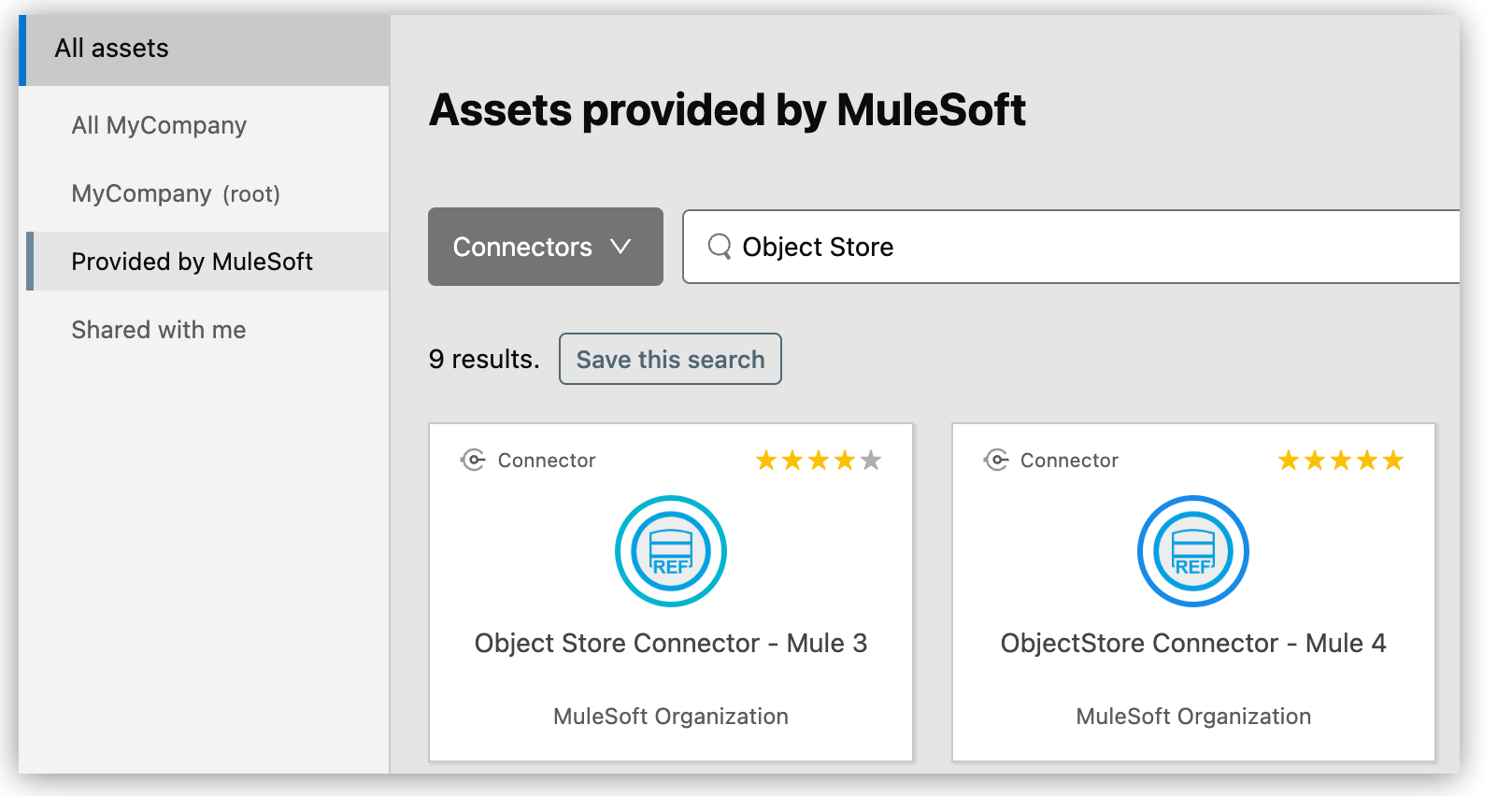
4. Select **ObjectStore Connector - Mule 4**.
5. Click **Add to project**:
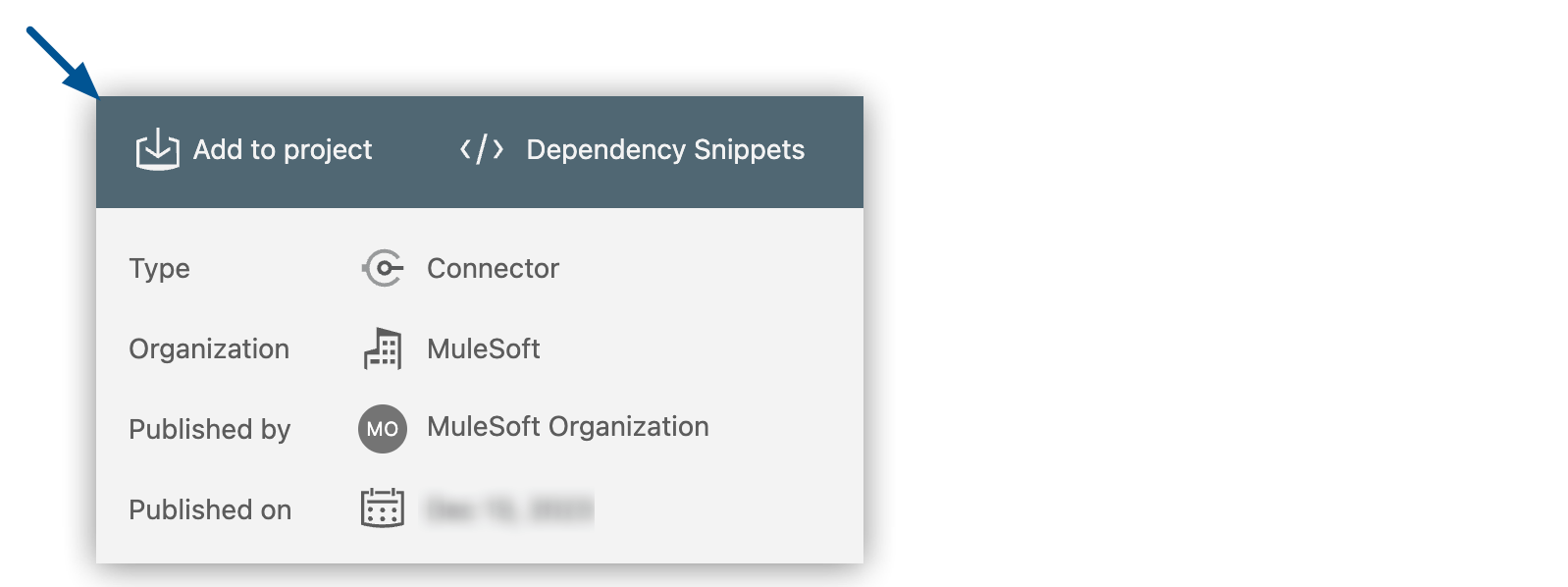
6. At the confirmation prompt, click **Proceed** and then click **OK**.
3. In the **Mule Palette** view, click **HTTP**, and then drag **Listener** to the Studio canvas:
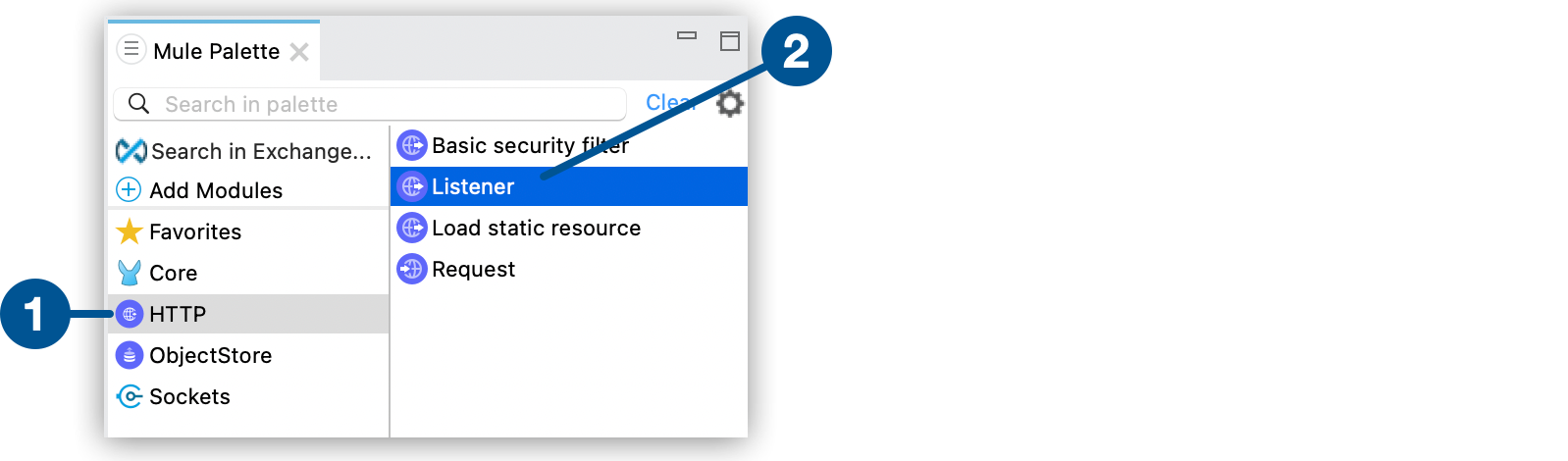
| 1 | HTTP Connector |
| 2 | Listener operation |
4. Click **ObjectStore** and then drag the **Store** operation to **Listener** on the canvas:
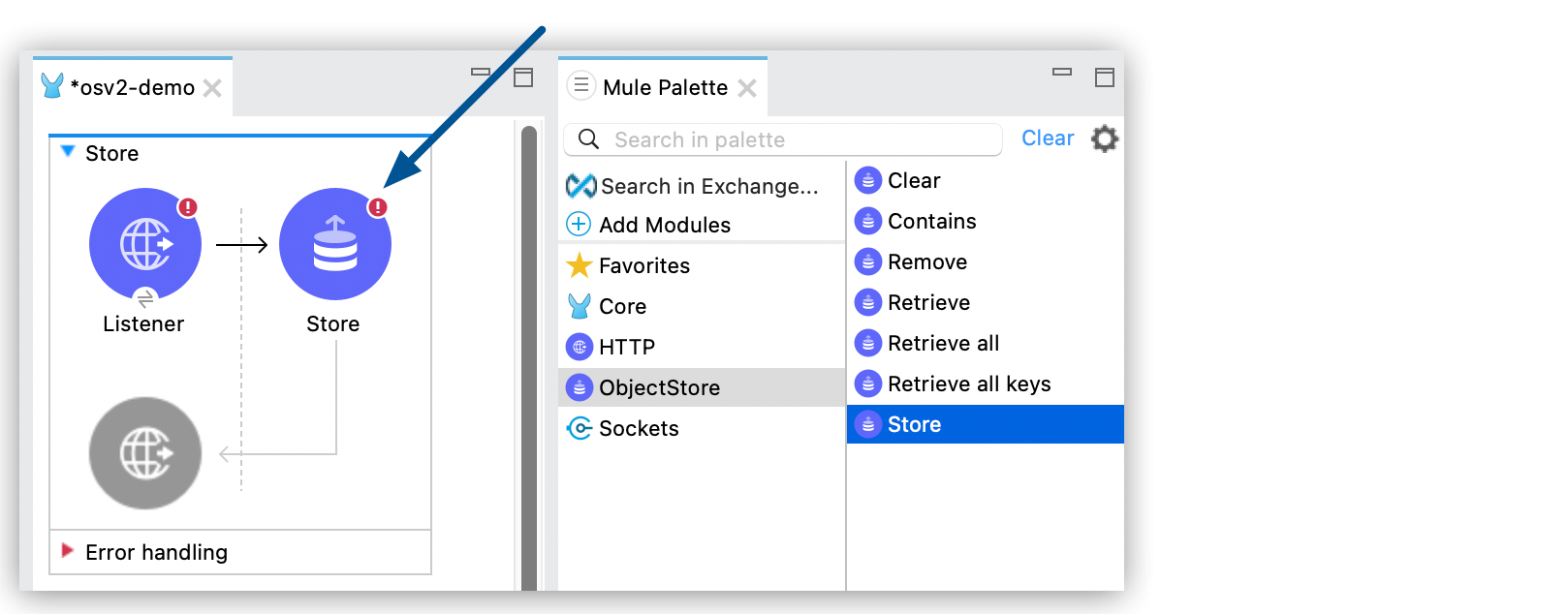
5. In the canvas, click **Listener**.
6. In the **Listener** properties window, set **General > Path** to `/store`.
7. Click the plus icon (+) for the **Connector configuration** field.
8. In the HTTP Listener **Global Element Properties** window, verify that the value of **Host** is
`0.0.0.0` and **Port** is `8081`, and then click **OK**.
The **Listener** properties window indicates that there are no errors:

9. In the canvas, click the **Store** operation.
10. In the **Store** properties window, specify `#[payload.key]` in the **Key** field and
`payload.value` in the **Value** field:
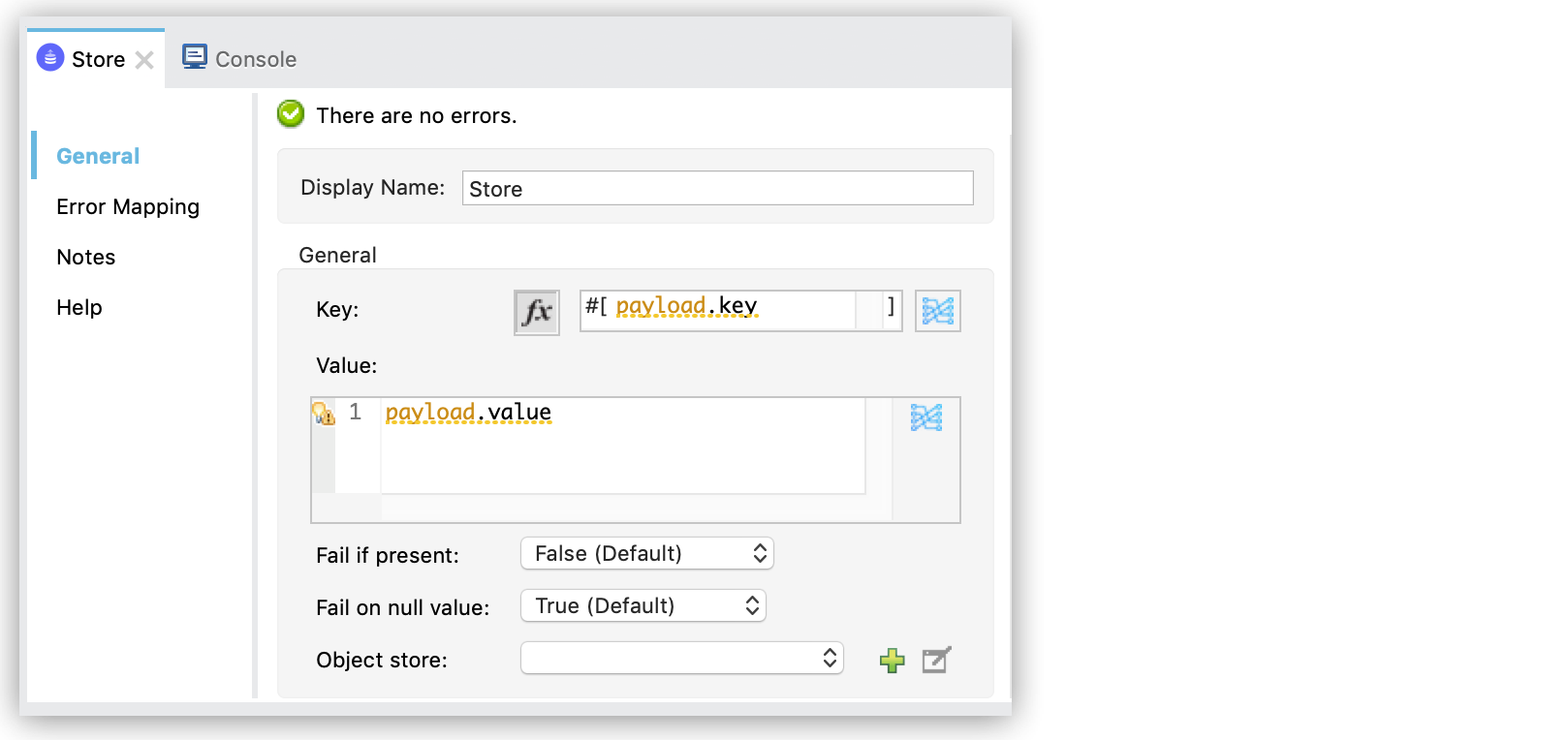
The maximum number of characters in a key is 256.
Object Store v2 for CloudHub doesn’t support using pipe (`|`) characters in keys and converts
any spaces to plus (`+`) characters.
11. In the canvas, select the flow.
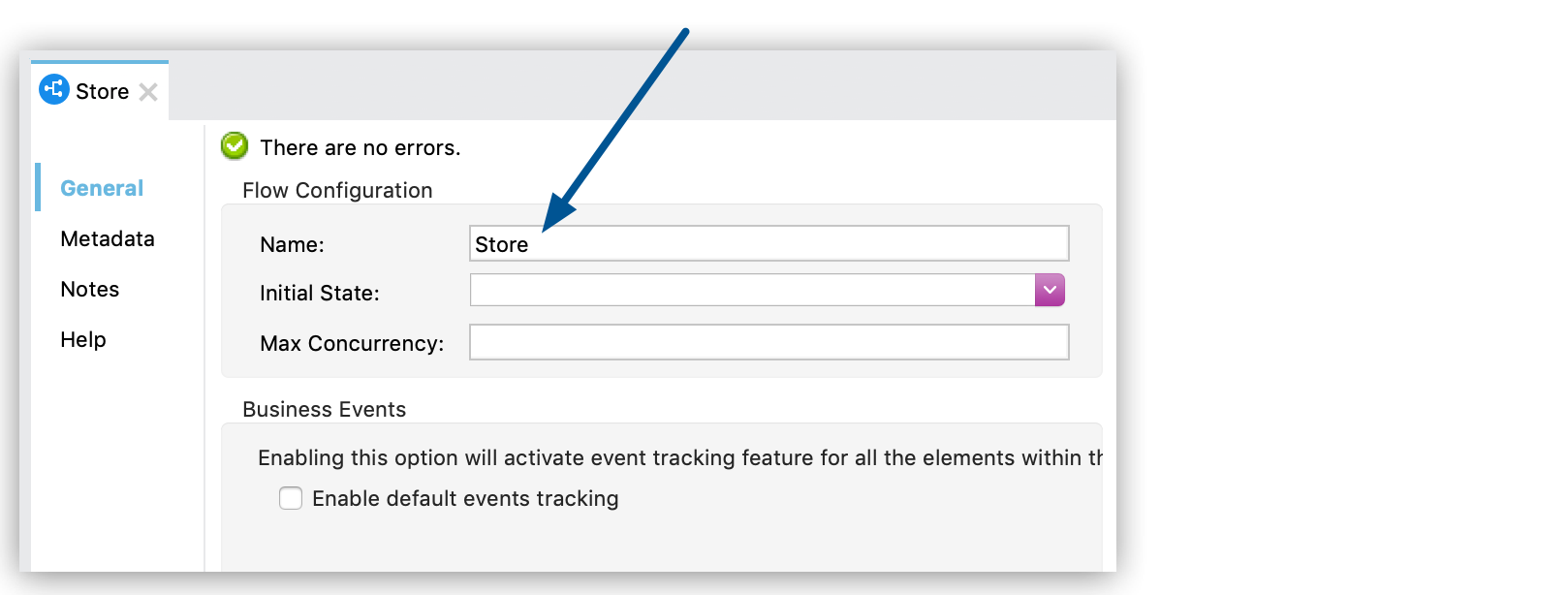
12. In the **Flow Configuration** properties window, change the name to `Store`:
13. In the **Mule Palette** view, click **HTTP** and then drag another **Listener** to the canvas
after the first flow.
14. Click **ObjectStore** and then drag the **Retrieve** operation after to the **Listener** in the
second flow.
15. In the canvas, click **Listener**.
16. In the **Listener** properties window, set **General > Path** to `/retrieve`.
17. In the **Connector configuration** menu, select the same **HTTP\_Listener\_config** option that
you set up for the Listener operation in the Store flow:

18. In the canvas, click the **Retrieve** operation.
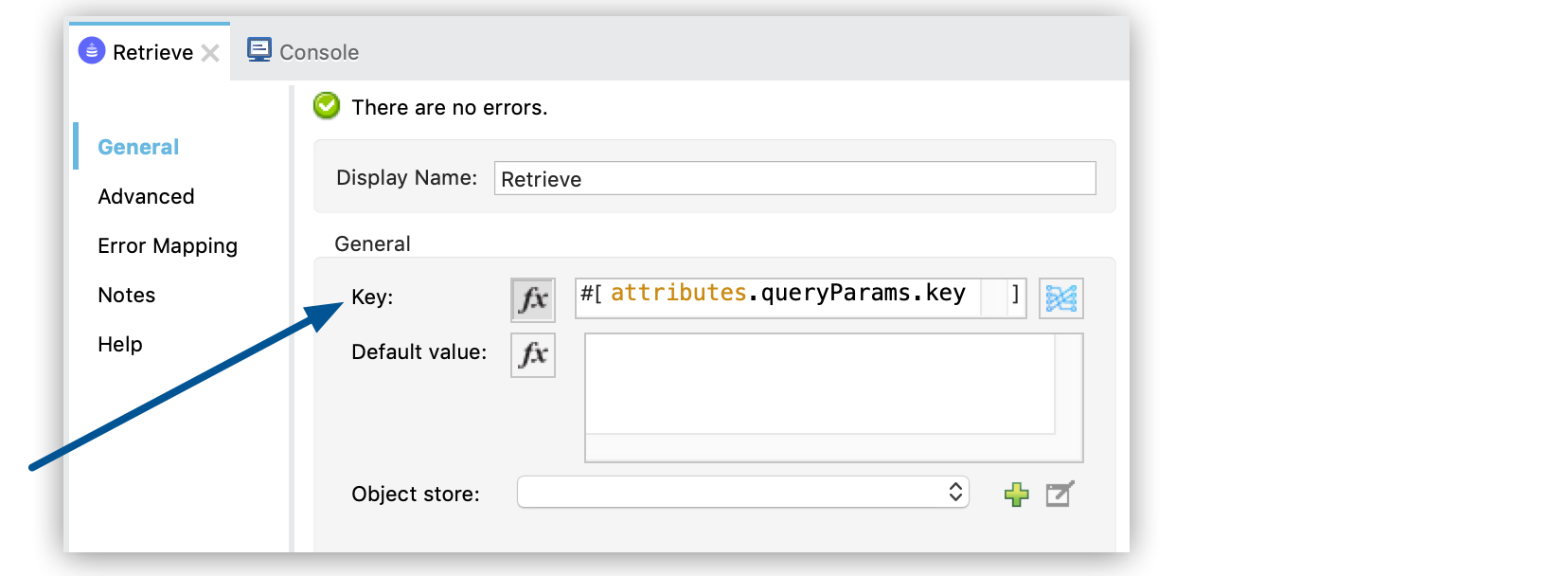
19. In the **Retrieve** properties window, specify `#[attributes.queryParams.key]` in the **Key**
field:
20. In the canvas, select the second flow and, in the **Flow Configuration** properties window,
change the name to `Retrieve`.
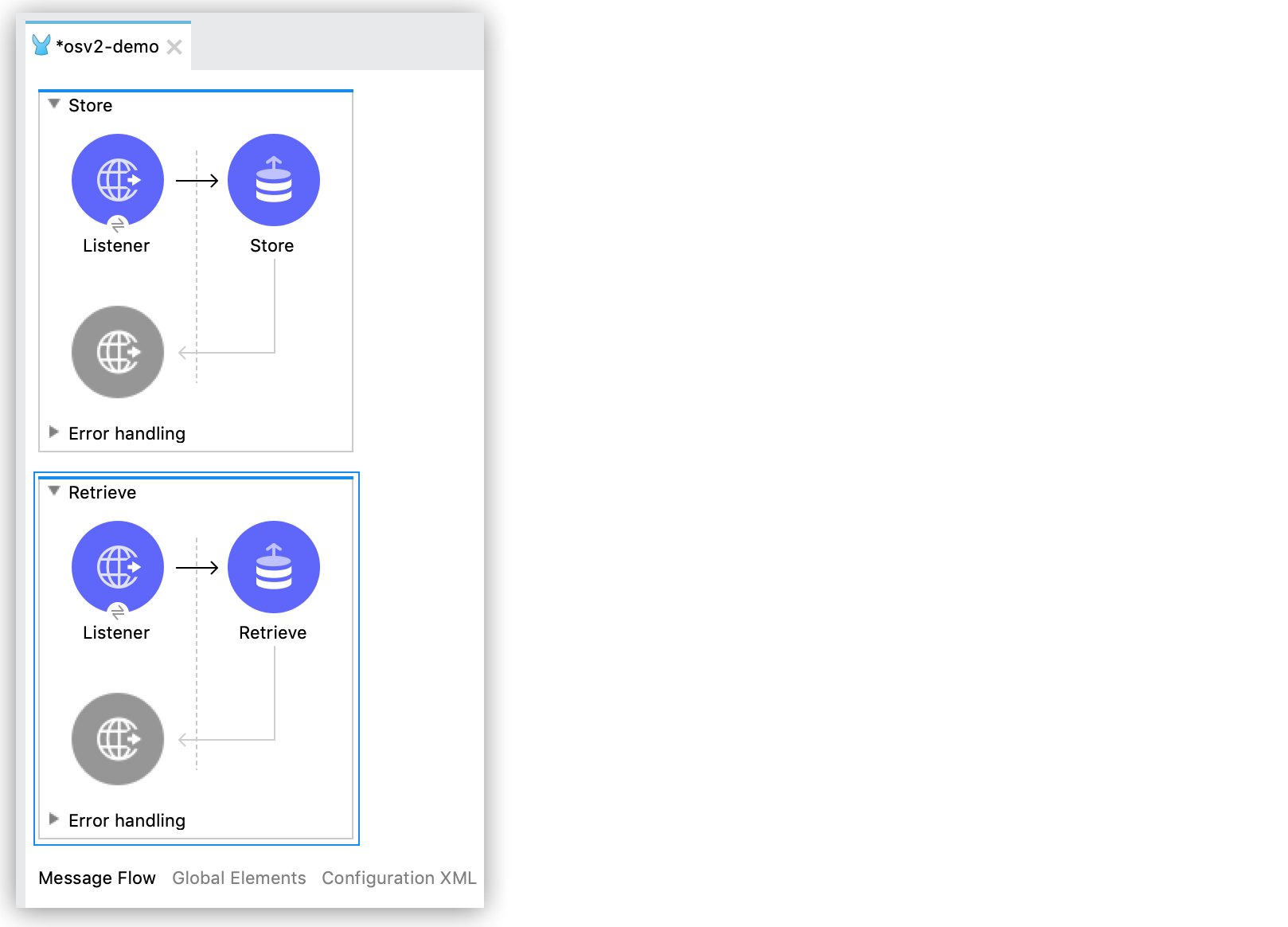
The flows look like this:
21. In **Package Explorer** in Studio, right-click `osv2-demo` and select **Anypoint Platform** >
**Deploy to CloudHub**.
22. In the Runtime Manager **Deploying Application** window:
1. Select CloudHub from **Deployment Target**.
2. Click **Deploy Application**:
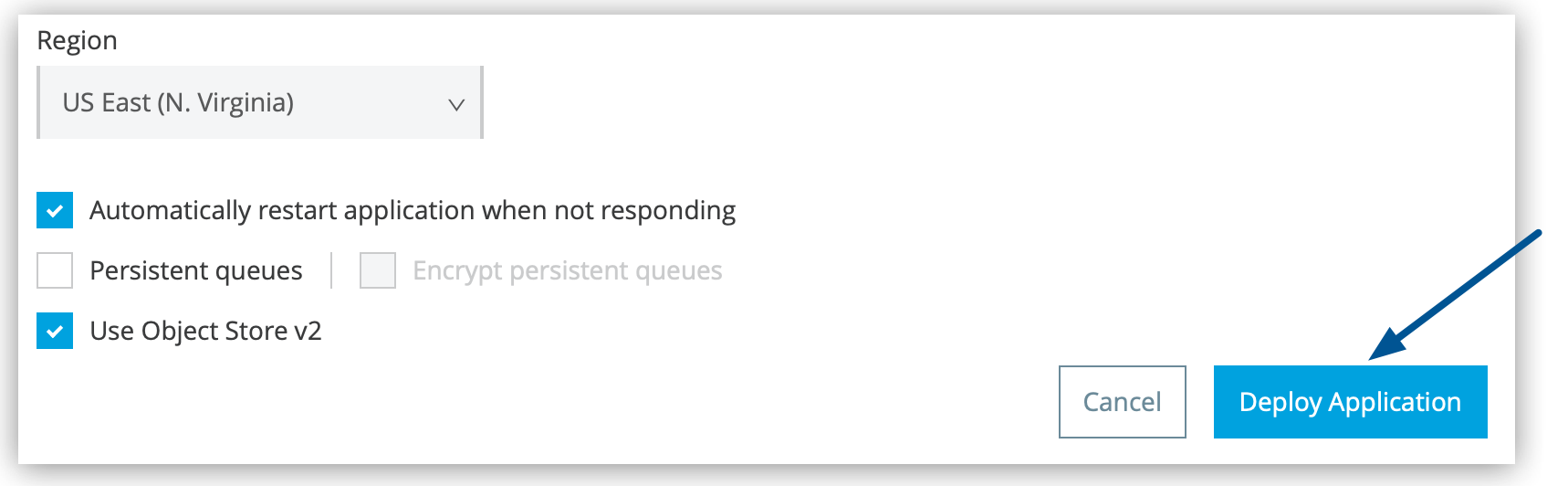
23. Click **Open in Browser** to display the app in Runtime Manager.
If CloudHub displays a permissions error, select a different environment to deploy to.
You have successfully used Studio 7 to configure an app with an object store. Next, you test the
connection by submitting REST API commands to the Object Store API and using Runtime Manager to view
the results.
### Test Your Studio 7.x Application
After you create your app in Studio 7, you can test it by using a `curl` command to submit a REST
API command to the Object Store API. Then, use Runtime Manager to view the results.
To test your app:
1. In Runtime Manager, click **Applications** and ensure that the `osv2-demo` app is running.
2. Click the **Status** column for the `osv2-demo` app to display its details.
3. Copy the **App url** value:
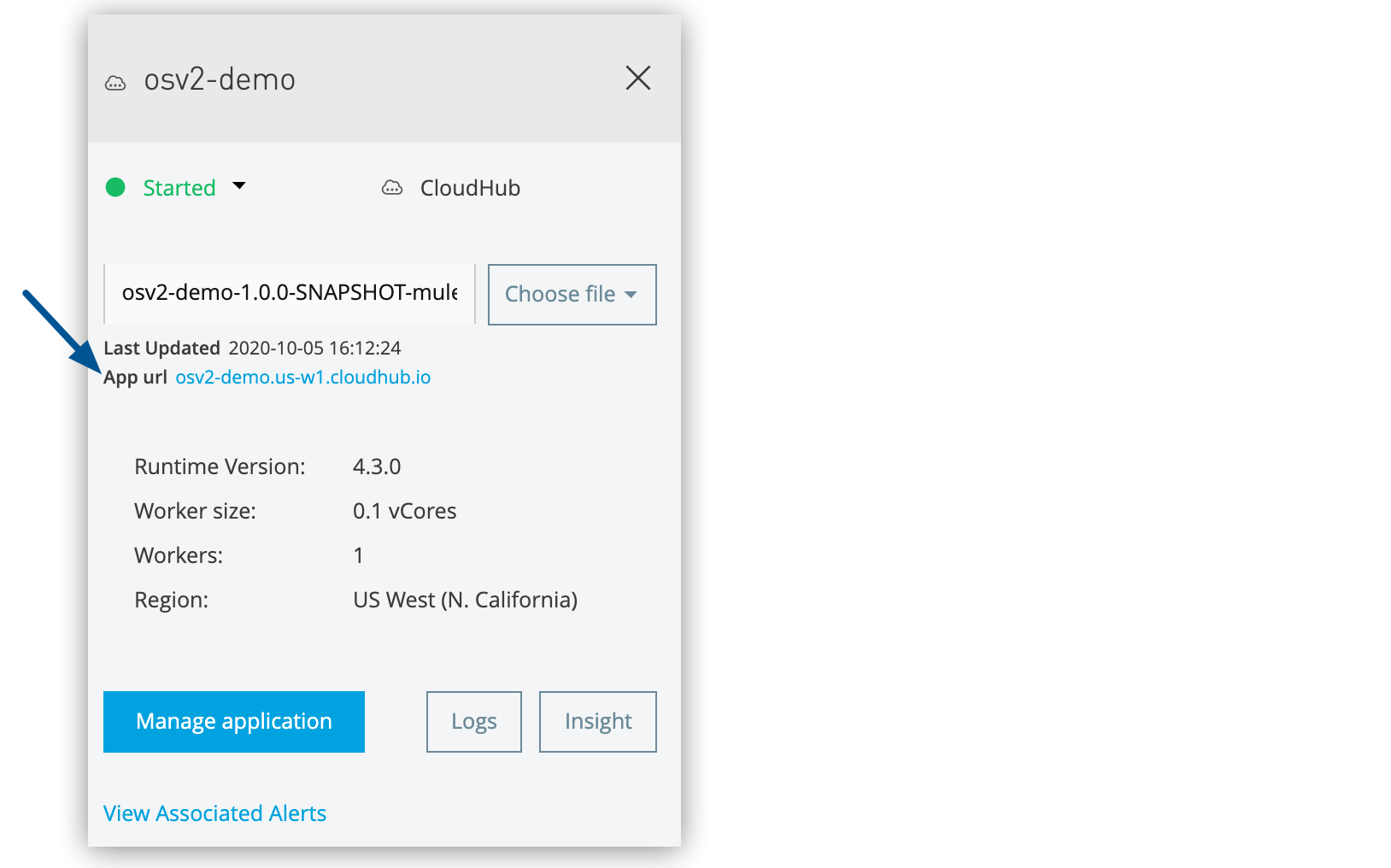
4. From the command line, run this `curl` command, replacing _APP-URL_ with the **App url** value
that you copied from Runtime Manager:
```console
$ curl -X POST -H "Content-Type: application/json" -d '{ "key": "myKey", "value": "OSv2 Test" }' "http://APP-URL/store";echo
```
The output from this command displays the key-value pair that you sent to the object store:
```console
{ "key": "myKey", "value": "OSv2 Test" }
```
5. In Runtime Manager, click **Manage application** in the details pane for the application:
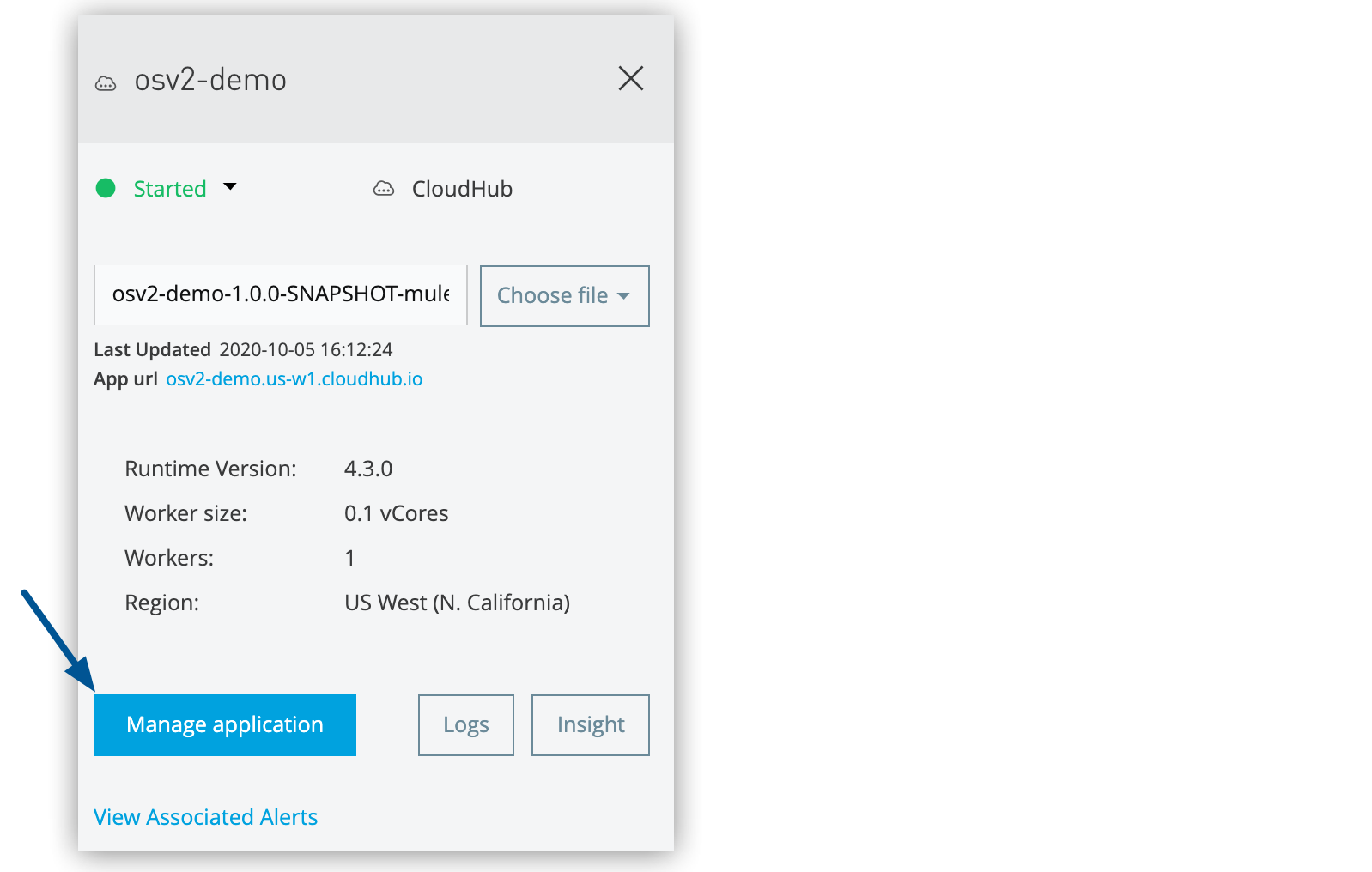
6. Select **Object Store** from the sidebar.
7. Click the object store, the partition, and then the key:
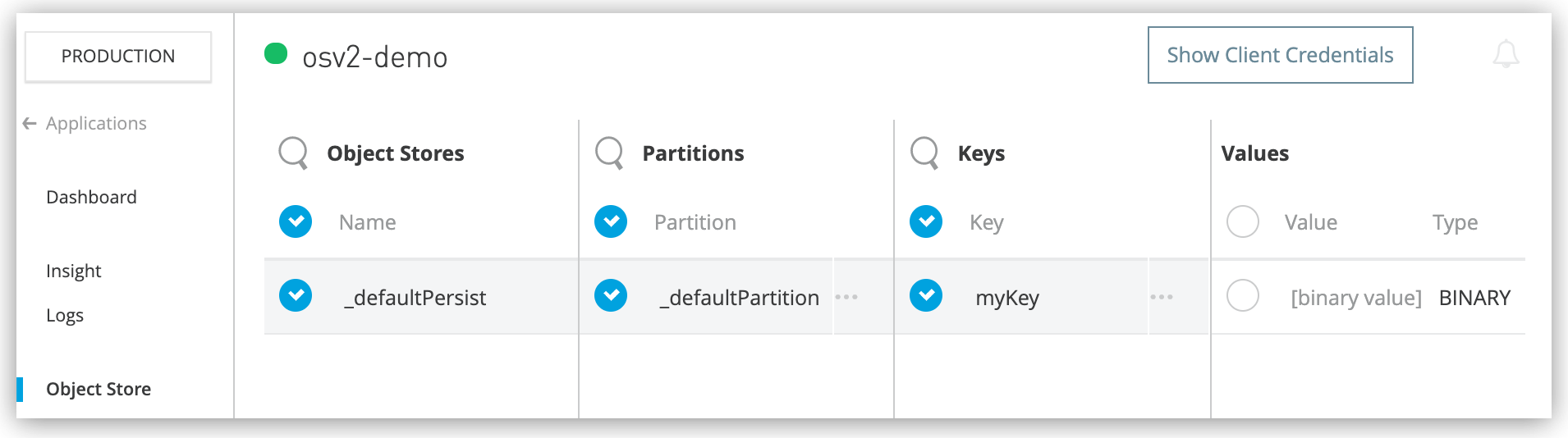
The `myKey` key that you sent from `curl` appears in the object store with the value of
`[binary value] BINARY`. The value is binary because Mule 4 wraps values in a Mule object, which
causes them to be visible only as binary in Anypoint Platform.
8. From the command line, run this `curl` command to view the value for the key, replacing
_APP-URL_ with the **App url** value that you copied from Runtime Manager:
```console
curl http://APP-URL/retrieve?key=myKey;echo
```
The output from this command displays the value for the key:
```console
"OSv2 Test"
```
You have successfully tested your app using a `curl` command to store and retrieve a key-value pair
in the object store and viewed the results in Runtime Manager.
### Example App XML for Studio 7.x
Click **Configuration XML** in Studio and compare your XML to this example. Make corrections if
necessary.
```xml
```
## See Also
- [Anypoint Studio](https://docs.mulesoft.com/studio/)
- [Object Store Connector for Mule 4](https://docs.mulesoft.com/object-store-connector/latest/)
- [Deploy to CloudHub](https://docs.mulesoft.com/cloudhub/deploying-to-cloudhub)