---
schema_version: "1"
id: 5715aee1e4c8c74a247c3c25009fe203d59c5adadcaf0b0bed713e2425abbb94
title: Using Object Store v2
collection: mulesoft
version: current
locale: en-us
portal_url: https://docs.salesforce.com/mulesoft/current/en-us/object-store/osv2-guide.md
canonical_url: https://docs.mulesoft.com/object-store/osv2-guide
source_site: docs.mulesoft.com
content_type: documentation
content_hash: 8305d959150db46da94bcf2de756b794755696784c9261f1e94d4971a0f3e0c3
description: MuleSoft Documentation Site
latest: true
---
---
product: Object Store
---
# Using Object Store v2
> For the full documentation index, see: https://docs.mulesoft.com/llms.txt
Anypoint Object Store v2 (Object Store v2) enables you to share data and states across Mule runtime
workers within a single application.
Object Store v2 is enabled by default in Mule 4 and in Anypoint Platform EU Control Plane.
## Components
Object Store v2 interacts with these components:
- Anypoint Connector for Object Store (Object Store Connector)
Use Object Store Connector with Anypoint Studio to construct flows to write to and read from the
object store.
Object Store Connector works with both Object Store version 1 and version 2.
To use Object Store v2 with Mule 4 apps, ensure that you select the correct object store
configuration reference from the **Object store** menu.
- REST API
The Object Store v2 API enables you to create and delete objects, set TTL (time to live) for
objects, and set usage limits.
- Anypoint Runtime Manager
When you enable Object Store v2, the **Runtime Manager > Application Data** option changes to
**Object Store**. From the **Object Store** page, you can manage objects and their values in the
object store.
### Protect Object Store Data
Object Store v2 uses TLS for secure transport. Data at rest is stored using FIPS 140-2-compliant
encryption standards. If you require a higher level of security, encrypt sensitive data before
writing it to the object store.
### Synchronize Access to Object Store v2
Using Object Store v2 with multi-worker CloudHub applications might result in data discrepancies or
key clashes.
To avoid these issues, use a distributed key-value store as a lock to synchronize access to Object
Store v2. For information about distributed locking in Mule runtime engine, see
[Distributed Locking](https://docs.mulesoft.com/mule-runtime/latest/distributed-locking).
## Add Object Store Connector to Your Mule 4 Project
Install Object Store Connector to add it to a Mule project:
1. In Studio, create a Mule project.
2. In the **Mule Palette** view, click **(X) Search in Exchange**.
3. In **Add Dependencies to Project**, enter `Object Store` in the search field.
4. In **Available modules**, click **ObjectStore Connector - Mule 4** and click **Add**.
5. Click **Finish**.
## Use Object Store Connector in an Application
1. In Studio, create a simple flow such as:
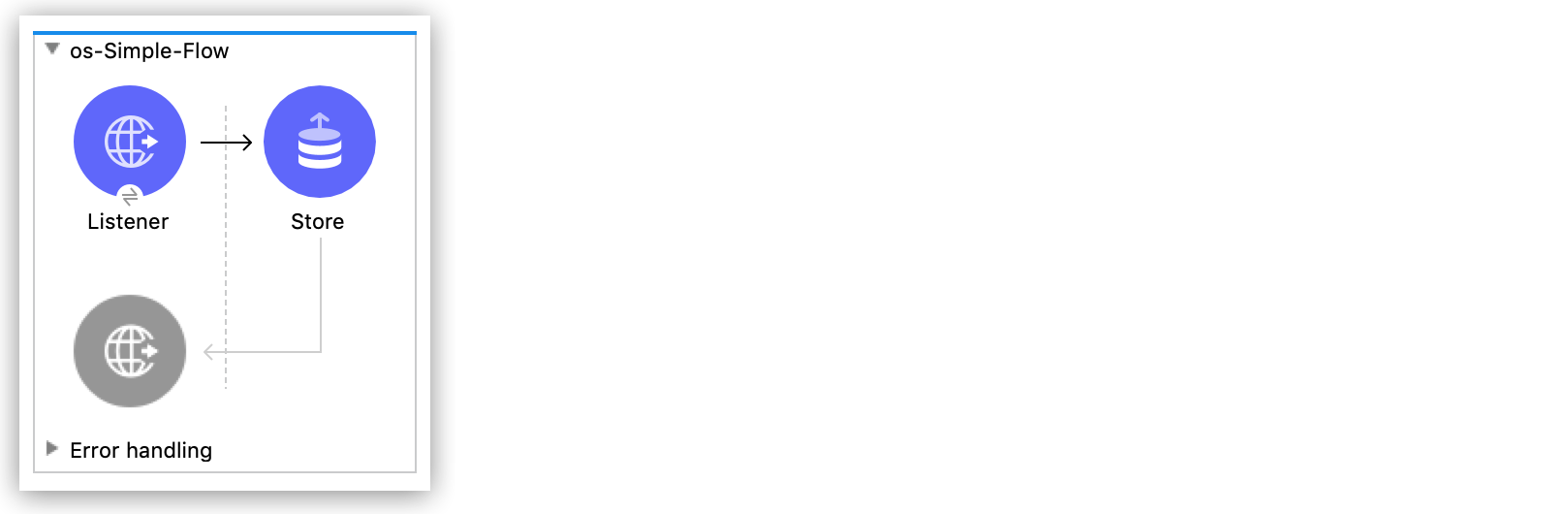
Connector
Parameters
HTTP Listener
Connector configuration = HTTP_Listener_config
Path = /store
Object Store
Key = #[payload.key]
Value = [payload.value]
Object Store v2 for CloudHub doesn’t support using pipe (`|`) characters in keys and converts
any spaces to plus (`+`) characters.
> [!IMPORTANT] To use Object Store v2, ensure that the **Persistent** option is selected for the
> object store configuration reference in the **Global Elements** page. If the XML includes
> `persistent="false"`, the app does not use Object Store v2.
2. Save the application.
3. Right-click the application name in **Package Explorer** and select **Anypoint Platform > Deploy
to CloudHub**.
4. If prompted, sign in to Anypoint Platform.
5. Click **Deploy Application** and click **Open in Browser**.
6. In Runtime Manager, click the **Status** column for your application.
7. In the details pane, copy the **App url** address.
## Send Data to an Object Store
From a command line prompt, send JSON data to your Mule application using a `curl` command:
curl -X POST -H "Content-Type: application/json" -d '{ "key": "TestKey01", "value": "Testing" }'
"http://app-url/store"
Change `app-url` to the name you copied from **App url** in Runtime Manager.
## View Data in an Object Store
To view data in an object store:
1. In Runtime Manager, click the name of your application to view the dashboard.
2. Click **Object Store** in the navigation menu.
3. Click the object store, the partition, and then the key:
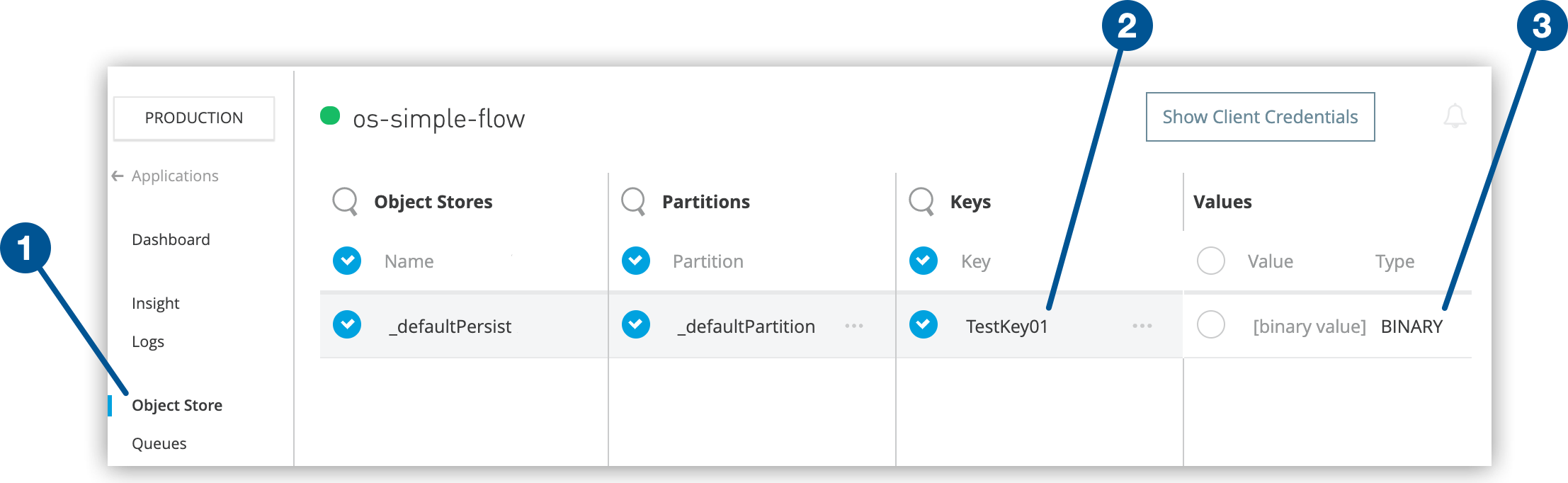
1
Object Store navigation menu
2
Selected key
3
Key data (binary value and type)
The `TestKey01` key that you sent from `curl` appears in the object store with the value
`[binary value] BINARY`. The value is binary because Mule 4 wraps values in a Mule object, which
causes them to be visible only as binary in Anypoint Platform.
4. To delete a key, hover over a key name and click the trash can icon.
Similarly, you can delete a partition or the store itself by hovering over and clicking the
trash can icon.
> [!IMPORTANT] Do not delete object stores that are associated with a running app. To prevent
> errors, stop the app before deleting an object store.
The tutorial provides more detailed information about creating object stores in Mule 4 applications.
## Configure a Custom Time to Live Period
A custom time to live (TTL) period applies to the partition defined in the object store
configuration.
For information how rolling TTL behaves, see [Rolling TTL](https://docs.mulesoft.com/object-store/#rolling-ttl).
To configure a custom TTL period for keys stored in the object store:
1. Create an app that uses Mule runtime engine version 4.2.1 or later.
2. Configure the object store in the app.
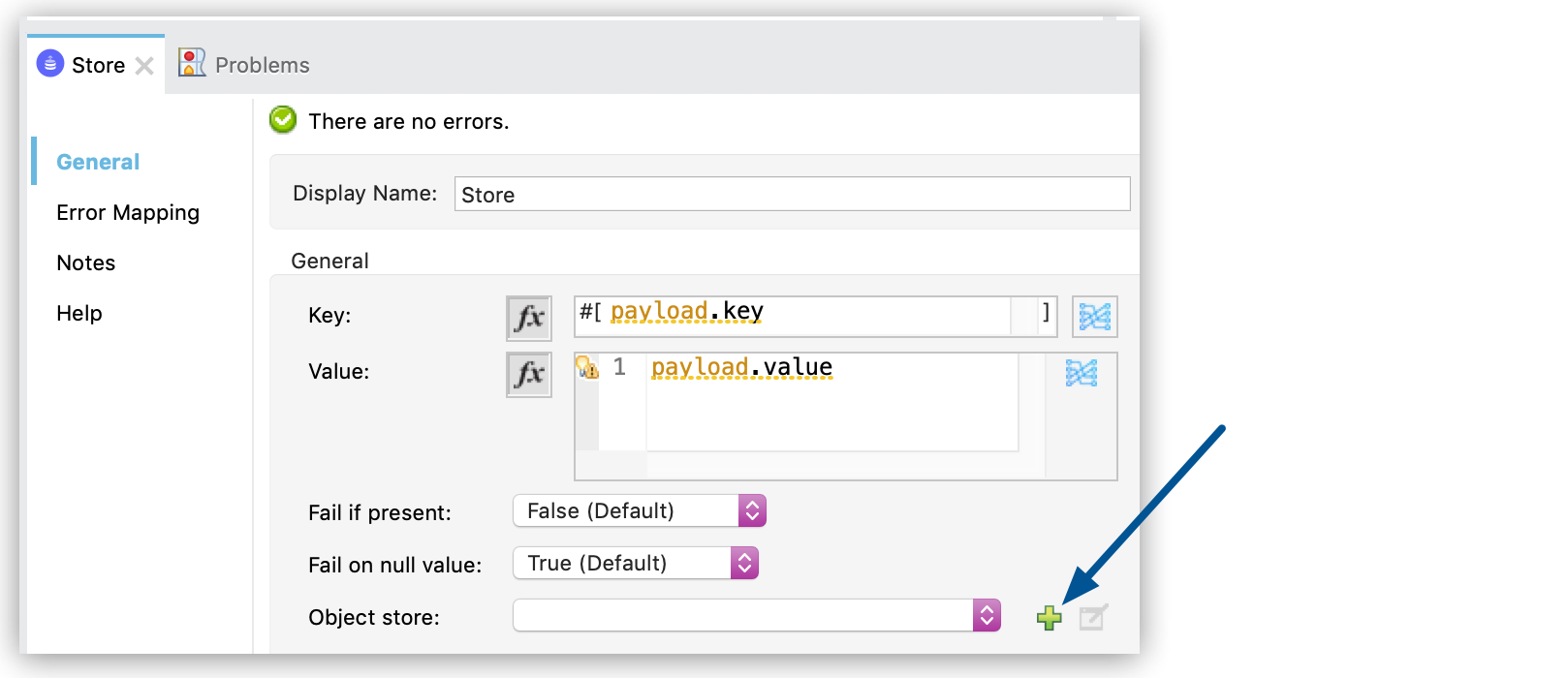
3. Select the **Store** operation in the flow and, in the properties window, click the green plus
icon (+) for the **Object store** field:
4. Configure the TTL entries in the **Global Object Store Configuration** window:
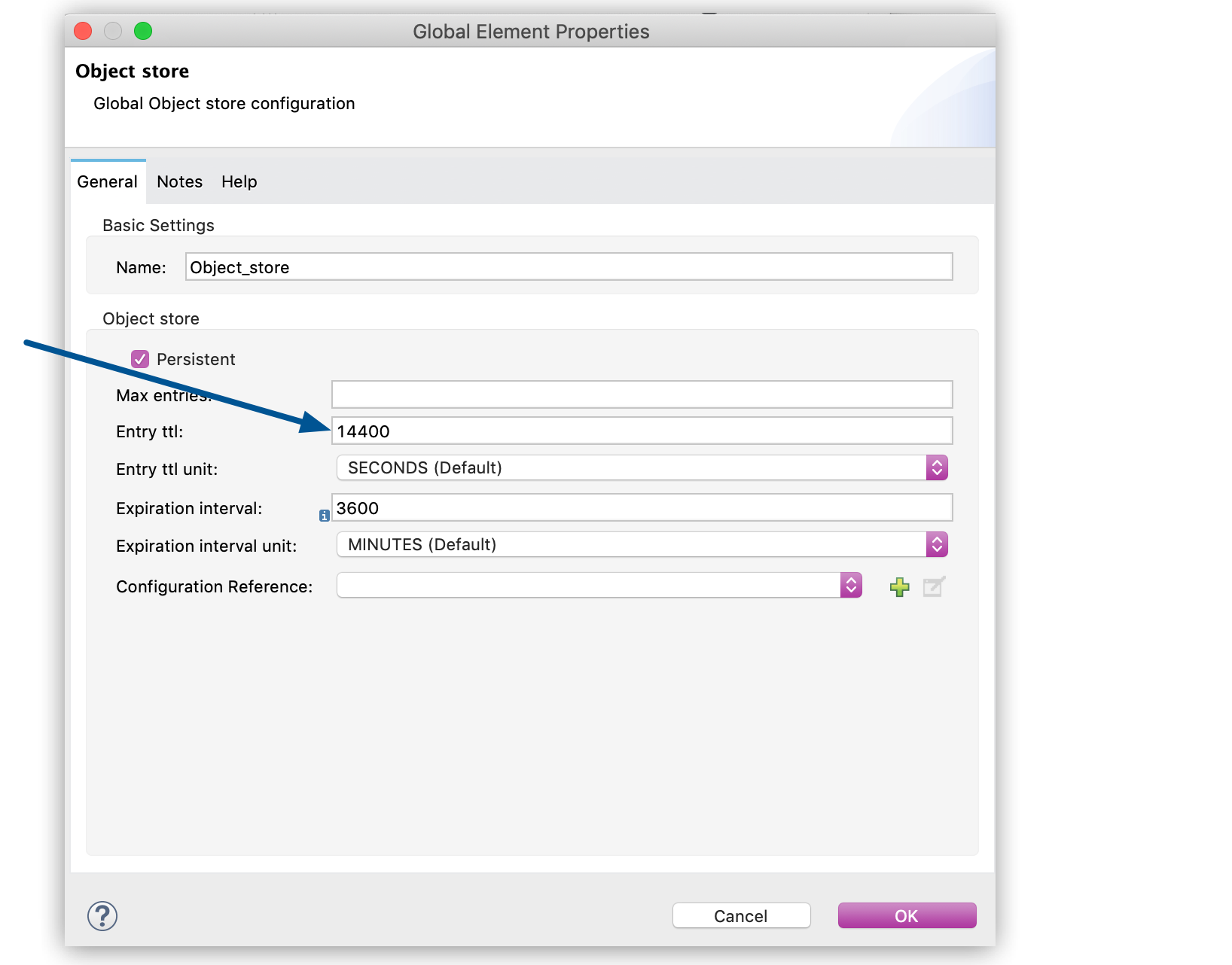
> [!NOTE] For Object Store v2, the **Max entries** field isn’t configurable.
- **Entry ttl**
For Mule 4.2.1 and later, enter a custom TTL value of 0 through 2592000 seconds (30 days).
If **Entry ttl** isn’t empty, the TTL is static.
If you leave this field empty, you enable rolling TTL; if you exceed 2592000 seconds, the TTL
defaults to 2592000 seconds.
For Mule versions earlier than 4.2.1, leave this field empty to set the TTL to 2592000
seconds.
- **Entry ttl unit**
Specify the TTL time interval, such as MINUTES.
- **Expiration interval**
Specify how frequently to run the expiration thread.
Set this parameter to a positive value that is less than the **Entry ttl** value. If this
field is blank or the value is less than or equal to zero, Object Store v2 ignores **Entry
ttl**.
- **Expiration interval unit**
Specify the expiration interval time unit, such as MINUTES.
5. Click **OK** to dismiss the window.
## Create Object Store Partitions
You can use _partitions_ to associate multiple object stores with an app.
To create partitions in Object Store v2:
1. Create an app and add a Store operation to the flow.
2. Configure the Store operation.
3. Configure the partitions:
1. In the properties window, click the green plus icon (+) for the **Object store** field:

2. In the **Global Element Properties** window, click the green plus icon (+) for
**Configuration Reference** to create a global object store configuration:
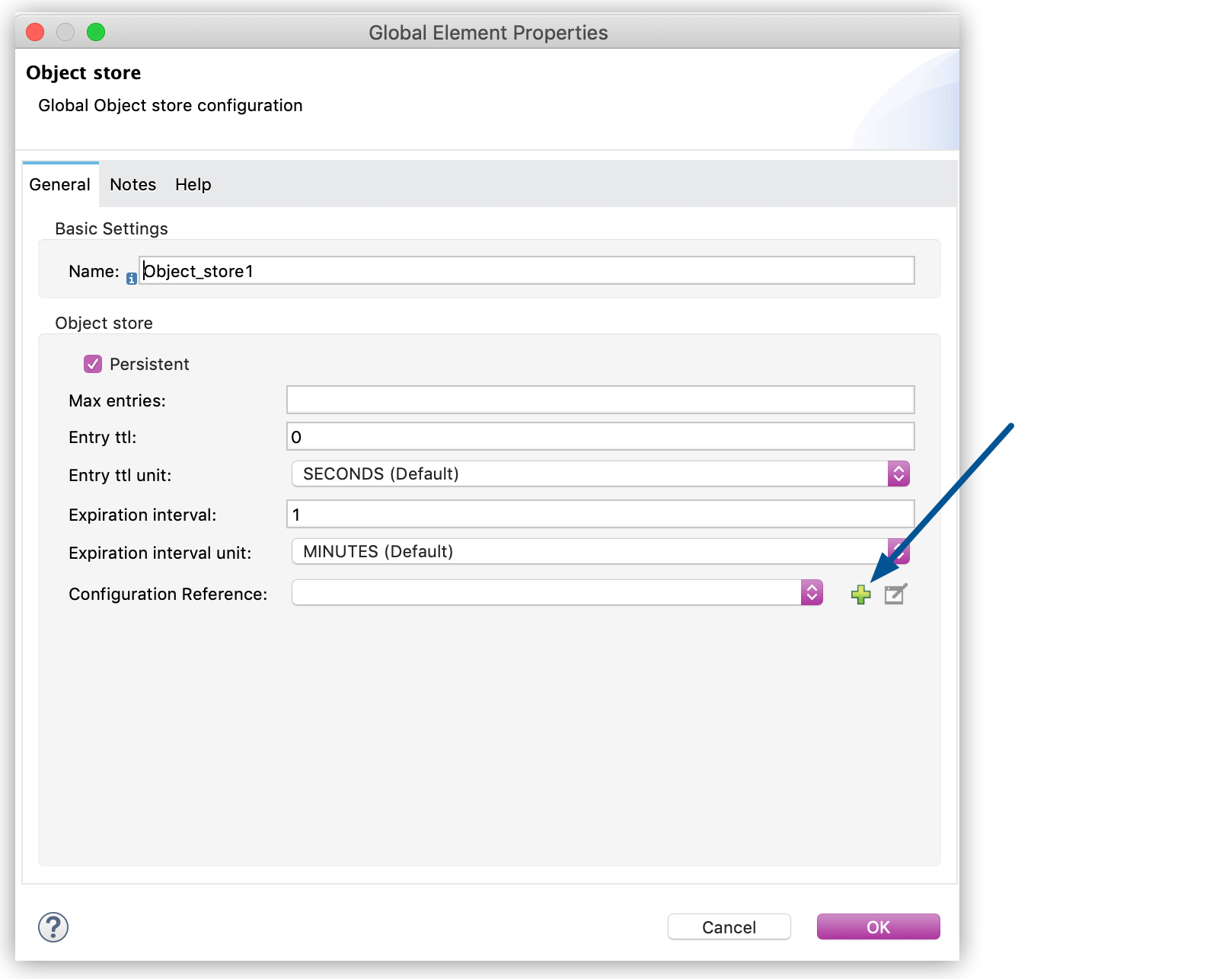
3. Name the object store configuration and click **OK**.
4. Ensure that the correct configuration reference is selected and click **OK**.
5. Ensure that the correct object store is selected and click **OK**.
4. Repeat Step 3 for each partition that you want to create.
5. Deploy the app to CloudHub and send a key-value pair to the object store.
6. In Runtime Manager, click **Applications**, select the app, and click **Object Store** in the
left navigation pane.
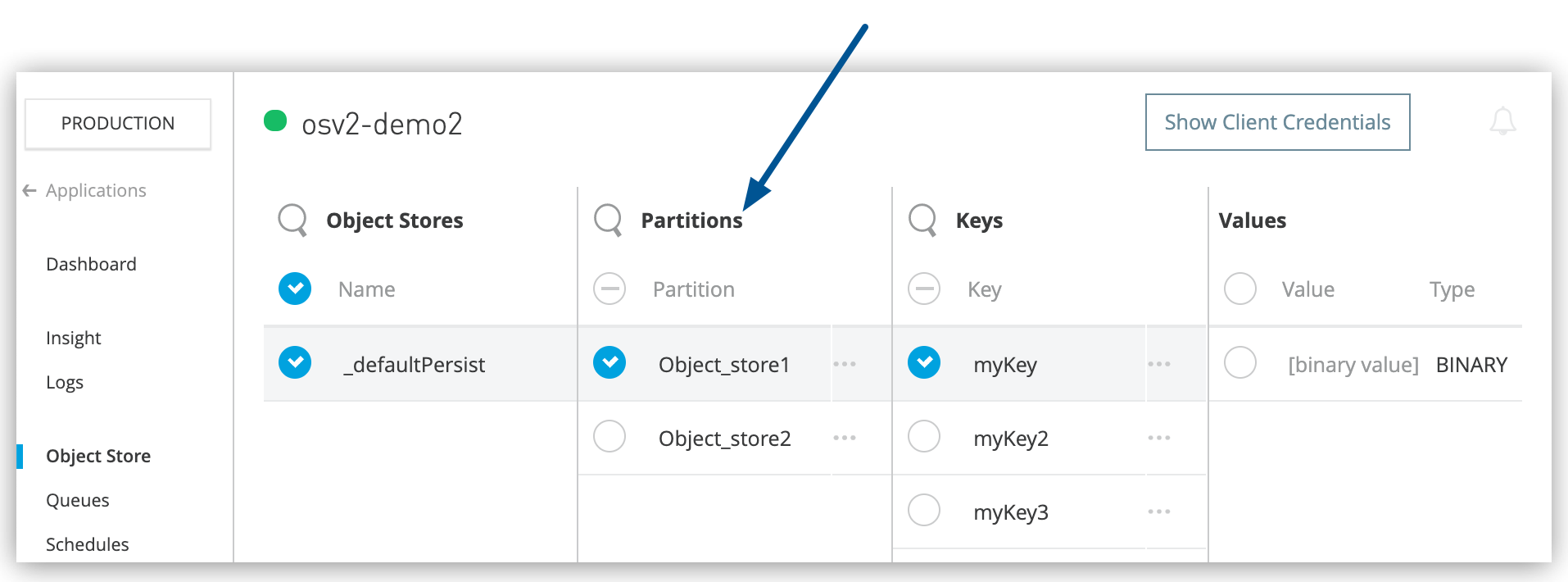
7. Select the object store.
The partitions associated with the object store appear in the **Object Store** page:
## Deploy App with Object Store v2 Using the Mule Maven Plugin
If you are using a Mule Maven plugin version between 3.3.3 and 3.4.0 to deploy your app to CloudHub:
1. Add the `` element to your `pom.xml` project file:
```xml
...
true
...
```
2. Select **Use Object Store v2** in the **Deploy Application** page in Runtime Manager.
## See Also
- [Tutorial: Object Store v2](https://docs.mulesoft.com/object-store/osv2-tutorial)
- [Rolling TTL](https://docs.mulesoft.com/object-store/#rolling-ttl)
- [What are the advantages of using partitions?](https://docs.mulesoft.com/object-store/osv2-faq#what-are-the-advantages-of-using-partitions)
- [Object Store v2 API](https://dev-portal.mulesoft.com/apis/object-store-v2.html)
- [Object Store v2 Release Notes](https://docs.mulesoft.com/release-notes/object-store/anypoint-osv2-release-notes)
- [Object Store Connector for Mule 4](https://docs.mulesoft.com/object-store-connector/latest/)
- [Deploy Applications to CloudHub](https://docs.mulesoft.com/mule-runtime/latest/deploy-to-cloudhub)