---
schema_version: "1"
id: 981192091d64b04e812a06d4f9f30034714d29e5c50521fd4caf843b36edfe1e
title: NetSuite OpenAir 2.0 Examples
collection: mulesoft
version: current
locale: en-us
portal_url: https://docs.salesforce.com/mulesoft/current/en-us/netsuite-openair-connector/latest/netsuite-openair-connector-examples.md
canonical_url: https://docs.mulesoft.com/netsuite-openair-connector/latest/netsuite-openair-connector-examples
source_site: docs.mulesoft.com
content_type: documentation
content_hash: 854653e198a12205b24a409b8897ac2964c7c31bba2988b97f3368914c88b73a
description: MuleSoft Documentation Site
release: "2.0"
latest: true
---
---
product: NetSuite OpenAir Connector
version: 2.0
is-latest-version: true
---
# NetSuite OpenAir 2.0 Examples
> For the full documentation index, see: https://docs.mulesoft.com/llms.txt
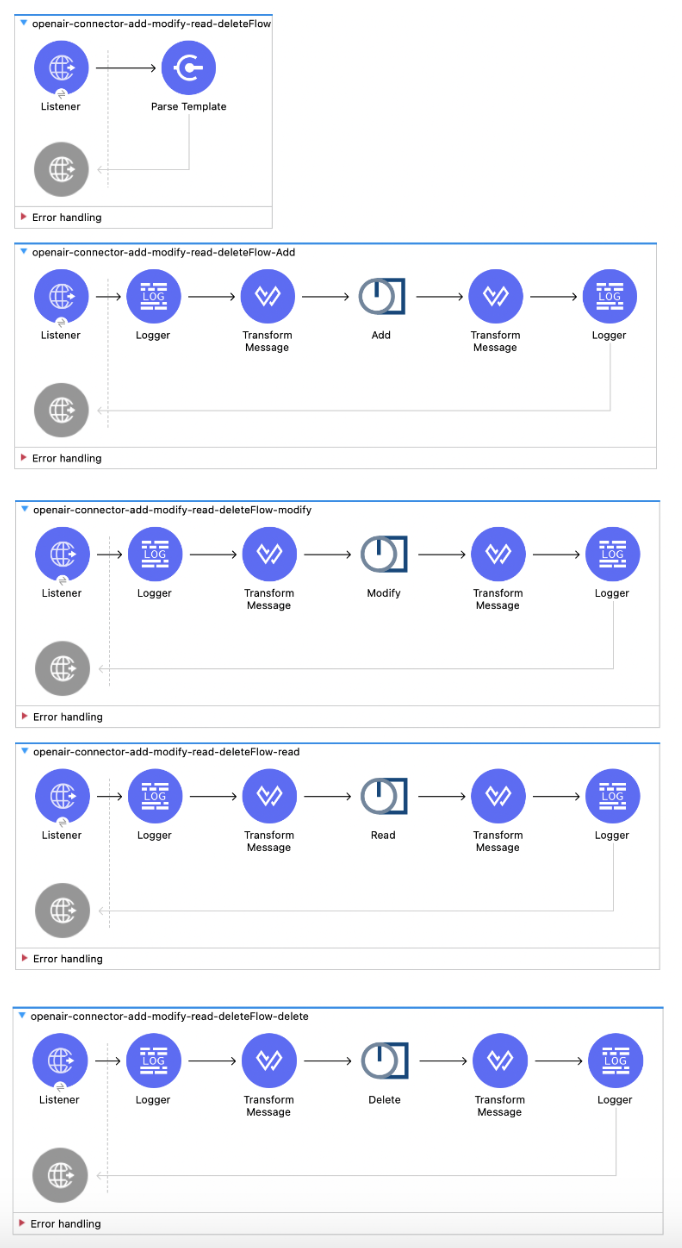
This example shows how to add, modify, read, and delete two customers from the NetSuite OpenAir
instance by using the same request. This example contains five flows:
1. The first flow configures a template for the input.
2. The second flow adds two customers from the input.
3. The third flow modifies the customer information of the two customers.
4. The fourth flow retrieves the modified customer information of the two customers.
5. The fifth flow deletes the two customers.
The following screenshot shows the flows in Anypoint Studio:
## Create the First Flow
The first flow configures an HTML template for the input to later use when adding, modifying,
reading, and deleting the two customers. Configuring this flow involves creating a new Mule project,
configuring the HTTP **Listener** source, and adding the **Parse Template** component.
### Configure the HTTP Listener Source
Configure the HTTP **Listener** source to initiate a Mule flow when a call is made to the default
path (`/`):
1. Create a new Mule project in Studio.
2. From the **Mule Palette** view, select **HTTP** and drag the **Listener** source to the canvas.
3. In the properties window, click **+** next to the **Connector configuration** field to add a
global element.
4. In the **Display Name** field, enter `Listener` and accept the default values.
### Add the Parse Template Component
Add the **Parse Template** component to create a template for an HTML form (`form.html`), which is
located in the main resources folder. The example uses this form to later add, modify, read, and
delete the two customers:
1. From the **Mule Palette** view, select **Core** and drag the **Parse Template** component next
to the **Listener** source.
2. In the **Location** field, enter `form.html`.
## Create the Second Flow
The second flow adds the two customers from the customer name and company input values. Configuring
this flow involves configuring the HTTP **Listener** source, adding the **Logger** component, adding
the **Transform Message** component, adding the **Add** operation, adding another **Transform
Message** component, and adding another **Logger** component.
### Configure the HTTP Listener Source
Configure the HTTP **Listener** source to initiate a Mule flow when a call is made to the `/add`
path:
1. From the **Mule Palette** view, select **HTTP** and drag the **Listener** source to the canvas.
2. In the properties window, click **+** next to the **Connector configuration** field to add a
global element.
3. In the **Display Name** field, enter `Listener`.
4. In the **Path** field, enter `/add`.
### Add the Logger Component
Add the **Logger** component to log the payload:
1. From the **Mule Palette** view, select **Core** and drag the **Logger** component next to the
**Listener** source.
2. In the **Message** field, enter `payload`.
### Add the Transform Message Component
Add the **Transform Message** component to transform the customer name and company input values of
the two customers to XML to add them later:
1. From the **Mule Palette** view, select **Core** and drag the **Transform Message** component
next to the **Logger** component.
2. In the properties window, overlay the brackets in the **Output** section with this DataWeave
code:
```dataweave
%dw 2.0
output application/xml
ns ns0 http://namespaces.soaplite.com/perl
---
{
ArrayOfoaBase: {
oaBase: {
ns0#oaCustomer: {
name: payload.customerName_1,
company: payload.customerCompany_1
},
ns0#oaCustomer: {
name: payload.customerName_2,
company: payload.customerCompany_2
}
}
}
}
```
### Add the Add Operation
Add the **Add** operation to add the two customers:
1. From the **Mule Palette** view, select **NetSuite OpenAir** and drag the **Add** operation next
to the **Transform Message** component.
2. In the properties window, complete the following fields:
| Field | Value |
|---|
oaObject | oaCustomer
|
Request | payload
|
### Add Another Transform Message Component
Add another **Transform Message** component to transform the customer name and company input values
of the two customers to JSON:
1. From the **Mule Palette** view, select **Core** and drag the **Transform Message** component
next to the **Add** operation.
2. In the properties window, overlay the brackets in the **Output** section with this DataWeave
code:
```dataweave
%dw 2.0
output application/json
ns ns0 http://namespaces.soaplite.com/perl
---
{
customerID_1: payload.ns0#ArrayOfUpdateResult.*updateResult[0].id,
customerID_2: payload.ns0#ArrayOfUpdateResult.*updateResult[1].id
}
```
### Add Another Logger Component
Add another **Logger** component to log the payload:
1. From the **Mule Palette** view, select **Core** and drag the **Logger** component next to the
**Transform Message** component.
2. In the **Message** field, enter `payload`.
## Create the Third Flow
The third flow modifies the customer information of the two customers. Configuring this flow
involves configuring the HTTP **Listener** source, adding the **Logger** component, adding the
**Transform Message** component, adding the **Modify** operation, adding another **Transform
Message** component, and adding another **Logger** component.
### Configure the HTTP Listener Source
Configure the HTTP **Listener** source to initiate a Mule flow when a call is made to the `/modify`
path:
1. From the **Mule Palette** view, select **HTTP** and drag the **Listener** source to the canvas.
2. In the properties window, click **+** next to the **Connector configuration** field to add a
global element.
3. In the **Display Name** field, enter `Listener`.
4. In the **Path** field, enter `/modify`.
### Add the Logger Component
Add the **Logger** component to log the payload:
1. From the **Mule Palette** view, select **Core** and drag the **Logger** component next to the
**Listener** source.
2. In the **Message** field, enter `payload`.
### Add the Transform Message Component
Add the **Transform Message** component to transform the customer name and company input values of
the two customers to XML to modify them later:
1. From the **Mule Palette** view, select **Core** and drag the **Transform Message** component
next to the **Logger** component.
2. In the properties window, overlay the brackets in the **Output** section with this DataWeave
code:
```dataweave
%dw 2.0
output application/xml
ns ns0 http://namespaces.soaplite.com/perl
---
//Some output fields where skipped as the structure is too deep (more than 2 levels).
//To add missing fields click on the scaffold icon (second on the toolbar).
{
modifyRequest: {
ArrayOfoaBase: {
oaBase : {
ns0#oaCustomer: {
id: payload.modifyCustomerID_1,
name: payload.modifyCustomerName_1,
company: payload.modifyCustomerCompany_1
},
ns0#oaCustomer: {
id: payload.modifyCustomerID_2,
name: payload.modifyCustomerName_2,
company: payload.modifyCustomerCompany_2
}
}
}
}
}
```
### Add the Modify Operation
Add the **Modify** operation to modify the customer information of the two customers:
1. From the **Mule Palette** view, select **NetSuite OpenAir** and drag the **Modify** operation
next to the **Transform Message** component.
2. In the properties window, complete the following fields:
| Field | Value |
|---|
oaObject | oaCustomer
|
Request | payload
|
### Add Another Transform Message Component
Add another **Transform Message** component to transform the modified customer name and company
values of the two customers to JSON:
1. From the **Mule Palette** view, select **Core** and drag the **Transform Message** component
next to the **Modify** operation.
2. In the properties window, overlay the brackets in the **Output** section with this DataWeave
code:
```dataweave
%dw 2.0
output application/json
ns ns0 http://namespaces.soaplite.com/perl
---
{
customerID_1: payload.ns0#ArrayOfUpdateResult.*updateResult[0].id,
customerStatus_1: payload.ns0#ArrayOfUpdateResult.*updateResult[0].status,
customerID_2: payload.ns0#ArrayOfUpdateResult.*updateResult[1].id,
customerStatus_2: payload.ns0#ArrayOfUpdateResult.*updateResult[1].status
}
```
### Add Another Logger Component
Add another **Logger** component to log the payload:
1. From the **Mule Palette** view, select **Core** and drag the **Logger** component next to the
**Transform Message** component.
2. In the **Message** field, enter `payload`.
## Create the Fourth Flow
The fourth flow retrieves the modified customer information of the two customers. Configuring this
flow involves configuring the HTTP **Listener** source, adding the **Logger** component, adding the
**Transform Message** component, adding the **Read** operation, adding another **Transform Message**
component, and adding another **Logger** component.
### Configure the HTTP Listener Source
Configure the HTTP **Listener** source to initiate a Mule flow when a call is made to the `/read`
path:
1. From the **Mule Palette** view, select **HTTP** and drag the **Listener** source to the canvas.
2. In the properties window, click **+** next to the **Connector configuration** field to add a
global element.
3. In the **Display Name** field, enter `Listener`.
4. In the **Path** field, enter `/read`.
### Add the Logger Component
Add the **Logger** component to log the payload:
1. From the **Mule Palette** view, select **Core** and drag the **Logger** component next to the
**Listener** source.
2. In the **Message** field, enter `payload`.
### Add the Transform Message Component
Add the **Transform Message** component to transform the customer name and company input values of
the two customers to XML to read them later:
1. From the **Mule Palette** view, select **Core** and drag the **Transform Message** component
next to the **Logger** component.
2. In the properties window, overlay the brackets in the **Output** section with this DataWeave
code:
```dataweave
%dw 2.0
output application/xml
ns ns0 http://namespaces.soaplite.com/perl
---
{
ns0#ArrayOfReadRequest: {
readRequest: {
method: "equal to",
fields: "id,name,company",
"type": "Customer",
objects :{
oaBase: {
oaCustomer: {
id: payload.readCustomerID_1
}
}
}
},
readRequest: {
method: "equal to",
fields: "id,name,company",
"type": "Customer",
objects :{
oaBase: {
oaCustomer: {
id: payload.readCustomerID_2
}
}
}
}
}
}
```
### Add the Read Operation
Add the **Read** operation to retrieve the modified customer information of the two customers:
1. From the **Mule Palette** view, select **NetSuite OpenAir** and drag the **Read** operation next
to the **Transform Message** component.
2. In the properties window, complete the following fields:
| Field | Value |
|---|
oaObject | oaCustomer
|
Request | payload
|
### Add Another Transform Message Component
Add another **Transform Message** component to transform the modified customer name and company
values of the two customers to JSON:
1. From the **Mule Palette** view, select **Core** and drag the **Transform Message** component
next to the **Read** operation.
2. In the properties window, overlay the brackets in the **Output** section with this DataWeave
code:
```dataweave
%dw 2.0
output application/json
ns ns0 http://namespaces.soaplite.com/perl
---
{
customerID_1: payload.ns0#ArrayOfReadResult.*readResult[0].objects.oaBase.oaCustomer.id,
customerName_1: payload.ns0#ArrayOfReadResult.*readResult[0].objects.oaBase.oaCustomer.name,
customerCompany_1: payload.ns0#ArrayOfReadResult.*readResult[0].objects.oaBase.oaCustomer.company,
customerID_2: payload.ns0#ArrayOfReadResult.*readResult[1].objects.oaBase.oaCustomer.id,
customerName_2: payload.ns0#ArrayOfReadResult.*readResult[1].objects.oaBase.oaCustomer.name,
customerCompany_2: payload.ns0#ArrayOfReadResult.*readResult[1].objects.oaBase.oaCustomer.company
}
```
### Add Another Logger Component
Add another **Logger** component to log the payload:
1. From the **Mule Palette** view, select **Core** and drag the **Logger** component next to the
**Transform Message** component.
2. In the **Message** field, enter `payload`.
## Create the Fifth Flow
The fifth flow deletes the customer information of the two customers. Configuring this flow involves
configuring the HTTP **Listener** source, adding the **Logger** component, adding the **Transform
Message** component, adding the **Delete** operation, adding another **Transform Message**
component, and adding another **Logger** component.
### Configure the HTTP Listener Source
Configure the HTTP **Listener** source to initiate a Mule flow when a call is made to the `/delete`
path:
1. From the **Mule Palette** view, select **HTTP** and drag the **Listener** source to the canvas.
2. In the properties window, click **+** next to the **Connector configuration** field to add a
global element.
3. In the **Display Name** field, enter `Listener`.
4. In the **Path** field, enter `/delete`.
### Add the Logger Component
Add the **Logger** component to log the payload:
1. From the **Mule Palette** view, select **Core** and drag the **Logger** component next to the
**Listener** source.
2. In the **Message** field, enter `payload`.
### Add the Transform Message Component
Add the **Transform Message** component to transform the customer name and company input values of
the two customers to XML to delete them later:
1. From the **Mule Palette** view, select **Core** and drag the **Transform Message** component
next to the **Logger** component.
2. In the properties window, overlay the brackets in the **Output** section with this DataWeave
code:
```dataweave
%dw 2.0
output application/xml
ns ns0 http://namespaces.soaplite.com/perl
---
{
ArrayOfoaBase: {
oaBase: {
ns0#oaCustomer: {
id: payload.deleteCustomerID_1
},
ns0#oaCustomer: {
id: payload.deleteCustomerID_2
}
}
}
}
```
### Add the Delete Operation
Add the **Delete** operation to delete the customer information of the two customers:
1. From the **Mule Palette** view, select **NetSuite OpenAir** and drag the **Delete** operation
next to the **Transform Message** component.
2. In the properties window, complete the following fields:
| Field | Value |
|---|
oaObject | oaCustomer
|
Request | payload
|
### Add Another Transform Message Component
Add another **Transform Message** component to transform the customer name and company values of the
two customers to JSON:
1. From the **Mule Palette** view, select **Core** and drag the **Transform Message** component
next to the **Delete** operation.
2. In the properties window, overlay the brackets in the **Output** section with this DataWeave
code:
```dataweave
%dw 2.0
output application/json
ns ns0 http://namespaces.soaplite.com/perl
---
{
Status1: payload.ns0#ArrayOfUpdateResult.*updateResult[0].status,
Status2: payload.ns0#ArrayOfUpdateResult.*updateResult[1].status
}
```
### Add Another Logger Component
Add another **Logger** component to log the payload:
1. From the **Mule Palette** view, select **Core** and drag the **Logger** component next to the
**Transform Message** component.
2. In the **Message** field, enter `payload`.
## XML for the Example
Paste this code into the Studio XML editor to quickly load the flow for this example into your Mule
app:
```xml
```
## See Also
- [Introduction to Anypoint Connectors](https://docs.mulesoft.com/connectors/introduction/introduction-to-anypoint-connectors)
- [Salesforce Help](https://help.salesforce.com)