---
schema_version: "1"
id: 05d4fd5845e0ee4818f7ec2026ad057c293ef687c6802269e97bd400280fd970
title: NetSuite OpenAir Connector
collection: mulesoft
version: current
locale: en-us
portal_url: https://docs.salesforce.com/mulesoft/current/en-us/netsuite-openair-connector/latest/index.md
canonical_url: https://docs.mulesoft.com/netsuite-openair-connector/latest/
source_site: docs.mulesoft.com
content_type: documentation
content_hash: b061eab3077d4d0adc8f59353e5f055239d6e97c8a85e8b39b58e377e4067543
description: MuleSoft Documentation Site
release: "2.0"
latest: true
---
---
product: NetSuite OpenAir Connector
version: 2.0
is-latest-version: true
---
# NetSuite OpenAir Connector
> For the full documentation index, see: https://docs.mulesoft.com/llms.txt
NetSuite OpenAir Connector v2.0
Anypoint Connector for NetSuite OpenAir (NetSuite OpenAir Connector) is a closed-source enterprise
connector that provides a connection between OpenAir and third-party software.
Release Notes:
[NetSuite OpenAir Connector Release Notes](https://docs.mulesoft.com/release-notes/connector/netsuite-openair-connector-release-notes-mule-4)
Exchange:
[NetSuite OpenAir Connector](https://www.mulesoft.com/exchange/com.mulesoft.connectors/mule-netsuite-openair-connector/)
## Before You Begin
To use this information, you must be familiar with NetSuite OpenAir, Mule runtime engine (Mule),
Anypoint Connectors, Anypoint Studio, Mule concepts, elements in a Mule flow, and Global Elements.
To use this connector, you need:
- A NetSuite OpenAir instance
- A set of valid credentials, including username, password, companyID, API namespace, and key.
- A MuleSoft Enterprise License
OpenAir complex types are limited to a set of OpenAir operations. See the OpenAir documentation for
information about its object types. For example, object `oaActualCost` works with `read`, `add`,
`modify`, and `upsert` methods, while object `oaApproval` works only with the `submit` method.
## POM File Information
```xml
com.mulesoft.connectors
mule-netsuite-openair-connector
x.x.x
mule-plugin
```
Replace `x.x.x` with the version that corresponds to the connector you are using.
To obtain the most up-to-date `pom.xml` file information, access the connector in
[Anypoint Exchange](https://www.mulesoft.com/exchange/) and click **Dependency Snippets**.
## Add the Connector to Your Project
Anypoint Studio provides two ways to add the connector to your Studio project: from the Exchange
button in the Studio taskbar or from the Mule Palette view.
### Add the Connector Using Exchange
1. In Studio, create a Mule project.
2. Click the Exchange icon **(X)** in the upper-left of the Studio task bar.
3. In Exchange, click **Login** and supply your Anypoint Platform username and password.
4. In Exchange, search for "openair".
5. Select the connector and click **Add to project**.
6. Follow the prompts to install the connector.
### Add the Connector in Studio
1. In Studio, create a Mule project.
2. In the Mule Palette view, click **(X) Search in Exchange**.
3. In **Add Modules to Project**, type "openair" in the search field.
4. Click this connector’s name in **Available modules**.
5. Click **Add**.
6. Click **Finish**.
## Configure in Studio
1. Drag the connector operation to the Studio Canvas.
2. Configure the Global Element for the connector:
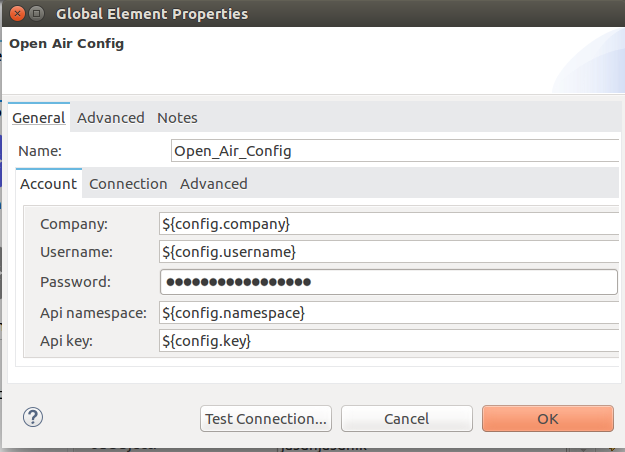
3. If needed, configure a connection:
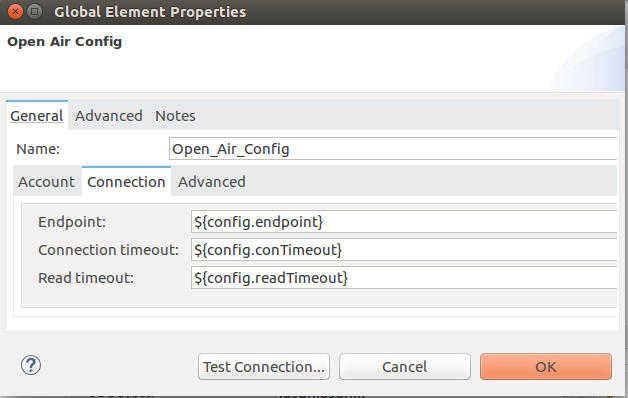
1. Enable the automatic reconnection feature.
2. Access the OpenAir Global Element configuration window from Studio.
3. Click the **Advanced** tab (next to Connection).
4. Select the **Standard** option in Reconnection Strategy.
5. Adjust the **Frequency (ms)** and **Reconnection Attempts** fields accordingly.
## Log HTTP Requests and Responses
To log the HTTP interactions of the connector with NetSuite OpenAir, configure the log4j2.xml file
for the Mule app as follows, and use a Logger component in your project to display the results:
```xml
```
## See Also
- [NetSuite OpenAir SOAP API Guide (PDF)](https://www.netsuitesuiteprojectspro.com/download/XMLAndSOAPAPI.pdf)
- [Salesforce Help](https://help.salesforce.com)