---
schema_version: "1"
id: 70db76ed2923588412f1d194ff3f4ff3d4824548633f6fdf8b765337d1f6f3ed
title: Upgrading Java for Custom Connectors (Partners)
collection: mulesoft
version: current
locale: en-us
portal_url: https://docs.salesforce.com/mulesoft/current/en-us/mule-sdk/latest/partner-connector-upgrade.md
canonical_url: https://docs.mulesoft.com/mule-sdk/latest/partner-connector-upgrade
source_site: docs.mulesoft.com
content_type: documentation
content_hash: f6d6b100b570779631794a96ee84a0cb68b68fc74209bc6a78ba255a524a1835
description: MuleSoft Documentation Site
release: "1.13"
latest: true
---
---
product: Mule SDK
version: 1.13
is-latest-version: true
---
# Upgrading Java for Custom Connectors (Partners)
> For the full documentation index, see: https://docs.mulesoft.com/llms.txt
> [!NOTE] This guide applies to MuleSoft partners only. If you are a MuleSoft customer, see
> [Upgrading Java for Custom Connectors (Customers)](https://docs.mulesoft.com/mule-sdk/latest/customer-connector-upgrade).
Upgrade, test, and release your custom connectors for Java 17 to ensure compatibility within the
MuleSoft ecosystem. Ensuring this compatibility is crucial because running an incompatible connector
can lead to runtime failures, decreased performance, and security vulnerabilities that could impact
your app’s stability.
## Before You Begin
Before upgrading and testing your custom connector for Java 17, you must be familiar with the
following considerations:
- Target compilation level
In Mule 4.9.0 and later, you can compile any Mule project for Java 17 or lower. Additional
dependencies must be compiled for Java 17 or lower.
- Declaring the minimum Mule version
Two parent POMs are available for building extensions. Each one handles the minimum Mule version
declaration differently.
- `mule-java-extension-parent` (recommended)
This is the recommended parent POM for all new extensions and for existing extensions that can
migrate. It supports forward compatibility and requires you to explicitly declare the minimum
Mule version in your project, giving you full control over which Mule runtime versions your
connector supports. The `mule-extensions-archetype-maven-plugin` uses this parent when
generating new extension projects.
For migration instructions, see
[Upgrading Existing Modules](https://docs.mulesoft.com/mule-sdk/latest/forward-compatibility-setup#upgrading-existing-modules).
> [!NOTE] Switching parent POMs for existing connectors may not be straightforward depending on
> the connector’s complexity. If you must upgrade with minimal changes, you can continue to use
> `mule-modules-parent` as described below.
- `mule-modules-parent` (deprecated)
This parent POM is deprecated and remains available for existing connectors where switching to
`mule-java-extension-parent` is not practical.
If you compile for Java 17, upgrade `mule-modules-parent` to version 1.9.0 or later. The
connector’s minimum Mule version is automatically set based on the parent version. For example,
version 1.9.0 sets `minMuleVersion` to 4.9.0, ensuring compatibility only with Mule 4.9.0 or
later.
If the `mule-modules-parent` version is earlier than 1.9.0, the bytecode level for the connector
and its additional dependencies must be for Java 8. You can’t use language features from Java 11
or Java 17.
Verify that `minMuleVersion` in `META-INF/mule-artifact/mule-artifact.json` reflects the correct
version. See [Specify Java Compatibility](https://docs.mulesoft.com/mule-sdk/latest/java-version-support#specify-java-compatibility).
- Unsupported directives
Don’t set `--add-opens`, `--add-exports`, or `--add-modules` directives. These directives are not
allowed in CloudHub, Runtime Fabric, or on-premises. These directives also require managing them
for each connector across all environments, and introduce a backward compatibility burden,
complicating future Java upgrades and potentially enabling security vulnerabilities. If these
directives are used, they are not covered under Support.
- Minimum Mule version
If your custom connector is running on Mule 4.5.x or earlier, you can’t run Java 17 tests that
extend the `MuleArtifactFunctionalTestCase`, but you can still run Java 8 tests.
To decouple the minimum Mule version when running tests, add the `-Dmunit.jvm` parameter to use
Java 17 as described in
[Test for Java 17 Compatibility Directly](#test-for-java-17-compatibility-directly).
## Upgrade Your Custom Mule SDK Connectors
Upgrade your custom Mule SDK (Java SDK and XML SDK) connectors to Java 17.
### Upgrade Third-Party Libraries
Your custom connector likely relies on third-party libraries, so it’s important to ensure they are
compatible with Java 17 as well. Even if your custom connector passes tests, it is still important
to deliver secure and reliable software. If a critical bug or vulnerability is found, you must
upgrade to a fixed version. Using up-to-date libraries that explicitly support Java 17 makes this
process easier and more reliable, as the vendor has already tested them on Java 17.
Upgrade the third-party libraries of your custom connector to be compatible with Java 17:
- Java EE libraries
Mule 4.6.x exposes Java EE libraries differently than earlier Mule versions. You must add the BOM
dependency to your custom connector and, if applicable, exclude the provided conflicting library.
You can also add the libraries in the BOM dependency separately.
```java
4.6.0
org.mule
mule-javaee-runtime-bom
${muleJavaEeBomVersion}
pom
import
```
For more information, see [Java EE Libraries](https://docs.mulesoft.com/mule-sdk/latest/java-ee-libraries).
- External libraries
Upgrade external libraries, which are third-party libraries that are not bundled with your custom
connector. Some examples include a JDBC driver, JMS broker client, or Groovy runtime. The
following example shows a JDBC driver external library configuration:
```java
@ExternalLib(name = "MySQL JDBC Driver",
description = "A JDBC driver that supports connection to the MySQL Database",
nameRegexpMatcher = "(.*)\\.jar",
requiredClassName = "com.mysql.jdbc.Driver",
coordinates = "mysql:mysql-connector-java:5.1.44")
public class MySqlConnectionProvider implements ConnectionProvider {
//
}
```
You must update your external libraries to a version that is compatible with Java 17.
### Review Your Code
After you compile your custom connector, ensure you can run your custom connector with Java 17.
Reviewing your code is important because some restrictions are flagged as warnings in Java 11 but
are flagged as failures and can’t be disabled in Java 17. For example, reflection is more restricted
in Java 17, so you must review your code to ensure there are no illegal actions.
To help you review your code, learn more about the different changes in Java 17:
- JDK Migration Guide
See the
[Oracle JDK Migration Guide](https://docs.oracle.com/en/java/javase/17/migrate/getting-started.html#GUID-C25E2B1D-6C24-4403-8540-CFEA875B994A)
for a full list of the changes made from Java 8 to Java 17. Use the guide to assess the impact to
your code.
- Mule runtime engine
See [Mule runtime](https://docs.mulesoft.com/general/java-support#mule-runtime) to learn more about the Java 17
changes made in Mule runtime engine.
- Reflection on Java classes
To ensure compatibility with Java 17, review and update any code that uses reflection to access
Java classes or set parameter values. Java 17 imposes stricter access controls, so avoid
introspecting JDK internals. Have a robust test suite that runs with Java 17. Pay special
attention to the `setAccessible(true)` method because these access changes are not allowed in
Java 17.
- Serialization
Update your serialization code to accommodate the restrictions of Java 17. If your code uses
libraries like Gson for serializing classes, switch to using Data Transfer Objects (DTOs) where
reflective access to JDK classes is involved. Ensure that serialization libraries are updated
and adjust your code to minimize reliance on reflection. For more information, refer to
[Configure Custom Serializers](https://docs.mulesoft.com/mule-runtime/latest/configure-custom-serializers).
- Library upgrades
Upgrade your libraries to versions compatible with Java 17. This includes updating ByteBuddy to
version 1.14.0, Jacoco to 0.8.10, and SLF4J to version 2.x. Replace CGLib with ByteBuddy and
check for updates to other libraries like Groovy and JRuby. Verify that all dependencies are
compatible with Java 17 to avoid runtime issues.
- Changes with running the test suite
Adapt your testing approach for Java 17. If you use Mockito, be aware that Mockito can’t mock
JVM classes. Consider custom implementations for mocking and switch from PowerMock to newer
Mockito versions. Update your tests to handle the changes in Java 17 and avoid deprecated
methods.
- Java Platform Module System (JPMS)
JPMS was introduced in Java 9. This feature introduces stricter encapsulation, impacting how
Mule modules interact with JDK classes. As Mule upgrades to Java 17 and JPMS, these changes are
necessary:
- Refactor Split Packages: Resolve issues with internal and API package splits by reorganizing
and refactoring packages to conform with JPMS modularization standards.
- Address `ResourceBundle` Loading: Implement solutions for issues related to resource bundle
loading, such as using `ResourceBundleProvider` or alternative methods.
- Analyze the third-party libraries' changelogs to understand Java 17 compatibility and changes
related to JPMS.
### Add Missing Code
Because reflection is more restricted in Java 17, API objects now require setters. Previously with
Java 8, it was enough for API objects to only have default constructors and getters for all
DataWeave accessible properties. Now, API objects must also have setters so DataWeave can write
those properties without using reflection.
Constructors and setters are required if your class is instantiated by DataWeave, and getters are
required if your class is read. If your class is returned and not instantiated, only getters are
required. However, using both getters and setters simplifies the validation and certification
process.
## Upgrade Your Custom Configuration Properties Providers
To upgrade your custom configuration properties provider to be compatible with Java 17, switch to
use [Java SDK](https://docs.mulesoft.com/mule-sdk/latest/getting-started) and use the `@JavaVersionSupport` annotation as explained in
[Release Your Custom Connector](https://docs.mulesoft.com/general/partner-connector-upgrade#release-your-custom-connector).
You must also perform all the steps described in
[Upgrading Java for Custom Connectors (Partners)](https://docs.mulesoft.com/general/partner-connector-upgrade), just
like with any custom connector. The example custom configuration properties provider mentioned in
[Example: Mule SDK Module](https://docs.mulesoft.com/mule-runtime/latest/custom-configuration-properties-provider#example-mule-sdk-module)
is updated to support Java 17. Refer to that example to update your custom configuration properties
provider. For more details about what the changed code looks like (including migrating tests to
MUnit), refer to this
[changeset](https://github.com/mulesoft/mule-custom-properties-providers-module-example/commit/410ee26d8b3c44adacb077e099f32886f99eb6be).
Alternatively, if switching to using [Java SDK](https://docs.mulesoft.com/mule-sdk/latest/getting-started) involves too many changes for you,
add a declaration using `ExtensionDeclarer` inside `ExtensionLoadingDelegate` in your custom
configuration properties provider. For more details about what the changed code looks like, refer to
this
[changeset](https://github.com/mulesoft/mule-custom-properties-providers-module-example/commit/19d9d45cd52b0695f7b9c2b9019bae88f45fb228).
## Test Your Custom Connector with MTF
Test your custom connector with Module Testing Framework (MTF) to ensure Java 17 compatibility. For
more information about MTF, see [MTF](https://beta.docs.mulesoft.com/beta-mtf/mule-sdk/1.1/mtf).
### Set Up Your Build
Ensure your pipeline runs against all supported Java versions (Java 8, Java 11, and Java 17). The
following example shows a single build pipeline that is configured to run tests against all
supported Java versions, in which `default` corresponds to Java 17:
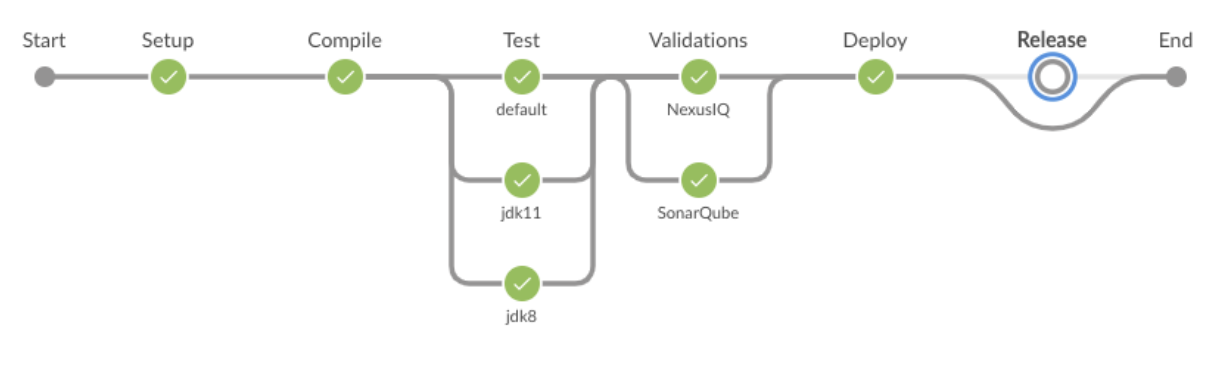
The pipeline runs all tests even if the previous tests fail. For example, the pipeline runs Java 17
tests even if the Java 11 tests fail.
Although the pipeline contains multiple tests, the pipeline has one compilation phase and one
release phase, which targets Java 8.
### Run an Initial Test
Run an initial test to test your custom connector for Java 17 compatibility. You can continue to run
tests as you change the custom connector code:
1. In the `pom.xml` file of your custom connector, update the munit-extensions-maven-plugin
configuration to include the following configuration (the `jacoco.version` property must be
0.8.10 or later):
```xml
-javaagent:${settings.localRepository}/org/jacoco/org.jacoco.agent/${jacoco.version}/org.jacoco.agent-${jacoco.version}-runtime.jar=destfile=${session.executionRootDirectory}/target/jacoco-munit.exec
```
2. Run your MTF test to generate the coverage report. Use the `-Dtest=none` and
`-DfailIfNoTests=false` flags when running the test to avoid including the JUnit tests in the
coverage report.
The coverage report is available in `target/jacoco-munit.exec`.
### View your Coverage Report
View your coverage report to see your custom connector coverage. You must have at least 80% coverage
for a high certainty of Java 17 compatibility.
1. Open IntelliJ IDEA.
2. Go to **Run** > **Show Coverage Data**.
3. In **Choose Coverage Suite to Display**, add `jacoco-munit.exec` to the list if it’s not there
already.
4. Look at the coverage percentages to analyze your results.
The coverage percentage reflects how much of your connector is tested. A key issue to avoid is
illegal reflective access in your code. The only ways to detect this are to
[Review Your Code](#review-your-code) or through testing. Aiming for at least 80% coverage allows
flexibility on simpler code, such as getters and setters, while ensuring thorough testing of all
critical business logic.
### Add the JDeps Maven Plugin
JDeps is a tool for static code analysis that detects the usage of JDK internal APIs that are no
longer available or accessible. For more information, refer to the
[OpenJDK wiki](https://wiki.openjdk.org/spaces/JDK8/pages/17957128/Java+Dependency+Analysis+Tool).
Add the JDeps Maven plugin to your custom connector’s `pom.xml` file:
```xml
org.apache.maven.plugins
maven-jdeps-plugin
3.1.2
jdkinternals
test-jdkinternals
true
```
If your custom connector is using a JDK internal API that is no longer available or accessible, the
build fails.
Run the build with both Java 8 and 11 by changing the `JAVA_HOME` value, as the JDeps Maven plugin
relies on the JDeps tool bundled with the JDK. Running the build with each Java version ensures
extra confidence.
To run the JDeps Maven plugin without tests, use the following command:
```bash
mvn clean install -Dtest=none -DfailIfNoTests=false -DskipTests=true
```
This helps focus on checking the offending libraries and internal access issues without dealing with
potential test failures or long test runtimes.
### Test for Java 17 Compatibility
You can test for Java 17 compatibility running on either Java 11 or Java 17.
If you are running on Java 11, you can perform early validations by adding a parameter for illegal
reflective access. See
[Add a Parameter for Illegal Reflective Access](#add-a-parameter-for-illegal-reflective-access).
If you are running on Java 17, you can test for Java 17 directly. See
[Test for Java 17 Compatibility Directly](#test-for-java-17-compatibility-directly).
#### Add a Parameter for Illegal Reflective Access
Reflective access is one of the breaking changes of Java 17. If you run your MTF tests with the
default Java 11 behavior, the MTF tests log only a warning for reflective access.
To resemble Java 17 behavior, run your MTF tests with the `--illegal-access=deny` JVM parameter so
the MTF tests fail instead of logging only a warning. Use this parameter in Mule runtime versions
4.2.0 and later.
To set up your custom connector’s `pom.xml` file to include the configuration:
1. Add an empty property:
```xml
```
2. Update the munit-extensions-maven-plugin configuration to include the following configuration:
```xml
<_JAVA_OPTIONS>-XX:+PrintCommandLineFlags ${mtf.javaopts}
```
You can now run your MTF tests with the `--illegal-access=deny` parameter. Here is an example bash
script (replace with the latest Mule runtime version available):
```bash
#!/bin/bash
RUNTIME_VERSION=4.6.0
MUNIT_JVM=/Library/Java/JavaVirtualMachines/adoptopenjdk-11.jdk/Contents/Home/bin/java
mvn clean
mkdir target
mvn verify \
-DruntimeProduct=MULE_EE \
-DruntimeVersion=$RUNTIME_VERSION \
-Dmunit.jvm=$MUNIT_JVM \
-Dmtf.javaopts="--illegal-access=deny" > ./target/test.log
```
After running your MTF tests, go to the `target/illegal-access.log` file and check for classes or
dependencies that misbehave.
You can also use the following command to exclude the known warnings outside of your custom
connector:
```bash
cat target/illegal-access.log | sort | uniq | grep -Ev "org.mule.module.artifact|org.mule.metadata|org.mule.runtime|org.mule.service"
```
#### Test for Java 17 Compatibility Directly
Run your MTF tests to test compatibility of your custom connector against Java 17.
As mentioned previously, you can use a single build pipeline that runs against all supported Java
versions. You can also set up another temporary build pipeline for Java 17 so your main build
pipeline doesn’t become unstable. After you upgrade to Java 17, discard the temporary build pipeline
and converge on your main build pipeline.
1. Set the path to your JVM installation in the `MUNIT_JVM` variable (you must install it
yourself). You must also set `JAVA_HOME` to Java 8.
2. Ensure the following MTF dependencies are set in your custom connector `pom.xml` file:
- munit 3.1.0
- munit-extensions-maven-plugin 1.2.0
- mtf-tools 1.2.0
- mule-maven-plugin 4.1.0
- mule-extensions-maven-plugin 1.6.0-rc1
These MTF dependencies require a minimum Mule version of 4.3.0. To ensure your MTF tests don’t
validate against Mule runtime versions earlier than 4.3.0, add the following to the `munit-plugin`
configuration in your custom connector `pom.xml` file:
```xml
[...]
${minVersion}
false
EE
```
You can run MTF tests against Java 17 only with Mule runtime 4.6.0 and later. For Mule runtime 4.5.x
and earlier, you can run MTF tests only against Java 8 and Java 11.
MUnit 3.1 is compatible only with Mule runtime 4.3.0 and later. If your connector is compatible with
Mule runtime 4.2.0 and earlier, you must create a legacy profile that overrides the MUnit version.
Use the following bash script to test your custom connector against Java 17:
```bash
#!/bin/bash
RUNTIME_VERSION=4.6.0
MUNIT_JVM=/Library/Java/JavaVirtualMachines/temurin-17.jdk/Contents/Home/bin/java
mvn clean
mkdir target
mvn verify \
-DruntimeProduct=MULE_EE \
-DruntimeVersion=$RUNTIME_VERSION \
-Dmunit.jvm=$MUNIT_JVM \
-Dmule.module.tweaking.validation.skip=true \
-Dmule.jvm.version.extension.enforcement=LOOSE > ./target/test.log
```
If you use `mule-java-extension-parent` (recommended), the minimum Mule version is independent of
the parent version and you control it directly in your project. For more information, see
[Upgrading Existing Modules](https://docs.mulesoft.com/mule-sdk/latest/forward-compatibility-setup#upgrading-existing-modules).
If you use the legacy `mule-modules-parent`, the Mule runtime version determines the parent version.
For example, Mule runtime 4.6.0 corresponds to `mule-modules-parent` 1.6.0. Minor versions maintain
a correspondence, such as Mule runtime 4.1.0 with `mule-modules-parent` 1.1.0, Mule runtime 4.2.0
with `mule-modules-parent` 1.2.0, and so forth.
Mule runtime 4.6.0 and later supports Java 17. However, a connector can be compatible with both Mule
4.3.0 and Java 17 simultaneously. If your connector must be compatible with Mule 4.3.0, its
`mule-modules-parent` version cannot exceed 1.3.0. You don’t need to use `mule-modules-parent` 1.6.0
for your connector to be compatible with Java 17. Using `mule-modules-parent` 1.6.0 is specifically
required to leverage other features from the Mule runtime 4.6.0 in the connector.
### Read Your Tests
After you run your MTF tests, your build has either of the following outcomes:
- Test failures
You probably need to change your custom connector code to ensure Java 17 compatibility.
- All tests pass
Either your custom connector does not require any major changes or your test suite is not
comprehensive enough. Review your test suite and double-check that your code coverage is good and
that your test scenarios and assertions are not too simple.
## Release Your Custom Connector
After you update your code and your tests are green, you are ready to release a new Java
17-compatible version of your custom connector.
1. To communicate Java 17 compatibility, generate metadata for Java compatibility of your custom
connector by adding or upgrading the custom connector `mule-sdk-api` dependency to the latest
version:
```xml
org.mule.sdk
mule-sdk-api
0.10.1
```
2. For Java SDK, add the `@JavaVersionSupport` annotation in the same class as the `@Extension`
annotation and include the `JAVA_17` value, for example:
> [!NOTE] You don’t need to add any annotations for XML SDK because XML SDK modules are Java 17
> compatible and inherit the property automatically.
```java
@Extension(name = "Database")
@Operations(...)
@JavaVersionSupport({JAVA_8, JAVA_11, JAVA_17})
public class DatabaseConnector {
..
}
```
In Mule 4.5.0 and later, custom connectors that don’t specify the `@JavaVersionSupport` annotation
are assumed to be compatible with Java 8 and Java 11.
You can mark your custom connector as compatible with Java 17 only; however, you must ensure that no
adoption or backward compatibility issues exist.
When you deploy a Mule app, Mule verifies that all modules in the Mule app are compatible with the
Java version. If Mule finds an incompatibility, Mule throws an error and the application does not
deploy.
> [!NOTE] If you receive an error message specific to an XML SDK based connector, such as
> `Extension 'module-error-handler-plugin' does not support Java 17. Supported versions are: [1.8, 11]`,
> this means that your Mule app still contains some connectors that are not compatible with Java 17.
> To resolve this error, upgrade all connectors in your Mule app to be compatible with Java 17.
If your code is compatible with Java 17 but you don’t declare Java 17 compatibility, you can still
get a successful test run.
To run a quick check on your custom connector or if all dependencies are not ready, pass the
following argument to skip hard checks on the Java support declaration:
```bash
-M-Dmule.jvm.version.extension.enforcement=LOOSE
```
For more information, see [Java Version Support](https://docs.mulesoft.com/mule-sdk/latest/java-version-support).
## See Also
- [Java Support](https://docs.mulesoft.com/general/java-support)