---
schema_version: "1"
id: 0687fec1f5b802490efea86d336cc0b21ec7565992c9fdfa2f6d7a0d334f6388
title: Customizing the Parameters UI
collection: mulesoft
version: current
locale: en-us
portal_url: https://docs.salesforce.com/mulesoft/current/en-us/mule-sdk/latest/parameter-layout.md
canonical_url: https://docs.mulesoft.com/mule-sdk/latest/parameter-layout
source_site: docs.mulesoft.com
content_type: documentation
content_hash: f6c48f8f3b8ae87c61e563b7b1ea71f5ebb80c362c054f6e0ae7d504670f5cff
description: MuleSoft Documentation Site
release: "1.13"
latest: true
---
---
product: Mule SDK
version: 1.13
is-latest-version: true
---
# Customizing the Parameters UI
> For the full documentation index, see: https://docs.mulesoft.com/llms.txt
The SDK provides a set of annotations used for customizing many aspects of the UI and UX.
## @DisplayName
Specifies a custom label for an element or field to be used in the UI.
## @Example
Sometimes it is helpful to provide a simple example with the values a parameter can take.
```java
@Parameter
@Example("0.0.0.0")
private String port;
```
That parameter will be rendered as:

## @Summary
`@Summary` is for a short description of the purpose of a parameter.
For example, this description can be used in Studio as the text to be displayed while hovering over
the parameter:
```java
@Parameter
@Optional(defaultValue = "SECONDS")
@Summary("Time unit to be used in the Connection Timeout")
private TimeUnit connectionTimeoutUnit;
```
That parameter will be rendered like this:

## @Placement
This annotation enables you to configure these settings:
- A relative order within the group in which the parameter is defined. The value is relative in the
sense that the element with order `10` is above one with value `25`.
- A tab, which is a graphical way to group parameters together. This attribute specifies the name of
the tab in which the parameter should be displayed. It uses a default of "General" is no name is
specified. To display more than one parameter or field in the same the tab, the value for the tab
should be the same for all of them.
In the following example, `foo` and `bar` will be grouped into the same tab named `Advanced`, while
`foobar` will be the only parameter in the default tab.
```java
@Parameter
@Placement(order = 1, tab="Advanced")
private String foo;
@Parameter
@Placement(order = 2, tab="Advanced")
private String bar;
@Parameter
private String foobar;
```
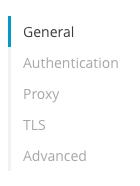
`foo` and `bar` parameters will be rendered in a new tab `"Advanced"` like this:
## @Text
Indicates that a parameter supports a multi-line string input in the UI. This annotation also
affects the DSL, making the annotated parameter a child element with the text as the content of the
element.
Note that this annotation should only be used in parameters of `String` type.
Example
```java
@Parameter
@Optional
@Text
@DisplayName("SQL Query Text")
private String sql;
```
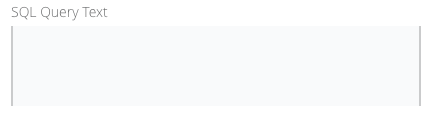
In Studio, the `@Text` will be rendered like this:
`@Text` also affects the DSL of the element that contains the parameter. using it creates a child
element that accepts `CDATA` content. For example, assume that you have this operation:
```java
public void execute(String message) { ... }
```
The DSL for the operation above looks like this:
```xml
```
This example annotates the `message` operation parameter with `@Text`:
```java
public void execute(@Text String message) { ... }
```
So the corresponding DSL looks like this:
```xml
```
## @Path
Marks a parameter as a path to either a file or a directory. This parameter will be displayed in the
UI as a file-picker field.
Note that this annotation should only be used in parameters of `String` type.
This annotation carries information about:
- `type`: Whether the path points to a directory, a file, or any of those.
- `acceptsUrls`: Whether the path parameter supports URLs.
- `acceptedFileExtensions`: A list of file extensions this parameter can handle.
This example accepts a `.txt` resource that can be remote:
```java
@Parameter
@Path(type = FILE, acceptedFileExtensions = "txt", acceptsUrls = true)
private String resourcePath;
```
## @Password
Indicates that the parameter needs to be masked when it is populated from the UI.
Note that this annotation should only be used in parameters of `String` type.

Figure 1. Example in the UI
## Putting It All Together
This example uses features explained above:
```java
@Parameter
@Placement(order = 3, tab="Additional information")
@Example("My name is Max the Mule and I love MuleSoft!")
@DisplayName("User biography")
@Summary("Information related to the user\'s life")
@Text
private String biography;
```
## @ClassValue
**Available since version 1.1**
Indicates that a parameter is a reference to a class name.
Note that this annotation should only be used in parameters of `String` type.
Besides hinting to the tooling that the parameter is a class, it also allows you to specify
restrictions on the classes that can be referenced. It can indicate that the assigned values must
extend or implement (`extendsOrImplements`) specific classes or interfaces.
Consider a Database connector that requires the end user to provide the class name of the JDBC
Driver to be used, for example:
```java
@Parameter
@ClassValue(extendsOrImplements = "java.sql.Driver")
private String driverClassName;
```