---
schema_version: "1"
id: b5ceb1715b50591f1e1e8040645088ae7e50a5b5341f0ac8812e0dbb6447a7ec
title: Getting Started with the Mule SDK for Java
collection: mulesoft
version: current
locale: en-us
portal_url: https://docs.salesforce.com/mulesoft/current/en-us/mule-sdk/latest/getting-started.md
canonical_url: https://docs.mulesoft.com/mule-sdk/latest/getting-started
source_site: docs.mulesoft.com
content_type: documentation
content_hash: 07d83a77854fd9ef9f95340ea657482e8731135b29ec403e815b4787fc9cd3e4
description: MuleSoft Documentation Site
release: "1.13"
latest: true
---
---
product: Mule SDK
version: 1.13
is-latest-version: true
keywords: mule, sdk, create, new, project, getting, started
---
# Getting Started with the Mule SDK for Java
> For the full documentation index, see: https://docs.mulesoft.com/llms.txt
Create your first Mule SDK project in just a few steps:
1. Install the required software.
2. Generate a project using Maven and explore it.
3. Set up your IDE.
4. Build the project you generated.
5. Develop a connector or module.
6. Run the connector or module in Anypoint Studio.
The SDK provides a Maven plugin and a Maven archetype to create new projects. The archetype is a
project template; use it to ensure your new project has a consistent structure, employs recommended
practices, and contains a few elements for you to experiment with.
## Install the Required Software
Install and verify that the following tools are working in your local environment:
- Java Development Kit 17 (JDK 17) or earlier to compile and build your custom Java code.
- For preexisting connectors, [JDK 8 might be needed](https://docs.mulesoft.com/mule-sdk/latest/java-version-support#jdk_8).
- Apache Maven 3.9.8 or later to manage your project’s build.
## Generate a Project Using the Maven Plugin
Run the `generate` command to create an extension project based on the Maven archetype:
mvn org.mule.extensions:mule-extensions-archetype-maven-plugin:1.11.0:generate
You are prompted to provide required field values, then a new project is generated.
## Explore the Generated Project
The generated project contains the basic Mule [module structure](https://docs.mulesoft.com/mule-sdk/latest/module-structure) with some basic
classes, a dummy implementation, and two running tests that use the generated module.
Because this project is a Maven project, it contains a `pom.xml` file that contains all the
information and configuration details used by Maven to perform the build. This generated POM file
inherits from the module’s parent POM, which contains all the common configurations and defaults for
all Mule module projects. The parent `pom.xml` file does not include any release information, so you
must add the release repository to the parent `pom.xml` file manually.
```xml
org.mule.extensions
mule-java-extension-parent
1.11.0
```
> [!NOTE] The generated POM defines a Minimum Mule Version by default, that version must be
> compatible with the target Mule version. See [Forward Compatibility](https://docs.mulesoft.com/mule-sdk/latest/forward-compatibility) for
> more information on how to configure and work with Minimum Mule Versions.
## Set Up Your IDE
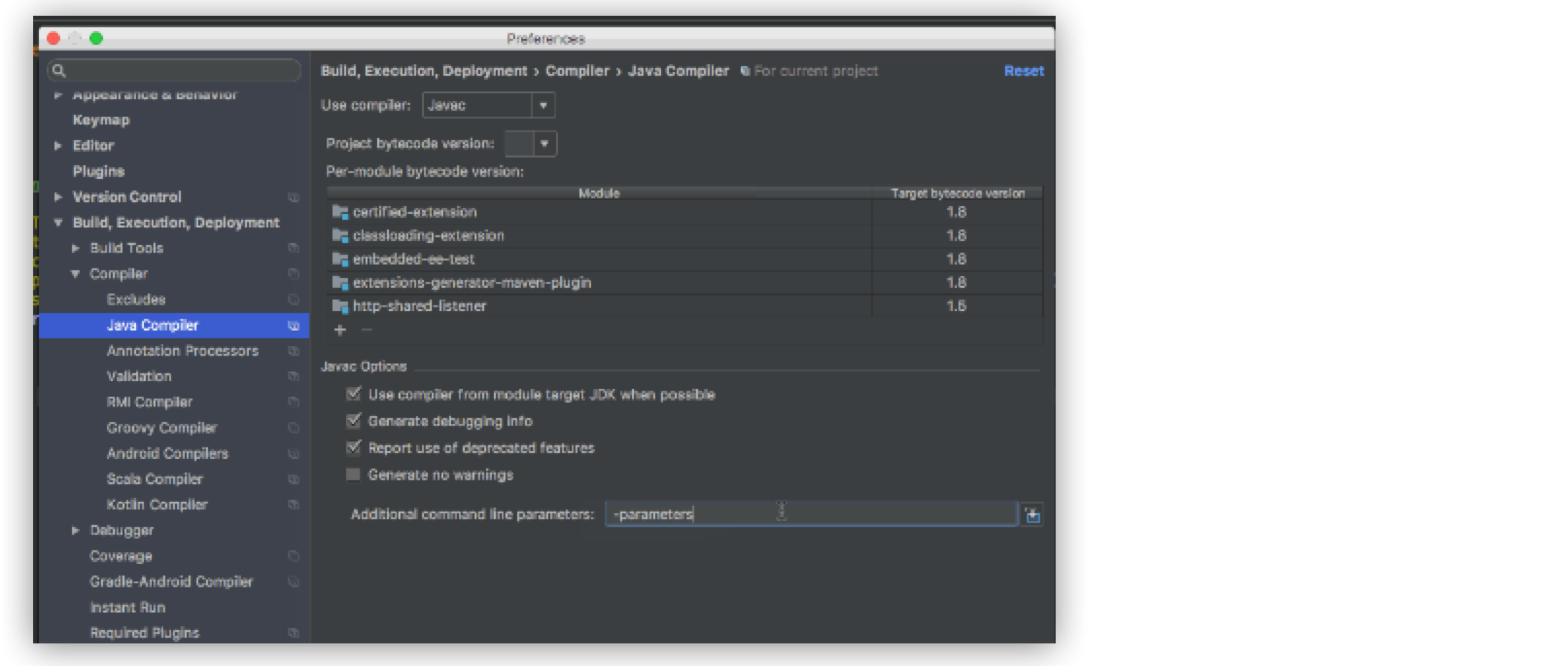
For the SDK to work, you must pass the command line parameter `-parameters` to the Java compiler.
### For Development in IntelliJ
If you are using IntelliJ:
1. Go to **Preferences > Build, Execution, Deployment > Compiler > Java Compiler**.
2. Add `-parameters` in the **Additional command line parameters** section.
## Build the Project
After your project is generated, build it:
mvn clean install
This command compiles your project, runs the tests, and installs the project in your local Maven
repository.
## Develop Custom Module Code
Find the `@Extension` annotated class and examine [module structure](https://docs.mulesoft.com/mule-sdk/latest/module-structure) and the
different elements that you can add to a module. Use these elements to modify a connector.
## Add a Custom Icon to Your Connector
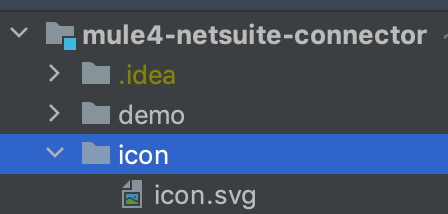
Connector icons are files in the .svg format. To customize the icon of a connector, add an
`icon.svg` file that contains the custom icon under the `icon` folder in the root of the connector
tree.
The following image shows an example of the folder structure for the icon:
After you add the custom icon to your connector, the icon appears in Anypoint Exchange and in
Anypoint Studio.
## Add Your Connector to Studio
Once your connector is working, you can try it in Anypoint Studio.
Go to your Mule app `pom.xml` file and add the connector as a `` with its `groupId`,
`artifactId`, and `version`.
Example: Dependency
```xml
...
...
org.mule.connector
mule-connector
1.0.0
mule-plugin
...
...
```
> [!NOTE] Different features are available in different versions of the SDK for Java. See
> [Choosing the SDK version](https://docs.mulesoft.com/mule-sdk/latest/choosing-version) to pick the right version for your connector.
## Publish Your Connector or Module to Anypoint Exchange
After you run your connector or module in Studio, publish your connector or module to Anypoint
Exchange. For more information, refer to
[Publishing Assets Using Maven](https://docs.mulesoft.com/exchange/to-publish-assets-maven).