---
schema_version: "1"
id: bf4f1f88fd3b3ac7ce13086adc5120a37f55856af2cbe3eba7e20c118325ca75
title: Technical Guidelines for Connector Certifications
collection: mulesoft
version: current
locale: en-us
portal_url: https://docs.salesforce.com/mulesoft/current/en-us/mule-sdk/latest/certification-guidelines-for-connectors.md
canonical_url: https://docs.mulesoft.com/mule-sdk/latest/certification-guidelines-for-connectors
source_site: docs.mulesoft.com
content_type: documentation
content_hash: ebf3edd9ae6c774ae4f362ca7c1460a529f7c1f2daf5d3b066808e797015680b
description: MuleSoft Documentation Site
release: "1.13"
latest: true
---
---
product: Mule SDK
version: 1.13
is-latest-version: true
keywords: connector, certification, sdk, program guidelines
---
# Technical Guidelines for Connector Certifications
> For the full documentation index, see: https://docs.mulesoft.com/llms.txt
1. Set up your development environment using these sections from _Getting Started with the Mule
SDK_:
- [Setting Up Your Development Environment](https://docs.mulesoft.com/mule-sdk/latest/getting-started#setup)
- [Setting Up Your IDE](https://docs.mulesoft.com/mule-sdk/latest/getting-started#setup_ide)
2. Create or migrate your connector:
- If you are a partner or developer, create a Mule 4 connector.
1. Run this command:
`mvn org.mule.extensions:mule-extensions-archetype-maven-plugin:generate`
2. Complete the configuration through the console:
- Provide the name of your extension, for example: `cookbook`
- When you receive a request for the `groupId`, accept the default.
- Specify the `artifactId` of _your_ extension, for example: `cookbook-connector`
- Specify the version of your extension.
If this is your first connector, use `1.0.0`. If not, create the major version from your
last connector. For example, the connector version is `v2.0.0`.
- When you receive a request for the main package of your extension, accept the default.
3. Update your `pom.xml` file:
- Locate these `` settings:
org.mule.extensions
mule-modules-parent
1.9.0
- Change the settings to this:
org.mule.connectors
mule-certified-parent
1.1.0
4. Add one of the following sets of annotations to your `Extension.java`:
- For MuleSoft Certified Connectors (Free):
Example: Annotations for Azure Storage
```annotations
@Extension(name = “Azure Storage”, category = CERTIFIED, vendor = “Whishworks")
@RequiresEnterpriseLicense(allowEvaluationLicense = true)
```
- For MuleSoft Certified Connectors (Additional Fee):
Example: Annotations for SAP Hybris
```annotations
@Extension(name = “SAP Hybris”, category = CERTIFIED, vendor = “Admios")
@RequiresEnterpriseLicense
@RequiresEntitlement(name = “sap-hybris-connector")
```
5. Set the connector icon. See
[Add a Custom Icon to Your Connector](https://docs.mulesoft.com/mule-sdk/latest/getting-started#set-custom-icon).
6. Add a folder for `demo`.
7. Add `License.md` if it is not in the root folder already:
```text
About MuleSoft Certified Connectors
MuleSoft Certified Connectors are developed by MuleSoft’s partners and developer community. These connectors have been reviewed and certified by MuleSoft. To purchase the [Connector Name] Connector or to receive assistance or support for it, contact [Partner Name] directly at [Contact Information]. MuleSoft disclaims any support obligation for MuleSoft Certified Connectors.
By installing this connector, you consent to MuleSoft sharing your contact information with the developer of this connector so that you can receive more information about it directly from the developer.
Your license terms
```
You can develop or add operations to your connector by following the
[Mule SDK documentation](https://docs.mulesoft.com/mule-sdk/latest/).
After you complete the preceding steps, the structure of your connector is ready for Mule 4.
8. Add unit, functional, and integration test cases for your connectors by following
[Testing Your Module](https://docs.mulesoft.com/mule-sdk/latest/testing).
Note that your connector needs test coverage of at least 65%.
9. Add your connector to Connectivity Assets Manager.
You can use your existing account for Connectivity Assets Manager. If you do not have an
account, contact MuleSoft.
## FAQ
**Is there a kit or tool for migrating DevKit to Mule 4 SDK?**
- Yes. The migration tool will be available for its GA in Q2, 2018. You can use the beta version in
the meantime.
org.mule.tools.dmt
mule-dmt
1.0.0
**Where is a sample SDK connector project?**
- The steps described in this guide let you create a structure of a connector project.
**How can I import a project into Studio 7, and how can I test and add it to Studio?**
- Functionality for importing a connector project into Studio 7 is not available at this time.
You can install your connector to Studio 7 using this command to create a connector for use in
Studio 7: `mvn clean install`
See [Installation Example](#installation_example) for detailed steps.
**Can a module recognize that it is being executed from Studio as opposed to on premises or in
Runtime Manager, or are there any related concerns?**
Background: If a connector has a custom license code based on the target AS/400 server serial
numbers, the license check is performed dynamically as the connection is established. MuleSoft
allows customers to evaluate the connector within Studio without a license. However, the connector
does not work when running on premises or in Runtime Manager.
Answer:
- Custom license code will not be enforced in Runtime Manager. MuleSoft recommends that you use the
license validation supported natively by Mule 4 SDK. You can find more information in
[Module Licensing](https://docs.mulesoft.com/mule-sdk/latest/license).
- In your `xxxExtension.java`, add the following annotations to use the license validation from Mule
4 SDK. This example uses SAP Hybris Connector built by Admios:
Example: MuleSoft Certified Connectors (Additional Fee)
```text
@RequiresEnterpriseLicense
@RequiresEntitlement(name = “sap-hybris-connector")
```
## Installation Example
This example supplements the FAQ,
[How can I import a project into Studio 7, and how can I test and add it to Studio?](#question_3).
You can install your connector to Studio 7 using this command to create a connector for use in
Studio 7:
1. Run `mvn clean install`.
This example shows the `cookbook` connector installation to a local Maven repository:
```console
[INFO] No primary artifact to install, installing attached artifacts instead.
[INFO] Installing /Users/me/Downloads/mule4SampleConnector/cookbook-connector/pom.xml to /Users/me/.m2/repository/org/mule/extension/cookbook-connector/1.0.0/cookbook-connector-1.0.0.pom
[INFO] Installing /Users/me/Downloads/mule4SampleConnector/cookbook-connector/target/temporal-extension-model.json to /Users/me/.m2/repository/org/mule/extension/cookbook-connector/1.0.0/cookbook-connector-1.0.0-extension-model-4.0.0.json
[INFO] Installing /Users/me/Downloads/mule4SampleConnector/cookbook-connector/target/cookbook-connector-1.0.0-mule-plugin.jar to /Users/me/.m2/repository/org/mule/extension/cookbook-connector/1.0.0/cookbook-connector-1.0.0-mule-plugin.jar
[NOTE]
---
[INFO] BUILD SUCCESS
[NOTE]
---
[INFO] Total time: 35.057 s
[INFO] Finished at: 2018-01-11T17:10:50-08:00
[INFO] Final Memory: 49M/476M
[NOTE]
---
```
2. Create a Mule project in Studio 7, and open `pom.xml` for this project in Studio 7.
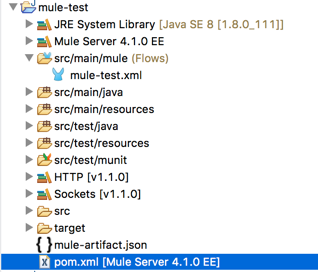
3. Add a dependency setting (``) for your connector to the `pom.xml`.
For example, the following `` enables Studio 7 to find the `cookbook-connector`
installed in a local Maven repository:
org.mule.extension
cookbook-connector
1.0.0
mule-plugin
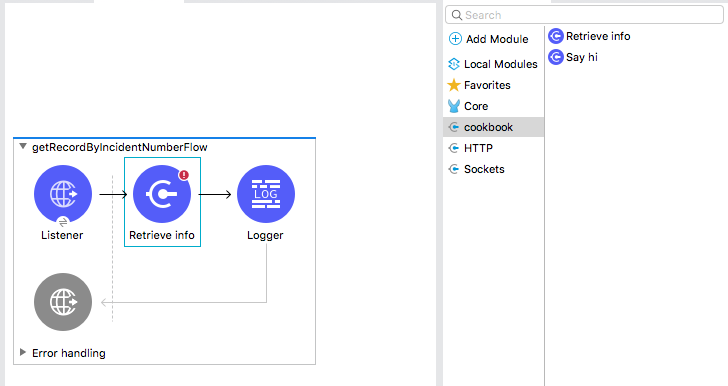
Your connector will now appear the palette. This example shows a Cookbook connector in the
Studio palette:
## See Also
[About Mule Runtime](https://docs.mulesoft.com/mule-runtime/latest/)
[Mule SDKs](https://docs.mulesoft.com/mule-sdk/latest/)
[Mule 4 SDK](https://www.youtube.com/watch?v=qdOXKj8V9Lc&feature=youtu.be) (video)
[MuleSoft Trailblazer Community](https://trailhead.salesforce.com/trailblazer-community/neighborhoods/mulesoft)
[Best Practices](https://docs.mulesoft.com/mule-sdk/latest/best-practices)
[Slack Connector](https://github.com/enterprises/salesforce-emu/sso?return_to=https://github.com/mulesoft-emu/mule4-slack-connector)
[HTTP Connector](https://github.com/mulesoft/mule-http-connector/tree/1.2.0)
[Database Connector](https://github.com/mulesoft/mule-db-connector/tree/1.3.1)