---
schema_version: "1"
id: ce65f91b8e95afbfc668620e276a6aac87e7799e71d0827ba82b518f8a3cbadd
title: System Properties
collection: mulesoft
version: current
locale: en-us
portal_url: https://docs.salesforce.com/mulesoft/current/en-us/mule-runtime/latest/mule-app-properties-system.md
canonical_url: https://docs.mulesoft.com/mule-runtime/latest/mule-app-properties-system
source_site: docs.mulesoft.com
content_type: documentation
content_hash: 60eea582bae584fa4c08f771a195024babeea8b543b09bed5149daee5c085a14
description: MuleSoft Documentation Site
release: "4.13"
latest: true
---
---
product: Mule Runtime
version: 4.13
is-latest-version: true
---
# System Properties
> For the full documentation index, see: https://docs.mulesoft.com/llms.txt
You can use system properties to specify or override property placeholder values that a connector or
component in a Mule app uses. MuleSoft recommends this practice when you are deploying your app to a
new environment and need to override values in configuration property files for your Mule app.
You can manage system properties in these ways:
- From Anypoint Studio through the Run Configurations window for the project.
- From the command line for a standalone Mule instance.
## Set System Properties in Anypoint Studio
You can add properties when you launch your project through the Package Explorer in Studio:
1. Right-click the project for your Mule app in Package Explorer.
2. Click **Run As** → **Run Configurations**.
3. Pick the **Arguments** tab.
4. Add your arguments to the **VM Arguments** field, prepending the property names with `-D`
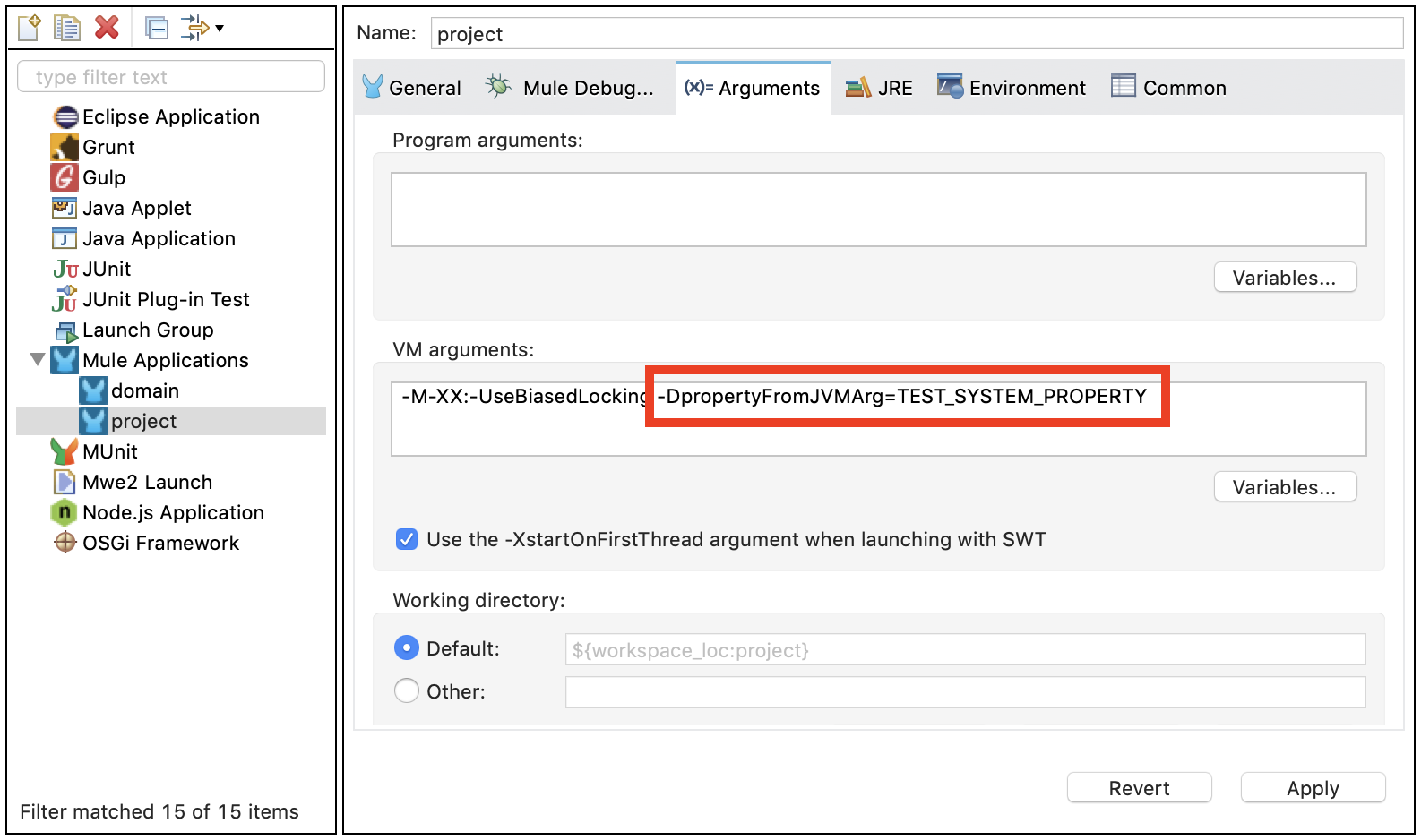
When you deploy your app through Studio, the new values for property placeholders will take
precedence over other values set for those placeholders:
```xml
```
## Set System Properties for On-Premises Deployments
For On-premises Mule instances, you can set and change system properties from the command line or
define them in the `wrapper.conf` file.
### Set System Properties when Starting Mule
Append `-M-Dmule.=` to the `mule` or `mule start` command to set a system
property.
Replace `` with your desired property name.
Replace `` with the value to define for the property.
The following example starts Mule and defines two properties with different values:
$ mule start -M-Dmule.myEnv=prod -M-Dmule.myValue=1234
### Set System Properties in the wrapper.conf File
Add `wrapper.java.additional.` entries to the `wrapper.conf` file in the `${MULE_HOME}/conf`
directory, prepending property names with `-D`.
For example, to set Mule encoding, add the following line to the Wrapper configuration file:
```none
wrapper.java.additional.999=-Dmule.encoding=ISO-8859-1
```
#### Considerations for Adding System Properties
- Ensure that the new property entry number is not in use.
If you add `wrapper.java.additional.` entries to the configuration file, always change each
instance of `` to a new number that is not used, otherwise, Java does not parse the properties
correctly.
- Use values outside the sequence for properties in an include file.
If you add `wrapper.java.additional.` entries in an include file, configure a high `` value
to ensure that the numeric values of the properties are outside the standard sequence. Also,
ensure that the `wrapper.ignore_sequence_gaps` property is set to `true`. For example:
```none
wrapper.java.additional.1900=-Dprop=value1
wrapper.java.additional.1901=-DotherProp=value2
wrapper.ignore_sequence_gaps=TRUE
```
## See Also
- [Mule Configuration Properties](https://docs.mulesoft.com/mule-runtime/latest/configuring-properties)