---
schema_version: "1"
id: 0711ba394cfd61e7d619f7966c908ba8a0086ae5c69f5e522ffa7b1471615612
title: Configuring Properties
collection: mulesoft
version: current
locale: en-us
portal_url: https://docs.salesforce.com/mulesoft/current/en-us/mule-runtime/4.6/configuring-properties.md
canonical_url: https://docs.mulesoft.com/mule-runtime/4.6/configuring-properties
source_site: docs.mulesoft.com
content_type: documentation
content_hash: 332d7a58993cf8bd247137881a93299760cd147a4ddcb9b7823c2527458d00b9
description: MuleSoft Documentation Site
release: "4.6"
latest: false
---
---
product: Mule Runtime
version: 4.6
---
# Configuring Properties
> For the full documentation index, see: https://docs.mulesoft.com/llms.txt
You can configure properties, such as property placeholders and system properties.
## Property Placeholders
You can use [Ant](https://ant.apache.org/)\-style property placeholders in your Mule configuration.
For example:
```xml
```
The values for these placeholders can be made available in a variety of ways, as described in the
sections that follow.
You can also escape the resolution of property placeholder values:
```xml
```
Instead of returning the value of the property, the Logger component returns the string
`"${property.value}"`. You can also use the escape character `\` to escape the resolution of the
property prefix (the `${` character sequence).
## Global Properties
You can use the `` element to set a placeholder value from within your Mule
configuration, such as from within another Mule configuration file. You can use the global property
syntax to reference the values from a `.yaml` or `.properties` file, and create new (global)
properties that depends on configuration properties, or secure configuration properties. To
reference configuration properties, read the section on properties files.
```xml
```
## Properties Files
To load properties from a custom file, you can place your custom properties file at
`src/main/resources` and use the tag ``:
```xml
```
To load multiple properties files simply define a `` tag for each file
you want to load.
- If a property is defined in more than one file referenced in `` tags,
the first definition will be preserved.
These files must be located at `src/main/resources`, inside your Mule project, or you can also use
absolute paths.
## Supported Files
The Configuration Properties support both YAML configuration files (`.yaml`) and Properties
configuration files (`.properties`). `String` is the only supported type in both file formats. Use
the format that you find easier to read and edit.
YAML file example:
```xml
```
Where `ports.yaml` is:
```yaml
smtp:
port: "8957"
http:
port: "8081"
```
Properties file example:
```xml
```
Where `ports.properties` is:
```xml
smtp.port=8957
http.port=8081
```
## File Properties
The placeholder value can also be the entire content of the file. The placeholder value becomes the
string value, for example:
properties-file.txt
Some content
```xml
```
The payload’s value becomes `"Some content"`. Just like other properties files, these files must be
located in `src/main/resources`, inside your Mule project. Absolute paths can also be used.
This practice is useful for modularizing the configuration file: You can extract large contents from
the config file, SQL queries, or transformations to make the config file clearer, and you can reuse
the contents.
## System Properties
You can set JDK system properties when running Mule On-Premises, and later use these properties to
configure components or modules in a Mule application. There are two ways to specify properties:
- From the command line, when starting the Mule instance:
mule -M-Dsmtp.username=JSmith -M-Dsmtp.password=ChangeMe
- Editing the `wrapper.conf` file located in the `$MULE_HOME/conf` directory, adding entries for
each property:
wrapper.java.additional.999=-Dsmtp.username=JSmith
wrapper.java.additional.1000=-Dsmtp.password=ChangeMe
See [System Properties](https://docs.mulesoft.com/mule-runtime/4.6/mule-app-properties-system#set-properties) for additional configuration
details.
## Custom Properties Provider
It is possible to create a custom properties provider implementation using the Mule API. See
[Custom Configuration Properties Provider](https://docs.mulesoft.com/mule-runtime/4.6/custom-configuration-properties-provider) for more
details.
### Setting System Properties in Anypoint Studio
You can add properties when you launch your project on Anypoint Studio, through the Run
Configurations menu:
1. Right-click your project in Package Explorer.
2. Click **Run As** > **Run Configurations**.
3. Pick the **Arguments** tab.
4. Add your arguments to the **VM arguments** field, preceding property names with **\-D**:
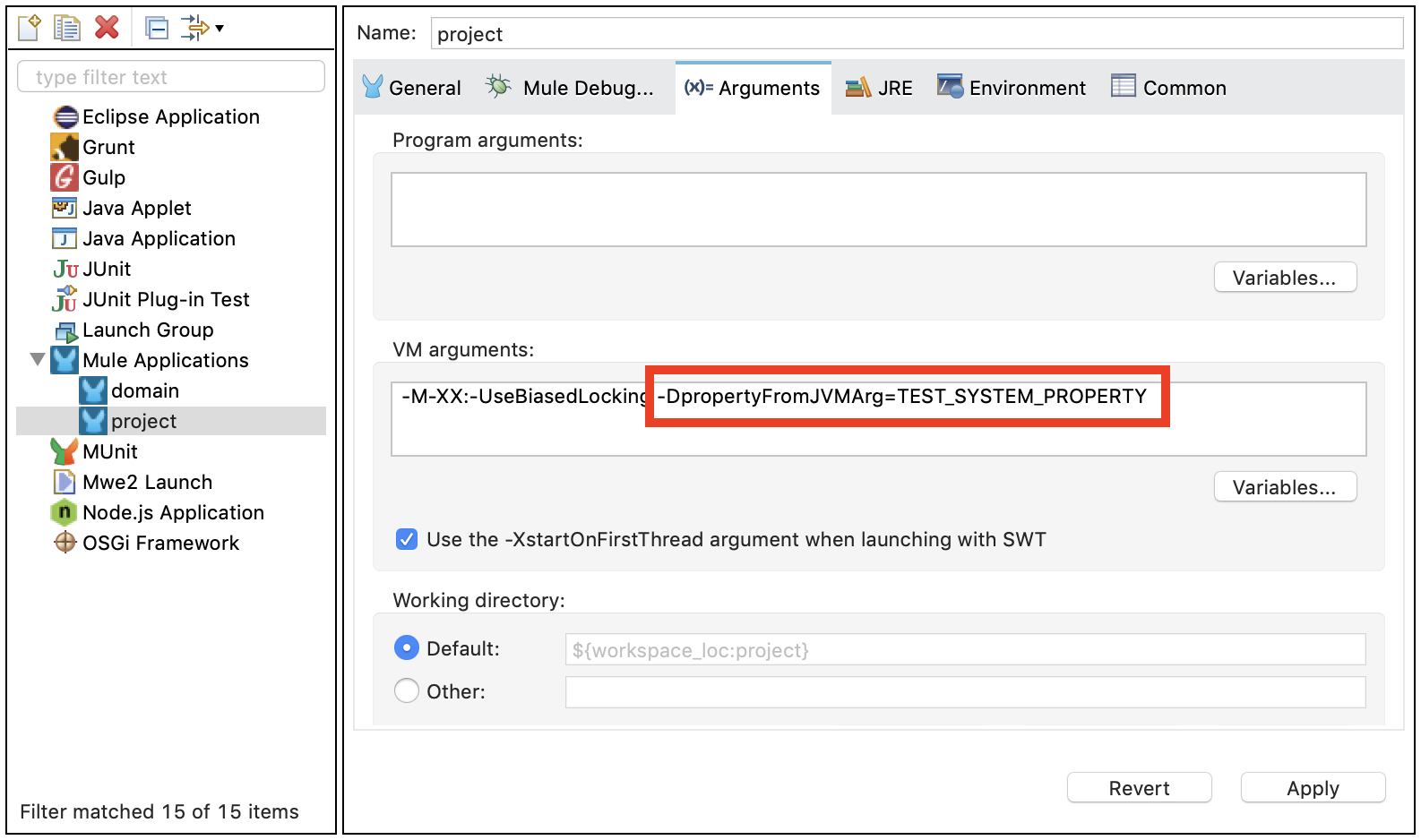
Your properties are now available each time you deploy your app through Studio. You can then
reference them with the following syntax:
```xml
```
## Environment Variables
Environment variables can be defined in various different ways, there are also several ways to
access these from your apps. Regardless of how an environment variable is defined, the recommended
way to reference it is through the following syntax:
${variableName}
### Environment Variables From the OS
To reference a variable that is defined in the OS, you can simply use the following syntax:
```xml
```
### Setting Environment Variables in Anypoint Studio
You can set variables in Studio through the Run Configuration menu:
1. Right-click your project in Package Explorer.
2. Select **Run As** > **Run Configurations**.
3. Pick the Environment tab.
4. Click the **New** button and assign your variable a name and value.
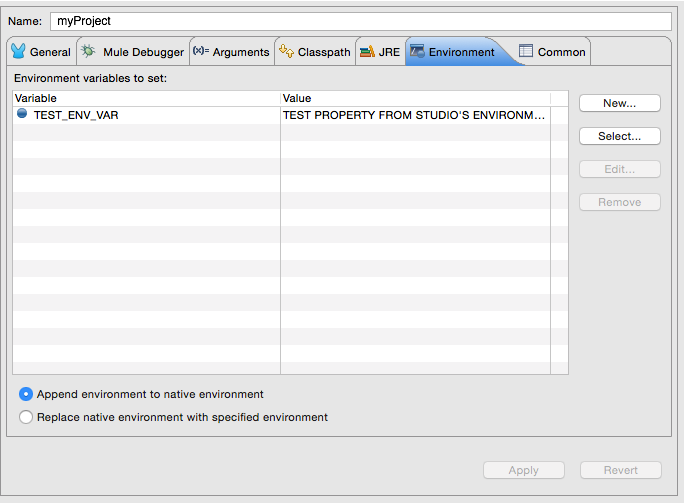
Your variable is now available each time you deploy through Studio. You can reference it with the
following syntax:
```xml
```
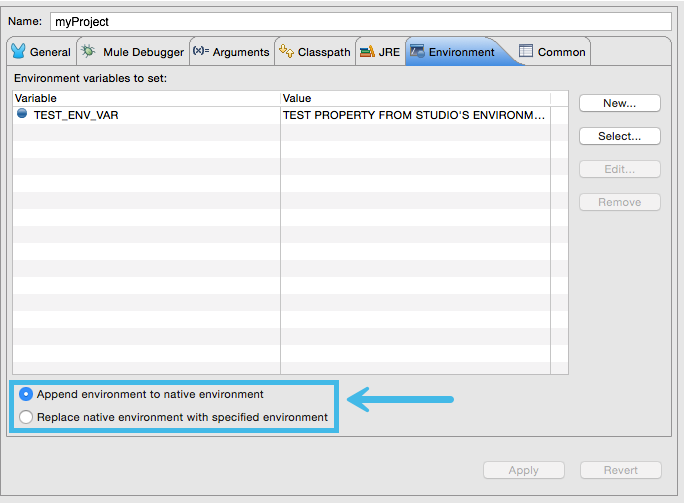
> [!NOTE] The syntax is the same for referencing variables defined in the OS and variables defined
> in Studio. You can select if variables defined in Studio replace variables with the same name
> defined in the OS or not, by checking the corresponding radio button in the UI when creating the
> variables.
## Setting the Properties File Dynamically
A common configuration use case is to set the file to depend on a property (for example, `env`) to
determine which file to use, for example, to use a `development-properties` file in development
stage or a production file.
```xml
```
This way, the value of the property `env` determines which file to use to load the configuration
properties. That `env` property can be set by a global property, system property, or environment
property. You can use global properties as a way to define default values for configuration
properties. System and environment properties with the same name as a global property will override
that global property.
```xml
```
This way, the default value for the `env` property is `dev`, which can still be overridden with a
system or environment property. Please note that this configuration is **required** for metadata
resolution in Anypoint Studio. If you do not define default values for the properties that are
passed through the command line, you receive an error while creating an application model for all
message processors that depend on them.
Another thing to consider is that placeholders of a configuration property setting cannot depend on
the properties loaded from another configuration property. In the example above, the property `env`
couldn’t have been defined in a configuration property. The example below **is not correct**:
```xml
```
This also includes other type of properties, such as Secure Configuration Properties or Custom
Configuration Properties.
## Setting Properties Values in Runtime Manager
If you deploy your application to [Runtime Manager](https://docs.mulesoft.com/runtime-manager/), you can also set
properties through the Runtime Manager console. These can be defined when
[Deploying to CloudHub](https://docs.mulesoft.com/cloudhub/deploying-to-cloudhub), or on an
[already running application](https://docs.mulesoft.com/cloudhub/managing-applications-on-cloudhub).
To create an environment variable or application property:
1. Log in to your Anypoint Platform account.
2. Click Runtime Manager.
3. Either click **Deploy Application** to deploy a new application, or select a running application
and click **Manage Application**.
4. Select the **Properties** tab in the **Settings** section.
See [Managing Applications on CloudHub](https://docs.mulesoft.com/cloudhub/managing-applications-on-cloudhub) and
[Secure Application Properties](https://docs.mulesoft.com/cloudhub/secure-application-properties) for more details.
## Properties Hierarchy
Configuration properties can be overwritten. The Mule runtime engine uses the following hierarchy to
determine which properties take precedence if they have the same name. In this hierarchy, deployment
properties are at the top, so they take precedence over the other types of properties.
1. Deployment properties
2. System properties
3. Environment properties
4. Application properties (includes configuration properties, secure configuration properties, and
other custom configuration properties)
5. Global Properties
So, for example, if a configuration property named `size` is defined as a system property, and there
is also an application configuration property named `size`, the value for the application is the
value of the property with the most precedence (in this case, the system property).
Also, a property can derive its value from other properties that are higher in the hierarchy.
Therefore, an application property can derive its value from environment, system, and deployment
properties. A system property can derive its value from a deployment property, and so on. For
example, if there is a system property named `env`, an application configuration property can have
the value `file.${env}.xml`. However, an application property cannot depend on an application
property’s value unless it’s defined in the same file. For example, a Secure Configuration property
cannot depend on a Configuration property.
Because of this hierarchical structure, Mule components that load files cannot depend on an
application or a global property. Mule runtime engine loads both, the component and the application
property, at the same hierarchy. For example, if Mule loads an `import` component before loading the
application property, the deployment fails because the property is not resolved by the time the
`import` component needs to load.
## Built-in Properties
Mule runtime engine defines internal Application properties and assigns a value to them based on the
configuration of the Mule instance and the deployed applications:
Property
Description
app.home
The path to the Mule application /home directory
app.name
The name of the Mule application
domain.name
The name of the Domain
api.name
The name of the API
mule.home
The path to the Mule instance /home directory
Do not overwrite any of these properties; Mule uses some of these values internally and overwriting
them might cause unexpected behaviors.