---
schema_version: "1"
id: 7208489cc185a3620a0fc78e8180ac593cb4ff28715b17513d5ae56526648fb1
title: MDC Logging
collection: mulesoft
version: current
locale: en-us
portal_url: https://docs.salesforce.com/mulesoft/current/en-us/mule-runtime/4.4/logging-mdc.md
canonical_url: https://docs.mulesoft.com/mule-runtime/4.4/logging-mdc
source_site: docs.mulesoft.com
content_type: documentation
content_hash: 2cc71788ff1970ba6fe87de3c42e222cc02c96d643043603dfa18f49c0367c13
description: MuleSoft Documentation Site
release: "4.4"
latest: false
---
---
product: Mule Runtime
version: 4.4
keywords: tracing, correlation, id, logging, mdc, variables, anypoint, studio
---
# MDC Logging
> For the full documentation index, see: https://docs.mulesoft.com/llms.txt
Mapped Diagnostic Context (MDC) enriches logging and improves tracking by providing more context or
information in the logs for the current Mule event.
By default, Mule logs two MDC entries: `processor`, which shows the location of the current event,
and `event`, which shows the correlation ID of the event.
Mule Tracing module enables you to enhance your logs by adding, removing, and clearing variables
from the logging context for a given Mule event. The logging context exists for the entire execution
of the corresponding event.
## Prerequisites
To use the MDC Logging operations, complete the following tasks:
- Install the Mule Tracing module in your application.
- Change the pattern layouts in the `log4j2.xml` file to `MDC`.
> [!NOTE] If you are using Anypoint Runtime Fabric or CloudHub 2.0 to deploy your Mule applications,
> MDC logging isn’t supported.
## Install the Mule Tracing Module
Follow the next steps to install the Mule Tracing module in your application.
1. Open your Mule project in Anypoint Studio.
2. Go to the Mule Palette.
3. Select **Search in Exchange**, and search for the Mule Tracing module.
4. Select the module and click **Add**.
5. Click **Finish**.
## Change the Pattern Layouts in the log4j2.xml File
This change instructs Mule to automatically add the MDC context, which includes the correlation ID
and the processor path. You can modify the `log4j2.xml` file of your Mule application or the file of
your Mule instance, which is located in `/conf/log4j2.xml`.
Follow these steps to change the pattern layouts to MDC:
1. Open the `log4j2.xml` file for editing.
2. Replace `[processor: %X{processorPath}; event: %X{correlationId}]` with `[%MDC]`.
### Example log4j2.xml File Configurations
Example: Default log4j2.xml file without MDC logging.
Example: Updated log4j2.xml file with MDC logging.
## Available Operations
XML Element
Description
Accepted Attributes
set-logging-variable
Sets a logging variable and its value.
Attribute Name
Description
variableName
The name of the variable to log.
value
The value to assign to the variable. Accepts DataWeave expressions.
remove-logging-variable
Removes a logging variable.
Attribute Name
Description
variableName
The name of the variable to remove.
clear-logging-variables
Removes all the logging variables. This option does not remove the processor path or the correlation ID.
None
## Configure MDC Logging in Your Application
To configure MDC logging, add any of the available operations to your Mule application flow and
specify the corresponding attributes.
For example, to configure a logging variable, insert the `` XML
element into your application flow:
...
...
After executing the flow, the output logs are:
INFO 2021-04-08 16:58:26,882 \[\[MuleRuntime\].uber.15: \[test-project-app\].exampleFlow.CPU\_LITE
@18f679\] \[{correlationId=c85e16c0-98a4-11eb-bc34-cac765a2219b,
processorPath=exampleFlow/processors/2, testVar=testValue}\]
org.mule.runtime.core.internal.processor.LoggerMessageProcessor: Example
This logging context affects any output of a Logger component and any internal logging that Mule
runtime produces. Therefore, you can add more context to the event that Mule is processing if you
need additional information for tracking down any potential issue, for example, when an unexpected
error occurs.
## Example
Consider the following application:
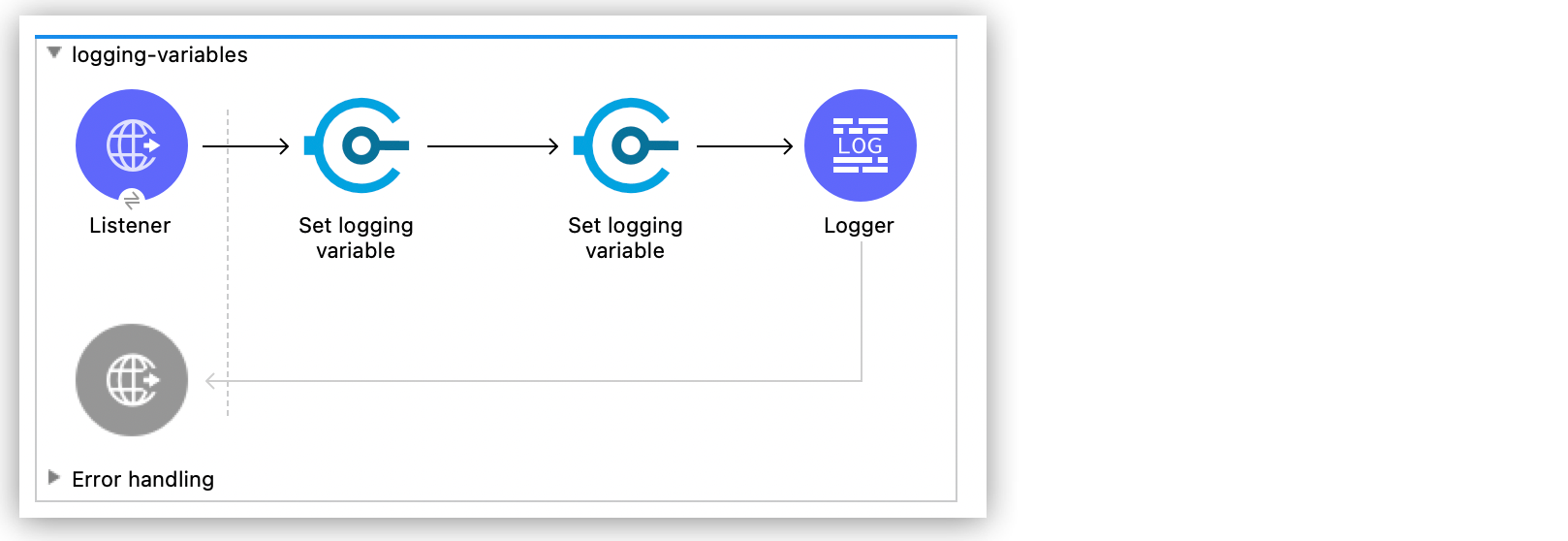
After sending the following request:
curl --location --request GET '0.0.0.0:8081/order' \\ --header 'Content-Type: application/json' \\
--data-raw '{ "orderId": 548102842, "customerId": "ARG-12934", "items": \[ "CP-123", "CP-452" \] }'
The output log is:
INFO 2021-04-09 11:14:38,409 \[\[MuleRuntime\].uber.05:
\[tracing-module\].tracing-moduleFlow.CPU\_LITE @34a62707\] \[processor:
tracing-moduleFlow/processors/2; event: eb2b2461-993d-11eb-8a64-4865ee1fd814\]
{correlationId=eb2b2461-993d-11eb-8a64-4865ee1fd814, customerId=ARG-12934,
processorPath=tracing-moduleFlow/processors/2, requestPath=GET:/order}
org.mule.runtime.core.internal.processor.LoggerMessageProcessor: { "orderId": 548102842,
"customerId": "ARG-12934", "items": \[ "CP-123", "CP-452" \] }
## See Also
- [Configuring Logging](https://docs.mulesoft.com/mule-runtime/4.4/logging-in-mule)