---
schema_version: "1"
id: 7fbd2061eca3c8bd90fa1909bb5bc3c42aa2feff991d4a9a356cb49a87bbb20c
title: Configuring Environment Properties
collection: mulesoft
version: current
locale: en-us
portal_url: https://docs.salesforce.com/mulesoft/current/en-us/mule-runtime/4.12/deploying-to-multiple-environments.md
canonical_url: https://docs.mulesoft.com/mule-runtime/4.12/deploying-to-multiple-environments
source_site: docs.mulesoft.com
content_type: documentation
content_hash: 382668c2c89e157e31d43968222bfa13de77bd8acbe6dc4c7753693aeddb90c4
description: MuleSoft Documentation Site
release: "4.12"
latest: false
---
---
product: Mule Runtime
version: 4.12
keywords: deploy, deploying, cloudhub, on premises, on premise, environment
---
# Configuring Environment Properties
> For the full documentation index, see: https://docs.mulesoft.com/llms.txt
You can configure your Mule application to automatically load property files based on the
development environment (QA, preproduction, production, etc) you are working on, making it easier to
deploy your app both on-premises and in the cloud. This configuration requires you to complete the
following tasks:
1. Create a properties file for each development environment in your application.
2. Configure a properties placeholder in your app to look for the environment upon launch.
3. Set an environment variable to point to a specific development environment during application
deployment.
Consider externalizing other aspects of your configuration, like time-out values, polling
frequencies, and so on, even if these configurations don’t vary between environments. This
configuration facilitates tuning and experimenting because the Mule application becomes fully
configurable through a single properties file.
[Download Example Studio Application](https://docs.mulesoft.com/mule-runtime/4.12/_attachments/multiple-envs-example.jar)
## Considerations when Using Environment Properties
Consider the following guidelines when you configure environment properties:
- Use a consistent naming strategy for your properties files and make them unique across
applications.
This practice ensures that files are easy to reuse across teams. A good strategy is to add the
application name or application ID to the properties file names.
- If you are deploying multiple applications through a [shared resources](https://docs.mulesoft.com/mule-runtime/4.12/shared-resources)
structure, do not set anything in the properties files.
Doing so can cause conflicts between the various apps that share a domain. Instead, you can set
environment variables that span the scope of the deployed app, its domain, and other apps under
that domain.
In Studio, you can create environment variables using the **Environment** tab of the **Run
Configurations** menu. You can access the Environment tab from the drop-down menu to the right of
the **Play** button.
## Basic Architecture of an Environment Property Configuration
The following Mule configuration fragment defines a global property called `env`, a dynamic
configuration properties file (based on the `env` property), and an HTTP connector with variable
configuration:
```xml
```
This example uses Spring’s property placeholder resolution mechanism. The variable bits: the **base
path**, **host**, and **port** are clearly visible and can vary for each environment where this
connector gets deployed in.
When deploying your application, you can dynamically replace the `env` property with the particular
environment to which you’re deploying, such as `qa` or `prod`. This causes the Mule application to
load a different `.yaml` file with properties specific to the configured environment.
To provide values for these environment variables, we use a Yaml configuration file for each
environment:
Properties File: qa.yaml
path: "test/products" host: "localhost" port: 8082
Properties File: prod.yaml
path: "products" host: "www.acme.com" port: 8081
## Creating and Configuring Environment Properties
Create variable properties files and configure them in your application to look for the environment
upon launch. Additionally, you can test environment properties in Studio. To complete these tasks
review the following steps:
### Using Studio Visual Editor
1. Define a list of environments you wish to support in your application. For example, one common
use case involves configuring the application to support both Production and a QA
environments.
We will define the variable `variable` in the environments `prod` and `qa` and test it using a
single application.
2. Right-click the `src/main/resources` folder, then select **New** > **File** to create a
properties file for each environment you wish to support. For example:
- `qa.yaml`
- `prod.yaml`
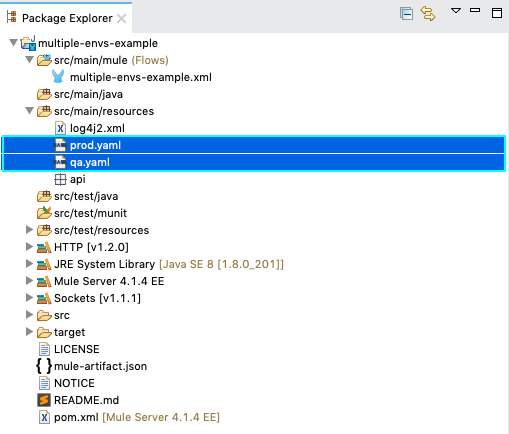
3. Double-click each of these new files to open them in new tabs in Studio. By editing them, you
can configure the properties of the environment that correspond to the filename. For example,
you may wish to add the properties as per the following images. Keep in mind that you can use
these properties anywhere in your application.


4. Close the properties files.
5. Click in the Global Elements tab of your Studio project, below the canvas.
6. **Create** a new global element. When selecting the element type, pick **Configuration
properties** under **Global Configurations**.
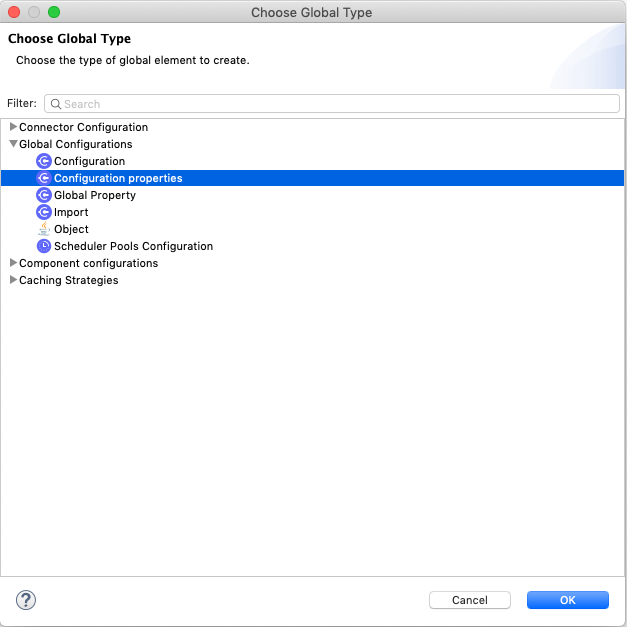
7. Set the value of the **File** field to `${env}.yaml`
8. **Create** a new property to add a default environment. When selecting the element type, pick
**Global Property** under **Global Configurations**.
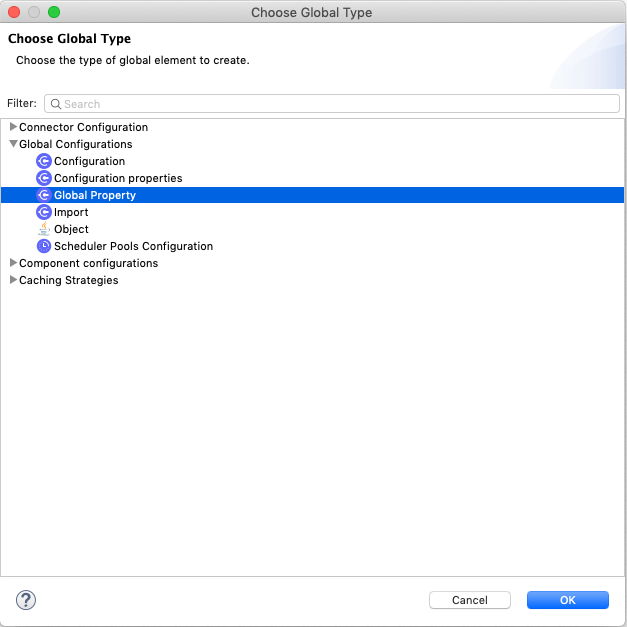
9. Set a value to the property.
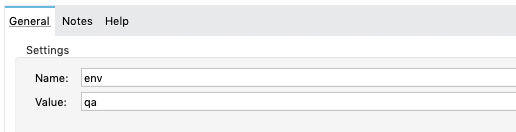
10. You can change the environment by editing the configured **Global Property** value.
### Using XML Editor
1. Define a list of environments you wish to support in your application. For example, one common
use case involves configuring the application to support both Production and a QA
environments.
We will define the variable `variable` in the environments `prod` and `qa` and test it using a
single application.
2. Right-click the `src/main/resources` folder, then select **New** > **File** to create a
properties file for each environment you wish to support. For example:
- `qa.yaml`
- `prod.yaml`

3. Double-click each of these new files to open them in new tabs in Studio. By editing them, you
can configure the properties of the environment that correspond to the filename. For example,
you may wish to add the properties as per the following images. Keep in mind that you can use
these properties anywhere in your application.


4. Close the properties files.
5. Click in the Configuration XML tab of your Studio application, below the canvas.
6. Add a **configuration-properties** element to the XML file and let the file name configurable.
```xml
```
7. Add a **Global Property** element to set the default environment name.
```xml
```
8. You can change the environment by editing the configured **Global Property** value.
### Testing Configured Environment Properties in Studio
You can test that your application uses the specific environment you configured in your variables
properties file, by running the application in Mule embedded in Studio.
1. In the Package Explorer view, right-click the filename of the project you wish to deploy, then
select **Run As** > **Mule Application**.
2. Studio automatically deploys your application according to the environment variable you
specified in the **Global Property** from the previous procedure.
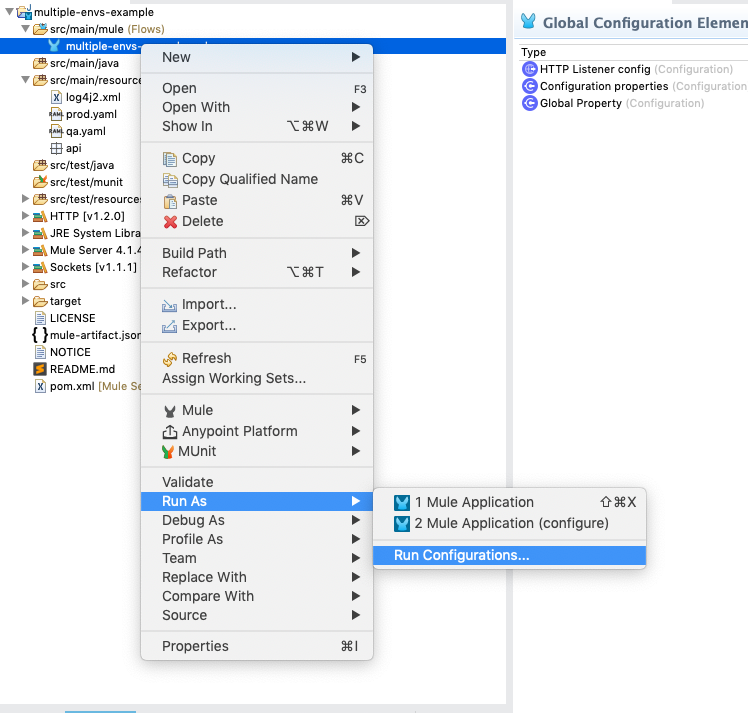
3. Again in the Package Explorer view, right-click the filename of the project you wish to deploy,
then select **Run As** > **Run Configurations…**.
4. Define the System Property in the `Arguments` tab.
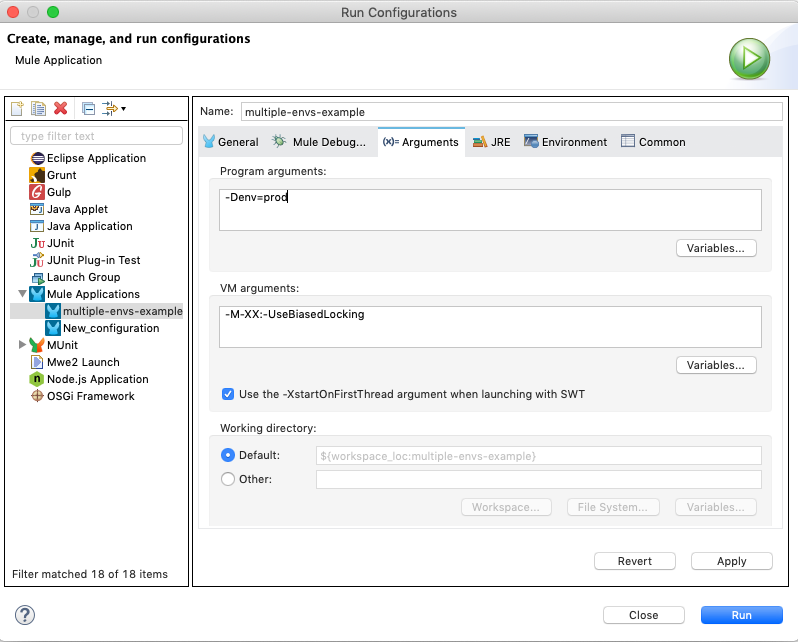
5. Click the `Run` button to complete the procedure. The properties configured in `prod.yaml` will
be used instead of the ones defined in `qa.yaml`.
## Setting Environment Variables for Application Deployment
Mule loads the environment variables when it starts, so depending on your deployment target
(CloudHub or On-premises) you need to set the environment when you deploy the app (CloudHub) or when
you start your Mule instance (On-premises).
### Setting a Specific Environment when Starting Mule On-Premises
#### Using the command line
Identify the environment in which to deploy your application at runtime with an environment
variable. Execute the command to run Mule in your environment as per the following example:
```console
$ mule -M-Denv=prod
```
Once Mule starts with your configured environment, you can deploy the application with your desired
deployment method.
#### Using Anypoint Runtime Manager
As a prerequisite you need to
[create a server in Anypoint Runtime Manager](https://docs.mulesoft.com/runtime-manager/servers-create) and link it to
Mule. Then you can
[create a custom server property](https://docs.mulesoft.com/runtime-manager/servers-properties-create).
### Setting a Specific Environment when Deploying to CloudHub
#### Deploying to CloudHub from Studio
From Studio you can initiate the process to set your properties environment variables and deploy
your application to CloudHub :
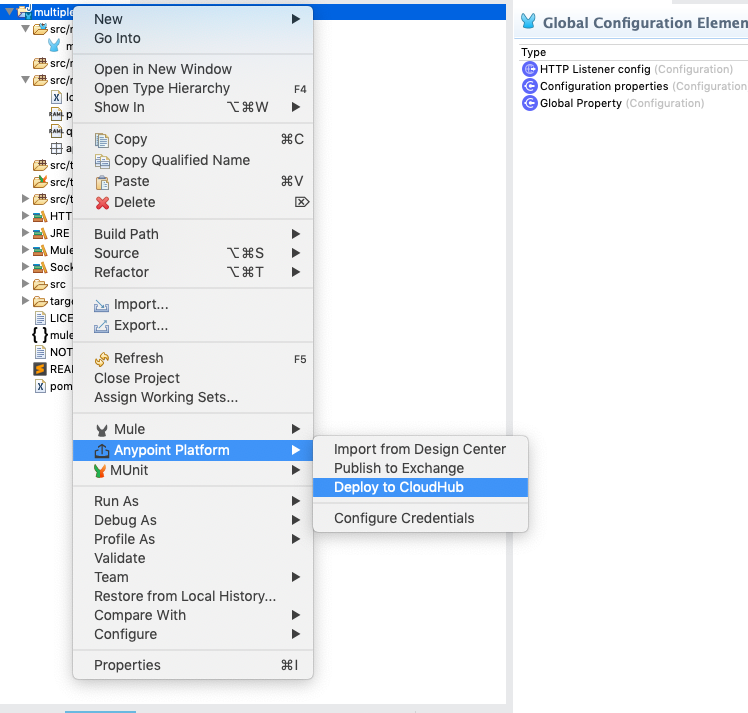
1. In the Package Explorer view, right-click the filename of the project you wish to deploy, then
select **Anypoint Platform** → **Deploy to Cloud**.
2. Complete the requested data, and click the **Properties** tab.
3. Add a new environment variable by setting **Key** to **env** and its value to **prod**.
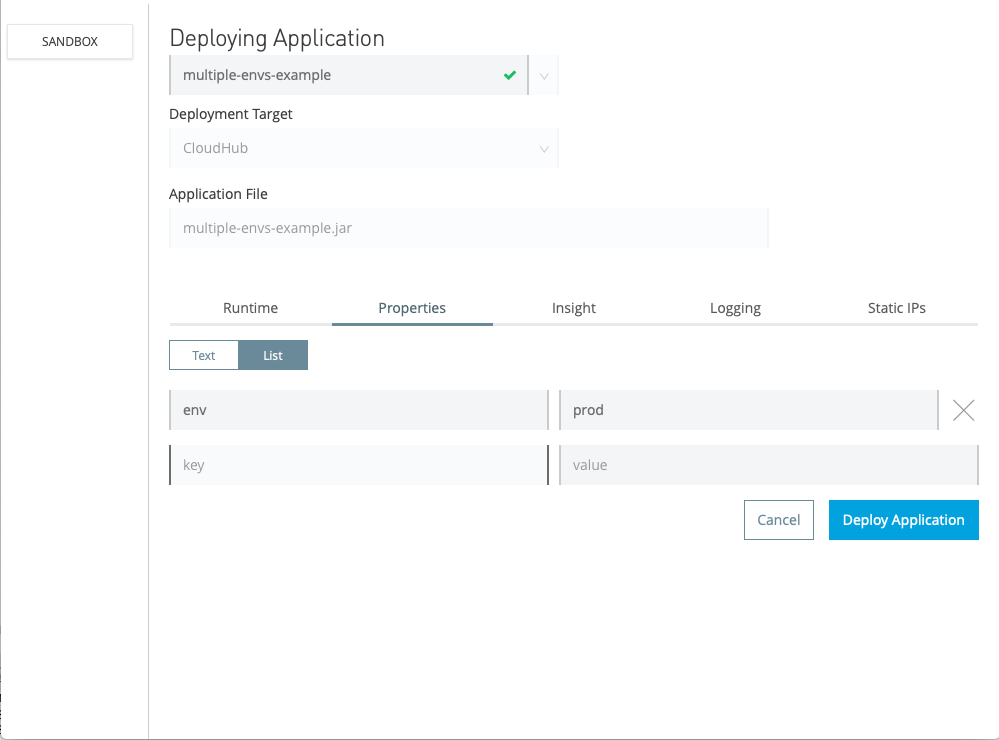
4. Click **Deploy Application**.
#### Deploying to CloudHub from Runtime Manager
To deploy your application to CloudHub via Anypoint Runtime Manager, you can
[set properties values](https://docs.mulesoft.com/mule-runtime/4.12/configuring-properties#setting-properties-values-in-runtime-manager.adoc)
using Runtime Manager Console.
## See Also
- [Configuring Variable Properties](https://docs.mulesoft.com/mule-runtime/4.12/configuring-properties)
- [Shared Resources](https://docs.mulesoft.com/mule-runtime/4.12/shared-resources)