---
schema_version: "1"
id: 4962745e39858e82c06f4732dc5e9728ad7179058dc5c51a3ca5c7e4c4190583
title: Custom Business Event Component
collection: mulesoft
version: current
locale: en-us
portal_url: https://docs.salesforce.com/mulesoft/current/en-us/mule-runtime/4.12/business-events-custom.md
canonical_url: https://docs.mulesoft.com/mule-runtime/4.12/business-events-custom
source_site: docs.mulesoft.com
content_type: documentation
content_hash: 423d03b053a81bcd220e93c20ad195de7ce7793551c04dc8c6217cbdc80a44ee
description: MuleSoft Documentation Site
release: "4.12"
latest: false
---
---
product: Mule Runtime
version: 4.12
---
# Custom Business Event Component
> For the full documentation index, see: https://docs.mulesoft.com/llms.txt
Use the Custom Business Event component (`tracking:custom-event` element in the XML view) to add
metadata and Key Performance Indicators (KPIs) to your flow. Configure the component as follows:
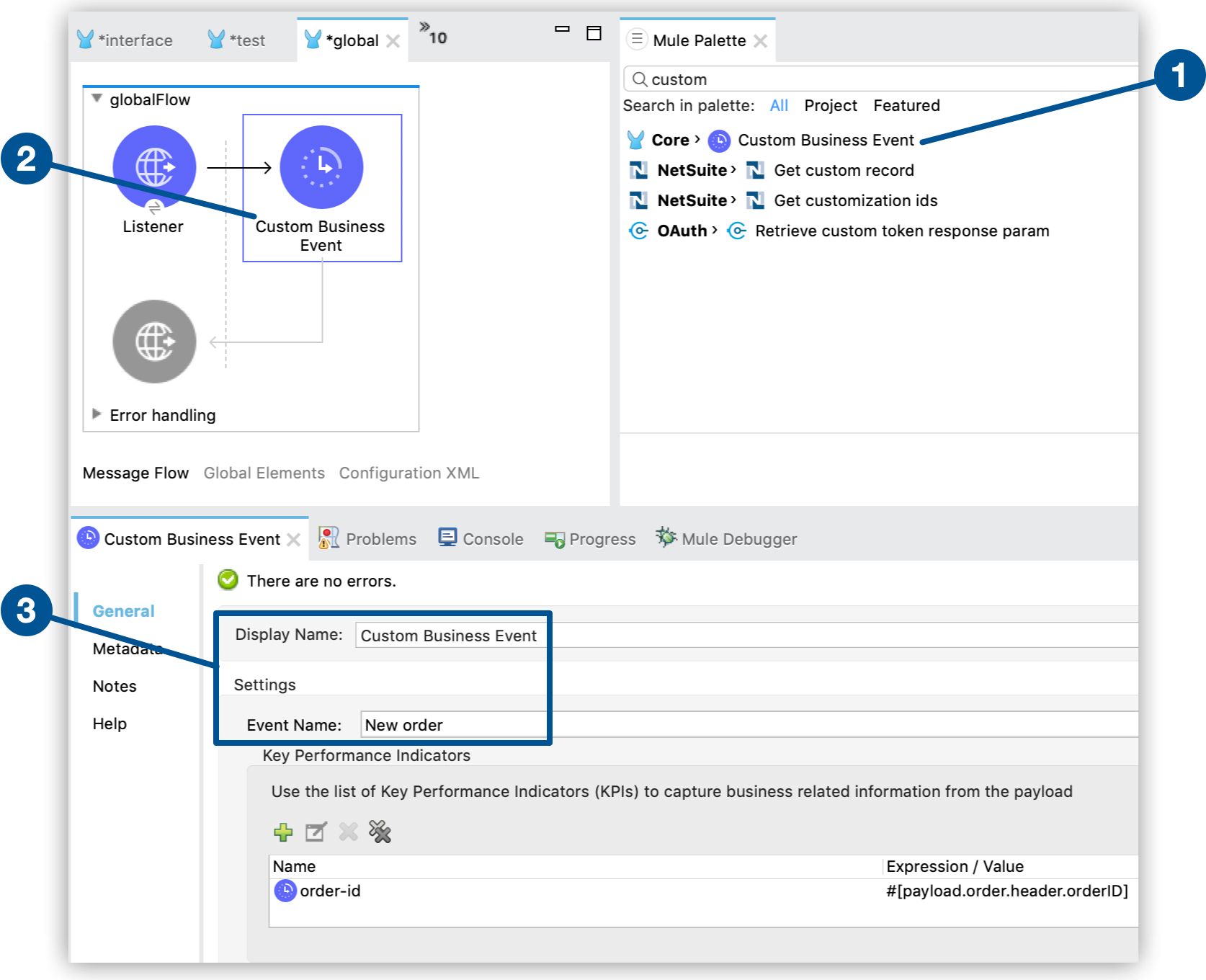
1. Click the **Mule Palette** tab in Anypoint Studio.
2. Drag **Custom Business Event** to any point of your flow.
3. Open the component properties view and specify values for **Display Name** and **Event Name**:
You can also configure Key Performance Indicators (KPIs) to capture information from the message
payload:
- In the UI:
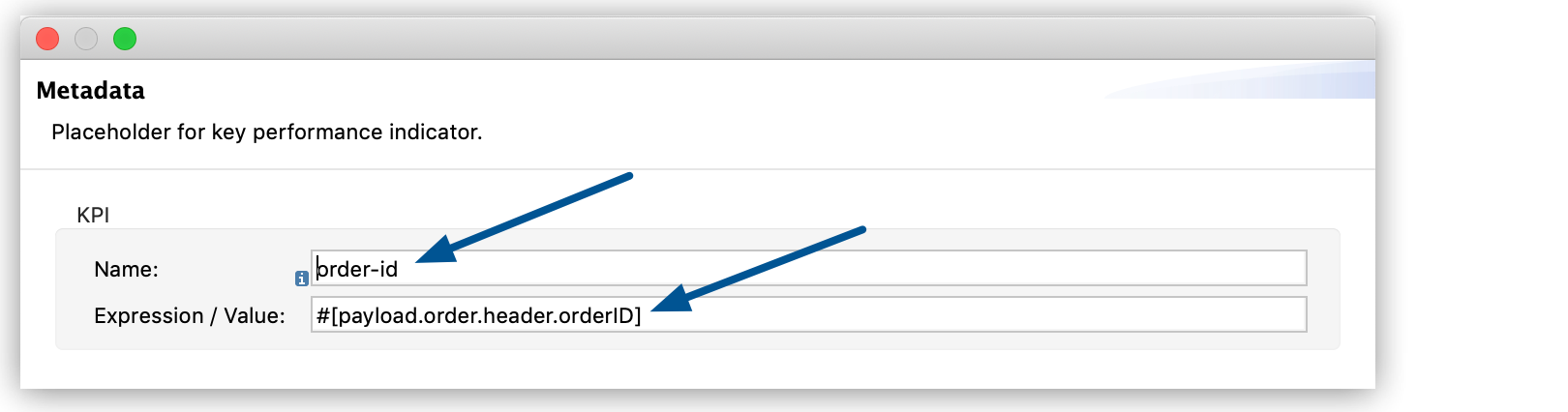
1. Click the plus button (\]) inside **Key Performance
Indicators**.
2. Configure **Name** and **Expression / Value**:
- In the XML:
1. Add a child `tracking:meta-data` element to the `tracking:custom-event`.
2. Configure the `key` and `value` attributes inside `tracking:meta-data`:
For example:
```xml
```
For your KPIs, use names that are easy to search for in the Anypoint Runtime Manager interface, and
use a representative value, which can be any Mule expression:
Name
Expression / Value
employee-id
#[payload['ID']]
employee-email
#[payload['Email']]
employee-git-id
#[payload['GITHUB_ID']]
price
700
price-after-discount
#[vars.price]
order-id
#[payload.order.header.orderID]
## See Also
[Business Events](https://docs.mulesoft.com/mule-runtime/4.12/business-events)