---
schema_version: "1"
id: b77295914de6a443f2fe802721d71a0fd0c8c6bc23a9e9b36ae82768fb049470
title: 'Tutorial: Create a "Hello World" Mule app'
collection: mulesoft
version: current
locale: en-us
portal_url: https://docs.salesforce.com/mulesoft/current/en-us/mule-runtime/4.11/mule-app-dev-hellomule.md
canonical_url: https://docs.mulesoft.com/mule-runtime/4.11/mule-app-dev-hellomule
source_site: docs.mulesoft.com
content_type: documentation
content_hash: 31d8498ceeae79453e69af3a5fe1966911ff75b5a6f391d8bd573b77373f9a49
description: MuleSoft Documentation Site
release: "4.11"
latest: false
---
---
product: Mule Runtime
version: 4.11
---
# Tutorial: Create a "Hello World" Mule app
> For the full documentation index, see: https://docs.mulesoft.com/llms.txt
To demonstrate how a Mule application interacts with a user in a simple HTTP request-response flow,
this example responds with the message "Hello Mule" to requests submitted from a web browser.
Note that this is a very simple example. In a more complex application, you can connect to external
servers (such as SAP, Salesforce, a database, or an FTP server), import and implement API
specifications directly within a Mule project, set up security, and process and transform the data
in programmatic ways. It is beyond the scope of this example to explore such tasks.
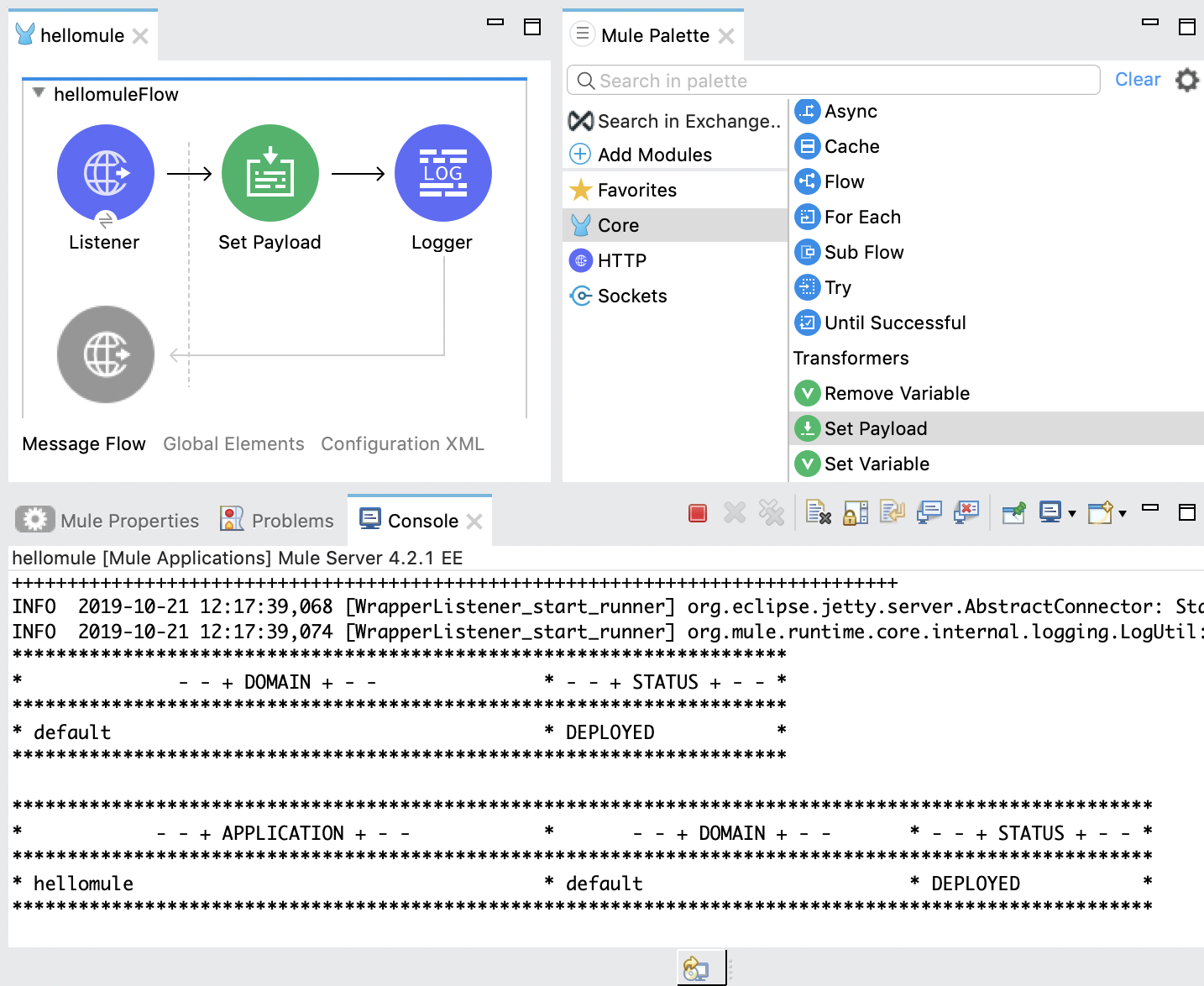
Figure 1. hellomule in Anypoint Studio
You set up and run this application as a project in Anypoint Studio.
## Prerequisites
- [Anypoint Studio 7](https://docs.mulesoft.com/studio/to-download-and-install-studio)
- Familiarity with the Anypoint Studio UI (palette, canvas, flow), as documented in
[Anypoint Studio](https://docs.mulesoft.com/studio/)
After Anypoint Studio is installed, you can set up and run the example.
## How the Example Works
The Hello Mule example consists of one simple Mule flow. This flow accepts an HTTP request, sets a
static payload on the message, and then returns a response to you.
The inbound HTTP endpoint receives requests that are submitted to the web service. The HTTP endpoint
is responsible for receiving and returning messages because the message-exchange pattern is
request-response.
As its name suggests, the Set Payload component sets a value in the message payload. In this
example, the value uses a DataWeave expression to set a static string on the payload.
## Set Up the Example
Follow these steps to create the example in your own instance of Anypoint Studio. Note that you can
create template applications in Anypoint Studio and tweak the configurations of the use case-based
templates to create your own customized applications in Mule.
1. Create a project in Anypoint Studio named `hellomule`:
1. Select **File** > **New** > **Mule Project**, and provide the **Project Name** "hellomule"
in the dialog that opens:
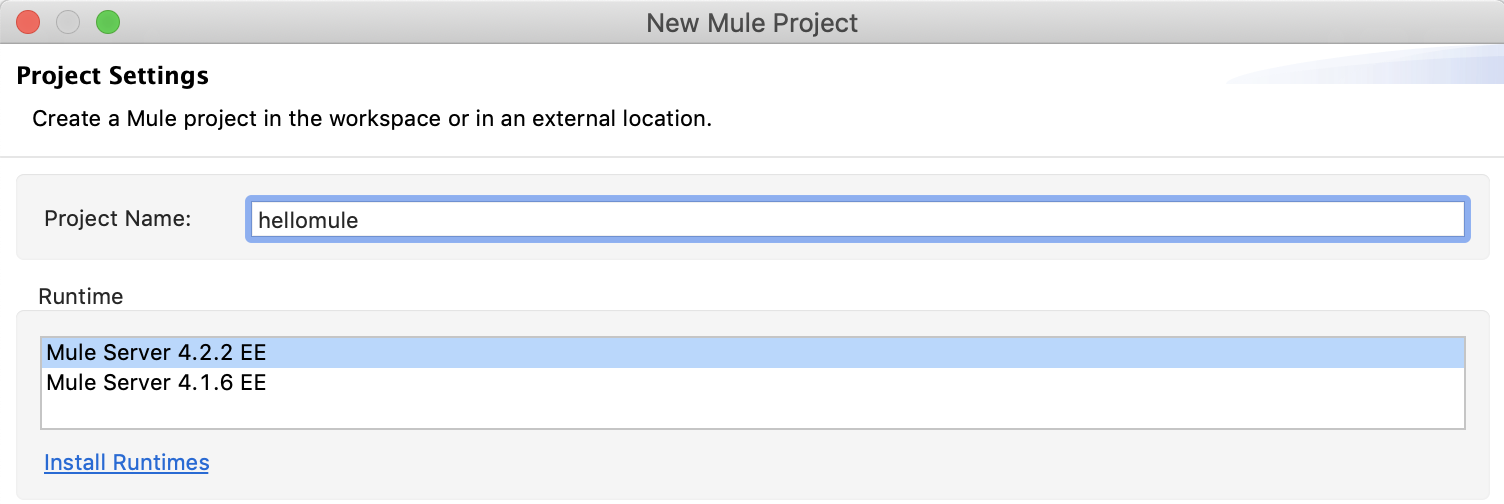
Notice that the project name does not contain any blank spaces.
2. Click **Finish**.
2. Drag the HTTP Listener component to the **hellomule** canvas:
1. In the project’s **Mule Palette** tab, click **HTTP**:
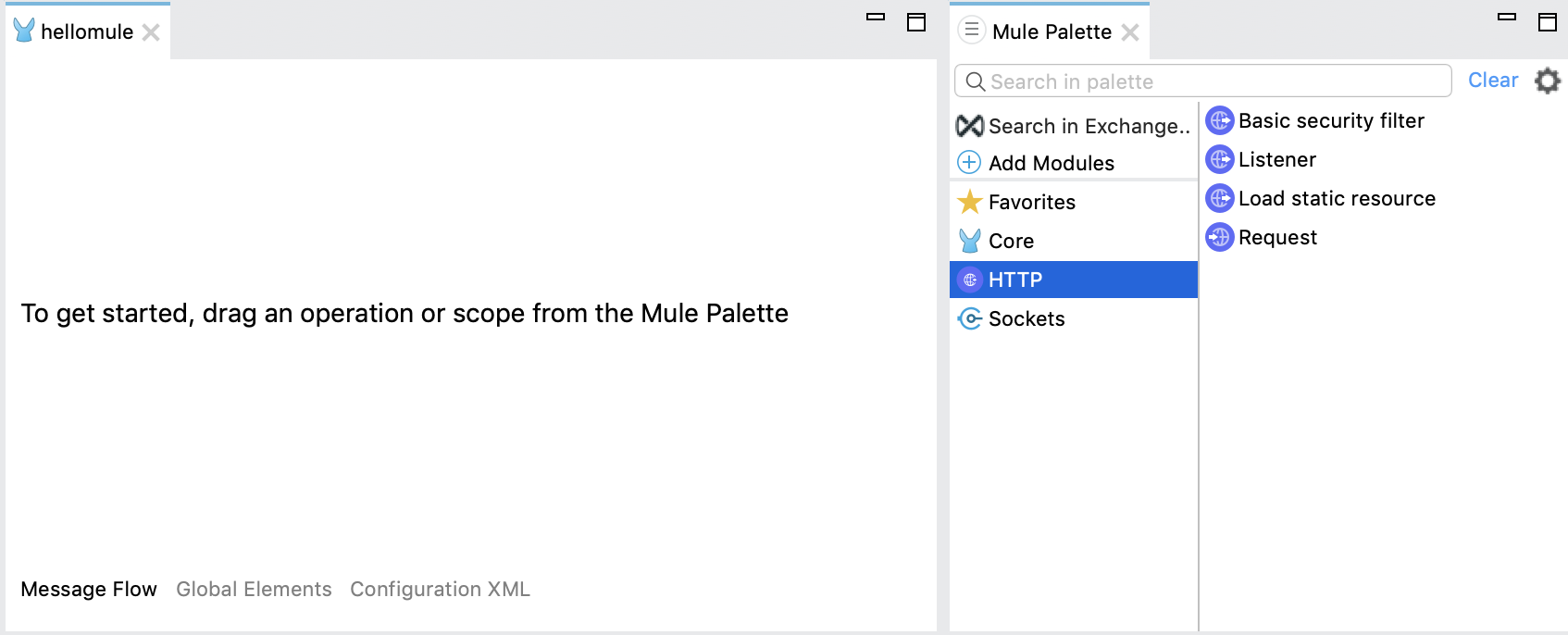
2. Drag the **Listener** component into the **hellomuleFlow** canvas:
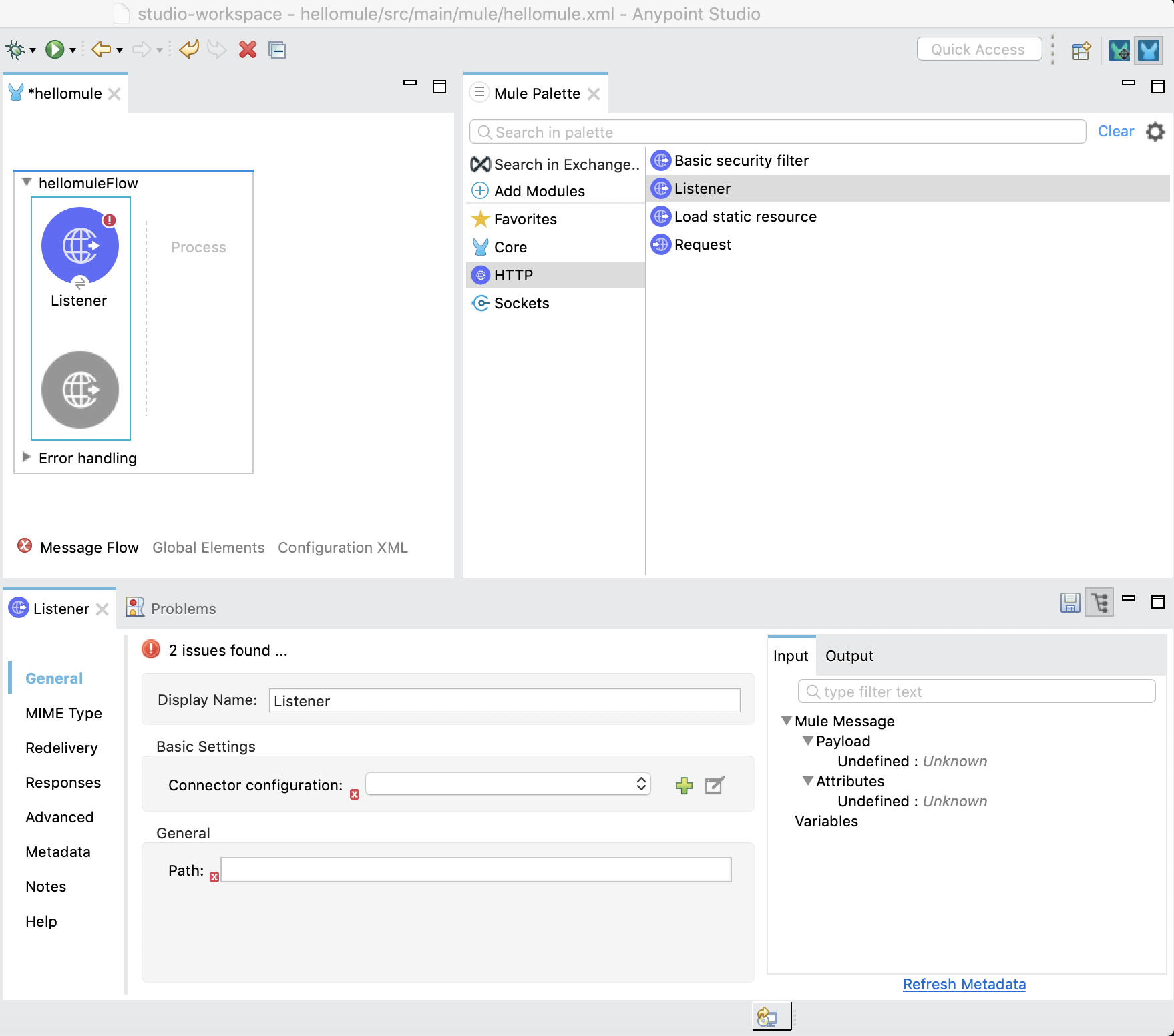
If the configuration UI in the **Listener** tab is not open, click the **Listener**
component in the canvas to open it.
Note that the red boxes in the tab are present because the **Connector configuration** and
**Path** fields require values.
3. Configure the **Listener** component from the **Listener** tab:
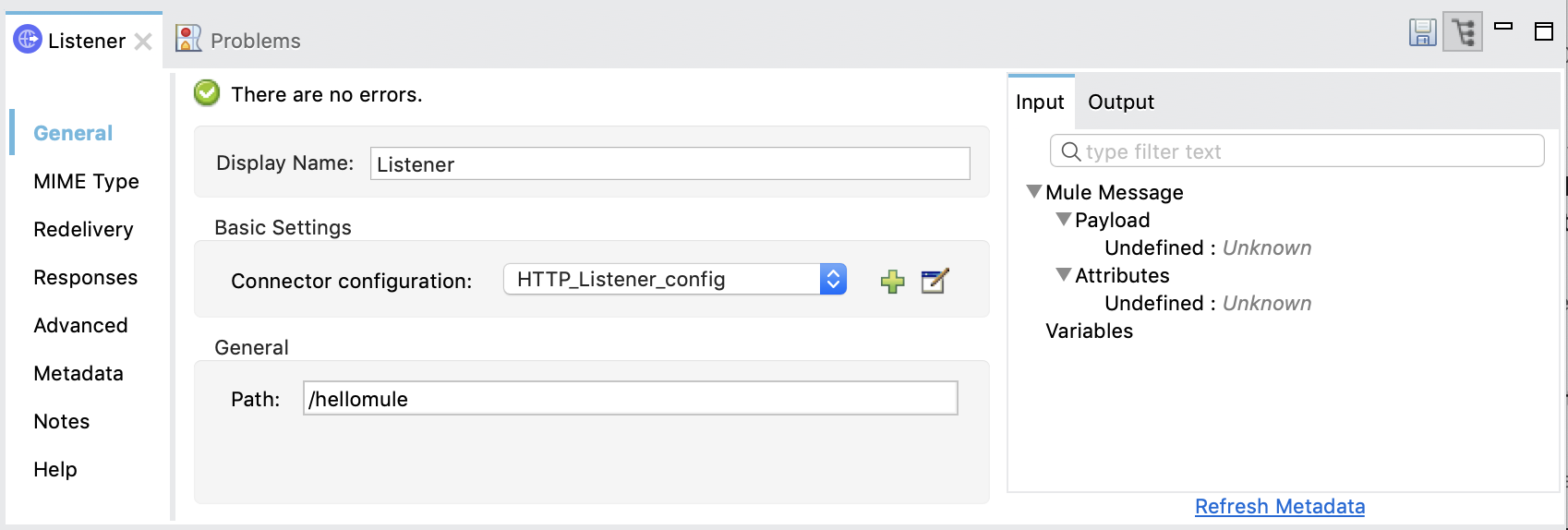
1. In the listener’s **Path** field, type the path `/hellomule`.
2. Find and click the green plus icon (**+**) beside the listener’s **Connector configuration**
field to open the **HTTP Listener config** dialog.
3. In the dialog, check the default listener configuration by clicking **Test Connection**:
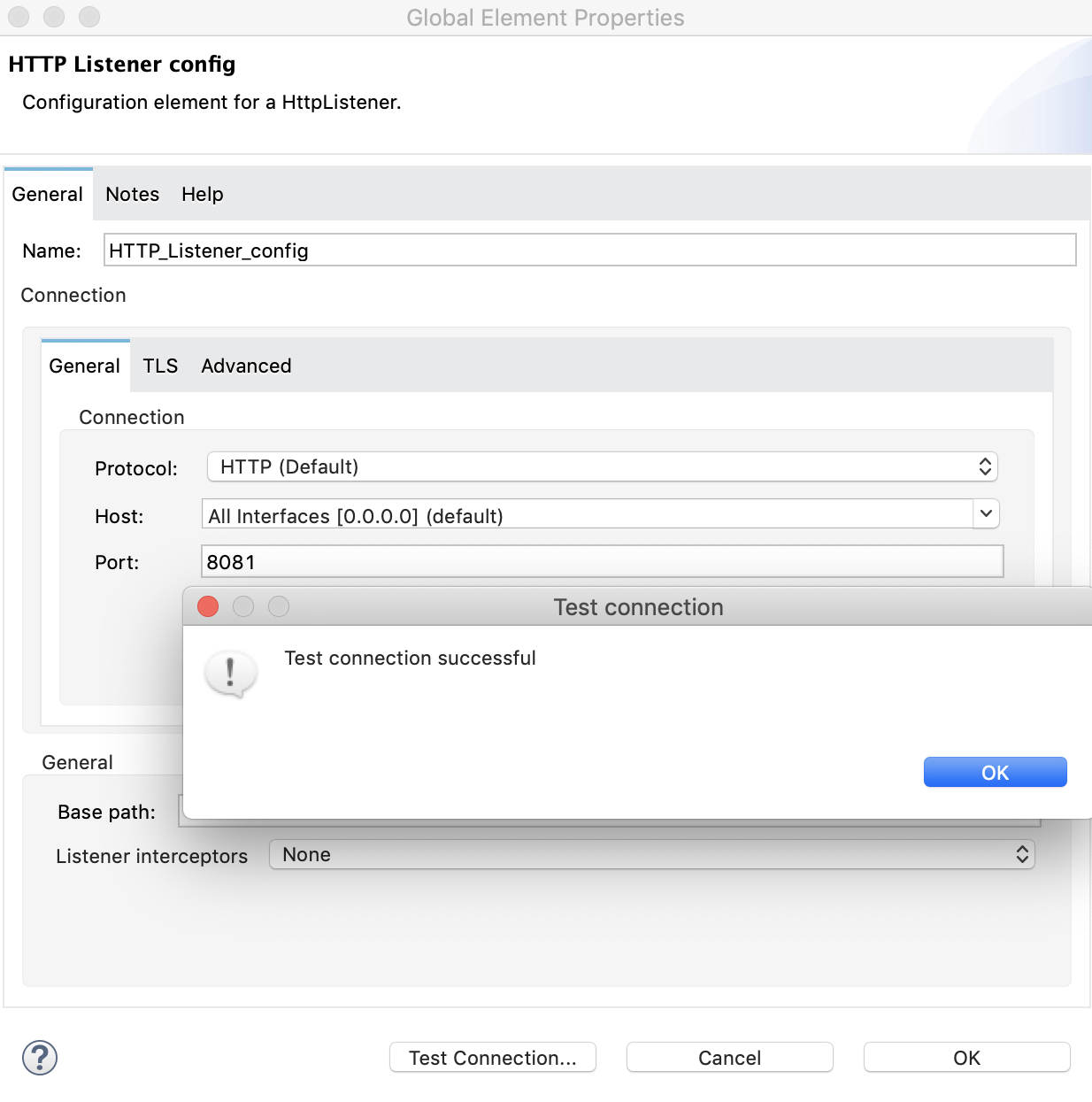
- If the connection is successful, you see the message "Test connection successful!" in a
**Test connection** dialog that pops up.
- If the connection fails, try using a port number that is not in use, such as `8082` or
`8083`, retest the connection, and then add the configuration.
4. Click **OK** to add a working configuration to the project.
4. From the **Mule Palette** tab, click **Core**, and then find and drag a **Set Payload**
component to the **Process** area of the canvas:
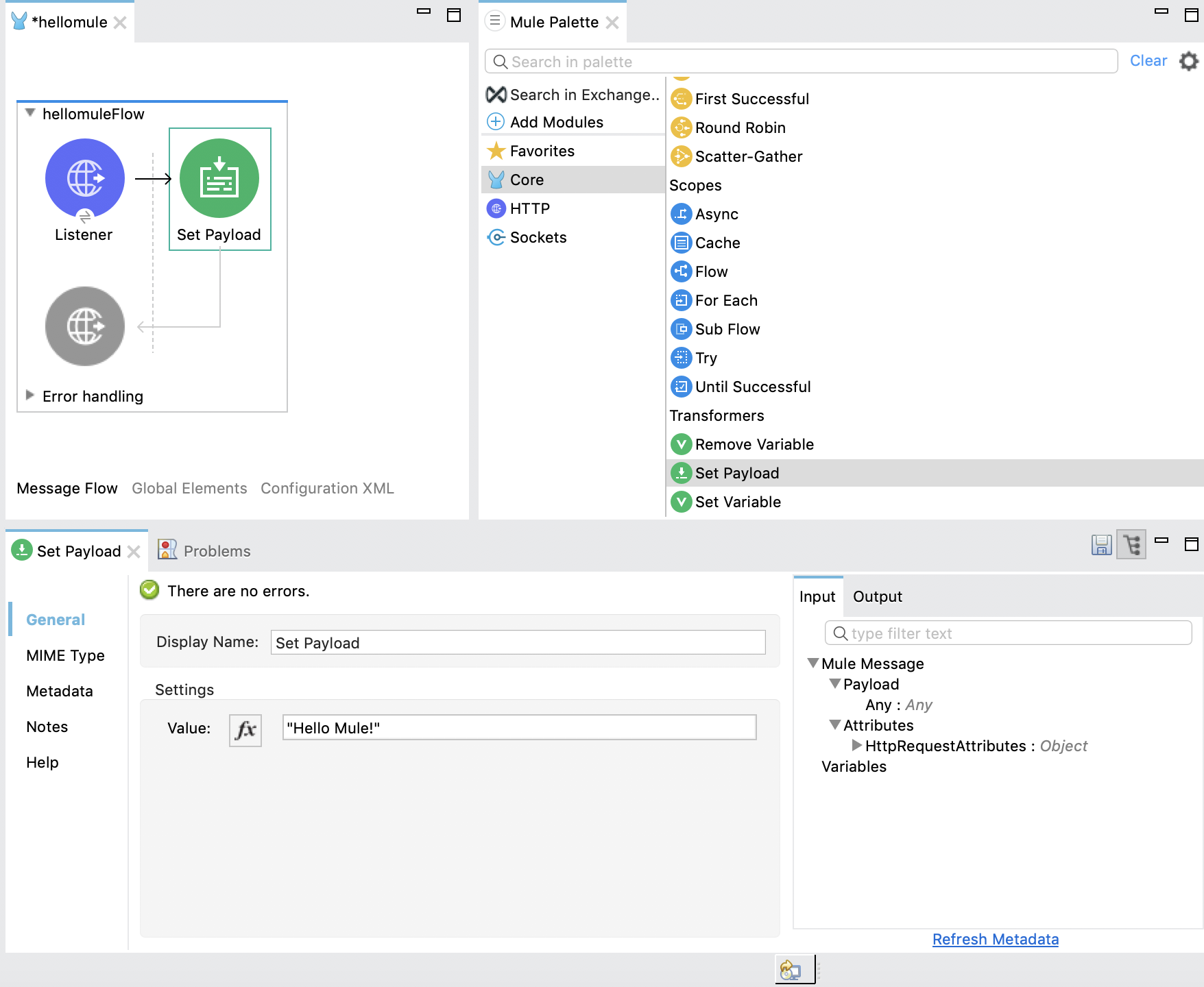
- If you do not find the **Set Payload** component, try the search field at the top of the
**Mule Palette** tab.
- If the configuration UI in the **Set Payload** tab is not open, click the **Set Payload**
component to open its configuration UI.
5. In the **Set Payload** component’s **Value** field, _deselect_ the **fx** field, and type the
string `"Hello Mule!"`.
When you deselect **fx**, the field contains only the string `"Hello Mule"` _and does not
contain_ a hash (`#`) or square brackets (`[]`).
6. From the **Mule Palette** tab, click **Core**, and then find and drag a **Logger** component to
the right of the Transform Message component.
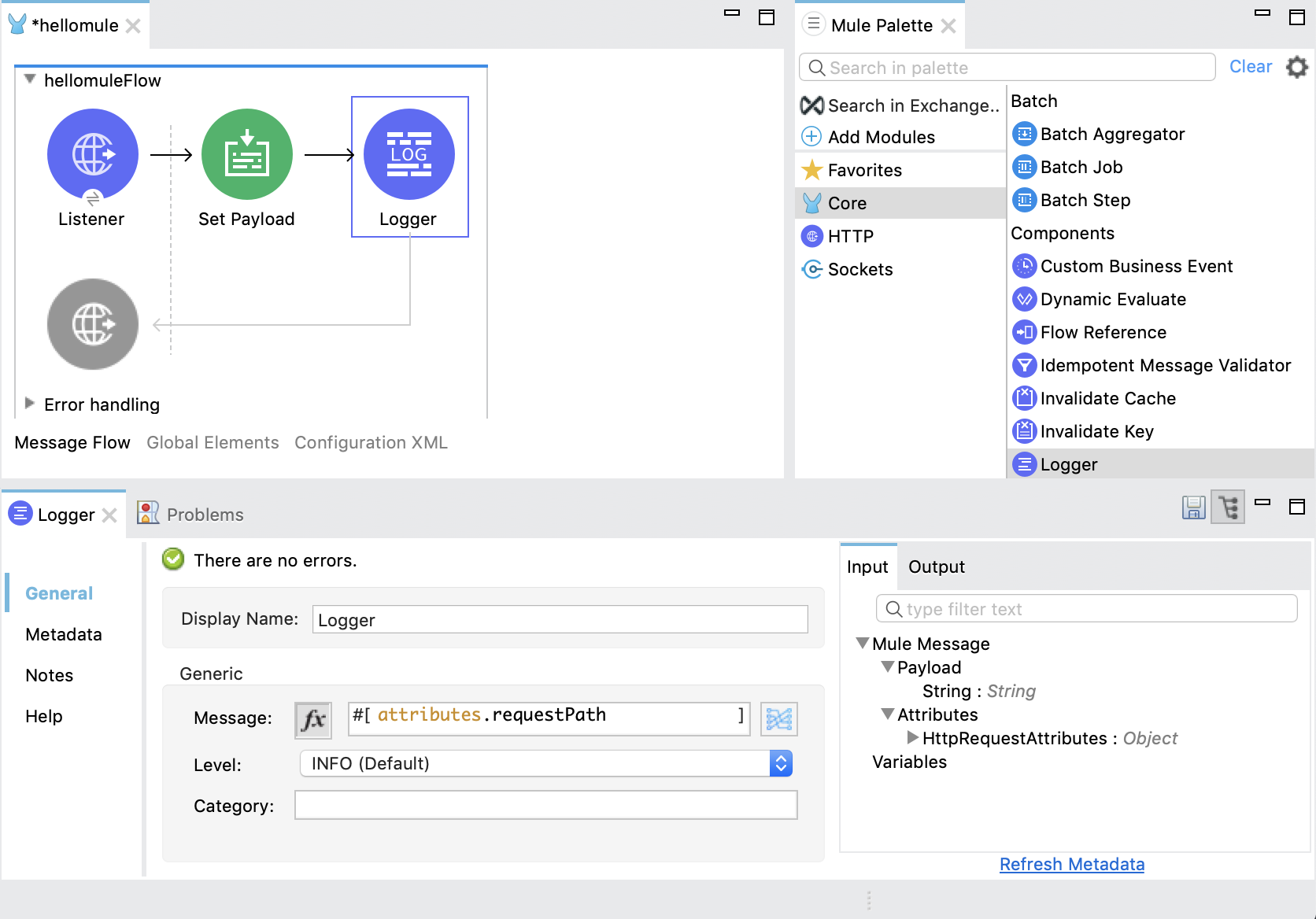
- If you do not find the **Logger** component, try the search field at the top of the **Mule
Palette** tab.
- If the configuration UI in the **Listener** tab is not open, click the **Logger** component in
the canvas to open it.
7. In the logger’s **Message** field, click the **fx** button, and add the following DataWeave
expression for printing the request path to the Anypoint Studio console:
`attributes.requestPath`
8. Save the project by selecting **File** > **Save** from Anypoint Studio.
9. Proceed to [Run and Execute the Hello Mule Example](#run_example).
## Run and Execute the Hello Mule Example
After setting up Hello Mule in Anypoint Studio, you can run and test it.
1. Run your **hellomule** application by right-clicking within the Anypoint Studio canvas and
selecting **Run project hellomule**.
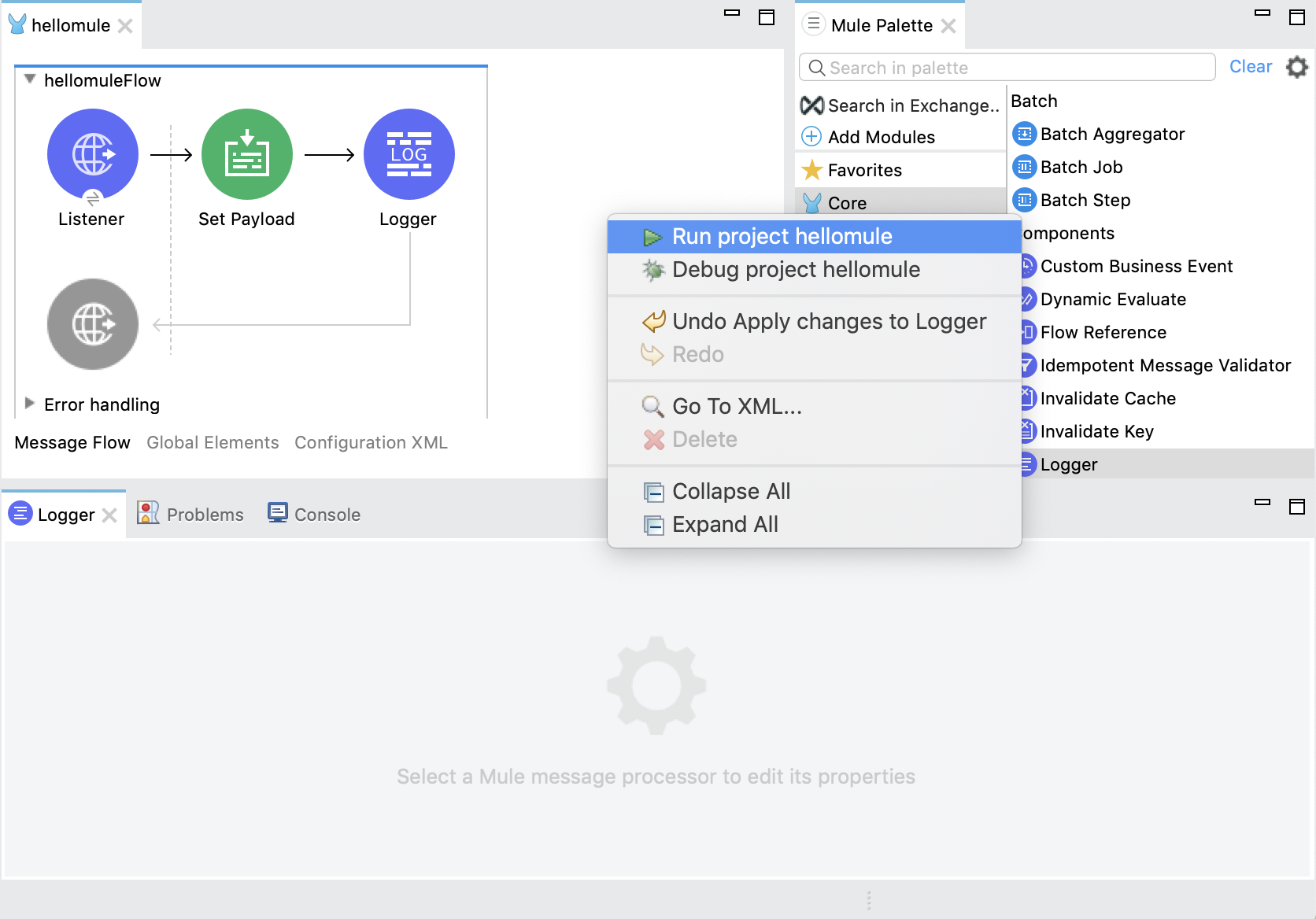
Alternatively, you can click the Run button ()
located at the top of Anypoint Studio, and select **hellomule** from the drop-down menu that
opens.
Either action initiates the build process and opens the Anypoint Studio console, where the logs
print important information about the two-stage build and deployment process.
You know the project is running if you see a message that ends something like this in the
Anypoint Studio console:
```txt
**********************************************************
* - - + DOMAIN + - - * - - + STATUS + - - *
**********************************************************
* default * DEPLOYED *
**********************************************************
*******************************************************************************
* - - + APPLICATION + - - * - - + DOMAIN + - - * - - + STATUS + - - *
*******************************************************************************
* hellomule * default * DEPLOYED *
*******************************************************************************
```
If you receive a failure notification (`FAILED`) in the console instead of the `DEPLOYED`
notification, check the error message. If you see a message like the following one, try setting
a new HTTP port in your HTTP listener configuration:
```txt
Could not create server: A server in port(8081) already exists
for host(0.0.0.0) or one overlapping it (0.0.0.0).`
```
Then save and rerun your project. Note that you can also try changing the host to `localhost` if
the failure persists.
2. After your application is running, open a browser window, and enter the URL to the listener to
trigger the application:

You must use the same host and port as configured in the HTTP listener, for example,
`http://0.0.0.0:8081/hellomule`.
3. Check for the message `Hello Mule!` in the browser.
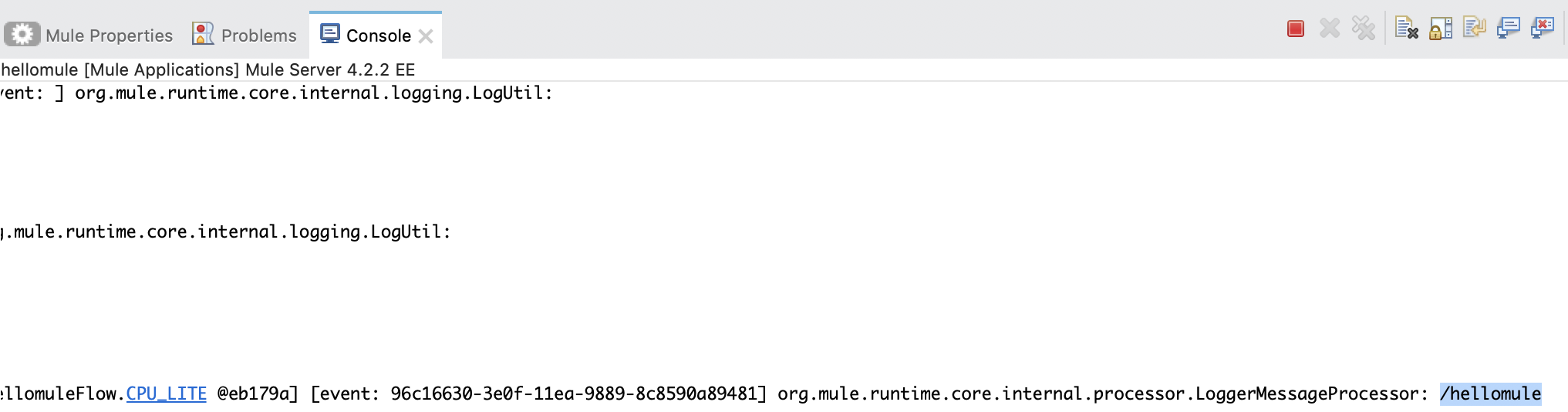
4. In Anypoint Studio, notice that the message in the **Console** tab includes the request path
(`/hellomule`) at the _end_ of the first `INFO` line
(`org.mule.runtime.core.internal.processor.LoggerMessageProcessor: /hellomule`).
## Configuration XML for the Hello Mule Example
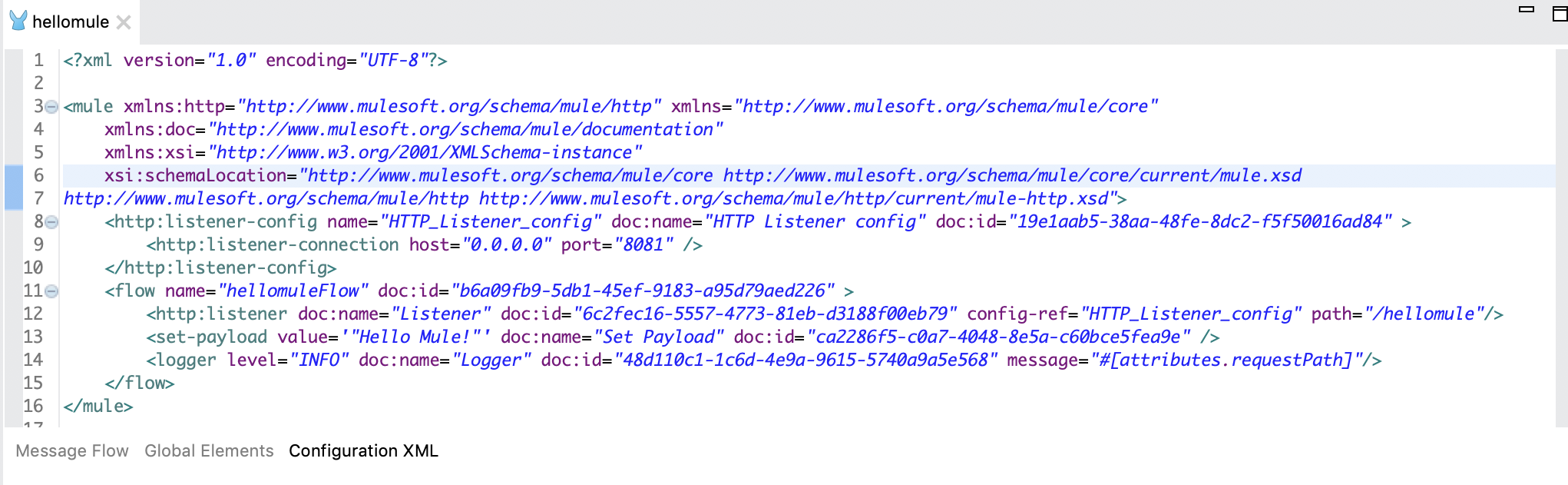
The following XML provides the flow and HTTP listener configuration for the example. To reserve
space, the example omits the `doc:id` attributes, which are not required.
Configuration XML from Anypoint Studio:
```XML
```
The **XML Configuration** tab below the canvas provides an edit page for the XML:
## See Also
- [Tutorial: Create a Mule app that uses the Database Connector and DataWeave](https://docs.mulesoft.com/mule-runtime/4.11/mule-app-tutorial)
- [DataWeave Quickstart](https://docs.mulesoft.com/dataweave/latest/dataweave-quickstart)