---
schema_version: "1"
id: e1e341f5ba60137ef76009cba1e6a6335259c50b43c989d817b695caf1251c15
title: Microsoft MSMQ Connector Overview
collection: mulesoft
version: current
locale: en-us
portal_url: https://docs.salesforce.com/mulesoft/current/en-us/msmq-connector/latest/index.md
canonical_url: https://docs.mulesoft.com/msmq-connector/latest/
source_site: docs.mulesoft.com
content_type: documentation
content_hash: b1b28b78694d485b14931bf491f6b4aae31a6c16acaf920ccc73de7f2d4a9dce
description: MuleSoft Documentation Site
release: "2.1"
latest: true
---
---
product: Microsoft MSMQ Connector
version: 2.1
is-latest-version: true
---
# Microsoft MSMQ Connector Overview
> For the full documentation index, see: https://docs.mulesoft.com/llms.txt
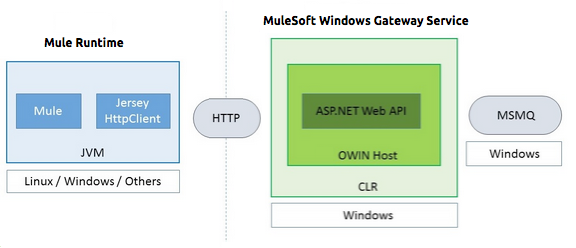
Anypoint Connector for Microsoft Message Queuing (MSMQ) (MSMQ Connector) uses a typical
client-server architecture with two tiers, the connector or client running in the Mule Runtime, and
the Windows Gateway running on the server side. The latter exposes an HTTP Web API for sending or
receiving messages from MSMQ.
## Before You Begin
To use this connector, you must be familiar with:
- Microsoft MSMQ
- Mule runtime engine (Mule), Mule concepts, elements in a Mule flow, and Global Elements
- Anypoint Connectors
- Anypoint Studio
Before creating an app, you must have:
- Microsoft login credentials to test your connection to your target resource
- Anypoint Windows Gateway Service installed
For software requirements and compatibility information, see the Connector Release Notes.
## Architecture
The following is a high-level diagram of the solution architecture:
## POM File Information
```xml
com.mulesoft.connectors
mule-microsoft-mq-connector
x.x.x
mule-plugin
```
Replace `x.x.x` with the version that corresponds to the connector you are using.
To obtain the most up-to-date `pom.xml` file information, access the connector in
[Anypoint Exchange](https://www.mulesoft.com/exchange/) and click **Dependency Snippets**.
## About Use Cases
The MSMQ connector supports two primary use cases:
- Sends (HTTP POST) a single message to MSMQ
- Receives (HTTP GET) one or more messages from MSMQ
## Use Case: HTTP POST
In the POST scenario, Mule Runtime uses the connector to send a raw representation of the Mule
Message in the current flow to MSMQ using HTTP to the Windows Gateway. The message is sent as an
HTTP POST. The payload of the HTTP request is the serialized payload of the Mule message (binary or
text). The Web API runs on the Windows Gateway and forwards the message to a queue using MSMQ.
The following messages show the structure of the HTTP POST request.
### POST Request Message
```text
POST: https://localhost:9333/msmq
Authorization: mule test-token
Mule-Msmq-Queue-Name: .\private$\qout
Mule-Api-Version: 1
Body: THIS IS A SAMPLE MESSAGE
```
POST Response Message
Http /1.1 201 Created
## Use Case: HTTP GET
In the GET scenario, Mule Runtime uses the connector to receive one or more messages from MSMQ. This
is done as an HTTP GET to the Windows Gateway. The Web API runs in the gateway and returns the
available messages in a MSMQ queue. The messages are returned in a single HTTP response using a MIME
`multipart/mixed` content type.
The following messages illustrate the structure of the HTTP GET request.
### GET Request Message
```text
GET: https://localhost:9333/msmq?count=50
Authorization: mule test-token
Mule-Msmq-Queue-Name: .\private$\out
Mule-Api-Version: 1
```
### GET Response Message
```text
Transfer-Encoding: chunked
Content-Type: multipart/mixed; boundary="42c5468b-f831-900d-d099-a123ef456dcc7"
28
--42c5468b-f831-900d-d099-a123ef456dcc7
218
Content-Type: application/octet-stream
mule-msmq-acknowledgment-type: None
mule-msmq-acknowledgment: None
mule-msmq-attach-sender-id: True
mule-msmq-body-type: 0
mule-msmq-connector-type: 0
mule-msmq-correlation-id: 00000000-0000-0000-0000-000000000000\0
mule-msmq-id: 12ab345c-6d7e-900d-d099-89f012a345bc\6789
mule-msmq-label:
mule-msmq-lookup-id: 288230376151717889
mule-msmq-message-type: Normal
mule-msmq-priority: Normal
mule-msmq-source-machine: win-dt3v2pm5d7l
mule-msmq-extension:
mule-msmq-app-specific: 0
11
THIS IS A MESSAGE
2C
--42c5468b-f831-900d-d099-a123ef456dcc7--
0
```
The HTTP headers used for sending and receiving messages to and from the Gateway service are
discussed more in detail later in this document.
## About Message Delivery
The MSMQ connector can use a two-phase protocol to ensure zero-message-loss communication with the
gateway, or it can be set to use a no-acknowledgment protocol when you want to achieve high
throughput and do not need to ensure receiving each message at least once.
Message delivery can be chosen from two different options. The Message delivery configuration
setting establishes the message delivering working mode. Details on each available option are
described below.
### About No Acknowledgment
In a traditional scenario, after a message is read in the gateway, it is deleted from the queue. If
there is a connection failure or another issue in the ESB that prevents the message from being read,
that message is lost (this message delivery mode can be set by choosing the NoAcknowledgment value
at the corresponding configuration setting). Nevertheless, this delivery mode is the fastest one and
you should select it if you don’t need each message to be delivered at least once.
### About At Least Once (Default)
In a scenario with a two-phase commit protocol, the messages read from the main queue are kept in a
subordinate queue as backup. After the connector receives a copy of the message, it sends an
additional request to the gateway to remove the message from the sub-queue. When this commit action
is not completed, the message remains in the sub-queue. After a period of time, messages in the
subordinate queue, considered as orphans, are moved back to their parent queue where they are
retried. To be clear, this mechanism should not be affected by external exceptions happening in the
flow unless the flow is interrupted before the commit phase is completed (this message delivery mode
can be set by choosing the AtLeastOnce value at the corresponding configuration setting).
As said, message delivery mode depends on the Message delivery configuration setting, which should
be set to `AtLeastOnce` (default) if you want to ensure two phase commit protocol to be used. If you
set this parameter to `NoAcknowledgment` then each message is delivered to mule with no
acknowledgment of reception from it.
## Add the Connector to a Studio Project
Anypoint Studio provides two ways to add the connector to your Studio project: from the Exchange
button in the Studio taskbar or from the Mule Palette view.
### Add the Connector Using Exchange
1. In Studio, create a Mule project.
2. Click the Exchange icon **(X)** in the upper-left of the Studio task bar.
3. In Exchange, click **Login** and supply your Anypoint Platform username and password.
4. In Exchange, search for "msmq".
5. Select the connector and click **Add to project**.
6. Follow the prompts to install the connector.
### Add the Connector in Studio
1. In Studio, create a Mule project.
2. In the Mule Palette view, click **(X) Search in Exchange**.
3. In **Add Modules to Project**, type "msmq" in the search field.
4. Click this connector’s name in **Available modules**.
5. Click **Add**.
6. Click **Finish**.
### To Configure in Studio
1. Drag the HTTP Listener to the Studio Canvas.

2. Set the Path.
3. Click the green plus sign to configure the listener.
4. Drag an MSMQ connector operation to the Studio Canvas.
5. Click the green plus sign to add a configuration for the connector.
6. Complete these fields:
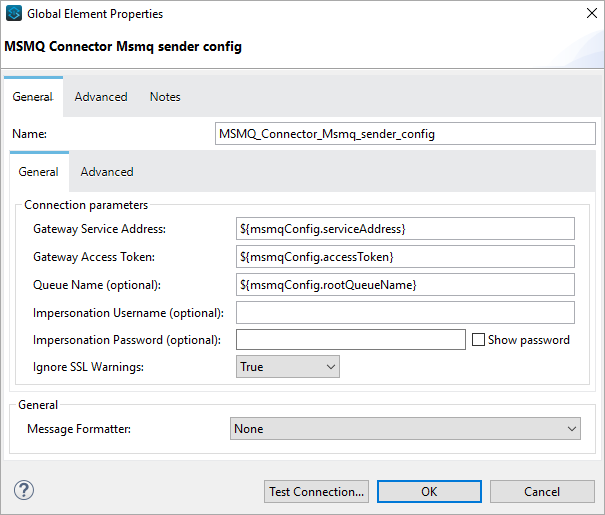
- Gateway Service Address: The URL to the Windows Gateway.
- Gateway Access Token: The access token for the Windows Gateway.
- Queue Name: The queue you are intending to send the message to.
- Message Formatter: The required message format.
7. Click OK
8. Configure these fields:
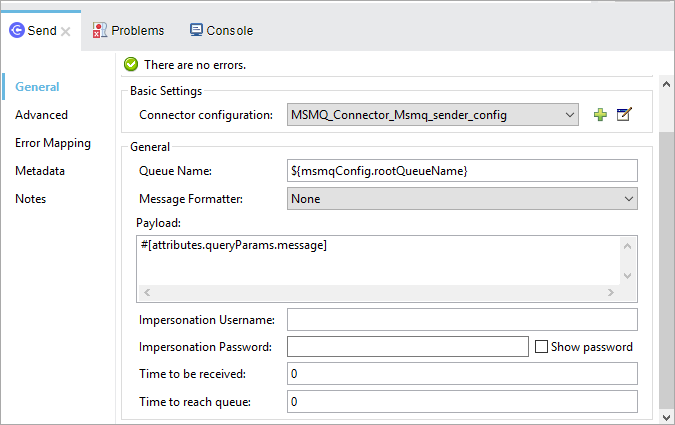
- Message Formatter (if not set): the required message format
- Payload: the content of the message
- Time To Reach Queue: The maximum number of seconds a message can take to reach the MSMQ server
after it’s received in the gateway. The default is to not time out (InfiniteTimeout).
- Time To Be Received: The number of seconds a message can stay in the queue before it dequeues
for a third party application. The default is to not time out (InfiniteTimeout).
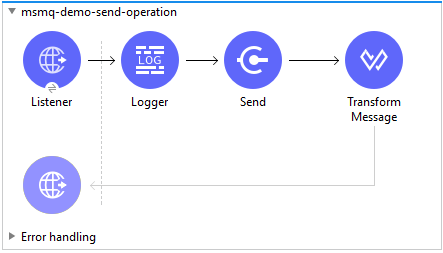
## Use Case: Studio
## USe Case: XML
```xml
```
## See Also
- [Microsoft MSMQ Connector Release Notes](https://docs.mulesoft.com/release-notes/connector/msmq-connector-release-notes-mule-4)
- [Windows Gateway Services Configuration Guide](https://docs.mulesoft.com/connectors/windows-gateway-services/windows-gateway-services-guide-mule4)
- [Salesforce Help](https://help.salesforce.com)