---
schema_version: "1"
id: 24b19e3b36ff3233587ff283a778cc38fecfa048a830bbe06591af1a063f7e7e
title: Listen and Publish Messages with MQTT Connector
collection: mulesoft
version: current
locale: en-us
portal_url: https://docs.salesforce.com/mulesoft/current/en-us/mqtt3-connector/1.0/mqtt3-connector-publish-receive.md
canonical_url: https://docs.mulesoft.com/mqtt3-connector/1.0/mqtt3-connector-publish-receive
source_site: docs.mulesoft.com
content_type: documentation
content_hash: 0772dabc94055b4e521b71a4d764a71bc9d001408f24b69d0b88496dc3de7b1c
description: MuleSoft Documentation Site
release: "1.0"
latest: false
---
---
product: MQTT Connector
version: 1.0
---
# Listen and Publish Messages with MQTT Connector
> For the full documentation index, see: https://docs.mulesoft.com/llms.txt
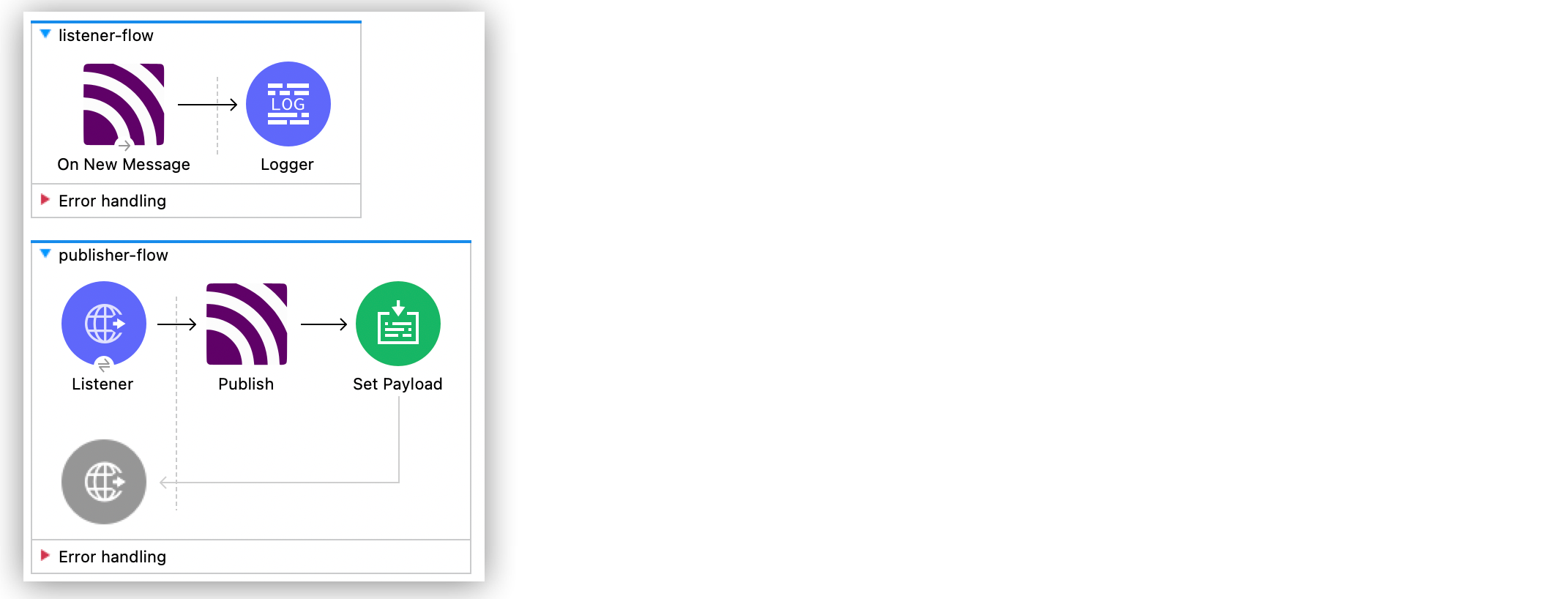
In these examples, you configure the Anypoint Connector for MQTT (MQTT Connector) **On New Message**
source and the **Publish** operation to listen and publish messages to a specific topic.
## Create a Mule App to Listen and Publish Messages
In the following example, you configure the **On New Message** source and the **Publish** operation
to listen and publish messages to a specific topics.
### Create a Listener Flow
In the first part of the example, create a flow with an **On New Message** source that triggers an
event for incoming messages on topics matching the filter `topic/quotes/#`, and add a **Logger**
component that logs the received message:
1. In Studio > **Mule Palette** view, select **MQTT3 > On New Message**.
2. Drag the **On New Message** source to the Studio canvas.
3. Click the plus sign (**+**) next to the **Connector configuration** field to configure a global
element that can be used by all instances of the source in the app.
4. In **MQTT3 Config** > **Connection** select **MQTT3 URL Connection**.
5. For **Client id generator**, select **Client id custom expression generator**.
6. Set the following fields:
- **Client ID**: `crowley123`
- **Username**: `mosquitto`
- **Password**: `mosquitto`
- **URL**: `tcp://0.0.0.0:1883`
7. Click **LWT**.
8. Set the following fields:
- **Topic**: `topic/lwt`
- **Body**: `This is the LWT message`
- **Is retained**: **True**
9. Click **OK**.
10. In the **On New Message** configuration screen, set **Topics** to **Edit inline**.
11. Click the plus sign (**+**) to add a new topic.
12. In **Topic filter**, set `topic/quotes/#`.
13. Click **OK**.
14. Drag a **Logger** component to the right of the **On New Message** source.
15. Set **Message** to
`Received message '#[payload]' with at topic #[attributes.topic] with qos #[attributes.qos]`.
### Create a Publisher Flow
For the second part of the example, create a flow with a **Publish** operation that publishes
messages to the topic `topic/quotes/shakespeare` and triggers an event in `listener-flow`:
1. In Studio, drag an HTTP **Listener** source below the first `listener-flow`.
2. Set **Path** to `publish/message`.
3. Click the plus sign (**+**) next to the **Connector configuration** field to configure a global
element that can be used by all instances of the source in the app.
4. Set **Host** to `0.0.0.0` and **Port** to `8081`.
5. Click **OK**.
6. Drag an MQTT3 **Publisher** operation next to the HTTP **Listener** source.
7. For **Connector configuration**, select the `MQTT3_Config_1` configuration created in
`listener-flow`.
8. Set the following fields:
- **Topic**: `topic/quotes/shakespeare`
- **Message**: `"Uneasy lies the head that wears a crown"`
9. Drag a **Set Payload** component to the right of the **Publish** operation.
10. Set **Value** to `SUCCESSFULLY PUBLISHED MESSAGE!`.
11. Save and run your Mule application.
12. To publish the message, send a request to the HTTP endpoint using the following curl command:
`curl -v --request GET localhost:8081/publish/message`.
### XML for Listening and Publishing Messages with MQTT Connector
Paste this code into your Studio XML editor to quickly load the flow for this example into your Mule
app:
```xml
```
## Create a Mule App and Subscribe to a LWT Message Topic
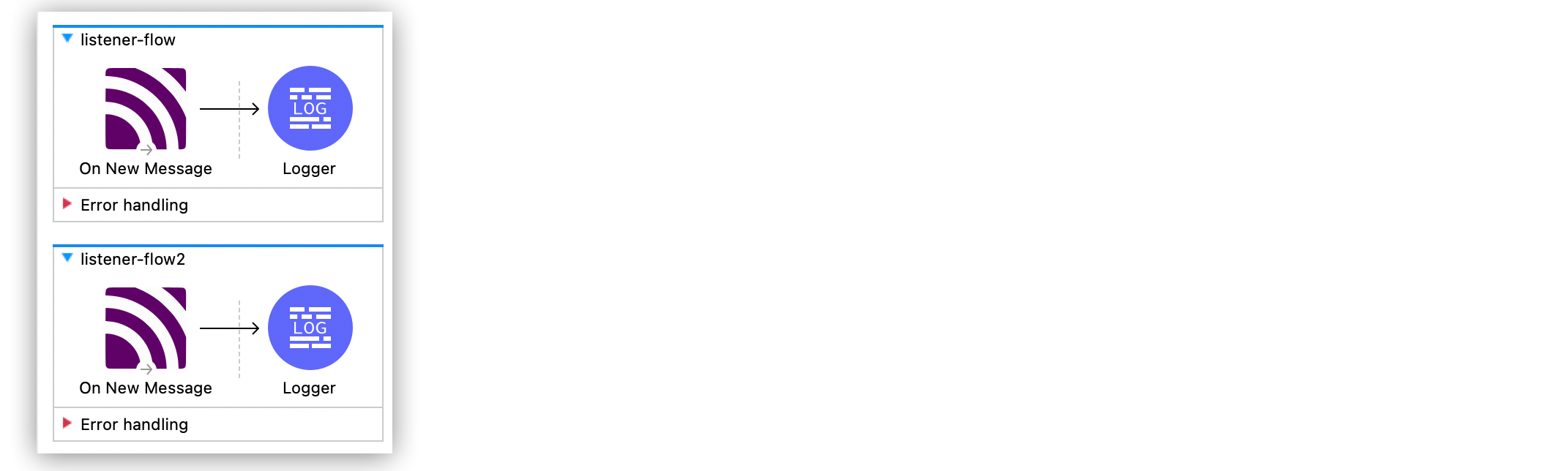
In the following example, you use the previous listener flow and create a second listener flow
subscribed to the same LWT message topic as the first flow. If the Mule app crashes and the first
listener flow gets disconnected, the MQTT broker sends the LWT message to the configured topic and
retains the message. When the Mule app restarts, the second listener flow listens for the retained
LWT message and logs it.
### Create the First Listener Flow
In the first part of the example, create a flow with an **On New Message** source that triggers an
event for incoming messages on topics matching the filter `topic/quotes/#`, and add a **Logger**
component that logs the received message:
1. In Studio, in the **Mule Palette** view, select **MQTT3 > On New Message**.
2. Drag the **On New Message** source to the Studio canvas.
3. Click the plus sign (**+**) next to the **Connector configuration** field to configure a global
element that can be used by all instances of the source in the app.
4. In the **MQTT3 Config** window, for **Connection** select **MQTT3 URL Connection**.
5. For **Client id generator**, select **Client id custom expression generator**.
6. Set the following fields:
- **Client ID**: `crowley123`
- **Username**: `mosquitto`
- **Password**: `mosquitto`
- **URL**: `tcp://0.0.0.0:1883`
7. Click the **LWT** tab.
8. Set the following fields:
- **Topic**: `topic/lwt`
- **Body**: `This is the LWT message`
- **Is retained**: **True**
9. Click **OK**.
10. In the **On New Message** configuration screen, set **Topics** to **Edit inline**.
11. Click the plus sign (**+**) to add a new topic.
12. In **Topic filter** set `topic/quotes/#`.
13. Click **OK**.
14. Drag a **Logger** component to the right of the **On New Message** source.
15. Set **Message** to
`Received message '#[payload]' with at topic #[attributes.topic] with qos #[attributes.qos]`.
### Create the Second Listener Flow
For the second part of the example, create a second listener flow by adding another **On New
Message** source that subscribes to the topic `topic/lwt`, and add a **Logger** component that logs
the received message:
1. In Studio, drag another **On New Message** source below the first `listener-flow`.
2. Click the plus sign (**+**) next to the **Connector configuration** field to configure a global
element that can be used by all instances of the source in the app.
3. In the **MQTT3 Config** window, for **Connection** select **MQTT3 URL Connection**.
4. For **Client id generator**, select **Client id random suffix generator**.
5. Set the following fields:
- **Client ID**: `azfell123`
- **Username**: `mosquitto`
- **Password**: `mosquitto`
- **URL**: `tcp://0.0.0.0:1884`
6. Click **OK**.
7. In the **On New Message** configuration screen, set **Topics** to **Edit inline**.
8. Click the plus sign (**+**) to add a new topic.
9. In **Topic filter** set `topic/lwt`.
10. Click **OK**.
11. Drag a **Logger** component to the right of the **On New Message** source.
12. Set **Message** to
`Received message '#[payload]' with at topic #[attributes.topic] with qos #[attributes.qos]`.
13. Save and run the Mule app.
14. Simulate an app crash by locating the process ID of the Mule app and killing it in your terminal
by using a command like `kill -9 `.
Because the Mule app crashes, the first listener flow is disconnected.
15. Restart the Mule app.
The MQTT broker retains the LWT message, and the second listener flow logs the LWT message that
was configured in the first listener flow.
### XML for Listening Messages Subscribed to an LWT Message Topic
Paste this code into your Studio XML editor to quickly load the flow for this example into your Mule
app:
```xml
```
## See Also
- [MQTT Connector Examples](https://docs.mulesoft.com/mqtt3-connector/1.0/mqtt3-connector-examples)
- [Salesforce Help](https://help.salesforce.com)