# mulesoft Monitoring - Full Documentation --- product: Monitoring description: MuleSoft Anypoint Monitoring provides visibility into Mule apps, APIs, and agentic assets through metrics, logs, traces, alerts, and dashboards across Anypoint Platform environments. keywords: MuleSoft, Anypoint Monitoring, overview, metrics, logs, traces, alerts, dashboards, Mule apps, APIs, agentic assets, Anypoint Platform --- # Anypoint Monitoring Overview > For the full documentation index, see: https://docs.mulesoft.com/llms.txt Anypoint Monitoring provides visibility into the performance, health, and behavior of your Mule apps, APIs, and agentic assets across all Anypoint Platform environments. Operations and development teams use the monitoring tools to diagnose issues and prescribe solutions to behavior that negatively impacts digital performance. The monitoring tools are designed to reduce the time to identify and resolve these issues through aggregated metrics, data visualization tools, alerts for issues, and a log aggregation system. Specifically, Anypoint Monitoring provides ways to: - Aggregate and map metrics across dependent systems in real-time. - Configure dashboards and alerts to reduce the mean time to identification of issues (MTTI). - Store and search log data at scale. > [!NOTE] Anypoint Monitoring provides application-level metrics for Mule apps and APIs. VPC-level > network traffic and monthly outbound byte totals aren’t available. For details on metrics scope > and how to estimate traffic using the Metrics API, see > [Anypoint Monitoring FAQ](https://docs.mulesoft.com/monitoring/am-faq#vpc-traffic-metrics). ## Monitoring Features by Control Plane Anypoint Monitoring feature availability depends on the control plane for your Anypoint Platform instance and your [Anypoint Platform package or plan](#billing). Data isn’t shared across the separate instances of Anypoint Platform.
Anypoint Monitoring FeatureUS, EU CloudsCanada, Japan CloudsIndia Cloud, Australia CloudUK Cloud (Great Britain)

Yes

Yes

Yes

Yes

Yes

Yes

Yes

Yes

Yes

No

No

No

Yes

No

No

No

Yes

Yes

Yes

Yes

Yes

Yes

Yes

Yes

Yes

Yes

Yes

Yes

Yes

Yes

Yes

Yes

Yes

No

No

No

For more information about MuleSoft Government Cloud and Anypoint Platform Private Cloud Edition (Anypoint Platform PCE), see [Control Plane Hosting Options](https://docs.mulesoft.com/hosting-home/#control-plane-hosting-options). ### Anypoint Insights Monitor performance data and issues across your deployed Mule apps and APIs (_entities_), and get detailed insights on specific deployments. See [Monitoring Metrics from Anypoint Insights](https://docs.mulesoft.com/monitoring/anypoint-insights). ### Log Management Manage logs and log data for your deployments with these logging features: - [Log Searches](#log-search) - [Log Points](#log-points) - [Raw Data Downloads](#raw-data-downloads) Support for logging features can vary by Anypoint Platform cloud. For details, see [Monitoring Features by Control Plane](#features). #### Log Searches

info Availability: Usage-based and Titanium tiers only

Search for and review logs from across your deployed applications. See [Using Logs in Anypoint Monitoring](https://docs.mulesoft.com/monitoring/logs). > [!NOTE] Log search limited to individual apps is available to all subscription tiers in Runtime > Manager for apps deployed to CloudHub and CloudHub 2.0. You can navigate to Runtime Manager, open > the app, and then click **Logs**. > > The log aggregator system holds raw operational data and records events that occur in the > operating system or Mule app. Log aggregation compiles, organizes, and indexes log files to > facilitate management, searching, and analysis. Aggregated logs complement the monitoring system > by helping you identify causes of operational issues and investigate failures. > > For more logging options, see > [Logging by Deployment Model](https://docs.mulesoft.com/runtime-manager/deployment-strategies#logging). #### Log Points

info Availability: Advanced and Titanium tiers only

Generate logs for Mule apps and APIs in real-time and without writing code. See [Generating Real-Time Logs](https://docs.mulesoft.com/monitoring/log-points). #### Raw Data Downloads

info Availability: Advanced and Titanium tiers only

Download warehoused (archived) log data for a Mule app, for example, to help investigate security, compliance, or other issues that logs can reveal. See [Downloading Archived Log Data](https://docs.mulesoft.com/monitoring/raw-data). ### Tools for Monitoring Integrations

info Availability: Advanced and Titanium tiers only

Use connectors that help deliver Anypoint Monitoring notifications to external systems, including custom metrics connectors. See [Using Connectors for External Notifications and Custom Metrics](https://docs.mulesoft.com/monitoring/tools). ### API Functional Monitoring Monitor APIs and endpoints at scheduled intervals. Receive reports about whether tests pass or fail, and view statistics about API and endpoint performance. See [API Functional Monitoring](https://docs.mulesoft.com/api-functional-monitoring/afm-in-anypoint-platform). ## Data Storage and Retention Data storage and retention limits are determined by your pricing plan. If your organization has the Anypoint Integration Advanced package or a Titanium subscription to Anypoint Platform, this feature provides a higher resource allocation. - For the Anypoint Integration Starter package or the Gold and Platinum subscriptions: - Stores metric data in the same region as your control plane - For the Anypoint Integration Advanced package or Titanium subscription: - Significantly increases the storage - Stores log and metric data in the same region as your control plane For more information, see [Storage and Retention](https://docs.mulesoft.com/monitoring/am-faq#storage-and-retention). See also, [Anypoint Platform Packages and Plans](#billing). For complete details about pricing, contact your customer support representative. ## Anypoint Platform Packages and Plans Feature availability in Anypoint Monitoring depends on the tier of your Anypoint Platform pricing package or plan: - [Anypoint Monitoring Features for Usage-Based Packages](#plans-usage-based) (Starter and Advanced tiers) - [Anypoint Monitoring Features for Legacy Core-Based Plans](#plans-legacy) (Gold, Platinum, and Titanium tiers) ### Anypoint Monitoring Features for Usage-Based Packages Anypoint Monitoring provides standard tooling for monitoring Mule app and API performance so that you can more quickly identify and resolve issues. - **Anypoint Integration Starter** package is available to all Anypoint Platform regions. - **Anypoint Integration Advanced** package is available in the [US](https://anypoint.mulesoft.com/monitoring) and [EU](https://eu1.anypoint.mulesoft.com/monitoring) regions only at this time. All organizations receive fundamental monitoring regardless of pricing model. However, organizations that have the Anypoint Integration Advanced package receive greater storage, guaranteed resources, and advanced capabilities that allow for greater control and flexibility. For more information, see [Anypoint Platform pricing](https://www.mulesoft.com/anypoint-pricing). If your organization changes its subscription model from the Anypoint Advanced Integration package to the Anypoint Integration Starter package, ensure you have preserved your logs outside of Anypoint Platform. Within an hour of changing pricing models, MuleSoft clears the storage that formerly kept log data. These features are available for Anypoint Platform customers who have usage-based plans:
FeatureAnypoint Integration Starter PackageAnypoint Integration Advanced Package

Realtime export of telemetry data (audit logs and traces).

No

Yes

No

Yes

No

Yes

No

Yes

Out-of-the-box charts with metrics on individual Mule apps:

  • Overview, Inbound, Outbound, Performance, Failures, JVM, and Infrastructure

  • For Anypoint Platform regions in Canada Cloud and Japan Cloud, use the Starter package feature, Anypoint Insights.

Yes

Yes

Advanced metrics for Inbound and Outbound charts

No

Yes

No

Yes

No

Yes

Application Network tab for Anypoint Visualizer app network integration data in Anypoint Monitoring

No

Yes

Data retention for more than 30 days

No

Yes

Out-of-the-box charts with metrics on individual APIs:

  • Overview, Requests, Failures, Performance, and Client Application

  • For Anypoint Platform regions in Canada Cloud and Japan Cloud, use the Starter package feature, Anypoint Insights.

Yes

Yes

Data retention for more than 30 days

No

Yes

Log Management

Distributed log management

No

Yes

Log search

Yes (cross-application)

No

Yes

No

Yes

Log tailing

Yes

Yes

Additional Anypoint Monitoring features

No

Yes

Yes

Yes

No

Yes

Enhanced Support

No

Yes

> [!NOTE] Anypoint Visualizer app network integration refers to features in the **Application > Network** tab within Anypoint Monitoring. Outside of Anypoint Monitoring, the product Anypoint > Visualizer is available to organizations in all core-based subscription tiers (Gold, Platinum, > Titanium). ### Anypoint Monitoring Features for Legacy Core-Based Plans Core-based subscriptions are based on vCore allotments instead of usage. All organizations receive fundamental monitoring capabilities with their subscriptions. However, customers subscribing at the Titanium tier receive greater storage, guaranteed resources, and advanced capabilities that allow for greater control and flexibility. If your organization changes its subscription model from a Titanium to a Gold or Platinum subscription, ensure you have preserved your logs outside of Anypoint Platform. Within an hour of changing subscription models, MuleSoft clears the storage that formerly kept log data.
FeatureGold and Platinum Subscription FeaturesPlatinum Subscription for Mulesoft Government Cloud FeaturesTitanium Subscription Features

Dedicated infrastructure for data processing and storage

No

No

Yes

Telemetry Exporter for audit logs and traces

No

No

Yes

Custom metrics

No

No

Yes

Data retention for more than 30 days

No

No

Yes

Custom Dashboards

Basic mode settings for charts (graphs, singlestats, tables)

Yes

Yes

Yes

Advanced mode settings for charts (graphs, singlestats, tables)

Yes, with limited functionality

Yes, with limited functionality

Yes

Advanced mode with additional features

No

No

Yes

Alerts

Basic alerts for apps, servers, and APIs

Yes

Yes

Yes, with higher limits

Alerts for Custom Dashboards

No

No

Yes

Log Management

Log search

Yes (single application only in Runtime Manager)

No

Yes (cross-application)

Log points

No

No

Yes

Raw data

No

No

Yes

Log Tailing

Yes

Yes

Yes

Additional Anypoint Monitoring features

Anypoint Monitoring Archive API

No

No

Yes

API Functional Monitoring

Yes

No

Yes

Reports

No

No

Yes

## Anypoint Monitoring Archive API

Feature available in Advanced usage and Titanium subscription tiers

You can access API analytics metrics data directly via the Anypoint Monitoring Archive API. Use this API to navigate and discover your API metrics data using a directory hierarchy. The Anypoint Monitoring Archive API enables you to download files that contain [JSON objects](https://anypoint.mulesoft.com/exchange/portals/anypoint-platform/f1e97bc6-315a-4490-82a7-23abe036327a.anypoint-platform/anypoint-monitoring-archive-api/minor/1.0/pages/Metric%20Data/) that represent one or more metric events. You can write an application to navigate the data collected by the API and integrate it into your own system. You can also enable non-aggregated API events by setting this property: `anypoint.platform.config.analytics.agent.api_raw_metrics.enabled=true`. These events contain more detailed information about each API invocation, and you can access them with the Anypoint Monitoring Archive API under the `raw` file type. For more information about this API, see [Anypoint Monitoring Archive API](https://anypoint.mulesoft.com/exchange/portals/anypoint-platform/f1e97bc6-315a-4490-82a7-23abe036327a.anypoint-platform/anypoint-monitoring-archive-api/minor/1.0/pages/home/) in Anypoint Exchange. ## Use Cases The following use cases provide examples of how you can use Anypoint Monitoring. - Understand performance-related KPIs DevOps engineer Gary maintains a series of APIs related to a transaction processing system. Because the TPS requires swift response, Gary uses API response-time dashboards and alerts to send an email when a bottleneck occurs. After gathering some data, Gary can then size his apps. - Plan resource allocation across the app network IT specialist Peyton uses API Visualizer to view their app network. For CloudHub and Anypoint Runtime Fabric apps, Peyton sees CPU and memory utilization and idle capacity using integrated Anypoint Monitoring. - Pinpoint root causes of issues Support team member Darius receives a call that the system is running slowly. He examines dashboards and checks response times, failed requests, and so on. He identifies that the backend is not scaling for the number of requests; he can add capacity for Mule apps, or he can throttle requests for other backend issues. - Measure API trends Architect Kara monitors several APIs using dashboards, and she reports API call trends to leadership. She creates a dashboard that shows her top 10 API’s trends per month so she can easily identify APIs that have high volumes of calls or issues. - Assess the stability of APIs Operations administrator Vic can periodically assess the error rate and success rate of key APIs using aggregated views and computations in Anypoint Monitoring. Based on their observations, Vic can stabilize or redesign apps that perform poorly. - Analyze logs Support engineer Carole searches through Anypoint Monitoring logs and notices some apps frequently have errors. She uses this data to create dashboards for areas that have frequent issues, and she creates a plan to improve end processes based on the types of errors identified in the logs. - Visualize regional or project-based consumption Business owner Devon has apps across different runtime planes. He has aggregated dashboards of the regional or project-specific apps, and he can easily determine what is consuming the most resources and evangelize accordingly. --- product: Monitoring --- # Anypoint Monitoring Release Notes > For the full documentation index, see: https://docs.mulesoft.com/llms.txt - [Anypoint Monitoring Release Notes](https://docs.mulesoft.com/release-notes/monitoring/anypoint-monitoring-release-notes) - [Anypoint Monitoring Agent Installer Release Notes](https://docs.mulesoft.com/release-notes/monitoring/anypoint-monitoring-installer-release-notes) ## See Also - [Anypoint Monitoring Documentation](https://docs.mulesoft.com/monitoring/) - [Known Issues](https://help.salesforce.com/s/issues) --- product: Monitoring description: Configure and manage alerts in MuleSoft Anypoint Monitoring to get notified when app or API metrics exceed defined thresholds. keywords: MuleSoft, Anypoint Monitoring, alerts, alert notifications, threshold alerts, Mule app alerts, API alerts, alert conditions --- # Configuring Alerts in Anypoint Monitoring > For the full documentation index, see: https://docs.mulesoft.com/llms.txt [![](/mulesoft/current/en-us/_/img/icons/info.svg)](/monitoring/#billing) Create and receive alert notifications in Anypoint Monitoring for your deployed Mule apps and APIs. ![Alerts UI](/mulesoft/current/en-us/monitoring/_images/alerts-hf.png)
1Alerts in Anypoint Monitoring
2Search filters:
3Alert properties
4List of configured alerts

Each alert name opens to more information about the alert, including the alert threshold and recipients of alert notifications:
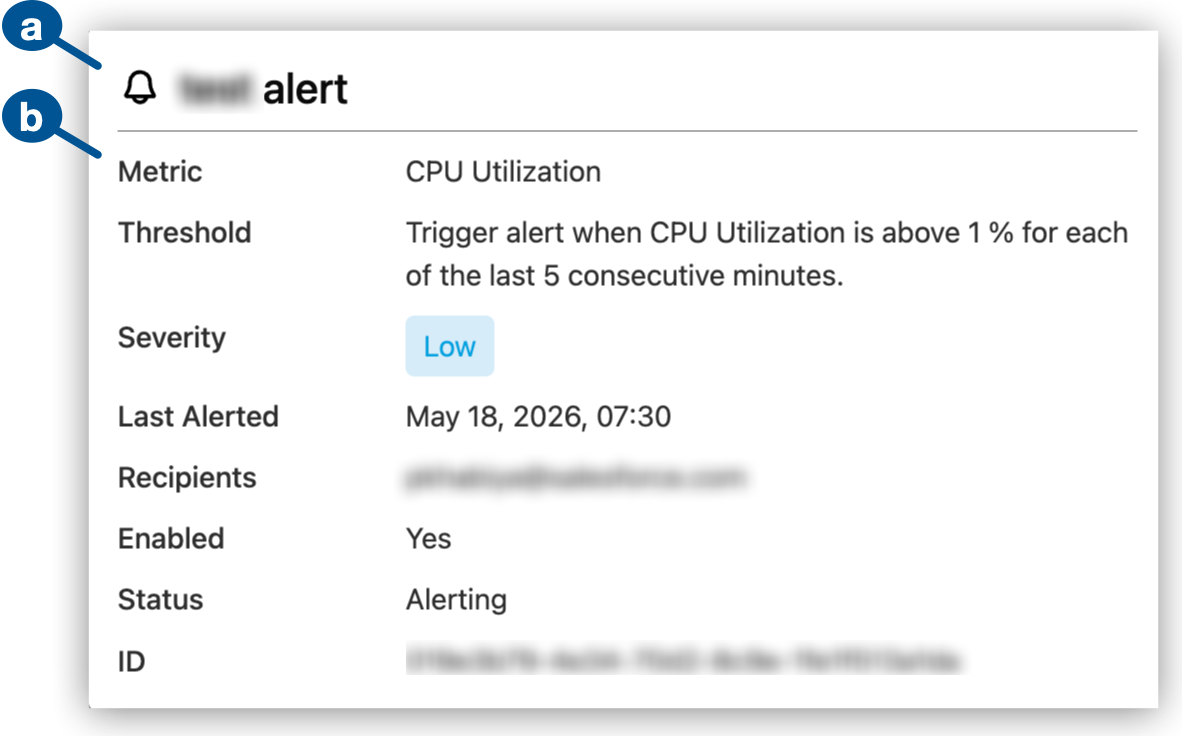
Alert details
  1. Name of the selected alert

  2. Alert properties:

    • Metric: Name of the metric that the alert configuration uses

    • Threshold: Rule for triggering the alert

    • Severity: Severity level of this alert

    • Last Alerted: Date and time the alert last triggered

    • Recipients: Each email address that receives an alert notification when the alert triggers

    • Status: Current status of the alert

    • ID: Identifier for the alert

5Create Alert is for configuring a new alert.
6Enable, disable, edit, or delete an alert from its (More menu).
For alerts in custom dashboard graphs (US and EU clouds only), see [Alerts](https://docs.mulesoft.com/monitoring/dashboard-custom-config-graph#alerts_config). ## Compare Anypoint Monitoring Alerts and Runtime Manager Alerts Anypoint Monitoring and Runtime Manager provide different alert systems. Use the alert page and API for the system that owns the alert you need. Anypoint Monitoring Alerts Alerts for APIs, Mule applications, and servers, including instance alerts such as response time, request count, policy violations, and HTTP status codes, plus Contracts, Basic, and Advanced alerts. For instance alerts, the sliding window is configurable. Use Anypoint Monitoring alert APIs for: - Alert configuration (alert definitions) - Fired-alert history Runtime Manager Alerts Infrastructure-focused alerts for servers, clusters, and application lifecycle events, such as CPU usage, memory usage, load average, thread count, deployment events, and server connectivity events. Use Runtime Manager REST Services endpoints for these alerts: - Alert configuration (alert definitions): `GET /hybrid/api/v1/alerts` and related alert-definition operations - Fired-alert history: alert-history endpoints for the alert ID, for example `GET /armui/api/v1/alerts/cloudhub/{alertId}/history` Runtime Manager retains 30 days of alert history. Runtime Manager alerts retrigger when a condition continues to breach its threshold. Runtime Manager alerts aren’t listed on the Anypoint Monitoring **Alerts** page. For Runtime Manager alerts, see [Alerts](https://docs.mulesoft.com/runtime-manager/alerts-on-runtime-manager). ## Before You Begin Required prerequisites: - Your organization must subscribe to a [tier](https://docs.mulesoft.com/monitoring/#billing) in an Anypoint Platform cloud that supports this feature. - You must have the [permissions](https://docs.mulesoft.com/monitoring/am-permissions) required for viewing or managing Anypoint Monitoring. - At least one Mule application or API must be deployed to a supported host: - Mule application: - CloudHub 2.0 - Runtime Fabric - API managed by Mule Gateway or Omni Gateway See [Anypoint Platform Gateways Overview](https://docs.mulesoft.com/gateway-home/). For information about deployment targets for Mule applications, see [Runtime Plane Hosting Options](https://docs.mulesoft.com/hosting-home/#runtime-plane-hosting-options). ## Find Alerts To find the list of alerts: 1. In Anypoint Monitoring, navigate to **Alerts**. 2. To narrow the list of alerts, use any of these filtering options: - [Status](#status) - [Severity](#severity) - Search for the name of the alert Whole-word searches are supported. Multi-word searches return all alert names that contain any of the words. The search ignores special characters in names, such as question marks (`?`), underscores (`_`), and hyphens (`-`). 3. Review the list of alerts. Each alert provides: - **Alert Name**: Name of the alert - **Severity**: Configured [severity](#severity) of the alert - **Status**: Current [status](#status) of the alert - **Metric**: Name of the [metric](#metrics) that the alert uses - **Last Alerted**: Most recent date and time the alert triggered or **\-** for an alert that has never triggered - **Creation Date**: Alert creation date and time - **Availability**: **Enabled** or **Disabled** alert setting ## Create an Alert Configure an alert, the condition for triggering the alert, and the alert notification. 1. From **Alerts** in Anypoint Monitoring, click **Create Alert**. 2. Configure alert properties: 1. Provide a name for the alert. 2. Select the [environment](#environment) in your organization for this alert. 3. Select the resource type and resource that the alert is for. Only active resources that can receive traffic are available. - **Resource Type**: **API** or **Application** - **Resource Name**: Name of the API or Mule application 4. For an API alert, select an API version and up to ten response codes. 5. Click **Next** to open **Set Alert Condition**. 3. In **Set Alert Condition**, configure the rule for triggering the alert: 1. Select the [metric](#metrics) that the alert uses. 2. Select the [severity](#severity) of the alert. 3. Provide a [threshold](#threshold) for triggering the alert. 4. Click **Next** to open **Configure Notifications**. 4. In **Configure Notifications**, configure the message to send when the alert triggers. To use variables in your email notification, see [Email Notification Variables](#variables). 1. Provide a subject. 2. Provide the message. 3. Identify recipients. The first recipient appears in the email **To** field, and the remaining recipients appear in the **CC** field. ## Enable, Disable, or Delete an Alert Alerts are enabled by default when they are created. You can disable, re-enable, or delete an alert. 1. In Anypoint Monitoring, navigate to **Alerts**. 2. Find the alert in the Alerts table. 3. Click the alert’s ![](/mulesoft/current/en-us/monitoring/_images/more-menu-vert-ellipsis.png) (**More** menu). 4. Enable, disable, or delete the alert. ## Alert Statuses The **Alerts** page indicates whether an alert is currently triggering or in some other state. No data No data is available in the series to evaluate the alert threshold. Paused The alert is disabled and no longer active. Alerting The value of the metric passes the specified threshold. OK The value of the metric has not passed the threshold. Pending The alert is enabled and waiting for evaluation. ## Alert Severities Use your organization’s alerting criteria when setting an alert’s severity. Available severity levels are: - **Low** - **Medium** - **High** - **Critical** > [!NOTE] For alert [notifications](#variables), `${severity}` currently returns `info` for **Low**, > `warning` for **Medium**, and `critical` for **High** and **Critical** alerts. ## Alert Thresholds Alert threshold configurations indicate when the data collected on a [metric](#metrics) triggers the alert. Configurations for alert thresholds follow this form:
Configuration PatternExample

Trigger alert when selected metric is Above|Below|Above or equal to|Below or equal to|Equal to Number for each of the last Number consecutive minutes.

Trigger alert when selected metric is Above 4 for each of the last 10 consecutive minutes.

The example configures an alert to trigger when the selected metric (such as **Message Count**) is **Above** 4 for 10 consecutive minutes. In other words, the count must exceed 4 for each minute of minutes 1-10. If the count exceeds 4 for 9 of 10 minutes, but not the tenth minute, the alert doesn’t trigger, even if the count exceeds 4 at minute 11. Following the same criteria, if the count exceeds 4 for each minute of minutes 11-20, the alert triggers. When the alert triggers, Anypoint Monitoring sends a notification immediately. If the threshold breach persists, the alert sends another notification at the configured repeat interval rather than on every evaluation window. When the condition clears—meaning the metric returns to within the threshold—the alert resets. If the condition recurs after clearing, a new notification fires immediately, regardless of the repeat interval. The repeat interval governs re-notifications only during a sustained breach. ## Alert Metrics A Mule application or API metric is part of the [configuration for triggering the alert](#threshold). Mule app metrics: - **Message Count**: Total number of Mule messages that process successfully - **Message Error Count**: Number of Mule messages that return an exception in a flow - **Average Response Time**: Response time (in milliseconds) of a message - **CPU Utilization**: Percent of CPU used on the virtual machine This metric includes all processes and is available only for apps deployed to CloudHub or Anypoint Runtime Fabric. - **Memory Utilization**: Percent of heap used This metric is available only for apps deployed to CloudHub or Anypoint Runtime Fabric. Anypoint Monitoring tracks heap usage and triggers memory alerts based on the value of `heap_used`/`heap_total`. Note that `heap_total` isn’t identical to the maximum heap memory allocated to the Mule app on CloudHub. For example, 0.2 vCores indicates that the maximum heap memory is 1 GB (see the table in [CloudHub Workers](https://docs.mulesoft.com/cloudhub/cloudhub-architecture#cloudhub-workers)), but the value of `heap_total` isn’t 1GB. Instead, `heap_total` is the maximum amount of memory that the JVM can use for heap memory, where objects are created and stored. In Java, this value changes dynamically depending on memory fragmentation, garbage collection, and other memory management features. - **Thread Count**: Total number of threads used This metric is available only for apps deployed to CloudHub or Anypoint Runtime Fabric. API metrics: - **Total Request Count**: Sum of requests in the selected time period for the given API Data is aggregated in one minute increments. - **Average Response Time**: Average response time of requests in the selected time period for the given API Data is aggregated in one minute increments. - **Response Codes**: Sum of HTTP response codes that occur in the selected time period - **Policy Violations**: Sum of requests that return policy violations that you select in the alert condition. ## Environments Alerts are specific to one of your Anypoint Platform environments. Your organization administrator [creates](https://docs.mulesoft.com/access-management/environments#to-create-a-new-environment) the environments that are available to you. Anypoint Platform supports these types of [environments](https://docs.mulesoft.com/access-management/environments#types-of-environments): - **Design** - **Production** - **Sandbox** ## Email Notification Variables Alerts deliver notifications as emails to designated recipients for each alert. Your email template can incorporate variables in the **Subject** and **Message** fields. For the description of each variable, see [Variable Definitions](#alert-variables).
Table 1. Variables for Alerts
Alert TypeMetricApplicable Variables

CloudHub App Alerts

CPU Utilization

  • ${severity}

  • ${operator}

  • ${threshold}

  • ${period}

  • ${value}

  • ${condition}

  • ${organization}

  • ${environment}

  • ${alertLink}

  • ${dashboardLink}

  • ${timestamp}

  • ${resource}

Memory Utilization

Thread Count

Message Count

Message Error Count

Message Response Time

Anypoint Runtime Fabric App Alerts

CPU Utilization

  • ${severity} See Alert Severities for more information.

  • ${operator}

  • ${threshold}

  • ${period}

  • ${value}

  • ${condition}

  • ${organization}

  • ${environment}

  • ${alertLink}

  • ${dashboardLink}

  • ${timestamp}

  • ${resource}

Memory Utilization

Thread Count

Message Count

Message Error Count

Message Response Time

API Alerts

Total Request Count

  • ${severity}

  • ${operator}

  • ${threshold}

  • ${period}

  • ${value}

  • ${condition}

  • ${organization}

  • ${environment}

  • ${alertLink}

  • ${dashboardLink}

  • ${timestamp}

  • ${api}

  • ${policy}

Average Response Time

Response Codes

Policy Violations

Table 2. Variable Definitions
VariableDefinition

${alertLink}

URL of the triggered alert

${alertState}

State of the alert when it was triggered.

Available values are OK or Alerting.

${api}

Name of the API that triggers the alert

${comparison}

Above, above or equal, equal, below or equal, below

${condition}

Metric for which the alert is triggered

${dashboardLink}

URL that points to the dashboard for the app or API that triggers the alert

${environment}

Name of the environment in which the resource is deployed

${memberName}

Name of the server within the server group or cluster

${operator}

An operator, such as < > =

${organization}

Name of the organization that owns the alert

${period}

Period of time over which to measure

${policy}

Name of the policy whose violation triggers the alert

${resource}

Name of the item that triggers the alert:

  • CloudHub Apps: Name of the app that triggers the alert

  • Hybrid Apps: Name of the resource in the app that triggers the alert

${severity}

Severity of the alert

${targetName}

Name of the server, server group, or cluster

${targetState}

Server state when the alert was triggered

${threshold}

Count over the period of time that triggers the alert

${timestamp}

Time when the alert was triggered

${value}

Value of the metric that triggers the alert

## See Also - [FAQ: Anypoint Monitoring Logs, Metrics, Alerts, and Limits](https://docs.mulesoft.com/monitoring/am-faq) --- product: Monitoring description: Configure graph charts in MuleSoft Anypoint Monitoring custom dashboards, including metrics, axes, display options, and advanced multi-metric configurations. keywords: MuleSoft, Anypoint Monitoring, custom dashboards, graph charts, dashboard visualization, metrics charts, advanced mode, multi-metric graphs --- # Configuring Graphs in a Custom Dashboard > For the full documentation index, see: https://docs.mulesoft.com/llms.txt [![](/mulesoft/current/en-us/_/img/icons/info.svg)](/monitoring/#billing) Configure metrics data in a graph. A custom dashboard graph in Anypoint Monitoring displays metrics for a Mule app or API. Advanced options support fine-tuned configurations and multiple metrics in a single graph. You can also customize axes, the look of the graph, legends, and behavior of the graph when you hover over a data point. ![Graph configuration view](/mulesoft/current/en-us/monitoring/_images/dashboard-custom-config-graph.png)
1Graph example (basic mode)
2Graph configuration tabs:
  • General: Graph title, description, and mode (basic or advanced)

  • Axes: Axis configurations

  • Visuals: Style settings, including bar, line, and data points configurations

  • Alert: Alerts settings

    Advanced mode graphs don’t support alert configurations.

  • Advanced: Legend, threshold, and other advanced settings

  • X for closing the edit view

3Advanced Mode: Switch for enabling advanced configurations

Advanced mode supports complex configurations with up to 25 queries.

## Create a Graph Create a graph in a custom dashboard by following the guidance in [Add Charts to a Custom Dashboard](https://docs.mulesoft.com/monitoring/dashboard-custom-config#charts_adding). ## Configure a Graph Configure a graph in a custom dashboard. 1. From **Custom Dashboards**, open the custom dashboard that contains your graph. For guidance, see [View a Custom Dashboard](https://docs.mulesoft.com/monitoring/dashboard-custom-config#view). 2. Click the graph’s ![](/mulesoft/current/en-us/monitoring/_images/more-menu-vert-ellipsis.png) (**More menu**), and select **Configure**. 3. Click the graph’s **General** configuration tab. 1. Provide a title and description. 2. Select and configure a graph mode (basic or advanced). For more information, see [General Settings for Basic and Advanced Queries](#general). 4. In the graph’s **Axes** tab, set the graph’s axes or use the defaults. For more information, see [Axes (X-Axis and Y-Axis Settings)](#axes). 5. In the graph’s **Visuals** tab, set [bars, lines, or points](#visuals) for the graph. 6. Optionally: 1. In the **Alert** tab, configure an [alert and email notification](#alerts_config). Alerting isn’t available in advanced mode. 2. In the **Advanced** tab, provide [advanced configurations](#advanced). 7. Click **Apply Changes**. 8. Exit the configuration view by clicking the **X** next to the configuration tabs. ## General Settings for Basic and Advanced Queries **General** tab settings include [basic](#mode_basic) and [advanced](#mode_advanced) modes (or queries) for configuring time-series data. Both configurations share fields for the title and a short description.
Basic and Advanced Mode Settings

Title

Title to display in the UI. Defaults to Panel Title.

Description

Short description to display in the UI when users hover over the information (i) bubble.

Other settings are specific to the setting mode (basic or advanced). ### Basic Mode In the **General** configuration tab, a basic query selects a single metric for a deployed Mule app or API in a given environment.
Basic Mode Settings

Panel Type

From the drop-down menu, select the type of panel to display for the resource (Application Panel or API Panel)

Metric

The drop-down menu includes these types of metrics:

  • Inbound response metrics and averages

  • JVM metrics

  • Outbound response metrics and averages

For a list of basic metrics, see Basic Mode Metrics

Environment

The environment where your application or API is deployed.

Resource

A deployed application.

This option is available if you select Application Panel as your panel type.

API

A deployed API.

This option is available if you select API Panel as your panel type.

Version / Instance

The Mule version or instance on which your API is deployed.

This option is available if you select API Panel as your panel type.

> [!NOTE] When you create an application panel using a JVM metric, the query that supports the panel > uses only the worker-id for the app. When you modify the panel at a later time, the resource > fields are populated with the query content. Because some apps share a worker-id, the resource > that appears in the selector might appear to be a different resource from the resource you > selected originally. However, all resources share the same worker, so the query has the correct > information despite the selector displaying a different resource name. ### Advanced Mode In the **General** configuration tab, advanced mode settings support fine-tuned queries for metrics. > [!IMPORTANT] If you switch back to basic mode, some advanced configuration queries are removed. ![Advanced configuration mode is on.](/mulesoft/current/en-us/monitoring/_images/config-general-advanced.png)
Advanced Mode Settings for Applications

From

Lists metrics, such as jvm.memory and app_inbound_metric, that you can add to your chart.

This field provides matching suggestions when you type in a character. For example, jvm.c will produce a list of all values that contain those characters (such as jvm.classloading and jvm.cpu.operatingsystem).

For a list of advanced metrics, see Advanced Mode Metrics

Where

Supports conditional logic for filtering the From metric you selected.

  • Select one or more filters tags (such as app_id, env_id, org_id, worker_id). To avoid errors, you must provide required properties, such as the app or API, environment, and API version.

  • Available operators include:

    • = The value on the left matches the value on the right.

    • < The value on the left is less than the value on the right.

    • > The value on the left is greater than the value on the right.

  • You can also construct a query that contains multiple filtering expressions by using logical AND or OR operators between the expressions.

    Example:

  • Where env_id = Sandbox

  • Where env_id = Sandbox AND app_id= app3

  • Where env_id = Sandbox OR env_id = Production

Grouping AND or OR conditions within parentheses is not allowed. For example, Where env_id = Sandbox AND (app_id= app3 OR app_id=app2) isn’t allowed.

Select

Add one or more metric field settings to create a function that selects a field from the selected metric value in From and applies an operation to it (such as the mean of the heap_total).

Group By

For grouping the data by a selected time interval (such as $_interval, 1s, 10m, 1h), filter tag (such as tag(env_id)), and fill options (such as none, null, 0, previous, linear).

Valid values and arguments:

  • time($_interval) for the automated time interval setting, or you can specify time intervals of 1m, 5m, 10m, 15m, or 1h.

    • To avoid service timeouts when querying over long time ranges, consider using a time interval setting.

  • fill() where valid values are none, null, 0, previous, linear.

  • LIMIT: Numeric value (N) used to limit the result to the first N data points (combined series and timestamp values) returned by a query.

  • SLIMIT: Numeric value (N) used to return all data points (combined series and timestamp values) from the first N series returned by the query.

  • ORDER BY time DESC: Returns results in descending time order.

Alias By

You can create a label for your metric using a literal string (such as my string) or supported variables (for example, $tag_worker_id or $tag_env_id).

Advanced Mode Settings for APIs

From

Lists metrics, such as http_summary_metric, that you can add to your chart.

For a list of advanced metrics, see Advanced Mode Metrics

Where

Provides conditional logic for filtering the metric selected from the From field.

You can select one or more filter tags (such as api_id, org_id, api_version_id, method, status code). Example: Where status_code = 200.

Select

For creating a function that selects a metric field (such as request_size_average,response_time_max, or response_time_sum) from the metric selected in the From field and applies an operation to it (such as the mean of the response_time_average). You can add one or more metric field settings.

Group by

For grouping the data by a selected time interval (such as $_interval, 1s, 10m, 1h), filter tag (such as tag(api_id)), and fill options (such as none, null, 0, previous, linear).

  • To avoid service timeouts when querying over long time ranges, consider using a time interval setting.

Alias by

You can create a label for your metric using a literal string (such as my string) or supported variables (for example, $tag_api_id). The alias must always begin with $tag. The syntax is $tag_yourTagName.

To use your tag as an alias, the tag must be included in the group by field of the query.

## Axes (X-Axis and Y-Axis Settings) Configure the x-axis and y-axis of your graph in the **Axes** tab. ### Y-Axis Settings Set a vertical y-axis for the left (Left Y) or right (Right Y) side of your graph.
Y-Axis Settings

Show

If unchecked, hides the y-axis from the graph.

Unit

The unit of measurement to use for values on the y-axis. Values include none, data types (such as short, percent (1-100)), currency settings (including Dollars $ or Real ($)), time, data, data rate, and many other types of values.

Scale

Valid values for a linear or logarithmic (log) scale for coordinates on the y-axis:

  • linear: For y-coordinates, such as 1,2,3.

  • log (base 2): For y-coordinates, such as 1,4,16.

  • log (base 10): For y-coordinates, such as 1,10,100.

  • log (base 32): For y-coordinates, such as 1,32,1024.

  • log (base 1024): For y-coordinates, such as 1,1024,1048576.

Y-Min

The minimum value for a y-coordinate. Defaults to auto.

Y-Max

The maximum value for a y-coordinate. Defaults to auto.

Decimals

Overrides the automatic decimal precision on y-coordinates, for example, where 2 limits a value of 10.12345 to 10.12. Defaults to auto.

Label

A string used to label the Y axis. Defaults to "".

### X-Axis Settings
X-Axis Settings

Show

If unchecked, hides the x-axis from the graph.

Mode

Valid values:

  • Time: The default option. Indicates that x-axis data is divided into time units (for example, hours or minutes).

  • Series: Indicates that data is divided by series, and the y-axis provides the value of the series data.

  • Histogram: Converts the graph into a bar chart that represents collections of data at specified, numeric intervals (called a buckets or bins). The higher a bar in a histogram, the greater the frequency (or count) of data collected at that interval.

Value

Visible only if Series mode is selected.

Buckets

Visible only if Histogram mode is selected. Divides the range of values for a given metric into the specified number of intervals so that the histogram can display the count or frequency of data points that fall into that interval.

After you complete your configuration, you can click Save Changes. To exit the configuration and return to the dashboard, simply click the `X`. ## Visuals (Bar, Line, Data Point Settings) You can configure the style and look of graph to use. Bar, line, and point graphs are supported. ![Singlestat example](/mulesoft/current/en-us/monitoring/_images/graph-config-visuals.png)
Visual Configuration Options

Draw Modes

You can check one or more of these modes:

  • Bars: Checkbox for representing values as bar charts.

  • Lines: Checkbox for representing values as line graphs.

  • Points: Checkbox for representing values as data points.

Mode Options

Only available when the selected Draw Modes are Lines or Points.

  • Point Radius: Only available when Points is selected from Draw Modes. On a scale of 0 (none) to 10, sets the circumference of the line that connects related data points on the graph.

  • Fill: Only available when Lines is selected from Draw Modes. On a scale of 0 (none) to 10, sets the opacity of the color used below related data points on the graph.

  • Line Width: Only available when Lines is selected from Draw Modes. On a scale of 0 (none) to 10, sets the thickness of the border of the fill.

  • Staircase: Checkbox for displaying adjacent points in a staircase pattern.

Hide Series

  • With Nulls Only: Checkbox for hiding any series that is filled with null values.

  • With Only Zeros: Checkbox for hiding any series that is filled with values of zero.

## Alerts (Configuration, Notifications, History)

info Availability: Advanced and Titanium tiers only

From a graph’s **Alerts** tab, you can: - [Configure an alert](#configure) - [View alert history](#state_history) - [Delete an alert](#delete_alert) ### Configure an Alert 1. Navigate to the **Alert** configuration tab for a graph that is configured in basic mode. 2. Click **Add Alert**. 3. Use **Alert Config** to configure the alert.
Settings for Alerts in Custom Dashboards

Name

A title for your alert

Severity level

The severity level of your alert.

Condition

WHEN: For triggering an alert if the metric rises above a specified level

4. Configure email notifications when an alert is triggered.
Notification Settings for Alerts

Send To

Email address for each recipient of the alert notification. If you add or change the email address of an alert recipient, they don’t receive an email until the alert is triggered.

Message

Message to send to the recipient.

5. Click **Save Changes**. 6. Click **X** to exit the configuration and return to the dashboard. ### View Alert State History Use **State history** to view the status of the last 50 alerts. You can also clear the history. ### Delete an Alert Use **Delete** to remove the alert from the graph. ## Advanced (Legends, Thresholds, Stacking, Hovering, Time Shift Settings) Add and configure legends, thresholds, and other features for your graph. ### Legends (Advanced Setting) In the **Advanced configuration** tab, configure legends for your graphs. ![Advanced graph settings for a legend](/mulesoft/current/en-us/monitoring/_images/graph-advanced-legend.png)
Legend Options

Show

Unchecking hides the legend. Checked by default.

As Table

Check to display the selected legend Values (such as min and max) in a table. Unchecked by default.

To the Right

Check to display the legend on the right side. Unchecked by default.

Width

Available when To the Right is checked. Sets the minimum width (in pixels) for the legend. Leave it blank to allow for automatic width selection.

You can also display the following values in a legend:
Legend Values

Min

Minimum of all values returned from the query

Max

Maximum of all values returned from the query

Avg

Average of all values returned from the query

Current

Last value returned from the query

Total

Sum of all values returned from metric query

Decimals

Overrides automatic decimal precision used in legends and tooltips

After you complete your configuration, click **Save Changes**. To exit the configuration and return to the dashboard, click the **X**. ### Stacking and Hover (Advanced Setting) In the **Advanced configuration** tab, you can configure a hover tooltip to display information about a data point in a graph when you hover over the value. ![Advanced graph settings, Stack and Hover](/mulesoft/current/en-us/monitoring/_images/graph-advanced-stacking-hover.png)
Hover Tooltip Settings

Mode

To display one or all series in the tooltip.

Sort Order

Displays data in no order (None), Decreasing, or Increasing order. Defaults to None.

Stacked Value

Available when Stack is checked. Controls the display of values in the tooltip.

Valid values are:

  • Individual: The value of the series that you hover over.

  • Cumulative: Sum of series below the stacked value plus the series you hover over.

Stacking and Null functionality displays multiple series as a group within a stack. You can also specify how to deal with null values.
Stacking and Null Settings

Stack

When checked, stacks each series, one on top of another, instead of overlaying them.

Percent

Available when Stack is checked. Displays each series of stacked values as a percentage.

Null Value

Determines how to display null values: Connected, Null, Null As Zero.

### Threshold (Advanced Setting) In the **Advanced** configuration tab, you can set one or more thresholds, such as a line or section to a graph, to indicate whether the data crosses a limit that you specify. > [!NOTE] Thresholds are not available when an alert is in place on the graph. To re-enable > thresholds for a chart, you must delete the alert. ![Threshold settings for a graph](/mulesoft/current/en-us/monitoring/_images/graph-advanced-threshold.png)
Threshold Settings

gt or lt

Indicates whether the limit applies to data that is greater than (gt) or less than (lt) the specified threshold value.

Threshold value

A numeric value for the threshold.

Threshold type

Identifier for the threshold (Custom, Critical, Warning, or OK).

Fill

Adds a filler color to the graph that corresponds to the specified threshold setting.

Line

Adds a line to the graph that corresponds to the specified threshold setting.

Fill Color

Similar to Fill settings, but for custom thresholds only.

Line Color

Similar to Line settings, but for custom thresholds only.

### Time Range Shift (Advanced Setting) In the **Advanced** configuration tab, you can override any time intervals or ranges that end users select for the custom dashboard. Such selections are global and apply to all charts in the dashboard. Overrides are useful when the selection does not make sense for a particular graph. Time ranges are calculated backwards from the present time. For example, you might set the time range so you can view the last 2 hours of data in a graph. You can also shift the time range to calculate backwards from an earlier point in time, for example, from 1 hour ago instead of from the present time.
Time Range Shift Settings

Override Relative Time

The amount of time to show in the x-axis of the graph (for example, 2h). Information about this setting is displayed under the title of the graph unless you select Hide Time Override Info.

Add Time Shift

Amount of time before now (the current time) to end (or shift back in time) the duration set by Override Relative Time. For example, if the time right now is 10:00, and you shift the time to 1h when the Override Relative Time is 2h, end users will see the two hours of data available from 7:00 to 9:00, and the table will also display a message like this: 2 hours, ending 1 hour ago.

Hide Time Override Info

Checkbox for hiding the description of any Override Relative Time and Time Shift settings from the graph.

--- product: Monitoring description: Configure singlestat charts in MuleSoft Anypoint Monitoring custom dashboards to display a single aggregated metric value for a Mule app or API. keywords: MuleSoft, Anypoint Monitoring, custom dashboards, singlestat chart, aggregated metrics, dashboard visualization, Mule app metrics --- # Configuring Singlestats in a Custom Dashboard > For the full documentation index, see: https://docs.mulesoft.com/llms.txt [![](/mulesoft/current/en-us/_/img/icons/info.svg)](/monitoring/#billing) Configure singlestat charts for Mule apps and APIs in an Anypoint Monitoring custom dashboard. A singlestat chart displays a single value, such as the value of an Inbound - Average Request Count by Endpoint metric. ![Singlestat chart and configuration view](/mulesoft/current/en-us/monitoring/_images/dashboard-custom-config-singlestat.png)
1A singlestat chart example

You can customize the look of singlestats.

2Singlestat configuration tabs:
  • General: Singlestat title, description, and mode (basic or advanced)

  • Time range: Override settings for relative time ranges selected from the dashboard UI by end users

  • Options: Style settings

  • Value Mappings: Human-readable label settings

  • X for closing the edit view

3Advanced Mode: Switch for enabling advanced configurations
## Create a Singlestat Chart Create a singlestat chart in a custom dashboard by following the guidance in [Add Charts to a Custom Dashboard](https://docs.mulesoft.com/monitoring/dashboard-custom-config#charts_adding). ## Configure a Singlestat Chart Configure a singlestat chart in a custom dashboard. 1. From **Custom Dashboards**, open the custom dashboard that contains your singlestat chart. For guidance, see [View a Custom Dashboard](https://docs.mulesoft.com/monitoring/dashboard-custom-config#view). 2. Click the singlestat’s ![](/mulesoft/current/en-us/monitoring/_images/more-menu-vert-ellipsis.png) (**More menu**), and select **Configure**. 3. Click the singlestat’s **General** configuration tab. 1. Provide a title and description. 2. Select and configure a singlestat mode (basic or advanced). Both modes require environment, resource (app or API), and metric settings. For more information, see [General Settings for Basic and Advanced Queries](#general). 4. Optionally: 1. In the singlestat’s [**Time range**](#time-range) tab, set the singlestat’s overrides for the time range selected by users. 2. In the [**Options**](#options) tab, configure singlestat fonts, coloring, spark lines, and other style settings. 3. In the [**Value Mappings**](#value-mappings) tab, provide a human-readable label for a summary statistic. 5. Click **Apply Changes**. 6. Exit the configuration view by clicking the **X** next to the configuration tabs. ## General Settings for Basic and Advanced Queries **General** tab settings include [basic](#mode_basic) and [advanced](#mode_advanced) modes (or queries) for configuring time-series data. Both configurations share fields for the title and a short description.
Basic and Advanced Mode Settings

Title

Title to display in the UI. Defaults to Panel Title.

Description

Short description to display in the UI when users hover over the information (i) bubble.

Other settings are specific to the setting mode (basic or advanced). ### Basic Mode In the **General** configuration tab, a basic query selects a single metric for a deployed Mule app or API in a given environment.
Basic Mode Settings

Panel Type

From the drop-down menu, select the type of panel to display for the resource (Application Panel or API Panel)

Metric

The drop-down menu includes these types of metrics:

  • Inbound response metrics and averages

  • JVM metrics

  • Outbound response metrics and averages

For a list of basic metrics, see Basic Mode Metrics

Environment

The environment where your application or API is deployed.

Resource

A deployed application.

This option is available if you select Application Panel as your panel type.

API

A deployed API.

This option is available if you select API Panel as your panel type.

Version / Instance

The Mule version or instance on which your API is deployed.

This option is available if you select API Panel as your panel type.

> [!NOTE] When you create an application panel using a JVM metric, the query that supports the panel > uses only the worker-id for the app. When you modify the panel at a later time, the resource > fields are populated with the query content. Because some apps share a worker-id, the resource > that appears in the selector might appear to be a different resource from the resource you > selected originally. However, all resources share the same worker, so the query has the correct > information despite the selector displaying a different resource name. ### Advanced Mode In the **General** configuration tab, advanced mode settings support fine-tuned queries for metrics. > [!IMPORTANT] If you switch back to basic mode, some advanced configuration queries are removed. ![Advanced configuration mode is on.](/mulesoft/current/en-us/monitoring/_images/config-general-advanced.png)
Advanced Mode Settings for Applications

From

Lists metrics, such as jvm.memory and app_inbound_metric, that you can add to your chart.

This field provides matching suggestions when you type in a character. For example, jvm.c will produce a list of all values that contain those characters (such as jvm.classloading and jvm.cpu.operatingsystem).

For a list of advanced metrics, see Advanced Mode Metrics

Where

Supports conditional logic for filtering the From metric you selected.

  • Select one or more filters tags (such as app_id, env_id, org_id, worker_id). To avoid errors, you must provide required properties, such as the app or API, environment, and API version.

  • Available operators include:

    • = The value on the left matches the value on the right.

    • < The value on the left is less than the value on the right.

    • > The value on the left is greater than the value on the right.

  • You can also construct a query that contains multiple filtering expressions by using logical AND or OR operators between the expressions.

    Example:

  • Where env_id = Sandbox

  • Where env_id = Sandbox AND app_id= app3

  • Where env_id = Sandbox OR env_id = Production

Grouping AND or OR conditions within parentheses is not allowed. For example, Where env_id = Sandbox AND (app_id= app3 OR app_id=app2) isn’t allowed.

Select

Add one or more metric field settings to create a function that selects a field from the selected metric value in From and applies an operation to it (such as the mean of the heap_total).

Group By

For grouping the data by a selected time interval (such as $_interval, 1s, 10m, 1h), filter tag (such as tag(env_id)), and fill options (such as none, null, 0, previous, linear).

Valid values and arguments:

  • time($_interval) for the automated time interval setting, or you can specify time intervals of 1m, 5m, 10m, 15m, or 1h.

    • To avoid service timeouts when querying over long time ranges, consider using a time interval setting.

  • fill() where valid values are none, null, 0, previous, linear.

  • LIMIT: Numeric value (N) used to limit the result to the first N data points (combined series and timestamp values) returned by a query.

  • SLIMIT: Numeric value (N) used to return all data points (combined series and timestamp values) from the first N series returned by the query.

  • ORDER BY time DESC: Returns results in descending time order.

Alias By

You can create a label for your metric using a literal string (such as my string) or supported variables (for example, $tag_worker_id or $tag_env_id).

Advanced Mode Settings for APIs

From

Lists metrics, such as http_summary_metric, that you can add to your chart.

For a list of advanced metrics, see Advanced Mode Metrics

Where

Provides conditional logic for filtering the metric selected from the From field.

You can select one or more filter tags (such as api_id, org_id, api_version_id, method, status code). Example: Where status_code = 200.

Select

For creating a function that selects a metric field (such as request_size_average,response_time_max, or response_time_sum) from the metric selected in the From field and applies an operation to it (such as the mean of the response_time_average). You can add one or more metric field settings.

Group by

For grouping the data by a selected time interval (such as $_interval, 1s, 10m, 1h), filter tag (such as tag(api_id)), and fill options (such as none, null, 0, previous, linear).

  • To avoid service timeouts when querying over long time ranges, consider using a time interval setting.

Alias by

You can create a label for your metric using a literal string (such as my string) or supported variables (for example, $tag_api_id). The alias must always begin with $tag. The syntax is $tag_yourTagName.

To use your tag as an alias, the tag must be included in the group by field of the query.

## Time Range (Overrides, Time Shifts, Info Display) Time range configurations provide a way to override _relative_ time ranges (such as the last 30 minutes) selected from the dashboard UI by end users.
Time Range Settings

Override Relative Time

The amount of time covered by the statistic, for example, the last hour (1h) or last thirty minutes (30m). This setting overrides only relative time ranges selected by end users. When a user selects an absolute time and date range for the dashboard, the override is disabled.

Add Time Shift

How long ago the covered time range ended, for example, 1s for one second ago.

Hide Time Override Info

Hides information about the override time range settings from the singlestat or table, such as 30 minutes, ending 1 second ago.

## Options Tab The **Options** tab includes settings for singlestat [values](#value_singlestat), fonts, [coloring](#color_singlestat), [spark lines](#spark_singlestat), and [gauge icon](#gauge_singlestat) settings. ### Value Settings for Singlestats Configure values for your singlestat. Value settings include the type of value you want (such as an average), the unit of measure, and others. ![Singlestat options example](/mulesoft/current/en-us/monitoring/_images/singlestat-config-options.png)
Values

Stat

The value displayed by the singlestat. Available Settings:

  • Min: Minimum of recorded values for the specified metric.

  • Max: Maximum of recorded values for the specified metric.

  • Average: Average of the recorded values for the specified metric.

  • Current: The current value for the specified metric.

  • Total: Sum of recorded values for the specified metric.

  • Name: Name of the metric (for example, worker-0).

  • First: The first recorded value for the specified metric.

  • Delta: The total incremental increase in the series.

  • Difference: The difference between the Current value (last value) and the First value.

  • Range: The difference between Min and Max.

  • Time of Last Point: Timestamp of the last reading.

Prefix

Prepends text to the singlestat value.

Postfix

Appends text to the singlestat value.

Unit

Unit of measurement to display with the singlestat value (for example, percent (0-100)).

Decimals

Overrides the automatic decimal precision for the legend and tooltips.

Font size

Select the font size for the stat, prefix, and postfix.

### Coloring and Thresholds Add color-coded thresholds to a singlestat so that you can see whether it exceeds or stays within expected limits.
Coloring

Background

Adds a background color determined by the Thresholds setting.

Value

Applies a color for the current singlestat value that matches the color determined by the Thresholds setting.

Thresholds

Sets a threshold using a numeric range such as 10,20 to distinguish values between the two numbers, below left-most number, and above the right-most number.

Colors

Sets the colors for the values that are below, within, or above the Thresholds settings. You can invert the colors, as needed.

### Spark Lines Configure spark line settings to show a visual representation of the data.
Spark Lines

Show

Checkbox to show or hide the spark line.

Full Height

For covering the full height of the singlestat.

Line Color

For selecting the color of the spark line.

Fill Color

For selecting the color of the area below the spark line.

### Gauge Display an arc-like gauge that represents the value of the singlestat.
Gauge

Show

Checkbox for showing or hiding the gauge.

Min

Sets a minimum value (such as 0 for a gauge that shows a percentage).

Max

Sets a maximum value (such as 100 for a gauge that shows a percentage).

Threshold Labels

Checkbox for showing or hiding your Threshold settings.

## Value Mappings From the **Value Mappings** configuration tab, you can provide a human-readable label for a summary statistic. ![Value mapping example](/mulesoft/current/en-us/monitoring/_images/singlestat-config-value-mapping.png)
Range to Text Settings

Value to Text

Maps a number to a textual description, for example: 0 → Error, 1 → Success

Range to Text

Maps a numeric range to a textual description, for example: From 5 To 10 Text Warning

--- product: Monitoring description: Configure table charts in MuleSoft Anypoint Monitoring custom dashboards to display detailed metric data for Mule apps and APIs in tabular format. keywords: MuleSoft, Anypoint Monitoring, custom dashboards, table chart, tabular metrics, dashboard visualization, Mule app metrics, API metrics --- # Configuring Tables in a Custom Dashboard > For the full documentation index, see: https://docs.mulesoft.com/llms.txt [![](/mulesoft/current/en-us/_/img/icons/info.svg)](/monitoring/#billing) Configure tables with Mule app and API metrics in Anypoint Monitoring custom dashboards. ![Table chart and configuration view](/mulesoft/current/en-us/monitoring/_images/dashboard-custom-config-table.png)
1A table configured with multiple queries in advanced mode
2Table configuration tabs:
  • General: Table title, description, and mode (basic or advanced)

  • Time range: Override settings for relative time ranges selected from the dashboard UI by end users

  • Options: Table layout, column, and pagination options

  • Column Styles: Rules for table columns

  • X for closing the edit view

3Advanced Mode: Switch for enabling advanced configuration mode

Advanced mode support complex configurations with up to 25 queries.

4Icons for moving, duplicating, and deleting queries from an advanced mode configuration
## Create a Table Create a table in a custom dashboard by following the guidance in [Add Charts to a Custom Dashboard](https://docs.mulesoft.com/monitoring/dashboard-custom-config#charts_adding). ## Configure a Table Configure a table in a custom dashboard. 1. From **Custom Dashboards**, open the custom dashboard that contains your table. For guidance, see [View a Custom Dashboard](https://docs.mulesoft.com/monitoring/dashboard-custom-config#view). 2. Click the table’s ![](/mulesoft/current/en-us/monitoring/_images/more-menu-vert-ellipsis.png) (**More menu**), and select **Configure**. 3. Click the table’s **General** configuration tab. 1. Provide a title and description. 2. Select and configure a table mode (basic or advanced). Both modes require environment, resource (app or API), and metric settings. For more information, see [General Settings for Basic and Advanced Queries](#general). 4. Optionally: 1. In the table’s [**Time range**](#time-range) tab, set the table’s overrides for the time range selected by users. 2. In the [**Options**](#options) tab, configure table layout, column, and pagination options. 3. In the [**Column Styles**](#column-styles) tab, set rules for table columns. 5. Click **Apply Changes**. 6. Exit the configuration view by clicking the **X** next to the configuration tabs. ## General Settings for Basic and Advanced Queries **General** tab settings include [basic](#mode_basic) and [advanced](#mode_advanced) modes (or queries) for configuring time-series data. Both configurations share fields for the title and a short description.
Basic and Advanced Mode Settings

Title

Title to display in the UI. Defaults to Panel Title.

Description

Short description to display in the UI when users hover over the information (i) bubble.

Other settings are specific to the setting mode (basic or advanced). ### Basic Mode In the **General** configuration tab, a basic query selects a single metric for a deployed Mule app or API in a given environment.
Basic Mode Settings

Panel Type

From the drop-down menu, select the type of panel to display for the resource (Application Panel or API Panel)

Metric

The drop-down menu includes these types of metrics:

  • Inbound response metrics and averages

  • JVM metrics

  • Outbound response metrics and averages

For a list of basic metrics, see Basic Mode Metrics

Environment

The environment where your application or API is deployed.

Resource

A deployed application.

This option is available if you select Application Panel as your panel type.

API

A deployed API.

This option is available if you select API Panel as your panel type.

Version / Instance

The Mule version or instance on which your API is deployed.

This option is available if you select API Panel as your panel type.

> [!NOTE] When you create an application panel using a JVM metric, the query that supports the panel > uses only the worker-id for the app. When you modify the panel at a later time, the resource > fields are populated with the query content. Because some apps share a worker-id, the resource > that appears in the selector might appear to be a different resource from the resource you > selected originally. However, all resources share the same worker, so the query has the correct > information despite the selector displaying a different resource name. ### Advanced Mode In the **General** configuration tab, advanced mode settings support fine-tuned queries for metrics. > [!IMPORTANT] If you switch back to basic mode, some advanced configuration queries are removed. ![Advanced configuration mode is on.](/mulesoft/current/en-us/monitoring/_images/config-general-advanced.png)
Advanced Mode Settings for Applications

From

Lists metrics, such as jvm.memory and app_inbound_metric, that you can add to your chart.

This field provides matching suggestions when you type in a character. For example, jvm.c will produce a list of all values that contain those characters (such as jvm.classloading and jvm.cpu.operatingsystem).

For a list of advanced metrics, see Advanced Mode Metrics

Where

Supports conditional logic for filtering the From metric you selected.

  • Select one or more filters tags (such as app_id, env_id, org_id, worker_id). To avoid errors, you must provide required properties, such as the app or API, environment, and API version.

  • Available operators include:

    • = The value on the left matches the value on the right.

    • < The value on the left is less than the value on the right.

    • > The value on the left is greater than the value on the right.

  • You can also construct a query that contains multiple filtering expressions by using logical AND or OR operators between the expressions.

    Example:

  • Where env_id = Sandbox

  • Where env_id = Sandbox AND app_id= app3

  • Where env_id = Sandbox OR env_id = Production

Grouping AND or OR conditions within parentheses is not allowed. For example, Where env_id = Sandbox AND (app_id= app3 OR app_id=app2) isn’t allowed.

Select

Add one or more metric field settings to create a function that selects a field from the selected metric value in From and applies an operation to it (such as the mean of the heap_total).

Group By

For grouping the data by a selected time interval (such as $_interval, 1s, 10m, 1h), filter tag (such as tag(env_id)), and fill options (such as none, null, 0, previous, linear).

Valid values and arguments:

  • time($_interval) for the automated time interval setting, or you can specify time intervals of 1m, 5m, 10m, 15m, or 1h.

    • To avoid service timeouts when querying over long time ranges, consider using a time interval setting.

  • fill() where valid values are none, null, 0, previous, linear.

  • LIMIT: Numeric value (N) used to limit the result to the first N data points (combined series and timestamp values) returned by a query.

  • SLIMIT: Numeric value (N) used to return all data points (combined series and timestamp values) from the first N series returned by the query.

  • ORDER BY time DESC: Returns results in descending time order.

Alias By

You can create a label for your metric using a literal string (such as my string) or supported variables (for example, $tag_worker_id or $tag_env_id).

Advanced Mode Settings for APIs

From

Lists metrics, such as http_summary_metric, that you can add to your chart.

For a list of advanced metrics, see Advanced Mode Metrics

Where

Provides conditional logic for filtering the metric selected from the From field.

You can select one or more filter tags (such as api_id, org_id, api_version_id, method, status code). Example: Where status_code = 200.

Select

For creating a function that selects a metric field (such as request_size_average,response_time_max, or response_time_sum) from the metric selected in the From field and applies an operation to it (such as the mean of the response_time_average). You can add one or more metric field settings.

Group by

For grouping the data by a selected time interval (such as $_interval, 1s, 10m, 1h), filter tag (such as tag(api_id)), and fill options (such as none, null, 0, previous, linear).

  • To avoid service timeouts when querying over long time ranges, consider using a time interval setting.

Alias by

You can create a label for your metric using a literal string (such as my string) or supported variables (for example, $tag_api_id). The alias must always begin with $tag. The syntax is $tag_yourTagName.

To use your tag as an alias, the tag must be included in the group by field of the query.

## Time Range (Overrides, Time Shifts, Info Display) Time range configurations provide a way to override _relative_ time ranges (such as the last 30 minutes) selected from the dashboard UI by end users.
Time Range Settings

Override Relative Time

The amount of time covered by the statistic, for example, the last hour (1h) or last thirty minutes (30m). This setting overrides only relative time ranges selected by end users. When a user selects an absolute time and date range for the dashboard, the override is disabled.

Add Time Shift

How long ago the covered time range ended, for example, 1s for one second ago.

Hide Time Override Info

Hides information about the override time range settings from the singlestat or table, such as 30 minutes, ending 1 second ago.

## Options (Data and Pagination Settings) In the **Options** configuration tab, you can set layout, column, and pagination options for tables in a custom dashboard. ### Data Settings (Options tab) Provide time series data transformation, column, and paging configurations.
Value Settings

Time Series to Rows

Creates a table with values for a given metric at a given time period. Like Time Series to Columns, the first column, Time, is for timestamps (such as 2018-04-25 06:37:40). However, subsequent columns are Metric (for listing specific metrics, such as worker-0) and Value for listing the values of the metric at that time period.

Time Series to Columns

Creates a table that shows values for a given metric at a given time period. Like Time Series to Rows, the first column, Time, is for timestamps. However, there is a column for each metric, such as worker-0, which lists the values of that metric at a given time period.

Time Series to Aggregations

Transforms time series into a table that calculates totals, averages, and so on for a given metric. The first column, Metric, is for metrics such as worker-0, and subsequent columns are for any combination of these values: Avg, Min, Max, Total, Current, or Count for a given metric.

Note that this example uses color-coded thresholds (see the cell coloring in the Avg and Max cells and value coloring for the Min value).

If you select Time Series to Aggregations, you can add pre-defined columns to the table.
Columns for Aggregations

Auto

Columns and their order are determined by the data query. Only available setting when Time Series to Rows, Time Series to Columns, Annotations, or Table is selected.

Avg

Averages the recorded data for a given metric.

Min

Provides the lowest recorded value for a given metric.

Max

Provides the highest recorded value for a given metric.

Total

Provides the sum of all values recorded in the table.

Current

Shows the current value for a given metric.

Count

Provides the total number of data points collected on the metric.

### Paging (Options tab) In the **Options** configuration tab, you can set pagination properties for tables so they don’t become too long and are more manageable.
Paging Properties

Rows per Page

Number of table rows allowed per page.

Scroll

Checkbox for making the table scrollable.

Font Size

Percentage of the default font size from 80% to 250%.

## Column Styles (Options, Data Types, Thresholds, Links) In the **Column Styles** configuration tab, you can create (**+Add**) and apply rules available for table columns. To remove a rule, you need to click it, then find and click the Remove Rule button near the bottom left of the screen. ### Options (Column Styles tab)
Options

Apply To Columns Named

Identifies the column or columns to which the rule applies. Provide the name or a regular expression (regex) that matches the name of one or more columns in the table. For a regex, use this syntax: /my.*regex/

Column Header

Provides a title for the column. For example, if you add the Avg column to a table that aggregates data, you might change the column name to Average. You can use strings such as $1 for a regular expression.

Render Value As Link

Treats values in the column as a link that you can configure through the Link settings.

### Link (Column Styles tab) In the Column Styles configuration tab, you can configure a link from a value to a specified web page. Link settings are available only when _Render Value As Link_ is checked.
Link

URL

Specifies a URL that you can open when you click a value in the column.

Tooltip

For providing a description of the link. This text appears when the end user hovers over the cell with the link. Use the same variables as for URL.

Open In New Tab

Displays the web content in a new browser tab when you click on the value.

Type

Type

Data type for values in the column. Valid values are Number, String, Date, and Hidden.

Unit

Label for the unit of measure to use for the value, such as bytes and megabytes/second. It is important to know the data type for your value before adding this label to the value. A wide variety of units are available.

Decimals

The level of precision allowed for a decimal value, for example, 2 to limit a value of 10.12345 to 10.12.

### Thresholds (Column Styles tab) In the Column Styles configuration tab, you can set thresholds for your data if Type is set to Number.
Thresholds

Thresholds

Comma-separated values, for example, 50000000,100000000. Values between the two values might be treated as warning values. Values below the first value might be treated as acceptable, while values above the second value might be treated as errors. Note that your threshold values must match the unit of measure used for your data (for example, byte) even if the specified Unit is converted to MB or GB in the table.

Color Mode

Indicates whether to apply the color code to the Value in a cell, to the Cell, to the entire Row, or whether color coding is Disabled.

Color

Color used to code values below (left-most color box), between (middle color box), and above (right-most color box) the specified threshold settings. For example, green values might represent OK, yellow a warning, and red an error. You can also invert the color coding.

--- product: Monitoring description: Configure HTML and Markdown text panels in MuleSoft Anypoint Monitoring custom dashboards to add descriptive context to your visualizations. keywords: MuleSoft, Anypoint Monitoring, custom dashboards, text panel, HTML panel, Markdown panel, dashboard documentation --- # Configuring Text Panels in a Custom Dashboard > For the full documentation index, see: https://docs.mulesoft.com/llms.txt [![](/mulesoft/current/en-us/_/img/icons/info.svg)](/monitoring/#billing) Configure HTML and Markdown text panels in Anypoint Monitoring custom dashboards. ## Before You Begin Create or navigate to the text panel you plan to configure: - If your text panel exists, open its configuration view: 1. From **Custom Dashboards**, open the custom dashboard that contains your text panel. For guidance, see [View a Custom Dashboard](https://docs.mulesoft.com/monitoring/dashboard-custom-config#view). 2. Click the text panel’s ![](/mulesoft/current/en-us/monitoring/_images/more-menu-vert-ellipsis.png) (**More menu**), and select **Configure**. - If the text panel doesn’t exist: 1. Create the text panel. For guidance, see [Add Charts to a Custom Dashboard](https://docs.mulesoft.com/monitoring/dashboard-custom-config#charts_adding). 2. Navigate to its configuration view. ## Create a Text Panel Create a text panel in a custom dashboard by following the guidance in [Add Charts to a Custom Dashboard](https://docs.mulesoft.com/monitoring/dashboard-custom-config#charts_adding). ## Configure a Text Panel Configure a panel with HTML or Markdown text in a custom dashboard. 1. From **Custom Dashboards**, open the custom dashboard that contains your text panel. For guidance, see [View a Custom Dashboard](https://docs.mulesoft.com/monitoring/dashboard-custom-config#view). 2. Click the panel’s ![](/mulesoft/current/en-us/monitoring/_images/more-menu-vert-ellipsis.png) (**More menu**), and select **Configure** to open the panel’s **General** configuration tab: 1. Provide a title and description. 2. Select the **markdown** or **html** mode. 3. Provide content in the selected mode. For examples and more detailed steps, see: - [Add Markdown to a Text Panel](#markdown) - [Add HTML to a Text Panel](#html) 3. Click **Apply Changes**. 4. Exit the configuration view by clicking the **X** next to the configuration tabs. ## Add Markdown to a Text Panel This Markdown example shows how your text appears in the UI as you type. ![A text editor that uses Markdown to format text.](/mulesoft/current/en-us/monitoring/_images/text-config.png) Figure 1. Markdown Example ## Add HTML to a Text Panel This HTML example creates the heading shown in [Text example](https://docs.mulesoft.com/monitoring/dashboard-custom-config#text_example): ![An HTML example](/mulesoft/current/en-us/monitoring/_images/dashboard-text-config-html.png) --- product: Monitoring description: Use the Anypoint Custom Metrics connector to send custom operational and business metric values from Mule apps to MuleSoft Anypoint Monitoring for visualization in Anypoint Insights and custom dashboards. keywords: MuleSoft, Anypoint Monitoring, custom metrics, Anypoint Custom Metrics connector, business metrics, operational metrics, Mule app metrics, custom dimensions --- # Creating Custom Metrics > For the full documentation index, see: https://docs.mulesoft.com/llms.txt [![](/mulesoft/current/en-us/_/img/icons/info.svg)](/monitoring/#billing) The Anypoint Custom Metrics connector enables you to send operational and business metric values that you define from an app to Anypoint Monitoring. You can then use **Anypoint Insights** or a custom dashboard in **Advanced** mode to visualize the custom metrics in real time. Define metrics in the Anypoint Custom Metrics connector to select which metrics to display in the dashboard. You can filter and group the metrics along the dimensions you define to include multiple custom and built-in metrics in a single dashboard visualization. ## Before You Begin Run your Mule app on a supported Mule runtime version. For supported versions, see [Mule Runtime Release Notes](https://docs.mulesoft.com/release-notes/mule-runtime/mule-esb). You must also [install the Anypoint Monitoring Agent](https://docs.mulesoft.com/monitoring/am-installing). Review [Custom Metrics Connector](https://docs.mulesoft.com/custom-metrics-connector/latest/) to understand connector configuration details. Connector configuration is required in your Mule app flow before you deploy or redeploy your app to a server or server cluster. ## Locate the Custom Metrics Connector In the sidebar, click **Custom Metrics** to locate **Anypoint Monitoring Custom Metrics Connector**. Alternatively, you can search for the connector in Anypoint Exchange. ## Custom Metrics Best Practices Best practices include using time period and frequency effectively as well as using data with low cardinality dimensions. ### Use Time Period and Frequency Effectively Each chart in the Custom Metrics dashboard represents the output of a query. Two parameters in the dashboard, _time range_ and _refresh frequency_, affect the response time for the query that generates a chart. Time range Determines how much data is fetched or processed to generate the chart. For example, more data is fetched and processed when displaying a monthly chart compared to displaying a daily chart. Refresh frequency Determines how often a chart refreshes. High refresh frequencies put more stress on a system and can affect performance. For example, a refresh rate of one hour sends a query every hour, and a refresh rate of one minute sends the same query every minute. Increasing time range (such as daily to monthly) or increasing refresh frequency (from one hour to one minute) affects the system response time. Reduce time range or reduce the refresh frequency to improve the chart response time. ### Use Low Cardinality Dimensions Most custom metric dimensions have less than 100 possible unique values, but some may have a thousand unique values, such as `country_code`, `state_code`, `city_code`, and `zip`. Do not add _high cardinality_ data, or data with many unique values, to custom metrics. Some examples of high cardinality dimensions include `customer_id`, `user_id`, `session_id`, `order_id`, `transaction_id`, `email_address`, `token_id`, `product_id`, `location_id` (latitude/longitude), `ip_address`, and `phone_number`. Charts configured for custom metrics with high cardinality dimensions can adversely affect the response time of dashboards. For best results, restrict dimensions to have only a few unique values. If a particular custom metrics chart slows down and affects other charts in the system, you can: - Create a new custom metric without the offending high cardinality dimension - Replace a high cardinality dimension with a low cardinality dimension, such as: - `category_id` instead of `product_id` - `country_code` instead of `location_id` - `order_count` instead of `order_id` - Avoid using UUIDs and timestamps when creating new custom metrics - Reduce the time range of the custom metric chart, for example, create a daily or weekly chart instead of a monthly or yearly chart - Reduce the refresh frequency, for example, refresh hourly instead of every minute. > [!NOTE] To ensure optimal performance, Anypoint Monitoring groups metrics based on unique > combinations of your custom dimensions and supports up to 100 unique combinations. If your data > exceeds this limit, lower-volume combinations are grouped under a single **Other** category. This > limit applies to all custom dimensions combined. For more information, see > [Endpoint and Operation Metrics Collection (Other Group)](#endpoint-operation-metrics). ### Restricted Keywords Due to internal database restrictions, you cannot use the following keywords to define `dimensionName` or `factName` while using the Anypoint Custom Metrics connector: Restricted Keywords - `ALL` - `ALTER` - `ANALYZE` - `ANY` - `AS` - `ASC` - `BEGIN` - `BY` - `CREATE` - `CONTINUOUS` - `DATABASE` - `DATABASES` - `DEFAULT` - `DELETE` - `DESC` - `DESTINATIONS` - `DIAGNOSTICS` - `DISTINCT` - `DROP` - `DURATION` - `END` - `EVERY` - `EXPLAIN` - `FIELD` - `FOR` - `FROM` - `GRANT` - `GRANTS` - `GROUP` - `GROUPS` - `IN` - `INF` - `INSERT` - `INTO` - `KEY` - `KEYS` - `KILL` - `LIMIT` - `SHOW` - `MEASUREMENT` - `MEASUREMENTS` - `NAME` - `OFFSET` - `ON` - `ORDER` - `PASSWORD` - `POLICY` - `POLICIES` - `PRIVILEGES` - `QUERIES` - `QUERY` - `READ` - `REPLICATION` - `RESAMPLE` - `RETENTION` - `REVOKE` - `SELECT` - `SERIES` - `SET` - `SHARD` - `SHARDS` - `SLIMIT` - `SOFFSET` - `STATS` - `SUBSCRIPTION` - `SUBSCRIPTIONS` - `TAG` - `TO` - `USER` - `USERS` - `VALUES` - `WHERE` - `WITH` - `WRITE` - `TIME` ## Configure Custom Metrics from Anypoint Studio 1. From Anypoint Monitoring: 1. Click **Custom Metrics**. 2. Click **Custom Metrics Connector** for the latest Mule version to open the connector on Anypoint Exchange. 3. Click **Dependency Snippet**, and copy the Maven snippet. 2. In Anypoint Studio, add the `` snippet for the latest version of the connector to your Mule project’s `pom.xml` file within the `` element, for example: ... com.mule.modules mule-custom-metrics-extension 2.3.1 mule-plugin Your connector version value might differ from the example. After you add the dependency, the connector becomes available in the Studio palette. If you encounter issues with this step, see [Add Modules to Your Project](https://docs.mulesoft.com/studio/add-modules-in-studio-to) to add the connector in Studio from Exchange. 3. From the palette, drag the **Send Custom Metric** operation to the canvas for your project. 4. Click the **Send Custom Metric** operation to add values for the operation. 5. Add the dimension for the metric: 1. In **Metric name**, enter a meaningful value, for example "sales." For information about purged metric names, see [Metric and Fact Names](#metrics-fact-names). 2. In **Enter contextual information** select **Edit inline** to enter the name and value for the dimension. 3. Click the green plus on the left to enter the values. 4. In the **Dimension** dialog box, enter the **Name** and **Value** for the dimension. 5. Leave the **Collapsible** option with the default of **True**. 6. Click **Finish**. You can repeat these steps to add multiple key values. 6. Enter the facts for the metric. Values for measurements are numerical. 1. In **Enter measurements** select **Edit inline** to enter the name and value for the metric. 2. In the **Fact** dialog box, enter a **Name** and numerical **Value** for the fact. - To disambiguate fact names, use a fact name that is unique across your CloudHub applications. - Provide only numerical values for facts. Non-numerical values, which aren’t validated at design time, cause a runtime exception after deployment. For more information about fact names, see [Metric and Fact Names](#metrics-fact-names). 3. Leave the **Collapsible** option with the default of **True**. 4. Click **Finish**. You can repeat these steps to add multiple key values. 7. Select the **Throw runtime exception on validation failure** option if you want the flow to break if invalid values are entered for the metric. If this option is left unchecked, an error is will be logged, but the flow won’t break. 8. Proceed to [Get App Metrics in Anypoint Monitoring in Custom Dashboards](#get-metrics). ## Example: Using DataWeave When Sending Custom Metrics This flow example uses `custom-metrics:send` to submit custom metric values defined as variables in `ee:transform` and `ee:set-variable` components. ## Get App Metrics in Anypoint Monitoring in Custom Dashboards From **Custom Dashboards** in Anypoint Monitoring, you can add custom metrics to a custom dashboard to visualize the custom metrics you defined in your app. > [!IMPORTANT] Custom metrics appear in the **metric\_name** dropdown list only after an app starts > emitting measurements for that metric. A custom metric that doesn’t produce measurements for two > consecutive days no longer appears in the list. To use a custom metric, add it to a chart while > it’s still actively producing data. 1. Deploy the app. For guidance, see [Deploy Mule Applications](https://docs.mulesoft.com/mule-runtime/latest/deploying). 2. In Anypoint Monitoring, [add a new custom dashboard](https://docs.mulesoft.com/monitoring/dashboard-custom-config) for the custom metric. 3. Configure a chart to use your custom metric. For guidance, see [Add Charts to a Custom Dashboard](https://docs.mulesoft.com/monitoring/dashboard-custom-config#charts_adding). This example shows a configuration for a graph that displays t-shirt sales. ![Custom dashboard for t-shirt sales displaying example values in the query builder](/mulesoft/current/en-us/monitoring/_images/custom-metric-custom-dashboard-config.png) ![Two line charts showing revenue and sales for two stores](/mulesoft/current/en-us/monitoring/_images/custom-metric-custom-dashboard-graph.png) ## Configure Charts with Custom Metrics From **Anypoint Insights**, you can configure charts for Mule apps that produce custom metrics from the application’s **Custom Metrics** tab. Custom metrics are not collected for the app until you configure the [Custom Metrics Connector](https://docs.mulesoft.com/custom-metrics-connector/latest/) in your application flow and deploy the application to a server or server cluster. 1. In Anypoint Monitoring, select the application to view metrics for, and click **View**. 2. Click the **Custom metrics** tab. > [!NOTE] If the Custom Metrics connector has collected one or more metrics in the specified > time range, one chart per defined metric is displayed. ![A line chart showing orders placed over time](/mulesoft/current/en-us/monitoring/_images/custom-metrics-dashboard.png) 3. Click **Select a measurement for this chart** to display the measurement for the chart. 4. Use the drop-down lists at the bottom of the chart to filter the data by: - **Aggregation** - Possible aggregations include: - **None** (default) - No data aggregation. - **count** - Displays the total number of items collected for the measurement. - **distinct** - Returns the unique values for the given measurement. - **integral** - Returns the area under the curve for subsequent values. - **mean** - Returns the arithmetic average of the specified measurement over a given interval of time. - **median** - Displays the middle value for the collected metrics. - **mode** - Displays the most frequent value in the metrics collected for the defined measurement. - **sum** - Displays the sum of all the values for the defined measurement. - **Measurement** - The choices in this list are determined by the measurement values you define in the Custom Metrics connector. - **Group by** - The choices in this list are determined by the values you define in the Custom Metrics connector. ## Metric and Fact Names Before providing a fact name or attempting to rename a metric, keep these best practices in mind: - Use unique fact names across applications, and understand limitations on fact name deletions: - In the **Custom Metrics** tab in Anypoint Insights, fact names defined in one CloudHub application are visible to other applications. Best practice: Provide unique fact names across all CloudHub applications. - Fact names are removed from the dashboard only after the retention period expires. Other mechanisms for deleting or purging fact names aren’t supported. Fact names that you remove with the **Send Custom Metric** operation of the Anypoint Monitoring Custom Metrics Connector continue to appear in the fact list within the **Custom Metrics** tab until the retention period expires. - Avoid changing metric names: If you use the **Send Custom Metric** operation of the Anypoint Monitoring Custom Metrics Connector with a new metric name, the old metric name continues to appear in the **Custom Metrics** tab. ## Endpoint and Operation Metrics Collection (Other Group) Every minute, Anypoint Monitoring collects metrics for up to 20 of the most frequently called endpoints or operations. Endpoints or operations outside the top 20 are sorted into a group called **Other**. For additional limits that apply to custom metrics, see [Endpoint and Operation Metrics Collection (Other Group)](#endpoint-operation-metrics). In each data collection interval, top occurring endpoints or operations vary. An endpoint or operation that is top occurring in one interval might not be top occurring in the next. In Anypoint Monitoring charts and tables, the data comes from multiple data collection intervals. As a result, aggregated data shown in the dashboard is an estimation since the intervals might not have the same top occurring endpoints or operations. The tables show approximate counts for the most commonly occurring endpoints or operations when the **Other** grouping appears. For example, when an endpoint occurs more often than other endpoints in one interval but less often in another interval, Anypoint Monitoring sorts it into the Other group for the first interval. In this case, the resulting table displays lower than actual values for that endpoint, since the metrics that do not appear are grouped into the **Other** group. ## See Also [Anypoint Custom Metrics Connector Reference](https://docs.mulesoft.com/custom-metrics-connector/latest/custom-metrics-connector-reference) --- product: Monitoring description: Reference for predefined values, identifiers, and configuration options for custom dashboards in MuleSoft Anypoint Monitoring. keywords: MuleSoft, Anypoint Monitoring, custom dashboards, dashboard configuration, dashboard reference, metrics configuration, advanced mode --- # Dashboard Configuration Reference > For the full documentation index, see: https://docs.mulesoft.com/llms.txt Anypoint Monitoring provides many predefined values and identifiers for your configurations. ## Date and Time Field Values Many fields accept time and date interval values in the following format:
Date and Time Fields

w

Week, for example: 1w

d

Day, for example: 1d

h

Hour, for example: 1h

m

Minute, for example: 1m

s

Second, for example: 1s

ms

Millisecond, for example: 1ms

## Metrics Available to Charts Metrics are available to basic and advanced mode chart configurations. - [Basic Mode Metrics for Applications](#metrics_basic) - [Basic Mode Metrics for APIs](#metrics_apis) - [Advanced Mode Metrics for Applications](#metrics_advanced) - [Advanced Mode Metrics for APIs](#advanced_apis) ### Basic Mode Metrics for Applications These metrics are available when you configure basic mode chart using the **Application Panel** setting. Run your Mule app on a supported Mule runtime version. For supported versions, see [Mule Runtime Release Notes](https://docs.mulesoft.com/release-notes/mule-runtime/mule-esb).
Basic MetricsUnit

Inbound - Average Request Count by Endpoint

short

Inbound - Average Request Count by Flow

short

Inbound - Average Response Count by Endpoint

short

Inbound - Average Response Count by Flow

short

Inbound - Failure Average Request Count by Endpoint

short

Inbound - Failure Average Request Count by Flow

short

Inbound - Failure Average Response Time by Endpoint

ms

Inbound - Failure Average Response Time by Flow

ms

Inbound - Success Average Request Count by Endpoint

short

Inbound - Success Average Request Count by Flow

short

Inbound - Success Average Response Time by Endpoint

ms

Inbound - Success Average Response Time by Flow

ms

JVM - CPU % Utilization

percent

JVM - CPU Load Average

percent

JVM - Classes Loaded

short

JVM - Classes Loaded Total

short

JVM - Classes Unloaded

short

JVM - Code Cache Committed

bytes

JVM - Code Cache Init

bytes

JVM - Code Cache Max

bytes

JVM - Code Cache Used

bytes

JVM - Compressed Class Space Committed

bytes

JVM - Compressed Class Space Total

bytes

JVM - Compressed Class Space Used

bytes

JVM - Garbage Collection Count

short

JVM - Garbage Collection Time

ms

JVM - Heap Committed

bytes

JVM - Heap Used

bytes

JVM - JVM Uptime

ms

JVM - Memory Utilization

bytes

JVM - Metaspace Committed

bytes

JVM - Metaspace Init

bytes

JVM - Metaspace Max

bytes

JVM - Metaspace Used

bytes

JVM - Par Eden Committed

bytes

JVM - Par Eden Init

bytes

JVM - Par Eden Max

bytes

JVM - Par Eden Used

bytes

JVM - Par New Collection Count

short

JVM - Par New Collection Time

ms

JVM - Par Survivor Committed

bytes

JVM - Par Survivor Init

bytes

JVM - Par Survivor Max

bytes

JVM - Par Survivor Used

bytes

JVM - Tenured Gen Committed

bytes

JVM - Tenured Gen Init

bytes

JVM - Tenured Gen Max

bytes

JVM - Tenured Gen Used

bytes

JVM - Thread count - Server

short

JVM - Total System Memory

bytes

JVM - Total System Processors

short

Outbound - Average Request Count by Endpoint

short

Outbound - Average Request Count by Flow

short

Outbound - Average Response Time by Endpoint

ms

Outbound - Average Response Time by Flow

ms

Outbound - Failure Average Request Count by Endpoint

short

Outbound - Failure Average Request Count by Flow

short

Outbound - Failure Average Response Time by Endpoint

ms

Outbound - Failure Average Response Time by Flow

ms

Outbound - Success Average Request Count by Endpoint

short

Outbound - Success Average Request Count by Flow

short

Outbound - Success Average Response Time by Endpoint

ms

Outbound - Success Average Response Time by Flow

ms

### Basic Mode Metrics for APIs These metrics are available when you configure basic mode chart using the **API Panel** setting.
Basic MetricsUnit

Average Response Time by Instance

ms

Failed Requests by Instance

short

Failures by Method

short

Failures by Path

short

Failures by Response Code

short

Policy Violations by Instance

short

Policy Violations by Outcome

short

Policy Violations by Path

short

Policy Violations by Violation ID

short

Requests Volume by Instance

short

Requests by Client ID

short

Requests by Client IP

short

Requests by Method

short

Requests by Path

short

Requests by Performance

ms

Requests by Response Code

short

Slow Requests

ms

The retention period for basic mode metrics for APIs is two hours. These metrics are available if you use basic mode for APIs using the **API Analytics Panel** setting (deprecated):
Basic MetricsUnit

Requests by HTTP Policy Violation

short

Requests by HTTP Respond Code

short

Requests by Method

short

Requests by Instance

short

### Advanced Mode Metrics for Applications These metrics are available when you use **Advanced** mode for apps:
Table 1. Advanced Metrics for Apps
MetricKey (From clause)Available Field Values (Select clause)

Application Inbound Metrics

app_inbound_metric

  • avg_request_count

  • avg_response_count

Application Outbound Metrics

app_outbound_metric

  • avg_request_count

  • avg_response_count

Application Statistics

app_stats

  • errorCount

  • messageCount

  • responseTime

Disk Statistics

disk_stats

  • disk_used

  • disk_free

Eden Space

eden_space

N/A

JVM ClassLoader

jvm.classloading

  • classes_loaded

  • classes_loaded_total

  • classes_unloaded

JVM CPU

jvm.cpu.operatingsystem

  • available_processors

  • cpu

  • load_average

  • total_physical_memory_size

JVM Garbage Collection

jvm.garbagecollector.marksweepcompact

  • gc_marksweep_collection_count

  • gc_marksweep_collection_time

JVM Garbage Collection

jvm.garbagecollector.parnew

  • gc_par_new_collection_count

  • gc_par_new_collection_time

  • gc_parnew_collection_count

  • gc_parnew_collection_time

JVM Heap Total Memory

jvm.memory

  • heap_committed

  • heap_total

  • heap_used

JVM Memory “Code Cache”

jvm.memory.code_cache

  • committed_memory

  • init_memory

  • max_memory

  • used_memory

JVM Memory Compressed

jvm.memory.compressed_class_space

  • committed_memory

  • init_memory

  • max_memory

  • used_memory

JVM Memory Metaspace

jvm.memory.metaspace

  • committed_memory

  • init_memory

  • max_memory

  • used_memory

JVM Memory (Par Eden Space)

jvm.memory.par_eden_space

  • par_eden_committed

  • par_eden_total

  • par_eden_used

JVM Memory (Survivor Space)

jvm.memory.par_survivor_space

  • par_survivor_committed

  • par_survivor_total

  • par_survivor_used

JVM Memory (Tenured Generation)

jvm.memory.tenured_gen

  • committed_memory

  • init_memory

  • max_memory

  • used_memory

JVM Runtime

jvm.runtime

  • jvm_uptime

JVM Thread Count

jvm.threading

  • thread_count

Operating System

operatingsystem

  • cpu_steal_time

  • cpu_io_wait

Survivor Space

survivor_space

N/A

### Advanced Mode Metrics for APIs These metrics are available if you use advanced mode for APIs using the **API Panel** setting:
Table 2. Advanced Metrics for APIs
MetricKey (From clause)Available Field Values (Select clause)

API Client IP

api_client_ip_metric

  • request_size.count

API Path

api_path_metric

  • request_size.count

  • response_time.sum

API Summary

api_summary_metric

  • request_size.count

  • response_time.sum

## Markdown Syntax Support Some Anypoint Monitoring fields, such as text graph fields in a custom dashboard, accept Markdown. Markdown is a lightweight syntax for styling all forms of writing. For information about the Markdown syntax, see [Markdown](https://en.wikipedia.org/wiki/Markdown). ## HTML Support Some Anypoint Monitoring fields, such as Text graph fields in a custom dashboard, accept HTML elements (or tags). ### HTML Titles Titles ```html

Title 1

Title 2

Title 3

``` ### HTML Emphasis HTML Emphasis Example ```html This text will be italic
This will also be italic
This text will be bold
This will also be bold

You can combine them
``` ### HTML Lists Unordered List Example ```html ``` Ordered List Example ```html
  1. Item 1
  2. Item 2
  3. Item 3
    1. Item 3a
    2. Item 3b
``` ### Images Image Example ```html MyCompany's Logo ``` ### Links Link Example ```html Visit mycompany.com! ``` ### Blockquotes Blockquote Example ```html As John F. Kennedy said:
And so, my fellow Americans, ask not what your country can do for you -- ask what you can do for your country.
``` ### Code and Preformatted Text - Code: `A piece of computer code` - Preformatted text: Pre Tag Example ```html
  Text in a pre element
  is displayed in a fixed-width
  font, and it preserves
  both      spaces and
  line breaks
  
``` ### Tables Table Example ```html
Firstname Lastname Age
Jill Smith 50
Eve Jackson 94
``` ### Strikethrough Strike Examples ```html

You can use the strike tag.

You can also use (del) and (s).

``` ### HTML Style Attribute Style Attribute Examples ```html

A heading

A heading

A paragraph.

``` ### Embedded Styling It is possible to render the entire HTML page with embedded styling. Style Tag Example ```html

© 2004 Foo Corporation

``` Note that you can use HTML entities like `©` for copyright. --- product: Monitoring description: Download archived log data collected by MuleSoft Anypoint Monitoring for Mule apps running in hybrid, CloudHub, or Runtime Fabric deployments. keywords: MuleSoft, Anypoint Monitoring, raw data, archived logs, log download, log export, compliance logs, Mule app data --- # Downloading Archived Log Data > For the full documentation index, see: https://docs.mulesoft.com/llms.txt [![](/mulesoft/current/en-us/_/img/icons/info.svg)](/monitoring/#billing) Download archived log data (raw data) collected by Anypoint Monitoring on Mule apps that are running in hybrid, CloudHub, or Runtime Fabric deployments. This data is helpful for security, compliance, or other purposes when you need to examine or collect your warehoused data. ![Raw Data downloads in Anypoint Monitoring](/mulesoft/current/en-us/monitoring/_images/raw-data.png) Log data is archived regularly. ## Download Raw Log Data 1. Log in to Anypoint Platform with a user account that has [permission to access Anypoint Monitoring content](https://docs.mulesoft.com/monitoring/am-permissions). 2. Navigate to Anypoint Monitoring: Click **Monitoring** from the Anypoint Platform home page or from the **Runtimes** menu in the header. 3. In the sidebar, click **Raw Data**. 4. Select the **Environment** and **Resource**. 5. Provide the date for the data you want to download, for example: `07/31/2026`. 6. Locate and download log data that you want to examine. ## Troubleshoot These factors impact the availability of data on the selected date: - The app must be connected and running. - Your subscription must support this feature. ## See Also [Logs in Anypoint Monitoring](https://docs.mulesoft.com/monitoring/logs) --- product: Monitoring description: Use Traces in MuleSoft Anypoint Monitoring to track the flow of requests through service pipelines, troubleshoot errors, and optimize performance using OpenTelemetry span data. keywords: MuleSoft, Anypoint Monitoring, traces, distributed tracing, OpenTelemetry, OTEL, service pipelines, request tracing, span data, troubleshooting --- # Examining Traces > For the full documentation index, see: https://docs.mulesoft.com/llms.txt [![](/mulesoft/current/en-us/_/img/icons/info.svg)](/monitoring/#billing) On US and EU Cloud instances of Anypoint Platform, use Traces in Anypoint Monitoring to track the flow of requests that travel through service pipelines. Get data from the Open Telemetry (OTEL) spans that form your traces. Troubleshoot requests with errors or slow response times, optimize your resource allocation, and track calls end-to-end. Monitor the performance of a specific transaction as it travels through services. ![Span list in Traces Overview](/mulesoft/current/en-us/monitoring/_images/traces.png)
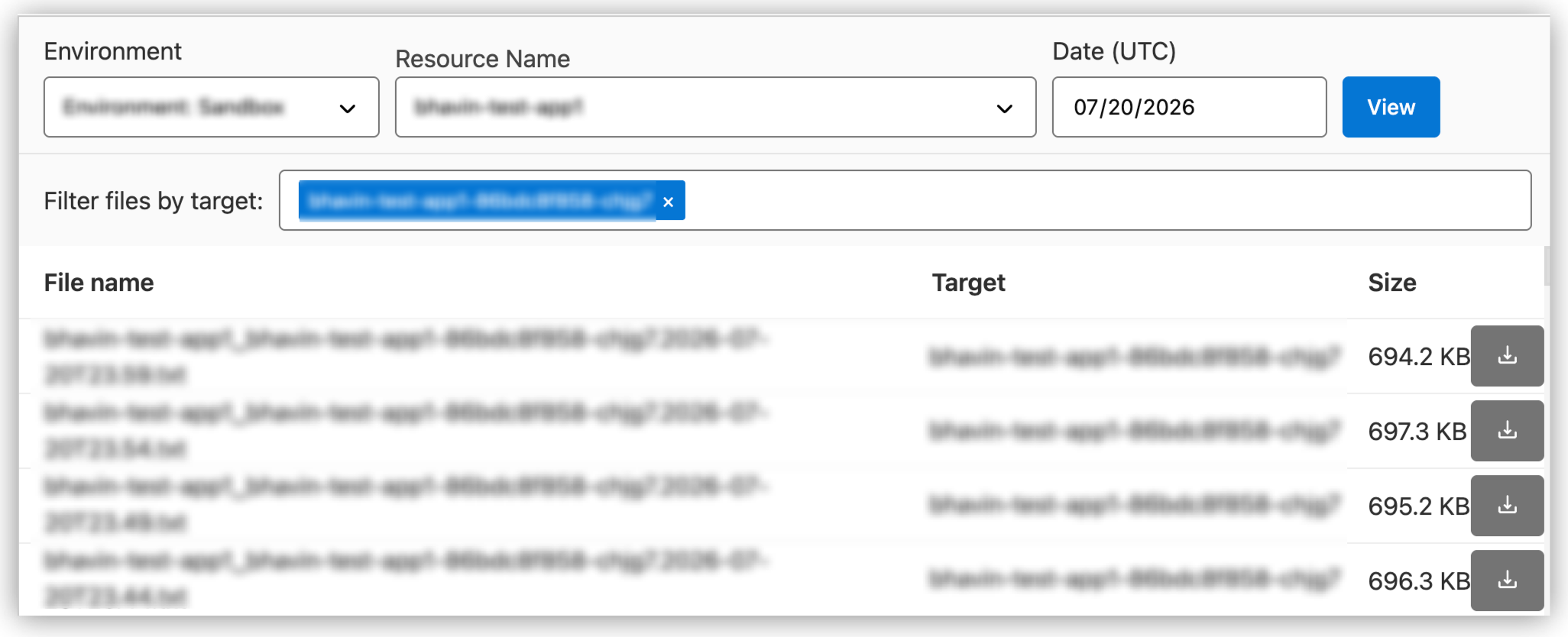
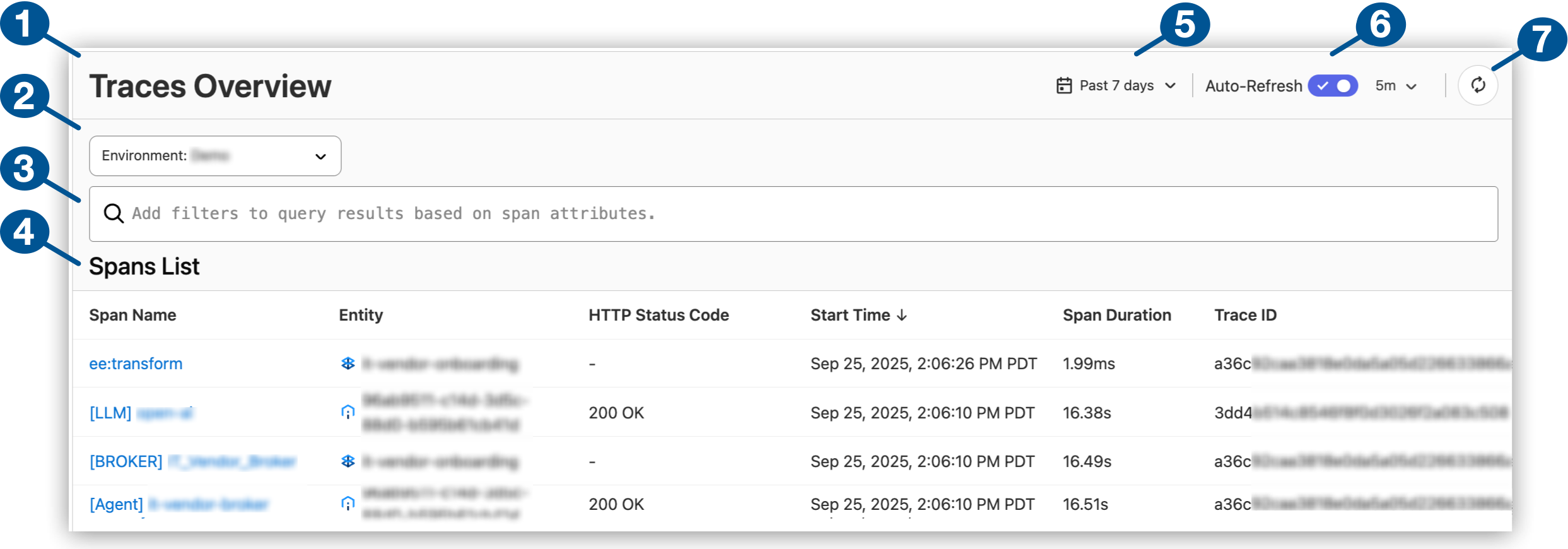
1Traces in Anypoint Monitoring
2Environment selector for your deployments (such as Sandbox or Production)
3Filter field for queries that narrow the list of logs to return
4List of spans for the supported agents, brokers, MCP servers, and Mule apps
5Lookback selector for the period of time to capture in the Span List (from the default of 15 minutes to the last seven days)
6Auto-Refresh every 5, 15, or 30 minutes, every hour, or one time per day
7Manual refresh button
In addition to reviewing traces in Anypoint Monitoring, you can use [Telemetry Exporter](https://docs.mulesoft.com/monitoring/telemetry-exporter) to export traces to third-party observability and analytics platforms. ## Traces Availability Traces are available for specific: - [Spans](#support-spans) - [Hosts](#support-hosts) - [Sampling Rates](#support-sampling) ### Supported Traces Traces include spans for: - Agentic assets: Agents, brokers, and MCP servers - Flows: Mule flows for the selected task of the specific service - Events: Mule runtime events or user actions for the selected service ### Hosts Traces in Anypoint Monitoring displays spans from entities deployed to: - CloudHub 2.0 - Anypoint Runtime Fabric (Limited Availabilty) ### Sampling Rate Trace data sampling rate: - 100%: Agents, brokers, and MCP servers - 10%: Mule apps and APIs ## Before You Begin For all types of traces, these prerequisites apply: - The Anypoint Integration Advanced package or a Titanium subscription to Anypoint Platform - [Permission to view](https://docs.mulesoft.com/access-management/permissions-by-product#monitoring) Mule apps, APIs, and agentic assets (agent, broker, and MCP server instances) in Anypoint Monitoring For Mule app and API tracing, these prerequisites apply: - For apps deployed to CloudHub 2.0: - [Enable trace data collection for your app in a shared space](https://docs.mulesoft.com/cloudhub-2/ch2-deploy-shared-space#enable-trace-data-collection) - [Enabled trace data collection for your app in a private space](https://docs.mulesoft.com/cloudhub-2/ch2-deploy-private-space#enable-trace-data-collection) - For Runtime Fabric, enabled trace data collection on apps deployed to [Runtime Fabric](https://docs.mulesoft.com/runtime-fabric/latest/use-anypoint-monitoring#enable-trace-data) - Mule runtime version 4.6 or later - HTTP Connector version 1.8 or later ## Get Traces from Traces Overview View a list of spans from across entities (agents, brokers, MCP servers, and Mule apps) in **Traces Overview** in Anypoint Monitoring. Get high-level details on each root span in a trace. Use filters to narrow the scope of spans in the **Spans List**. Get additional detail on each span in the hierarchy of spans that form a trace (from root span to its descendants). 1. Log in to Anypoint Platform with a user account that has [permission to access Anypoint Monitoring content](https://docs.mulesoft.com/monitoring/am-permissions). 2. Navigate to Anypoint Monitoring: Click **Monitoring** from the Anypoint Platform home page or from the **Runtimes** menu in the header. 3. In the sidebar, click **Traces**. 4. Make sure you’re using the [business group](#business-groups) that contains the spans. 5. Select up to the last seven days of spans (see [item 5](#traces-overview)). 15 minutes is the default. 6. Select the [environment](#environments) that contains your spans. 7. Optionally, provide a [filter query](#filters) to narrow the search results. 8. [Get trace details](#get-trace-details). ## Find Traces for Agent Visualizer Nodes Agent Visualizer links to traces for agentic assets (agent, broker, and MCP server instances). 1. In Agent Visualizer, click a node to open its detail card. 2. Click **View Traces** to navigate to the traces for the node in **Trace Details** (in Anypoint Monitoring). 3. [Get trace details](#get-trace-details). For more information about nodes in Agent Visualizer, see [Agent Visualizer Overview](https://docs.mulesoft.com/agent-visualizer/). ## Get Trace Details After navigating to **Trace Details** from [**Traces Overview**](#trace-overview) in Anypoint Monitoring or from a [node in Agent Visualizer](#visualizer), get information about the trace and its spans. 1. Review information about the trace: **Trace Details** displays the selected instance’s traces in a span tree, starting from the root span for the instance. ![An instance’s spans in the Traces Details page](/mulesoft/current/en-us/monitoring/_images/trace-details.png) 1. **Trace Details** page for a span selected from **Trace Overview** or through a node in Agent Visualizer 2. High-level data about the selected span: - **Status Code**: HTTP response status of the trace (for example, `0 No Response`, `200 OK`,`500 Internal Server Error`) - **Span Start Time**: The time the trace started, in UTC - **Total Response Time**: The time taken for the trace to execute - **Root Span**: The request or operation that initiated the trace 3. Search for spans by full or partial matches to the span name The page displays matching spans. 4. Trace hierarchy of spans, starting from the root span through its descendants 5. Trace ID of the root span 2. To get more information about a span in the details page, click the span: ![Details of a span in the Traces Details page](/mulesoft/current/en-us/monitoring/_images/trace-details-span.png) 1. **Span Name**: Name of the span. 2. [Span details](#span-details) ## Filter Spans To narrow the list of spans in **Traces Overview**, provide a filter query in the search field. 1. Place your cursor within the search field and click to display a list of filters. 2. Select a filter from the field’s dropdown.
FilterOperatorsDescription

api_instance_id

=

Version of an API instance that’s associated with a span. You can find the instance’s ID in API Manager.

correlation_id

=

Correlation ID associated with a span (see Correlation ID).

entity_name

=, IN

Name of entities associated with spans.

http_status_code

=, IN

HTTP status codes associated with span.

span_id

=

ID of a span contained in traces.

span_name

=, IN

Name of a span.

trace_id

=, IN

ID associated with a span.

3. Select an operator for the filter: - `=` accepts a single alphanumeric value. - `IN` accepts one or more comma-separated, alphanumeric values. The values get processed as logical ORs. 4. Select a value from the search field’s **Top Value** list. If the value you’re looking for isn’t in the list, start typing a partial match to your value, and then select the value. Tip: If you’re providing search values to the `IN` operator (such as `entity_name IN ['value1', 'value2']`), manually adding a comma after a value before selecting another value from the **Top Value** list can help with valid query formation. Example: This example gets spans named `my-span` that have status code '404', '502', or '200': `http_status_code IN [ '404', '502', '200' ] span_name = my-span` To edit or delete a filter, click the filter, and then click **Edit Filter** or **Delete Filter** from the **Actions** list for the filter. To avoid issues when editing, you can delete the filter and then add it back with the values you want. Tips: - If no traces appear after applying a query, change your filters, the lookback setting, or business group. - Selecting multiple filters of the same type isn’t allowed. - Filters get processed as logical ANDs. If a span doesn’t match one of the filters, the query won’t return spans. ## Span Details Traces provide information about a root span and its descendants in dedicated **Trace Details** pages. Each span listed on the page links to details about that span: - **Span Duration**: Time the span took to execute - **Span Status**: Status of the span (**OK**, **ERROR**, **Unset**) - **Span ID**: ID of the span - **Span Kind**: Source of the span operation or request (**Server**, **Internal**, **Client**) - **Span Start Time**: Time that the span started, in UTC - **Trace ID**: ID of the trace in which the span occurred - **Correlation ID**: Unique identifier that’s generated before sending an event to the next processor in the Mule flow (see [Correlation ID](https://docs.mulesoft.com/mule-runtime/latest/correlation-id)) - **HTTP Status Code**: HTTP status code of a span that is a request. Statuses include **0 No Response**, **200 OK**, and **500 Internal Server Error**. - **Entity Type**: Type of entity associated with the trace. Types include **App**, **API**. - **Entity Name**: Name of the entity associated with the trace - [**Business Group**](#business-groups) that the span belongs to - [**Environment**](#environments) that the span belongs to - **Parent Span ID**: ID of a span that contains the selected span Parent spans don’t have a value in this field. Use the Trace ID to track this span. - **View Logs**: Find the root span in Anypoint Monitoring logs. ## Environments Select the environment containing the spans you want to review in **Traces Overview**. Your organization administrator [creates](https://docs.mulesoft.com/access-management/environments#to-create-a-new-environment) the environments that are available to you. Anypoint Platform supports these _types_ of [environments](https://docs.mulesoft.com/access-management/environments#types-of-environments.adoc): - **Design** - **Production** - **Sandbox** ## Business Groups If you work from the root organization level, you can query all spans across the entire organization. If you’re working from a business group that’s a descendant of the root, the query returns spans from that business group only. To view or select a different business group, use the business group dropdown. ![Business group menu](/mulesoft/current/en-us/monitoring/_images/business-groups.png)
1Business group that contains spans in the Span List
2Selectable business groups

In the example, the root organization is active.

## See Also - [Exporting Telemetry Data to Third-Party Monitoring Systems](https://docs.mulesoft.com/monitoring/telemetry-exporter) - [Enable Trace Data Collection](https://docs.mulesoft.com/cloudhub-2/ch2-deploy-shared-space#enable-trace-data-collection) (Shared Space) - [Enable Trace Data Collection](https://docs.mulesoft.com/cloudhub-2/ch2-deploy-private-space#enable-trace-data-collection) (Private Space) --- product: Monitoring description: Export chart data from MuleSoft Anypoint Monitoring custom dashboards to CSV for further analysis or reporting. keywords: MuleSoft, Anypoint Monitoring, export data, CSV export, custom dashboards, chart data, data download --- # Exporting App Data to a CSV File > For the full documentation index, see: https://docs.mulesoft.com/llms.txt In Anypoint Monitoring custom dashboards, you can export chart data to a CSV file. If you apply a filter to a dashboard, the exported data includes only the data included in the filter you set, such as a time-range filter. 1. Log in to Anypoint Platform with a user account that has [permission to access Anypoint Monitoring content](https://docs.mulesoft.com/monitoring/am-permissions). 2. Navigate to Anypoint Monitoring: Click **Monitoring** from the Anypoint Platform home page or from the **Runtimes** menu in the header. 3. In the sidebar, click **Custom Dashboards**. 4. Select the application for which to download the data. 5. Specify the time range for the data to download. 6. In the chart that contains the data to download, click the ![](/mulesoft/current/en-us/monitoring/_images/more-menu-vert-ellipsis.png) (**More menu**), and select **Export CSV**. 7. In the **Export CSV** dialog, specify the way to format the data. - In **Mode**, select the format for the data: - **Series as rows** formats the data in rows in the CSV file. - **Series as columns** formats the data as columns in the CSV file. - In **Date Time Format**, enter the values to specify the date format, for example: `YYYY-MM-DDTHH:mm:ssZ` - Determine whether to use **Excel CSV dialect** (enabled by default). 8. Click **Export**. --- product: Monitoring description: Use the MuleSoft Anypoint Monitoring Telemetry Exporter to send Mule app trace data and audit logs to third-party observability platforms like Azure Monitor, Splunk, and OpenTelemetry-compliant tools. keywords: MuleSoft, Anypoint Monitoring, Telemetry Exporter, OpenTelemetry, OTEL, Splunk, Azure Monitor, third-party observability, trace export, audit logs --- # Exporting Telemetry Data to Third-Party Monitoring Systems > For the full documentation index, see: https://docs.mulesoft.com/llms.txt [![](/mulesoft/current/en-us/_/img/icons/info.svg)](/monitoring/#billing) Use the Anypoint Monitoring Telemetry Exporter to send Mule app trace data and [audit logs](https://docs.mulesoft.com/access-management/audit-logging) to third-party observability platforms like Azure Monitor, Splunk HEC, and OpenTelemetry-compliant tools. To use the Telemetry Exporter, you must: - Create a connection by providing a third-party observability platform credential that authorizes Anypoint Platform to share data with the observability platform. See also, [Supported Third-Party Monitoring Products](#third-party-support). - Create a configuration that specifies the type of data Anypoint Platform exports and which business group and environment allows content to be exported to the connections that you configure. You can also edit and delete connections and configurations. > [!NOTE] Telemetry Exporter checks for changes to connections and configurations on an hourly > basis. When you create or modify a connection or configuration, there might be a delay in applying > your new settings. When exported, audit logs have a unique ID in the `mulesoft.audit.id` attribute. In usual operations, each log is delivered only once, but under certain circumstances, some logs are delivered more than once. Duplicate log entries always share the unique `mulesoft.audit.id` attribute, so this attribute can be used to safely block or remove duplicate logs from the target system. ## Supported Third-Party Monitoring Products The Telemetry Exporter enables you to create connections to most third-party observability and analytics platforms that: - Have OpenTelemetry-supported endpoints. For example, the endpoint URL for New Relic is `[https://otlp.nr-data.net:4318](https://otlp.nr-data.net:4318)`. Your team must set up endpoints for the monitoring platform you use. - Allow you to create an instrumentation key or access token. Azure Monitor and Splunk HEC are also compatible. ## Before You Begin Before you configure the Telemetry Exporter, ensure that you have: - Permissions that you require for your uses of Telemetry Exporter (see [Managing Permissions for Anypoint Monitoring](https://docs.mulesoft.com/monitoring/am-permissions)) - **Telemetry Exporter Administrator** permission for creating and modifying connections - **Telemetry Exporter Configurations Manager** permission for creating and modifying configurations - Access information for your third-party observability platform - The ability to create an instrumentation key or access token for your third-party observability platform. - Enabled trace data collection for your Mule apps: - For CloudHub 2.0 deployments, see [shared](https://docs.mulesoft.com/cloudhub-2/ch2-deploy-shared-space#enable-trace-data-collection) and [private spaces](https://docs.mulesoft.com/cloudhub-2/ch2-deploy-private-space#enable-trace-data-collection). - For Runtime Fabric deployments, see [Runtime Fabric](https://docs.mulesoft.com/runtime-fabric/latest/use-anypoint-monitoring#enable-trace-data). - An endpoint for telemetry data that is accessible from across the internet (CIDR `0.0.0.0/0`) if your observability provider or your organization’s endpoint requires an IP allowlist or firewall rule Consult your organization’s security guidelines when configuring open access rules for this endpoint. Telemetry Exporter generates its Internet Protocol (IP) address dynamically, which prevents allowlisting specific IPs, URLs, domains. ## Access Telemetry Exporter 1. Log in to Anypoint Platform using an account that has the Telemetry Exporter Administrator or Telemetry Exporter Configurations Manager permission. 2. Navigate to Anypoint Monitoring: Click **Monitoring** from the Anypoint Platform home page or from the **Runtimes** menu in the header. 3. Click **Telemetry Exporter**. To use create, view, edit, and delete connections and configurations for telemetry data exports, see [Manage a Connection](#manage-connections) and [Manage Configurations](#manage-configurations). ## Manage a Connection Anypoint Platform needs permission to send data to third-party observability platforms. Create a connection with a third-party platform, such as New Relic or Splunk, to authorize data transfers. You can configure up to 10 connections. Telemetry Exporter checks for changes to connections and configurations on an hourly basis. When you create or modify a connection or configuration, there might be a delay in applying your new settings. ### Create a Connection 1. Log in to Anypoint Platform using an account that has the Telemetry Exporter Administrator permission. 2. Navigate to Anypoint Monitoring: Click **Monitoring** from the Anypoint Platform home page or from the **Runtimes** menu in the header. 3. Click **Telemetry Exporter**. 4. Click the **Connections** tab. 5. Click **New Connection**. 6. On the **Connection Details** page, enter the following information: - **Connection Name**: Name for your connection, using only alphanumeric characters and hyphens. - **Destination Type**: Third-party observability platform to which you want to transfer data. - **Endpoint URL**: Endpoint that enables external connections to your third-party observability platform (see [Supported Third-Party Monitoring Products](#third-party-support)). Some platforms, such as DataDog and Splunk Observability Cloud, require an OpenTelemetry collector endpoint that is enabled to translate the OpenTelemetry standard to DataDog formats. 7. Click **Next**. 8. On the **Authentication** page, enter the information needed to authenticate your connection to the observability platform. Some platforms require only access tokens, while others also require a header key. 9. Click **Test Connection** to ensure that Anypoint Platform can connect to your third-party observability platform. 10. Click **Save Connection**. The new connection appears in the **Connections** tab on the **Telemetry Exporter** page. ### Edit a Connection 1. Log in to Anypoint Platform using an account that has the Telemetry Exporter Administrator permission. 2. Navigate to Anypoint Monitoring: Click **Monitoring** from the Anypoint Platform home page or from the **Runtimes** menu in the header. 3. Click **Telemetry Exporter**. 4. Click the **Connections** tab. 5. Next to the connection you want to edit, click **…​** and select **Edit Connection**. 6. On the **Connection Details** page, edit each field you want to change and click **Next**. 7. On the **Authentication** page, edit each field you want to change and click **Test Connection**. 8. If the connection is successful, click **Save Connection**. ### Delete a Connection 1. Log in to Anypoint Platform using an account that has the Telemetry Exporter Administrator permission. 2. Navigate to Anypoint Monitoring: Click **Monitoring** from the Anypoint Platform home page or from the **Runtimes** menu in the header. 3. Click **Telemetry Exporter**. 4. Next to the connection you want to delete, click **…​** and select **Delete Connection**. 5. A warning appears: - If the connection is not in use, the warning asks whether to delete the connection. Click **Delete Connection**. - If the connection is in use, the warning states that you must delete or redirect connections for any configurations that use the connection. Click **Dismiss**, and then [edit your configurations](#edit-configuration) to use other existing connections before deleting the current connection. ## Manage Configurations After you create a connection to your third-party observability platform, you must create a configuration to specify the scope of the data to send to the platform. When you create a new configuration, specify a data type, business group, environment type (traces only), and destination. You can export traces and audit logs from all of your business groups or a specific business group. Telemetry Exporter checks for changes to connections and configurations on an hourly basis. When you create or modify a connection or configuration, there might be a delay in applying your new settings. ### Create a Configuration 1. Log in to Anypoint Platform using an account that has the Telemetry Exporter Configurations Manager permission. 2. Navigate to Anypoint Monitoring: Click **Monitoring** from the Anypoint Platform home page or from the **Runtimes** menu in the header. 3. Click **Telemetry Exporter**. 4. Click **New Configuration**. 5. On the **General Information** page, enter the following information: - **Configuration Name**: Name for your configuration that uses only alphanumeric characters. - **Connection**: Existing connection that you configured. - **Data Type**: Audit logs or trace data 6. Click **Next**. 7. In the **Select Business Group** section, select one of the following: - **All business groups**: Audit logs are sourced from all business groups in the organization. - **Select a business group**: Data of the type you specified is sourced only from the selected business group. 8. Click **Next**. 9. If you selected trace data as the data type, select the environment type: - Production - Sandbox - Design 10. Click **Save Configuration**. ### Edit Configurations When you edit configurations, you can change the configuration name and connection. If you want to modify the data type business group or environment type, you must create a new configuration. 1. Log in to Anypoint Platform using an account that has the Telemetry Exporter Configurations Manager permission. 2. Navigate to Anypoint Monitoring: Click **Monitoring** from the Anypoint Platform home page or from the **Runtimes** menu in the header. 3. Click **Telemetry Exporter**. 4. Next to the configuration you want to edit, click **…​** and select **Edit Configuration**. 5. On the **General Information** page, edit each field you want to change and click **Next**. 6. On the **Business Group & Environment Type** page, **Next**. 7. Click **Save Configuration**. ### Delete Configurations 1. Log in to Anypoint Platform using an account that has the Telemetry Exporter Configurations Manager permission. 2. Navigate to Anypoint Monitoring: Click **Monitoring** from the Anypoint Platform home page or from the **Runtimes** menu in the header. 3. Click **Telemetry Exporter**. 4. Next to the configuration you want to delete, click **…​** and select **Delete Connection**. A warning appears that confirms whether you want to delete the configuration. 5. Click **Delete Configuration**. ## Errors If you receive this error, ensure that your endpoint supports OpenTelemetry: Error : validating connection request. Please check your request and try again See [Supported Third-Party Monitoring Products](#third-party-support). ## Known Issues For known issues, limitations, and data differences for Telemetry Exporter, see [Telemetry Exporter Known Issues (FAQ)](https://docs.mulesoft.com/monitoring/am-faq#telemetry-exporter-known-issues). --- product: Monitoring description: Answers to frequently asked questions about logs, metrics, alerts, traces, data retention, performance, and limits in MuleSoft Anypoint Monitoring. keywords: MuleSoft, Anypoint Monitoring, FAQ, logs, metrics, alerts, traces, data retention, performance limits, troubleshooting, Anypoint Monitoring limits --- # FAQ: Anypoint Monitoring Logs, Metrics, Alerts, and Limits > For the full documentation index, see: https://docs.mulesoft.com/llms.txt Get answers to common questions about Anypoint Monitoring logging, metrics, alerts, traces, traffic data availability, performance impact, storage and retention limits, log line constraints, log forwarding, and what happens to your data when your subscription changes. ## Logs Learn how logs are stored, constraints on log line length, deletion behavior, log forwarding, and how to retrieve log data. - [Storage and Limits](#log-storage-limits) - [How does Anypoint Monitoring calculate log storage, and what are the limits?](#searchable-log-storage) - [What happens when the log storage limit is reached?](#storage-limit-reached) - [Log Lines](#log-lines) - [What is the maximum length for a single log line, and what happens if my data exceeds it?](#log-line-length) - [Log Deletion and Recovery](#log-deletion-recovery) - [Can I delete logs for specific applications and dates?](#delete-logs) - [If I raise a support case to delete logs, what will MuleSoft delete?](#support-case-deletion) - [Can I recover logs that have been deleted or overwritten?](#recover-deleted-logs) - [Can I import log data back into the system after deletion?](#import-logs) - [What happens to logs after I delete an application?](#logs-after-app-deletion) - [Does purging application logs in Runtime Manager require any special deployment configuration?](#rm-log-purge-config) - [Log Availability](#log-availability) - [Why is there a delay between the Anypoint Monitoring UI and the Archive API data?](#archive-api-delay) - [Why is my application not appearing in the Anypoint Monitoring log search filter?](#app-not-in-filter) - [Are Mule runtime logs available in Anypoint Monitoring log search?](#mule-ee-logs) - [Log Forwarding](#log-forwarding) - [If I disable Anypoint Monitoring for a CloudHub 1.0 application, will logs still be forwarded to Anypoint Platform?](#cloudhub1-disable-monitoring) - [Can I disable Anypoint Monitoring log forwarding while keeping metrics collection enabled?](#disable-log-forwarding) - [Runtime Fabric](#log-rtf) - [How does Anypoint Monitoring connect to Runtime Fabric, and how many connections does it use?](#rtf-connections) - [What subscription does Runtime Fabric require for Anypoint Monitoring?](#rtf-subscription) - [Subscription Changes](#log-subscription-changes) - [What happens to log data when I change my subscription?](#subscription-change-logs) ### Storage and Limits #### How does Anypoint Monitoring calculate log storage, and what are the limits? Anypoint Monitoring stores raw logs and searchable logs separately: - Searchable logs are stored as indexes on top of raw logs to support fast queries, but cover only the most recent logs up to 10% of your purchased storage. Total searchable storage across your organization is capped at 6 TB regardless of the number of vCores or flows you purchased. - Raw logs are stored in archival storage and can be scoped by business group, environment, application, and date range. Anypoint Monitoring creates indexes on raw logs to enable fast log search queries. To retrieve logs beyond the searchable storage, use the [Anypoint Monitoring Archive API](https://anypoint.mulesoft.com/exchange/portals/anypoint-platform/f1e97bc6-315a-4490-82a7-23abe036327a.anypoint-platform/anypoint-monitoring-archive-api/minor/1.0/pages/Metric%20Data/). For more detail, see [Raw Data in Anypoint Monitoring](https://docs.mulesoft.com/monitoring/raw-data). Storage per unit purchased varies by subscription tier:
Subscription TierUnit PurchasedArchival Storage (Raw Logs)Searchable Storage

Anypoint Integration Advanced

1 flow

5 GB

0.5 GB

Anypoint Integration Advanced

1M messages

2.5 GB

0.25 GB

Titanium

1 production vCore

200 GB

20 GB

Titanium

1 pre-production vCore

50 GB

5 GB

#### What happens when the log storage limit is reached? When storage reaches capacity, the oldest logs are deleted first to reclaim space. ### Log Lines #### What is the maximum length for a single log line, and what happens if my data exceeds it? The maximum length for a single log line is 8 KB, including date and thread metadata. Lines longer than 8 KB are truncated at the 8 KB mark. To log data that exceeds this limit, split it into chunks that are each smaller than 8 KB. ### Log Deletion and Recovery #### Can I delete logs for specific applications and dates? No. You can’t delete logs directly. If sensitive data is exposed in logs, raise a support case with MuleSoft. MuleSoft accepts log deletion requests only when sensitive data is exposed. #### If I raise a support case to delete logs, what will MuleSoft delete? The answer differs for raw logs and searchable logs. **Raw logs** can be scoped by business group, environment, application, and date range (GMT). MuleSoft can delete a targeted subset of raw logs without affecting other data. **Searchable logs** cannot be scoped by business group, environment, or application. Deletion is performed by dropping whole indices under the root organization. Under the current multitenant Log Search architecture on Hyperforce, a single searchable-log index can span several days, weeks, or months. The exact coverage depends on your stock-keeping unit (SKU), index size, and storage usage. As a result, the actual date range deleted will be equal to or larger than the range you request — in some cases by a significant margin. Before executing the deletion, MuleSoft runs a dry-run of the operation and shares the cumulative date range that will be dropped, along with the list of affected indices, so you can confirm before proceeding. > [!WARNING] Deleted logs cannot be recovered or re-imported. Review the dry-run results carefully > before confirming. #### Can I recover logs that have been deleted or overwritten? No. After logs are deleted or overwritten, they can’t be recovered. #### Can I import log data back into the system after deletion? No. You can’t import logs back into the system after deletion. #### What happens to logs after I delete an application? Anypoint Monitoring and Runtime Manager are separate systems with independent log retention policies. Deleting an application in Runtime Manager does not immediately remove its logs from Anypoint Monitoring. Logs stored in Anypoint Monitoring remain accessible after an application is deleted from Runtime Manager. Retrieve these logs using the [Anypoint Monitoring Archive API](https://anypoint.mulesoft.com/exchange/portals/anypoint-platform/f1e97bc6-315a-4490-82a7-23abe036327a.anypoint-platform/anypoint-monitoring-archive-api/minor/1.0/pages/home/). Anypoint Monitoring deletes the oldest logs first when storage capacity is reached. For details on Anypoint Monitoring storage limits, see [How does Anypoint Monitoring calculate log storage, and what are the limits?](#searchable-log-storage). Runtime Manager maintains its own log storage with separate limits and rotation behavior. For Runtime Manager log retention details, see [Log Persistence (Anypoint Runtime Manager)](https://docs.mulesoft.com/cloudhub/viewing-log-data#log-persistence). If your apps are deployed to CloudHub 2, see also [CloudHub 2.0 Logging FAQ](https://help.salesforce.com/s/articleView?id=001119527&type=1). > [!NOTE] Log removal operations in Anypoint Monitoring are organization-wide, not > application-specific. To request log deletion due to sensitive data exposure, see > [If I raise a support case to delete logs, what will MuleSoft delete?](#support-case-deletion). #### Does purging application logs in Runtime Manager require any special deployment configuration? No. You can purge application logs in Runtime Manager regardless of how the application is deployed. No specific deployment configuration is required. For instructions, see [Viewing Log Data in Runtime Manager](https://docs.mulesoft.com/cloudhub/viewing-log-data). > [!NOTE] Purging logs in Runtime Manager affects only the logs stored within Runtime Manager. It > does not affect logs stored in Anypoint Monitoring, which are managed independently. ### Log Availability #### Why is there a delay between the Anypoint Monitoring UI and the Archive API data? The Archive API is backed by an archival storage backend. A file becomes available for download when it reaches either 9 minutes of accumulation or 10 MB in size, whichever comes first. The delay between the UI and Archive API occurs because the Archive API’s batch process accumulates data before a file becomes available, while the UI uses a real-time search engine. #### Why is my application not appearing in the Anypoint Monitoring log search filter? The app doesn’t appear in the filter when recent log lines are unavailable or when a large number of apps are reporting recent logs. For more information, see [Not All Apps Are Showing in the Left Sidebar in Anypoint Monitoring](#apps-not-showing-sidebar.adoc). #### Are Mule runtime logs available in Anypoint Monitoring log search? No. You can’t view on-premises `mule_ee.log` files directly through Anypoint Monitoring log search. ### Log Forwarding #### If I disable Anypoint Monitoring for a CloudHub 1.0 application, will logs still be forwarded to Anypoint Platform? Yes. If you disable Anypoint Monitoring by setting the following property: ```text anypoint.platform.config.analytics.agent.enabled=false ``` Logs are still forwarded to Anypoint Platform and remain visible in the Anypoint Monitoring logs UI. #### Can I disable Anypoint Monitoring log forwarding while keeping metrics collection enabled? Yes. The steps vary by deployment target: - **CloudHub 1.0**: See [How to Disable Log Forwarding to the Anypoint Monitoring Titanium Backend](#cloudhub-disable-log-forwarding.adoc). - **CloudHub 2.0**: Private space and shared space have separate procedures. See [Disable Log Forwarding in CloudHub 2.0](#ch2-disable-log-forwarding.adoc). - **Hybrid/on-premises**: See [Disable Log Forwarding for Hybrid Deployments](#hybrid-disable-log-forwarding.adoc). ### Runtime Fabric #### How does Anypoint Monitoring connect to Runtime Fabric, and how many connections does it use? Each Runtime Fabric app has a sidecar container that makes one persistent connection to Anypoint Monitoring to send logs. Each pod uses one connection. #### What subscription does Runtime Fabric require for Anypoint Monitoring? All deployment targets include a basic level of monitoring with the base subscription. Runtime Fabric requires a Platinum subscription for general monitoring. Certain features, such as logging, require a Titanium subscription. ### Subscription Changes #### What happens to log data when I change my subscription? Log data is lost and the storage that held it is terminated within an hour when you change subscriptions — for example, from Titanium to Platinum or from Platinum to Titanium. Log infrastructure changes are not migrated. Log data is also lost when moving from a Titanium trial to a paid Titanium subscription, because trials run on a multitenant cluster that is separate from the dedicated single-tenant infrastructure used for paid Titanium. > [!IMPORTANT] Back up any logs you need before changing your subscription. Log data cannot be > recovered after the change takes effect. ## Metrics Learn what metrics Anypoint Monitoring provides, how long data is retained, how to query traffic and consumption data, and how to access metrics programmatically. - [Retention](#metrics-retention) - [How long does Anypoint Monitoring retain application metrics?](#application-metrics-retention) - [How long does Anypoint Monitoring retain enhanced API metrics?](#enhanced-api-metrics-retention) - [Subscription Changes](#metrics-subscription-changes) - [What happens to my metrics data if I downgrade or cancel my Anypoint Monitoring subscription?](#subscription-change-metrics) - [Traffic and Aggregation](#metrics-traffic-aggregation) - [Can I get VPC-level network traffic metrics from Anypoint Monitoring?](#vpc-traffic-metrics) - [Can I get monthly outbound traffic totals from Anypoint Monitoring?](#outbound-traffic-totals) - [Does Anypoint Monitoring aggregate application metrics across environments or business groups?](#cross-env-aggregation) - [Metrics API](#metrics-api) - [Why does my Metrics API query return empty data even though the dashboard shows metrics?](#metrics-api-empty-data) - [What attributes should I use to query application traffic data via the Metrics API?](#metrics-api-traffic-attributes) - [Archive API](#metrics-archive-api) - [How can I access API analytics metrics data programmatically?](#access-api-analytics-metrics) - [Can I export historical custom metrics in bulk using the Archive API?](#archive-api-custom-metrics) ### Retention #### How long does Anypoint Monitoring retain application metrics? Retention (how long data is stored) and the lookback window (how far back you can query in the [Anypoint Insights](https://docs.mulesoft.com/monitoring/anypoint-insights) UI) are separate limits.
TierData retentionIndividual app and API Lookback WindowCross-entity Lookback Window

Advanced and Titanium

365 days for built-in and custom metrics

Up to 90 days within the 365 day retention period

7 days

Starter

30 days

Up to 30 days

24 hours

Gold/Platinum

30 days

Up to 30 days

7 days

The cross-entity overview page in Anypoint Insights shows aggregate totals across multiple apps and APIs, such as total requests and error rate. Lookback windows for individual app and API UIs that you access from the overview page are longer. #### How long does Anypoint Monitoring retain enhanced API metrics? Anypoint Monitoring retains enhanced API metrics for 30 days across all subscription tiers. These additional limits apply regardless of tier: - Data in the **Client Applications** tab is limited to one hour. - Data from the `api_path_metric` and `api_client_ip_metric` tables in advanced mode of custom dashboards is limited to one hour. > [!NOTE] Metrics data can persist beyond the stated retention period. Data is removed when the > automated cleanup cycle runs. ### Subscription Changes #### What happens to my metrics data if I downgrade or cancel my Anypoint Monitoring subscription? Unlike log data, metrics data is retained for a grace period before removal: - **Downgrade** — approximately 14 days after the downgrade takes effect, a 21-day grace period begins before your data is removed. - **Cancellation** — approximately 90 days after cancellation, a 21-day grace period begins before your data is removed. To retrieve metrics data before it is removed, use the [Anypoint Monitoring Archive API](https://anypoint.mulesoft.com/exchange/portals/anypoint-platform/f1e97bc6-315a-4490-82a7-23abe036327a.anypoint-platform/anypoint-monitoring-archive-api/minor/1.0/pages/Metric%20Data/). ### Traffic and Aggregation #### Can I get VPC-level network traffic metrics from Anypoint Monitoring? No. Anypoint Monitoring doesn’t provide VPC-level network traffic metrics — such as total inbound or outbound bytes at the VPC or private space boundary. Anypoint Monitoring collects application-level metrics from Mule runtime, not from the underlying network infrastructure. To estimate traffic volumes, use the [Anypoint Monitoring Metrics API](https://anypoint.mulesoft.com/exchange/portals/anypoint-platform/f1e97bc6-315a-4490-82a7-23abe036327a.anypoint-platform/metrics-api/) to query application-level inbound and outbound metrics per Mule application. See [What attributes should I use to query application traffic data via the Metrics API?](#metrics-api-traffic-attributes) for the correct metric names. #### Can I get monthly outbound traffic totals from Anypoint Monitoring? Not directly. Anypoint Monitoring doesn’t provide a prebuilt report or dashboard view for monthly outbound traffic aggregated across all applications. To estimate monthly outbound traffic, use the Metrics API to query `mulesoft.app.outbound` metrics for each application and sum the results. This provides application-level outbound message counts and data volumes as a proxy for network egress. #### Does Anypoint Monitoring aggregate application metrics across environments or business groups? No. Anypoint Monitoring doesn’t aggregate application metrics across environments or business groups in a single dashboard view. Application-level metrics are scoped to individual environments. To aggregate traffic across environments, query the Metrics API separately for each environment and combine the results. > [!NOTE] Anypoint DataGraph usage metrics are an exception — DataGraph provides aggregated GraphQL > API request counts across all environments of a given type (production or sandbox) within a > business group. This aggregation applies only to DataGraph, not to general Mule application > traffic. See [Viewing Usage Metrics for Anypoint DataGraph](https://docs.mulesoft.com/datagraph/usage-metrics). ### Metrics API #### Why does my Metrics API query return empty data even though the dashboard shows metrics? A Metrics API query can return a 200 OK response with `"data": []` when the Connected App used to generate the Bearer token lacks the required environment-level scopes for the target environment. To resolve this, grant the Connected App the following permissions for each business group and environment you want to query: - **API Configuration Viewer** - **Read Applications** Without these permissions, the API returns empty data rather than a permission error. For details, see the [Anypoint Monitoring Metrics API](https://anypoint.mulesoft.com/exchange/portals/anypoint-platform/f1e97bc6-315a-4490-82a7-23abe036327a.anypoint-platform/metrics-api/) documentation. #### What attributes should I use to query application traffic data via the Metrics API? Use the following metrics for application-level traffic data: - `mulesoft.app.inbound` — inbound message count and volume at the application level, with endpoint-level dimensions - `mulesoft.app.outbound` — outbound message count and volume at the application level, with endpoint-level dimensions Don’t use `endpoint.type` or `endpoint.operation` as query attributes on the `mulesoft.api.summary` metric. These attributes were removed from `mulesoft.api.summary`. The same restriction applies to `mulesoft.api.path`, `mulesoft.api.client_ip`, and `mulesoft.api.geo_location` on that metric. For endpoint-level dimensions, use `mulesoft.app.inbound` and `mulesoft.app.outbound` instead. ### Archive API #### How can I access API analytics metrics data programmatically? You can access API analytics metrics data directly via the [Anypoint Monitoring Archive API](https://anypoint.mulesoft.com/exchange/portals/anypoint-platform/f1e97bc6-315a-4490-82a7-23abe036327a.anypoint-platform/anypoint-monitoring-archive-api/minor/1.0/pages/home/), available to Anypoint Integration Advanced and Titanium subscribers. The Archive API exposes your metrics data in a directory hierarchy you can navigate and download as files containing JSON objects, each representing one or more metric events. You can write an application to traverse the data and integrate it into your own system. To also capture non-aggregated API events — which contain more detailed information about each API invocation — enable them by setting the following property: ```text anypoint.platform.config.analytics.agent.api_raw_metrics.enabled=true ``` Non-aggregated events are accessible under the `raw` file type in the Archive API. #### Can I export historical custom metrics in bulk using the Archive API? No. The Anypoint Monitoring Archive API doesn’t support bulk export of custom metrics. To retrieve application and API metrics via the Archive API, see [How can I access API analytics metrics data programmatically?](#access-api-analytics-metrics). ## Alerts - [What are the alert limits in Anypoint Monitoring?](#alert-limits) ### What are the alert limits in Anypoint Monitoring? Alert limits vary by alert type and subscription tier:
Alert TypeStarterAdvancedGold/PlatinumTitanium

Custom dashboard alerts

—

10 per app or API instance

—

20 per parent organization

Basic alerts for servers and Mule apps

—

10 per server or app

50

50 × production vCores + 100

Basic alerts for APIs

—

10 per server or app

6 per API instance

10 per API instance

Starter and Gold/Platinum tiers have no allowance for custom dashboard alerts. > [!NOTE] For Titanium, your basic alert allowance for servers and Mule apps can also be used for > sandbox deployments, subject to the overall > [production vCore limit](https://docs.mulesoft.com/access-management/business-groups#redistribute-resources). ## Telemetry Exporter - [What are the Telemetry Exporter connection limits?](#telemetry-exporter-limits) - [What are the known issues for Telemetry Exporter?](#telemetry-exporter-known-issues) ### What are the Telemetry Exporter connection limits? Anypoint Monitoring supports up to 10 Telemetry Exporter connections per organization for Anypoint Integration Advanced and Titanium subscribers. ### What are the known issues for Telemetry Exporter? Telemetry Exporter currently has the following data differences, limitations, and known issues: - For failed requests, Telemetry Exporter retries are handled using the OpenTelemetry specifications for handling failures: - Permanent failures, such as bad requests, do not retry. - 5xx errors that can retry wait for a specific interval. Retries continue for 300 seconds before timing out. - When you create configurations for the same connection, you cannot create a configuration that uses all business groups if there are configurations that use individual business groups. Conversely, you cannot create configurations for that connection if there is a configuration that uses all business groups. For example, `Connection A` to Splunk has `Configuration A` and `Configuration B` that map to `Business Group A` and `Business Group B`. In this scenario, you are unable to use `Connection A` to create a configuration that exports data from all business groups. - Because Azure Monitor Exporter does not support sending persistent queues, connections that use it might experience data loss. Data might be deleted from the sending queue when the Telemetry Exporter restarts hourly to apply updates. - The audit logs that the Telemetry Exporter sends to third-party apps often have different field names from the audit logs that appear in Access Management or the Audit Query Log API. For example, audit logs shown in the UI or retrieved by the Audit Log Query API describe a user action (such as `update` or `delete`) as `action`, whereas the OpenTelemetry attribute refers to it as `mulesoft.audit.action`. - If the audit log entry metadata and payload field exceed 30KB when compressed, the payload is truncated before compression. For full Telemetry Exporter setup and configuration, see [Exporting Telemetry Data to Third-Party Monitoring Systems](https://docs.mulesoft.com/monitoring/telemetry-exporter). ## Traces Traces in Anypoint Monitoring (open beta, Titanium only) let you track requests as they travel through service pipelines using OpenTelemetry span data. For full documentation, see [Examining Traces](https://docs.mulesoft.com/monitoring/traces). - [What is the sampling rate for trace data in Anypoint Monitoring?](#traces-sampling-rate) ### What is the sampling rate for trace data in Anypoint Monitoring? Trace data sampling rates vary by entity type: - **100%**: Agents, brokers, and MCP servers - **10%**: Mule apps and APIs A 10% sampling rate for Mule apps and APIs means that only one in ten requests is captured as a trace. This applies to Mule runtime 4.6 or later deployed to CloudHub 2.0 or Runtime Fabric (limited availability). For more information about traces and supported entity types, see [Examining Traces](https://docs.mulesoft.com/monitoring/traces). ## Performance - [What is the performance impact of Anypoint Monitoring on my Mule applications?](#performance-impact) ### What is the performance impact of Anypoint Monitoring on my Mule applications? The expected CPU utilization from the Mule monitoring agent is less than 5% based on typical use. Anypoint Monitoring collects data asynchronously at a one-minute resolution, so monitoring activity does not block Mule runtime data processing. For deployment-specific configuration, see [Configure and Enable Anypoint Monitoring for Mule Apps (CloudHub)](https://docs.mulesoft.com/monitoring/configure-monitoring-cloudhub#performance-impact). ## See Also - [Anypoint Monitoring](https://docs.mulesoft.com/monitoring/) - [Logs in Anypoint Monitoring](https://docs.mulesoft.com/monitoring/logs) - [Examining Traces](https://docs.mulesoft.com/monitoring/traces) - [Exporting Telemetry Data to Third-Party Monitoring Systems](https://docs.mulesoft.com/monitoring/telemetry-exporter) - [Anypoint Monitoring Metrics API](https://anypoint.mulesoft.com/exchange/portals/anypoint-platform/f1e97bc6-315a-4490-82a7-23abe036327a.anypoint-platform/metrics-api/) - [Configure and Enable Anypoint Monitoring for Mule Apps (CloudHub)](https://docs.mulesoft.com/monitoring/configure-monitoring-cloudhub) - [Anypoint Insights](https://docs.mulesoft.com/monitoring/anypoint-insights) - [Anypoint Monitoring Archive API](https://anypoint.mulesoft.com/exchange/portals/anypoint-platform/f1e97bc6-315a-4490-82a7-23abe036327a.anypoint-platform/anypoint-monitoring-archive-api/minor/1.0/pages/home/) - [Raw Data in Anypoint Monitoring](https://docs.mulesoft.com/monitoring/raw-data) - [Viewing Usage Metrics for Anypoint DataGraph](https://docs.mulesoft.com/datagraph/usage-metrics) - [Log Persistence (Anypoint Runtime Manager)](https://docs.mulesoft.com/cloudhub/viewing-log-data#log-persistence) - [CloudHub 2.0 Logging FAQ](https://help.salesforce.com/s/articleView?id=001119527&type=1) --- product: Monitoring description: Use Log Points in MuleSoft Anypoint Monitoring to generate real-time logs for Mule apps and APIs on demand, without code changes or redeployment. keywords: MuleSoft, Anypoint Monitoring, Log Points, real-time logs, on-demand logging, Mule app logs, API logs, no redeployment --- # Generating Real-Time Logs > For the full documentation index, see: https://docs.mulesoft.com/llms.txt [![](/mulesoft/current/en-us/_/img/icons/info.svg)](/monitoring/#billing) Generate logs for apps and APIs in real-time and without writing code using Log Points in Anypoint Monitoring. For apps, specify the level of logs to generate, and for APIs, specify properties for the logs. This allows you to extract logs on-demand from applications in real-time, without causing redeployment or app downtime. Manage access with permissions control. All logs flow in to log management. ![Log Points in Anypoint Monitoring](/mulesoft/current/en-us/monitoring/_images/log-points.png) ## Log Points for Apps The Application Log Points feature enables you to log information from connectors in any Mule app in real-time. If you are using one of the supported connectors, you can select a log level (debug, info, warn, or error) and generate logs. ### Before You Begin These prerequisites are required: - A [supported Mule version](https://docs.mulesoft.com/release-notes/mule-runtime/mule-esb). - The Anypoint Integration Advanced package or a Titanium subscription to Anypoint Platform - The **Runtime Manager > Manage Settings** permission ### Supported Connectors These Anypoint Connectors are available to Log Points: - Amazon S3 - Amazon SQS - Anypoint MQ - Database - Email - File - FTP - HTTP - IBM MQ - JMS - Microsoft Service Bus - MongoDB (Mongo) - Object Store - Salesforce - SFTP - Sockets - VM ### Enable Application Log Points 1. Log in to Anypoint Platform with a user account that has [permission to access Anypoint Monitoring content](https://docs.mulesoft.com/monitoring/am-permissions). 2. Navigate to Anypoint Monitoring: Click **Monitoring** from the Anypoint Platform home page or from the **Runtimes** menu in the header. 3. In the sidebar, click **Log Points**. 4. Select the following: - **Environment**: The environment in which the app is running. - **Resource name**: The name of the app. 5. Click **Select**. 6. Select the connectors for which you want to generate logs. 7. Select a log level for each connector. 8. Click **Save & Apply**. A message that your configuration has been applied appears at the top of the page with a **View API Logs** link. The logs might take a moment to appear. 9. Click the **View Logs** link to view the logs for the selected log point. > [!NOTE] If you select either the trace or debug log level, disable log point monitoring when you > are finished, to avoid slowing your application’s performance. ## Log Points for APIs The Log Points feature for APIs enables you to interactively extract data from running managed APIs. You can specify properties of your managed API (for example, the host and method in the request header) for which to generate logs without having to write code or redeploy your application. This helps you troubleshoot without having to restart the application. For example, you can specify a cookie header in an API to see if an injection attack is in progress. The log data for the specified cookie header is automatically displayed in real time on the Logs page. ### Prerequisites To use this feature, you must have the following: - A [supported Mule version](https://docs.mulesoft.com/release-notes/mule-runtime/mule-esb) - The Anypoint Integration Advanced package or a Titanium subscription to Anypoint Platform - The **API Manager > Manage Policies** permission ### Supported APIs The following types of API are available for use with the Log Points feature: - Basic endpoint APIs (CloudHub and hybrid) - CloudHub - Hybrid - Endpoint with Proxy APIs - CloudHub proxy - Hybrid proxy > [!NOTE] All basic endpoint APIs are displayed in the selectors regardless of whether the > registered API has a supported Mule runtime engine version. If you save a log point for a basic > endpoint API with an unsupported version, the application policy fails. ## Supported Versions of Mule Runtime Engine Run your Mule app on a supported Mule runtime version. For supported versions, see [Mule Runtime Release Notes](https://docs.mulesoft.com/release-notes/mule-runtime/mule-esb). ### Enable API Log Points 1. Log in to Anypoint Platform with a user account that has [permission to access Anypoint Monitoring content](https://docs.mulesoft.com/monitoring/am-permissions). 2. Navigate to Anypoint Monitoring: Click **Monitoring** from the Anypoint Platform home page or from the **Runtimes** menu in the header. 3. In the sidebar, click **Log Points**. 4. Select the following: - **Environment**: The environment the API is running in. - **Resource name**: The name of the API. - **Version/Instance**: The version and instance of the API. 5. Click **Select**. 6. Select the **Request** points to log and monitor. You can monitor the following request header log points: - **User Agent** - **Path** - **Host** - **Method** - **Remote Access** - **Accept** - **Accept Encoding** - **Accept Language** - **Cookie** - **Referrer** You can click the blue box to the left of **Header**, to select all log points. Select **Body** to monitor the **Request Body**. 7. Select the **Response** points to log and monitor. You can monitor the following request header log points: - **Status Code** - **Connection** - **Date** - **Set-Cookie** - **Pragma** You can click the blue box to the left of **Header** to select all log points. Select **Body** to monitor the **Response Body**. 8. Click **Save & Apply**. A message that your configuration has been applied appears at the top of the page with a **View API Logs** link. The logs might take a moment to appear. 9. Click the **View API Logs** link to view the logs for the selected log point. > [!NOTE] When you are finished monitoring API log points, disable log point monitoring to avoid > slowing your application’s performance. --- product: Monitoring description: Use Integration Intelligence dashboards in the Salesforce ecosystem to analyze Mule app and API metrics from MuleSoft Anypoint Monitoring and get insights into related business data. keywords: MuleSoft, Anypoint Monitoring, Integration Intelligence, dashboards, Salesforce ecosystem, Mule app analytics, API analytics, business insights --- # Getting Analytics and Insights with Integration Intelligence > For the full documentation index, see: https://docs.mulesoft.com/llms.txt [![](/mulesoft/current/en-us/_/img/icons/info.svg)](/monitoring/#billing) Use dashboards in the Salesforce ecosystem to analyze Mule app and API metrics from Anypoint Monitoring, and get insights into related business data. ![Integration Intelligence Dashboards](/mulesoft/current/en-us/monitoring/_images/ii-dashboards.png)
1Integration Intelligence in the Salesforce Integration app
2Dashboard page in Integration Intelligence
3Built-in dashboards: Apps (default), APIs, Business Insights
4Filters for selecting a time period, apps, and deployment types, such as CloudHub 2.0, in the Apps dashboard
5Navigation to Tableau Next for custom dashboard setup and management

This button’s label changes from Create Dashboard to Manage Dashboard after you provide a dedicated workspace in Tableau Next for custom dashboards in Integration Intelligence.

## Before You Begin Complete the procedures in [Setting Up Integration Intelligence](https://docs.mulesoft.com/monitoring/integration-intelligence-setup). ## Supported Deployment Types For metrics in dashboards, Integration Intelligence supports Mule apps and Mule APIs deployed to these hosts: - CloudHub (**CLOUDHUB**) - CloudHub 2.0 (**CLOUDHUB2**) - Runtime Fabric (**RTF**) - Omni Gateway (**FLEX**) For logs in Integration Intelligence, see [Supported Deployment Types for Logs](https://docs.mulesoft.com/monitoring/integration-intelligence-logs#supported-deployment-types). For information about hosts, see [Runtime Plane Hosting Options](https://docs.mulesoft.com/hosting-home/#runtime-plane-hosting-options). ## Lookback Period Data collection for dashboards begins after you set up Integration Intelligence. From the **Time Period** filter, you can select from predefined ranges for the year (including the fiscal year), month, week, day, or quarter (including the fiscal quarter), or you can select a custom date range. The custom date range selector also indicates the available date range for your data. ## Find Dashboards in Integration Intelligence Integration Intelligence is accessible from Anypoint Platform and through the Salesforce App Launcher: - [Navigate to Dashboards from Anypoint Platform](#nav-insights) - [Navigate to Dashboards from the Salesforce App Launcher](#nav-salesforce) > [!IMPORTANT] After initial ingestion, data can take up to 10 minutes to appear in Integration > Intelligence. The first time you open **Dashboards**, it can take a few additional minutes for the > visualizations to load. ### Navigate to Dashboards from Anypoint Platform Navigate from Anypoint Platform to Integration Intelligence to review dashboards with metrics on your Mule apps, APIs, and business data. ![Banner for navigating to Integration Intelligence from Anypoint Insights](/mulesoft/current/en-us/monitoring/_images/ii-go-to-ii.png) 1. Meet the prerequisites in [Before You Begin](#prereqs). 2. Log in to Anypoint Platform with a user account that has [permission to access Anypoint Monitoring content](https://docs.mulesoft.com/monitoring/am-permissions). 3. Navigate to Anypoint Monitoring: Click **Monitoring** from the Anypoint Platform home page or from the **Runtimes** menu in the header. 4. From the banner in the Anypoint Insights header, click **Go to Integration Intelligence**. Integration Intelligence automatically opens to **Dashboards**, and **Logs** is accessible from the Integration Intelligence sidebar. 5. Select a tab for the dashboard you want to examine: - [**Apps**](#apps) (default) - [**APIs**](#apis) - [**Business Insights**](#business-insights) - A [custom dashboard](#dashboards-custom) created by your team in Tableau Next ### Navigate to Dashboards from the Salesforce App Launcher Integration Intelligence resides in the Integration app. If you’re connected to the Salesforce org that supports your MuleSoft telemetry data, you can navigate directly to your Integration Intelligence dashboards from the App Launcher: 1. Meet the prerequisites in [Before You Begin](#prereqs). 2. From your Salesforce environment, click ![](/mulesoft/current/en-us/monitoring/_images/ii-app-launcher-icon.png) (App Launcher). 3. From the App Launcher, find and select the **Integration** app. The launcher opens to the app’s **Intelligence** tab, which contains your dashboards. 4. Select a tab for the dashboard you want to examine: - [**Apps**](#apps) (default) - [**APIs**](#apis) - [**Business Insights**](#business-insights) - A [custom dashboard](#dashboards-custom) created by your team in Tableau Next ## Analyze Your Mule Apps in a Built-in Dashboard Analyze Mule app metrics in Integration Intelligence: 1. Navigate to the **Apps** dashboard. For guidance, see [Find Dashboards in Integration Intelligence](#nav-ii). 2. Optionally, narrow the scope of apps to review by: - Selecting a range of time to review from the **Time Period** menu. - Selecting one or more Mule apps from the **App** menu. - Selecting a deployment type, such as **CloudHub 2.0** or **Runtime Fabric**, from the **Deployment** menu. 3. Get app metrics: - **Performance Metrics**: Get the total number of apps (**Total Apps**), number of apps with errors (**Apps with Error**), total number of requests to the apps (**Total App Requests**), and the error rate for the apps (**App Error Rate**). - **Apps by Deployment Type**: Hover over the data in the chart to get the number of apps by type, such as apps deployed to CloudHub 2.0. - **Top CPU Utilization**: Check performance by identifying apps that are using the most CPU resources. - **Deployed**: Check average response time, error rate, and request volume of apps over the selected lookback period. ## Analyze Your APIs in a Built-in Dashboard Analyze API metrics in Integration Intelligence: 1. Navigate to the **API** dashboard. For guidance, see [Find Dashboards in Integration Intelligence](#nav-ii). 2. Get metrics on your APIs: - **Performance Metrics**: Get the total number of APIs (**Total APIs**), number of APIs with errors (**APIs with Error**), total number of requests to the APIs (**Total API Requests**), and the error rate for the APIs (**API Error Rate**). - **Request Volume by Location**: View the relative request volume by region, such as United States. - **Top API Consumers by Endpoint**: View relative API endpoint requests ordered by APIs with the most to least requests. - **APIs**: Get the number of clients and request volume for one or more versions of your APIs. 3. To get more detail, such as the number of requests, hover over the data in the charts. ## Get Business Insights from a Built-in Dashboard Get business metrics in Integration Intelligence: 1. Navigate to the **Business Insights** dashboard. For guidance, see [Find Dashboards in Integration Intelligence](#nav-ii). 2. Optionally, select one or more apps to review from the **App** menu. 3. Get business insights for your organization: - **Top 10 Apps by Flow Count**: View apps by their relative flow counts. - **Total Policy Violations**: View the number of policy violations. For a list of policies, see [Policy Availability](https://docs.mulesoft.com/policies/policies-availability-by-gateway#policy-availability). - **App Usage: Flow, Message & Request Totals**: Get the flow count, number of messages, and request volume for selected apps. - **Request Volume by Endpoint (Inbound|Outbound)**: Get the number of inbound and outbound requests from your apps. Hovering over the apps provides the number and type of request metric (for inbound requests, `mulesoft.app._inbound_.requests.sum`, and for outbound, `mulesoft.app._outbound_.requests.sum`). ## Create Custom Dashboards in Tableau Next Custom dashboards are useful for tailoring your analytics experience to your organization’s needs. Use Tableau Next to create custom dashboards for Integration Intelligence. Create visualizations for your dashboard to show metrics on the MuleSoft telemetry data that matters most to your organization. Like Integration Intelligence, Tableau Next is built on the Salesforce Platform. ![Custom Integration Intelligence Dashboard](/mulesoft/current/en-us/monitoring/_images/ii-dashboards-custom.png)
1Integration Intelligence in the Salesforce Integration app
2Dashboard page in Integration Intelligence
3Custom dashboard example in the My Custom Dashboard tab
4Visualization examples

Visualizations are visual representations of your data as a chart or graph.

5Manage Dashboard for access to custom dashboard creation and management features in Tableau Next

This button’s label changes from Create Dashboard to Manage Dashboard after you provide a dedicated workspace in Tableau Next for custom dashboards in Integration Intelligence.

### Before You Begin with Custom Dashboards Before creating custom dashboards and visualizations for Integration Intelligence in Tableau Next: - Acquire one of the permission sets associated with the Tableau Next Creator license so that you can create a dedicated workspace and manage your custom dashboards. A Salesforce Administrator can assign one of these [Tableau Next permission sets](https://help.salesforce.com/s/articleView?id=analytics.tua_governance.htm&type=5): - Tableau Unmetered Platform Analyst - Tableau Next Platform Analyst - Familiarize yourself with Tableau Next basics. See [Learn About Tableau Next](#tableau-next-learn). ### Learn About Tableau Next If you’re new to Tableau Next, it’s important to understand the basics before creating a custom dashboard. Tableau Next is a composable AI analytics platform for turning your data into actionable insights. Use Tableau Next to review, create, and manage your organization’s assets (workspaces, data, semantic models, dashboards, and visualizations). Tableau Next provides in-app resources for learning to work with assets from your organization’s home page. To locate these resources: 1. Navigate to Integration Intelligence dashboards. See [Find Dashboards in Integration Intelligence](#nav-ii) for guidance. 2. From Integration Intelligence, click the ![](/mulesoft/current/en-us/monitoring/_images/ii-app-launcher-icon.png) (App Launcher), and then search for and click **Tableau Next**. ![App Launcher search for Tableau Next](/mulesoft/current/en-us/monitoring/_images/ii-tableau-next-app-launcher.png) For more information, see [Tableau Next Home and Workspaces](https://help.salesforce.com/s/articleView?id=analytics.tua_home_workspace.htm&language=en_US&type=5). 3. Get an introduction to Tableau Next features from the **Getting Started** video and other items under **Recommended for You** in your organization’s home page. 4. Review your organization’s assets: - Any existing workspaces for collecting and managing analytic assets, launching data analysis, and collaborating with your team You’ll require a workspace named **Integration Intelligence - Custom Dashboards** for custom dashboards in Integration Intelligence. - Data, including telemetry data from your Mule apps and APIs, hosted in Data 360 as data lake objects - Semantic models that map data to standardized terms and logic for useful insights You’ll use the **MuleSoft Observability Semantic Model** when creating visualizations for your workspace. - Visualizations that you can add to your own dashboards Visualizations are visual representations of your data as a chart or graph. For more information, see [Tableau Next](https://help.salesforce.com/s/articleView?id=analytics.tua.htm&type=5) on the Salesforce Help site. After familiarizing yourself with Tableau Next, you can proceed to [Configure a Workspace for Your Custom Dashboards](#workspace-configure). ### Configure a Workspace for Your Custom Dashboards Before creating your first custom dashboard for Integration Intelligence, create a workspace named **Integration Intelligence - Custom Dashboards** and connect to **MuleSoft Observability Semantic Model**. This model incorporates Anypoint Monitoring metrics to capture insights on your app and API telemetry data. 1. Meet the prerequisites in [Before You Begin with Custom Dashboards](#prereqs-custom-dashboards). 2. From Integration Intelligence, click **Create Dashboard**. If **Manage Dashboards** appears instead of **Create Dashboard**, your workspace is already set up. 3. Add a blank workspace named **Integration Intelligence - Custom Dashboards**. This required name dedicates the workspace to Integration Intelligence for all custom Integration Intelligence dashboards that you create. For guidance, See [Create a Workspace in Tableau Next](https://help.salesforce.com/s/articleView?id=analytics.tua_workspace_create.htm&type=5). 4. Add the required semantic model to your workspace: 1. Click **Add** and select **Semantic Model** to open **Add Semantic Model**. 2. Under **Add Existing**, click **Semantic Model**. 3. Select and **Add** the model named **MuleSoft Observability Semantic Model**. \+ This model connects to the Integration Intelligence data and metrics required for visualizations (such as charts) that you add to your dashboard. You’re now ready to create a custom dashboard for Integration Intelligence. For guidance see [Configure a Custom Dashboard in Tableau Next](#dashboard-create). ### Configure a Custom Dashboard in Tableau Next Use Tableau Next to configure a custom dashboard with visualizations for Integration Intelligence. You can create one or more dashboards to suit your organization’s needs, and each dashboard can contain multiple visualizations. ![Configuration page for a custom dashboard in Tableau Next](/mulesoft/current/en-us/monitoring/_images/ii-dashboards-custom-edit-view.png)
1A custom dashboard configuration page in Tableau Next

Notice that the dashboard is in the Integration Intelligence - Custom Dashboards workspace so that it can appear in Integration Intelligence.

2A custom dashboard configuration named My Custom Dashboard
3Visualizations in the custom dashboard

Visualizations are visual representations of your data as a chart or graph.

4Tab for Integration Intelligence workspace (Integration Intelligence - Custom Dashboards) in Tableau Next
5Tab for a custom dashboard configuration page
6Content options for visualizations and metrics, and design options for the workspace (such as grid, theme, and background image)
Create a custom dashboard: 1. Meet the prerequisites in [Before You Begin with Custom Dashboards](#prereqs-custom-dashboards). 2. From Integration Intelligence, click **Manage Dashboards** to open your workspace for your custom Integration Intelligence dashboards and related assets. If **Create Dashboard** is present instead of **Manage Dashboard**, [set up a dedicated workspace in Tableau Next](#workspace-configure) before creating a dashboard. For more guidance, see the Tableau Next documentation [Create a Workspace in Tableau Next](https://help.salesforce.com/s/articleView?id=analytics.tua_workspace_create.htm&type=5). 3. Add the asset **MuleSoft Observability Semantic Model** to your custom dashboard: From the **Add** menu, select **Existing Asset**, and then add the existing MuleSoft model to the workspace. For more guidance, see [Create or Add an Asset in a Workspace](https://help.salesforce.com/s/articleView?id=analytics.tua_workspace_asset.htm&type=5). 4. Create a custom dashboard with visualizations. For guidance, see [Create Visualizations and Dashboards in Tableau Next](https://help.salesforce.com/s/articleView?id=analytics.tua_create.htm&language=en_US&type=5). 5. After creating your custom dashboard and visualization, view the dashboard in Integration Intelligence by clicking the tab for your custom dashboard. For help opening Integration Intelligence, see [Find Dashboards in Integration Intelligence](#nav-ii). ## Copy, Download, or Explore Metrics Copy or download an image of any chart or table in a dashboard, or open a page dedicated to specific metrics. 1. In a chart or table in a dashboard, click an empty area, and then hover to display a ![](/mulesoft/current/en-us/monitoring/_images/ii-menu-arrow-icon.png) (menu arrow). 2. Click ![](/mulesoft/current/en-us/monitoring/_images/ii-menu-arrow-icon.png) (menu arrow). 3. Select an option: - **Copy Image**: Copies a screenshot of the chart or table to your clipboard. - **Download Image**: Downloads a screenshot of the chart or table to your local drive. - **Explore**: Opens a new tab that contains the selected chart or table on a full page. You can also add the chart to an existing dashboard or create a dashboard for the chart from this page. ## See Also - [Tableau Next Learning Resources](https://help.salesforce.com/s/articleView?id=analytics.tua_learning_resources.htm&type=5) --- product: Monitoring description: Search, analyze, and retain logs from MuleSoft Anypoint Monitoring for your Mule apps and APIs in Integration Intelligence within the Salesforce ecosystem. keywords: MuleSoft, Anypoint Monitoring, Integration Intelligence, logs, log retention, log analysis, Salesforce ecosystem, Mule app logs, API logs --- # Getting Logs with Integration Intelligence > For the full documentation index, see: https://docs.mulesoft.com/llms.txt [![](/mulesoft/current/en-us/_/img/icons/info.svg)](/monitoring/#billing) Troubleshoot, analyze, and retain logs from Anypoint Monitoring for your Mule apps and APIs in Integration Intelligence. ![Integration Intelligence Logs](/mulesoft/current/en-us/monitoring/_images/ii-logs.png)
1Integration Intelligence in the Salesforce Integration app
2Logs in Integration Intelligence
3Log count over time
4Filters for selecting a time period, specific log levels, loggers, and Mule apps
5Logs by timestamp, log level, app, logger, and log message
## Before You Begin Meet these prerequisites: Complete the procedures in [Setting Up Integration Intelligence](https://docs.mulesoft.com/monitoring/integration-intelligence-setup). ## Supported Deployment Types For logs, Integration Intelligence supports Mule apps and Mule APIs deployed to these hosts: - CloudHub - CloudHub 2.0 - Runtime Fabric For dashboards in Integration Intelligence, see [Supported Deployment Types (for metrics in dashboards)](https://docs.mulesoft.com/monitoring/integration-intelligence-dashboards#supported-deployment-types). For information about hosts, see [Runtime Plane Hosting Options](https://docs.mulesoft.com/hosting-home/#runtime-plane-hosting-options). ## Lookback Period Data collection for logs begins after you set up Integration Intelligence. From the **Time Period** filter, you can select from predefined ranges for the year (including the fiscal year), month, week, day (defaults to 30 days), or quarter (including the fiscal quarter), or you can select a custom date range. The custom date range selector also indicates the available date range for your data. ## Find Integration Intelligence Logs Integration Intelligence logs are accessible from your Anypoint Platform and through the Salesforce App Launcher: - [Navigate to Logs from Anypoint Platform](#nav-insights) - [Navigate to Logs from the Salesforce App Launcher](#nav-salesforce) ### Navigate to Logs from Anypoint Platform Navigate to Integration Intelligence logs from Anypoint Platform. ![Banner for navigating to Integration Intelligence from Anypoint Insights](/mulesoft/current/en-us/monitoring/_images/ii-go-to-ii.png) 1. Meet the prerequisites in [Before You Begin](#prereqs). 2. Log in to Anypoint Platform with a user account that has [permission to access Anypoint Monitoring content](https://docs.mulesoft.com/monitoring/am-permissions). 3. Navigate to Anypoint Monitoring: Click **Monitoring** from the Anypoint Platform home page or from the **Runtimes** menu in the header. 4. From the banner in the Anypoint Insights header, click **Go to Integration Intelligence**. Integration Intelligence automatically opens to **Dashboards**, and **Logs** is accessible from the Integration Intelligence sidebar. 5. From the Integration Intelligence sidebar, click **Logs**. 6. [Check your logs](#check-logs). ### Navigate to Logs from the Salesforce App Launcher Integration Intelligence resides in the Integration app. If you’re connected to the Salesforce org that supports your MuleSoft telemetry data, you can navigate directly to your Integration Intelligence logs from the App Launcher: 1. Meet the prerequisites in [Before You Begin](#prereqs). 2. From your Salesforce environment, click ![](/mulesoft/current/en-us/monitoring/_images/ii-app-launcher-icon.png) (App Launcher). 3. From the App Launcher, find and select the **Integration** app. The launcher opens to the app’s **Intelligence** tab. 4. From the Integration Intelligence sidebar, click **Logs**. 5. [Check your logs](#check-logs). ## Check Logs Use **Logs** in Integration Intelligence to troubleshoot issues. > [!IMPORTANT] After initial ingestion, data can take up to 10 minutes to appear in Integration > Intelligence. The first time you open **Logs**, it can take a few additional minutes for events > and log entries to load. 1. Navigate to **Logs**. For guidance see [Find Integration Intelligence Logs](#nav-ii). 2. Optionally, narrow the scope of logs: - **Log Levels** includes **WARN**, **ERROR**, or **FATAL**. - **Logger**: Log4j logger class, such as `HttpListenerRegistry` - **Application**: Name of the Mule app that produces the logs. 3. Review the log message. For long messages, you can click the message to display the entire message. --- product: Monitoring description: Use Integration Intelligence to extend MuleSoft Anypoint Monitoring telemetry into Salesforce Data 360 for long-term analytics, AI-powered insights, and business visibility. keywords: MuleSoft, Anypoint Monitoring, Integration Intelligence, Salesforce Data 360, long-term analytics, AI insights, Diagnostics Agent, uptime optimization --- # Getting Long-Term Analytics with Integration Intelligence > For the full documentation index, see: https://docs.mulesoft.com/llms.txt [![](/mulesoft/current/en-us/_/img/icons/info.svg)](/monitoring/#billing) Use Integration Intelligence to extend the value of Anypoint Monitoring telemetry beyond real-time monitoring. Together with Anypoint Monitoring and the Diagnostics Agent, it adds long-term analytics and actionable insights so that you can maximize uptime and optimize performance over time. With Integration Intelligence, you can: - Select a business group for targeted data ingestion so that only the telemetry you need is brought into the analytics tier. - Bring your MuleSoft telemetry data, including metrics, logs, and traces into Salesforce Data 360 for better data retention and centralized access for analysis. - Gain long-term performance visibility through deeper data retention in Salesforce Data 360. View historical context, trends, seasonality, and recurring issues that real-time monitoring alone can’t surface, so that you can identify systemic patterns. - Get actionable insight through dashboards with Tableau Next. Preconfigured pages in the Integration Intelligence Lightning App in Salesforce give you a starting point: - App Insights, offering a unified view of application metrics, health, and usage. - API Insights, providing a unified view of all API metrics, including health and usage. - Logs and Traces, enabling you to view tabular pages of log events (including filtering capabilities for timeframe and log level). Build custom views that matter to your team for operational efficiency, partner performance, and reliability. - Troubleshoot with agent-assisted analysis to uncover root causes, detect emerging patterns, and fine-tune operations without manually combing through logs and dashboards. - Reach the experience from Anypoint Platform. Cross-platform access with single sign-on (SSO) lets Anypoint Platform users log in once to access Tableau Next dashboards in Salesforce, and single-click navigation from the Anypoint Monitoring **Insights** page takes you to deeper insights. ## What’s Next - Set up Integration Intelligence in a Salesforce organization, and enable Integration Intelligence in Anypoint Platform ([Setup](https://docs.mulesoft.com/monitoring/integration-intelligence-setup)). - Monitor Mule apps and APIs, and get business insights ([Dashboards](https://docs.mulesoft.com/monitoring/integration-intelligence-dashboards)). - Troubleshoot issues reported in your logs ([Logs](https://docs.mulesoft.com/monitoring/integration-intelligence-dashboards)). ## See Also - [Troubleshooting with MuleSoft Diagnostics Agent](https://docs.mulesoft.com/runtime-manager/troubleshooting#troubleshoot-applications) --- product: Monitoring description: View performance metrics for supported Anypoint connectors in your Mule apps using MuleSoft Anypoint Monitoring and Anypoint Insights. keywords: MuleSoft, Anypoint Monitoring, connector metrics, Anypoint connectors, connector performance, Mule app connectors, Anypoint Insights, connector monitoring --- # Getting Performance Metrics from Connectors > For the full documentation index, see: https://docs.mulesoft.com/llms.txt [![](/mulesoft/current/en-us/_/img/icons/info.svg)](/monitoring/#billing) View performance metrics for supported Anypoint connectors in your Mule apps using Anypoint Insights in Anypoint Monitoring. ## Supported Mule Versions To monitor connectors, you must use a [supported Mule version](https://docs.mulesoft.com/release-notes/mule-runtime/mule-esb) for your apps: - Hybrid deployments - CloudHub and CloudHub 2.0 deployments > [!NOTE] If your app uses Java 17, you must specify the version during deployment. For a list of > compatible connectors, see > [Java 17 Compatible Anypoint Connectors](https://help.salesforce.com/s/articleView?language=en_US&id=000782248&type=1). ## Connector Metrics The type of connector determines the charts that are displayed. Unless otherwise specified, the following metrics are for outbound requests only.
ConnectorCharts

Anypoint MQ (Inbound)

  • Requests: Average number of Anypoint MQ connector inbound requests, grouped by operation and automatic intervals

  • Response Time: Average response time of Anypoint MQ connector inbound requests, grouped by operation and automatic intervals

  • Failures: Average number of Anypoint MQ connector inbound request failures, grouped by operation and automatic intervals

Anypoint MQ (Outbound)

  • Requests: Average number of Anypoint MQ connector outbound requests, grouped by operation and automatic intervals

  • Response Time: Average response time of Anypoint MQ connector outbound requests, grouped by operation and automatic intervals

  • Failures: Average number of Anypoint MQ connector outbound request failures, grouped by operation and automatic intervals

Database

  • Requests: Average number of Database connector requests, grouped by automatic intervals

  • Response Time: Average response time of Database connector requests, grouped by automatic intervals

  • Failures: Average number of Database connector request failures, grouped by automatic intervals

FTP

  • Requests: Average number of FTP connector requests, grouped by automatic intervals

  • Response Time: Average response time of FTP connector requests, grouped by automatic intervals

  • Failures: Average number of FTP connector request failures, grouped by automatic intervals

HTTP

  • Requests: Average number of HTTP connector requests, grouped by automatic intervals

  • Response Time: Average response time of HTTP connector requests, grouped by automatic intervals

  • Failures: Average number of HTTP connector request failures, grouped by automatic intervals

Object Store

  • Requests: Average number of Object Store connector requests, grouped by operation and automatic intervals

  • Response Time: Average response time of Object Store connector requests, grouped by operation and automatic intervals

  • Failures: Average number of Object Store connector request failures, grouped by operation and automatic intervals

Salesforce

  • Requests: Average number of Salesforce connector requests, grouped by automatic intervals

  • Response Time: Average response time of Salesforce connector requests, grouped by automatic intervals

  • Failures: Average number of Salesforce connector request failures, grouped by automatic intervals

SFTP

  • Requests: Average number of SFTP connector requests, grouped by automatic intervals

  • Response Time: Average response time of SFTP connector requests, grouped by automatic intervals

  • Failures: Average number of SFTP connector request failures, grouped by automatic intervals

SMTP

  • Requests: Average number of SMTP connector requests, grouped by automatic intervals

  • Response Time: Average response time of SMTP connector requests, grouped by automatic intervals

  • Failures: Average number of SMTP connector request failures, grouped by automatic intervals

Web Services

  • Requests: Average number of Web Services connector requests, grouped by automatic intervals

  • Response Time: Average response time of Web Services connector requests, grouped by automatic intervals

  • Failures: Average number of Web Services connector request failures, grouped by automatic intervals

Other

The connector type "Other" is any connector not specified in this table.

  • Requests: Average number of requests of connectors of type Other, grouped by automatic intervals

  • Response Time: Average response time of requests of connectors of type Other, grouped by automatic intervals

  • Failures: Average number of request failures of other types of connectors, grouped by automatic intervals

## Access Connector Monitoring 1. Log in to Anypoint Platform with a user account that has [permission to access Anypoint Monitoring content](https://docs.mulesoft.com/monitoring/am-permissions). 2. Navigate to Anypoint Monitoring: Click **Monitoring** from the Anypoint Platform home page or from the **Runtimes** menu in the header. 3. Open **Insights**. 4. Navigate to a Mule app that uses a supported connector. 5. In the detail page for the app, click **Connectors** to view connector metrics. If you don’t see the **Connectors** tab, verify that you have the Anypoint Integration Advanced package or a Titanium subscription to Anypoint Platform and that the app you selected is running on a supported version of Mule. --- product: Monitoring description: Get started with MuleSoft Anypoint Monitoring to view metrics, logs, traces, and alerts for Mule apps, APIs, and agentic assets across your Anypoint Platform environments. keywords: MuleSoft, Anypoint Monitoring, getting started, quick start, Mule app monitoring, API monitoring, metrics, logs, traces, alerts --- # Getting Started with Anypoint Monitoring > For the full documentation index, see: https://docs.mulesoft.com/llms.txt Anypoint Monitoring provides metrics, logs, traces, and alerts for Mule apps, APIs, and agentic assets deployed across your Anypoint Platform environments. > [!NOTE] Functional Monitoring is covered in > [API Functional Monitoring](https://docs.mulesoft.com/api-functional-monitoring/). ## Supported Versions of Mule Runtime Engine Run your Mule app on a supported Mule runtime version. For supported versions, see [Mule Runtime Release Notes](https://docs.mulesoft.com/release-notes/mule-runtime/mule-esb). ## Use Anypoint Monitoring 1. Log in to Anypoint Platform with a user account that has [permission to access Anypoint Monitoring content](https://docs.mulesoft.com/monitoring/am-permissions). 2. Navigate to Anypoint Monitoring: Click **Monitoring** from the Anypoint Platform home page or from the **Runtimes** menu in the header. If you do not find **Monitoring** or are unable to use Anypoint Monitoring, check your permissions ([Required Permission](#required_permission)). 3. From the sidebar, you can find [Anypoint Monitoring features](https://docs.mulesoft.com/monitoring/#features). ## Configurations Custom dashboards and alerts require configuration before you can use them. For guidance, see: - [Configuring Custom Dashboards](https://docs.mulesoft.com/monitoring/dashboard-custom-config) - [Configuring Alerts](https://docs.mulesoft.com/monitoring/alerts-hf) ## Required Permission [Monitoring permissions](https://docs.mulesoft.com/access-management/permissions-by-product#monitoring) lists user and administrator permissions. Typically, administrators set permissions through Access Management. See [Granting Permissions and Roles to Users](https://docs.mulesoft.com/access-management/users#granting-permissions-and-roles-to-users). ## Enable Anypoint Monitoring on CloudHub For Anypoint Monitoring to start monitoring your Mule apps, you must deploy them to the appropriate version of Mule runtime engine. See [Configure Anypoint Monitoring for Mule Apps (CloudHub)](https://docs.mulesoft.com/monitoring/configure-monitoring-cloudhub). ## Enable Anypoint Monitoring On-Premises You can [install Anypoint Monitoring](https://docs.mulesoft.com/monitoring/am-installing) on an on-premises server to monitor applications that are running on that server and managed via Runtime Manager (hybrid apps). ## Access Key Metrics through the Anypoint Monitoring Agent Access to [Key Metrics in API Manager](https://docs.mulesoft.com/api-manager/latest/analytics-chart) relies on the Anypoint Monitoring agent. The agent is available by default for some Mule app deployment models. Other models require enablement of Anypoint Monitoring or installation of the agent.
Mule App Deployment ModelAction

CloudHub 1.0

Enable Anypoint Monitoring for your Mule Apps. See Setting Up Monitoring for CloudHub Deployments.

CloudHub 2.0

No action is required. Key Metrics and Anypoint Monitoring are available by default.

Runtime Fabric

No action is required. Key Metrics and Anypoint Monitoring are available by default. See also, Setting Up Monitoring for Runtime Fabric Deployments and Supported Versions of Mule Runtime Engine.

Hybrid Deployments

Install the Anypoint Monitoring agent. See Setting Up Monitoring for Hybrid Deployments. If you proxy your monitoring data as it leaves the data center, you must configure the Anypoint Monitoring agent to communicate through the proxy. See Proxy Settings.

Standalone Deployments On-Prem

Key Metrics are not supported because standalone deployments are not managed in Anypoint Platform. If you require Key Metrics, convert your standalone deployment to a hybrid deployment (see Add Servers to Runtime Manager), and install the Anypoint Monitoring agent (see Hybrid Deployments).

## See Also - [Anypoint Monitoring Settings](https://docs.mulesoft.com/monitoring/monitoring-settings-page) - [Configure Anypoint Monitoring for Mule Apps](https://docs.mulesoft.com/monitoring/configure-monitoring-cloudhub) - [Install Anypoint Monitoring On-Premises](https://docs.mulesoft.com/monitoring/am-installing) - [Create a Monitor](https://docs.mulesoft.com/api-functional-monitoring/afm-create-monitor) --- product: Monitoring description: Reference for log search query syntax in MuleSoft Anypoint Monitoring on US and EU clouds, including search terms, modifiers, wildcards, and fuzzy search options. keywords: MuleSoft, Anypoint Monitoring, log search, query syntax, search operators, wildcards, fuzzy search, log search reference --- # Log Search Query Syntax Reference (US and EU) > For the full documentation index, see: https://docs.mulesoft.com/llms.txt

info Availability: Usage-based and Titanium tiers only

On [US](https://anypoint.mulesoft.com/monitoring) and [EU](https://eu1.anypoint.mulesoft.com/monitoring) Clouds, fine tune your Anypoint Monitoring log search by using log query syntax. ## Search Terms Search terms consist of terms and operators. Search terms can be either single terms, such as "hello" or phrases, such as "hello dolly". You can combine multiple terms with boolean operators to form complex queries. ## Term Modifiers You can modify query terms using the log search query language to provide a wide range of searching options. ## Wildcard Searches You can use single and multiple character wildcard searches within single terms. > [!NOTE] You can’t use wildcard searches within phrase queries. To perform a single character wildcard search use the `?` symbol. The single character wildcard search looks for terms that match the single character replaced by `?`. For example, to search for "text" or "test" you can use the search: `te?t` To perform a multiple-character wildcard search, use the \* symbol. Multiple-character wildcard searches look for zero or more characters. For example, to search for test, tests, or tester, use the search: `test*` You can also use the wildcard searches in the middle of a term, for example: `te*t`. > [!NOTE] You can’t use a \* or `?` symbol as the first character of a search. ## Fuzzy Searches You can perform fuzzy searches by using the tilde~ symbol at the end of a single word term. For example, to search for a term similar in spelling to "roam" you can use the fuzzy search: `roam˷` This search returns terms like foam and roams. ## Boolean Operators Boolean operators allow terms to be combined through logic operators. Log search query language supports `AND`, `+`, `OR`, `NOT` and `-` as Boolean operators. > [!NOTE] Boolean operators must be ALL CAPS.
Boolean OperatorDescriptionExample

AND

The AND operator matches documents where both terms exist anywhere in the text of a single document. This is equivalent to an intersection using sets.

To search for documents that contain "anypoint monitoring" use the query: "anypoint monitoring" AND "results"

OR

The OR operator is used by default if there is no Boolean operator inserted between two terms. The OR operator links two terms and returns a matching document if either of the terms exists in a document. This is equivalent to a union using sets. The symbol | | can be used in place of the word OR.

To search for documents that contain either "monitoring anypoint" or just "monitoring" use the query:

"monitoring anypoint" monitoring

or

"monitoring anypoint" OR monitoring

NOT

The NOT operator excludes documents that contain the term after NOT. This is equivalent to a difference using sets. The symbol ! can be used in place of the word NOT.

To search for documents that contain "anypoint monitoring" but not "functional", use the query: "anypoint monitoring" NOT "functional"

The NOT operator can’t be used with just one term. For example, the following search returns no results:
NOT "functional"

+

Requires that the term after the + symbol exists somewhere in the field of a single document.

To search for documents that must contain "anypoint" and may contain "monitoring" use the query:

+anypoint monitoring

-

Excludes documents that contain the term after the - symbol.

To search for documents that contain "anypoint monitoring" but not "results" use the query:

"anypoint monitoring" -"results"

## Special Characters You can escape special characters that are part of the query syntax. The current list of supported special characters includes: `+ - && || ! ( ) { } [ ] ^ " ~ * ? : \ < >` To escape these characters, use the `\` before the character. For example, to search for (1+1):2 use the query: `\(1\+1\)\:2` ## Search Fields Specify a field name or use the default when performing a search. The field name and default field are specific to the search implementation. Search any field by typing the field name, followed by a colon, and then the term you are looking for. For example, to find logs with a message that contains "called the function Value Selector" in the app "my-app", enter either of the following: - `appId: "my-app" AND message: "called the function Value Selector"` - `appId: "my-app" AND "called the function Value Selector"` The default field, `message`, does not require a field indicator in the query. --- product: Monitoring description: Manage CloudHub and hybrid deployment settings in MuleSoft Anypoint Monitoring, including agent installation, enabling or disabling monitoring for apps, and path normalization configuration. keywords: MuleSoft, Anypoint Monitoring, settings, CloudHub settings, hybrid settings, monitoring configuration, agent installation, deployment settings --- # Managing Anypoint Monitoring Settings > For the full documentation index, see: https://docs.mulesoft.com/llms.txt Use the Settings page in Anypoint Monitoring to install the monitoring agent, enable or disable monitoring for CloudHub apps, and configure path normalization. - Find the instructions to install Anypoint Monitoring on an on-premises server to monitor Mule applications running on that server. - Enable (or disable) monitoring for applications running on Mule. ## Access the Settings Page To access the **Settings** page, you must have the Anypoint Monitoring User and the Runtime Manager - Read Applications permissions. See [Granting Permissions and Roles to Users](https://docs.mulesoft.com/access-management/users#granting-permissions-and-roles-to-users). 1. Log in to Anypoint Platform with a user account that has [permission to access Anypoint Monitoring content](https://docs.mulesoft.com/monitoring/am-permissions). 2. Navigate to Anypoint Monitoring: Click **Monitoring** from the Anypoint Platform home page or from the **Runtimes** menu in the header. 3. In the sidebar, click **Settings**. 4. To monitor applications deployed to a local server, select **Hybrid**, and follow the procedure to install Anypoint Monitoring agent from the latest version of the agent’s installer in `am.zip`. 5. To enable (or disable) monitoring for apps deployed to CloudHub, select **CloudHub**. > [!NOTE] Anypoint Monitoring is enabled by default for all CloudHub 2.0 applications. ## See Also - [Install Anypoint Monitoring On-Premises](https://docs.mulesoft.com/monitoring/am-installing) - [Configure Anypoint Monitoring for Mule Apps](https://docs.mulesoft.com/monitoring/configure-monitoring-cloudhub) --- product: Monitoring description: Manage user permissions to control access to MuleSoft Anypoint Monitoring features such as dashboards, alerts, and logs. keywords: MuleSoft, Anypoint Monitoring, permissions, access control, monitoring roles, Anypoint Access Management, user permissions --- # Managing Permissions for Anypoint Monitoring > For the full documentation index, see: https://docs.mulesoft.com/llms.txt Manage access to Anypoint Monitoring features — including dashboards, alerts, and logs — using these product-specific permissions:
Required PermissionsGrants the Ability toNotes

Monitoring Administrator

View, create, modify, and delete content in Anypoint Monitoring.


Monitoring Viewer

View but not modify content in Anypoint Monitoring.


Telemetry Exporter Administrator

  • View connections and configurations in Telemetry Exporter.

  • Create, modify, and delete connections in Telemetry Exporter.

  • Create, modify, and delete configurations in Telemetry Exporter.

Assign this permission at the root organization level.

Availability of this permission depends on your organization’s subscription tier.

Telemetry Exporter Configurations Manager

  • View connections and configurations in Telemetry Exporter.

  • Create, modify, and delete configurations in Telemetry Exporter.

Availability of this permission depends on your organization’s subscription tier.

In addition to Monitoring Administrator and Anypoint Monitoring Viewer permissions, asset-specific permissions are required to view and read API and app data for some deployments. For example, if you have the Anypoint Monitoring Viewer permission and want to view Anypoint Monitoring data on a hybrid Mule app deployment, you must also have the Read Applications permission (from Runtime Manager) in the same environment that the app is deployed to.
Deployment TypePermissionGrants the Ability toPermission Type

Hybrid Deployment Data

Read Applications

View app data for hybrid deployments. See also, Setting Up Monitoring for Hybrid Deployments.

Omni Gateway (formerly Flex Gateway) Deployment Data

View API Alerts

View the API alerts for Flex API data.

Read Servers

View server and Omni Gateway (formerly Flex Gateway) resources.

## See Also - [Access Management Teams](https://docs.mulesoft.com/access-management/teams) - [Access Management Roles](https://docs.mulesoft.com/access-management/roles) - [Access Management Managing Permissions](https://docs.mulesoft.com/access-management/managing-permissions) - [Access Management External Organization Access](https://docs.mulesoft.com/access-management/external-organization-access) - [Permissions in API Manager](https://docs.mulesoft.com/api-manager/latest/environment-permission-task) - [Permissions in CloudHub 2.0](https://docs.mulesoft.com/cloudhub-2/ps-assign-permissions) --- product: Monitoring description: View Anypoint Insights performance metrics for agentic assets — agents, brokers, and MCP servers — in MuleSoft Anypoint Monitoring by navigating from Agent Visualizer. keywords: MuleSoft, Anypoint Monitoring, Anypoint Insights, agentic assets, agents, brokers, MCP servers, agentic metrics, Agent Visualizer --- # Monitoring Agentic Assets > For the full documentation index, see: https://docs.mulesoft.com/llms.txt In Anypoint Monitoring, navigate from Agent Visualizer to view detailed metrics on agentic assets (agent, broker, or MCP server instances) on US and EU Cloud instances of Anypoint Platform. - Agent: An autonomous software component that uses goals, context, and available tools (often via an LLM) to decide and execute actions on behalf of a user or system. - Broker: An intelligent routing service that coordinates task delegation across specialized agents in your enterprise. Brokers originate from MuleSoft and are referenced in the agent network YAML. - MCP server: A service that implements the Model Context Protocol to expose tools and data to AI clients, enabling LLMs to invoke external capabilities through a standard interface. This example shows metrics for an instance of an agent. ![Metrics for an instance of an agent in Anypoint Monitoring](/mulesoft/current/en-us/monitoring/_images/metrics-agent.png)
1Name of the instance
2Properties of the instance that correspond to properties in API Manager
3Agent metrics
4Lookback period selected for the agent
5Auto-refresh (subscription tier requirement)
6Manual refresh option
For information about Agent Visualizer, see [Agent Visualizer Overview](https://docs.mulesoft.com/agent-visualizer/). ## Find Metrics for Agentic Assets Agent Visualizer links to metrics for agentic assets (agent, broker, and MCP server instances) from nodes in the visualizer graph. 1. In Agent Visualizer, click a node to open its detail card. 2. In **Performance and Health**, click **View Metrics** to view additional metrics in Anypoint Monitoring. 1. Optionally, set the lookback period ([see 4](#dashboard-overview)) to different range. Defaults to the last 24 hours. Select a period from the last 30 minutes to the last 90 days (Advanced and Titanium) or 30 days (other tiers). 2. Review [properties](#properties) and metrics for the [agent](#agent), [broker](#broker), or [MCP server](#mcp-server) instance. For more information about nodes in Agent Visualizer, see [Agent Visualizer Overview](https://docs.mulesoft.com/agent-visualizer/). ## Instance Properties Agent, broker, and MCP server pages display these properties: - **Instance ID**: Unique identifier that API Manager generates for the instance - **Instance Label**: Unique identifier configured in API Manager as an optional instance property that distinguishes one instance from another instance of the same API - **Status**: **Active**, **Inactive**, or **Unregistered** status for the instance For more detail, see [Tracking Registration Status](https://docs.mulesoft.com/api-manager/latest/latest-overview-concept#tracking-registration-status) in the API Manager documentation. Applies to agents, brokers, and MCP servers - **Asset Version**: Version of the asset (in [Anypoint Exchange](https://docs.mulesoft.com/exchange/asset-versions)) that the instance implements Examples: **1.0.0 (Latest)**, **1.0.2** - **Implementation URI**: Upstream URI for the backend - **Type**: An **Agent**, **Broker**, or **MCP Server** instance type ## Agent Metrics Agents protected by a the [A2A Agent Card Policy](https://docs.mulesoft.com/gateway/latest/policies-included-a2a-agent-card) policy produce metrics in these charts: - **Total Received**: All requests to the agent - **Failed Requests**: Number of requests to the agent that failed - **Failed Request Rate**: Percentage of requests to the agent that failed The agent’s Omni Gateway (formerly Flex Gateway) ingress supports request counts. The charts reflect calls to the agent through that ingress. ## Broker Metrics Metrics reported for brokers appear in these charts: - **Requests Received**: - **Total Received**: Number of requests to the broker - **Failed Requests**: Number of requests to the broker that failed - **Failed Request Rate**: Percentage of requests to the broker that failed ## MCP Server Metrics MCP servers protected by an Omni Gateway (formerly Flex Gateway) ingress policy ([MCP Support](https://docs.mulesoft.com/gateway-home/#policy-availability-by-gateway)) produce metrics in these charts: - **Total Received**: All requests to the MCP server - **Failed Requests**: Number of requests to the MCP server that failed - **Failed Request Rate**: Percentage of requests to the MCP server that failed The MCP server’s Omni Gateway (formerly Flex Gateway) ingress supports request counts. The charts reflect calls to the MCP server through that ingress. ## Refresh Metrics Refresh metrics in either of these ways: - Manual refresh is available to all subscription levels. - Auto refresh is available to Advanced and Titanium subscriptions. Refresh cycles range from every 5 minutes to one time per day. --- product: Monitoring description: Use Anypoint Insights in MuleSoft Anypoint Monitoring to view standard, predefined performance metrics for your Mule apps and API implementations across all environments. keywords: MuleSoft, Anypoint Monitoring, Anypoint Insights, app metrics, API metrics, performance metrics, standard dashboards, predefined dashboards, Mule app monitoring --- # Monitoring Metrics from Anypoint Insights > For the full documentation index, see: https://docs.mulesoft.com/llms.txt Monitor performance data and issues across your deployed Mule apps and API implementations (_entities_) with Anypoint Insights, in Anypoint Monitoring: - Check metrics across multiple Mule apps and API implementations. Get up to the last 7 days of aggregate metrics on requests, errors, and responses across all your apps and APIs from the Anypoint Insights UI. This lookback limit applies to all subscription tiers. Use filters to narrow your results. You can download most chart data to CSV or XSL. For the Starter tier, the period is 24 hours. - Check metrics on individual Mule apps and API implementations. Get up to the last 90 days (Advanced and Titanium) or 30 days (other tiers) of metrics on latency, requests, responses, errors, Mule messages and the JVM for Mule apps, and for API implementations, data on policy violations, performance, and client apps from the Anyoint Insights UI. You can download most chart data to CSV or XSL. For Advanced and Titanium tiers, the data retention period is a longer than the UI lookback window periods (see [Storage and Retention](https://docs.mulesoft.com/monitoring/am-faq#storage-and-retention). _Entities_ are deployable units (such as Mule apps and API implementations) that generate the data that’s displayed in Anypoint Insights. ![Anypoint Insights UI](/mulesoft/current/en-us/monitoring/_images/insights.png)
1Dashboard that provides an overview of metrics across of your deployed Mule apps and APIs
2Environment selector for your deployments (such as Sandbox or Production)
3Filters to narrow the data in charts
4Performance metrics and trends across your deployed Mule apps and APIs
5List of each Mule app and API that you can click to display detailed metrics on a specific app or API
6Selector for the time range covered by the charts

This selector is available to all Insights dashboards.

7Selector for auto-refresh interval, displayed when auto-refresh is enabled

This selector is available to all Insights dashboards.

Anypoint Insights uses [Anypoint Monitoring Metrics API](#metrics-api) to query for data that appears in charts. Data aggregation and retention limits in Anypoint Insights are derived from the service that supports the Metrics API. For information about data collection intervals in Anypoint Insights charts, see [Data Collection Intervals in Anypoint Monitoring Charts](#data-collection). For Advanced and Titanium subscription tiers, Integration Intelligence is accessible from Anypoint Insights. See [Getting Long-Term Analytics with Integration Intelligence](https://docs.mulesoft.com/monitoring/integration-intelligence) to extend your MuleSoft telemetry data analysis beyond real-time monitoring. ## Before You Begin Required prerequisites: - An Anypoint Platform account in a control plane that supports Anypoint Insights (see [Monitoring Features by Control Plane](https://docs.mulesoft.com/monitoring/#features)): - [Japan Cloud](https://jp1.platform.mulesoft.com/monitoring) and [Canada Cloud](https://ca1.platform.mulesoft.com/monitoring) - [US Cloud](https://anypoint.mulesoft.com/monitoring) and [EU Cloud](https://eu1.anypoint.mulesoft.com/monitoring) - [India Cloud](https://in1.platform.mulesoft.com/login/) - A Mule app or API ([Mule Gateway or Omni Gateway API](https://docs.mulesoft.com/gateway-home/)) running on a supported version of Mule runtime engine (see [Mule Runtime Release Notes](https://docs.mulesoft.com/release-notes/mule-runtime/mule-esb)) and deployed to a supported target: - CloudHub 2.0 - CloudHub - Hybrid - Runtime Fabric - For Canada Cloud and Japan Cloud: - Enable Mule runtime access to Anypoint Platform so that you can display entity metrics in Anypoint Monitoring. For guidance, see [Configuring Mule to Access Anypoint Platform Control Planes](https://docs.mulesoft.com/control-planes/configuring-mule-control-planes). - For information about Runtime Fabric feature support in these clouds, see [Features Supported on Hyperforce](https://docs.mulesoft.com/hyperforce/#features-supported-on-hyperforce). - The Monitoring Viewer permission to Anypoint Monitoring and the permissions required for viewing apps and APIs (see [Managing Permissions for Anypoint Monitoring](https://docs.mulesoft.com/monitoring/am-permissions)) ## Monitor Your Deployments Monitor Mule apps and APIs within a selected business group and environment. 1. Meet the prerequisites in [Before You Begin](#prereqs). 2. Log in to Anypoint Platform with a user account that has [permission to access Anypoint Monitoring content](https://docs.mulesoft.com/monitoring/am-permissions). 3. Navigate to Anypoint Monitoring: Click **Monitoring** from the Anypoint Platform home page or from the **Runtimes** menu in the header. 4. Open Anypoint Insights, and set your environment, such as Design, Production, or Sandbox. For guidance, see [Change the Environment](#change-environment). 5. To capture deployments for another business group you belong to in the **Entities List**, select the business group. For guidance, see [Change the Business Group](#change-bg). 6. Set the time period to capture in your charts. For guidance, see [Filter Data by Time Period](#filter-by-time). 7. Filter the deployment data to display in the charts, as needed, to focus on areas of interest. For guidance, see [Filter Deployment Data](#filter-by-data). 8. To get additional metrics for a specific app or API: 1. Find and click its name in **Entities List**. Apps in the **Started** state and APIs in the **Active** state are listed. 2. Click **View Entity Metrics**, for example: ![Overview of deployment metrics](/mulesoft/current/en-us/monitoring/_images/insights-entity-clicked.png) 3. Review metrics in the charts for the entity, for example: - [Application Details](#entity-metrics-apps) - [API Details](#entity-metrics-apis) ## Filter Monitoring Data Across Deployments You can narrow the data in **Anypoint Insights** charts by deployment details, such as the deployment type, and by time range. - [Filter Deployment Data](#filter-by-data) - [Filter Data by Time Period](#filter-by-time) ### Filter Deployment Data Use one or more filters to narrow the data in your charts. The filters support operators `=` and `IN`. Multiple filter settings are allowed. For example, this filter returns Mule apps deployed to CloudHub 2.0: entity\_type = 'APP' deployment\_type = 'CLOUDHUB2' This table lists supported filters:
FilterOperatorsDescription

deployment_type

=, IN

Filter by deployment target, such as CloudHub 2.0 (CLOUDHUB2) or Runtime Fabric (RTF), for example:

deployment_type IN ['CLOUDHUB2', 'RTF']

entity_type

=, IN

Filter by deployment type (APP or API), for example:

entity_type = 'APP'`

entity

=, IN

Filter by specific app or API deployments, for example:

entity IN ['99aea888-77de-6e06-5c55-d1234de56789', '09f99999-888d-7b77-6da5-bebd43210fc1']
`IN` captures exact matches to any comma-separated element in the array. ### Filter Data by Time Period Use the time-period selector ([item 6](#dashboard-overview) in the example) to show data points collected for a given time period (such as the last 15 minutes or the last 24 hours). Your setting applies across all data in **Anypoint Insights** overview, including items in the **Entities List**. If you don’t see data on the page, check that the selected time range is correct. ## Change the Environment Charts in Anypoint Insights provide metrics on a specific environment (such as Production or Sandbox). To change current or default environment: 1. Open Anypoint Insights from Anypoint Monitoring. 2. Set a new environment: - To select an environment without changing the default, use the environment selector in Anypoint Monitoring, for example: ![Environment selector in Anypoint Monitoring](/mulesoft/current/en-us/monitoring/_images/insights-environment-selector.png) - To select a default environment: 1. Click your profile icon (see [item 2](#profile) in the example). 2. Select the name of your profile to open Access Management **Settings**. 3. In **Settings**, select an environment as the default environment to view for the selected business group in Anypoint Monitoring, for example: ![Default selector in Access Management](/mulesoft/current/en-us/monitoring/_images/insights-default-selector.png) 4. Return to Anypoint Monitoring to check for the new business group setting. Refresh the page, if necessary. ## Change the Business Group Charts in Anypoint Insights display metrics for deployments in a specific business group. If you belong to more than one business group, you can change the selected group and the business group that Anypoint Monitoring selects by default. ![Business group selection options](/mulesoft/current/en-us/monitoring/_images/insights-business-group-change.png)
1Business-group selector
2User profile, for selecting defaults
To change the business-group setting: 1. Open Anypoint Insights from Anypoint Monitoring. 2. Set a new business group: - To select a business group without changing the default, use the business-group selector in Anypoint Insights. - To select a default business group: 1. Click your profile icon (see [item 2](#profile) in the example). 2. Select the name of your profile to open Access Management **Settings**. 3. In Access Management **Settings**, select a business group to use as the default, for example: ![Default selector in Access Management](/mulesoft/current/en-us/monitoring/_images/insights-default-selector.png) 4. Return to Anypoint Monitoring to check for the new default setting. Refresh the page, if necessary. ## Download Chart Data After opening a set of charts in Anypoint Insights, you can download metrics from charts that provide a download menu in the chart. 1. Click the ![](/mulesoft/current/en-us/monitoring/_images/more-menu-vert-ellipsis.png) (**More menu**) on a chart to open the download menu. 2. Select the file format for your metrics: - **Download as CSV** - **Download as XLS** ## Insights Chart Reference Understand the monitoring data in Anypoint Insights charts: - [Performance Metrics and Trends](#charts-performance) - [Entities List](#entities-list) - [Application Details](#entity-metrics-apps) - [API Details](#entity-metrics-apis) _Entities_ are deployable units (such as Mule apps and API implementations) that generate the data that’s displayed in Anypoint Insights. ### Performance Metrics and Trends **Performance Metrics** and **Performance Trends** provide insights across your entities: - [Performance Metrics](#performance-metrics-overview) - [Performance Trends](#performance-trends-overview) Anypoint Insights reports transaction-level and flow-level timing for inbound and outbound endpoints, flow start and completion, and custom business events. Metrics don’t include a per-component, per-event-processor timing breakdown for every processor within a flow. For processor-level latency, use [Traces](https://docs.mulesoft.com/monitoring/traces) or [Telemetry Exporter](https://docs.mulesoft.com/monitoring/telemetry-exporter). #### Performance Metrics Monitor high-level performance metrics across your entities. _Entities_ are deployable units (such as Mule apps and API implementations) that generate the data that’s displayed in Anypoint Insights. The scope of metrics depends on the selected environment, time period, and any query [filters](#filters). Total Entities Total number of entities Entities with Errors Total number of entities that have received errors - For API implementations, this metric counts HTTP status codes that identify errors (for example, `404` or `502`). - For Mule apps, this metric counts response codes that indicate an error (for example, `FAILED`). Total Requests Total number of requests to the listed entities Error Rate For entities with request errors, the percentage equal to the total number of request errors divided by the total number of requests For example, assume that 1 out of 5 total requests to _API A_ produces an error and that 2 requests out of 5 to _App B_ produces an error. The error rate is 3/10, or 30%. #### Performance Trends Monitor high-level performance over time across your entities. _Entities_ are deployable units (such as Mule apps and API implementations) that generate the data that’s displayed in Anypoint Insights. The scope of metrics depends on the selected environment, time period, and any query [filters](#filters). Entities with Slow Response Times Response times, in milliseconds, of the entities with the slowest response times The metric uses percentile values for response times (calculated from highest to lowest times) to identify entities with the slowest responses. You can select **p99** (default), **p95**, **p90**, or **p75**. Error Volume Number of errors received by the entities over time - For API implementations, this metric counts HTTP error codes (for example, `404` or `502`). - For Mule apps, this metric counts error response codes (for example, `FAILED`). Request Volume Number requests over time for the entities ### Entities List Check key metrics on individual Mule apps and APIs (_entity_), and click an entity’s name to get detailed charts for the entity. _Entities_ are deployable units (such as Mule apps and API implementations) that generate the data that’s displayed in Anypoint Insights. The scope of metrics depends on the selected environment, time period, and any query [filters](#filters). Only entities with traffic in the selected period and [business group](#change-bg) appear in **Entities List**. The list provides these metrics on entities: Entity Name Name of the entity Entity Type Type of entity, such as **API** or **Application** (Mule app) Request Volume Total number of requests to this entity Response Time (p99) Response time, in milliseconds, for the 99th percentile of requests to this entity This response time is greater than 99% of all response times for this entity. Error Rate Percentage of requests to this entity that resulted in errors Deployment Type Deployment target of this entity, such as **CloudHub 2.0** or **Runtime Fabric** ### Application Details Anypoint Monitoring provides details on individual Mule apps deployed to a supported target. ![Anypoint Insights App Details UI](/mulesoft/current/en-us/monitoring/_images/insights-details-app.png)
1Application Details page for an app in Anypoint Insights
2App associated with this details page and a dropdown for opening the detail page for another app or API in one of your environments
3Tabs containing charts and visualizations for different types of metrics on the app Get information on the charts and visualizations available for the app:
_Entities_ are deployable units (such as Mule apps and API implementations) that generate the data that’s displayed in Anypoint Insights. By default, the date period in dashboards with detailed metrics on specific entities matches the time period selected for cross-entity charts in the **Anypoint Insights** overview. By default, the auto-refresh interval in dashboards with detailed metrics on specific entities matches the time period interval for cross-entity charts in the **Anypoint Insights** overview. #### Mule Application Metrics High-level metrics are available in **Application Details** dashboards for individual Mule apps. The scope of metrics depends on the selected environment, time period, and any query [filters](#filters). Type Mule app type (**Application**) Status Status code that indicates whether this Mule app is running or in some other [state](https://docs.mulesoft.com/runtime-manager/managing-deployed-applications#status_states) This code comes from Runtime Manager. URL URL of this deployed Mule app Runtime Mule runtime engine version of this Mule app Replicas Virtual core fraction and count for this Mule app, for example, **0.1 vCores x 1** (= 10% of 1 vCore) Last Updated Date-time stamp for the last update or redeployment of this Mule app #### Overview Metrics for a Mule Application Charts with overview metrics are available in the **Overview** tab for a Mule app in Anypoint Insights. The scope of metrics depends on the selected environment, time period, and any query [filters](#filters). Average Latency Average latency, in milliseconds (ms), for requests to this entity P95 Latency Latency value, in milliseconds (ms), for 95th percentile (p95) requests for this entity Total Requests Volume Number of requests to this entity Mule Messages Volume Total Mule message count for this app For information about Mule messages, see [Mule Event Structure](https://docs.mulesoft.com/mule-runtime/latest/about-mule-event). Inbound Request Latency Latency in milliseconds of inbound requests to this app over time by percentile (p40, p75, p90, p95, p99) and average You can download data in this chart as a CSV or XSL file. Inbound Request Volume Number of inbound requests to this app over time grouped by protocol, response type, or ungrouped You can download data in this chart as a CSV or XSL file. Failed Inbound Request Volume Number of unsuccessful inbound requests over time You can download data in this chart as a CSV or XSL file. Mule Messages Mule message count for this Mule app over time You can download data in this chart as a CSV or XSL file. For information about Mule messages, see [Mule Event Structure](https://docs.mulesoft.com/mule-runtime/latest/about-mule-event). #### Request Metrics for a Mule Application Charts with request metrics are available in the **Requests** tab for a Mule app in Anypoint Insights. The scope of metrics depends on the selected environment, time period, and any query [filters](#filters). Inbound Request Volume Inbound request count total, which you can group by response time or protocol You can download data in this chart as a CSV or XSL file. Outbound Request Volume Outbound request count total, which you can group by response time, protocol, or by the 20 hosts (such as an Object Store or a `cloudhub.io` address) with the most outbound requests You can download data in this chart as a CSV or XSL file. Request Latency by Endpoint Inbound or outbound latency, in milliseconds, by endpoint The table captures the average latency and the latency value of requests at the p50, p75, p90, p95, and p99 percentiles. Inbound - Maximum Response Time by Endpoint Maximum response time, in milliseconds, for inbound requests by endpoint You can download data in this chart as a CSV or XSL file. Request Volume by Protocol Number of inbound or outbound requests by protocol, such as HTTPS Request Volume by HTTP Endpoint Number of inbound or outbound requests by HTTP endpoint Outbound Request Volume by Port Number of outbound requests by port number, such as 443. Outbound Request Volume by Remote Host Number of outbound requests by remote host, such as an Object Store or a `cloudhub.io` address. Outbound Request Latency Outbound request latency in milliseconds, as a percentile (p50, p75, p90, p95) and an average. You can download data in this chart as a CSV or XSL file. Outbound Request Volume by Operation Number of requests by operation, such as a `retrieve` or `store` operation. #### Error Metrics for a Mule Application Charts with error metrics are available in the **Errors** tab for a Mule app in Anypoint Insights. The scope of metrics depends on the selected environment, time period, and any query [filters](#filters). Failed Outbound Request Volume Number of failed outbound requests over time You can download data in this chart as a CSV or XSL file. Top 20 Failed Requests by Total Count Number of inbound or outbound requests to the 20 endpoints with the most failed requests You can download data in this chart as a CSV or XSL file. Top 20 Failed Outbound Requests by Total Count Number of unsuccessful outbound requests to the 20 endpoints with the most failed requests You can download data in this chart as a CSV or XSL file. Inbound - Response Time by Endpoint Average, minimum, and maximum response times in milliseconds for inbound requests by endpoint Outbound - Response Time by Endpoint Average, minimum, and maximum response times in milliseconds for outbound requests by endpoint Inbound - Request Count by Endpoint Number of inbound requests by endpoint Outbound - Request Count by Endpoint Number of outbound requests by endpoint Failed Mule Messages Number of failed Mule messages over time #### Flow Metrics for a Mule Flow

info Availability: Advanced and Titanium tiers only

Charts with error metrics are available in the **Flows** tab for a Mule app in Anypoint Insights. The scope of metrics depends on the selected environment, time period, and any query [filters](#filters). Inbound - Response Time by Flow Inbound responses in milliseconds over time by app flow You can download data in this chart as a CSV or XSL file. Outbound - Response Time by Flow Outbound responses in milliseconds over time by app flow You can download data in this chart as a CSV or XSL file. Inbound - Requests by Flow Number of inbound requests over time by app flow You can download data in this chart as a CSV or XSL file. Outbound - Requests by Flow Number of outbound requests over time by app flow You can download data in this chart as a CSV or XSL file. Failures by Flow Number of failures over time by app flow You can download data in this chart as a CSV or XSL file. Inbound - Response Time by Flow Average, minimum, and maximum inbound response times in milliseconds by app flow Outbound - Response Time by Flow Average, minimum, and maximum outbound response times in milliseconds by app flow Inbound - Requests by Flow Number of inbound requests by app flow Outbound - Requests by Flow Number of outbound requests by app flow Failures by Flow Number of failures by app flow #### Connector Metrics for a MuleSoft Connector

info Availability: Advanced and Titanium tiers only

Charts with error metrics are available in the **Connectors** tab for a Mule app in Anypoint Insights. The scope of metrics depends on the selected environment, time period, and any query [filters](#filters). Connector Message Volume Number of messages processed by connector over time Response Time by Connector Response times in milliseconds by connector over time Salesforce Requests Number of requests over time to Salesforce connector endpoints Salesforce Response Time Response times in milliseconds for requests to Salesforce connector endpoints Salesforce Failures Number of failed requests to Salesforce connector endpoints Database Requests Number of requests over time to Database connector endpoints Database Response Time Get response times in milliseconds for requests to Database connector endpoints Database Failures Number of failed requests to Database connector endpoints HTTP Requests Number of requests over time to HTTP connector endpoints HTTP Response Time Response times in milliseconds for requests over time to HTTP connector endpoints HTTP Failures Number of failed requests to HTTP connector endpoints Web Service Requests Number of requests over time to Web Service connector endpoints Web Service Response Time Response times in milliseconds for requests over time to Web Service connector endpoints Web Service Failures Number of failed requests to Web Service connector endpoints FTP Requests Number of requests over time to FTP connector endpoints FTP Response Time Response times in milliseconds for requests over time to FTP connector endpoints FTP Failures Number of failed requests to FTP connector endpoints SFTP Requests Number of requests over time to SFTP connector endpoints SFTP Response Time Response times in milliseconds for requests over time to SFTP connector endpoints SFTP Failures Number of failed requests to SFTP connector endpoints SMTP Requests Number of requests over time to SMTP connector endpoints SMTP Response Time Response times in milliseconds for requests over time to SMTP connector endpoints SMTP Failures Number of failed requests to SMTP connector endpoints Object Store Requests Number of requests over time to Object Store connector endpoints Object Store Response Time Response times in milliseconds for requests over time to Object Store connector endpoints Object Store Failures Number of failed requests to Object Store connector endpoints Anypoint MQ Operations - Inbound Number of inbound Anypoint MQ connector operations Anypoint MQ Response Time - Inbound Inbound response times in milliseconds for requests to Anypoint MQ connector endpoints Anypoint MQ Failures - Inbound Number of failed inbound Anypoint MQ connector operations Anypoint MQ Operations - Outbound Number of outbound Anypoint MQ connector operations Anypoint MQ Response Time - Outbound Outbound response times in milliseconds for requests to Anypoint MQ connector endpoints Anypoint MQ Failures - Outbound Number of failed outbound requests to Anypoint MQ connector endpoints Other Connector Requests Number of requests to connectors other than Salesforce, Database, HTTP, Web Service, FTP, SFTP, SMTP, Object Store, and Anypoint MQ Other Connector Response Time Response times in milliseconds for requests to connectors other than Salesforce, Database, HTTP, Web Service, FTP, SFTP, SMTP, Object Store, and Anypoint MQ Other Connector Failures Number of failed requests to connectors other than Salesforce, Database, HTTP, Web Service, FTP, SFTP, SMTP, Object Store, and Anypoint MQ #### JVM Metrics for a Mule Application Charts with JVM metrics are available in the **JVM** tab for a Mule app in Anypoint Insights. The scope of metrics depends on the selected environment, time period, and any query [filters](#filters). Old Gen GC Count Number of times old generation Java garbage collection occurred over time You can download data in this chart as a CSV or XSL file. Old Gen GC Duration Amount of time in milliseconds taken for old generation Java garbage collection over time You can download data in this chart as a CSV or XSL file. Young Gen GC Count Number of times young generation Java garbage collection occurred over time You can download data in this chart as a CSV or XSL file. Young Gen GC Duration Amount of time in milliseconds taken for young generation Java garbage collection over time You can download data in this chart as a CSV or XSL file. Heap Committed Amount of memory the JVM guarantees to be available for the heap You can download data in this chart as a CSV or XSL file. Heap Usage Amount of physical memory used in MB by worker You can download data in this chart as a CSV or XSL file. Thread Count Number of active threads currently running in the JVM by worker You can download data in this chart as a CSV or XSL file. Committed Virtual Memory Amount of virtual memory the operating systems guarantees to be available for the JVM You can download data in this chart as a CSV or XSL file. CPU Utilization CPU work as a percentage of total CPU time You can download data in this chart as a CSV or XSL file. > [!NOTE] This metric reflects JVM CPU usage, not system-level CPU. It can differ from CPU values > shown in systems such as CloudWatch, which measure system CPU across all processes. On Runtime > Fabric, CPU is measured against the whole node rather than the pod limit, so values can appear > lower than expected relative to the pod’s allocated resources. Classes Loaded Number of Java classes loaded in the JVM by worker over time Classes Loaded Total Number of Java classes loaded over time in the JVM by worker Classes Unloaded Number of Java classes unloaded in the JVM by worker over time JVM Uptime Amount of time in milliseconds that the JVM has been running Par Eden Space Amount of memory used in the Par Eden Space, which is part of the heap used for young generation garbage collection. Select metrics on this data by space used, initial size, committed size, or maximum size. G1 Eden Space Get the amount of memory used in the G1 Eden Space, which is part of the heap used for young generation garbage collection. Select metrics on this data by space used, initial size, committed size, or maximum size. Par Survivor Space Amount of memory used in the Par Survivor Space, which is part of the heap used for young generation garbage collection. Select metrics on this data by space used, initial size, committed size, or maximum size. G1 Survivor Space Amount of memory used in the G1 Survivor Space, which is part of the heap used for young generation garbage collection. Select metrics on this data by space used, initial size, committed size, or maximum size. Metaspace Megabytes (MB) of memory used in the Metaspace by worker. Metaspace is memory used for class metadata. Select metrics on this data by space used, initial size, committed size, or maximum size. Compressed Class Space Megabytes (MB) of memory used in the Compressed Class Space by worker. Compressed Class Space is memory used for class metadata for 64-bit JVMs with compressed object pointers. Select metrics on this data by space used, initial size, committed size, or maximum size. JVM Memory Code Cache Megabytes (MB) of memory used in the JVM Code Cache by worker. JVM Code Cache is memory used for compilation and storage of Java bytecode. Select metrics on this data by space used, initial size, committed size, or maximum size. Code Cache Megabytes (MB) of memory for Code Cache by worker. Code Cache is memory used for compilation and storage of Java bytecode. Select metrics on this data by space used, initial size, committed size, or maximum size. Tenured Gen Megabytes (MB) of memory for Tenured Generation by worker. Tenured Generation is part of the heap used for old generation garbage collection. Select metrics on this data by space used, initial size, committed size, or maximum size. G1 Old Gen Megabytes (MB) of memory for G1 Old Generation by worker. G1 Old Generation is part of the heap used for old generation garbage collection. Select metrics on this data by space used, initial size, committed size, or maximum size. #### Infrastructure Metrics for a Mule Application Charts with infrastructure metrics are available in the **Infrastructure** tab for a Mule app in Anypoint Insights. The scope of metrics depends on the selected environment, time period, and any query [filters](#filters). Total System Processors Number of processors available to the JVM on the host system Total System Memory Total physical memory available on the host system, in bytes Free System Memory Amount of free physical memory on the host system, in bytes System CPU % Utilization CPU utilization as a percentage of total system CPU across all processes on the host > [!NOTE] This metric measures system-level CPU, not JVM CPU. It can differ from the **CPU > Utilization** chart in the **JVM** tab, which measures only JVM CPU usage. JVM - CPU Time Cumulative CPU time consumed by the JVM, in nanoseconds Total Swap Space Total swap space available on the host system, in bytes Free Swap Space Amount of free swap space on the host system, in bytes #### Custom Metrics for a Mule Application

info Availability: Advanced and Titanium tiers only

Monitor apps that use your organization’s custom metrics for a Mule app. Adjust settings of the charts that use your custom metrics. ##### Before You Begin Meet subscription tier and Mule runtime version requirements: The **Custom Metrics** tab for an app appears in Anypoint Insights only if your organization has the Anypoint Integration Advanced package or a Titanium subscription to Anypoint Platform and the app you selected is running on a supported version of Mule. ##### Create Custom Metrics To create custom metrics, use the Anypoint Custom Metrics Connector in your app flow to collect metrics for your business and operational needs. After you deploy your app, your defined custom metrics charts appear in this tab. For guidance using the Anypoint Custom Metrics Connector, see [Creating Custom Metrics](https://docs.mulesoft.com/monitoring/anypoint-custom-metrics-connector). ##### Configure Custom Metrics Charts To adjust the custom metrics settings of a Mule app chart in Anypoint Insights: 1. From a Mule app listed in Anypoint Insights, click the **Custom Metrics** tab. 2. Select a value for these fields, and then click **Apply** to update the chart: - **Aggregations** values include: - **None** (Default) - Performs no data aggregation. - **count** - Displays the total number of items collected for the measurement. - **distinct** - Returns the unique values for the given measurement. - **integral** - Returns the area under the curve for subsequent values. - **mean** - Returns the arithmetic average of the specified measurement over a given interval of time. - **median** - Displays the middle value for the collected metrics. - **mode** - Displays the most frequent value in the metrics collected for the defined measurement. - **sum** - Displays the sum of all the values for the defined measurement. - **Measurement**: These options are determined by the measurement values you define in the Custom Metrics connector. - **Dimensions**: The choices in this list are determined by the values you define in the Custom Metrics connector. ### API Details Anypoint Monitoring provides details on individual API implementations deployed to a supported target. ![Anypoint Insights API Details UI](/mulesoft/current/en-us/monitoring/_images/insights-details-api.png)
1API Details page for an API in Anypoint Insights
2API associated with this details page and a dropdown for opening the detail page for another API or app in one of your environments
3Tabs containing charts and visualizations for different types of metrics on the API Get information on the charts and visualizations available for the API:
_Entities_ are deployable units (such as Mule apps and API implementations) that generate the data that’s displayed in Anypoint Insights. By default, the date period in dashboards with detailed metrics on specific entities matches the time period selected for cross-entity charts in the **Anypoint Insights** overview. By default, the auto-refresh interval in dashboards with detailed metrics on specific entities matches the time period interval for cross-entity charts in the **Anypoint Insights** overview. #### API Implementation Metrics High-level metrics are available in **API Details** dashboards for individual API implementations. The scope of metrics depends on the selected environment, time period, and any query [filters](#filters). Type API implementation type (**API**) Status Status code that indicates whether the governance policies and SLA tiers are functional (**Active**) or not For all codes, see information about [tracking registration status](https://docs.mulesoft.com/api-manager/latest/latest-overview-concept#what-api-manager-looks-like) in the API Manager documentation. Implementation URL URL of deployed API integration Runtime Version Mule Gateway or Omni Gateway (formerly Flex Gateway) runtime version used by the API implementation API Instance ID Instance identifier for an API implementation incorporated into an Omni Gateway (formerly Flex Gateway) or API Gateway runtime API Version Version of the API implementation For more information, see [Managing Instances](https://docs.mulesoft.com/api-manager/latest/api-instance-landing-page). #### Overview Metrics for an API Implementation Charts with overview metrics are available in the **Overview** tab for each API implementation that you can monitor in Anypoint Insights. The scope of metrics depends on the selected environment, time period, and any query [filters](#filters). Average Latency Average latency, in milliseconds (ms), for requests to this entity P95 Latency Latency value, in milliseconds (ms), for 95th percentile (p95) requests for this entity Total Requests Volume Number of requests to this entity Policy Violations Number of requests rejected because of API policy violations Request Latency Latency, in milliseconds, for requests to this API over time The chart provides values for the average latency and the p90, p95, p99 percentiles. You can download data in this chart as a CSV or XSL file. Request Volume Number of requests to this API over time You can download data in this chart as a CSV or XSL file. Failed Requests Number of unsuccessful requests to this API over time You can download data in this chart as a CSV or XSL file. Total 4xx Errors Number of requests to this API over time that resulted in a 4xx response code. Total 5xx Errors Number of requests to this API over time that resulted in a 5xx response code. Policy Violations Number of requests rejected over time because of API policy violations For information about policies, see [Gateway Policies in API Manager](https://docs.mulesoft.com/api-manager/latest/manage-policies-overview). You can download data in this chart as a CSV or XSL file. #### Request Metrics for an API Implementation Charts with request metrics are available in the **Requests** tab for each API implementation that you can monitor in Anypoint Insights. The scope of metrics depends on the selected environment, time period, and any query [filters](#filters). Request Volume by HTTP Method Number of requests over time, grouped by the HTTP method used for the request You can download data in this chart as a CSV or XSL file. Request Volume by Response Code Number of requests over time, grouped by the response code (such as **2xx**) You can download data in this chart as a CSV or XSL file. Request Volume by Top N paths Number of requests from the 20 endpoints with the most requests You can download data in this chart as a CSV or XSL file. #### Error Metrics for an API Implementation Charts with error metrics are available in the **Errors** tab for each API implementation that you can monitor in Anypoint Insights. The scope of metrics depends on the selected environment, time period, and any query [filters](#filters). Failed Requests Volume by HTTP Method Number of unsuccessful requests over time, grouped by the HTTP method used You can download data in this chart as a CSV or XSL file. Failed Requests Volume by Response Code Number of unsuccessful requests over time, grouped by the response code (such as **2xx**) You can download data in this chart as a CSV or XSL file. Failed Requests by Top N Paths Number of unsuccessful requests over time from the 20 endpoints with the most requests You can download data in this chart as a CSV or XSL file. #### Policy Metrics for an API Implementation Charts with policy metrics are available in the **Policies** tab for each API implementation that you can monitor in Anypoint Insights. The scope of metrics depends on the selected environment, time period, and any query [filters](#filters). Policy Violations by Path Number of requests rejected over time because of API policy violations, grouped by endpoint. Data retention is 1 hour. For information about policies, see xref:api-manager::manage-policies-overview.adoc Policy Violations by Outcome Number of requests rejected over time because of API policy violations, grouped by outcome (such as **Blocked** or **Alerted**). Data retention is 1 hour. Policy Violations by Policy Number of requests rejected over time because of API policy violations, grouped by the specific policy that was violated. Data retention is 1 hour. #### Performance Metrics for an API Implementation Charts with performance metrics are available in the **Performance** tab for each API implementation that you can monitor in Anypoint Insights. The scope of metrics depends on the selected environment, time period, and any query [filters](#filters). Top 20 Paths by Average Response Time Average response time of the 20 most requested endpoints You can download data in this chart as a CSV or XSL file. Top 20 Paths by 95th Percentile Response Time 95th percentile value for each of the 20 most requested endpoints You can download data in this chart as a CSV or XSL file. Request Latency by Endpoint Latency, in milliseconds, by endpoint. Get the average, minimum, and maximum latency for requests to each endpoint. #### Client Application Metrics for an API Implementation Charts with client app metrics are available in the **Client Applications** tab for each API implementation that you can monitor in Anypoint Insights. The scope of metrics depends on the selected environment, time period, and any query [filters](#filters). Request Volume by Location Map visualization with the number of requests in geographic areas across the globe. Review location-specific data by client ID and Client IP. Data retention is 1 hour. You can click the request volume number on the map to get more detailed information. Requests by Client ID Number of requests by client ID Requests by Client IP Number of requests by client IP ## Data Collection Intervals in Anypoint Monitoring Charts Anypoint Monitoring charts display data in configurable date-time ranges, which include the last 15 minutes, hour, week, a custom date-time range, and other periods. - [Data Points in Anypoint Monitoring Charts](#automatic-interval) - [How Anypoint Monitoring Collects Metrics](#data-collection-intervals) ### Data Points in Anypoint Monitoring Charts Anypoint Monitoring charts aggregate data into data points along a horizontal **Time** axis. If the time units for data in your charts are larger or smaller than you require, try narrowing or expanding the time range that your charts capture. Alternatively, you can use the [Metrics API](#metrics-api) to aggregate data within the API’s limits. To make sure charts are plotted continuously, average response time charts use a straight line to connect the last data point before an app or API goes inactive with the next data point. To understand activity in average response time charts, review related charts, such as request counts, for a complete picture of your app or API’s activity. ### How Anypoint Monitoring Collects Metrics The Anypoint Monitoring agent collects and aggregates metrics on a per-minute basis, so one minute is the shortest possible time increment you can examine in dashboards for your deployments. Metrics collection begins at a random second of that minute, and collection repeats at the same second in subsequent minutes. For example, if the agent collects metrics at 12:00:15, it collects them again at 12:01:15, 12:02:15, and so on. Within a Mule app, metrics for calls made to and from a connector start on different seconds. For example, metrics for inbound calls to port 8080 might be collected at 12:00:45, 12:01:45, and 12:02:45, while metrics for outbound calls made to an endpoint might be collected at 12:00:23, 12:01:23, and 12:02:23. Because inbound call metrics collection occurs at different seconds during a minute than call metrics for outbound calls, the total number of inbound and outbound calls reported during any minute might vary. For example, if app A reports ten outbound calls made at 12:05, app B might report that the total number of corresponding inbound calls is split between 12:04 and 12:05, or 12:05 and 12:06 time windows (namely, 12:04 reports four calls and 12:05 reports six calls, totaling the ten calls). ## Metrics API

info Availability: This feature is available to all subscription tiers.

Anypoint Insights uses Anypoint Monitoring Metrics API to submit queries for data used in charts. You can use this API to query data for your needs. Age-based data aggregation limits determine the minimum intervals available for retrieving metrics data: - Data less than or equal to 7 days old is available at a minimum of 1-minute intervals. - Data over 7 days old is available at a minimum of 5-minute intervals. To use the API and get information about data retention, see the API documentation on Anypoint Exchange: [Anypoint Monitoring Metrics API](https://anypoint.mulesoft.com/exchange/portals/anypoint-platform/f1e97bc6-315a-4490-82a7-23abe036327a.anypoint-platform/metrics-api/) > [!NOTE] Queries can return empty data (`200 OK` with no results) if the Connected App lacks the > required environment-level permissions. Also, the `endpoint.type` and `endpoint.operation` > attributes are no longer valid on the `mulesoft.api.summary` metric. For details and workarounds, > see [Why does my Metrics API query return empty data?](https://docs.mulesoft.com/monitoring/am-faq#metrics-api-empty-data) and > [What attributes should I use to query application traffic data?](https://docs.mulesoft.com/monitoring/am-faq#metrics-api-traffic-attributes) ## Chart Mapping from Built-in Dashboards If you previously used built-in dashboards in Anypoint Monitoring, use these tables to find the equivalent charts in Anypoint Insights. ### Mule App Charts
Built-in Dashboard Tab for an AppBuilt-in Dashboard ChartAnypoint Insights Tab for an AppAnypoint Insights Chart

Overview

Mule Messages

Overview

Mule Messages

Inbound - Average Response Time

Inbound Request Latency (Displays avg)

Errors

Errors

Failed Mule Messages

Inbound - Total Requests by Response Type

Requests

Inbound Request Volume (Select By Response Type)

Outbound - Total Requests by Response Type

Outbound Request Volume (Select By Response Type)

Outbound - Average Response Time

Outbound Request Latency (Select avg)

JVM - CPU % Utilization

JVM

CPU Utilization

JVM - Heap Used

Heap Usage

JVM - Thread Count

Thread Count

Inbound

Inbound - Total Requests by Response Type

Requests

Inbound Request Volume (Select By Response Type)

Inbound - Average Response Time by HTTP Endpoint

Request Latency by Endpoint (Select Inbound, Displays Average)

Inbound - Min Response Time by HTTP Endpoint

Request Latency by Endpoint (Select Inbound, Displays Min)

Inbound - Max Response Time by HTTP Endpoint

Request Latency by Endpoint (Select Inbound, Displays Max)

Inbound - Total Requests by HTTP Endpoint

Request Volume by HTTP Endpoint (Select Inbound)

Inbound - Maximum Response Time

Inbound - Maximum Response Time by Endpoint

Inbound - Protocols

Request Volume by Protocol (Select Inbound )

Inbound - HTTP Endpoints

Request Volume by HTTP Endpoint

Inbound - Average Response Time

Overview

Inbound Request Latency (Select avg)

Inbound - Response Time - 99 Percentile

Inbound Request Latency (Displays p99)

Inbound - Response Time - 90 Percentile

Inbound Request Latency (Displays p90)

Inbound - Response Time - 75 Percentile

Inbound Request Latency (Displays p75)

Inbound - Response Time - 50 Percentile

Inbound Request Latency (Displays p50)

Inbound - Failure Total Request Count

Failed Inbound Request Volume

Outbound

Outbound - Average Response Time

Overview

Outbound Request Latency (Displays avg)

Outbound - Total Requests by Response Type

Requests

Outbound Request Volume (Select By Response Type)

Outbound - Average Response Time by Endpoint

Request Latency by Endpoint (Select Outbound, Displays Average)

Outbound - Min Response Time by Endpoint

Request Latency by Endpoint (Select Outbound, Displays Min)

Outbound - Max Response Time by Endpoint

Request Latency by Endpoint (Select Outbound, Displays Max)

Outbound - Total Requests by HTTP Endpoint

Request Volume by HTTP Endpoint (Select Outbound)

Outbound - Response Time - 99 Percentile

Outbound Request Latency (Displays p99)

Outbound - Response Time - 90 Percentile

Outbound Request Latency (Displays p90)

Outbound - Response Time - 75 Percentile

Outbound Request Latency (Displays p75)

Outbound - Response Time - 50 Percentile

Outbound Request Latency (Displays p50)

Outbound - Failure Total Request Count

Failed Outbound Request Volume

Outbound - HTTP Ports

Outbound Request Volume by Port

Outbound - Operations

Outbound Request Volume by Operation

Outbound - HTTP Protocols

Request Volume by Protocol (Select Outbound)

Outbound - Endpoints

Outbound Request Volume by Remote Host

Failures

Errors

Errors

Failed Mule Messages

Inbound - Failure Total Request Count

Errors

Top 20 Failed Requests by Total Count (Select Inbound)

Outbound - Failure Total Request Count

Top 20 Failed Outbound Requests by Total Count

Inbound - Total Requests by Response Type

Requests

Inbound Request Volume (Select By Response Type)

Outbound - Total Requests by Response Type

Outbound Request Volume (Select By Response Type)

Inbound - Failure Response Time by Endpoint

Errors

Inbound - Response Time by Endpoint

Inbound - Failure Total Request Count by Endpoint

Inbound - Request Count by Endpoint

Outbound - Failure Response Time by Endpoint

Outbound - Response Time by Endpoint

Outbound - Failure Total Request Count by Endpoint

Outbound - Request Count by Endpoint

Performance
(Charts in this tab also appear in Overview, Inbound, and Outbound tabs)

Mule Messages

Overview

Mule Messages

Average Response Time

Inbound Request Latency (Displays avg)

Inbound - Average Response Time

Requests

Inbound Request Latency (Displays avg)

Inbound - Response Time by Endpoint

Request Latency by Endpoint (Select Inbound)

Inbound - Response Time Percentiles

Inbound Request Latency (Displays p99, p90, p75, p50)

Outbound - Average Response Time

Requests

Outbound Request Latency (Displays avg)

Outbound - Response Time by Endpoint

Request Latency by Endpoint (Select Outbound)

Outbound - Response Time Percentiles

Outbound Request Latency (Displays p99, p90, p75, p50)

Flows

Inbound - Response Time by Flow

Flows

Inbound - Response Time by Flow

Outbound - Response Time by Flow

Outbound - Response Time by Flow

Inbound - Requests by Flow

Inbound - Requests by Flow

Outbound - Requests by Flow

Outbound - Requests by Flow

Failures by Flow

Failures by Flow

Connectors

Connector Message Volume

Connectors

Connector Message Volume

Response Time by Connector

Response Time by Connector

Salesforce Requests

Salesforce Requests

Salesforce Response Time

Salesforce Response Time

Salesforce Failures

Salesforce Failures

Database Requests

Database Requests

Database Response Time

Database Response Time

Database Failures

Database Failures

HTTP Requests

HTTP Requests

HTTP Response Time

HTTP Response Time

HTTP Failures

HTTP Failures

Web Services Requests

Web Services Requests

Web Services Response Time

Web Services Response Time

Web Services Failures

Web Services Failures

FTP Requests

FTP Requests

FTP Response Time

FTP Response Time

FTP Failures

FTP Failures

SFTP Requests

SFTP Requests

SFTP Response Time

SFTP Response Time

SFTP Failures

SFTP Failures

SMTP Requests

SMTP Requests

SMTP Response Time

SMTP Response Time

SMTP Failures

SMTP Failures

Object Store Requests

Object Store Requests

Object Store Response Time

Object Store Response Time

Object Store Failures

Object Store Failures

Anypoint MQ Operations - Inbound

Anypoint MQ Operations - Inbound

Anypoint MQ Response Time - Inbound

Anypoint MQ Response Time - Inbound

Anypoint MQ Failures - Inbound

Anypoint MQ Failures - Inbound

Anypoint MQ Operations - Outbound

Anypoint MQ Operations - Outbound

Anypoint MQ Response Time - Outbound

Anypoint MQ Response Time - Outbound

Anypoint MQ Failures - Outbound

Anypoint MQ Failures - Outbound

Other Connector Requests

Other Connector Requests

Other Connector Response Time

Other Connector Response Time

Other Connector Failures

Other Connector Failures

JVM

Old Gen GC Count

JVM

Old Gen GC Count

Old Gen GC Time

Old Gen GC Duration

Young Gen GC Count

Young Gen GC Count

Young Gen GC Time

Young Gen GC Duration

Classes Loaded

Classes Loaded

Classes Loaded Total

Classes Loaded Total

Classes Unloaded

Classes Unloaded

Heap Committed

Heap Committed

Heap Used

Heap Usage

Thread Count

Thread Count

Eden Space Used

Par Eden Space (Select Used)

Eden Space Max

Par Eden Space (Select Max)

Eden Space Init

Par Eden Space (Select Init)

Eden Space Committed

Par Eden Space (Select Committed)

Survivor Space Used

Par Survivor Space and G1 Survivor Space (Select Used)

Survivor Space Max

Par Survivor Space and G1 Survivor Space (Select Max)

Survivor Space Init

Par Survivor Space and G1 Survivor Space (Select Init)

Survivor Space Committed

Par Survivor Space and G1 Survivor Space (Select Committed)

Metaspace Used

Metaspace (Select Used)

Metaspace Max

Metaspace (Select Max)

Metaspace Init

Metaspace (Select Init)

Metaspace Committed

Metaspace (Select Committed)

Code Cache Used

Code Cache (Select Used)

Code Cache Max

Code Cache (Select Max)

Code Cache Init

Code Cache (Select Init)

Code Cache Committed

Code Cache (Select Committed)

Compressed Class Space Used

Compressed Class Space (Select Used)

Compressed Class Space Max

Compressed Class Space (Select Max)

Compressed Class Space Init

Compressed Class Space (Select Init)

Compressed Class Space Committed

Compressed Class Space (Select Committed)

Old Gen Mem Used

Tenured Gen, G1 Old Gen charts (Select Used)

Old Gen Mem Max

Tenured Gen, G1 Old Gen charts (Select Max)

Old Gen Mem Init

Tenured Gen, G1 Old Gen charts (Select Init)

Old Gen Mem Committed

Tenured Gen, G1 Old Gen charts (Select Committed)

Committed Virtual Memory

Committed Virtual Memory

Infrastructure

JVM - CPU % Utilization

JVM

CPU Utilization

JVM - Heap Used

Heap Usage

JVM Thread Count

Thread Count

Total System Processors

Infrastructure

Total System Processors

System Memory

Total System Memory and Free System Memory

System CPU % Utilization

System CPU % Utilization

JVM CPU Time

JVM - CPU Time

Operating System Swap Space

Total Swap Space and Free Swap Space

Application Network

App network visualization

No equivalent in Anypoint Insights. Use API Visualizer (formerly Anypoint Visualizer) to visualize app network data.

Custom Metrics

Charts

Custom Metrics

Charts that use your organization’s custom metrics.

### API Charts
Built-in Dashboard Tab for an APIBuilt-in Dashboard ChartAnypoint Insights Tab for an APIAnypoint Insights Chart

Overview

Requests Volume

Overview

Request Volume

Failed Requests

Failed Requests

Total 4xx Errors

Total 4xx Errors

Total 5xx Errors

Total 5xx Errors

Policy Violations

Policy Violations

Average Response Time

Request Latency (Displays avg)

Requests

Requests grouped by top 20 paths

Requests

Request Volume by Top 20 Paths

Requests by Method

Request Volume by HTTP Method

Requests by Response Code

Request Volume by Response Code

Failures

Failures by top 20 paths

Errors

Failed Requests by Top 20 Paths

Failures by Method

Failed Requests Volume by HTTP Method

Failures by Response Code

Failed Requests Volume by Response Code

Policies

Policy Violations by Path

Policies

Policy Violations by Path

Policy Violations by Outcome

Policy Violations by Outcome

Policy Violations by Violation ID

Policy Violations by Policy

Performance

Requests by Performance

Performance

Request Latency by Endpoint

Client Applications

Requests by ClientID

Client Applications

Requests by Client ID

Requests by Client IP

Requests by Client IP

Requests by Location

Request Volume by Location (1-hour data retention)

--- product: Monitoring description: Search, filter, and analyze aggregated log data for your deployed Mule apps and APIs in MuleSoft Anypoint Monitoring. keywords: MuleSoft, Anypoint Monitoring, log search, log filtering, Mule app logs, API logs, aggregated logs, log analysis --- # Searching Logs in Anypoint Monitoring > For the full documentation index, see: https://docs.mulesoft.com/llms.txt [![](/mulesoft/current/en-us/_/img/icons/info.svg)](/monitoring/#billing) Get logs on your Mule apps from Anypoint Monitoring. Anypoint Monitoring aggregates log files so you can manage, search for, filter, and analyze your logs. These features support: - Comparative analysis and pattern identification across Mule apps - Focused log searches to isolate key data - Sharing log searches and CSV downloads ![Log Search UI](/mulesoft/current/en-us/monitoring/_images/logs-search-hf.png)
1Search for log field columns to display or remove from the log Results table. From an expanded field column heading, you can:
  • View the highest five values in the field

  • Add or remove the field from the Results table

  • Filter by any of the displayed values or, if the field contains more than 5 values, create a search filter from See More

    You can also create a search filter from + Add filter.

2Provide search queries for logs and log fields, including log Message fields. Use (Save) to save named searches for future use, and to select, update, or delete saved searches.
3Set a date and time range to capture in the log Results table using the clickable (Calendar), Show dates, or a date range that appears in the UI after you click Show dates. If you select a relative or absolute date range, the Refresh button switches to an Update button to use for applying your date range.
4Refresh is for manually refreshing the logs in the Results table.

To set an autorefresh rate in seconds, minutes, or hours, open (Calendar) to configure the Refresh every setting.

5Share provides a link to your current search query.
6Create and use search filters, such as appId: app. Filters persist for reuse only if you save them.
7Review log counts by the selected date range. Timestamp units on the horizontal axis vary depending on the date or time range you select. The longer the range, the longer the timestamp period, which can display averages over 30-second, 12-hour, or weekly intervals, for example.
8Use the Results table to review the logs captured by your search. You can also use Download as CSV to download up to 10,000 rows of log data.
9Filter by the value in a cell of the Results table by hovering over the cell and clicking to add (+) or remove (-) the filter.
> [!NOTE] > > - For agent-related logs, see [Get Logs for Agentic Assets](#search-agentic). > > - For on-premises servers with customized logging, see important information in > [Format Customized Logs in On-Premises Servers for Proper Indexing](#warning-custom-logs). ## Search for Logs Use **Log Search** to capture the logs you want to review. You can use the search bar, a filter (including filters created with Query DSL), or combination of the search bar and a filter. - [Query Logs from the Search Bar](#search-bar) - [Use Search Filters](#search-filters) > [!NOTE] Each query is limited to 50 search terms or phrases. ### Query Logs from the Search Bar Use the search bar with or without [search filters](#search-filters) to capture the logs you want to review. 1. Select an absolute or relative date-time range to review. For date-time range selection, see [Select a Log Date and Time Range](#time-range). 2. Optionally, add or remove columns (available fields) from the log **Results** table. 3. Provide a search query using any of these methods: - Provide a query in the search bar: - Use words or quotes around multiple words and strings containing special characters, such as `"HTTP GET"`, `"ab12c345-abc6-789d-e1fa-b124c5de6789"`, or `"https://api.mycompany.com:443"`. Without quotes, multiword searches return matches to each word, and unescaped special characters can affect the search negatively. For partial word searches in the **worker** and **log level** fields, you can use pattern-matching characters in your query, such as `worker:yz-*-abcd1` or `log level:*O?` to return INFO and ERROR logs. - Escape special characters with the `\` character. For more information, see [Special Characters](https://docs.mulesoft.com/monitoring/log-search-query-syntax#special-characters). - Use a [field identifier](#field-names) to search within a specific log field, such as `appId: myapp` for an application named `myapp`. - Use logical operators, such as the `AND` in `appId: myapp AND "forbidden (403)"`. For a list of supported operators, see [Boolean Operators](https://docs.mulesoft.com/monitoring/log-search-query-syntax#boolean-operators). - Add filters as needed to change the scope of log results. For guidance, see [Use Search Filters](#search-filters). 4. Review search results in the **Results** table: ![Expanded Log Message](/mulesoft/current/en-us/monitoring/_images/logs-message-expanded-hf.png)
1To expand a log entry and view log fields, click > in the Time field for a log entry.

The arrowhead points down (⌄) after you click it.

2The expanded log (Expanded document) includes Table and JSON views.
3For long, truncated log messages, open the full message by clicking the > in the Table view’s Message field.
4Get more context on the log by clicking View surrounding logs and specifying a number of logs that precede and follow your log, or use View log to open the log entry in a dedicated page.
For more detail, see [Log Search Query Syntax Reference (US and EU)](https://docs.mulesoft.com/monitoring/log-search-query-syntax). ### Use Search Filters Create, edit, and apply log search filters. When defining a filter, you can use selectable fields and operators, or you can use the JSON-based OpenSearch Query Domain-Specific Language (Query DSL) for more complex filters. - [Create a Basic Filter](#filter-simple) - [Create a Filter with Query DSL](#filter-query-dsl) To save a filter for future use, see [Save and Apply Saved Log Search Queries](#save-search). #### Create a Basic Filter Create a filter for your log search. > [!NOTE] When using more than one basic search filter, values available to your filters, such as > application or worker names, aren’t narrowed or limited by values you select for other filters in > your search. For example, if you create filter for application A and then add a filter for a > worker, all workers are available for selection, not just workers available for application A. 1. Click **Add filter**. 2. Select a log field name or use the field’s identifier (such as `appId`) for Query DSL filters. See [Log Field Names](#field-names) for log fields and identifiers. 3. Select an operator, and provide any required operands: - `is`: Contains the value you provide - Example: `Application is my-app` - Filter label: `appId: my-app` - `is not`: Doesn’t contain the value you provide - Example: `Application is not my-app` - Filter label: `NOT appId: my-app` - `is one of`: Matches at least one value in the list of values you provide - Example: `Application is one of my-app another-app yet-another-app` - Filter label: `appId: is one of my-app another-app yet-another-app` - `is not one of`: Doesn’t match any value in the list of values you provide - Example: `Application is not one of my-app another-app yet-another-app` - Filter label: `NOT appId: is one of my-app another-app yet-another-app` - `exists`: Identifies a field that contains a value - Example: `Class exists` - Filter label: `class: exists` - `does not exist`: Identifies a field that contains an empty value - Example: `Class does not exist` - Filter label: `NOT class: exists` 4. Optionally, perform any of these actions: - When creating or editing a search filter, use **Create custom label?**. A short label is useful for long filter names. - Save your filter so you can reuse it. For guidance, see [Save and Apply Saved Log Search Queries](#save-search). #### Create a Filter with Query DSL You can use OpenSearch Query Domain-Specific Language (Query DSL) to create a filter in JSON format. For information about valid log field identifiers, see [Log Field Names](#field-names). 1. Click **Add a filter**. 2. Click **Edit Query DSL**. 3. Provide your query, and click **Save**. This example shows a query for `log-level` INFO (for the **log level** field): ```text { "query": { "match": { "log-level": { "query": "INFO", "type": "phrase" } } } } ``` This example shows a complex query that retrieves worker ID values from 0 to 20. ```text { "query": { "range": { "workerId": { "gte": 0, "lte": 20 } } } } ``` This example shows a query that uses a wildcard (`*`) and a quantifier (`?`) as the `worker` field value (`workerId` in the query) `xy-*-abc?1`. ```text { "query": { "wildcard": { "workerId": { "value": "xy-*-abc?1", "case_insensitive": true } } } } ``` To learn more, see [Query DSL](https://docs.opensearch.org/3.3/query-dsl/) in the v3.3 OpenSearch documentation. ### Select a Log Date and Time Range By default Log Search retrieves the last 15 minutes of logs. You can use an absolute or relative date-time range: - **Absolute**: Specific date-time to start and end the search. The end of the date-time period defaults to **now**. - **Relative**: A configurable number of seconds, minutes, hours, days, weeks, months, or years before (such as **Days ago**) or after (such as **Days from now**) the current date and time. To select the date-time range, use any of these options: - Click ![](/mulesoft/current/en-us/monitoring/_images/logs-calandar-icon-hf.png) (Calendar), and use **Quick select** or **Commonly used** options: - Select the last number of **seconds**, **minutes**, **hours**, **days**, **weeks**, **months**, or **years**. - Select a commonly used option, such as **Today**, **This week**, last number of minutes, hours, or days, **Last 1 year**. - Click **Show dates** or the date-time range in Log Search: - Click **Absolute** to pick a specific start date and time for your log search, and then click **Update**. - Click **Relative**, and set a number of seconds, minutes, hours, days, weeks, months, or years from now for your log search, and then click **Update**. Optionally, round to the day. For information about log data retention, see [Data Retention and Management for Logs](#data-retention-management). ## Save and Apply Saved Log Search Queries Save search queries as reusable filters. After using a saved search query, you can clear the query filter so it doesn’t affect search results. You can also permanently delete a saved search. - To save a new search: 1. Run a search query you intend to save. For guidance, see [Search for Logs](#search-logs). 2. Click ![](/mulesoft/current/en-us/monitoring/_images/logs-save-icon-hf.png) (Save). 3. Click **Save as new** or **Save current search**. **Save as new** appears if another filter or search query is applied to the current log search. 4. Provide a name for your search, and click **Save**. Wait a moment for the save process to complete. - To use a saved search: 1. Click ![](/mulesoft/current/en-us/monitoring/_images/logs-save-icon-hf.png) (Save). 2. Click the saved search to apply the search. The search appears as a search filter. - To clear a saved search from a search query that’s filtering your results, use either of these methods: - Click ![](/mulesoft/current/en-us/monitoring/_images/logs-save-icon-hf.png) (Save), hover over the saved search, and then click **Clear**. - Hover over the filter and click **X**. For example, if **my saved app** is a saved search, you can click **X** to clear it without deleting: ![Delete a Filter](/mulesoft/current/en-us/monitoring/_images/logs-delete-filter-hf.png) The saved filter remains available in your list of saved searches. Unsaved search filters don’t persist when you click **X**. - To edit a saved search: 1. Click a saved search to display the results. 2. Modify your current search query or filters. 3. Click ![](/mulesoft/current/en-us/monitoring/_images/logs-save-icon-hf.png) (Save). 4. Click **Save changes** to modify your saved search. 5. Click **Save**. Wait a moment for the save process to complete. - To delete a saved search: 1. Click ![](/mulesoft/current/en-us/monitoring/_images/logs-save-icon-hf.png) (Save). 2. Hover over the saved search to delete. 3. Click ![](/mulesoft/current/en-us/monitoring/_images/logs-delete-icon-hf.png) (Delete). ## Move and Remove Columns in the Results After adding optional columns to the log **Results** table, such as **Application** and **Log level**, you can move and remove them. Hover over the column heading, such as **Log level**, to reveal column options: - To move a column, use the arrow to move the column to the left or right. - To remove a column, click the **X**. - To sort the data in the column in ascending or descending order, click its up-down arrow to switch the sorting order. ## Refresh Log Data (Manually and Automatically) You can refresh log data manually and autorefresh on a regular basis: - To refresh manually, click **Refresh**. - To autorefresh on a regular basis: 1. Click ![](/mulesoft/current/en-us/monitoring/_images/logs-calandar-icon-hf.png) (Calendar). 2. Under **Refresh every**, provide a number and time unit (seconds, minutes, or hours), such as **5 minutes**. 3. Click **Start** to initiate the autorefresh process. ## Download Log Results as a CSV File Download log search results for up to 10,000 log records into a CSV file. 1. Add columns for log fields you want in your report to the log **Results** table. For guidance, see [Move and Remove Columns in the Results](#adjust-columns). 2. Run your search query. For guidance, see [Search for Logs](#search-logs). 3. Click **Download as CSV**. ## Get Logs for Agentic Assets API Manager and Agent Visualizer provide links to logs for agent-related assets (agent, broker, and MCP server instances): - In Agent Visualizer, click a node in the visual graph, and navigate to logs. For guidance, see [Access Logs](https://docs.mulesoft.com/agent-visualizer/troubleshoot-agent-network#access-logs) in the Agent Visualizer documentation. For more information about Agent Visualizer, see [Agent Visualizer Overview](https://docs.mulesoft.com/agent-visualizer/). - In API Manager, navigate to **Agent and Tool Instances**, and click an instance: - To find logs for policies applied to agents, brokers, and MCP servers, click **Message Log**, and then click **View logs in Anypoint Monitoring**. - For a broker’s reasoning logs, click **Message Log**, and then click the button dedicated to the broker. These logs come from the broker application. > [!IMPORTANT] By default, broker logs include the actions the broker takes (including agents > called and MCP tools executed), but they don’t include reasoning data due to potential logging > of personally identifiable information. If your organization opts to enable a broker’s reasoning logs, set the broker’s `category` field in Runtime Manager: `INSECURE-LOGGING` category to `DEBUG` ## Format Customized Logs in On-Premises Servers for Proper Indexing Logs produced by apps with customized logging (by changing the pattern layout in the `log4j2.xml` file) can fail to index correctly into Anypoint Monitoring. To ensure correct indexing, use the Mule default pattern layout, which is one of the following: - ``, or - `` For applications deployed to CloudHub and Anypoint Runtime Fabric with customized time zones: Don’t override the default JVM time zone for applications deployed to CloudHub and Anypoint Runtime Fabric with customized time zones. The time zone must be UTC. Changing the time zone to a local time zone causes logs to be indexed in Anypoint Monitoring with incorrect timestamps. ## Data Retention and Management for Logs Log storage limits for your subscription tier determine your retention and aren’t based on a set amount of time. For details, see [Storage and Retention](https://docs.mulesoft.com/monitoring/am-faq#storage-and-retention). For other limitations on logs, see [Log Management](https://docs.mulesoft.com/monitoring/am-faq#logging-data-management). ## Reference Get descriptions of fields and filter options: - [Log Field Names](#field-names): Log field names and identifiers - [Filter Options](#filter-options): Options for enabling, disabling, inverting, including, excluding, editing, and deleting filters ### Log Field Names Log field names in the UI have field identifiers that appear in filter labels and [saved search labels](#save-search). [Query DSL filters](#filter-query-dsl) require field identifiers. - **Application** (`appId`): Name of the application - **Class** (`class`): Class name - **Environment** (`envId`): Environment identifier - **Event** (`event`): Identifier for the associated Mule event - **Log level** (`log-level`): Log value such as INFO, WARN, ERROR - **Logger** (`logger`): Name of the logger - **Message** (`message`): Log message - **Timestamp** (`timestamp`): Date and time of a log entry - **Worker** (`workerId`): Identifier for the associated worker ### Filter Options Filter options are available globally and to individual filters. ![Filter Icons](/mulesoft/current/en-us/monitoring/_images/filter-icons-hf.png)
1Click the filter icon to open global filter options:
  • Enable all to enable all your filters

  • Disable all to disable all your filters without deleting the filters

  • Invert inclusion to convert filters that include matching results (such as log-level: ERROR) into filters that uses NOT to exclude matching result (such as NOT log-level: ERROR) and to convert filters that use NOT to exclude matching results into filters that include matching results

  • Invert enabled/disabled to disable all enabled filters or to enable all disabled filters

2Click the filter label to open individual filter options:
  • Edit filter to change the filter configuration

  • Include results to include the filter’s results in the Results table

  • Exclude results to apply the NOT operator to the filter, which excludes its results from the Results table

  • Temporarily disable to retain the filter without using it to return search results; switches to Re-enable when you click Temporarily disable

  • Delete to permanently delete the filter

Any options related to pinning or unpinning filters aren’t used. --- product: Monitoring description: Create and configure custom dashboards in MuleSoft Anypoint Monitoring to visualize metrics for your Mule apps and APIs. keywords: MuleSoft, Anypoint Monitoring, custom dashboards, create dashboard, configure dashboard, dashboard charts, Mule app monitoring, API monitoring --- # Setting Up Custom Dashboards > For the full documentation index, see: https://docs.mulesoft.com/llms.txt [![](/mulesoft/current/en-us/_/img/icons/info.svg)](/monitoring/#billing) Create and configure custom dashboards in Anypoint Monitoring to visualize the metrics that matter most for your Mule apps and APIs. ## View a Custom Dashboard Find and open a custom dashboard in Anypoint Monitoring. ![Custom dashboards](/mulesoft/current/en-us/monitoring/_images/dashboard-custom-home-hf.png) To view a custom dashboard: 1. Navigate to Anypoint Monitoring: Click **Monitoring** from the Anypoint Platform home page or from the **Runtimes** menu in the header. 2. In the sidebar, click **Custom Dashboards** to display custom dashboards. 3. Search for a custom dashboard by name or tag. 4. Click a name in the list to open the custom dashboard. Custom dashboards share common properties: ![Custom dashboard example](/mulesoft/current/en-us/monitoring/_images/dashboard-custom-hf.png)
1Configurable name of the custom dashboard
2Configurable title of a row in custom dashboard

You can add multiple rows to a custom dashboard. Rows can contain multiple charts (also called panels or widgets).

3Graphs in a custom dashboard row

You can create graphs, singlestat charts, tables, and text panels for your custom dashboard. For more information, see Add Charts to a Custom Dashboard.

4Lookback window, refresh options, and other dashboard settings:
  • Zoom in or out.

  • Set a time or date range for the lookback period.

  • Set an autorefresh period, or manually refresh at any time.

  • Favorite your dashboard.

  • View in full screen mode.

  • Duplicate or delete your dashboard.

## Set Up a Custom Dashboard Create and configure a custom dashboard in Anypoint Monitoring. ![Custom dashboard configuration](/mulesoft/current/en-us/monitoring/_images/dashboard-custom-config.png)
1Clicking (pencil) opens the dashboard configuration window.
2Dashboard settings tabs:
  • General: For configuring a unique name and description, a time zone (local or UTC), tags, and a tooltip style for your dashboard

  • Rows: For configuring rows for the charts in your dashboard

  • Metadata: For viewing dashboard metadata, including creation dates, updates, and versioning

3Charts (also called panels or widgets) you can add to your custom dashboard:
  • Graph: Display metrics over time.

  • Singlestat: Provide a summary statistic (a single total or number) for time-series data, such as a response time or a heap usage statistic.

  • Table: Display time-series data in a tabular format. You can change cell coloring, date, and value formatting.

  • Text: Add a panel with textual content in Markdown or HTML.

Set up a new dashboard: 1. Navigate to Anypoint Monitoring: Click **Monitoring** from the Anypoint Platform home page or from the **Runtimes** menu in the header. 2. In the sidebar, click **Custom Dashboards** to display custom dashboards. 3. Click **New Dashboard**. 4. Click ![](/mulesoft/current/en-us/monitoring/_images/dashboard-custom-config-icon.png) to open the dashboard configuration window. 5. Provide a name and other general dashboard settings. ![Dashboard general configurations](/mulesoft/current/en-us/monitoring/_images/dashboard-custom-config-general-hf.png)
General Dashboard Settings

Name

Name for your dashboard.

Description

Description of your dashboard.

Tags

A short identifier that can help you locate a dashboard in the custom dashboard list.

Timezone

Most graphs track data over time, so your time options are important. Your options are:

  • Local browser time: (Default) Time taken from the system time of the computer that the browser is running on.

  • UTC: Coordinated Universal Time standard, which uses a 24 hour cycle (for example, 19:20) and corresponds to GMT.

Graph Tooltip

Options include:

  • Default: The crosshair cursor appears only in the chart that you hover over.

  • Shared Crosshair: The crosshair appears on all charts.

  • Shared Tooltip: The crosshair and the tooltip appear on all charts.

6. Add graphs, singlestat charts, tables, or text panels to a row in your custom dashboard. For guidance, see [Add Charts to a Custom Dashboard](#charts_adding). 7. Optionally, click **Rows** to manage the row that contains your chart. You can provide a title for a row and make the title visible in the dashboard. You can also create additional rows for your charts. See [Manage Custom Dashboard Rows](#rows). ## Add Charts to a Custom Dashboard Charts are panels (or widgets) you can add to rows in custom dashboards to display metrics on your Mule apps or APIs. Add a chart to your dashboard: 1. From **Custom Dashboards**, open your custom dashboard. For guidance, see [View a Custom Dashboard](#view). 2. If you need a new row for your chart, scroll down to find and click **Add Row**. For row configuration options, see [Manage Custom Dashboard Rows](#rows). 3. To add a chart to the row, click **Add**. ![Custom dashboard widgets](/mulesoft/current/en-us/monitoring/_images/dashboard-custom-widgets.png) If chart icons aren’t visible in your row: 1. Hover over the row to display its ![](/mulesoft/current/en-us/monitoring/_images/more-menu-vert-ellipsis.png) (**More menu**) for the row, and click **\+ Add widget**. This menu appears at the top of the row. 2. Click one of the chart types for your row. 4. Hover over the chart to display its ![](/mulesoft/current/en-us/monitoring/_images/more-menu-vert-ellipsis.png) (**More menu**), and click **Configure**. 5. To configure the chart in a custom dashboard, see: - [Configuring graphs](https://docs.mulesoft.com/monitoring/dashboard-custom-config-graph) - [Configuring singlestat charts](https://docs.mulesoft.com/monitoring/dashboard-custom-config-singlestat) - [Configuring tables](https://docs.mulesoft.com/monitoring/dashboard-custom-config-table) - [Configuring text panels](https://docs.mulesoft.com/monitoring/dashboard-custom-config-text) ## Manage Custom Dashboard Rows Manage dashboard rows from the dashboard configuration window. 1. From **Custom Dashboards**, open your custom dashboard. For guidance, see [View a Custom Dashboard](#view). 2. Click ![](/mulesoft/current/en-us/monitoring/_images/dashboard-custom-config-icon.png) to open the dashboard configuration window. 3. In **Dashboard Settings**, click **Rows** to configure your dashboard rows. ![Dashboard row configuration options](/mulesoft/current/en-us/monitoring/_images/dashboard-custom-config-rows-hf.png)
Row Configuration Options for Custom Dashboards

Title

Title for your row.

Show Title

Make the title visible to end users.

Up Arrow icon

Move a row up in the dashboard when there is more than one row in the dashboard.

Down Arrow icon

Move a row down when there is more than one row in the dashboard.

Trashcan icon

Delete the row and any charts it contains from the dashboard.

## Get Custom Dashboard Metadata Get information about creation dates, updates, and the custom dashboard version. 1. From **Custom Dashboards**, open your custom dashboard. For guidance, see [View a Custom Dashboard](#view). 2. Click ![](/mulesoft/current/en-us/monitoring/_images/dashboard-custom-config-icon.png) to open the dashboard configuration window. 3. In **Dashboard Settings**, click **Metadata** to review your dashboard information. ![Dashboard metadata](/mulesoft/current/en-us/monitoring/_images/dashboard-custom-config-metadata-hf.png)
Metadata Available for Custom Dashboards

Last Updated at

Date and time of last update to the dashboard.

Last Updated by

User who made the last update.

Created at

Date and time the dashboard was created.

Created by

Username of person who created the dashboard.

Version

Version number of the dashboard. The version increments each time you save modifications to the dashboard.

## Duplicate a Custom Dashboard Create a copy of a dashboard. The copy requires a unique name but retains the configuration and all charts. You can modify that configuration as needed. 1. From **Custom Dashboards**, open a custom dashboard. For guidance, see [View a Custom Dashboard](#view). 2. From the dashboard’s header, click ![](/mulesoft/current/en-us/monitoring/_images/more-menu-vert-ellipsis.png) (**More menu**), and select **Duplicate**. 3. Save a **New Name** for the dashboard. Your copy of the dashboard opens. ## Delete a Custom Dashboard Delete a custom dashboard you no longer need. 1. From **Custom Dashboards**, open a custom dashboard. For guidance, see [View a Custom Dashboard](#view). 2. From the dashboard’s header, click ![](/mulesoft/current/en-us/monitoring/_images/more-menu-vert-ellipsis.png) (**More menu**), and select **Delete**. 3. Confirm the deletion. ## Manage Custom Dashboard Charts Manage a chart from its ![](/mulesoft/current/en-us/monitoring/_images/more-menu-vert-ellipsis.png) (**More menu**). ![Chart More menu](/mulesoft/current/en-us/monitoring/_images/dashboard-custom-chart-more-hf.png) - Collapse or expand the chart. - Configure the chart: - [Configuring Graphs in a Custom Dashboard](https://docs.mulesoft.com/monitoring/dashboard-custom-config-graph) - [Configuring Singlestats in a Custom Dashboard](https://docs.mulesoft.com/monitoring/dashboard-custom-config-singlestat) - [Configuring Tables in a Custom Dashboard](https://docs.mulesoft.com/monitoring/dashboard-custom-config-table) - [Configuring Text Panels in a Custom Dashboard](https://docs.mulesoft.com/monitoring/dashboard-custom-config-text) - Duplicate the chart. - Add or edit a graph’s alert. Other chart types don’t support alerts. - Export graph or table data to a CSV file. Other chart types don’t support CSV exports. For more information, see [Exporting App Data to a CSV File](https://docs.mulesoft.com/monitoring/export-app-data-to-csv). - Delete the chart. --- product: Monitoring description: Set up Integration Intelligence to extend MuleSoft Anypoint Monitoring telemetry into the Salesforce ecosystem for long-term analytics, AI-powered insights, and deeper data retention. keywords: MuleSoft, Anypoint Monitoring, Integration Intelligence, setup, Salesforce Data 360, telemetry, Diagnostics Agent, AI-powered insights, long-term analytics --- # Setting Up Integration Intelligence > For the full documentation index, see: https://docs.mulesoft.com/llms.txt [![](/mulesoft/current/en-us/_/img/icons/info.svg)](/monitoring/#billing) Integration Intelligence enhances monitoring, analysis, and troubleshooting of MuleSoft integrations by extending Anypoint Monitoring telemetry with AI-powered capabilities. ## Before You Begin Before enabling Integration Intelligence in your Anypoint Platform organization, you must have: - An Anypoint Platform Integration Advanced or legacy Titanium package. - Salesforce Enterprise, Performance, or Unlimited edition. - A Tableau Next license. - Administrative access to an Anypoint Platform organization that isn’t a trial organization and isn’t expired. - Administrative access to a Salesforce organization. - [A tenant relationship](https://docs.mulesoft.com/access-management/trusted-salesforce-org) between your Anypoint Platform organization and a trusted Salesforce organization established. > [!NOTE] The connected Salesforce organization must have Data 360 and Tableau Next enabled. For > more information, see > [Tableau Next Setup Guide](https://help.tableau.com/current/online/en-us/tableau_next_setup_guide.htm). - Einstein generative AI enabled in the connected Salesforce organization and your Anypoint Platform organization. For more information, see [Enabling or Disabling Generative AI for Anypoint Platform](https://docs.mulesoft.com/access-management/enabling-generative-ai). - To avoid installation failures while testing through your Salesforce sandbox organization, make sure that your Single source of truth (SSOT) package version is v1.120 or later. For more information, see [Verify the SSOT Package Version in Data Cloud](https://help.salesforce.com/s/articleView?id=ind.cg_tpm_data_cloud_verify_ssot.htm&type=5). ## Integration Intelligence High-Level Flow After the Anypoint Platform organization administrator establishes a connection between the Anypoint Platform organization and the Salesforce organization, the Salesforce admin sets up Integration Intelligence in the Salesforce organization. This diagram shows the high-level flow for the Salesforce and Anypoint Platform organization administrators to set up Integration Intelligence in the Salesforce org. ![Salesforce admin flow for setting up Integration Intelligence](/mulesoft/current/en-us/access-management/_images/ii-salesforce-admin-flow.png) 1. Log in to your Salesforce organization. 2. In Salesforce Setup, enter `MuleSoft` in the **Quick Find** box, then select **MuleSoft > Integration Intelligence**. 3. On the **Integration Intelligence Setup Assistant** page, follow the setup steps in order: 1. [Set up Data 360](#set-up-data-cloud). 2. [Connect with Anypoint Platform](#connect-with-anypoint-platform). 3. [Enable Telemetry Data](#enable-telemetry-data). 4. The Anypoint Platform organization administrator now completes the setup steps to enable Integration Intelligence in Anypoint Platform. 5. After the Anypoint Platform organization administrator completes the setup steps in Anypoint Platform, the Salesforce admin completes the rest of the Integration Intelligence setup in the Salesforce org. 1. [Enable Seamless Login](#enable-seamless-login) for Anypoint Platform users to access Tableau Next dashboards in Salesforce. 2. [Install Integration Intelligence](#install-integration-intelligence). ## Set up Salesforce Data 360 Connect your Salesforce organization to Data 360. Data 360 is the storage and processing layer for Integration Intelligence. It ingests MuleSoft telemetry data from your selected business group into a Data 360 data space. 1. In the **Data Cloud** section, click **Setup**. For information about setting up Data 360, see [Get Started with Data 360](https://help.salesforce.com/s/articleView?id=data.c360_a_product_considerations.htm&type=5). ## Complete the Connection with Anypoint Platform Complete the connection between your Salesforce organization and Anypoint Platform so Salesforce can ingest MuleSoft telemetry data from your selected business group into Data 360. 1. From **Setup**, in the Quick Find box, enter `MuleSoft`, and then select **MuleSoft > Anypoint Platform Setup**. 2. On the **MuleSoft Anypoint Platform Setup** page, click **Complete the Connection**. 3. Copy your Salesforce org tenant key. The format for the Salesforce tenant key is `cloud/env/org-id`. 4. Sign in to Anypoint Platform using an account that has the root Organization Administrator permission. 5. Select **Access Management** from the image::access-management::gear.svg\["gear icon",20\] menu. 6. Select **Salesforce**. 7. Click **Add Salesforce Org**. 8. In **Add the Salesforce Org**, paste the Salesforce org tenant key, and click **Add**. 9. Enter the name of the Salesforce org in **Name Used in Anypoint Platform**, and click **Add**. Anypoint Platform generates and provides the organization key (or tenant key) in the format `cloud/env/org-id`. 10. Click **Copy** to copy the Anypoint Platform organization key. 11. Return to the **MuleSoft Anypoint Platform Setup** page in the Salesforce organization. 12. Enter the Anypoint Platform organization key in **Anypoint Platform Organization ID**, and then click **Connect**. You return to the **MuleSoft Anypoint Platform Setup** page. The page shows the connected Anypoint Platform organization details. ## Enable Telemetry Data Enable telemetry data to stream logs and metrics from your Mule apps and APIs into the selected Data 360 data space. 1. In Salesforce Setup, in the **Quick Find** box, enter `MuleSoft`, then select **MuleSoft Observability**. 2. In **MuleSoft Observability**, switch **Telemetry Data Ingestion for Integration Intelligence** to **Active**. 3. Return to Anypoint Platform **Access Management > Salesforce**. 4. In **Capability enablement** for the connected Salesforce organization, switch **You can’t bring telemetry data into Salesforce Data Cloud** to **Enabled**. 5. In **Enable Telemetry Data Ingestion**, select the business group that contains the apps that will send telemetry data to Data 360, and then click **Next**. > [!NOTE] The business group you select for data ingestion can’t be changed after you save the > settings. 6. In **Select Applications**, select the environment. A list of applications in the selected environment appears. > [!NOTE] The application selection list includes specific versions of Mule on CloudHub 2.0 and > Runtime Fabric. The list of selectable apps isn’t inclusive of all the apps in the selected > business groups. For other deployments (CloudHub, Mule Gateway, Omni Gateway), or some earlier > versions of Mule, telemetry data ingestion is automatically enabled and excluded from the > selection list. 7. Select the applications to ingest telemetry data for, and click **Enable Data Ingestion**. You can search for applications by name and you can also select **Show only applications available for selection** to filter the list and show only applications that use the latest runtime versions. The settings are saved. Any subsequent changes made to Integration Intelligence in Access Management are automatically shared with the connected Salesforce organization. For example, turning off the Integration Intelligence feature in Anypoint Platform disables: - Trust with the connected Salesforce organization. Turning it back on restores trust and enables data ingestion for the selected business group. - Seamless login for Anypoint Platform users to access Tableau Next dashboards in Salesforce. Turning it back on restores seamless login. ## Enable Seamless Login for Anypoint Platform Users The Salesforce admin enables seamless login for Anypoint Platform users to access Tableau Next dashboards in Salesforce without needing to create new credentials or perform additional login steps. 1. If you aren’t logged in, log in to Salesforce. 2. In Salesforce Setup, enter `MuleSoft` in the **Quick Find** box, then select **MuleSoft > Anypoint Platform Setup**. 3. Switch the **Enable Seamless Login from Anypoint Platform** option to **Enabled**. > [!NOTE] This option is available after the Anypoint Platform organization administrator > completes all their setup steps in Anypoint Platform. If you don’t see the option, contact > your Anypoint Platform organization administrator. ## Install Integration Intelligence The Salesforce admin installs Integration Intelligence in the Salesforce org. > [!NOTE] This step is available only after the Anypoint organization administrator completes all > the Anypoint Platform setup steps. 1. In Salesforce Setup, enter `MuleSoft` in the **Quick Find** box, then select **MuleSoft > Integration Intelligence Setup Assistant**. 2. In **Install Integration Intelligence**, click **Setup**. The setup steps appear. If a step isn’t complete, click **Setup** to complete it. All the steps must be completed before you can install Integration Intelligence. 3. Select **Setup** for **Install Integration Intelligence**. 4. In **Data Space**, select the data space to use for Integration Intelligence. This is the data space where your observability data will be stored and processed and must match the data space where telemetry data is ingested. 5. Click **Next**. 6. In **App Details**, enter a name and description for the Integration Intelligence app, and then click **OK**. After the Integration Intelligence app is successfully installed, you see a **Success** status and the name of the app is shown on a tab in the **Integration Intelligence Setup** page. ## Next Steps [Use dashboards](https://docs.mulesoft.com/monitoring/integration-intelligence-dashboards) in the Salesforce ecosystem to monitor Mule app and API metrics, and get insights into related business data. --- product: Monitoring description: Configure MuleSoft Anypoint Monitoring for Mule apps deployed to CloudHub and CloudHub 2.0, including supported Mule runtime versions and path normalization settings. keywords: MuleSoft, Anypoint Monitoring, CloudHub, CloudHub 2.0, monitoring setup, Mule runtime, CloudHub monitoring, path normalization --- # Setting Up Monitoring for CloudHub Deployments > For the full documentation index, see: https://docs.mulesoft.com/llms.txt Enable and configure Anypoint Monitoring for Mule apps deployed to CloudHub. For CloudHub 2.0, Anypoint Monitoring is enabled by default. For path normalization configuration in CloudHub 2.0 and CloudHub, see [Normalize API Paths](#normalize-path). ## Supported Versions of Mule Deployed to CloudHub Run your Mule app on a supported Mule runtime version. For supported versions, see [Mule Runtime Release Notes](https://docs.mulesoft.com/release-notes/mule-runtime/mule-esb). If you are not running a supported Mule runtime version, update the version in Runtime Manager. Show me how - For new and existing Mule apps: 1. Go to **Settings** in Runtime Manager for that app. 2. Choose the new runtime from the **Runtime Version** selector. If you do not see a supported runtime version in the drop-down menu, scroll down to **Show Old Patch Releases**, click, and select a runtime for your app. - For Anypoint CLI deployments: If you are using the Anypoint CLI to deploy your Mule app (for example, through a build pipeline), you need to include the `--runtime` parameter with an appropriate value, for example: anypoint-cli --username="..." --password="..." --organization="Mythical, Inc" --environment="Production" runtime-mgr cloudhub-application deploy --runtime="3.9.4" helloworld ~/demoproj2.zip - For Maven deployments: If you are using Maven for deployment, you must modify the `` tag in the `pom.xml` file. For example, you can change `3.9.3` to `3.9.4`). [Logging in Anypoint Monitoring](https://docs.mulesoft.com/monitoring/logs) is available only if your organization has the Anypoint Integration Advanced package or a Titanium subscription to Anypoint Platform. ## Enable Monitoring by Default for New Apps If you want your Mule apps to be monitored by default when you deploy them to CloudHub, configure this feature in Anypoint Monitoring before you deploy your apps. If your organization has the Anypoint Integration Advanced package or a Titanium subscription to Anypoint Platform, this feature is enabled by default. To configure automatic monitoring for each Mule app as it is deployed to CloudHub: 1. Log in to Anypoint Platform with a user account that has [permission to access Anypoint Monitoring content](https://docs.mulesoft.com/monitoring/am-permissions). 2. Navigate to Anypoint Monitoring: Click **Monitoring** from the Anypoint Platform home page or from the **Runtimes** menu in the header. 3. In the sidebar, click **Settings**: 4. Select **CloudHub**. 5. Select **Enable Anypoint Monitoring for newly deployed CloudHub applications**. If you deployed Mule apps to CloudHub before you enabled this feature, you must enable monitoring for those apps manually. This feature does not retroactively enable monitoring for previously deployed apps. ## Enable Monitoring for Apps Previously Deployed to CloudHub You can enable monitoring for Mule apps running on non-AM versions of Mule in the Anypoint Monitoring **Settings** page, the application’s **Settings** page, or by using the Anypoint CLI for continuous integration and delivery (CI/CD). For supported versions of Mule, see [Configure Anypoint Monitoring for Mule Apps](#). ### Enable Monitoring for an App in Monitoring Settings Use the **Settings** page in Anypoint Monitoring to enable or disable monitoring for apps deployed to CloudHub and running on Mule: 1. Log in to Anypoint Platform with a user account that has [permission to access Anypoint Monitoring content](https://docs.mulesoft.com/monitoring/am-permissions). 2. Navigate to Anypoint Monitoring: Click **Monitoring** from the Anypoint Platform home page or from the **Runtimes** menu in the header. 3. In the sidebar, click **Settings**: 4. Select **CloudHub**. 5. In the **Environment** list, select the environment where the application is running. A list of running applications is shown for the selected environment. You can search for a specific application using the **List of resources** search box. 6. Next to the application, click **Enable** to enable monitoring for the application. ### Enable Monitoring for an App in Runtime Manager Settings Enable monitoring for Mule apps running on supported versions of Mule by adding a property to an application deployed to CloudHub: 1. Log in to Anypoint Platform. 2. Navigate to **Runtime Manager**. 3. In the list of applications, select the application for which you want to enable monitoring. The application must be deployed to CloudHub and running on a supported version of Mule. 4. In the navigation menu, click **Settings**. 5. Click **Properties**, and add the following property to the **Text** view: `anypoint.platform.config.analytics.agent.enabled=true` 6. Click **Apply Changes**. ### Enable Monitoring using the Anypoint CLI Use the Anypoint CLI and set the following property during your CI/CD deployment: `anypoint.platform.config.analytics.agent.enabled=true` ## Performance Impact Enabling Anypoint Monitoring can impact CPU utilization and memory utilization, which varies depending upon specific application behavior, such as inbound and outbound call rates. For a typical application, expected CPU utilization impact is less than 5%. For an accurate impact analysis specific to your application, test and estimate any performance impact in your pre-production environment prior to enabling monitoring in your production environment. ## Normalize API Paths Proper path normalization helps to ensure correct counting of requests to inbound HTTP endpoints in Runtime Manager and Anypoint Monitoring dashboards. Normalization enables charts in these dashboards to ignore insignificant differences, typically from dynamic variables, between URLs that make requests to the same endpoint. For inbound HTTP endpoints, you can rely on the [default path normalization](#normalization-default) or configure a [custom normalization pattern](#normalization-custom) with the `anypoint.platform.config.analytics.endpoint.patterns` property. Supported deployment types: - CloudHub - CloudHub 2.0 - Hybrid - Runtime Fabric ### Default Path Normalization The default path normalization process follows these substitution patterns for: - Digits: Replace any part of the path containing a digit with `X`. For example, `/booking/abc123/pax/A1B2C4` becomes `/booking/X/pax/X`. - Uppercase segments: Replace any part of the path containing uppercase characters but no lower case characters with `X`. For example, `/booking/ABC/pax/A1B2C4` becomes `/booking/X/pax/X`. Parts that contain a mix of upper case and lower case characters remain the same. For example, `/booking/abc123/pax/PAisdf` remains `/booking/X/pax/PAisdf`. ### Configure a Custom Path Normalization Pattern To override the default behavior, you can configure `anypoint.platform.config.analytics.endpoint.patterns` on a running Mule app in Runtime Manager or when deploying a new application: 1. Log in to your Anypoint Platform account and select **Runtime Manager**. 2. Either click **Deploy Application** for a new deployment, or select an existing application and click **Manage Application**. 3. Navigate to the **Properties** tab in the **Settings** section. 4. Under **New Key**, add `anypoint.platform.config.analytics.endpoint.patterns`. 5. Under **New Value**, add the pattern for your dynamic endpoint, for example, `/api/V1/proc/payments/{paymentId}/cancel`. 6. Click **Apply Changes**. By defining an explicit pattern, you can ensure consistent normalization of dynamic endpoints. All incoming requests matching the pattern are correctly normalized to a single endpoint. For example, provide a pattern that identifies the variable part. For variables, you can use: - `{}` with an empty string - `{string}` with a string value For example, assume property values that follow these patterns: - `/v1/payments/{paymentId}/cancel` (single property) - `/v1/order/{orderId},/v1/order/{}/cancel` (multiple properties separated by `,`) These incoming requests match one of the defined patterns: - `/v1/order/jAXjh` - `/v1/payments/CAjjAXjh/cancel` - `/v1/order/jAXjh/cancel` Normalized results for the example requests: - `/v1/payments/X/cancel` - `/v1/order/X` - `/v1/order/X/cancel` ## See Also - [Anypoint Monitoring Settings](https://docs.mulesoft.com/monitoring/monitoring-settings-page) - [Install Anypoint Monitoring On-Premises](https://docs.mulesoft.com/monitoring/am-installing) - [Create a Monitor](https://docs.mulesoft.com/api-functional-monitoring/afm-create-monitor) --- product: Monitoring description: Install and configure the MuleSoft Anypoint Monitoring agent on on-premises servers to monitor Mule apps in hybrid deployments. keywords: MuleSoft, Anypoint Monitoring, hybrid deployment, monitoring agent, on-premises monitoring, agent installation, hybrid setup --- # Setting Up Monitoring for Hybrid Deployments > For the full documentation index, see: https://docs.mulesoft.com/llms.txt Install the Anypoint Monitoring agent on an on-premises server to monitor applications that are running on that server and managed in the cloud. The Anypoint Monitoring agent sends monitoring data to the Anypoint Monitoring cloud endpoint. Anypoint Monitoring data is transferred using an open-source protocol for transferring log data over a highly efficient bidirectional binary channel. Data is securely transmitted using mutual TLS encryption. To use Anypoint Monitoring across a server group or cluster, you must install Anypoint Monitoring on each individual server. ## Before You Begin Before installing the Anypoint Monitoring agent, set up and run a Mule runtime engine instance on your server. For guidance, see [On-Premises Runtimes Overview](https://docs.mulesoft.com/on-premises/latest/). If you have an outbound firewall, open ports based on the `am.zip` installer version for the Anypoint Monitoring agent: - 443 for all installer versions - 8443 for 3.x installer versions Outbound connections are made to the following endpoints: - US Control Plane - 3.x installers: - us1.ingest.mulesoft.com:8443 - data-authenticator.anypoint.mulesoft.com:443 - s3.amazonaws.com:443 - 2.x installers: - dias-ingestor-router.us-east-1.prod.cloudhub.io:443 - data-authenticator.anypoint.mulesoft.com:443 - s3.amazonaws.com:443 - US-GOV Control Plane - data-authenticator.gov.anypoint.mulesoft.com:443 - dias-ingestor-router.us-gov-west-1.gprod.msap.io:443 - EU Control Plane - 3.x installers: - eu1.ingest.mulesoft.com:8443 - data-authenticator.anypoint.mulesoft.com:443 - s3.eu-central-1.amazonaws.com:443 - 2.x installers: - dias-ingestor-router.eu-central-1.prod-eu.msap.io:443 - data-authenticator.eu1.anypoint.mulesoft.com:443 - s3.eu-central-1.amazonaws.com:443 - Japan Control Plane (3.x installers, version 3.2.18.11 or later) - jp1.ingest.mulesoft.com:8443 - data-authenticator.anypoint.mulesoft.com:443 - s3.jp1-central-1.amazonaws.com:443 - Canada Control Plane (3.x installers, version 3.2.18.11 or later) - ingest.ca1.mulesoft.com:8443 - data-authenticator.anypoint.mulesoft.com:443 - s3.ca1-central-1.amazonaws.com:443 - India Control Plane (3.x installers, version 3.2.18.11 or later) - ingest.in1.mulesoft.com:8443 - data-authenticator.anypoint.mulesoft.com:443 - s3.in1-central-1.amazonaws.com:443 - Australia Control Plane (3.x installers, version 3.2.18.11 or later) - ingest.au1.platform.mulesoft.com:8443 - data-authenticator.anypoint.mulesoft.com:443 - s3.au1-central-1.amazonaws.com:443 ### Ports
RegionNamePort

US

us1.ingest.mulesoft.com

8443

US

anypoint.mulesoft.com

443

US

runtime-manager.anypoint.mulesoft.com

443

US

analytics-ingest.anypoint.mulesoft.com

443

US

data-authenticator.anypoint.mulesoft.com

443

US

exchange-files.anypoint.mulesoft.com

443

US

exchange2-asset-manager-kprod.s3.amazonaws.com

443

US-GOV

runtime-manager.gov.anypoint.mulesoft.com

443

US-GOV

gov.anypoint.mulesoft.com

443

US-GOV

exchange-files.gov.anypoint.mulesoft.com

443

US-GOV

exchange2-asset-manager-kgprod.s3.us-gov-west-1.amazonaws.com

443

EU

eu1.ingest.mulesoft.com

8443

EU

eu1.anypoint.mulesoft.com

443

EU

runtime-manager.eu1.anypoint.mulesoft.com

443

EU

analytics-ingest.eu1.anypoint.mulesoft.com

443

EU

data-authenticator.eu1.anypoint.mulesoft.com

443

EU

exchange2-asset-manager-kprod-eu.s3.eu-central-1.amazonaws.com

443

Canada

ingest.ca1.platform.mulesoft.com

8443

Canada

ca1.anypoint.mulesoft.com

443

Canada

runtime-manager.ca1.platform.mulesoft.com

8443

Canada

exchange2-asset-manager-kprod-ca1

443

Japan

ingest.jp1.platform.mulesoft.com

8443

Japan

jp1.anypoint.mulesoft.com

443

Japan

runtime-manager.jp1.platform.mulesoft.com

8443

Japan

exchange2-asset-manager-kprod-jp1.s3

443

India

ingest.in1.platform.mulesoft.com

8443

India

in1.anypoint.mulesoft.com

443

India

runtime-manager.in1.platform.mulesoft.com

8443

India

exchange2-asset-manager-kprod-in1

443

Australia

ingest.au1.platform.mulesoft.com

8443

Australia

au1.anypoint.mulesoft.com

443

Australia

runtime-manager.au1.platform.mulesoft.com

443

Australia

exchange2-asset-manager-kprod-au1

443

## Supported Operating Systems Install the Anypoint Monitoring agent on a supported operating systems: - 3.x versions of the installer: - RedHat Enterprise Linux 9 - Ubuntu 20.04 - Windows Server 2019 - 2.x versions of the installer: - CentOS 7 - RedHat Enterprise Linux 7 - Ubuntu 16.04 and 18.04 - Windows Server 2016, Windows Server 2019 To install the agent, you must have root or administrative privileges. ## Supported Versions of Mule Runtime Engine Run your Mule app on a supported Mule runtime version. For supported versions, see [Mule Runtime Release Notes](https://docs.mulesoft.com/release-notes/mule-runtime/mule-esb). ## Supported Versions of Mule Runtime Manager Agent You must install a supported version of the Anypoint Runtime Manager agent in the Mule runtime engine running on the server. For more information, see [Runtime Manager Agent](https://docs.mulesoft.com/runtime-manager/runtime-manager-agent). - 2.8.x - 2.7.x An Anypoint Monitoring agent from the version 3.x installer requires Mule Runtime Manager agent version 2.7.1 or higher. - 2.6.x - 2.5.x You must manage Mule deployments in Runtime Manager. You can add and check for your hybrid deployments from the [Runtime Manager UI](https://docs.mulesoft.com/runtime-manager/deploying-to-your-own-servers) or the [Runtime Manager REST API](https://docs.mulesoft.com/runtime-manager/runtime-manager-api). ## Hardware Prerequisites Ensure that the server has the minimum hardware requirements for Anypoint Monitoring, which are: - 2GHz CPU or 1 virtual CPU - 1GB RAM - 4GB disk space - Intel x86 or x64 compatible CPU architecture ## Install the Anypoint Monitoring Agent 1. Meet the prerequisites in [Before You Begin](#prereqs): Mule runtime engine must be installed and running. 2. In the sidebar, click **Settings**. 3. To monitor applications deployed to a local server, select **Hybrid**, and follow the procedure to install Anypoint Monitoring agent from the latest version of the agent’s installer in `am.zip`. - When you extract the `am.zip` file, a folder called `am` is created in the location where you extracted the ZIP. - The installation script asks if you want Anypoint Monitoring installed as a service. - If you don’t want to have it preset as a service by the installer, select **No**. - You can call the installation script with the `-x` argument to skip this prompt. If you skip the prompt, Anypoint Monitoring is not installed as a service. - You cannot install the Anypoint Monitoring agent on a server that has an existing filebeat instance running. - When you install the Anypoint Monitoring agent on a hybrid server in a server group, use Runtime Manager to restart the server to enable Anypoint Monitoring to begin collecting metrics. - To change the telemetry listening port (defaults to port `8888`), set the `-t` parameter to an integer from 1024 through 65535. Example: `$ ./install -t 8889`. - To install multiple instances of the agent on a Linux host, see [Install Multiple Agents to a Linux Host](#install-multiple-agents). - For traces in Anypoint Monitoring, see [Enable Trace Data Collection for Hybrid Runtime Servers](#tracing-setup). ### Install Multiple Agents to a Linux Host On a Linux host, you can install multiple agent instances: - Non-service installations: To install multiple agent instances, assign a unique port to each agent instance. Set the `-t` parameter to an integer from 1024 through 65535. Example: `$ ./install -t 8889` - Service installations: To install multiple agent instances as services, assign a unique port and installation name to each instance. - For the first service installation, you can use the default configuration. The `-t` and `-n` parameters are optional. - For subsequent service installations, you must use both `-t` and `-n`. Example: `$ ./install -t -n ` The installer prompts you for a unique port and installation name. Parameters: - `-t`: Sets the port number to an integer from 1024 through 65535. The default is 8888. - `-n`: Sets a unique name that becomes part of the service name. The name must be no more than eight alphanumeric characters. The default is an unnamed port. Required for the second and subsequent agent instances on a single Linux host. Supported with `-t` only for service installations. ## Enable Trace Data Collection for Hybrid Runtime Servers

info Availability: Advanced and Titanium tiers only

For installer version 3.2.14 or later, you can enable trace data collection for Anypoint Monitoring. On each hybrid server where you want to collect trace data, configure a JVM property and install agent with the trace data collection option. Version 3.2.1.4 was released on [March 5, 2025](https://docs.mulesoft.com/release-notes/monitoring/anypoint-monitoring-installer-release-notes#march-5-2026). 1. Upgrade to an Anypoint Monitoring agent version that supports trace data collection (am-3.2.14.0.zip or later). 2. Stop Mule. 3. Add this line to `$MULE_HOME/conf/wrapper.conf`: `wrapper.java.additional.=-Dmule.openTelemetry.tracer.exporter.enabled=true` ``: The next available property index. 4. Install the agent using the `-g 4317` option: `$MULE_HOME/am/bin/install -g 4317` Mule runtime uses port 4317 for trace data collection by default (see [OpenTelemetry Support in Mule Runtime](https://docs.mulesoft.com/mule-runtime/latest/otel-support)). 5. Restart Mule. 6. Finish setting up the agent: `$MULE_HOME/am/bin/setup` ## Proxy Settings If you proxy your monitoring data as it leaves the data center, you must configure the Anypoint Monitoring agent to communicate through the proxy. The configuration and supported protocol depends on the version of the Anypoint Monitoring agent’s installer: - [3.x](#v3): Supports the HTTP/HTTPS protocol and does not support SOCKS5 - [2.x](#v2): Supports the SOCKS5 protocol and does not support HTTP/HTTPS See also, [Supported Operating Systems](#os-support). ### Configure Proxy Communication for Monitoring Agents from Version 3.x Installers (HTTP/HTTPS Protocol) If you proxy your monitoring data as it leaves the data center and you’re using an Anypoint Monitoring agent from a _version 3.x_ installer, the proxy must support the HTTP/HTTPS protocol, and you must configure the Anypoint Monitoring agent to communicate through the proxy. To configure the agent for an HTTP or HTTPS proxy: 1. Set up Runtime Manager with a proxy. See [Create a Server in Runtime Manager](https://docs.mulesoft.com/runtime-manager/servers-create). 2. Install the Anypoint Monitoring agent and use the `-p` option. For example, on a Linux server, at the command line, enter: $ ./install -p https://user:password@https-server:1080 For a user or password of the proxy configuration that contains URI-reserved characters, you must percent-encode the characters according to the encoding rules of RFC 3986. ### Configure Proxy Communication for Monitoring Agents from Version 2.x Installers (SOCKS5 Protocol) If you proxy your monitoring data as it leaves the data center and you’re using an Anypoint Monitoring agent from a _version 3.x_ installer, the proxy must support the SOCKS5 protocol, and you must configure the Anypoint Monitoring agent to communicate through the proxy. To configure the agent for the SOCKS5 proxy: 1. Set up Runtime Manager with a proxy. See [Create a Server in Runtime Manager](https://docs.mulesoft.com/runtime-manager/servers-create). 2. Install the Anypoint Monitoring agent and use the `-p` option. For example, on a Windows server, at the command line, enter: powershell -file install.ps1 -p socks5://user:password@socks5-server:1080 For a Linux server, enter: $ ./install -p socks5://user:password@socks5-server:1080 For a user or password of the proxy configuration that contains URI-reserved characters, you must percent-encode the characters according to the encoding rules of RFC 3986. ## Verify the Anypoint Monitoring Agent is Running 1. Wait 10 minutes for the configuration to propagate. 2. Log in to Anypoint Platform with a user account that has [permission to access Anypoint Monitoring content](https://docs.mulesoft.com/monitoring/am-permissions). 3. Navigate to Anypoint Monitoring: Click **Monitoring** from the Anypoint Platform home page or from the **Runtimes** menu in the header. 4. In [Anypoint Insights](https://docs.mulesoft.com/monitoring/anypoint-insights), select an app deployed on the server where you installed the Anypoint Monitoring agent, and then open the **JVM** tab. 5. Check whether the CPU Utilization and Memory Utilization charts are displaying data. If you see data in the charts, the Anypoint Monitoring agent is installed and running. If you don’t see data in the charts, verify that Anypoint Monitoring can connect to the endpoint. > [!NOTE] If necessary, you can add the endpoint to an allowlist for outbound firewall rules so > your server allows connections. The endpoints to add to the allowlist are listed in > [Before You Begin](#prereqs). 6. Log into the server on which the Anypoint Monitoring agent is running. 7. Open the log file for the data-transfer agent: - 3.x log file path: `./am/logs` If this agent is running as a service on Linux, the log file path is `/var/log/otel-collector`. - 2.x log file path: `./am/filebeat/logs` If this agent is running as a service on Linux, the log file path is /var/log/filebeat\`. 8. Look for entries that mention connection failures or connection retries. ## Update the Anypoint Monitoring Agent When you upgrade the Runtime Manager agent, you must reinstall the Anypoint Monitoring agent. If you need to update the Anypoint Monitoring agent at some point in the future, follow these steps: 1. Stop Mule. 2. In the `am` folder, run the following command: `./bin/uninstall` 3. Delete the `am` folder. 4. Follow the instructions for [installing the Anypoint Monitoring agent](#install_ap_monitoring_onprem) on-premises. 5. Restart Mule. > [!NOTE] If you add or remove a Mule runtime from the cluster or a server group, you must reinstall > the Anypoint Monitoring agent. ## Performance Impact Enabling monitoring can impact CPU utilization and memory utilization depending on your specific application configuration. Before enabling monitoring in your production environment, test any performance impact in your pre-production environment to ensure optimal performance and sizing. ## Troubleshooting - If you find connection failure or retry entries, ensure that port 8443 (Anypoint Monitoring agents from installer version 3.x and later only) and 443 (all Anypoint Monitoring agents) in your outbound firewall are open. - If you don’t find connection failure or retry entries, contact the support team. - On Windows, if Anypoint Monitoring agent is configured to run as a service and throws Error 1064 when starting, find the root cause by opening the Windows application Events Viewer to **Windows Logs** → **Applications**. - If you encounter inconsistent path normalization, refer to [Normalize API Paths](#normalize-path). - Your metrics fail to export if port 8443 is blocked outbound or if your proxy performs SSL inspection. To address this issue: Verify that outbound traffic to `*.ingest.mulesoft.com:8443` is allowed and that SSL passthrough is enabled on your proxy or firewall. In `mule_ee.log`, the associated issues include: - `[OkHttp https://us1.ingest.mulesoft.com:8443/…​] Failed to export metrics…​ timeout` - `javax.net.ssl.SSLHandshakeException: Remote host terminated the handshake` - `java.net.ConnectException: Connection refused` ## Disable Log Forwarding for Hybrid Runtime Servers

info Availability: Advanced and Titanium tiers only

You can disable log forwarding to Anypoint Monitoring if you have AM installer v.2.5.10 or later. To disable this feature, you must configure a JVM property on each hybrid server for which you want to disable log forwarding. You cannot disable log forwarding per application. To disable log forwarding: 1. Upgrade the Anypoint Monitoring agent to a version that supports disabling log forwarding (am-2.5.10.0.zip or later). 2. Stop Mule. 3. Add the following line in the `MULE_HOME/conf/wrapper.conf` file (where `` is the next available property index): `wrapper.java.additional.=-Danypoint.platform.monitoring.logs_forwarding.enabled=false` 4. Restart Mule. ## Normalize API Paths Proper path normalization helps to ensure correct counting of requests to inbound HTTP endpoints in Runtime Manager and Anypoint Monitoring dashboards. Normalization enables charts in these dashboards to ignore insignificant differences, typically from dynamic variables, between URLs that make requests to the same endpoint. For inbound HTTP endpoints, you can rely on the [default path normalization](#normalization-default) or configure a [custom normalization pattern](#normalization-custom) with the `anypoint.platform.config.analytics.endpoint.patterns` property. Supported deployment types: - CloudHub - CloudHub 2.0 - Hybrid - Runtime Fabric ### Default Path Normalization The default path normalization process follows these substitution patterns for: - Digits: Replace any part of the path containing a digit with `X`. For example, `/booking/abc123/pax/A1B2C4` becomes `/booking/X/pax/X`. - Uppercase segments: Replace any part of the path containing uppercase characters but no lower case characters with `X`. For example, `/booking/ABC/pax/A1B2C4` becomes `/booking/X/pax/X`. Parts that contain a mix of upper case and lower case characters remain the same. For example, `/booking/abc123/pax/PAisdf` remains `/booking/X/pax/PAisdf`. ### Configure a Custom Path Normalization Pattern To override the default behavior, you can configure `anypoint.platform.config.analytics.endpoint.patterns` on a running Mule app in Runtime Manager or when deploying a new application: 1. Log in to your Anypoint Platform account and select **Runtime Manager**. 2. Either click **Deploy Application** for a new deployment, or select an existing application and click **Manage Application**. 3. Navigate to the **Properties** tab in the **Settings** section. 4. Under **New Key**, add `anypoint.platform.config.analytics.endpoint.patterns`. 5. Under **New Value**, add the pattern for your dynamic endpoint, for example, `/api/V1/proc/payments/{paymentId}/cancel`. 6. Click **Apply Changes**. By defining an explicit pattern, you can ensure consistent normalization of dynamic endpoints. All incoming requests matching the pattern are correctly normalized to a single endpoint. For example, provide a pattern that identifies the variable part. For variables, you can use: - `{}` with an empty string - `{string}` with a string value For example, assume property values that follow these patterns: - `/v1/payments/{paymentId}/cancel` (single property) - `/v1/order/{orderId},/v1/order/{}/cancel` (multiple properties separated by `,`) These incoming requests match one of the defined patterns: - `/v1/order/jAXjh` - `/v1/payments/CAjjAXjh/cancel` - `/v1/order/jAXjh/cancel` Normalized results for the example requests: - `/v1/payments/X/cancel` - `/v1/order/X` - `/v1/order/X/cancel` ## Restart After Changing Subscription Tiers For the _2.x version_ of Anypoint Monitoring agent, changes to your subscription tier require further action to continue collecting metrics. To trigger metrics collection through a 2.x agent after changing your subscription: 1. Stop Mule runtime engine. 2. Uninstall and reinstall the agent. This action isn’t required for the 3.x version of the agent. Version 3.x maintains persistent monitoring connectivity and adapts to backend infrastructure updates dynamically. ## See Also - [Anypoint Monitoring Settings](https://docs.mulesoft.com/monitoring/monitoring-settings-page) - [Download and Install Mule 4](https://docs.mulesoft.com/on-premises/latest/runtime-installation-task) - [Installing and Configuring Mule Runtime Manager Agent](https://docs.mulesoft.com/runtime-manager/installing-and-configuring-runtime-manager-agent) --- product: Monitoring description: Configure MuleSoft Anypoint Monitoring for Mule apps deployed to Runtime Fabric, including supported Mule runtime versions and setup requirements. keywords: MuleSoft, Anypoint Monitoring, Runtime Fabric, RTF monitoring, Mule app monitoring, Runtime Fabric deployment, monitoring setup --- # Setting Up Monitoring for Runtime Fabric Deployments > For the full documentation index, see: https://docs.mulesoft.com/llms.txt Anypoint Monitoring is enabled by default for applications deployed to Runtime Fabric. ## Supported Versions of Mule Runtime Engine Run your Mule app on a supported Mule runtime version. For supported versions, see [Mule Runtime Release Notes](https://docs.mulesoft.com/release-notes/mule-runtime/mule-esb). ## Runtime Fabric Setup Follow the instructions for [Setting Up Runtime Fabric](https://docs.mulesoft.com/runtime-fabric/latest/setting-up-runtime-fabric). After you install Runtime Fabric, applications that are running and deployed to Runtime Fabric appear in Monitoring. ### See Also [Monitoring Applications Deployed to Runtime Fabric](https://docs.mulesoft.com/runtime-fabric/latest/manage-monitor-applications). --- product: Monitoring description: Use MuleSoft Anypoint Monitoring to configure alert notification connectors — including ServiceNow, Slack, Salesforce, Jira, and Zendesk — and send custom operational and business metrics to Anypoint Monitoring. keywords: MuleSoft, Anypoint Monitoring, external notifications, ServiceNow, Slack, Salesforce Connector, Jira, Zendesk, alert connectors, Anypoint Exchange, custom metrics --- # Using Connectors for External Notifications and Custom Metrics > For the full documentation index, see: https://docs.mulesoft.com/llms.txt [![](/mulesoft/current/en-us/_/img/icons/info.svg)](/monitoring/#billing) Anypoint Monitoring provides links to connectors on Anypoint Exchange that you can incorporate into a Mule app to deliver alert notifications to external systems and to receive custom metric values in Anypoint Monitoring dashboards. 1. Log in to Anypoint Platform with a user account that has [permission to access Anypoint Monitoring content](https://docs.mulesoft.com/monitoring/am-permissions). 2. Navigate to Anypoint Monitoring: Click **Monitoring** from the Anypoint Platform home page or from the **Runtimes** menu in the header. 3. In the sidebar, click **Tools**. 4. Review the connectors. You can hover over a connector link to learn more before navigating to Anypoint Exchange. ## Connectors The **Tools** page links to several connectors on Anypoint Exchange. For alerts on external systems: - [ServiceNow](https://anypoint.mulesoft.com/exchange/com.mulesoft.connectors/mule-servicenow-connector/) - [Anypoint Connector for Salesforce (Salesforce Connector)](https://anypoint.mulesoft.com/exchange/com.mulesoft.connectors/mule-salesforce-connector/) - [Jira](https://anypoint.mulesoft.com/exchange/com.mulesoft.connectors/mule4-jira-connector/) - [Zendesk](https://anypoint.mulesoft.com/exchange/com.mulesoft.connectors/mule4-zendesk-connector/) - [Slack](https://anypoint.mulesoft.com/exchange/com.mulesoft.connectors/mule4-slack-connector/) For custom metrics in Anypoint Monitoring: - [Anypoint Monitoring Custom Metrics Connector](https://anypoint.mulesoft.com/exchange/com.mule.modules/mule-custom-metrics-extension/) Subscription requirements apply. For information about custom metrics, see [Creating Custom Metrics](https://docs.mulesoft.com/monitoring/anypoint-custom-metrics-connector). --- product: Monitoring description: Create and use custom dashboards in MuleSoft Anypoint Monitoring to visualize the app and API metrics that matter most to your organization. keywords: MuleSoft, Anypoint Monitoring, custom dashboards, dashboard creation, metrics visualization, Mule app dashboards, API dashboards, no-data troubleshooting --- # Using Custom Dashboards to Monitor Metrics > For the full documentation index, see: https://docs.mulesoft.com/llms.txt Use custom dashboards in Anypoint Monitoring to monitor the resources and metrics you choose across your Mule apps and APIs. For standard, predefined dashboards, see [Anypoint Insights](https://docs.mulesoft.com/monitoring/anypoint-insights). ## Custom Dashboards

info Availability: Advanced and Titanium tiers only

Custom dashboards in Anypoint Monitoring combine important metrics and data points on one screen. Specify the resources and metrics to monitor so you can: - Correlate diverse metrics - Perform comparative analysis - Differentiate between regular trends and anomalies - Isolate issues quickly For example, you can compare live data with historic data to detect anomalies and expedite troubleshooting. ## Causes of No Data Points Messages for Dashboards A dashboard in Anypoint Monitoring returns **No data points** when no data is available. These scenarios commonly cause the **No data points** message to appear: - You selected an incorrect time range. For example, the app started yesterday, and you selected a day from the past week as your time range. - You removed the Monitoring property from the runtime. - The application has stopped. - You selected a time range that is outside the retention policy for a metric. For example, API path or client IP metrics show only the last hour, and you selected yesterday as the time range. - You used an incorrect query. For example, when using custom dashboards, you selected two app IDs at the same time using the query `WHERE app_id = app_1 AND app_id = app_2`. ## See Also - [Configuring Custom Dashboards](https://docs.mulesoft.com/monitoring/dashboard-custom-config) - [Anypoint Insights](https://docs.mulesoft.com/monitoring/anypoint-insights) --- product: Monitoring description: Access and manage logs for deployed Mule apps in MuleSoft Anypoint Monitoring, including log search, log points, and raw data downloads. keywords: MuleSoft, Anypoint Monitoring, logs, log management, log search, log points, raw log data, Mule app logging --- # Using Logs in Anypoint Monitoring > For the full documentation index, see: https://docs.mulesoft.com/llms.txt Use Anypoint Monitoring to retrieve logs on your deployed applications. - [Log Search](https://docs.mulesoft.com/monitoring/logs-search-hf) for reviewing logs across your deployed apps - [Raw Data](https://docs.mulesoft.com/monitoring/raw-data) for downloading archived log data - [Log Points](https://docs.mulesoft.com/monitoring/log-points) for generating logs for apps and APIs in real time without writing code For common questions about logs, see [FAQ: Anypoint Monitoring Logs, Metrics, Alerts, and Limits](https://docs.mulesoft.com/monitoring/am-faq). --- product: Monitoring description: View and download reports on Mule app performance, requests, failures, CPU, and memory utilization across environments in MuleSoft Anypoint Monitoring. keywords: MuleSoft, Anypoint Monitoring, reports, Mule app reports, performance reports, CPU utilization, memory utilization, app failures, monitoring reports --- # Viewing Reports in Anypoint Monitoring > For the full documentation index, see: https://docs.mulesoft.com/llms.txt [![](/mulesoft/current/en-us/_/img/icons/info.svg)](/monitoring/#billing) View and download reports on Mule app performance, requests, failures, and resource utilization across environments in Anypoint Monitoring. ![List of reports on the Reports page](/mulesoft/current/en-us/monitoring/_images/reports-hf.png)
1Selects an environment for Mule apps, such as a production or sandbox environment.

In US and EU clouds only, the classic version of Anypoint Monitoring provides the environment selector on a separate page.

2Displays reports:
  • All deployment types provide Requests, Performance, and Failures reports.

  • CloudHub deployments provide CPU Utilization and Memory Utilization reports.

3Lists apps you can click to get more details about the app:
  • Review the app target, request volume, and number of successful requests in the selected time range.

    You can also sort columns by clicking a column heading.

  • Clicking an app opens the details page in Insights.

4Sets a lookback period for the reports (24 hours and 7, 15, 30, and 90 days)
5Manually refreshes report data
6Downloads report data from the selected tab to CSV format
## Access Reports 1. Log in to Anypoint Platform with a user account that has [permission to access Anypoint Monitoring content](https://docs.mulesoft.com/monitoring/am-permissions). 2. Navigate to Anypoint Monitoring: Click **Monitoring** from the Anypoint Platform home page or from the **Runtimes** menu in the header. 3. In the sidebar, click **Reports**. 4. From **Environment**, select the environment where the apps you want to view are deployed. 5. Select the lookback period to view reports for that time range. 6. Click a report type: - [Requests](#requests) - [Performance](#performance) - [Failures](#failures) - [CPU Utilization](#cpu) - [Memory Utilization](#memory) ### Requests Click the **Requests** tab to view information about app requests, including: - **Request Volume**: The total number of inbound requests to the app in the specified time range. - **Successful Requests**: The total number of successful inbound requests to the app within the specified time range. ### Performance Click the **Performance** tab to view information about app performance metrics, including: - **Request Volume**: The total number of inbound requests to the app in the specified time range. - **Response Time**: The average response time (in milliseconds) for inbound requests to the app. ### Failures Click the **Failures** tab to view information about app request failures, including: - **Request Volume**: The total number of inbound requests to the app in the specified time range. - **Successful Requests**: The number of successful inbound requests to the app in the specified time range. - **Failed Requests**: The total number of failed inbound requests to the app in the specified time range. An inbound request failure occurs when a Mule flow in your deployed Mule app throws an exception. Inbound failures differ from outbound failures, which indicate exceptions from outbound connector operations, such as from an HTTP Request operation in the Anypoint Connector for HTTP (HTTP Connector). Failure counts apply only to exceptions from the app, so a 4xx or 5xx reply code to a caller isn’t a failure unless the reply is due to an unmanaged exception. ### CPU Utilization Click the **CPU Utilization** tab to view information about the average percentage of the CPU utilized by the JVM. > [!NOTE] This tab isn’t available to apps in > [hybrid standalone deployments](https://docs.mulesoft.com/hybrid-standalone/). ### Memory Utilization Click the **Memory Utilization** tab to view information about the memory utilization of each app running in the environment, including: - **Memory Utilization**: The amount of the heap memory used by the JVM. - **Total Memory**: The total size of the app’s heap memory. - **Memory Pressure**: The percentage of heap memory in use, calculated as memory used divided by total memory. > [!NOTE] This tab isn’t available to apps in > [hybrid standalone deployments](https://docs.mulesoft.com/hybrid-standalone/). ## Export a Report as a CSV Export a report on all apps in the selected tab as a CSV file. 1. Navigate to a report. For guidance, see [Access Reports](#access-reports). 2. Click **Export CSV** to download the CSV file.