---
schema_version: "1"
id: 5d9a2ce66a01ea3a89ae6f4b5c47f7e88ab73651203404fc18e10583f22508f4
title: Creating Custom Metrics
collection: mulesoft
version: current
locale: en-us
portal_url: https://docs.salesforce.com/mulesoft/current/en-us/monitoring/anypoint-custom-metrics-connector.md
canonical_url: https://docs.mulesoft.com/monitoring/anypoint-custom-metrics-connector
source_site: docs.mulesoft.com
content_type: documentation
content_hash: b403293818180c569cfa6b02046641ec64ae17ec4cc177c3b3551de5f7be210f
description: Use the Anypoint Custom Metrics connector to send custom operational and business metric values from Mule apps to MuleSoft Anypoint Monitoring for visualization in Anypoint Insights and custom dashboards.
latest: true
---
---
product: Monitoring
description: Use the Anypoint Custom Metrics connector to send custom operational and business metric values from Mule apps to MuleSoft Anypoint Monitoring for visualization in Anypoint Insights and custom dashboards.
keywords: MuleSoft, Anypoint Monitoring, custom metrics, Anypoint Custom Metrics connector, business metrics, operational metrics, Mule app metrics, custom dimensions
---
# Creating Custom Metrics
> For the full documentation index, see: https://docs.mulesoft.com/llms.txt
[](/monitoring/#billing)
The Anypoint Custom Metrics connector enables you to send operational and business metric values
that you define from an app to Anypoint Monitoring. You can then use **Anypoint Insights** or a
custom dashboard in **Advanced** mode to visualize the custom metrics in real time.
Define metrics in the Anypoint Custom Metrics connector to select which metrics to display in the
dashboard. You can filter and group the metrics along the dimensions you define to include multiple
custom and built-in metrics in a single dashboard visualization.
## Before You Begin
Run your Mule app on a supported Mule runtime version. For supported versions, see
[Mule Runtime Release Notes](https://docs.mulesoft.com/release-notes/mule-runtime/mule-esb).
You must also [install the Anypoint Monitoring Agent](https://docs.mulesoft.com/monitoring/am-installing).
Review [Custom Metrics Connector](https://docs.mulesoft.com/custom-metrics-connector/latest/) to understand connector
configuration details. Connector configuration is required in your Mule app flow before you deploy
or redeploy your app to a server or server cluster.
## Locate the Custom Metrics Connector
In the sidebar, click **Custom Metrics** to locate **Anypoint Monitoring Custom Metrics Connector**.
Alternatively, you can search for the connector in Anypoint Exchange.
## Custom Metrics Best Practices
Best practices include using time period and frequency effectively as well as using data with low
cardinality dimensions.
### Use Time Period and Frequency Effectively
Each chart in the Custom Metrics dashboard represents the output of a query. Two parameters in the
dashboard, _time range_ and _refresh frequency_, affect the response time for the query that
generates a chart.
Time range
Determines how much data is fetched or processed to generate the chart. For example, more data is
fetched and processed when displaying a monthly chart compared to displaying a daily chart.
Refresh frequency
Determines how often a chart refreshes. High refresh frequencies put more stress on a system and can
affect performance. For example, a refresh rate of one hour sends a query every hour, and a refresh
rate of one minute sends the same query every minute.
Increasing time range (such as daily to monthly) or increasing refresh frequency (from one hour to
one minute) affects the system response time. Reduce time range or reduce the refresh frequency to
improve the chart response time.
### Use Low Cardinality Dimensions
Most custom metric dimensions have less than 100 possible unique values, but some may have a
thousand unique values, such as `country_code`, `state_code`, `city_code`, and `zip`. Do not add
_high cardinality_ data, or data with many unique values, to custom metrics. Some examples of high
cardinality dimensions include `customer_id`, `user_id`, `session_id`, `order_id`, `transaction_id`,
`email_address`, `token_id`, `product_id`, `location_id` (latitude/longitude), `ip_address`, and
`phone_number`. Charts configured for custom metrics with high cardinality dimensions can adversely
affect the response time of dashboards. For best results, restrict dimensions to have only a few
unique values.
If a particular custom metrics chart slows down and affects other charts in the system, you can:
- Create a new custom metric without the offending high cardinality dimension
- Replace a high cardinality dimension with a low cardinality dimension, such as:
- `category_id` instead of `product_id`
- `country_code` instead of `location_id`
- `order_count` instead of `order_id`
- Avoid using UUIDs and timestamps when creating new custom metrics
- Reduce the time range of the custom metric chart, for example, create a daily or weekly chart
instead of a monthly or yearly chart
- Reduce the refresh frequency, for example, refresh hourly instead of every minute.
> [!NOTE] To ensure optimal performance, Anypoint Monitoring groups metrics based on unique
> combinations of your custom dimensions and supports up to 100 unique combinations. If your data
> exceeds this limit, lower-volume combinations are grouped under a single **Other** category. This
> limit applies to all custom dimensions combined. For more information, see
> [Endpoint and Operation Metrics Collection (Other Group)](#endpoint-operation-metrics).
### Restricted Keywords
Due to internal database restrictions, you cannot use the following keywords to define
`dimensionName` or `factName` while using the Anypoint Custom Metrics connector:
Restricted Keywords
- `ALL`
- `ALTER`
- `ANALYZE`
- `ANY`
- `AS`
- `ASC`
- `BEGIN`
- `BY`
- `CREATE`
- `CONTINUOUS`
- `DATABASE`
- `DATABASES`
- `DEFAULT`
- `DELETE`
- `DESC`
- `DESTINATIONS`
- `DIAGNOSTICS`
- `DISTINCT`
- `DROP`
- `DURATION`
- `END`
- `EVERY`
- `EXPLAIN`
- `FIELD`
- `FOR`
- `FROM`
- `GRANT`
- `GRANTS`
- `GROUP`
- `GROUPS`
- `IN`
- `INF`
- `INSERT`
- `INTO`
- `KEY`
- `KEYS`
- `KILL`
- `LIMIT`
- `SHOW`
- `MEASUREMENT`
- `MEASUREMENTS`
- `NAME`
- `OFFSET`
- `ON`
- `ORDER`
- `PASSWORD`
- `POLICY`
- `POLICIES`
- `PRIVILEGES`
- `QUERIES`
- `QUERY`
- `READ`
- `REPLICATION`
- `RESAMPLE`
- `RETENTION`
- `REVOKE`
- `SELECT`
- `SERIES`
- `SET`
- `SHARD`
- `SHARDS`
- `SLIMIT`
- `SOFFSET`
- `STATS`
- `SUBSCRIPTION`
- `SUBSCRIPTIONS`
- `TAG`
- `TO`
- `USER`
- `USERS`
- `VALUES`
- `WHERE`
- `WITH`
- `WRITE`
- `TIME`
## Configure Custom Metrics from Anypoint Studio
1. From Anypoint Monitoring:
1. Click **Custom Metrics**.
2. Click **Custom Metrics Connector** for the latest Mule version to open the connector on
Anypoint Exchange.
3. Click **Dependency Snippet**, and copy the Maven snippet.
2. In Anypoint Studio, add the `` snippet for the latest version of the connector to
your Mule project’s `pom.xml` file within the `` element, for example:
...
com.mule.modules
mule-custom-metrics-extension
2.3.1
mule-plugin
Your connector version value might differ from the example. After you add the dependency, the
connector becomes available in the Studio palette.
If you encounter issues with this step, see
[Add Modules to Your Project](https://docs.mulesoft.com/studio/add-modules-in-studio-to) to add the connector in Studio
from Exchange.
3. From the palette, drag the **Send Custom Metric** operation to the canvas for your project.
4. Click the **Send Custom Metric** operation to add values for the operation.
5. Add the dimension for the metric:
1. In **Metric name**, enter a meaningful value, for example "sales."
For information about purged metric names, see [Metric and Fact Names](#metrics-fact-names).
2. In **Enter contextual information** select **Edit inline** to enter the name and value for
the dimension.
3. Click the green plus on the left to enter the values.
4. In the **Dimension** dialog box, enter the **Name** and **Value** for the dimension.
5. Leave the **Collapsible** option with the default of **True**.
6. Click **Finish**.
You can repeat these steps to add multiple key values.
6. Enter the facts for the metric. Values for measurements are numerical.
1. In **Enter measurements** select **Edit inline** to enter the name and value for the metric.
2. In the **Fact** dialog box, enter a **Name** and numerical **Value** for the fact.
- To disambiguate fact names, use a fact name that is unique across your CloudHub
applications.
- Provide only numerical values for facts. Non-numerical values, which aren’t validated at
design time, cause a runtime exception after deployment.
For more information about fact names, see [Metric and Fact Names](#metrics-fact-names).
3. Leave the **Collapsible** option with the default of **True**.
4. Click **Finish**.
You can repeat these steps to add multiple key values.
7. Select the **Throw runtime exception on validation failure** option if you want the flow to
break if invalid values are entered for the metric. If this option is left unchecked, an error
is will be logged, but the flow won’t break.
8. Proceed to [Get App Metrics in Anypoint Monitoring in Custom Dashboards](#get-metrics).
## Example: Using DataWeave When Sending Custom Metrics
This flow example uses `custom-metrics:send` to submit custom metric values defined as variables in
`ee:transform` and `ee:set-variable` components.
## Get App Metrics in Anypoint Monitoring in Custom Dashboards
From **Custom Dashboards** in Anypoint Monitoring, you can add custom metrics to a custom dashboard
to visualize the custom metrics you defined in your app.
> [!IMPORTANT] Custom metrics appear in the **metric\_name** dropdown list only after an app starts
> emitting measurements for that metric. A custom metric that doesn’t produce measurements for two
> consecutive days no longer appears in the list. To use a custom metric, add it to a chart while
> it’s still actively producing data.
1. Deploy the app.
For guidance, see [Deploy Mule Applications](https://docs.mulesoft.com/mule-runtime/latest/deploying).
2. In Anypoint Monitoring, [add a new custom dashboard](https://docs.mulesoft.com/monitoring/dashboard-custom-config) for the custom
metric.
3. Configure a chart to use your custom metric.
For guidance, see [Add Charts to a Custom Dashboard](https://docs.mulesoft.com/monitoring/dashboard-custom-config#charts_adding).
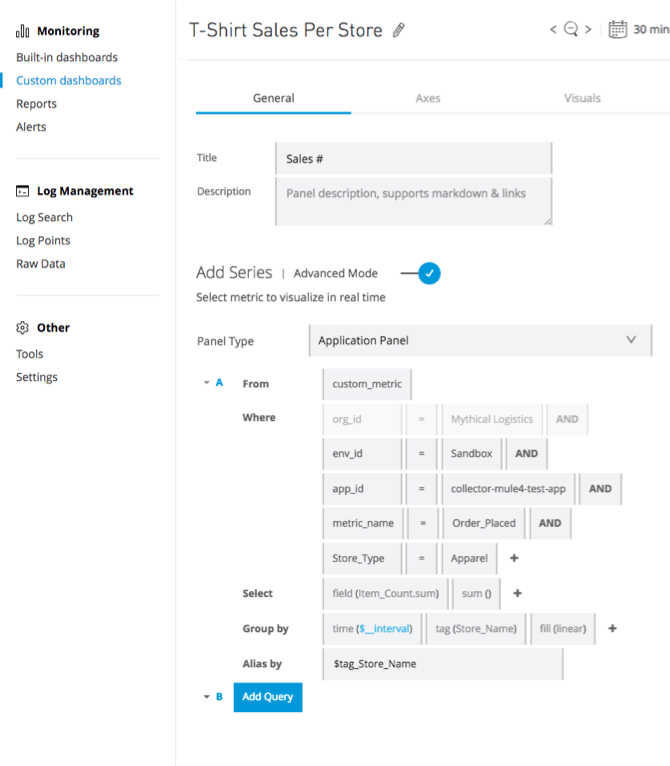
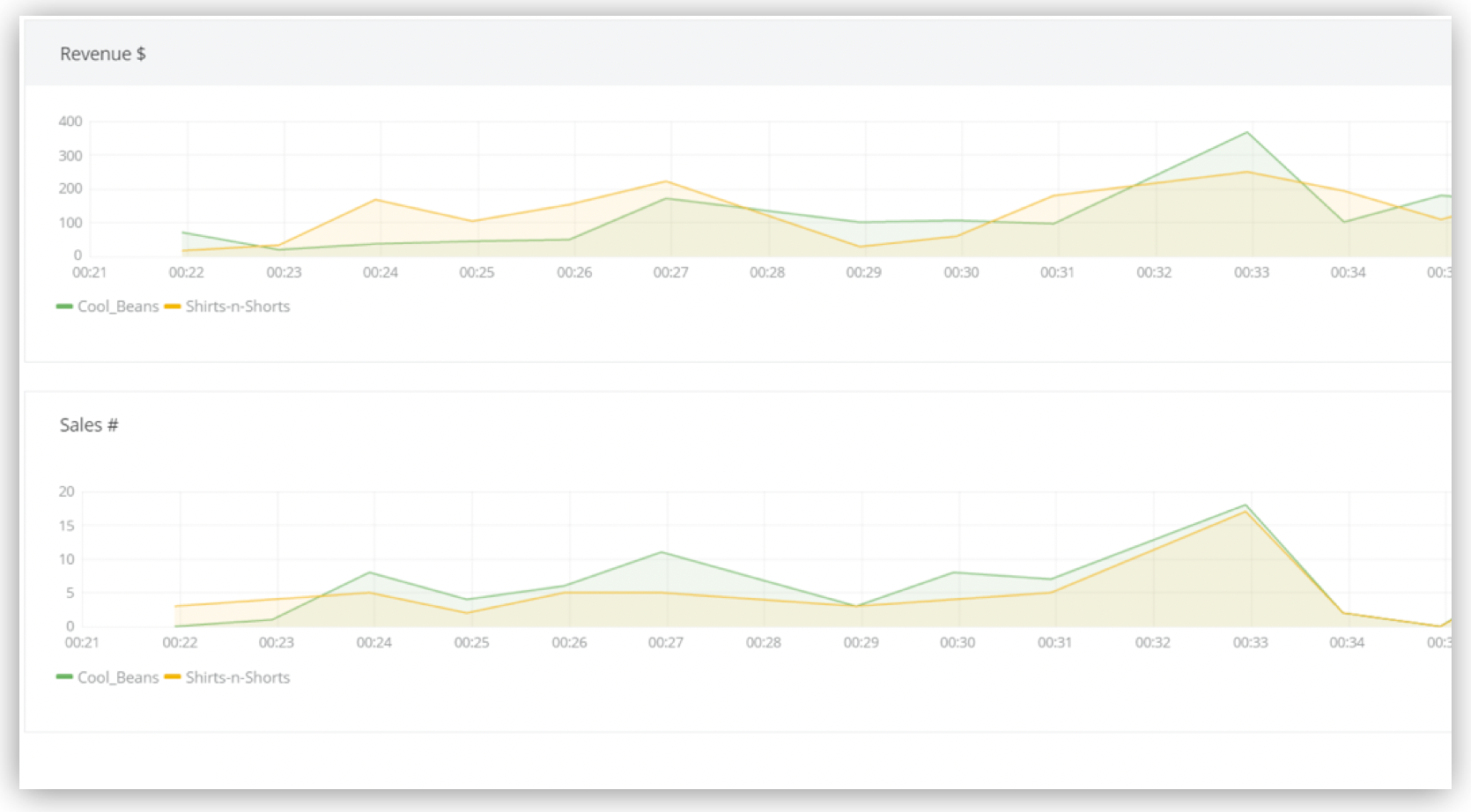
This example shows a configuration for a graph that displays t-shirt sales.
## Configure Charts with Custom Metrics
From **Anypoint Insights**, you can configure charts for Mule apps that produce custom metrics from
the application’s **Custom Metrics** tab.
Custom metrics are not collected for the app until you configure the
[Custom Metrics Connector](https://docs.mulesoft.com/custom-metrics-connector/latest/) in your application flow and deploy
the application to a server or server cluster.
1. In Anypoint Monitoring, select the application to view metrics for, and click **View**.
2. Click the **Custom metrics** tab.
> [!NOTE] If the Custom Metrics connector has collected one or more metrics in the specified
> time range, one chart per defined metric is displayed.
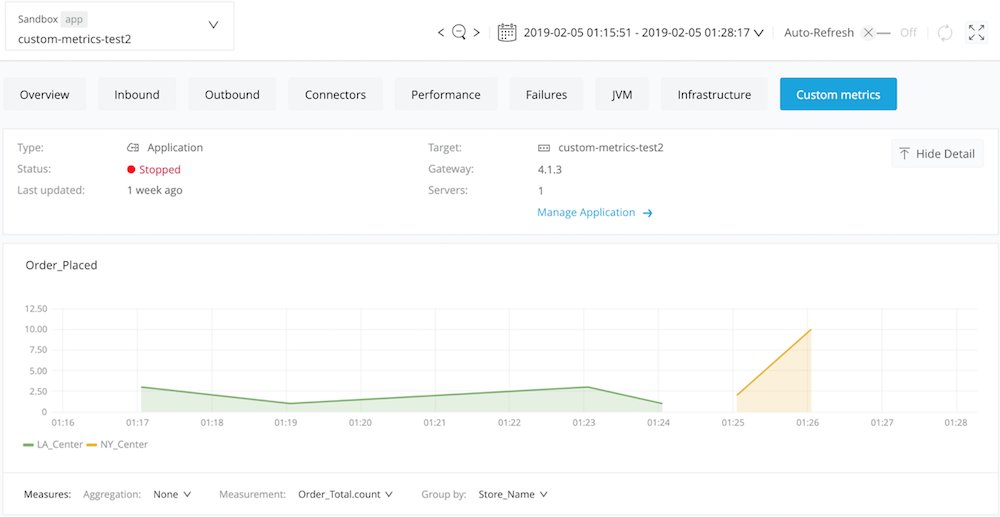
3. Click **Select a measurement for this chart** to display the measurement for the chart.
4. Use the drop-down lists at the bottom of the chart to filter the data by:
- **Aggregation** - Possible aggregations include:
- **None** (default) - No data aggregation.
- **count** - Displays the total number of items collected for the measurement.
- **distinct** - Returns the unique values for the given measurement.
- **integral** - Returns the area under the curve for subsequent values.
- **mean** - Returns the arithmetic average of the specified measurement over a given interval
of time.
- **median** - Displays the middle value for the collected metrics.
- **mode** - Displays the most frequent value in the metrics collected for the defined
measurement.
- **sum** - Displays the sum of all the values for the defined measurement.
- **Measurement** - The choices in this list are determined by the measurement values you define
in the Custom Metrics connector.
- **Group by** - The choices in this list are determined by the values you define in the Custom
Metrics connector.
## Metric and Fact Names
Before providing a fact name or attempting to rename a metric, keep these best practices in mind:
- Use unique fact names across applications, and understand limitations on fact name deletions:
- In the **Custom Metrics** tab in Anypoint Insights, fact names defined in one CloudHub
application are visible to other applications.
Best practice: Provide unique fact names across all CloudHub applications.
- Fact names are removed from the dashboard only after the retention period expires. Other
mechanisms for deleting or purging fact names aren’t supported.
Fact names that you remove with the **Send Custom Metric** operation of the Anypoint Monitoring
Custom Metrics Connector continue to appear in the fact list within the **Custom Metrics** tab
until the retention period expires.
- Avoid changing metric names:
If you use the **Send Custom Metric** operation of the Anypoint Monitoring Custom Metrics
Connector with a new metric name, the old metric name continues to appear in the **Custom
Metrics** tab.
## Endpoint and Operation Metrics Collection (Other Group)
Every minute, Anypoint Monitoring collects metrics for up to 20 of the most frequently called
endpoints or operations. Endpoints or operations outside the top 20 are sorted into a group called
**Other**. For additional limits that apply to custom metrics, see
[Endpoint and Operation Metrics Collection (Other Group)](#endpoint-operation-metrics).
In each data collection interval, top occurring endpoints or operations vary. An endpoint or
operation that is top occurring in one interval might not be top occurring in the next.
In Anypoint Monitoring charts and tables, the data comes from multiple data collection intervals. As
a result, aggregated data shown in the dashboard is an estimation since the intervals might not have
the same top occurring endpoints or operations. The tables show approximate counts for the most
commonly occurring endpoints or operations when the **Other** grouping appears.
For example, when an endpoint occurs more often than other endpoints in one interval but less often
in another interval, Anypoint Monitoring sorts it into the Other group for the first interval. In
this case, the resulting table displays lower than actual values for that endpoint, since the
metrics that do not appear are grouped into the **Other** group.
## See Also
[Anypoint Custom Metrics Connector Reference](https://docs.mulesoft.com/custom-metrics-connector/latest/custom-metrics-connector-reference)