---
schema_version: "1"
id: e56e392e4ca66ef48a8eb43897d4dfd2913af004f2a355d360e2eb639ad9b2e2
title: Configuring Alerts in Anypoint Monitoring
collection: mulesoft
version: current
locale: en-us
portal_url: https://docs.salesforce.com/mulesoft/current/en-us/monitoring/alerts-hf.md
canonical_url: https://docs.mulesoft.com/monitoring/alerts-hf
source_site: docs.mulesoft.com
content_type: documentation
content_hash: 16b4540e7dd14fdd2e5cf7849c038f2b61e7f4b2a110a3f1a364034a265fef65
description: Configure and manage alerts in MuleSoft Anypoint Monitoring to get notified when app or API metrics exceed defined thresholds.
latest: true
---
---
product: Monitoring
description: Configure and manage alerts in MuleSoft Anypoint Monitoring to get notified when app or API metrics exceed defined thresholds.
keywords: MuleSoft, Anypoint Monitoring, alerts, alert notifications, threshold alerts, Mule app alerts, API alerts, alert conditions
---

# Configuring Alerts in Anypoint Monitoring

> For the full documentation index, see: https://docs.mulesoft.com/llms.txt

[![](/mulesoft/current/en-us/_/img/icons/info.svg)](/monitoring/#billing)

Create and receive alert notifications in Anypoint Monitoring for your deployed Mule apps and APIs.

![Alerts UI](/mulesoft/current/en-us/monitoring/_images/alerts-hf.png)

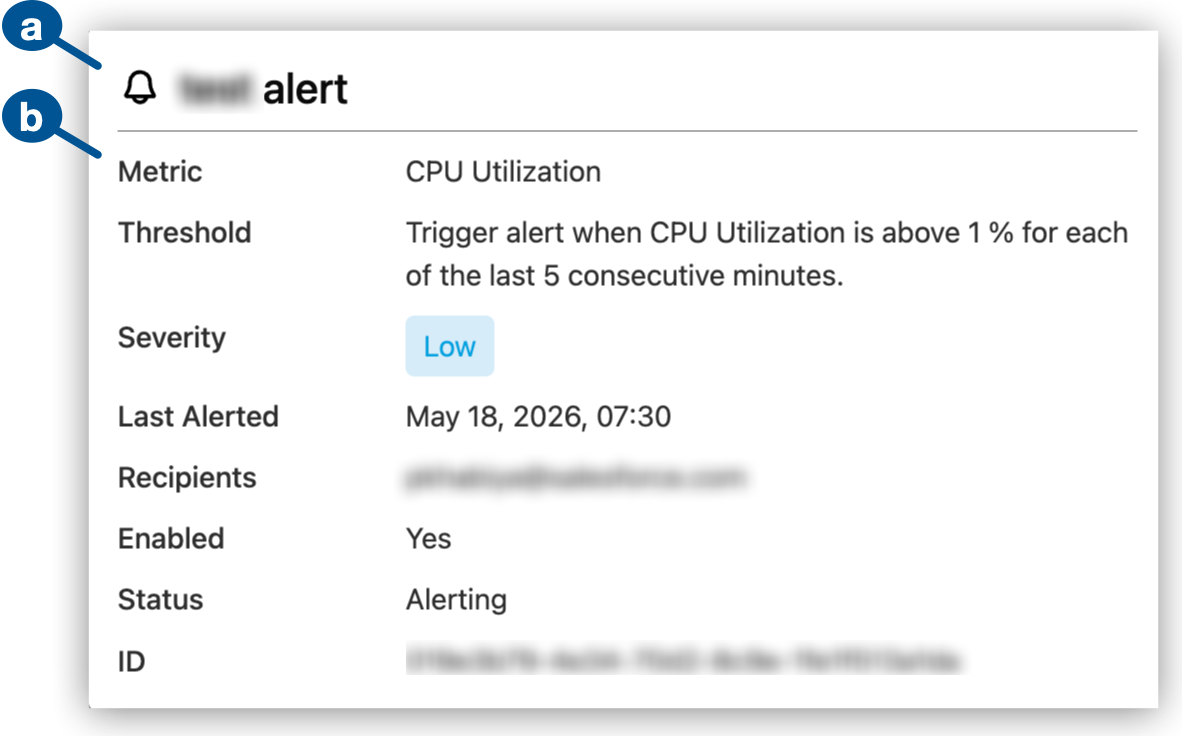
<table><tbody><tr><td><i data-value="1"></i><b>1</b></td><td>Alerts in Anypoint Monitoring</td></tr><tr><td><i data-value="2"></i><b>2</b></td><td>Search filters:<div><ul><li><p><a href="#status">Status</a> filter</p></li><li><p><a href="#severity">Severity</a> filter</p></li><li><p>Search field for alert names</p></li></ul></div></td></tr><tr><td><i data-value="3"></i><b>3</b></td><td><a href="#alert-properties">Alert properties</a></td></tr><tr><td><i data-value="4"></i><b>4</b></td><td>List of configured alerts<div><p>Each alert name opens to more information about the alert, including the alert threshold and recipients of alert notifications:</p></div><div><div><img src="https://docs.mulesoft.com/monitoring/_images/alerts-hf-popup.png" alt="Alert details" width="80%"></div></div><div><ol type="a"><li><p>Name of the selected alert</p></li><li><p>Alert properties:</p><div><ul><li><p><strong>Metric</strong>: Name of the <a href="#metrics">metric</a> that the alert configuration uses</p></li><li><p><strong>Threshold</strong>: <a href="#threshold">Rule</a> for triggering the alert</p></li><li><p><strong>Severity</strong>: <a href="#severity">Severity</a> level of this alert</p></li><li><p><strong>Last Alerted</strong>: Date and time the alert last triggered</p></li><li><p><strong>Recipients</strong>: Each email address that receives an alert notification when the alert triggers</p></li><li><p><strong>Status</strong>: Current status of the alert</p></li><li><p><strong>ID</strong>: Identifier for the alert</p></li></ul></div></li></ol></div></td></tr><tr><td><i data-value="5"></i><b>5</b></td><td><strong>Create Alert</strong> is for <a href="#create">configuring a new alert</a>.</td></tr><tr><td><i data-value="6"></i><b>6</b></td><td>Enable, disable, edit, or delete an alert from its <span><img src="https://docs.mulesoft.com/monitoring/_images/more-menu-vert-ellipsis.png" alt="" width="15" height="15"></span> (<strong>More</strong> menu).</td></tr></tbody></table>

For alerts in custom dashboard graphs (US and EU clouds only), see
[Alerts](https://docs.mulesoft.com/monitoring/dashboard-custom-config-graph#alerts_config).

## Compare Anypoint Monitoring Alerts and Runtime Manager Alerts

Anypoint Monitoring and Runtime Manager provide different alert systems. Use the alert page and API
for the system that owns the alert you need.

Anypoint Monitoring Alerts

Alerts for APIs, Mule applications, and servers, including instance alerts such as response time,
request count, policy violations, and HTTP status codes, plus Contracts, Basic, and Advanced alerts.
For instance alerts, the sliding window is configurable.

Use Anypoint Monitoring alert APIs for:

- Alert configuration (alert definitions)

- Fired-alert history

Runtime Manager Alerts

Infrastructure-focused alerts for servers, clusters, and application lifecycle events, such as CPU
usage, memory usage, load average, thread count, deployment events, and server connectivity events.

Use Runtime Manager REST Services endpoints for these alerts:

- Alert configuration (alert definitions): `GET /hybrid/api/v1/alerts` and related alert-definition
  operations

- Fired-alert history: alert-history endpoints for the alert ID, for example
  `GET /armui/api/v1/alerts/cloudhub/{alertId}/history`

  Runtime Manager retains 30 days of alert history. Runtime Manager alerts retrigger when a
  condition continues to breach its threshold. Runtime Manager alerts aren’t listed on the Anypoint
  Monitoring **Alerts** page.

  For Runtime Manager alerts, see [Alerts](https://docs.mulesoft.com/runtime-manager/alerts-on-runtime-manager).

## Before You Begin

Required prerequisites:

- Your organization must subscribe to a [tier](https://docs.mulesoft.com/monitoring/#billing) in an Anypoint Platform cloud that
  supports this feature.

- You must have the [permissions](https://docs.mulesoft.com/monitoring/am-permissions) required for viewing or managing Anypoint
  Monitoring.

- At least one Mule application or API must be deployed to a supported host:

  - Mule application:

    - CloudHub 2.0

    - Runtime Fabric

  - API managed by Mule Gateway or Omni Gateway

    See [Anypoint Platform Gateways Overview](https://docs.mulesoft.com/gateway-home/).

For information about deployment targets for Mule applications, see
[Runtime Plane Hosting Options](https://docs.mulesoft.com/hosting-home/#runtime-plane-hosting-options).

## Find Alerts

To find the list of alerts:

1.  In Anypoint Monitoring, navigate to **Alerts**.

2.  To narrow the list of alerts, use any of these filtering options:

    - [Status](#status)

    - [Severity](#severity)

    - Search for the name of the alert

      Whole-word searches are supported. Multi-word searches return all alert names that contain any
      of the words. The search ignores special characters in names, such as question marks (`?`),
      underscores (`_`), and hyphens (`-`).

3.  Review the list of alerts.

    Each alert provides:

    - **Alert Name**: Name of the alert

    - **Severity**: Configured [severity](#severity) of the alert

    - **Status**: Current [status](#status) of the alert

    - **Metric**: Name of the [metric](#metrics) that the alert uses

    - **Last Alerted**: Most recent date and time the alert triggered or **\-** for an alert that
      has never triggered

    - **Creation Date**: Alert creation date and time

    - **Availability**: **Enabled** or **Disabled** alert setting

## Create an Alert

Configure an alert, the condition for triggering the alert, and the alert notification.

1.  From **Alerts** in Anypoint Monitoring, click **Create Alert**.

2.  Configure alert properties:

    1.  Provide a name for the alert.

    2.  Select the [environment](#environment) in your organization for this alert.

    3.  Select the resource type and resource that the alert is for. Only active resources that can
        receive traffic are available.

        - **Resource Type**: **API** or **Application**

        - **Resource Name**: Name of the API or Mule application

    4.  For an API alert, select an API version and up to ten response codes.

    5.  Click **Next** to open **Set Alert Condition**.

3.  In **Set Alert Condition**, configure the rule for triggering the alert:

    1.  Select the [metric](#metrics) that the alert uses.

    2.  Select the [severity](#severity) of the alert.

    3.  Provide a [threshold](#threshold) for triggering the alert.

    4.  Click **Next** to open **Configure Notifications**.

4.  In **Configure Notifications**, configure the message to send when the alert triggers.

    To use variables in your email notification, see [Email Notification Variables](#variables).

    1.  Provide a subject.

    2.  Provide the message.

    3.  Identify recipients.

        The first recipient appears in the email **To** field, and the remaining recipients appear
        in the **CC** field.

## Enable, Disable, or Delete an Alert

Alerts are enabled by default when they are created. You can disable, re-enable, or delete an alert.

1.  In Anypoint Monitoring, navigate to **Alerts**.

2.  Find the alert in the Alerts table.

3.  Click the alert’s ![](/mulesoft/current/en-us/monitoring/_images/more-menu-vert-ellipsis.png) (**More** menu).

4.  Enable, disable, or delete the alert.

## Alert Statuses

The **Alerts** page indicates whether an alert is currently triggering or in some other state.

No data

No data is available in the series to evaluate the alert threshold.

Paused

The alert is disabled and no longer active.

Alerting

The value of the metric passes the specified threshold.

OK

The value of the metric has not passed the threshold.

Pending

The alert is enabled and waiting for evaluation.

## Alert Severities

Use your organization’s alerting criteria when setting an alert’s severity. Available severity
levels are:

- **Low**

- **Medium**

- **High**

- **Critical**

> [!NOTE] For alert [notifications](#variables), `${severity}` currently returns `info` for **Low**,
> `warning` for **Medium**, and `critical` for **High** and **Critical** alerts.

## Alert Thresholds

Alert threshold configurations indicate when the data collected on a [metric](#metrics) triggers the
alert. Configurations for alert thresholds follow this form:

<table><colgroup><col> <col></colgroup><thead><tr><th>Configuration Pattern</th><th>Example</th></tr></thead><tbody><tr><td><div><div><p><strong>Trigger alert when selected metric is <em>Above|Below|Above or equal to|Below or equal to|Equal to</em> <em>Number</em> for each of the last <em>Number</em> consecutive minutes.</strong></p></div></div></td><td><div><div><p><strong>Trigger alert when selected metric is <em>Above</em> <em>4</em> for each of the last <em>10</em> consecutive minutes.</strong></p></div></div></td></tr></tbody></table>

The example configures an alert to trigger when the selected metric (such as **Message Count**) is
**Above** 4 for 10 consecutive minutes. In other words, the count must exceed 4 for each minute of
minutes 1-10. If the count exceeds 4 for 9 of 10 minutes, but not the tenth minute, the alert
doesn’t trigger, even if the count exceeds 4 at minute 11. Following the same criteria, if the count
exceeds 4 for each minute of minutes 11-20, the alert triggers.

When the alert triggers, Anypoint Monitoring sends a notification immediately. If the threshold
breach persists, the alert sends another notification at the configured repeat interval rather than
on every evaluation window.

When the condition clears—meaning the metric returns to within the threshold—the alert resets. If
the condition recurs after clearing, a new notification fires immediately, regardless of the repeat
interval. The repeat interval governs re-notifications only during a sustained breach.

## Alert Metrics

A Mule application or API metric is part of the
[configuration for triggering the alert](#threshold).

Mule app metrics:

- **Message Count**: Total number of Mule messages that process successfully

- **Message Error Count**: Number of Mule messages that return an exception in a flow

- **Average Response Time**: Response time (in milliseconds) of a message

- **CPU Utilization**: Percent of CPU used on the virtual machine

  This metric includes all processes and is available only for apps deployed to CloudHub or Anypoint
  Runtime Fabric.

- **Memory Utilization**: Percent of heap used

  This metric is available only for apps deployed to CloudHub or Anypoint Runtime Fabric.

  Anypoint Monitoring tracks heap usage and triggers memory alerts based on the value of
  `heap_used`/`heap_total`. Note that `heap_total` isn’t identical to the maximum heap memory
  allocated to the Mule app on CloudHub. For example, 0.2 vCores indicates that the maximum heap
  memory is 1 GB (see the table in
  [CloudHub Workers](https://docs.mulesoft.com/cloudhub/cloudhub-architecture#cloudhub-workers)), but the value of
  `heap_total` isn’t 1GB. Instead, `heap_total` is the maximum amount of memory that the JVM can use
  for heap memory, where objects are created and stored. In Java, this value changes dynamically
  depending on memory fragmentation, garbage collection, and other memory management features.

- **Thread Count**: Total number of threads used

  This metric is available only for apps deployed to CloudHub or Anypoint Runtime Fabric.

API metrics:

- **Total Request Count**: Sum of requests in the selected time period for the given API

  Data is aggregated in one minute increments.

- **Average Response Time**: Average response time of requests in the selected time period for the
  given API

  Data is aggregated in one minute increments.

- **Response Codes**: Sum of HTTP response codes that occur in the selected time period

- **Policy Violations**: Sum of requests that return policy violations that you select in the alert
  condition.

## Environments

Alerts are specific to one of your Anypoint Platform environments.

Your organization administrator
[creates](https://docs.mulesoft.com/access-management/environments#to-create-a-new-environment) the environments that are
available to you.

Anypoint Platform supports these types of
[environments](https://docs.mulesoft.com/access-management/environments#types-of-environments):

- **Design**

- **Production**

- **Sandbox**

## Email Notification Variables

Alerts deliver notifications as emails to designated recipients for each alert. Your email template
can incorporate variables in the **Subject** and **Message** fields. For the description of each
variable, see [Variable Definitions](#alert-variables).

<table><caption>Table 1. Variables for Alerts</caption> <colgroup><col> <col> <col></colgroup><thead><tr><th>Alert Type</th><th>Metric</th><th>Applicable Variables</th></tr></thead><tbody><tr><td rowspan="6"><div><div><p>CloudHub App Alerts</p></div></div></td><td><div><div><p><strong>CPU Utilization</strong></p></div></div></td><td rowspan="6"><div><div><ul><li><p><code>${severity}</code></p></li><li><p><code>${operator}</code></p></li><li><p><code>${threshold}</code></p></li><li><p><code>${period}</code></p></li><li><p><code>${value}</code></p></li><li><p><code>${condition}</code></p></li><li><p><code>${organization}</code></p></li><li><p><code>${environment}</code></p></li><li><p><code>${alertLink}</code></p></li><li><p><code>${dashboardLink}</code></p></li><li><p><code>${timestamp}</code></p></li><li><p><code>${resource}</code></p></li></ul></div></div></td></tr><tr><td><div><div><p><strong>Memory Utilization</strong></p></div></div></td></tr><tr><td><div><div><p><strong>Thread Count</strong></p></div></div></td></tr><tr><td><div><div><p><strong>Message Count</strong></p></div></div></td></tr><tr><td><div><div><p><strong>Message Error Count</strong></p></div></div></td></tr><tr><td><div><div><p><strong>Message Response Time</strong></p></div></div></td></tr><tr><td rowspan="6"><div><div><p>Anypoint Runtime Fabric App Alerts</p></div></div></td><td><div><div><p><strong>CPU Utilization</strong></p></div></div></td><td rowspan="6"><div><div><ul><li><p><code>${severity}</code> See <a href="#severity">Alert Severities</a> for more information.</p></li><li><p><code>${operator}</code></p></li><li><p><code>${threshold}</code></p></li><li><p><code>${period}</code></p></li><li><p><code>${value}</code></p></li><li><p><code>${condition}</code></p></li><li><p><code>${organization}</code></p></li><li><p><code>${environment}</code></p></li><li><p><code>${alertLink}</code></p></li><li><p><code>${dashboardLink}</code></p></li><li><p><code>${timestamp}</code></p></li><li><p><code>${resource}</code></p></li></ul></div></div></td></tr><tr><td><div><div><p><strong>Memory Utilization</strong></p></div></div></td></tr><tr><td><div><div><p><strong>Thread Count</strong></p></div></div></td></tr><tr><td><div><div><p><strong>Message Count</strong></p></div></div></td></tr><tr><td><div><div><p><strong>Message Error Count</strong></p></div></div></td></tr><tr><td><div><div><p><strong>Message Response Time</strong></p></div></div></td></tr><tr><td rowspan="6"><div><div><p>API Alerts</p></div></div></td><td><div><div><p><strong>Total Request Count</strong></p></div></div></td><td rowspan="4"><div><div><ul><li><p><code>${severity}</code></p></li><li><p><code>${operator}</code></p></li><li><p><code>${threshold}</code></p></li><li><p><code>${period}</code></p></li><li><p><code>${value}</code></p></li><li><p><code>${condition}</code></p></li><li><p><code>${organization}</code></p></li><li><p><code>${environment}</code></p></li><li><p><code>${alertLink}</code></p></li><li><p><code>${dashboardLink}</code></p></li><li><p><code>${timestamp}</code></p></li><li><p><code>${api}</code></p></li><li><p><code>${policy}</code></p></li></ul></div></div></td></tr><tr><td><div><div><p><strong>Average Response Time</strong></p></div></div></td></tr><tr><td><div><div><p><strong>Response Codes</strong></p></div></div></td></tr><tr><td><div><div><p><strong>Policy Violations</strong></p></div></div></td></tr></tbody></table>

<table id="alert-variables"><caption>Table 2. Variable Definitions</caption> <colgroup><col> <col></colgroup><thead><tr><th>Variable</th><th>Definition</th></tr></thead><tbody><tr><td><p><code>${alertLink}</code></p></td><td><p>URL of the triggered alert</p></td></tr><tr><td><p><code>${alertState}</code></p></td><td><p>State of the alert when it was triggered.</p><p>Available values are <code>OK</code> or <code>Alerting</code>.</p></td></tr><tr><td><p><code>${api}</code></p></td><td><p>Name of the API that triggers the alert</p></td></tr><tr><td><p><code>${comparison}</code></p></td><td><p>Above, above or equal, equal, below or equal, below</p></td></tr><tr><td><p><code>${condition}</code></p></td><td><p>Metric for which the alert is triggered</p></td></tr><tr><td><p><code>${dashboardLink}</code></p></td><td><p>URL that points to the dashboard for the app or API that triggers the alert</p></td></tr><tr><td><p><code>${environment}</code></p></td><td><p>Name of the environment in which the resource is deployed</p></td></tr><tr><td><p><code>${memberName}</code></p></td><td><p>Name of the server within the server group or cluster</p></td></tr><tr><td><p><code>${operator}</code></p></td><td><p>An operator, such as <code>&lt; &gt; =</code></p></td></tr><tr><td><p><code>${organization}</code></p></td><td><p>Name of the organization that owns the alert</p></td></tr><tr><td><p><code>${period}</code></p></td><td><p>Period of time over which to measure</p></td></tr><tr><td><p><code>${policy}</code></p></td><td><p>Name of the policy whose violation triggers the alert</p></td></tr><tr><td><p><code>${resource}</code></p></td><td><div><div><p>Name of the item that triggers the alert:</p></div><div><ul><li><p>CloudHub Apps: Name of the app that triggers the alert</p></li><li><p>Hybrid Apps: Name of the resource in the app that triggers the alert</p></li></ul></div></div></td></tr><tr><td><p><code>${severity}</code></p></td><td><p>Severity of the alert</p></td></tr><tr><td><p><code>${targetName}</code></p></td><td><p>Name of the server, server group, or cluster</p></td></tr><tr><td><p><code>${targetState}</code></p></td><td><p>Server state when the alert was triggered</p></td></tr><tr><td><p><code>${threshold}</code></p></td><td><p>Count over the period of time that triggers the alert</p></td></tr><tr><td><p><code>${timestamp}</code></p></td><td><p>Time when the alert was triggered</p></td></tr><tr><td><p><code>${value}</code></p></td><td><p>Value of the metric that triggers the alert</p></td></tr></tbody></table>

## See Also

- [FAQ: Anypoint Monitoring Logs, Metrics, Alerts, and Limits](https://docs.mulesoft.com/monitoring/am-faq)