---
schema_version: "1"
id: 6638924a720b3e49cd2271765430a6c671f2e7db1e059fa2ab494843e653a0e2
title: Microsoft Service Bus Connector 2.2
collection: mulesoft
version: current
locale: en-us
portal_url: https://docs.salesforce.com/mulesoft/current/en-us/microsoft-service-bus-connector/latest/index.md
canonical_url: https://docs.mulesoft.com/microsoft-service-bus-connector/latest/
source_site: docs.mulesoft.com
content_type: documentation
content_hash: 06af05b4bfa631cc314a9e94197c6c129f11c1ebe86e9105df0407fed27cc841
description: MuleSoft Documentation Site
release: "2.2"
latest: true
---
---
product: Microsoft Service Bus Connector
version: 2.2
is-latest-version: true
---

# Microsoft Service Bus Connector 2.2

> For the full documentation index, see: https://docs.mulesoft.com/llms.txt

Anypoint Connector for Microsoft Service Bus (Microsoft Service Bus Connector) enables message
integration with Windows Service Bus on-premises. The connector supports communication with queues
and topics through Advanced Message Queuing Protocol (AMQP) 1.0. In addition, dynamic discovery and
provisioning of Service Bus objects is possible using the built-in management API.

To implement message integration scenarios with Microsoft Azure, use the Microsoft Azure Service Bus
Connector instead of this connector.

Release Notes:
[Microsoft Service Bus Connector Release Notes](https://docs.mulesoft.com/release-notes/connector/ms-service-bus-connector-release-notes-mule-4)  
Exchange:
[Microsoft Service Bus Connector](https://www.mulesoft.com/exchange/com.mulesoft.connectors/mule-microsoft-service-bus-connector/)

> [!NOTE] This connector supports connecting only to the Microsoft Windows Service Bus on-premises
> solution. To connect to Microsoft Azure Service Bus, use
> [Anypoint Connector for Azure Service Bus](https://www.mulesoft.com/exchange/com.mulesoft.connectors/mule-azure-service-bus-connector).

## Before You Begin

To use this connector, you should be familiar with Microsoft Service Bus, Mule runtime engine
(Mule), Anypoint Connectors, Anypoint Studio, Mule concepts, elements in a Mule flow, and Global
Elements.

You need one of the following credential types to test your connection to your target resource:

- Windows credentials type

- SAS (shared access signature) - **Deprecated**

- Username and password - **Deprecated**

For software requirements and compatibility information, see the
[Connector Release Notes](https://docs.mulesoft.com/release-notes/connector/ms-service-bus-connector-release-notes-mule-4).

To use this connector with Apache Maven, click the **Dependency Snippets** link in
[Anypoint Exchange](https://www.mulesoft.com/exchange/com.mulesoft.connectors/mule-microsoft-service-bus-connector/).

The connector supports the Microsoft Windows Service Bus on-premises.

## POM File Information

```xml
<dependency>
  <groupId>com.mulesoft.connectors</groupId>
  <artifactId>mule-microsoft-service-bus-connector</artifactId>
  <version>x.x.x</version>
  <classifier>mule-plugin</classifier>
</dependency>
```

Verify that the connector `version` corresponds to the one you are using.

To obtain the most up-to-date `pom.xml` file information:

1.  Go to [Anypoint Exchange](https://www.mulesoft.com/exchange/).

2.  In Exchange, click **Login** and supply your Anypoint Platform username and password.

3.  In Exchange, search for `SAP S/4HANA OData`.

4.  Click **Dependency Snippets**.

### Add the Connector in Studio

1.  In Studio, create a Mule project.

2.  In the Mule Palette view, click **(X) Search in Exchange**.

3.  In **Add Modules to Project**, type `service bus` in the search field.

4.  Click this connector’s name in **Available modules**.

5.  Click **Add**.

6.  Click **Finish**.

### Configure in Studio

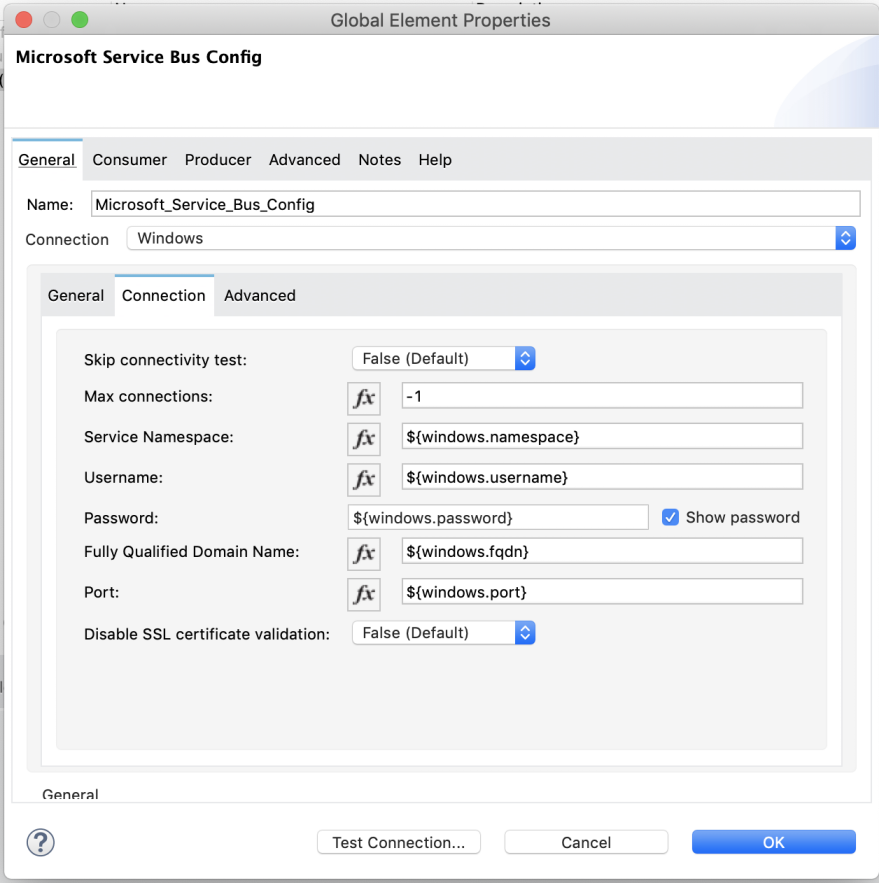
1.  Drag a connector’s operation to the Studio Canvas.

2.  Configure the Global element for the connector.
![Microsoft Service Bus connector global elements properies config window on General tab](/mulesoft/current/en-us/microsoft-service-bus-connector/latest/_images/ms-service-bus-studio-1.png)

## Get Queue List Use Case

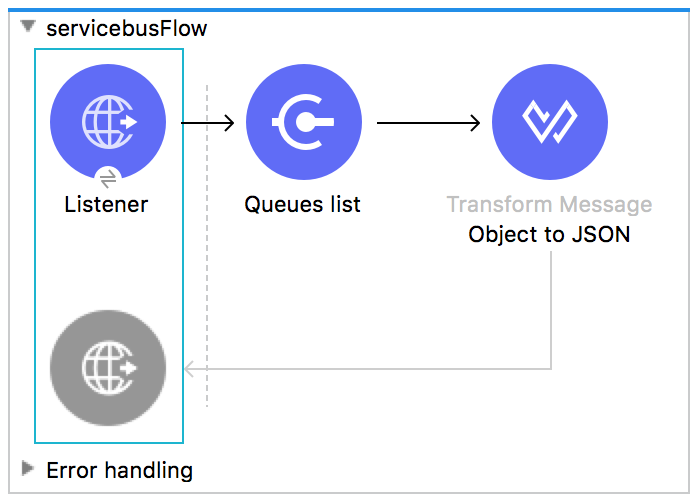
This use case retrieves a list of existing queues in a specific namespace. It returns the list in
JSON format.
![Studio flow for retrieving a list of existing queues](/mulesoft/current/en-us/microsoft-service-bus-connector/latest/_images/ms-service-bus-flow.png)

1.  Create a new Mule application in Studio and select **HTTP > Listener** as a source in the new
    flow.

2.  Add a new HTTP Listener configuration global element:

3.  Specify the Host and Port parameters with the following values:

    <table><colgroup><col> <col></colgroup><thead><tr><th>Parameter</th><th>Value</th></tr></thead><tbody><tr><td><p><strong>Host</strong></p></td><td><div><div><p>0.0.0.0</p></div></div></td></tr><tr><td><p><strong>Port</strong></p></td><td><div><div><p>8081</p></div></div></td></tr></tbody></table>

4.  Click **Save**.

5.  Assign the new global configuration to HTTP Listener.

6.  Complete the HTTP Listener path with the value `/servicebus`.

7.  Drag a new Service Bus component operation into the flow.

8.  Configure the Service Bus connector global element with its environment values.

9.  Add a transform message before the connector and add an output like this:

    ```dataweave
    %dw 2.0
    output application/json
    ---
    payload
    ```

10. Save and run the project as a Mule application.

    To test the app, navigate to `http://127.0.0.1:8081/servicebus`.

XML flow:

```xml
<?xml version="1.0" encoding="UTF-8"?>

<mule xmlns:ee="http://www.mulesoft.org/schema/mule/ee/core"
xmlns:servicebus="http://www.mulesoft.org/schema/mule/servicebus"
	xmlns:http="http://www.mulesoft.org/schema/mule/http"
	xmlns="http://www.mulesoft.org/schema/mule/core"
	xmlns:doc="http://www.mulesoft.org/schema/mule/documentation"
	xmlns:xsi="http://www.w3.org/2001/XMLSchema-instance"
	xsi:schemaLocation="http://www.mulesoft.org/schema/mule/core
	http://www.mulesoft.org/schema/mule/core/current/mule.xsd
http://www.mulesoft.org/schema/mule/http
http://www.mulesoft.org/schema/mule/http/current/mule-http.xsd
http://www.mulesoft.org/schema/mule/servicebus
http://www.mulesoft.org/schema/mule/servicebus/current/mule-servicebus.xsd
http://www.mulesoft.org/schema/mule/ee/core
http://www.mulesoft.org/schema/mule/ee/core/current/mule-ee.xsd">
	<configuration-properties file="mule-app.properties" />
	<http:listener-config name="HTTP_Listener_config" doc:name="HTTP Listener config" >
		<http:listener-connection host="0.0.0.0" port="8081" />
	</http:listener-config>
	<servicebus:config name="Servicebus_Config" doc:name="Servicebus Config" >
		<servicebus:windows-connection
		namespace="${config.namespace}"
		username="${config.username}"
		password="${config.password}"
		fqdn="${config.fqdn}" />
	</servicebus:config>
	<flow name="servicebusFlow">
		<http:listener doc:name="Listener" config-ref="HTTP_Listener_config"
		path="/servicebus"/>
		<servicebus:queues-list doc:name="Queues list" config-ref="Servicebus_Config"/>
		<ee:transform doc:name="Object to JSON">
			<ee:message >
				<ee:set-payload ><![CDATA[%dw 2.0
output application/json
---
payload]]></ee:set-payload>
			</ee:message>
		</ee:transform>
	</flow>
</mule>
```

## SSL Issues

If you get one of the following errors when performing a connectivity test or starting a Mule app,
you must configure the truststore in insecure mode:

- `SSL certificate error`

- `General SSLEngine problem`

To configure the truststore in insecure mode:

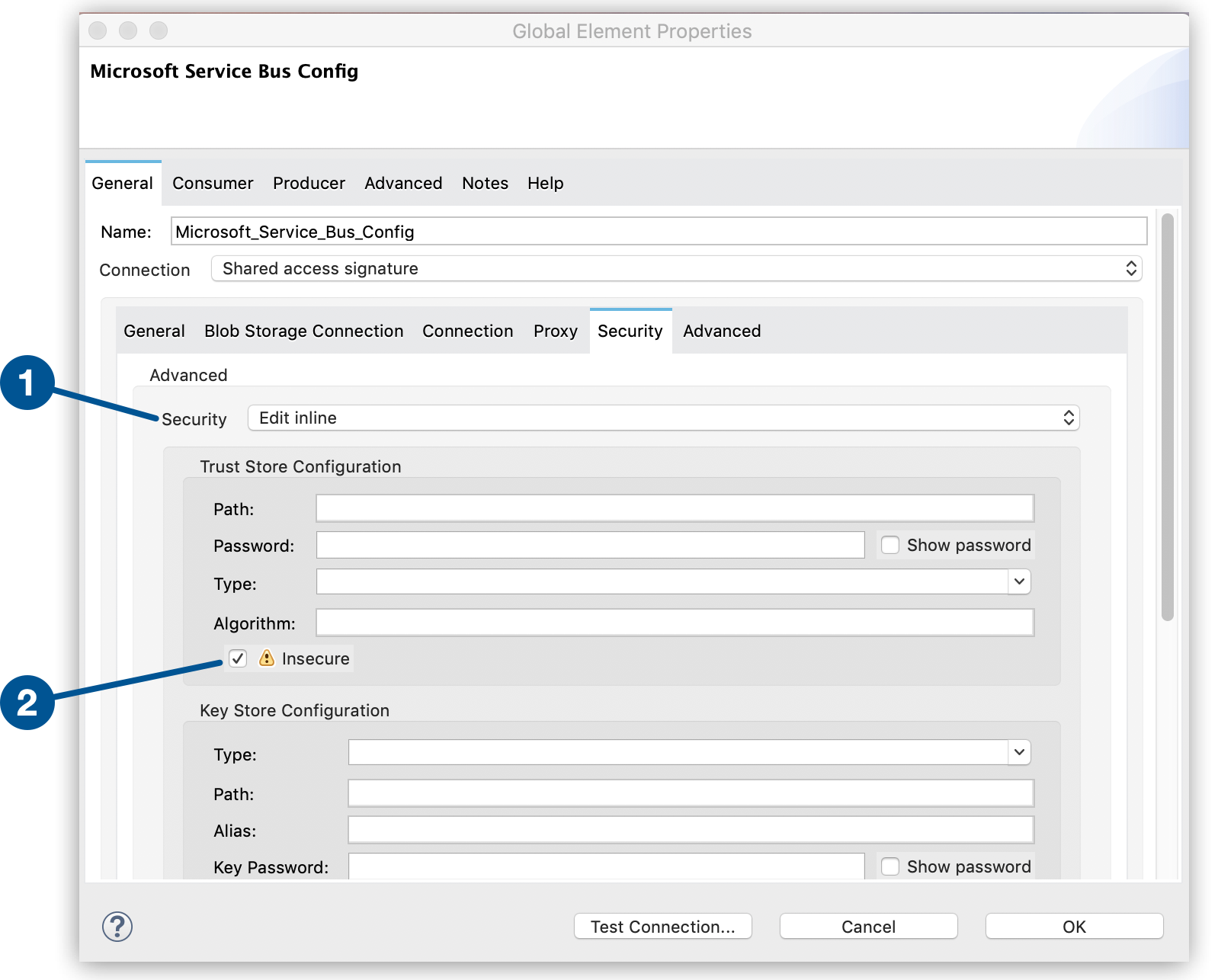
1.  Navigate to the **Security** tab in the global element configuration.

2.  In the **Security** field, select **Edit inline**.

3.  In the **Trust Store Configuration** section, select the **Insecure** checkbox.

4.  Click **OK**.
![Insecure truststore configuration](/mulesoft/current/en-us/microsoft-service-bus-connector/latest/_images/ms-service-bus-truststore-insecure.png)

Figure 1. The graphic shows how to configure the truststore in insecure mode.

The first item shows where to select **Edit inline** and the second item shows where to select the
**Insecure** checkbox.

For more information, see
[Failed Connectivity Test](https://docs.mulesoft.com/microsoft-service-bus-connector/latest/service-bus-troubleshooting#failed-connectivity-test).

## Service Bus Authentication

For sending and receiving messages through Microsoft Service Bus Connector, the authentication is
performed through AMQP.

For the REST Management API, the authentication scheme differs based on the Microsoft Service Bus
version. Windows Service Bus uses OAuth.

> [!NOTE] Windows Service Bus uses a self-signed SSL certificate to secure the communication using
> AMQP and HTTPS. The connector won’t run if this certificate is not locally imported in the box
> running Mule, unless the **Ignore SSL warning** check is enabled.

To enable the SSL checks, follow these steps to import the certificate:

1.  Use the PowerShell cmdlet
    [Get-SBAutoGeneratedCA](https://docs.mulesoft.com/microsoft-service-bus-connector/latest/%3Chttps://learn.microsoft.com/en-us/previous-versions/azure/jj248762(v=azure.10)?redirectedfrom=MSDN>)
    to download the certificate locally in the machine running the Windows Service Bus.  
    For this example, the certificate file is exported to `%temp%\AutoGeneratedCA.cer`.

2.  Running as Administrator, go to `%programfiles%\Java\jre7`.  
    You must be running as Administrator to perform a certificate import with `Keytool.exe`.

3.  Verify that the `bin\keytool.exe` tool and `lib\security\cacerts` exists.

4.  Enter the following command:  
    `bin\keytool.exe –list –keystore lib\security\cacerts`

5.  Import the autogenerated Service Bus certificate by running the following command: +
    `bin\keytool.exe –importcert –alias AppServerGeneratedSBCA –file %temp%\AutoGeneratedCA.cer –keystore lib\security\cacerts –v`

6.  Enter the password when prompted (the default is “changeit”).

7.  When the tool asks you whether to trust the certificate, enter `Y` (Yes).

## Using Restricted Access Policies

If you have restricted access to your resources, such as having a security policy with permissions
at the resource level, the connector cannot perform the connectivity test when it starts. This
occurs because the connectivity test targets the root level of your namespace, which might be
forbidden due to the customized policy applied to the `shared access key`. For these scenarios, skip
the connectivity test with the configuration option available for this purpose, otherwise, the
connector fails to start.

## Log Requests and Responses

To log requests and responses when using the connector, configure a logger by adding this line to
the `Loggers` element of the `log4j2.xml` configuration file for the Mule app:

```xml
<AsyncLogger name="org.springframework.web.client"
   level="DEBUG"/>
```

The following example shows the `Loggers` element with the `AsyncLogger` line added:

```xml
<?xml version="1.0" encoding="UTF-8"?>
<Configuration status="WARN">
	<Appenders>
	    <Console name="Console" target="SYSTEM_OUT">
	    	<PatternLayout pattern="%d{HH:mm:ss.SSS} [%t] %-5level %logger{36} - %msg%n"/>
		</Console>
	</Appenders>
	<Loggers>
		<AsyncLogger name="org.springframework.web.client" level="DEBUG" additivity="false">
			<appender-ref ref="Console" level="debug"/>
		</AsyncLogger>
	</Loggers>
</Configuration>
```

You can view the app log as follows:

- If you’re running the app from the Anypoint Platform, the output is visible in the Anypoint Studio
  console window.

- If you’re running the app using Mule from the command line, the app log is visible in your OS
  console.

Unless the log file path was customized in the app’s log file (`log4j2.xml`), you can also view the
app log in this default location:

`MULE_HOME/logs/<app-name>.log`

For more information about the app log, see
[Configuring Logging](https://docs.mulesoft.com/mule-runtime/latest/logging-in-mule).

## Windows Service Bus AMQP Use Case

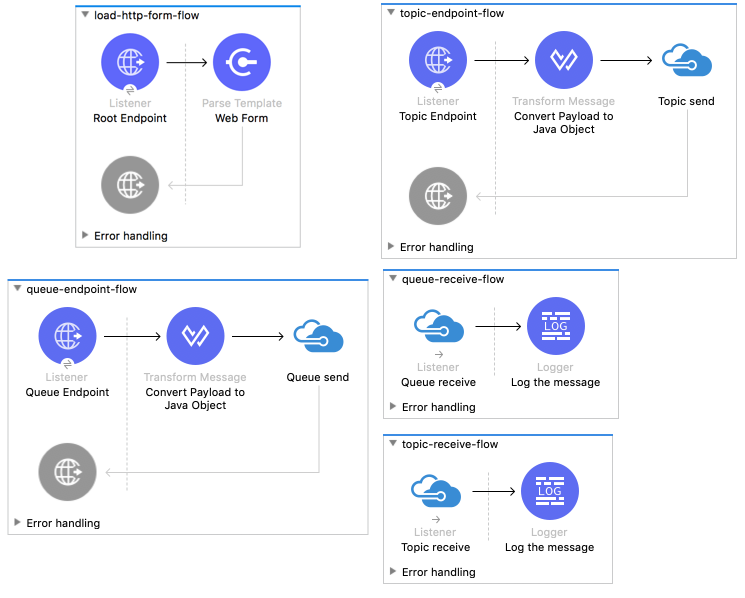
This use case contains the following flows that send and receive messages for topics and queues:

- `load-http-form-flow`

  Provides a web form for entering the parameters for messages.

- `topic-endpoint-flow`

  Receives messages through the `load-http-form-flow`, stores each message as the payload, converts
  each message to a Java object, and sends each message to the destination topic.

- `queue-endpoint-flow`

  Receives messages through the `load-http-form-flow`, stores each message as the payload, converts
  each message to a Java object, and sends each message to the destination queue.

- `queue-receive-flow`

  Listens for, receives, and logs messages from the specified queue.

- `topic-receive-flow`

  Listens for, receives, and logs messages from the specified topic.
![Studio flows for the Windows Service Bus AMQP use case](/mulesoft/current/en-us/microsoft-service-bus-connector/latest/_images/ms-service-bus-demo-1.png)

XML for this flow:

```xml
<?xml version="1.0" encoding="UTF-8"?>

<mule xmlns:ee="http://www.mulesoft.org/schema/mule/ee/core"
xmlns:servicebus="http://www.mulesoft.org/schema/mule/servicebus"
xmlns:http="http://www.mulesoft.org/schema/mule/http"
xmlns="http://www.mulesoft.org/schema/mule/core"
xmlns:doc="http://www.mulesoft.org/schema/mule/documentation"
xmlns:xsi="http://www.w3.org/2001/XMLSchema-instance"
xsi:schemaLocation="http://www.mulesoft.org/schema/mule/core
http://www.mulesoft.org/schema/mule/core/current/mule.xsd
http://www.mulesoft.org/schema/mule/http
http://www.mulesoft.org/schema/mule/http/current/mule-http.xsd
http://www.mulesoft.org/schema/mule/servicebus
http://www.mulesoft.org/schema/mule/servicebus/current/mule-servicebus.xsd
http://www.mulesoft.org/schema/mule/ee/core
http://www.mulesoft.org/schema/mule/ee/core/current/mule-ee.xsd">
	<configuration-properties file="mule-app.properties" doc:name="Configuration properties"/>
	<http:listener-config name="HTTP_Listener_config" doc:name="HTTP Listener config">
		<http:listener-connection host="0.0.0.0" port="8081" />
	</http:listener-config>
	<servicebus:config name="Microsoft_Service_Bus_Config" doc:name="Microsoft Service Bus Config">
		<servicebus:windows-connection
			namespace="${windows.namespace}"
			username="${windows.username}"
			password="${windows.password}"
			fqdn="${windows.fqdn}"
			port="${windows.port}"/>
	</servicebus:config>
	<flow name="load-http-form-flow">
		<http:listener doc:name="Root Endpoint" config-ref="HTTP_Listener_config"
			path="/" />
		<parse-template doc:name="Web Form" location="form.html" />
	</flow>
	<flow name="queue-endpoint-flow">
		<http:listener doc:name="Queue Endpoint" config-ref="HTTP_Listener_config"
			path="/pushMessageQueue" />
		<ee:transform doc:name="Convert Payload to Java Object">
			<ee:message>
				<ee:set-payload><![CDATA[%dw 2.0
output application/java
---
payload]]></ee:set-payload>
			</ee:message>
		</ee:transform>
		<servicebus:queue-send doc:name="Queue send" config-ref="Microsoft_Service_Bus_Config"
			destinationQueue="#[payload.queue]">
			<servicebus:message >
				<servicebus:body ><![CDATA[#[payload.message]]]></servicebus:body>
			</servicebus:message>
		</servicebus:queue-send>
	</flow>
	<flow name="topic-endpoint-flow">
		<http:listener doc:name="Topic Endpoint" config-ref="HTTP_Listener_config"
			path="/pushMessageTopic"/>
		<ee:transform doc:name="Convert Payload to Java Object">
			<ee:message >
				<ee:set-payload ><![CDATA[%dw 2.0
output application/java
---
payload]]></ee:set-payload>
			</ee:message>
		</ee:transform>
		<servicebus:topic-send doc:name="Topic send" config-ref="Microsoft_Service_Bus_Config"
			destinationTopic="#[payload.topic]"
			transactionalAction="NOT_SUPPORTED"
			sendCorrelationId="AUTO">
			<servicebus:message >
				<servicebus:body ><![CDATA[#[payload.message]]]></servicebus:body>
			</servicebus:message>
		</servicebus:topic-send>
	</flow>
	<flow name="queue-receive-flow">
		<servicebus:listener
			sourceType="Queue"
			destination="${queue.name}"
			doc:name="Queue receive"
			config-ref="Microsoft_Service_Bus_Config"
			ackMode="AUTO" subscription="NONE"
			numberOfConsumers="1"/>
		<logger level="INFO" doc:name="Log the message" message="#[payload]"/>
	</flow>
	<flow name="topic-receive-flow">
		<servicebus:listener sourceType="Topic" doc:name="Topic receive"
			config-ref="Microsoft_Service_Bus_Config"
			ackMode="AUTO" destination="${topic.name}"
			subscription="${subscription.name}"/>
		<logger level="INFO" doc:name="Log the message" message="#[payload]"/>
	</flow>
</mule>
```

## Windows Service Bus Management Use Case

This use case contains flows that create topics, subscriptions, and rules:

- `service-bus-management-demoFlow`

  Creates a topic by following these steps:

  1.  Creates the topic description as specified and stores it as the payload.

  2.  Creates the topic using the stored configuration from the previous step and the topic
      namespace, obtained from variable `topic.name`.

  3.  Converts the newly created topic to a JSON object.

  4.  Logs the JSON object.

- `service-bus-management-demoFlow1`

  Creates a subscription by following these steps:

  1.  Creates the subscription description as specified and stores it as the payload.

  2.  Creates the subscription using the stored configuration from the previous step, the
      subscription name from the variable `subscription.name`, and the topic name from the variable
      `topic.name`.

  3.  Converts the newly created subscription to a JSON object.

  4.  Logs the JSON object.

- `service-bus-management-demoFlow2`

  Creates a rule by following these steps:

  1.  Creates a rule with the specified configuration and stores it as the payload.

  2.  Creates the rule using the stored configuration from the previous step, the rule name from the
      variable `rule.name`, the subscription name from the variable `subscription.name`, and the
      topic name from the variable `topic.name`.

  3.  Converts the newly created rule to a JSON object.

  4.  Logs the JSON object.
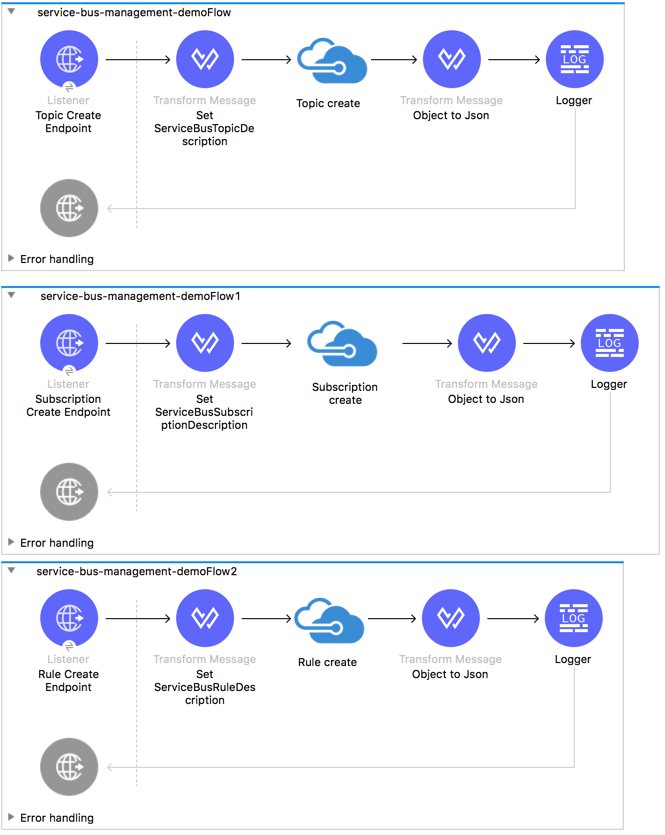
![Studio flows for Windows Service Bus Management use case](/mulesoft/current/en-us/microsoft-service-bus-connector/latest/_images/ms-service-bus-demo-2.png)

XML flow:

```xml
<?xml version="1.0" encoding="UTF-8"?>

<mule xmlns:ee="http://www.mulesoft.org/schema/mule/ee/core"
xmlns:servicebus="http://www.mulesoft.org/schema/mule/servicebus"
	xmlns:http="http://www.mulesoft.org/schema/mule/http"
	xmlns="http://www.mulesoft.org/schema/mule/core"
	xmlns:doc="http://www.mulesoft.org/schema/mule/documentation"
	xmlns:xsi="http://www.w3.org/2001/XMLSchema-instance"
	xsi:schemaLocation="http://www.mulesoft.org/schema/mule/core
	http://www.mulesoft.org/schema/mule/core/current/mule.xsd
http://www.mulesoft.org/schema/mule/http
http://www.mulesoft.org/schema/mule/http/current/mule-http.xsd
http://www.mulesoft.org/schema/mule/servicebus
http://www.mulesoft.org/schema/mule/servicebus/current/mule-servicebus.xsd
http://www.mulesoft.org/schema/mule/ee/core
http://www.mulesoft.org/schema/mule/ee/core/current/mule-ee.xsd">
	<configuration-properties file="mule-app.properties"
	doc:name="Configuration properties"/>
	<http:listener-config name="HTTP_Listener_config"
	doc:name="HTTP Listener config">
		<http:listener-connection host="0.0.0.0" port="8081" />
	</http:listener-config>
	<servicebus:config name="Microsoft_Service_Bus_Config" doc:name="Microsoft Service Bus Config">
		<servicebus:windows-connection
			namespace="${windows.namespace}"
			username="${windows.username}"
			password="${windows.password}"
			fqdn="${windows.fqdn}"
			port="${windows.port}"/>
	</servicebus:config>
	<flow name="service-bus-management-demoFlow">
		<http:listener doc:name="Topic Create Endpoint"
		config-ref="HTTP_Listener_config"
		path="/topic"/>
		<ee:transform doc:name="Set ServiceBusTopicDescription">
			<ee:message >
				<ee:set-payload ><![CDATA[%dw 2.0
output application/java
---
{
	defaultMessageTimeToLive: "P10675199DT2H48M5.4775807S",
	duplicateDetectionHistoryTimeWindow: "PT10M",
	enableBatchedOperations: false,
	maxSizeInMegabytes: 1024,
	requiresDuplicateDetection: false,
	sizeInBytes: null
} as Object {
	class : "com.mulesoft.connectors.microsoft.servicebus.extension.api.entity.ServiceBusTopicDescription"
}]]></ee:set-payload>
			</ee:message>
		</ee:transform>
		<servicebus:topic-create doc:name="Topic create"
		config-ref="Microsoft_Service_Bus_Config"
		topicPath="${topic.name}">
		</servicebus:topic-create>
		<ee:transform doc:name="Object to Json">
			<ee:message >
				<ee:set-payload ><![CDATA[%dw 2.0
output application/json
---
{
	author: payload.author,
	id: payload.id,
	title: payload.title
}]]></ee:set-payload>
			</ee:message>
		</ee:transform>
		<logger level="INFO" doc:name="Logger" message="#[payload]"/>
	</flow>
	<flow name="service-bus-management-demoFlow1">
		<http:listener doc:name="Subscription Create Endpoint"
		config-ref="HTTP_Listener_config"
		path="/subscription"/>
		<ee:transform doc:name="Set ServiceBusSubscriptionDescription">
			<ee:message >
				<ee:set-payload ><![CDATA[%dw 2.0
output application/java
---
{
	lockDuration: "PT4M",
	requiresSession: false,
	deadLetteringOnMessageExpiration: false,
	deadLetteringOnFilterEvaluationExceptions: null,
	enableBatchedOperations: false,
	defaultMessageTimeToLive: "P10675199DT2H48M5.4775807S",
	maxDeliveryCount: null
} as Object {
	class : "com.mulesoft.connectors.microsoft.servicebus.extension.api.entity.ServiceBusSubscriptionDescription"
}]]></ee:set-payload>
			</ee:message>
		</ee:transform>
		<servicebus:subscription-create
		topicPath="${topic.name}"
		doc:name="Subscription create"
		config-ref="Microsoft_Service_Bus_Config"
		subscriptionPath="${subscription.name}"/>
		<ee:transform doc:name="Object to Json">
			<ee:message >
				<ee:set-payload ><![CDATA[%dw 2.0
output application/json
---
{
	linik: payload.link,
	id: payload.id,
	title: payload.title
}]]></ee:set-payload>
			</ee:message>
		</ee:transform>
		<logger level="INFO" doc:name="Logger" message="#[payload]"/>
	</flow>
	<flow name="service-bus-management-demoFlow2">
		<http:listener doc:name="Rule Create Endpoint"
		config-ref="HTTP_Listener_config"
		path="/rule"/>
		<ee:transform doc:name="Set ServiceBusRuleDescription">
			<ee:message >
				<ee:set-payload ><![CDATA[%dw 2.0
output application/java
---
{
	action: {
		sqlExpression: "set MyProperty2 = 'ABC'",
		"type": "SqlRuleAction"
	},
	filter: {
		correlationId: null,
		sqlExpression: "property1 = 'ok'",
		"type": "SqlFilter"
	}
} as Object {
	class : "com.mulesoft.connectors.microsoft.servicebus.extension.api.entity.ServiceBusRuleDescription"
}]]></ee:set-payload>
			</ee:message>
		</ee:transform>
		<servicebus:rule-create topicPath="${topic.name}" doc:name="Rule create"
		config-ref="Microsoft_Service_Bus_Config" rulePath="${rule.name}"
		subscriptionPath="${subscription.name}"/>
		<ee:transform doc:name="Object to Json">
			<ee:message >
				<ee:set-payload ><![CDATA[%dw 2.0
output application/json
---
{
	link: payload.link,
	id: payload.id,
	title: payload.title
}]]></ee:set-payload>
			</ee:message>
		</ee:transform>
		<logger level="INFO" doc:name="Logger" message="#[payload]"/>
	</flow>
</mule>
```

## See Also

- [Introduction to Anypoint Connectors](https://docs.mulesoft.com/connectors/introduction/introduction-to-anypoint-connectors)

- [Use Exchange to Discover Connectors, Templates, and Examples](https://docs.mulesoft.com/connectors/introduction/intro-use-exchange)

- [Microsoft Service Bus Connector on Exchange](https://www.mulesoft.com/exchange/com.mulesoft.connectors/mule-microsoft-service-bus-connector/)

- [Salesforce Help](https://help.salesforce.com)
