---
schema_version: "1"
id: af422024c03d231594212a7598ad060d7587a96c8d75eade5421d6eb2fe5c254
title: Invoke Methods
collection: mulesoft
version: current
locale: en-us
portal_url: https://docs.salesforce.com/mulesoft/current/en-us/java-module/latest/java-invoke-method.md
canonical_url: https://docs.mulesoft.com/java-module/latest/java-invoke-method
source_site: docs.mulesoft.com
content_type: documentation
content_hash: ec7f151a15a5b460e2cd2542540a1d2e0c38b50ef078b798e675b9365884858f
description: MuleSoft Documentation Site
release: "2.0"
latest: true
---
---
product: Java Module
version: 2.0
is-latest-version: true
---
# Invoke Methods
> For the full documentation index, see: https://docs.mulesoft.com/llms.txt
Java methods (either instance or static) can be called through the `invoke` and `invoke static`
operations in the Java module. Their return value is placed in the payload of the output message or
can be placed in a [target variable](https://docs.mulesoft.com/mule-runtime/latest/target-variables).
To get a detailed description of the configurable parameters for the Java Invoke operation, review
the [Java module reference operations section](https://docs.mulesoft.com/java-module/latest/java-reference#operations).
## Invoke Instance Methods
In the following Java class `TaxCalculator`, belongs to the `com.me` package:
```java
package com.me;
public class TaxCalculator {
private Double percentBaseTax = 7.0;
public Double calculateTax(Double price, Integer percentAdditionalTax) {
return price * (this.percentBaseTax + percentAdditionalTax) / 100;
}
public Boolean isTaxFree(Double price) {
if (price < 10) {
return true;
}
return false;
}
}
```
> [!IMPORTANT] Unless the classes used with the Java module belong to the default package, the
> classes must be exported; otherwise, execution fails with a JAVA:CLASS\_NOT\_FOUND error. See
> [how to export resources](https://docs.mulesoft.com/mule-runtime/latest/how-to-export-resources).
To invoke instance methods:
1. Use the [new operation](https://docs.mulesoft.com/java-module/latest/java-create-instance) from the Java module to create an object on which
a method is later invoked. This provides an instanced object that can then call one of its
methods.
2. Set the `invoke` operation to call one of the object’s methods. Just like the `new` operation,
`invoke` takes a map for input parameters (if the method has them) and supports
[target parameters](https://docs.mulesoft.com/mule-runtime/latest/target-variables).
In the next example, an instance of the `TaxCalculator` class is created and placed into the
`taxCalculator` target variable. Then the `calculateTax(Double, Integer)` method is called, which
takes `price` and `percentAdditionalTax` as arguments, and its return value is placed in the
`totalTax` variable.
```xml
#[{
price: 25.5,
percentAdditionalTax: 2
}]
```
For the method parameters, the full package name can be specified, for example
`constructor="Person(java.lang.Double, java.lang.Integer)"`. This is not needed, but it can be
useful to add more clarity in the code or in the case there are clashing class names in the Java
code.
In Anypoint Studio, the Java module supports DataSense for the `invoke` operation, which provides
metadata for both the input arguments and the output value.
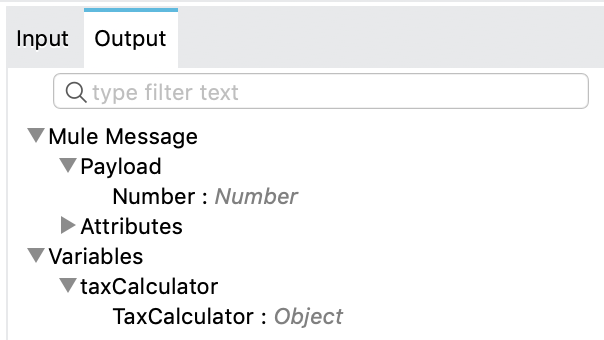
In the example, DataSense discovers that `calculateTax` returns a `Number`, so the output metadata
for the `invoke` operation looks like:
For a complete example of using `invoke` in Studio, see
[New and Invoke Operations in Studio](#studio_example).
When configuring the constructor arguments in the `args` parameter, the keys of the map determine
how the parameters are passed to the constructor.
To reference the parameters by name (`price`, `percentAdditionalTax`, etc.), the Java class
containing the method or constructor has to be compiled using the
[`-parameters`](https://docs.oracle.com/javase/tutorial/reflect/member/methodparameterreflection.html)
compiler flag. If the class was not compiled with this flag, the same parameters must be referenced
in the declared order and with the canonical names (`arg0`, `arg1`, etc.).
In this case:
```xml
#[{
arg0: 25.5,
arg1: 2
}]
```
If the Java classes are defined in a Studio project, the Maven compiler plugin must be configured in
the `pom.xml` to compile Java classes with the `-parameters` flag:
```xml
org.apache.maven.pluginsmaven-compiler-plugin3.8.1-parameters
```
## Invoke Methods with DataWeave
The Java module also has a DataWeave function (`Java::invoke`) to provide the same functionality as
the `invoke` operation but inside a DataWeave expression. This practice is especially helpful for
methods that return `boolean` values. The function takes as arguments the full class name of an
object, the instance method to execute, the instanced object, and the method arguments as a map.
In the Java class in [Invoke Instance Methods](#invoke-instance-methods), this examples creates a
new instance of `TaxCalculator` and, rather than use the Java module `invoke` operation to call the
`isTaxFree(Double)` method, it embeds the DataWeave function in a
[Choice](https://docs.mulesoft.com/mule-runtime/latest/choice-router-concept) component:
```xml
```
## Invoke Static Methods
An example on how to invoke static Java methods:
```xml
#[{
arg0: 180
}]
```
## New and Invoke Operations in Studio
In Anypoint Studio, you can write or load a Java package into a project, configure Java operations
within one or more a flows, and run the Mule app in which the operations reside.
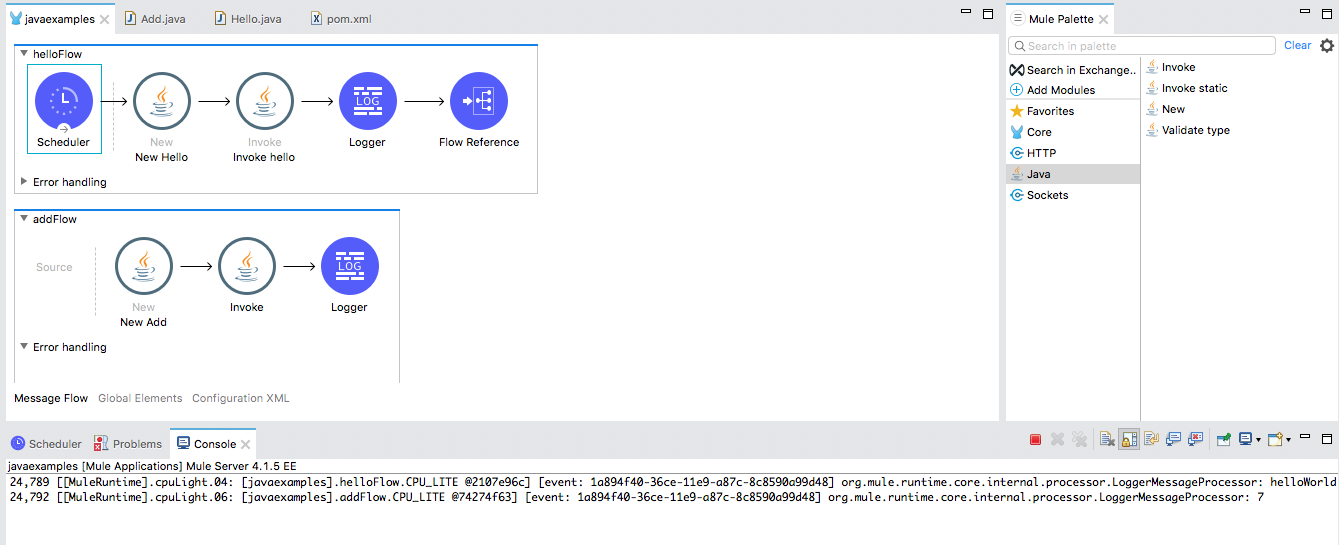
This example task sets up two flows in a Mule app:
1. Write a small Java package: `com.examples`.
2. Write two simple Java classes that contain instance methods: `Hello.java` and `Add.java`.
3. Use the Apache Maven compiler plug-in to compile the classes in a way that allows for the use of
named parameters in your configurations, instead of `arg0`, `arg1`, and so on.
4. Use the **New** operation in the Java module to instantiate the `Hello` and `Add` objects and to
access named parameters in the instance methods.
5. Use the **Invoke** operation in the Java module to invoke the `hello()` and `add(3,4)` instance
methods.
6. Run the Mule app to execute the **New** and **Invoke** operations in Studio.
Assume that you want to invoke methods in two simple Java classes:
Hello class with an instance method
```java
package com.examples;
public class Hello {
//Constructor
public Hello() { }
//Instance method: hello()
//Returns the string "helloWorld".
public String hello() {
return "helloWorld";
}
}
```
Add a class with a parameterized instance method
```java
public class Add {
public int x = 0;
public int y = 0;
//Constructor
public Add(int numA, int numB) {
x = numA;
y = numB;
}
//Instance method with parameters: add(int x, int y).
//Returns the sum of inputs x and y.
public int add(int x, int y) {
return x + y;
}
}
```
To create a Mule app that invokes `hello()` and `add()`:
1. In Studio, select **File** > **New** > **Project**, provide a project name (`javaexamples`), and
click **Finish**.
2. Create a Java package for your classes by right-clicking your Mule project’s `src/main/java`
directory in **Package Explorer**.
3. Select **New** > **Package**.
4. Provide the package name `com.examples` in the **Name** field.
5. Click **Finish**.
Make sure that the package `com.examples` appears under the `src/main/java` directory.
6. Add the Java code for the `Hello` and `Add` classes to your new `com.examples` package by
right-clicking your new `com.examples` package in Studio, and select **New** > **Class**.
7. In the **Name** field, type `Hello.java` for the `Hello` class, and click **Finish**.
8. Copy and paste the `Hello` class content into the `Hello.java` file from the listing that
follows.
The entire file looks like this, including `package com.examples` at the top:
```java
package com.examples;
public class Hello {
//Constructor
public Hello() { }
//Instance method: hello()
//Returns the string "helloWorld".
public String hello() {
return "helloWorld";
}
}
```
9. Right-click your new `com.examples` package in Studio, and select **New** > **Class**.
10. In the **Name** field, typ the `Add.java` value.
11. Click **Finish**.
12. Copy and paste the class content into the `Add.java` file.
The entire file looks like this, including `package com.examples` at the top:
```java
package com.examples;
public class Add {
public int x = 0;
public int y = 0;
//Constructor
public Add(int numA, int numB) {
x = numA;
y = numB;
}
//Instance method with parameters: add(int x, int y).
//Returns the sum of inputs x and y.
public int add(int x, int y) {
return x + y;
}
}
```
13. Click the **javaexamples** tab in Studio to return to your Mule app, and set up a flow for the
`Hello` class and the `hello()` method:
1. In **javaexamples**, provide a trigger for the flow by dragging a **Scheduler** component
into the Studio canvas.
Optional: You can also set the frequency for the **Scheduler** component to a value other
than the default: for example, set **Frequency** to `10` and **Time unit** to `SECONDS`.
2. If the Java module is not already available in your Mule palette, click **Add Module** and
drag the Java module into the left column of the palette.
3. Click the Java module, place its **New** operation to the right of the Scheduler in the
flow, and then double-click and configure the operation:
- **Class**: `com.examples.Hello`
- **Constructor**: `Hello()`
Do not click **fx** for the **Constructor** setting.
4. Place the **Invoke** operation to the right of the **New** operation in the flow, and
double-click and configure the operation:
- In the **Instance** field, click **fx**, and set the value to `payload`.
- **Class** field: `com.examples.Hello`
- **Method** field: `hello()`
Do not click **fx** for the **Method** setting.
5. Find and drag a **Logger** component to the right of the **Invoke** operation in the flow,
and in its **Message** field, click **fx** and type `payload`.
6. Find and drag a **Flow Reference** component to the right of the **Logger** component, and
then double-click the component and set the **Flow Name** field to `javaexamplesFlow1`, the
name of a new flow that you create in the next step.
14. Set up a new flow by dragging a new **Flow** component below the existing flow, making sure that
its name is `javaexamplesFlow1` (so that your **Flow Reference** setting in the other flow
matches the name of this new flow).
1. Click the Java module, then drag a **New** operation to the **Process** section of your new
flow, `javaexamplesFlow1`, and provide the following configuration for the operation:
- **Args**: `{ "numA" : 5, "numB" : 6}` for the arguments.
- **Class**: `com.examples.Add`
- **Constructor**: `Add(int,int)`
Do not click **fx** for the **Constructor** setting.
2. Place an **Invoke** operation to the right of the **New** operation in your new flow, and
provide the following configuration:
- Click **fx**, and set the **Instance** field: `payload`.
- **Args**: `{ "x" : 3, "y" : 4}` for the arguments to process during the invocation
- **Class**: `com.examples.Add`
- **Method**: `add(int,int)`
Do not click **fx** for the **Method** setting.
3. Continue with the **New** operation, and click the **Advanced** configuration link, and set
the **Output** value to a target variable that stores the payload of the Invoke operation:
- **Target Variable**: `mySum`
- **Target Value**: `payload`
This step shows how to pass the payload to a target variable if you ever need to do so.
4. Place a **Logger** component to the right of the **Invoke** operation in the new flow, click
**fx**, and set the **Message** field to `vars.mySum`.
This **Logger** setting is for displaying the payload stored in the target variable in the
Studio console.
15. To make any named parameters readable, add XML for the Mule compiler plugin to the `pom.xml`
file for your Mule project:
1. In the **Package Explorer**, double-click `pom.xml`, located at the bottom the
**javaexamples** project.
2. Add the Mule compiler plugin XML between the `` elements
in the `pom.xml` file, retaining any plugins that are already defined there.
```xml
```
Paste this XML into your POM file:
```xml
org.apache.maven.pluginsmaven-compiler-plugin3.8.1true1.81.8
```
```xml
```
If you try to use named parameters in the **New** operation without adding the Maven
compiler plugin XML, the **New** operation fails with a message similar to:
`Failed to instantiate Class [com.examples.Add] with arguments [Integer numA, Integer numB]. Expected arguments are [int arg0, int arg1]`
16. Return to your Mule app by clicking the **javaexamples** tab in Studio.
17. Run the Mule app by selecting **Run** > **Run** from the top set of menus.
18. Once the project deploys successfully, check the **Console** for the expected output.
You should see something like this in the console (shortened for readability):
```txt
INFO 2019-09-22 09:21:32 ... [event: 4c31f...] ... LoggerMessageProcessor: helloWorld
INFO 2019-09-22 09:21:32 ... [event: 4c31f...] ... LoggerMessageProcessor: 7
```
- `helloWorld` is the output value for **javaexamplesFlow**.
- `7` is the output value for **javaexamplesFlow1**.
## See Also
- [Work With Throwables](https://docs.mulesoft.com/java-module/latest/java-throwable)
- [Java Module Argument Transformation](https://docs.mulesoft.com/java-module/latest/java-argument-transformation)
- [Java Module Reference](https://docs.mulesoft.com/java-module/latest/java-reference)