---
schema_version: "1"
id: 25e034884d33c81ed03c496d30ca42264380cb814279fc99203f0ceee336dd9a
title: Read a File Using the File Connector
collection: mulesoft
version: current
locale: en-us
portal_url: https://docs.salesforce.com/mulesoft/current/en-us/file-connector/latest/file-read.md
canonical_url: https://docs.mulesoft.com/file-connector/latest/file-read
source_site: docs.mulesoft.com
content_type: documentation
content_hash: 7a2bce5875ead98c6c4e38331187eea7ff41c7b24521efbb6668758e33260d64
description: MuleSoft Documentation Site
release: "1.5"
latest: true
---
---
product: File Connector
version: 1.5
is-latest-version: true
---
# Read a File Using the File Connector
> For the full documentation index, see: https://docs.mulesoft.com/llms.txt
Using Anypoint Connector for File (File Connector), the transport can read a file at any point in
the flow.
The only required parameter for the `Read` operation is the path to the file to be read. The path
can be either the full path to the file or a relative path. The path uses the working directory
value defined in the configuration referenced by the `config-ref` parameter. In Anypoint Studio, you
can set the path in the **File path** field. In XML, use the **path** attribute in the `
```
This example reads a file using the full path:
```xml
```
In Studio, click the browse button (…) to locate the file, for example:
`/Users/me/myfile`
In XML, use the **path** attribute to specify the path to the file, for example:
``
## Return Information
The `Read` operation returns a message with:
- The file’s content as the payload
- The file’s metadata in the message attributes, metadata (such as name, creation time, size, and so
on) in the message attributes.
If the file does not exist, the `Read` operation throws a `FILE:ILLEGAL_PATH` error. Note that the
operation does not read directories.
> [!NOTE] The `Read` operation (as other operations that return non-void values) supports target
> parameters. See [Mule Target Variables](https://docs.mulesoft.com/mule-runtime/latest/target-variables).
## Configure a Relative Path
If numerous `Read` operations (or any other file operations) in the same Mule app share part of
their path, their base path can be extracted into a [file configuration](https://docs.mulesoft.com/file-connector/latest/#connection_settings) for
better reuse.
For example, to access two files whose full paths are `/Users/Documents/Examples/manual.txt` and
`/Users/Documents/Examples/readme.txt`, you can define the part of the path that is the same in a
configuration, for example:
```xml
```
The resulting `Read` operations that reference the configuration would be:
```xml
```
## MIME Types and Encoding
Each connector tries to determine a file’s MIME type from its extension. You can force the MIME type
to a different value with the **MIME Type** (`outputMimeType`) parameter.
The same process works for encoding. By default, the connector assumes that the default encoding in
the Mule runtime matches the MIME type of the file, however, you can set the encoding through the
**Encoding** (`outputEncoding`) parameter.
## Why MIME Types Matter
DataWeave expressions are embeddable inside operations that generate payloads and other values.
Having the correct MIME type set helps DataWeave auto-assign types and also generate the correct
outputs. Also, maximizing the use of DataSense’s functionality improves the user experience.
## Access Files Defined in a Mule Application
While developing Mule apps, you can save folders and files in the `resources` folder. When the app
is deployed, those folders and files are copied to the directory defined by the `${app.home}`
property.
For example, if you want to define a folder named `MyFiles` in the `resources` folder, and a file
named `Example.txt` inside of the `MyFiles` folder, use this project structure:
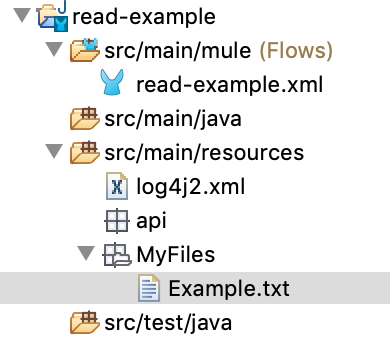
In the runtime, the path to access the file is: `${app.home}/MyFiles/Example.txt`
To read the file, define the following configuration:
```xml
```
Configure the `Read` operation like this:
```xml
```
> [!WARNING] As mentioned earlier, each time the application is deployed, the contents from the
> `src/main/resources` folder are copied to the `${app.home}` directory each time the application is
> deployed, any changes made to those files during runtime are lost once the application is stopped
> or redeployed. For this reason, it is recommended that you put only the files needed for reading
> during the application’s execution in the `resource` folder.
## File Locking
You can set the `lock` parameter to `true` to prevent other processes from accessing a file while it
is being read. However, because it is provided by the host file system, the lock’s behavior might
change depending on the mounted drive and the operating system on which Mule is running. You must
take that into consideration before relying on this lock.
If the file is already locked by someone else, the connector will not be able to lock it, and the
operation throws a `FILE:FILE_LOCK` error.
The lock is automatically released when one of the following occurs:
- The Mule flow that locked the file ends.
- The file’s content is fully read.
The following is an example of locking:
```xml
```
## Modify the Output MIME Type and Encoding
You can use the `outputEncoding` and `outputMimeType` parameters to change the MIME type or the
encoding of the payload that the `Read` operation outputs. This does not transform the file’s
content, it just overrides the MIME type or encoding information, for example:
```xml
```
## Time Between Size Checks Parameter
If you want to read the file contents returned by the `Read` operation, but you are not sure if the
file is still being written to, you can use the `TimeBetweenSizeChecks` parameter, which works with
the `TimeBetweenSizeCheckUnit` parameter. Combined, these two parameters perform two size checks:
- One when the flow reaches a point where the stream is about to be consumed. The time check is not
done in the `Read` operation because `Read` returns a lazy stream pointing to the file’s content,
so it makes sense to do the size check only when the stream is about to be consumed.
- Another check is performed after the wait time set by the `TimeBetweenSizeChecks` and
`TimeBetweenSizeCheckUnit` parameters
If both size checks return the same file size, then the stream is consumed successfully. If the two
size checks return different file sizes, then the file is still being written to, so the stream is
not consumed and the operation fails with an error.
You can use the `Read` operation with size check parameters and then consume the output stream in a
[Logger component](https://docs.mulesoft.com/mule-runtime/latest/logger-component-reference).
```xml
```
Note that the 15 seconds check happens when the `logger` component executes, not at the `Read`
operation.
## Repeatable Streams
The **List** operation makes use of the repeatable streams functionality. The operation returns a
list of messages, where each message represents a file in the list and holds a stream to the file. A
stream is repeatable by default.
For more information, refer to [Streaming in Mule Apps](https://docs.mulesoft.com/mule-runtime/latest/streaming-about).